 Скачать презентацию Switches — Juliann Bergin Making IT accessible to
e9f01c0cdc325a2b80ba7e513b8e346a.ppt
- Количество слайдов: 31




Switches - Juliann Bergin Making IT accessible to all
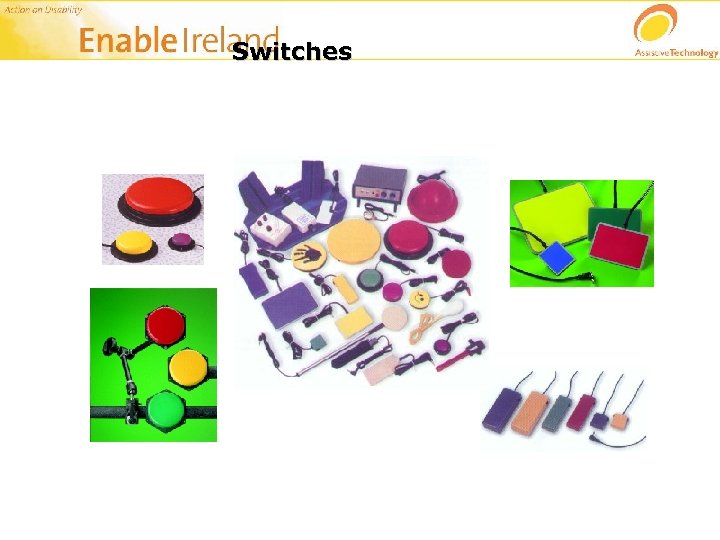
Switches
During this session we will: Learning objectives…… • Consider the different types of switches • Consider how a switch is positioned • One switch or two? • Interfacing switches with a PC • Broad guidelines for Switch Assessments • Switch Based Activities: Cause and Effect, Making Choices, On Screen Keyboard with Mouse Emulation • Hands on Exercises
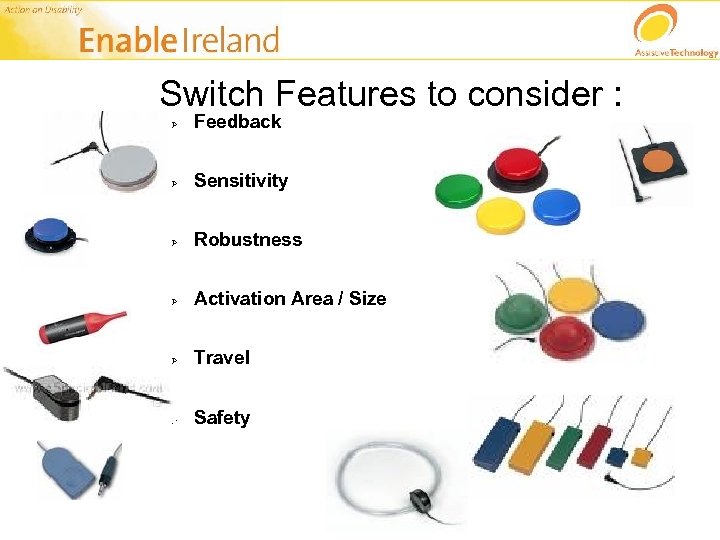
Switch Features to consider : Ø Feedback Ø Sensitivity Ø Robustness Ø Activation Area / Size Ø Travel Ø Safety
Types of switches spec switch joggle switches click switch leaf switch cushion switch micro light switch buddy buttons chin switch jelly bean wobble switch big red switch star board cup switch wafer board plate switch penta board Pal pads chin switch array etc, etc!
Switch Action can be: Ø Momentary/direct Ø Latching Ø Timed
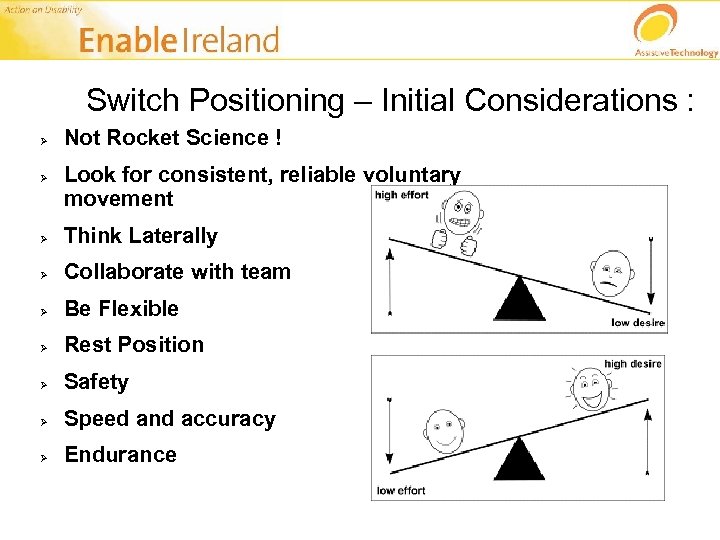
Switch Positioning – Initial Considerations : Ø Ø Not Rocket Science ! Look for consistent, reliable voluntary movement Ø Think Laterally Ø Collaborate with team Ø Be Flexible Ø Rest Position Ø Safety Ø Speed and accuracy Ø Endurance
Switch Positioning - The client needs to: Ø Hit the switch when they want to Ø Not hit the switch when they don't want to Ø Use the least possible physical effort Ø Ø Use the switch without causing physical harm Be able to maintain attention on what they are controlling
The importance of positioning We often find that the positioning of the switch is just as important as the switch itself. For example, consider the individual’s rest position and try: Switches above the hand – lift to activate Switches in front of the hand – push forward to activate Switch control with other parts of the body
One Switch or Two? Ø Ø Ø One switch Make something happen on screen. User needs to build connection between switch press and action on screen (not always obvious) Example Power. Point, Windows Media Player One switch with Auto Scanning is powerful but may require constant attention to the screen Two switches More versatile but client needs to be clear on the different use of each switch. More than 2 switches. Ø Adds versatility but where to put switches?
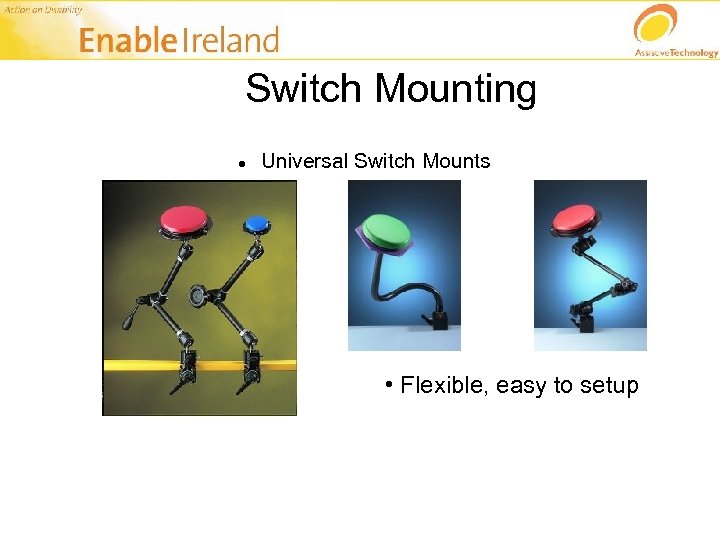
Switch Mounting Universal Switch Mounts • Flexible, easy to setup
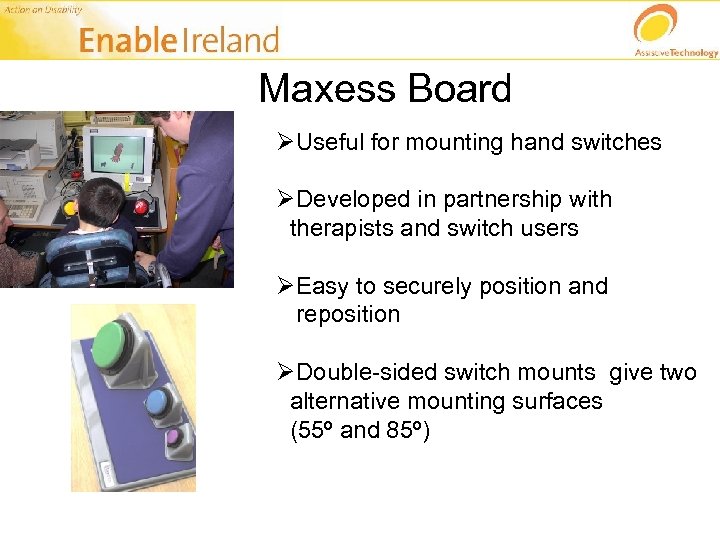
Maxess Board ØUseful for mounting hand switches ØDeveloped in partnership with therapists and switch users ØEasy to securely position and reposition ØDouble-sided switch mounts give two alternative mounting surfaces (55º and 85º)
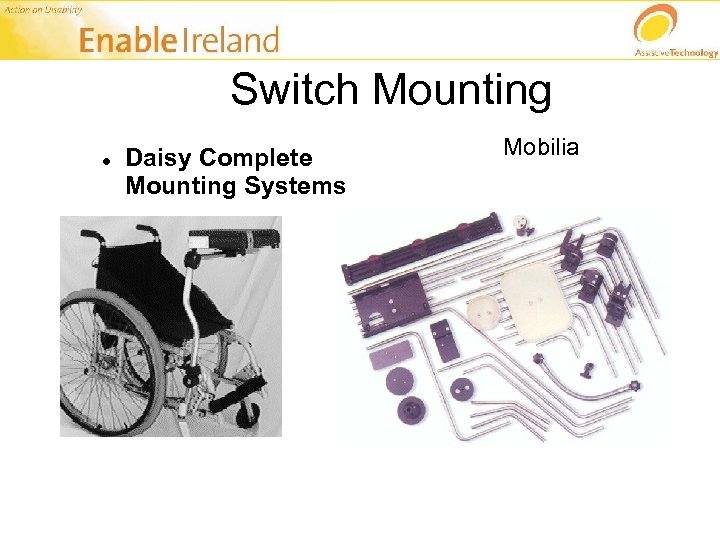
Switch Mounting Daisy Complete Mounting Systems Mobilia
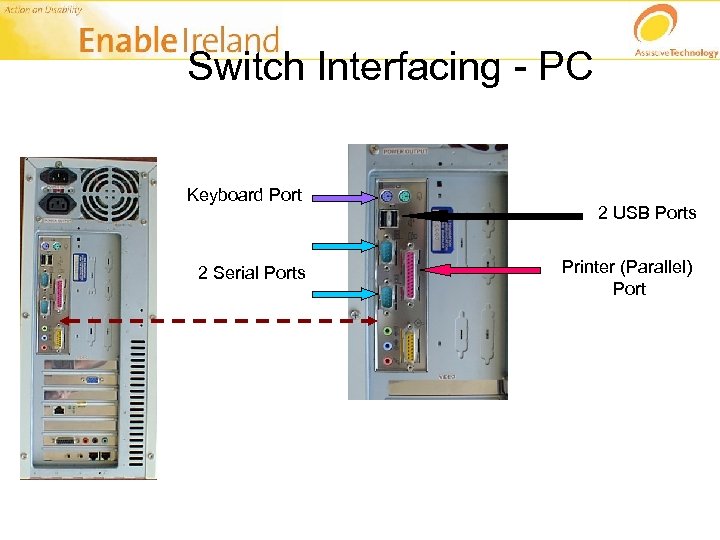
Switch Interfacing - PC Keyboard Port 2 Serial Ports 2 USB Ports Printer (Parallel) Port
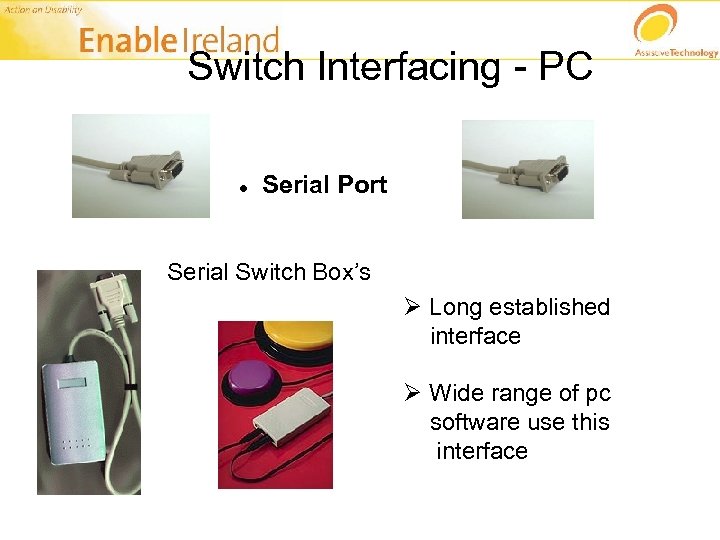
Switch Interfacing - PC Serial Port Serial Switch Box’s Ø Long established interface Ø Wide range of pc software use this interface
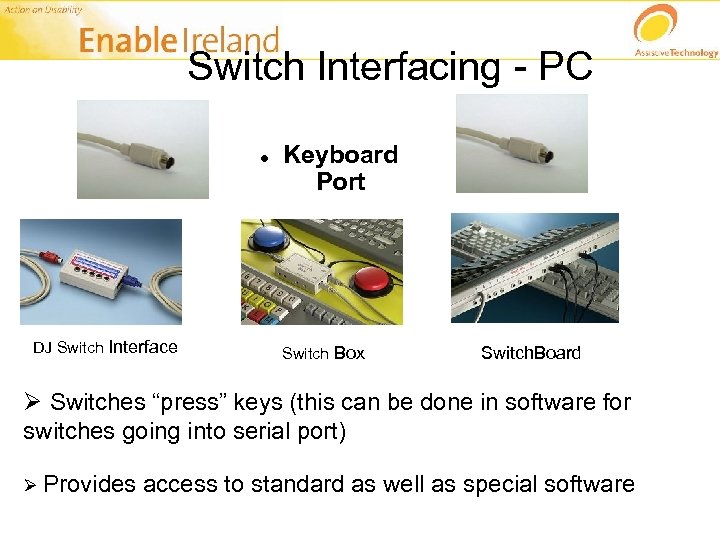
Switch Interfacing - PC DJ Switch Interface Keyboard Port Switch Box Switch. Board Ø Switches “press” keys (this can be done in software for switches going into serial port) Ø Provides access to standard as well as special software
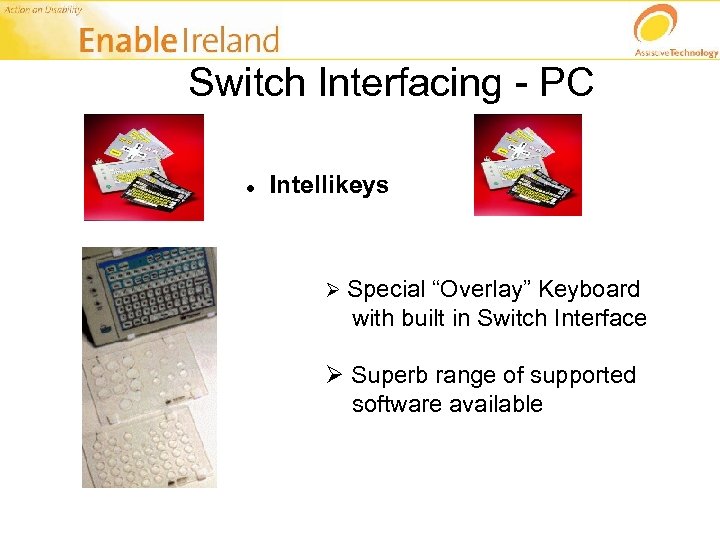
Switch Interfacing - PC Intellikeys Ø Special “Overlay” Keyboard with built in Switch Interface Ø Superb range of supported software available
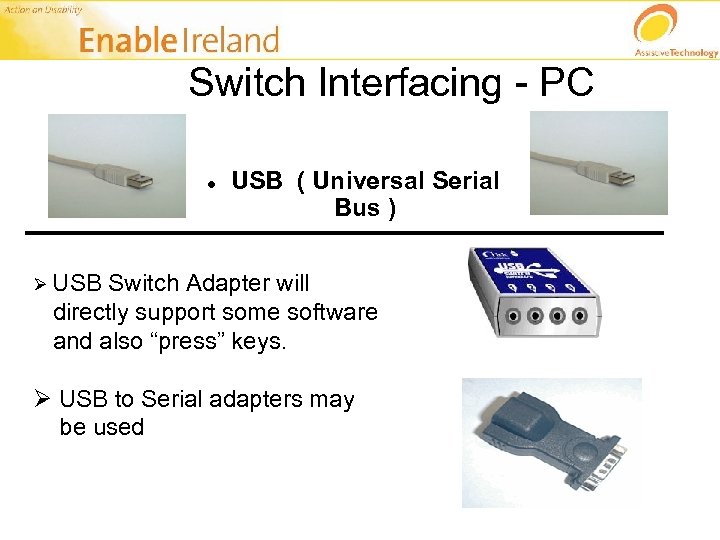
Switch Interfacing - PC USB ( Universal Serial Bus ) _____________________ Ø USB Switch Adapter will directly support some software and also “press” keys. Ø USB to Serial adapters may be used
Switch – Assessment Guidelines • Use Common Sense / Practical Approach Ø Always discuss with Service User and team Ø Computer may hinder assessment – be creative ! Ø Not always a right or wrong with switch placement Ø Sometimes contrasting switches and positions work Ø If unsure – recommend a flexible option.
The Top Ten Switch Rules Rule 1 – Maintain switch position. Rule 2 – Label switches. Rule 3 – Use language that focuses on the use of the switch i. e. “Turn on the music” rather than “Hit the switch”. Rule 4 – Where possible, switches should be mounted and not held. Rule 5 – The result of the switch activation should be proximal in time and space.
The Top Ten Switch Rules Rule 6 – Remove switches when not in use or disconnected. Rule 7 – Maintain the switch style for the same activity/type of activity. Rule 8 – Switches should not be connected directly to dangerous objects. Rule 9 – Provide a sufficient response time. Rule 10 – Maintain the goals.
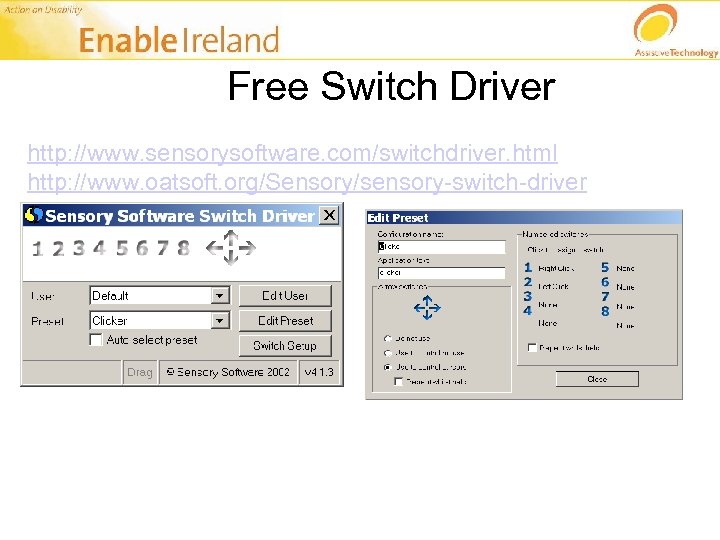
Free Switch Driver http: //www. sensorysoftware. com/switchdriver. html http: //www. oatsoft. org/Sensory/sensory-switch-driver
Activities and Switches Ø Ø Ø Non Computer Toys – lights, bubble tubes etc. Use with battery adapters/latch boxes/power links Simple Communication Aids – Big Mack etc. Cause and Effect. Hippo. Early Switch Games Making Choices. Talking Faces. Inclusive CD Player.
Switches and Grids Ø Scanning a grid to choose Activities Ø Scanning a grid to write Ø Scanning a grid to communicate
Scanning Styles on a Grid Ø Row then column Ø Simple Scan Ø Column then row Ø Block scan
Practical Session Switch Access for: Written Expression Communication Using Clicker 5 Grid 2 EZ Keys
Clicker 5
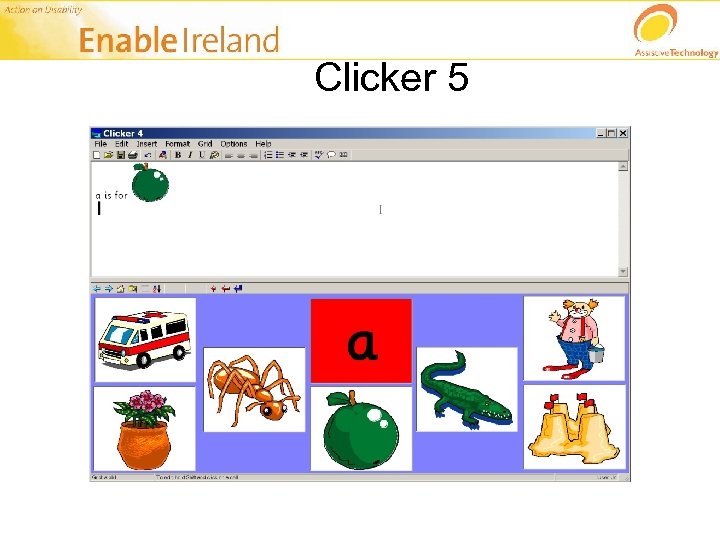
Clicker 5 Ø Used in schools can be accessed by mouse, touchscreen, switches Ø Lots of free resources available on the internet Ø Includes Clicker Writer talking Word Processor Ø Comes with Tutorial in designing grids Ø Good free online (novice) tutorial: http: //senit. org/software/clicker 4/index. htm Ø Has pre-set templates to set up-talking book etc. Ø Can download and share grids online
The Grid 2
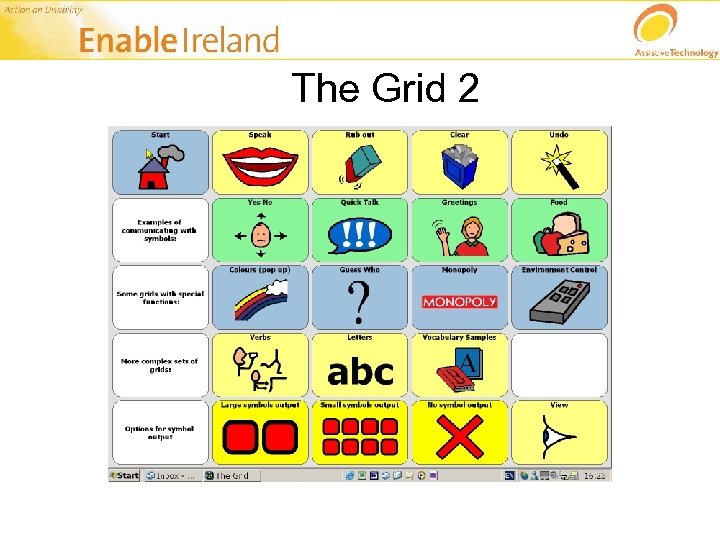
The Grid 2 Ø Ø Can be accessed by mouse and switches Lots of options – communication device, surf the internet, listen to E books etc Ø Switch Configurations – very versatile Ø Easy to setup Grids Ø Lack of exposure in schools
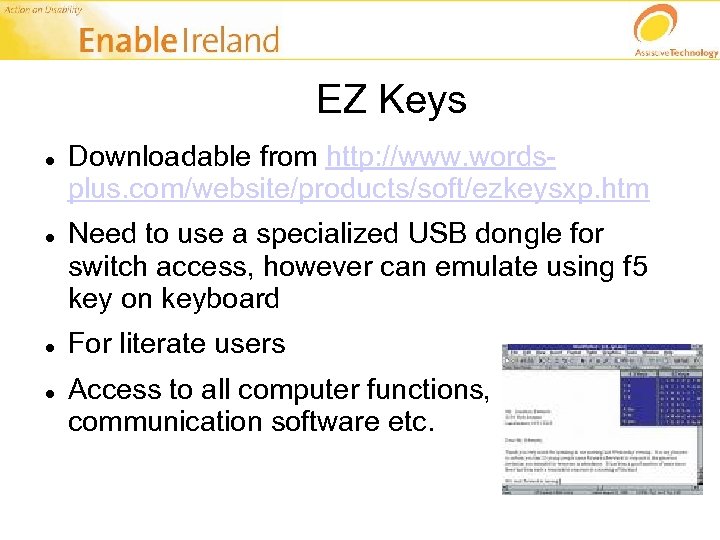
EZ Keys Downloadable from http: //www. wordsplus. com/website/products/soft/ezkeysxp. htm Need to use a specialized USB dongle for switch access, however can emulate using f 5 key on keyboard For literate users Access to all computer functions, communication software etc.
Скачать презентацию Switches — Juliann Bergin Making IT accessible to
e9f01c0cdc325a2b80ba7e513b8e346a.ppt