


 Скачать презентацию Supercharge Your Office 2007 Applications with VSTO Paul
f0a53fc8897d2652bd0bc7adecf4a299.ppt
- Количество слайдов: 26
 Supercharge Your Office 2007 Applications with VSTO Paul Addison Associate Professor Computer Information Systems Ivy Tech Community College Lafayette, Indiana
 What is VSTO? Ø Visual Studio Tools for Office Ø Uses power and controls of Visual Basic Ø Lets you program a Word or Excel document Ø User does not need Visual Basic to run it Ø Now packaged with Visual Studio 2008 Ø Includes a visual ribbon designer for Office 2007
 Visual Studio controls Ø Drop-down boxes Ø Date-time pickers (calendars) Ø Buttons Ø Labels Ø Text boxes Ø Other VB controls you know and love
 How it works Ø You embed controls into Word or Excel Ø You use Visual Basic to program the actions Ø You can combine: • Results of user input: text boxes, drop down boxes • Results of calculations: programmed • Text for output combined with results Ø You need a working knowledge of VB 2008
 Some examples Ø Vehicle Sales Contract in Word • See Enrichment Chapter of Corrine’s VB 2008 textbook Ø Printable Invoice in Word • That’s what we’re going to do! Ø Sales Results in Excel • Included in this presentation • We will do it if we have time
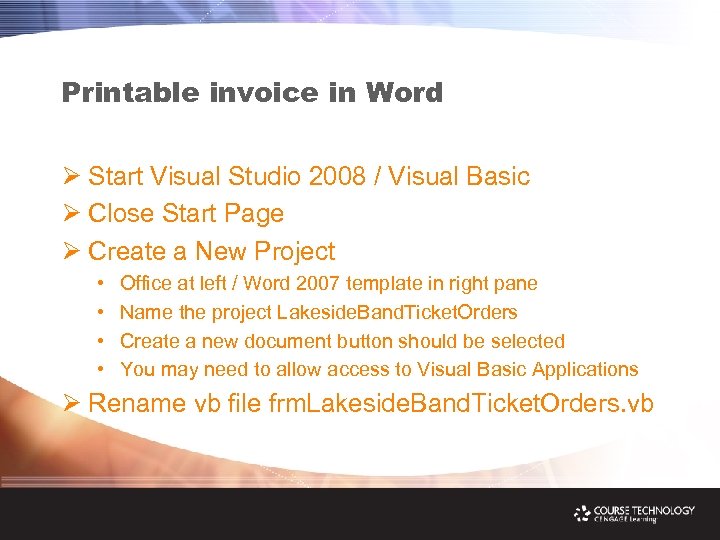 Printable invoice in Word Ø Start Visual Studio 2008 / Visual Basic Ø Close Start Page Ø Create a New Project • • Office at left / Word 2007 template in right pane Name the project Lakeside. Band. Ticket. Orders Create a new document button should be selected You may need to allow access to Visual Basic Applications Ø Rename vb file frm. Lakeside. Band. Ticket. Orders. vb
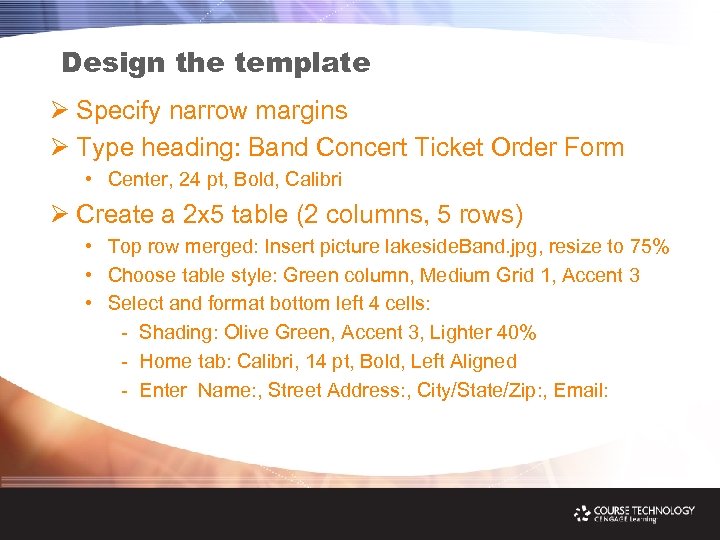 Design the template Ø Specify narrow margins Ø Type heading: Band Concert Ticket Order Form • Center, 24 pt, Bold, Calibri Ø Create a 2 x 5 table (2 columns, 5 rows) • Top row merged: Insert picture lakeside. Band. jpg, resize to 75% • Choose table style: Green column, Medium Grid 1, Accent 3 • Select and format bottom left 4 cells: - Shading: Olive Green, Accent 3, Lighter 40% - Home tab: Calibri, 14 pt, Bold, Left Aligned - Enter Name: , Street Address: , City/State/Zip: , Email:
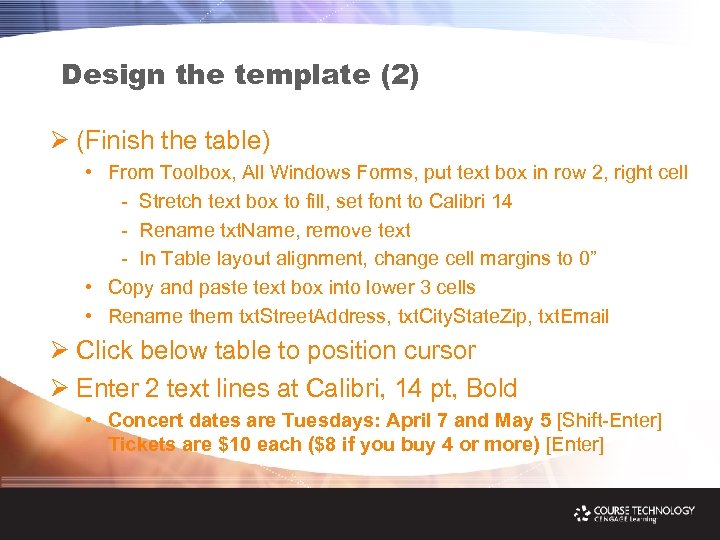 Design the template (2) Ø (Finish the table) • From Toolbox, All Windows Forms, put text box in row 2, right cell - Stretch text box to fill, set font to Calibri 14 - Rename txt. Name, remove text - In Table layout alignment, change cell margins to 0” • Copy and paste text box into lower 3 cells • Rename them txt. Street. Address, txt. City. State. Zip, txt. Email Ø Click below table to position cursor Ø Enter 2 text lines at Calibri, 14 pt, Bold • Concert dates are Tuesdays: April 7 and May 5 [Shift-Enter] Tickets are $10 each ($8 if you buy 4 or more) [Enter]
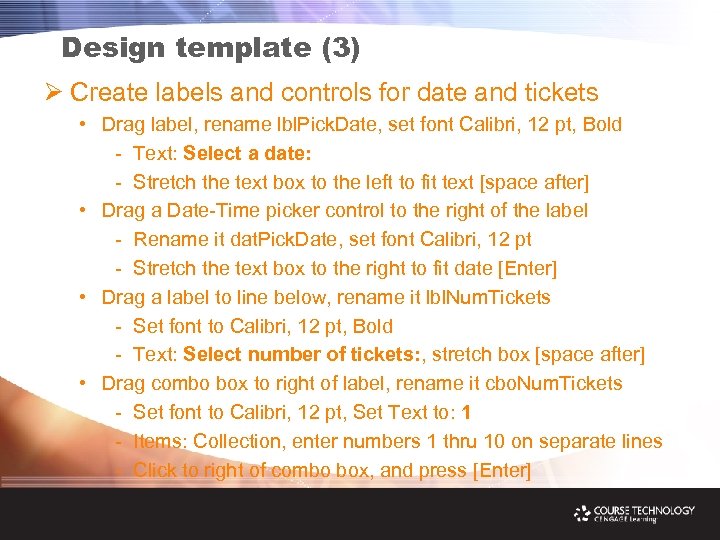 Design template (3) Ø Create labels and controls for date and tickets • Drag label, rename lbl. Pick. Date, set font Calibri, 12 pt, Bold - Text: Select a date: - Stretch the text box to the left to fit text [space after] • Drag a Date-Time picker control to the right of the label - Rename it dat. Pick. Date, set font Calibri, 12 pt - Stretch the text box to the right to fit date [Enter] • Drag a label to line below, rename it lbl. Num. Tickets - Set font to Calibri, 12 pt, Bold - Text: Select number of tickets: , stretch box [space after] • Drag combo box to right of label, rename it cbo. Num. Tickets - Set font to Calibri, 12 pt, Set Text to: 1 - Items: Collection, enter numbers 1 thru 10 on separate lines - Click to right of combo box, and press [Enter]
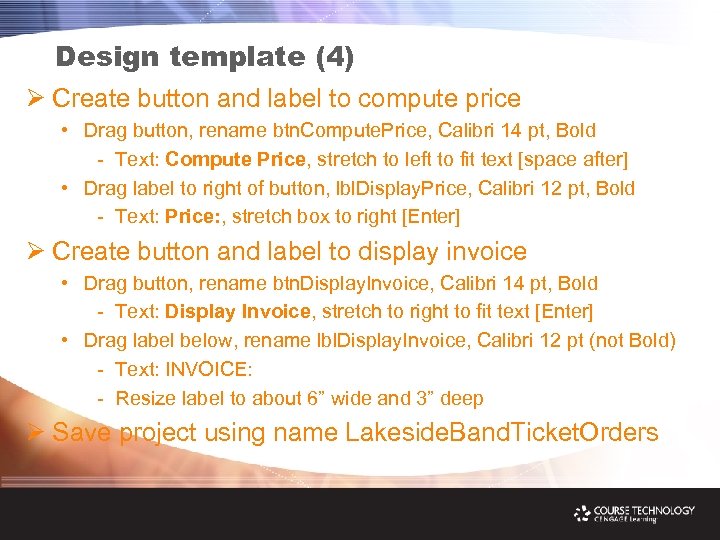 Design template (4) Ø Create button and label to compute price • Drag button, rename btn. Compute. Price, Calibri 14 pt, Bold - Text: Compute Price, stretch to left to fit text [space after] • Drag label to right of button, lbl. Display. Price, Calibri 12 pt, Bold - Text: Price: , stretch box to right [Enter] Ø Create button and label to display invoice • Drag button, rename btn. Display. Invoice, Calibri 14 pt, Bold - Text: Display Invoice, stretch to right to fit text [Enter] • Drag label below, rename lbl. Display. Invoice, Calibri 12 pt (not Bold) - Text: INVOICE: - Resize label to about 6” wide and 3” deep Ø Save project using name Lakeside. Band. Ticket. Orders
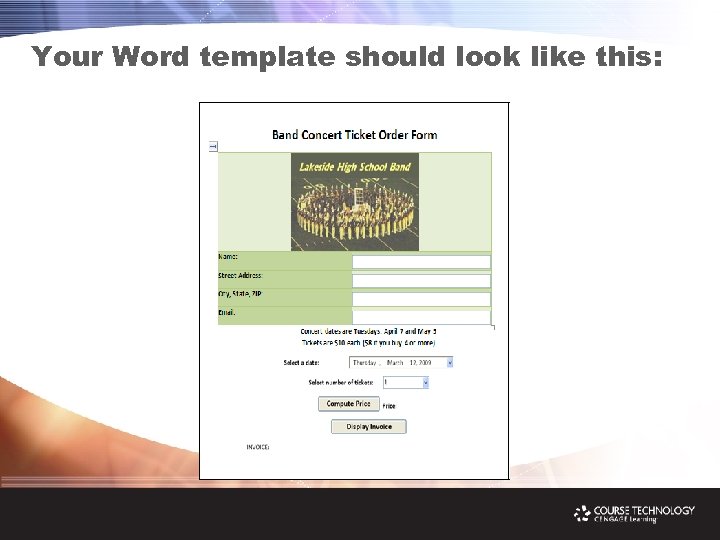 Your Word template should look like this:
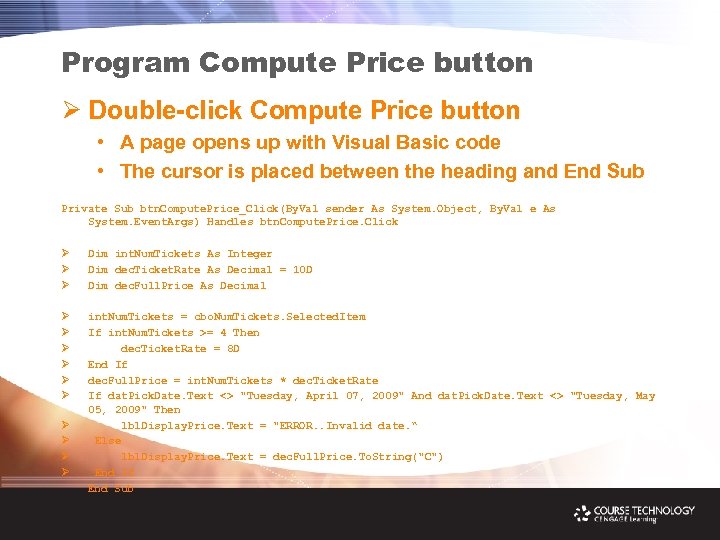 Program Compute Price button Ø Double-click Compute Price button • A page opens up with Visual Basic code • The cursor is placed between the heading and End Sub Private Sub btn. Compute. Price_Click(By. Val sender As System. Object, By. Val e As System. Event. Args) Handles btn. Compute. Price. Click Ø Ø Ø Dim int. Num. Tickets As Integer Dim dec. Ticket. Rate As Decimal = 10 D Dim dec. Full. Price As Decimal Ø Ø Ø int. Num. Tickets = cbo. Num. Tickets. Selected. Item If int. Num. Tickets >= 4 Then dec. Ticket. Rate = 8 D End If dec. Full. Price = int. Num. Tickets * dec. Ticket. Rate If dat. Pick. Date. Text <> "Tuesday, April 07, 2009" And dat. Pick. Date. Text <> "Tuesday, May 05, 2009" Then lbl. Display. Price. Text = "ERROR. . Invalid date. “ Else lbl. Display. Price. Text = dec. Full. Price. To. String("C") End If End Sub Ø Ø
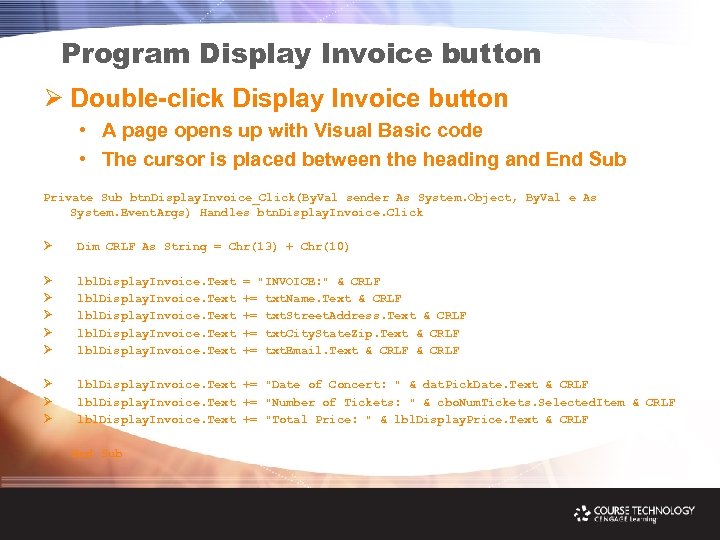 Program Display Invoice button Ø Double-click Display Invoice button • A page opens up with Visual Basic code • The cursor is placed between the heading and End Sub Private Sub btn. Display. Invoice_Click(By. Val sender As System. Object, By. Val e As System. Event. Args) Handles btn. Display. Invoice. Click Ø Dim CRLF As String = Chr(13) + Chr(10) Ø Ø Ø lbl. Display. Invoice. Text Ø Ø Ø lbl. Display. Invoice. Text += "Date of Concert: " & dat. Pick. Date. Text & CRLF lbl. Display. Invoice. Text += "Number of Tickets: " & cbo. Num. Tickets. Selected. Item & CRLF lbl. Display. Invoice. Text += "Total Price: " & lbl. Display. Price. Text & CRLF End Sub = "INVOICE: " & CRLF += txt. Name. Text & CRLF += txt. Street. Address. Text & CRLF += txt. City. State. Zip. Text & CRLF += txt. Email. Text & CRLF
 Save and Run Ø Click File / Save All to resave project Ø Click Start Debugging button (green triangle) Ø Word opens: Scale View to 100% Ø Enter info, select date and # tickets Ø Click Compute Price button • Price based on number of tickets should display Ø Click Display Invoice button • Invoice with name/address and ticket info should display Ø Save template as document, close Word
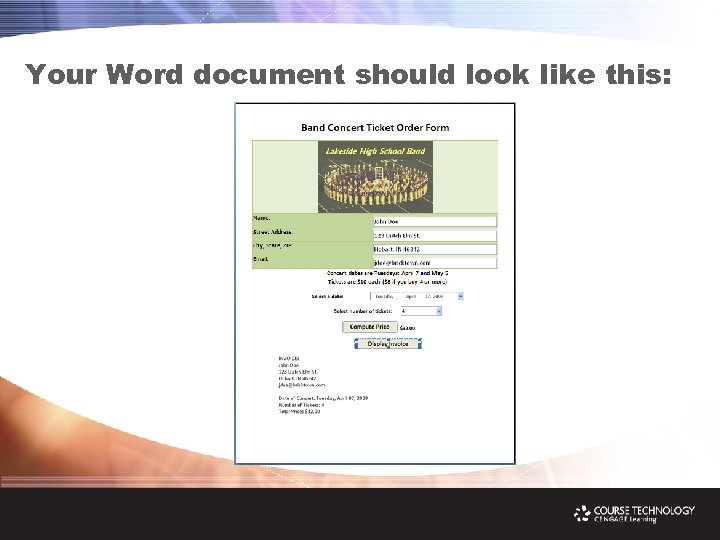 Your Word document should look like this:
 Issues Ø Please note: • We discovered that he certificate issue that prevented the program from compiling at the Course session can be bypassed by disabling User Account Security in the Control Panel. Ø Windows security issues • The dll file for the application must be moved with the document • You can change the Custom Property in _Assembly. Location 0 • You may have to also use the. NET Framework Configuration tool or wizard to grant Full. Trust to the dll • You need to grant access to Visual Basic Applications • May need to check “Sign the Click Once Manifests” • If you get a certificate management error, you may need to disable User Account Security (see above)
 Sales Results in Excel Ø Start Visual Studio 2008 / Visual Basic Ø Close Start Page Ø Create a New Project • • Office at left / Excel 2007 template in right pane Name the project Sales. Report. Winner Create a new document button should be selected You may need to allow access to Visual Basic Applications Ø Rename first vb file sheet. Sales. Report. Winner. vb
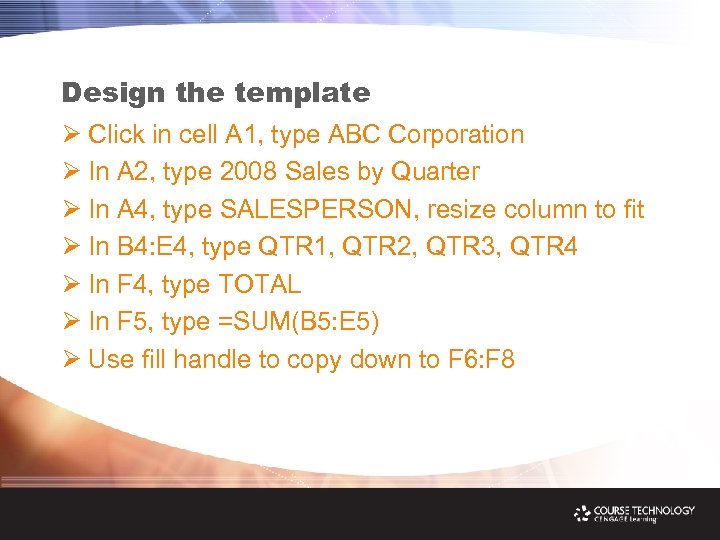 Design the template Ø Click in cell A 1, type ABC Corporation Ø In A 2, type 2008 Sales by Quarter Ø In A 4, type SALESPERSON, resize column to fit Ø In B 4: E 4, type QTR 1, QTR 2, QTR 3, QTR 4 Ø In F 4, type TOTAL Ø In F 5, type =SUM(B 5: E 5) Ø Use fill handle to copy down to F 6: F 8
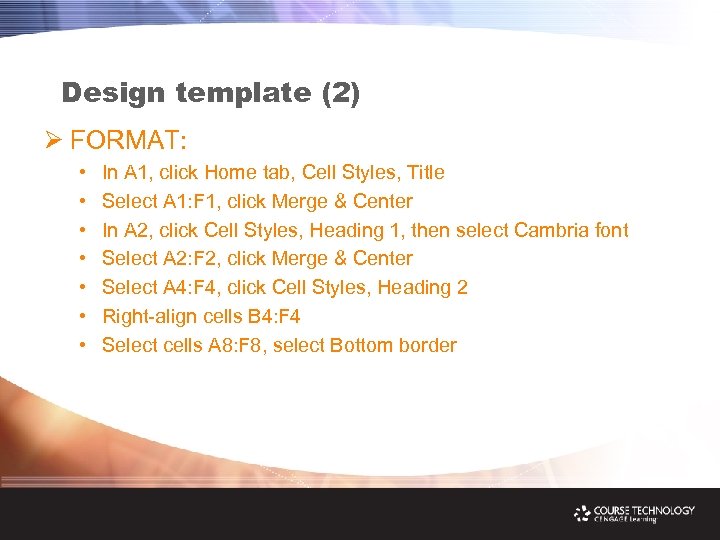 Design template (2) Ø FORMAT: • • In A 1, click Home tab, Cell Styles, Title Select A 1: F 1, click Merge & Center In A 2, click Cell Styles, Heading 1, then select Cambria font Select A 2: F 2, click Merge & Center Select A 4: F 4, click Cell Styles, Heading 2 Right-align cells B 4: F 4 Select cells A 8: F 8, select Bottom border
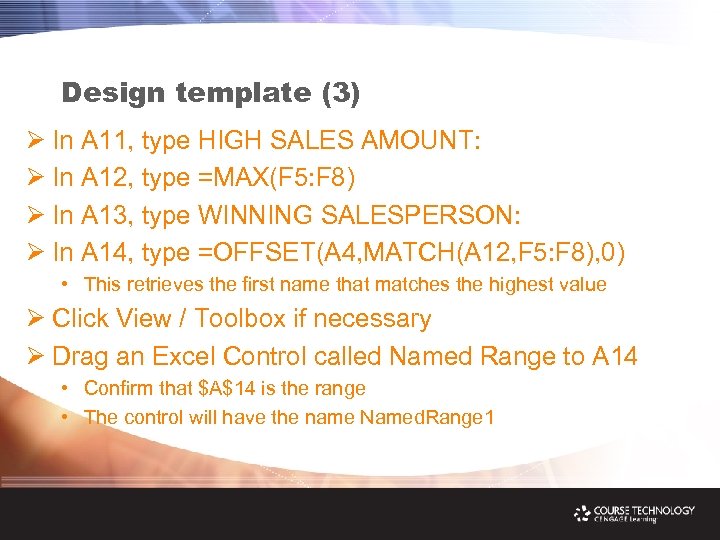 Design template (3) Ø In A 11, type HIGH SALES AMOUNT: Ø In A 12, type =MAX(F 5: F 8) Ø In A 13, type WINNING SALESPERSON: Ø In A 14, type =OFFSET(A 4, MATCH(A 12, F 5: F 8), 0) • This retrieves the first name that matches the highest value Ø Click View / Toolbox if necessary Ø Drag an Excel Control called Named Range to A 14 • Confirm that $A$14 is the range • The control will have the name Named. Range 1
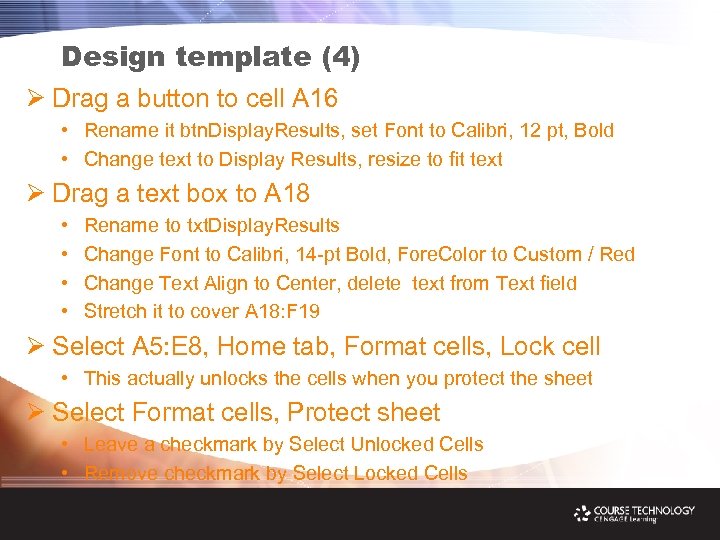 Design template (4) Ø Drag a button to cell A 16 • Rename it btn. Display. Results, set Font to Calibri, 12 pt, Bold • Change text to Display Results, resize to fit text Ø Drag a text box to A 18 • • Rename to txt. Display. Results Change Font to Calibri, 14 -pt Bold, Fore. Color to Custom / Red Change Text Align to Center, delete text from Text field Stretch it to cover A 18: F 19 Ø Select A 5: E 8, Home tab, Format cells, Lock cell • This actually unlocks the cells when you protect the sheet Ø Select Format cells, Protect sheet • Leave a checkmark by Select Unlocked Cells • Remove checkmark by Select Locked Cells
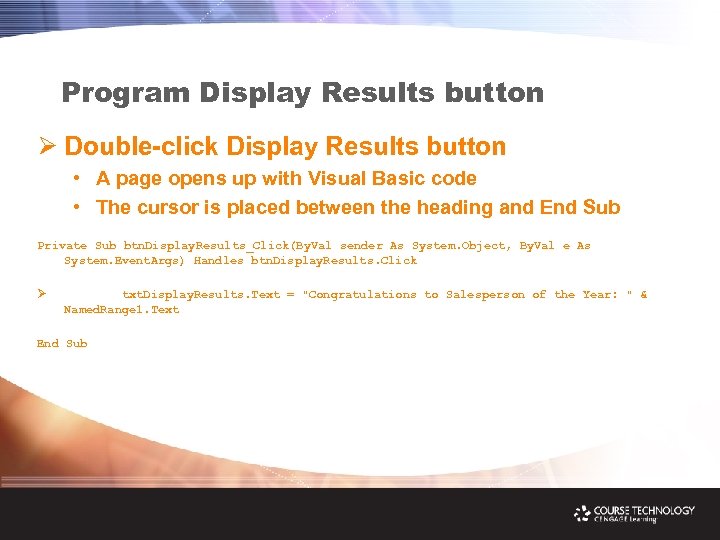 Program Display Results button Ø Double-click Display Results button • A page opens up with Visual Basic code • The cursor is placed between the heading and End Sub Private Sub btn. Display. Results_Click(By. Val sender As System. Object, By. Val e As System. Event. Args) Handles btn. Display. Results. Click Ø txt. Display. Results. Text = "Congratulations to Salesperson of the Year: " & Named. Range 1. Text End Sub
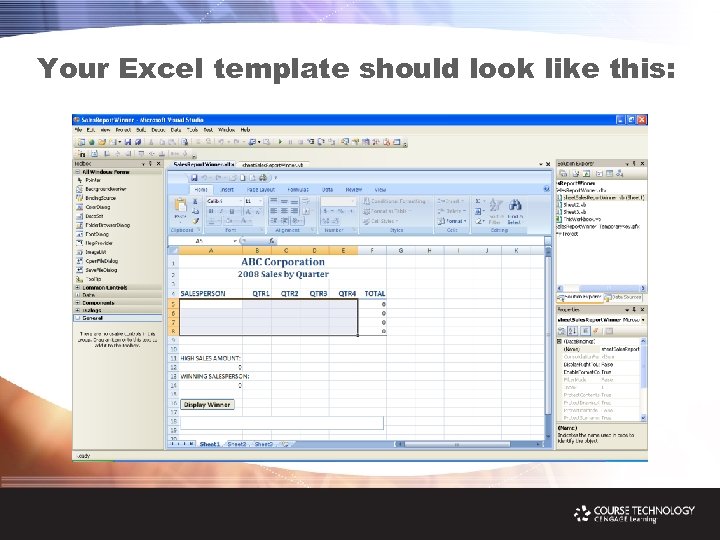 Your Excel template should look like this:
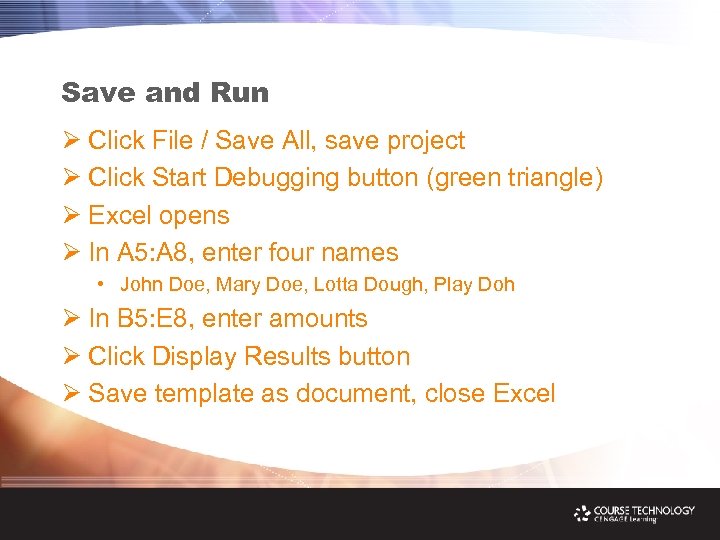 Save and Run Ø Click File / Save All, save project Ø Click Start Debugging button (green triangle) Ø Excel opens Ø In A 5: A 8, enter four names • John Doe, Mary Doe, Lotta Dough, Play Doh Ø In B 5: E 8, enter amounts Ø Click Display Results button Ø Save template as document, close Excel
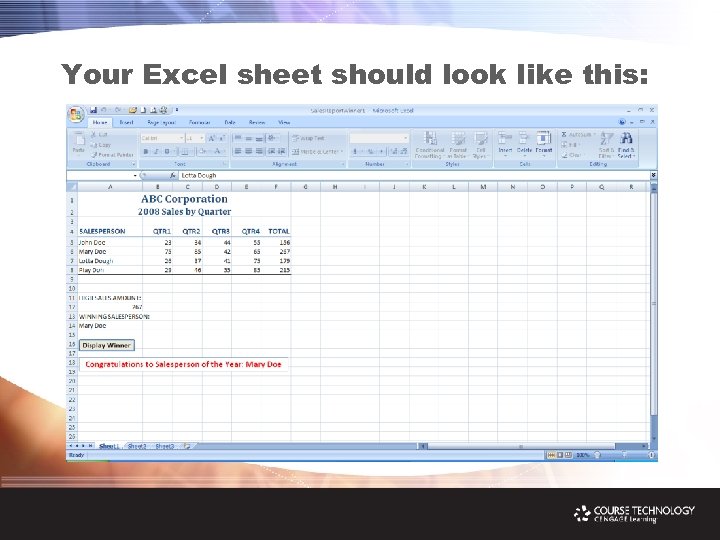 Your Excel sheet should look like this:
 Supercharge Your Office 2007 Applications with VSTO Paul Addison Associate Professor Computer Information Systems Ivy Tech Community College Lafayette, Indiana THANK YOU!