


 Скачать презентацию SUNGARD SUMMIT 2007 sungardsummit com Luminis Channels
6344e33df76aa8169c4149c1569364f6.ppt
- Количество слайдов: 49
 SUNGARD SUMMIT 2007 | sungardsummit. com Luminis Channels for Banner Presented by: Brad Vacura Sun. Gard Higher Education March 21, 2007 Course ID 879 A Community of Learning
 About Me • Brad Vacura • Luminis Technical Consultant, Sun. Gard Higher Education • Portal Administrator and onsite consultant for Montgomery College • Long-time experience with Sun. Gard products • Banner • Campus Pipeline – Luminis Course ID 879
 Introduction • How the Luminis Channels for Banner work • What they are and what they link to in Banner • Things to consider with the Luminis Channels for Banner • Basic channel editing • Possible ideas for placement of the channels in your Luminis environment Course ID 879
 Luminis and the Unified Digital Campus • The Unified Digital Campus (UDC) provides an environment for systems, individuals and communities to interact seamlessly for learning, teaching, administration and achievement. • The Luminis portal serves as the single point of entry to the UDC. • Luminis Channels for Banner are another step toward this overall vision – channels that are provided in a centralized place for the client’s constituents to interact and conduct business with their college. Course ID 879
 Luminis Channels for Banner • What are the Luminis Channels for Banner? • Information from Banner channelized in the portal, providing with quick, easy access to the services users want and need. • So, what will the Luminis Channels for Banner do? • Deliver, in the form of Luminis channels, many of the more popular services students, faculty and staff already use, and offer these users the opportunity to do even more interaction with Banner. These channels are constituent oriented – to make the user’s business interactions with their respective colleges even easier. Course ID 879
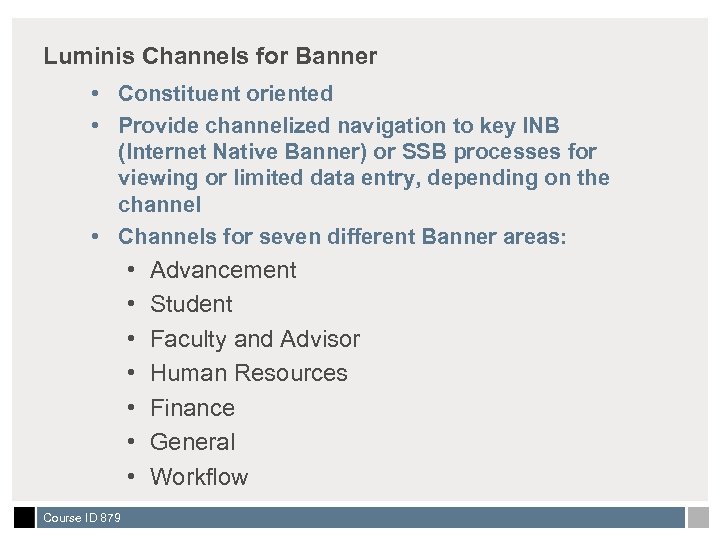 Luminis Channels for Banner • Constituent oriented • Provide channelized navigation to key INB (Internet Native Banner) or SSB processes for viewing or limited data entry, depending on the channel • Channels for seven different Banner areas: • • Course ID 879 Advancement Student Faculty and Advisor Human Resources Finance General Workflow
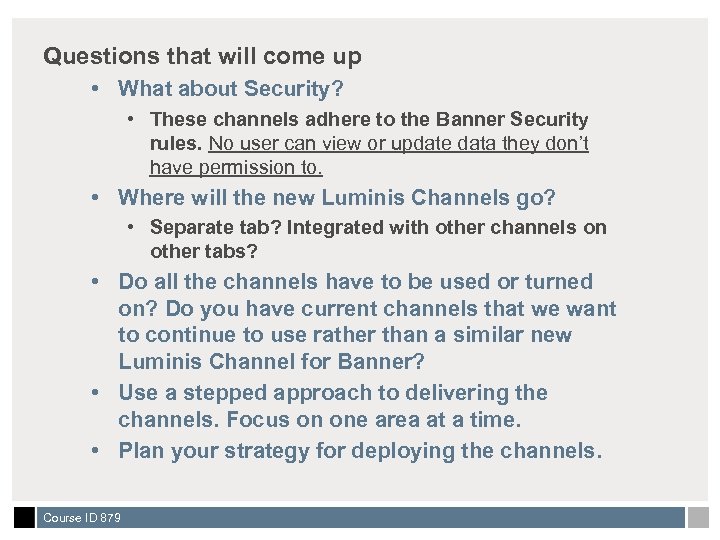 Questions that will come up • What about Security? • These channels adhere to the Banner Security rules. No user can view or update data they don’t have permission to. • Where will the new Luminis Channels go? • Separate tab? Integrated with other channels on other tabs? • Do all the channels have to be used or turned on? Do you have current channels that we want to continue to use rather than a similar new Luminis Channel for Banner? • Use a stepped approach to delivering the channels. Focus on one area at a time. • Plan your strategy for deploying the channels. Course ID 879
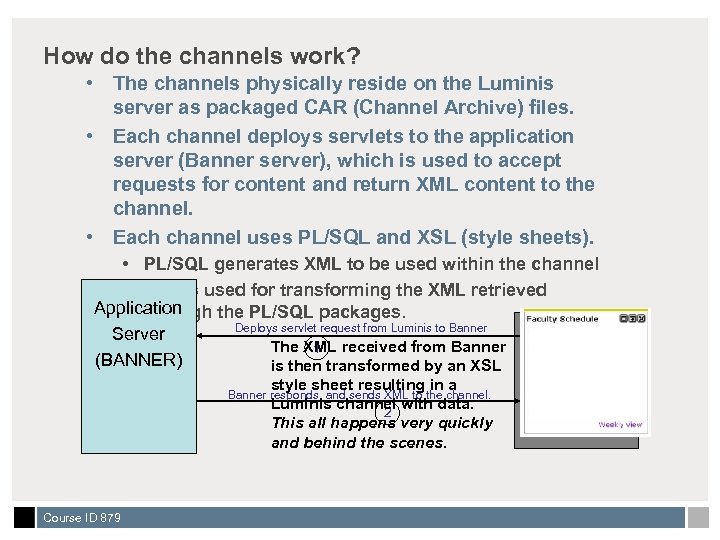 How do the channels work? • The channels physically reside on the Luminis server as packaged CAR (Channel Archive) files. • Each channel deploys servlets to the application server (Banner server), which is used to accept requests for content and return XML content to the channel. • Each channel uses PL/SQL and XSL (style sheets). • PL/SQL generates XML to be used within the channel • XSL is used for transforming the XML retrieved Application through the PL/SQL packages. Deploys servlet request from Luminis to Banner Server The XML received from Banner 1 (BANNER) is then transformed by an XSL style sheet resulting in a Luminis channel with data. 2 This all happens very quickly and behind the scenes. Banner responds, and sends XML to the channel. Course ID 879
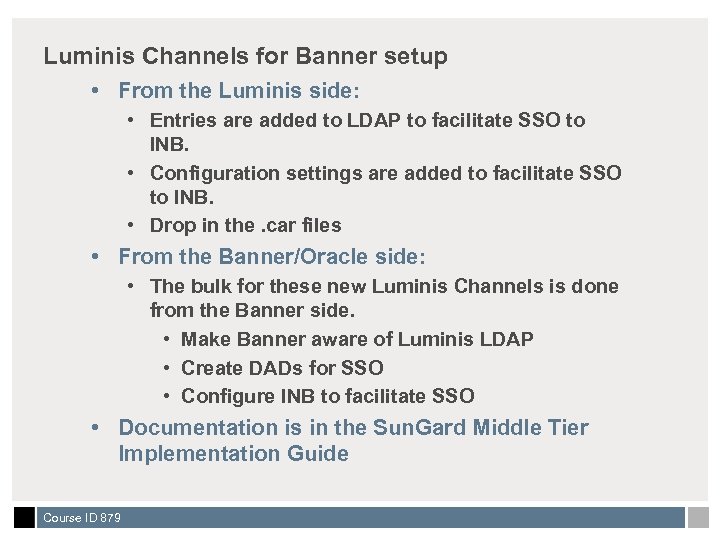 Luminis Channels for Banner setup • From the Luminis side: • Entries are added to LDAP to facilitate SSO to INB. • Configuration settings are added to facilitate SSO to INB. • Drop in the. car files • From the Banner/Oracle side: • The bulk for these new Luminis Channels is done from the Banner side. • Make Banner aware of Luminis LDAP • Create DADs for SSO • Configure INB to facilitate SSO • Documentation is in the Sun. Gard Middle Tier Implementation Guide Course ID 879
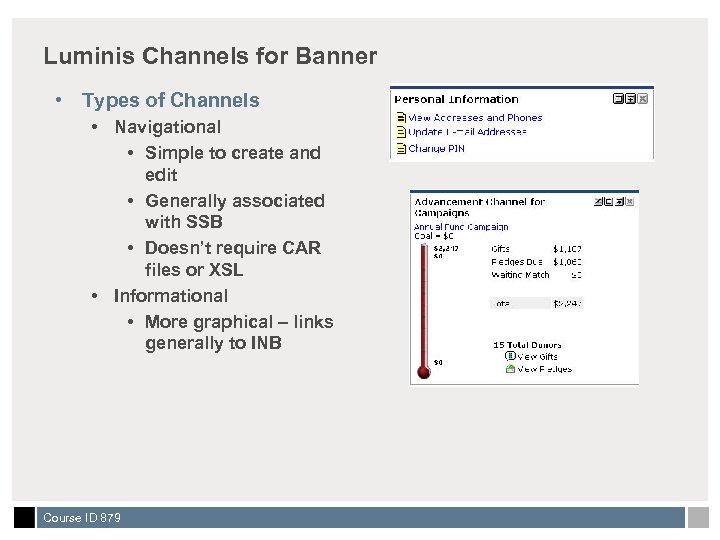 Luminis Channels for Banner • Types of Channels • Navigational • Simple to create and edit • Generally associated with SSB • Doesn’t require CAR files or XSL • Informational • More graphical – links generally to INB Course ID 879
 Let’s look at the Channels Course ID 879
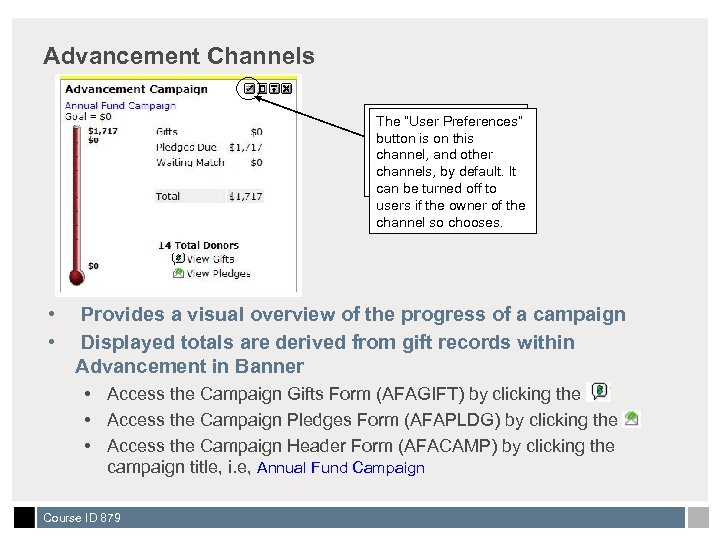 Advancement Channels User “User Preferences” The Preferences button. User clicks this button is on this button to choose the channel, and other desired campaign they channels, by default. It want be display. off to can to turned users if the owner of the channel so chooses. • • Provides a visual overview of the progress of a campaign Displayed totals are derived from gift records within Advancement in Banner • Access the Campaign Gifts Form (AFAGIFT) by clicking the • Access the Campaign Pledges Form (AFAPLDG) by clicking the • Access the Campaign Header Form (AFACAMP) by clicking the campaign title, i. e, Annual Fund Campaign Course ID 879
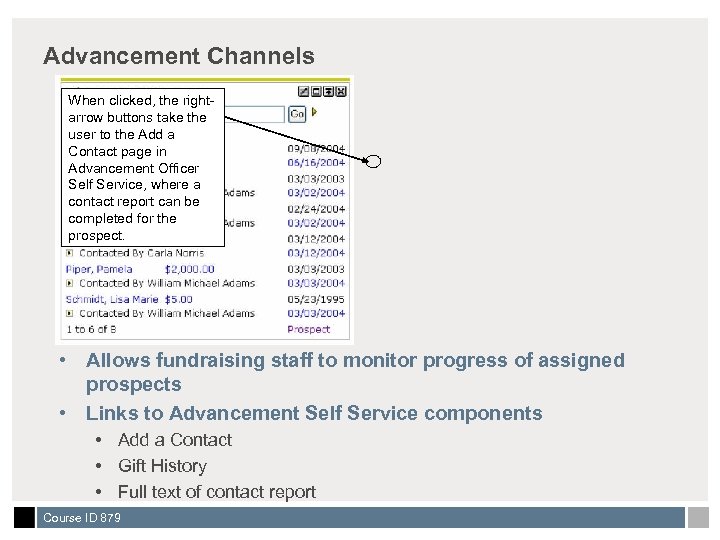 Advancement Channels When clicked, the rightarrow buttons take the user to the Add a Contact page in Advancement Officer Self Service, where a contact report can be completed for the prospect. • Allows fundraising staff to monitor progress of assigned prospects • Links to Advancement Self Service components • Add a Contact • Gift History • Full text of contact report Course ID 879
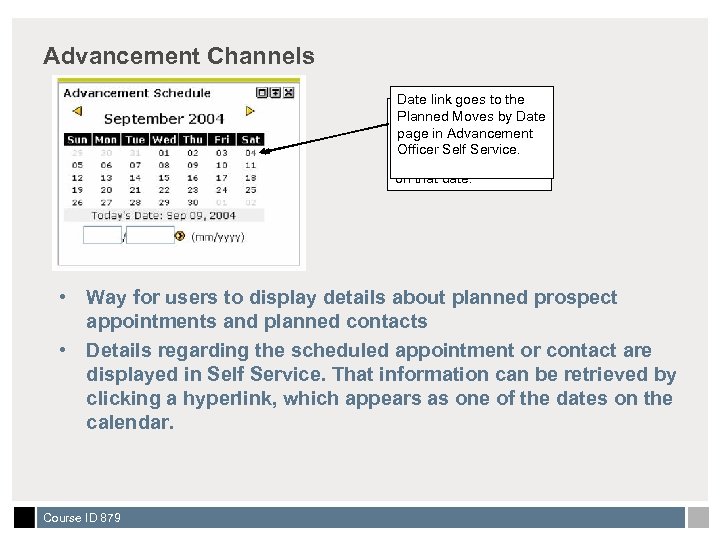 Advancement Channels Date link goes to the Dates will. Moves by Date Planned appear as hyperlinks if any page in Advancement appointments are Officer Self Service. scheduled for the user on that date. • Way for users to display details about planned prospect appointments and planned contacts • Details regarding the scheduled appointment or contact are displayed in Self Service. That information can be retrieved by clicking a hyperlink, which appears as one of the dates on the calendar. Course ID 879
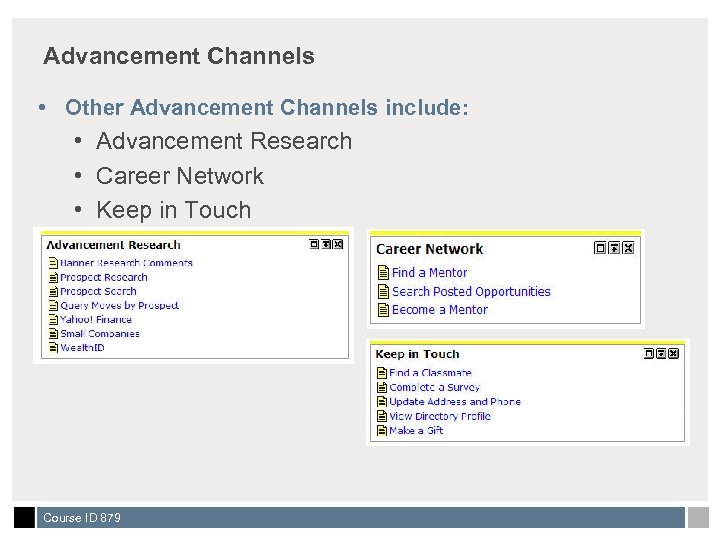 Advancement Channels • Other Advancement Channels include: • Advancement Research • Career Network • Keep in Touch Course ID 879
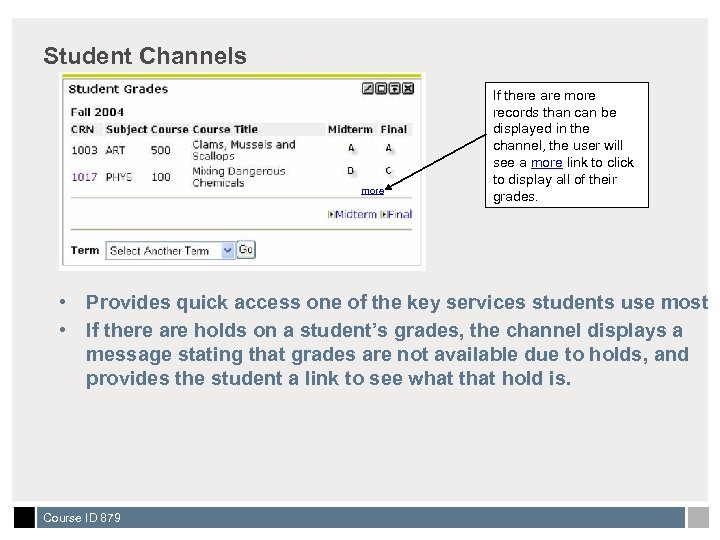 Student Channels more If there are more records than can be displayed in the channel, the user will see a more link to click to display all of their grades. • Provides quick access one of the key services students use most • If there are holds on a student’s grades, the channel displays a message stating that grades are not available due to holds, and provides the student a link to see what that hold is. Course ID 879
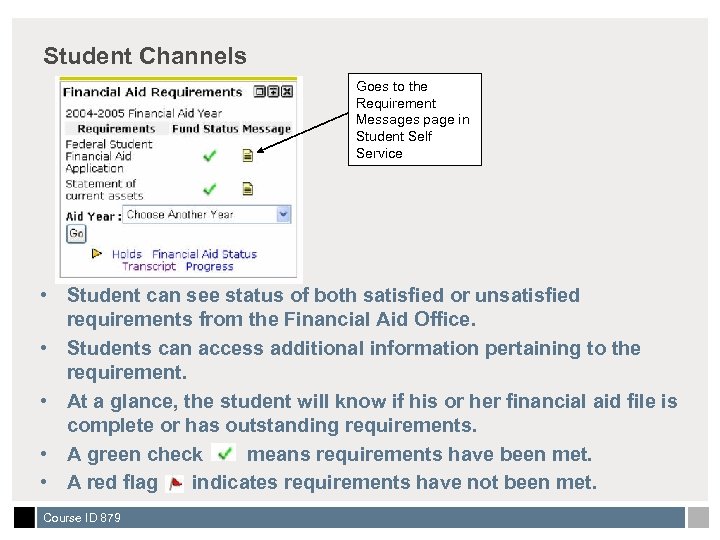 Student Channels Goes to the Requirement Messages page in Student Self Service • Student can see status of both satisfied or unsatisfied requirements from the Financial Aid Office. • Students can access additional information pertaining to the requirement. • At a glance, the student will know if his or her financial aid file is complete or has outstanding requirements. • A green check means requirements have been met. • A red flag indicates requirements have not been met. Course ID 879
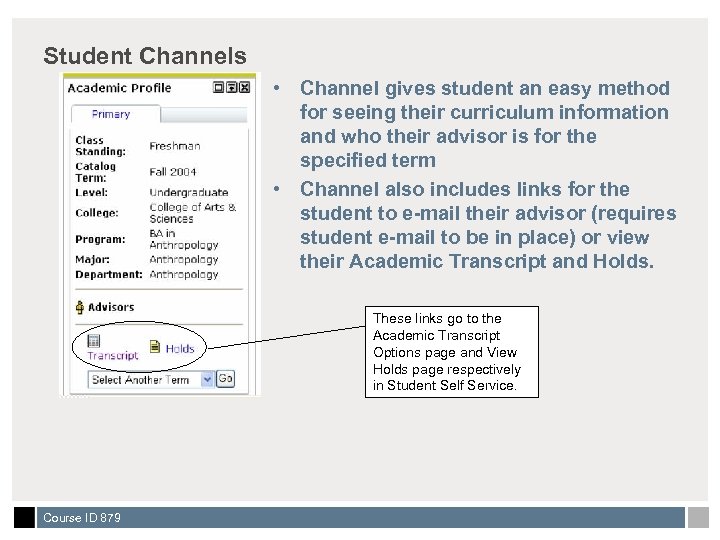 Student Channels • Channel gives student an easy method for seeing their curriculum information and who their advisor is for the specified term • Channel also includes links for the student to e-mail their advisor (requires student e-mail to be in place) or view their Academic Transcript and Holds. These links go to the Academic Transcript Options page and View Holds page respectively in Student Self Service. Course ID 879
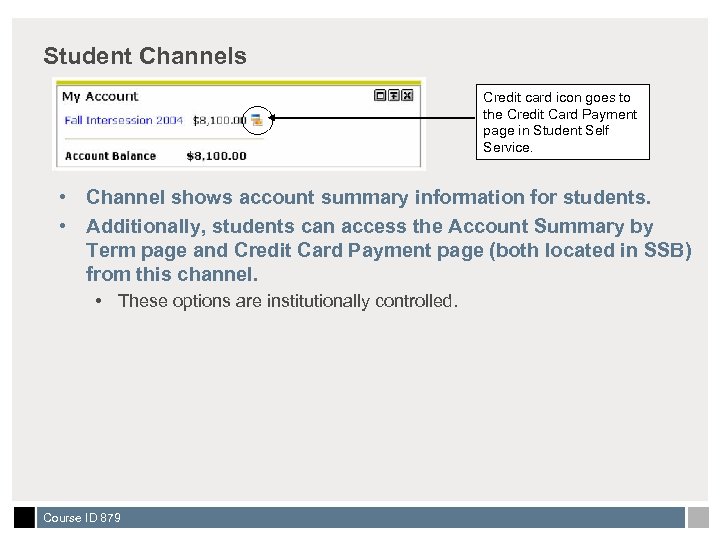 Student Channels Credit card icon goes to the Credit Card Payment page in Student Self Service. • Channel shows account summary information for students. • Additionally, students can access the Account Summary by Term page and Credit Card Payment page (both located in SSB) from this channel. • These options are institutionally controlled. Course ID 879
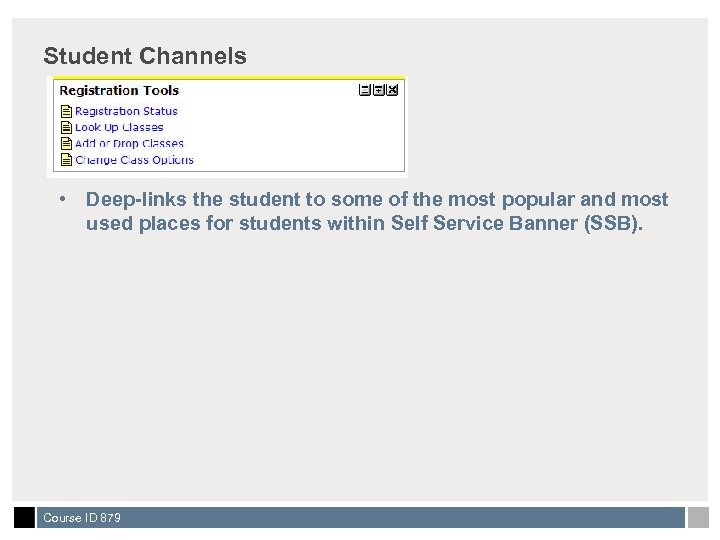 Student Channels • Deep-links the student to some of the most popular and most used places for students within Self Service Banner (SSB). Course ID 879
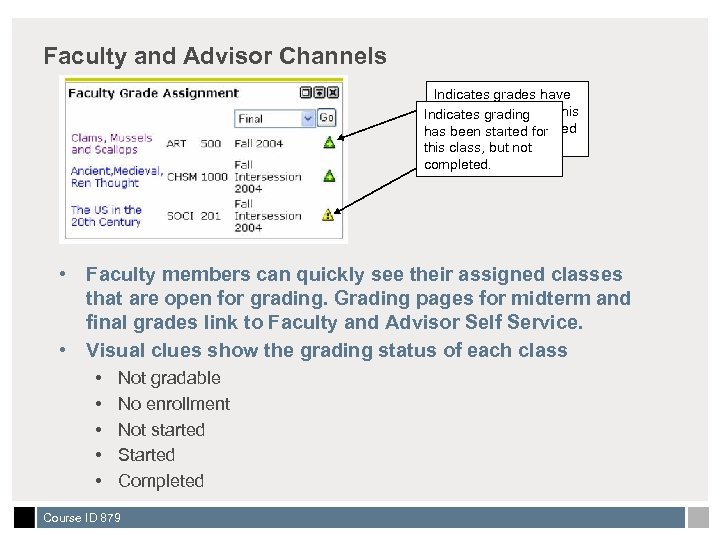 Faculty and Advisor Channels Indicates grades have been completed Indicates grading for this class, but not yet rolled has been started for to class, but history this academic not completed. • Faculty members can quickly see their assigned classes that are open for grading. Grading pages for midterm and final grades link to Faculty and Advisor Self Service. • Visual clues show the grading status of each class • • • Not gradable No enrollment Not started Started Completed Course ID 879
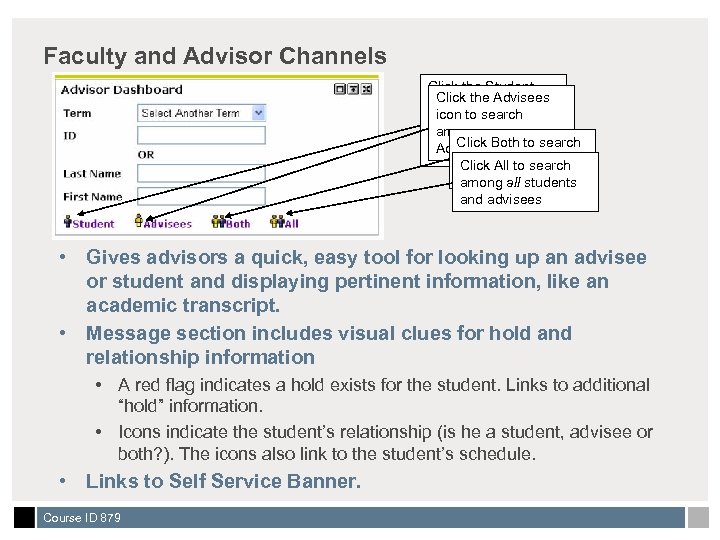 Faculty and Advisor Channels Click the Student Click search icon to the Advisees icon to search among only your among for students your to search Click only Advisees. Both matching your Advisees both records. Click All to search and your students among all students and advisees • Gives advisors a quick, easy tool for looking up an advisee or student and displaying pertinent information, like an academic transcript. • Message section includes visual clues for hold and relationship information • A red flag indicates a hold exists for the student. Links to additional “hold” information. • Icons indicate the student’s relationship (is he a student, advisee or both? ). The icons also link to the student’s schedule. • Links to Self Service Banner. Course ID 879
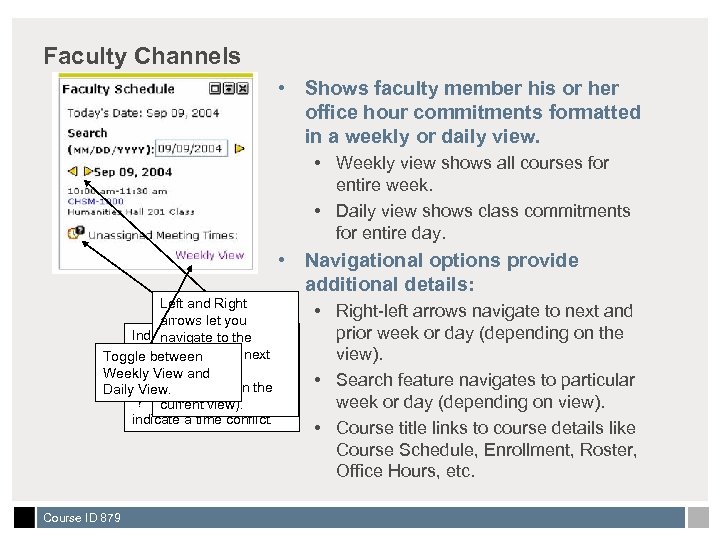 Faculty Channels • Shows faculty member his or her office hour commitments formatted in a weekly or daily view. • Weekly view shows all courses for entire week. • Daily view shows class commitments for entire day. • Navigational options provide additional details: Left and Right arrows let you Indicates times have not navigate to the yet been assigned for previous Toggle between and nextthe class. If or week day and Weekly Viewthere would have (depending on of Dailybeen an “X” insteadthe a View. “? ” mark, that would current view). indicate a time conflict. Course ID 879 • Right-left arrows navigate to next and prior week or day (depending on the view). • Search feature navigates to particular week or day (depending on view). • Course title links to course details like Course Schedule, Enrollment, Roster, Office Hours, etc.
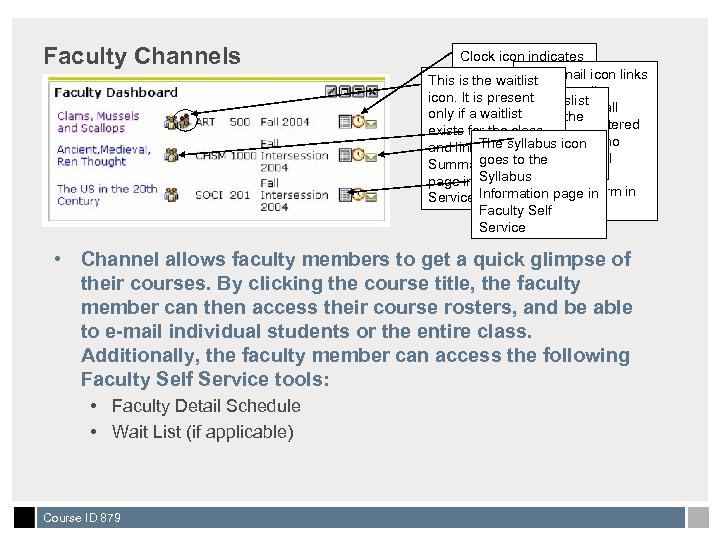 Faculty Channels Clock icon indicates clickable link to The This is the waitlist e-mail icon links instructor’s Office to icon. It This is the e-mail is present classlist Hours only if a waitlistaddresses of all icon. It links to the students registered exists for the class Summary Class The syllabus icon and links to thein the class who page in Faculty Self goes to the Summary Wait have an e-mail Service. List Syllabus page in Facultyaddress in the Self GOAEMAL form in Information page in Service. Banner. Faculty Self Service • Channel allows faculty members to get a quick glimpse of their courses. By clicking the course title, the faculty member can then access their course rosters, and be able to e-mail individual students or the entire class. Additionally, the faculty member can access the following Faculty Self Service tools: • Faculty Detail Schedule • Wait List (if applicable) Course ID 879
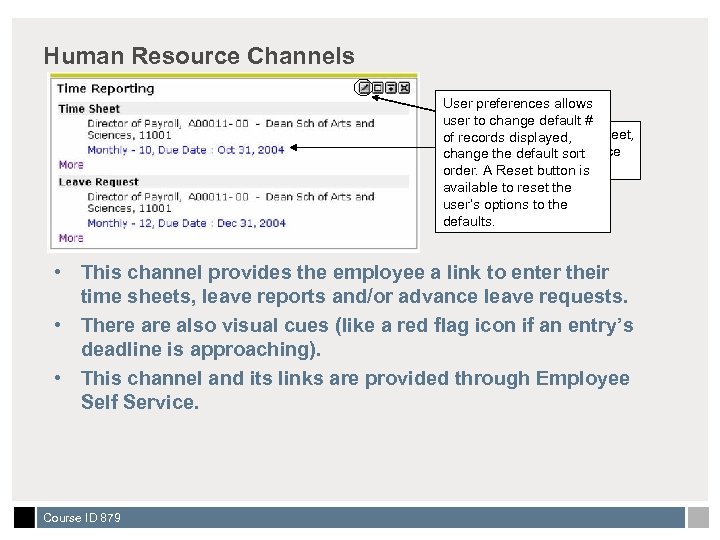 Human Resource Channels User preferences allows user to change default # Link displayed, of recordsto access time sheet, leave default advance change thereport orsort leave requests. order. A Reset button is available to reset the user’s options to the defaults. • This channel provides the employee a link to enter their time sheets, leave reports and/or advance leave requests. • There also visual cues (like a red flag icon if an entry’s deadline is approaching). • This channel and its links are provided through Employee Self Service. Course ID 879
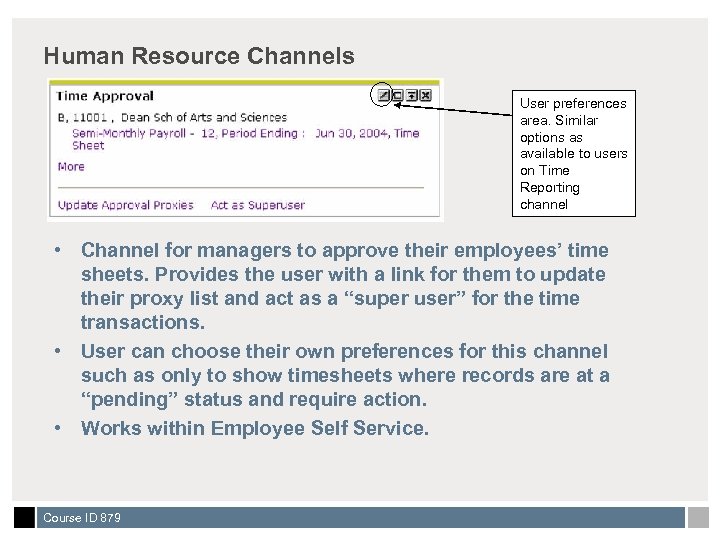 Human Resource Channels User preferences area. Similar options as available to users on Time Reporting channel • Channel for managers to approve their employees’ time sheets. Provides the user with a link for them to update their proxy list and act as a “super user” for the time transactions. • User can choose their own preferences for this channel such as only to show timesheets where records are at a “pending” status and require action. • Works within Employee Self Service. Course ID 879
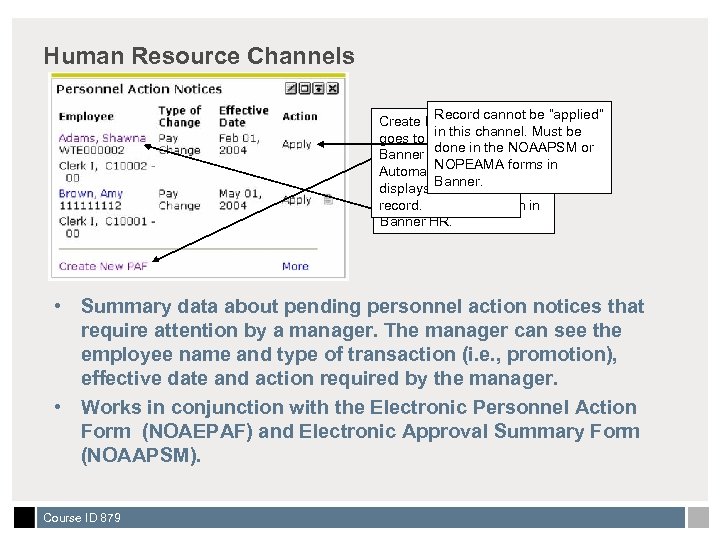 Human Resource Channels Record cannot be “applied” Create New PAF link in this channel. Must be goes to NOAEPAF in done in the NOAAPSM or Banner HR. NOPEAMA forms in Automatically Banner. Employee name displays a blank link takes user to record. NOAEPAF form in Banner HR. • Summary data about pending personnel action notices that require attention by a manager. The manager can see the employee name and type of transaction (i. e. , promotion), effective date and action required by the manager. • Works in conjunction with the Electronic Personnel Action Form (NOAEPAF) and Electronic Approval Summary Form (NOAAPSM). Course ID 879
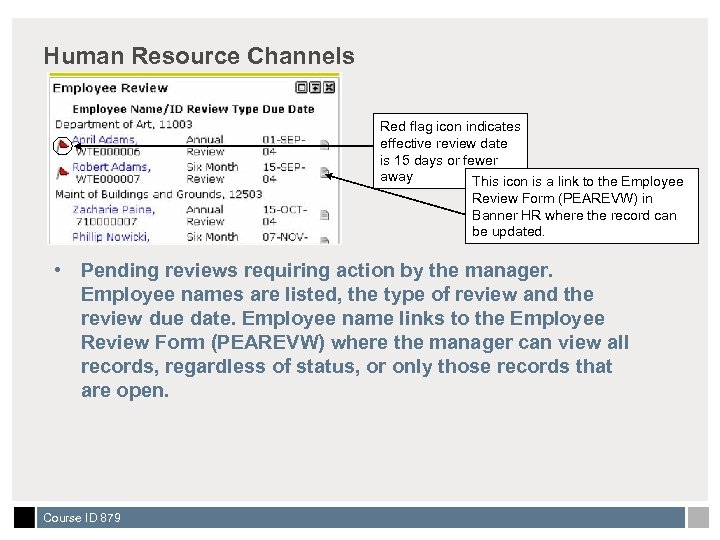 Human Resource Channels Red flag icon indicates effective review date is 15 days or fewer away This icon is a link to the Employee Review Form (PEAREVW) in Banner HR where the record can be updated. • Pending reviews requiring action by the manager. Employee names are listed, the type of review and the review due date. Employee name links to the Employee Review Form (PEAREVW) where the manager can view all records, regardless of status, or only those records that are open. Course ID 879
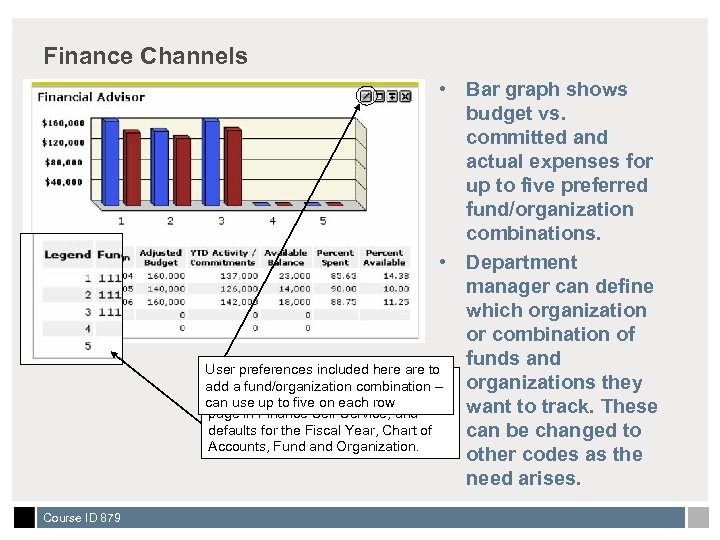 Finance Channels • Bar graph shows budget vs. committed and actual expenses for up to five preferred fund/organization combinations. • Department manager can define which organization or combination of funds and User preferences included here are to Value in the Legend column goes to organizations they add a fund/organization combination – the Budget to five on each row Query FOAPAL parameter can use up want to track. These page in Finance Self-Service, and defaults for the Fiscal Year, Chart of can be changed to Accounts, Fund and Organization. other codes as the need arises. Course ID 879
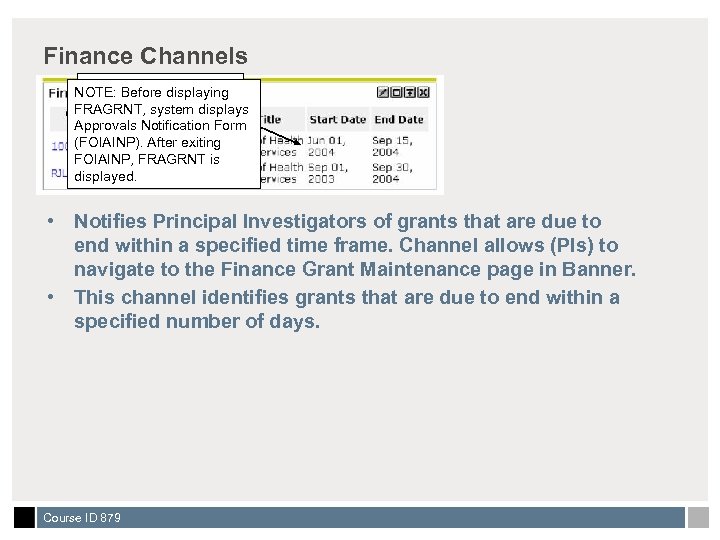 Finance Channels Grant code link goes to NOTE: Before displaying Grant Maintenance FRAGRNT, system displays Form (FRAGRNT) in Approvals Notification Form Banner Finance. (FOIAINP). After exiting FOIAINP, FRAGRNT is displayed. • Notifies Principal Investigators of grants that are due to end within a specified time frame. Channel allows (PIs) to navigate to the Finance Grant Maintenance page in Banner. • This channel identifies grants that are due to end within a specified number of days. Course ID 879
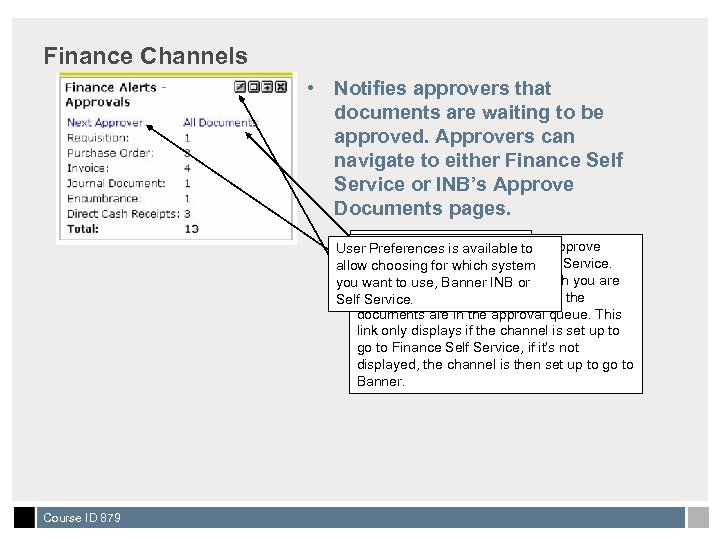 Finance Channels • Notifies approvers that documents are waiting to be approved. Approvers can navigate to either Finance Self Service or INB’s Approve Documents pages. Next Approver link goes to All Documents link goes to the User Preferences is available to Approve either the User displaying Documents for which system NOTE: Before Approval allow choosing page in Finance Self Service. Form (FOAUAPP) docs or FOAUAPP, system displays you. System displays allor INBfor which you are want to use, Banner Approve Documents in of where the an approver, regardless Selfthe Approvals Notification Service. Finance Self Service, approval queue. This documents are in the Form (FOIAINP). After depending on user the channel is set up to link only. FOIAINP, if exiting displays preferences. Self Service, go to Finance displayed. if it’s not FOAUAPP is displayed, the channel is then set up to go to Banner. Course ID 879
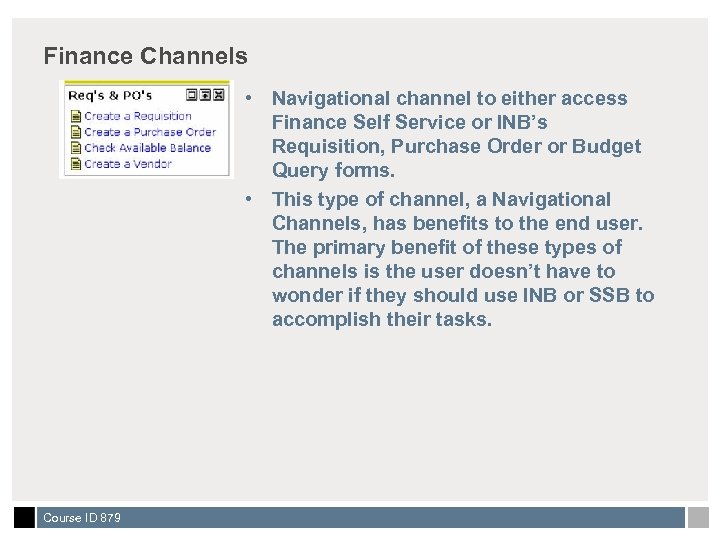 Finance Channels • Navigational channel to either access Finance Self Service or INB’s Requisition, Purchase Order or Budget Query forms. • This type of channel, a Navigational Channels, has benefits to the end user. The primary benefit of these types of channels is the user doesn’t have to wonder if they should use INB or SSB to accomplish their tasks. Course ID 879
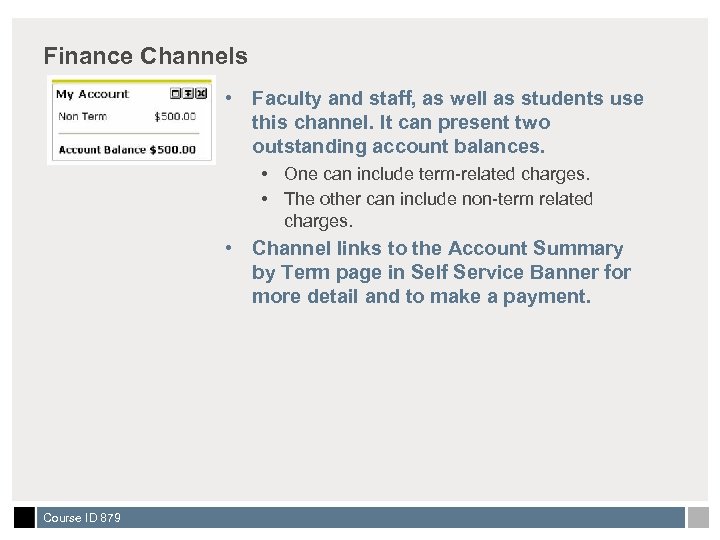 Finance Channels • Faculty and staff, as well as students use this channel. It can present two outstanding account balances. • One can include term-related charges. • The other can include non-term related charges. • Channel links to the Account Summary by Term page in Self Service Banner for more detail and to make a payment. Course ID 879
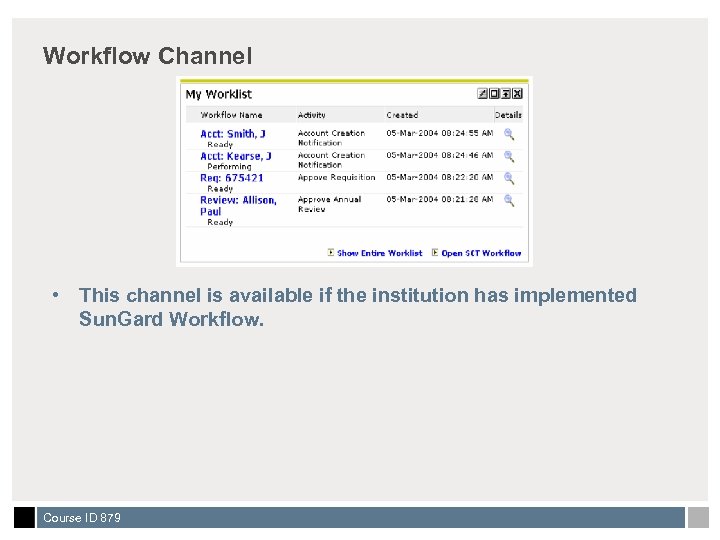 Workflow Channel • This channel is available if the institution has implemented Sun. Gard Workflow. Course ID 879
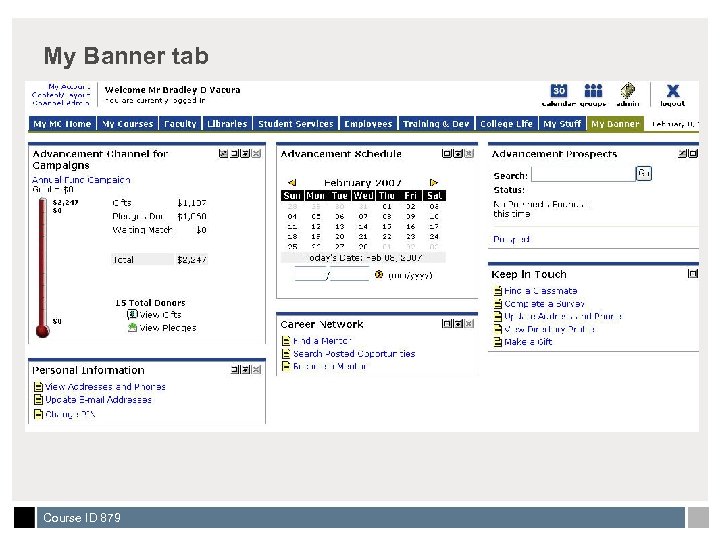
 General Channels • My Banner • Shortcut to the user’s most widely used INB forms and processes based on the user’s existing personal menu as designated in GUAPMNU, the Banner Maintenance form. • My Reports • Displays a user’s completed jobs they ran from Banner’s job submission form (GJAPCTL) that had “Database” designated as the printer. • Available ONLY to users who have an Oracle login ID to INB (Internet Native Banner). • Features allow the user to scroll through the output, search for specific information, save it to desktop or print the job. Course ID 879
 Some of the bonuses • With the addition of Luminis Channels for Banner, you get single sign-on (SSO) to Banner INB: • User could click a link to Internet Native Banner (INB) from within the portal and seamlessly be logged on as themselves to the database • Provides secure area for a Banner user to access INB without having to re-authenticate • Link can be role-based to just users who have Oracle accounts, users who do not have Oracle accounts (or are not authorized to access INB), would not even see the link Course ID 879
 Some things to consider • Integration is now very real. Communication among players is a necessity • Ownership of the channels • Who’s responsible for what? • Luminis Administrator • DBA(s) • Content owner • Portal Advisory Committee • Identification of a content owner is significant • INB access generally isn’t available outside college network • Most colleges have their INB users VPN to connect • Oracle passwords are changed to the Luminis password when INB-enabled channels are accessed Course ID 879
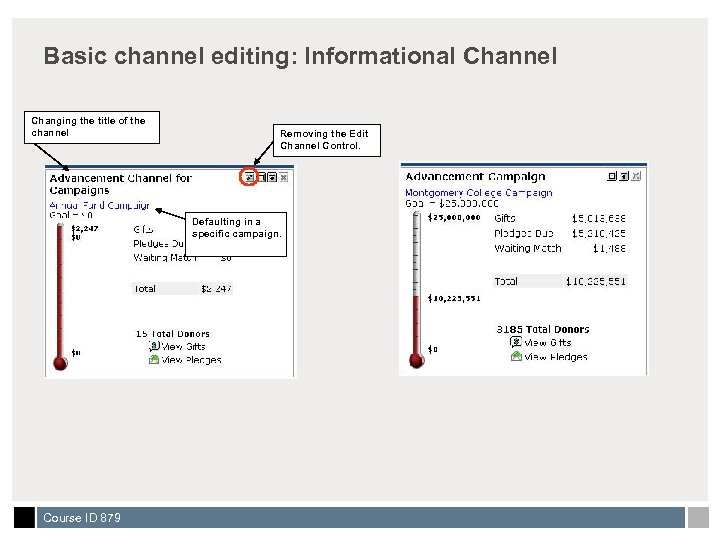
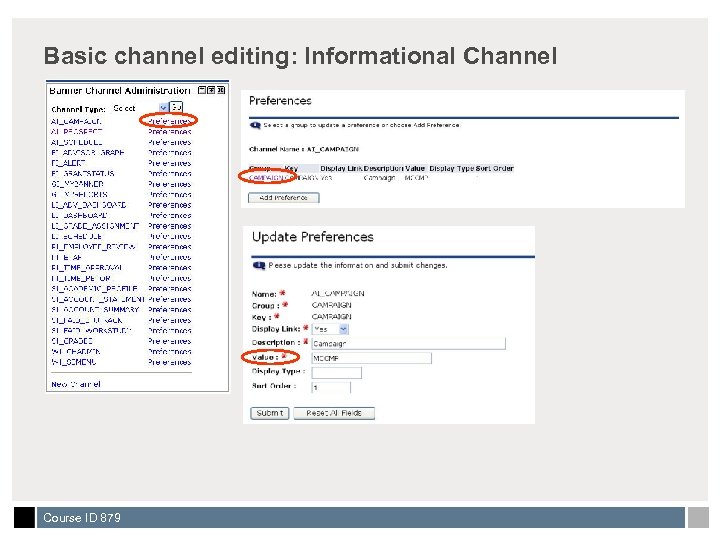
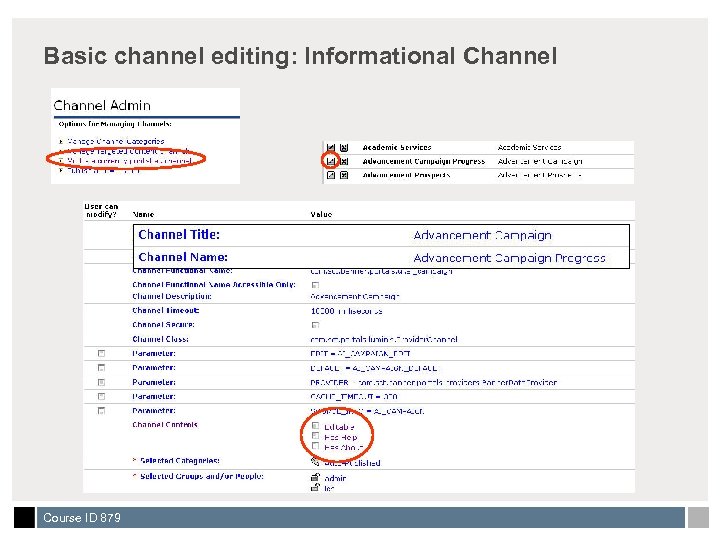
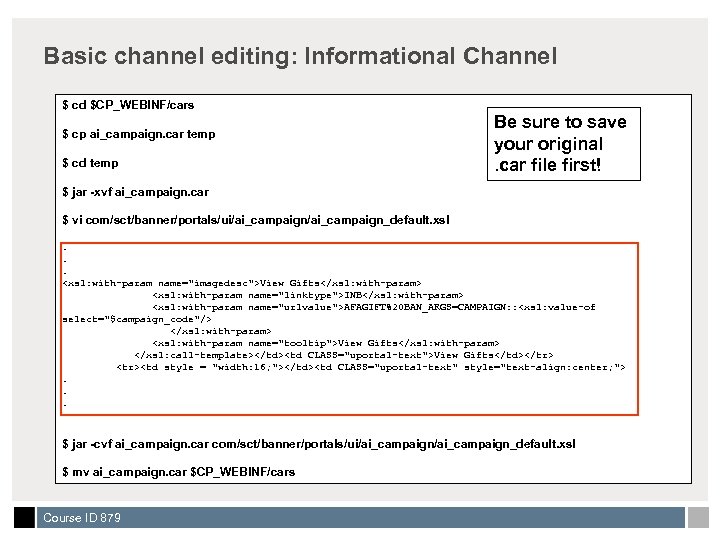
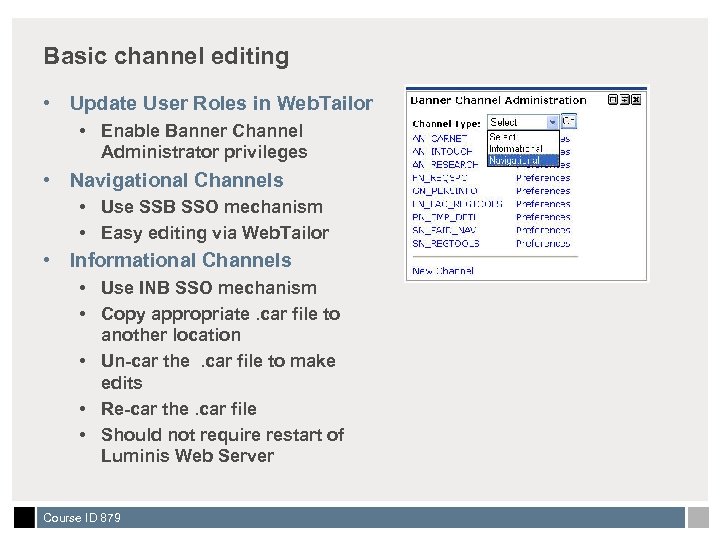 Basic channel editing • Update User Roles in Web. Tailor • Enable Banner Channel Administrator privileges • Navigational Channels • Use SSB SSO mechanism • Easy editing via Web. Tailor • Informational Channels • Use INB SSO mechanism • Copy appropriate. car file to another location • Un-car the. car file to make edits • Re-car the. car file • Should not require restart of Luminis Web Server Course ID 879
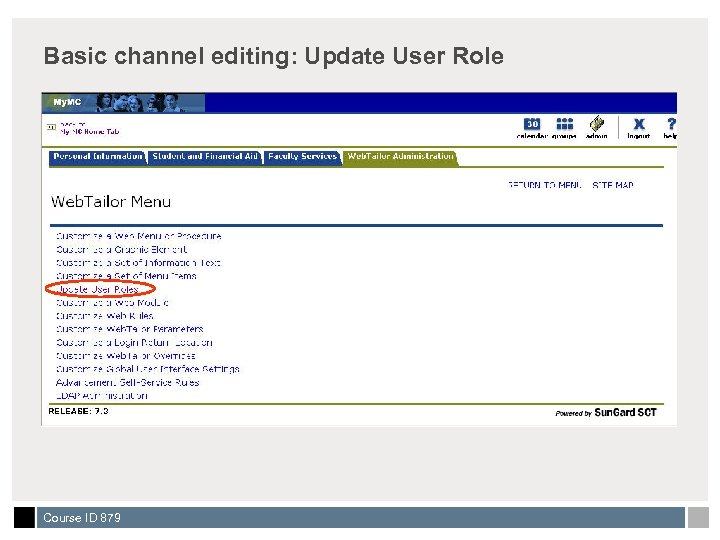 Basic channel editing: Update User Role Course ID 879
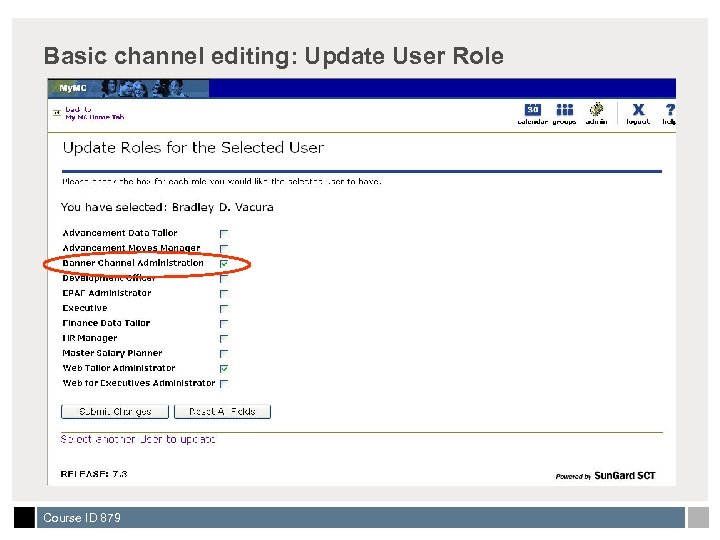 Basic channel editing: Update User Role Course ID 879
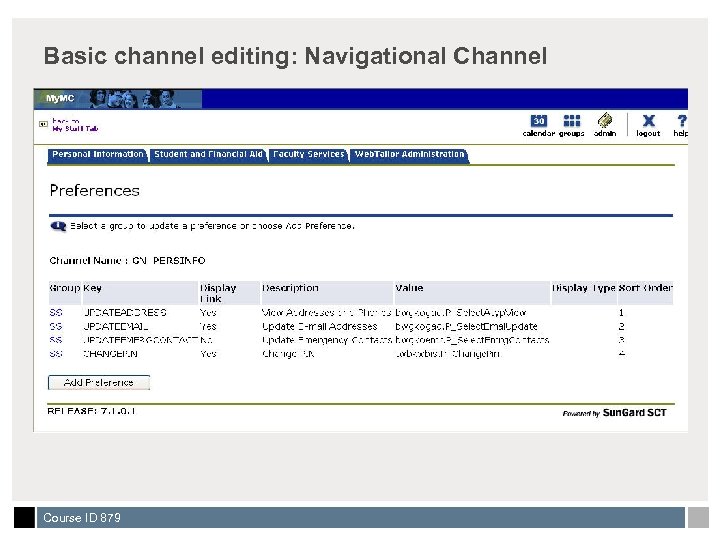
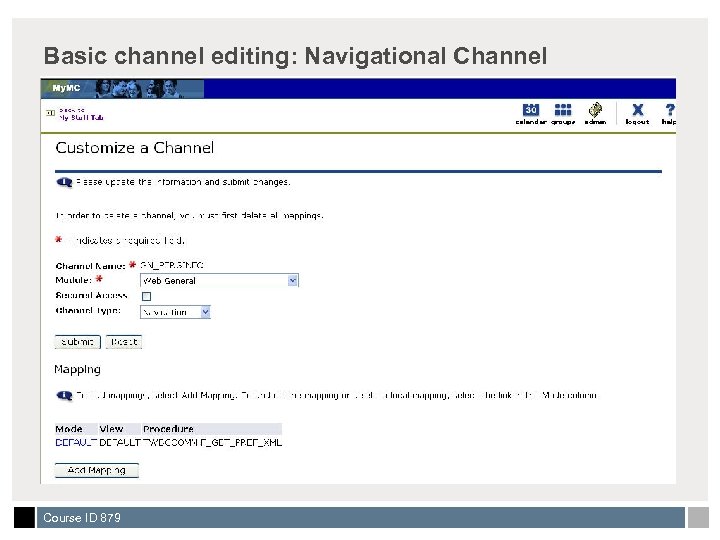
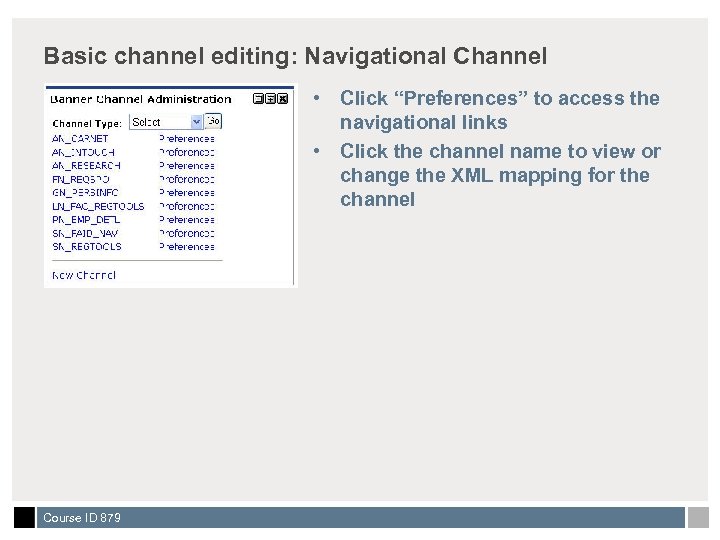 Basic channel editing: Navigational Channel • Click “Preferences” to access the navigational links • Click the channel name to view or change the XML mapping for the channel Course ID 879
 Basic channel editing: Navigational Channel Course ID 879
 Basic channel editing: Navigational Channel Course ID 879
 Basic channel editing: Informational Channel Changing the title of the channel Removing the Edit Channel Control. Defaulting in a specific campaign. Course ID 879
 Basic channel editing: Informational Channel Course ID 879
 Basic channel editing: Informational Channel Course ID 879
 Basic channel editing: Informational Channel $ cd $CP_WEBINF/cars $ cp ai_campaign. car temp $ cd temp Be sure to save your original. car file first! $ jar -xvf ai_campaign. car $ vi com/sct/banner/portals/ui/ai_campaign_default. xsl. . .
 My Banner tab Course ID 879
 Thank You! Brad Vacura Brad. Vacura@sungardhe. com Please complete the online class evaluation form Course ID 879 Sun. Gard, the Sun. Gard logo, Banner, Campus Pipeline, Luminis, Power. CAMPUS, Matrix, and Plus are trademarks or registered trademarks of Sun. Gard Data Systems Inc. or its subsidiaries in the U. S. and other countries. Third-party names and marks referenced herein are trademarks or registered trademarks of their respective owners. © 2006 Sun. Gard. All rights reserved. Course ID 879