


 Скачать презентацию Streams and File I O Chapter 14 I O
8c7ec97afe394c93f8ba191798a95481.ppt
- Количество слайдов: 29
 Streams and File I/O Chapter 14
 I/O Overview • • • I/O = Input/Output In this context it is input to and output from programs Input can be from keyboard or a file Output can be to display (screen) or a file Advantages of file I/O – permanent copy – output from one program can be input to another – input can be automated (rather than entered manually)
 Streams • Stream: an object that either delivers data to its destination (screen, file, etc. ) or that takes data from a source (keyboard, file, etc. ) – it acts as a buffer between the data source and destination • Input stream: a stream that provides input to a program – System. in is an input stream • Output stream: a stream that accepts output from a program – System. out is an output stream • A stream connects a program to an I/O object – System. out connects a program to the screen – System. in connects a program to the keyboard
 Binary Versus Text Files • All data and programs are ultimately just zeros and ones – each digit can have one of two values, hence binary – bit is one binary digit – byte is a group of eight bits • Text files: the bits represent printable characters – one byte per character for ASCII, the most common code – for example, Java source files are text files – so is any file created with a "text editor" • Binary files: the bits represent other types of encoded information, such as executable instructions or numeric data – these files are easily read by the computer but not humans – they are not "printable" files • actually, you can print them, but they will be unintelligible • "printable" means "easily readable by humans when printed"
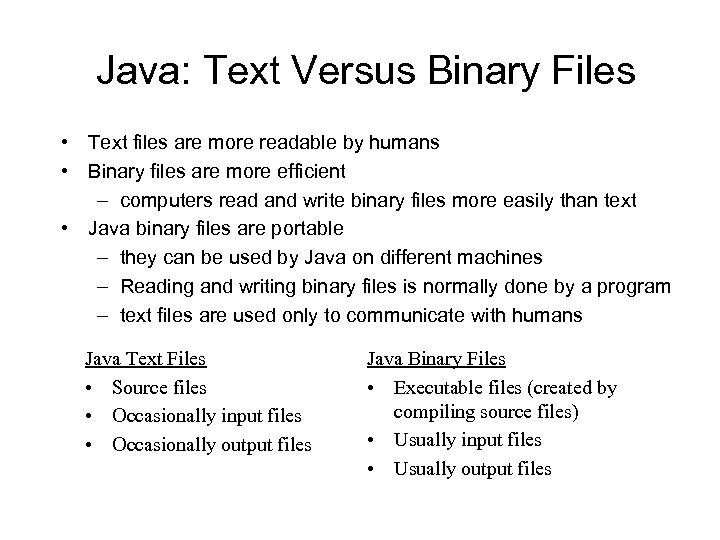 Java: Text Versus Binary Files • Text files are more readable by humans • Binary files are more efficient – computers read and write binary files more easily than text • Java binary files are portable – they can be used by Java on different machines – Reading and writing binary files is normally done by a program – text files are used only to communicate with humans Java Text Files • Source files • Occasionally input files • Occasionally output files Java Binary Files • Executable files (created by compiling source files) • Usually input files • Usually output files
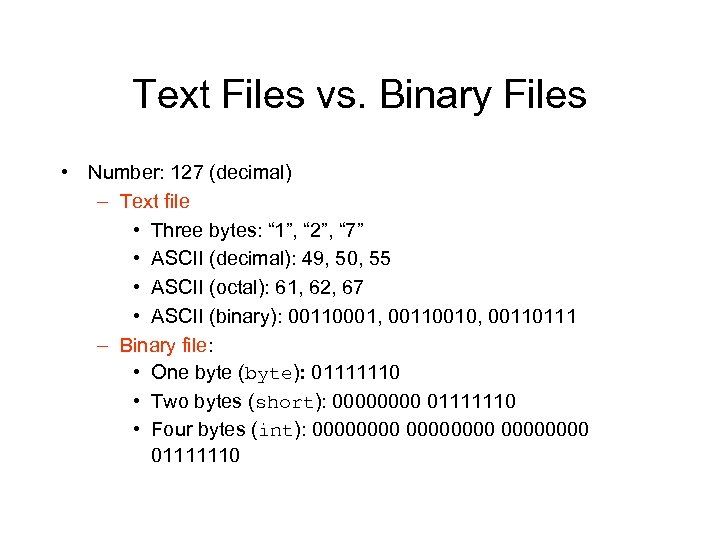 Text Files vs. Binary Files • Number: 127 (decimal) – Text file • Three bytes: “ 1”, “ 2”, “ 7” • ASCII (decimal): 49, 50, 55 • ASCII (octal): 61, 62, 67 • ASCII (binary): 00110001, 00110010, 00110111 – Binary file: • One byte (byte): 01111110 • Two bytes (short): 0000 01111110 • Four bytes (int): 00000000 01111110
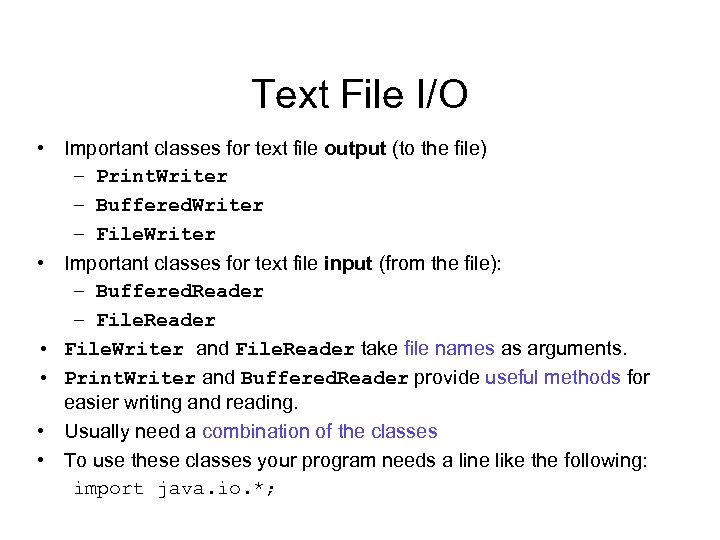 Text File I/O • Important classes for text file output (to the file) – Print. Writer – Buffered. Writer – File. Writer • Important classes for text file input (from the file): – Buffered. Reader – File. Reader • File. Writer and File. Reader take file names as arguments. • Print. Writer and Buffered. Reader provide useful methods for easier writing and reading. • Usually need a combination of the classes • To use these classes your program needs a line like the following: import java. io. *;
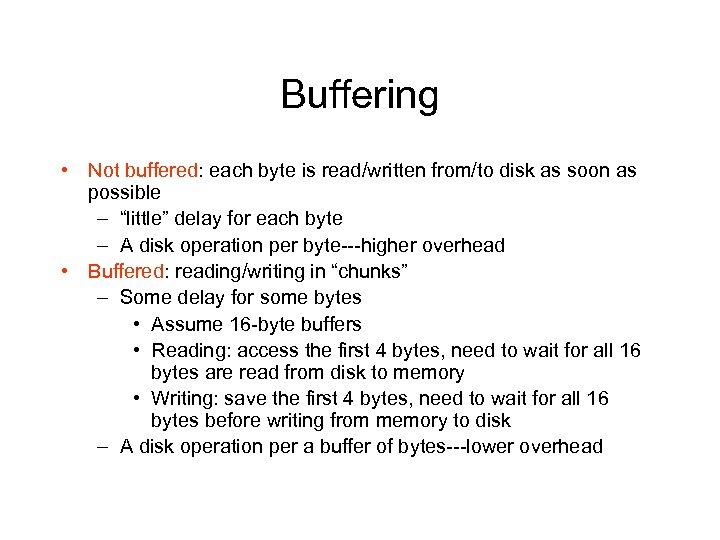 Buffering • Not buffered: each byte is read/written from/to disk as soon as possible – “little” delay for each byte – A disk operation per byte---higher overhead • Buffered: reading/writing in “chunks” – Some delay for some bytes • Assume 16 -byte buffers • Reading: access the first 4 bytes, need to wait for all 16 bytes are read from disk to memory • Writing: save the first 4 bytes, need to wait for all 16 bytes before writing from memory to disk – A disk operation per a buffer of bytes---lower overhead
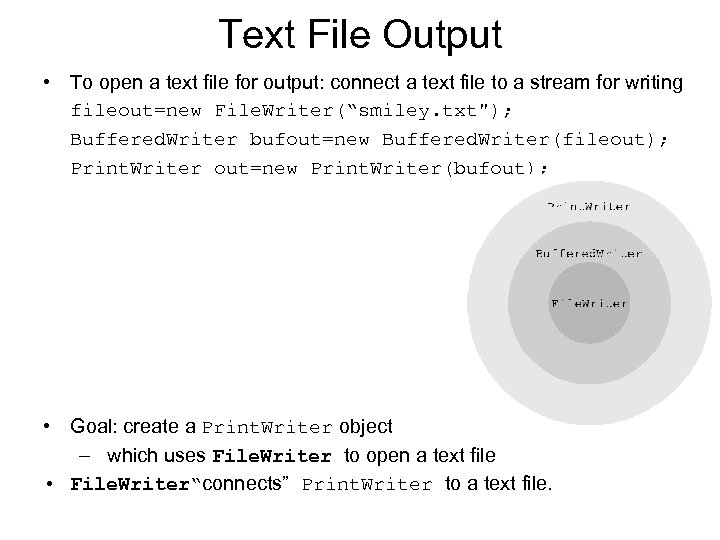 Text File Output • To open a text file for output: connect a text file to a stream for writing fileout=new File. Writer(“smiley. txt"); Buffered. Writer bufout=new Buffered. Writer(fileout); Print. Writer out=new Print. Writer(bufout); • Goal: create a Print. Writer object – which uses File. Writer to open a text file • File. Writer“connects” Print. Writer to a text file.
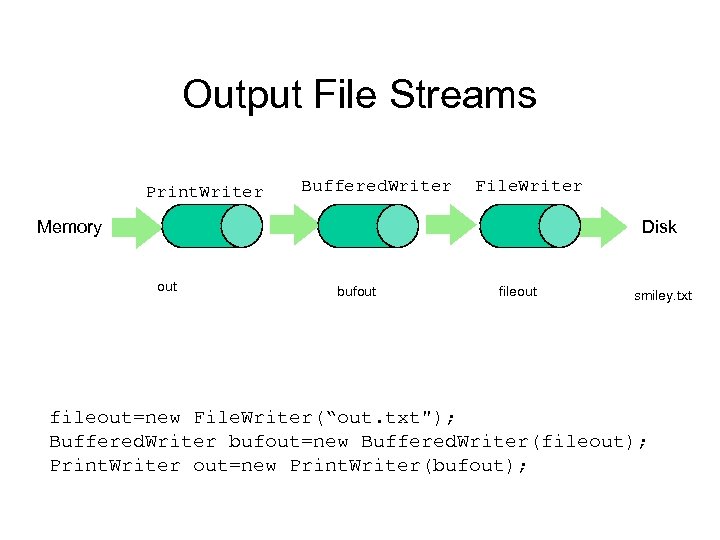 Output File Streams Print. Writer Buffered. Writer File. Writer Disk Memory out bufout fileout smiley. txt fileout=new File. Writer(“out. txt"); Buffered. Writer bufout=new Buffered. Writer(fileout); Print. Writer out=new Print. Writer(bufout);
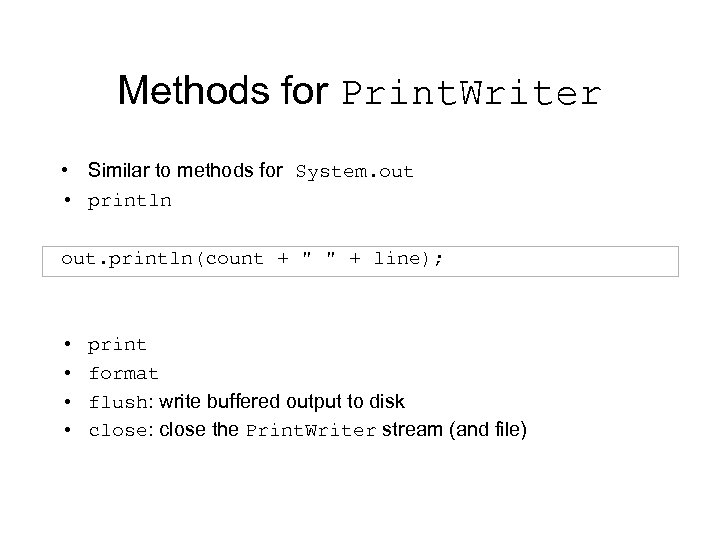 Methods for Print. Writer • Similar to methods for System. out • println out. println(count + " " + line); • • print format flush: write buffered output to disk close: close the Print. Writer stream (and file)
 Opening a File • Opening a file for input will fail—causing an exception to be thrown—unless the file already exists. • When an existing file is opened for output, the file is normally truncated—the bytes already in the file are lost. • Attempting to open a nonexistent file for output will cause the file to be created. Either way, the file is empty to begin with. 12
 Gotcha: Overwriting a File • Opening an output file creates an empty file • Opening an output file creates a new file if it does not already exist • Opening an output file that already exists eliminates the old file and creates a new, empty one – data in the original file is lost • To see how to check for existence of a file, see the section of the text that discusses the File class.
 Java Tip: Appending to a Text File • To add/append to a file instead of replacing it, use a different constructor for File. Output. Stream or File. Writer: fileout=new File. Writer(“out. txt“, true); • Second parameter: append to the end of the file if it exists? • Sample code for letting user tell whether to replace or append:
 Buffering and Flushing • Java’s stream classes are designed to perform buffering without any action on the programmer’s part. • Occasionally, though, it’s necessary to take a more active role. • Normally, data written to a file goes into a buffer first. • The buffer is flushed (written to the file) automatically when it’s full or the file is closed. 15
 Buffering and Flushing • The buffer can be flushed manually by calling the flush method: out. flush(); out can be an output stream or writer object • Calling flush ensures that data is written to a file as soon as possible, where it will be safe. • All output stream and writer classes support the flush method. 16
 Closing a File • An output file should be closed when you are done writing to it (and an input file should be closed when you are done reading from it). • Use the close method of the class Print. Writer (Buffered. Reader also has a close method). • For example, to close the file opened in the previous example: output. Stream. close(); • If a program ends normally it will close any files that are open.
 FAQ: Why Bother to Close a File? If a program automatically closes files when it ends normally, why close them with explicit calls to close? Two reasons: 1. To make sure it is closed if a program ends abnormally (it could get damaged if it is left open). 2. A file opened for writing must be closed before it can be opened for reading. • Although Java does have a class that opens a file for both reading and writing, it is not used in this text.
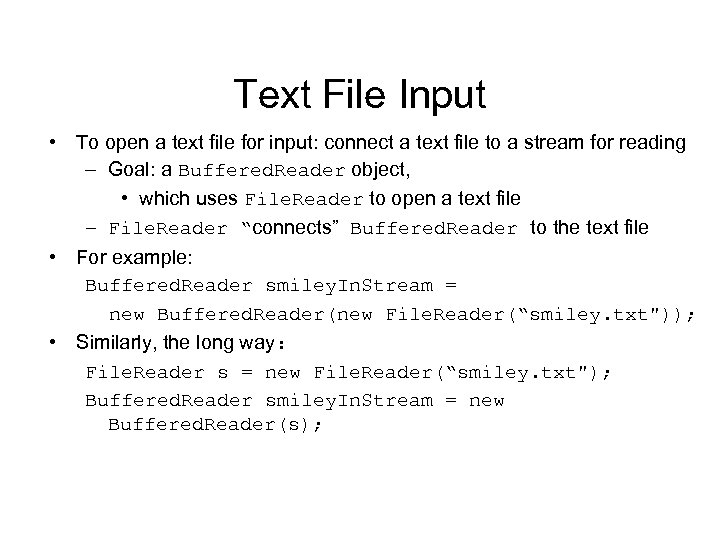 Text File Input • To open a text file for input: connect a text file to a stream for reading – Goal: a Buffered. Reader object, • which uses File. Reader to open a text file – File. Reader “connects” Buffered. Reader to the text file • For example: Buffered. Reader smiley. In. Stream = new Buffered. Reader(new File. Reader(“smiley. txt")); • Similarly, the long way: File. Reader s = new File. Reader(“smiley. txt"); Buffered. Reader smiley. In. Stream = new Buffered. Reader(s);
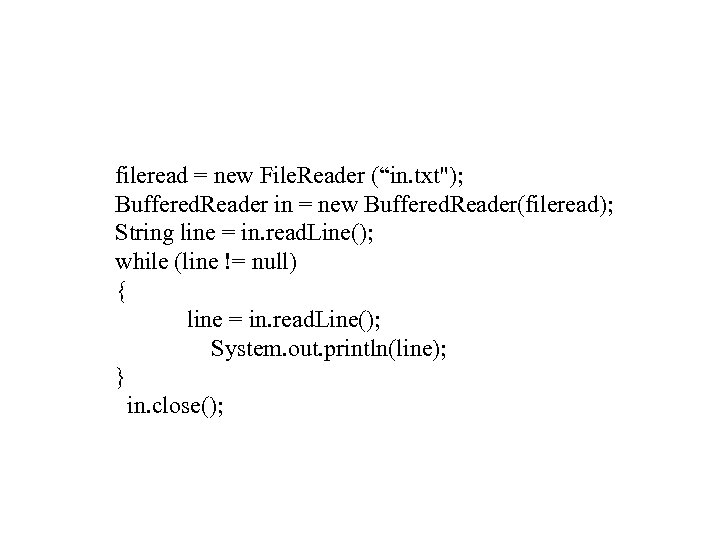 fileread = new File. Reader (“in. txt"); Buffered. Reader in = new Buffered. Reader(fileread); String line = in. read. Line(); while (line != null) { line = in. read. Line(); System. out. println(line); } in. close();
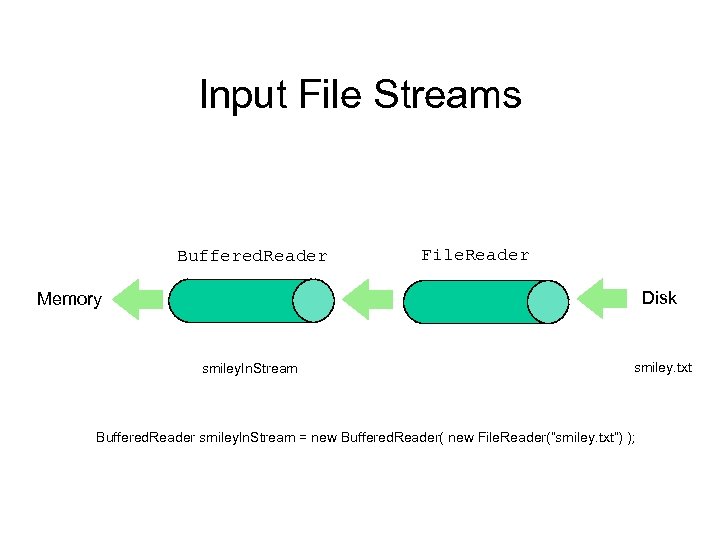 Input File Streams Buffered. Reader File. Reader Disk Memory smiley. In. Stream smiley. txt Buffered. Reader smiley. In. Stream = new Buffered. Reader( new File. Reader(“smiley. txt”) );
 Methods for Buffered. Reader • read. Line: read a line into a String • no methods to read numbers directly, so read numbers as Strings and then convert them (String. Tokenizer) • read: read a char at a time • close: close Buffered. Reader stream
 Exceptions in Handling with File I/O • Checked exceptions that can occur: – The File. Input. Stream constructor can throw File. Not. Found. Exception. – The File. Output. Stream constructor can throw IOException (or File. Not. Found. Exception). – The read method in File. Input. Stream can throw IOException. – The write method in File. Output. Stream can throw IOException. – The close methods in File. Input. Stream and File. Output. Stream 23 throw IOException. can
 Exception Handling with File I/O Catching IOExceptions • IOException is a predefined class • File I/O might throw an IOException • catch the exception in a catch block that at least prints an error message and ends the program • File. Not. Found. Exception is derived from IOException – therefor any catch block that catches IOExceptions also catches File. Not. Found. Exceptions – put the more specific one first (the derived one) so it catches specifically file-not-found exceptions – then you will know that an I/O error is something other than file-not -found
 Exceptions in the Program • Instead of having a separate try block and catch block for each exception, most of the program will be enclosed within a single try block. • After the try block will come two catch blocks, one for File. Not. Found. Exception and one for IOException. 25
 Reading Words in a String: Using String. Tokenizer Class • There are Buffered. Reader methods to read a line and a character, but not just a single word • String. Tokenizer can be used to parse a line into words – import java. util. * – some of its useful methods are shown in the text • e. g. test if there are more tokens – you can specify delimiters (the character or characters that separate words) • the default delimiters are "white space" (space, tab, and newline)
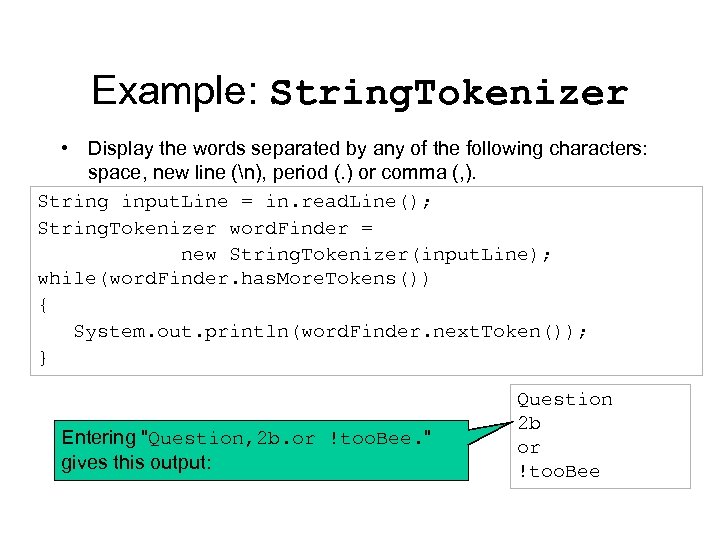 Example: String. Tokenizer • Display the words separated by any of the following characters: space, new line (n), period (. ) or comma (, ). String input. Line = in. read. Line(); String. Tokenizer word. Finder = new String. Tokenizer(input. Line); while(word. Finder. has. More. Tokens()) { System. out. println(word. Finder. next. Token()); } Entering "Question, 2 b. or !too. Bee. " gives this output: Question 2 b or !too. Bee
 Testing for End of File in a Text File • When read. Line tries to read beyond the end of a text file it returns the special value null – so you can test for null to stop processing a text file • read returns -1 when it tries to read beyond the end of a text file – the int value of all ordinary characters is nonnegative • Neither of these two methods (read and read. Line) will throw an EOFException.
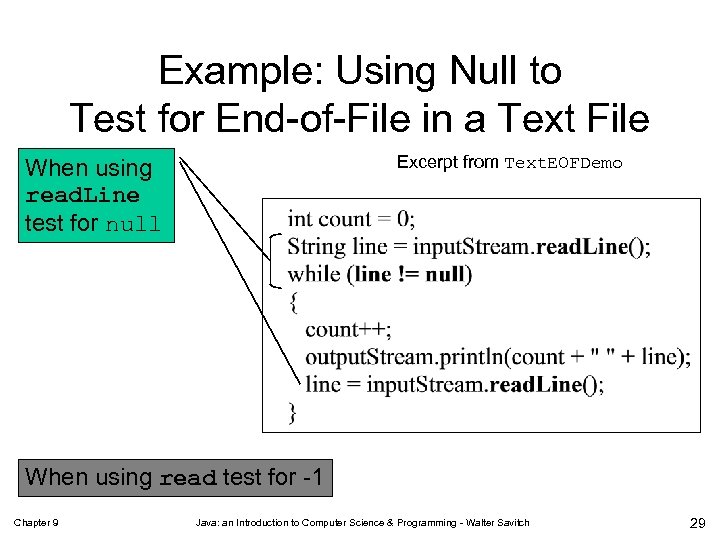 Example: Using Null to Test for End-of-File in a Text File Excerpt from Text. EOFDemo When using read. Line test for null When using read test for -1 Chapter 9 Java: an Introduction to Computer Science & Programming - Walter Savitch 29