


 Скачать презентацию Solid Works API Demystified Leonard Kikstra Designer
8e6f14303a99d9e02787e3722acbbc46.ppt
- Количество слайдов: 37
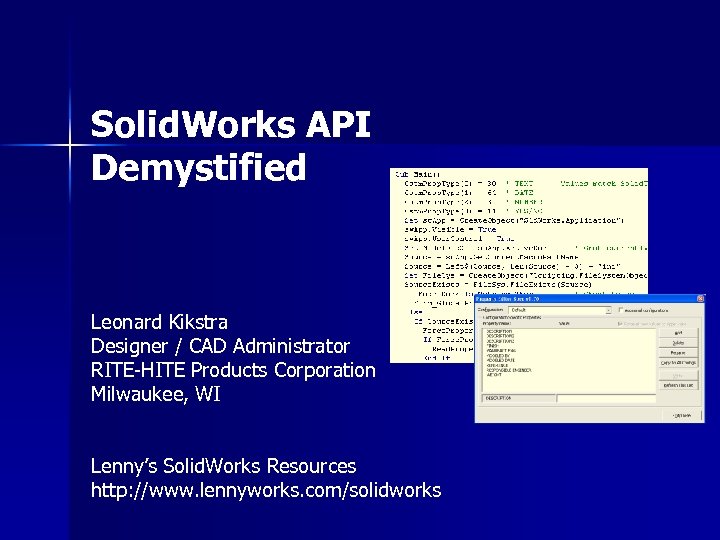 Solid. Works API Demystified Leonard Kikstra Designer / CAD Administrator RITE-HITE Products Corporation Milwaukee, WI Lenny’s Solid. Works Resources http: //www. lennyworks. com/solidworks
 Who am I? Product Designer – – – n SMART User Group n n Lenny’s Solid. Works Resources website. Engineering since 1982. Cad user since 1991. Solid. Works user since 1998. n CAD Administrator n Interested in simplifying my job. – Online Sept. 2003. – New home Sept. 2006. – 20+ people on site. – Advise other sites. – Make my computer do some of my work for me. – Active member since group started in 1999. n Programmed over 30 macros for use in Solid. Works – Most of these are available for free on the Internet.
 What is covered here. n General Information n Getting Started. n Program examples n Where to get help. – What is the Solid. Works API? – Benefits of learning/using the API. – Create and modify macros. – Finding your way. – When and Why. – Justification
 What is the Solid. Works API? n Application Programming Interface. – Allows other programs to access Solid. Works data and/or control Solid. Works. – Examples: Solid. Works Add-Ins n Cosmos, Toolbox, Photo. Works, PDM Works Enterprise n Why? n Solid. Works Add-Ins have API’s. – Allow third party vendors to build applications that access Solid. Works and Solid. Works data. – Lets Solid. Works focus on their core products. e. Drawings Feature. Works PDMWorks Photo. Works Solid. Works Tool. Box Solid. Works Utilities Solid. Works Routing
 How can the API benefit you? n Automate common and repetitive tasks. – – – Increase productivity. Save time and money. Standardize procedures. n Consistently retrieve or export data that already exists in the Solid. Works documents. n Develop useful tools to meet your specific needs. n Customize Solid. Works. – Add commands, change settings, etc…
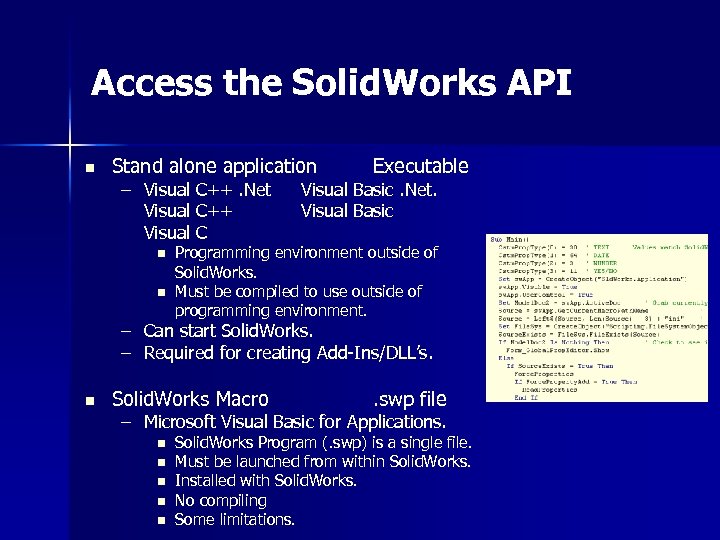 Access the Solid. Works API n Stand alone application – Visual C++. Net Visual C++ Visual C n n Executable Visual Basic. Net. Visual Basic Programming environment outside of Solid. Works. Must be compiled to use outside of programming environment. – Can start Solid. Works. – Required for creating Add-Ins/DLL’s. n Solid. Works Macro . swp file – Microsoft Visual Basic for Applications. n n n Solid. Works Program (. swp) is a single file. Must be launched from within Solid. Works. Installed with Solid. Works. No compiling Some limitations.
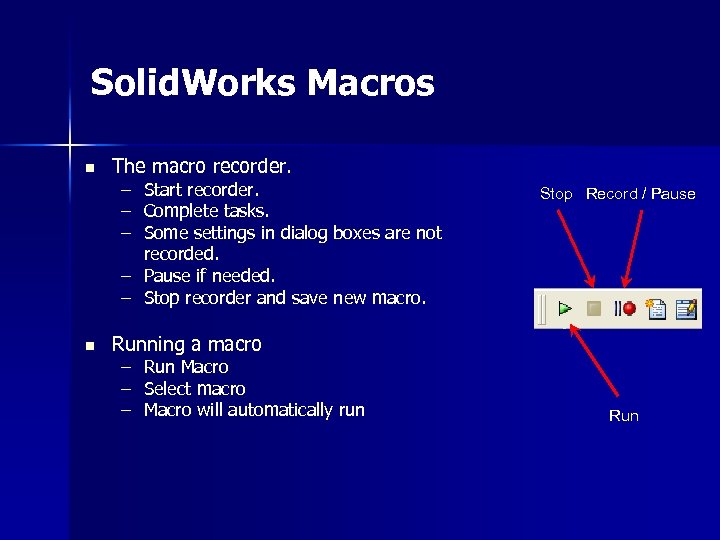 Solid. Works Macros n The macro recorder. – – – Start recorder. Complete tasks. Some settings in dialog boxes are not recorded. – Pause if needed. – Stop recorder and save new macro. n Stop Record / Pause Running a macro – Run Macro – Select macro – Macro will automatically run Run
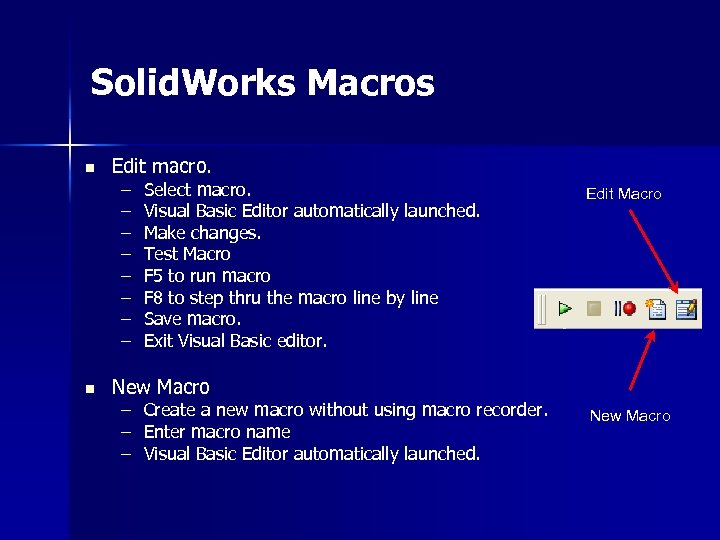 Solid. Works Macros n n Edit macro. – – – – Select macro. Visual Basic Editor automatically launched. Make changes. Test Macro F 5 to run macro F 8 to step thru the macro line by line Save macro. Exit Visual Basic editor. Edit Macro New Macro – – – Create a new macro without using macro recorder. Enter macro name Visual Basic Editor automatically launched. New Macro
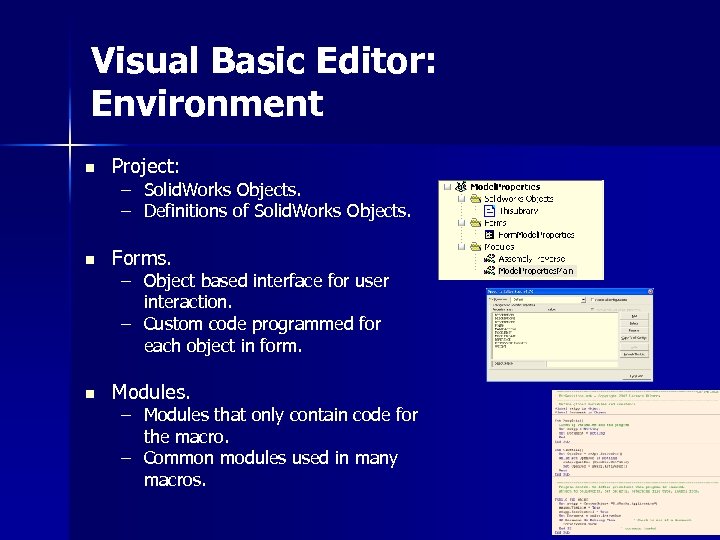 Visual Basic Editor: Environment n Project: n Forms. n Modules. – Solid. Works Objects. – Definitions of Solid. Works Objects. – Object based interface for user interaction. – Custom code programmed for each object in form. – Modules that only contain code for the macro. – Common modules used in many macros.
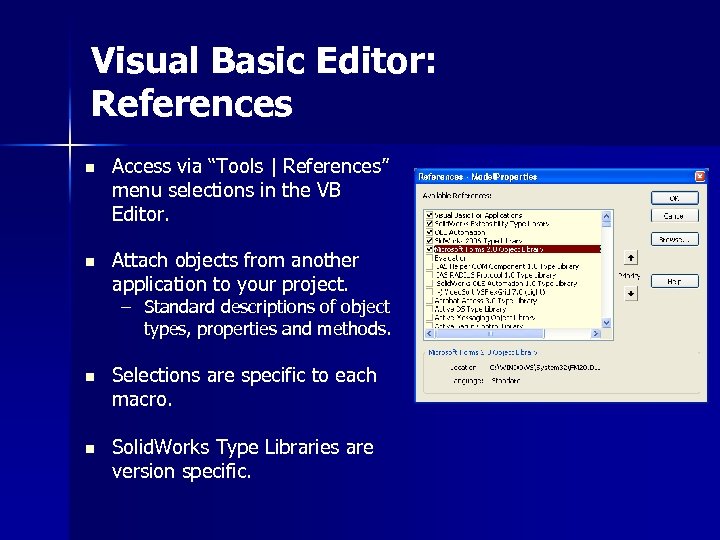 Visual Basic Editor: References n Access via “Tools | References” menu selections in the VB Editor. n Attach objects from another application to your project. – Standard descriptions of object types, properties and methods. n Selections are specific to each macro. n Solid. Works Type Libraries are version specific.
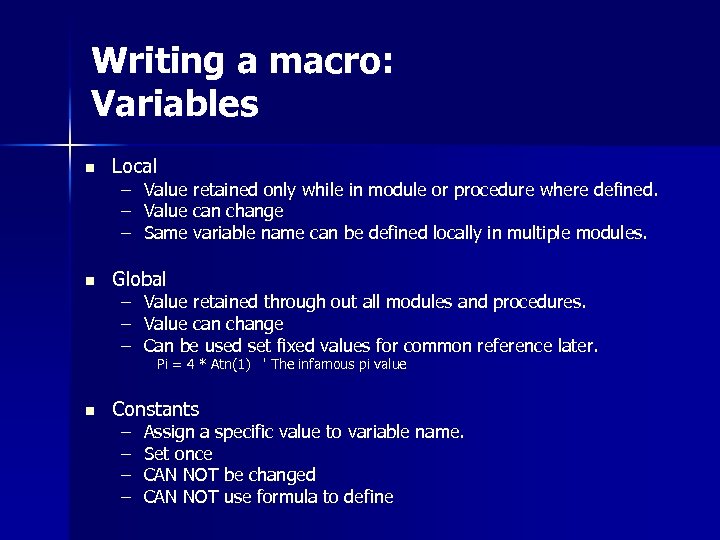 Writing a macro: Variables n n n Local – – – Value retained only while in module or procedure where defined. Value can change Same variable name can be defined locally in multiple modules. Global – – – Value retained through out all modules and procedures. Value can change Can be used set fixed values for common reference later. Pi = 4 * Atn(1) ' The infamous pi value Constants – – Assign a specific value to variable name. Set once CAN NOT be changed CAN NOT use formula to define
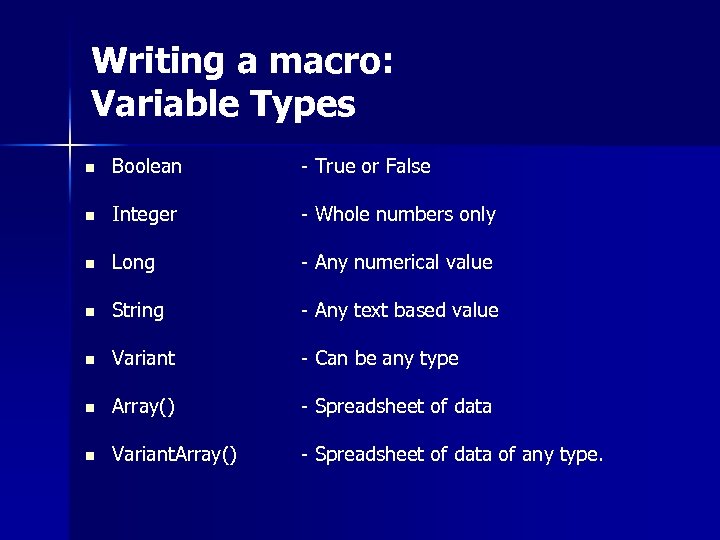 Writing a macro: Variable Types n Boolean - True or False n Integer - Whole numbers only n Long - Any numerical value n String - Any text based value n Variant - Can be any type n Array() - Spreadsheet of data n Variant. Array() - Spreadsheet of data of any type.
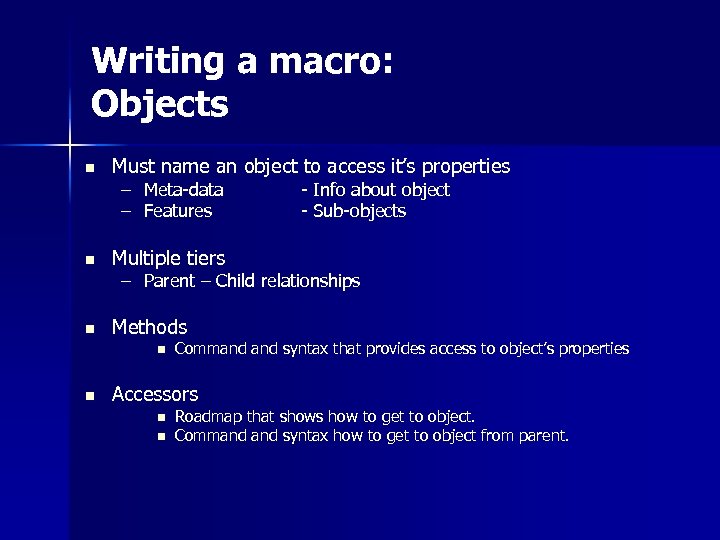 Writing a macro: Objects n Must name an object to access it’s properties – Meta-data – Features n Multiple tiers n - Info about object - Sub-objects Methods – Parent – Child relationships n n Command syntax that provides access to object’s properties Accessors n n Roadmap that shows how to get to object. Command syntax how to get to object from parent.
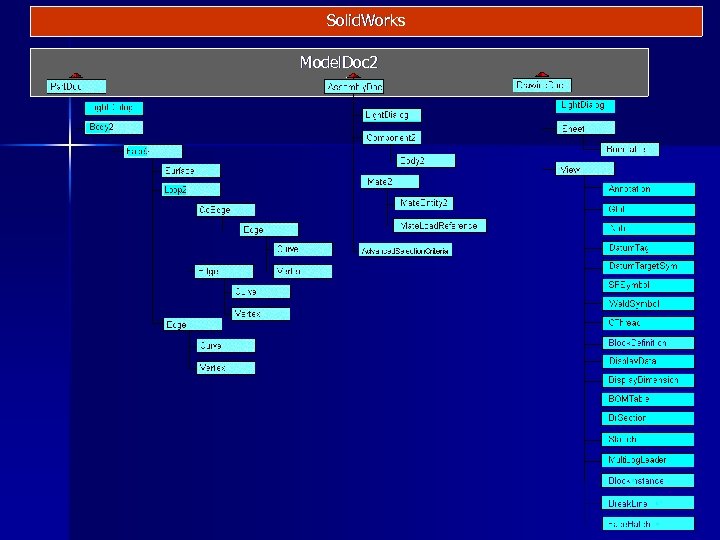 Solid. Works Model. Doc 2
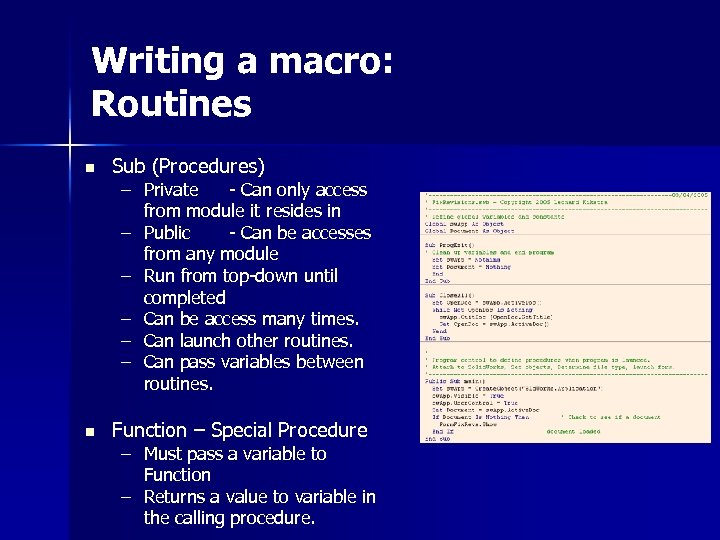 Writing a macro: Routines n Sub (Procedures) n Function – Special Procedure – Private - Can only access from module it resides in – Public - Can be accesses from any module – Run from top-down until completed – Can be access many times. – Can launch other routines. – Can pass variables between routines. – Must pass a variable to Function – Returns a value to variable in the calling procedure.
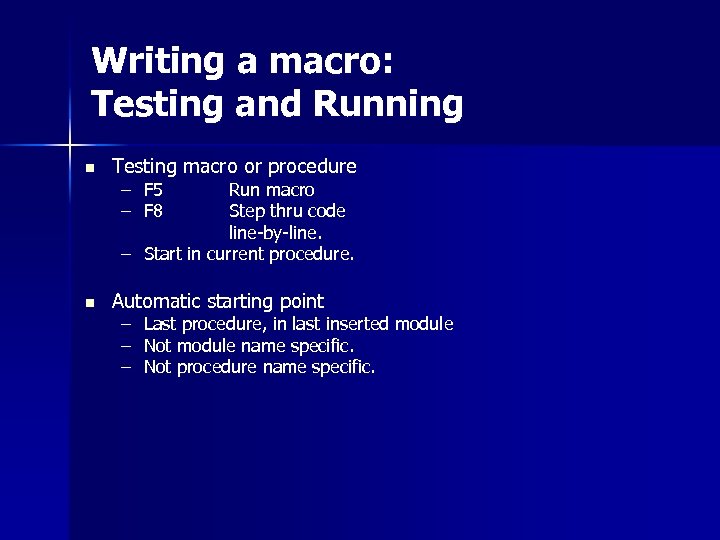 Writing a macro: Testing and Running n Testing macro or procedure – F 5 – F 8 Run macro Step thru code line-by-line. – Start in current procedure. n Automatic starting point – – – Last procedure, in last inserted module Not module name specific. Not procedure name specific.
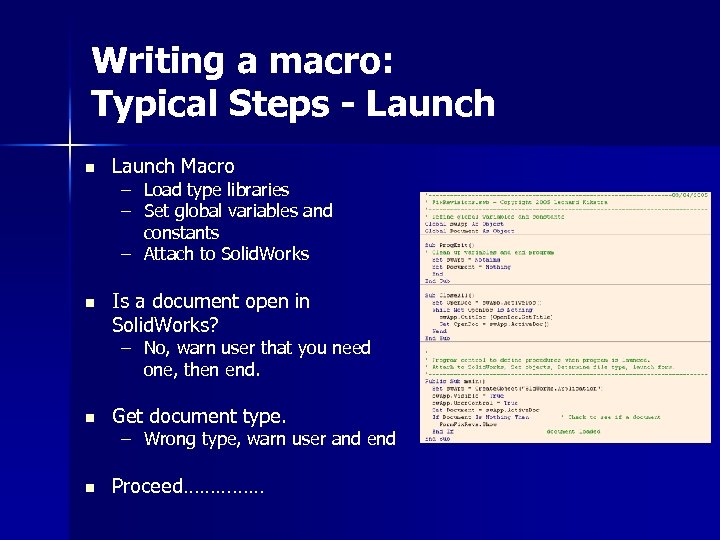 Writing a macro: Typical Steps - Launch n Launch Macro n Is a document open in Solid. Works? – Load type libraries – Set global variables and constants – Attach to Solid. Works – No, warn user that you need one, then end. n Get document type. n Proceed…………… – Wrong type, warn user and end
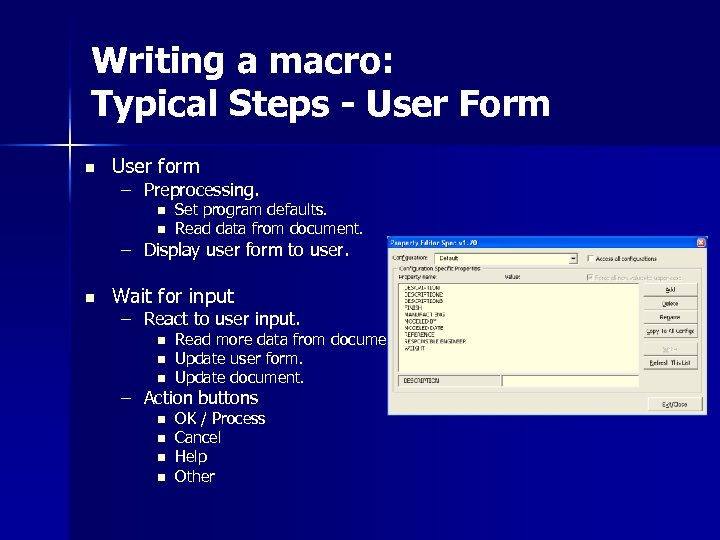 Writing a macro: Typical Steps - User Form n User form – Preprocessing. n n Set program defaults. Read data from document. – Display user form to user. n Wait for input – React to user input. n n n Read more data from document. Update user form. Update document. – Action buttons n n OK / Process Cancel Help Other
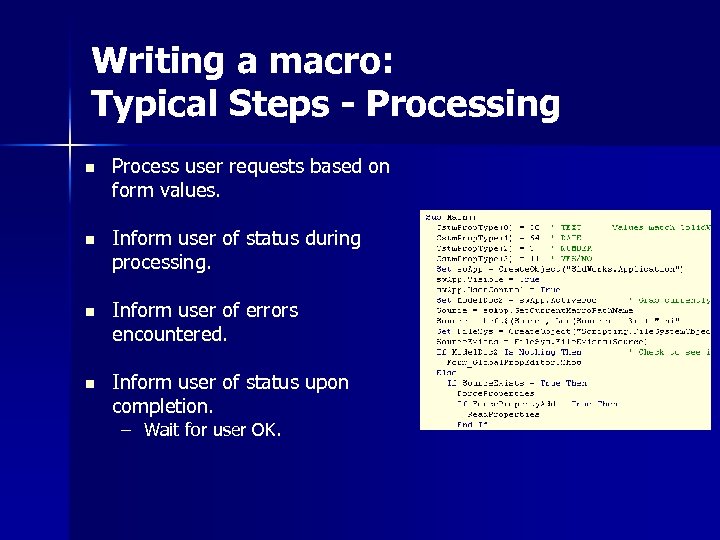 Writing a macro: Typical Steps - Processing n Process user requests based on form values. n Inform user of status during processing. n Inform user of errors encountered. n Inform user of status upon completion. – Wait for user OK.
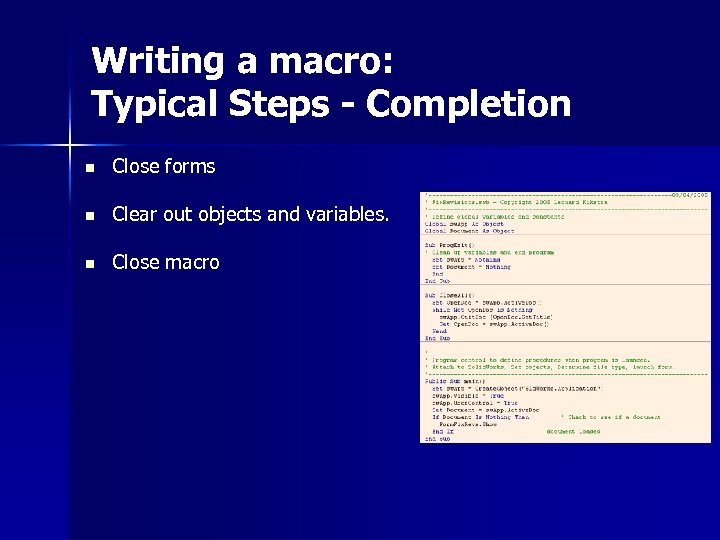 Writing a macro: Typical Steps - Completion n Close forms n Clear out objects and variables. n Close macro
 Macro Feature: n Embed macro as a feature in the model. n Overview of Macro Feature – See Solid. Works API Help File
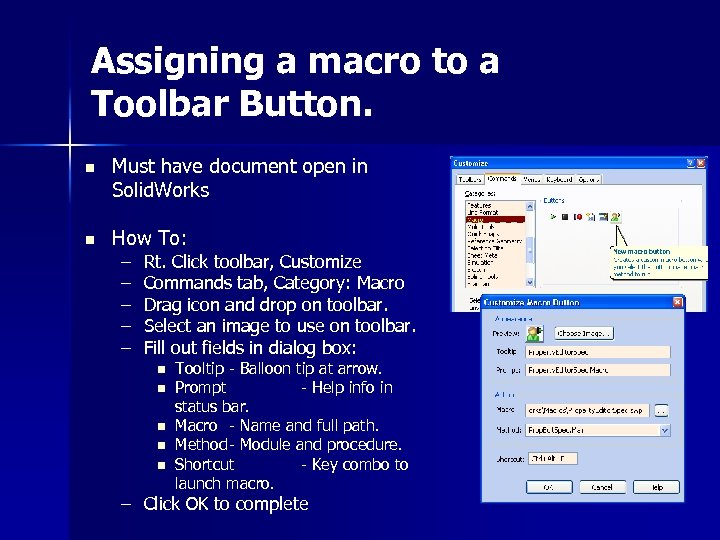 Assigning a macro to a Toolbar Button. n Must have document open in Solid. Works n How To: – – – Rt. Click toolbar, Customize Commands tab, Category: Macro Drag icon and drop on toolbar. Select an image to use on toolbar. Fill out fields in dialog box: n n n Tooltip - Balloon tip at arrow. Prompt - Help info in status bar. Macro - Name and full path. Method - Module and procedure. Shortcut - Key combo to launch macro. – Click OK to complete
 When should I write my own macro? n Consistent retrieval & exporting of data. – – – Remove manual tasks and retyping errors. Consistent results with consistent formatting. Examples: n n n Retrieve and export a BOM from the assembly Create a list of all components in a directory. – No drawing required. Automating common or repetitive tasks. – Save valuable time and money. – Examples: n n Exports Solid. Works documents to different file types. Print all drawings in the current directory. Print all drawings for all components in a current assembly. Retrieve and export a BOM for multiple configurations.
 When should I write my own macro? n Enforce compliance with standard procedures. – – – Provide an automated method to follow standards. Consistent document appearance. Examples: n n n Preset Solid. Works settings to your company standards. Set annotations in document to use document defaults. Copy document settings from “master” document to current document. Simplifies adding standardized notes to drawings. Need a special tool to automate a specific task.
 Justification to write a macro: n Define your needs. – What is the purpose of macro? – How often will you use it? n n The more you use it, the more time you will save Does it already exist? – Is there something available that’s close to what I need? – Can I modify something I already have? – Examples files: n n n Help file Solid. Works Website Lenny’s Solid. Works Resources
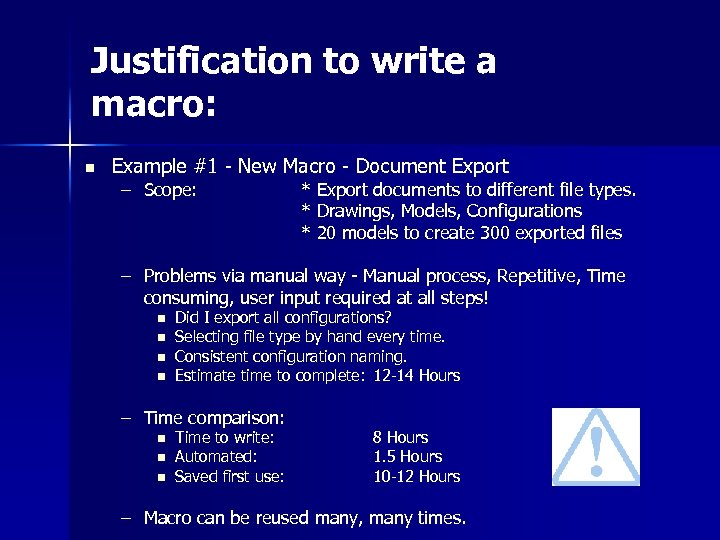 Justification to write a macro: n Example #1 - New Macro - Document Export – Scope: * Export documents to different file types. * Drawings, Models, Configurations * 20 models to create 300 exported files – Problems via manual way - Manual process, Repetitive, Time consuming, user input required at all steps! n n Did I export all configurations? Selecting file type by hand every time. Consistent configuration naming. Estimate time to complete: 12 -14 Hours – Time comparison: n n n Time to write: Automated: Saved first use: 8 Hours 1. 5 Hours 10 -12 Hours – Macro can be reused many, many times.
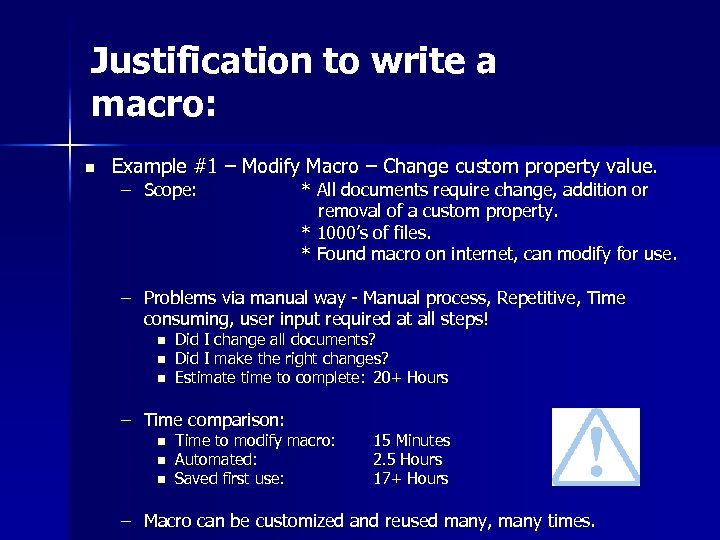 Justification to write a macro: n Example #1 – Modify Macro – Change custom property value. – Scope: * All documents require change, addition or removal of a custom property. * 1000’s of files. * Found macro on internet, can modify for use. – Problems via manual way - Manual process, Repetitive, Time consuming, user input required at all steps! n n n Did I change all documents? Did I make the right changes? Estimate time to complete: 20+ Hours – Time comparison: n n n Time to modify macro: Automated: Saved first use: 15 Minutes 2. 5 Hours 17+ Hours – Macro can be customized and reused many, many times.
 Tips: Learning n Learn by example. n Experiment – Find a good macro, and study how it works. – Use [F 8] in VB Editor to step thru code line-by-line. – Write “do nothing” macros for Visual Basic or Solid. Works API n n n Learn functions you haven’t used before. Develop your own functions or common routines. Test “What If” scenarios. – Save your code for later use. n Start small and work your way up. – Write and test small portions of code before continuing to larger portions. – Start with a “basic” program, then add more functionality and flexibility later.
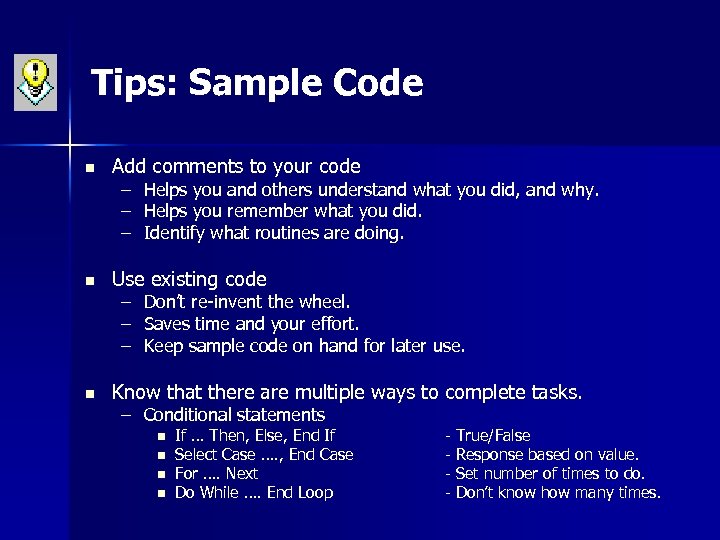 Tips: Sample Code n n n Add comments to your code – – – Helps you and others understand what you did, and why. Helps you remember what you did. Identify what routines are doing. Use existing code – – – Don’t re-invent the wheel. Saves time and your effort. Keep sample code on hand for later use. Know that there are multiple ways to complete tasks. – Conditional statements n n If … Then, Else, End If Select Case …. , End Case For …. Next Do While …. End Loop - True/False - Response based on value. - Set number of times to do. - Don’t know how many times.
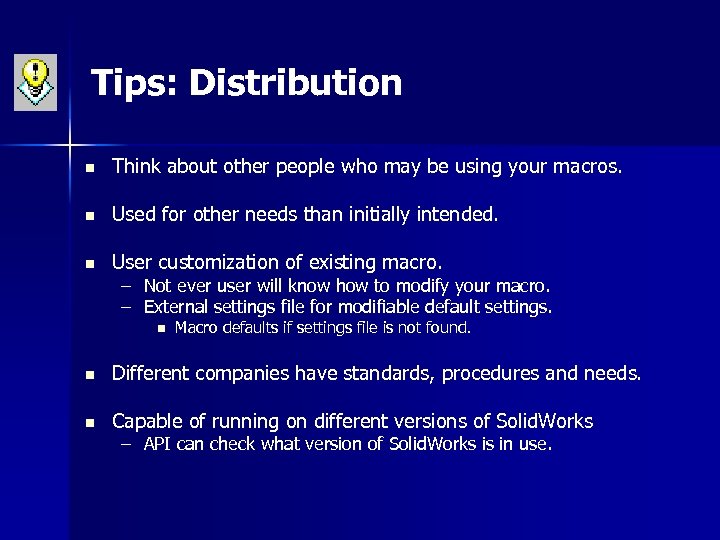 Tips: Distribution n Think about other people who may be using your macros. n Used for other needs than initially intended. n User customization of existing macro. – Not ever user will know how to modify your macro. – External settings file for modifiable default settings. n Macro defaults if settings file is not found. n Different companies have standards, procedures and needs. n Capable of running on different versions of Solid. Works – API can check what version of Solid. Works is in use.
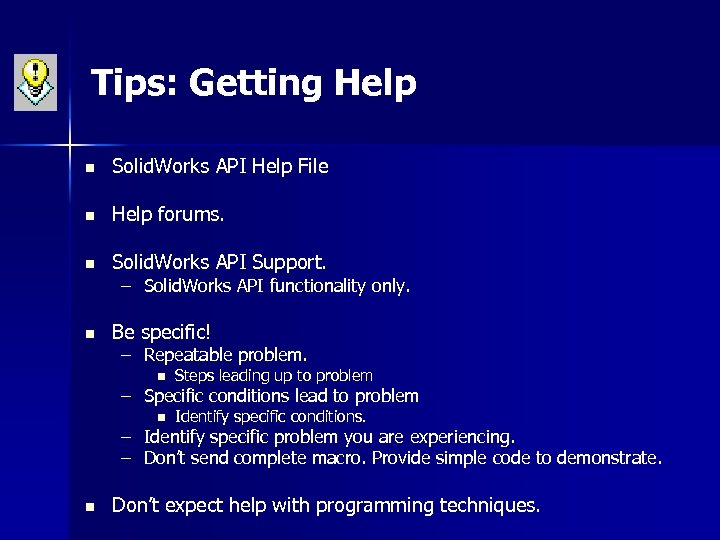 Tips: Getting Help n Solid. Works API Help File n Help forums. n Solid. Works API Support. n Be specific! – Solid. Works API functionality only. – Repeatable problem. n Steps leading up to problem n Identify specific conditions. – Specific conditions lead to problem – Identify specific problem you are experiencing. – Don’t send complete macro. Provide simple code to demonstrate. n Don’t expect help with programming techniques.
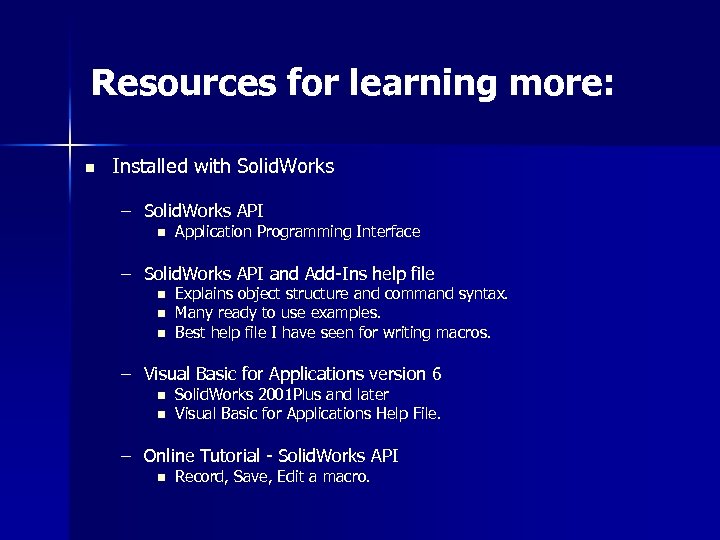 Resources for learning more: n Installed with Solid. Works – Solid. Works API n Application Programming Interface – Solid. Works API and Add-Ins help file n n n Explains object structure and command syntax. Many ready to use examples. Best help file I have seen for writing macros. – Visual Basic for Applications version 6 n n Solid. Works 2001 Plus and later Visual Basic for Applications Help File. – Online Tutorial - Solid. Works API n Record, Save, Edit a macro.
 Resources for learning more? n Solid. Works web site: – API programming tips and updated help files. – Solid. Works Express Newsletter - API Examples – Download projects, sample programs and macros. – Solid. Works Developer Kit. n n Not required Contains working sample programs. – Presentations n Local VAR / Solid. Works Reseller – Solid. Works API Training classes
 Resources for learning more? Other Websites - API n Lenny’s Solid. Works Resources Macros & Tips n Mike Wilson’s Solid. Works Modeling Techniques Macro Feature n Matt Lombard Macros n Joe Jones at New Hampshire CAD – http: //www. nhcad. com/sw_macros/index. html Tutorials n Stefan Berlitz’s Solid. Works Tools Macros n Solid. Works Tips & Things – http: //www. solidworktips. com/ API Tips – http: //www. lennyworks. com/solidworks – http: //www. mikejwilson. com/solidworks_files. htm – http: //mysite. verizon. net/mjlombard/ – http: //www. swtools. de website.
 Resources for learning more? Visual Basic n Websites – – – “Tutorial” and “Lessons” May be Visual Basic Specific. Do not provide help with specific applications. n Forums n Too many to list. n Some provide better explanation and examples. – May be Visual Basic Specific. – Do not be able to provide help with specific applications.
 Solid. Works API Demystified
 Thank You! Lenny’s Solid. Works Resources has moved to http: //www. Lenny. Works. com/solidworks