


 Скачать презентацию Software Tools Shell Programming Slide 2 Shells
8ba543ced9c5e62b3ef1280a90195d2e.ppt
- Количество слайдов: 24
 Software Tools Shell Programming
 Slide 2 Shells l. A shell can be used in one of two ways: n. A command interpreter, used interactively n A programming language, to write shell scripts (your own custom commands)
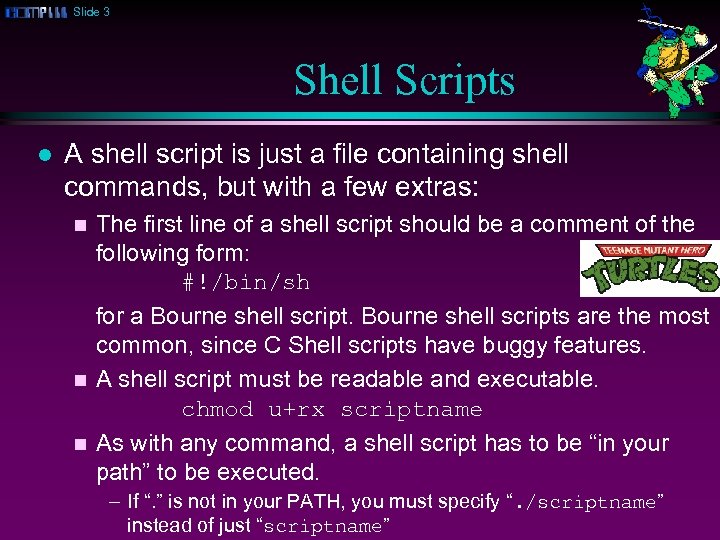 Slide 3 Shell Scripts l A shell script is just a file containing shell commands, but with a few extras: The first line of a shell script should be a comment of the following form: #!/bin/sh for a Bourne shell scripts are the most common, since C Shell scripts have buggy features. n A shell script must be readable and executable. chmod u+rx scriptname n As with any command, a shell script has to be “in your path” to be executed. n – If “. ” is not in your PATH, you must specify “. /scriptname” instead of just “scriptname”
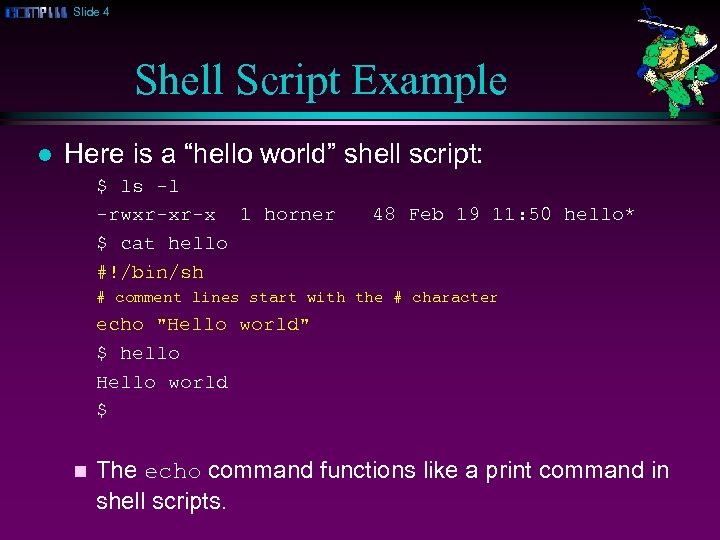 Slide 4 Shell Script Example l Here is a “hello world” shell script: $ ls -l -rwxr-xr-x 1 horner $ cat hello #!/bin/sh 48 Feb 19 11: 50 hello* # comment lines start with the # character echo "Hello world" $ hello Hello world $ n The echo command functions like a print command in shell scripts.
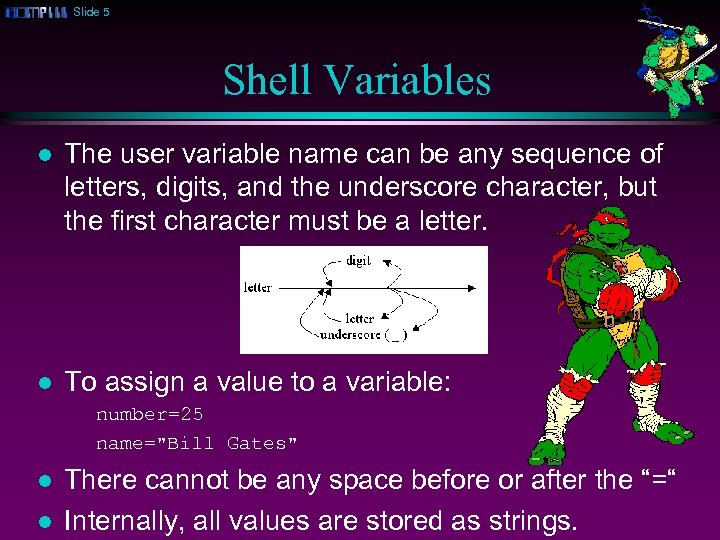 Slide 5 Shell Variables l The user variable name can be any sequence of letters, digits, and the underscore character, but the first character must be a letter. l To assign a value to a variable: number=25 name="Bill Gates" l l There cannot be any space before or after the “=“ Internally, all values are stored as strings.
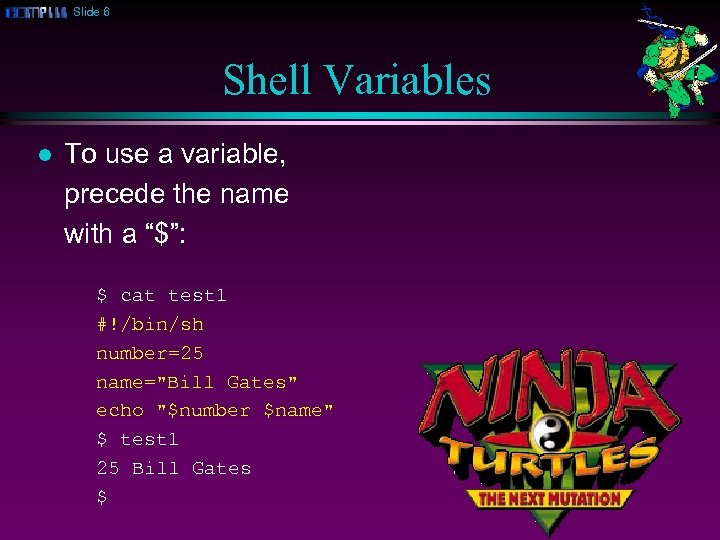 Slide 6 Shell Variables l To use a variable, precede the name with a “$”: $ cat test 1 #!/bin/sh number=25 name="Bill Gates" echo "$number $name" $ test 1 25 Bill Gates $
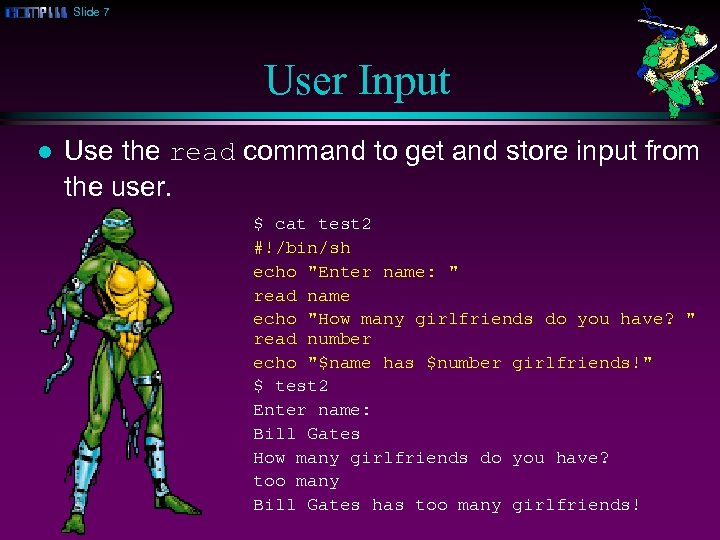 Slide 7 User Input l Use the read command to get and store input from the user. $ cat test 2 #!/bin/sh echo "Enter name: " read name echo "How many girlfriends do you have? " read number echo "$name has $number girlfriends!" $ test 2 Enter name: Bill Gates How many girlfriends do you have? too many Bill Gates has too many girlfriends!
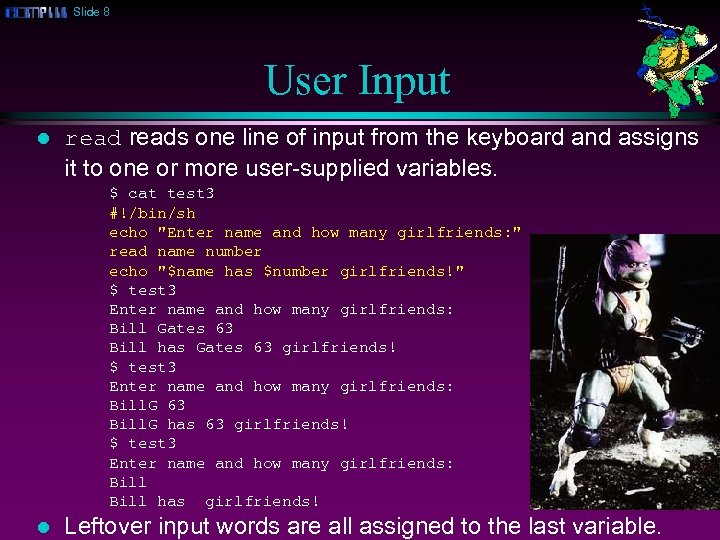 Slide 8 User Input l reads one line of input from the keyboard and assigns it to one or more user-supplied variables. $ cat test 3 #!/bin/sh echo "Enter name and how many girlfriends: " read name number echo "$name has $number girlfriends!" $ test 3 Enter name and how many girlfriends: Bill Gates 63 Bill has Gates 63 girlfriends! $ test 3 Enter name and how many girlfriends: Bill. G 63 Bill. G has 63 girlfriends! $ test 3 Enter name and how many girlfriends: Bill has girlfriends! l Leftover input words are all assigned to the last variable.
 Slide 9 $ l Use a backslash before $ if you really want to print the dollar sign: $ cat test 4 #!/bin/sh echo "Enter amount: " read cost echo "The total is: $$cost" $ test 4 Enter amount: 18. 50 The total is $18. 50
 Slide 10 $ l l You can also use single quotes for printing dollar signs. Single quotes turn off the special meaning of all enclosed dollar signs: $ cat test 5 #!/bin/sh echo "Enter amount: " read cost echo ‘The total is: $’ "$cost" $ test 5 Enter amount: 18. 50 The total is $ 18. 50
 Slide 11 expr l l l Shell programming is not good at numerical computation, it is good at text processing. However, the expr command allows simple integer calculations. Here is an interactive Bourne shell example: $ i=1 $ expr $i + 1 2 l To assign the result of an expr command to another shell variable, surround it with backquotes: $ i=1 $ i=`expr $i + 1` $ echo "$i" 2
 Slide 12 expr l The * character normally means “all the files in the current directory”, so you need a “” to use it for multiplication: $ i=2 $ i=`expr $i * 3` $ echo $i 6 l expr also allows you to group expressions, but the “(“ and “)” characters also need to be preceded by backslashes: $ i=2 $ echo `expr 5 + ( $i * 3 )` 11
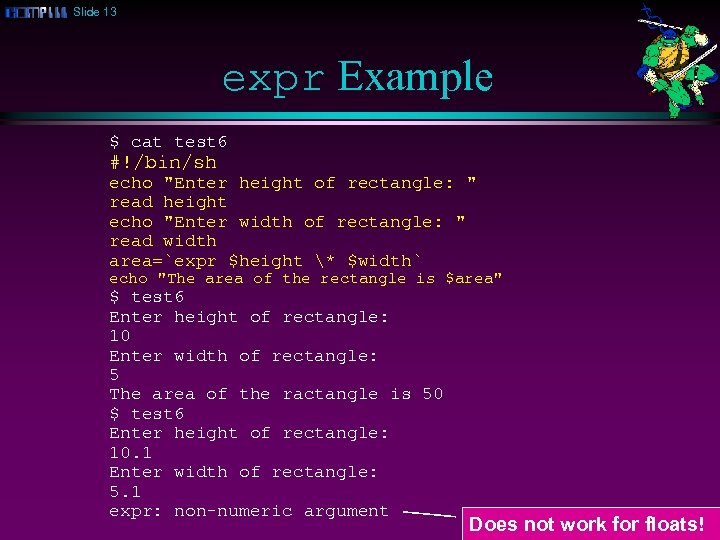 Slide 13 expr Example $ cat test 6 #!/bin/sh echo "Enter height of rectangle: " read height echo "Enter width of rectangle: " read width area=`expr $height * $width` echo "The area of the rectangle is $area" $ test 6 Enter height of rectangle: 10 Enter width of rectangle: 5 The area of the ractangle is 50 $ test 6 Enter height of rectangle: 10. 1 Enter width of rectangle: 5. 1 expr: non-numeric argument Does not work for floats!
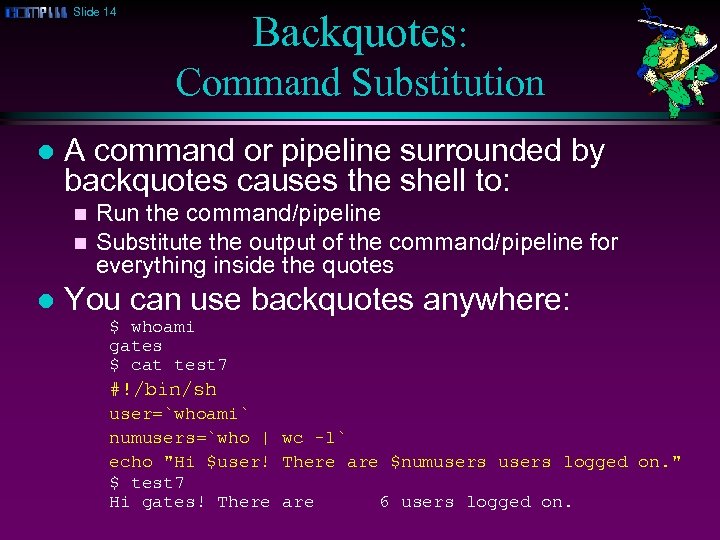 Slide 14 Backquotes: Command Substitution l A command or pipeline surrounded by backquotes causes the shell to: n n l Run the command/pipeline Substitute the output of the command/pipeline for everything inside the quotes You can use backquotes anywhere: $ whoami gates $ cat test 7 #!/bin/sh user=`whoami` numusers=`who | wc -l` echo "Hi $user! There are $numusers logged on. " $ test 7 Hi gates! There are 6 users logged on.
 Slide 15 Control Flow l The shell allows several control flow statements: n if n while n for
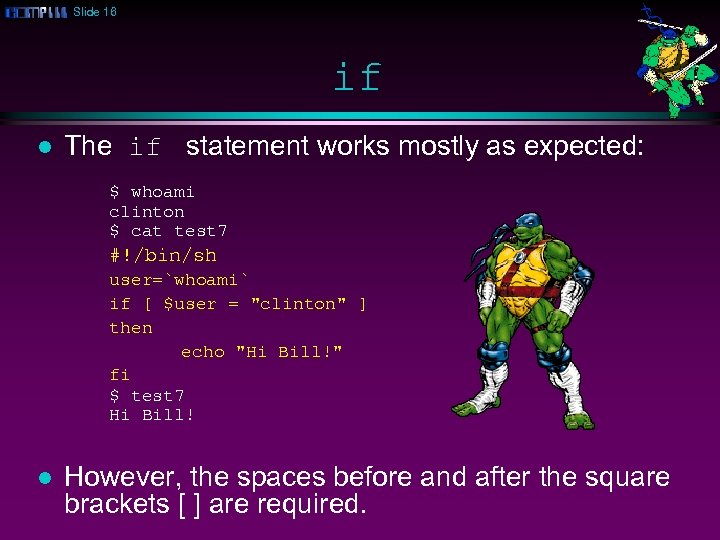 Slide 16 if l The if statement works mostly as expected: $ whoami clinton $ cat test 7 #!/bin/sh user=`whoami` if [ $user = "clinton" ] then echo "Hi Bill!" fi $ test 7 Hi Bill! l However, the spaces before and after the square brackets [ ] are required.
 Slide 17 if then else l The if then else statement is similar: $ cat test 7 #!/bin/sh user=`whoami` if [ $user = "clinton" ] then echo "Hi Bill!" else echo "Hi $user!" fi $ test 7 Hi horner!
 Slide 18 if else l You can also handle a list of cases: $ cat test 8 #!/bin/sh users=`who | wc -l` if [ $users -ge 4 ] then echo "Heavy load" elif [ $users -gt 1 ] then echo "Medium load" else echo "Just me!" fi $ test 8 Heavy load!
 Slide 19 Boolean Expressions l Relational operators: -eq, -ne, -gt, -ge, -lt, -le l File operators: -f file -d file -s file l True if file exists and is not a directory True if file exists and is a directory True if file exists and has a size > 0 String operators: -z -n s 1 s 1 string = s 2 != s 2 True True if if if the length of s 1 and s 2 are s 1 is not the string is zero string is nonzero the same different null string
 Slide 20 File Operator Example $ cat test 9 #!/bin/sh if [ -f letter 1 ] then echo "We have found the evidence!" cat letter 1 else echo "Keep looking!" fi $ test 9 We have found the evidence! How much would it cost to buy Apple Computer? Best, Bill
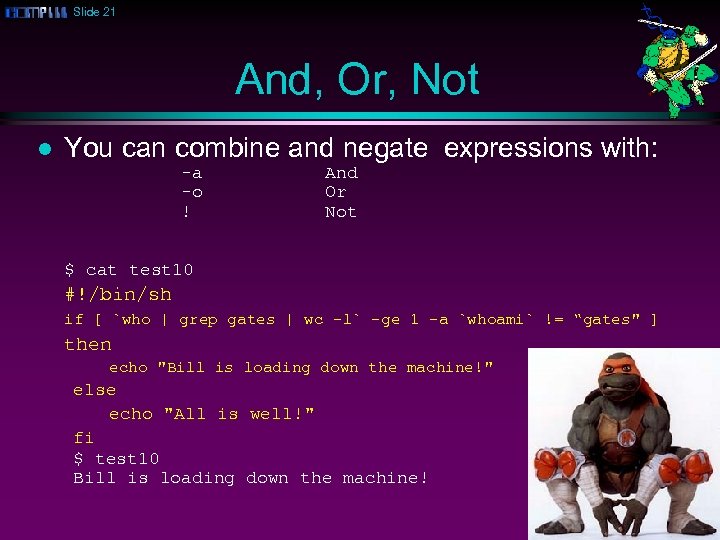 Slide 21 And, Or, Not l You can combine and negate expressions with: -a -o ! And Or Not $ cat test 10 #!/bin/sh if [ `who | grep gates | wc -l` -ge 1 -a `whoami` != “gates" ] then echo "Bill is loading down the machine!" else echo "All is well!" fi $ test 10 Bill is loading down the machine!
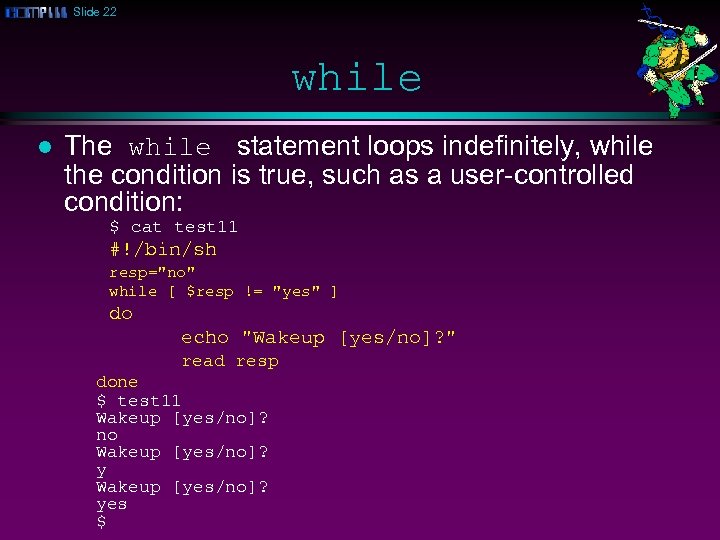 Slide 22 while l The while statement loops indefinitely, while the condition is true, such as a user-controlled condition: $ cat test 11 #!/bin/sh resp="no" while [ $resp != "yes" ] do echo "Wakeup [yes/no]? " read resp done $ test 11 Wakeup [yes/no]? no Wakeup [yes/no]? yes $
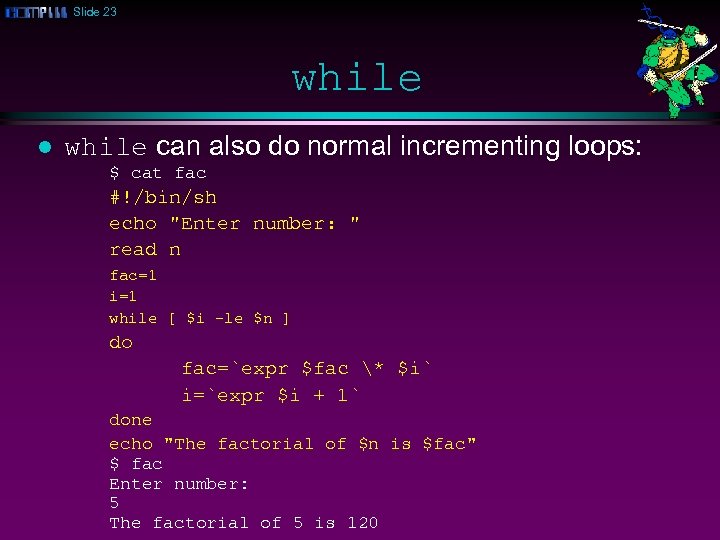 Slide 23 while l while can also do normal incrementing loops: $ cat fac #!/bin/sh echo "Enter number: " read n fac=1 i=1 while [ $i -le $n ] do fac=`expr $fac * $i` i=`expr $i + 1` done echo "The factorial of $n is $fac" $ fac Enter number: 5 The factorial of 5 is 120
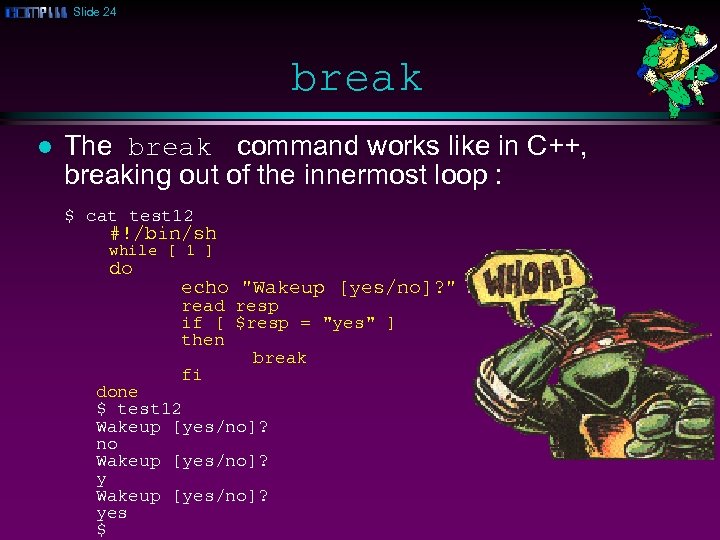 Slide 24 break l The break command works like in C++, breaking out of the innermost loop : $ cat test 12 #!/bin/sh while [ 1 ] do echo "Wakeup [yes/no]? " read resp if [ $resp = "yes" ] then break fi done $ test 12 Wakeup [yes/no]? no Wakeup [yes/no]? yes $