


 Скачать презентацию Software and Device Initial Set-up Log Tag Tred
631920fcba6b5a07fa66e63e9fa85bf5.ppt
- Количество слайдов: 37
 Software and Device Initial Set-up Log. Tag® Tred 30 -7 R Note: This manual covers installation instructions and requirements. For daily use and other trouble shooting, see “Daily use…” Revised March 2017 Marcia Levin, MPH Chicago Department of Public Health
 Table of Contents: SECTION I: Data Logger Contents pg. 3 SECTION II: Software Download and Installation pg. 4 SECTION III: Setting Your Options pg. 9 General Settings. . . . ……………………………. pg. 10 Summary Statistics. . . . . . pg. 11 Chart Statistics………………. . . . . ……………………………. pg. 12 Charts……………. . . ……………………………. pg. 13 Automation……………………………. pg. 15 SECTIONFolder Settings…………. . ……………………………. IV: Device Configuration pg. 21 File and pg. 16 SECTION V: Start the Data Logger pg. 35 Date and Time…………………. . ……………………………. pg. 18 Communication Ports…………………………………………. . . pg. 19 2
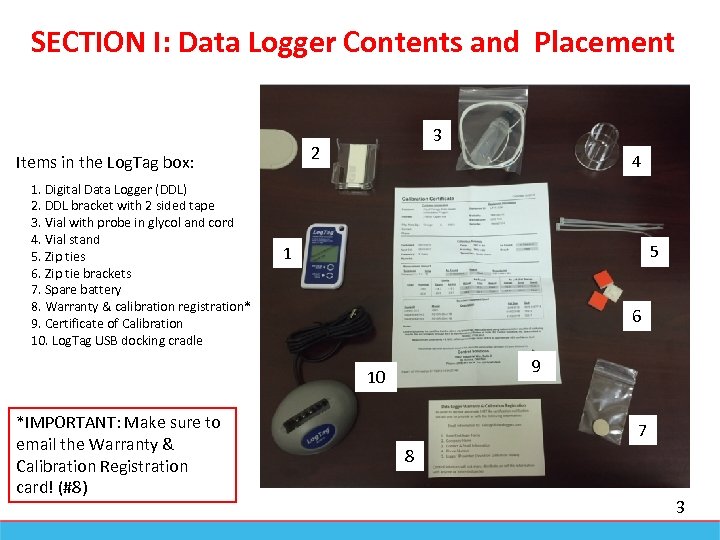 SECTION I: Data Logger Contents and Placement 2 Items in the Log. Tag box: 1. Digital Data Logger (DDL) 2. DDL bracket with 2 sided tape 3. Vial with probe in glycol and cord 4. Vial stand 5. Zip ties 6. Zip tie brackets 7. Spare battery 8. Warranty & calibration registration* 9. Certificate of Calibration 10. Log. Tag USB docking cradle 3 4 5 1 6 9 10 *IMPORTANT: Make sure to email the Warranty & Calibration Registration card! (#8) 7 8 3
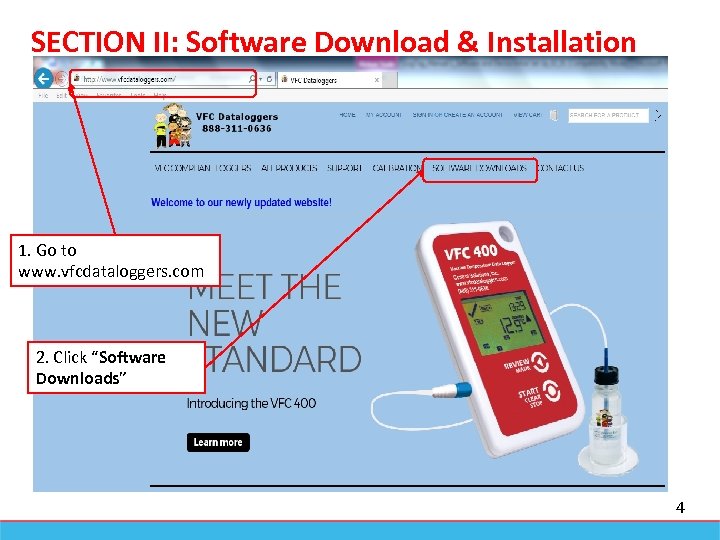 SECTION II: Software Download & Installation 1. Go to www. vfcdataloggers. com 2. Click “Software Downloads” 4
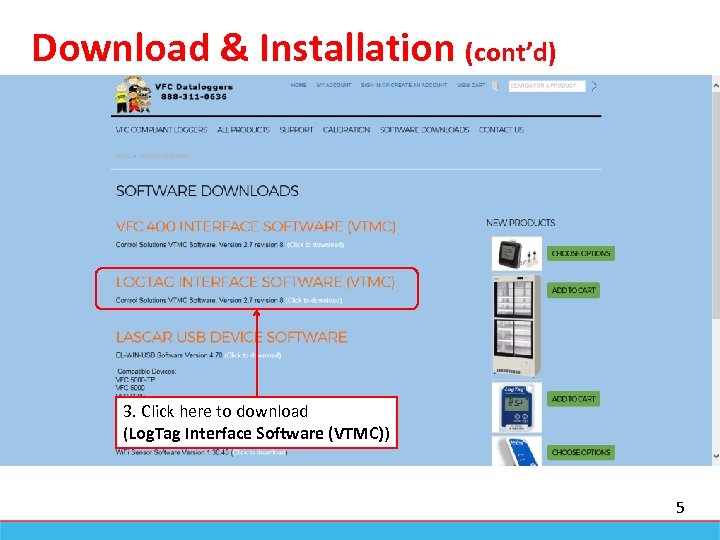 Download & Installation (cont’d) 3. Click here to download (Log. Tag Interface Software (VTMC)) 5
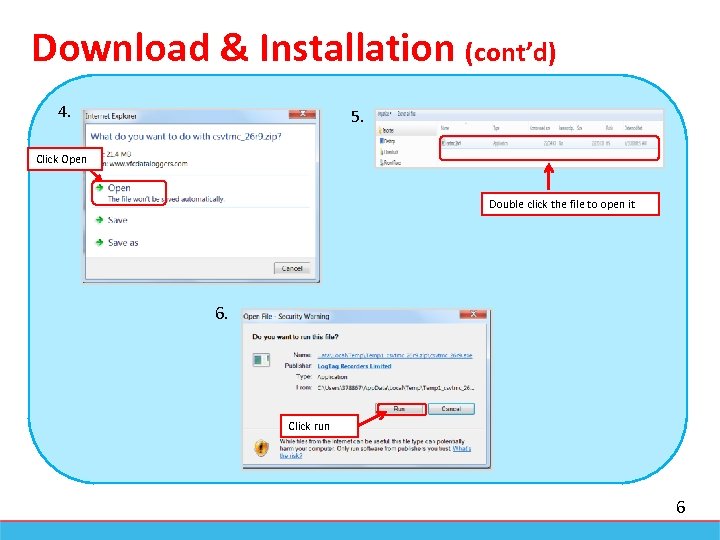 Download & Installation (cont’d) 4. 5. Click Open Double click the file to open it 6. Click run 6
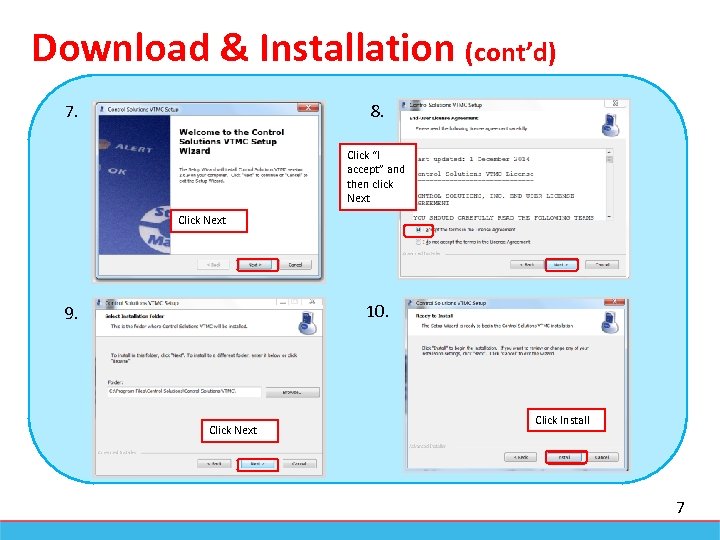 Download & Installation (cont’d) 8. 7. Click “I accept” and then click Next Click Next 10. 9. Click Next Click Install 7
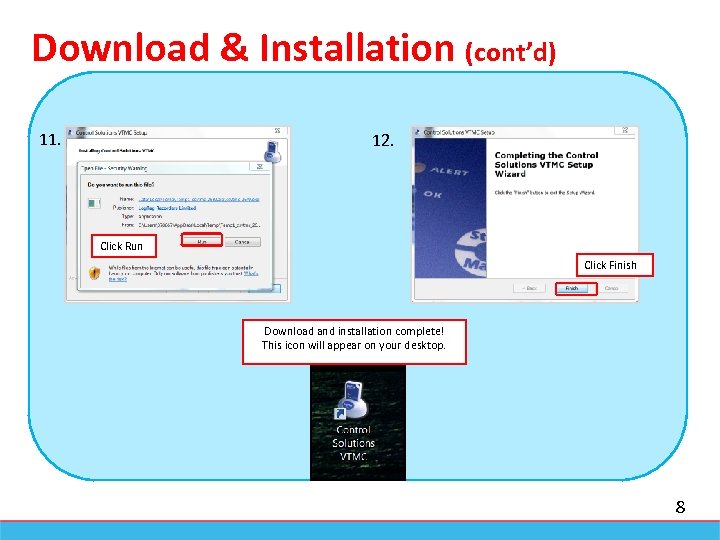 Download & Installation (cont’d) 11. 5. 12. Click Run Click Finish Download and installation complete! This icon will appear on your desktop. 8
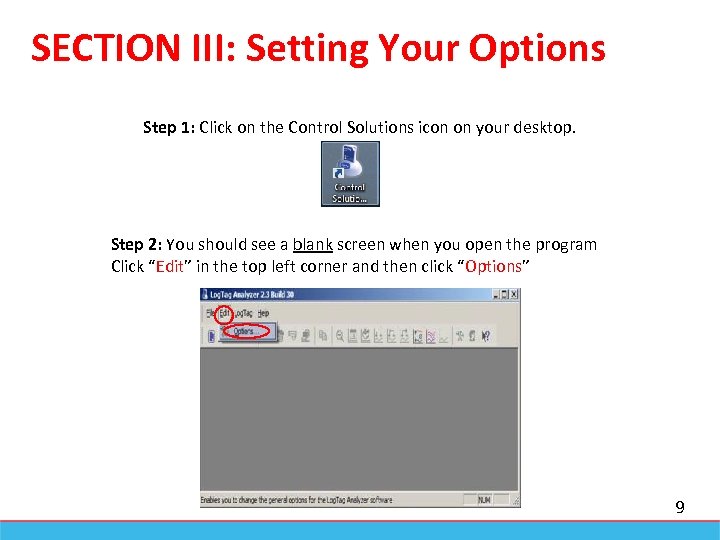 SECTION III: Setting Your Options Step 1: Click on the Control Solutions icon on your desktop. Step 2: You should see a blank screen when you open the program Click “Edit” in the top left corner and then click “Options” 9
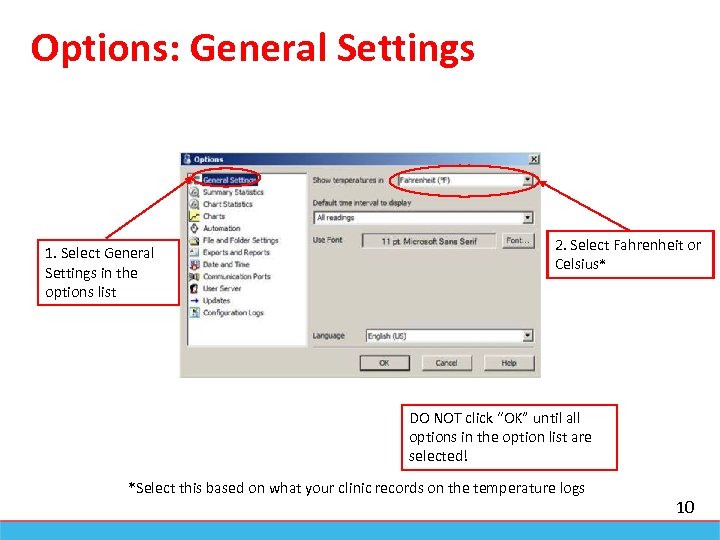 Options: General Settings 1. Select General Settings in the options list 2. Select Fahrenheit or Celsius* DO NOT click “OK” until all options in the option list are selected! *Select this based on what your clinic records on the temperature logs 10
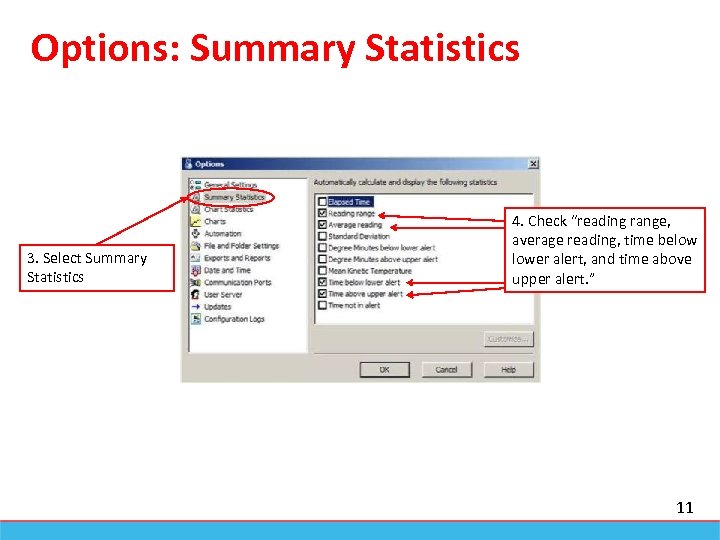 Options: Summary Statistics 3. Select Summary Statistics 4. Check “reading range, average reading, time below lower alert, and time above upper alert. ” 11
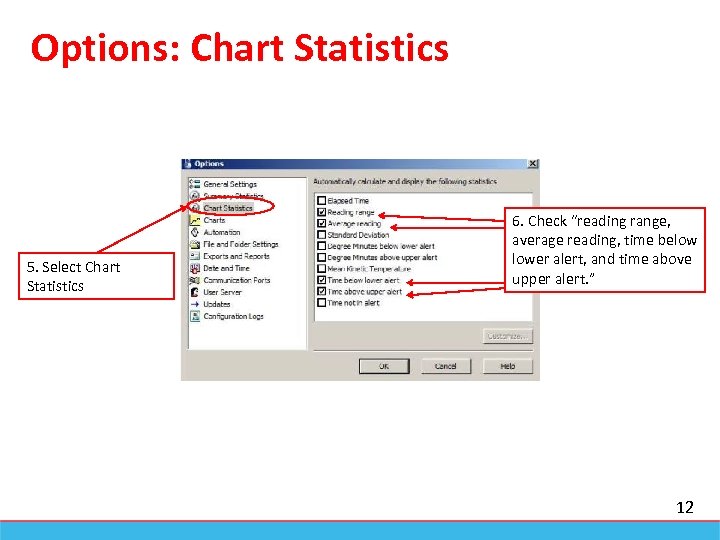 Options: Chart Statistics 5. Select Chart Statistics 6. Check “reading range, average reading, time below lower alert, and time above upper alert. ” 12
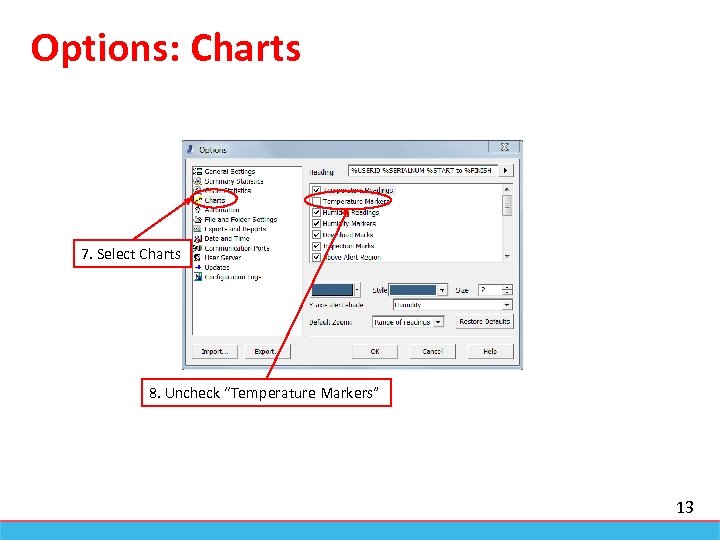 Options: Charts 7. Select Charts 8. Uncheck “Temperature Markers” 13
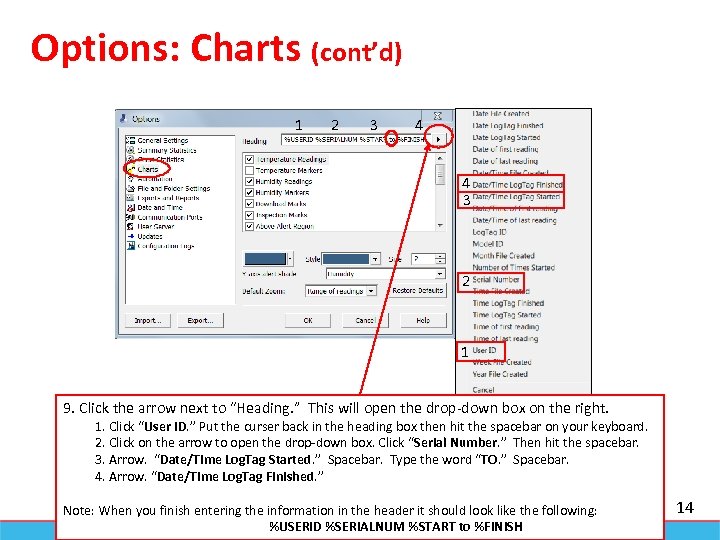 Options: Charts (cont’d) 1 2 3 4 4 3 2 1 9. Click the arrow next to “Heading. ” This will open the drop-down box on the right. 1. Click “User ID. ” Put the curser back in the heading box then hit the spacebar on your keyboard. 2. Click on the arrow to open the drop-down box. Click “Serial Number. ” Then hit the spacebar. 3. Arrow. “Date/Time Log. Tag Started. ” Spacebar. Type the word “TO. ” Spacebar. 4. Arrow. “Date/Time Log. Tag Finished. ” Note: When you finish entering the information in the header it should look like the following: %USERID %SERIALNUM %START to %FINISH 14
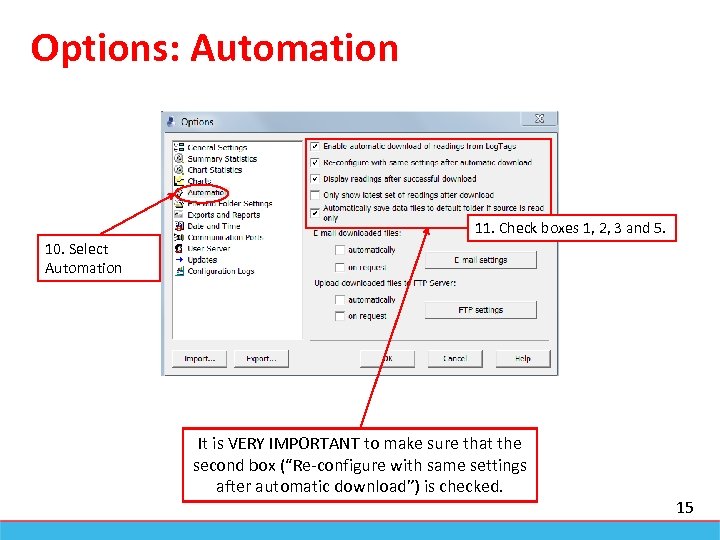 Options: Automation 11. Check boxes 1, 2, 3 and 5. 10. Select Automation It is VERY IMPORTANT to make sure that the second box (“Re-configure with same settings after automatic download”) is checked. 15
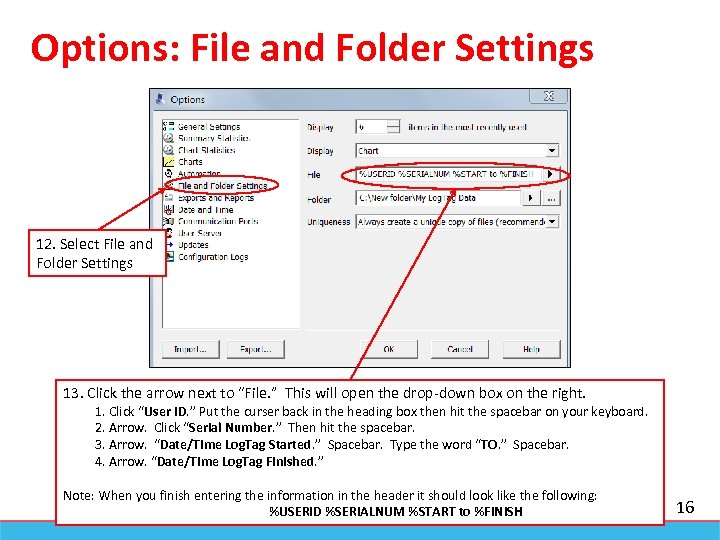 Options: File and Folder Settings 12. Select File and Folder Settings 13. Click the arrow next to “File. ” This will open the drop-down box on the right. 1. Click “User ID. ” Put the curser back in the heading box then hit the spacebar on your keyboard. 2. Arrow. Click “Serial Number. ” Then hit the spacebar. 3. Arrow. “Date/Time Log. Tag Started. ” Spacebar. Type the word “TO. ” Spacebar. 4. Arrow. “Date/Time Log. Tag Finished. ” Note: When you finish entering the information in the header it should look like the following: %USERID %SERIALNUM %START to %FINISH 16
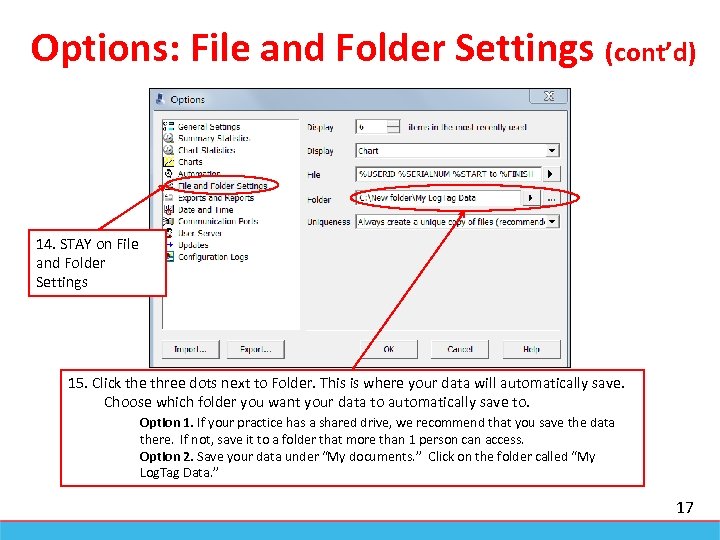 Options: File and Folder Settings (cont’d) 14. STAY on File and Folder Settings 15. Click the three dots next to Folder. This is where your data will automatically save. Choose which folder you want your data to automatically save to. Option 1. If your practice has a shared drive, we recommend that you save the data there. If not, save it to a folder that more than 1 person can access. Option 2. Save your data under “My documents. ” Click on the folder called “My Log. Tag Data. ” 17
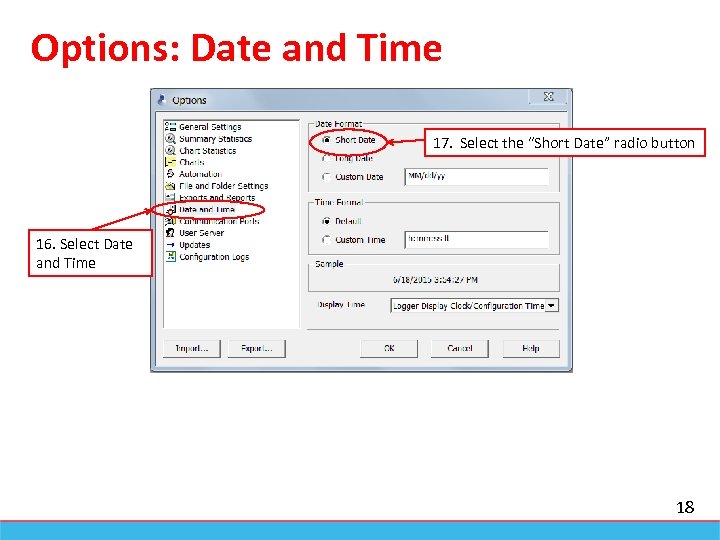 Options: Date and Time 17. Select the “Short Date” radio button 16. Select Date and Time 18
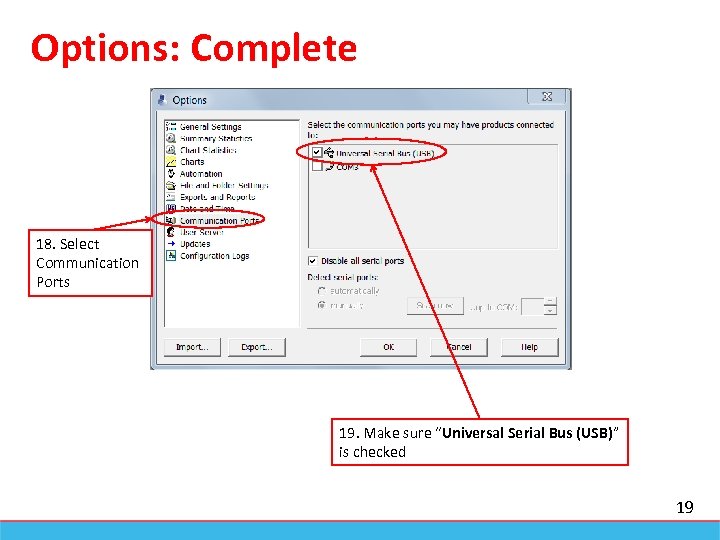 Options: Complete 18. Select Communication Ports 19. Make sure “Universal Serial Bus (USB)” is checked 19
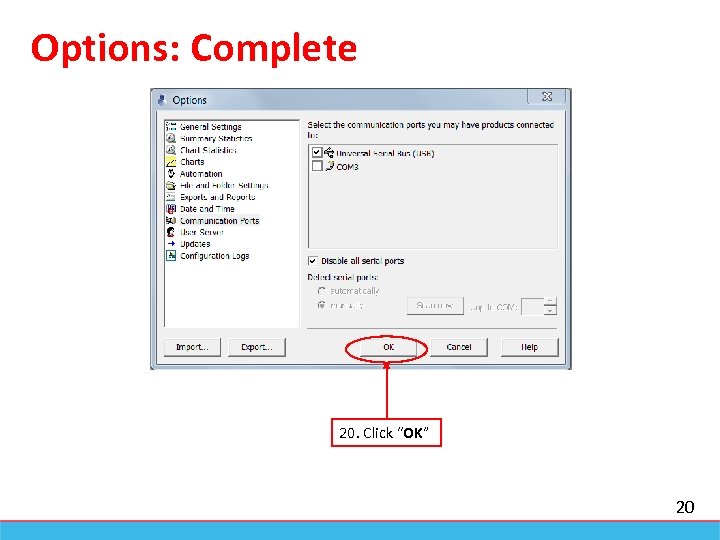 Options: Complete 20. Click “OK” 20
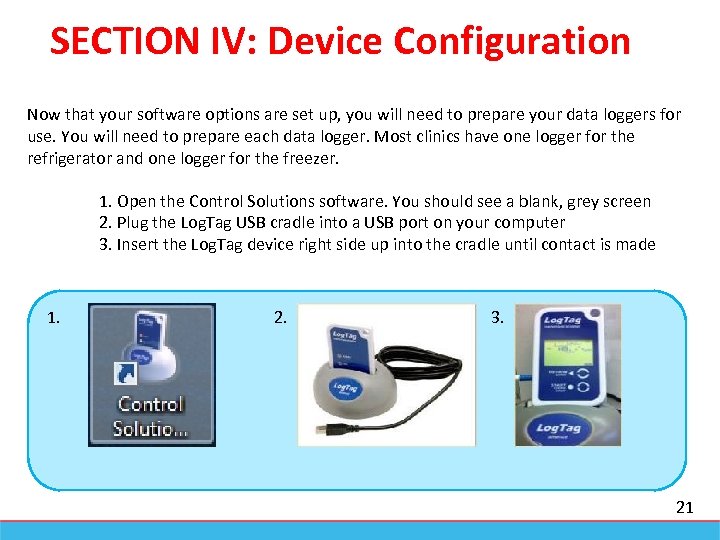 SECTION IV: Device Configuration Now that your software options are set up, you will need to prepare your data loggers for use. You will need to prepare each data logger. Most clinics have one logger for the refrigerator and one logger for the freezer. 1. Open the Control Solutions software. You should see a blank, grey screen 2. Plug the Log. Tag USB cradle into a USB port on your computer 3. Insert the Log. Tag device right side up into the cradle until contact is made 1. 2. 3. 21
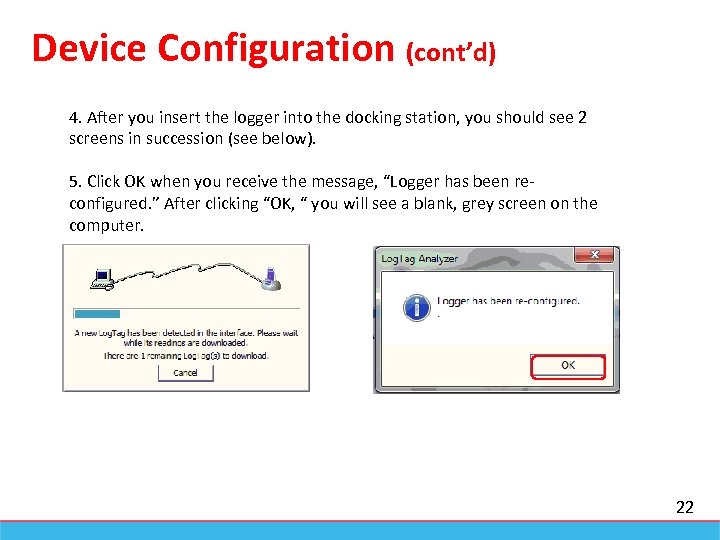 Device Configuration (cont’d) 4. After you insert the logger into the docking station, you should see 2 screens in succession (see below). 5. Click OK when you receive the message, “Logger has been reconfigured. ” After clicking “OK, “ you will see a blank, grey screen on the computer. 22
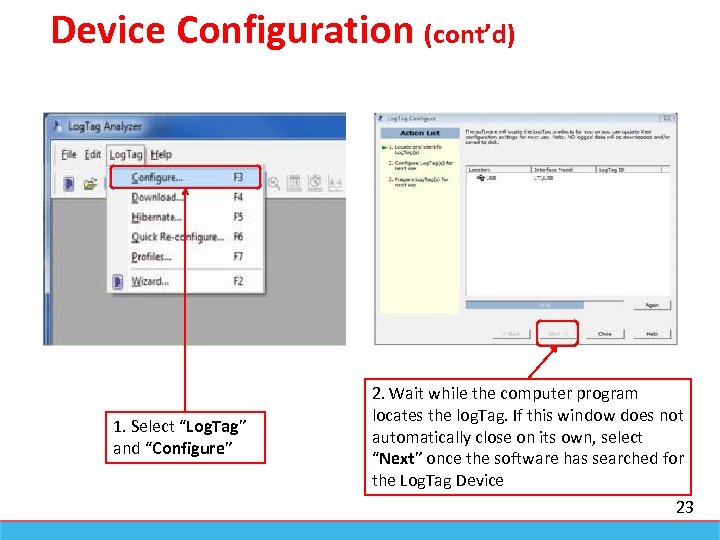 Device Configuration (cont’d) 1. Select “Log. Tag” and “Configure” 2. Wait while the computer program locates the log. Tag. If this window does not automatically close on its own, select “Next” once the software has searched for the Log. Tag Device 23
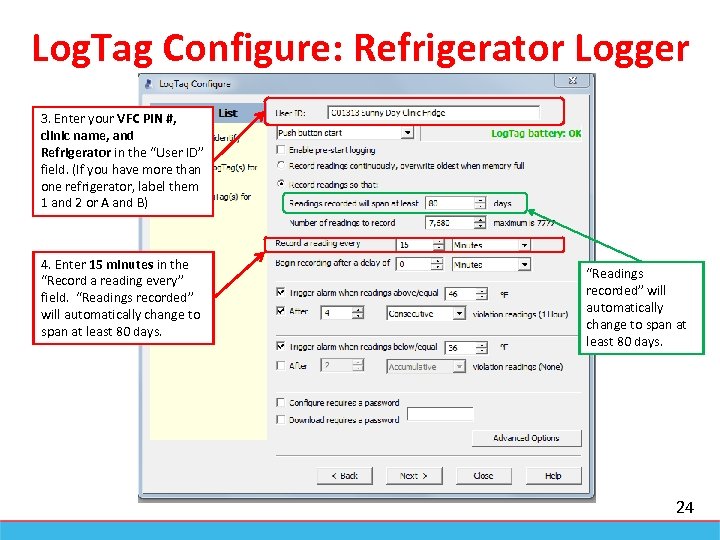 Log. Tag Configure: Refrigerator Logger 3. Enter your VFC PIN #, clinic name, and Refrigerator in the “User ID” field. (If you have more than one refrigerator, label them 1 and 2 or A and B) 4. Enter 15 minutes in the “Record a reading every” field. “Readings recorded” will automatically change to span at least 80 days. 24
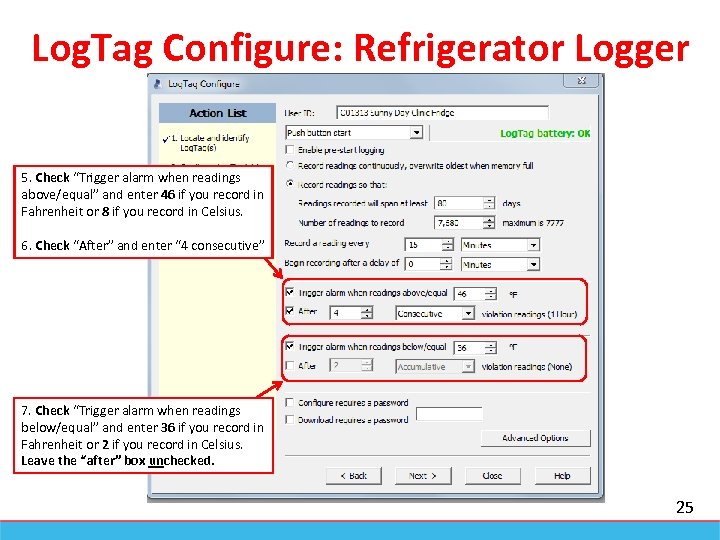 Log. Tag Configure: Refrigerator Logger 5. Check “Trigger alarm when readings above/equal” and enter 46 if you record in Fahrenheit or 8 if you record in Celsius. 6. Check “After” and enter “ 4 consecutive” 7. Check “Trigger alarm when readings below/equal” and enter 36 if you record in Fahrenheit or 2 if you record in Celsius. Leave the “after” box unchecked. 25
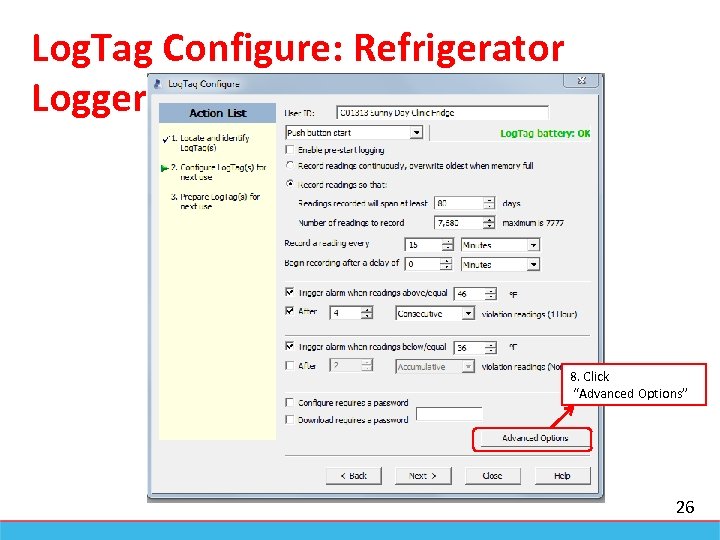 Log. Tag Configure: Refrigerator Logger 8. Click “Advanced Options” 26
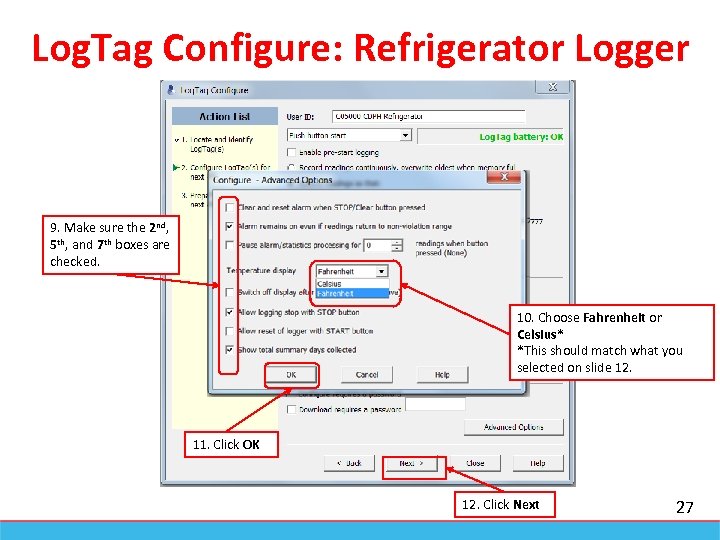 Log. Tag Configure: Refrigerator Logger 9. Make sure the 2 nd, 5 th, and 7 th boxes are checked. 10. Choose Fahrenheit or Celsius* *This should match what you selected on slide 12. 11. Click OK 12. Click Next 27
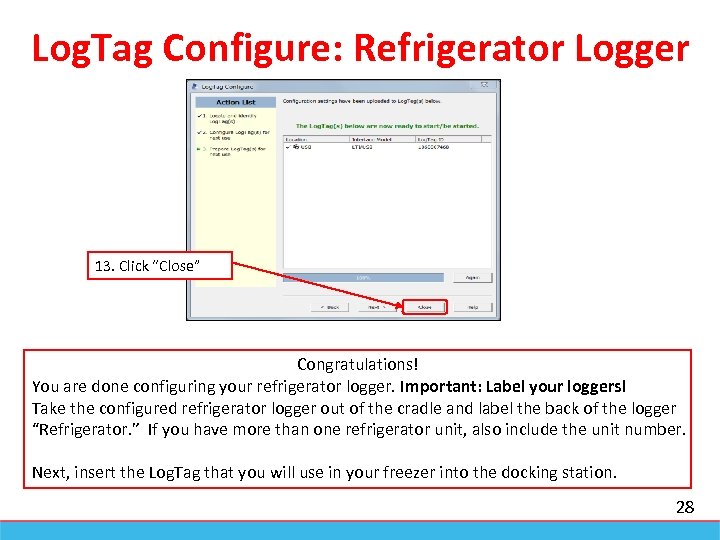 Log. Tag Configure: Refrigerator Logger 13. Click “Close” Congratulations! You are done configuring your refrigerator logger. Important: Label your loggers! Take the configured refrigerator logger out of the cradle and label the back of the logger “Refrigerator. ” If you have more than one refrigerator unit, also include the unit number. Next, insert the Log. Tag that you will use in your freezer into the docking station. 28
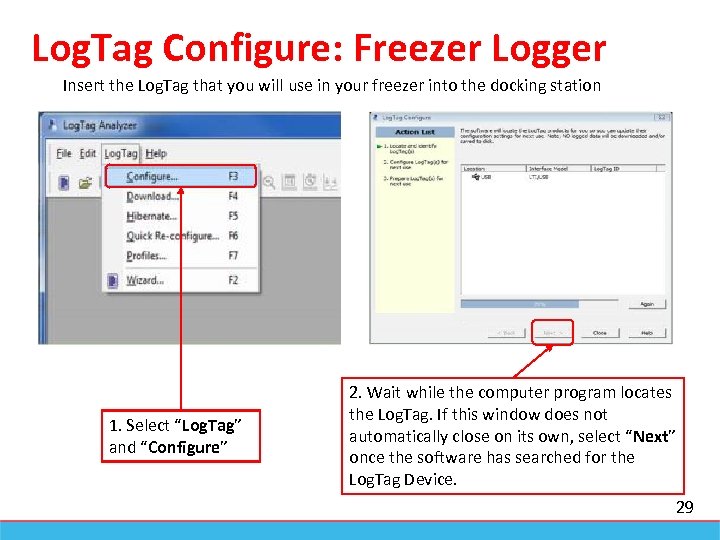 Log. Tag Configure: Freezer Logger Insert the Log. Tag that you will use in your freezer into the docking station 1. Select “Log. Tag” and “Configure” 2. Wait while the computer program locates the Log. Tag. If this window does not automatically close on its own, select “Next” once the software has searched for the Log. Tag Device. 29
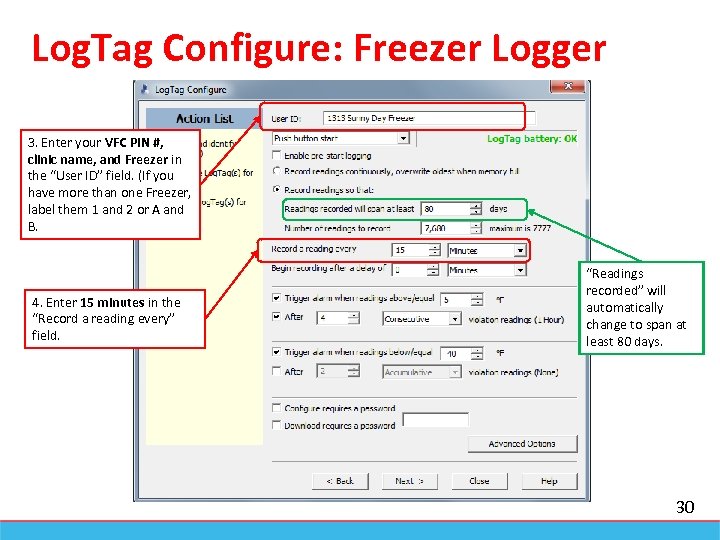 Log. Tag Configure: Freezer Logger 3. Enter your VFC PIN #, clinic name, and Freezer in the “User ID” field. (If you have more than one Freezer, label them 1 and 2 or A and B. 4. Enter 15 minutes in the “Record a reading every” field. “Readings recorded” will automatically change to span at least 80 days. 30
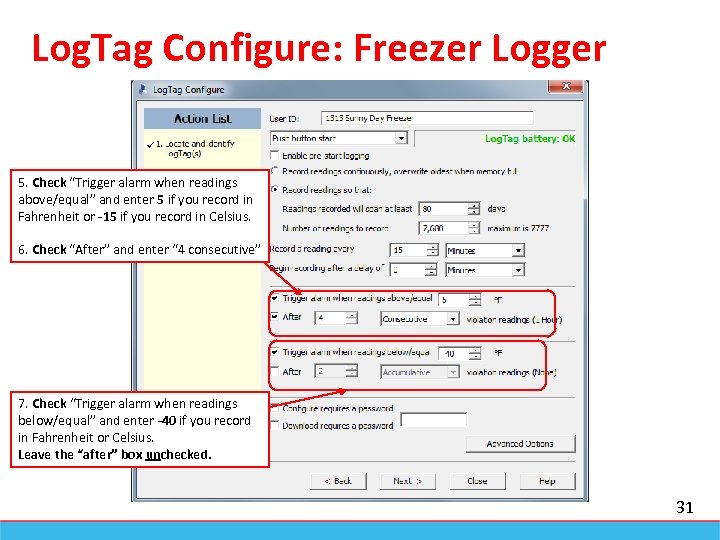 Log. Tag Configure: Freezer Logger 5. Check “Trigger alarm when readings above/equal” and enter 5 if you record in Fahrenheit or -15 if you record in Celsius. 6. Check “After” and enter “ 4 consecutive” 7. Check “Trigger alarm when readings below/equal” and enter -40 if you record in Fahrenheit or Celsius. Leave the “after” box unchecked. 31
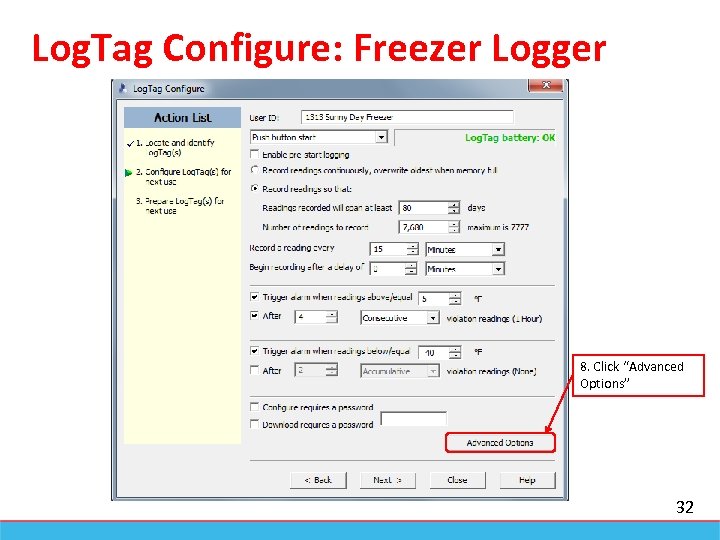 Log. Tag Configure: Freezer Logger 8. Click “Advanced Options” 32
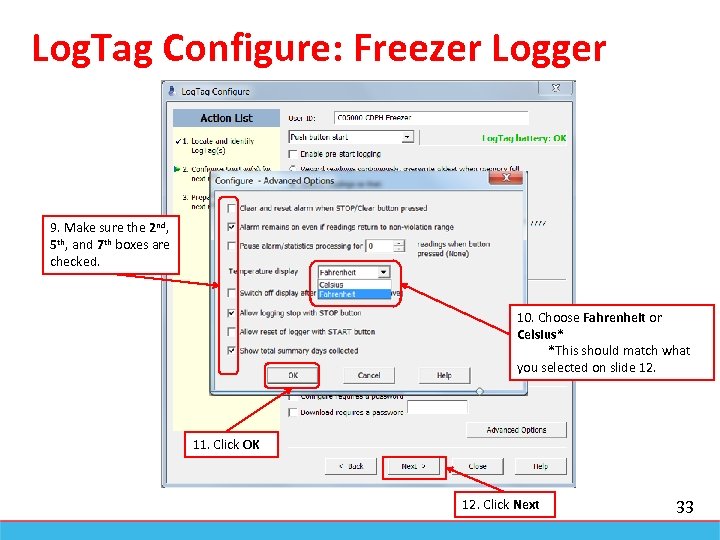 Log. Tag Configure: Freezer Logger 9. Make sure the 2 nd, 5 th, and 7 th boxes are checked. 10. Choose Fahrenheit or Celsius* *This should match what you selected on slide 12. 11. Click OK 12. Click Next 33
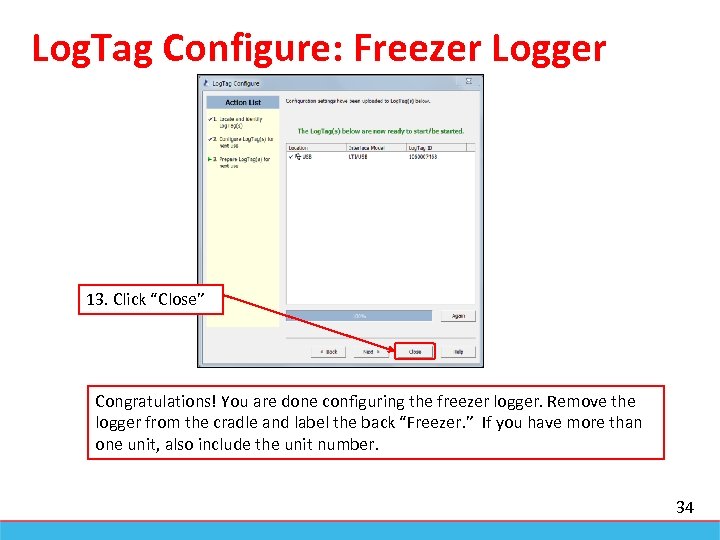 Log. Tag Configure: Freezer Logger 13. Click “Close” Congratulations! You are done configuring the freezer logger. Remove the logger from the cradle and label the back “Freezer. ” If you have more than one unit, also include the unit number. 34
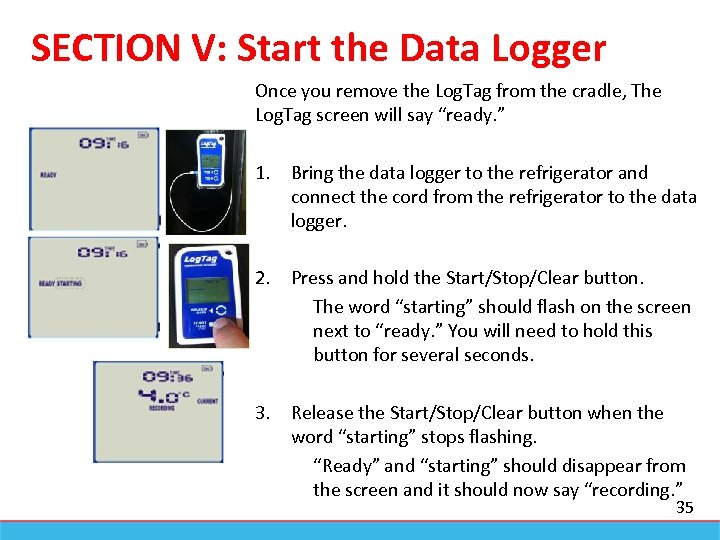 SECTION V: Start the Data Logger Once you remove the Log. Tag from the cradle, The Log. Tag screen will say “ready. ” 1. Bring the data logger to the refrigerator and connect the cord from the refrigerator to the data logger. 2. Press and hold the Start/Stop/Clear button. The word “starting” should flash on the screen next to “ready. ” You will need to hold this button for several seconds. 3. Release the Start/Stop/Clear button when the word “starting” stops flashing. “Ready” and “starting” should disappear from the screen and it should now say “recording. ” 35
 Thank you! Installation is complete! Go to next manual. “Everything you need to know about your Digital Data Logger - Daily Use” On-going help and support: Primary Contact: Vaccine Management Unit - (312) 746 -5385 Email: chicagovfc@cityofchicago. org Alternative Contacts: Kevin Hansen - (312) 746 -9330 Control Solutions - 1(888) 311 -0636 36
 @Chi. Public. Healthy. Chicago@Cityof. Chicago. org /Chicago. Public. Health www. Cityof. Chicago. org/Health 37