


 Скачать презентацию Slot Tech Magazine s Tech Fest 15 Servicing
62843dc075ccf3394b0644398fcce4d0.ppt
- Количество слайдов: 64
 Slot Tech Magazine’s Tech. Fest 15 Servicing & Troubleshooting Trans. Act / Ithaca brand thermal ticket printers for the gaming industry Presenter: Russell Wigé
 Handouts & Course Agenda Don’t forget to pickup your: § Trans. Act’s Presentation Handout § 850 Top-Of-Form Calibration Chip Course Agenda: § Event / Company Information 0: 10 § General Ticket Printers 0: 20 § Series 700 Ticket Printer 0: 15 § Series 800 Ticket Printer 0: 30 § Epic 950 Ticket Printer 0: 30 § Questions & Answers 0: 15 2: 00 Tech. Fest 15
 Technical Support Company Info Technical support § (877) 748 -4222 Option 3 § Tech. Support@Transact-Tech. com Online support § § Website: FTP Site: User ID: Password: www. Trans. Act-Tech. com/ http: //transact. powweb. com/gaming tran_gaming Gamingw@r 3 Product distributor § JCM American (U. S. distributor for the Epic 950) – (702) 651 -0000 – www. jcm-american. com
 Parts and Service Company Info Parts and service by phone § (877) 748 -4222 Option 2 Obtain a repair RMA online § http: //www. transact-tech. com/tsg/rma. html JCM printer exchange program § Casino’s can participate in JCM’s quick turn, printer exchange program. Available onsite exchange when located within close proximity to one of the following JCM Depot centers. – – – Nevada (Las Vegas) Nevada (Reno) Chicago Mississippi New Jersey
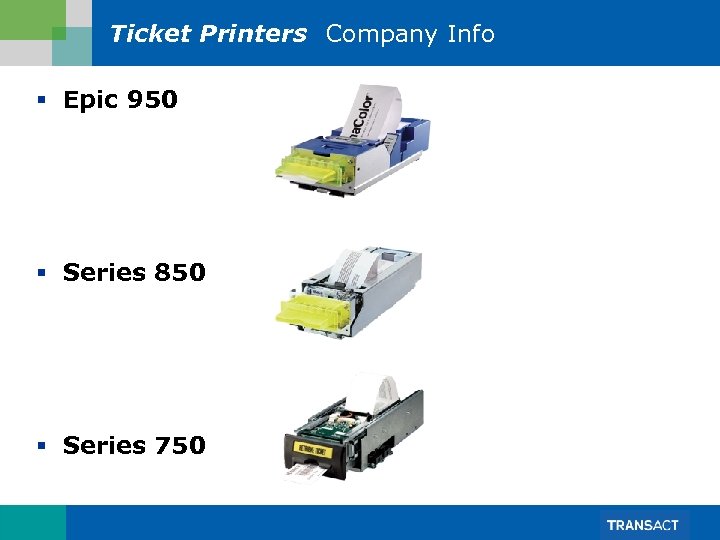 Ticket Printers Company Info § Epic 950 § Series 850 § Series 750
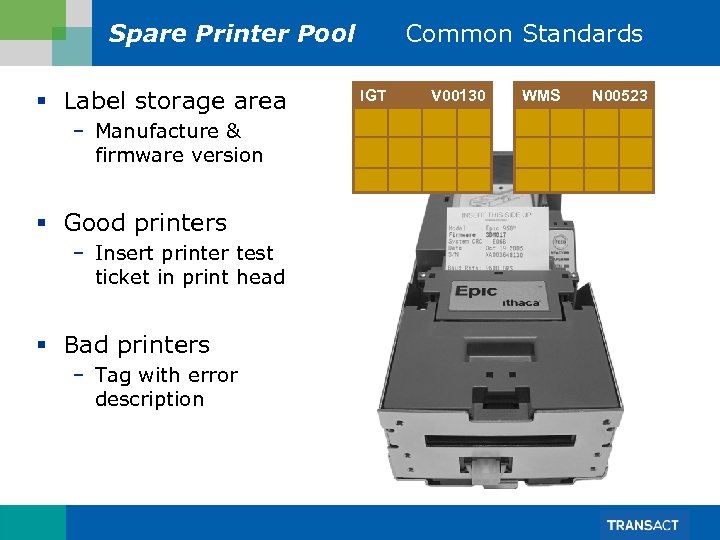 Spare Printer Pool § Label storage area – Manufacture & firmware version § Good printers – Insert printer test ticket in print head § Bad printers – Tag with error description Common Standards IGT V 00130 WMS N 00523
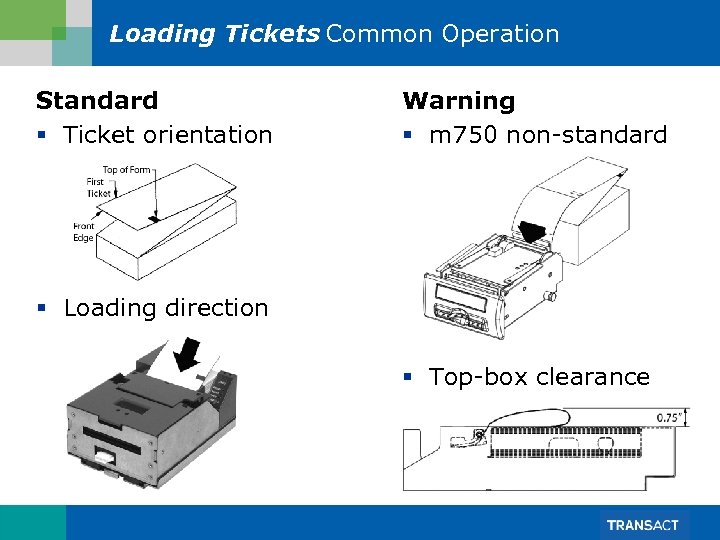 Loading Tickets Common Operation Standard § Ticket orientation Warning § m 750 non-standard § Loading direction § Top-box clearance
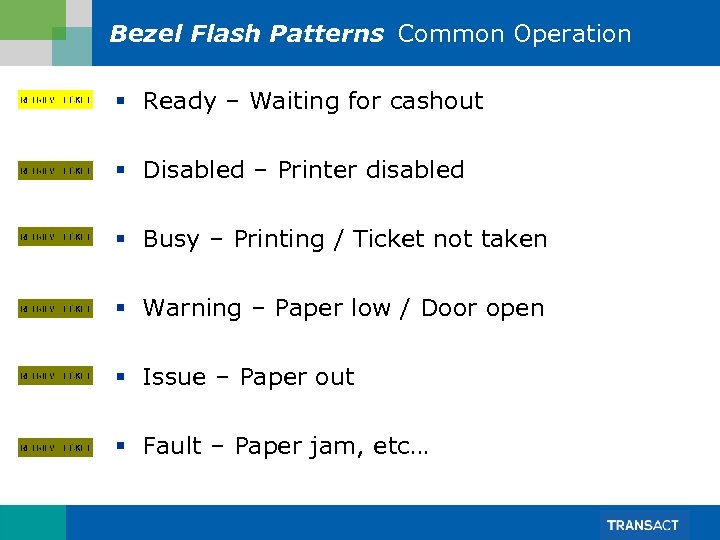 Bezel Flash Patterns Common Operation § Ready – Waiting for cashout § Disabled – Printer disabled § Busy – Printing / Ticket not taken § Warning – Paper low / Door open § Issue – Paper out § Fault – Paper jam, etc…
 Clearing Stacked Errors Common Practices Some games stack multiple errors at once, the method to clear depends on platform! § IGT – Lift/drop door lever § Bally – Open/close door – Wait for count down to zero Note: All stacked errors need to be cleared before normal game operation can continue.
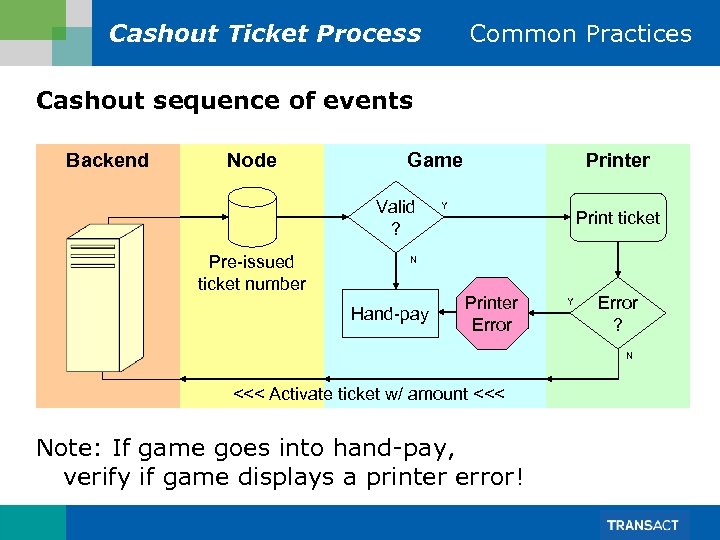 Cashout Ticket Process Common Practices Cashout sequence of events Backend Node Game Valid ? Pre-issued ticket number Printer Y Print ticket N Hand-pay Printer Error Y Error ? N <<< Activate ticket w/ amount <<< Note: If game goes into hand-pay, verify if game displays a printer error!
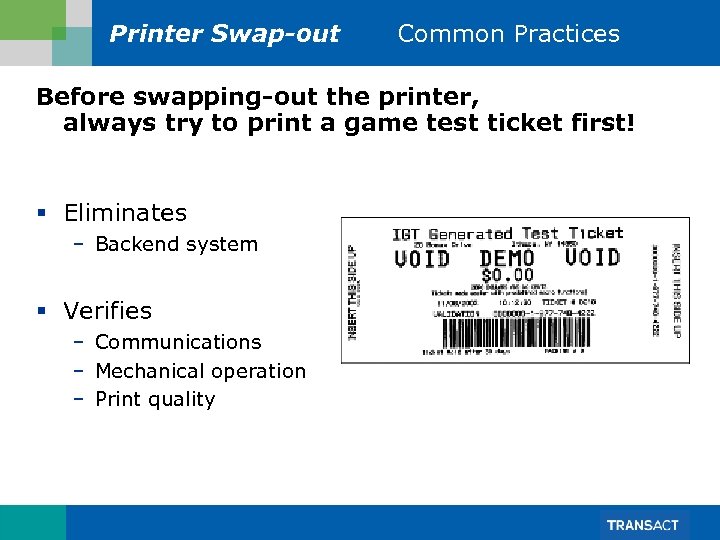 Printer Swap-out Common Practices Before swapping-out the printer, always try to print a game test ticket first! § Eliminates – Backend system § Verifies – Communications – Mechanical operation – Print quality
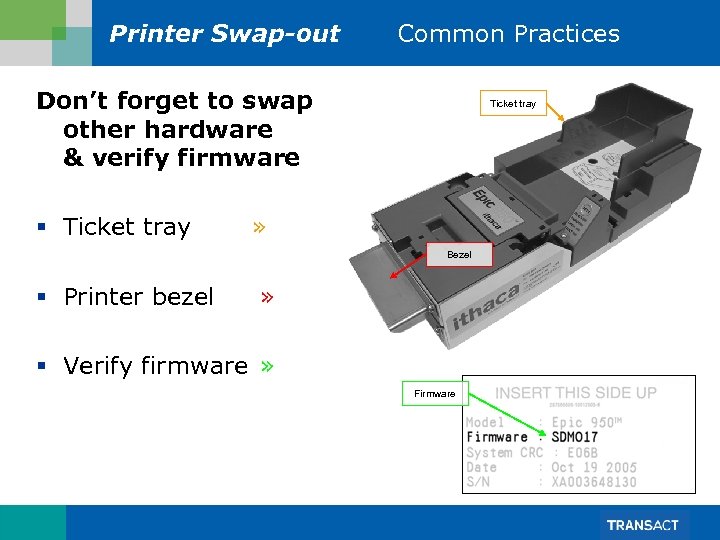 Printer Swap-out Common Practices Don’t forget to swap other hardware & verify firmware § Ticket tray » Bezel § Printer bezel » § Verify firmware » Firmware
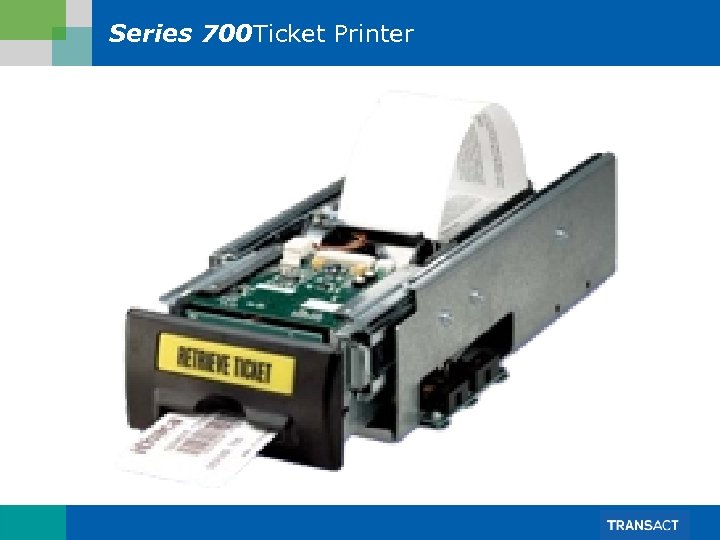 Series 700 Ticket Printer
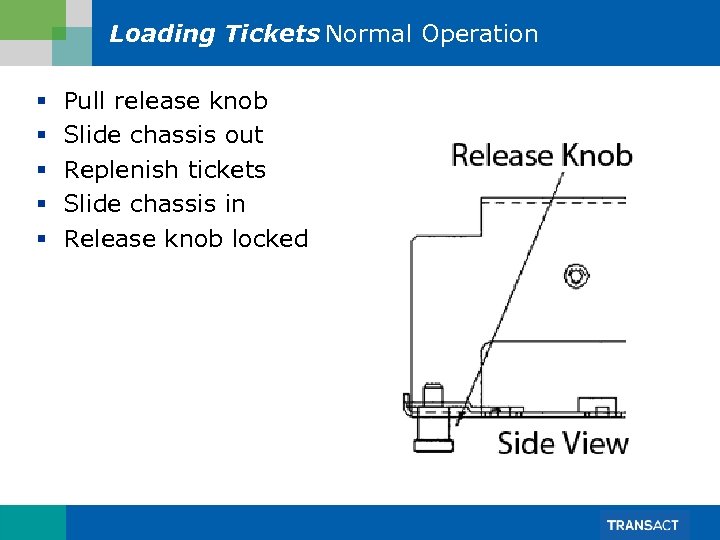 Loading Tickets Normal Operation § § § Pull release knob Slide chassis out Replenish tickets Slide chassis in Release knob locked
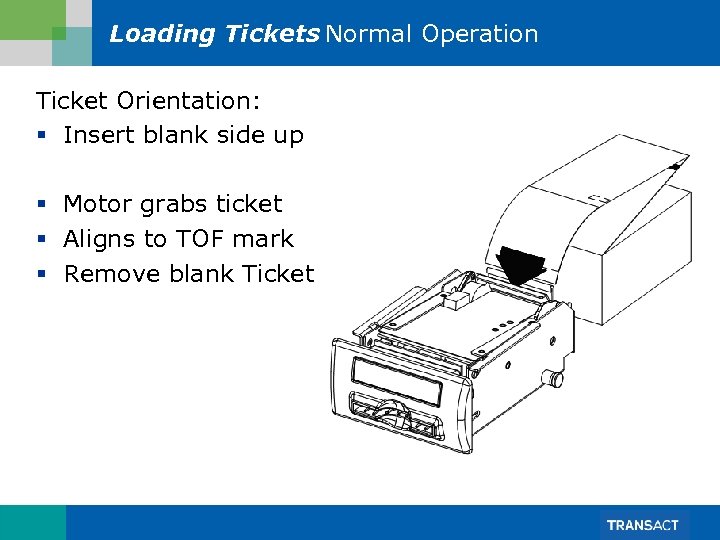 Loading Tickets Normal Operation Ticket Orientation: § Insert blank side up § Motor grabs ticket § Aligns to TOF mark § Remove blank Ticket
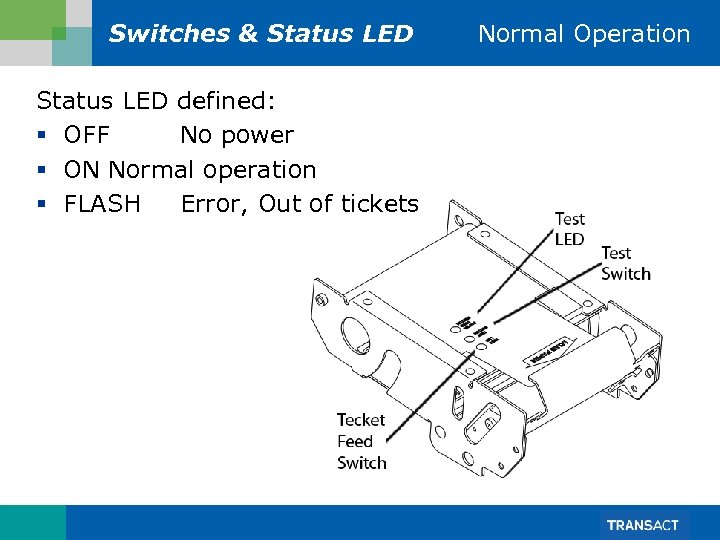 Switches & Status LED defined: § OFF No power § ON Normal operation § FLASH Error, Out of tickets Normal Operation
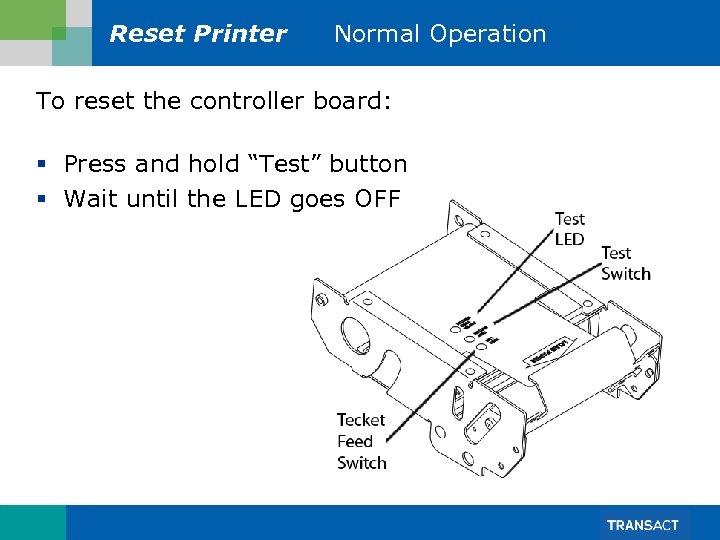 Reset Printer Normal Operation To reset the controller board: § Press and hold “Test” button § Wait until the LED goes OFF
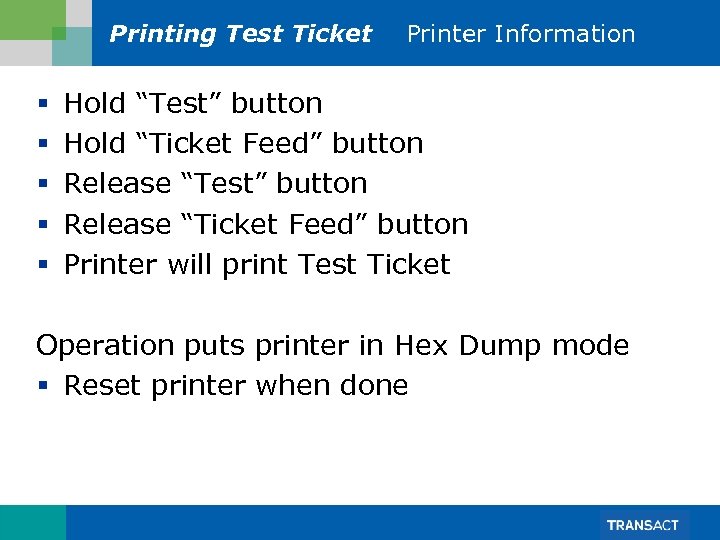 Printing Test Ticket § § § Printer Information Hold “Test” button Hold “Ticket Feed” button Release “Test” button Release “Ticket Feed” button Printer will print Test Ticket Operation puts printer in Hex Dump mode § Reset printer when done
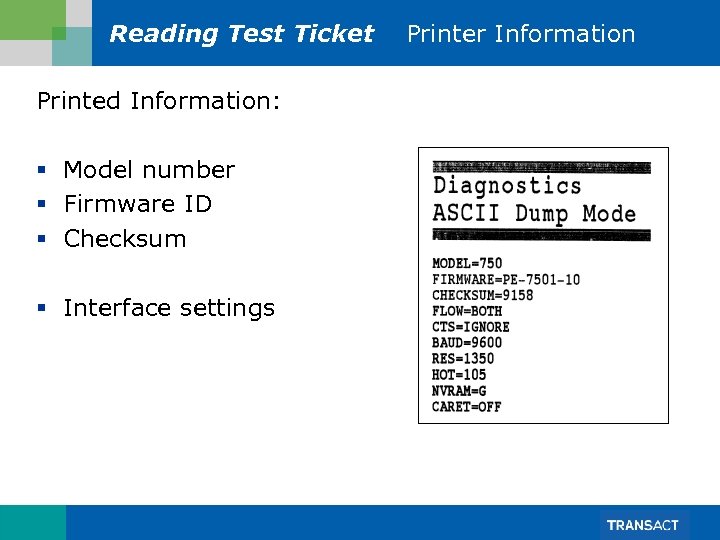 Reading Test Ticket Printed Information: § Model number § Firmware ID § Checksum § Interface settings Printer Information
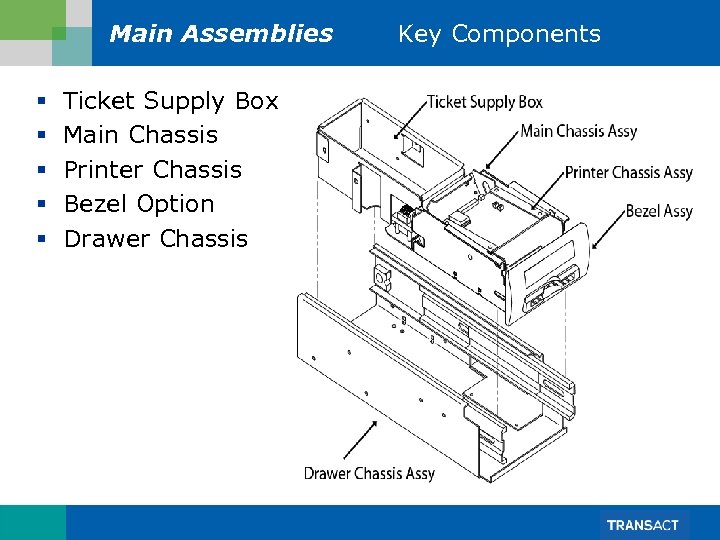 Main Assemblies § § § Ticket Supply Box Main Chassis Printer Chassis Bezel Option Drawer Chassis Key Components
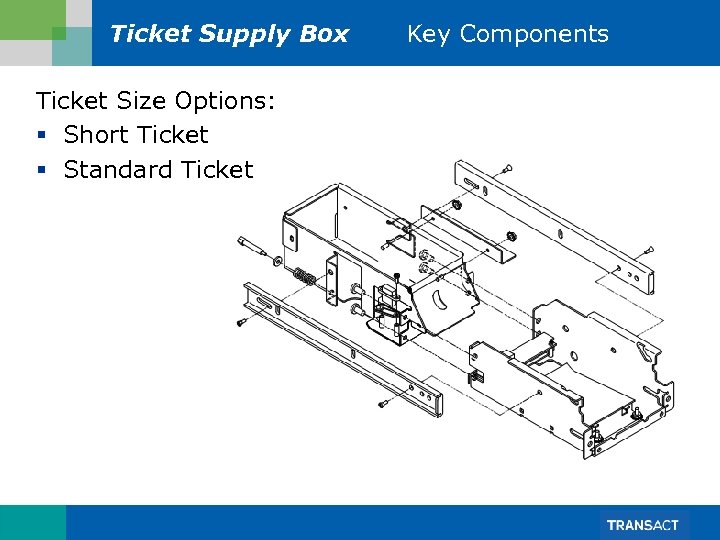 Ticket Supply Box Ticket Size Options: § Short Ticket § Standard Ticket Key Components
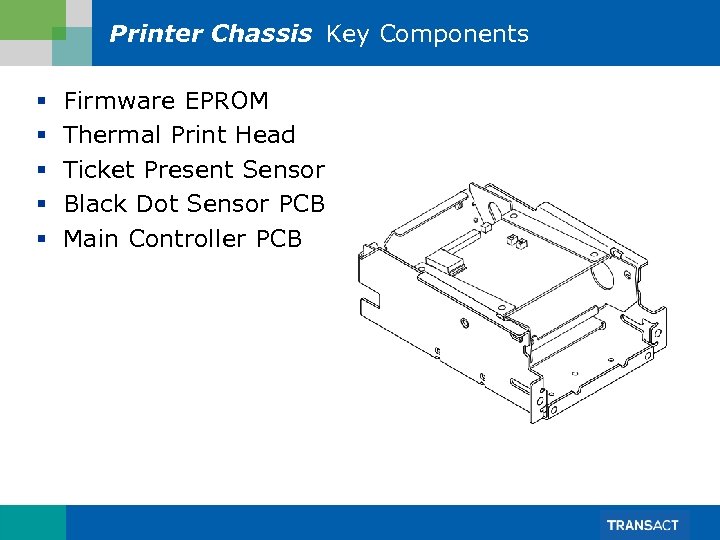 Printer Chassis Key Components § § § Firmware EPROM Thermal Print Head Ticket Present Sensor Black Dot Sensor PCB Main Controller PCB
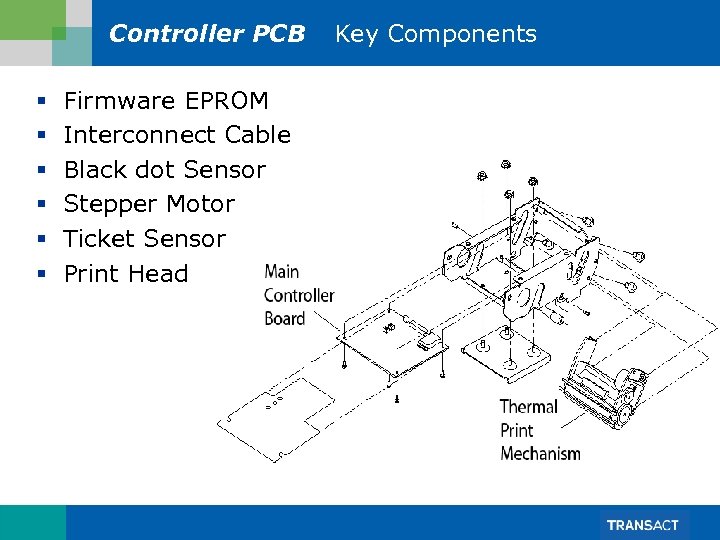 Controller PCB § § § Firmware EPROM Interconnect Cable Black dot Sensor Stepper Motor Ticket Sensor Print Head Key Components
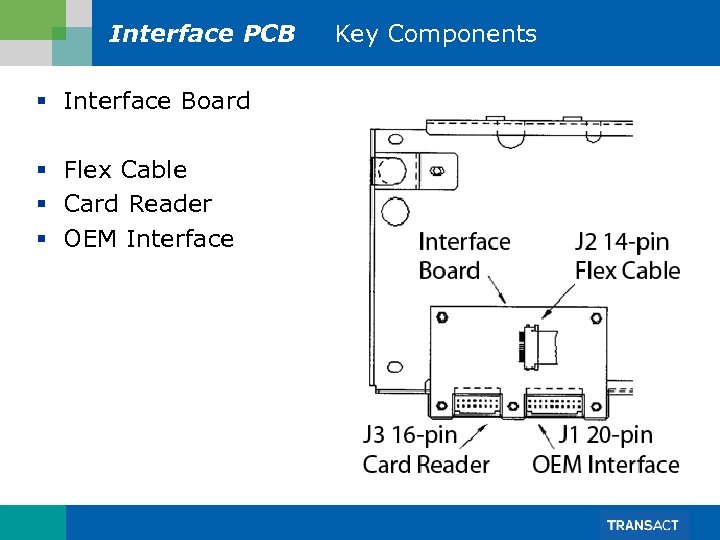 Interface PCB § Interface Board § Flex Cable § Card Reader § OEM Interface Key Components
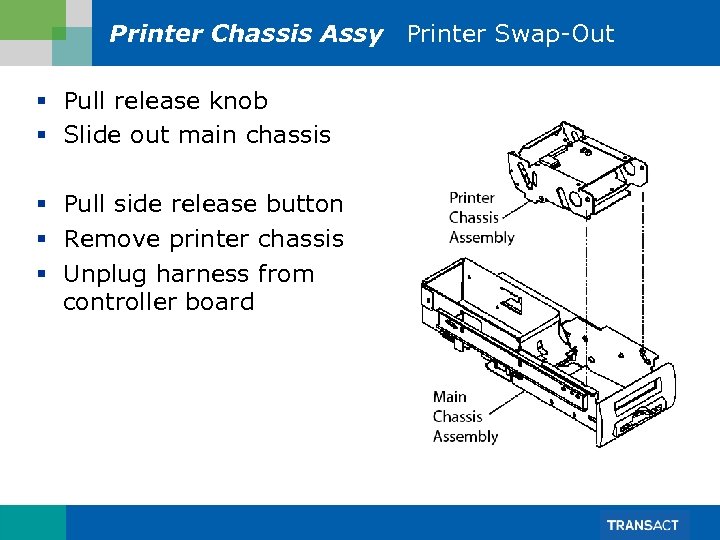 Printer Chassis Assy Printer Swap-Out § Pull release knob § Slide out main chassis § Pull side release button § Remove printer chassis § Unplug harness from controller board
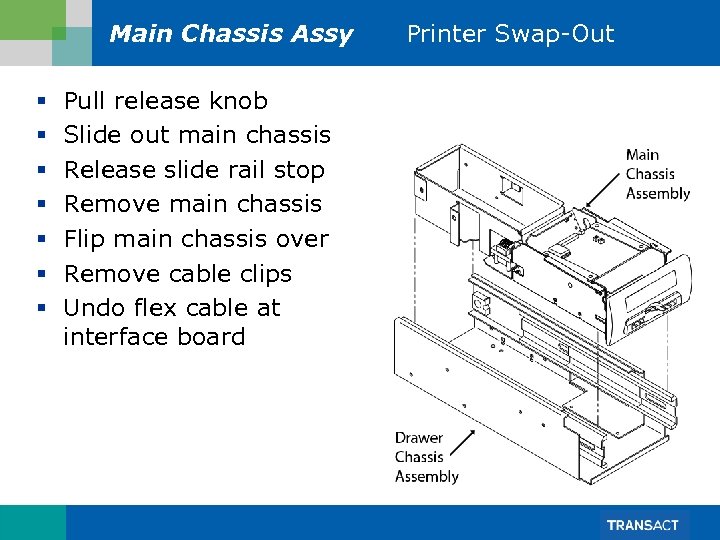 Main Chassis Assy § § § § Pull release knob Slide out main chassis Release slide rail stop Remove main chassis Flip main chassis over Remove cable clips Undo flex cable at interface board Printer Swap-Out
 Transfer Firmware Printer Swap-Out Verify Firmware § Print Test Ticket § § Swap Firmware Remove Printer Chassis Remove EPROM on controller PCB Replace EPROM on controller PCB Printer’s firmware requires regulatory approvals, Use approved firmware only!
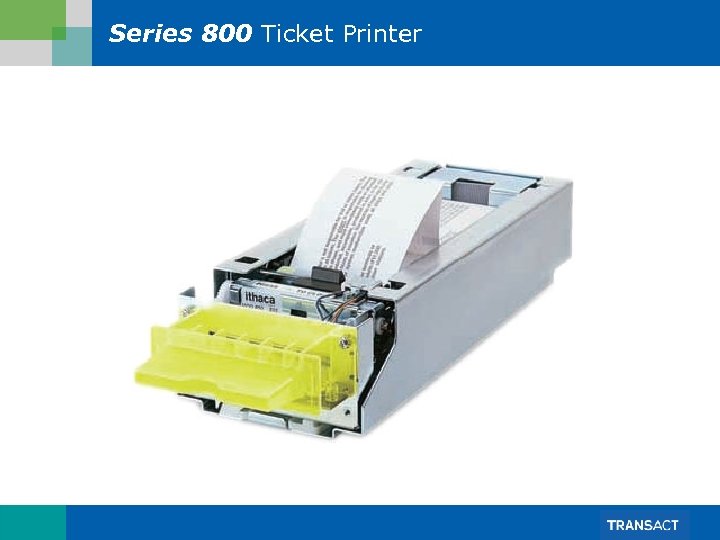 Series 800 Ticket Printer
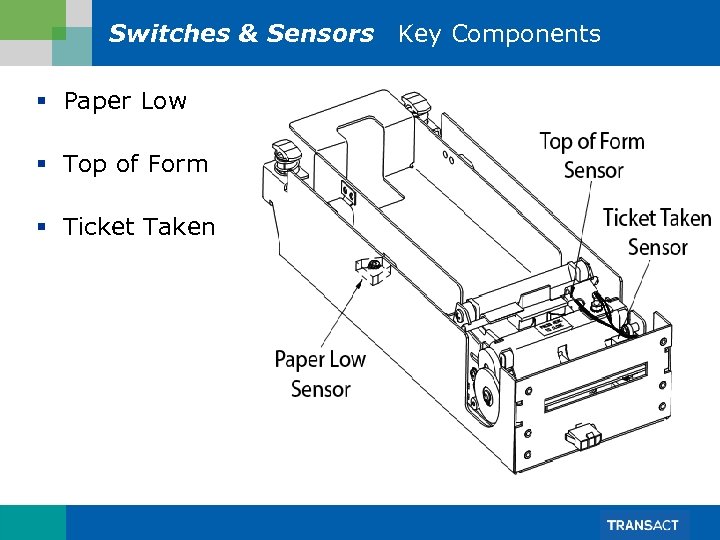 Switches & Sensors Key Components § Paper Low § Top of Form § Ticket Taken
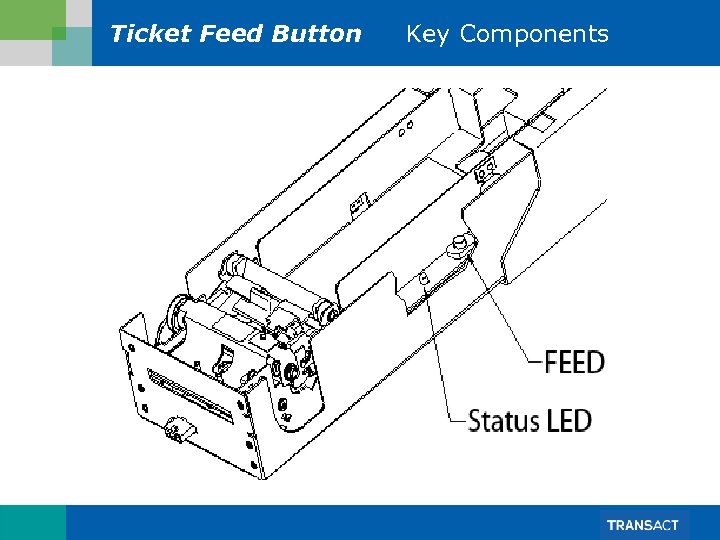 Ticket Feed Button Key Components
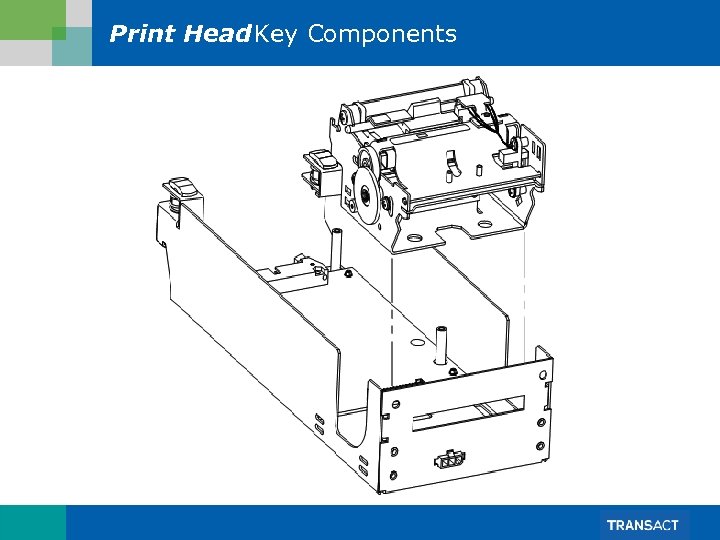 Print Head. Key Components
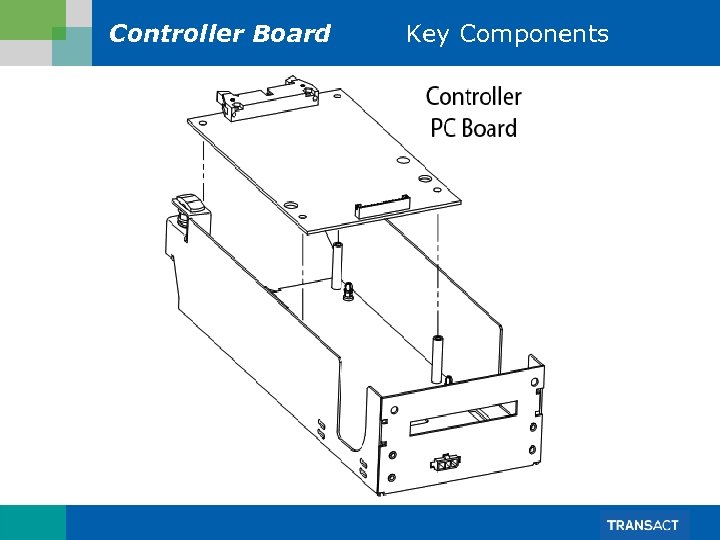 Controller Board Key Components
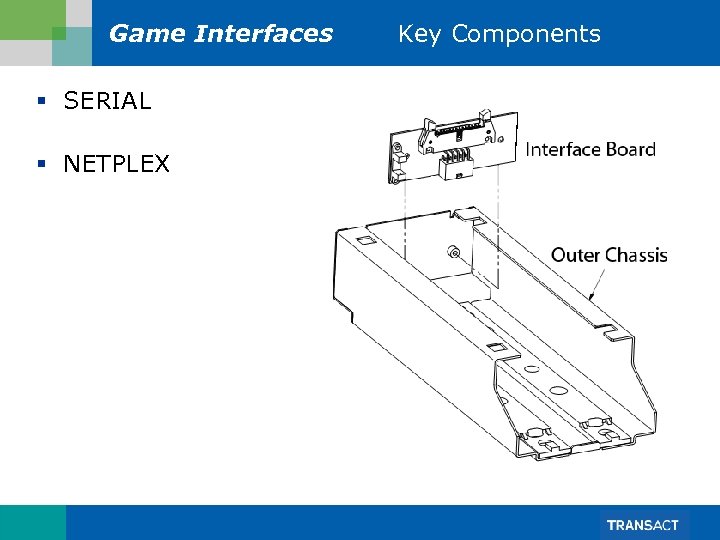 Game Interfaces § SERIAL § NETPLEX Key Components
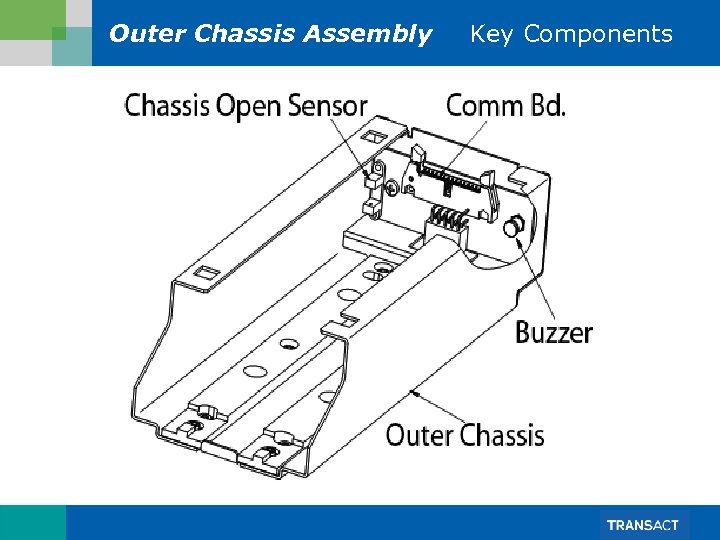 Outer Chassis Assembly Key Components
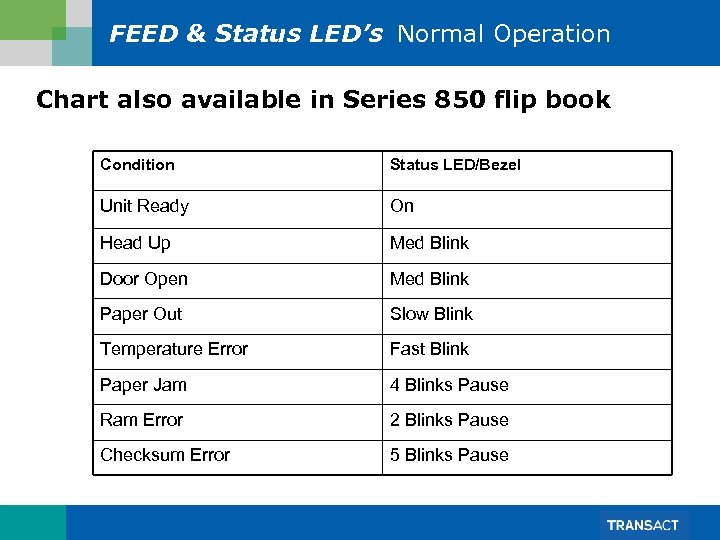 FEED & Status LED’s Normal Operation Chart also available in Series 850 flip book Condition Status LED/Bezel Unit Ready On Head Up Med Blink Door Open Med Blink Paper Out Slow Blink Temperature Error Fast Blink Paper Jam 4 Blinks Pause Ram Error 2 Blinks Pause Checksum Error 5 Blinks Pause
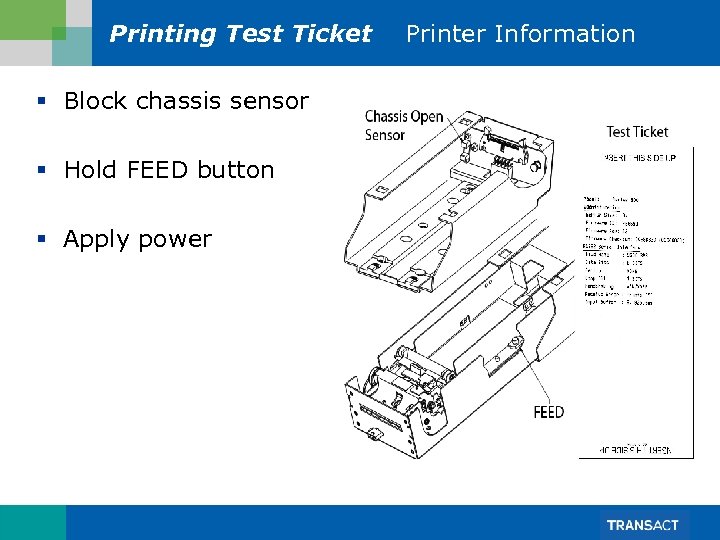 Printing Test Ticket § Block chassis sensor § Hold FEED button § Apply power Printer Information
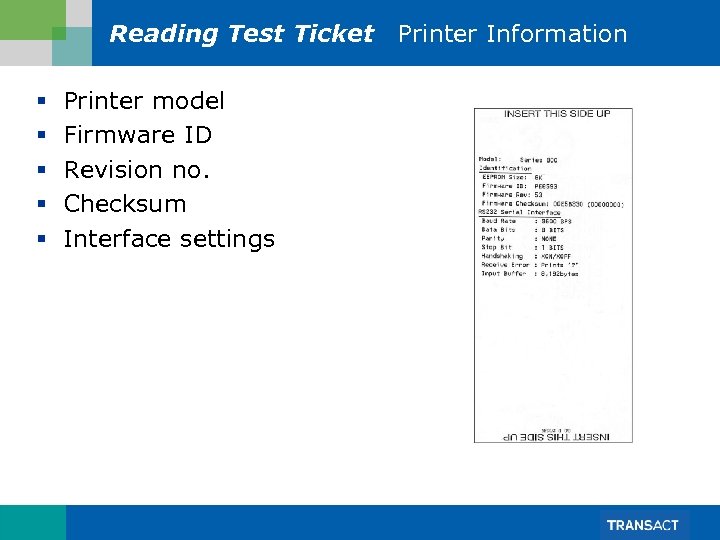 Reading Test Ticket Printer Information § § § Printer model Firmware ID Revision no. Checksum Interface settings
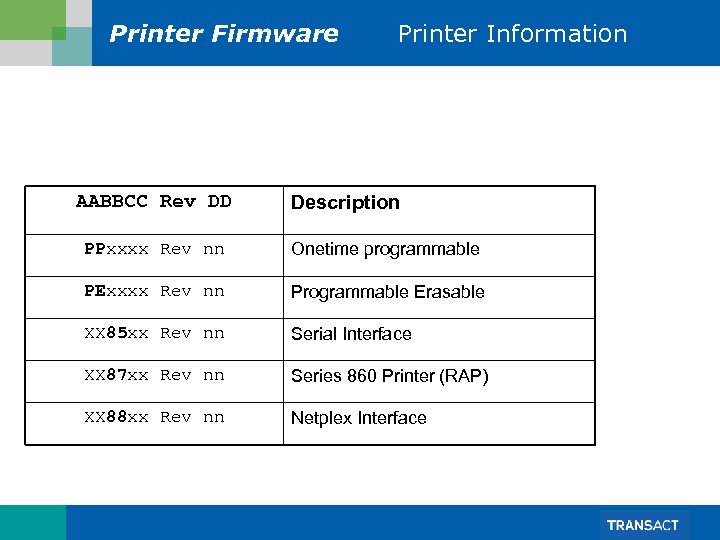 Printer Firmware AABBCC Rev DD Printer Information Description PPxxxx Rev nn Onetime programmable PExxxx Rev nn Programmable Erasable XX 85 xx Rev nn Serial Interface XX 87 xx Rev nn Series 860 Printer (RAP) XX 88 xx Rev nn Netplex Interface
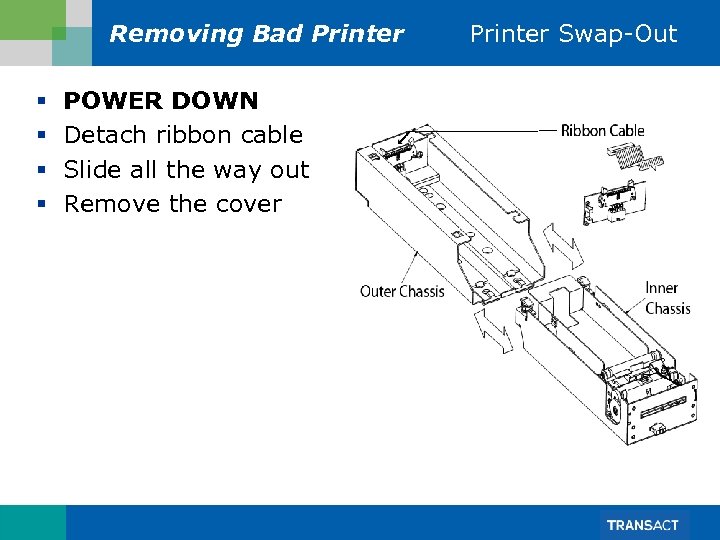 Removing Bad Printer § § POWER DOWN Detach ribbon cable Slide all the way out Remove the cover Printer Swap-Out
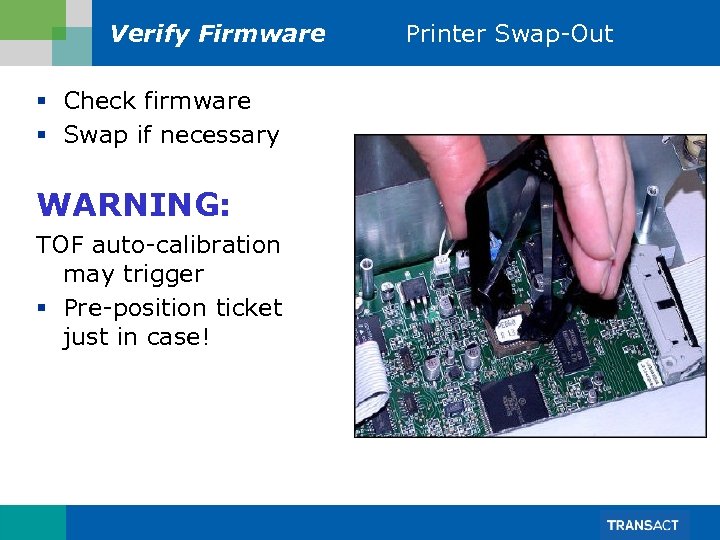 Verify Firmware § Check firmware § Swap if necessary WARNING: TOF auto-calibration may trigger § Pre-position ticket just in case! Printer Swap-Out
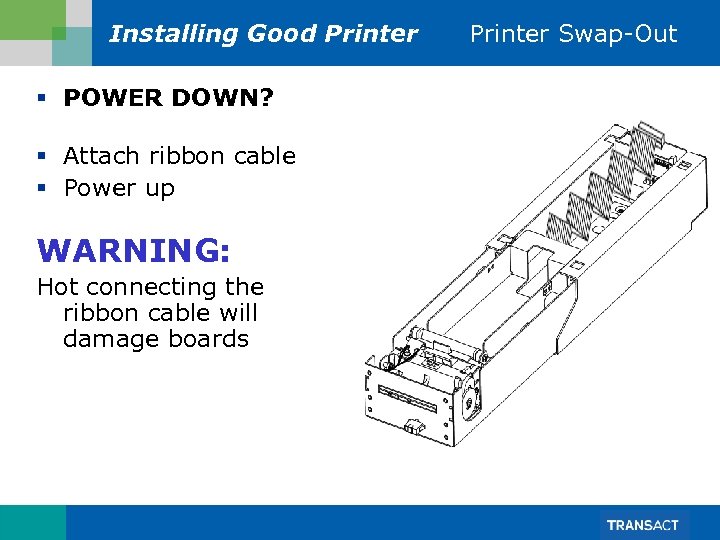 Installing Good Printer § POWER DOWN? § Attach ribbon cable § Power up WARNING: Hot connecting the ribbon cable will damage boards Printer Swap-Out
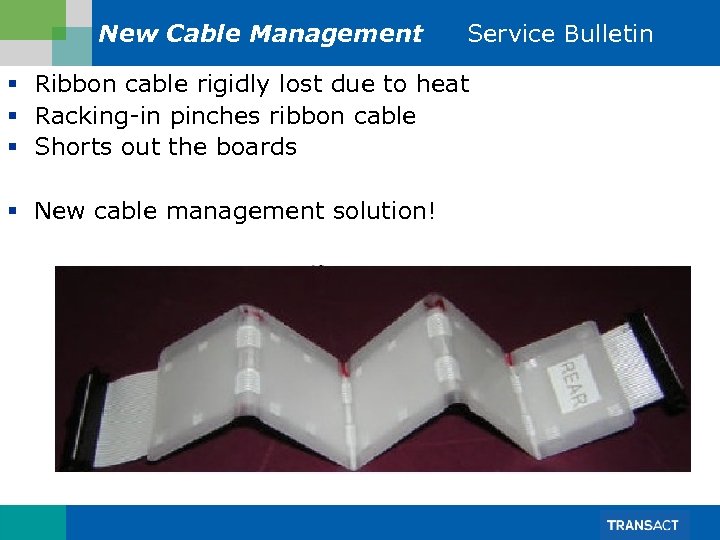 New Cable Management Service Bulletin § Ribbon cable rigidly lost due to heat § Racking-in pinches ribbon cable § Shorts out the boards § New cable management solution!
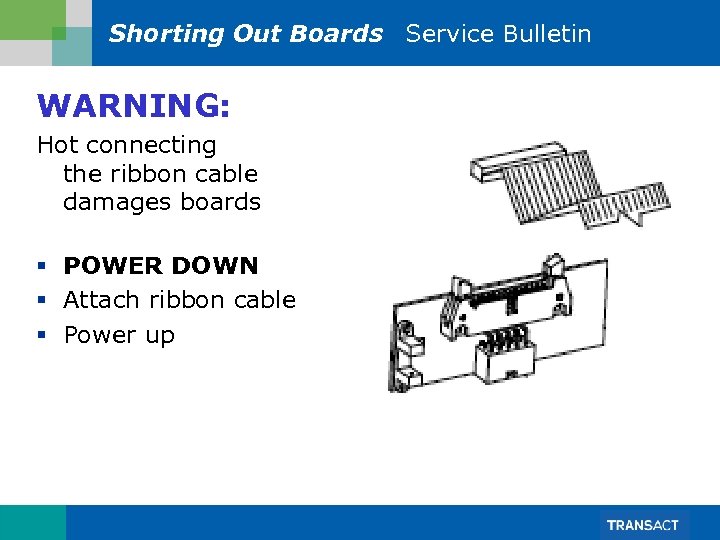 Shorting Out Boards Service Bulletin WARNING: Hot connecting the ribbon cable damages boards § POWER DOWN § Attach ribbon cable § Power up
 Firmware Families Service Bulletin WARNING: Changing firmware families will trigger the Top of Form (TOF) auto-calibration routine. Failure to properly insert ticket correctly before first power up cycle, can lead to ticket alignment problems!
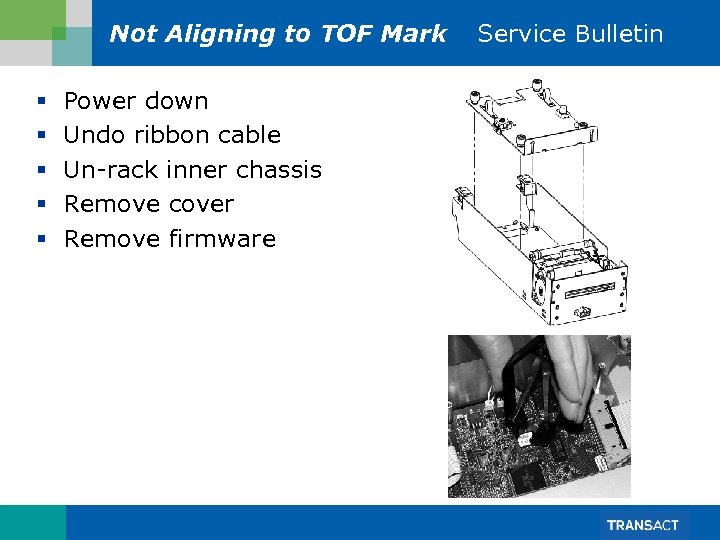 Not Aligning to TOF Mark § § § Power down Undo ribbon cable Un-rack inner chassis Remove cover Remove firmware Service Bulletin
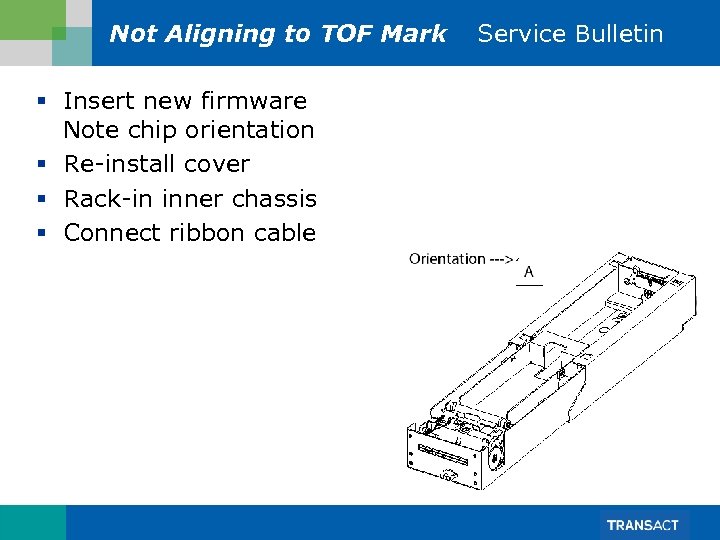 Not Aligning to TOF Mark § Insert new firmware Note chip orientation § Re-install cover § Rack-in inner chassis § Connect ribbon cable Service Bulletin
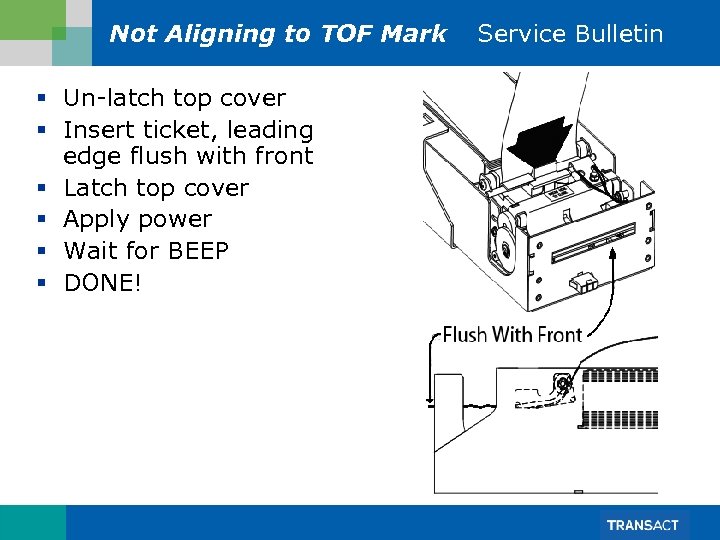 Not Aligning to TOF Mark § Un-latch top cover § Insert ticket, leading edge flush with front § Latch top cover § Apply power § Wait for BEEP § DONE! Service Bulletin
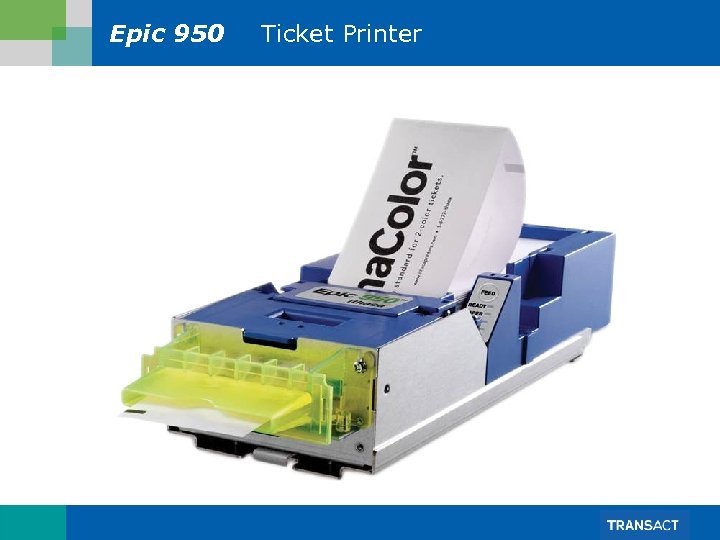 Epic 950 Ticket Printer
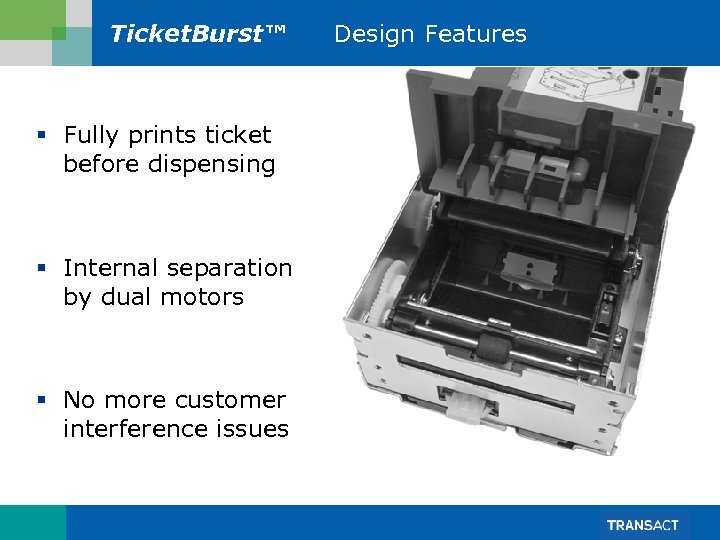 Ticket. Burst™ § Fully prints ticket before dispensing § Internal separation by dual motors § No more customer interference issues Design Features
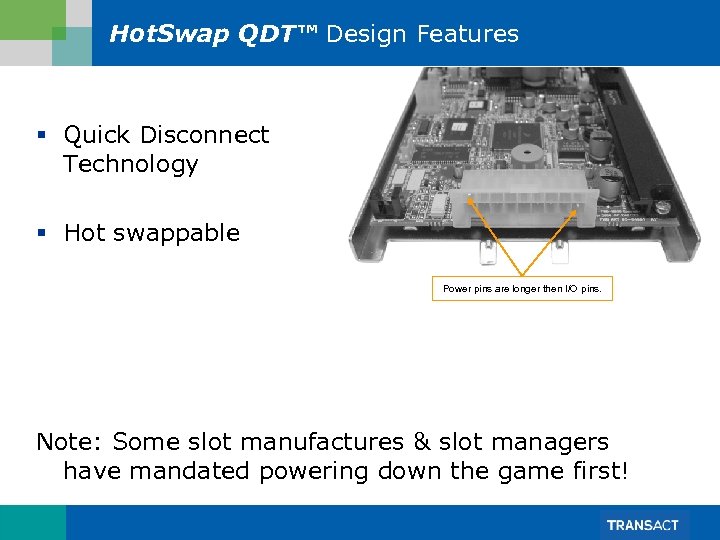 Hot. Swap QDT™ Design Features § Quick Disconnect Technology § Hot swappable Power pins are longer then I/O pins. Note: Some slot manufactures & slot managers have mandated powering down the game first!
 Loading Tickets Normal Operation Caution: don’t pull release lever while sliding out, the printer may become completely detached! § Slide printer out using detent in top cover § Load tickets (as mentioned earlier) Note: printer latches when all the way out! § Pull release lever and slide printer back in
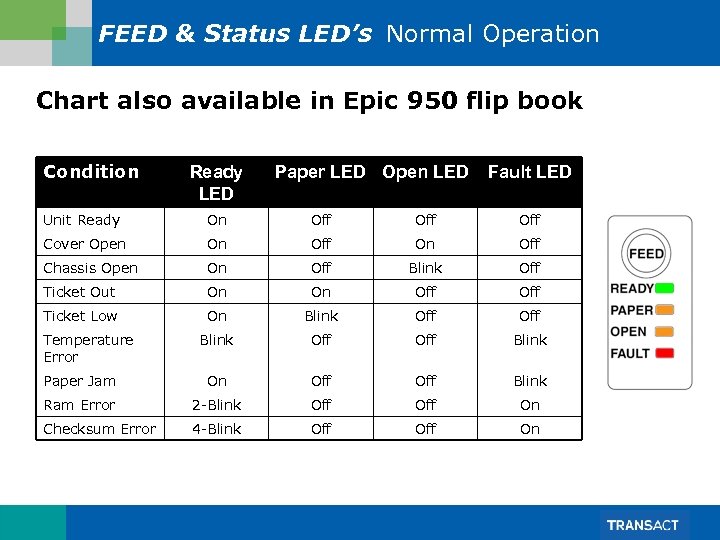 FEED & Status LED’s Normal Operation Chart also available in Epic 950 flip book Condition Ready LED Paper LED Open LED Fault LED Unit Ready On Off Off Cover Open On Off Chassis Open On Off Blink Off Ticket Out On On Off Ticket Low On Blink Off Off Blink Paper Jam On Off Blink Ram Error 2 -Blink Off On Checksum Error 4 -Blink Off On Temperature Error
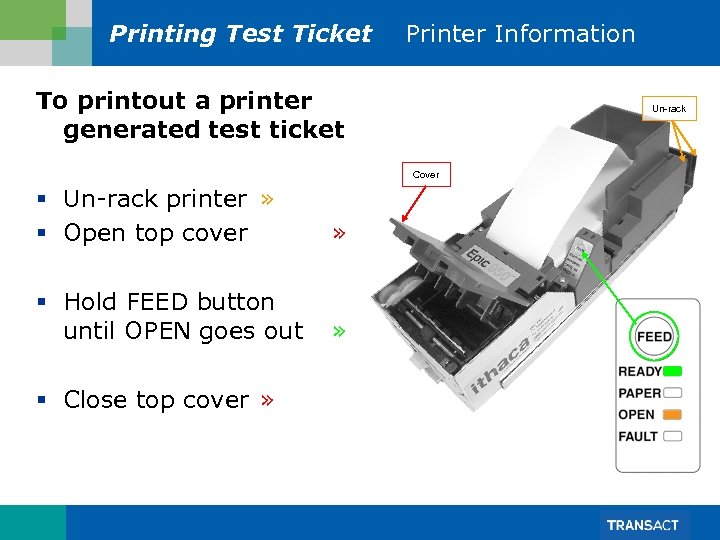 Printing Test Ticket Printer Information To printout a printer generated test ticket Un-rack Cover § Un-rack printer » § Open top cover » § Hold FEED button until OPEN goes out » § Close top cover »
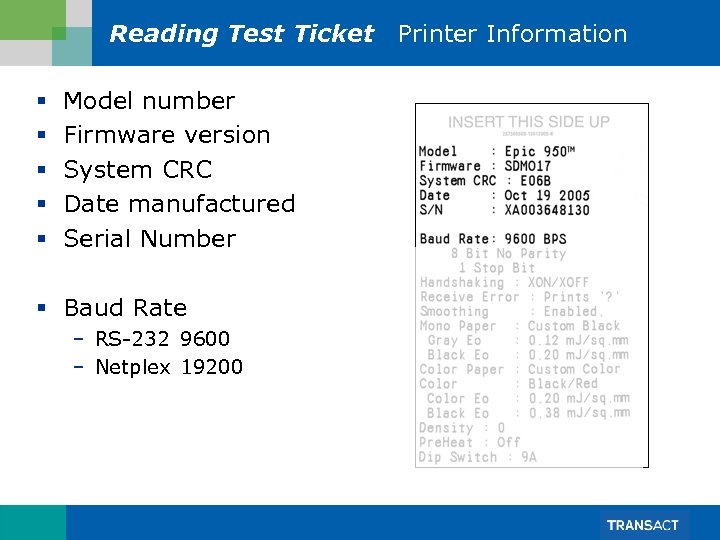 Reading Test Ticket Printer Information § § § Model number Firmware version System CRC Date manufactured Serial Number § Baud Rate – RS-232 9600 – Netplex 19200
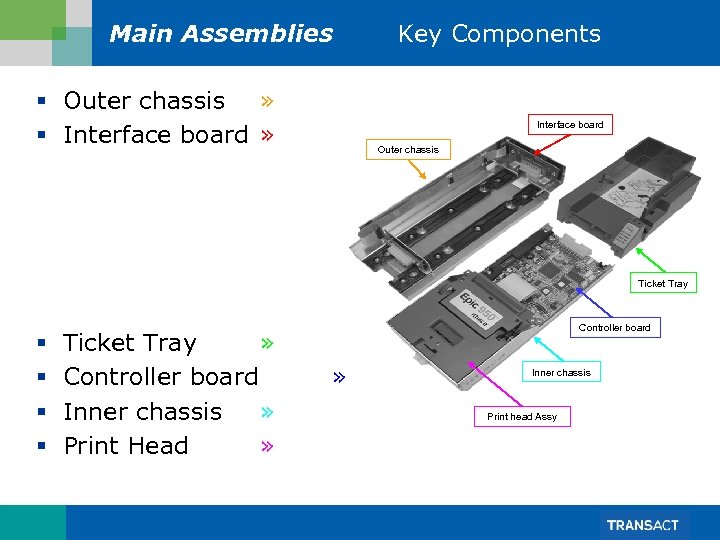 Main Assemblies § Outer chassis » § Interface board » Key Components Interface board Outer chassis Ticket Tray § § Ticket Tray » Controller board Inner chassis » Print Head » Controller board » Inner chassis Print head Assy
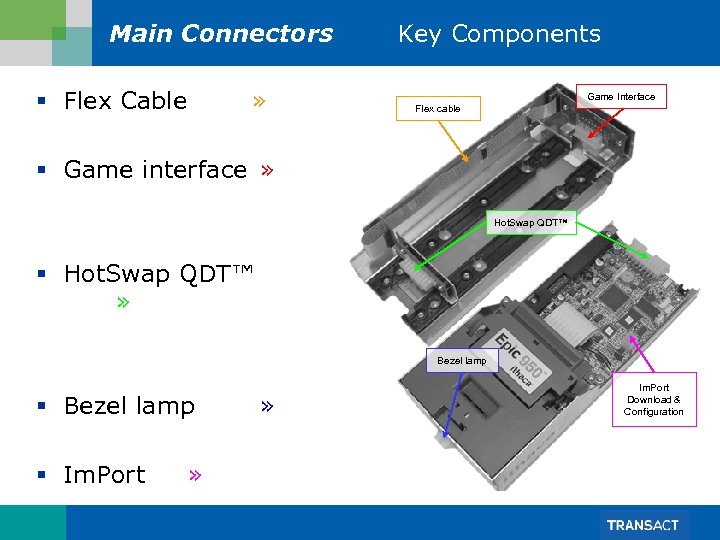 Main Connectors § Flex Cable » Key Components Game Interface Flex cable § Game interface » Hot. Swap QDT™ § Hot. Swap QDT™ » Bezel lamp § Im. Port » » Im. Port Download & Configuration
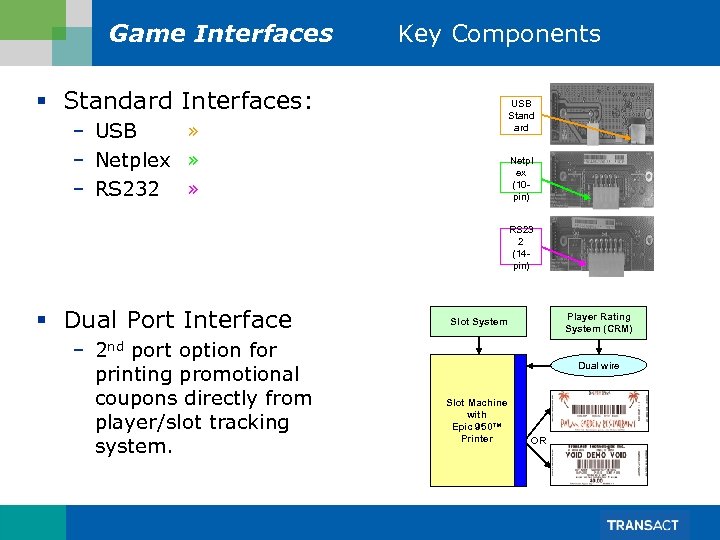 Game Interfaces Key Components § Standard Interfaces: USB Stand ard – USB » – Netplex » – RS 232 » Netpl ex (10 pin) RS 23 2 (14 pin) § Dual Port Interface – 2 nd port option for printing promotional coupons directly from player/slot tracking system. Player Rating System (CRM) Slot System Dual wire Slot Machine with Epic 950™ Printer OR
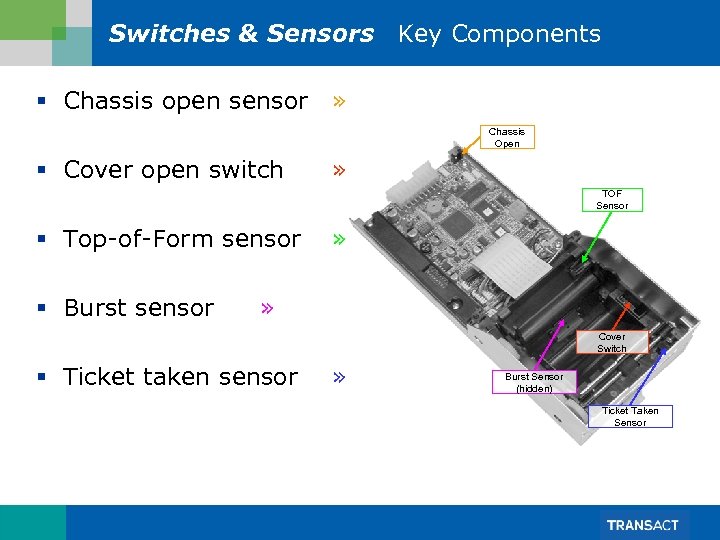 Switches & Sensors Key Components § Chassis open sensor » Chassis Open § Cover open switch » TOF Sensor § Top-of-Form sensor § Burst sensor » » Cover Switch § Ticket taken sensor » Burst Sensor (hidden) Ticket Taken Sensor
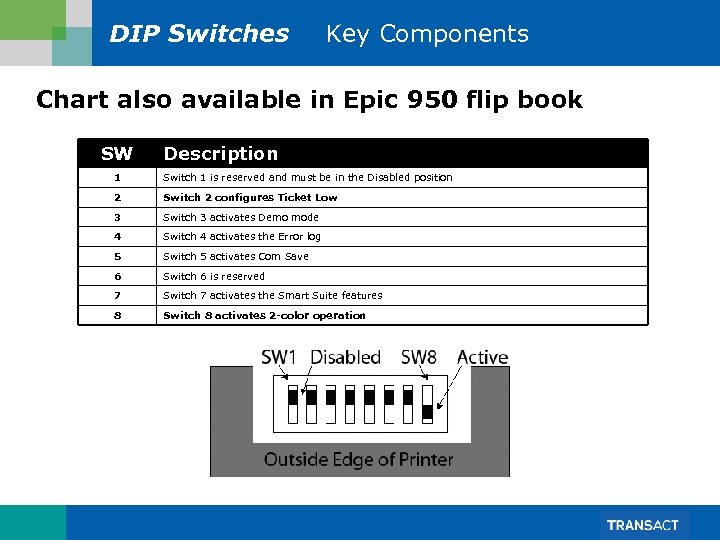 DIP Switches Key Components Chart also available in Epic 950 flip book SW Description 1 Switch 1 is reserved and must be in the Disabled position 2 Switch 2 configures Ticket Low 3 Switch 3 activates Demo mode 4 Switch 4 activates the Error log 5 Switch 5 activates Com Save 6 Switch 6 is reserved 7 Switch 7 activates the Smart Suite features 8 Switch 8 activates 2 -color operation
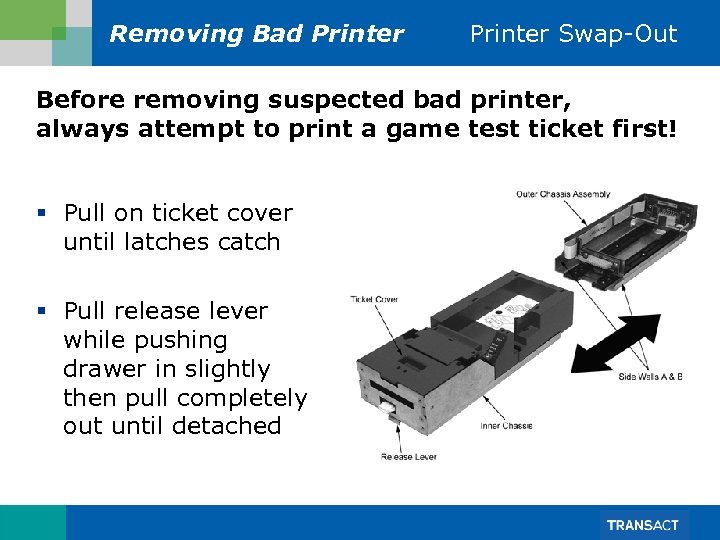 Removing Bad Printer Swap-Out Before removing suspected bad printer, always attempt to print a game test ticket first! § Pull on ticket cover until latches catch § Pull release lever while pushing drawer in slightly then pull completely out until detached
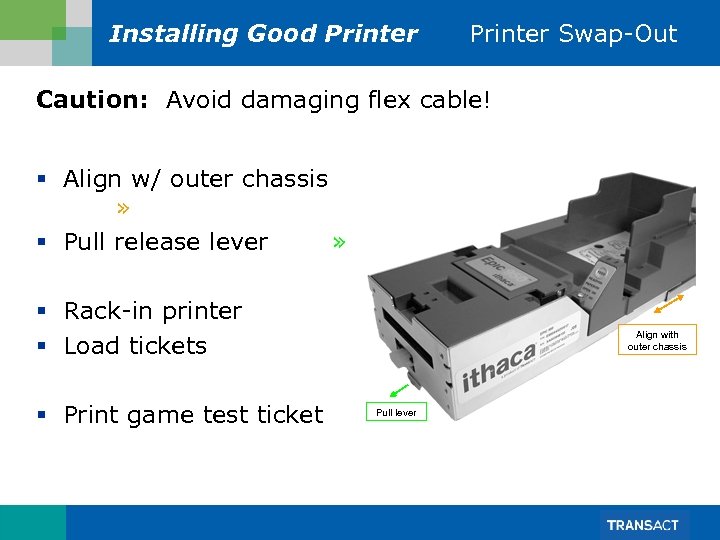 Installing Good Printer Swap-Out Caution: Avoid damaging flex cable! § Align w/ outer chassis » § Pull release lever » § Rack-in printer § Load tickets § Print game test ticket Align with outer chassis Pull lever
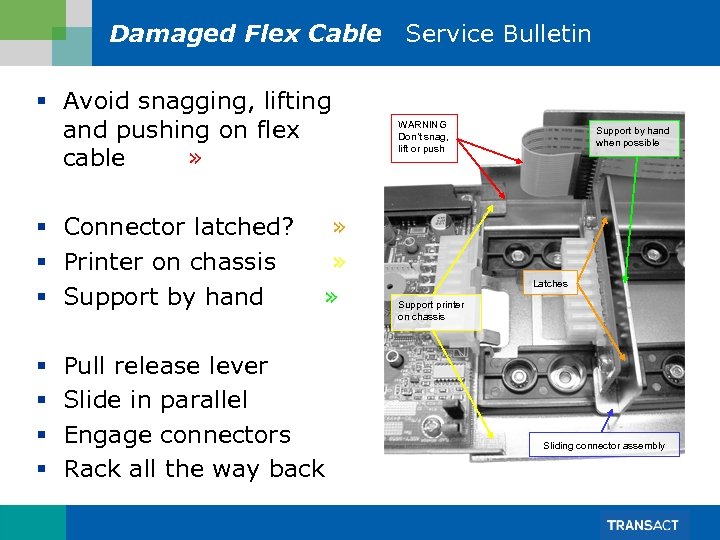 Damaged Flex Cable Service Bulletin § Avoid snagging, lifting and pushing on flex cable » § Connector latched? § Printer on chassis § Support by hand § § » » » Pull release lever Slide in parallel Engage connectors Rack all the way back WARNING Don’t snag, lift or push Support by hand when possible Latches Support printer on chassis Sliding connector assembly
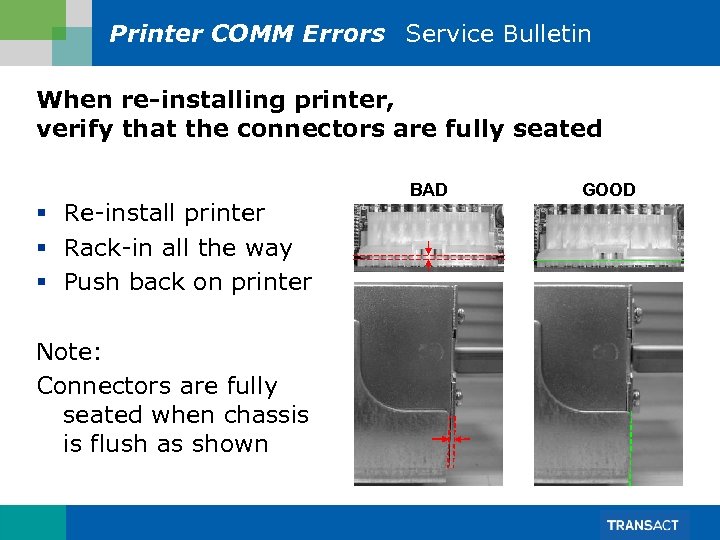 Printer COMM Errors Service Bulletin When re-installing printer, verify that the connectors are fully seated § Re-install printer § Rack-in all the way § Push back on printer Note: Connectors are fully seated when chassis is flush as shown BAD GOOD
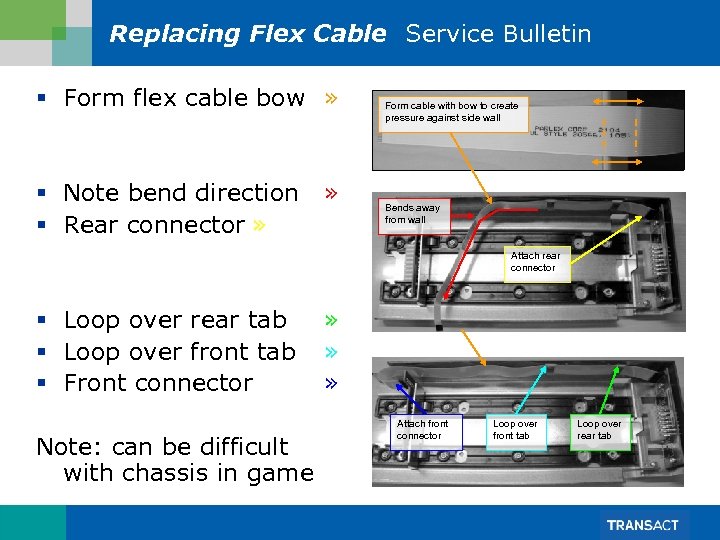 Replacing Flex Cable Service Bulletin § Form flex cable bow » § Note bend direction » § Rear connector » Form cable with bow to create pressure against side wall Bends away from wall Attach rear connector § Loop over rear tab § Loop over front tab § Front connector Note: can be difficult with chassis in game » » » Attach front connector Loop over front tab Loop over rear tab