


 Скачать презентацию Slicer User Training 101 IGT Edition Haiying Liu
4ca33e5bac8624cc8574df852223678e.ppt
- Количество слайдов: 33
 Slicer User Training 101 IGT Edition Haiying Liu Nobuhiko Hata 1
 Acknowledgements National Center for Image. Guided Therapy NIH U 41 RR 019703 National Alliance for Medical Image Computing NIH U 54 EB 005149 Neuroimage Analysis Center NIH P 41 RR 013218 © NIH National Center for Image-Guided Therapy, October 2006 2
 Disclaimer It is the responsibility of the user of Slicer IGT to comply with both the terms of the license and with the applicable laws, regulations and rules. © NIH National Center for Image-Guided Therapy, October 2006 3
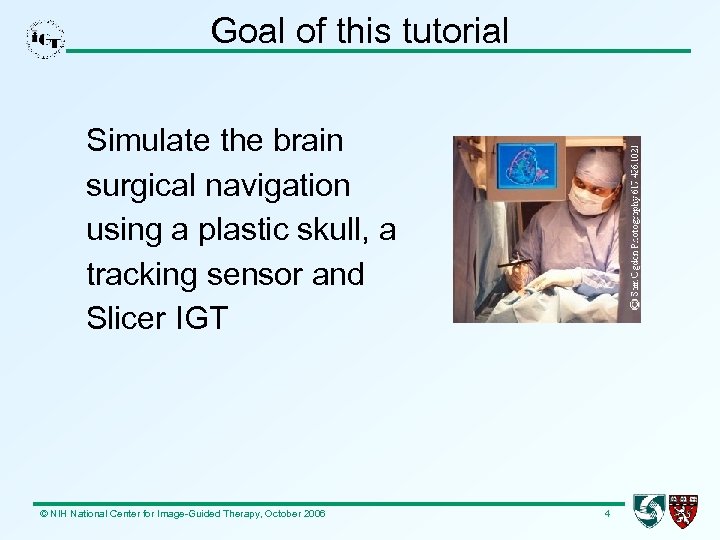 Goal of this tutorial Simulate the brain surgical navigation using a plastic skull, a tracking sensor and Slicer IGT © NIH National Center for Image-Guided Therapy, October 2006 4
 Outline of this tutorial 1)Introduction to 3 D Slicer 2)Required materials 3)System set-up 4)Patient to image registration 5)Navigation © NIH National Center for Image-Guided Therapy, October 2006 5
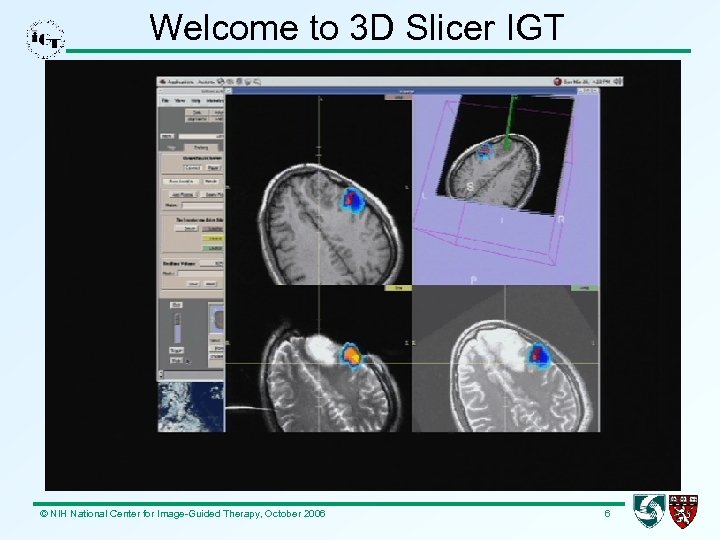 Welcome to 3 D Slicer IGT © NIH National Center for Image-Guided Therapy, October 2006 6
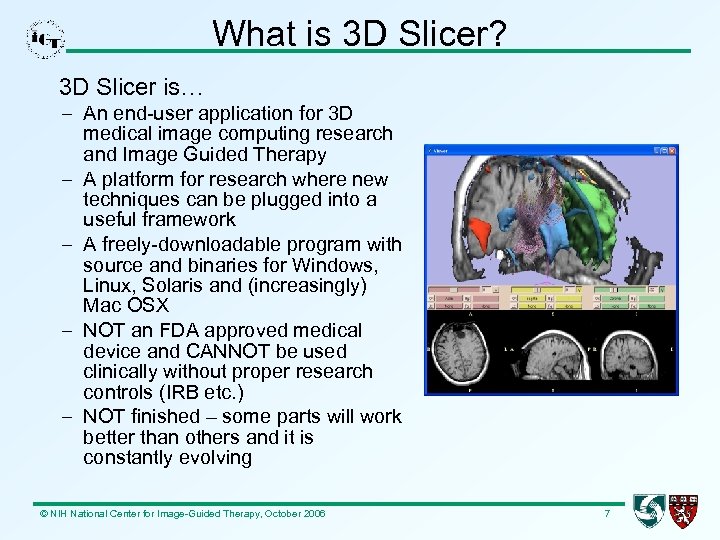 What is 3 D Slicer? 3 D Slicer is… – An end-user application for 3 D medical image computing research and Image Guided Therapy – A platform for research where new techniques can be plugged into a useful framework – A freely-downloadable program with source and binaries for Windows, Linux, Solaris and (increasingly) Mac OSX – NOT an FDA approved medical device and CANNOT be used clinically without proper research controls (IRB etc. ) – NOT finished – some parts will work better than others and it is constantly evolving © NIH National Center for Image-Guided Therapy, October 2006 7
 Slicer background • SPL Image Guided Surgery and Visualization (Kikinis, Westin, Hata, Halle, others) • Slicer Application Pulled Together by Dave Gering 1997 -1999 with VTK and Tcl • Further Development and Architecture by Lauren O’Donnell 1999 -2001 • Ongoing Development of Slicer’s Base Primarily by Steve Pieper and Nicole Aucoin • Many Modules and Contributions by Various Authors – BWH, MIT, MGH, Georgia Tech, UCSD, JHU. . . • Now being used as a reference application platform for NAMIC and NCIGT © NIH National Center for Image-Guided Therapy, October 2006 8
 Features • Load Medical Image Data: MR, CT in DICOM, GE, Analyze… • XML-based File Format: MRML (Medical Reality Markup Language) • Interactive Editor: Draw, Threshold, Math Morphology… • Automated Segmenters: EM Segmentation, Fast Marching, Level Sets… • Visualization: Model Building, Stereo Rendering, Animation… • Registration: Manual, ITK… • Measurement: Fiducial-Based, Volumetric, Polyhedral Intersection, Vessel Cross-Section, Osteotomy Planning • IGT: Tracked Probes, Real-Time Images, Robot Control • Additional Application-Specific Features in Modules… © NIH National Center for Image-Guided Therapy, October 2006 9
 Materials for this tutorial • A plastic skull • A tracking device • Slicer IGT • SPLOT server • CT scan of the plastic skull © NIH National Center for Image-Guided Therapy, October 2006 10
 Buy a plastic skull A life-size plastic skull can be bought at any of the following companies: Anatomical Chart Company, Skokie, IL. www. anatomical. cm. $29. 95 (as of Nov. 2006) Lippincott Williams & Wilkins (lww. com) Amazon. com Other international Amazon sites © NIH National Center for Image-Guided Therapy, October 2006 11
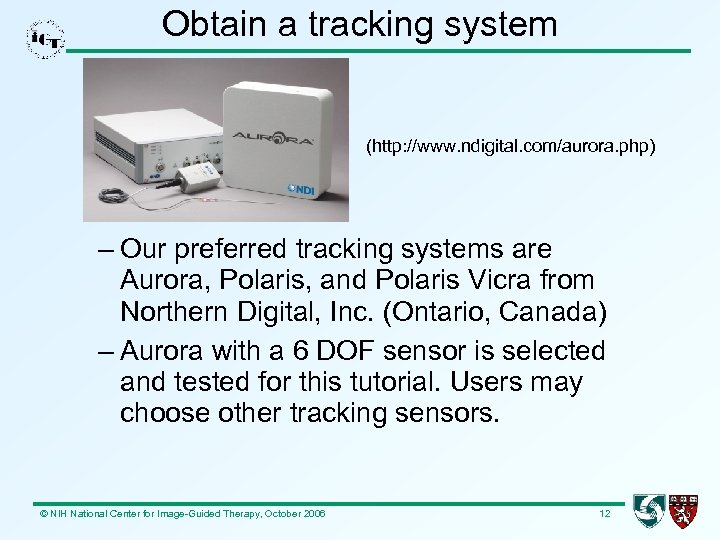 Obtain a tracking system (http: //www. ndigital. com/aurora. php) – Our preferred tracking systems are Aurora, Polaris, and Polaris Vicra from Northern Digital, Inc. (Ontario, Canada) – Aurora with a 6 DOF sensor is selected and tested for this tutorial. Users may choose other tracking sensors. © NIH National Center for Image-Guided Therapy, October 2006 12
 One download Slicer-IGT may be downloaded here: http: //www. na-mic. org/Wiki/index. php/IGT-Tutorials The current package is for Windows XP. Slicer. IGT for Linux will be available soon. Unzip Slicer-IGT. zip by Win. Zip and you will have: skull_CT: the 3 D CT image of the plastic skull SPLOT_server: SPLOT server, dtd and configuration files slicer 2. 6 -opt-win 32 -x 86 -2006 -11 -15. zip: Slicer 2. 6 for IGT © NIH National Center for Image-Guided Therapy, October 2006 13
 Install Slicer IGT 1) Unzip file slicer 2. 6 -opt-win 32 -x 86 -2006 -11 - 15. zip to any location on your computer and a directory named slicer 2. 6 -opt-win 32 -x 86 -200611 -15 will be created. This is the top directory of the Slicer IGT 2) Change to that directory using Windows Explorer 3) Create a shortcut for slicer 2 -win 32 -x 86. exe 4) Double click the shortcut to start the Slicer IGT © NIH National Center for Image-Guided Therapy, October 2006 14
 Learn the basics of Slicer • Those who have not used Slicer are strongly encouraged to learn the basics of Slicer before trying Slicer-IGT • Basic tutorial for Slicer is available at http: //www. namic. org/Wiki/index. php/Slicer: Workshops: User_Training_101 • Users are expected to know the following (non-IGT) functions of the Slicer: – Load volumes – Import a scene – Segment – Make models © NIH National Center for Image-Guided Therapy, October 2006 15
 Set up Aurora tracking device (1) 1)Follow the manufacturer's user manual to set up the Aurora tracking system. Connect the device by a serial port to the computer where the Slicer IGT has been installed. 2)Install the NDI Tool. Viewer on your computer from the CD, which came with the product. Tool. Viewer can be used to test the system setup and more importantly to find the tool ID for the 6 DOF sensor to be used for tracking. 3)Replace the tool. ID field of this file splot. Config. xml (in the SPLOT_server directory) by the value obtained above. © NIH National Center for Image-Guided Therapy, October 2006 16
 Set Aurora tracking device (2) 4) Create a command prompt and change directory to SPLOT_server 5) Power off and then on the tracking device. In directory SPLOT_server within the command prompt, run this command: opentracker_spl. exe splot. Config. xml 6) Now, move the 6 DOF sensor within the tracking scope (500 x 500 mm) and then you should see the position and orientation values change in the prompt. The tracking device is working! © NIH National Center for Image-Guided Therapy, October 2006 17
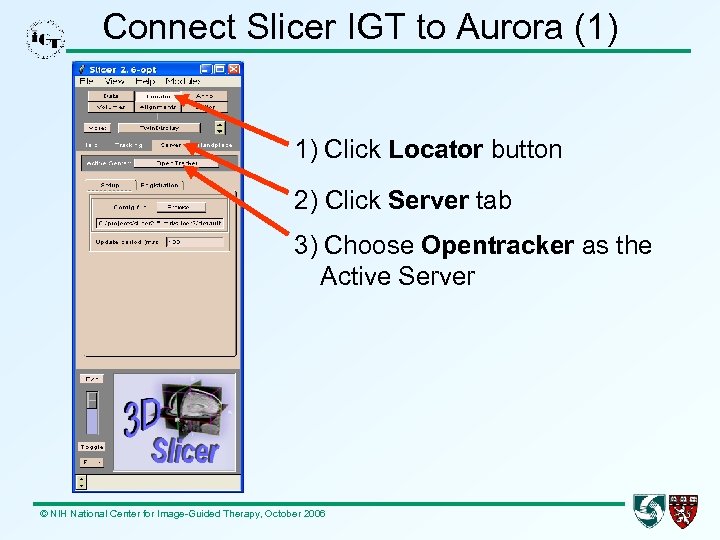 Connect Slicer IGT to Aurora (1) 1) Click Locator button 2) Click Server tab 3) Choose Opentracker as the Active Server © NIH National Center for Image-Guided Therapy, October 2006
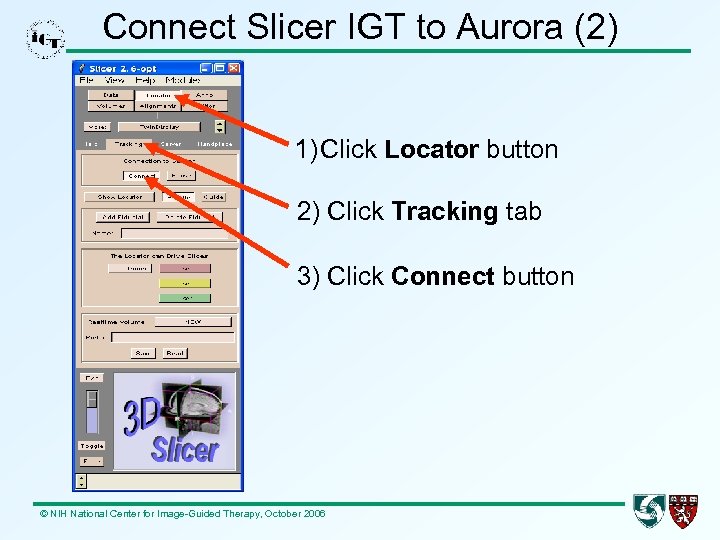 Connect Slicer IGT to Aurora (2) 1) Click Locator button 2) Click Tracking tab 3) Click Connect button © NIH National Center for Image-Guided Therapy, October 2006
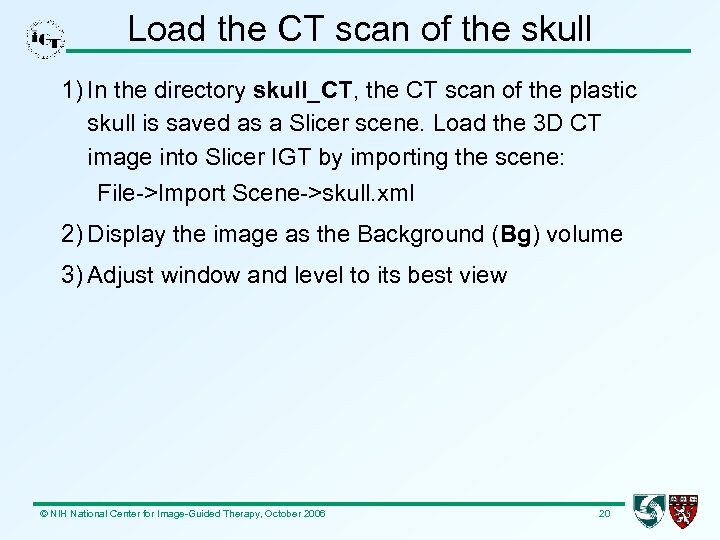 Load the CT scan of the skull 1) In the directory skull_CT, the CT scan of the plastic skull is saved as a Slicer scene. Load the 3 D CT image into Slicer IGT by importing the scene: File->Import Scene->skull. xml 2) Display the image as the Background (Bg) volume 3) Adjust window and level to its best view © NIH National Center for Image-Guided Therapy, October 2006 20
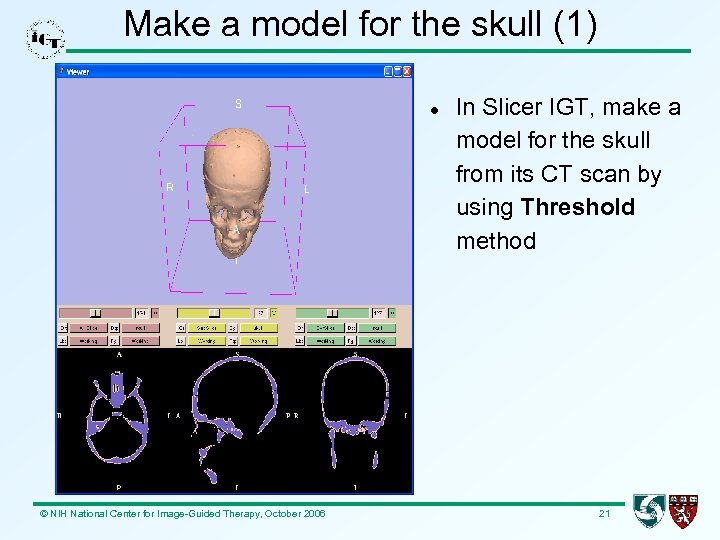 Make a model for the skull (1) © NIH National Center for Image-Guided Therapy, October 2006 In Slicer IGT, make a model for the skull from its CT scan by using Threshold method 21
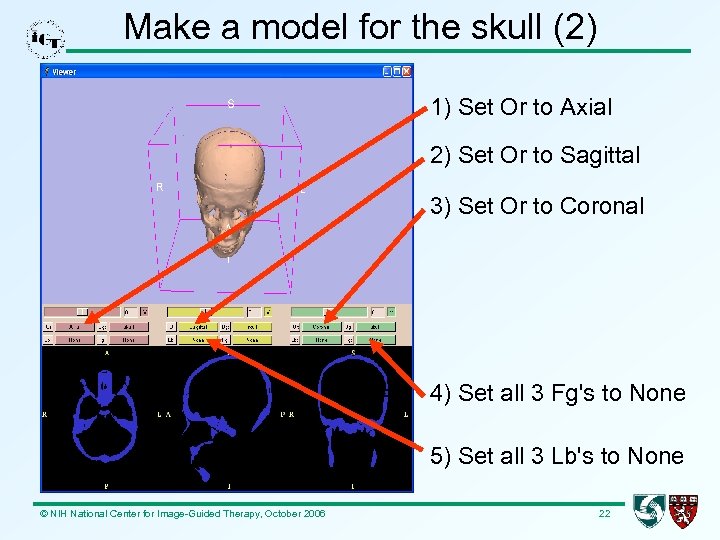 Make a model for the skull (2) 1) Set Or to Axial 2) Set Or to Sagittal 3) Set Or to Coronal 4) Set all 3 Fg's to None 5) Set all 3 Lb's to None © NIH National Center for Image-Guided Therapy, October 2006 22
 Why do we need registration? • Slicer IGT uses RAS coordinate system • Aurora tracking device has a different coordinate system (XYZ) • We need to match points between the two systems © NIH National Center for Image-Guided Therapy, October 2006 23
 Patient to image registration • Put the plastic skull inside the tracking scope of the device (500 x 500 mm) • On the plastic skull, find at least 4 unique points. Record their coordinates in both patient (device) and image (Slicer IGT) spaces. Input these values into Slicer IGT (Locator->Server-> Open. Tracker>Registration tab). Then perform registration. See next 4 slides for details. • The fiducial points on the skull model helps a lot to match points. © NIH National Center for Image-Guided Therapy, October 2006 24
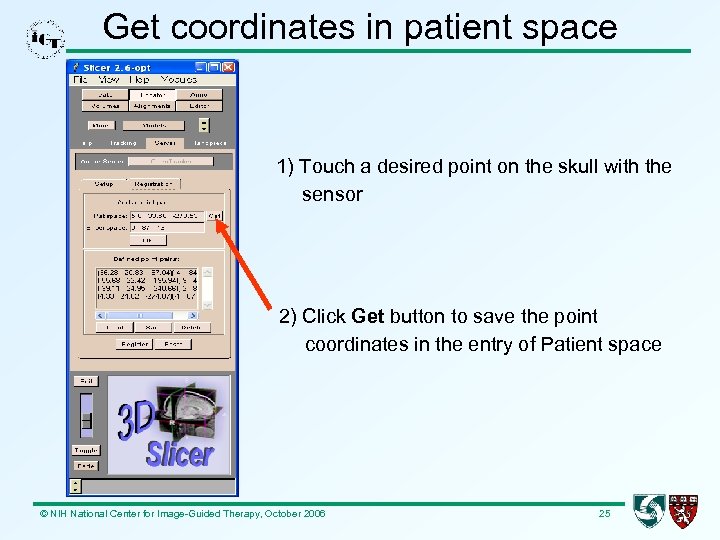 Get coordinates in patient space 1) Touch a desired point on the skull with the sensor 2) Click Get button to save the point coordinates in the entry of Patient space © NIH National Center for Image-Guided Therapy, October 2006 25
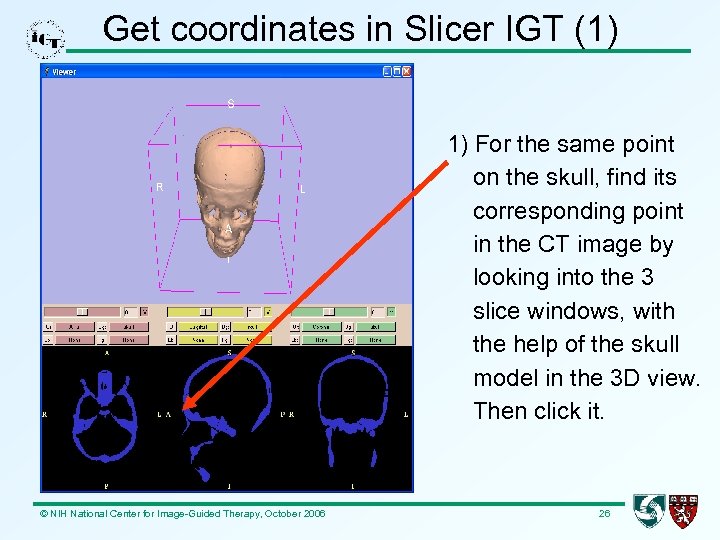 Get coordinates in Slicer IGT (1) 1) For the same point on the skull, find its corresponding point in the CT image by looking into the 3 slice windows, with the help of the skull model in the 3 D view. Then click it. © NIH National Center for Image-Guided Therapy, October 2006 26
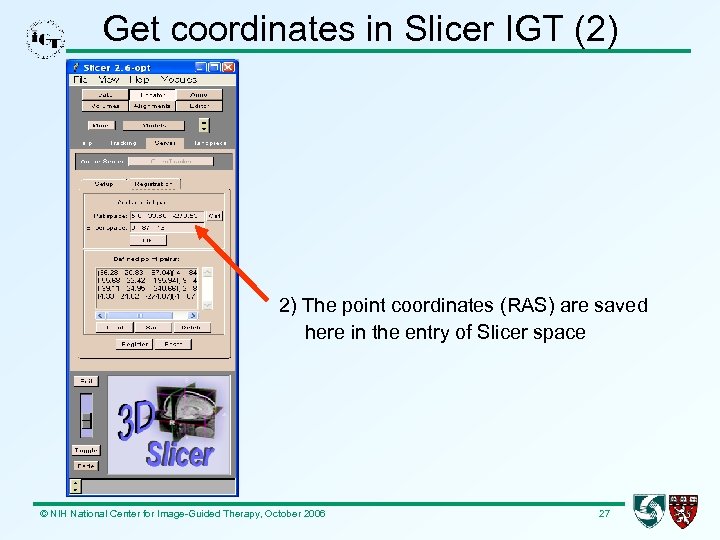 Get coordinates in Slicer IGT (2) 2) The point coordinates (RAS) are saved here in the entry of Slicer space © NIH National Center for Image-Guided Therapy, October 2006 27
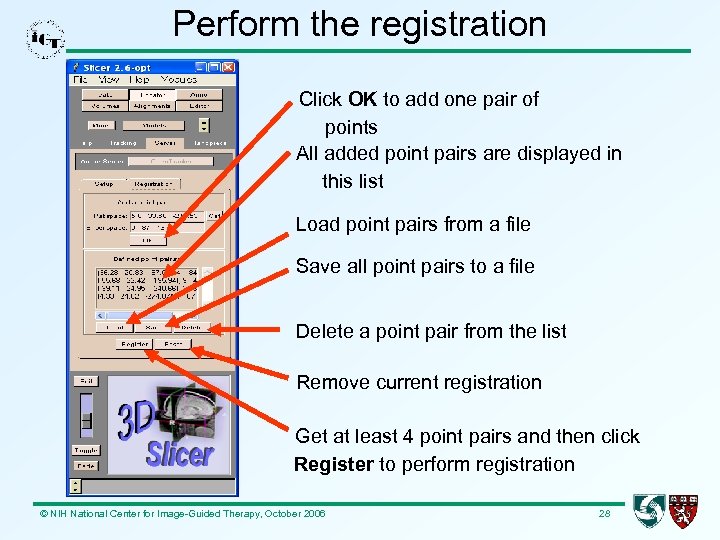 Perform the registration Click OK to add one pair of points All added point pairs are displayed in this list Load point pairs from a file Save all point pairs to a file Delete a point pair from the list Remove current registration Get at least 4 point pairs and then click Register to perform registration © NIH National Center for Image-Guided Therapy, October 2006 28
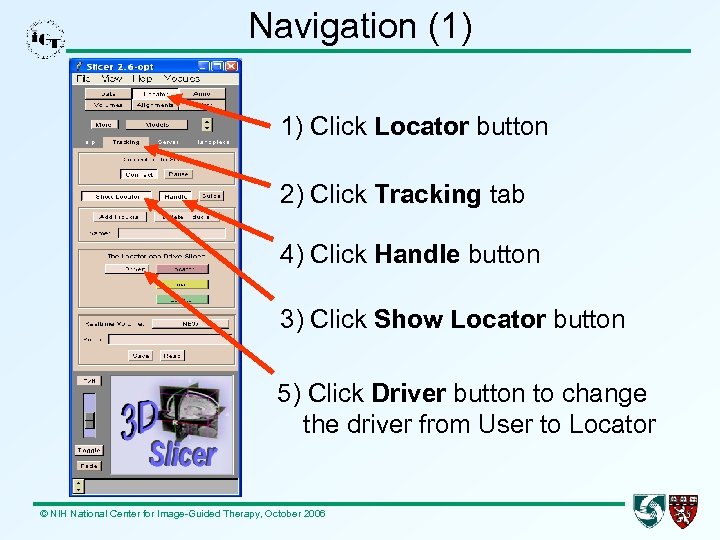 Navigation (1) 1) Click Locator button 2) Click Tracking tab 4) Click Handle button 3) Click Show Locator button 5) Click Driver button to change the driver from User to Locator © NIH National Center for Image-Guided Therapy, October 2006
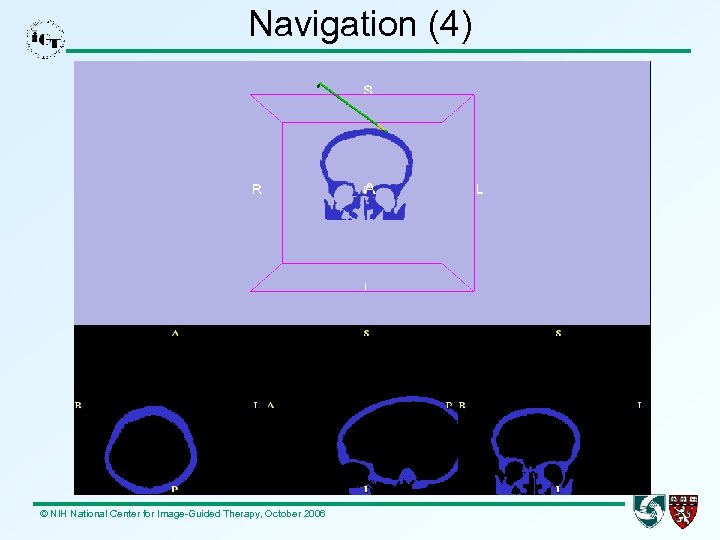
 Navigation (2) Now, the system is ready for navigation. Move the sensor around the skull and you should see the following happen: The 6 DOF tracking sensor is represented by a green needle and displayed in the 3 D view window of the Slicer IGT The position and orientation of the green needle update as the sensor moves © NIH National Center for Image-Guided Therapy, October 2006
 Navigation (3) The blue images displayed in the 3 slice windows of Slicer IGT are the 2 D views (Axial, Sagittal and Coronal) of the plastic skull. These images update accordingly as the sensor moves. One or more of the 2 D images may also be displayed in the 3 D view of the Slicer IGT. In next slide, the Coronal image is selected as the example. © NIH National Center for Image-Guided Therapy, October 2006
 Navigation (4) © NIH National Center for Image-Guided Therapy, October 2006
 Slicer resources • • • www. slicer. org www. na-mic. org/Wiki www. na-mic. org/Bug www. na-mic. org/Testing slicer-devel@bwh. harvard. edu slicer-users@bwh. harvard. edu © NIH National Center for Image-Guided Therapy, October 2006 33