


 Скачать презентацию Site Graphics Graphical Alarm Management System Introduction
b52fd9caffbb962eeeef88420a183141.ppt
- Количество слайдов: 30
 Site Graphics Graphical Alarm Management System
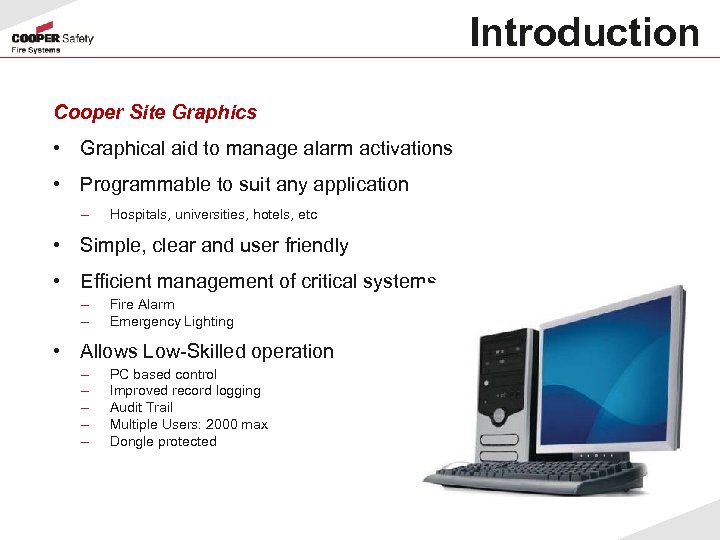 Introduction Cooper Site Graphics • Graphical aid to manage alarm activations • Programmable to suit any application – Hospitals, universities, hotels, etc • Simple, clear and user friendly • Efficient management of critical systems – – Fire Alarm Emergency Lighting • Allows Low-Skilled operation – – – PC based control Improved record logging Audit Trail Multiple Users: 2000 max Dongle protected
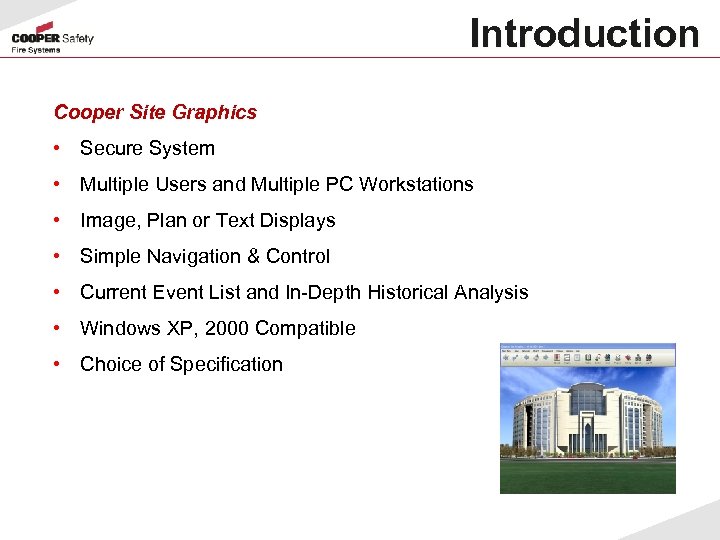 Introduction Cooper Site Graphics • Secure System • Multiple Users and Multiple PC Workstations • Image, Plan or Text Displays • Simple Navigation & Control • Current Event List and In-Depth Historical Analysis • Windows XP, 2000 Compatible • Choice of Specification
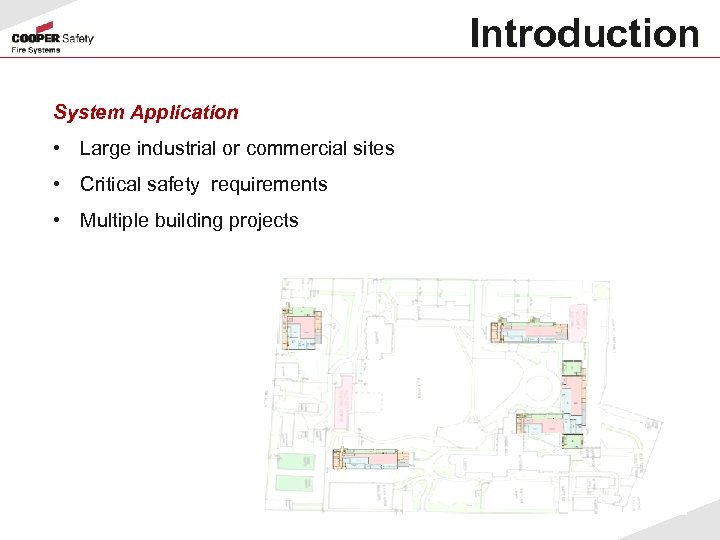 Introduction System Application • Large industrial or commercial sites • Critical safety requirements • Multiple building projects
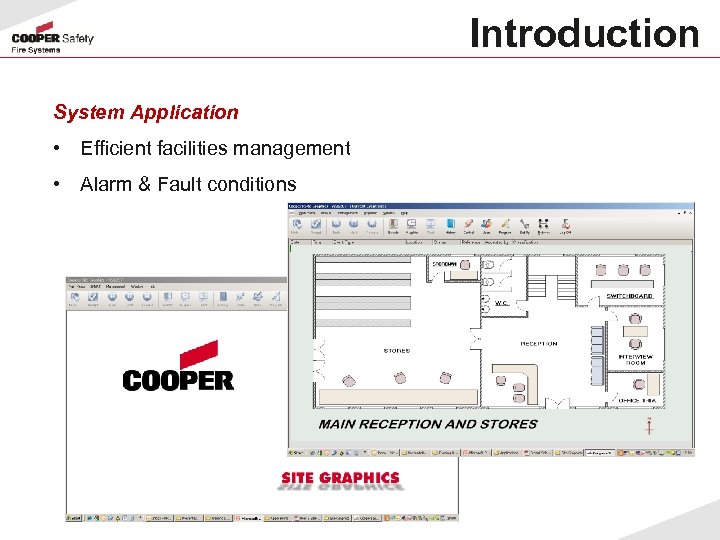 Introduction System Application • Efficient facilities management • Alarm & Fault conditions
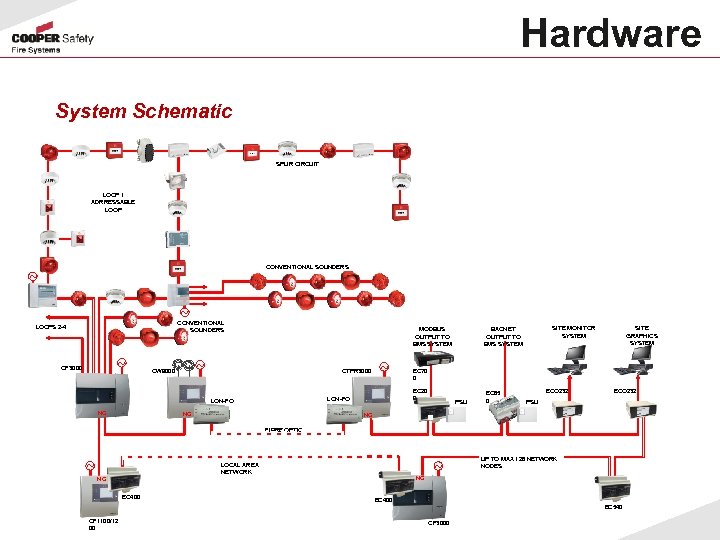 Hardware System Schematic SPUR CIRCUIT LOOP 1 ADRRESSABLE LOOP CONVENTIONAL SOUNDERS ~ ~ CONVENTIONAL SOUNDERS LOOPS 2 -4 ~ CF 3000 MODBUS OUTPUT TO BMS SYSTEM ~ CW 9000 CTPR 3000 NC SITE GRAPHICS SYSTEM EC 70 0 EC 20 0 LON-FO NC ~ SITE MONITOR SYSTEM BACNET OUTPUT TO BMS SYSTEM PSU EC 65 0 ECO 232 PSU NC FIBRE OPTIC ~ LOCAL AREA NETWORK NC NC EC 400 ~ UP TO MAX 126 NETWORK NODES EC 400 EC 540 CF 1100/12 00 CF 3000
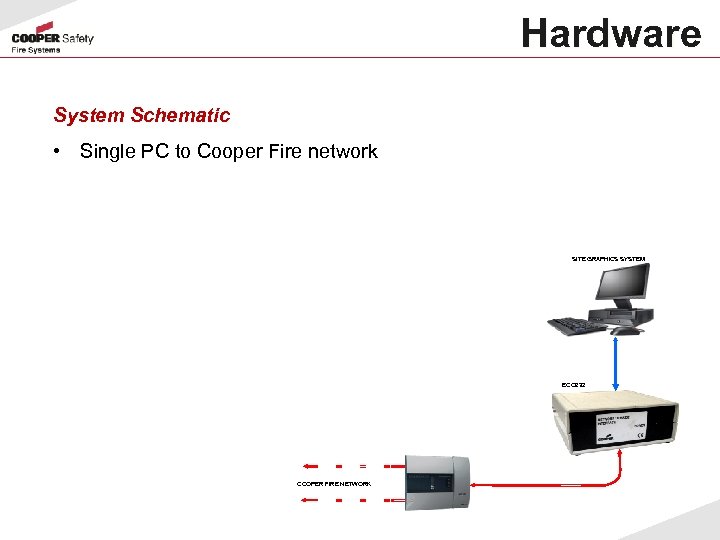 Hardware System Schematic • Single PC to Cooper Fire network SITE GRAPHICS SYSTEM ECO 232 COOPER FIRE NETWORK
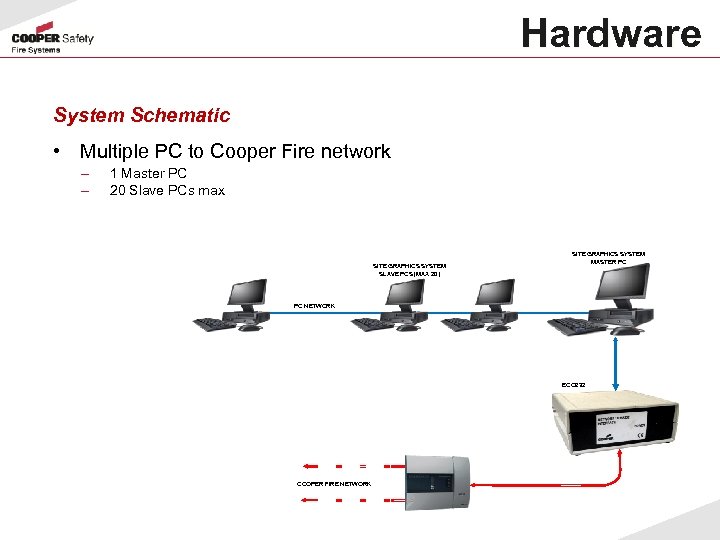 Hardware System Schematic • Multiple PC to Cooper Fire network – – 1 Master PC 20 Slave PCs max SITE GRAPHICS SYSTEM SLAVE PCS (MAX 20) SITE GRAPHICS SYSTEM MASTER PC PC NETWORK ECO 232 COOPER FIRE NETWORK
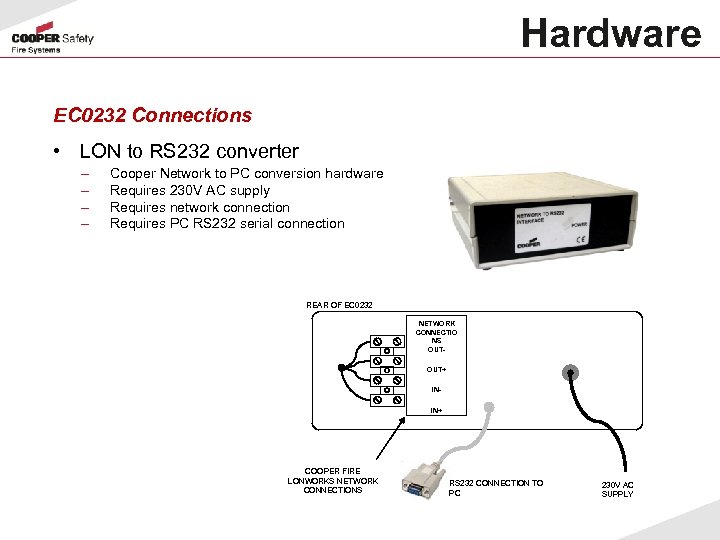 Hardware EC 0232 Connections • LON to RS 232 converter – – Cooper Network to PC conversion hardware Requires 230 V AC supply Requires network connection Requires PC RS 232 serial connection REAR OF EC 0232 NETWORK CONNECTIO NS OUTOUT+ ININ+ COOPER FIRE LONWORKS NETWORK CONNECTIONS RS 232 CONNECTION TO PC 230 V AC SUPPLY
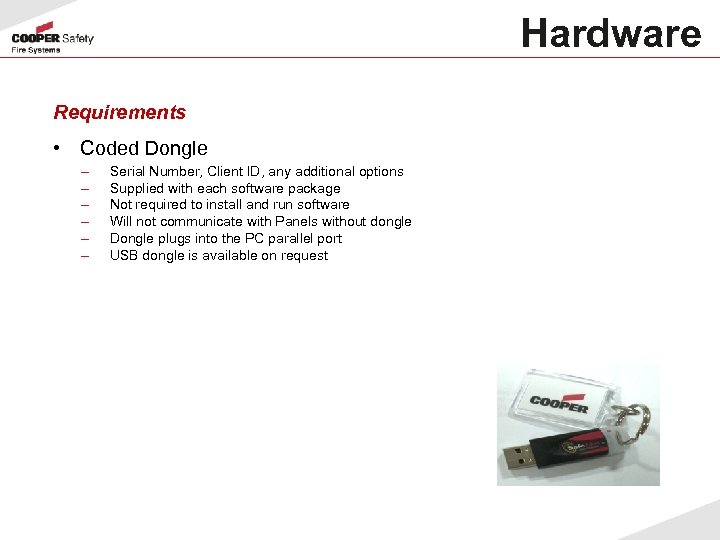 Hardware Requirements • Coded Dongle – – – Serial Number, Client ID, any additional options Supplied with each software package Not required to install and run software Will not communicate with Panels without dongle Dongle plugs into the PC parallel port USB dongle is available on request
 Hardware Minimum PC Spec • Intel Pentium 2 GHz or equivalent – – Windows 2000 SP 4 Windows XP Professional SP 2 • Memory – – 512 Mb min memory 20 Gb min disk space • Graphics – – 1024 x 768 XGA graphics card 16 million Colours • Connectivity – – – 1 – 6 serial ports depending on configuration Parallel or USB for Coded Dongle 10 -100 Mps LAN connection for multiple work stations • Misc – – Windows compatible sound card 2 button mouse and keyboard
 Operation Functionality • Device Events – – Device text transmitted by control panel Trigger device alarm or fault to collect data Data: 2 -1 -56/0 = Panel Address – Loop No. – Device Address / Input Type Input types: 0 = Fire, 1 = Pre Alarm, 4 = Disablement, 6 = Fire Test, 8 = Fault • Panel Events – – – Global Reset, Silence, Evacuate Power Fault, Battery Fault, Charger Fault Sounder Fault, Earth Fault, FPE and FRE Faults • Disablement – – Zone Device
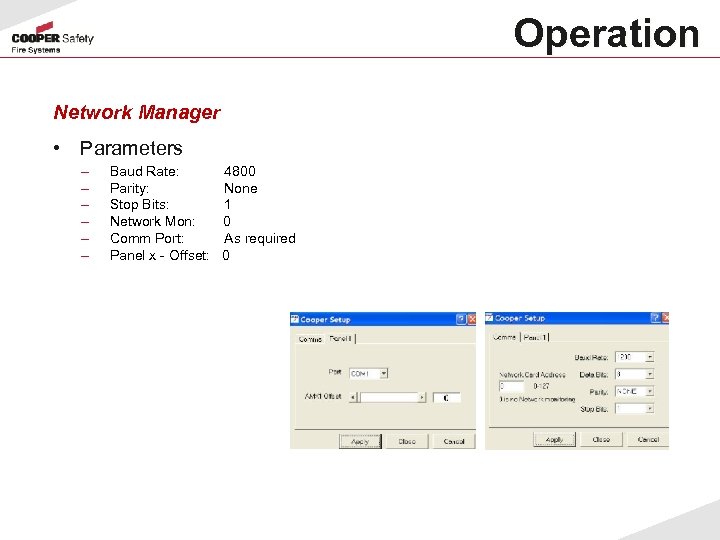 Operation Network Manager • Parameters – – – Baud Rate: 4800 Parity: None Stop Bits: 1 Network Mon: 0 Comm Port: As required Panel x - Offset: 0
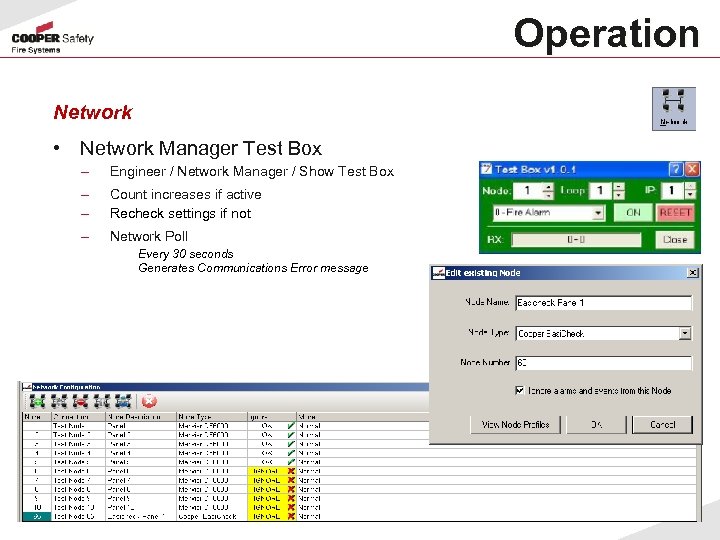 Operation Network • Network Manager Test Box – Engineer / Network Manager / Show Test Box – – Count increases if active Recheck settings if not – Network Poll Every 30 seconds Generates Communications Error message
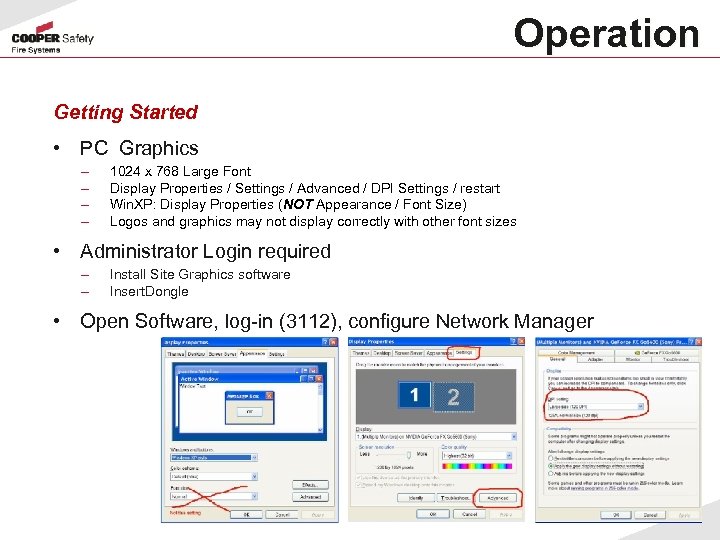 Operation Getting Started • PC Graphics – – 1024 x 768 Large Font Display Properties / Settings / Advanced / DPI Settings / restart Win. XP: Display Properties (NOT Appearance / Font Size) Logos and graphics may not display correctly with other font sizes • Administrator Login required – – Install Site Graphics software Insert. Dongle • Open Software, log-in (3112), configure Network Manager
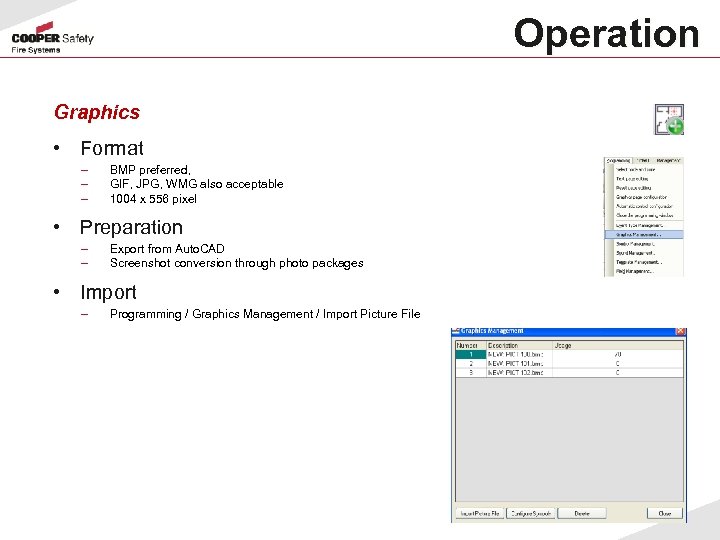 Operation Graphics • Format – – – BMP preferred, GIF, JPG, WMG also acceptable 1004 x 556 pixel • Preparation – – Export from Auto. CAD Screenshot conversion through photo packages • Import – Programming / Graphics Management / Import Picture File
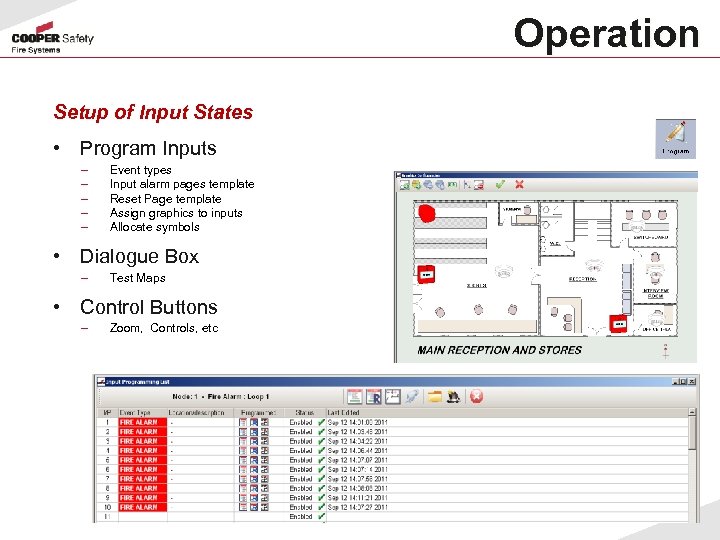 Operation Setup of Input States • Program Inputs – – – Event types Input alarm pages template Reset Page template Assign graphics to inputs Allocate symbols • Dialogue Box – Test Maps • Control Buttons – Zoom, Controls, etc
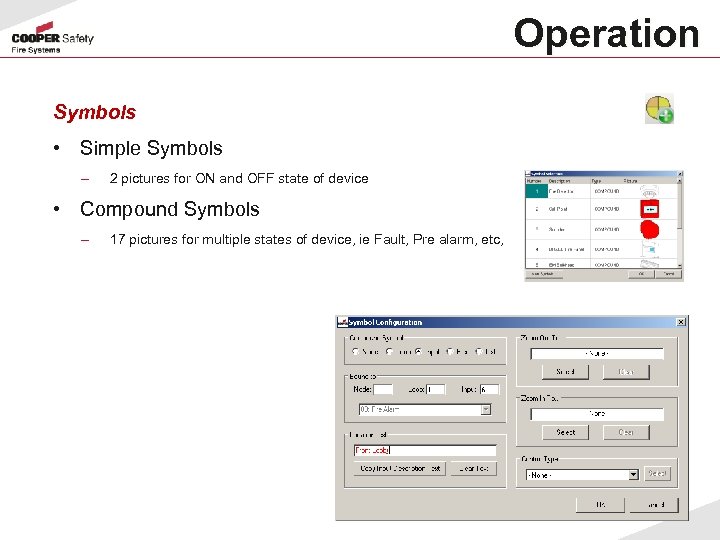 Operation Symbols • Simple Symbols – 2 pictures for ON and OFF state of device • Compound Symbols – 17 pictures for multiple states of device, ie Fault, Pre alarm, etc,
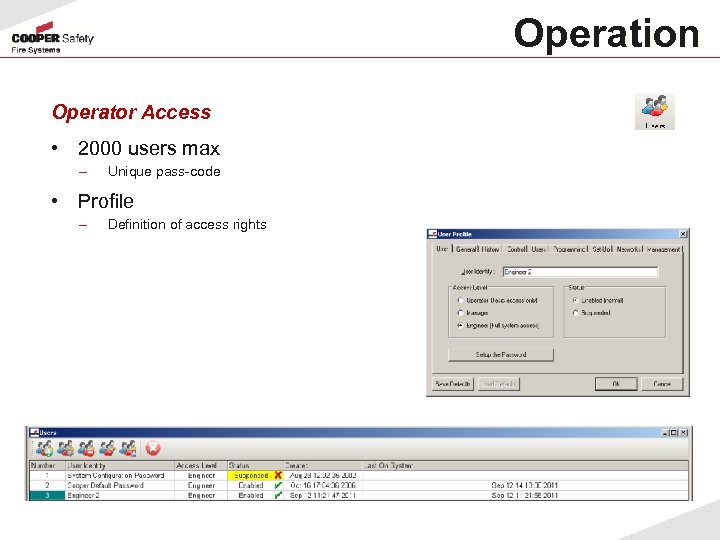 Operation Operator Access • 2000 users max – Unique pass-code • Profile – Definition of access rights
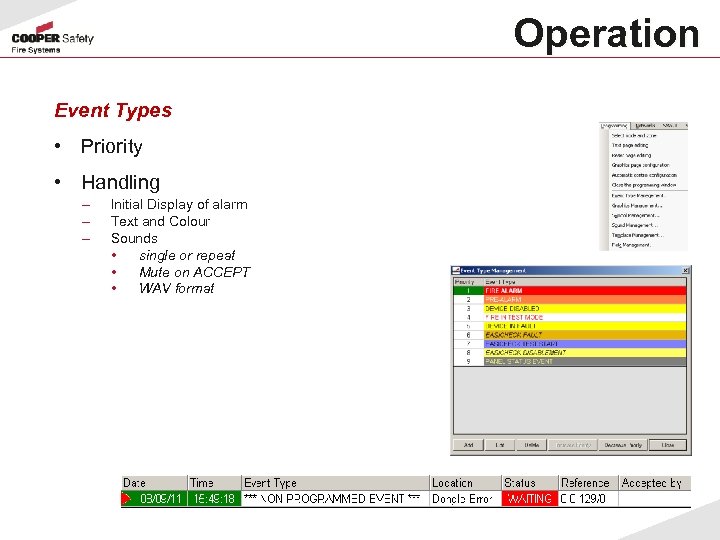 Operation Event Types • Priority • Handling – – – Initial Display of alarm Text and Colour Sounds • single or repeat • Mute on ACCEPT • WAV format
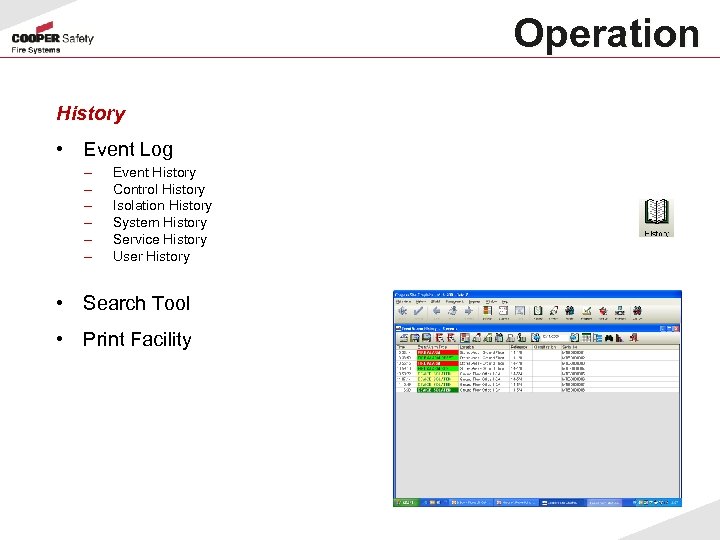 Operation History • Event Log – – – Event History Control History Isolation History System History Service History User History • Search Tool • Print Facility
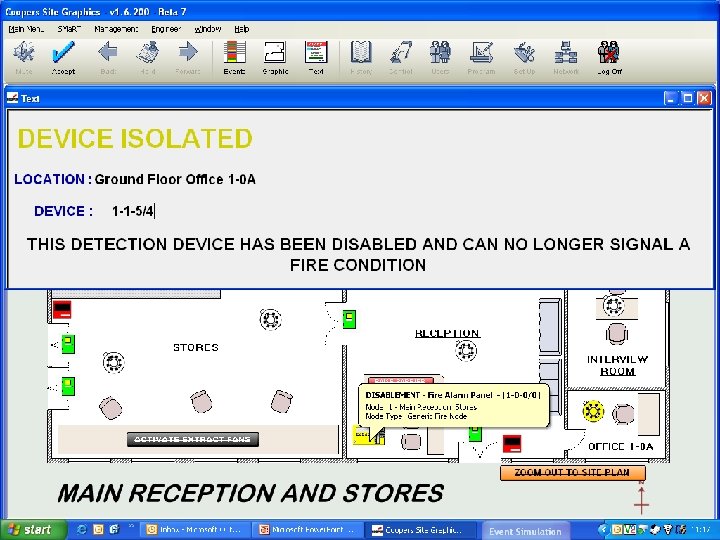
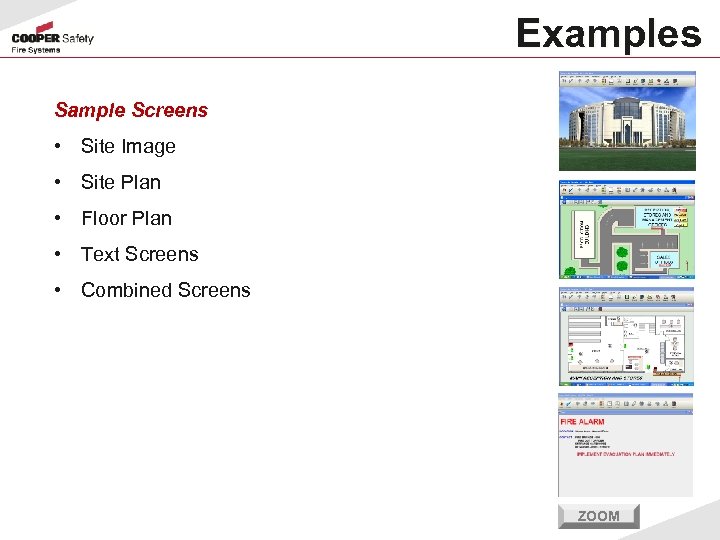 Examples Sample Screens • Site Image • Site Plan • Floor Plan • Text Screens • Combined Screens ZOOM
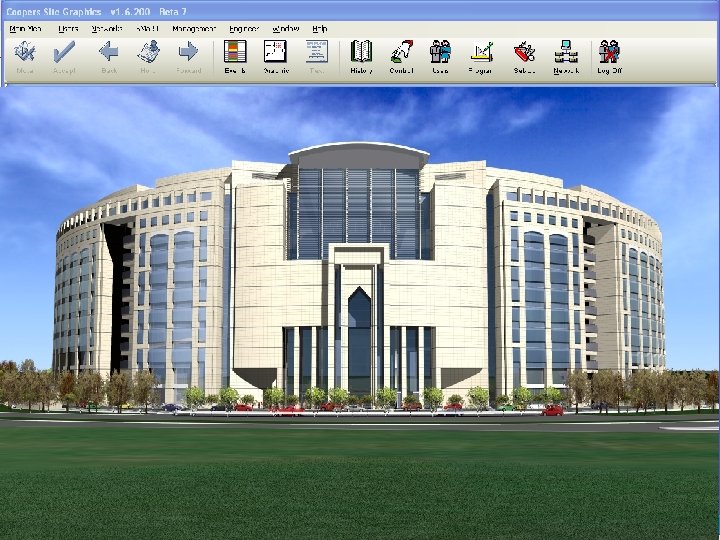
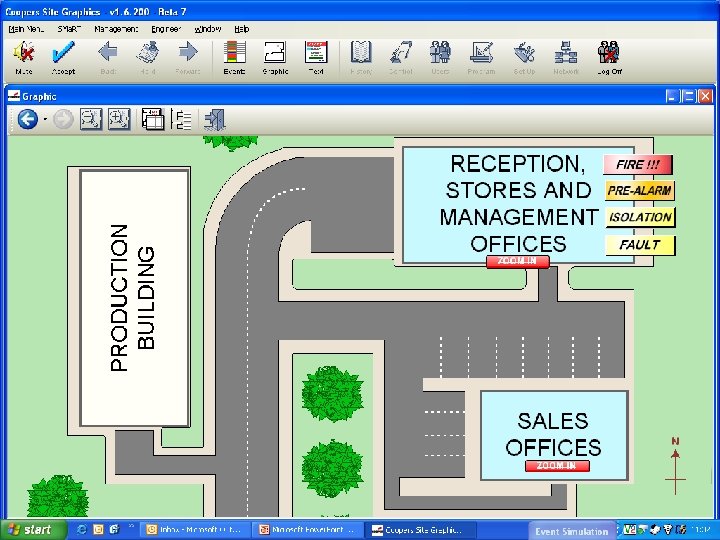
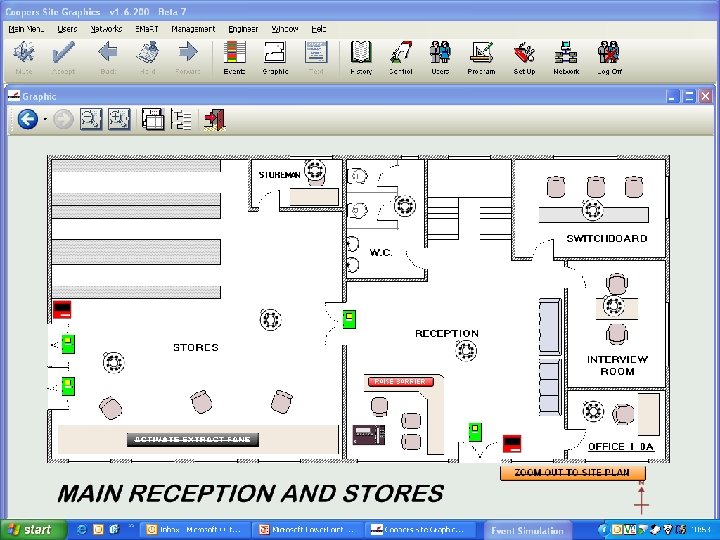
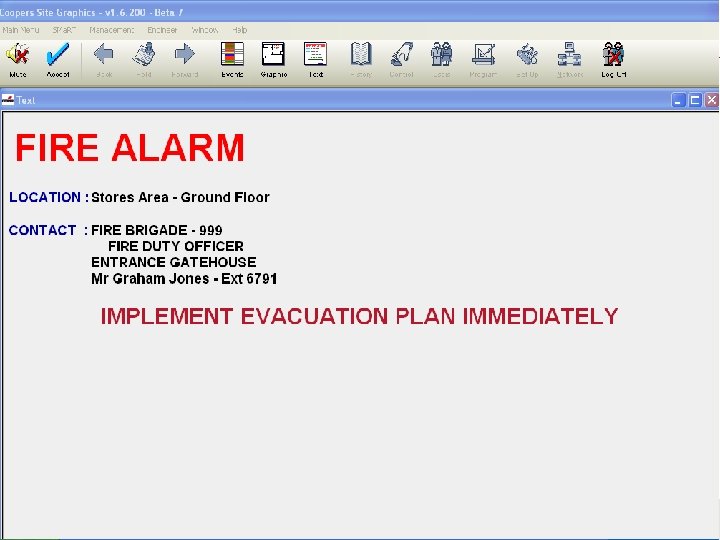 Operation Example • Typical System
 Operation Setup Steps • Start Communications • Prepare Maps and import • Assign Graphics • Add Symbols • Use Dialogue Box to test maps • Add Control Buttons for Zoom In/Out or Controls if required for multiple input states - e. g. detector fire, fault, disable, etc 28
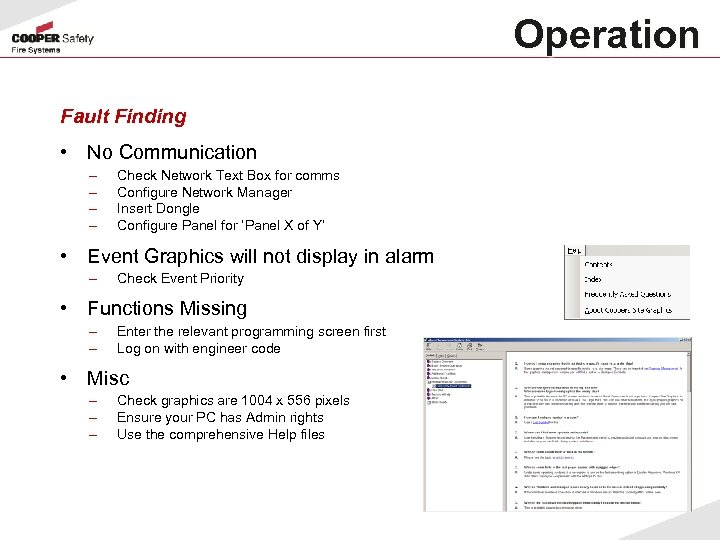 Operation Fault Finding • No Communication – – Check Network Text Box for comms Configure Network Manager Insert Dongle Configure Panel for ‘Panel X of Y’ • Event Graphics will not display in alarm – Check Event Priority • Functions Missing – – Enter the relevant programming screen first Log on with engineer code • Misc – – – Check graphics are 1004 x 556 pixels Ensure your PC has Admin rights Use the comprehensive Help files
 Thank you!