


 Скачать презентацию SG-System I Introduction The System I is
fa959d134fda9011aa2e6d4e80059da1.ppt
- Количество слайдов: 36
 SG-System I
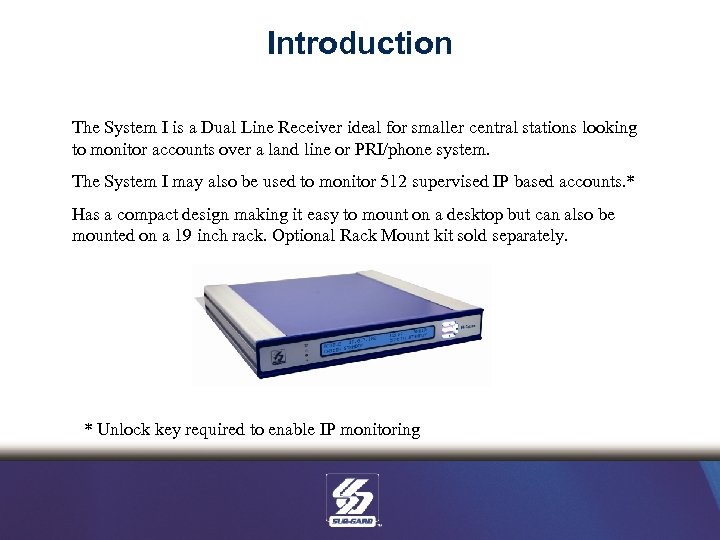 Introduction The System I is a Dual Line Receiver ideal for smaller central stations looking to monitor accounts over a land line or PRI/phone system. The System I may also be used to monitor 512 supervised IP based accounts. * Has a compact design making it easy to mount on a desktop but can also be mounted on a 19 inch rack. Optional Rack Mount kit sold separately. * Unlock key required to enable IP monitoring
 Product Features • • Dual Phone line support All-In-One Receiver – Supports communication over phone line and IP Supports TL-150/250/300, GS 30 XX (This feature requires an Unlock Key) Small desk mount design. Can also be mounted in standard 19 -inch rack with the SG Desktop Receiver Rack Mount Kit (SG-SII-RMK) Supports Contact ID and SIA. More formats to be supported through flash update. Full list of future supported formats can be found in Appendix A AHS – Automatic Handshake Selection Patented ANI and DNIS reception, Automatic Handshake Selection (AHS), Caller ID capability and virtual configurations
 Product Features • • Non-Volatile RAM for programming and event buffer DSP technology Up to 64 different profiles and up to eight different handshakes per profile 500 -event memory buffer on each individual line card One parallel printer port, one serial automation port, one USB console port and 10/100 Base. T automation output Continuous verification of computer/receiver links Integrated scheduled receiver line card testing Remote acknowledgement and sounder capability
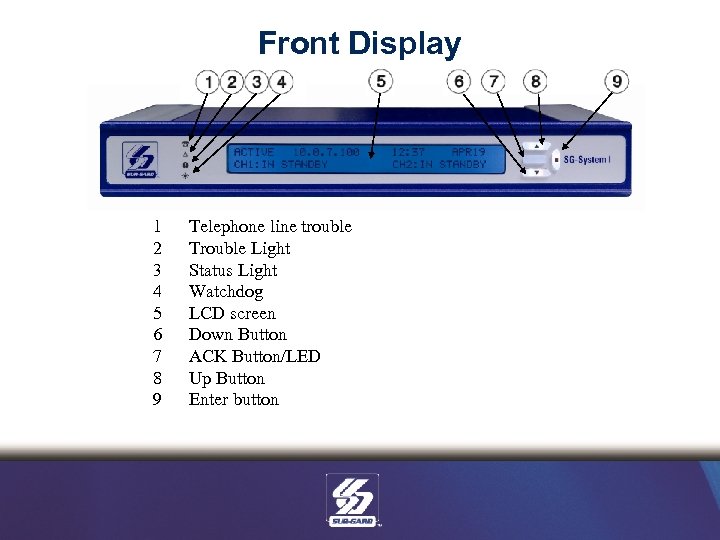 Front Display 1 2 3 4 5 6 7 8 9 Telephone line trouble Trouble Light Status Light Watchdog LCD screen Down Button ACK Button/LED Up Button Enter button
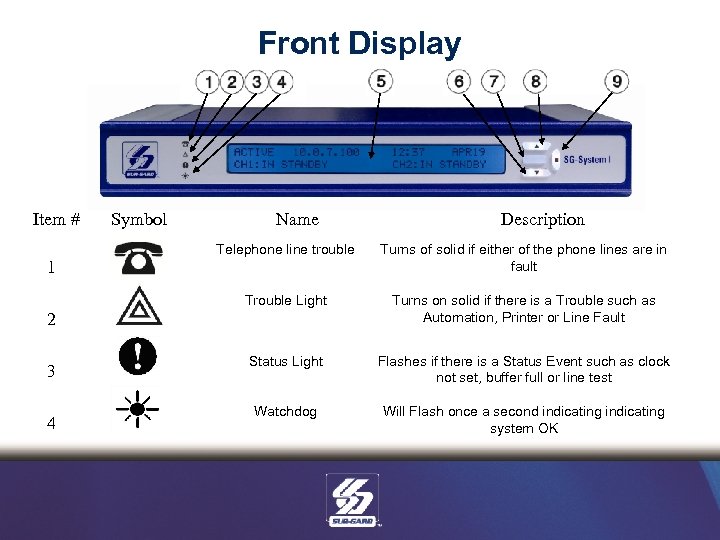 Front Display Item # Symbol Name Description Telephone line trouble Turns of solid if either of the phone lines are in fault Trouble Light Turns on solid if there is a Trouble such as Automation, Printer or Line Fault Status Light Flashes if there is a Status Event such as clock not set, buffer full or line test Watchdog Will Flash once a second indicating system OK 1 2 3 4
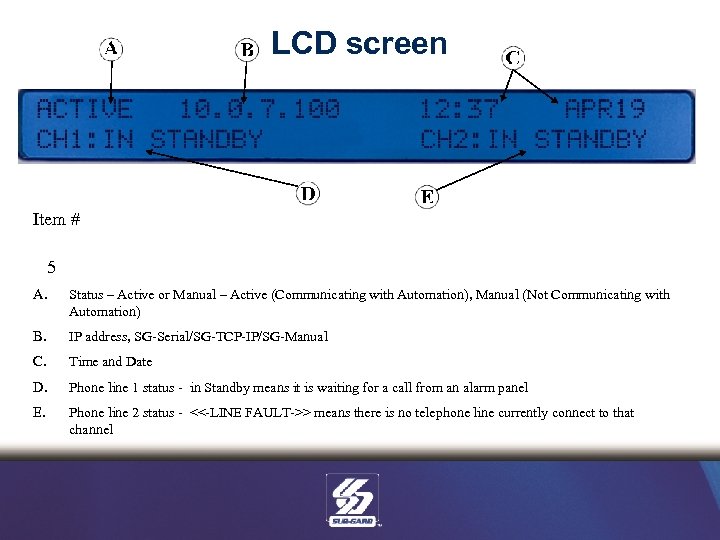 LCD screen Item # 5 A. Status – Active or Manual – Active (Communicating with Automation), Manual (Not Communicating with Automation) B. IP address, SG-Serial/SG-TCP-IP/SG-Manual C. Time and Date D. Phone line 1 status - in Standby means it is waiting for a call from an alarm panel E. Phone line 2 status - <<-LINE FAULT->> means there is no telephone line currently connect to that channel
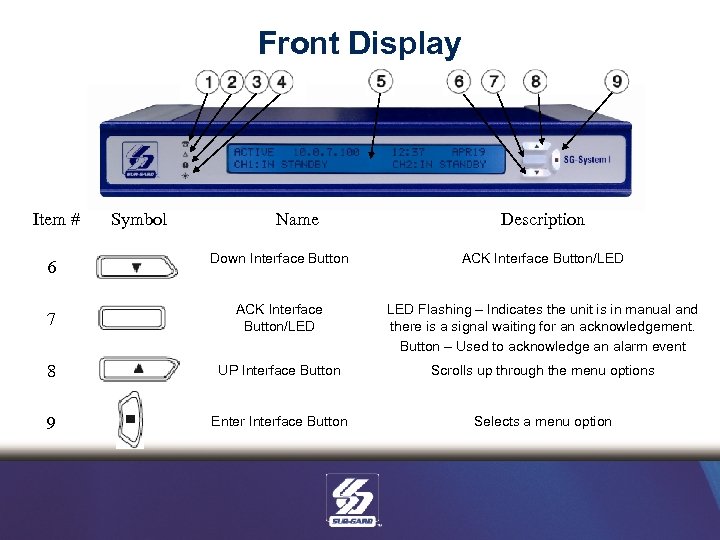 Front Display Item # Symbol Name Description Down Interface Button ACK Interface Button/LED 7 ACK Interface Button/LED Flashing – Indicates the unit is in manual and there is a signal waiting for an acknowledgement. Button – Used to acknowledge an alarm event 8 UP Interface Button Scrolls up through the menu options 9 Enter Interface Button Selects a menu option 6
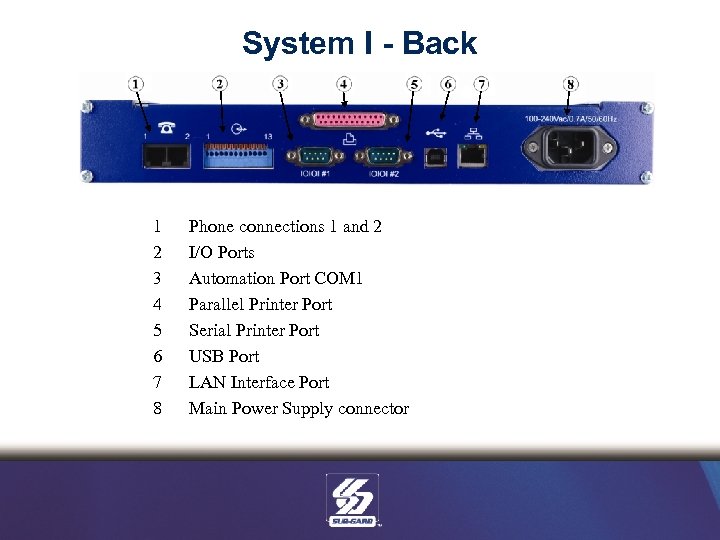 System I - Back 1 2 3 4 5 6 7 8 Phone connections 1 and 2 I/O Ports Automation Port COM 1 Parallel Printer Port Serial Printer Port USB Port LAN Interface Port Main Power Supply connector
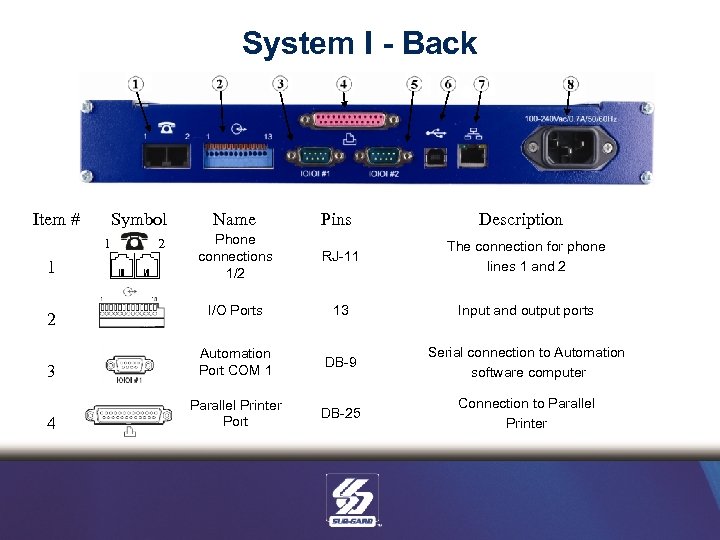 System I - Back Item # Symbol Name Pins Phone connections 1/2 RJ-11 The connection for phone lines 1 and 2 I/O Ports 13 Input and output ports 3 Automation Port COM 1 DB-9 Serial connection to Automation software computer 4 Parallel Printer Port DB-25 Connection to Parallel Printer 1 1 2 2 Description
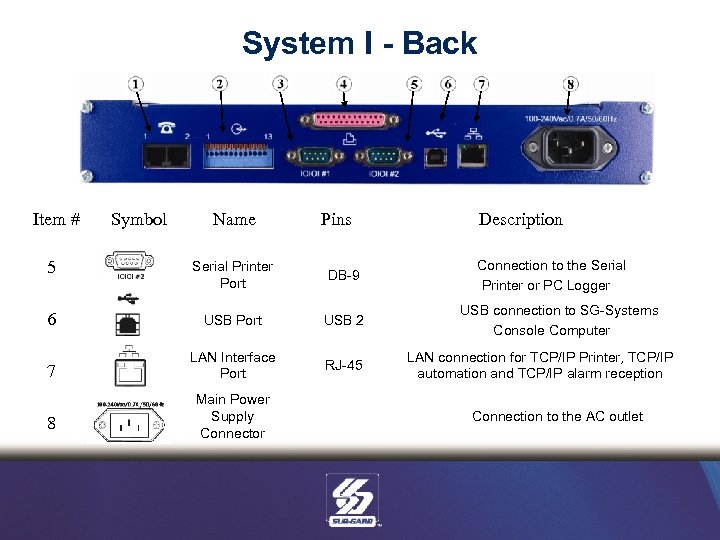 System I - Back Item # Symbol Name Pins 5 Serial Printer Port DB-9 6 USB Port USB 2 7 LAN Interface Port RJ-45 8 Main Power Supply Connector Description Connection to the Serial Printer or PC Logger USB connection to SG-Systems Console Computer LAN connection for TCP/IP Printer, TCP/IP automation and TCP/IP alarm reception Connection to the AC outlet
 Initial Power Up Sequence Necessary cables – Standard Computer Power Cable, Ethernet/USB 2 cable. Step 1: Plug into AC outlet. Step 2: Choose whether or not to Cold boot the System – This is done with the Up and Down arrows to choose Yes or No and Enter to confirm it. It is recommended that a cold boot be performed when the system is first powered up. – Note: If a cold boot is performed all the stored information will be erased and the programming will return to factory default Step 3: Program the IP address in the CPM programming field – Note: How to get into programming is explained on the Programming slides. Go into View or Change options, then CPM options, then IP address Step 4: Reboot the System I Step 5: Connect with the System I console
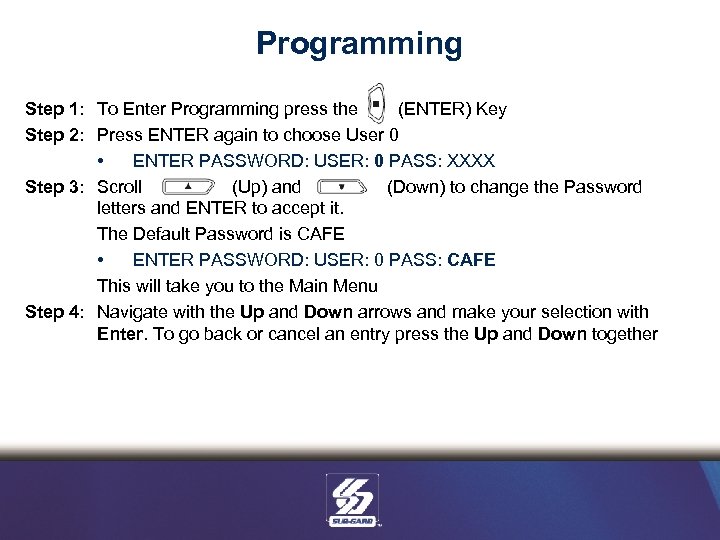 Programming Step 1: To Enter Programming press the (ENTER) Key Step 2: Press ENTER again to choose User 0 • ENTER PASSWORD: USER: 0 PASS: XXXX Step 3: Scroll (Up) and (Down) to change the Password letters and ENTER to accept it. The Default Password is CAFE • ENTER PASSWORD: USER: 0 PASS: CAFE This will take you to the Main Menu Step 4: Navigate with the Up and Down arrows and make your selection with Enter. To go back or cancel an entry press the Up and Down together
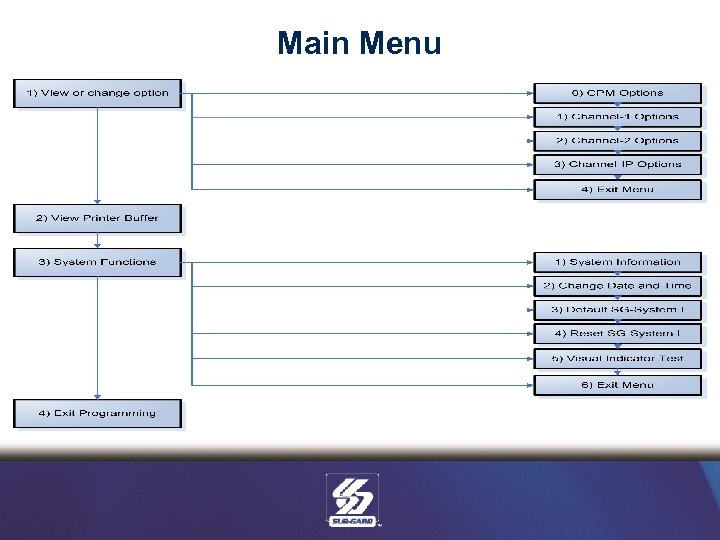 Main Menu
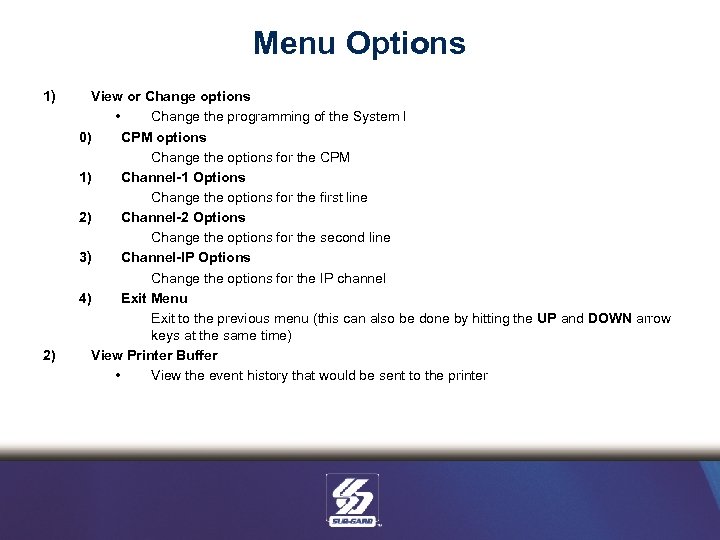 Menu Options 1) 2) View or Change options • Change the programming of the System I 0) CPM options Change the options for the CPM 1) Channel-1 Options Change the options for the first line 2) Channel-2 Options Change the options for the second line 3) Channel-IP Options Change the options for the IP channel 4) Exit Menu Exit to the previous menu (this can also be done by hitting the UP and DOWN arrow keys at the same time) View Printer Buffer • View the event history that would be sent to the printer
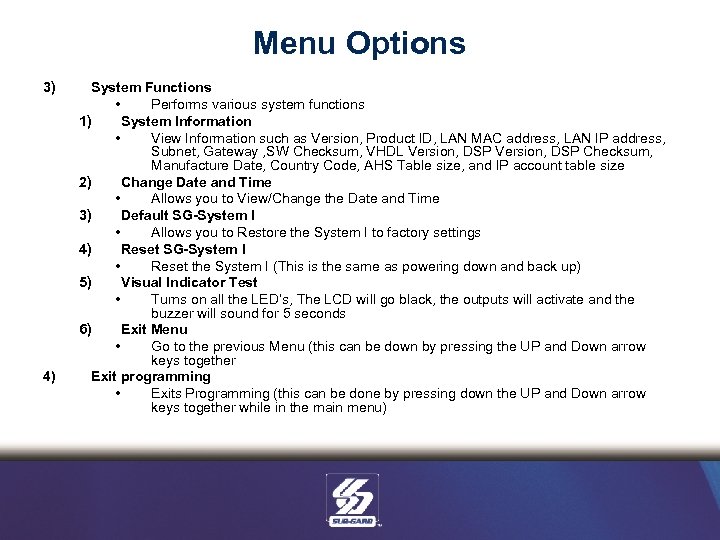 Menu Options 3) 4) System Functions • Performs various system functions 1) System Information • View Information such as Version, Product ID, LAN MAC address, LAN IP address, Subnet, Gateway , SW Checksum, VHDL Version, DSP Checksum, Manufacture Date, Country Code, AHS Table size, and IP account table size 2) Change Date and Time • Allows you to View/Change the Date and Time 3) Default SG-System I • Allows you to Restore the System I to factory settings 4) Reset SG-System I • Reset the System I (This is the same as powering down and back up) 5) Visual Indicator Test • Turns on all the LED’s, The LCD will go black, the outputs will activate and the buzzer will sound for 5 seconds 6) Exit Menu • Go to the previous Menu (this can be down by pressing the UP and Down arrow keys together Exit programming • Exits Programming (this can be done by pressing down the UP and Down arrow keys together while in the main menu)
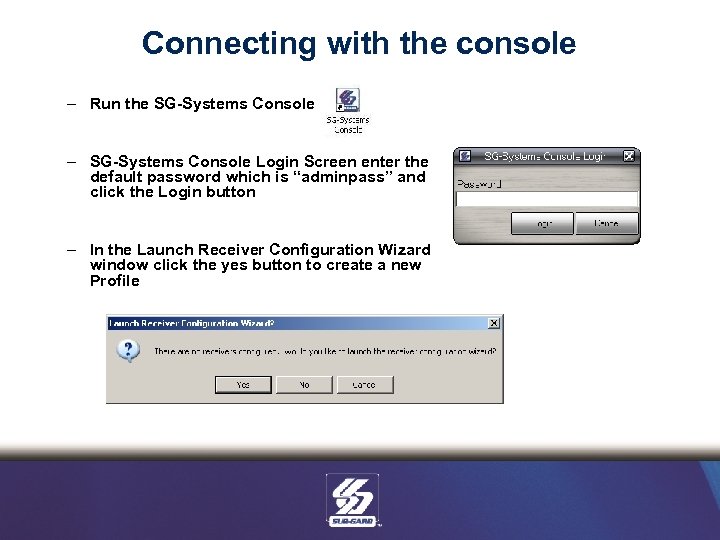 Connecting with the console – Run the SG-Systems Console – SG-Systems Console Login Screen enter the default password which is “adminpass” and click the Login button – In the Launch Receiver Configuration Wizard window click the yes button to create a new Profile
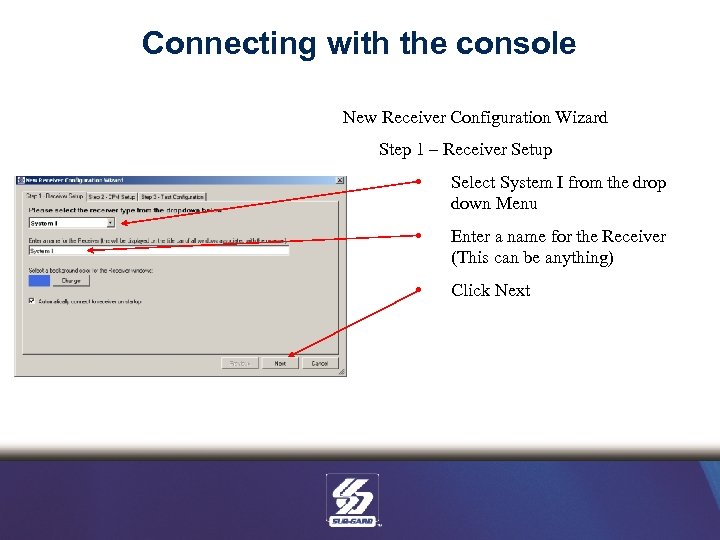 Connecting with the console New Receiver Configuration Wizard Step 1 – Receiver Setup • Select System I from the drop down Menu • Enter a name for the Receiver (This can be anything) • Click Next
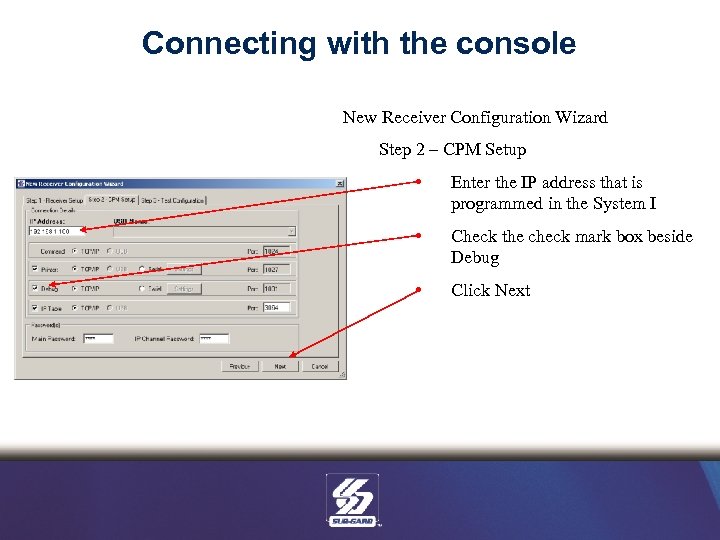 Connecting with the console New Receiver Configuration Wizard Step 2 – CPM Setup • Enter the IP address that is programmed in the System I • Check the check mark box beside Debug • Click Next
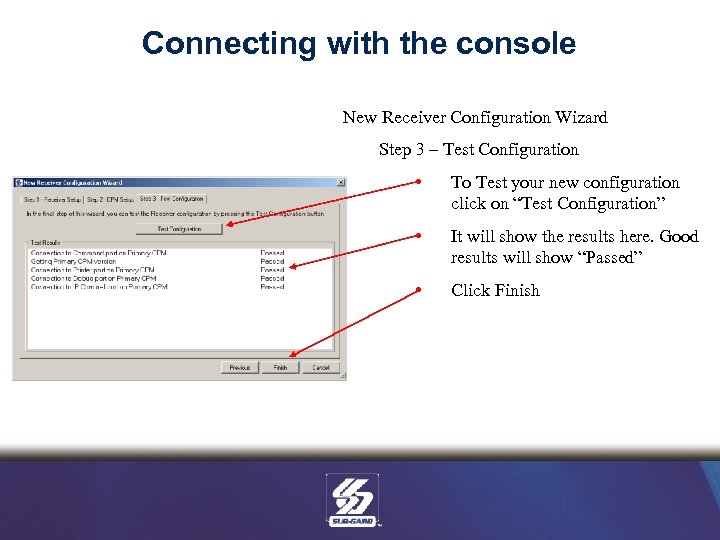 Connecting with the console New Receiver Configuration Wizard Step 3 – Test Configuration • To Test your new configuration click on “Test Configuration” • It will show the results here. Good results will show “Passed” • Click Finish
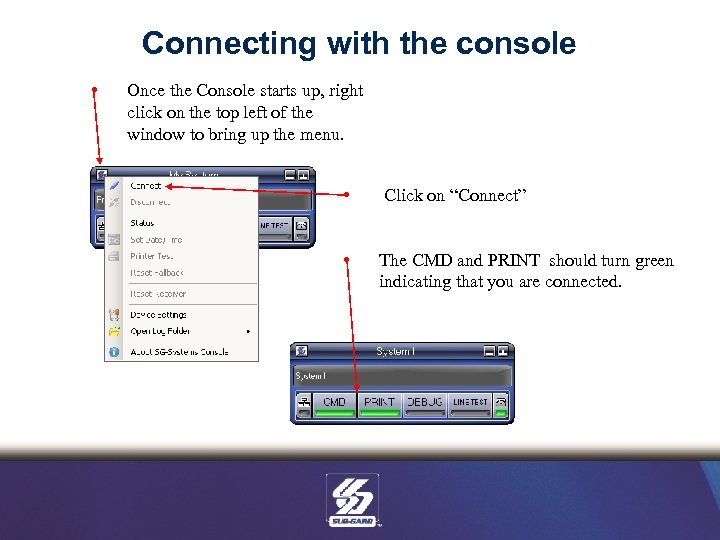 Connecting with the console • Once the Console starts up, right click on the top left of the window to bring up the menu. • Click on “Connect” • The CMD and PRINT should turn green indicating that you are connected.
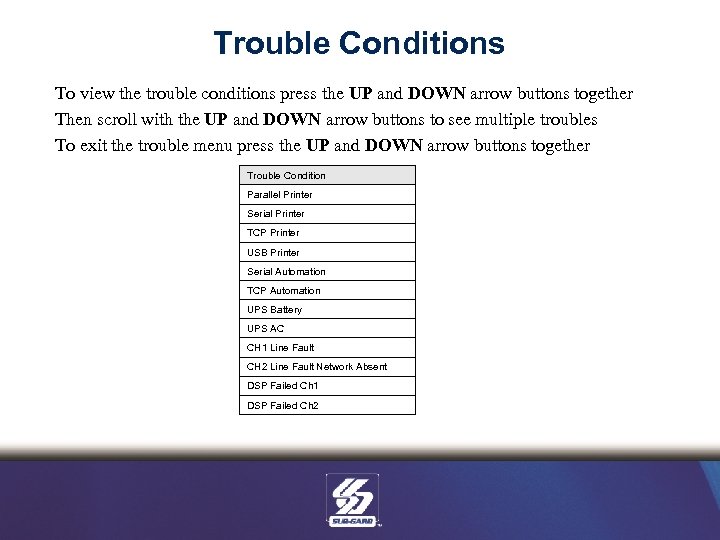 Trouble Conditions To view the trouble conditions press the UP and DOWN arrow buttons together Then scroll with the UP and DOWN arrow buttons to see multiple troubles To exit the trouble menu press the UP and DOWN arrow buttons together Trouble Condition Parallel Printer Serial Printer TCP Printer USB Printer Serial Automation TCP Automation UPS Battery UPS AC CH 1 Line Fault CH 2 Line Fault Network Absent DSP Failed Ch 1 DSP Failed Ch 2
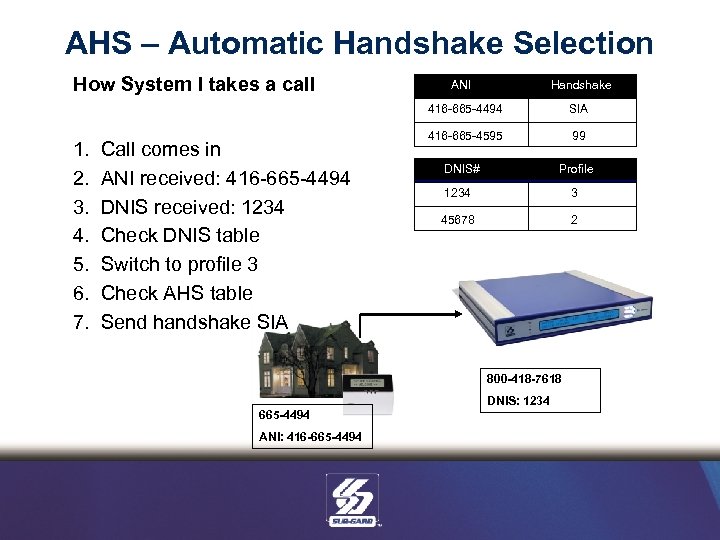 AHS – Automatic Handshake Selection How System I takes a call ANI Handshake 416 -665 -4494 1. 2. 3. 4. 5. 6. 7. Call comes in ANI received: 416 -665 -4494 DNIS received: 1234 Check DNIS table Switch to profile 3 Check AHS table Send handshake SIA 416 -665 -4595 99 DNIS# Profile 1234 3 45678 2 800 -418 -7618 DNIS: 1234 665 -4494 ANI: 416 -665 -4494
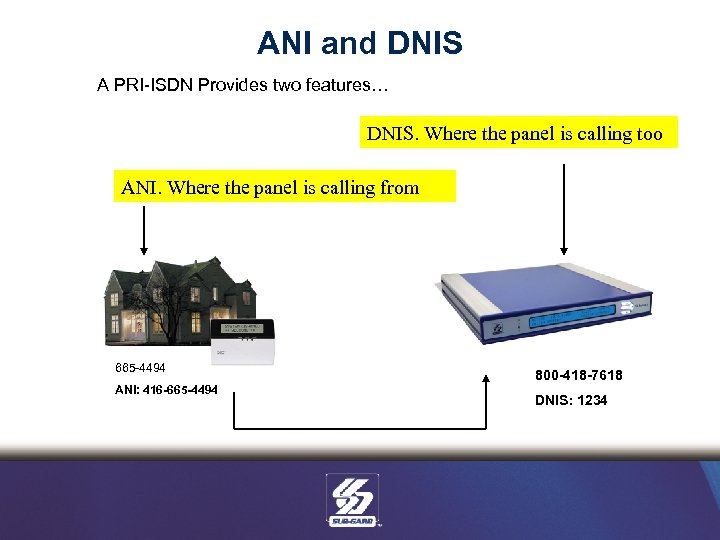 ANI and DNIS A PRI-ISDN Provides two features… DNIS. Where the panel is calling too ANI. Where the panel is calling from 665 -4494 ANI: 416 -665 -4494 800 -418 -7618 DNIS: 1234
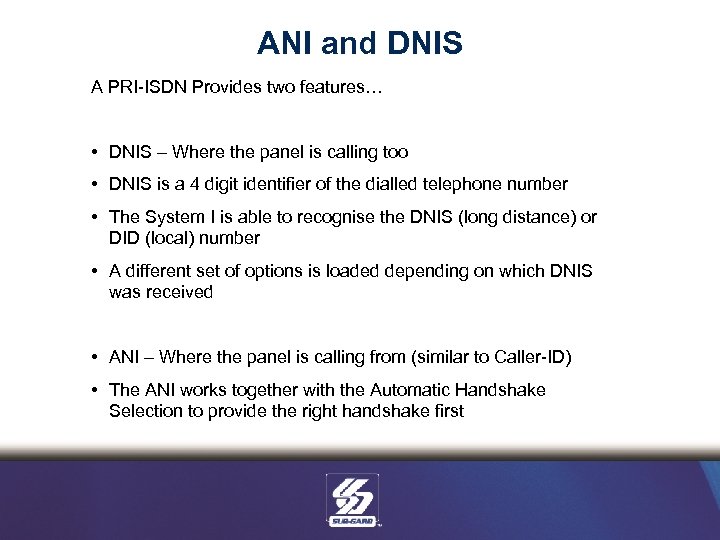 ANI and DNIS A PRI-ISDN Provides two features… • DNIS – Where the panel is calling too • DNIS is a 4 digit identifier of the dialled telephone number • The System I is able to recognise the DNIS (long distance) or DID (local) number • A different set of options is loaded depending on which DNIS was received • ANI – Where the panel is calling from (similar to Caller-ID) • The ANI works together with the Automatic Handshake Selection to provide the right handshake first
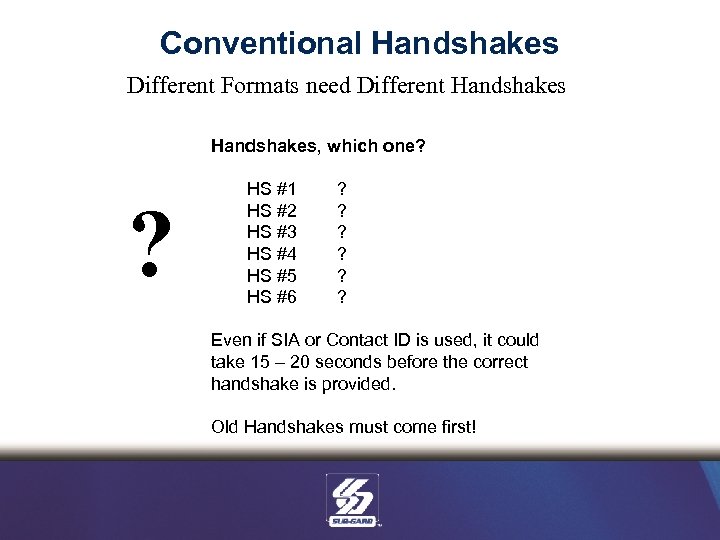 Conventional Handshakes Different Formats need Different Handshakes, which one? ? HS #1 HS #2 HS #3 HS #4 HS #5 HS #6 ? ? ? Even if SIA or Contact ID is used, it could take 15 – 20 seconds before the correct handshake is provided. Old Handshakes must come first!
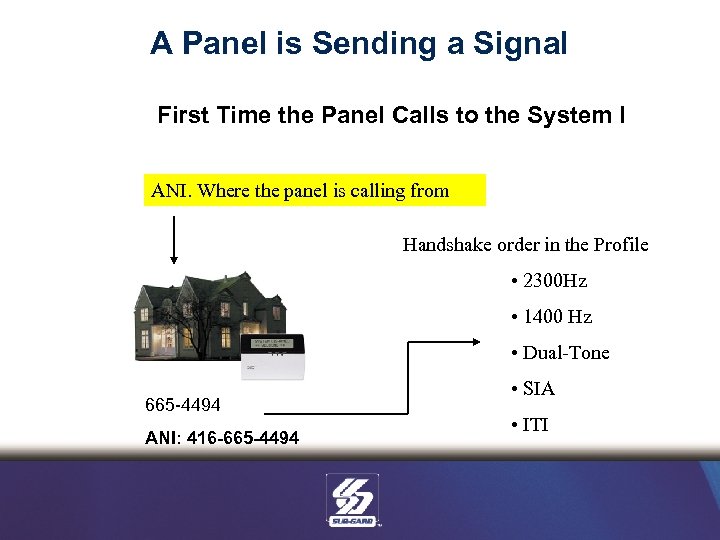 A Panel is Sending a Signal First Time the Panel Calls to the System I ANI. Where the panel is calling from Handshake order in the Profile • 2300 Hz • 1400 Hz • Dual-Tone 665 -4494 ANI: 416 -665 -4494 • SIA • ITI
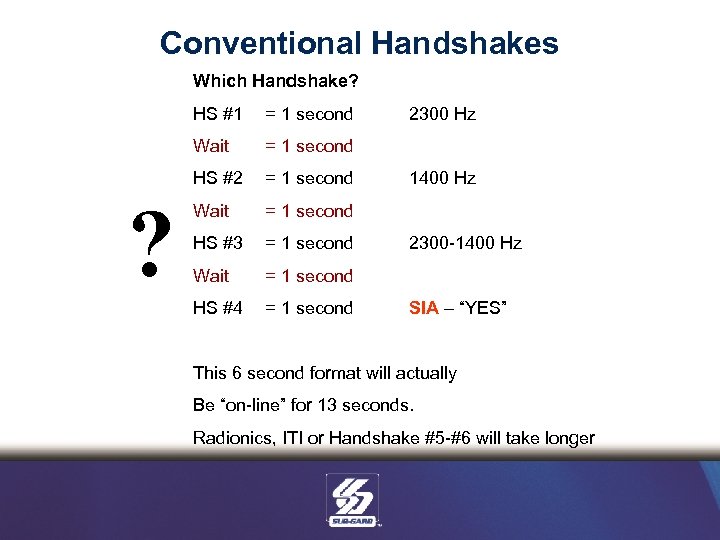 Conventional Handshakes Which Handshake? HS #1 Wait = 1 second HS #2 ? = 1 second Wait = 1 second HS #3 = 1 second Wait = 1 second HS #4 = 1 second 2300 Hz 1400 Hz 2300 -1400 Hz SIA – “YES” This 6 second format will actually Be “on-line” for 13 seconds. Radionics, ITI or Handshake #5 -#6 will take longer
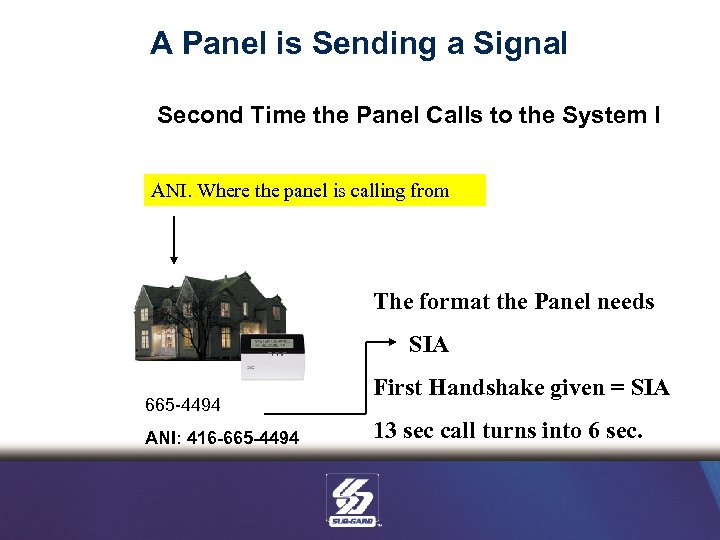 A Panel is Sending a Signal Second Time the Panel Calls to the System I ANI. Where the panel is calling from The format the Panel needs SIA 665 -4494 ANI: 416 -665 -4494 First Handshake given = SIA 13 sec call turns into 6 sec.
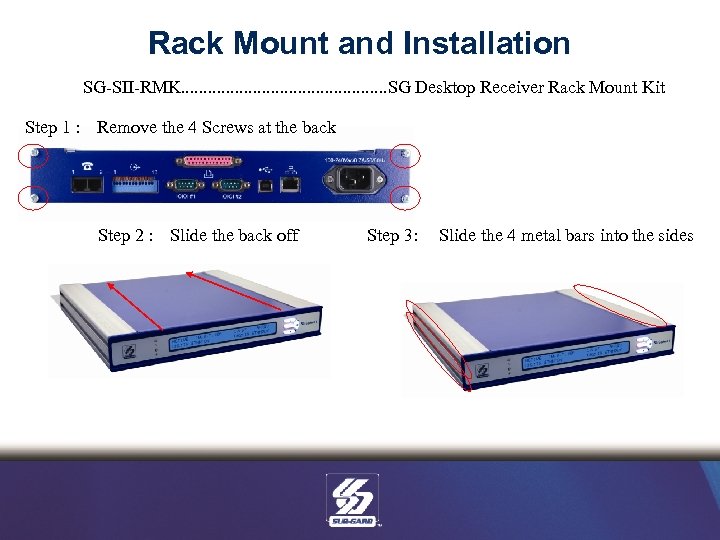 Rack Mount and Installation SG-SII-RMK. . . SG Desktop Receiver Rack Mount Kit Step 1 : Remove the 4 Screws at the back Step 2 : Slide the back off Step 3: Slide the 4 metal bars into the sides
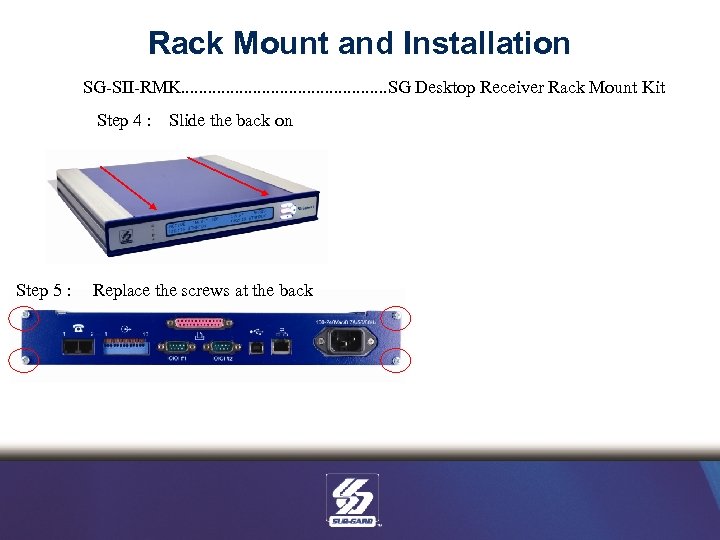 Rack Mount and Installation SG-SII-RMK. . . SG Desktop Receiver Rack Mount Kit Step 4 : Slide the back on Step 5 : Replace the screws at the back
 Part Numbers SG-SYSTEM I. . . Multi-Format Receiver SG-SYSTEM I IP. . . . . Multi-Format Receiver with IP SG-SII-RMK. . . SG Desktop Receiver Rack Mount Kit Equipment Not Included…………………. IEC power supply cord …………………. Network Cable …………………. USB 2 Cable
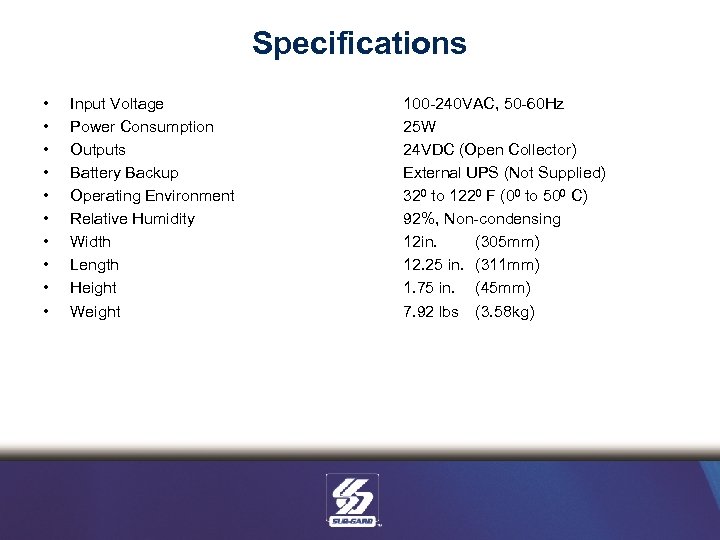 Specifications • • • Input Voltage Power Consumption Outputs Battery Backup Operating Environment Relative Humidity Width Length Height Weight 100 -240 VAC, 50 -60 Hz 25 W 24 VDC (Open Collector) External UPS (Not Supplied) 320 to 1220 F (00 to 500 C) 92%, Non-condensing 12 in. (305 mm) 12. 25 in. (311 mm) 1. 75 in. (45 mm) 7. 92 lbs (3. 58 kg)
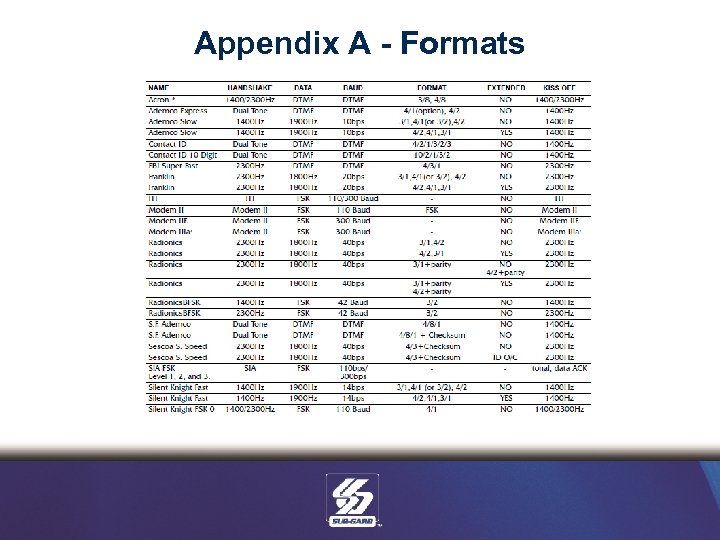 Appendix A - Formats
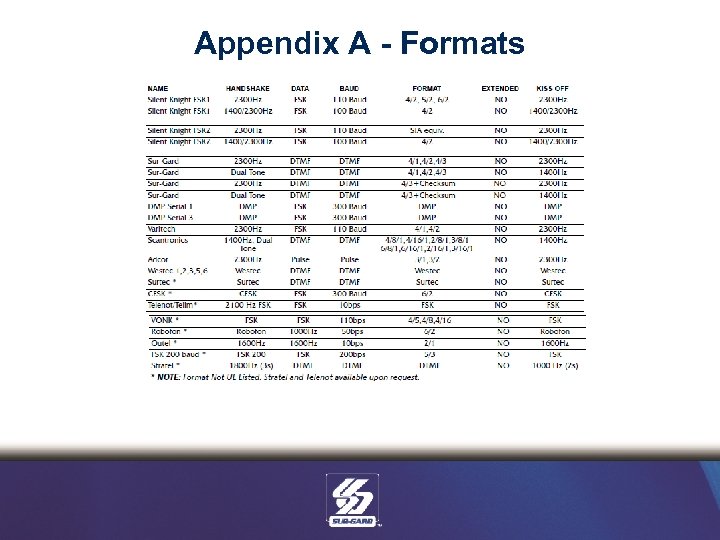 Appendix A - Formats
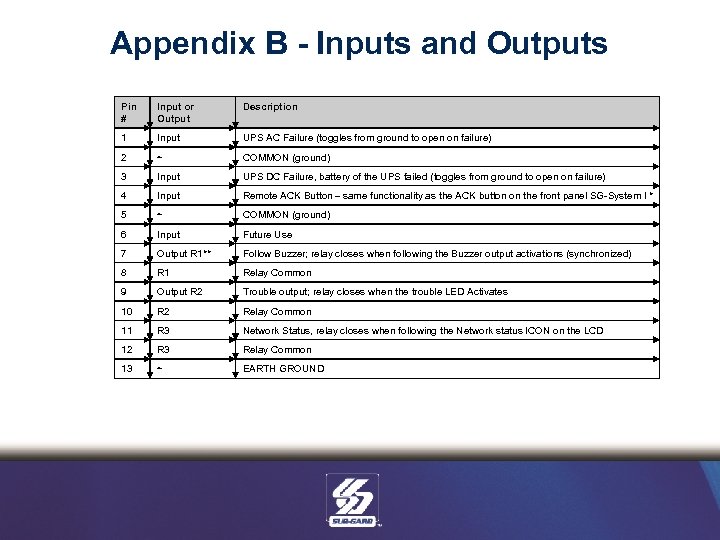 Appendix B - Inputs and Outputs Pin # Input or Output Description 1 Input UPS AC Failure (toggles from ground to open on failure) 2 ~ COMMON (ground) 3 Input UPS DC Failure, battery of the UPS failed (toggles from ground to open on failure) 4 Input Remote ACK Button – same functionality as the ACK button on the front panel SG-System I * 5 ~ COMMON (ground) 6 Input Future Use 7 Output R 1** Follow Buzzer; relay closes when following the Buzzer output activations (synchronized) 8 R 1 Relay Common 9 Output R 2 Trouble output; relay closes when the trouble LED Activates 10 R 2 Relay Common 11 R 3 Network Status, relay closes when following the Network status ICON on the LCD 12 R 3 Relay Common 13 ~ EARTH GROUND