


 Скачать презентацию Setup Stock Module Create
f0c8d82adbf77d824afc5e7a671aa725.ppt
- Количество слайдов: 54
 Setup Stock Module
 • • Create suppliers Create count frequencies • Create unities Create stocking locations Create ingredient classes • Create ingredients • Create recipies Link ingredient to articles Link recipies to articles • Stock documents Stock possibilities in POS
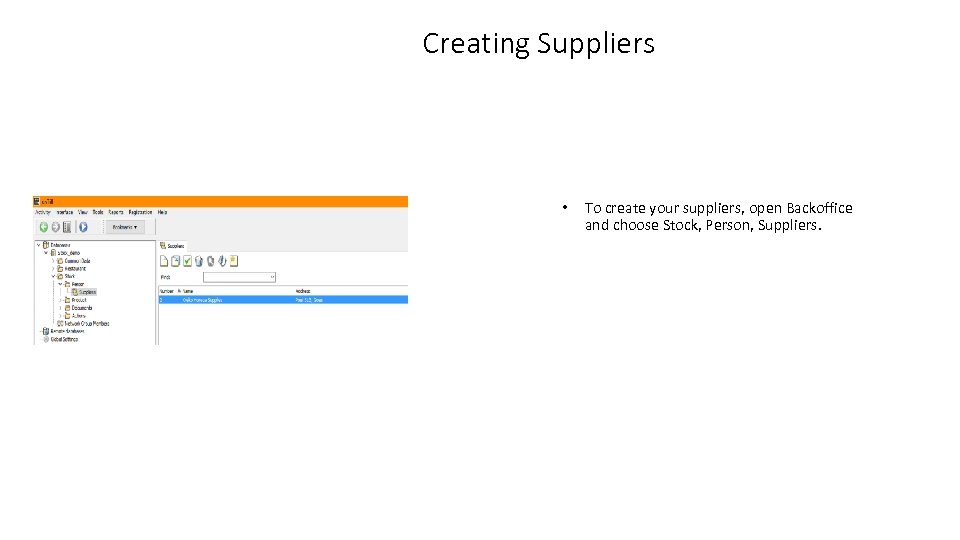 Creating Suppliers • To create your suppliers, open Backoffice and choose Stock, Person, Suppliers.
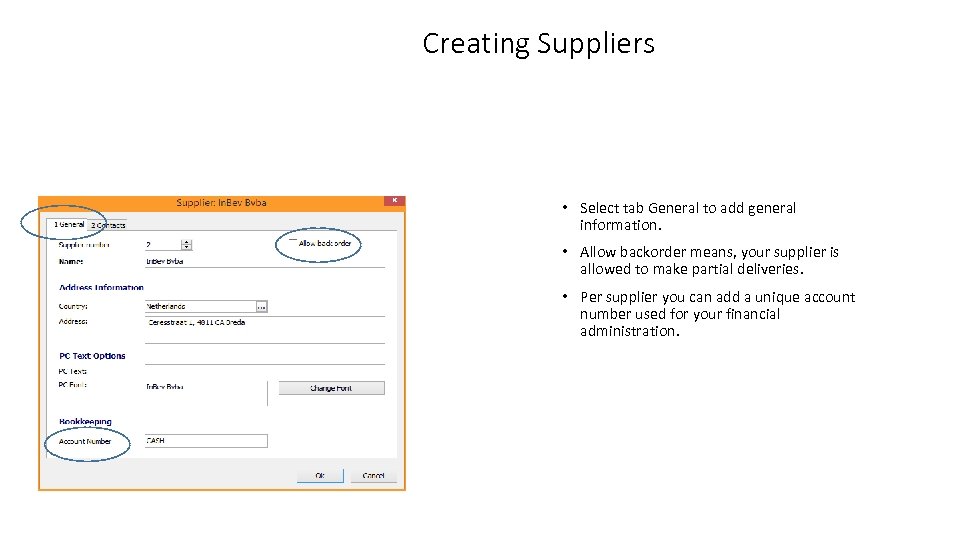 Creating Suppliers • Select tab General to add general information. • Allow backorder means, your supplier is allowed to make partial deliveries. • Per supplier you can add a unique account number used for your financial administration.
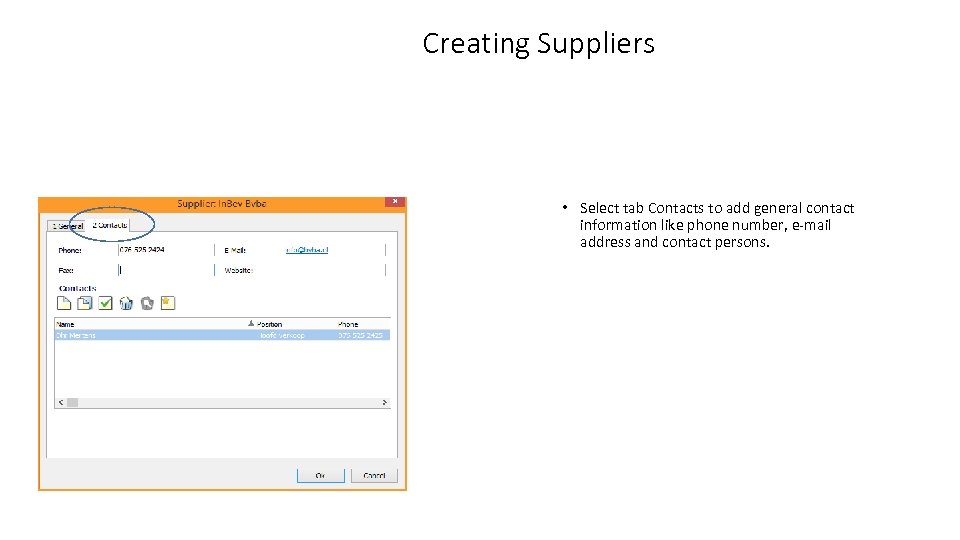 Creating Suppliers • Select tab Contacts to add general contact information like phone number, e-mail address and contact persons.
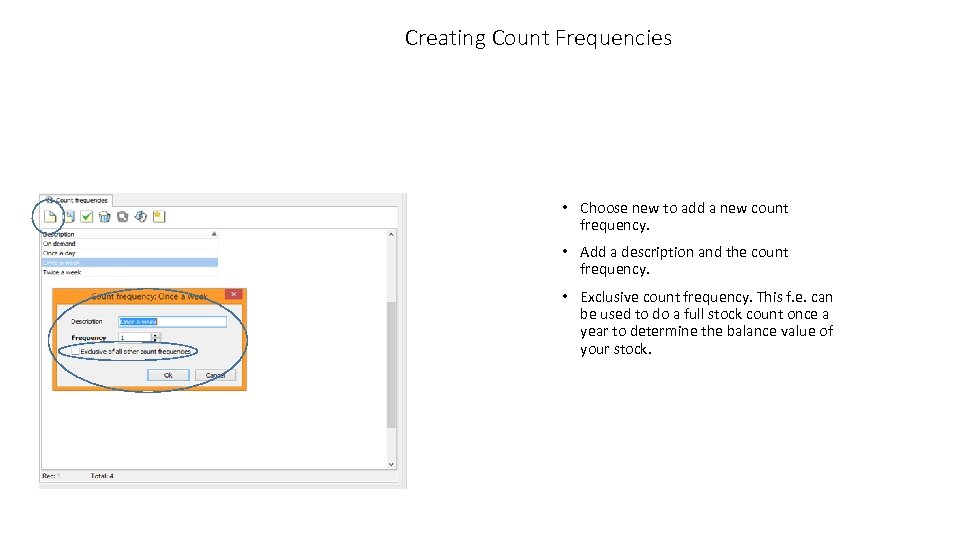 Creating Count Frequencies • Choose new to add a new count frequency. • Add a description and the count frequency. • Exclusive count frequency. This f. e. can be used to do a full stock count once a year to determine the balance value of your stock.
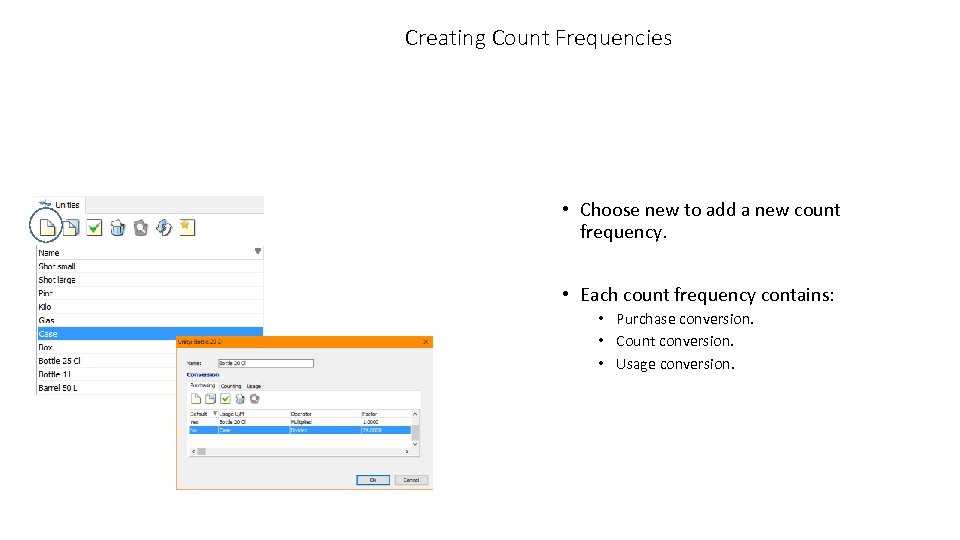 Creating Count Frequencies • Choose new to add a new count frequency. • Each count frequency contains: • Purchase conversion. • Count conversion. • Usage conversion.
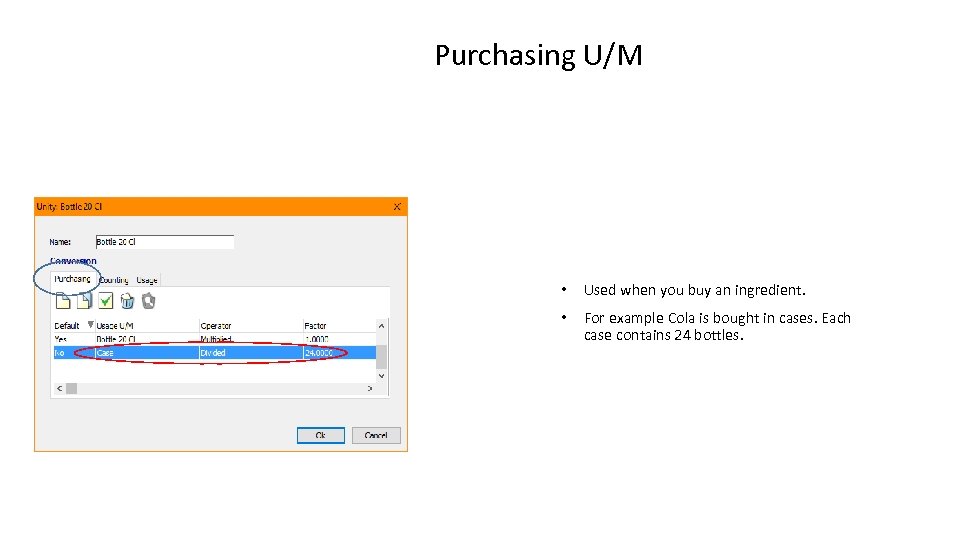 Purchasing U/M • Used when you buy an ingredient. • For example Cola is bought in cases. Each case contains 24 bottles.
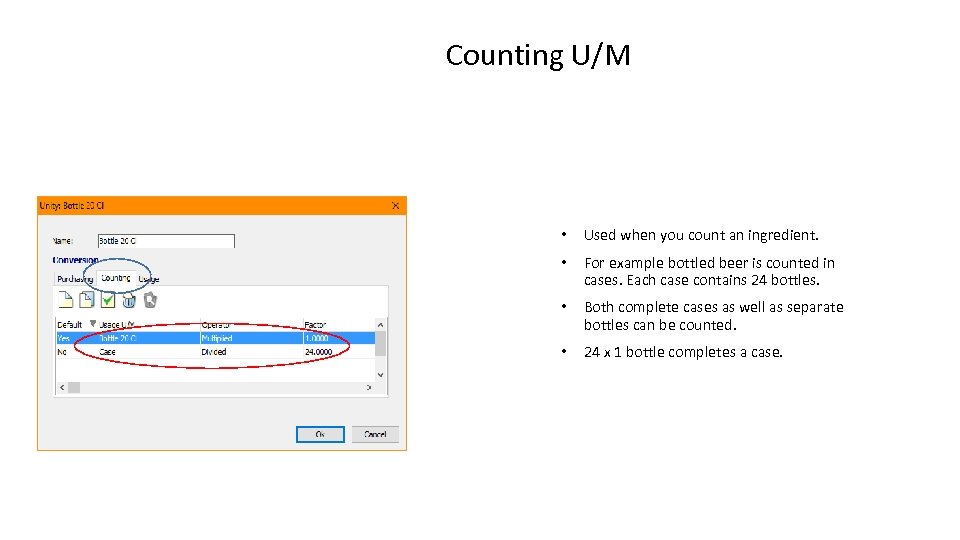 Counting U/M • Used when you count an ingredient. • For example bottled beer is counted in cases. Each case contains 24 bottles. • Both complete cases as well as separate bottles can be counted. • 24 x 1 bottle completes a case.
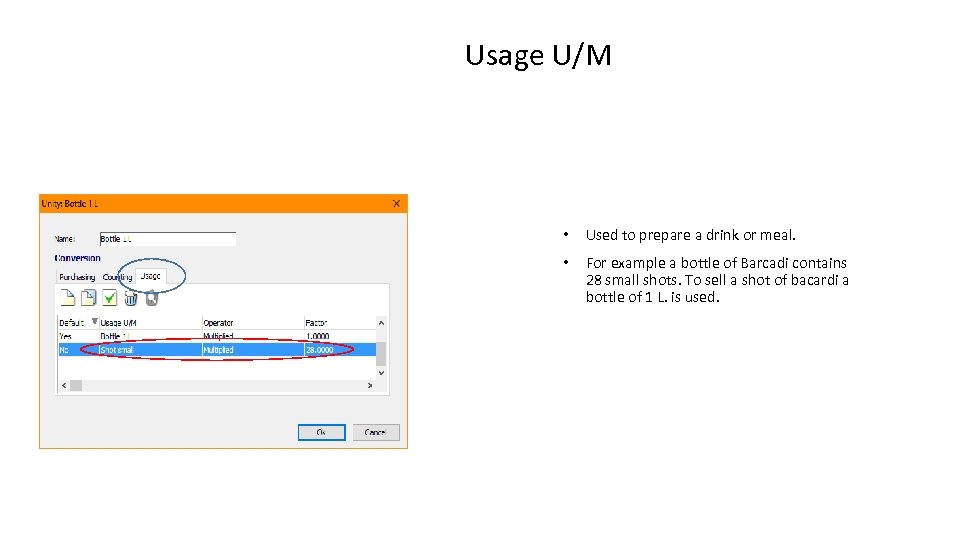 Usage U/M • Used to prepare a drink or meal. • For example a bottle of Barcadi contains 28 small shots. To sell a shot of bacardi a bottle of 1 L. is used.
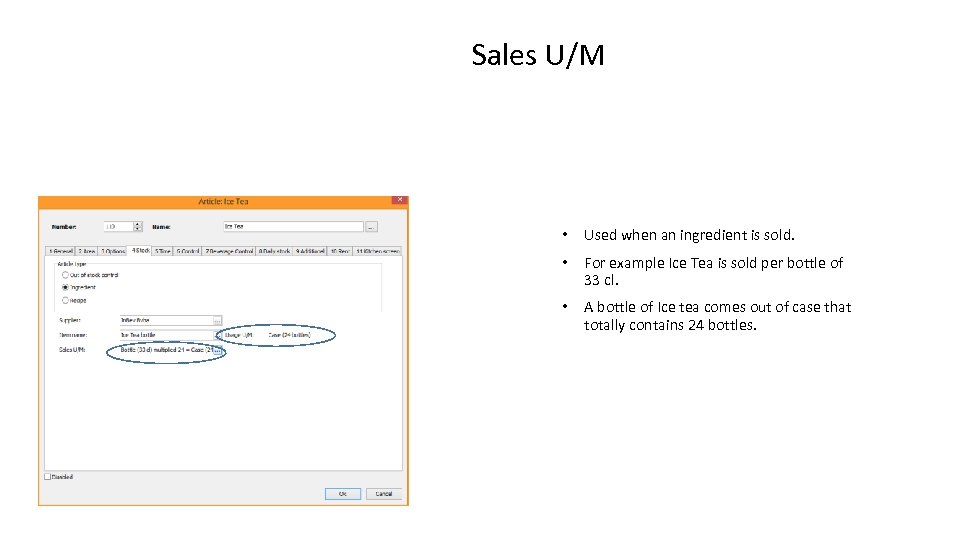 Sales U/M • Used when an ingredient is sold. • For example Ice Tea is sold per bottle of 33 cl. • A bottle of Ice tea comes out of case that totally contains 24 bottles.
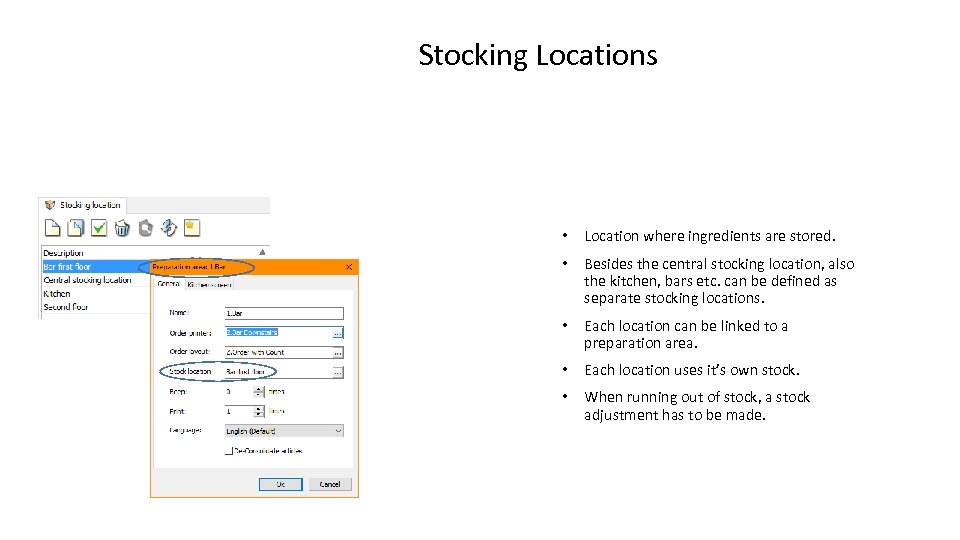 Stocking Locations • Location where ingredients are stored. • Besides the central stocking location, also the kitchen, bars etc. can be defined as separate stocking locations. • Each location can be linked to a preparation area. • Each location uses it’s own stock. • When running out of stock, a stock adjustment has to be made.
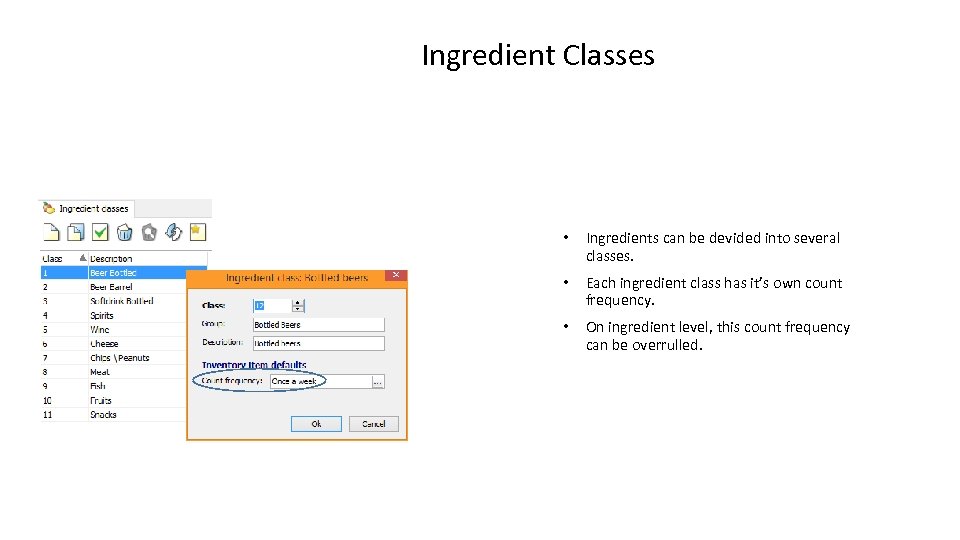 Ingredient Classes • Ingredients can be devided into several classes. • Each ingredient class has it’s own count frequency. • On ingredient level, this count frequency can be overrulled.
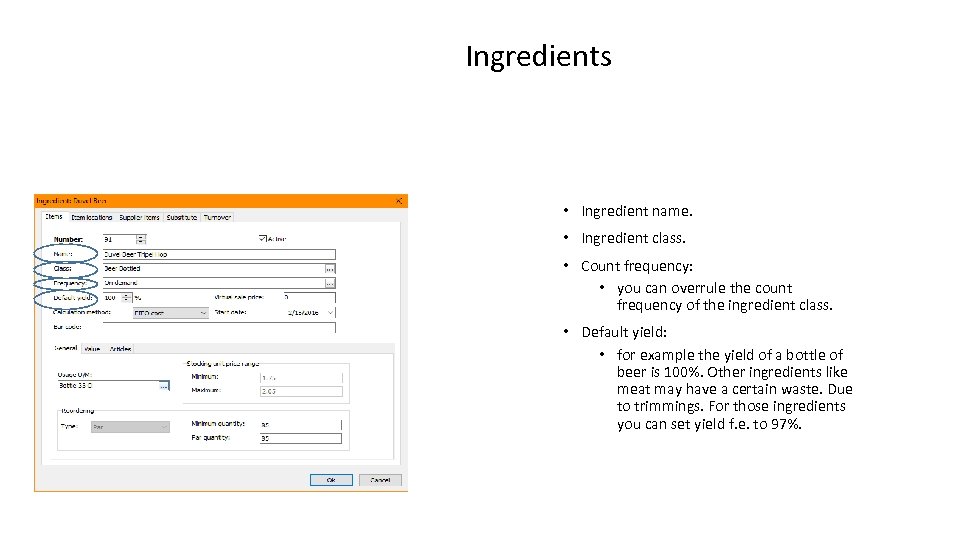 Ingredients • Ingredient name. • Ingredient class. • Count frequency: • you can overrule the count frequency of the ingredient class. • Default yield: • for example the yield of a bottle of beer is 100%. Other ingredients like meat may have a certain waste. Due to trimmings. For those ingredients you can set yield f. e. to 97%.
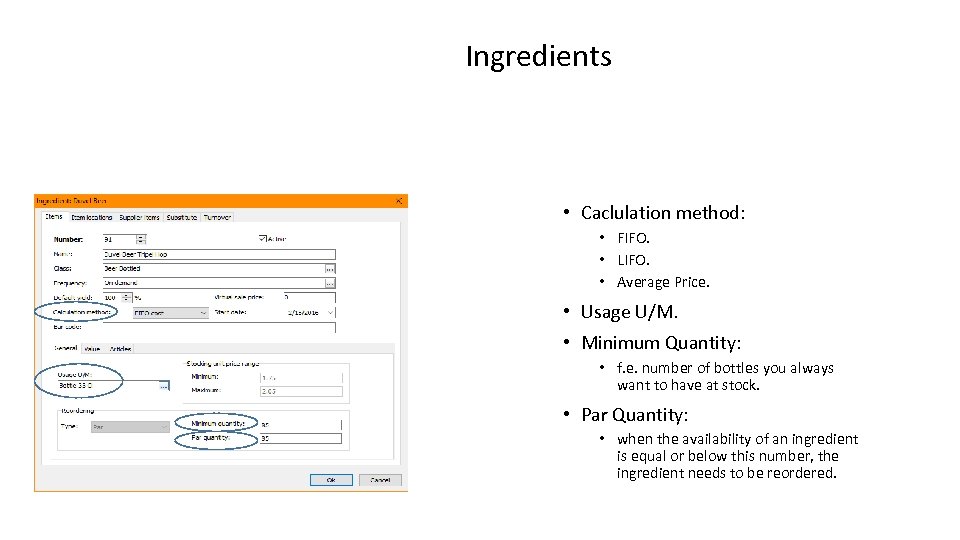 Ingredients • Caclulation method: • FIFO. • LIFO. • Average Price. • Usage U/M. • Minimum Quantity: • f. e. number of bottles you always want to have at stock. • Par Quantity: • when the availability of an ingredient is equal or below this number, the ingredient needs to be reordered.
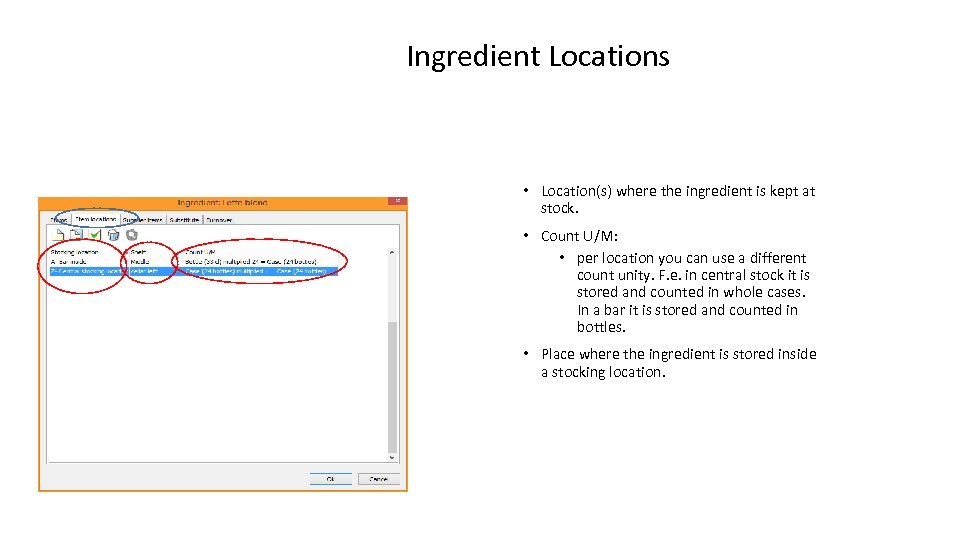 Ingredient Locations • Location(s) where the ingredient is kept at stock. • Count U/M: • per location you can use a different count unity. F. e. in central stock it is stored and counted in whole cases. In a bar it is stored and counted in bottles. • Place where the ingredient is stored inside a stocking location.
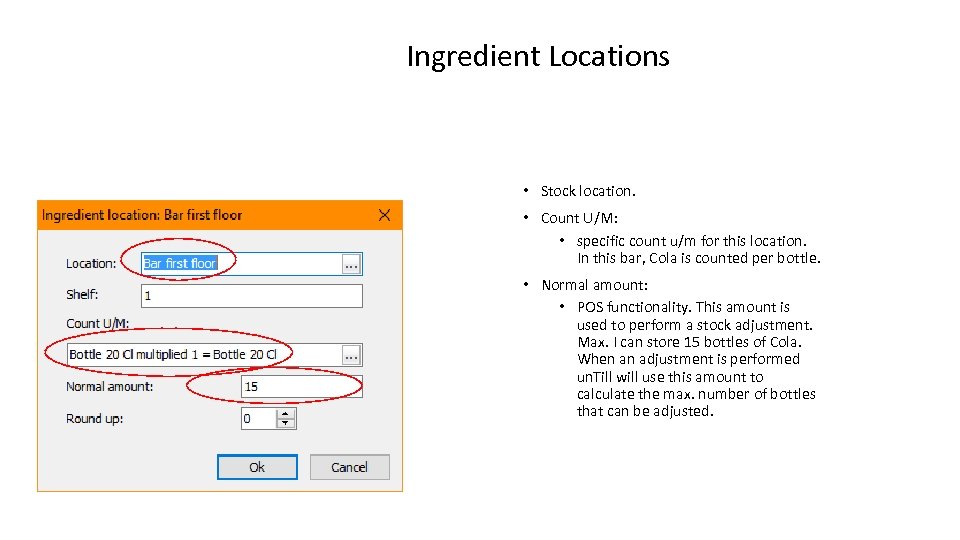 Ingredient Locations • Stock location. • Count U/M: • specific count u/m for this location. In this bar, Cola is counted per bottle. • Normal amount: • POS functionality. This amount is used to perform a stock adjustment. Max. I can store 15 bottles of Cola. When an adjustment is performed un. Till will use this amount to calculate the max. number of bottles that can be adjusted.
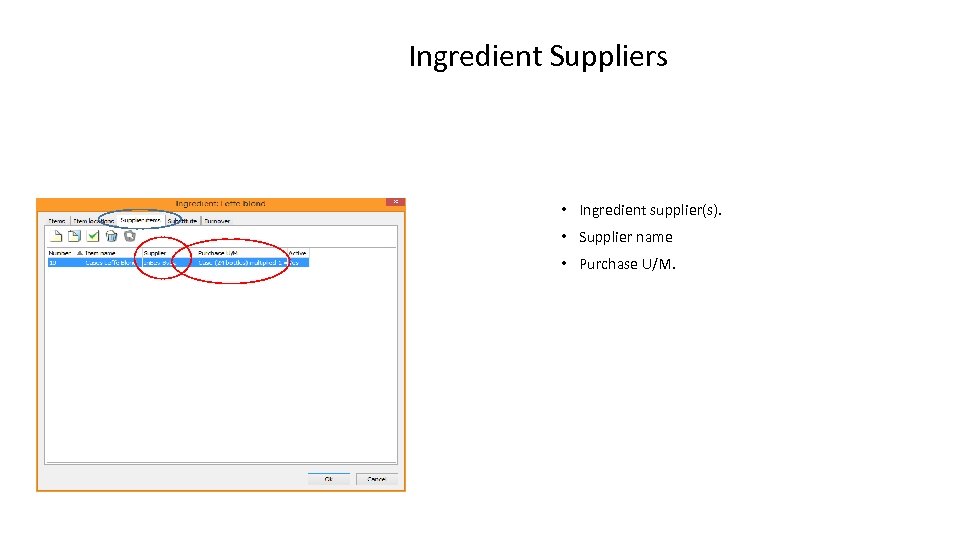 Ingredient Suppliers • Ingredient supplier(s). • Supplier name • Purchase U/M.
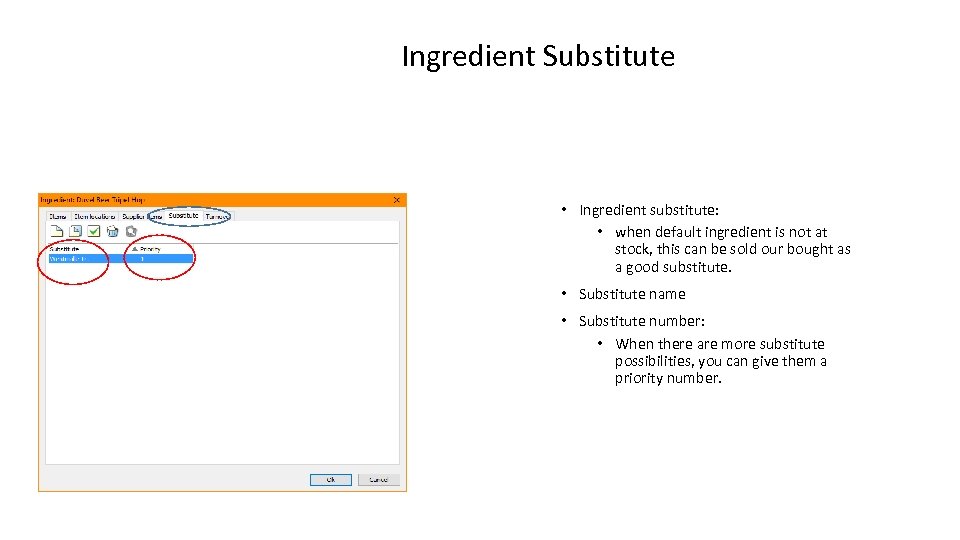 Ingredient Substitute • Ingredient substitute: • when default ingredient is not at stock, this can be sold our bought as a good substitute. • Substitute name • Substitute number: • When there are more substitute possibilities, you can give them a priority number.
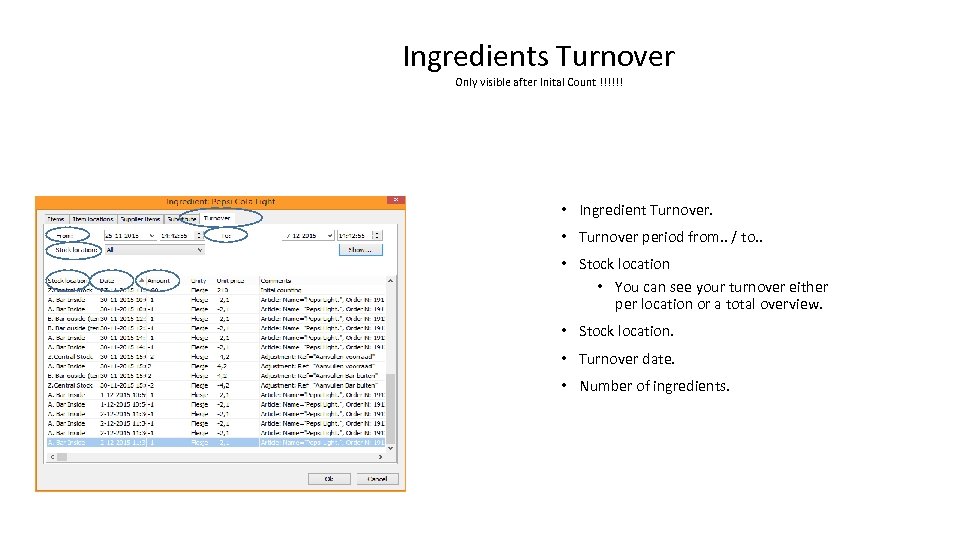 Ingredients Turnover Only visible after Inital Count !!!!!! • Ingredient Turnover. • Turnover period from. . / to. . • Stock location • You can see your turnover either per location or a total overview. • Stock location. • Turnover date. • Number of ingredients.
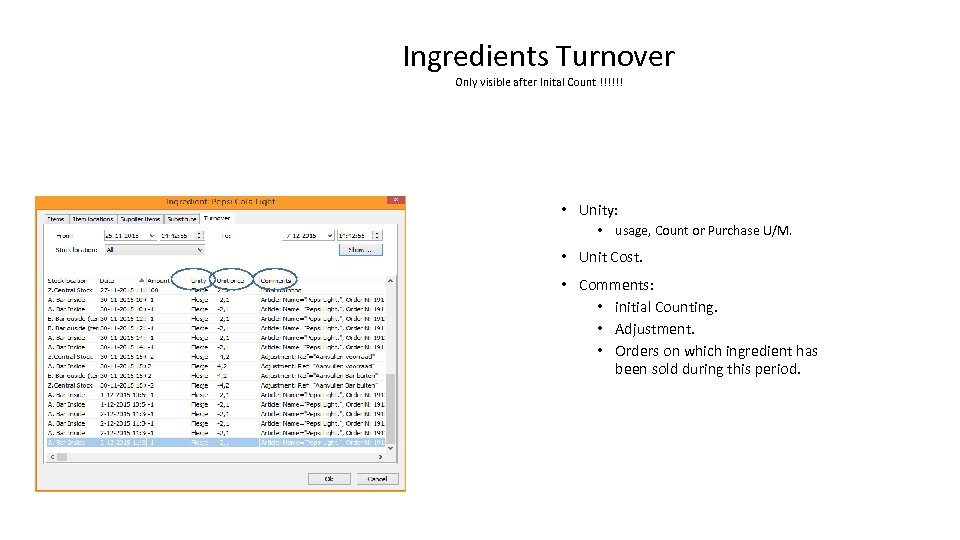 Ingredients Turnover Only visible after Inital Count !!!!!! • Unity: • usage, Count or Purchase U/M. • Unit Cost. • Comments: • initial Counting. • Adjustment. • Orders on which ingredient has been sold during this period.
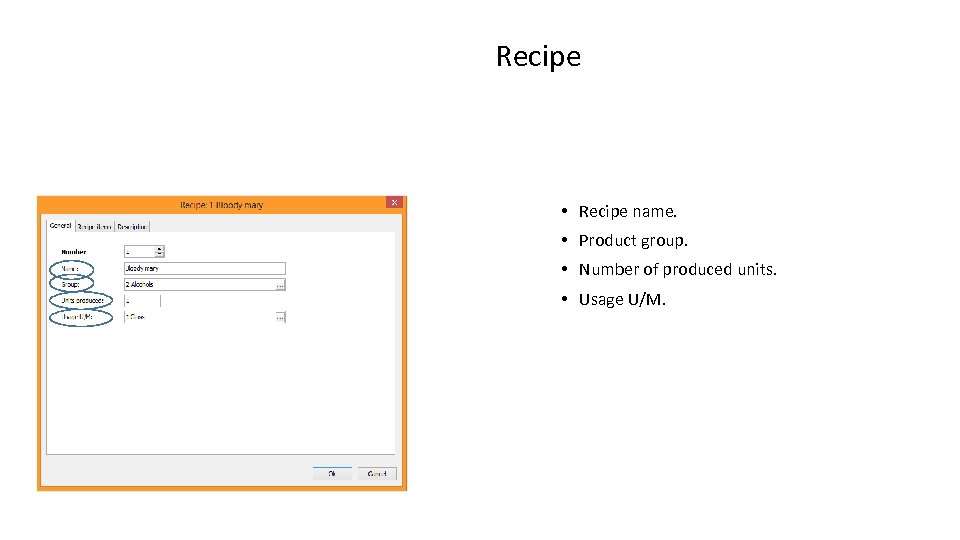 Recipe • Recipe name. • Product group. • Number of produced units. • Usage U/M.
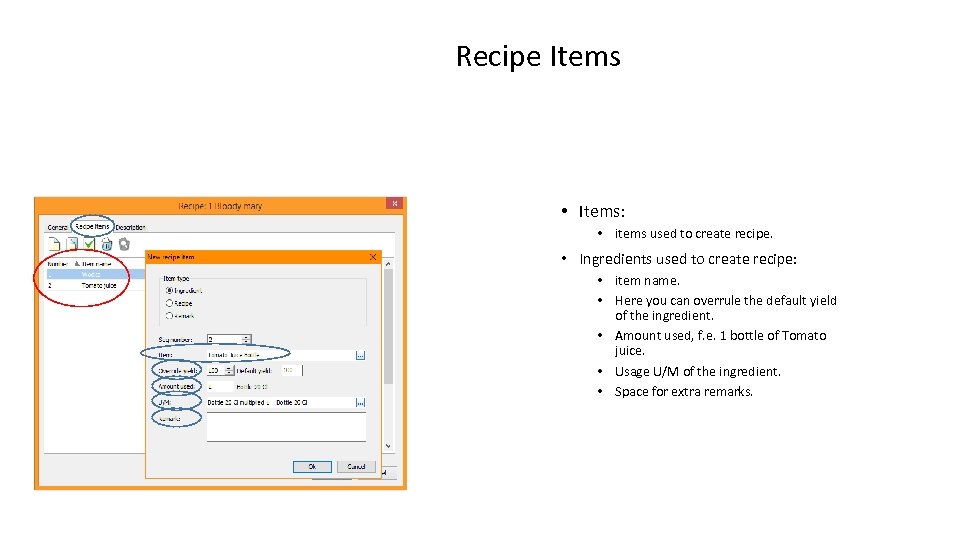 Recipe Items • Items: • items used to create recipe. • Ingredients used to create recipe: • item name. • Here you can overrule the default yield of the ingredient. • Amount used, f. e. 1 bottle of Tomato juice. • Usage U/M of the ingredient. • Space for extra remarks.
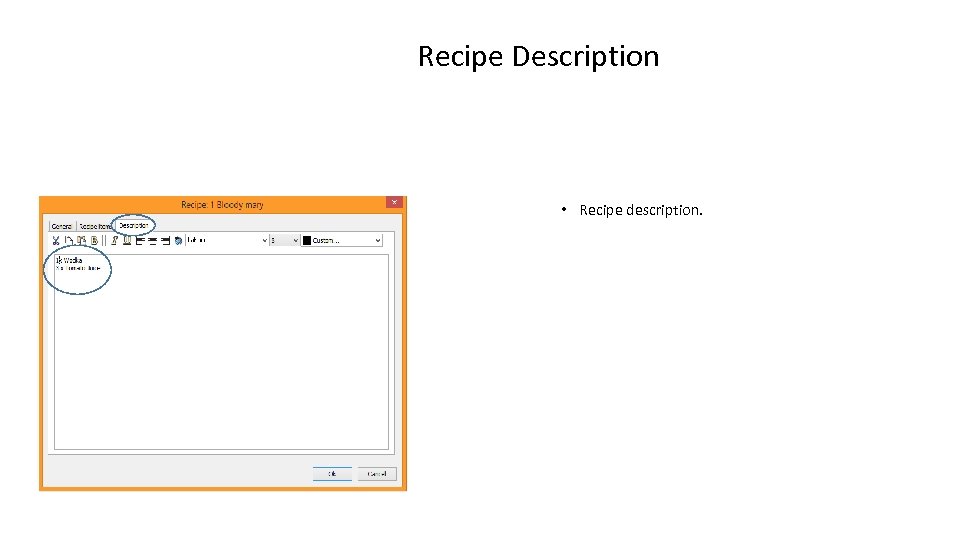 Recipe Description • Recipe description.
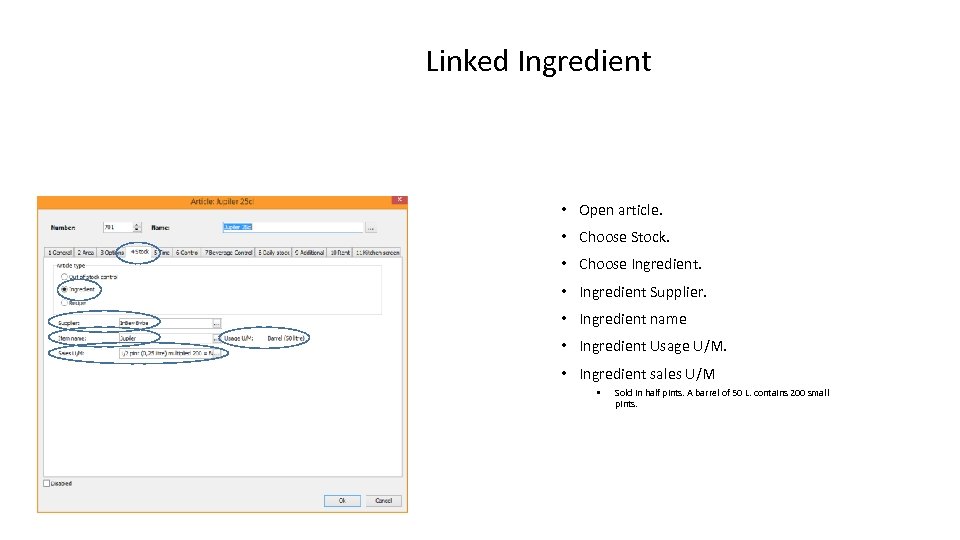 Linked Ingredient • Open article. • Choose Stock. • Choose Ingredient. • Ingredient Supplier. • Ingredient name • Ingredient Usage U/M. • Ingredient sales U/M • Sold in half pints. A barrel of 50 L. contains 200 small pints.
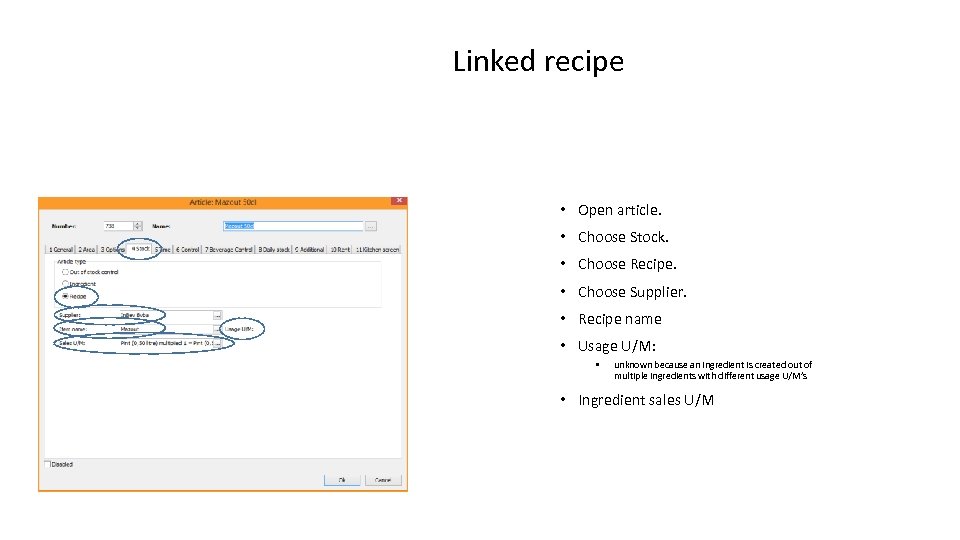 Linked recipe • Open article. • Choose Stock. • Choose Recipe. • Choose Supplier. • Recipe name • Usage U/M: • unknown because an ingredient is created out of multiple ingredients with different usage U/M’s • Ingredient sales U/M
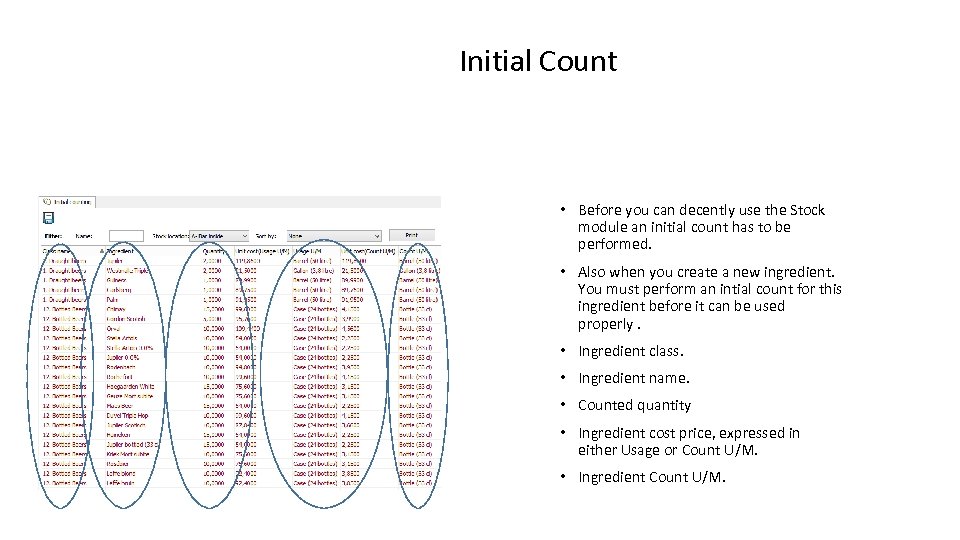 Initial Count • Before you can decently use the Stock module an initial count has to be performed. • Also when you create a new ingredient. You must perform an intial count for this ingredient before it can be used properly. • Ingredient class. • Ingredient name. • Counted quantity • Ingredient cost price, expressed in either Usage or Count U/M. • Ingredient Count U/M.
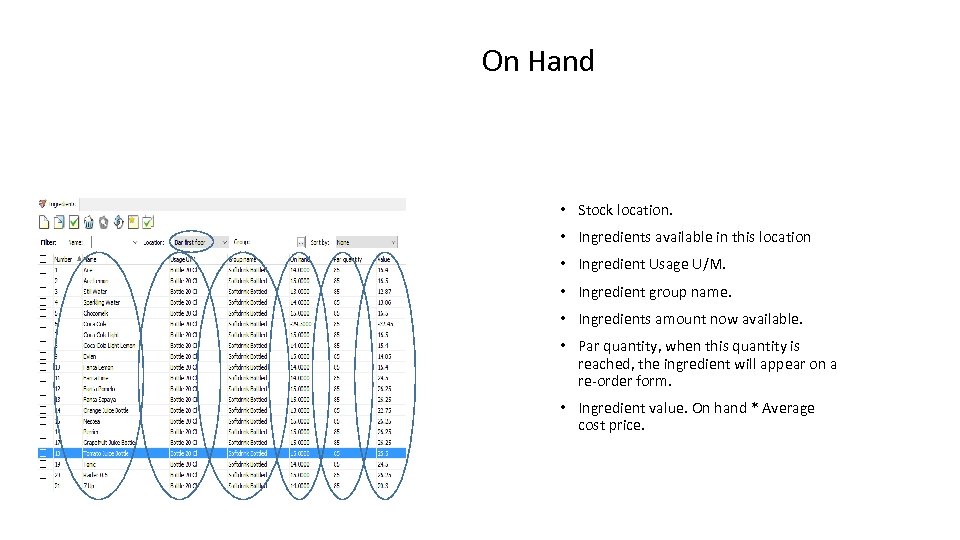 On Hand • Stock location. • Ingredients available in this location • Ingredient Usage U/M. • Ingredient group name. • Ingredients amount now available. • Par quantity, when this quantity is reached, the ingredient will appear on a re-order form. • Ingredient value. On hand * Average cost price.
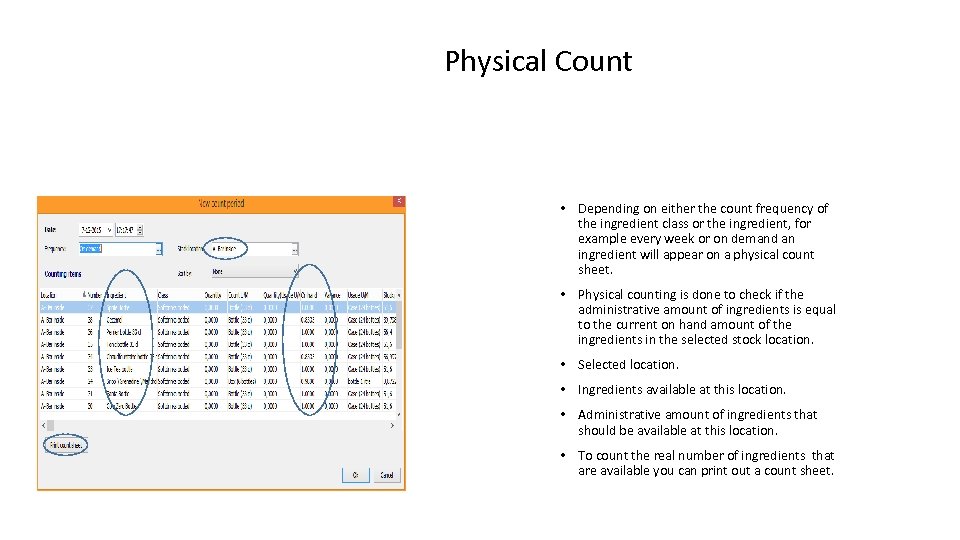 Physical Count • Depending on either the count frequency of the ingredient class or the ingredient, for example every week or on demand an ingredient will appear on a physical count sheet. • Physical counting is done to check if the administrative amount of ingredients is equal to the current on hand amount of the ingredients in the selected stock location. • Selected location. • Ingredients available at this location. • Administrative amount of ingredients that should be available at this location. • To count the real number of ingredients that are available you can print out a count sheet.
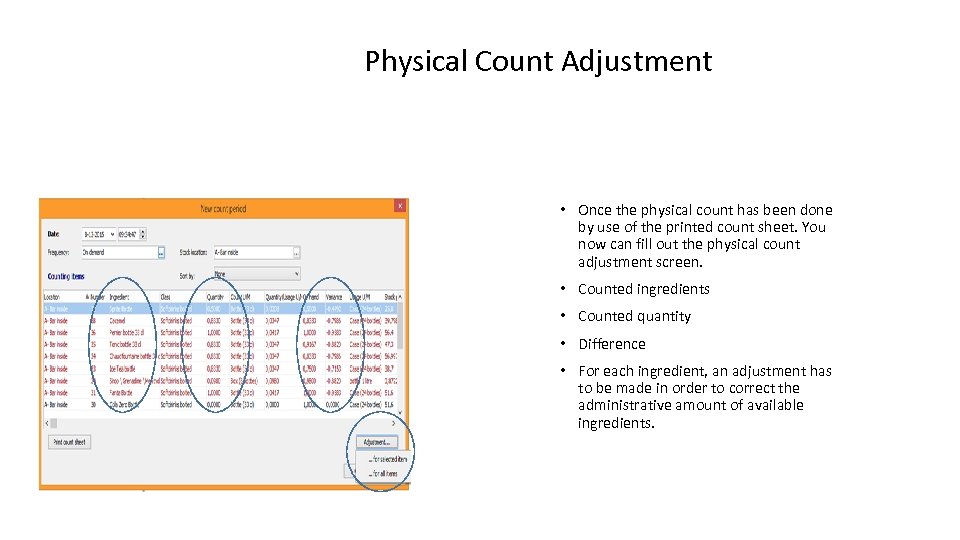 Physical Count Adjustment • Once the physical count has been done by use of the printed count sheet. You now can fill out the physical count adjustment screen. • Counted ingredients • Counted quantity • Difference • For each ingredient, an adjustment has to be made in order to correct the administrative amount of available ingredients.
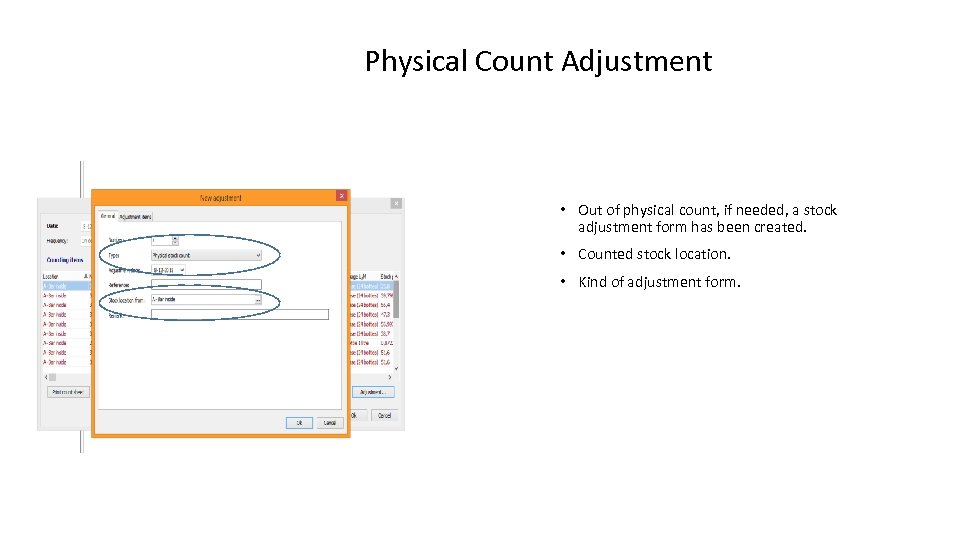 Physical Count Adjustment • Out of physical count, if needed, a stock adjustment form has been created. • Counted stock location. • Kind of adjustment form.
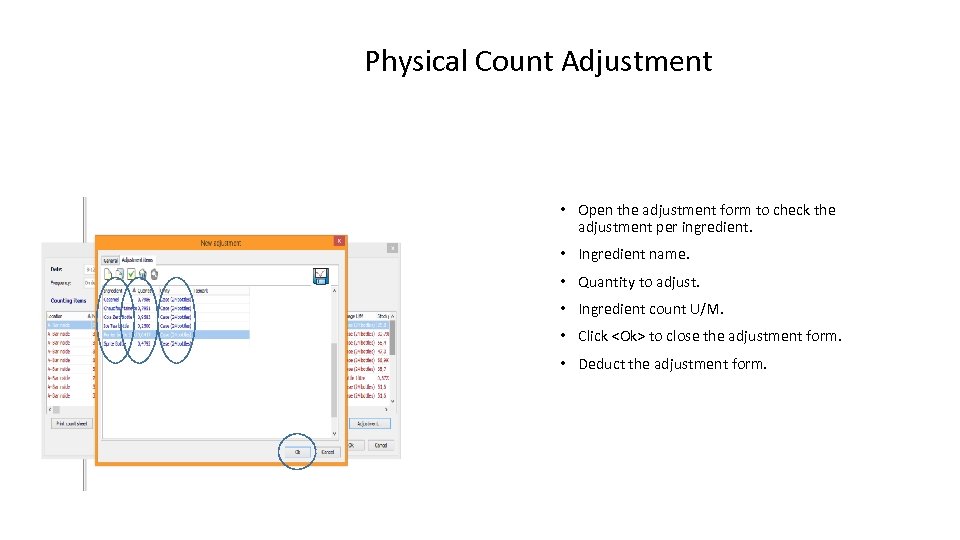 Physical Count Adjustment • Open the adjustment form to check the adjustment per ingredient. • Ingredient name. • Quantity to adjust. • Ingredient count U/M. • Click
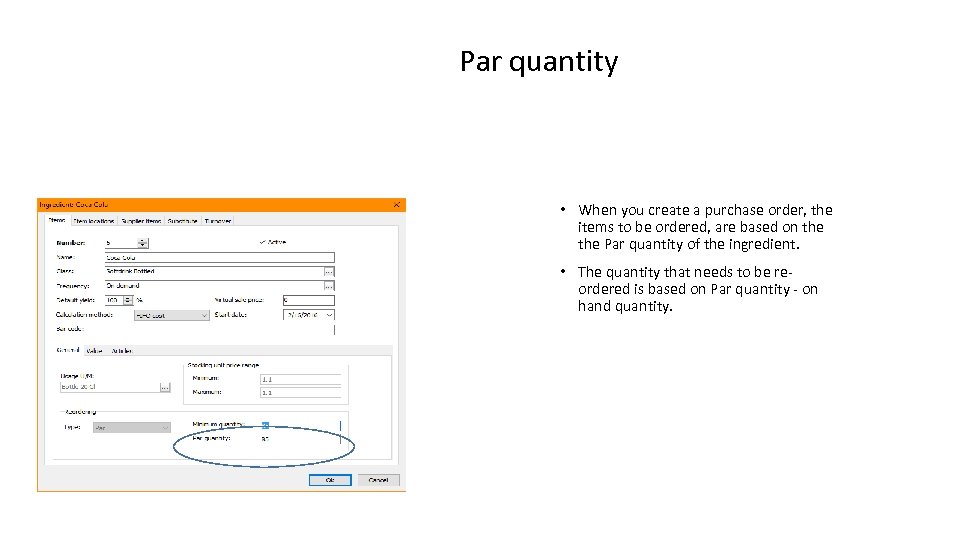 Par quantity • When you create a purchase order, the items to be ordered, are based on the Par quantity of the ingredient. • The quantity that needs to be reordered is based on Par quantity - on hand quantity.
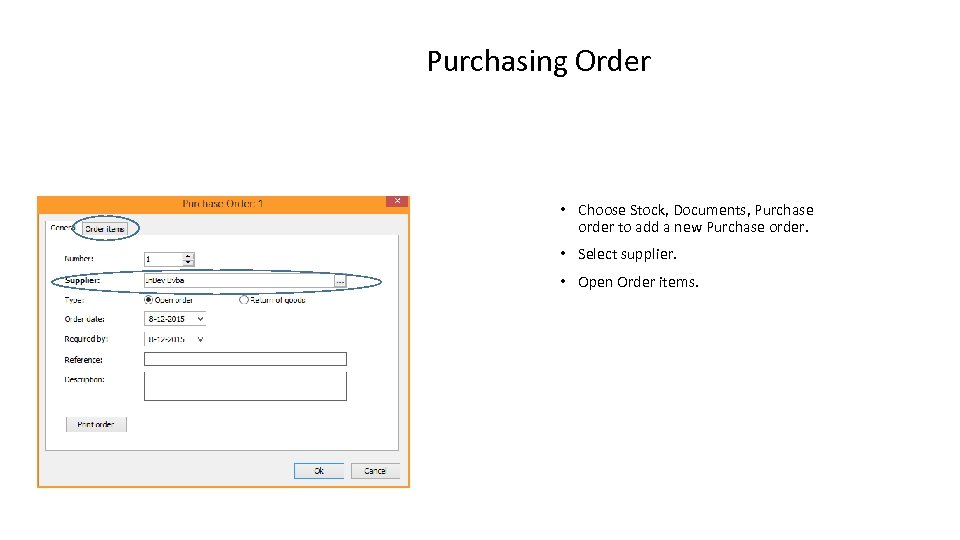 Purchasing Order • Choose Stock, Documents, Purchase order to add a new Purchase order. • Select supplier. • Open Order items.
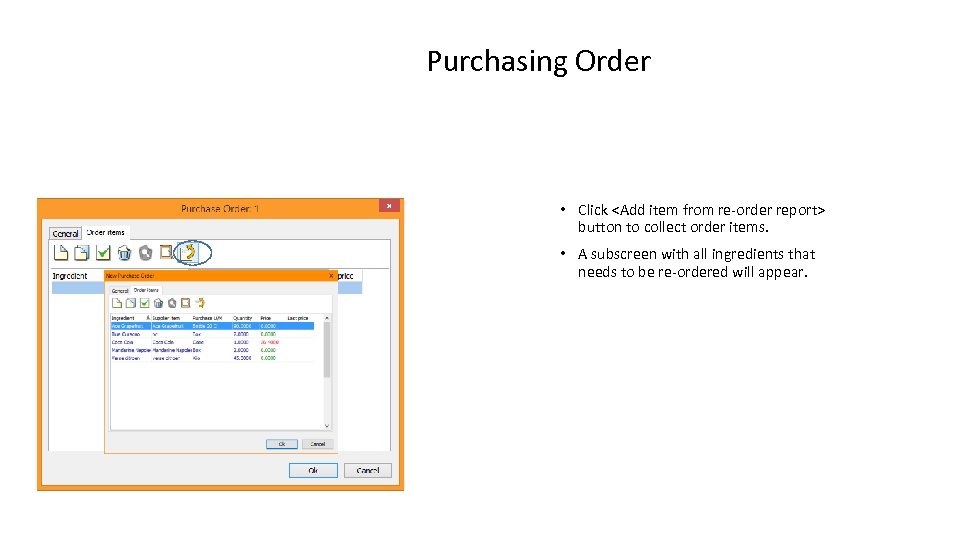 Purchasing Order • Click
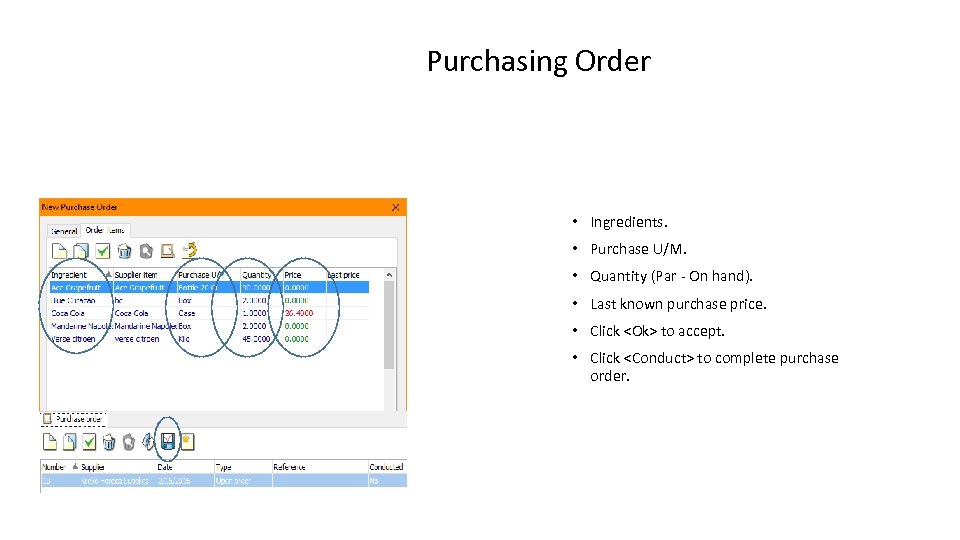 Purchasing Order • Ingredients. • Purchase U/M. • Quantity (Par - On hand). • Last known purchase price. • Click
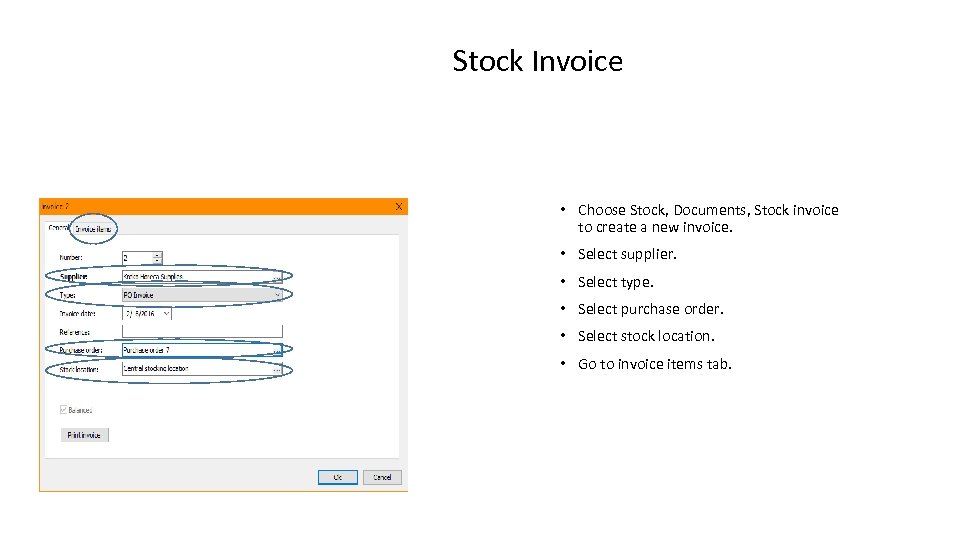 Stock Invoice • Choose Stock, Documents, Stock invoice to create a new invoice. • Select supplier. • Select type. • Select purchase order. • Select stock location. • Go to invoice items tab.
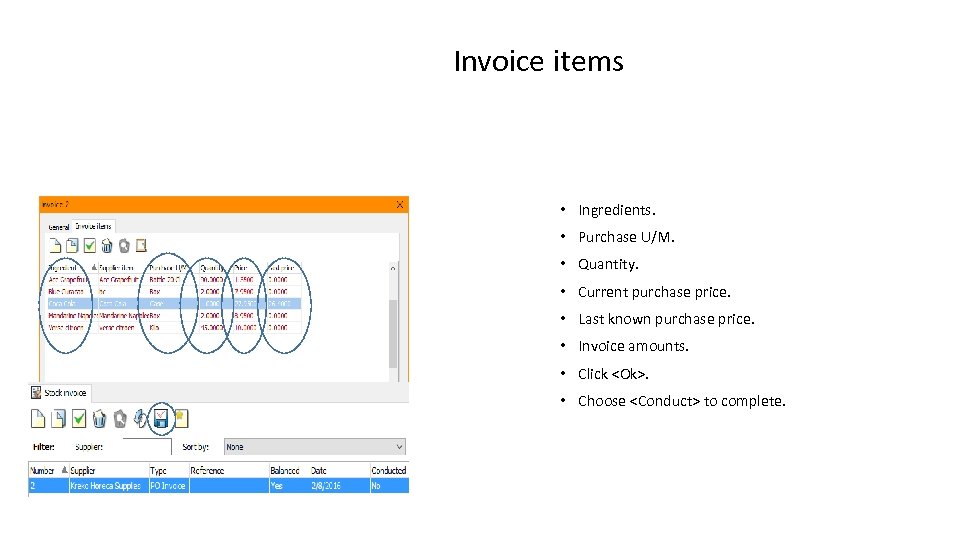 Invoice items • Ingredients. • Purchase U/M. • Quantity. • Current purchase price. • Last known purchase price. • Invoice amounts. • Click
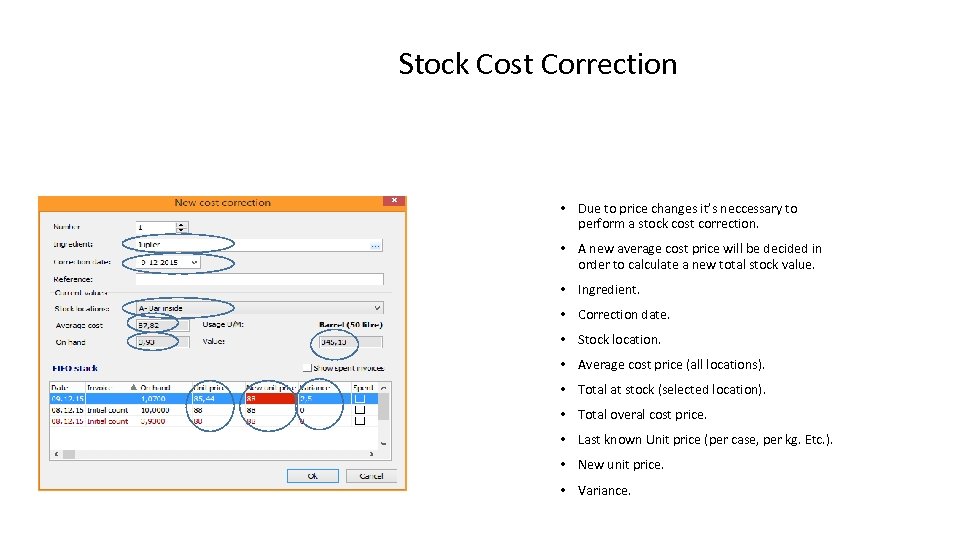 Stock Cost Correction • Due to price changes it’s neccessary to perform a stock cost correction. • A new average cost price will be decided in order to calculate a new total stock value. • Ingredient. • Correction date. • Stock location. • Average cost price (all locations). • Total at stock (selected location). • Total overal cost price. • Last known Unit price (per case, per kg. Etc. ). • New unit price. • Variance.
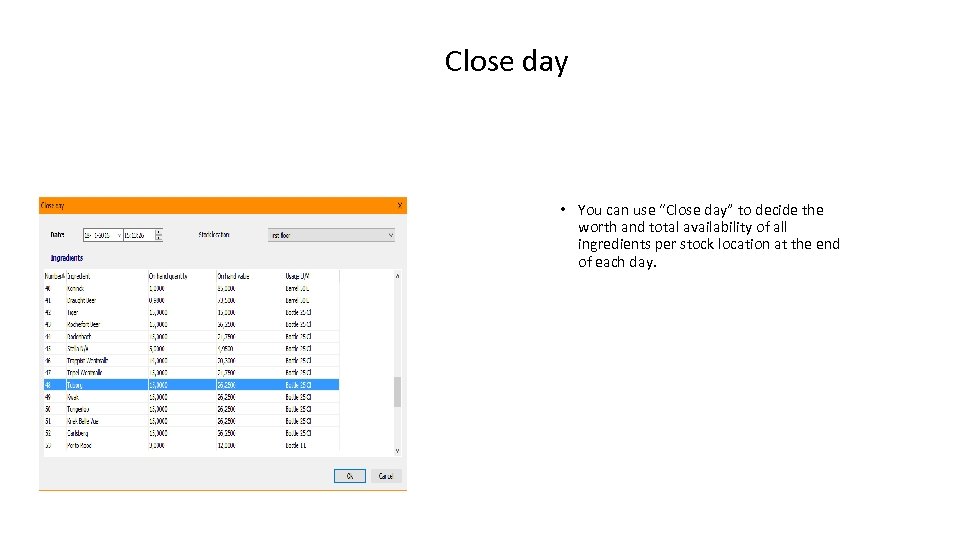 Close day • You can use “Close day” to decide the worth and total availability of all ingredients per stock location at the end of each day.
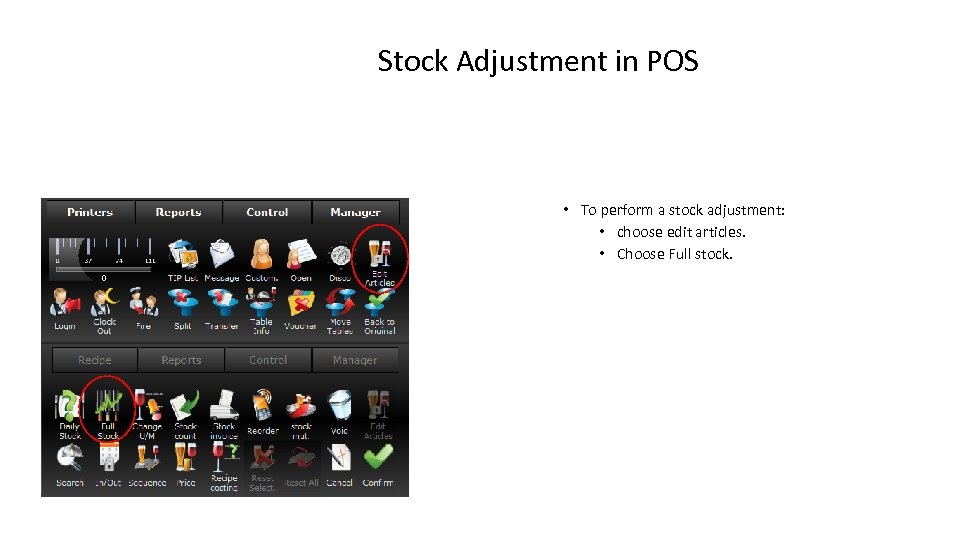 Stock Adjustment in POS • To perform a stock adjustment: • choose edit articles. • Choose Full stock.
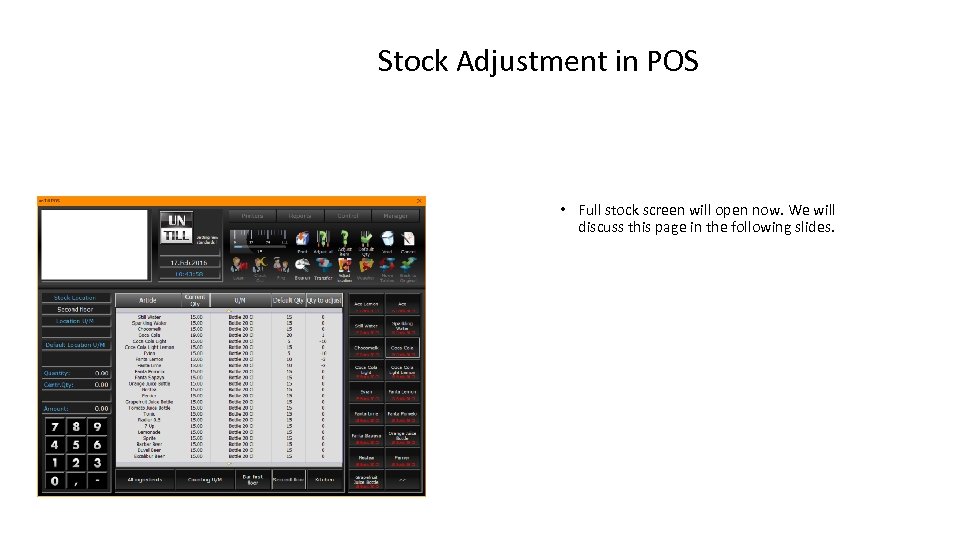 Stock Adjustment in POS • Full stock screen will open now. We will discuss this page in the following slides.
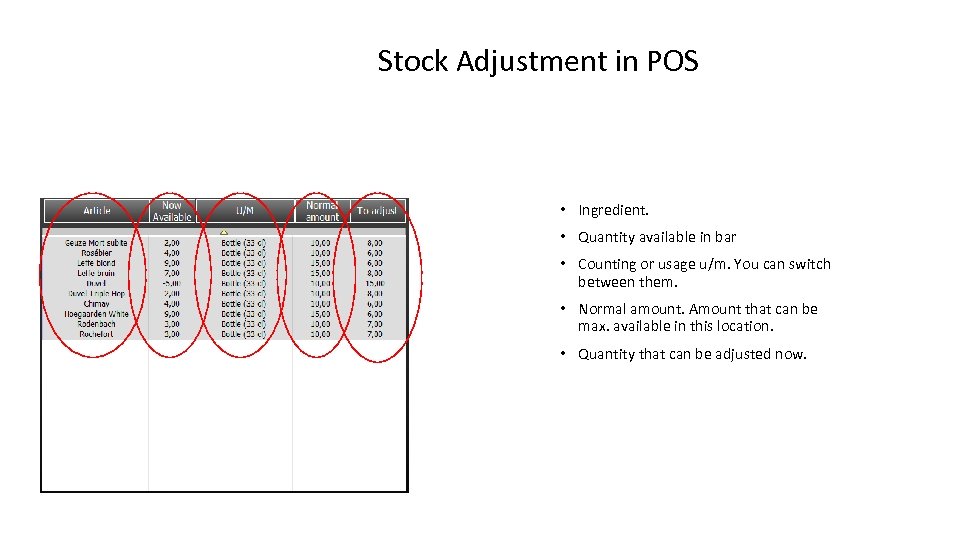 Stock Adjustment in POS • Ingredient. • Quantity available in bar • Counting or usage u/m. You can switch between them. • Normal amount. Amount that can be max. available in this location. • Quantity that can be adjusted now.
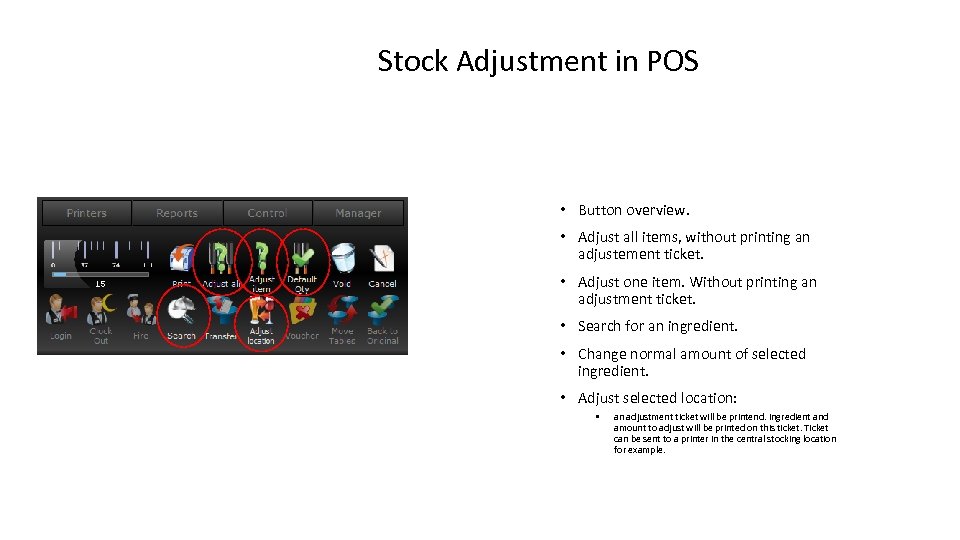 Stock Adjustment in POS • Button overview. • Adjust all items, without printing an adjustement ticket. • Adjust one item. Without printing an adjustment ticket. • Search for an ingredient. • Change normal amount of selected ingredient. • Adjust selected location: • an adjustment ticket will be printend. Ingredient and amount to adjust will be printed on this ticket. Ticket can be sent to a printer in the central stocking location for example.
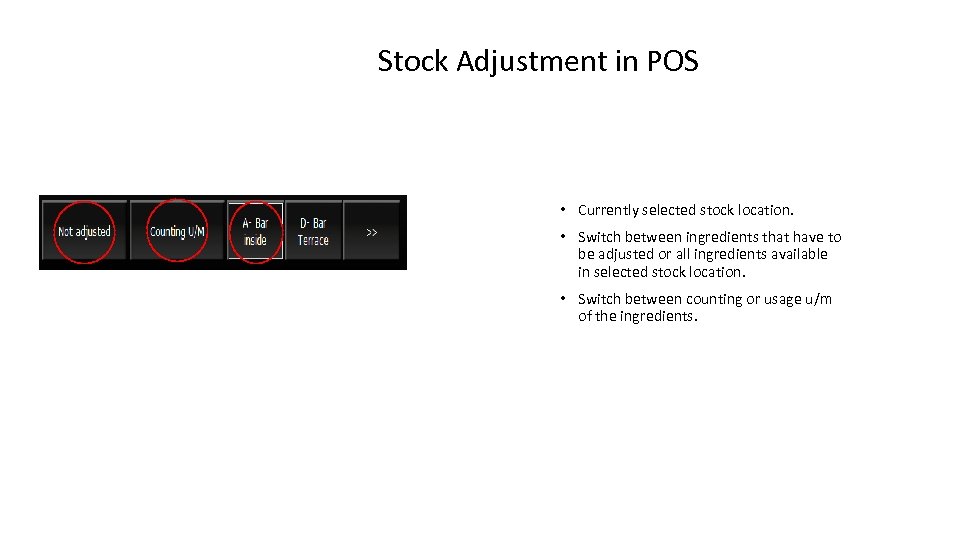 Stock Adjustment in POS • Currently selected stock location. • Switch between ingredients that have to be adjusted or all ingredients available in selected stock location. • Switch between counting or usage u/m of the ingredients.
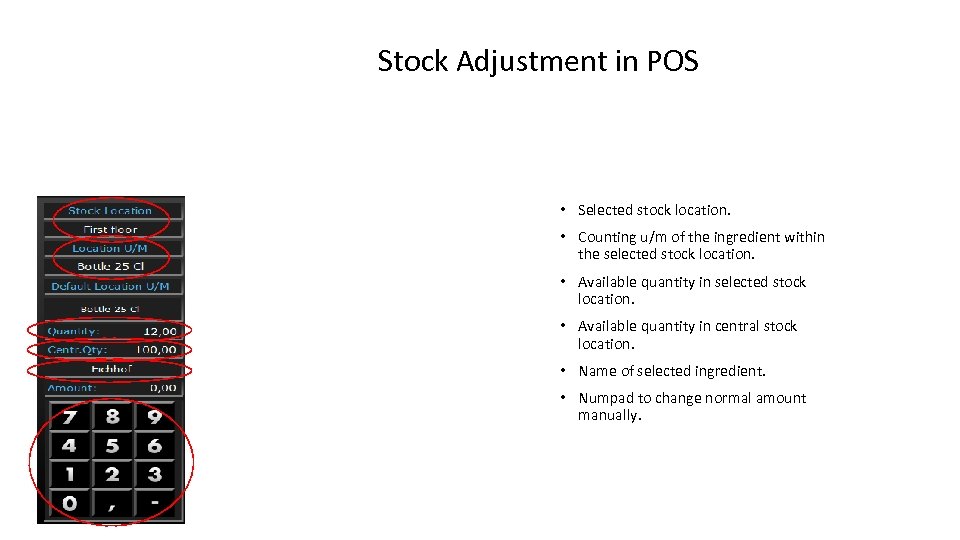 Stock Adjustment in POS • Selected stock location. • Counting u/m of the ingredient within the selected stock location. • Available quantity in central stock location. • Name of selected ingredient. • Numpad to change normal amount manually.
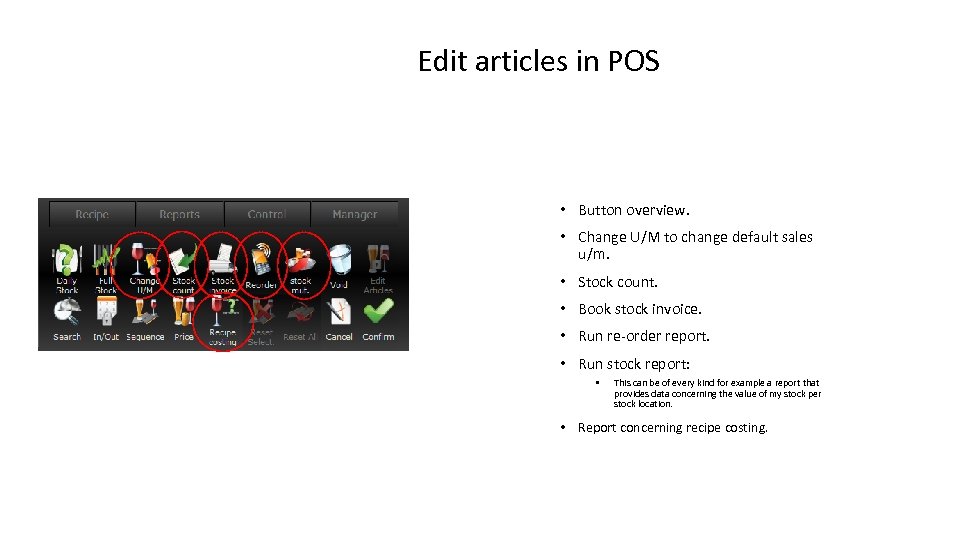 Edit articles in POS • Button overview. • Change U/M to change default sales u/m. • Stock count. • Book stock invoice. • Run re-order report. • Run stock report: • This can be of every kind for example a report that provides data concerning the value of my stock per stock location. • Report concerning recipe costing.
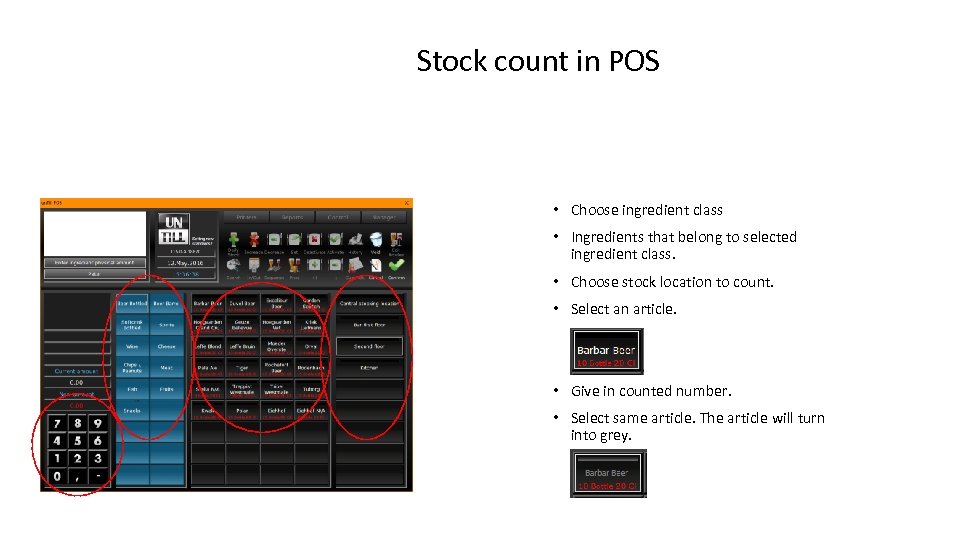 Stock count in POS • Choose ingredient class • Ingredients that belong to selected ingredient class. • Choose stock location to count. • Select an article. • Give in counted number. • Select same article. The article will turn into grey.
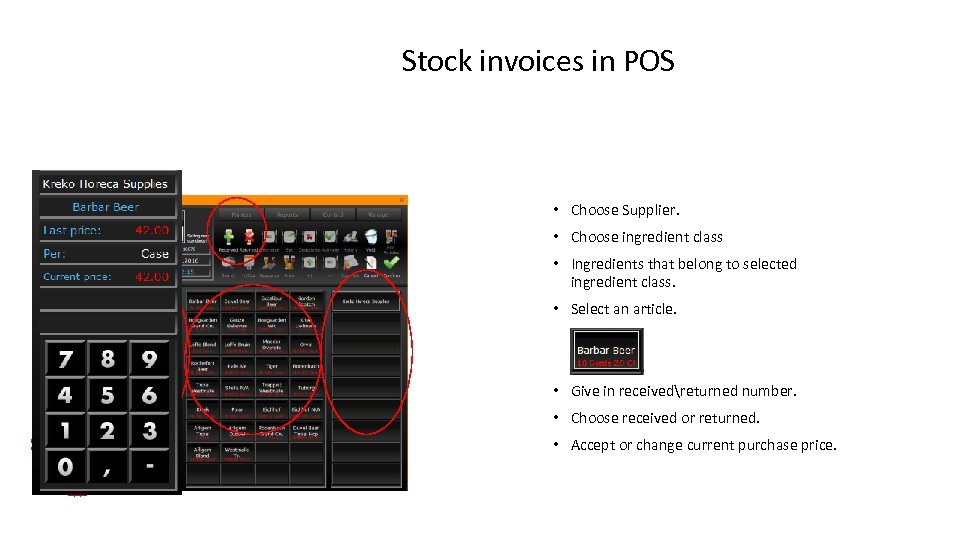 Stock invoices in POS • Choose Supplier. • Choose ingredient class • Ingredients that belong to selected ingredient class. • Select an article. • Give in receivedreturned number. • Choose received or returned. • Accept or change current purchase price.
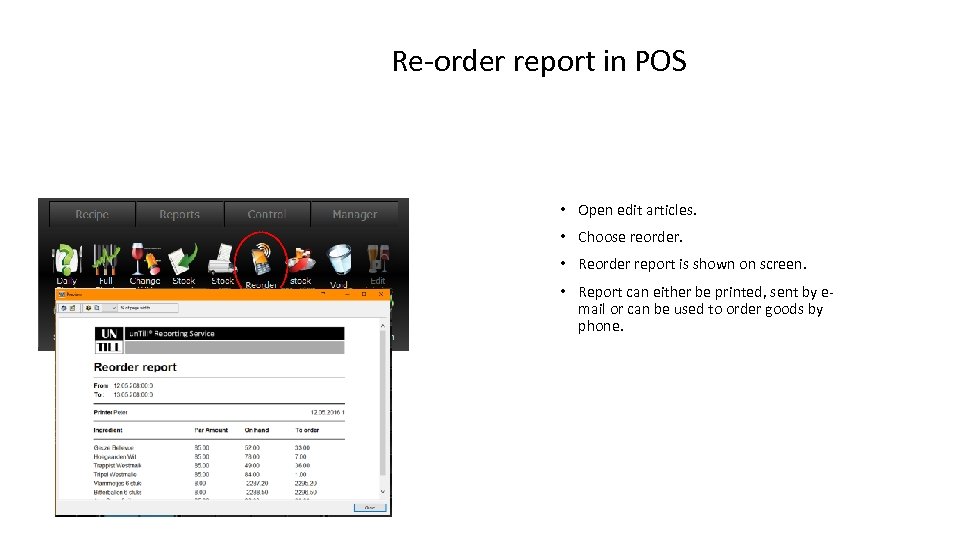 Re-order report in POS • Open edit articles. • Choose reorder. • Reorder report is shown on screen. • Report can either be printed, sent by email or can be used to order goods by phone.
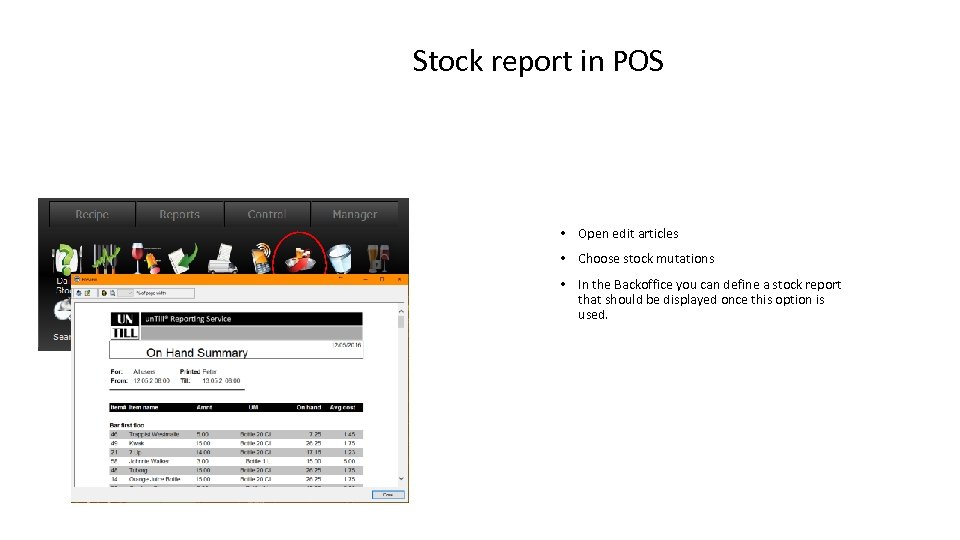 Stock report in POS • Open edit articles • Choose stock mutations • In the Backoffice you can define a stock report that should be displayed once this option is used.
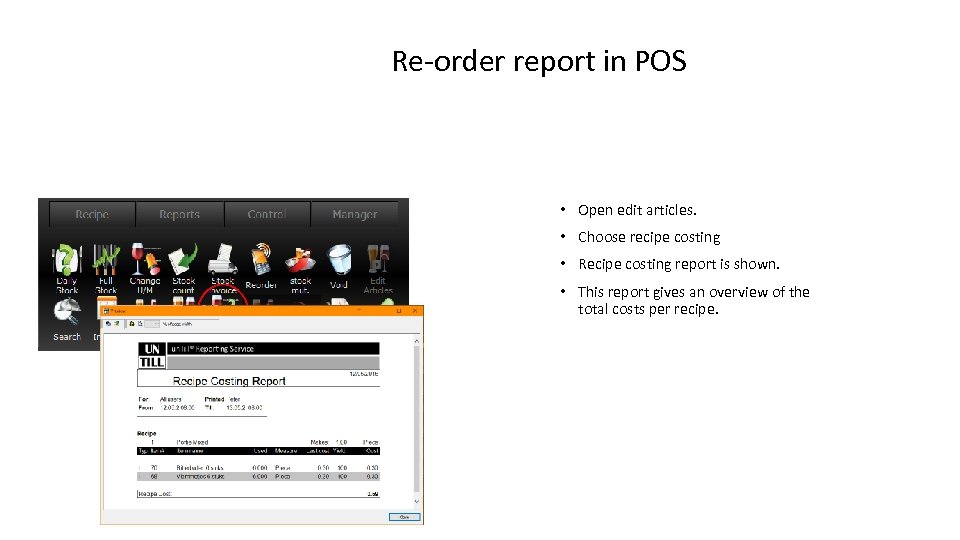 Re-order report in POS • Open edit articles. • Choose recipe costing • Recipe costing report is shown. • This report gives an overview of the total costs per recipe.
 Questions ? ?