


 Скачать презентацию Session 5 Getting Started with Microsoft Word 2010
Office 2010- Ms Word.ppt
- Количество слайдов: 59
 Session 5 Getting Started with Microsoft Word 2010 Version 1. 0 © 2011 Aptech Limited.
 Objectives At the end of this session, the student will be able to: u u u u Explain the user interface in Word 2010 Create, edit, save, and open a Word document Describe basic text operations Explain the use of the Navigation Pane Explain different document views Describe the use of Undo/Redo actions Explain the use of cut/copy/paste function Version 1. 0 © 2011 Aptech Limited. Getting Started with Microsoft Word 2010 / Session 5 2
![Introducing Microsoft Word 2010 [1 -4] u u u Is a document and word](https://present5.com/presentation/199318844_438261848/image-3.jpg "Introducing Microsoft Word 2010 [1 -4] u u u Is a document and word") Introducing Microsoft Word 2010 [1 -4] u u u Is a document and word processing application that enables users to create, edit, and format different types of documents, such as letters, fax cover sheets, reports, and so forth Enables user to add effects to pictures from within the document and allows multiple authors to collaborate efficiently on a document Following are some of the features of Microsoft Word: Feature Templates Description A Template is a starter document which provides the design, formatting style, and other placeholder text. Quick Styles A Quick Style is a combination of formatting settings that has been applied to text. Tables help to organize text in a grid of rows and columns. Version 1. 0 © 2011 Aptech Limited. Getting Started with Microsoft Word 2010 / Session 5 3
Introducing Microsoft Word 2010 [1 -4] u u u Is a document and word processing application that enables users to create, edit, and format different types of documents, such as letters, fax cover sheets, reports, and so forth Enables user to add effects to pictures from within the document and allows multiple authors to collaborate efficiently on a document Following are some of the features of Microsoft Word: Feature Templates Description A Template is a starter document which provides the design, formatting style, and other placeholder text. Quick Styles A Quick Style is a combination of formatting settings that has been applied to text. Tables help to organize text in a grid of rows and columns. Version 1. 0 © 2011 Aptech Limited. Getting Started with Microsoft Word 2010 / Session 5 3
![Introducing Microsoft Word 2010 [2 -4] u The table lists some of the features](https://present5.com/presentation/199318844_438261848/image-4.jpg "Introducing Microsoft Word 2010 [2 -4] u The table lists some of the features") Introducing Microsoft Word 2010 [2 -4] u The table lists some of the features of Microsoft Word Feature Graphics Mail Merge Description Word provides options to add pictures to document and create diagrams. It help users to create own customized form letter wherein each copy is customized for a particular recipient. Document Security It enables the user to protect the document against and Review unwanted changes. Navigation Pane Provides an outline of the document and enable the users to navigate within a document and re-organize it. The Navigation Pane is a newly added feature in Microsoft Word 2010. Version 1. 0 © 2011 Aptech Limited. Getting Started with Microsoft Word 2010 / Session 5 4
Introducing Microsoft Word 2010 [2 -4] u The table lists some of the features of Microsoft Word Feature Graphics Mail Merge Description Word provides options to add pictures to document and create diagrams. It help users to create own customized form letter wherein each copy is customized for a particular recipient. Document Security It enables the user to protect the document against and Review unwanted changes. Navigation Pane Provides an outline of the document and enable the users to navigate within a document and re-organize it. The Navigation Pane is a newly added feature in Microsoft Word 2010. Version 1. 0 © 2011 Aptech Limited. Getting Started with Microsoft Word 2010 / Session 5 4
![Introducing Microsoft Word 2010 [3 -4] u The table lists some of the features](https://present5.com/presentation/199318844_438261848/image-5.jpg "Introducing Microsoft Word 2010 [3 -4] u The table lists some of the features") Introducing Microsoft Word 2010 [3 -4] u The table lists some of the features of Microsoft Word Feature Smart. Art Description Provides a large collection of graphic layouts to communicate complex text information visually. Picture-editing Tools Provides a large collection of picture effects and other picture-editing tools to format pictures from within the document. Picture-editing tools have been greatly enhanced in Microsoft Word 2010. Direct Screen Enables user to capture screenshots from within the Capture document without the need of an external screen capture tool. This feature has been newly added in Microsoft Word 2010. Version 1. 0 © 2011 Aptech Limited. Getting Started with Microsoft Word 2010 / Session 5 5
Introducing Microsoft Word 2010 [3 -4] u The table lists some of the features of Microsoft Word Feature Smart. Art Description Provides a large collection of graphic layouts to communicate complex text information visually. Picture-editing Tools Provides a large collection of picture effects and other picture-editing tools to format pictures from within the document. Picture-editing tools have been greatly enhanced in Microsoft Word 2010. Direct Screen Enables user to capture screenshots from within the Capture document without the need of an external screen capture tool. This feature has been newly added in Microsoft Word 2010. Version 1. 0 © 2011 Aptech Limited. Getting Started with Microsoft Word 2010 / Session 5 5
![Introducing Microsoft Word 2010 [4 -4] u The table lists some of the features](https://present5.com/presentation/199318844_438261848/image-6.jpg "Introducing Microsoft Word 2010 [4 -4] u The table lists some of the features") Introducing Microsoft Word 2010 [4 -4] u The table lists some of the features of Microsoft Word Feature Customizable Tabs Backstage View Version 1. 0 © 2011 Aptech Limited. Description Enables user to personalize the tabs on the Ribbon interface. This feature has been newly added in Microsoft Word 2010. Enables users to efficiently manage files and associated settings. This feature has been newly added in Microsoft Word 2010. Getting Started with Microsoft Word 2010 / Session 5 6
Introducing Microsoft Word 2010 [4 -4] u The table lists some of the features of Microsoft Word Feature Customizable Tabs Backstage View Version 1. 0 © 2011 Aptech Limited. Description Enables user to personalize the tabs on the Ribbon interface. This feature has been newly added in Microsoft Word 2010. Enables users to efficiently manage files and associated settings. This feature has been newly added in Microsoft Word 2010. Getting Started with Microsoft Word 2010 / Session 5 6
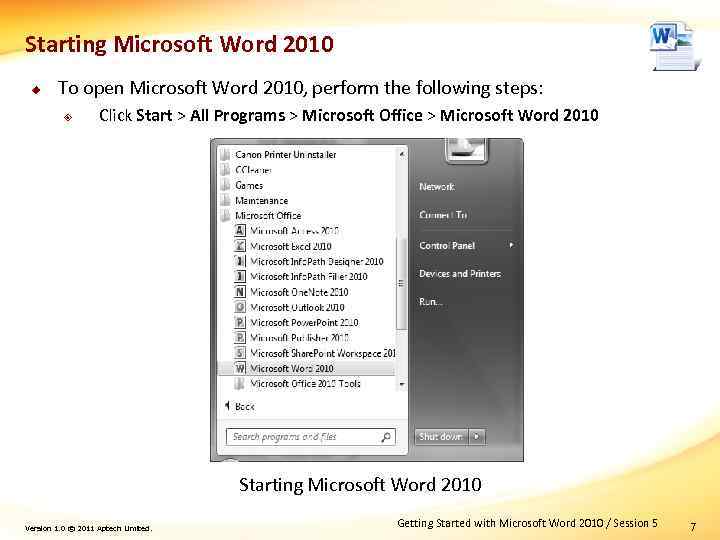 Starting Microsoft Word 2010 u To open Microsoft Word 2010, perform the following steps: ² Click Start > All Programs > Microsoft Office > Microsoft Word 2010 Starting Microsoft Word 2010 Version 1. 0 © 2011 Aptech Limited. Getting Started with Microsoft Word 2010 / Session 5 7
![Understanding the Microsoft Word 2010 Interface [1 -3] ² Microsoft Word 2010 interface Microsoft](https://present5.com/presentation/199318844_438261848/image-8.jpg "Understanding the Microsoft Word 2010 Interface [1 -3] ² Microsoft Word 2010 interface Microsoft") Understanding the Microsoft Word 2010 Interface [1 -3] ² Microsoft Word 2010 interface Microsoft Word 2010 Interface Version 1. 0 © 2011 Aptech Limited. Getting Started with Microsoft Word 2010 / Session 5 8
Understanding the Microsoft Word 2010 Interface [1 -3] ² Microsoft Word 2010 interface Microsoft Word 2010 Interface Version 1. 0 © 2011 Aptech Limited. Getting Started with Microsoft Word 2010 / Session 5 8
![Understanding the Microsoft Word 2010 Interface [2 -3] u The following are the elements](https://present5.com/presentation/199318844_438261848/image-9.jpg "Understanding the Microsoft Word 2010 Interface [2 -3] u The following are the elements") Understanding the Microsoft Word 2010 Interface [2 -3] u The following are the elements in a Microsoft Word window Element Ribbon Description It organizes the frequently accessed commands in groups on a set of contextual tabs. Contextual Tabs Commands displayed on the contextual tabs changes depending on the task being performed by the user. Occasionally, additional contextual tabs are also displayed. Quick Access It provides Quick Access buttons to perform frequently Toolbar repeated commands with a single click. Document It provides different views to analyze the document in Views different perspectives. File Tab It is a non-contextual tab on the Ribbon. It does not change depending on the task being performed by the user. It provides access to the Backstage view. Version 1. 0 © 2011 Aptech Limited. Getting Started with Microsoft Word 2010 / Session 5 9
Understanding the Microsoft Word 2010 Interface [2 -3] u The following are the elements in a Microsoft Word window Element Ribbon Description It organizes the frequently accessed commands in groups on a set of contextual tabs. Contextual Tabs Commands displayed on the contextual tabs changes depending on the task being performed by the user. Occasionally, additional contextual tabs are also displayed. Quick Access It provides Quick Access buttons to perform frequently Toolbar repeated commands with a single click. Document It provides different views to analyze the document in Views different perspectives. File Tab It is a non-contextual tab on the Ribbon. It does not change depending on the task being performed by the user. It provides access to the Backstage view. Version 1. 0 © 2011 Aptech Limited. Getting Started with Microsoft Word 2010 / Session 5 9
![Understanding the Microsoft Word 2010 Interface [3 -3] u u u Several commands on](https://present5.com/presentation/199318844_438261848/image-10.jpg "Understanding the Microsoft Word 2010 Interface [3 -3] u u u Several commands on") Understanding the Microsoft Word 2010 Interface [3 -3] u u u Several commands on the Ribbon do not contain a label Microsoft Word displays a short description of the command It also displays a keyboard shortcut for the command, if available Description and Shortcut of a Command Version 1. 0 © 2011 Aptech Limited. Getting Started with Microsoft Word 2010 / Session 5 10
Understanding the Microsoft Word 2010 Interface [3 -3] u u u Several commands on the Ribbon do not contain a label Microsoft Word displays a short description of the command It also displays a keyboard shortcut for the command, if available Description and Shortcut of a Command Version 1. 0 © 2011 Aptech Limited. Getting Started with Microsoft Word 2010 / Session 5 10
![Understanding the Ribbon [1 -4] u u u Is a common feature in all](https://present5.com/presentation/199318844_438261848/image-11.jpg "Understanding the Ribbon [1 -4] u u u Is a common feature in all") Understanding the Ribbon [1 -4] u u u Is a common feature in all applications of the Microsoft Office 2010 Suite Is an area above the document workspace Provides easy and quick access to commands by organizing them in a set of tabs File tab provides access to the Backstage view Contextual tabs are divided into groups that represent different command groups Additional contextual tabs appear as the user works with different objects Version 1. 0 © 2011 Aptech Limited. Getting Started with Microsoft Word 2010 / Session 5 11
Understanding the Ribbon [1 -4] u u u Is a common feature in all applications of the Microsoft Office 2010 Suite Is an area above the document workspace Provides easy and quick access to commands by organizing them in a set of tabs File tab provides access to the Backstage view Contextual tabs are divided into groups that represent different command groups Additional contextual tabs appear as the user works with different objects Version 1. 0 © 2011 Aptech Limited. Getting Started with Microsoft Word 2010 / Session 5 11
![Understanding the Ribbon [2 -4] u The table lists the tabs on the Word](https://present5.com/presentation/199318844_438261848/image-12.jpg "Understanding the Ribbon [2 -4] u The table lists the tabs on the Word") Understanding the Ribbon [2 -4] u The table lists the tabs on the Word 2010 Ribbon Home Tab Insert Page Layout References Version 1. 0 © 2011 Aptech Limited. Description Provides options for font and paragraph formatting, text styles, find/replace, and cut/copy/paste functions. Provides options for inserting different objects into the document, such as tables, images, Clip art, Smart. Art graphics, links, header/footer, symbols, and other basic text functions. Provides options for applying themes to the document, changing the page borders and background, adjusting paragraph indentation, and arranging objects that have been inserted in a layered manner. Provides options to insert external citations and add references within the document such as table of contents or figures. Getting Started with Microsoft Word 2010 / Session 5 12
Understanding the Ribbon [2 -4] u The table lists the tabs on the Word 2010 Ribbon Home Tab Insert Page Layout References Version 1. 0 © 2011 Aptech Limited. Description Provides options for font and paragraph formatting, text styles, find/replace, and cut/copy/paste functions. Provides options for inserting different objects into the document, such as tables, images, Clip art, Smart. Art graphics, links, header/footer, symbols, and other basic text functions. Provides options for applying themes to the document, changing the page borders and background, adjusting paragraph indentation, and arranging objects that have been inserted in a layered manner. Provides options to insert external citations and add references within the document such as table of contents or figures. Getting Started with Microsoft Word 2010 / Session 5 12
![Understanding the Ribbon [3 -4] u The table lists the tabs on the Word](https://present5.com/presentation/199318844_438261848/image-13.jpg "Understanding the Ribbon [3 -4] u The table lists the tabs on the Word") Understanding the Ribbon [3 -4] u The table lists the tabs on the Word 2010 Ribbon. Tab Mailings Review View Add-Ins Version 1. 0 © 2011 Aptech Limited. Description Provides various option for inserting envelopes and labels to efficiently format a letter for mass mailing. Provides option for proof-reading, spell-checking, and collaborative editing of the document by multiple reviewers. Provides option for changing the document views and working with multiple Word windows. Provides option for working with different macros and using external applications from within the document. Getting Started with Microsoft Word 2010 / Session 5 13
Understanding the Ribbon [3 -4] u The table lists the tabs on the Word 2010 Ribbon. Tab Mailings Review View Add-Ins Version 1. 0 © 2011 Aptech Limited. Description Provides various option for inserting envelopes and labels to efficiently format a letter for mass mailing. Provides option for proof-reading, spell-checking, and collaborative editing of the document by multiple reviewers. Provides option for changing the document views and working with multiple Word windows. Provides option for working with different macros and using external applications from within the document. Getting Started with Microsoft Word 2010 / Session 5 13
![Understanding the Ribbon [4 -4] u u u Groups on some of the tabs](https://present5.com/presentation/199318844_438261848/image-14.jpg "Understanding the Ribbon [4 -4] u u u Groups on some of the tabs") Understanding the Ribbon [4 -4] u u u Groups on some of the tabs contain a ‘dialog box launcher’ icon at the lowerright of the group Word displays a dialog box to perform functions included in that group, when users click the dialog box launcher icon For example, the Styles group on the Home tab contains a dialog box launcher icon Dialog Box Launcher Icon Version 1. 0 © 2011 Aptech Limited. Getting Started with Microsoft Word 2010 / Session 5 14
Understanding the Ribbon [4 -4] u u u Groups on some of the tabs contain a ‘dialog box launcher’ icon at the lowerright of the group Word displays a dialog box to perform functions included in that group, when users click the dialog box launcher icon For example, the Styles group on the Home tab contains a dialog box launcher icon Dialog Box Launcher Icon Version 1. 0 © 2011 Aptech Limited. Getting Started with Microsoft Word 2010 / Session 5 14
![Understanding the Backstage View [1 -3] u u Provides options for various actions related](https://present5.com/presentation/199318844_438261848/image-15.jpg "Understanding the Backstage View [1 -3] u u Provides options for various actions related") Understanding the Backstage View [1 -3] u u Provides options for various actions related to the Word document, such as defining file properties, changing permissions, and managing different versions Allows user to access the list of recently accessed documents Version 1. 0 © 2011 Aptech Limited. Getting Started with Microsoft Word 2010 / Session 5 15
Understanding the Backstage View [1 -3] u u Provides options for various actions related to the Word document, such as defining file properties, changing permissions, and managing different versions Allows user to access the list of recently accessed documents Version 1. 0 © 2011 Aptech Limited. Getting Started with Microsoft Word 2010 / Session 5 15
![Understanding the Backstage View [2 -3] u To access the Backstage view, perform the](https://present5.com/presentation/199318844_438261848/image-16.jpg "Understanding the Backstage View [2 -3] u To access the Backstage view, perform the") Understanding the Backstage View [2 -3] u To access the Backstage view, perform the following steps: ² ² Open Microsoft Word 2010 Click the File tab Backstage View Version 1. 0 © 2011 Aptech Limited. Getting Started with Microsoft Word 2010 / Session 5 16
Understanding the Backstage View [2 -3] u To access the Backstage view, perform the following steps: ² ² Open Microsoft Word 2010 Click the File tab Backstage View Version 1. 0 © 2011 Aptech Limited. Getting Started with Microsoft Word 2010 / Session 5 16
![Understanding the Backstage View [3 -3] u u u Provides options for saving/closing the](https://present5.com/presentation/199318844_438261848/image-17.jpg "Understanding the Backstage View [3 -3] u u u Provides options for saving/closing the") Understanding the Backstage View [3 -3] u u u Provides options for saving/closing the active document, opening an existing document, and opening one of the recent documents Displays the Info pane when users click the File tab for the first time The following options are available on the Info pane: ² ² ² Permissions – allows user to make a document as read-only, protect it with a password, restrict editing while working in collaboration with other reviewers, and add a digital signature to it Prepare for Sharing – provides options for preparing a file before sharing it by editing file properties and checking its compatibility with different versions of Word Versions – allows user to view different versions of the file that were saved at different times. Users can then compare these versions and make changes as required Version 1. 0 © 2011 Aptech Limited. Getting Started with Microsoft Word 2010 / Session 5 17
Understanding the Backstage View [3 -3] u u u Provides options for saving/closing the active document, opening an existing document, and opening one of the recent documents Displays the Info pane when users click the File tab for the first time The following options are available on the Info pane: ² ² ² Permissions – allows user to make a document as read-only, protect it with a password, restrict editing while working in collaboration with other reviewers, and add a digital signature to it Prepare for Sharing – provides options for preparing a file before sharing it by editing file properties and checking its compatibility with different versions of Word Versions – allows user to view different versions of the file that were saved at different times. Users can then compare these versions and make changes as required Version 1. 0 © 2011 Aptech Limited. Getting Started with Microsoft Word 2010 / Session 5 17
![Understanding the Quick Access Toolbar [1 -4] u u Appears on the upper-left corner](https://present5.com/presentation/199318844_438261848/image-18.jpg "Understanding the Quick Access Toolbar [1 -4] u u Appears on the upper-left corner") Understanding the Quick Access Toolbar [1 -4] u u Appears on the upper-left corner of Word window Contains shortcuts for most frequently used commands Displays the Save, Undo, and Redo command buttons Customize the Quick Access toolbar to add shortcuts for frequently used commands Version 1. 0 © 2011 Aptech Limited. Getting Started with Microsoft Word 2010 / Session 5 18
Understanding the Quick Access Toolbar [1 -4] u u Appears on the upper-left corner of Word window Contains shortcuts for most frequently used commands Displays the Save, Undo, and Redo command buttons Customize the Quick Access toolbar to add shortcuts for frequently used commands Version 1. 0 © 2011 Aptech Limited. Getting Started with Microsoft Word 2010 / Session 5 18
![Understanding the Quick Access Toolbar [2 -4] u To customize the Quick Access toolbar,](https://present5.com/presentation/199318844_438261848/image-19.jpg "Understanding the Quick Access Toolbar [2 -4] u To customize the Quick Access toolbar,") Understanding the Quick Access Toolbar [2 -4] u To customize the Quick Access toolbar, perform the following steps: ² ² Click the File tab Click Options Word Options Dialog Box Version 1. 0 © 2011 Aptech Limited. Getting Started with Microsoft Word 2010 / Session 5 19
Understanding the Quick Access Toolbar [2 -4] u To customize the Quick Access toolbar, perform the following steps: ² ² Click the File tab Click Options Word Options Dialog Box Version 1. 0 © 2011 Aptech Limited. Getting Started with Microsoft Word 2010 / Session 5 19
![Understanding the Quick Access Toolbar [3 -4] ² ² Click Quick Access Toolbar Select](https://present5.com/presentation/199318844_438261848/image-20.jpg "Understanding the Quick Access Toolbar [3 -4] ² ² Click Quick Access Toolbar Select") Understanding the Quick Access Toolbar [3 -4] ² ² Click Quick Access Toolbar Select the required category of commands from the Choose commands from list Click the required command from the list on the left Click Add Customizing the Quick Access Toolbar Version 1. 0 © 2011 Aptech Limited. Getting Started with Microsoft Word 2010 / Session 5 20
Understanding the Quick Access Toolbar [3 -4] ² ² Click Quick Access Toolbar Select the required category of commands from the Choose commands from list Click the required command from the list on the left Click Add Customizing the Quick Access Toolbar Version 1. 0 © 2011 Aptech Limited. Getting Started with Microsoft Word 2010 / Session 5 20
![Understanding the Quick Access Toolbar [4 -4] ² ² ² Click the command from](https://present5.com/presentation/199318844_438261848/image-21.jpg "Understanding the Quick Access Toolbar [4 -4] ² ² ² Click the command from") Understanding the Quick Access Toolbar [4 -4] ² ² ² Click the command from the list on the right Click Remove to remove a command button from the Quick Access toolbar Click OK Options for Customizing the Quick Access Toolbar Version 1. 0 © 2011 Aptech Limited. Getting Started with Microsoft Word 2010 / Session 5 21
Understanding the Quick Access Toolbar [4 -4] ² ² ² Click the command from the list on the right Click Remove to remove a command button from the Quick Access toolbar Click OK Options for Customizing the Quick Access Toolbar Version 1. 0 © 2011 Aptech Limited. Getting Started with Microsoft Word 2010 / Session 5 21
![Creating a Word Document [1 -2] u To create a new Word document, perform](https://present5.com/presentation/199318844_438261848/image-22.jpg "Creating a Word Document [1 -2] u To create a new Word document, perform") Creating a Word Document [1 -2] u To create a new Word document, perform the following steps: ² ² ² Open Microsoft Word 2010 Click the File tab Click New to display the Available Templates pane Click Blank Document Click Create Creating a Word Document Version 1. 0 © 2011 Aptech Limited. Getting Started with Microsoft Word 2010 / Session 5 22
Creating a Word Document [1 -2] u To create a new Word document, perform the following steps: ² ² ² Open Microsoft Word 2010 Click the File tab Click New to display the Available Templates pane Click Blank Document Click Create Creating a Word Document Version 1. 0 © 2011 Aptech Limited. Getting Started with Microsoft Word 2010 / Session 5 22
![Creating a Word Document [2 -2] u u u Users can type required text](https://present5.com/presentation/199318844_438261848/image-23.jpg "Creating a Word Document [2 -2] u u u Users can type required text") Creating a Word Document [2 -2] u u u Users can type required text to fill the document While typing, the characters appear on the right of the vertical insertion point. This vertical insertion point is called as ‘cursor’ The BACKSPACE and DELETE keys can be used to delete characters whereas the Spacebar key is used to enter spaces By default, the margins left for a blank document are 1 inch on the left and right When the user reaches the right boundary while typing, Word automatically moves the insertion point to the next line. This feature is called Word Wrap Word wrap feature aligns the text in the document within the margin boundaries Version 1. 0 © 2011 Aptech Limited. Getting Started with Microsoft Word 2010 / Session 5 23
Creating a Word Document [2 -2] u u u Users can type required text to fill the document While typing, the characters appear on the right of the vertical insertion point. This vertical insertion point is called as ‘cursor’ The BACKSPACE and DELETE keys can be used to delete characters whereas the Spacebar key is used to enter spaces By default, the margins left for a blank document are 1 inch on the left and right When the user reaches the right boundary while typing, Word automatically moves the insertion point to the next line. This feature is called Word Wrap Word wrap feature aligns the text in the document within the margin boundaries Version 1. 0 © 2011 Aptech Limited. Getting Started with Microsoft Word 2010 / Session 5 23
![Saving a Word Document [1 -4] u u After creating and editing a Word](https://present5.com/presentation/199318844_438261848/image-24.jpg "Saving a Word Document [1 -4] u u After creating and editing a Word") Saving a Word Document [1 -4] u u After creating and editing a Word document, users save the document for future use Word provides following two options for saving a document: ² ² Save – appends the changes to the same copy of the document Save As – creates a new copy of the document and allows a user to assign a different name to it Version 1. 0 © 2011 Aptech Limited. Getting Started with Microsoft Word 2010 / Session 5 24
Saving a Word Document [1 -4] u u After creating and editing a Word document, users save the document for future use Word provides following two options for saving a document: ² ² Save – appends the changes to the same copy of the document Save As – creates a new copy of the document and allows a user to assign a different name to it Version 1. 0 © 2011 Aptech Limited. Getting Started with Microsoft Word 2010 / Session 5 24
![Saving a Word Document [2 -4] u To save a Word document, perform the](https://present5.com/presentation/199318844_438261848/image-25.jpg "Saving a Word Document [2 -4] u To save a Word document, perform the") Saving a Word Document [2 -4] u To save a Word document, perform the following steps: ² ² ² Click the File tab Click Save to save the changes to the same copy of the document Click Save As to create a new copy of the document Save As Dialog Box Version 1. 0 © 2011 Aptech Limited. Getting Started with Microsoft Word 2010 / Session 5 25
Saving a Word Document [2 -4] u To save a Word document, perform the following steps: ² ² ² Click the File tab Click Save to save the changes to the same copy of the document Click Save As to create a new copy of the document Save As Dialog Box Version 1. 0 © 2011 Aptech Limited. Getting Started with Microsoft Word 2010 / Session 5 25
![Saving a Word Document [3 -4] ² ² Browse to the required folder Type](https://present5.com/presentation/199318844_438261848/image-26.jpg "Saving a Word Document [3 -4] ² ² Browse to the required folder Type") Saving a Word Document [3 -4] ² ² Browse to the required folder Type the name of the file in the File name box Select the required type from the Save as type list Click Save As Dialog Box Version 1. 0 © 2011 Aptech Limited. Getting Started with Microsoft Word 2010 / Session 5 26
Saving a Word Document [3 -4] ² ² Browse to the required folder Type the name of the file in the File name box Select the required type from the Save as type list Click Save As Dialog Box Version 1. 0 © 2011 Aptech Limited. Getting Started with Microsoft Word 2010 / Session 5 26
![Saving a Word Document [4 -4] u Word 2010 allows a user to save](https://present5.com/presentation/199318844_438261848/image-27.jpg "Saving a Word Document [4 -4] u Word 2010 allows a user to save") Saving a Word Document [4 -4] u Word 2010 allows a user to save files in the following four XML based formats: ² ² . docx – ordinary document containing no macros. docm – document containing macros or is macro enabled. dotx – template that does not contain macros. dotm – template that can store macros Version 1. 0 © 2011 Aptech Limited. Getting Started with Microsoft Word 2010 / Session 5 27
Saving a Word Document [4 -4] u Word 2010 allows a user to save files in the following four XML based formats: ² ² . docx – ordinary document containing no macros. docm – document containing macros or is macro enabled. dotx – template that does not contain macros. dotm – template that can store macros Version 1. 0 © 2011 Aptech Limited. Getting Started with Microsoft Word 2010 / Session 5 27
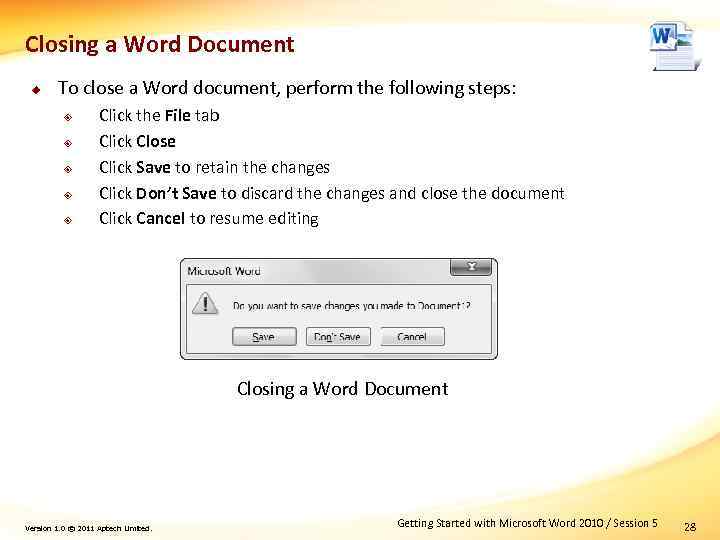 Closing a Word Document u To close a Word document, perform the following steps: ² ² ² Click the File tab Click Close Click Save to retain the changes Click Don’t Save to discard the changes and close the document Click Cancel to resume editing Closing a Word Document Version 1. 0 © 2011 Aptech Limited. Getting Started with Microsoft Word 2010 / Session 5 28
![Opening an Existing Document [1 -2] u To open a existing document, perform the](https://present5.com/presentation/199318844_438261848/image-29.jpg "Opening an Existing Document [1 -2] u To open a existing document, perform the") Opening an Existing Document [1 -2] u To open a existing document, perform the following steps: ² ² ² Open Microsoft Word Click the File tab Click Open Browse to the required location Select the required file Click Open Dialog Box Version 1. 0 © 2011 Aptech Limited. Getting Started with Microsoft Word 2010 / Session 5 29
Opening an Existing Document [1 -2] u To open a existing document, perform the following steps: ² ² ² Open Microsoft Word Click the File tab Click Open Browse to the required location Select the required file Click Open Dialog Box Version 1. 0 © 2011 Aptech Limited. Getting Started with Microsoft Word 2010 / Session 5 29
![Opening an Existing Document [2 -2] u To open a existing document from recent](https://present5.com/presentation/199318844_438261848/image-30.jpg "Opening an Existing Document [2 -2] u To open a existing document from recent") Opening an Existing Document [2 -2] u To open a existing document from recent documents list, perform the following steps: ² ² ² Click the File tab Click Recent Click the required file Opening Recent Documents Version 1. 0 © 2011 Aptech Limited. Getting Started with Microsoft Word 2010 / Session 5 30
Opening an Existing Document [2 -2] u To open a existing document from recent documents list, perform the following steps: ² ² ² Click the File tab Click Recent Click the required file Opening Recent Documents Version 1. 0 © 2011 Aptech Limited. Getting Started with Microsoft Word 2010 / Session 5 30
![Selecting Text [1 -3] u To select text using the keyboard, perform the following](https://present5.com/presentation/199318844_438261848/image-31.jpg "Selecting Text [1 -3] u To select text using the keyboard, perform the following") Selecting Text [1 -3] u To select text using the keyboard, perform the following steps: ² ² Using the arrow keys, move the cursor at the start of the text Hold down the SHIFT key and using arrow keys perform the selection of the text Version 1. 0 © 2011 Aptech Limited. Getting Started with Microsoft Word 2010 / Session 5 31
Selecting Text [1 -3] u To select text using the keyboard, perform the following steps: ² ² Using the arrow keys, move the cursor at the start of the text Hold down the SHIFT key and using arrow keys perform the selection of the text Version 1. 0 © 2011 Aptech Limited. Getting Started with Microsoft Word 2010 / Session 5 31
![Selecting Text [2 -3] u To select text using the mouse, perform the following](https://present5.com/presentation/199318844_438261848/image-32.jpg "Selecting Text [2 -3] u To select text using the mouse, perform the following") Selecting Text [2 -3] u To select text using the mouse, perform the following steps: ² ² ² Move the mouse over the required text to select a word or a sentence Double-click the word to select it Press the CTRL key and click over the sentence to select a sentence Selecting Text Using the Mouse Version 1. 0 © 2011 Aptech Limited. Getting Started with Microsoft Word 2010 / Session 5 32
Selecting Text [2 -3] u To select text using the mouse, perform the following steps: ² ² ² Move the mouse over the required text to select a word or a sentence Double-click the word to select it Press the CTRL key and click over the sentence to select a sentence Selecting Text Using the Mouse Version 1. 0 © 2011 Aptech Limited. Getting Started with Microsoft Word 2010 / Session 5 32
![Selecting Text [3 -3] ² ² Move the mouse to the Selection Bar to](https://present5.com/presentation/199318844_438261848/image-33.jpg "Selecting Text [3 -3] ² ² Move the mouse to the Selection Bar to") Selecting Text [3 -3] ² ² Move the mouse to the Selection Bar to select one or more lines Click the Selection Bar next to the line to select one line Click and drag the mouse pointer along multiple lines to select multiple lines Double-click the Selection Bar next to the paragraph to select the paragraph Selecting Text Version 1. 0 © 2011 Aptech Limited. Getting Started with Microsoft Word 2010 / Session 5 33
Selecting Text [3 -3] ² ² Move the mouse to the Selection Bar to select one or more lines Click the Selection Bar next to the line to select one line Click and drag the mouse pointer along multiple lines to select multiple lines Double-click the Selection Bar next to the paragraph to select the paragraph Selecting Text Version 1. 0 © 2011 Aptech Limited. Getting Started with Microsoft Word 2010 / Session 5 33
![Navigating a Document using the Navigation Pane [1 -6] u u Enables the user](https://present5.com/presentation/199318844_438261848/image-34.jpg "Navigating a Document using the Navigation Pane [1 -6] u u Enables the user") Navigating a Document using the Navigation Pane [1 -6] u u Enables the user to re-organize and navigate around long documents quickly by using the headings inserted in the document Useful only when the document has been created with headings Enables user to navigate directly to specific page Allows searching through the document and directly navigating to one of the searched locations Version 1. 0 © 2011 Aptech Limited. Getting Started with Microsoft Word 2010 / Session 5 34
Navigating a Document using the Navigation Pane [1 -6] u u Enables the user to re-organize and navigate around long documents quickly by using the headings inserted in the document Useful only when the document has been created with headings Enables user to navigate directly to specific page Allows searching through the document and directly navigating to one of the searched locations Version 1. 0 © 2011 Aptech Limited. Getting Started with Microsoft Word 2010 / Session 5 34
![Navigating a Document using the Navigation Pane [2 -6] u To use the Navigation](https://present5.com/presentation/199318844_438261848/image-35.jpg "Navigating a Document using the Navigation Pane [2 -6] u To use the Navigation") Navigating a Document using the Navigation Pane [2 -6] u To use the Navigation Pane, perform the following steps: ² Click the View tab View Tab Version 1. 0 © 2011 Aptech Limited. Getting Started with Microsoft Word 2010 / Session 5 35
Navigating a Document using the Navigation Pane [2 -6] u To use the Navigation Pane, perform the following steps: ² Click the View tab View Tab Version 1. 0 © 2011 Aptech Limited. Getting Started with Microsoft Word 2010 / Session 5 35
![Navigating a Document using the Navigation Pane [3 -6] ² ² ² Select the](https://present5.com/presentation/199318844_438261848/image-36.jpg "Navigating a Document using the Navigation Pane [3 -6] ² ² ² Select the") Navigating a Document using the Navigation Pane [3 -6] ² ² ² Select the Navigation Pane check box from the Show group of the View tab Click the required heading from the Navigation pane Drag and drop the heading in Navigation pane, as required to re-organize the content using the headings Navigation Pane Version 1. 0 © 2011 Aptech Limited. Getting Started with Microsoft Word 2010 / Session 5 36
Navigating a Document using the Navigation Pane [3 -6] ² ² ² Select the Navigation Pane check box from the Show group of the View tab Click the required heading from the Navigation pane Drag and drop the heading in Navigation pane, as required to re-organize the content using the headings Navigation Pane Version 1. 0 © 2011 Aptech Limited. Getting Started with Microsoft Word 2010 / Session 5 36
![Navigating a Document using the Navigation Pane [4 -6] ² Click button on the](https://present5.com/presentation/199318844_438261848/image-37.jpg "Navigating a Document using the Navigation Pane [4 -6] ² Click button on the") Navigating a Document using the Navigation Pane [4 -6] ² Click button on the Navigation pane to navigate to another page Pages View in the Navigation Pane Version 1. 0 © 2011 Aptech Limited. Getting Started with Microsoft Word 2010 / Session 5 37
Navigating a Document using the Navigation Pane [4 -6] ² Click button on the Navigation pane to navigate to another page Pages View in the Navigation Pane Version 1. 0 © 2011 Aptech Limited. Getting Started with Microsoft Word 2010 / Session 5 37
![Navigating a Document using the Navigation Pane [5 -6] ² Click button on the](https://present5.com/presentation/199318844_438261848/image-38.jpg "Navigating a Document using the Navigation Pane [5 -6] ² Click button on the") Navigating a Document using the Navigation Pane [5 -6] ² Click button on the Navigation pane to search text in document Search View in the Navigation Pane Version 1. 0 © 2011 Aptech Limited. Getting Started with Microsoft Word 2010 / Session 5 38
Navigating a Document using the Navigation Pane [5 -6] ² Click button on the Navigation pane to search text in document Search View in the Navigation Pane Version 1. 0 © 2011 Aptech Limited. Getting Started with Microsoft Word 2010 / Session 5 38
![Navigating a Document using the Navigation Pane [6 -6] ² ² Type the required](https://present5.com/presentation/199318844_438261848/image-39.jpg "Navigating a Document using the Navigation Pane [6 -6] ² ² Type the required") Navigating a Document using the Navigation Pane [6 -6] ² ² Type the required text in the Search Document box Click the required search result Searching Using the Navigation Pane Version 1. 0 © 2011 Aptech Limited. Getting Started with Microsoft Word 2010 / Session 5 39
Navigating a Document using the Navigation Pane [6 -6] ² ² Type the required text in the Search Document box Click the required search result Searching Using the Navigation Pane Version 1. 0 © 2011 Aptech Limited. Getting Started with Microsoft Word 2010 / Session 5 39
![Using Cut, Copy, and Paste [1 -5] u u Is a combination of two](https://present5.com/presentation/199318844_438261848/image-40.jpg "Using Cut, Copy, and Paste [1 -5] u u Is a combination of two") Using Cut, Copy, and Paste [1 -5] u u Is a combination of two functions, cut-paste and copy-paste Use cut-paste function to remove some portion of text from one location of the document and insert it at other location in the same document or to a different document Use copy-paste function to perform the same operation, but the selected portion of text is retained at the original location and is not removed Office Suite applications include a Paste Special feature which: ² ² Allows user to cut/copy/paste content within a document and across documents without any formatting Allows user to copy only the content without any formatting Version 1. 0 © 2011 Aptech Limited. Getting Started with Microsoft Word 2010 / Session 5 40
Using Cut, Copy, and Paste [1 -5] u u Is a combination of two functions, cut-paste and copy-paste Use cut-paste function to remove some portion of text from one location of the document and insert it at other location in the same document or to a different document Use copy-paste function to perform the same operation, but the selected portion of text is retained at the original location and is not removed Office Suite applications include a Paste Special feature which: ² ² Allows user to cut/copy/paste content within a document and across documents without any formatting Allows user to copy only the content without any formatting Version 1. 0 © 2011 Aptech Limited. Getting Started with Microsoft Word 2010 / Session 5 40
![Using Cut, Copy, and Paste [2 -5] u The options for cut, copy, and](https://present5.com/presentation/199318844_438261848/image-41.jpg "Using Cut, Copy, and Paste [2 -5] u The options for cut, copy, and") Using Cut, Copy, and Paste [2 -5] u The options for cut, copy, and paste functions are located in the Clipboard group of the Home tab Cut, Copy, and Paste Options Version 1. 0 © 2011 Aptech Limited. Getting Started with Microsoft Word 2010 / Session 5 41
Using Cut, Copy, and Paste [2 -5] u The options for cut, copy, and paste functions are located in the Clipboard group of the Home tab Cut, Copy, and Paste Options Version 1. 0 © 2011 Aptech Limited. Getting Started with Microsoft Word 2010 / Session 5 41
![Using Cut, Copy, and Paste [3 -5] u To use cut-copy-paste functions, perform the](https://present5.com/presentation/199318844_438261848/image-42.jpg "Using Cut, Copy, and Paste [3 -5] u To use cut-copy-paste functions, perform the") Using Cut, Copy, and Paste [3 -5] u To use cut-copy-paste functions, perform the following steps: ² ² ² Select the portion of text to cut or copy Click Cut from the Clipboard group of the Home tab to cut the text Click Copy from the Clipboard group of the Home tab to copy the text Click icon from the Clipboard group of the Home tab to view the text on the clipboard Click Paste from the Clipboard group of the Home tab Clipboard Task Pane Version 1. 0 © 2011 Aptech Limited. Getting Started with Microsoft Word 2010 / Session 5 42
Using Cut, Copy, and Paste [3 -5] u To use cut-copy-paste functions, perform the following steps: ² ² ² Select the portion of text to cut or copy Click Cut from the Clipboard group of the Home tab to cut the text Click Copy from the Clipboard group of the Home tab to copy the text Click icon from the Clipboard group of the Home tab to view the text on the clipboard Click Paste from the Clipboard group of the Home tab Clipboard Task Pane Version 1. 0 © 2011 Aptech Limited. Getting Started with Microsoft Word 2010 / Session 5 42
![Using Cut, Copy, and Paste [4 -5] u To use the Paste Special function](https://present5.com/presentation/199318844_438261848/image-43.jpg "Using Cut, Copy, and Paste [4 -5] u To use the Paste Special function") Using Cut, Copy, and Paste [4 -5] u To use the Paste Special function to paste the selected text without any formatting, perform the following steps: ² ² Select the required portion of text Copy the text Click the Paste drop-down arrow from the Clipboard group of the Home tab Select Paste Special Paste Options Version 1. 0 © 2011 Aptech Limited. Getting Started with Microsoft Word 2010 / Session 5 43
Using Cut, Copy, and Paste [4 -5] u To use the Paste Special function to paste the selected text without any formatting, perform the following steps: ² ² Select the required portion of text Copy the text Click the Paste drop-down arrow from the Clipboard group of the Home tab Select Paste Special Paste Options Version 1. 0 © 2011 Aptech Limited. Getting Started with Microsoft Word 2010 / Session 5 43
![Using Cut, Copy, and Paste [5 -5] ² ² Select Unformatted Text Click OK](https://present5.com/presentation/199318844_438261848/image-44.jpg "Using Cut, Copy, and Paste [5 -5] ² ² Select Unformatted Text Click OK") Using Cut, Copy, and Paste [5 -5] ² ² Select Unformatted Text Click OK Paste Special Dialog Box Version 1. 0 © 2011 Aptech Limited. Getting Started with Microsoft Word 2010 / Session 5 44
Using Cut, Copy, and Paste [5 -5] ² ² Select Unformatted Text Click OK Paste Special Dialog Box Version 1. 0 © 2011 Aptech Limited. Getting Started with Microsoft Word 2010 / Session 5 44
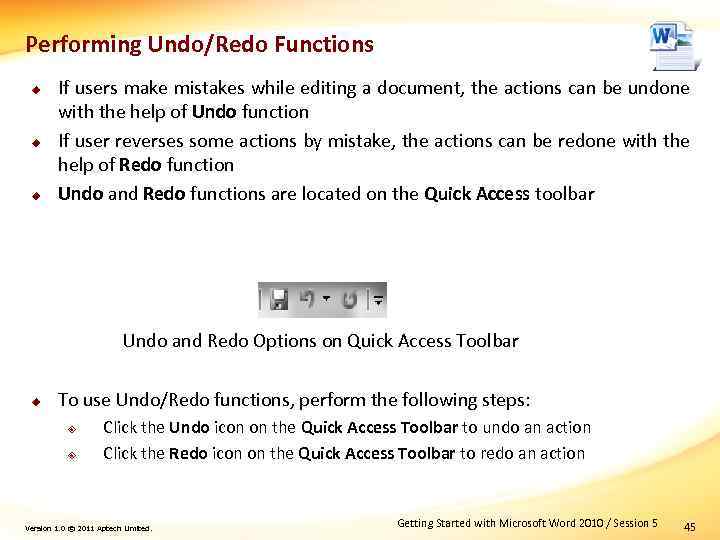 Performing Undo/Redo Functions u u u If users make mistakes while editing a document, the actions can be undone with the help of Undo function If user reverses some actions by mistake, the actions can be redone with the help of Redo function Undo and Redo functions are located on the Quick Access toolbar Undo and Redo Options on Quick Access Toolbar u To use Undo/Redo functions, perform the following steps: ² ² Click the Undo icon on the Quick Access Toolbar to undo an action Click the Redo icon on the Quick Access Toolbar to redo an action Version 1. 0 © 2011 Aptech Limited. Getting Started with Microsoft Word 2010 / Session 5 45
 Using Document Views u u Microsoft Word 2010 provides different document views for users to work with a document from different viewpoints Provides following five views of a document: ² ² ² Print Layout Full Screen Reading Web Layout Outline Draft Version 1. 0 © 2011 Aptech Limited. Getting Started with Microsoft Word 2010 / Session 5 46
![Print Layout View [1 -2] u u Is the default view of Microsoft Word](https://present5.com/presentation/199318844_438261848/image-47.jpg "Print Layout View [1 -2] u u Is the default view of Microsoft Word") Print Layout View [1 -2] u u Is the default view of Microsoft Word and shows the document as it will be printed Allows user to view the edges of the page, headers and footers, and all the text and images as they will be printed Version 1. 0 © 2011 Aptech Limited. Getting Started with Microsoft Word 2010 / Session 5 47
Print Layout View [1 -2] u u Is the default view of Microsoft Word and shows the document as it will be printed Allows user to view the edges of the page, headers and footers, and all the text and images as they will be printed Version 1. 0 © 2011 Aptech Limited. Getting Started with Microsoft Word 2010 / Session 5 47
![Print Layout View [2 -2] u To switch to Print Layout View, perform the](https://present5.com/presentation/199318844_438261848/image-48.jpg "Print Layout View [2 -2] u To switch to Print Layout View, perform the") Print Layout View [2 -2] u To switch to Print Layout View, perform the following steps: ² Click Print Layout from the Document Views group of the View tab Print Layout View Version 1. 0 © 2011 Aptech Limited. Getting Started with Microsoft Word 2010 / Session 5 48
Print Layout View [2 -2] u To switch to Print Layout View, perform the following steps: ² Click Print Layout from the Document Views group of the View tab Print Layout View Version 1. 0 © 2011 Aptech Limited. Getting Started with Microsoft Word 2010 / Session 5 48
![Full Screen Reading View [1 -3] u u Facilitates reading the document by displaying](https://present5.com/presentation/199318844_438261848/image-49.jpg "Full Screen Reading View [1 -3] u u Facilitates reading the document by displaying") Full Screen Reading View [1 -3] u u Facilitates reading the document by displaying it in full screen Does not display the Ribbon interface and any other panes Is typically used, when a user is reviewing some other user’s document Does not allow editing of the document Version 1. 0 © 2011 Aptech Limited. Getting Started with Microsoft Word 2010 / Session 5 49
Full Screen Reading View [1 -3] u u Facilitates reading the document by displaying it in full screen Does not display the Ribbon interface and any other panes Is typically used, when a user is reviewing some other user’s document Does not allow editing of the document Version 1. 0 © 2011 Aptech Limited. Getting Started with Microsoft Word 2010 / Session 5 49
![Full Screen Reading View [2 -3] u To switch to Full Screen Reading View,](https://present5.com/presentation/199318844_438261848/image-50.jpg "Full Screen Reading View [2 -3] u To switch to Full Screen Reading View,") Full Screen Reading View [2 -3] u To switch to Full Screen Reading View, perform the following steps: ² ² Click Full Screen Reading from the Document Views group of the View tab Click the Next Page and Previous Page icons on the toolbar in Full Screen Reading view to move forward and backward in the document while reading Full Screen Reading View Version 1. 0 © 2011 Aptech Limited. Getting Started with Microsoft Word 2010 / Session 5 50
Full Screen Reading View [2 -3] u To switch to Full Screen Reading View, perform the following steps: ² ² Click Full Screen Reading from the Document Views group of the View tab Click the Next Page and Previous Page icons on the toolbar in Full Screen Reading view to move forward and backward in the document while reading Full Screen Reading View Version 1. 0 © 2011 Aptech Limited. Getting Started with Microsoft Word 2010 / Session 5 50
![Full Screen Reading View [3 -3] u To display one page at a time](https://present5.com/presentation/199318844_438261848/image-51.jpg "Full Screen Reading View [3 -3] u To display one page at a time") Full Screen Reading View [3 -3] u To display one page at a time in the Full Screen Reading view, perform the following steps: ² ² ² Click View Options from the upperright corner of window in Full Screen Reading view Click Show One Page Click Close to exit the Full Screen Reading view View Options in Full Screen Reading View Version 1. 0 © 2011 Aptech Limited. Getting Started with Microsoft Word 2010 / Session 5 51
Full Screen Reading View [3 -3] u To display one page at a time in the Full Screen Reading view, perform the following steps: ² ² ² Click View Options from the upperright corner of window in Full Screen Reading view Click Show One Page Click Close to exit the Full Screen Reading view View Options in Full Screen Reading View Version 1. 0 © 2011 Aptech Limited. Getting Started with Microsoft Word 2010 / Session 5 51
![Web Layout View [1 -2] u u Is useful when the document is to](https://present5.com/presentation/199318844_438261848/image-52.jpg "Web Layout View [1 -2] u u Is useful when the document is to") Web Layout View [1 -2] u u Is useful when the document is to be used as a Web page, e-mail, or blog Does not divide the document into pages and there are no headers and footers; entire document can be viewed as a ’single page’ Version 1. 0 © 2011 Aptech Limited. Getting Started with Microsoft Word 2010 / Session 5 52
Web Layout View [1 -2] u u Is useful when the document is to be used as a Web page, e-mail, or blog Does not divide the document into pages and there are no headers and footers; entire document can be viewed as a ’single page’ Version 1. 0 © 2011 Aptech Limited. Getting Started with Microsoft Word 2010 / Session 5 52
![Web Layout View [2 -2] u To switch to Web Layout View, perform the](https://present5.com/presentation/199318844_438261848/image-53.jpg "Web Layout View [2 -2] u To switch to Web Layout View, perform the") Web Layout View [2 -2] u To switch to Web Layout View, perform the following steps: ² Click Web Layout from the Document Views group of the View tab Web Layout View Version 1. 0 © 2011 Aptech Limited. Getting Started with Microsoft Word 2010 / Session 5 53
Web Layout View [2 -2] u To switch to Web Layout View, perform the following steps: ² Click Web Layout from the Document Views group of the View tab Web Layout View Version 1. 0 © 2011 Aptech Limited. Getting Started with Microsoft Word 2010 / Session 5 53
![Outline View [1 -2] u u Displays the overall structure of the document by](https://present5.com/presentation/199318844_438261848/image-54.jpg "Outline View [1 -2] u u Displays the overall structure of the document by") Outline View [1 -2] u u Displays the overall structure of the document by showing headings and subheadings in levels Helps in working with different ideas and getting them organized in a hierarchical fashion Displays an additional Outlining contextual tab Provides different options for organizing the ideas at different levels of headings Version 1. 0 © 2011 Aptech Limited. Getting Started with Microsoft Word 2010 / Session 5 54
Outline View [1 -2] u u Displays the overall structure of the document by showing headings and subheadings in levels Helps in working with different ideas and getting them organized in a hierarchical fashion Displays an additional Outlining contextual tab Provides different options for organizing the ideas at different levels of headings Version 1. 0 © 2011 Aptech Limited. Getting Started with Microsoft Word 2010 / Session 5 54
![Outline View [2 -2] u To switch to Outline View, perform the following step:](https://present5.com/presentation/199318844_438261848/image-55.jpg "Outline View [2 -2] u To switch to Outline View, perform the following step:") Outline View [2 -2] u To switch to Outline View, perform the following step: ² Click Outline from the Document Views group of the View tab Outline View Version 1. 0 © 2011 Aptech Limited. Getting Started with Microsoft Word 2010 / Session 5 55
Outline View [2 -2] u To switch to Outline View, perform the following step: ² Click Outline from the Document Views group of the View tab Outline View Version 1. 0 © 2011 Aptech Limited. Getting Started with Microsoft Word 2010 / Session 5 55
![Draft View [1 -2] u u Provides a text-only perspective of the document, so](https://present5.com/presentation/199318844_438261848/image-56.jpg "Draft View [1 -2] u u Provides a text-only perspective of the document, so") Draft View [1 -2] u u Provides a text-only perspective of the document, so that users can concentrate on flow of text content in the document Excludes all images and headers/footers excluded from display Version 1. 0 © 2011 Aptech Limited. Getting Started with Microsoft Word 2010 / Session 5 56
Draft View [1 -2] u u Provides a text-only perspective of the document, so that users can concentrate on flow of text content in the document Excludes all images and headers/footers excluded from display Version 1. 0 © 2011 Aptech Limited. Getting Started with Microsoft Word 2010 / Session 5 56
![Draft View [2 -2] u To switch to Draft View, perform the following steps:](https://present5.com/presentation/199318844_438261848/image-57.jpg "Draft View [2 -2] u To switch to Draft View, perform the following steps:") Draft View [2 -2] u To switch to Draft View, perform the following steps: ² Click Draft from the Document Views group of the View tab Draft View Version 1. 0 © 2011 Aptech Limited. Getting Started with Microsoft Word 2010 / Session 5 57
Draft View [2 -2] u To switch to Draft View, perform the following steps: ² Click Draft from the Document Views group of the View tab Draft View Version 1. 0 © 2011 Aptech Limited. Getting Started with Microsoft Word 2010 / Session 5 57
![Summary [1 -2] u u u Microsoft Word 2010 is a word processing application](https://present5.com/presentation/199318844_438261848/image-58.jpg "Summary [1 -2] u u u Microsoft Word 2010 is a word processing application") Summary [1 -2] u u u Microsoft Word 2010 is a word processing application that allows users to create, edit, and format different types of documents, including letters, fax cover sheets, and so forth. Microsoft Word 2010 provides a customizable Ribbon and the Backstage view. Ribbon is a common part of all applications in Microsoft Office 2010 Suite and provides easy and efficient access to all the commands by organizing them as a set of contextual tabs. Quick Access toolbar in Microsoft Word 2010 provides quick access buttons for most commonly used commands. The Backstage view provides options for various actions related to the Word document file, such as setting the file properties, changing permissions, and managing its different versions. Version 1. 0 © 2011 Aptech Limited. Getting Started with Microsoft Word 2010 / Session 5 58
Summary [1 -2] u u u Microsoft Word 2010 is a word processing application that allows users to create, edit, and format different types of documents, including letters, fax cover sheets, and so forth. Microsoft Word 2010 provides a customizable Ribbon and the Backstage view. Ribbon is a common part of all applications in Microsoft Office 2010 Suite and provides easy and efficient access to all the commands by organizing them as a set of contextual tabs. Quick Access toolbar in Microsoft Word 2010 provides quick access buttons for most commonly used commands. The Backstage view provides options for various actions related to the Word document file, such as setting the file properties, changing permissions, and managing its different versions. Version 1. 0 © 2011 Aptech Limited. Getting Started with Microsoft Word 2010 / Session 5 58
![Summary [2 -2] u u u Microsoft Word 2010 also allows publishing and sharing](https://present5.com/presentation/199318844_438261848/image-59.jpg "Summary [2 -2] u u u Microsoft Word 2010 also allows publishing and sharing") Summary [2 -2] u u u Microsoft Word 2010 also allows publishing and sharing of a document on to the Web in different formats. The Navigation Pane in Microsoft Word 2010 enables the user to re-organize and navigate through a long document based on its headings. The different document views available in Microsoft Word 2010 are Print, Full Screen Reading, Web Layout, Outline, and Draft. Version 1. 0 © 2011 Aptech Limited. Getting Started with Microsoft Word 2010 / Session 5 59
Summary [2 -2] u u u Microsoft Word 2010 also allows publishing and sharing of a document on to the Web in different formats. The Navigation Pane in Microsoft Word 2010 enables the user to re-organize and navigate through a long document based on its headings. The different document views available in Microsoft Word 2010 are Print, Full Screen Reading, Web Layout, Outline, and Draft. Version 1. 0 © 2011 Aptech Limited. Getting Started with Microsoft Word 2010 / Session 5 59