


 Скачать презентацию Sending sets of records via email All
1ffbf401fdb8bb2ac424729be025f566.ppt
- Количество слайдов: 15
 Sending sets of records via email
 All of the information in this document is the property of Ex Libris Ltd. It may NOT, under any circumstances, be distributed, transmitted, copied, or displayed without the written permission of Ex Libris Ltd. The information contained in this document has been prepared for the sole purpose of providing information for the members of the ICC Israel College Consortium. The material herein contained has been prepared in good faith; however, Ex Libris disclaims any obligation or warranty as to its accuracy and/or suitability for any usage or purpose other than that for which it is intended. © Ex Libris Ltd. , 2006 2 Sending via email
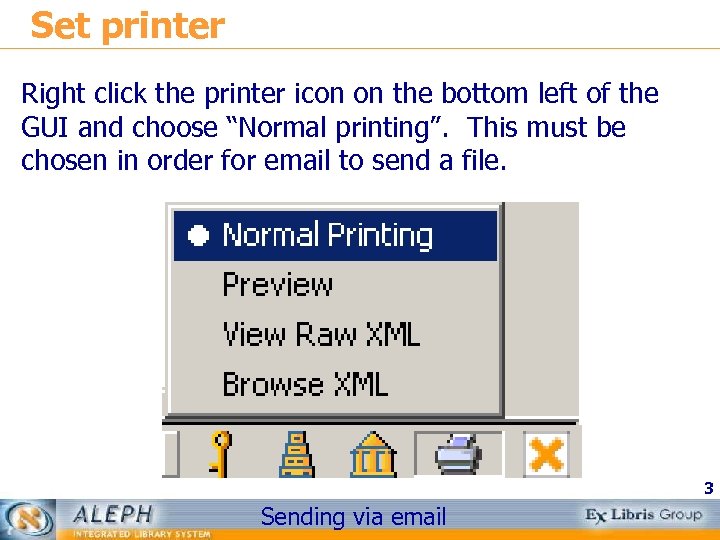 Set printer Right click the printer icon on the bottom left of the GUI and choose “Normal printing”. This must be chosen in order for email to send a file. 3 Sending via email
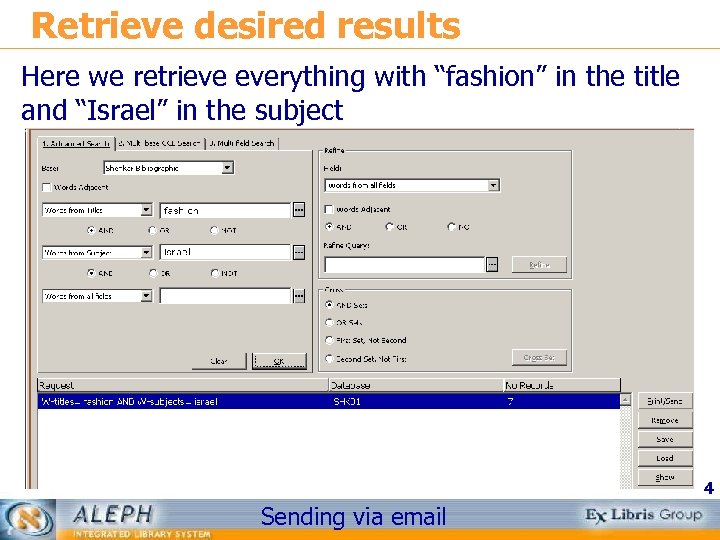 Retrieve desired results Here we retrieve everything with “fashion” in the title and “Israel” in the subject 4 Sending via email
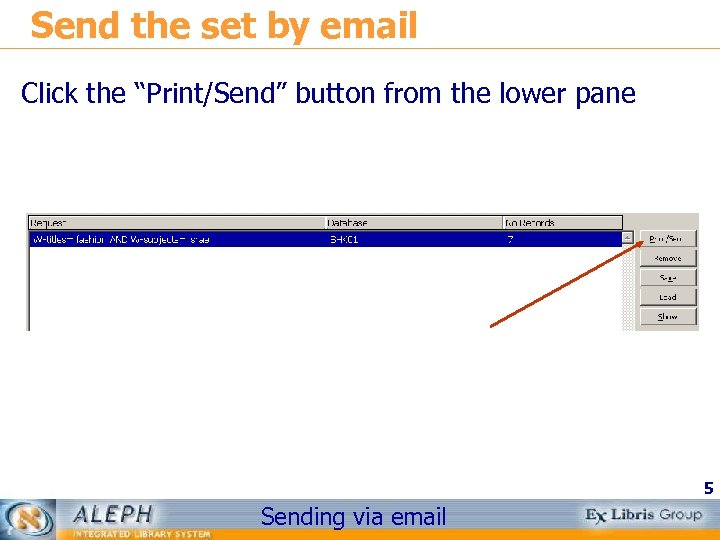 Send the set by email Click the “Print/Send” button from the lower pane 5 Sending via email
 Choose desired format And select option “Send E-mail” 6 Sending via email
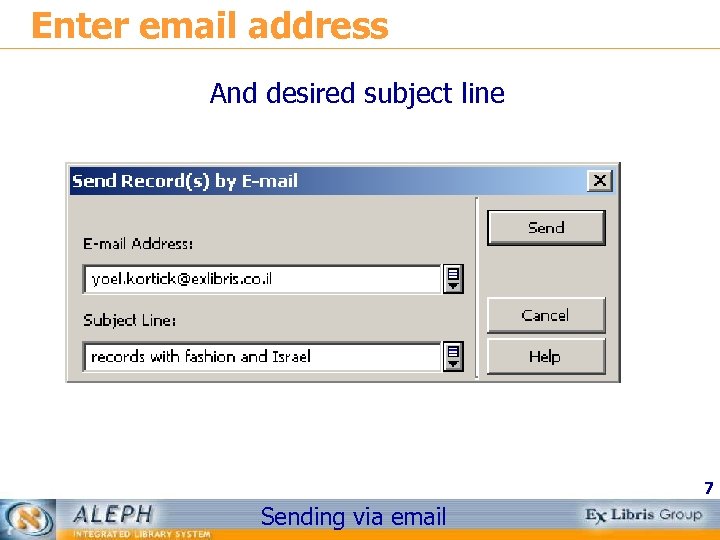 Enter email address And desired subject line 7 Sending via email
 The email will be sent Here is the email in the recipient’s inbox 8 Sending via email
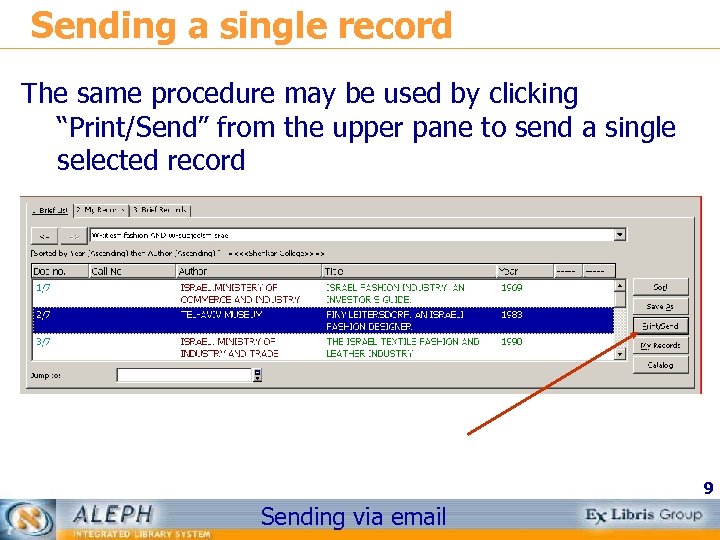 Sending a single record The same procedure may be used by clicking “Print/Send” from the upper pane to send a single selected record 9 Sending via email
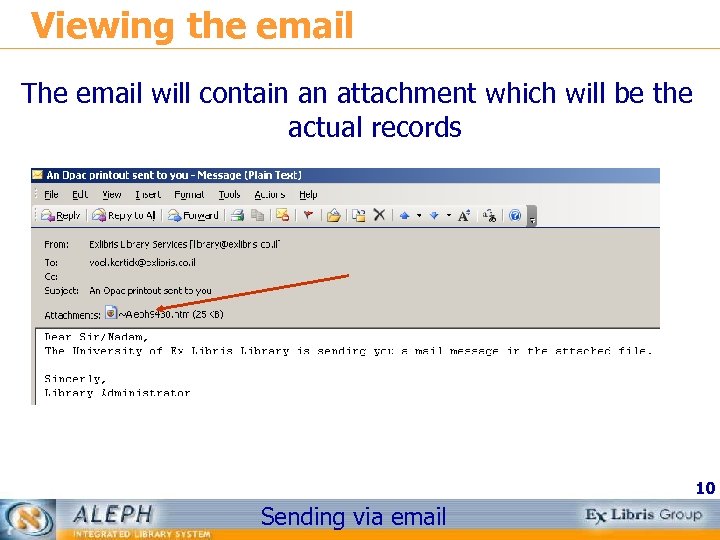 Viewing the email The email will contain an attachment which will be the actual records 10 Sending via email
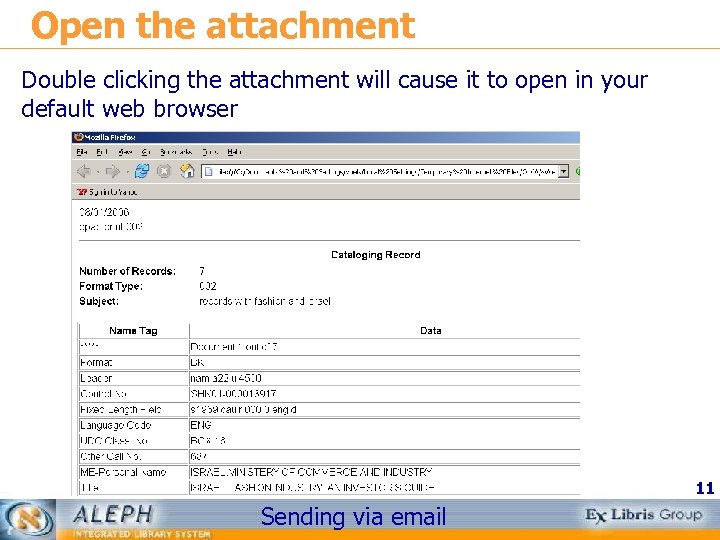 Open the attachment Double clicking the attachment will cause it to open in your default web browser 11 Sending via email
 Changing text of email The text of the email may be changed in the following file on your PC 12 Sending via email
 Determining the mail server If the email does not arrive check to be sure that your Mail. Server is properly defined in the following file. If necessary consult your institution’s system administrator. 13 Sending via email
 Determining the email attributes In the same file you may also determine the “from address” of the email as well as the mailer name (which appears when the email arrives to the inbox) 14 Sending via email
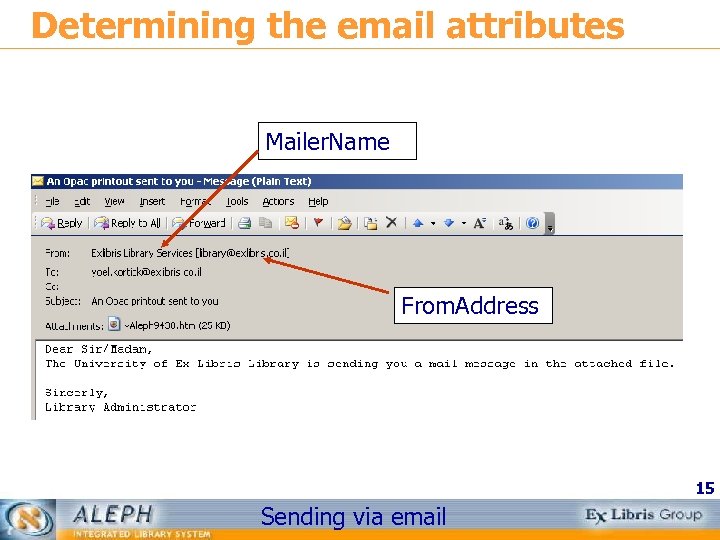 Determining the email attributes Mailer. Name From. Address 15 Sending via email