


 Скачать презентацию Sem India DNA-A 212 DNA-A 213 ADSL
705e602e07aa648e58bd23518ce98015.ppt
- Количество слайдов: 51
 Sem. India DNA-A 212 / DNA-A 213 ADSL 2+ Modem/Router Product Training
 Product Overview Ø Delivers data speeds up to 24 Mbps downstream and 1/3 Mbps upstream as per ADSL 2+ Standards Ø Built-in Integrated Wireless LAN Ø Designed using Industry leading Broadcom Chipset Ø 4 Ethernet , one USB and 1 Wi-Fi interface for LAN Side or User Connectivity Ø 1 ADSL 2+ WAN Interface for Internet access / Other Applications like IP TV etc. Ø Simple web based configuration capability. Ø Supports HTTP, Telnet, TFTP and FTP. Ø Ideal for SOHO and residential applications
 Feature Highlights v General Features Ø Supports ADSL/ADSL 2+ Annex A standards Ø Compatible and interoperable with most central office side ADSL DSLAM or Multi –service Access Systems Ø Interchangeable between Bridge and Router mode Ø RFC 2684 Bridge and Routing over ATM over ADSL Ø PPPo. E, IPo. A and PPPo. A Routing over ATM over ADSL v Interfaces Ø Four 10/100 Base. T Ethernet Port for PC/LAN connection Ø One USB Interface Ø One 802. 11 b/g Wi. Fi interface for PC/LAN connection Ø RJ 11 interface for DSL connection with Telcos
 Feature Highlights v IP addressing Ø DHCP Server and Relay support Ø Support for Second IP address on the LAN interfaces. Ø Network Address Translation (NAT) support v Local Management Ø Ø Ø Ø Friendly Graphical User Interface (GUI) for web configuration. Additional management support through telnet Downloadable flash software upgrades Firmware upgradeable through TFTP, HTTP Web based configuration backup & restore User friendly front panel LED support TR-64 LAN management protocol
 Feature Highlights v Remote Management Ø Standard MIBs and SNMPv 2 for management through EMS and NMS Ø SSL for TR 069 remote management Ø Remote SW download through TR 069 v Basic Data Service Ø IEEE 802. 11 b/g, Wi. Fi compliant Ø Antenna Connectors: One external Antenna Ø Data Rate: 11, 5. 5, 2, 1 Mbps for 802. 11 b and 54 Mbps for 802. 11 g WEP Ø WPA-PSK, 802. 1 X
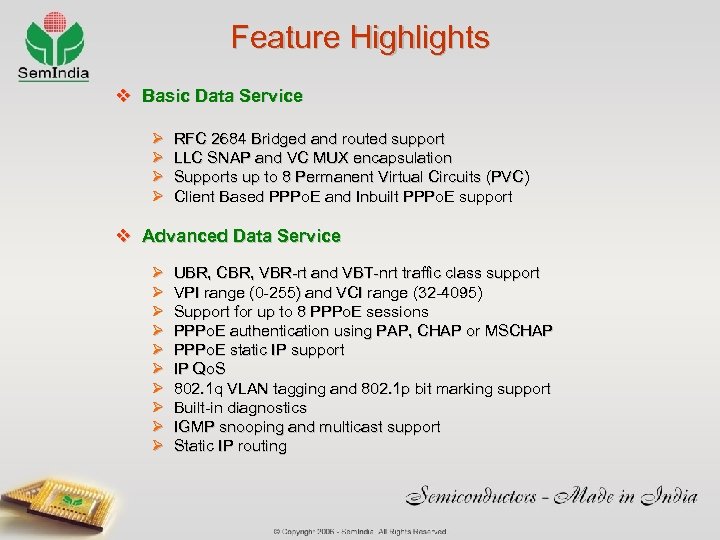 Feature Highlights v Basic Data Service Ø Ø RFC 2684 Bridged and routed support LLC SNAP and VC MUX encapsulation Supports up to 8 Permanent Virtual Circuits (PVC) Client Based PPPo. E and Inbuilt PPPo. E support v Advanced Data Service Ø Ø Ø Ø Ø UBR, CBR, VBR-rt and VBT-nrt traffic class support VPI range (0 -255) and VCI range (32 -4095) Support for up to 8 PPPo. E sessions PPPo. E authentication using PAP, CHAP or MSCHAP PPPo. E static IP support IP Qo. S 802. 1 q VLAN tagging and 802. 1 p bit marking support Built-in diagnostics IGMP snooping and multicast support Static IP routing
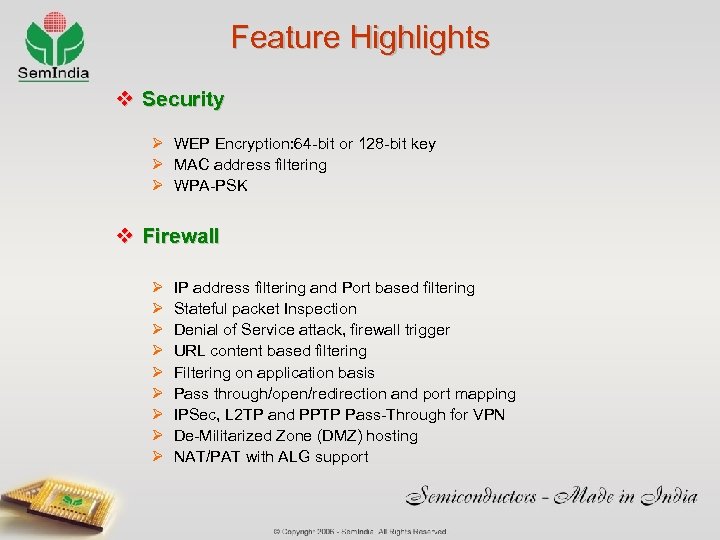 Feature Highlights v Security Ø WEP Encryption: 64 -bit or 128 -bit key Ø MAC address filtering Ø WPA-PSK v Firewall Ø Ø Ø Ø Ø IP address filtering and Port based filtering Stateful packet Inspection Denial of Service attack, firewall trigger URL content based filtering Filtering on application basis Pass through/open/redirection and port mapping IPSec, L 2 TP and PPTP Pass-Through for VPN De-Militarized Zone (DMZ) hosting NAT/PAT with ALG support
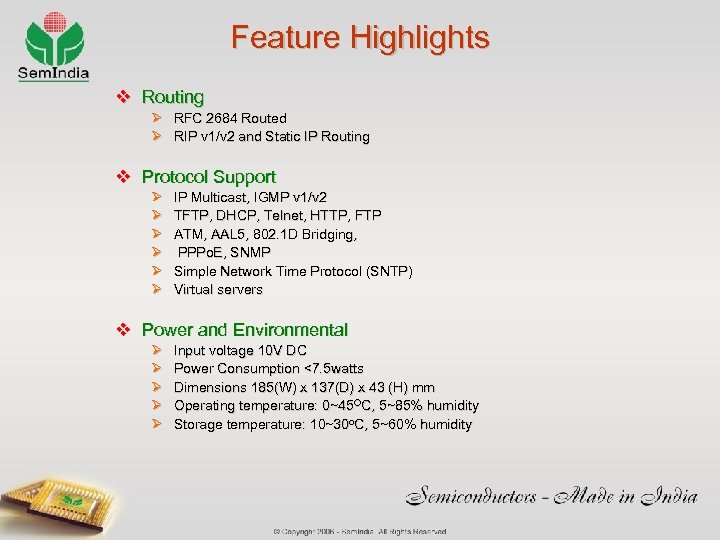 Feature Highlights v Routing Ø RFC 2684 Routed Ø RIP v 1/v 2 and Static IP Routing v Protocol Support Ø Ø Ø IP Multicast, IGMP v 1/v 2 TFTP, DHCP, Telnet, HTTP, FTP ATM, AAL 5, 802. 1 D Bridging, PPPo. E, SNMP Simple Network Time Protocol (SNTP) Virtual servers v Power and Environmental Ø Ø Ø Input voltage 10 V DC Power Consumption <7. 5 watts Dimensions 185(W) x 137(D) x 43 (H) mm Operating temperature: 0~45 OC, 5~85% humidity Storage temperature: 10~30 o. C, 5~60% humidity
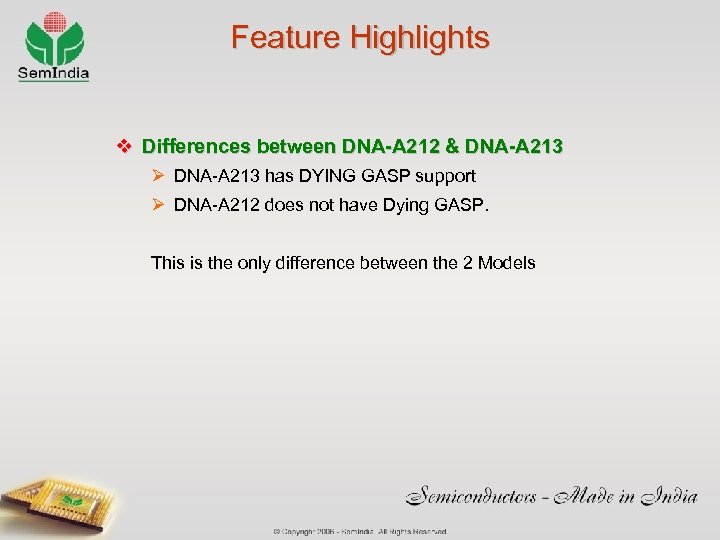 Feature Highlights v Differences between DNA-A 212 & DNA-A 213 Ø DNA-A 213 has DYING GASP support Ø DNA-A 212 does not have Dying GASP. This is the only difference between the 2 Models
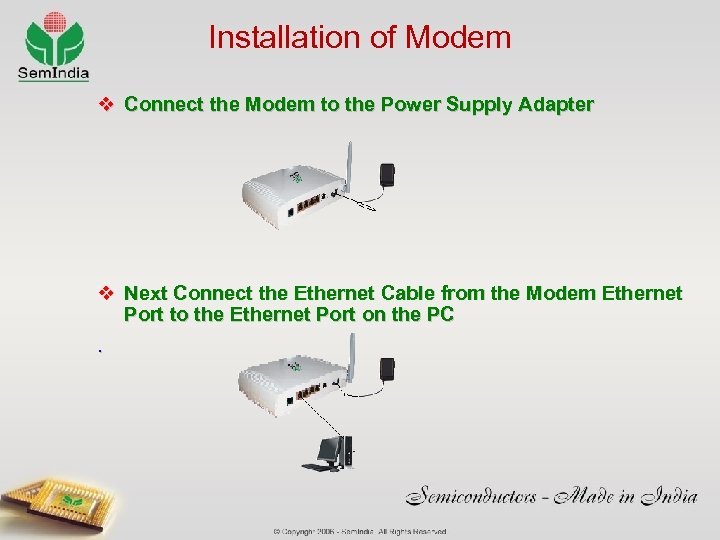 Installation of Modem v Connect the Modem to the Power Supply Adapter v Next Connect the Ethernet Cable from the Modem Ethernet Port to the Ethernet Port on the PC.
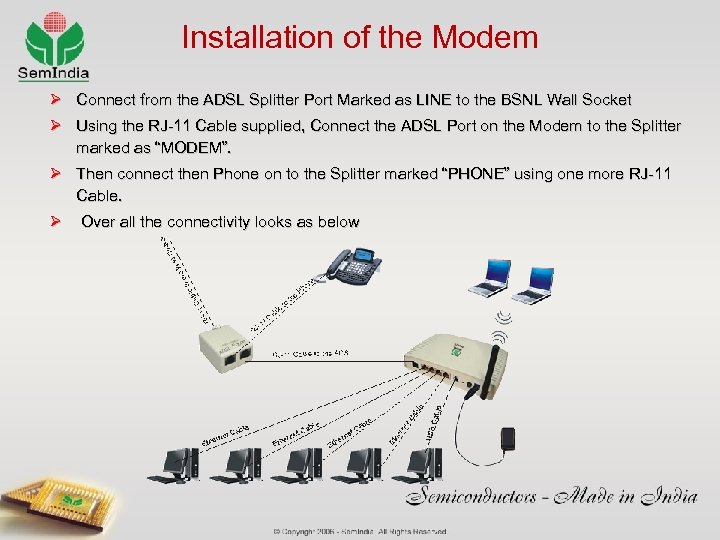 Installation of the Modem Ø Connect from the ADSL Splitter Port Marked as LINE to the BSNL Wall Socket Ø Using the RJ-11 Cable supplied, Connect the ADSL Port on the Modem to the Splitter marked as “MODEM”. Ø Then connect then Phone on to the Splitter marked “PHONE” using one more RJ-11 Cable. Ø Over all the connectivity looks as below
 Modem Power On and LED Status Ø Using the ON/Off Switch Power on the Modem. Ø Once Powered on, Power LED will start glowing Green Ø After initial self test the WLAN LED will be solid Green Ø The Ethernet LEDs if they are connected to the PCs will be Solid Green. Ø The USB LEDs if they are connected to the PCs will be Solid Green. Ø The DSL LED will blinking Green during the Training or Handshake Phase and once trained or Handshake is complete, it will be Solid Green. Ø INTERNET LED will blink green once the Modem gets IP Address on its WAN Side (This depends on whether PPPo. E or MER or IPOA are done on the Modem)
 Modem Basic Configuration Ø DNA-A 212 & DNA-A 213 is shipped with a default configuration of 8 PVCs for the deployment of Modems as part of MTNL Project. Ø How ever to modify configuration of the Modem following Basic Configuration Steps need to be carried out on the Modem. Ø To illustrate the configuration steps • VPI =0 and VCI=35 are used • For PPPo. E Username = ABCDE Password= ABCDE are used • Also assumed that there is no WAN configuration on the Modem. Ø Ensure that PC is configured to get DHCP Address • By Default PC should get the Following Parameters once connected to the Modem and the Modem is Powered ON. IP Address …………: 192. 168. 1. 2 (If this is the Ist PC) Subnet Mask………. : 255. 0 Default Gateway…. . : 192. 168. 1. 1
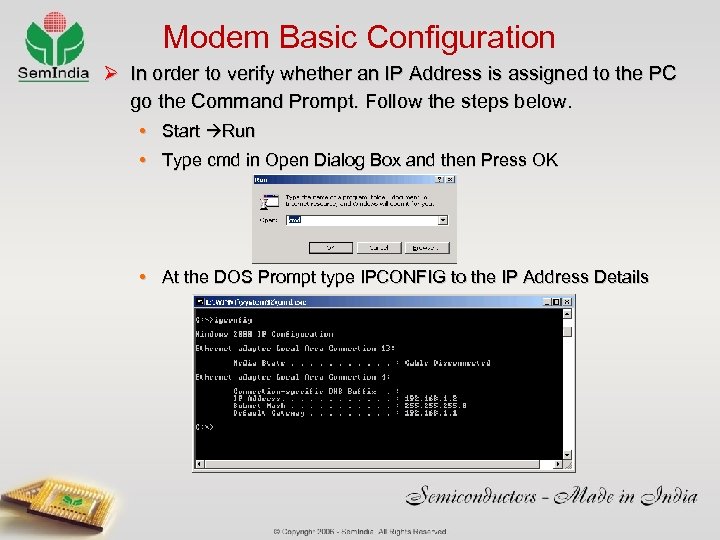 Modem Basic Configuration Ø In order to verify whether an IP Address is assigned to the PC go the Command Prompt. Follow the steps below. • Start Run • Type cmd in Open Dialog Box and then Press OK • At the DOS Prompt type IPCONFIG to the IP Address Details
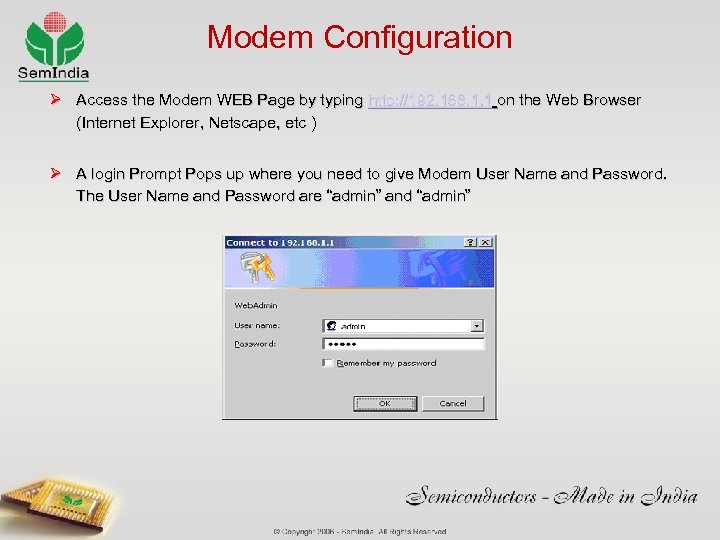 Modem Configuration Ø Access the Modem WEB Page by typing http: //192. 168. 1. 1 on the Web Browser (Internet Explorer, Netscape, etc ) Ø A login Prompt Pops up where you need to give Modem User Name and Password. The User Name and Password are “admin” and “admin”
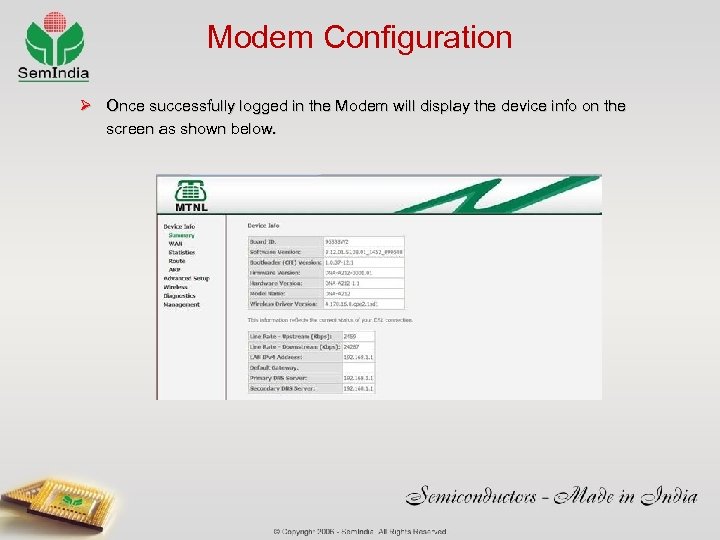 Modem Configuration Ø Once successfully logged in the Modem will display the device info on the screen as shown below.
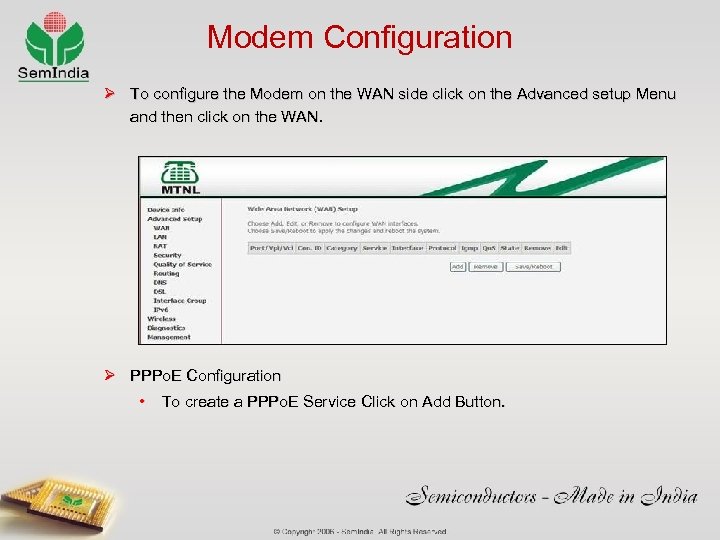 Modem Configuration Ø To configure the Modem on the WAN side click on the Advanced setup Menu and then click on the WAN. Ø PPPo. E Configuration • To create a PPPo. E Service Click on Add Button.
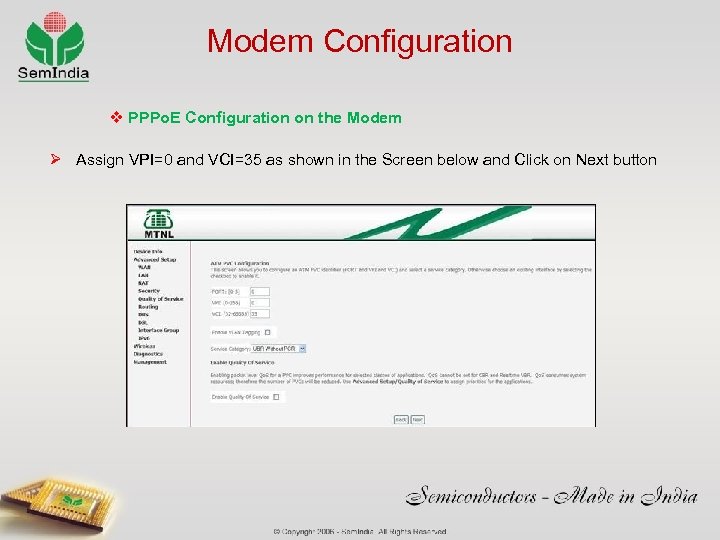 Modem Configuration v PPPo. E Configuration on the Modem Ø Assign VPI=0 and VCI=35 as shown in the Screen below and Click on Next button
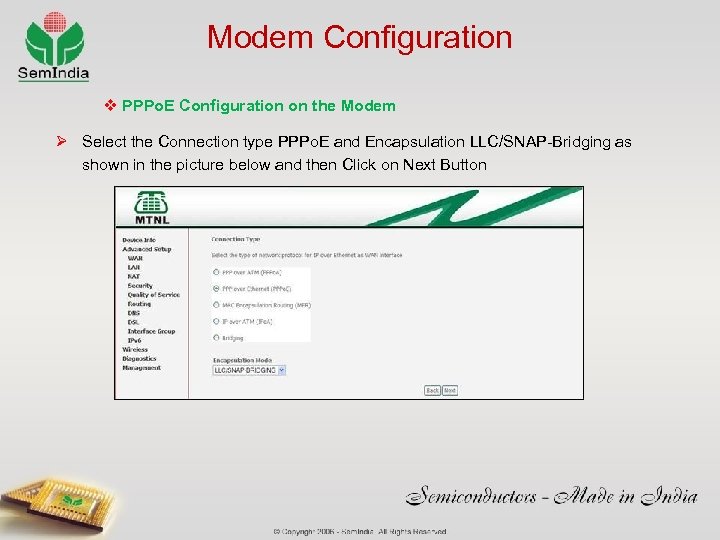 Modem Configuration v PPPo. E Configuration on the Modem Ø Select the Connection type PPPo. E and Encapsulation LLC/SNAP-Bridging as shown in the picture below and then Click on Next Button
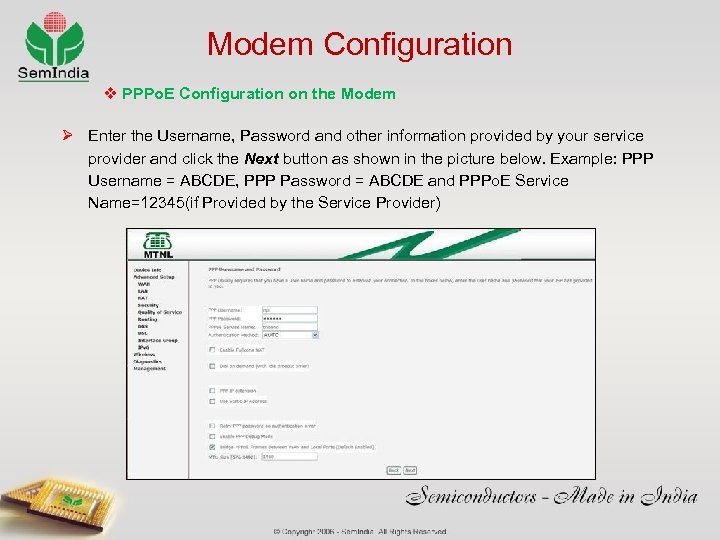 Modem Configuration v PPPo. E Configuration on the Modem Ø Enter the Username, Password and other information provided by your service provider and click the Next button as shown in the picture below. Example: PPP Username = ABCDE, PPP Password = ABCDE and PPPo. E Service Name=12345(if Provided by the Service Provider)
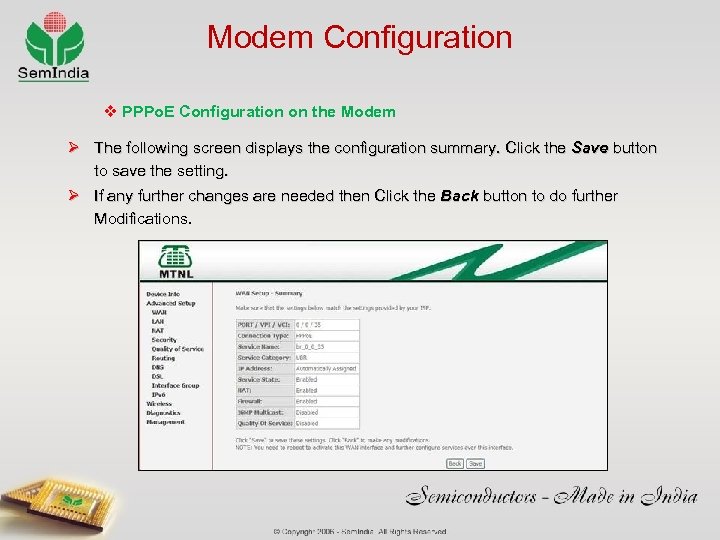 Modem Configuration v PPPo. E Configuration on the Modem Ø The following screen displays the configuration summary. Click the Save button to save the setting. Ø If any further changes are needed then Click the Back button to do further Modifications.
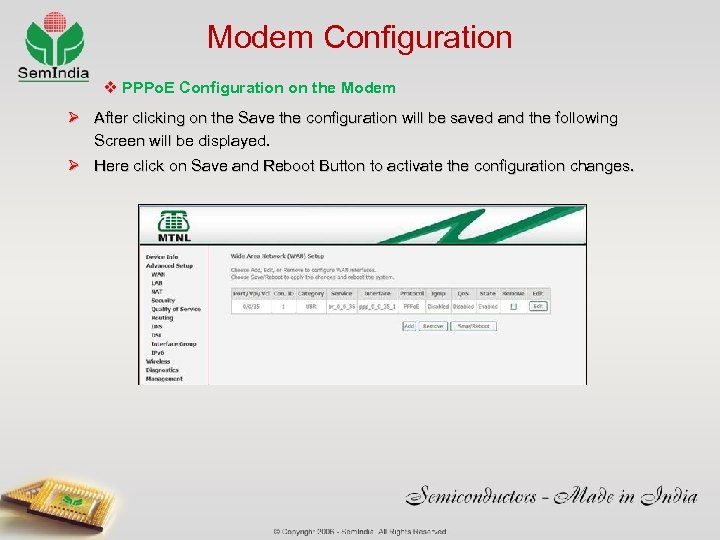 Modem Configuration v PPPo. E Configuration on the Modem Ø After clicking on the Save the configuration will be saved and the following Screen will be displayed. Ø Here click on Save and Reboot Button to activate the configuration changes.
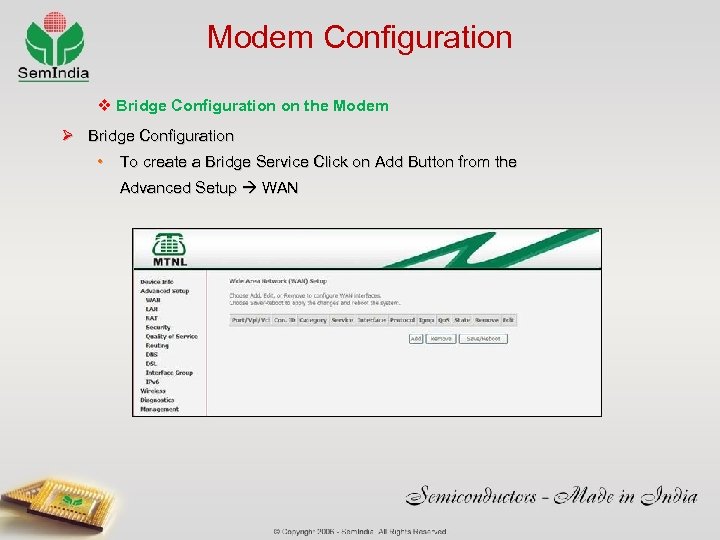 Modem Configuration v Bridge Configuration on the Modem Ø Bridge Configuration • To create a Bridge Service Click on Add Button from the Advanced Setup WAN
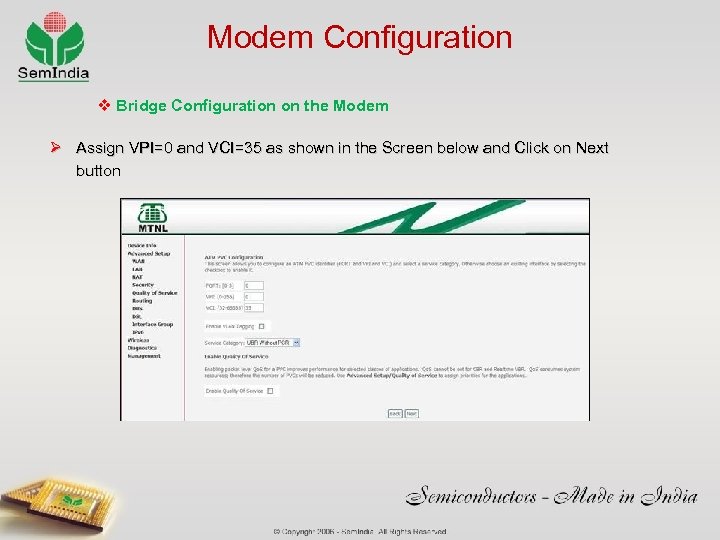 Modem Configuration v Bridge Configuration on the Modem Ø Assign VPI=0 and VCI=35 as shown in the Screen below and Click on Next button
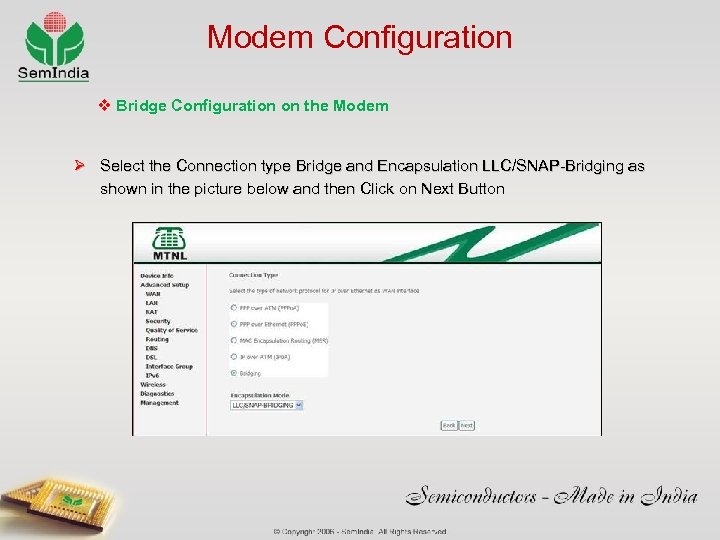 Modem Configuration v Bridge Configuration on the Modem Ø Select the Connection type Bridge and Encapsulation LLC/SNAP-Bridging as shown in the picture below and then Click on Next Button
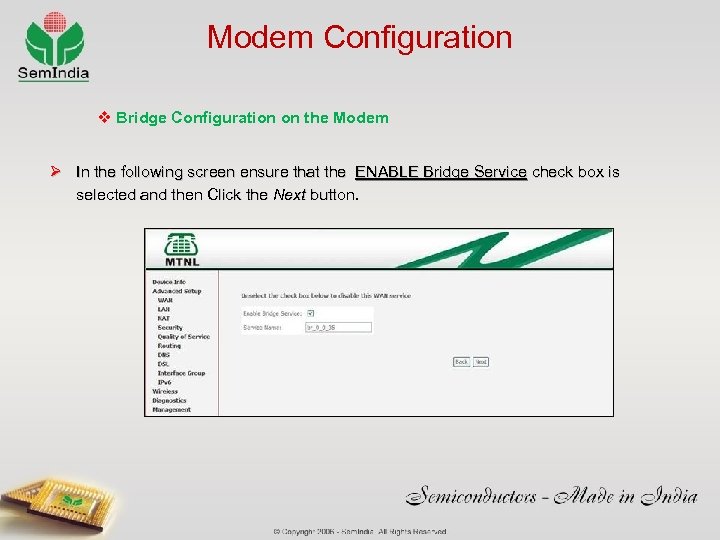 Modem Configuration v Bridge Configuration on the Modem Ø In the following screen ensure that the ENABLE Bridge Service check box is selected and then Click the Next button.
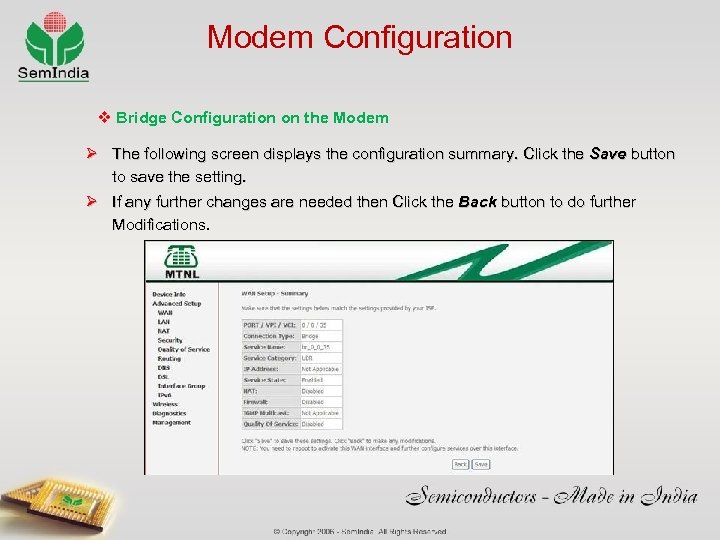 Modem Configuration v Bridge Configuration on the Modem Ø The following screen displays the configuration summary. Click the Save button to save the setting. Ø If any further changes are needed then Click the Back button to do further Modifications.
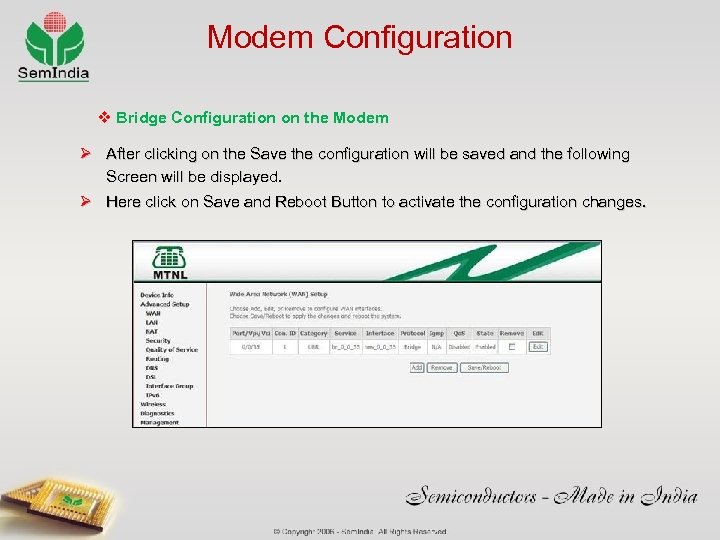 Modem Configuration v Bridge Configuration on the Modem Ø After clicking on the Save the configuration will be saved and the following Screen will be displayed. Ø Here click on Save and Reboot Button to activate the configuration changes.
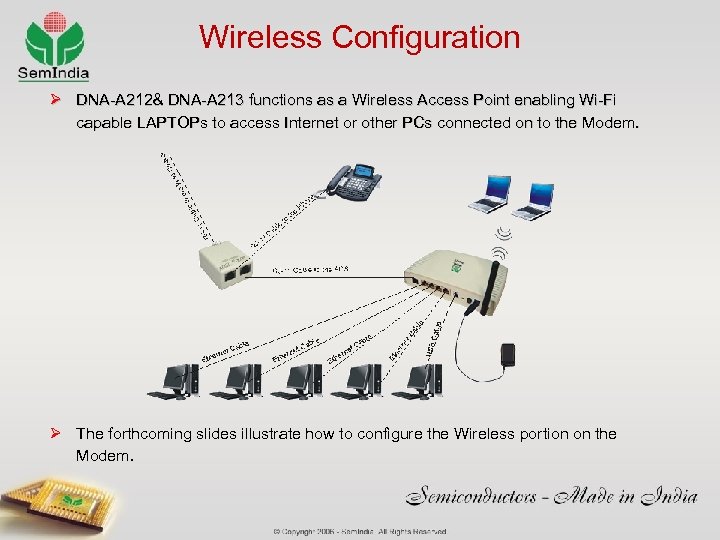 Wireless Configuration Ø DNA-A 212& DNA-A 213 functions as a Wireless Access Point enabling Wi-Fi capable LAPTOPs to access Internet or other PCs connected on to the Modem. Ø The forthcoming slides illustrate how to configure the Wireless portion on the Modem.
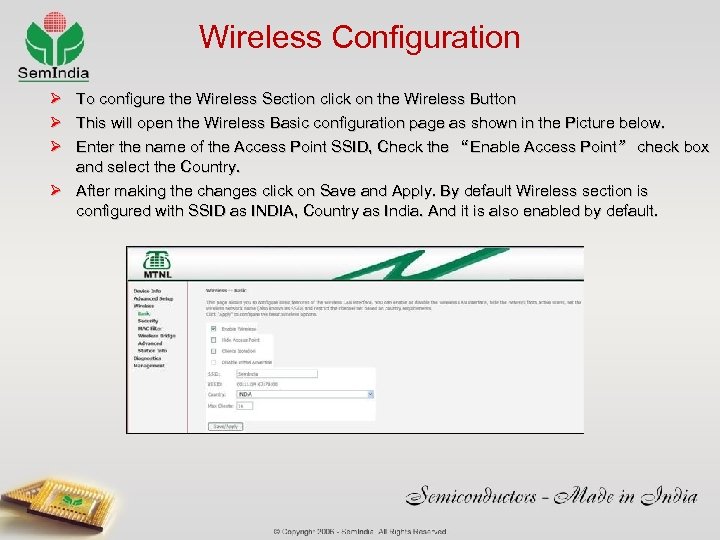 Wireless Configuration Ø Ø Ø To configure the Wireless Section click on the Wireless Button This will open the Wireless Basic configuration page as shown in the Picture below. Enter the name of the Access Point SSID, Check the “Enable Access Point” check box and select the Country. Ø After making the changes click on Save and Apply. By default Wireless section is configured with SSID as INDIA, Country as India. And it is also enabled by default.
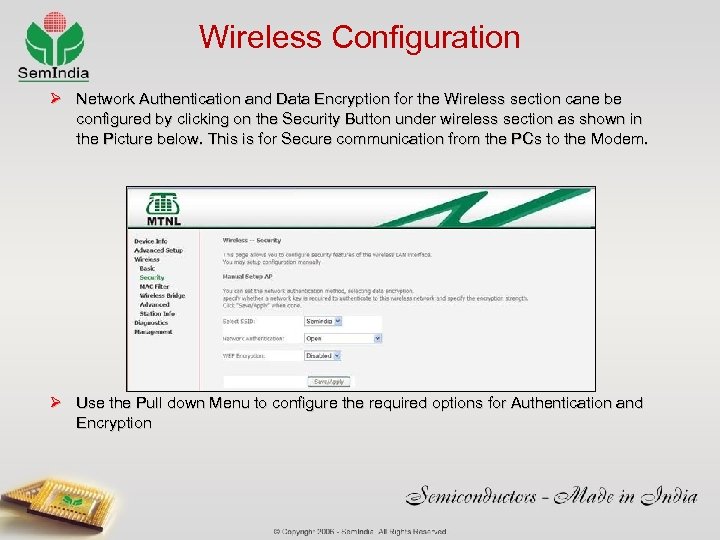 Wireless Configuration Ø Network Authentication and Data Encryption for the Wireless section cane be configured by clicking on the Security Button under wireless section as shown in the Picture below. This is for Secure communication from the PCs to the Modem. Ø Use the Pull down Menu to configure the required options for Authentication and Encryption
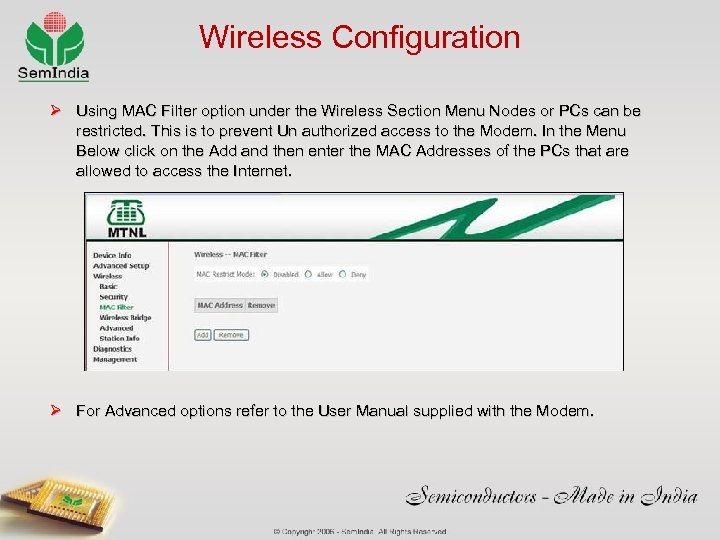 Wireless Configuration Ø Using MAC Filter option under the Wireless Section Menu Nodes or PCs can be restricted. This is to prevent Un authorized access to the Modem. In the Menu Below click on the Add and then enter the MAC Addresses of the PCs that are allowed to access the Internet. Ø For Advanced options refer to the User Manual supplied with the Modem.
 Modem Troubleshooting
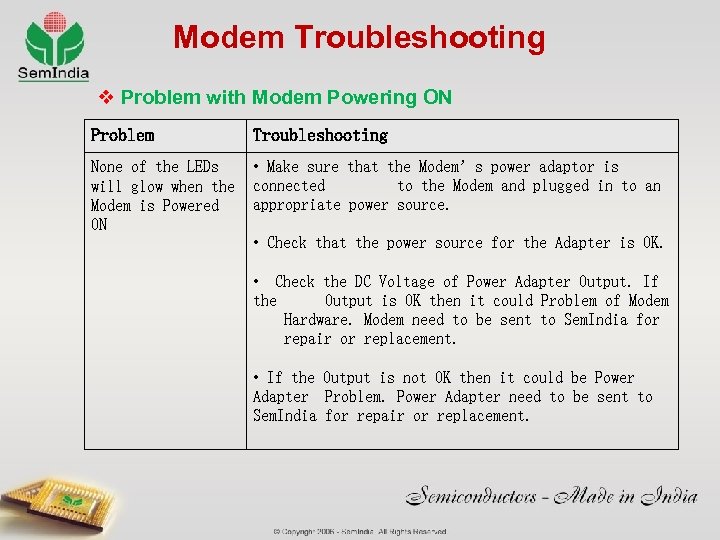 Modem Troubleshooting v Problem with Modem Powering ON Problem Troubleshooting None of the LEDs will glow when the Modem is Powered ON • Make sure that the Modem’s power adaptor is connected to the Modem and plugged in to an appropriate power source. • Check that the power source for the Adapter is OK. • Check the DC Voltage of Power Adapter Output. If the Output is OK then it could Problem of Modem Hardware. Modem need to be sent to Sem. India for repair or replacement. • If the Output is not OK then it could be Power Adapter Problem. Power Adapter need to be sent to Sem. India for repair or replacement.
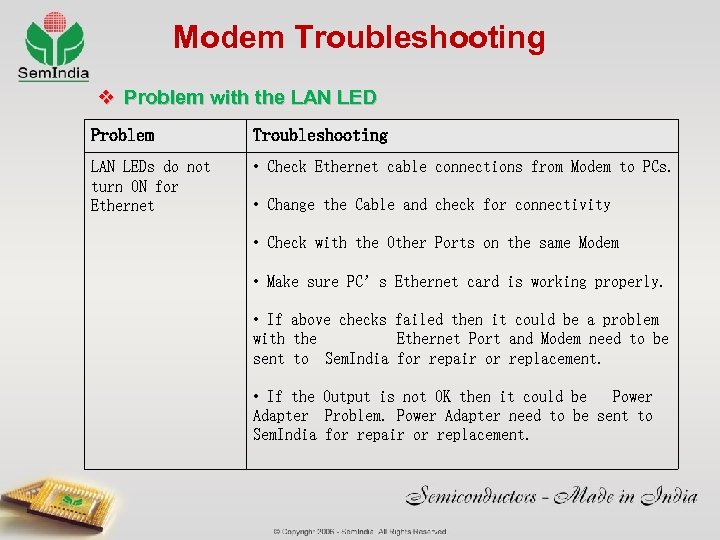 Modem Troubleshooting v Problem with the LAN LED Problem Troubleshooting LAN LEDs do not turn ON for Ethernet • Check Ethernet cable connections from Modem to PCs. • Change the Cable and check for connectivity • Check with the Other Ports on the same Modem • Make sure PC’s Ethernet card is working properly. • If above checks failed then it could be a problem with the Ethernet Port and Modem need to be sent to Sem. India for repair or replacement. • If the Output is not OK then it could be Power Adapter Problem. Power Adapter need to be sent to Sem. India for repair or replacement.
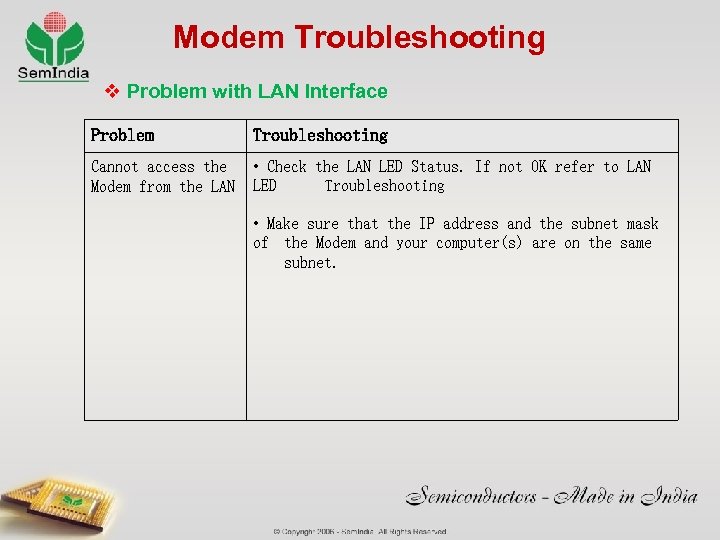 Modem Troubleshooting v Problem with LAN Interface Problem Troubleshooting Cannot access the Modem from the LAN • Check the LAN LED Status. If not OK refer to LAN LED Troubleshooting • Make sure that the IP address and the subnet mask of the Modem and your computer(s) are on the same subnet.
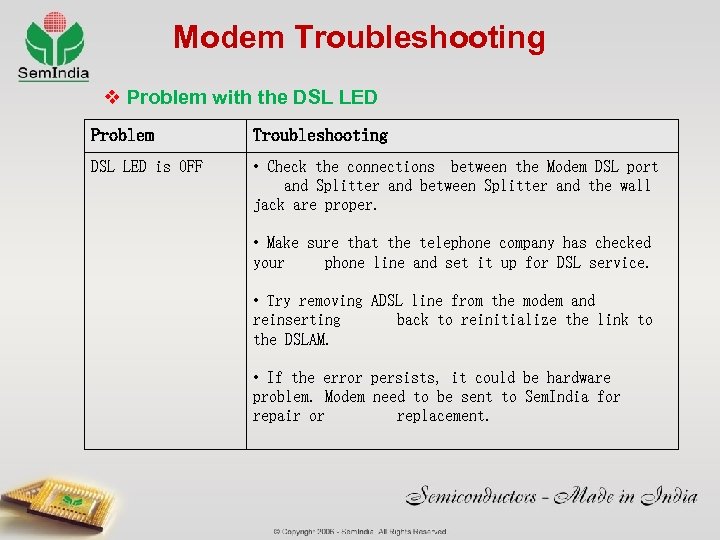 Modem Troubleshooting v Problem with the DSL LED Problem Troubleshooting DSL LED is OFF • Check the connections between the Modem DSL port and Splitter and between Splitter and the wall jack are proper. • Make sure that the telephone company has checked your phone line and set it up for DSL service. • Try removing ADSL line from the modem and reinserting back to reinitialize the link to the DSLAM. • If the error persists, it could be hardware problem. Modem need to be sent to Sem. India for repair or replacement.
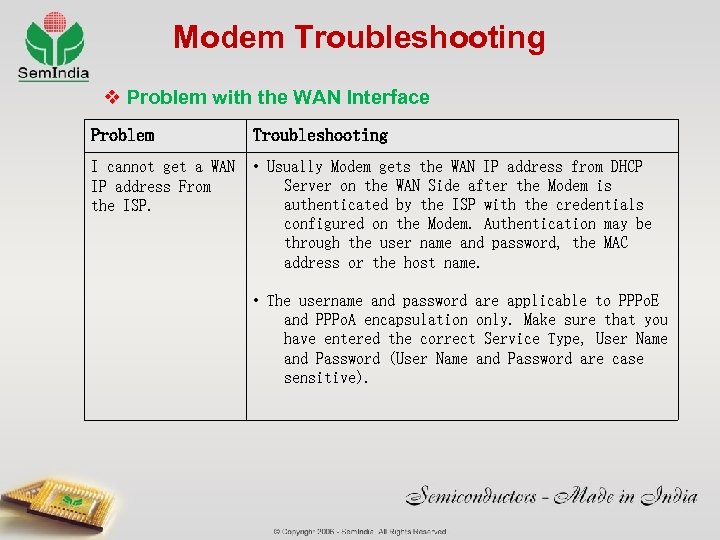 Modem Troubleshooting v Problem with the WAN Interface Problem Troubleshooting I cannot get a WAN IP address From the ISP. • Usually Modem gets the WAN IP address from DHCP Server on the WAN Side after the Modem is authenticated by the ISP with the credentials configured on the Modem. Authentication may be through the user name and password, the MAC address or the host name. • The username and password are applicable to PPPo. E and PPPo. A encapsulation only. Make sure that you have entered the correct Service Type, User Name and Password (User Name and Password are case sensitive).
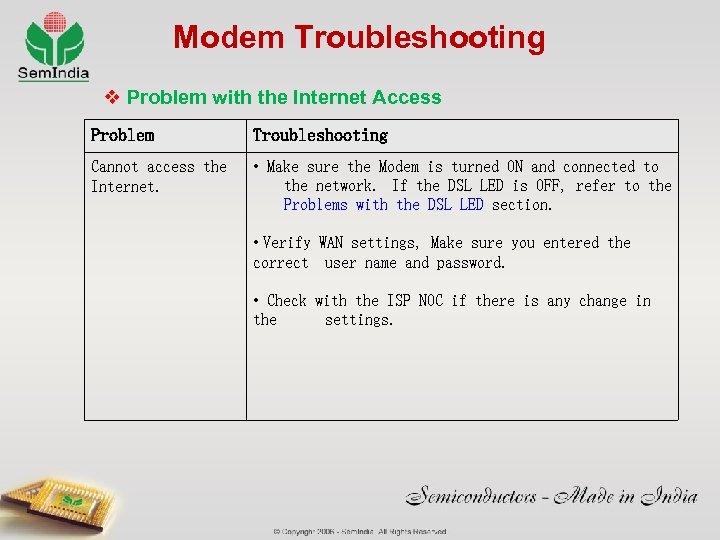 Modem Troubleshooting v Problem with the Internet Access Problem Troubleshooting Cannot access the Internet. • Make sure the Modem is turned ON and connected to the network. If the DSL LED is OFF, refer to the Problems with the DSL LED section. • Verify WAN settings, Make sure you entered the correct user name and password. • Check with the ISP NOC if there is any change in the settings.
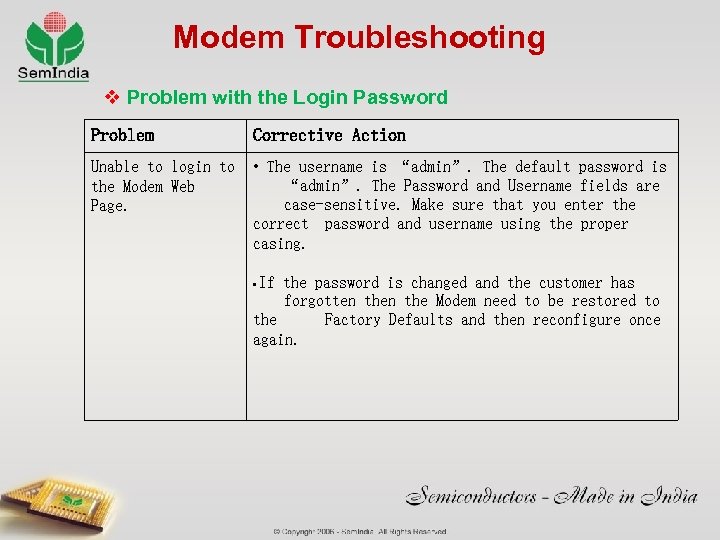 Modem Troubleshooting v Problem with the Login Password Problem Corrective Action Unable to login to the Modem Web Page. • The username is “admin”. The default password is “admin”. The Password and Username fields are case-sensitive. Make sure that you enter the correct password and username using the proper casing. • If the password is changed and the customer has forgotten the Modem need to be restored to the Factory Defaults and then reconfigure once again.
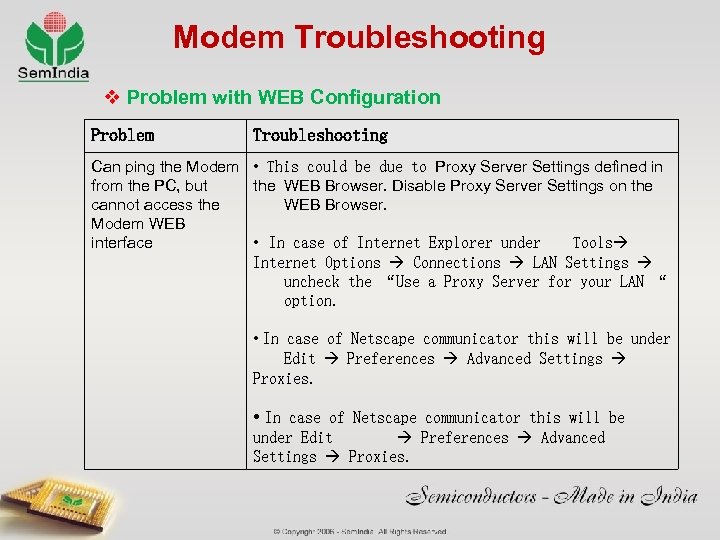 Modem Troubleshooting v Problem with WEB Configuration Problem Troubleshooting Can ping the Modem • This could be due to Proxy Server Settings defined in from the PC, but the WEB Browser. Disable Proxy Server Settings on the cannot access the WEB Browser. Modem WEB • In case of Internet Explorer under Tools interface Internet Options Connections LAN Settings uncheck the “Use a Proxy Server for your LAN “ option. • In case of Netscape communicator this will be under Edit Preferences Advanced Settings Proxies.
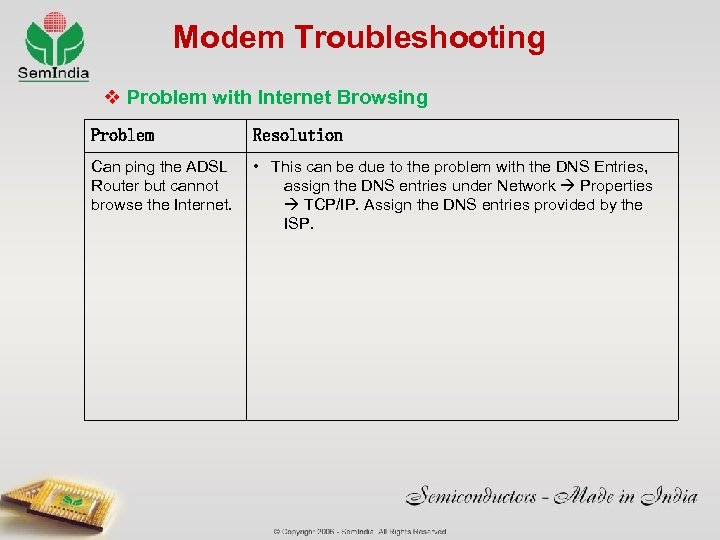 Modem Troubleshooting v Problem with Internet Browsing Problem Resolution Can ping the ADSL Router but cannot browse the Internet. • This can be due to the problem with the DNS Entries, assign the DNS entries under Network Properties TCP/IP. Assign the DNS entries provided by the ISP.
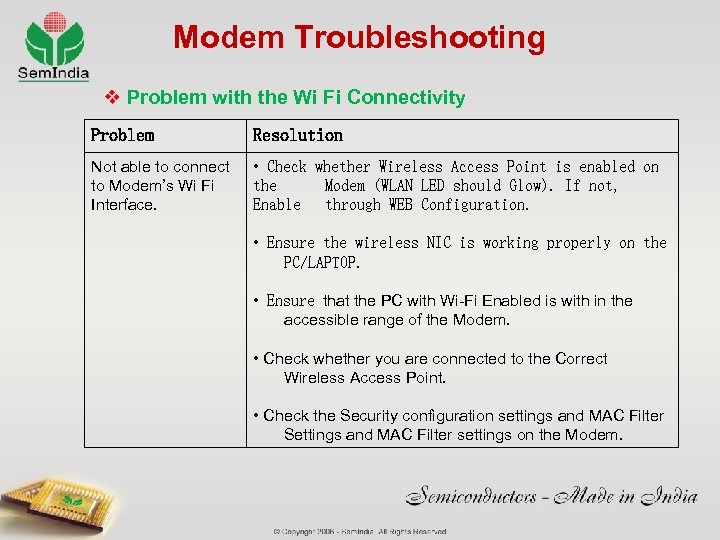 Modem Troubleshooting v Problem with the Wi Fi Connectivity Problem Resolution Not able to connect to Modem’s Wi Fi Interface. • Check whether Wireless Access Point is enabled on the Modem (WLAN LED should Glow). If not, Enable through WEB Configuration. • Ensure the wireless NIC is working properly on the PC/LAPTOP. • Ensure that the PC with Wi-Fi Enabled is with in the accessible range of the Modem. • Check whether you are connected to the Correct Wireless Access Point. • Check the Security configuration settings and MAC Filter Settings and MAC Filter settings on the Modem.
 Advance Configuration
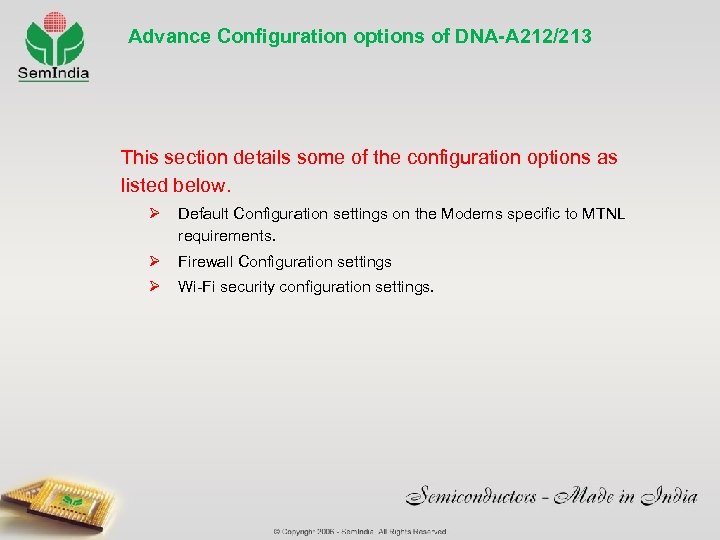 Advance Configuration options of DNA-A 212/213 This section details some of the configuration options as listed below. Ø Default Configuration settings on the Modems specific to MTNL requirements. Ø Firewall Configuration settings Ø Wi-Fi security configuration settings.
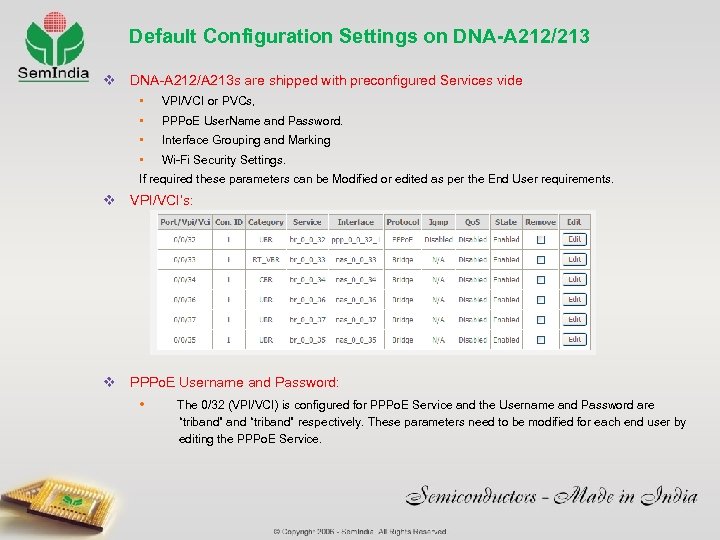 Default Configuration Settings on DNA-A 212/213 v DNA-A 212/A 213 s are shipped with preconfigured Services vide • VPI/VCI or PVCs, • PPPo. E User. Name and Password. • Interface Grouping and Marking • Wi-Fi Security Settings. If required these parameters can be Modified or edited as per the End User requirements. v VPI/VCI’s: v PPPo. E Username and Password: • The 0/32 (VPI/VCI) is configured for PPPo. E Service and the Username and Password are “triband” and “triband” respectively. These parameters need to be modified for each end user by editing the PPPo. E Service.
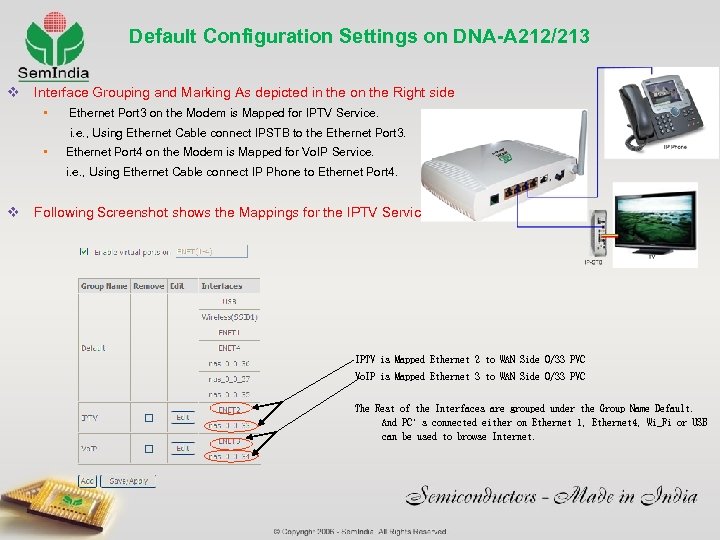 Default Configuration Settings on DNA-A 212/213 v Interface Grouping and Marking As depicted in the on the Right side • Ethernet Port 3 on the Modem is Mapped for IPTV Service. i. e. , Using Ethernet Cable connect IPSTB to the Ethernet Port 3. • Ethernet Port 4 on the Modem is Mapped for Vo. IP Service. i. e. , Using Ethernet Cable connect IP Phone to Ethernet Port 4. v Following Screenshot shows the Mappings for the IPTV Services. IPTV is Mapped Ethernet 2 to WAN Side 0/33 PVC Vo. IP is Mapped Ethernet 3 to WAN Side 0/33 PVC The Rest of the Interfaces are grouped under the Group Name Default. And PC’s connected either on Ethernet 1, Ethernet 4, Wi_Fi or USB can be used to browse Internet.
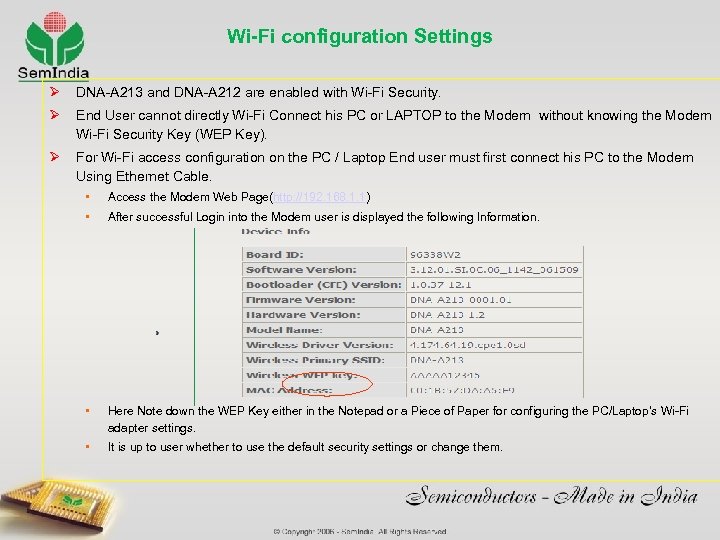 Wi-Fi configuration Settings Ø DNA-A 213 and DNA-A 212 are enabled with Wi-Fi Security. Ø End User cannot directly Wi-Fi Connect his PC or LAPTOP to the Modem without knowing the Modem Wi-Fi Security Key (WEP Key). Ø For Wi-Fi access configuration on the PC / Laptop End user must first connect his PC to the Modem Using Ethernet Cable. • Access the Modem Web Page(http: //192. 168. 1. 1) • After successful Login into the Modem user is displayed the following Information. • Here Note down the WEP Key either in the Notepad or a Piece of Paper for configuring the PC/Laptop’s Wi-Fi adapter settings. • It is up to user whether to use the default security settings or change them.
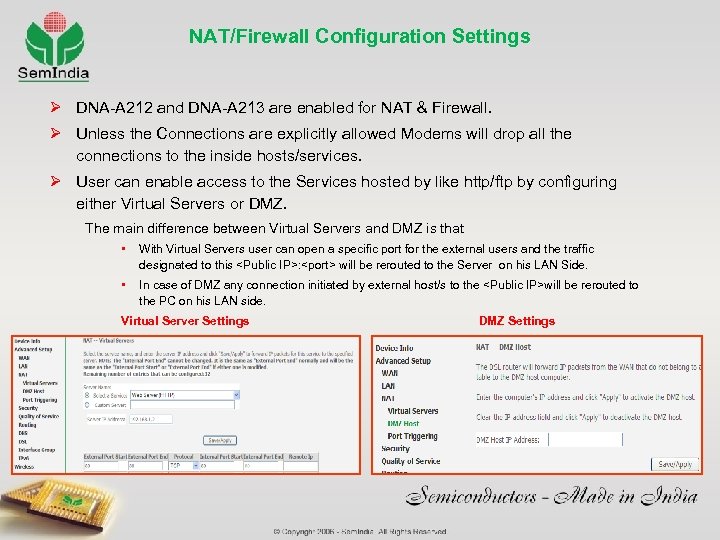 NAT/Firewall Configuration Settings Ø DNA-A 212 and DNA-A 213 are enabled for NAT & Firewall. Ø Unless the Connections are explicitly allowed Modems will drop all the connections to the inside hosts/services. Ø User can enable access to the Services hosted by like http/ftp by configuring either Virtual Servers or DMZ. The main difference between Virtual Servers and DMZ is that • With Virtual Servers user can open a specific port for the external users and the traffic designated to this
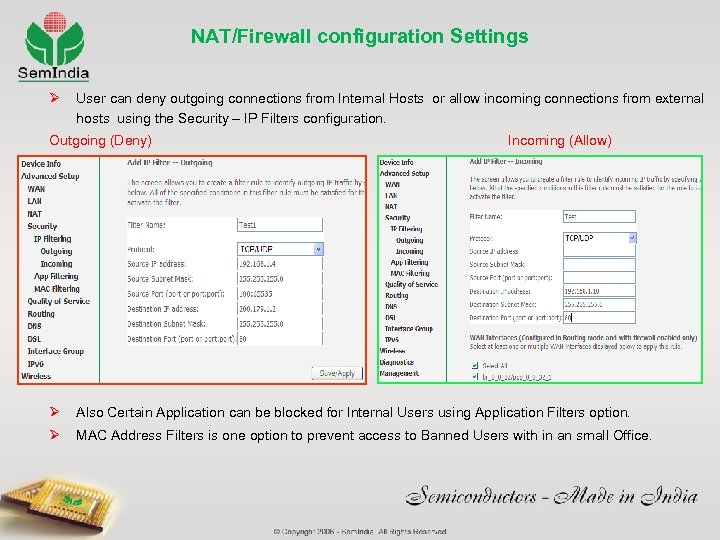 NAT/Firewall configuration Settings Ø User can deny outgoing connections from Internal Hosts or allow incoming connections from external hosts using the Security – IP Filters configuration. Outgoing (Deny) Incoming (Allow) Ø Also Certain Application can be blocked for Internal Users using Application Filters option. Ø MAC Address Filters is one option to prevent access to Banned Users with in an small Office.
 THANK YOU - Sai