


 Скачать презентацию SELA DEVELOPER PRACTICE May 5 -9 2013 Shai
codeduiws-130507072958-phpapp02.pptx
- Количество слайдов: 62
 SELA DEVELOPER PRACTICE May 5 -9, 2013 Shai Raiten Advanced Coded UI Testing Using Visual Studio 2012
 Agenda • Coded UI Testing Overview • Fast Forward Automation Using MTM • Understand Coded UI Anatomy • Getting Started with Coded UI Testing • Web • Desktop • Data Collectors • Creating Custom Data Collector • Data Binding • Advanced Coded UI • Tips & Tricks
 What’s Coded UI Tests are automated tests that drive your application through its user interface. These tests include functional testing of the UI controls. They let you verify that the whole application, including its user interface, is functioning correctly. Coded UI Tests are particularly useful where there is validation or other logic in the user interface, for example in a web page. 3
 Coded UI Features • Functional Testing • Generate code in C#/VB • Intent aware recording and resilient playback • Integrated with ALM story • Build, deploy & test in lab or as part of build • Local, remote runs, data collection • Rich Extensibility 4
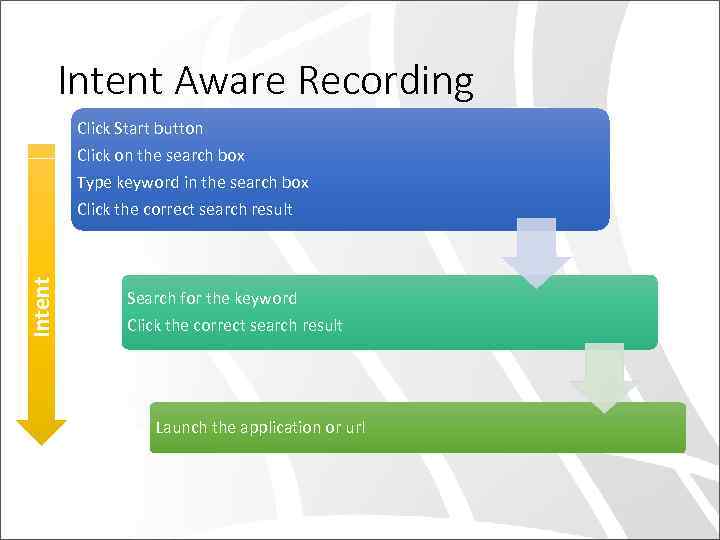 Intent Aware Recording Intent Click Start button Click on the search box Type keyword in the search box Click the correct search result Search for the keyword Click the correct search result Launch the application or url
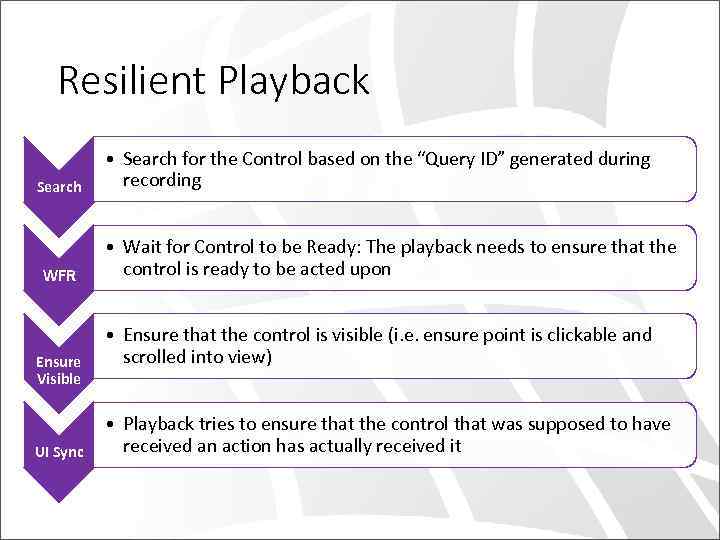 Resilient Playback Search WFR Ensure Visible UI Sync • Search for the Control based on the “Query ID” generated during recording • Wait for Control to be Ready: The playback needs to ensure that the control is ready to be acted upon • Ensure that the control is visible (i. e. ensure point is clickable and scrolled into view) • Playback tries to ensure that the control that was supposed to have received an action has actually received it
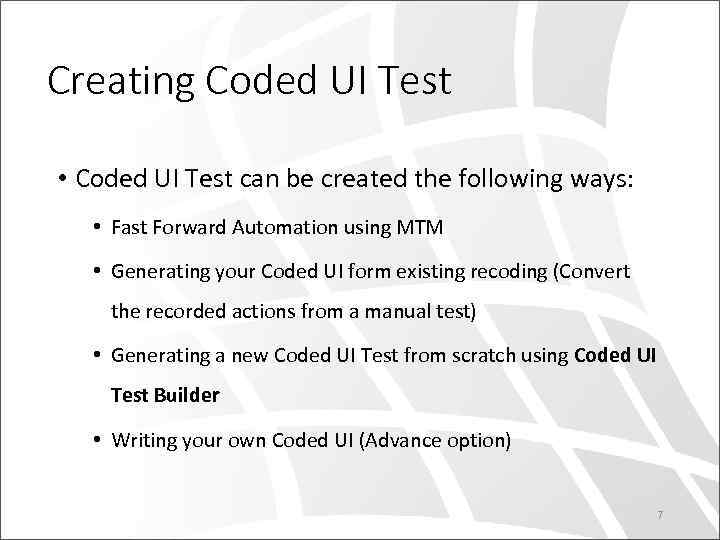 Creating Coded UI Test • Coded UI Test can be created the following ways: • Fast Forward Automation using MTM • Generating your Coded UI form existing recoding (Convert the recorded actions from a manual test) • Generating a new Coded UI Test from scratch using Coded UI Test Builder • Writing your own Coded UI (Advance option) 7
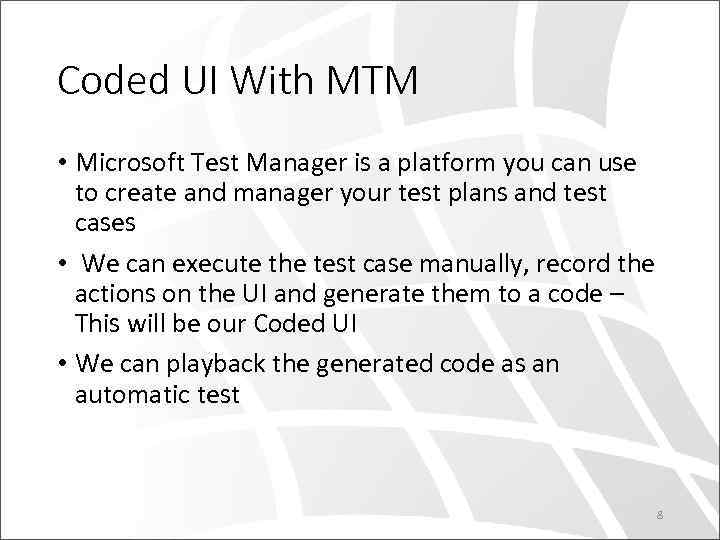 Coded UI With MTM • Microsoft Test Manager is a platform you can use to create and manager your test plans and test cases • We can execute the test case manually, record the actions on the UI and generate them to a code – This will be our Coded UI • We can playback the generated code as an automatic test 8
 DEMO Record & Playback Testing Using MTM 9
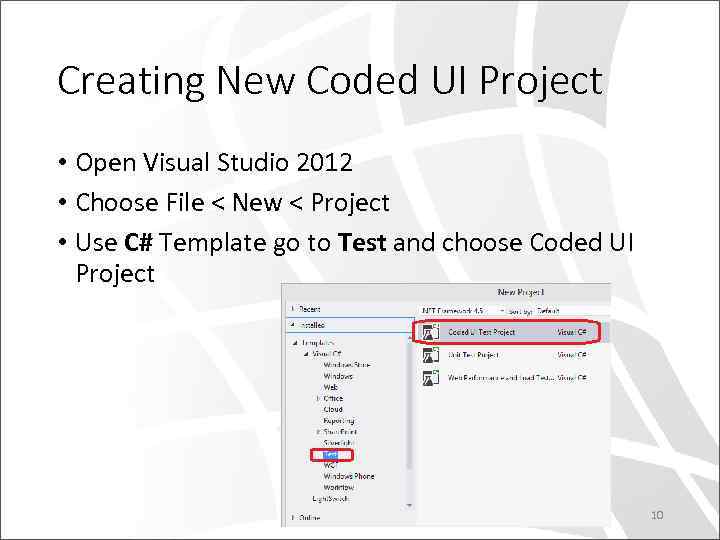 Creating New Coded UI Project • Open Visual Studio 2012 • Choose File < New < Project • Use C# Template go to Test and choose Coded UI Project 10
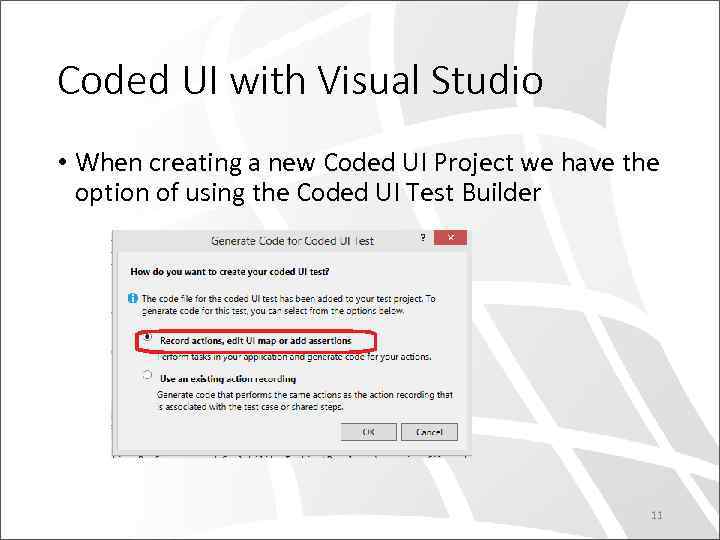 Coded UI with Visual Studio • When creating a new Coded UI Project we have the option of using the Coded UI Test Builder 11
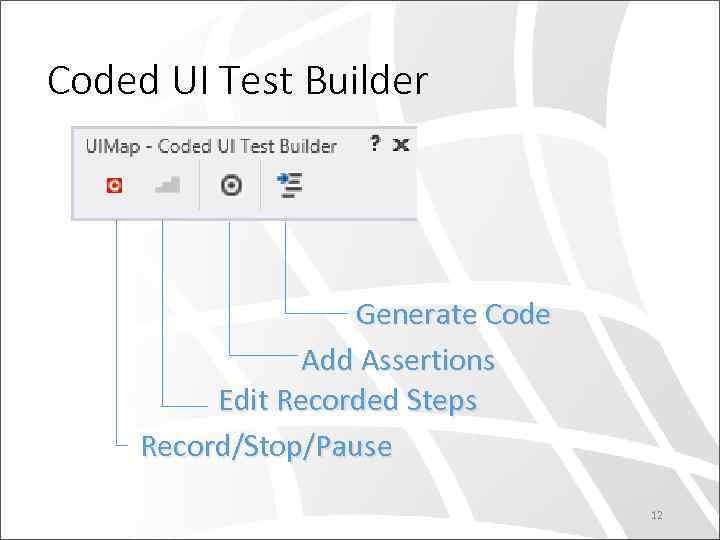 Coded UI Test Builder Generate Code Add Assertions Edit Recorded Steps Record/Stop/Pause 12
 DEMO Record and Playback Actions Using UI Test Builder 13
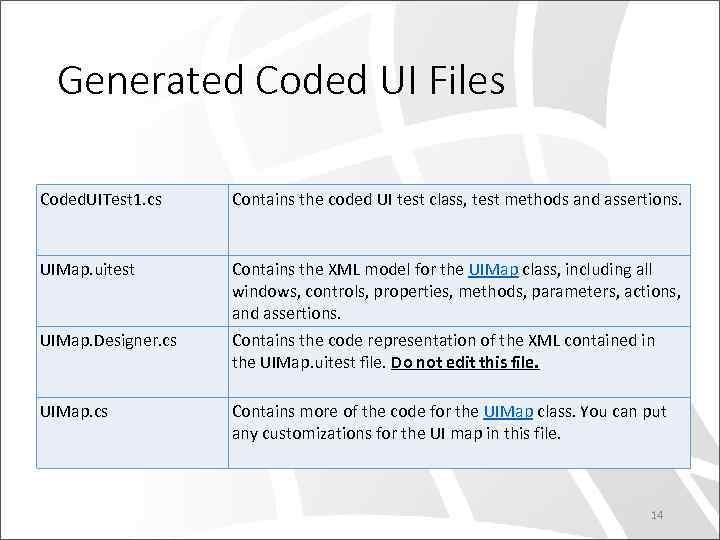 Generated Coded UI Files Coded. UITest 1. cs Contains the coded UI test class, test methods and assertions. UIMap. uitest Contains the XML model for the UIMap class, including all windows, controls, properties, methods, parameters, actions, and assertions. UIMap. Designer. cs Contains the code representation of the XML contained in the UIMap. uitest file. Do not edit this file. UIMap. cs Contains more of the code for the UIMap class. You can put any customizations for the UI map in this file. 14
![Coded. UITest Class & Test Method [Coded. UITest] public class Coded. UITest 1 {.](https://present5.com/presentation/171358149_371841626/image-15.jpg "Coded. UITest Class & Test Method [Coded. UITest] public class Coded. UITest 1 {.") Coded. UITest Class & Test Method [Coded. UITest] public class Coded. UITest 1 {. . . [Test. Method] public void Coded. UITest. Method 1() { this. UIMap. Add. Two. Numbers(); this. UIMap. Verify. Result. Value(); // To generate more code for this test, select // "Generate Code" from the shortcut menu. } } 15
Coded. UITest Class & Test Method [Coded. UITest] public class Coded. UITest 1 {. . . [Test. Method] public void Coded. UITest. Method 1() { this. UIMap. Add. Two. Numbers(); this. UIMap. Verify. Result. Value(); // To generate more code for this test, select // "Generate Code" from the shortcut menu. } } 15
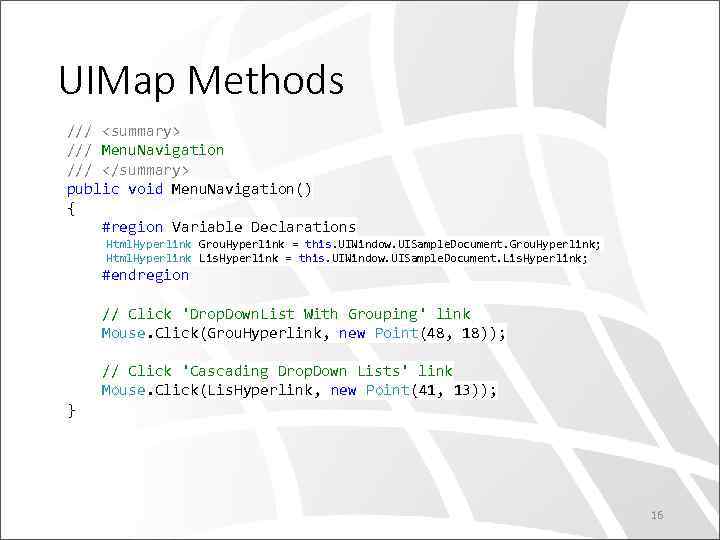 UIMap Methods ///
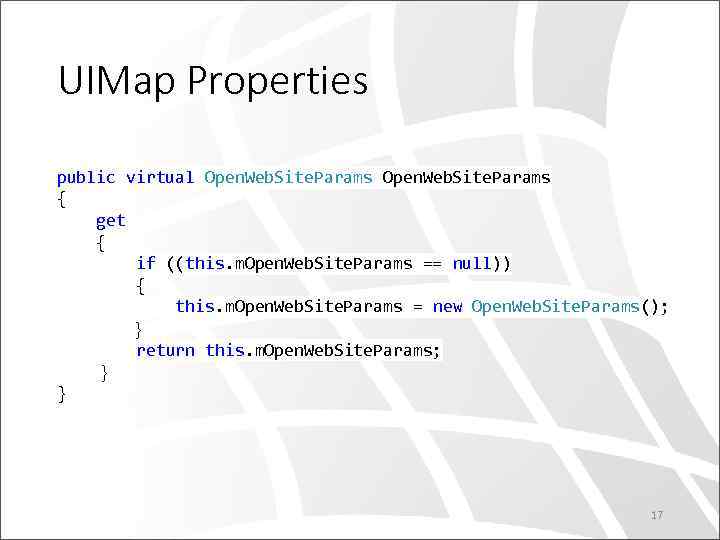 UIMap Properties public virtual Open. Web. Site. Params { get { if ((this. m. Open. Web. Site. Params == null)) { this. m. Open. Web. Site. Params = new Open. Web. Site. Params(); } return this. m. Open. Web. Site. Params; } } 17
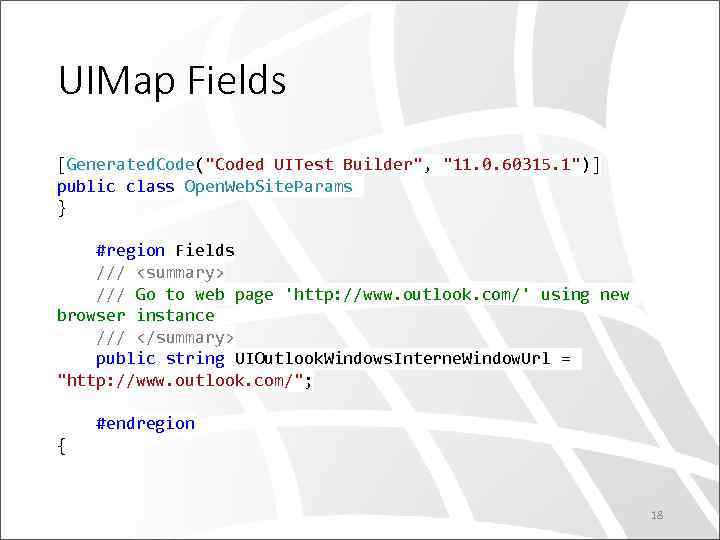 UIMap Fields [Generated. Code("Coded UITest Builder", "11. 0. 60315. 1")] public class Open. Web. Site. Params } #region Fields ///
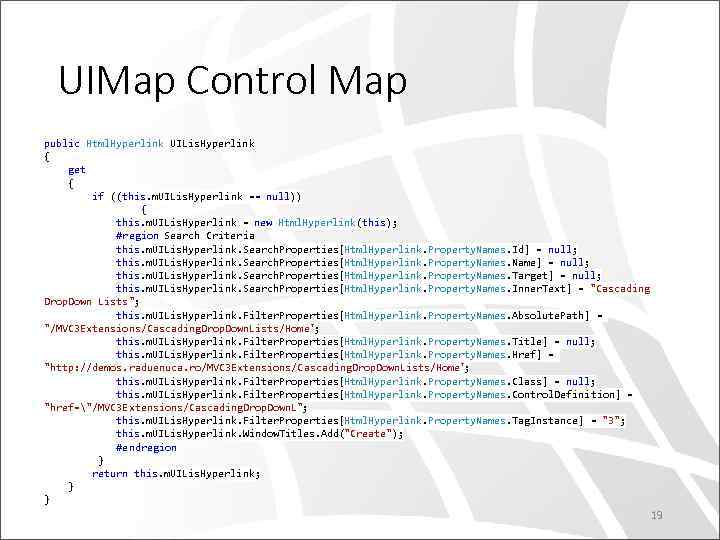 UIMap Control Map public Html. Hyperlink UILis. Hyperlink { get { if ((this. m. UILis. Hyperlink == null)) { this. m. UILis. Hyperlink = new Html. Hyperlink(this); #region Search Criteria this. m. UILis. Hyperlink. Search. Properties[Html. Hyperlink. Property. Names. Id] = null; this. m. UILis. Hyperlink. Search. Properties[Html. Hyperlink. Property. Names. Name] = null; this. m. UILis. Hyperlink. Search. Properties[Html. Hyperlink. Property. Names. Target] = null; this. m. UILis. Hyperlink. Search. Properties[Html. Hyperlink. Property. Names. Inner. Text] = "Cascading Drop. Down Lists"; this. m. UILis. Hyperlink. Filter. Properties[Html. Hyperlink. Property. Names. Absolute. Path] = "/MVC 3 Extensions/Cascading. Drop. Down. Lists/Home"; this. m. UILis. Hyperlink. Filter. Properties[Html. Hyperlink. Property. Names. Title] = null; this. m. UILis. Hyperlink. Filter. Properties[Html. Hyperlink. Property. Names. Href] = "http: //demos. raduenuca. ro/MVC 3 Extensions/Cascading. Drop. Down. Lists/Home" ; this. m. UILis. Hyperlink. Filter. Properties[Html. Hyperlink. Property. Names. Class] = null; this. m. UILis. Hyperlink. Filter. Properties[Html. Hyperlink. Property. Names. Control. Definition] = "href="/MVC 3 Extensions/Cascading. Drop. Down. L"; this. m. UILis. Hyperlink. Filter. Properties[Html. Hyperlink. Property. Names. Tag. Instance] = "3"; this. m. UILis. Hyperlink. Window. Titles. Add("Create"); #endregion } return this. m. UILis. Hyperlink; } } 19
 Search Methods • Search. Properties - Mandatory properties that will be used to search the control • Filter. Properties – When there is one Search. Properties match or less, Filter. Properties turns into actions to the stage where if finds one match. 20
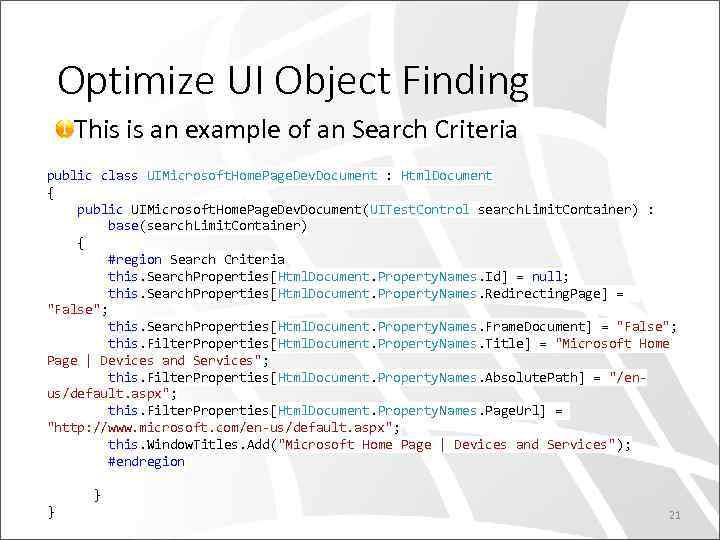 Optimize UI Object Finding This is an example of an Search Criteria public class UIMicrosoft. Home. Page. Dev. Document : Html. Document { public UIMicrosoft. Home. Page. Dev. Document(UITest. Control search. Limit. Container) : base(search. Limit. Container) { #region Search Criteria this. Search. Properties[Html. Document. Property. Names. Id] = null; this. Search. Properties[Html. Document. Property. Names. Redirecting. Page] = "False"; this. Search. Properties[Html. Document. Property. Names. Frame. Document] = "False"; this. Filter. Properties[Html. Document. Property. Names. Title] = "Microsoft Home Page | Devices and Services"; this. Filter. Properties[Html. Document. Property. Names. Absolute. Path] = "/enus/default. aspx"; this. Filter. Properties[Html. Document. Property. Names. Page. Url] = "http: //www. microsoft. com/en-us/default. aspx"; this. Window. Titles. Add("Microsoft Home Page | Devices and Services"); #endregion } } 21
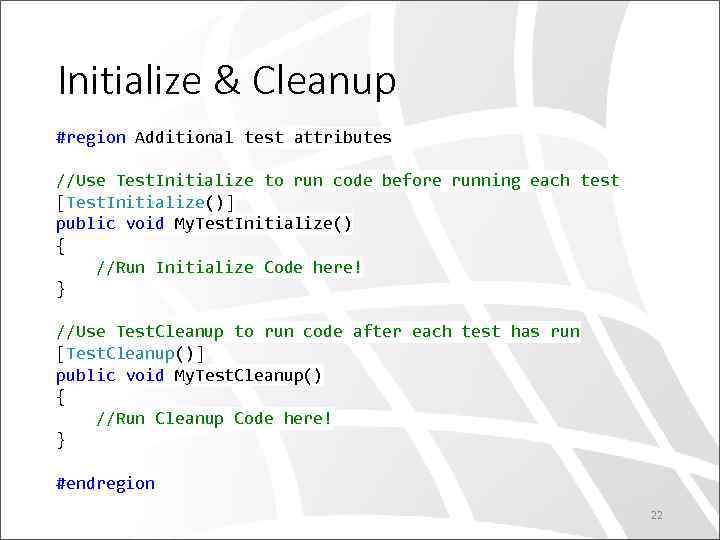 Initialize & Cleanup #region Additional test attributes //Use Test. Initialize to run code before running each test [Test. Initialize()] public void My. Test. Initialize() { //Run Initialize Code here! } //Use Test. Cleanup to run code after each test has run [Test. Cleanup()] public void My. Test. Cleanup() { //Run Cleanup Code here! } #endregion 22
 Test Settings • XML file that provides advanced settings for test execution. • When should use. testsettings • Collect diagnostic data to help isolate bugs in your application for Coded UI Tests • Run the client, server, and other parts of your application on different machines (Local or virtual) to verify that it behaves as expected in a distributed environment. • Distribute a large number of tests across additional machines on different configuration (OS/Client Browser) 23
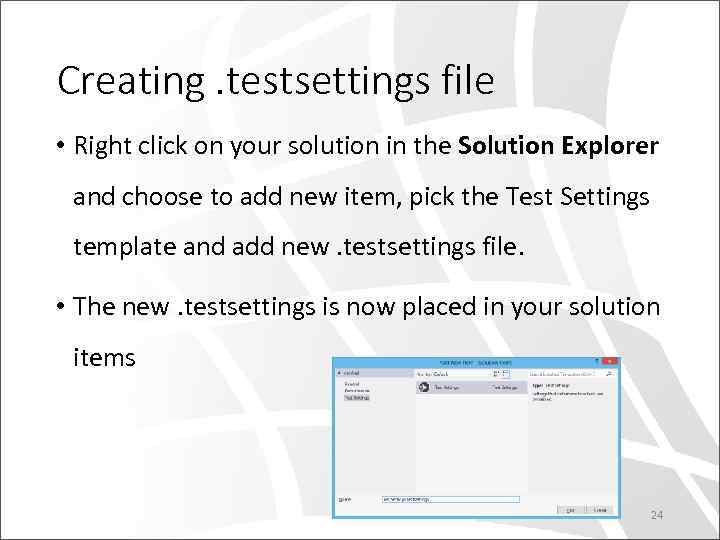 Creating. testsettings file • Right click on your solution in the Solution Explorer and choose to add new item, pick the Test Settings template and add new. testsettings file. • The new. testsettings is now placed in your solution items 24
 Test Settings Overview • Test Setting is compound with the following settings: • • Roles Data Collectors & Diagnostics Deployment Setup and Cleanup Scripts Hosts Test Timeouts Unit Test Web Test 25
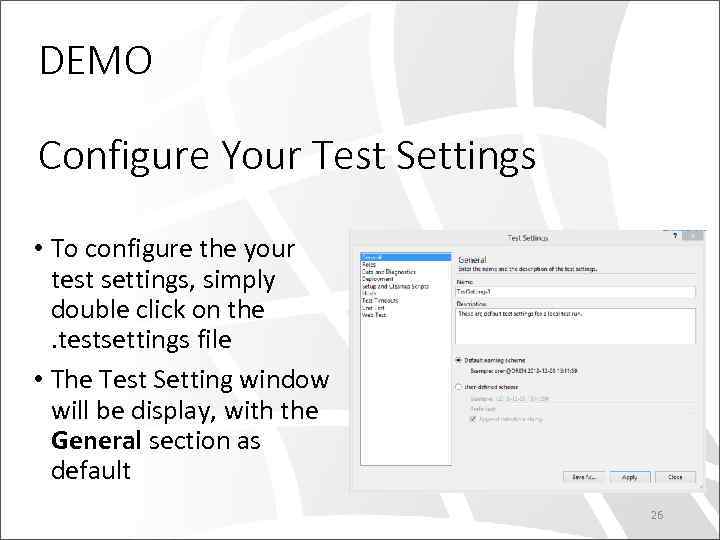 DEMO Configure Your Test Settings • To configure the your test settings, simply double click on the . testsettings file • The Test Setting window will be display, with the General section as default 26
 Data & Diagnostics • In this module we will demonstrate how to collect data and diagnostics data on your local machine • We will focus on the next data collectors • Event Log • Intelli. Trace • System Information • Video Recorder • * Custom Collectors 27
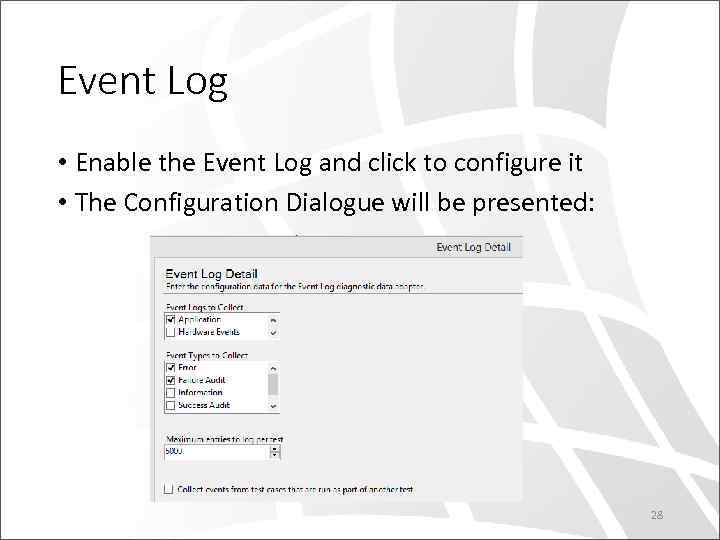 Event Log • Enable the Event Log and click to configure it • The Configuration Dialogue will be presented: 28
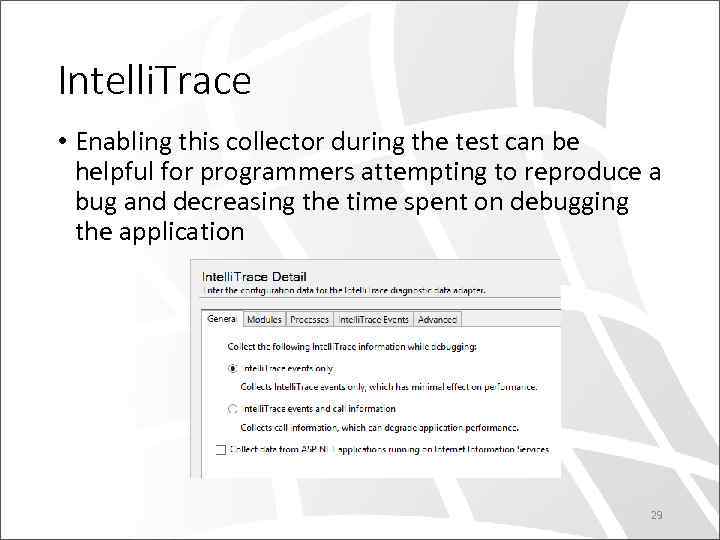 Intelli. Trace • Enabling this collector during the test can be helpful for programmers attempting to reproduce a bug and decreasing the time spent on debugging the application 29
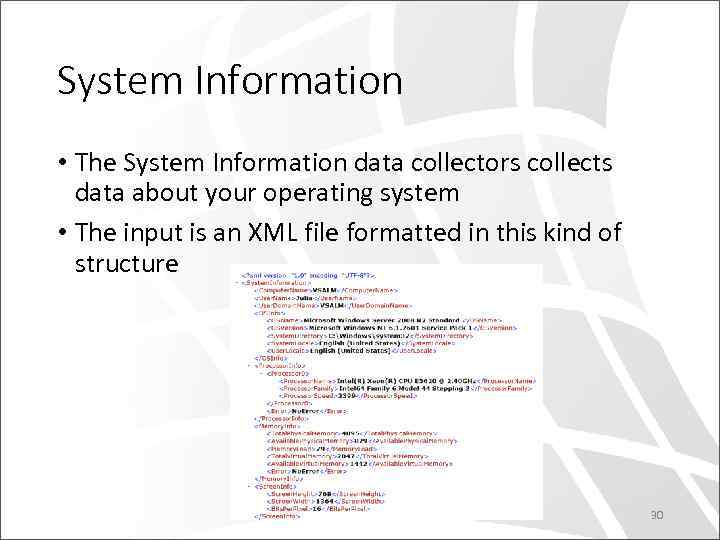 System Information • The System Information data collectors collects data about your operating system • The input is an XML file formatted in this kind of structure 30
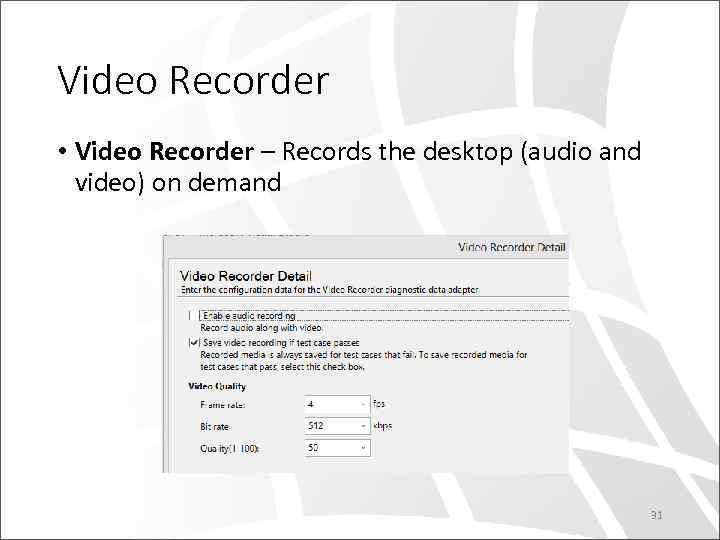 Video Recorder • Video Recorder – Records the desktop (audio and video) on demand 31
 DEMO Using Data Collectors 32
 DEMO Creating Custom Data Collector 33
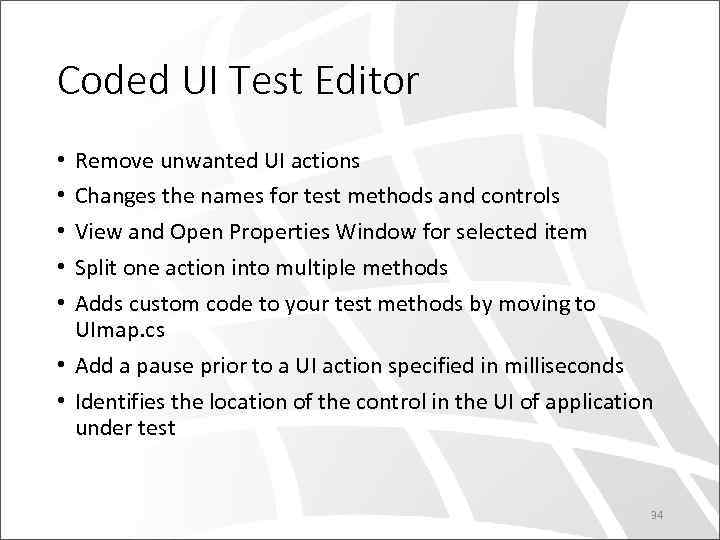 Coded UI Test Editor Remove unwanted UI actions Changes the names for test methods and controls View and Open Properties Window for selected item Split one action into multiple methods Adds custom code to your test methods by moving to UImap. cs • Add a pause prior to a UI action specified in milliseconds • Identifies the location of the control in the UI of application under test • • • 34
 DEMO Coded UI Test Editor 35
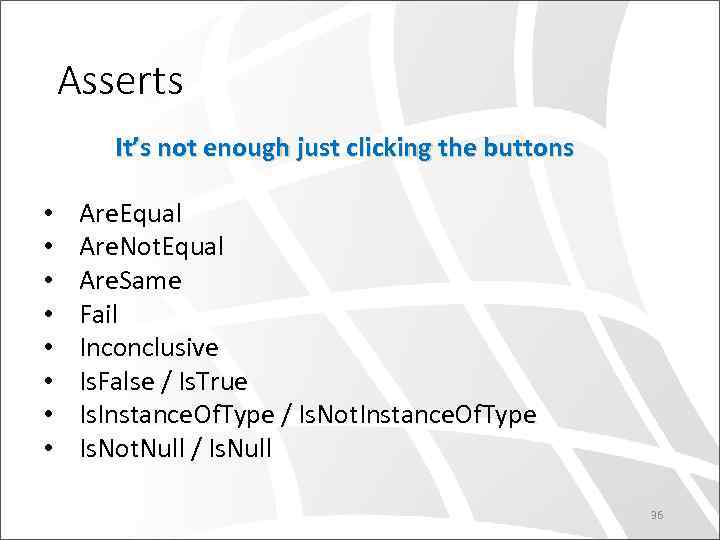 Asserts It’s not enough just clicking the buttons • • Are. Equal Are. Not. Equal Are. Same Fail Inconclusive Is. False / Is. True Is. Instance. Of. Type / Is. Not. Instance. Of. Type Is. Not. Null / Is. Null 36
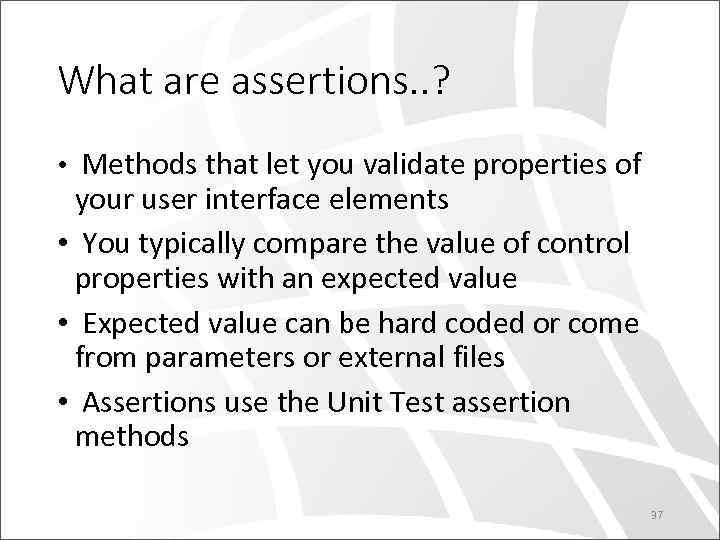 What are assertions. . ? • Methods that let you validate properties of your user interface elements • You typically compare the value of control properties with an expected value • Expected value can be hard coded or come from parameters or external files • Assertions use the Unit Test assertion methods 37
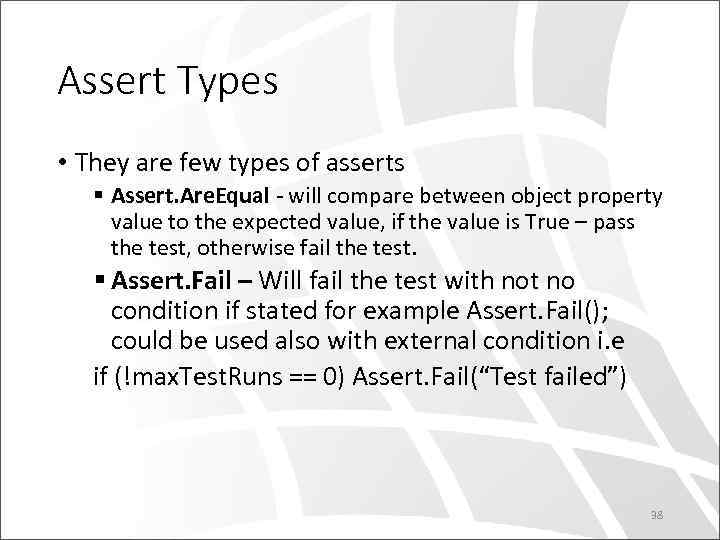 Assert Types • They are few types of asserts § Assert. Are. Equal - will compare between object property value to the expected value, if the value is True – pass the test, otherwise fail the test. § Assert. Fail – Will fail the test with not no condition if stated for example Assert. Fail(); could be used also with external condition i. e if (!max. Test. Runs == 0) Assert. Fail(“Test failed”) 38
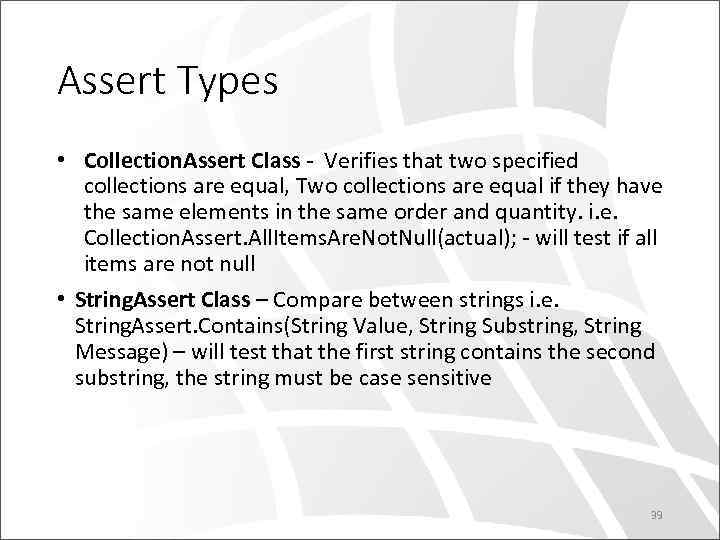 Assert Types • Collection. Assert Class - Verifies that two specified collections are equal, Two collections are equal if they have the same elements in the same order and quantity. i. e. Collection. Assert. All. Items. Are. Not. Null(actual); - will test if all items are not null • String. Assert Class – Compare between strings i. e. String. Assert. Contains(String Value, String Substring, String Message) – will test that the first string contains the second substring, the string must be case sensitive 39
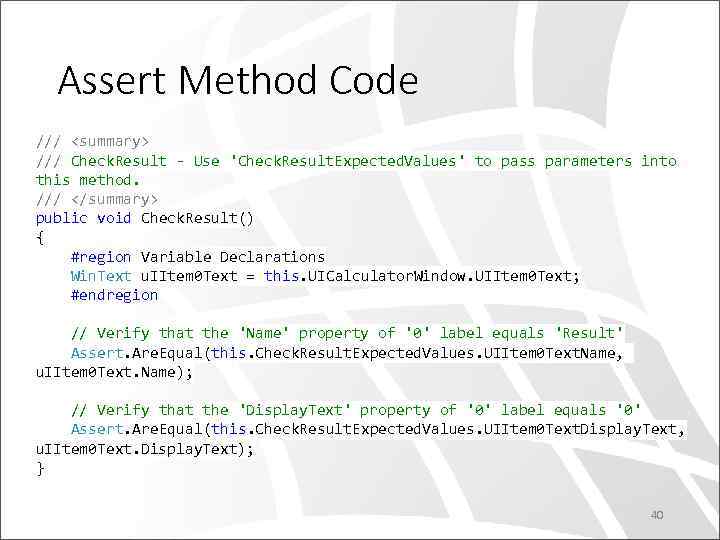 Assert Method Code ///
 DEMO Create Asserts 41
 Create Planned Test Lists – Order Tests • An ordered test is a container that holds other tests and guarantees that tests run in a specific order • You can add/remove test from an. ordertest file and run it the Test Explorer or via TFS Build 42
 DEMO Ordered Test & Playlist 43
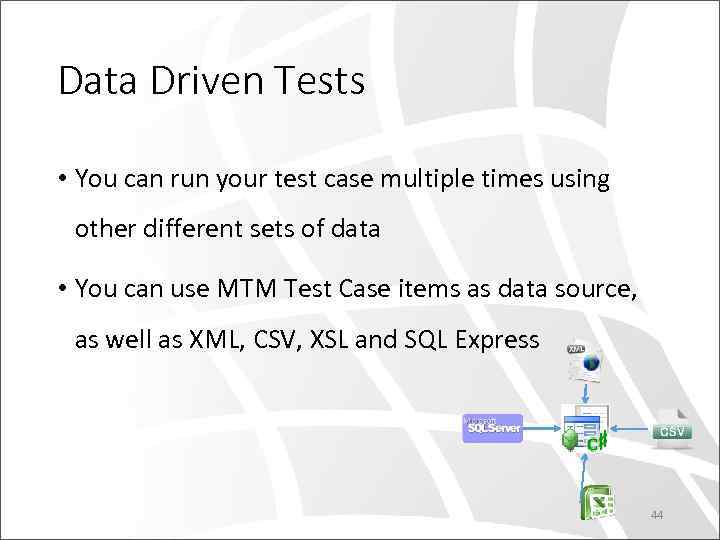 Data Driven Tests • You can run your test case multiple times using other different sets of data • You can use MTM Test Case items as data source, as well as XML, CSV, XSL and SQL Express 44
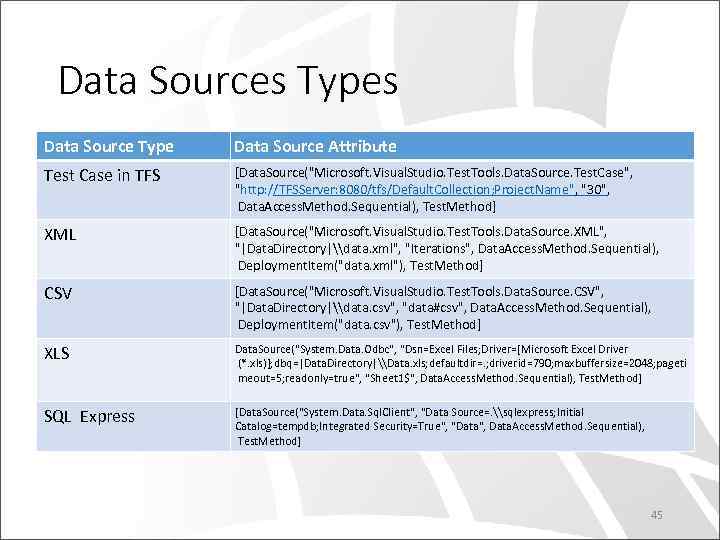 Data Sources Types Data Source Type Data Source Attribute Test Case in TFS [Data. Source("Microsoft. Visual. Studio. Test. Tools. Data. Source. Test. Case", "http: //TFSServer: 8080/tfs/Default. Collection; Project. Name", "30", Data. Access. Method. Sequential), Test. Method] XML [Data. Source("Microsoft. Visual. Studio. Test. Tools. Data. Source. XML", "|Data. Directory|\data. xml", "Iterations", Data. Access. Method. Sequential), Deployment. Item("data. xml"), Test. Method] CSV [Data. Source("Microsoft. Visual. Studio. Test. Tools. Data. Source. CSV", "|Data. Directory|\data. csv", "data#csv", Data. Access. Method. Sequential), Deployment. Item("data. csv"), Test. Method] XLS Data. Source("System. Data. Odbc", "Dsn=Excel Files; Driver={Microsoft Excel Driver (*. xls)}; dbq=|Data. Directory|\Data. xls; defaultdir=. ; driverid=790; maxbuffersize=2048; pageti meout=5; readonly=true", "Sheet 1$", Data. Access. Method. Sequential), Test. Method] SQL Express [Data. Source("System. Data. Sql. Client", "Data Source=. \sqlexpress; Initial Catalog=tempdb; Integrated Security=True", "Data", Data. Access. Method. Sequential), Test. Method] 45
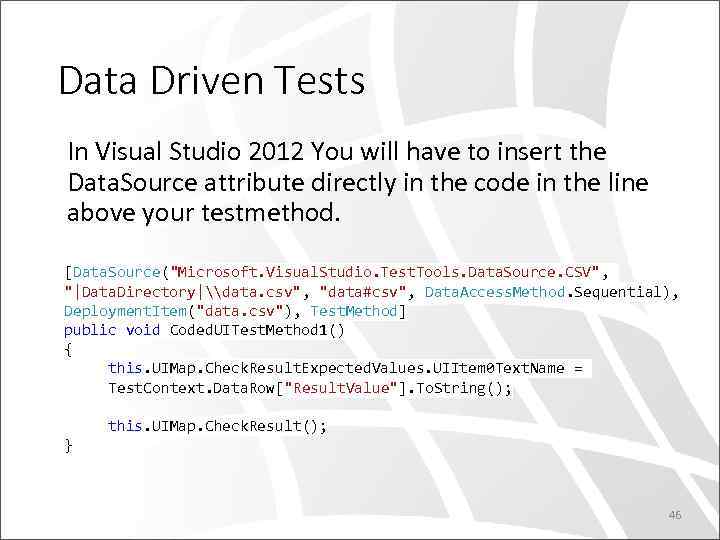 Data Driven Tests In Visual Studio 2012 You will have to insert the Data. Source attribute directly in the code in the line above your testmethod. [Data. Source("Microsoft. Visual. Studio. Test. Tools. Data. Source. CSV", "|Data. Directory|\data. csv", "data#csv", Data. Access. Method. Sequential), Deployment. Item("data. csv"), Test. Method] public void Coded. UITest. Method 1() { this. UIMap. Check. Result. Expected. Values. UIItem 0 Text. Name = Test. Context. Data. Row["Result. Value"]. To. String(); this. UIMap. Check. Result(); } 46
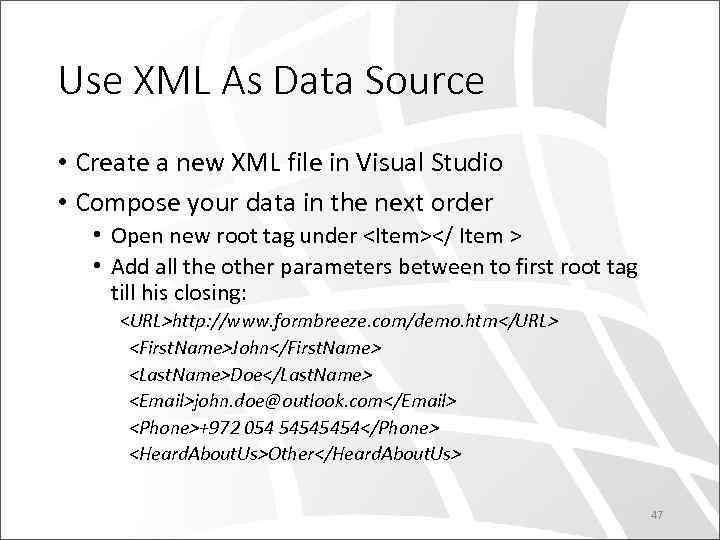 Use XML As Data Source • Create a new XML file in Visual Studio • Compose your data in the next order • Open new root tag under
 DEMO Data Source 48
 Multiple UIMaps • Logical partitions when testing large application, each UIMap can be related to a specific module or a page, for instance Customer module or login page • Each tester can work and be responsible on different sector, which means he will no other tester working on the same resource, avoiding multiple check-ins • Easier to maintain, you “know the ropes”, not dealing with on file with thousands of code lines 49
 DEMO Working with Multiple UIMaps 50
 Extracting Dynamic Data • Some parts of your test framework will include a dynamic value you will to use at runtime • When creating new data it might be rendered and presented differently or randomly. • In the following example I’ll show you how get a text from an alert box - http: //www. w 3 schools. com/js/tryit. asp? filename=t ryjs_alert 51
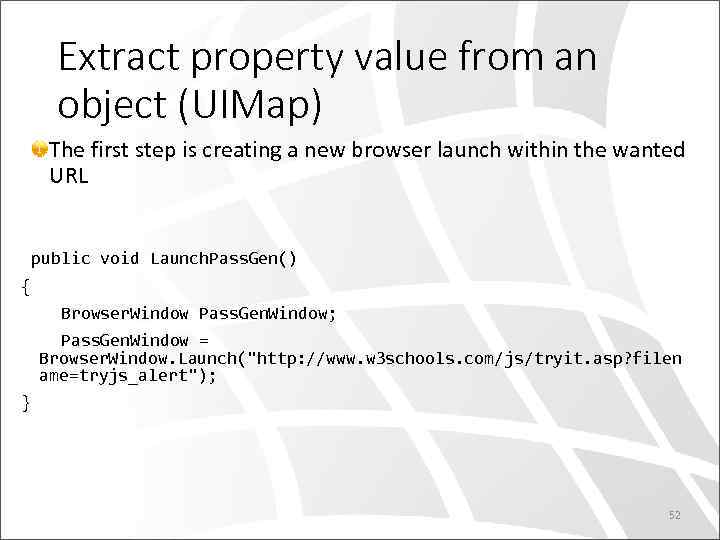 Extract property value from an object (UIMap) The first step is creating a new browser launch within the wanted URL public void Launch. Pass. Gen() { Browser. Window Pass. Gen. Window; Pass. Gen. Window = Browser. Window. Launch("http: //www. w 3 schools. com/js/tryit. asp? filen ame=tryjs_alert"); } 52
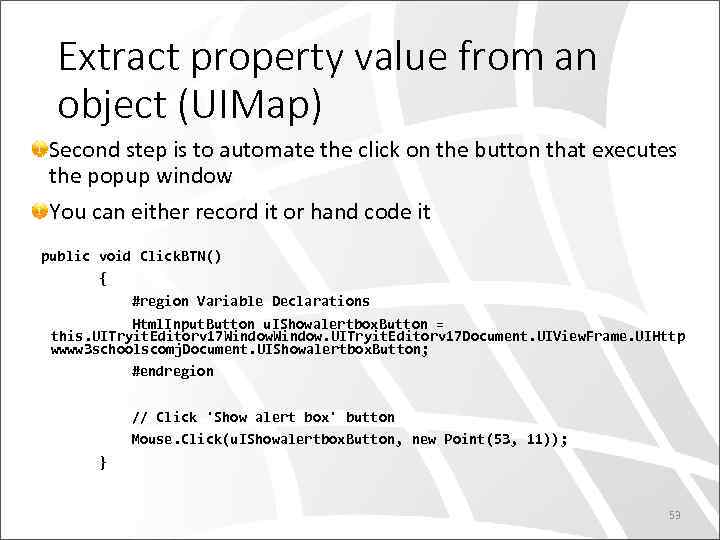 Extract property value from an object (UIMap) Second step is to automate the click on the button that executes the popup window You can either record it or hand code it public void Click. BTN() { #region Variable Declarations Html. Input. Button u. IShowalertbox. Button = this. UITryit. Editorv 17 Window. UITryit. Editorv 17 Document. UIView. Frame. UIHttp wwww 3 schoolscomj. Document. UIShowalertbox. Button; #endregion // Click 'Show alert box' button Mouse. Click(u. IShowalertbox. Button, new Point(53, 11)); } 53
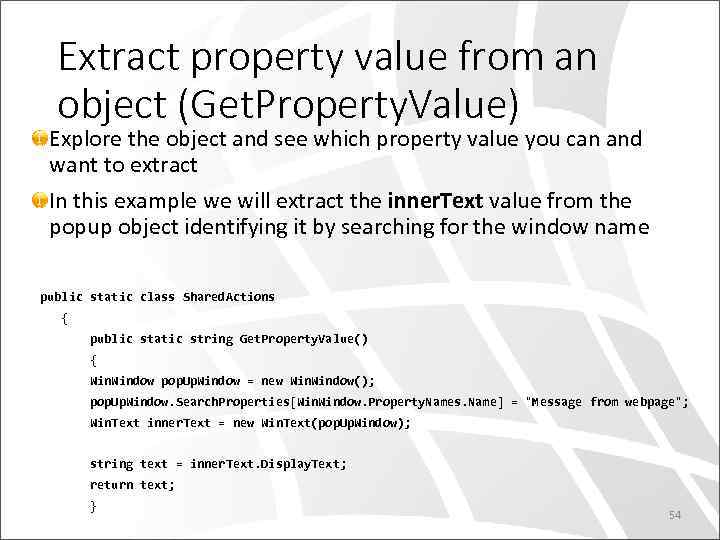 Extract property value from an object (Get. Property. Value) Explore the object and see which property value you can and want to extract In this example we will extract the inner. Text value from the popup object identifying it by searching for the window name public static class Shared. Actions { public static string Get. Property. Value() { Window pop. Up. Window = new Window(); pop. Up. Window. Search. Properties[Win. Window. Property. Names. Name] = "Message from webpage"; Win. Text inner. Text = new Win. Text(pop. Up. Window); string text = inner. Text. Display. Text; return text; } 54
 DEMO Advanced Coded UI 55
 Playback Settings • In a coded UI test playback, you can instruct a certain test method to work in a different way, for instance • You can postpone the executing of a method until the involved control will be ready • You can add a delay time between test methods • You can decide which methods will not fail the test even though they failed and more… 56
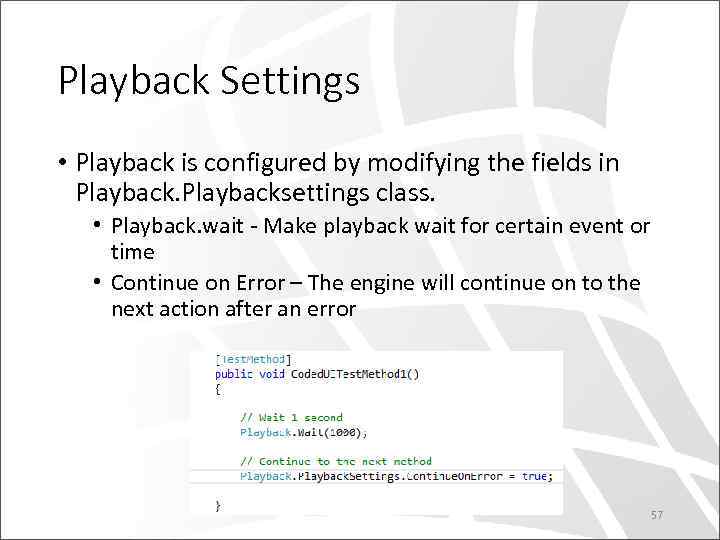 Playback Settings • Playback is configured by modifying the fields in Playbacksettings class. • Playback. wait - Make playback wait for certain event or time • Continue on Error – The engine will continue on to the next action after an error 57
 Playback. Wait • Wait. For. Ready. Control()– This waits for the control to be ready to accept mouse/keyboard input. • Wait. For. Contro. Enabled() – This waits for the control to be enabled. For example, you can use this wait till the “Next” button of the wizard is enabled • Wait. For. Control. Existed() – This waits for the control to exist on the UI. For example, you are expecting an error dialog after the application has done the validation of the parameters. 58
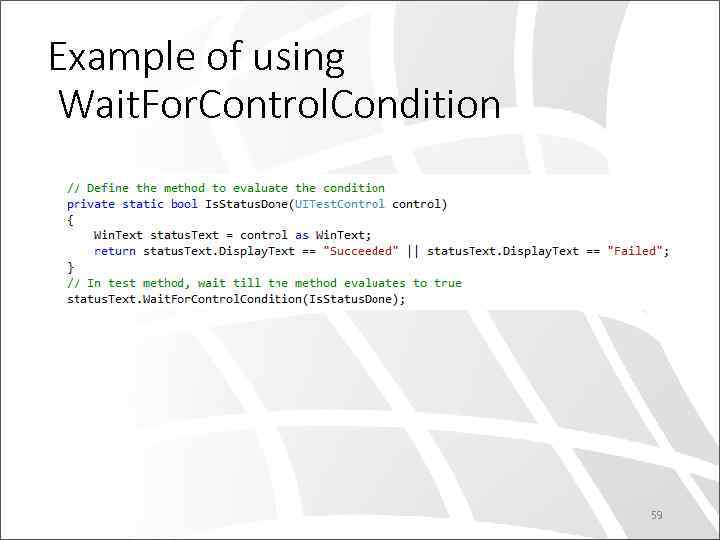 Example of using Wait. For. Control. Condition 59
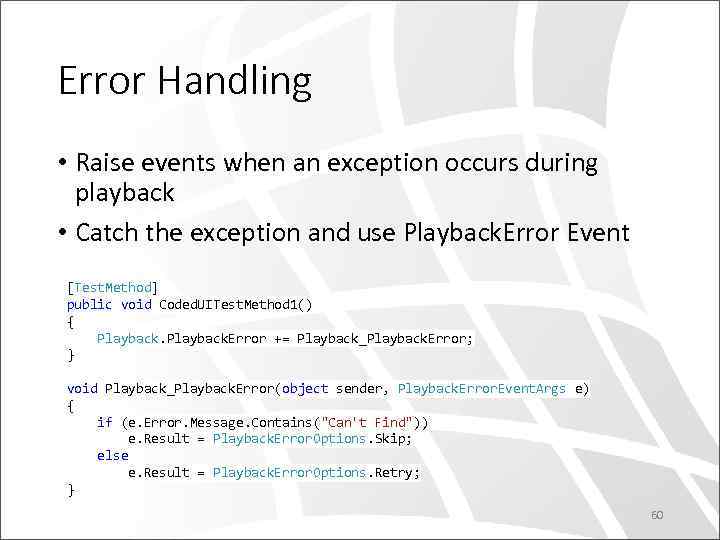 Error Handling • Raise events when an exception occurs during playback • Catch the exception and use Playback. Error Event [Test. Method] public void Coded. UITest. Method 1() { Playback. Error += Playback_Playback. Error; } void Playback_Playback. Error(object sender, Playback. Error. Event. Args e) { if (e. Error. Message. Contains("Can't Find")) e. Result = Playback. Error. Options. Skip; else e. Result = Playback. Error. Options. Retry; } 60
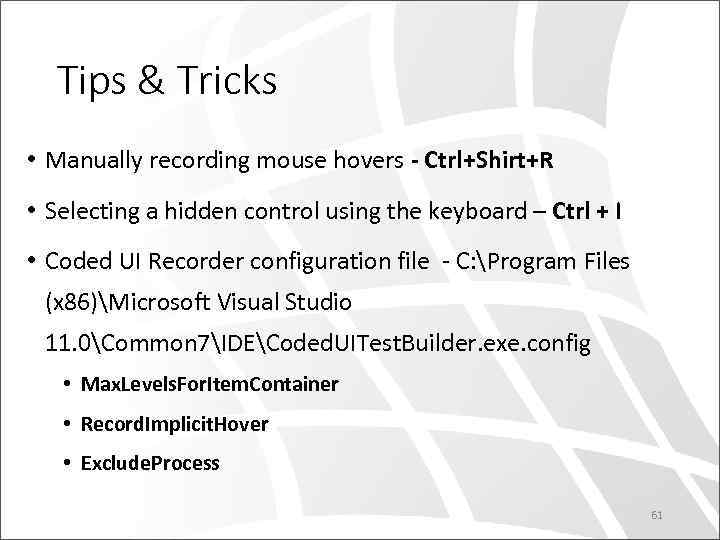 Tips & Tricks • Manually recording mouse hovers - Ctrl+Shirt+R • Selecting a hidden control using the keyboard – Ctrl + I • Coded UI Recorder configuration file - C: Program Files (x 86)Microsoft Visual Studio 11. 0Common 7IDECoded. UITest. Builder. exe. config • Max. Levels. For. Item. Container • Record. Implicit. Hover • Exclude. Process 61
 Thank You