


 Скачать презентацию School of Geography FACULTY OF ENVIRONMENT Introduction to
ed97d7b3e7a50ad8e0e1cd775b380b68.ppt
- Количество слайдов: 26
 School of Geography FACULTY OF ENVIRONMENT Introduction to Cartography
 What is Cartography? • Art/science/technology of making maps • Beauty vs. usefulness • Cartographic design is a complex task • Unlimited options (16 million colours, many kinds of lines and symbols) • A good map makes it easy for a reader to acquire your intended information by: • Depicting data effectively • Reflecting the relative importance of features • Reducing distraction
 Cartographic Objectives • Map Objectives (Why? ) • Highlight spatial relationships • Illustrate analysis results • Convey information • Easier comprehension of complex events • Design Objectives (How? ) • Fulfill communication objectives • Assign meaningful symbology • Fulfill map objectives • Ensure truthful depiction of reality
 Issues of Detail + Symbology • How much detail should I include? • Depends on generalisation and scale • E. g. Small scale – not interested in detail • What symbols should I use? • Qualitative: Can vary colour, shape, texture, pattern • Patterns: repetitive type of symbol used for areas (e. g. swamps) • Consider effects of reduction, e. g. paper + photocopier • Quantitative • Shading / intensity • Size of symbols
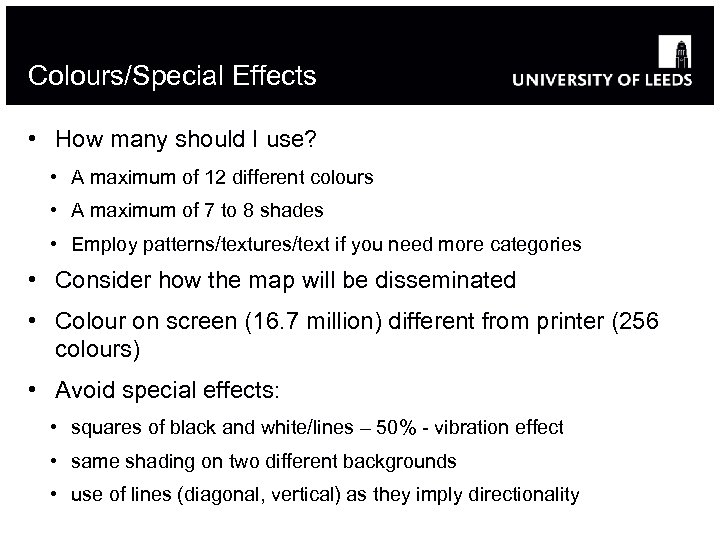 Colours/Special Effects • How many should I use? • A maximum of 12 different colours • A maximum of 7 to 8 shades • Employ patterns/textures/text if you need more categories • Consider how the map will be disseminated • Colour on screen (16. 7 million) different from printer (256 colours) • Avoid special effects: • squares of black and white/lines – 50% - vibration effect • same shading on two different backgrounds • use of lines (diagonal, vertical) as they imply directionality
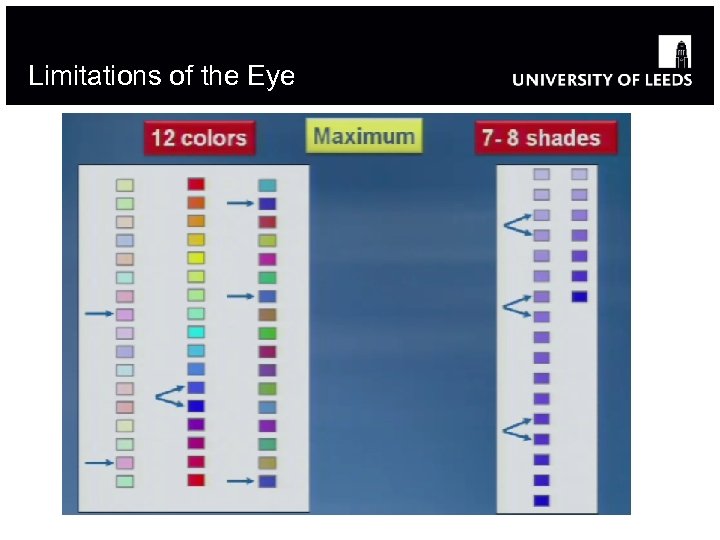 Limitations of the Eye
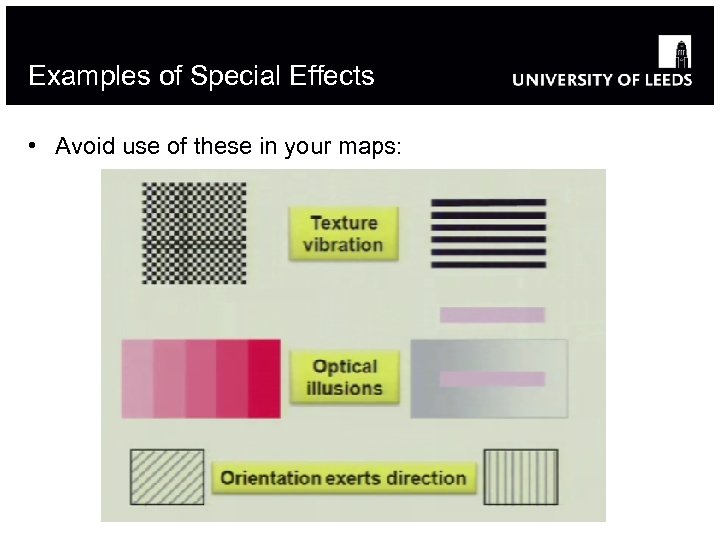 Examples of Special Effects • Avoid use of these in your maps:
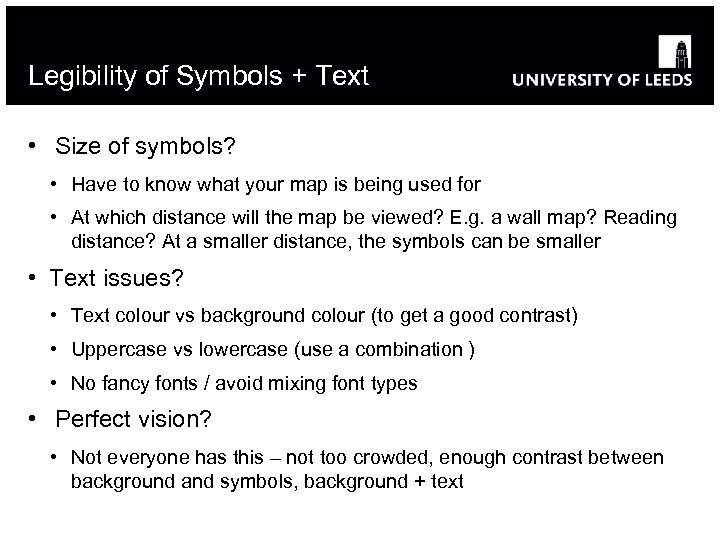 Legibility of Symbols + Text • Size of symbols? • Have to know what your map is being used for • At which distance will the map be viewed? E. g. a wall map? Reading distance? At a smaller distance, the symbols can be smaller • Text issues? • Text colour vs background colour (to get a good contrast) • Uppercase vs lowercase (use a combination ) • No fancy fonts / avoid mixing font types • Perfect vision? • Not everyone has this – not too crowded, enough contrast between background and symbols, background + text
 Cartographic Specifications • Perception threshold = legibility of smallest detail • Line thickness should not be less than. 1 mm • Points: 0. 5 mm for points • Separation threshold = distinction between adjacent features • > 0. 2 mm e. g. road and rail road line • Differentiation threshold = smallest difference between the nearest same size symbols, e. g. proportional symbols – can do this by artificially making symbols larger to increase the contrast
 Visual Balance + Hierarchy • Center of the map • Visual weight • Size, colour (value + intensity), how close things are to the edge (e. g. things on right have more visual weight) • E. g. if put a large north arrow on the map, map is not good because the eye goes there first • Gaps: should be avoided in the bottom but ok at the top (i. e. above the visual centre • Do not want other elements to compete with the main map • Make easy to use scale bars
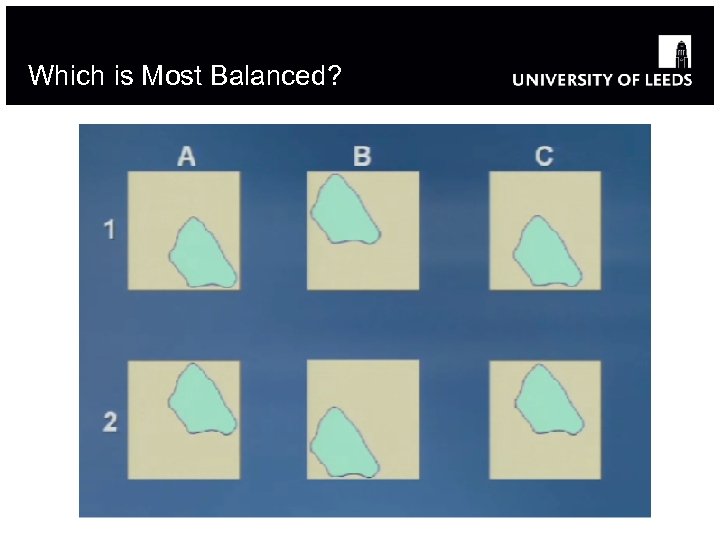 Which is Most Balanced?
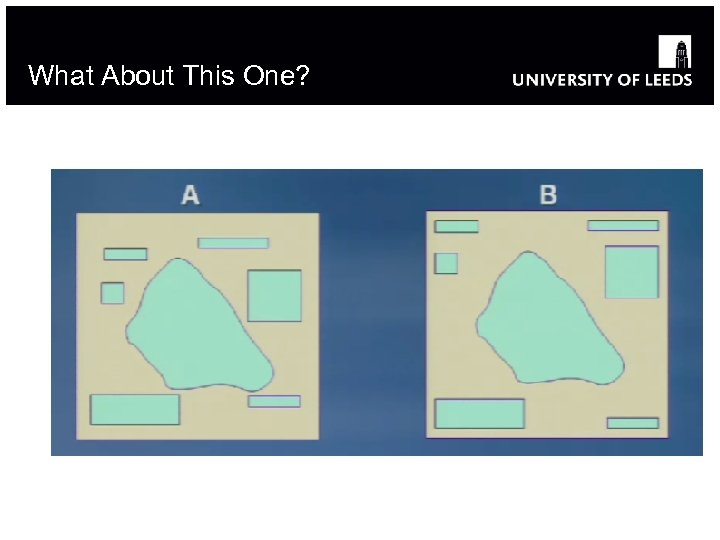 What About This One?
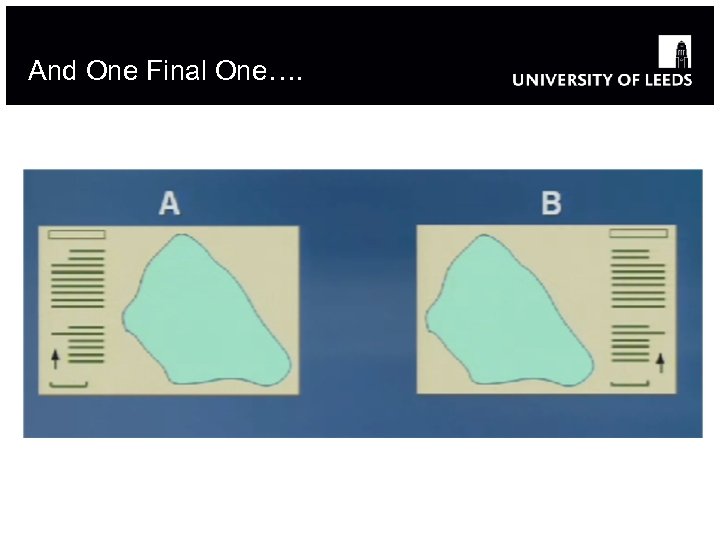 And One Final One….
 Map Elements • Title (avoid ‘Map of…’) • Author and date of the data • Map body • Legend • Scale bar / representative fraction • Date of the map • North arrow • Projection • Sources of the data, licensing • Water Mark
 Layout View in Arc. Map • Map content is contained in a data frame • Layers, symbols and feature-based text (labels) • Map elements • Legends, scale bars, north arrows, graticules, et. • Text, pictures, graphics added to the page • Arc. Map Data View vs Layout view • Data view: used for exploring, displaying, querying and analysing spatial data • Layout view: shows the virtual page upon which the map content and map elements are placed
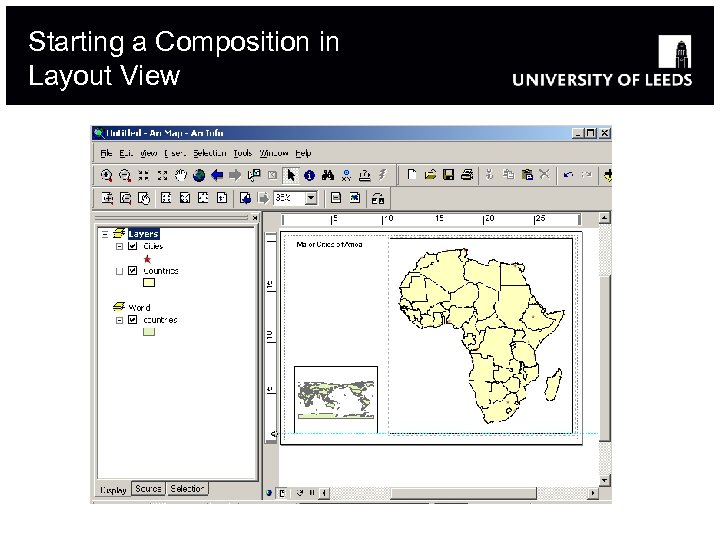 Starting a Composition in Layout View
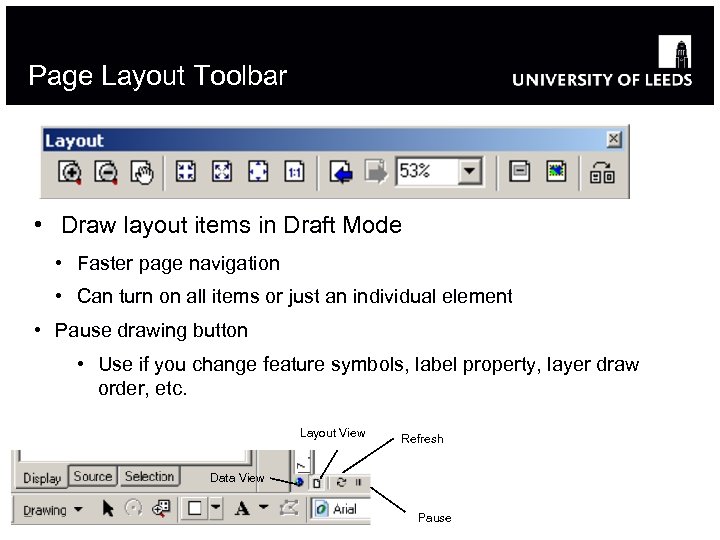 Page Layout Toolbar • Draw layout items in Draft Mode • Faster page navigation • Can turn on all items or just an individual element • Pause drawing button • Use if you change feature symbols, label property, layer draw order, etc. Layout View Refresh Data View Pause
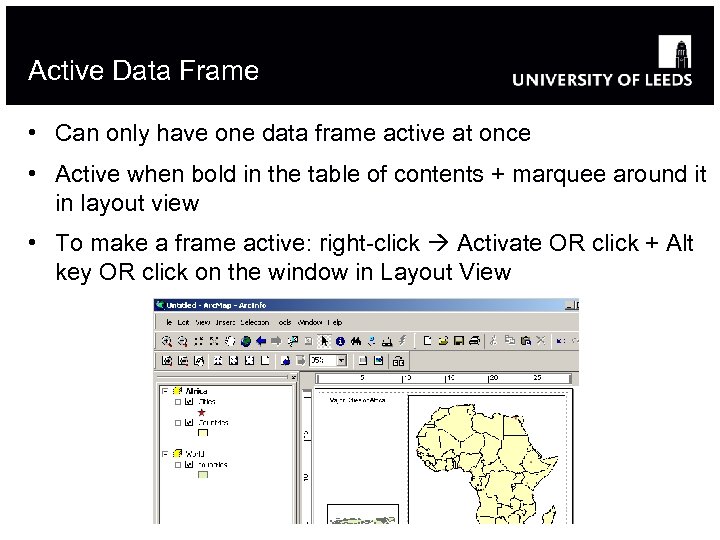 Active Data Frame • Can only have one data frame active at once • Active when bold in the table of contents + marquee around it in layout view • To make a frame active: right-click Activate OR click + Alt key OR click on the window in Layout View
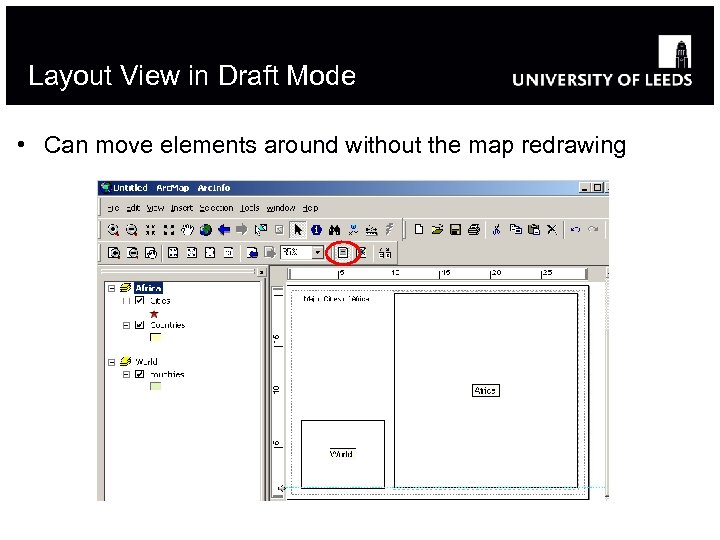 Layout View in Draft Mode • Can move elements around without the map redrawing
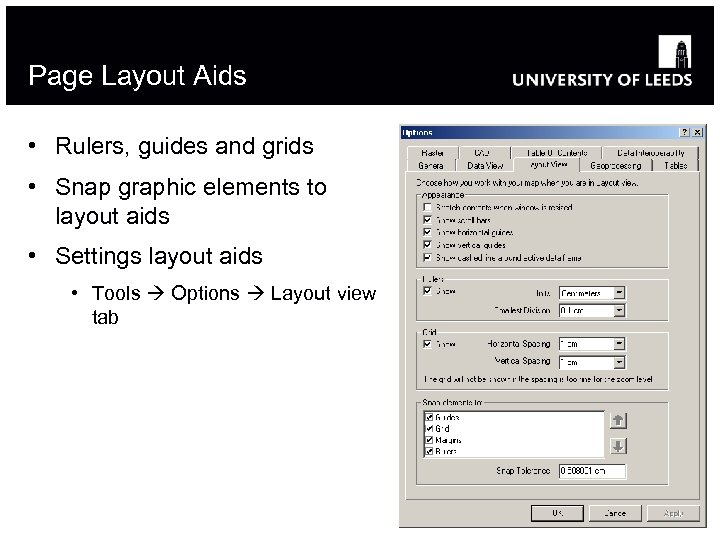 Page Layout Aids • Rulers, guides and grids • Snap graphic elements to layout aids • Settings layout aids • Tools Options Layout view tab
 Adding Map Elements • Scale bar - adjust division values or adjust width • Use Legend Wizard • Graphics, Pictures: Use graphics toolbar • Can convert any element to a graphic • Grids and Graticules (reference systems) • Use where north is not constant across the map or map is not to scale • Graticule (geographic) • Measured grid (projected) • Reference grid (index grid) • Are a property of your data frame – Grids tab
 Adding a Water Mark • Always add a water mark • Needed for maps at a scale of 1: 10, 000 or greater but best practice is use all the time • Load these into Arc. Map • 2 X and 5 X watermark files • Use the Georeferencing toolbar: View Toolbars • Put the watermark file into the drop down list • Fit to display • Ask your GIS team for more details
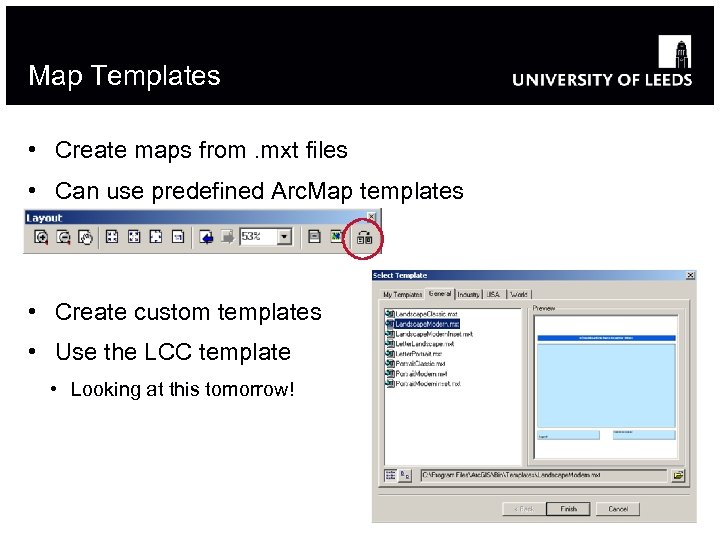 Map Templates • Create maps from. mxt files • Can use predefined Arc. Map templates • Create custom templates • Use the LCC template • Looking at this tomorrow!
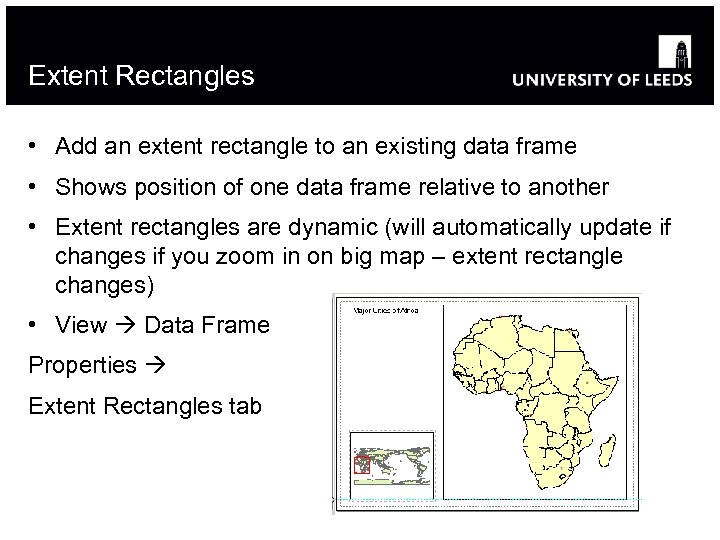 Extent Rectangles • Add an extent rectangle to an existing data frame • Shows position of one data frame relative to another • Extent rectangles are dynamic (will automatically update if changes if you zoom in on big map – extent rectangle changes) • View Data Frame Properties Extent Rectangles tab
 Mapping Resources • Technology trends in GIS – Cartography http: //www. esri. com/technology_trends/cartography • GIS for Map, Chart and Data Production http: //www. esri. com/industries/map-chart-dataproduction/ • ESRI Mapping Center http: //mappingcenter. esri. com/
 Using Layout View in Arc. Map Hands-on Exercise #4