 Скачать презентацию SAS Activity-Based Management ABM Easy API A Framework
28093c6781a6d92bc08a33d8169d45f1.ppt
- Количество слайдов: 40



SAS® Activity-Based Management (ABM) Easy. API A Framework Usage Scenario Copyright, SAS Institute Inc. All rights reserved.
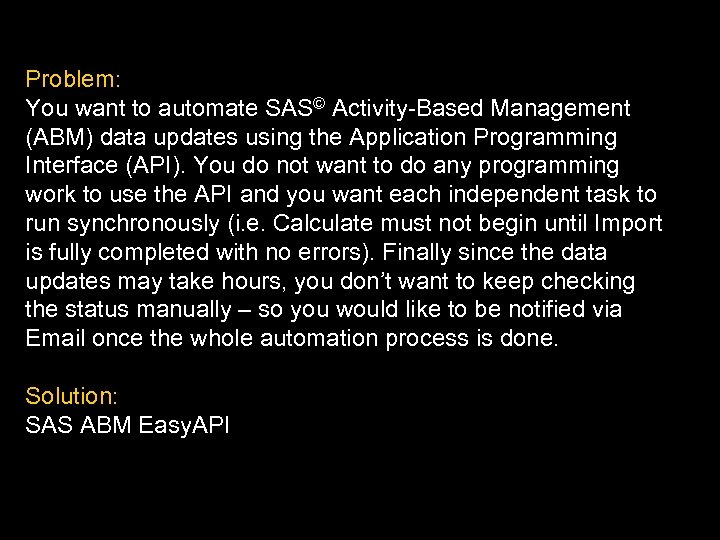
Problem: You want to automate SAS© Activity-Based Management (ABM) data updates using the Application Programming Interface (API). You do not want to do any programming work to use the API and you want each independent task to run synchronously (i. e. Calculate must not begin until Import is fully completed with no errors). Finally since the data updates may take hours, you don’t want to keep checking the status manually – so you would like to be notified via Email once the whole automation process is done. Solution: SAS ABM Easy. API
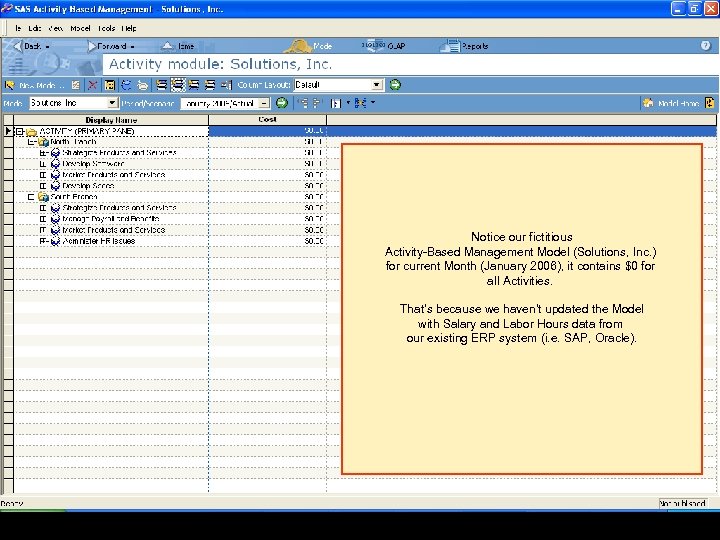
Notice our fictitious Activity-Based Management Model (Solutions, Inc. ) for current Month (January 2006), it contains $0 for all Activities. That’s because we haven’t updated the Model with Salary and Labor Hours data from our existing ERP system (i. e. SAP, Oracle).
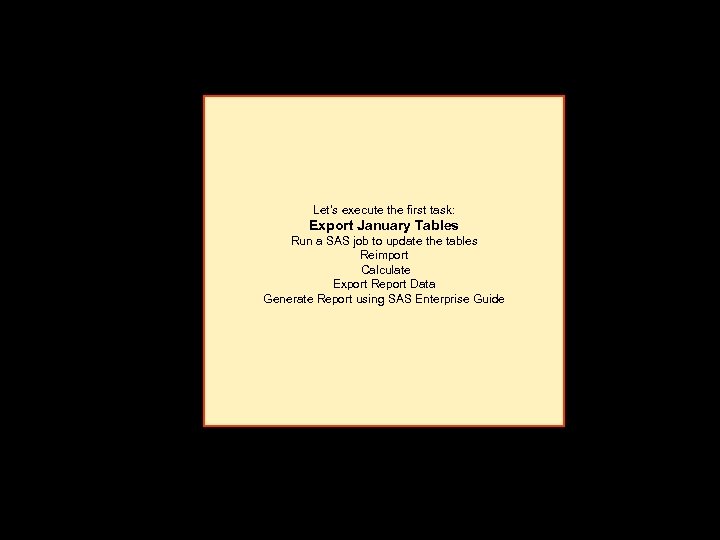
Let’s execute the first task: Our Automation Game Plan is as follows: Export January Tables Run a SAS job to update the tables Reimport Calculate Export Report Data Generate Report using SAS Enterprise Guide
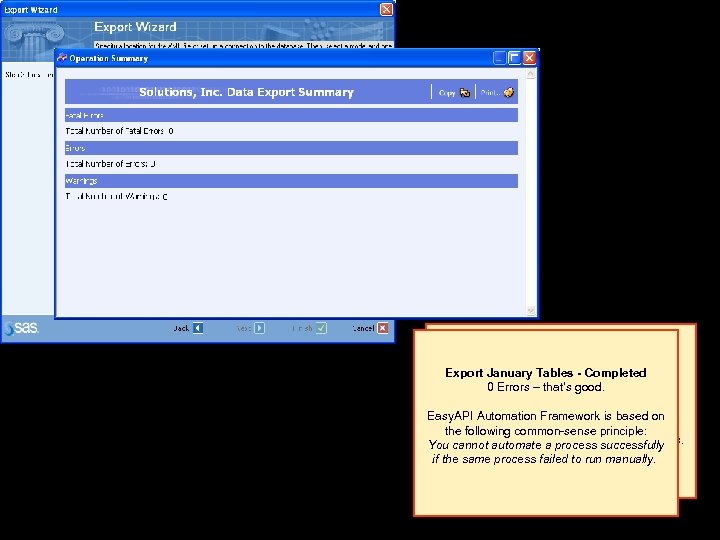
Export January Tables - Completed 0 Export–January Tables Errors that’s good. We launch ABM Export Wizard. We tell it basically to export our Easy. API Automation Framework is based on Fictitious Model “Solutions, Inc. ” the following common-sense principle: and we’re interested in “January 2006” Tables. You cannot automate a process successfully if the same process failed to run manually.
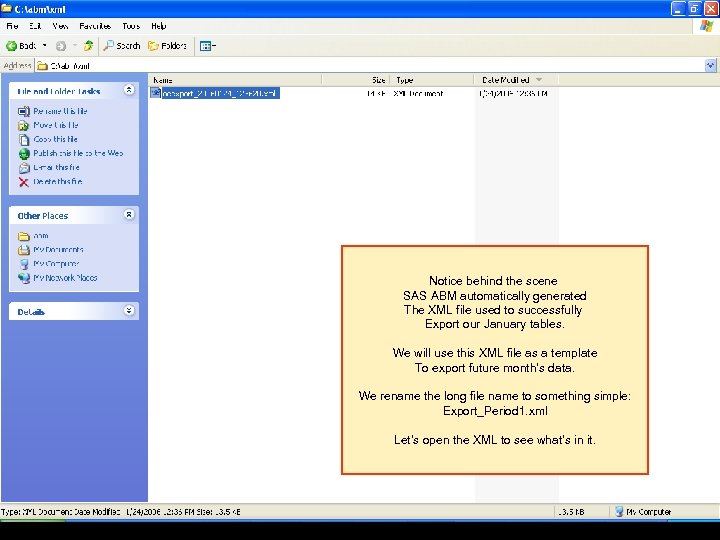
Notice behind the scene SAS ABM automatically generated The XML file used to successfully Export our January tables. We will use this XML file as a template To export future month’s data. We rename the long file name to something simple: Export_Period 1. xml Let’s open the XML to see what’s in it.
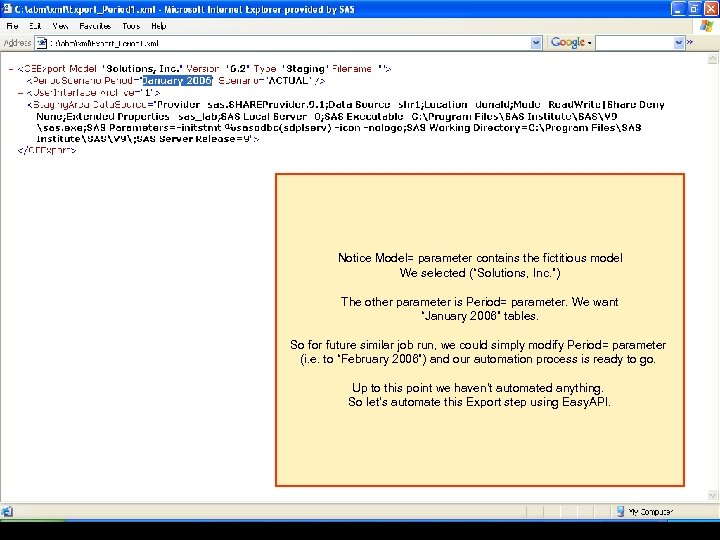
Notice Model= parameter contains the fictitious model We selected (“Solutions, Inc. ”) The other parameter is Period= parameter. We want “January 2006” tables. So for future similar job run, we could simply modify Period= parameter (i. e. to “February 2006”) and our automation process is ready to go. Up to this point we haven’t automated anything. So let’s automate this Export step using Easy. API.
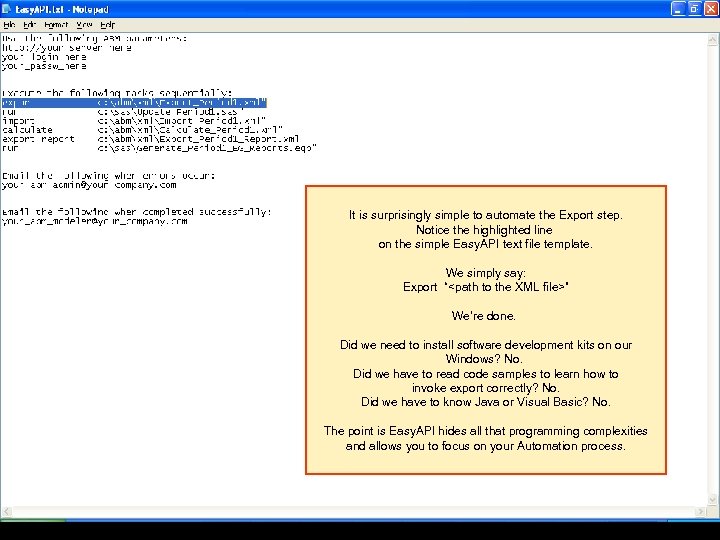
It is surprisingly simple to automate the Export step. Notice the highlighted line on the simple Easy. API text file template. We simply say: Export “<path to the XML file>” We’re done. Did we need to install software development kits on our Windows? No. Did we have to read code samples to learn how to invoke export correctly? No. Did we have to know Java or Visual Basic? No. The point is Easy. API hides all that programming complexities and allows you to focus on your Automation process.
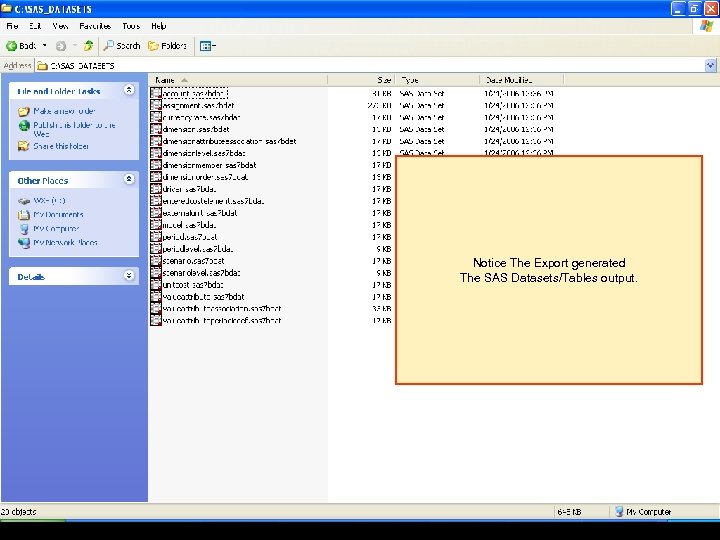
Notice The Export generated The SAS Datasets/Tables output.
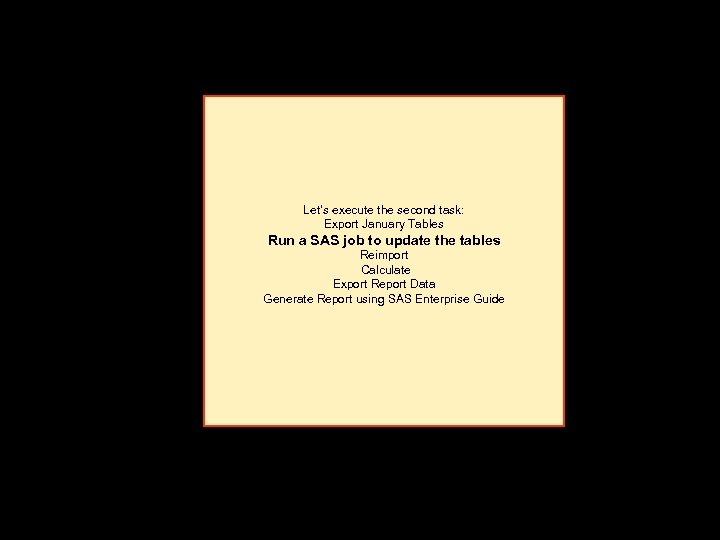
Let’s execute the second task: Export January Tables Run a SAS job to update the tables Reimport Calculate Export Report Data Generate Report using SAS Enterprise Guide
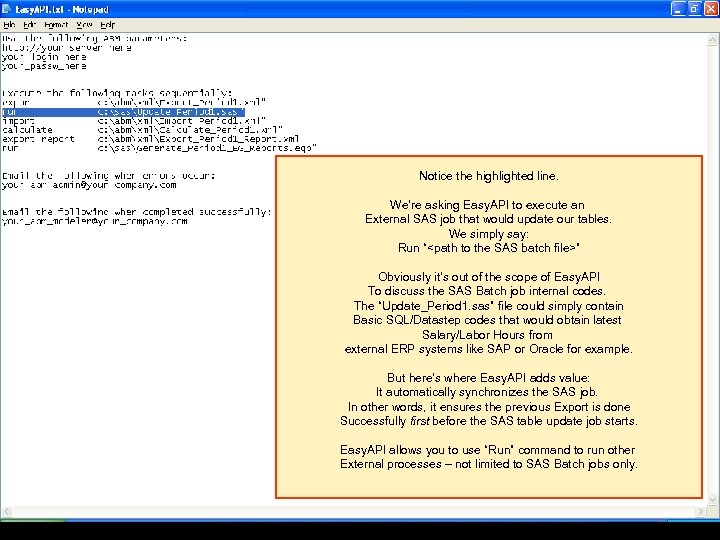
Notice the highlighted line. We’re asking Easy. API to execute an External SAS job that would update our tables. We simply say: Run “<path to the SAS batch file>” Obviously it’s out of the scope of Easy. API To discuss the SAS Batch job internal codes. The “Update_Period 1. sas” file could simply contain Basic SQL/Datastep codes that would obtain latest Salary/Labor Hours from external ERP systems like SAP or Oracle for example. But here’s where Easy. API adds value: It automatically synchronizes the SAS job. In other words, it ensures the previous Export is done Successfully first before the SAS table update job starts. Easy. API allows you to use “Run” command to run other External processes – not limited to SAS Batch jobs only.
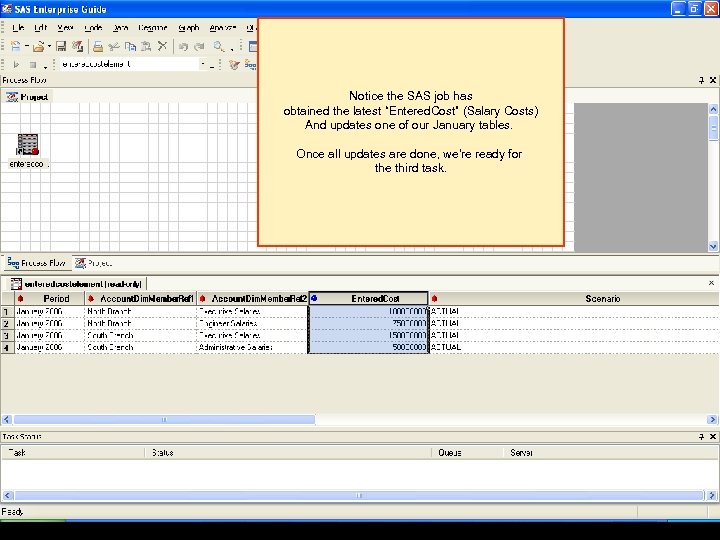
Notice the SAS job has obtained the latest “Entered. Cost” (Salary Costs) And updates one of our January tables. Once all updates are done, we’re ready for the third task.
Let’s execute third task: Export January Tables Run a SAS job to update the tables Reimport Calculate Export Report Data Generate Report using SAS Enterprise Guide
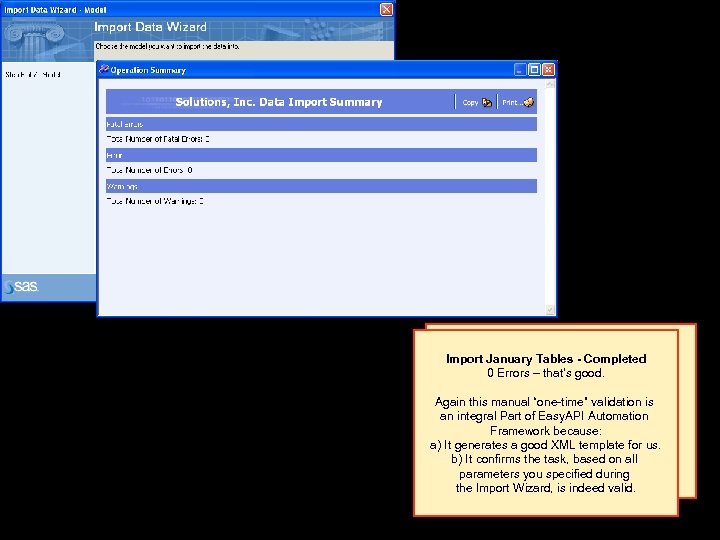
Import January Tables - Completed 0 Errors – that’s good. Reimport January Tables We launch ABM Import Wizard. Again this manual “one-time” validation is We Part basically to import our an integral tell it of Easy. API Automation Fictitious Model “Solutions, Inc. ” updates. Framework because: a) It generates a good XML template for us. b) It confirms the task, based on all parameters you specified during the Import Wizard, is indeed valid.
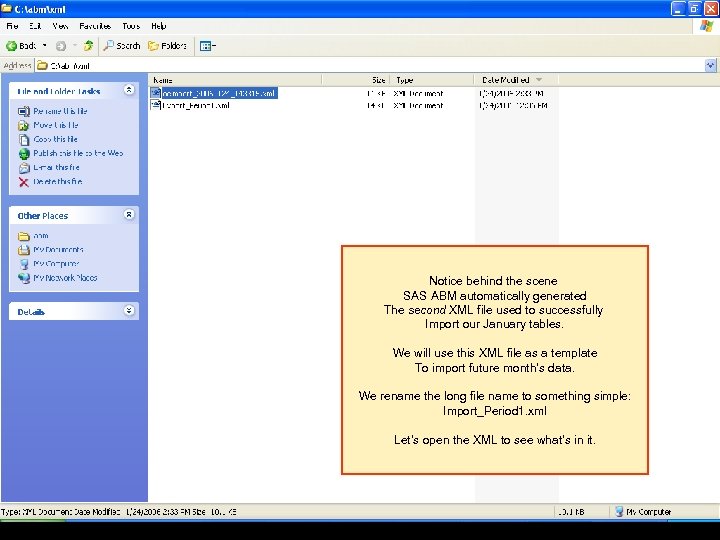
Notice behind the scene SAS ABM automatically generated The second XML file used to successfully Import our January tables. We will use this XML file as a template To import future month’s data. We rename the long file name to something simple: Import_Period 1. xml Let’s open the XML to see what’s in it.
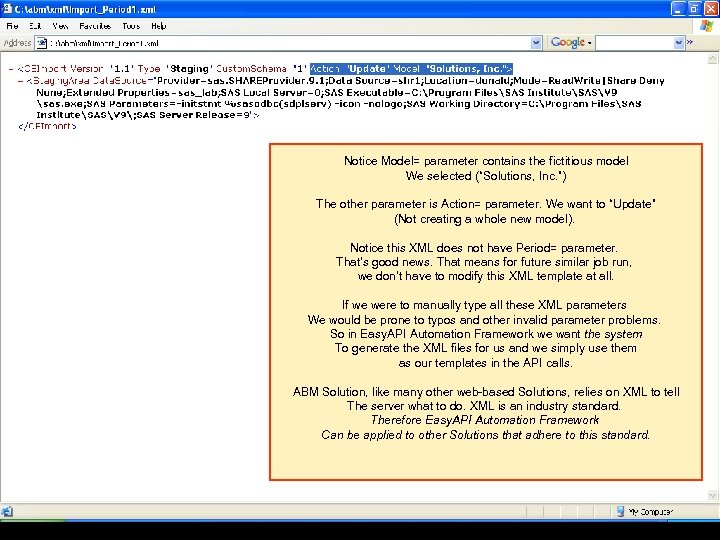
Notice Model= parameter contains the fictitious model We selected (“Solutions, Inc. ”) The other parameter is Action= parameter. We want to “Update” (Not creating a whole new model). Notice this XML does not have Period= parameter. That’s good news. That means for future similar job run, we don’t have to modify this XML template at all. If we were to manually type all these XML parameters We would be prone to typos and other invalid parameter problems. So in Easy. API Automation Framework we want the system To generate the XML files for us and we simply use them as our templates in the API calls. ABM Solution, like many other web-based Solutions, relies on XML to tell The server what to do. XML is an industry standard. Therefore Easy. API Automation Framework Can be applied to other Solutions that adhere to this standard.
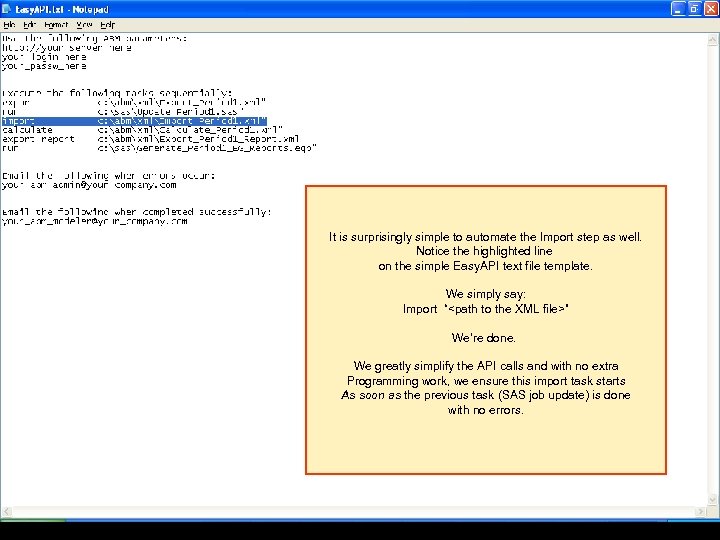
It is surprisingly simple to automate the Import step as well. Notice the highlighted line on the simple Easy. API text file template. We simply say: Import “<path to the XML file>” We’re done. We greatly simplify the API calls and with no extra Programming work, we ensure this import task starts As soon as the previous task (SAS job update) is done with no errors.
Let’s execute the fourth task: Export January Tables Run a SAS job to update the tables Reimport Calculate Export Report Data Generate Report using SAS Enterprise Guide
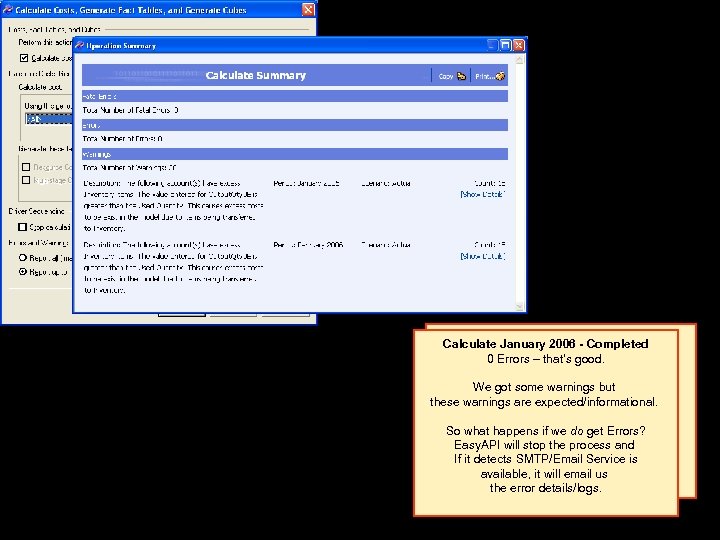
Calculate January 2006 - Completed 0 Calculate January 2006 Errors – that’s good. We launch ABM Calculate Window. We got some warnings but We tell it basically to Calculate these warnings are expected/informational. “All” Period. So what happens uswe. Period-independent This should give if a do get Errors? Easy. API will stop the process and XML template – which would If it detects SMTP/Email Service is Work for similar future period calculations. available, it will email us the error details/logs.
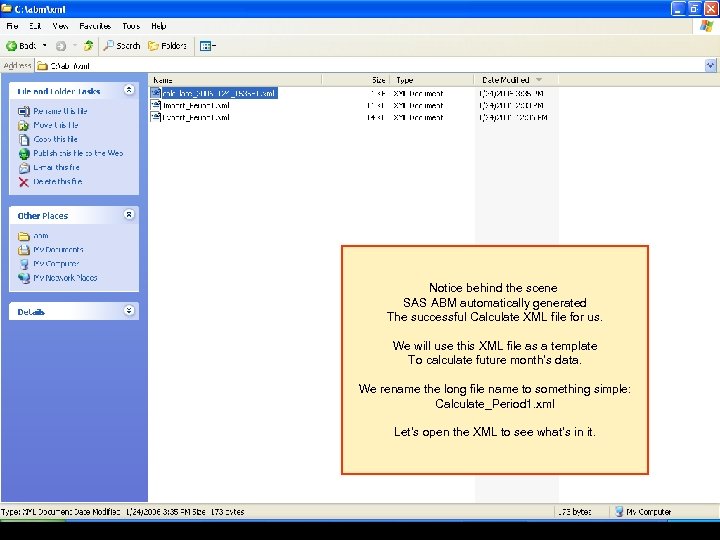
Notice behind the scene SAS ABM automatically generated The successful Calculate XML file for us. We will use this XML file as a template To calculate future month’s data. We rename the long file name to something simple: Calculate_Period 1. xml Let’s open the XML to see what’s in it.
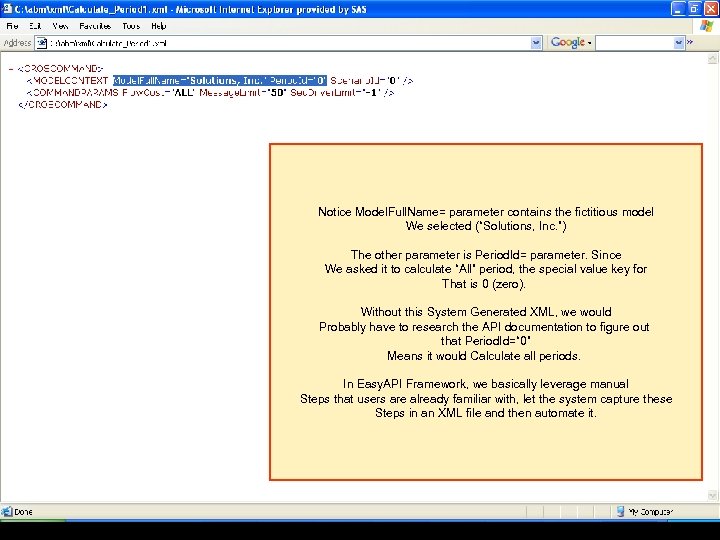
Notice Model. Full. Name= parameter contains the fictitious model We selected (“Solutions, Inc. ”) The other parameter is Period. Id= parameter. Since We asked it to calculate “All” period, the special value key for That is 0 (zero). Without this System Generated XML, we would Probably have to research the API documentation to figure out that Period. Id=“ 0” Means it would Calculate all periods. In Easy. API Framework, we basically leverage manual Steps that users are already familiar with, let the system capture these Steps in an XML file and then automate it.
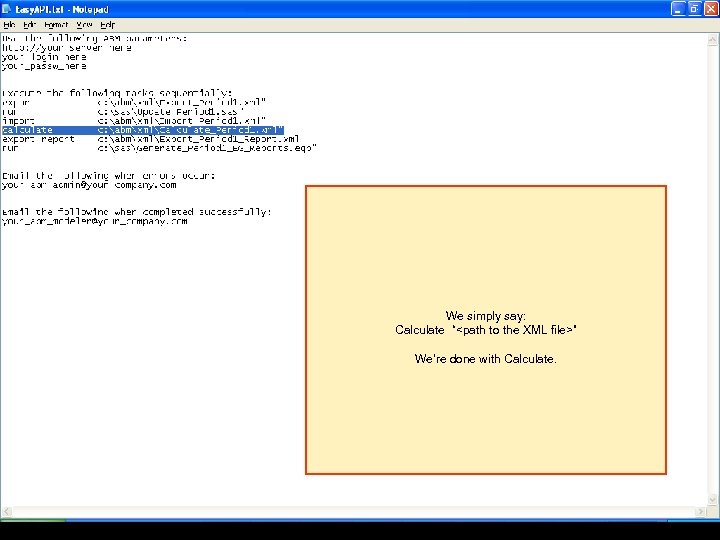
We simply say: Calculate “<path to the XML file>” We’re done with Calculate.
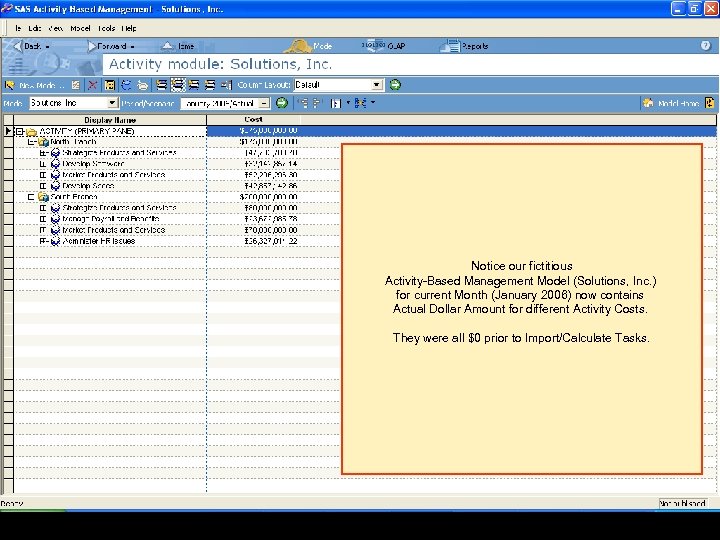
Notice our fictitious Activity-Based Management Model (Solutions, Inc. ) for current Month (January 2006) now contains Actual Dollar Amount for different Activity Costs. They were all $0 prior to Import/Calculate Tasks.
Let’s execute the fifth task: Export January Tables Run a SAS job to update the tables Reimport Calculate Export Report Data Generate Report using SAS Enterprise Guide
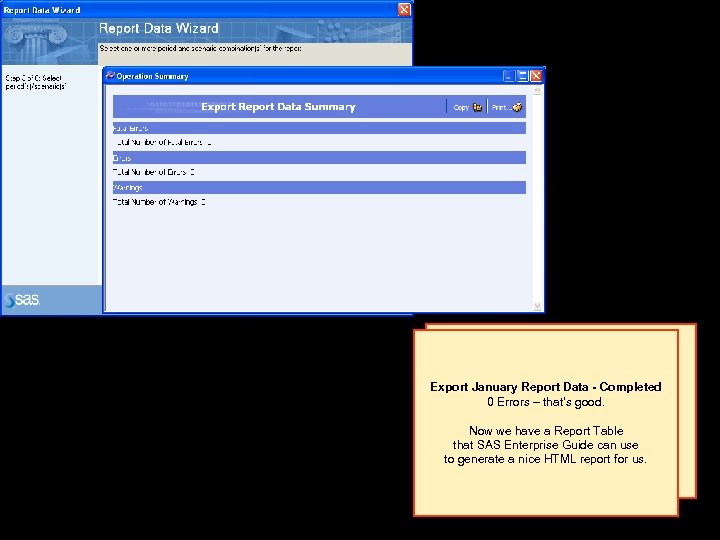
Export January Report Data - Completed We launch ABM Report Data Export Wizard. 0 tell it – that’s to export our We Errorsbasically good. Fictitious Model “Solutions, Inc. ” Now we have a Report Table and we’re interested in that SAS Enterprise Guide can use “January 2006” report data. to generate a nice HTML report for us.
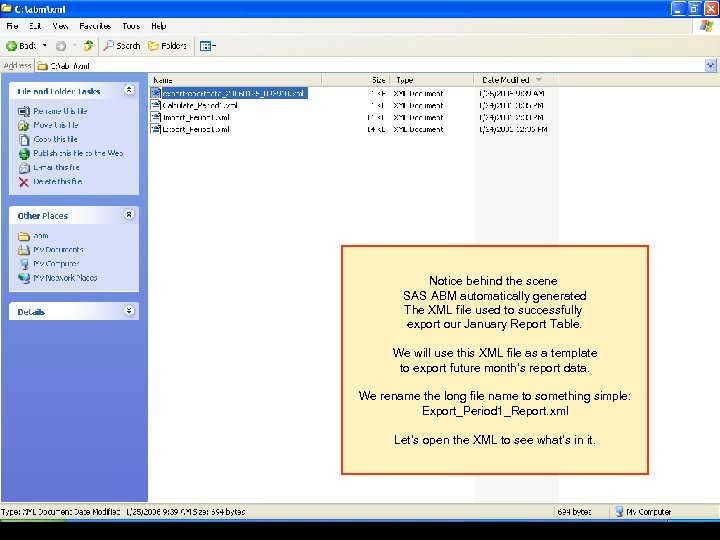
Notice behind the scene SAS ABM automatically generated The XML file used to successfully export our January Report Table. We will use this XML file as a template to export future month’s report data. We rename the long file name to something simple: Export_Period 1_Report. xml Let’s open the XML to see what’s in it.
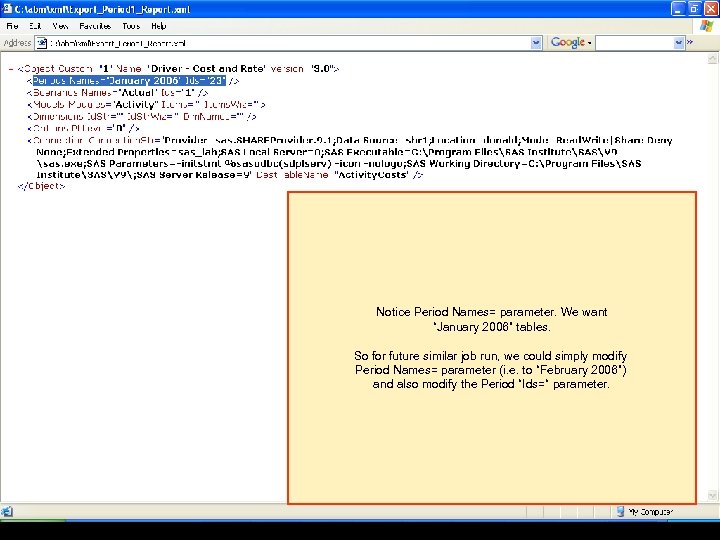
Notice Period Names= parameter. We want “January 2006” tables. So for future similar job run, we could simply modify Period Names= parameter (i. e. to “February 2006”) and also modify the Period “Ids=“ parameter.
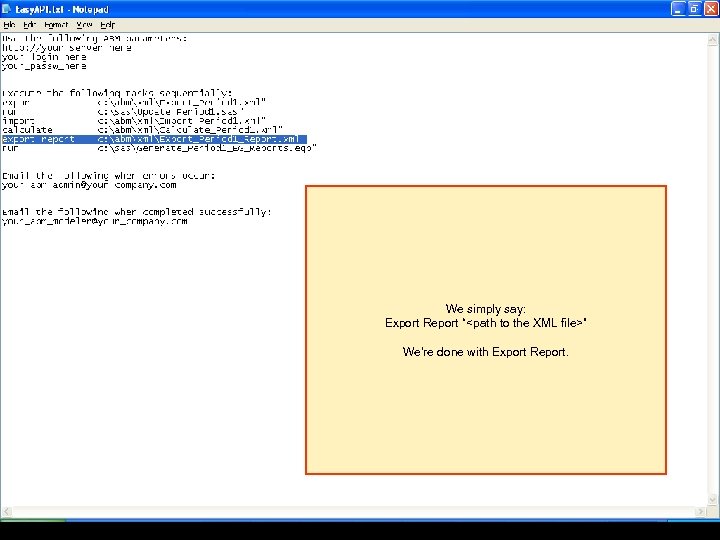
We simply say: Export Report “<path to the XML file>” We’re done with Export Report.
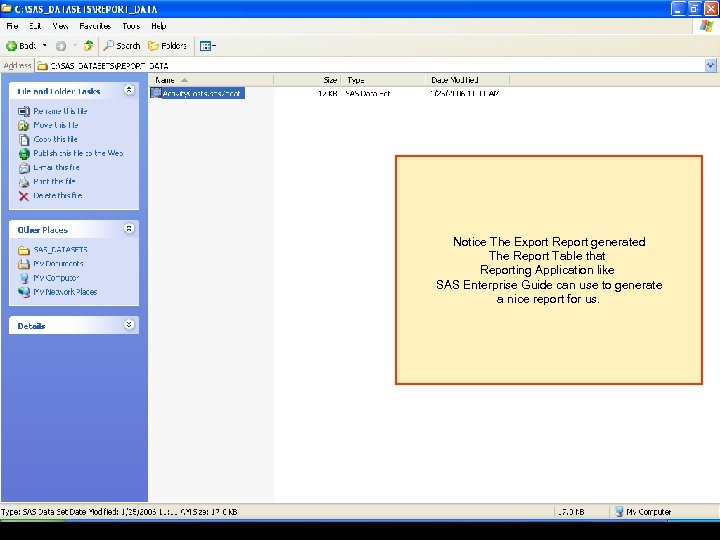
Notice The Export Report generated The Report Table that Reporting Application like SAS Enterprise Guide can use to generate a nice report for us.
Let’s execute the final task: Export January Tables Run a SAS job to update the tables Reimport Calculate Export Report Data Generate Report using SAS Enterprise Guide
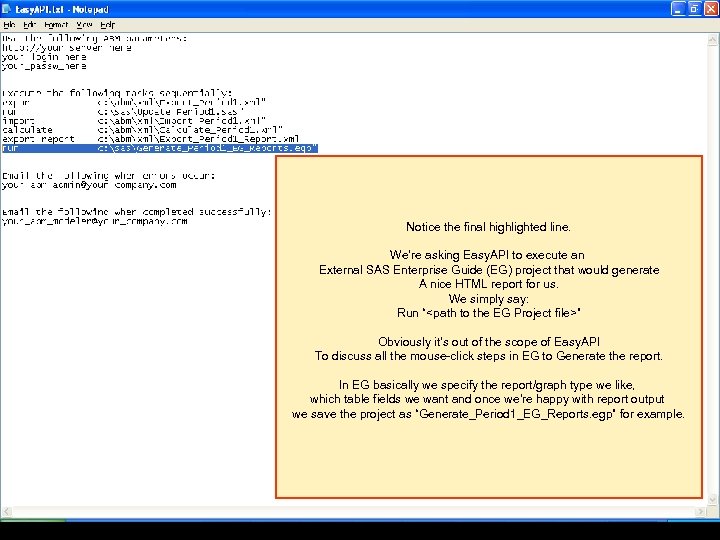
Notice the final highlighted line. We’re asking Easy. API to execute an External SAS Enterprise Guide (EG) project that would generate A nice HTML report for us. We simply say: Run “<path to the EG Project file>” Obviously it’s out of the scope of Easy. API To discuss all the mouse-click steps in EG to Generate the report. In EG basically we specify the report/graph type we like, which table fields we want and once we’re happy with report output we save the project as “Generate_Period 1_EG_Reports. egp” for example.
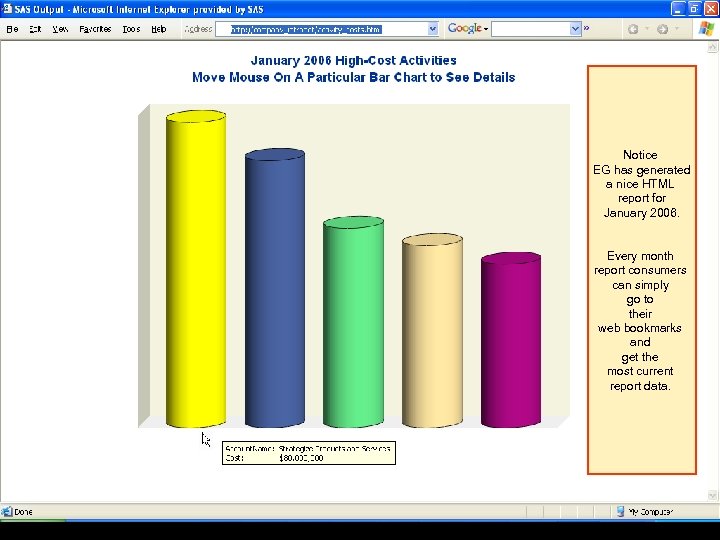
Notice EG has generated a nice HTML report for January 2006. Every month report consumers can simply go to their web bookmarks and get the most current report data.
Congratulations! We’ve established the Easy. API Automation Framework for all our tasks. Now suppose end of February 2006 is coming soon. What do we have to do to make our Easy. API automation ready for February 2006 updates? Answer: Just update the Export-XML files and specify the “Period=“ Parameters to “February 2006”. In our scenario, they are: • Export_Period 1. xml • Export_Period 1_Report. xml
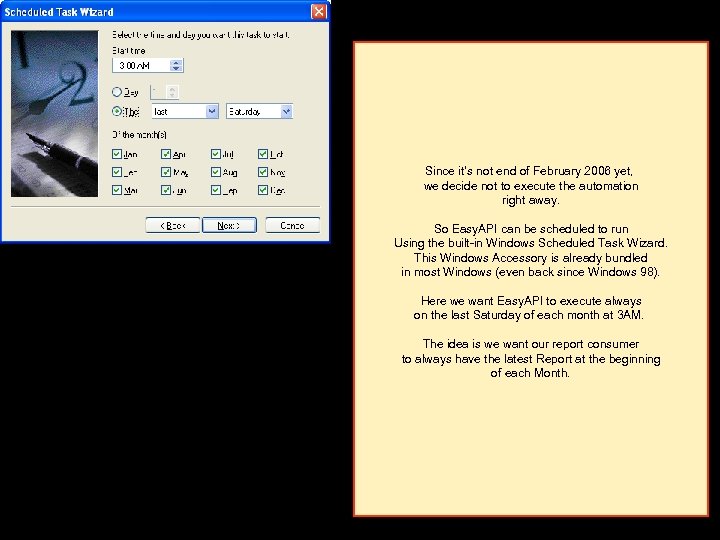
Since it’s not end of February 2006 yet, we decide not to execute the automation right away. So Easy. API can be scheduled to run Using the built-in Windows Scheduled Task Wizard. This Windows Accessory is already bundled in most Windows (even back since Windows 98). Here we want Easy. API to execute always on the last Saturday of each month at 3 AM. The idea is we want our report consumer to always have the latest Report at the beginning of each Month.
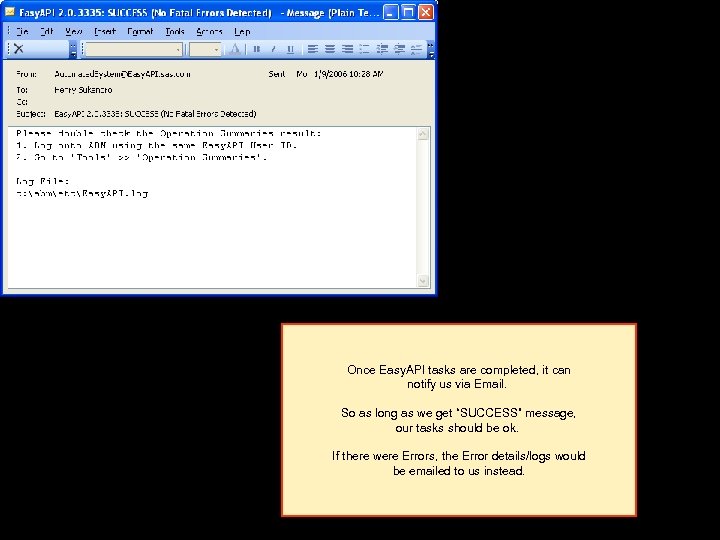
Once Easy. API tasks are completed, it can notify us via Email. So as long as we get “SUCCESS” message, our tasks should be ok. If there were Errors, the Error details/logs would be emailed to us instead.
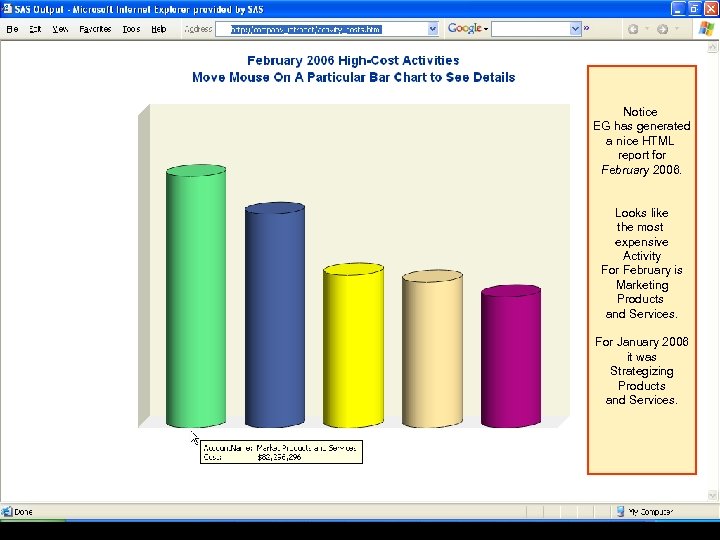
Notice EG has generated a nice HTML report for February 2006. Looks like the most expensive Activity For February is Marketing Products and Services. For January 2006 it was Strategizing Products and Services.
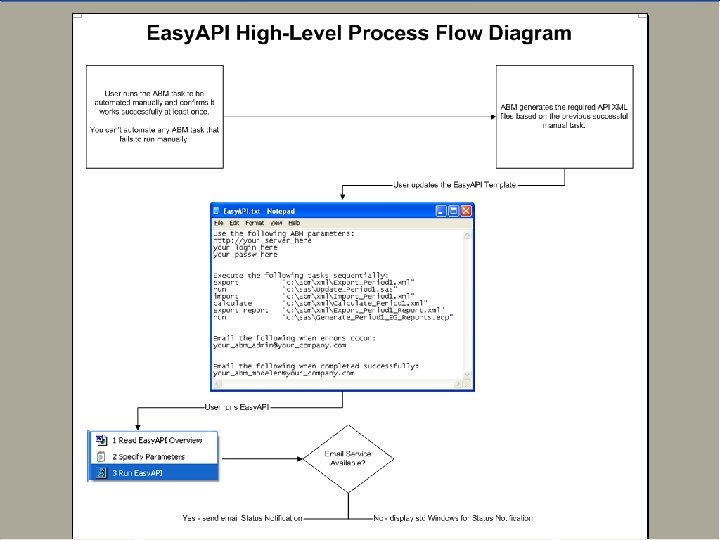
Let’s Summarize and Review Our Entire Process by looking at the: Easy. API High-Level Process Flow Diagram
Summary Points and Closing Remarks: The complexity of instantiating API correctly, managing synchronous process and reporting problems/success status via email are all taken care of by Easy. API Automation Framework. These facilities are often missing in a lot of API implementations. We just typically expose a number of API functions, throw in a few snippet codes and tell our users to go figure them out and piece them all together. The Framework does not attempt to do every single thing we can do with a plethora of API libraries. It goes by the Pareto Principle - taking care of 80% (majority) of usage needs and provide a simple framework that users can leverage on with little or no programming backgrounds. It relies on Windows Scripting Host technology which is already built-in in most Windows OS - so there's no extra programming software to install/configure. It can also be easily scheduled to execute periodically using the built-in Windows Scheduled Task Wizard. As far as learning curves, Easy. API contains no new Graphical User Interface to learn. Its UI is a simple Text file template. Easy. API tasks are written in plain English (export, import, calculate). Localizing these commands can also be easily done. For example we can map "calculate" to be synonymous with "calculez" in French. In a sense the Framework is unique in that it uses “human” language – rather than relying on “computer/programming” language to leverage the API’s. Users can focus on the Automation/ETL process flow rather than worrying about the programming aspects of the Application “Programming” Interface (API). ABM Solution, like many other web-based Solutions, relies on XML to tell the server what to do. XML is an industry standard. Therefore Easy. API Automation Framework, which relies on XML API parameters, can be applied to other Solutions/Applications that adhere to this standard.

Thank You Copyright, SAS Institute Inc. All rights reserved.
Скачать презентацию SAS Activity-Based Management ABM Easy API A Framework
28093c6781a6d92bc08a33d8169d45f1.ppt