


 Скачать презентацию RF Physical Inventory A New Method of Counting
be6b5d9b026bc2070ffd6d59356d1d53.ppt
- Количество слайдов: 36
 RF Physical Inventory A New Method of Counting, Auditing and Reconciling XA Physical Inventory with Materials Management 1
 CISTECH RF Capabilities CISTECH recognized the need for barcode capabilities plantwide: – RF Manufacturing Transactions – RF Pick Pack Ship Bristol Compressors in Bristol, VA contracted with CISTECH to assist in the design and implementation of a new physical inventory process and software solution 2
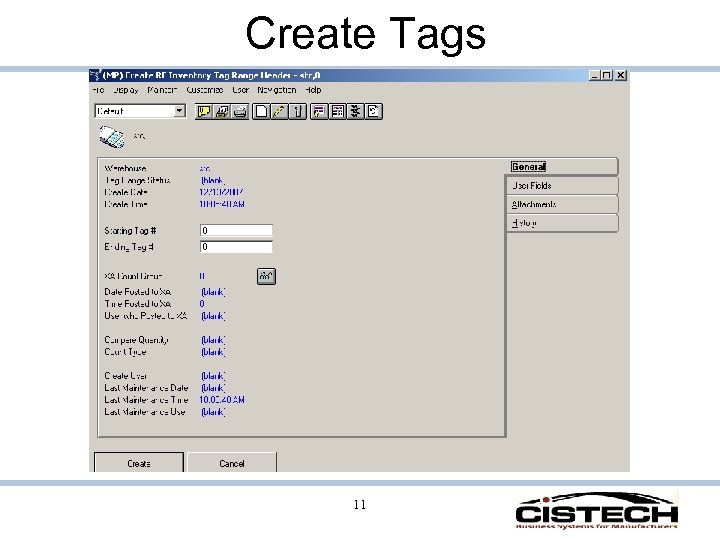
 Overview • Creates a set of ‘blank’ tags in a non-XA file; this file will be used for tag control • ‘Tags’ are printed on peel off labels with bar code tag numbers, 30 labels to a sheet • A range of tags is assigned to a counter (must be a valid employee in PM&C employee master file) • Counters will: – – – Scan the tag number Scan (or key) the item number Scan (or key) the location Key the quantity Scan (or key) a batch/lot number 3
 Overview • Counters can only use tags that have been assigned to them • Counters can void a tag (requires a reason code) • Counters can mark a tag as ‘unused’ • As tags are entered on the RF gun, the tag information is written to the Tag file – Will calculate count to location difference in both quantity and cost – Difference may be inaccurate if there are multiple tags for the same item/location combination 4
 Overview • Can sign on to the gun as an auditor • Auditor scans tag – Tag information is displayed on the RF gun – Auditor can accept or reject count – If count is rejected, a reason code must be entered • Tag file is updated with: – Audited by name & number – Count accepted or rejected flag – Reject reason code 5
 Overview • Tags can be flagged as unused from the Browser with a range of tag numbers • Once all tags have been accounted for, send the tags to Materials Management as a ‘Count Group’ • Use MM to run variance reports and enter recounts • Use MM to update IM on hand balances 6
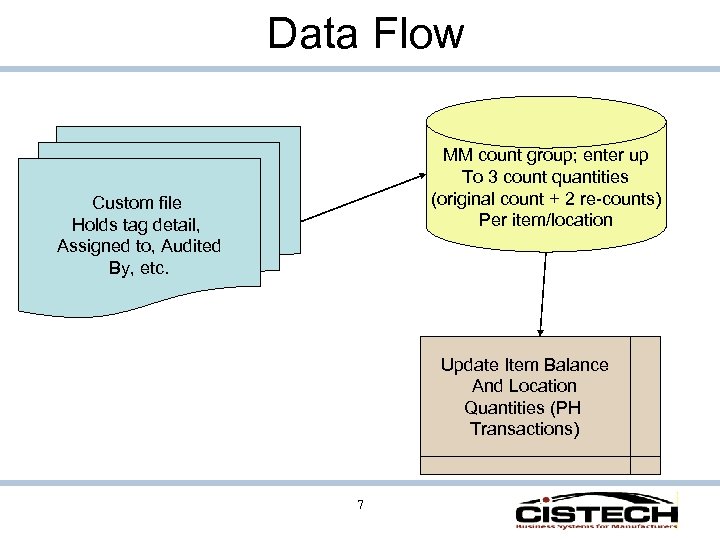 Data Flow MM count group; enter up To 3 count quantities (original count + 2 re-counts) Per item/location Custom file Holds tag detail, Assigned to, Audited By, etc. Update Item Balance And Location Quantities (PH Transactions) 7
 Non-XA Features • • • Blank tag file Assign tags to employees Peel off, bar code labels as tags Void a tag with user defined reason code Flag tags as ‘unused’ Audit tags with user defined reason code for rejected tags • Can have multiple tags for same item/location combination 8
 Non-XA Features • Tag Status Codes • Creates zero count tags for items/locations not counted • Consolidates multiple tags for same item/location onto one tag • Count variance as tag is updated with item and count quantity 9
 Pre-Requisites • • • Materials Management (MM) Inventory Management (IM) Integrator Production Monitoring and Control (PM&C) XA release 6 or 7 10
 Create Tags 11
 Tag List 12
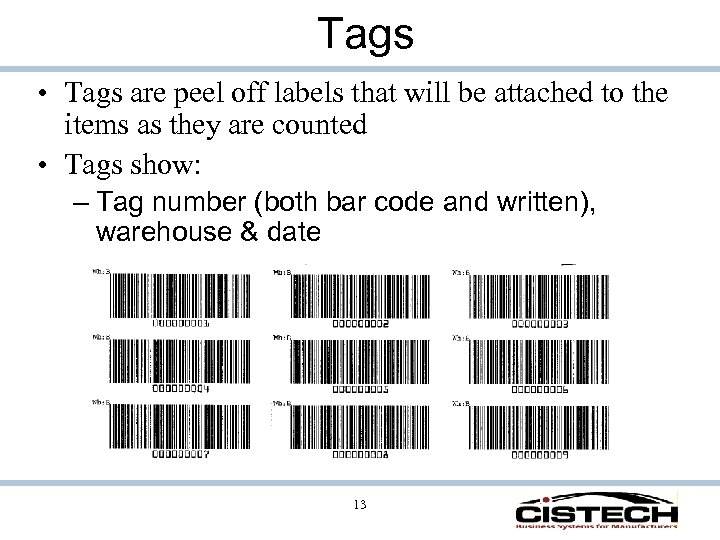 Tags • Tags are peel off labels that will be attached to the items as they are counted • Tags show: – Tag number (both bar code and written), warehouse & date 13
 Assignment • Once tags are created they are assigned to Counters • When creating counts, employee number assigned to the tag must match employee number signed onto the RF gun • Prevents one Counter from giving their tag(s) to another Counter 14
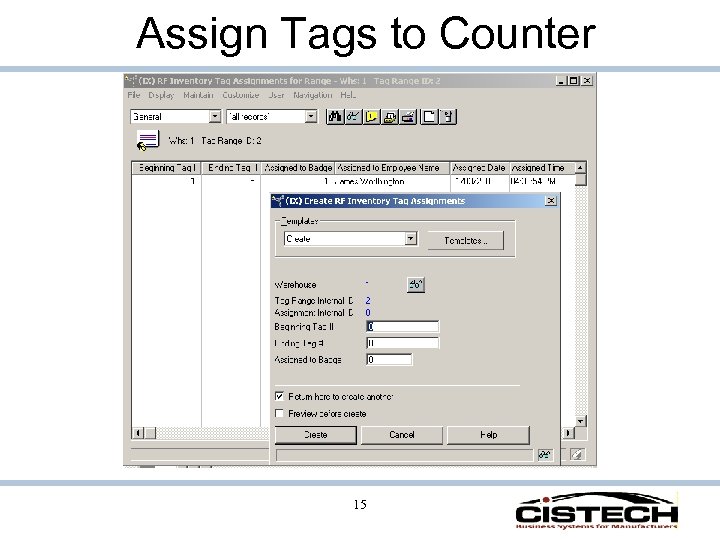 Assign Tags to Counter 15
 Counter Actions • Counter signs onto RF gun • Chooses whether they are a ‘Counter’ or an ‘Auditor’ • Enters/scans Employee number • Then uses the following screens: 16
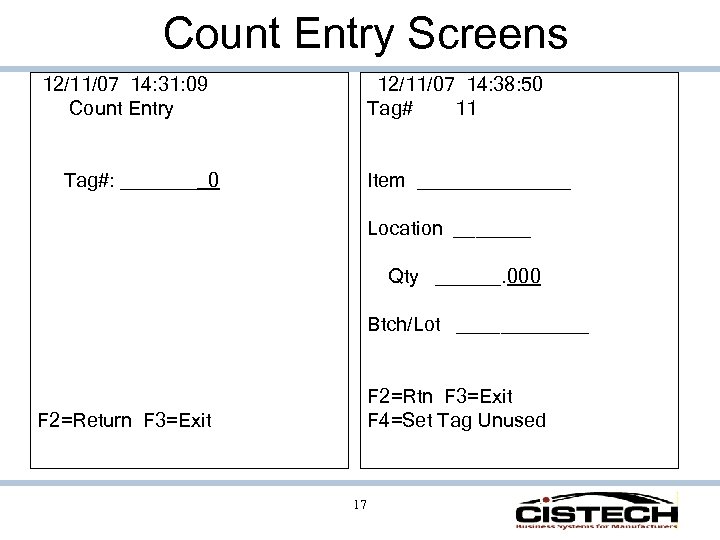 Count Entry Screens 12/11/07 14: 38: 50 Tag# 11 12/11/07 14: 31: 09 Count Entry Tag#: _______ 0 Item _______ Location _______ Qty ______. 000 Btch/Lot ______ F 2=Rtn F 3=Exit F 4=Set Tag Unused F 2=Return F 3=Exit 17
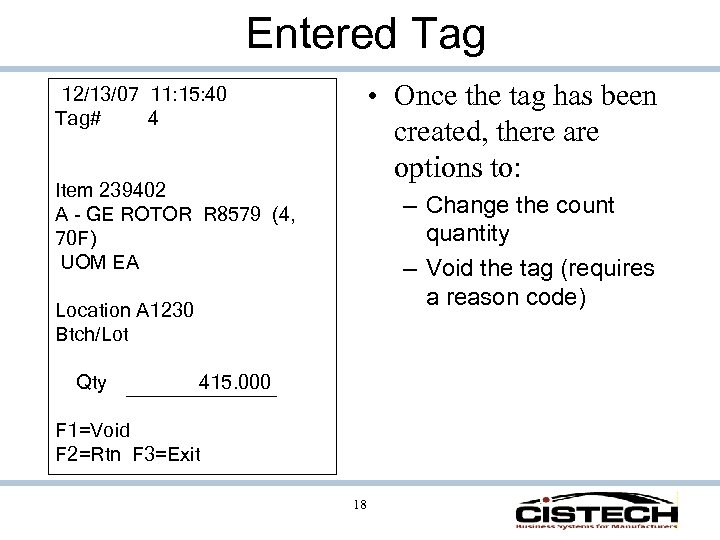 Entered Tag • Once the tag has been created, there are options to: 12/13/07 11: 15: 40 Tag# 4 Item 239402 A - GE ROTOR R 8579 (4, 70 F) UOM EA – Change the count quantity – Void the tag (requires a reason code) Location A 1230 Btch/Lot Qty 415. 000 F 1=Void F 2=Rtn F 3=Exit 18
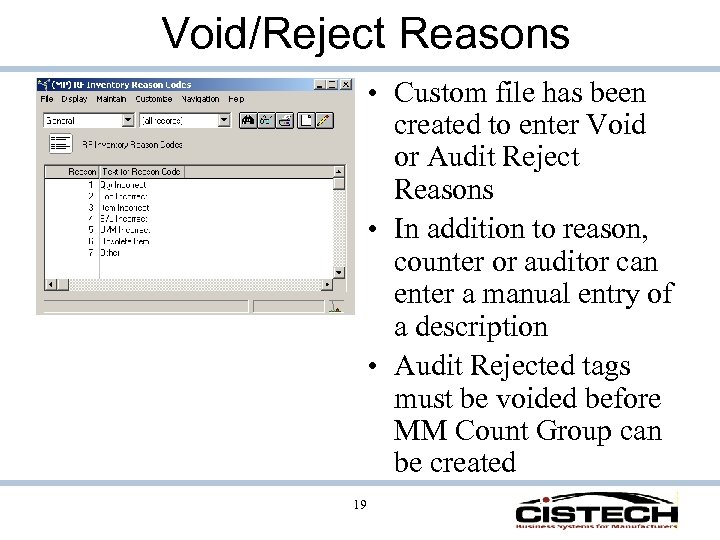 Void/Reject Reasons • Custom file has been created to enter Void or Audit Reject Reasons • In addition to reason, counter or auditor can enter a manual entry of a description • Audit Rejected tags must be voided before MM Count Group can be created 19
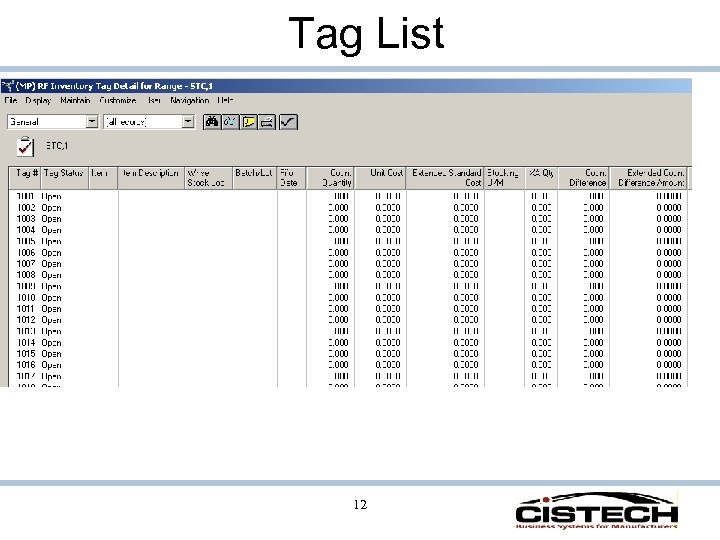
 Tag File • As counts are scanned/entered, tag file is updated with: – Tag Status – Counted By (must match Assigned To) – Item, Location, Quantity and, if required, Batch/Lot number – Quantity and Cost difference between Location quantity and Count quantity 20
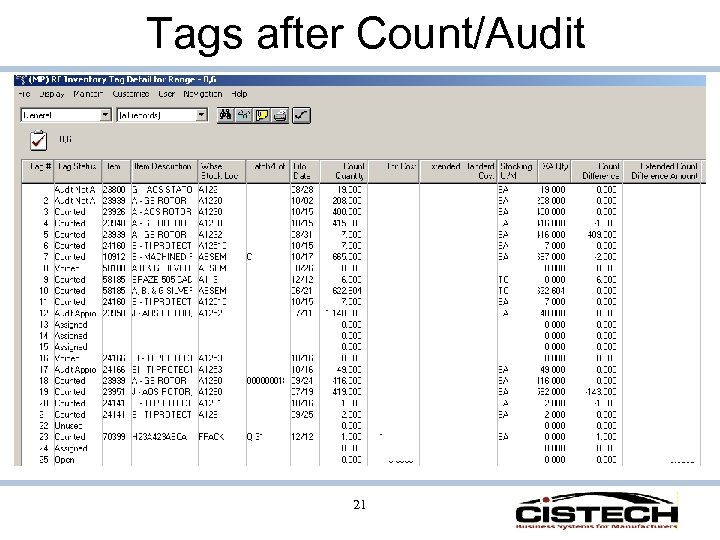 Tags after Count/Audit 21
 Auditor Features • An Auditor will be able to either approve or reject tags • Rejected and Voided tags will require a Reason Code • Auditor employee number, date, time, approval code and, if rejected, reason code will be added to the tag • Un-used tags must be flagged as such 22
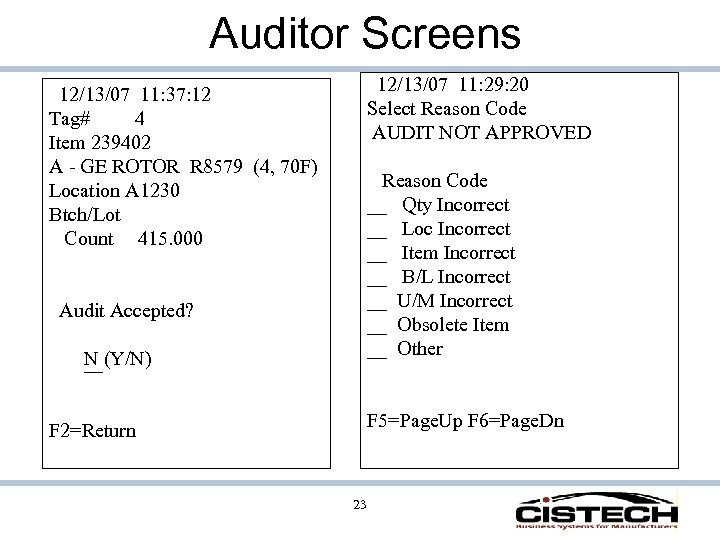 Auditor Screens 12/13/07 11: 29: 20 Select Reason Code AUDIT NOT APPROVED 12/13/07 11: 37: 12 Tag# 4 Item 239402 A - GE ROTOR R 8579 (4, 70 F) Location A 1230 Btch/Lot Count 415. 000 Reason Code __ Qty Incorrect __ Loc Incorrect __ Item Incorrect __ B/L Incorrect __ U/M Incorrect __ Obsolete Item __ Other Audit Accepted? N (Y/N) F 5=Page. Up F 6=Page. Dn F 2=Return 23
 Tag Reconciliation • Use Subsets and Views to review tags • Audit rejected tags must be voided before MM Count Group can be created • Verify that all tags have been accounted for 24
 Tag Status • • OP - Open AS - Assigned CT - Counted AA - Audit Approved AN - Audit Not Approved VD - Voided UU - Unused CN - Consolidated To (for internal use when posting counts to MM) • UI - Uncounted Item (for internal use when posting counts to MM) 25
 Create Count Group • Once all tags have been accounted for, a job will be run that will take the tag information and create an XA Materials Management Count Group: – Multiple tags for the same item/location will be consolidated – Program will create zero count quantity tags for item/locations that did not have a count quantity entered 26
 MM Count Group • Materials Management will now control count quantities • Variance reports can be created • Re-counts can be entered (MM allows up to 3 count quantities per item) • Update quantity on hand is run from MM (creates ‘PH’ Physical Inventory Adjustment Transactions) 27
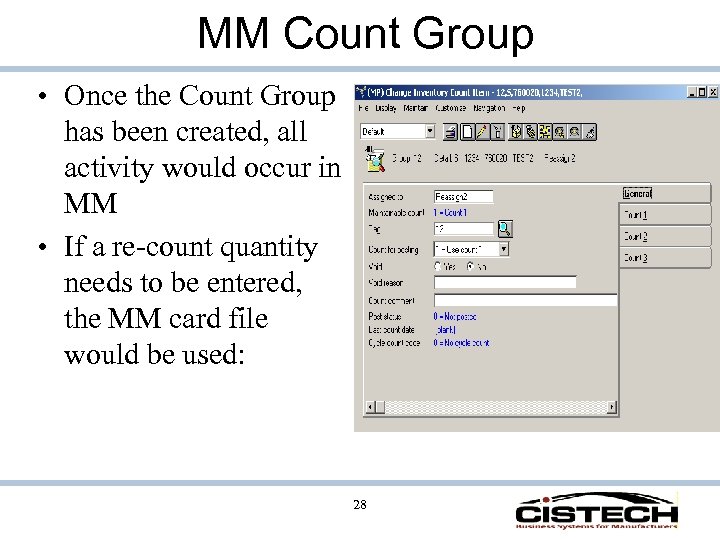 MM Count Group • Once the Count Group has been created, all activity would occur in MM • If a re-count quantity needs to be entered, the MM card file would be used: 28
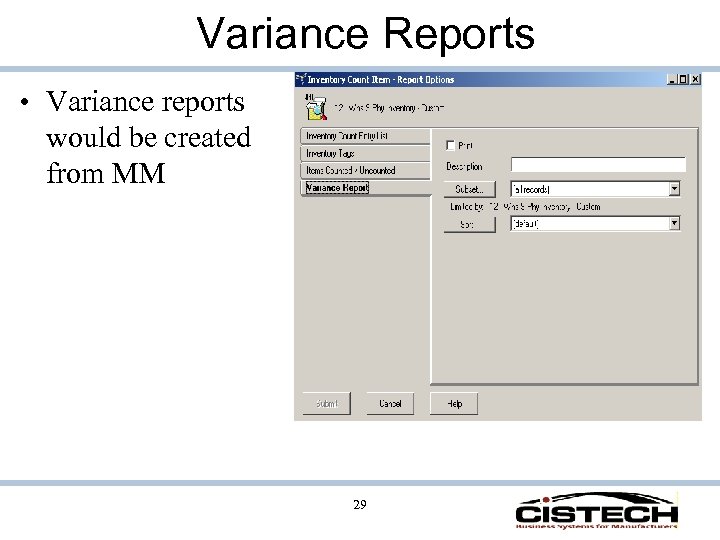 Variance Reports • Variance reports would be created from MM 29
 Updating On Hand Balances • Once all count items have been approved, Materials Management would be used to post count quantities • If there is a difference between the count quantity and the location quantity, a PH (Physical Inventory Adjustment) transaction will be created to update the on hand balance 30
 Under Development • Action to create IM Physical Inventory Batch • Prompt to ask ‘Create Zero Count Quantity Tags? ’ when creating MM Count Group or IM Batch • Interface to PDM (verifies against the Item Master file instead of the Item Revision) • For XA R 7 only, allow messages to be sent back to the user (instead of generating reports) 31
 Conclusion • Tags are now a ‘peel off’ label • Scanning provides the tag ‘data entry’ • Auditors can see count quantity from the RF gun and approve or reject a tag • Counters can void a tag • Rejected and Voided tags require a user defined reason code • Tags will create an MM Count Group • MM will produce variance reports and update quantity on hand information 32
 Benefits • • • ‘Tags’ printed on laser printer on peel off labels Can track tag from creation to posting with tag status No data entry, RF gun count serves as data entry Can audit tags Reason codes for void and audit rejected tags Significantly reduce the amount of time to count, audit and reconcile a physical inventory 33
 RF Suite • 90 day support included in purchase price • Annual Support can be purchased. This includes: – Cistech ‘hot line’ support – Upgrades/enhancements • Source code and full documentation is provided for all applications purchased 34
 RF Suite • RF Physical Inventory can be purchased separately for $12, 000 (software only, RF guns and RF ‘backbone’ are separate fees) • Optional Annual License Fee of $2, 400. • CISTECH also sells an ‘RF Suite’ consisting of: – IM & Repetitive Transactions and Inquiries – Pick, Pack, Ship Customer Orders – Physical Inventory – Purchased separately these would total $50, 000 but discounted to $38, 000 when purchased as a ‘package’ 35
 Thank You!