 Скачать презентацию Results Post Processing using MSC Acumen Francis BARREAU
91a2cd3c42f57eed25860c3b6a8b696a.ppt
- Количество слайдов: 19



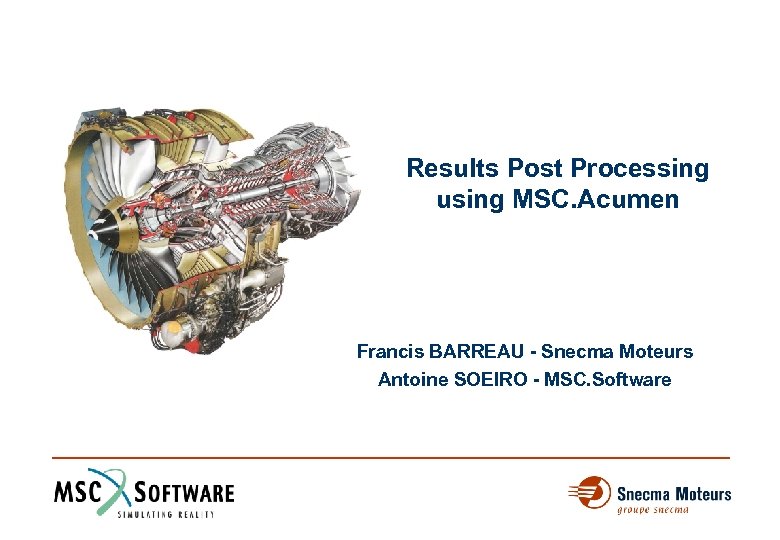
Results Post Processing using MSC. Acumen Francis BARREAU - Snecma Moteurs Antoine SOEIRO - MSC. Software
Acumen Résultats • It is an application developed by MSC. Software for Snecma Moteurs. • It is developed using MSC. Acumen. • It allows post processing of the results calculated by Samcef (main mechanical analysis program at Snecma Moteurs).
Why Acumen Résultats ? • Post processing with Patran : – is adapted for all type of results, – allows a great variety of displays. • But : – It remains complicated to use, especially for an inexperienced user. – It is not easy to automate some displays. – It is missing some essential functions like units management. – It allows to obtain different values depending on the options chosen. Which value is the right one ?
Why Acumen Résultats ? • Acumen Résultats allows : – To display results calculated with Samcef. – Simplification of post processing tasks by offering an easy-tounderstand Graphic user interface even for an inexperienced user. – Display of results in a reliable manner : to get only the right values. – Automatic chaining of different Patran commands to get a complex display. – Automation of some post processing. – Addition of some missing functions (managing units) or improvement of existing ones ( titles, XY plots).
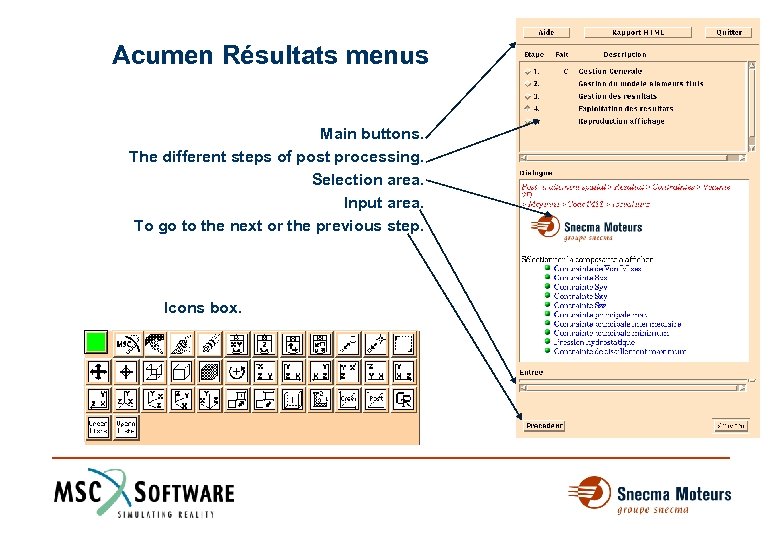
Acumen Résultats menus Main buttons. The different steps of post processing. Selection area. Input area. To go to the next or the previous step. Icons box.
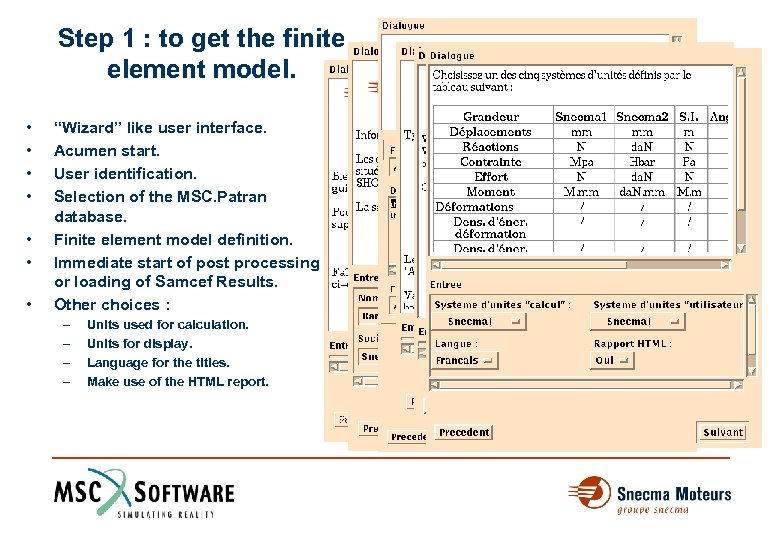
Step 1 : to get the finite element model. • • “Wizard” like user interface. Acumen start. User identification. Selection of the MSC. Patran database. Finite element model definition. Immediate start of post processing or loading of Samcef Results. Other choices : – – Units used for calculation. Units for display. Language for the titles. Make use of the HTML report.
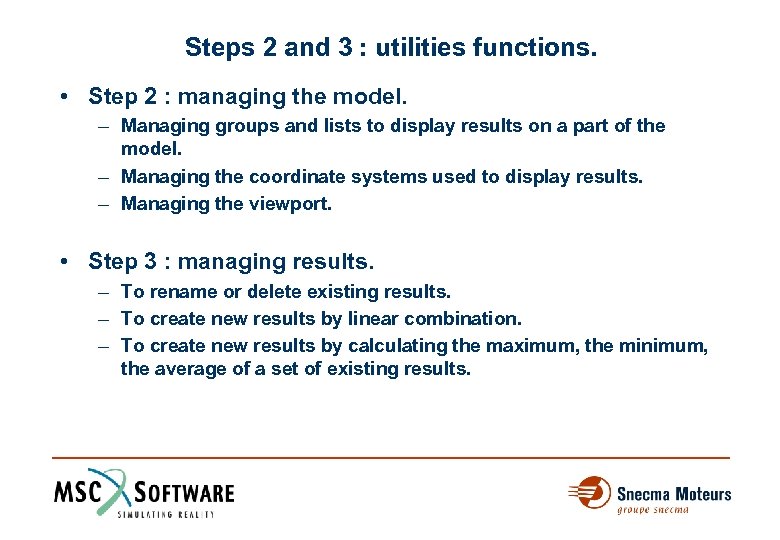
Steps 2 and 3 : utilities functions. • Step 2 : managing the model. – Managing groups and lists to display results on a part of the model. – Managing the coordinate systems used to display results. – Managing the viewport. • Step 3 : managing results. – To rename or delete existing results. – To create new results by linear combination. – To create new results by calculating the maximum, the minimum, the average of a set of existing results.
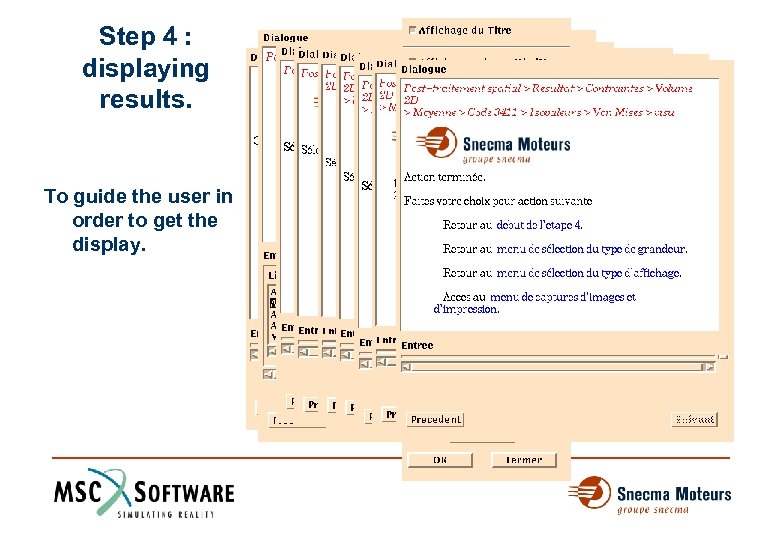
Step 4 : displaying results. To guide the user in order to get the display.
Step 4 : displaying results. • Only to allow options that correspond to the finite element model, the result quantity and the display. Examples : – To display 2 D tensors only for 2 D models. – To display a deformed plot only for displacement results. To display a vector plot for all types of vector results (displacement, loads, … ). – To display the results on the top, middle and bottom surface only for shell models.
Step 4 : displaying results. • To automatically select the Samcef result “code” number which correspond to the result quantity to display. Example : – – – ð Shell model. Stress display. Average stress at the center of the elements. Top surface stresses. Von Mises stresses. Result « Code number » Samcef : 3431.
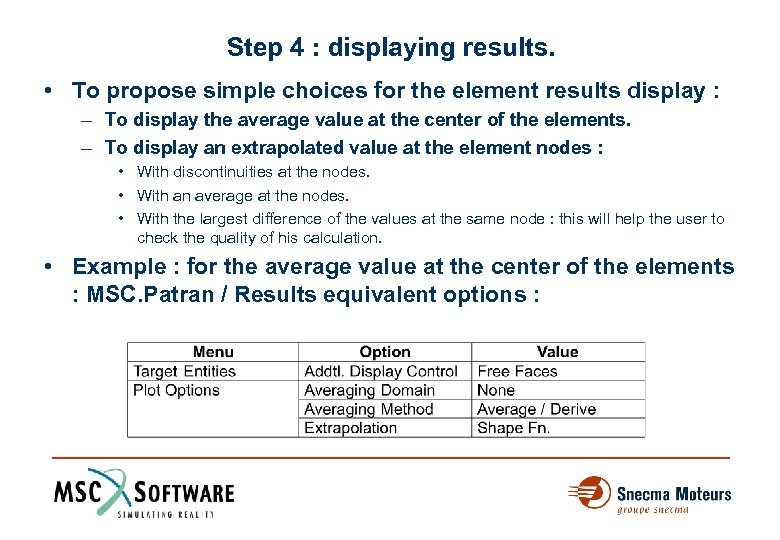
Step 4 : displaying results. • To propose simple choices for the element results display : – To display the average value at the center of the elements. – To display an extrapolated value at the element nodes : • With discontinuities at the nodes. • With an average at the nodes. • With the largest difference of the values at the same node : this will help the user to check the quality of his calculation. • Example : for the average value at the center of the elements : MSC. Patran / Results equivalent options :
Step 4 : displaying results. • To merge a set of different Patran commands into one Acumen display. Examples : – Image captures with an automatic switch between black and white background colors. – XY Plots with automatic scaling and titles. – Stress tensors having traction values with a red arrow and compression values with a blue arrow.
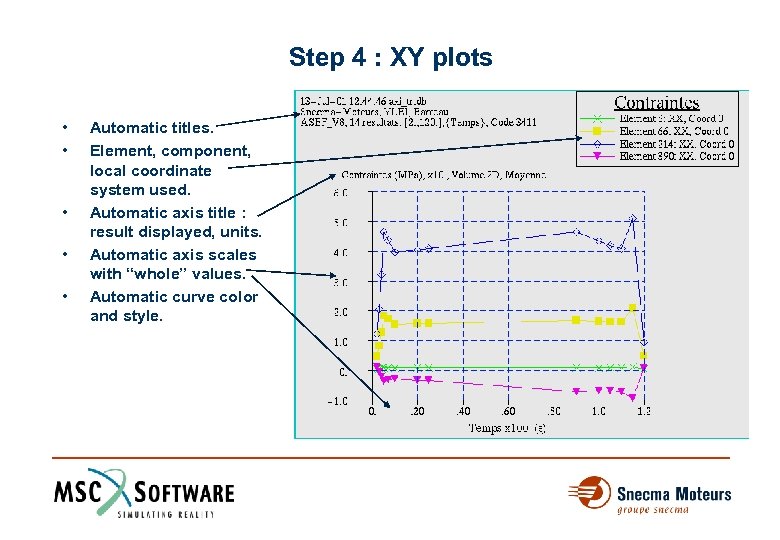
Step 4 : XY plots • • • Automatic titles. Element, component, local coordinate system used. Automatic axis title : result displayed, units. Automatic axis scales with “whole” values. Automatic curve color and style.
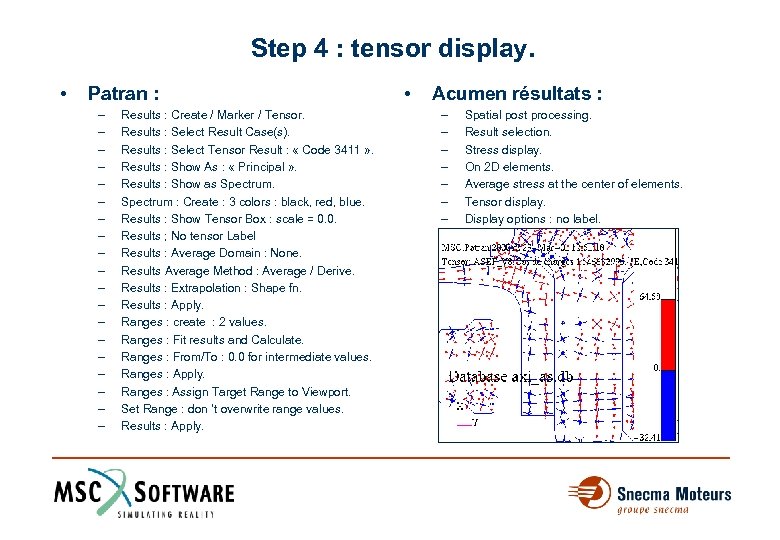
Step 4 : tensor display. • Patran : – – – – – Results : Create / Marker / Tensor. Results : Select Result Case(s). Results : Select Tensor Result : « Code 3411 » . Results : Show As : « Principal » . Results : Show as Spectrum : Create : 3 colors : black, red, blue. Results : Show Tensor Box : scale = 0. 0. Results ; No tensor Label Results : Average Domain : None. Results Average Method : Average / Derive. Results : Extrapolation : Shape fn. Results : Apply. Ranges : create : 2 values. Ranges : Fit results and Calculate. Ranges : From/To : 0. 0 for intermediate values. Ranges : Apply. Ranges : Assign Target Range to Viewport. Set Range : don ’t overwrite range values. Results : Apply. • Acumen résultats : – – – – Spatial post processing. Result selection. Stress display. On 2 D elements. Average stress at the center of elements. Tensor display. Display options : no label.
Step 4 : displaying results. • To display results in reliable manner : to show only the relevant values. • Example : fringe plots of von Mises stresses at the center of the elements. Maximum value displayed : – Patran : • 2 « codes résultats » Samcef available (3411 ou 3310) x 2 « Averaging Domain » ( « None » ou « All » ) : at least 4 different maximum values can be displayed. – Acumen Résultats: • Automatic selection of Samcef « result code » 3411 and automatic choice of the display options : one maximum value is displayed in accordance with Snecma Moteurs’ post processing methods.
Step 5 : reproducing results. • To automatically reproduce the current display on other results : – Superimposed plots of deformation and stress fringe. – Image and animation capture. • To repeat the current display with different result units or title language. • To insert the current display into an HTLM report.
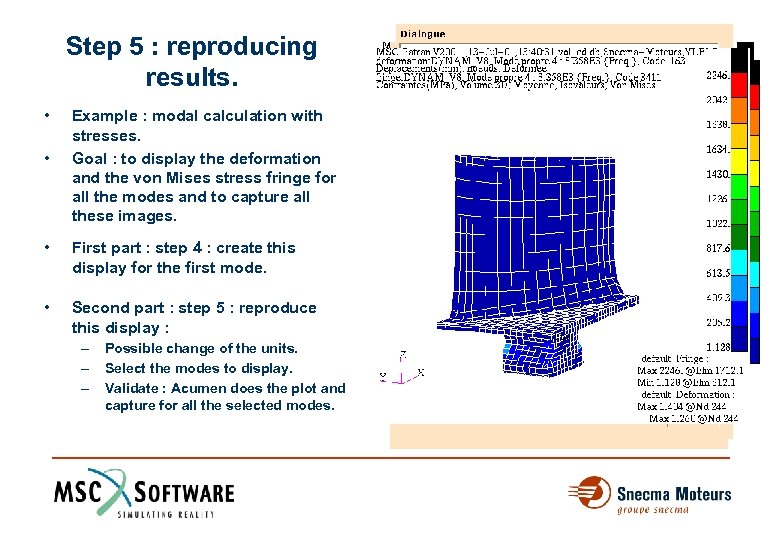
Step 5 : reproducing results. • • Example : modal calculation with stresses. Goal : to display the deformation and the von Mises stress fringe for all the modes and to capture all these images. • First part : step 4 : create this display for the first mode. • Second part : step 5 : reproduce this display : – – – Possible change of the units. Select the modes to display. Validate : Acumen does the plot and capture for all the selected modes.
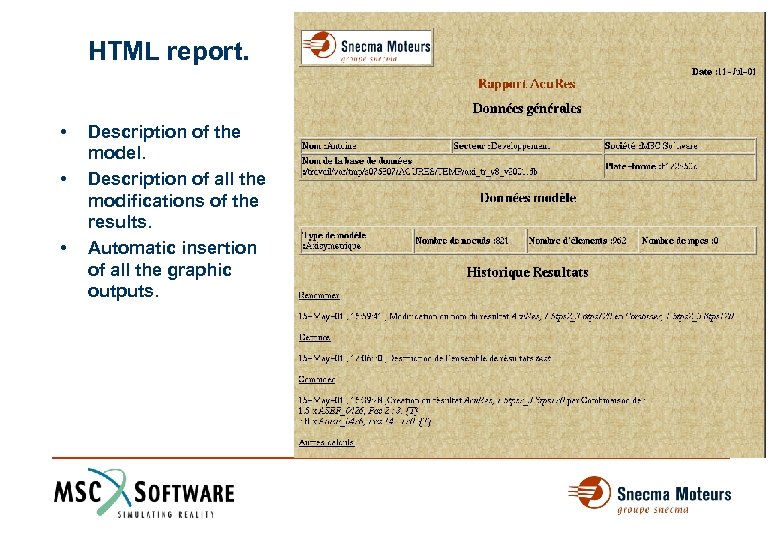
HTML report. • • • Description of the model. Description of all the modifications of the results. Automatic insertion of all the graphic outputs.
Conclusion • MSC. Acumen has allowed us to create a new application for post processing Samcef results. • At least, 95% of Snecma Moteurs’ needs are fulfilled. • Post processing is now simpler, more reliable and can be automated. • A new application for defining Element properties, loads and boundary conditions for Samcef calculations is being developed by Snecma Moteurs and MSC. Software.
Скачать презентацию Results Post Processing using MSC Acumen Francis BARREAU
91a2cd3c42f57eed25860c3b6a8b696a.ppt