


 Скачать презентацию Reporting Workflow Ink Usage Calculation and Reporting
a3a9caed71e4219ea81f1be229c07921.ppt
- Количество слайдов: 27
 Reporting Workflow Ink Usage Calculation and Reporting
 Overview Get ink usage and cost estimates on any print job-even before it prints. Supports all Resolution / Ink Type and dot patterns within the printer configuration capabilities. Adjust the ink drop value/cost per unit with custom reporting units. View estimated ink channel usage and total ink usage or cost in the RIP-Queue’s Printed Job Log.
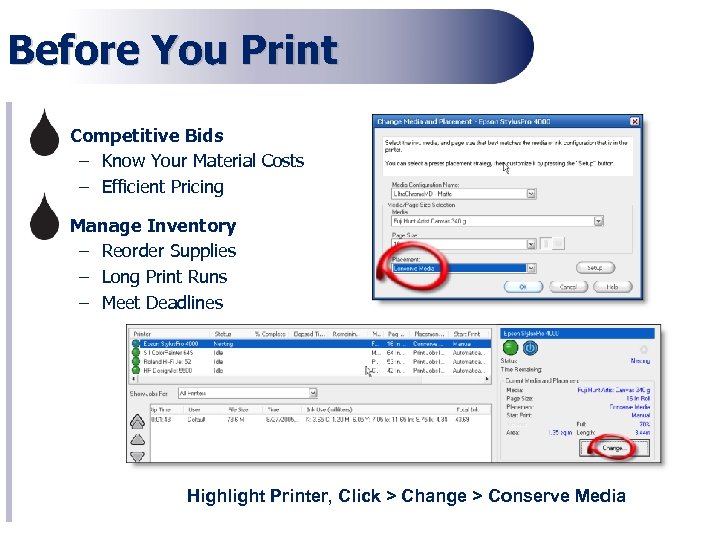 Before You Print • Competitive Bids – Know Your Material Costs – Efficient Pricing • Manage Inventory – Reorder Supplies – Long Print Runs – Meet Deadlines Highlight Printer, Click > Change > Conserve Media
 After You Print • Check Reported Ink Usage – Accuracy “Known vs. Reported” – Fine Tune Correction Factor • Cost – Budget Time & Money – Total Cost – Estimation – Build in Margins Report What You Want!
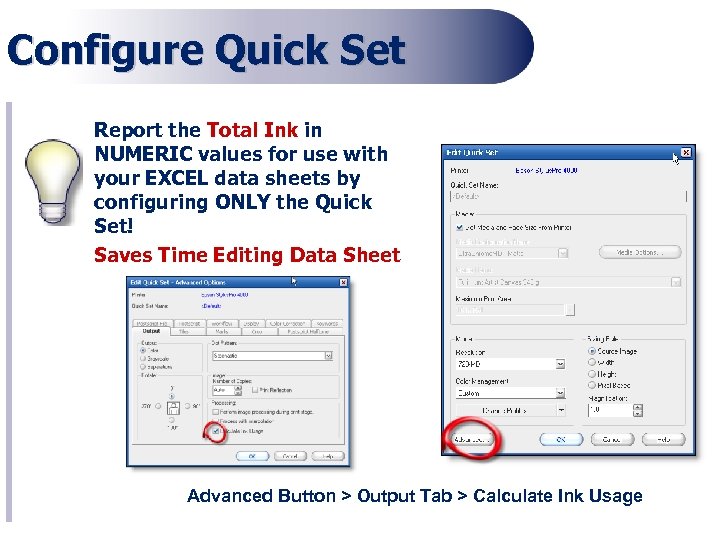 Configure Quick Set Report the Total Ink in NUMERIC values for use with your EXCEL data sheets by configuring ONLY the Quick Set! Saves Time Editing Data Sheet Advanced Button > Output Tab > Calculate Ink Usage
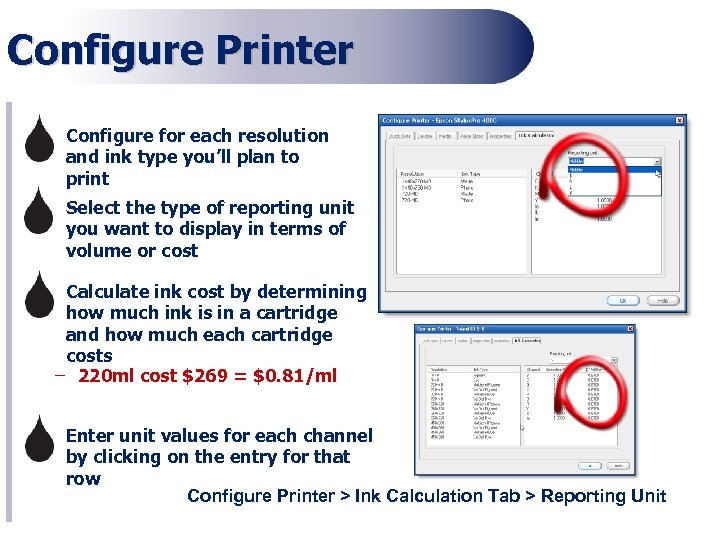 Configure Printer – Configure for each resolution and ink type you’ll plan to print – Select the type of reporting unit you want to display in terms of volume or cost – Calculate ink cost by determining how much ink is in a cartridge and how much each cartridge costs – 220 ml cost $269 = $0. 81/ml – Enter unit values for each channel by clicking on the entry for that row Configure Printer > Ink Calculation Tab > Reporting Unit
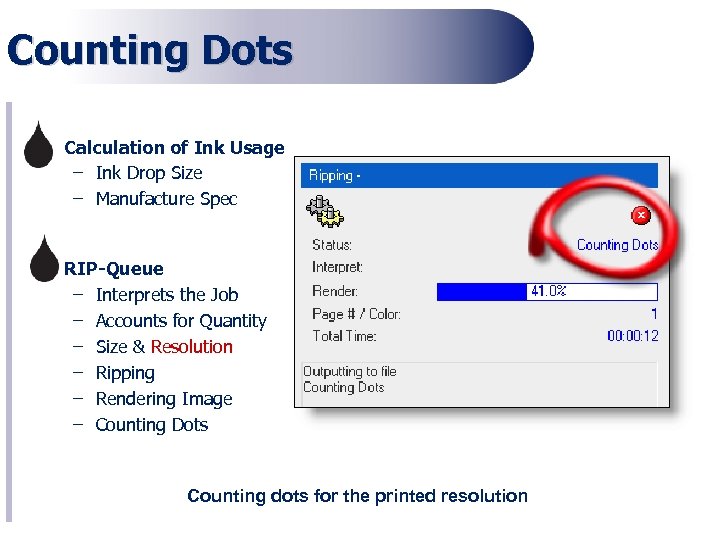 Counting Dots • Calculation of Ink Usage – Ink Drop Size – Manufacture Spec • RIP-Queue – Interprets the Job – Accounts for Quantity – Size & Resolution – Ripping – Rendering Image – Counting Dots Counting dots for the printed resolution
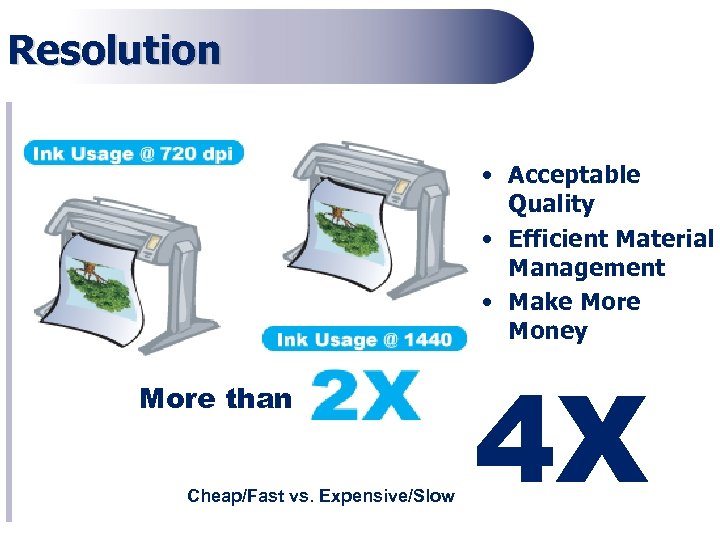 Resolution • Acceptable Quality • Efficient Material Management • Make More Money More than Cheap/Fast vs. Expensive/Slow 4 X
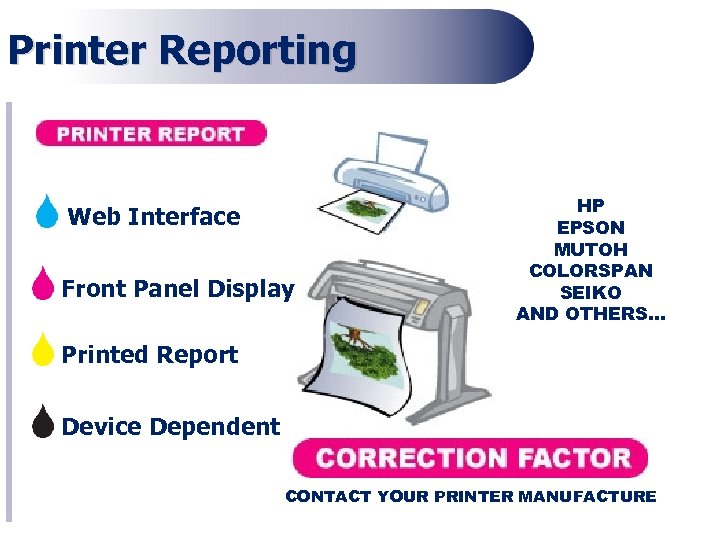 Printer Reporting Web Interface Front Panel Display HP EPSON MUTOH COLORSPAN SEIKO AND OTHERS… Printed Report Device Dependent CONTACT YOUR PRINTER MANUFACTURE
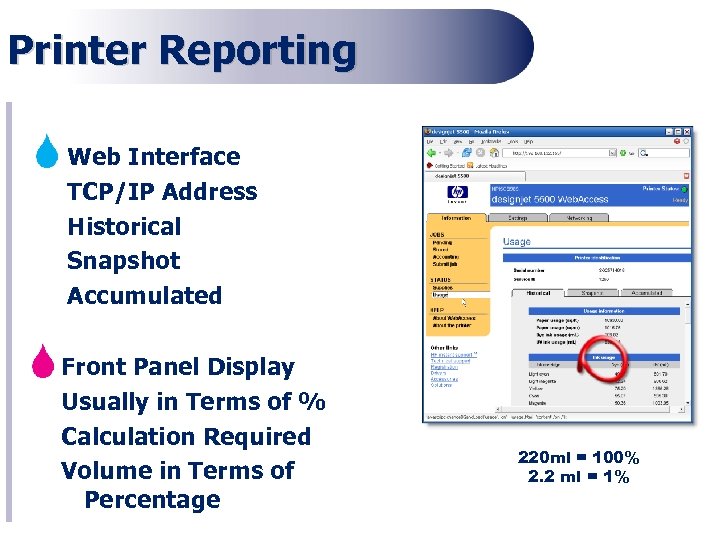 Printer Reporting Web Interface TCP/IP Address Historical Snapshot Accumulated Front Panel Display Usually in Terms of % Calculation Required Volume in Terms of Percentage 220 ml = 100% 2. 2 ml = 1%
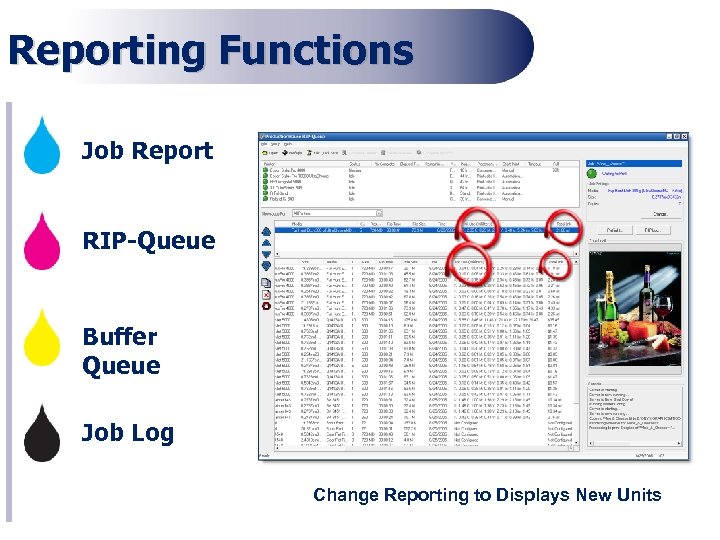 Reporting Functions Job Report RIP-Queue Buffer Queue Job Log Change Reporting to Displays New Units
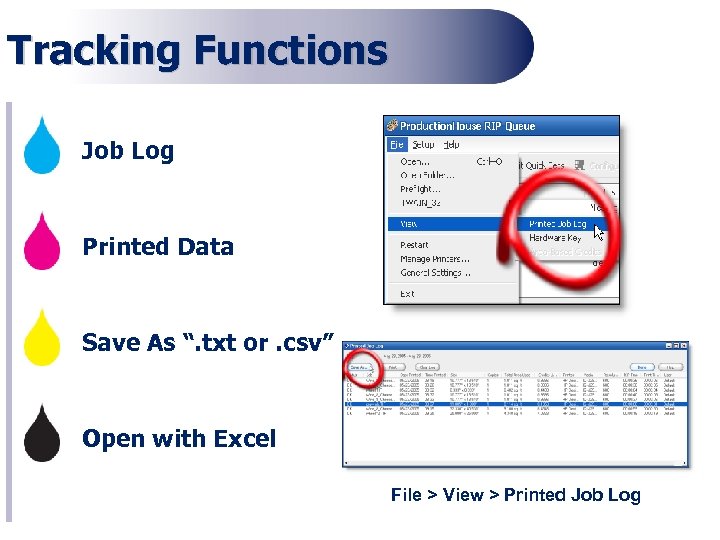 Tracking Functions Job Log Printed Data Save As “. txt or. csv” Open with Excel File > View > Printed Job Log
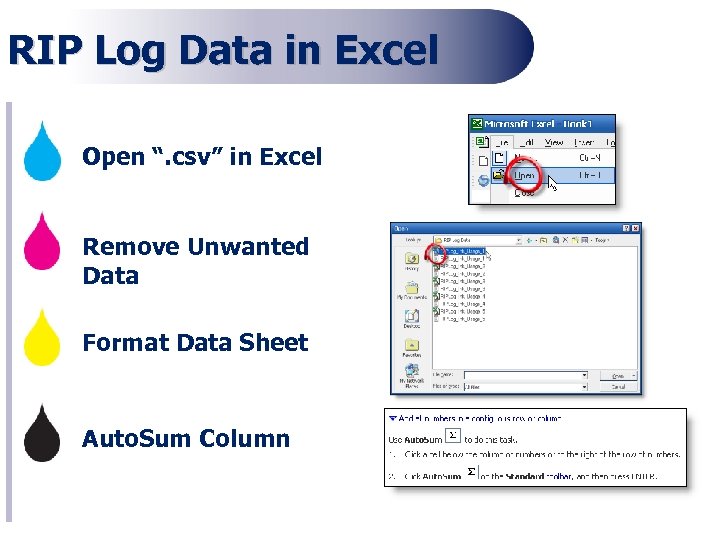 RIP Log Data in Excel Open “. csv” in Excel Remove Unwanted Data Format Data Sheet Auto. Sum Column
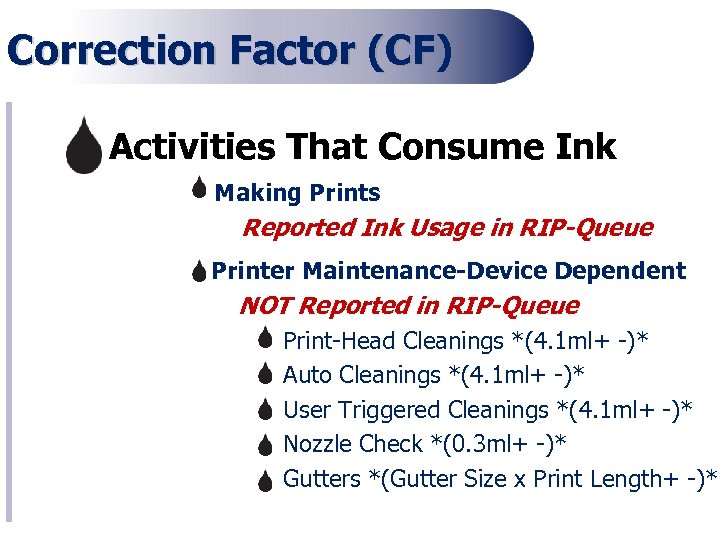 Correction Factor (CF) Activities That Consume Ink Making Prints Reported Ink Usage in RIP-Queue Printer Maintenance-Device Dependent NOT Reported in RIP-Queue Print-Head Cleanings *(4. 1 ml+ -)* Auto Cleanings *(4. 1 ml+ -)* User Triggered Cleanings *(4. 1 ml+ -)* Nozzle Check *(0. 3 ml+ -)* Gutters *(Gutter Size x Print Length+ -)*
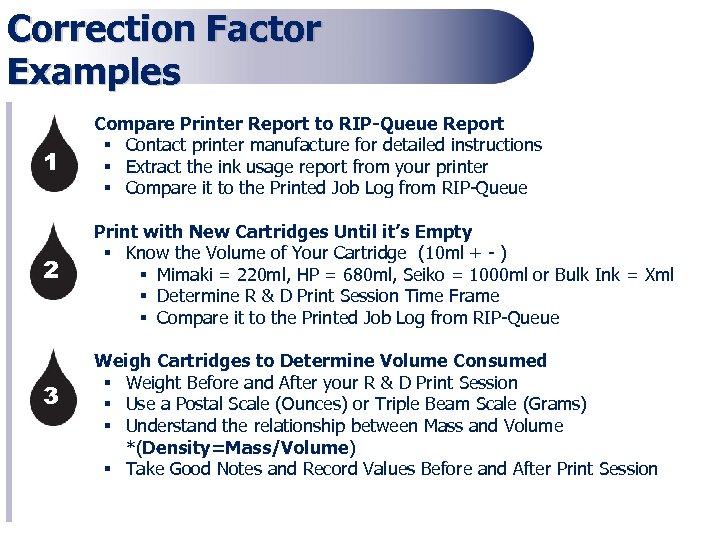 Correction Factor Examples § Compare Printer Report to RIP-Queue Report § Contact printer manufacture for detailed instructions § Extract the ink usage report from your printer § Compare it to the Printed Job Log from RIP-Queue § Print with New Cartridges Until it’s Empty § Know the Volume of Your Cartridge (10 ml + - ) § Mimaki = 220 ml, HP = 680 ml, Seiko = 1000 ml or Bulk Ink = Xml § Determine R & D Print Session Time Frame § Compare it to the Printed Job Log from RIP-Queue § Weigh Cartridges to Determine Volume Consumed § Weight Before and After your R & D Print Session § Use a Postal Scale (Ounces) or Triple Beam Scale (Grams) § Understand the relationship between Mass and Volume *(Density=Mass/Volume) § Take Good Notes and Record Values Before and After Print Session 1 2 3
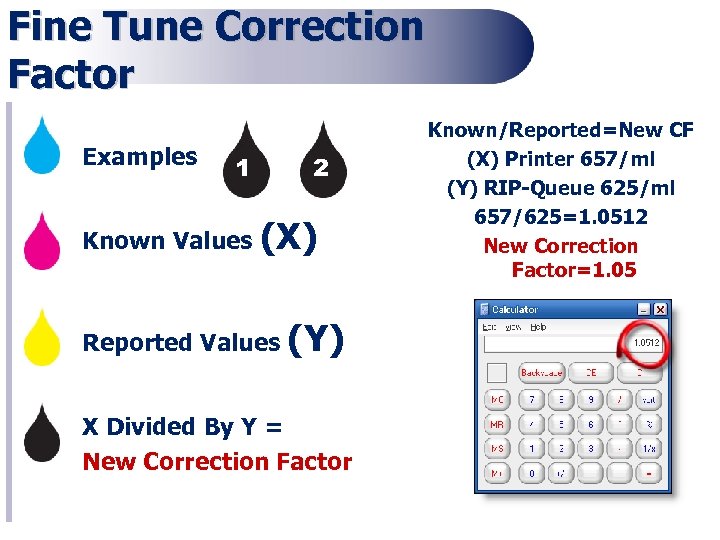 Fine Tune Correction Factor Examples 1 2 Known Values (X) Reported Values (Y) X Divided By Y = New Correction Factor Known/Reported=New CF (X) Printer 657/ml (Y) RIP-Queue 625/ml 657/625=1. 0512 New Correction Factor=1. 05
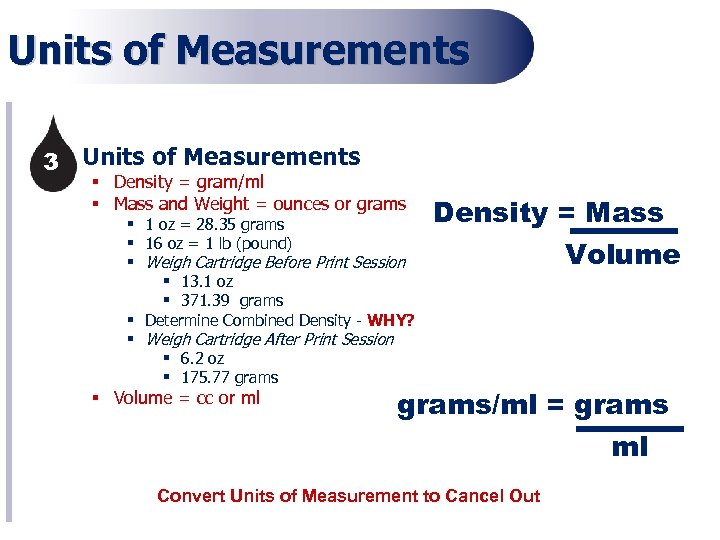 Units of Measurements 3§ Units of Measurements § Density = gram/ml § Mass and Weight = ounces or grams § 1 oz = 28. 35 grams § 16 oz = 1 lb (pound) § Weigh Cartridge Before Print Session § 13. 1 oz § 371. 39 grams § Determine Combined Density - WHY? § Weigh Cartridge After Print Session § 6. 2 oz § 175. 77 grams § Volume = cc or ml Density = Mass Volume grams/ml = grams ml Convert Units of Measurement to Cancel Out
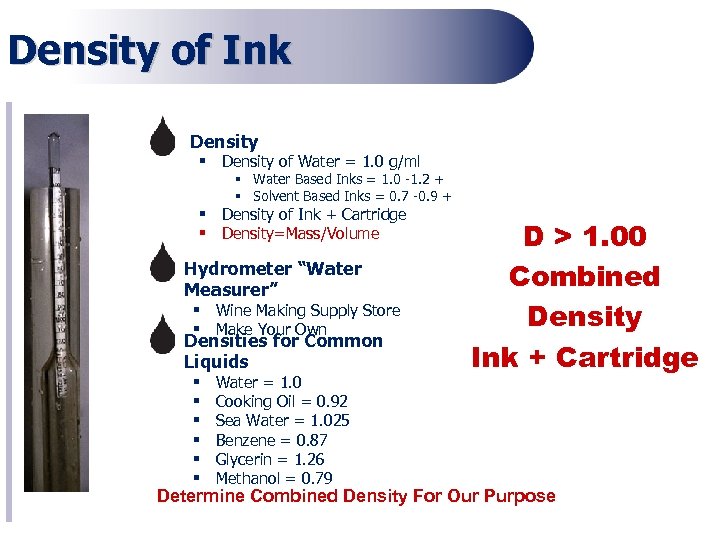 Density of Ink § Density of Water = 1. 0 g/ml § Water Based Inks = 1. 0 -1. 2 + § Solvent Based Inks = 0. 7 -0. 9 + § Density of Ink + Cartridge § Density=Mass/Volume § § Hydrometer “Water Measurer” § Wine Making Supply Store § Make Your Own Densities for Common Liquids § § § Water = 1. 0 Cooking Oil = 0. 92 Sea Water = 1. 025 Benzene = 0. 87 Glycerin = 1. 26 Methanol = 0. 79 D > 1. 00 Combined Density Ink + Cartridge Determine Combined Density For Our Purpose
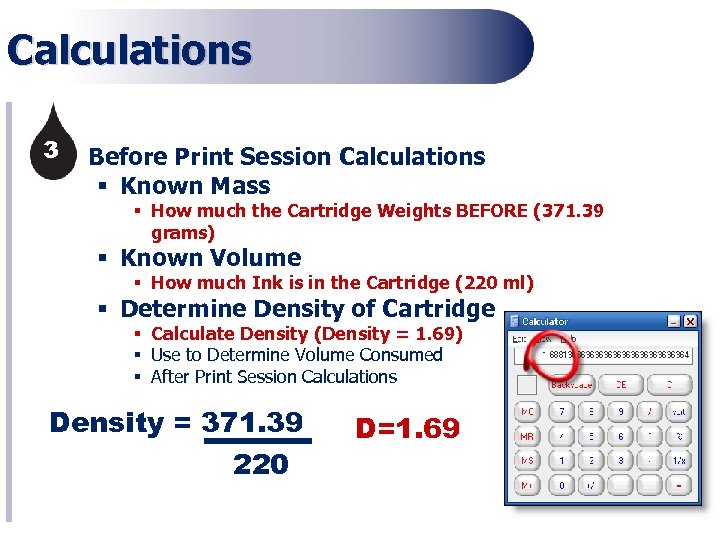 Calculations 3 § Before Print Session Calculations § Known Mass § How much the Cartridge Weights BEFORE (371. 39 grams) § Known Volume § How much Ink is in the Cartridge (220 ml) § Determine Density of Cartridge § Calculate Density (Density = 1. 69) § Use to Determine Volume Consumed § After Print Session Calculations Density = 371. 39 220 D=1. 69
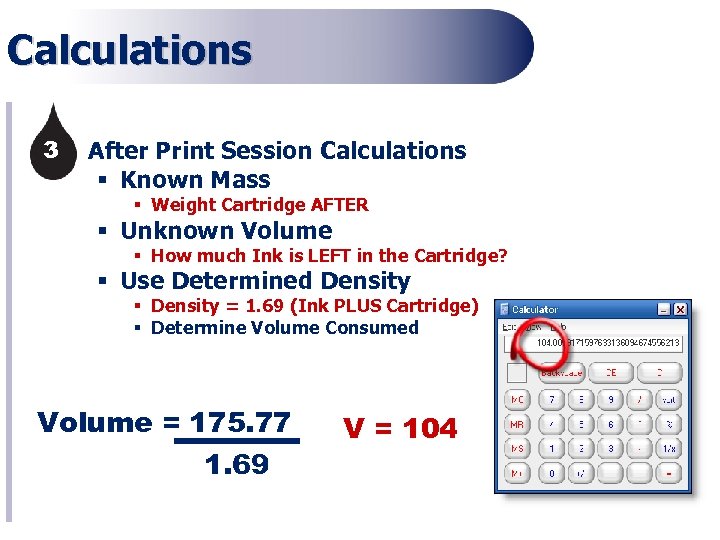 Calculations 3 § After Print Session Calculations § Known Mass § Weight Cartridge AFTER § Unknown Volume § How much Ink is LEFT in the Cartridge? § Use Determined Density § Density = 1. 69 (Ink PLUS Cartridge) § Determine Volume Consumed Volume = 175. 77 1. 69 V = 104
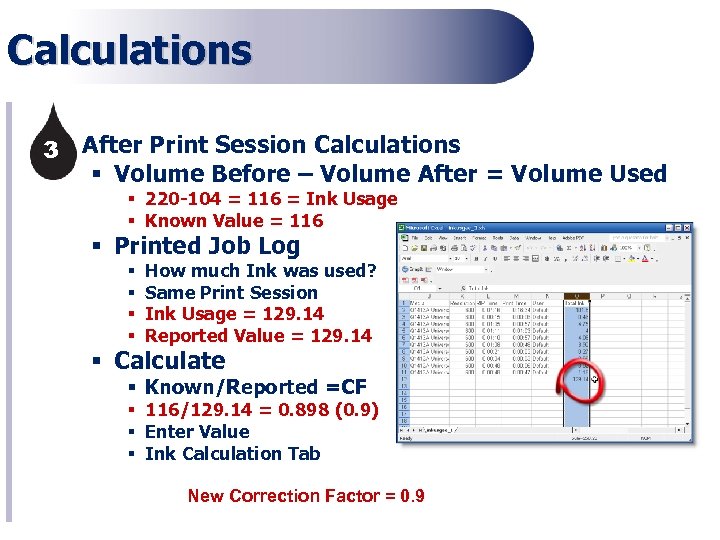 Calculations 3§ After Print Session Calculations § Volume Before – Volume After = Volume Used § 220 -104 = 116 = Ink Usage § Known Value = 116 § Printed Job Log § § How much Ink was used? Same Print Session Ink Usage = 129. 14 Reported Value = 129. 14 § Calculate § Known/Reported =CF § 116/129. 14 = 0. 898 (0. 9) § Enter Value § Ink Calculation Tab New Correction Factor = 0. 9
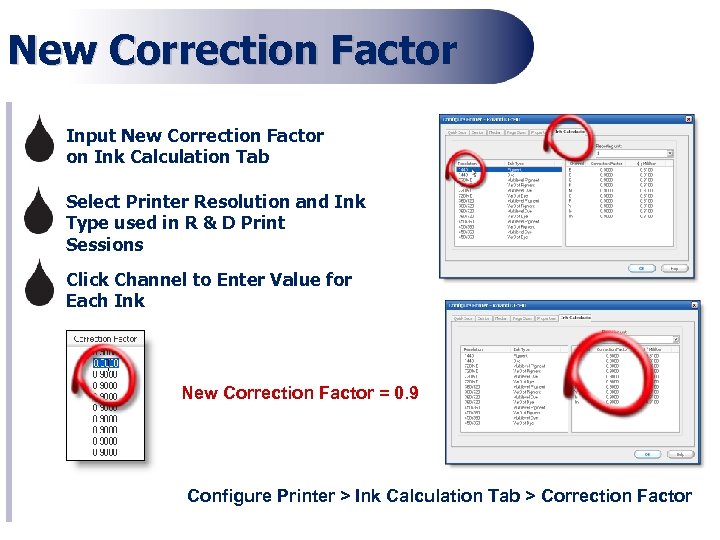 New Correction Factor – Input New Correction Factor on Ink Calculation Tab – Select Printer Resolution and Ink Type used in R & D Print Sessions – Click Channel to Enter Value for Each Ink New Correction Factor = 0. 9 Configure Printer > Ink Calculation Tab > Correction Factor
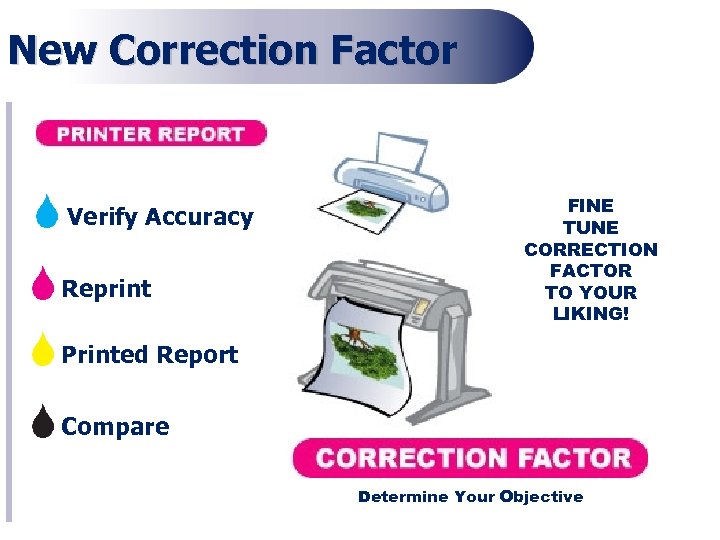 New Correction Factor Verify Accuracy Reprint FINE TUNE CORRECTION FACTOR TO YOUR LIKING! Printed Report Compare Determine Your Objective
 Recap Bid More Competitively and Use Correction Factor to Build in Cost and Fine Tune Reporting Manage Wholesale and Retail Costs While Comparing Printer Production Capabilities Adjust How You Report Information and Change Reporting Options to Suit Your Needs Utilize Printed Job Log to Capture Your Print Production and Ink Usage Data
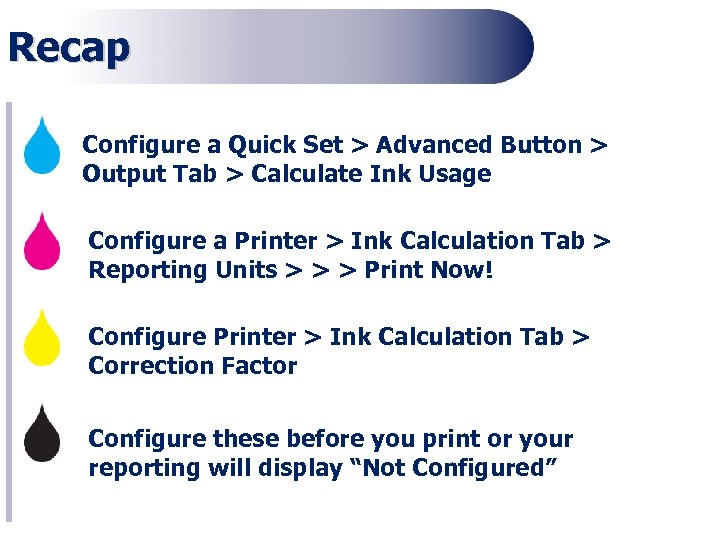 Recap Configure a Quick Set > Advanced Button > Output Tab > Calculate Ink Usage Configure a Printer > Ink Calculation Tab > Reporting Units > > > Print Now! Configure Printer > Ink Calculation Tab > Correction Factor Configure these before you print or your reporting will display “Not Configured”
 Questions?
 Thank You for Joining! www. onyxgfx. com Contact Your ONYX Representative training@onyxgfx. com support@onyxgfx. com sales@onyxgfx. com