 Скачать презентацию Report Distribution in People Tools 8 4 Doug
fa5e763c559aa92ea5c029a4ded4c6a7.ppt
- Количество слайдов: 37



Report Distribution in People. Tools 8. 4 Doug Ostler & Eric Knapp 7264
Agenda § § What is it? How does it work? Key Features Steps to setup Page 2
What Is It? § Starting with tools 8. 1, all batch processes are run on centralized servers § Infrastructure to allow reports and log files to be viewed in a browser § Allows reports to be shared by many users § Provides centralized and secure short-term storage of reports Page 3
How does it work? § An extension of the Process Scheduler § Cobol is no longer required to run the Process Scheduler § Works with all supported batch environments § Distribution Agent § Companion process to the Process Scheduler § Transfers files to the Report Repository § Files can be transferred via HTTP(S), FTP or XCOPY Page 4
Report Repository § Where the reports are stored § Reports are served up through a PIA web server § Multiple Process Schedulers can share a single Report Repository Page 5
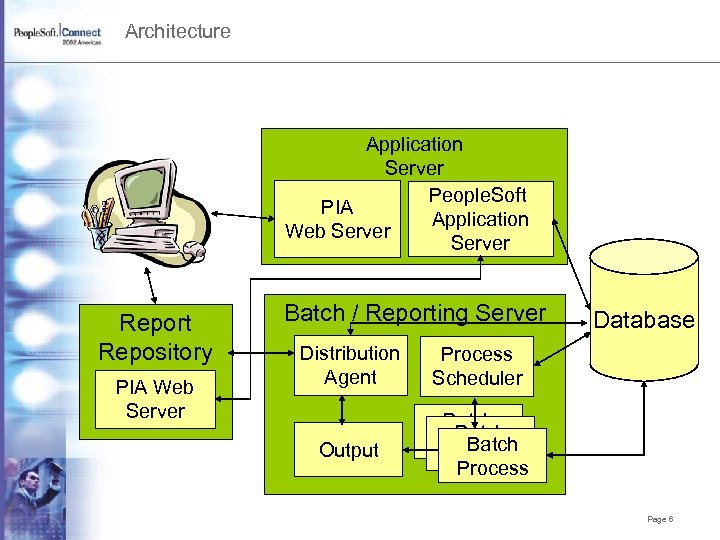
Architecture Application Server People. Soft PIA Application Web Server Report Repository PIA Web Server Batch / Reporting Server Distribution Agent Process Scheduler Output Database Batch Process Page 6
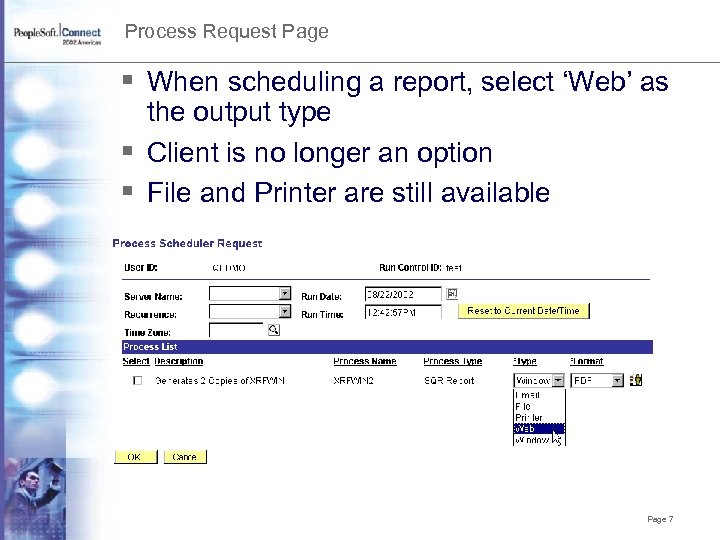
Process Request Page § When scheduling a report, select ‘Web’ as the output type § Client is no longer an option § File and Printer are still available Page 7
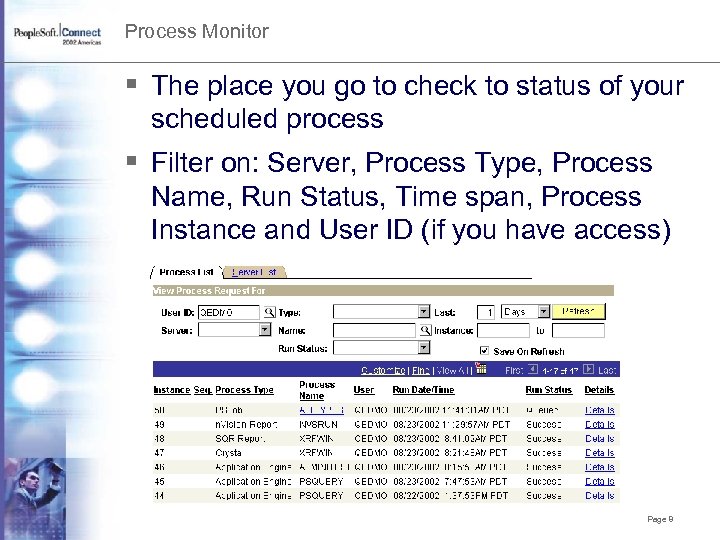
Process Monitor § The place you go to check to status of your scheduled process § Filter on: Server, Process Type, Process Name, Run Status, Time span, Process Instance and User ID (if you have access) Page 8
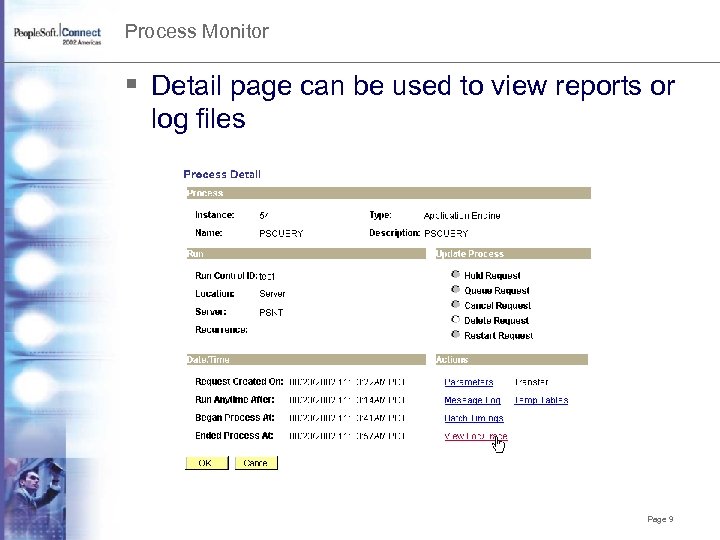
Process Monitor § Detail page can be used to view reports or log files Page 9
Report Manager § The place you go to access all of the reports you have security rights to see § New in People. Tools 8. 1 § It’s expanded in People. Tools 8. 4 § Explorer § List § Administration § Now under the “Reporting Tools” menu Page 10
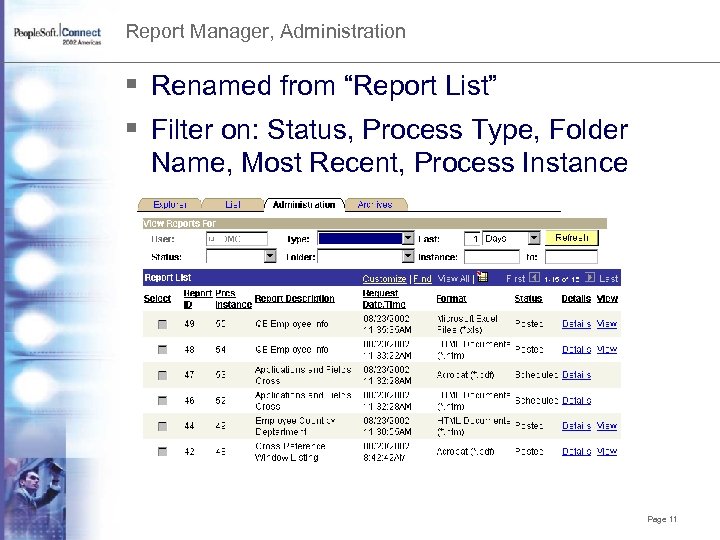
Report Manager, Administration § Renamed from “Report List” § Filter on: Status, Process Type, Folder Name, Most Recent, Process Instance Page 11
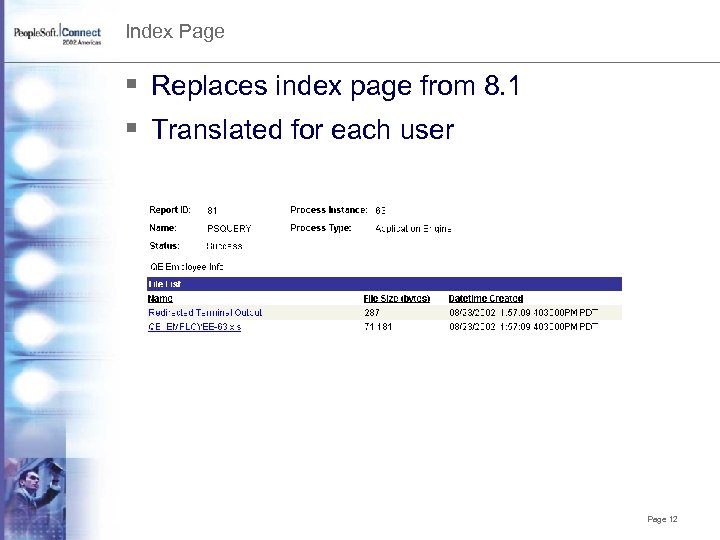
Index Page § Replaces index page from 8. 1 § Translated for each user Page 12
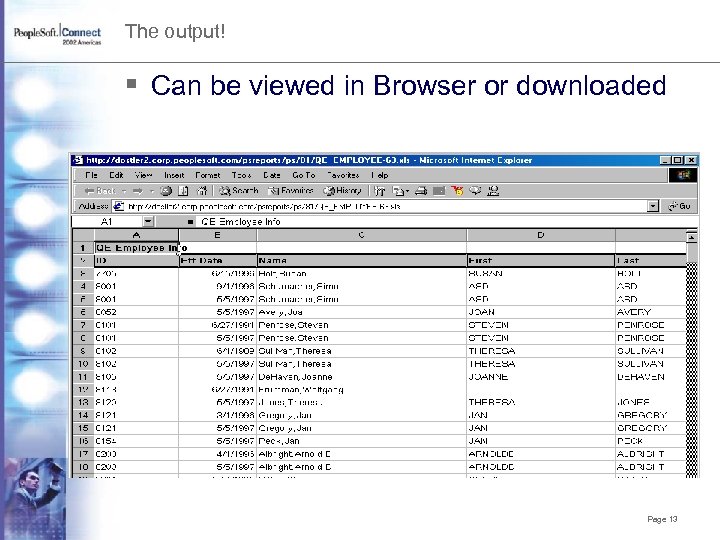
The output! § Can be viewed in Browser or downloaded Page 13
Report Manager, Roles § The Report. Admin role allows access to all reports in the report manager § The Report. Super. User role allows a user update the reports that they have access to view § Delete report § Change expiration date § Update distribution list Page 14
Report Manager, List and Explorer § § § Can show reports from multiple databases Groups reports in folders Powered by Integration Broker Must have a Pub/Sub service running Administration page only works on a single database Page 15
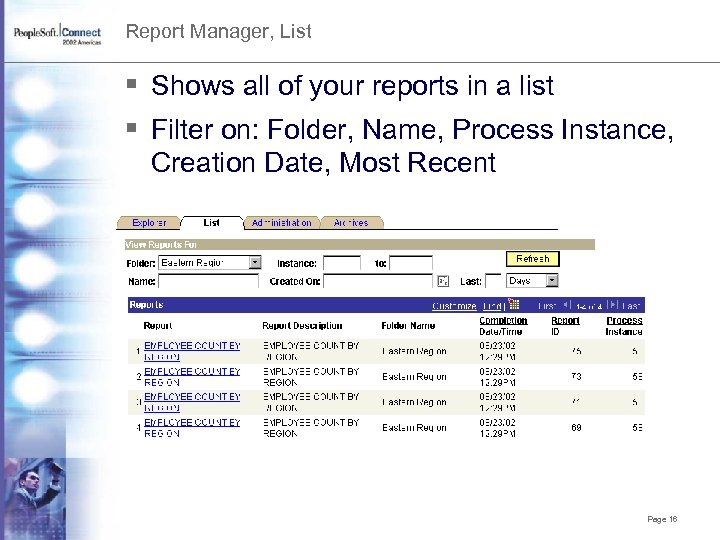
Report Manager, List § Shows all of your reports in a list § Filter on: Folder, Name, Process Instance, Creation Date, Most Recent Page 16
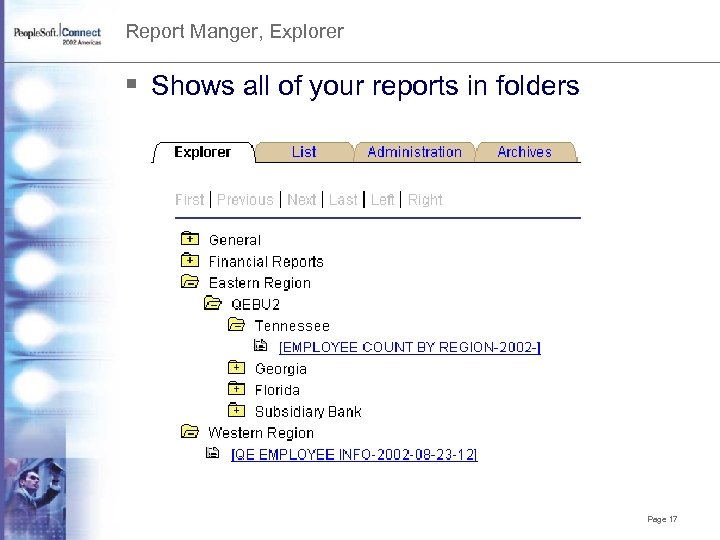
Report Manger, Explorer § Shows all of your reports in folders Page 17
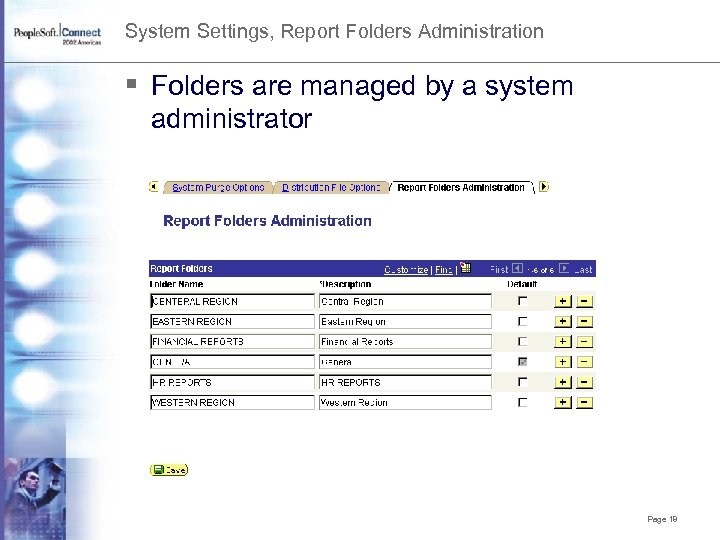
System Settings, Report Folders Administration § Folders are managed by a system administrator Page 18
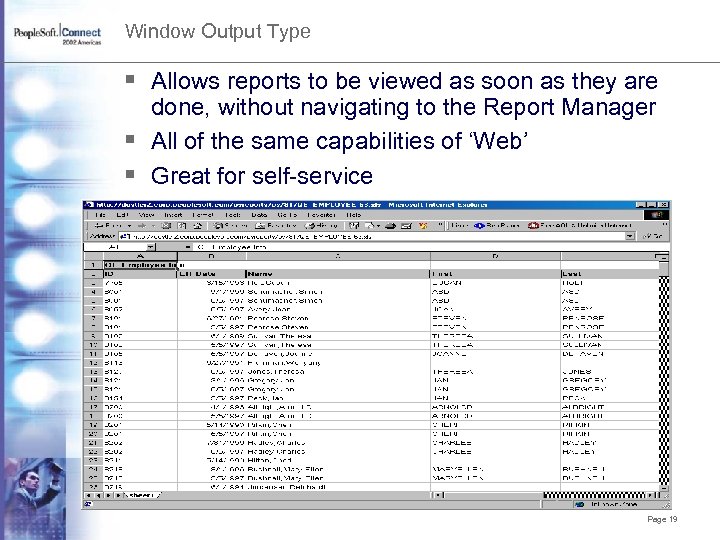
Window Output Type § Allows reports to be viewed as soon as they are done, without navigating to the Report Manager § All of the same capabilities of ‘Web’ § Great for self-service Page 19

Window Output Type § Achieved through a specialized web server § Same technology as Multi-Channel Framework § No code on the client § Not a ‘push’ technology, very low network load Page 20
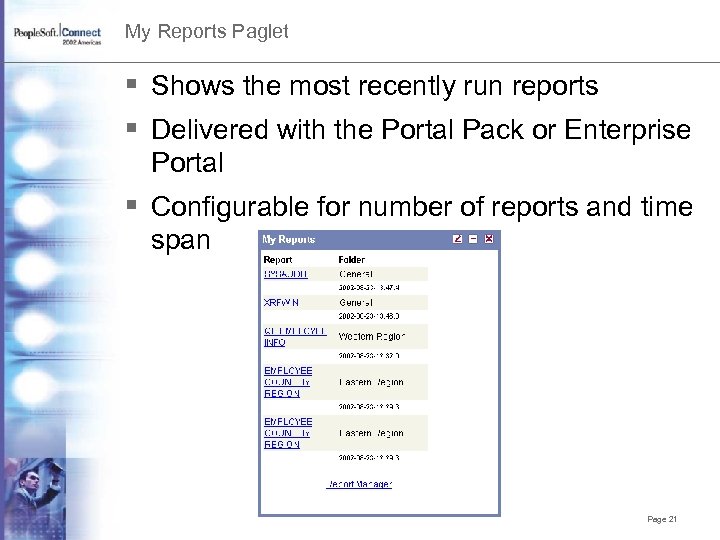
My Reports Paglet § Shows the most recently run reports § Delivered with the Portal Pack or Enterprise Portal § Configurable for number of reports and time span Page 21
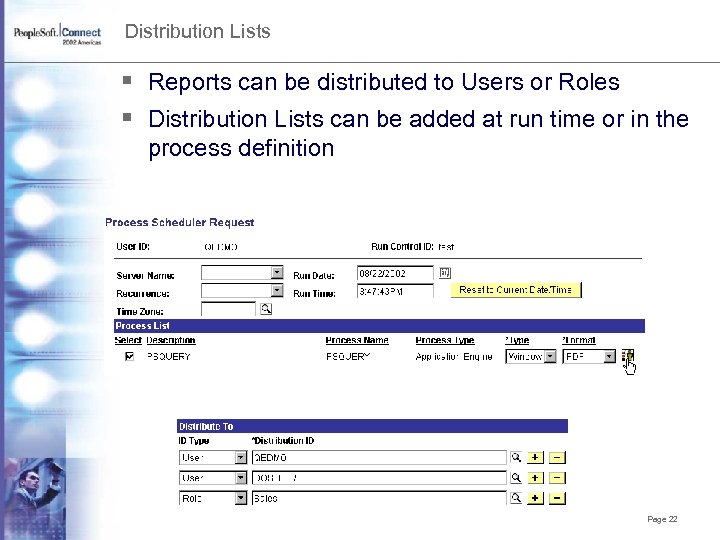
Distribution Lists § Reports can be distributed to Users or Roles § Distribution Lists can be added at run time or in the process definition Page 22
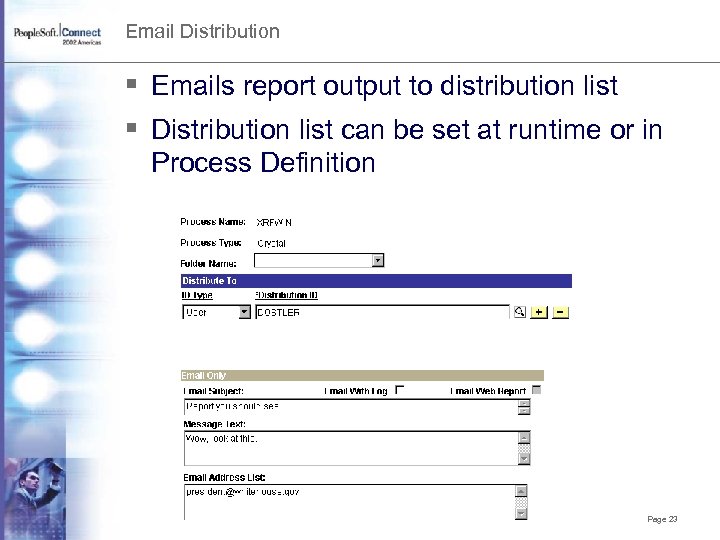
Email Distribution § Emails report output to distribution list § Distribution list can be set at runtime or in Process Definition Page 23
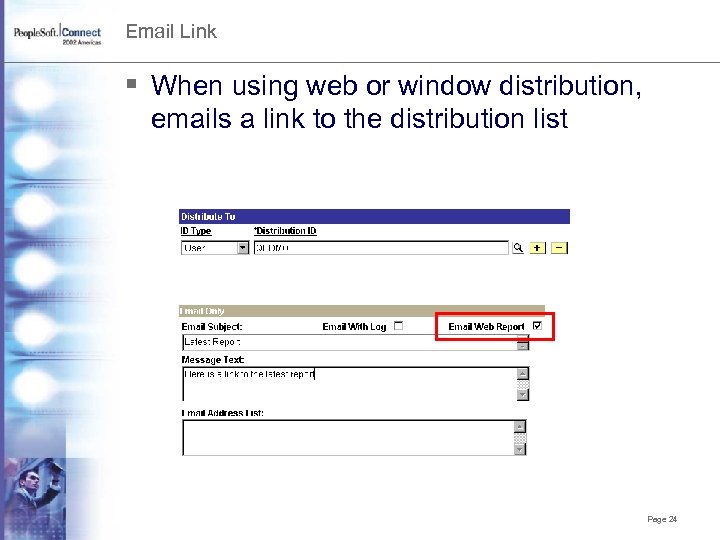
Email Link § When using web or window distribution, emails a link to the distribution list Page 24
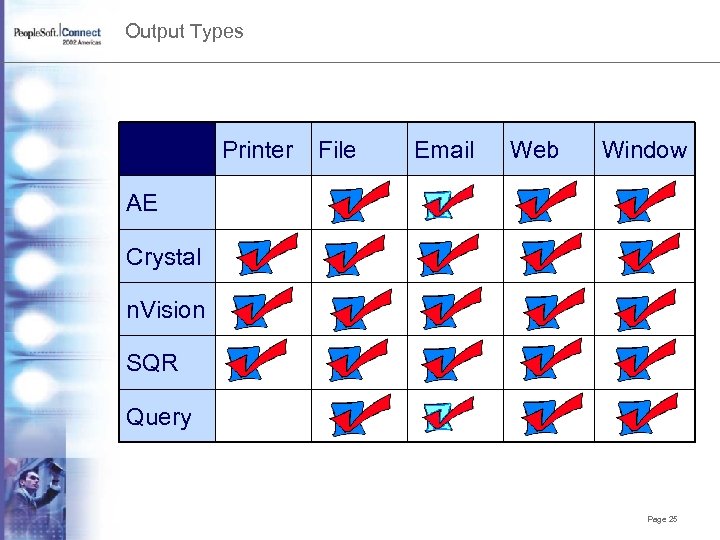
Output Types Printer File Email Web Window AE Crystal n. Vision SQR Query Page 25
Most Report Distribution Issues stem from configuration! Page 26
Common Issues § Blank Page Displays § Error 404 – Not Found § Signon Screen Page 27
Configuration § Report Repository § Distribution Agent § Report Node Definition § Server Definition § Process Scheduler § configuration. properties § Report. Repository. Path § FTP Service – Necessary for Unix to NT or OS 390 to NT transfers Page 28
Configuration – Report Node Definition What information do I need to configure a Report Node Definition? § Machine name of your Report Repository Webserver § Port number that your Report Repository Webserver is running on § Your PIA Location Page 29
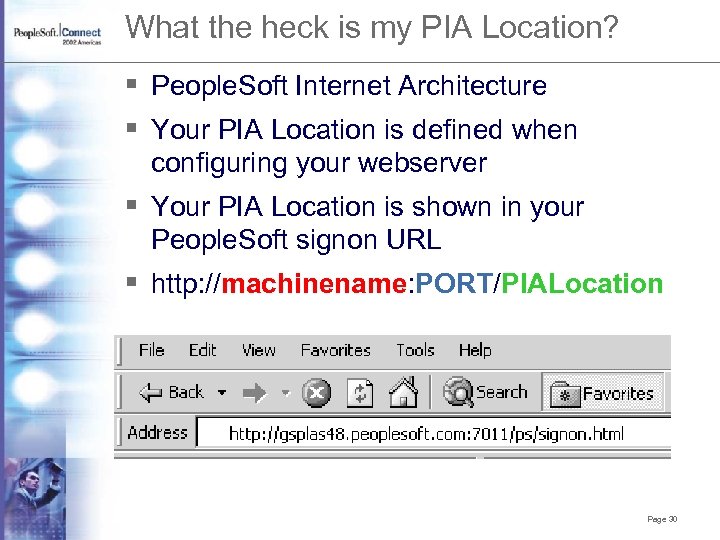
What the heck is my PIA Location? § People. Soft Internet Architecture § Your PIA Location is defined when configuring your webserver § Your PIA Location is shown in your People. Soft signon URL § http: //machinename: PORT/PIALocation Page 30
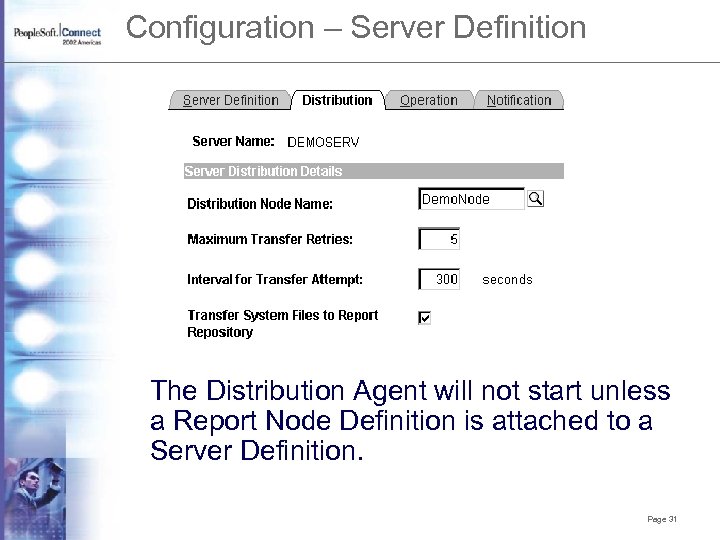
Configuration – Server Definition The Distribution Agent will not start unless a Report Node Definition is attached to a Server Definition. Page 31
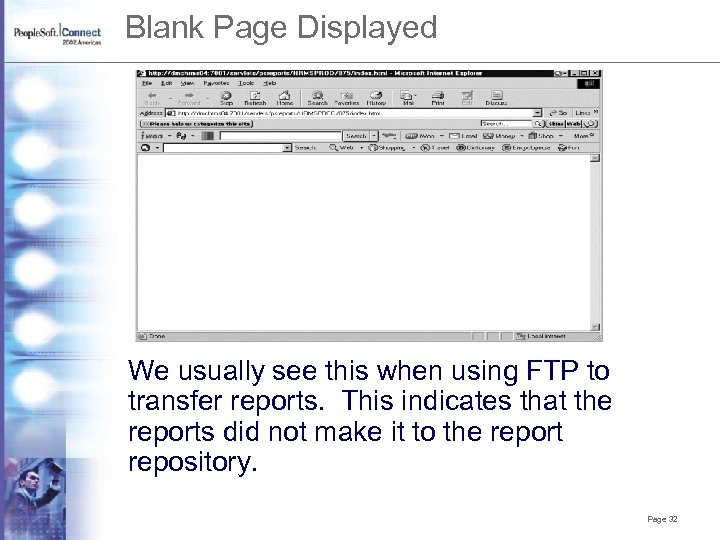
Blank Page Displayed We usually see this when using FTP to transfer reports. This indicates that the reports did not make it to the report repository. Page 32
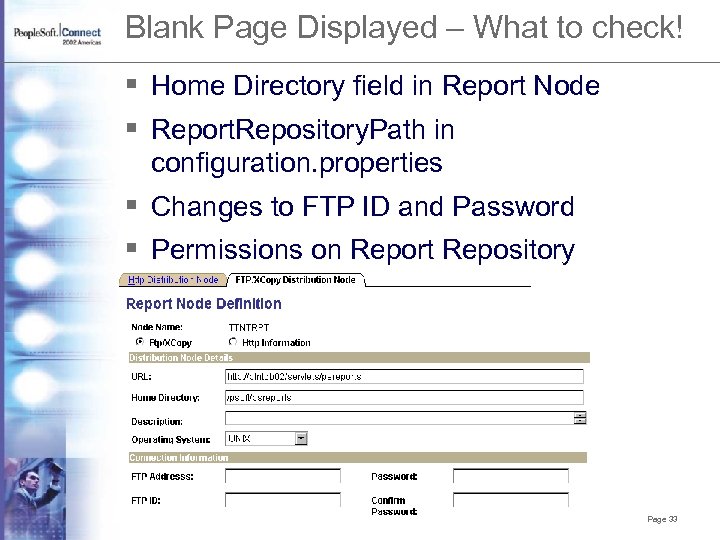
Blank Page Displayed – What to check! § Home Directory field in Report Node § Report. Repository. Path in configuration. properties § Changes to FTP ID and Password § Permissions on Report Repository Page 33
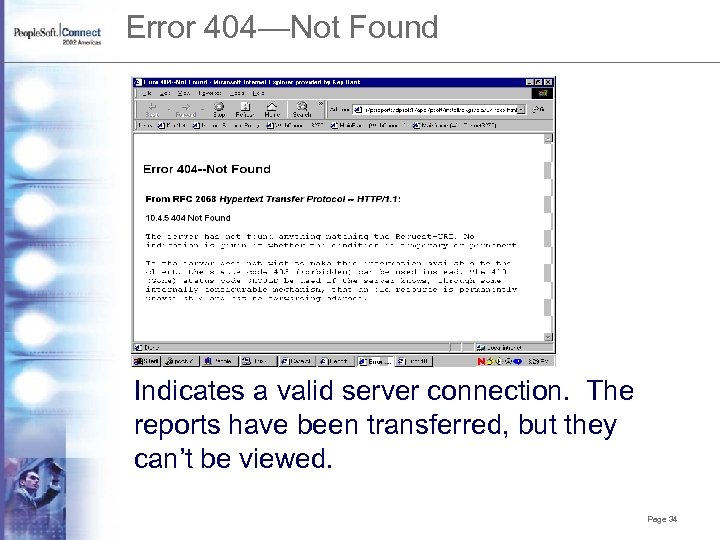
Error 404—Not Found Indicates a valid server connection. The reports have been transferred, but they can’t be viewed. Page 34
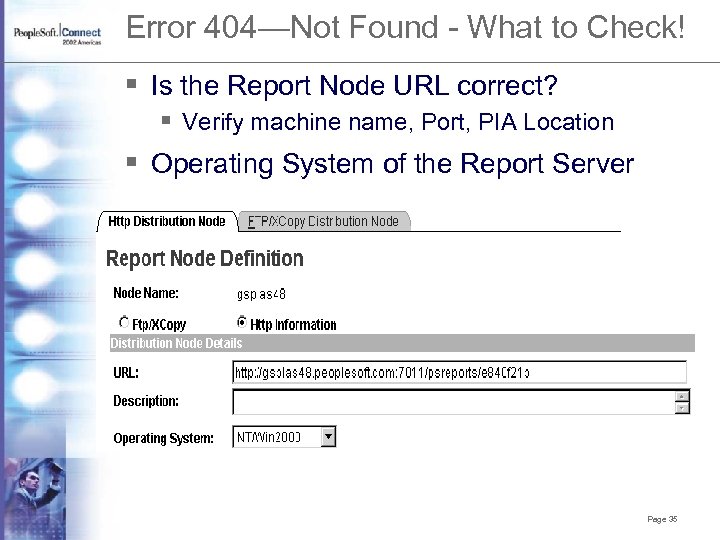
Error 404—Not Found - What to Check! § Is the Report Node URL correct? § Verify machine name, Port, PIA Location § Operating System of the Report Server Page 35
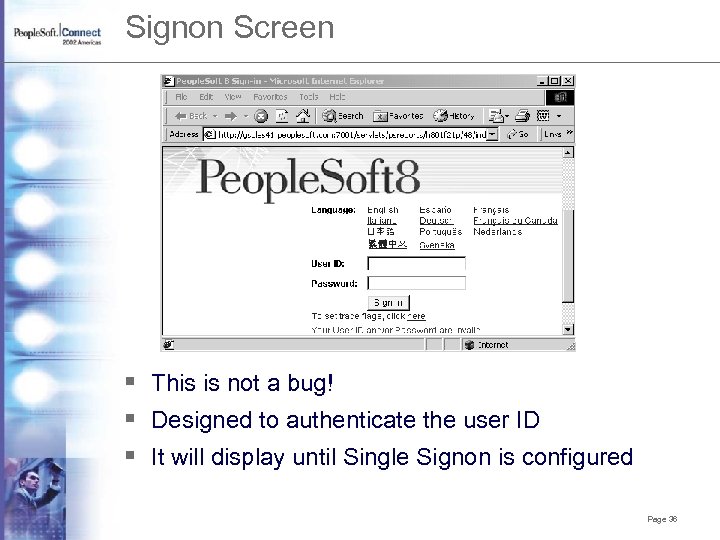
Signon Screen § This is not a bug! § Designed to authenticate the user ID § It will display until Single Signon is configured Page 36
Signon Screen – What to check! § Is the local message node trusted? § Does the Report Server reside in the same domain as the other Webservers? § Be consistent with your machine names § Auth. Token. Domain=. peoplesoft. com Page 37
Скачать презентацию Report Distribution in People Tools 8 4 Doug
fa5e763c559aa92ea5c029a4ded4c6a7.ppt