


 Скачать презентацию Quick Start Guide 1 Login Open Microsoft
b55b6396378efe1cc10decd3b1e69e34.ppt
- Количество слайдов: 6
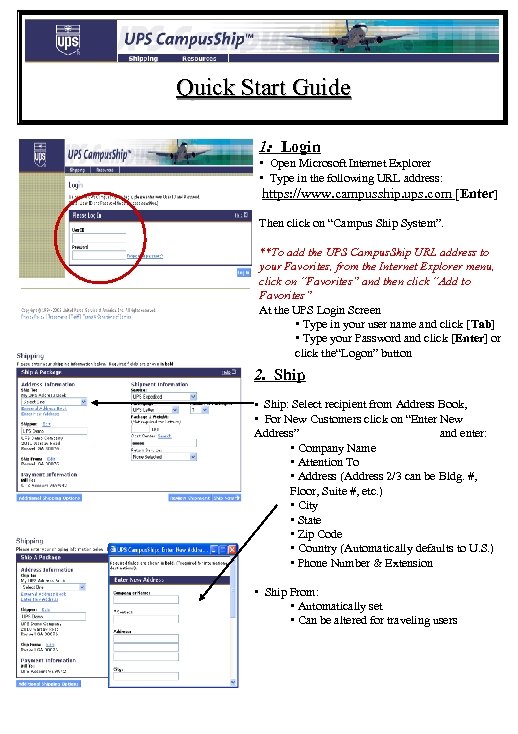 Quick Start Guide 1: Login • Open Microsoft Internet Explorer • Type in the following URL address: https: //www. campusship. ups. com [Enter] Then click on “Campus Ship System”. **To add the UPS Campus. Ship URL address to your Favorites, from the Internet Explorer menu, click on “Favorites” and then click “Add to Favorites” At the UPS Login Screen • Type in your user name and click [Tab] • Type your Password and click [Enter] or click the“Logon” button 2. Ship • Ship: Select recipient from Address Book, • For New Customers click on “Enter New Address” and enter: • Company Name • Attention To • Address (Address 2/3 can be Bldg. #, Floor, Suite #, etc. ) • City • State • Zip Code • Country (Automatically defaults to U. S. ) • Phone Number & Extension • Ship From: • Automatically set • Can be altered for traveling users
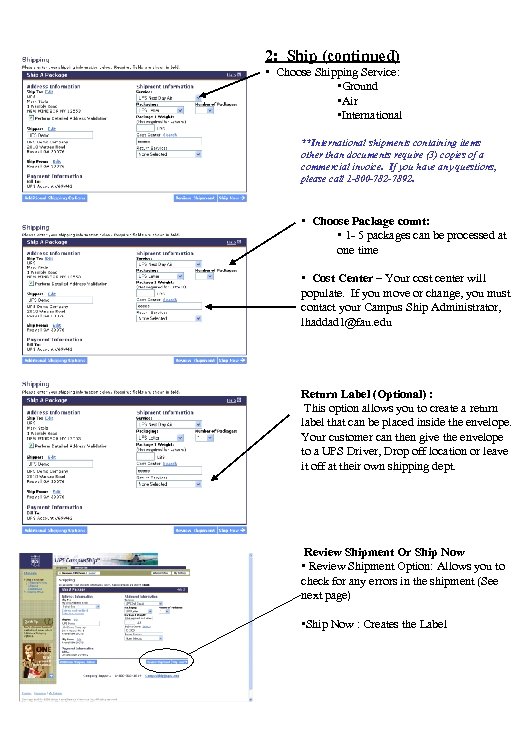 2: Ship (continued) • Choose Shipping Service: • Ground • Air • International **International shipments containing items other than documents require (3) copies of a commercial invoice. If you have any questions, please call 1 -800 -782 -7892. • Choose Package count: • 1 - 5 packages can be processed at one time • Cost Center – Your cost center will populate. If you move or change, you must contact your Campus Ship Administrator, lhaddad 1@fau. edu Return Label (Optional) : This option allows you to create a return label that can be placed inside the envelope. Your customer can then give the envelope to a UPS Driver, Drop off location or leave it off at their own shipping dept. Review Shipment Or Ship Now • Review Shipment Option: Allows you to check for any errors in the shipment (See next page) • Ship Now : Creates the Label
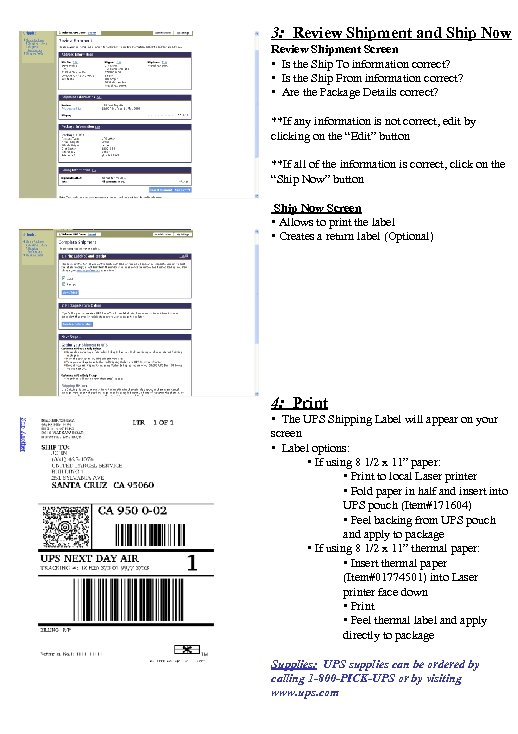 3: Review Shipment and Ship Now Review Shipment Screen • Is the Ship To information correct? • Is the Ship From information correct? • Are the Package Details correct? **If any information is not correct, edit by clicking on the “Edit” button **If all of the information is correct, click on the “Ship Now” button Ship Now Screen • Allows to print the label • Creates a return label (Optional) 4: Print • The UPS Shipping Label will appear on your screen • Label options: • If using 8 1/2 x 11” paper: • Print to local Laser printer • Fold paper in half and insert into UPS pouch (Item#171604) • Peel backing from UPS pouch and apply to package • If using 8 1/2 x 11” thermal paper: • Insert thermal paper (Item#01774501) into Laser printer face down • Print • Peel thermal label and apply directly to package Supplies: UPS supplies can be ordered by calling 1 -800 -PICK-UPS or by visiting www. ups. com
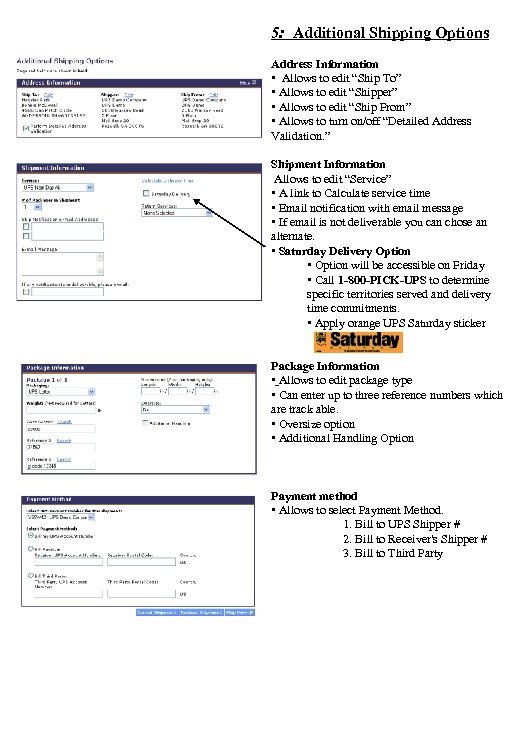 5: Additional Shipping Options Address Information • Allows to edit “Ship To” • Allows to edit “Shipper” • Allows to edit “Ship From” • Allows to turn on/off “Detailed Address Validation. ” Shipment Information Allows to edit “Service” • A link to Calculate service time • Email notification with email message • If email is not deliverable you can chose an alternate. • Saturday Delivery Option • Option will be accessible on Friday • Call 1 -800 -PICK-UPS to determine specific territories served and delivery time commitments. • Apply orange UPS Saturday sticker Package Information • Allows to edit package type • Can enter up to three reference numbers which are track able. • Oversize option • Additional Handling Option Payment method • Allows to select Payment Method. 1. Bill to UPS Shipper # 2. Bill to Receiver's Shipper # 3. Bill to Third Party
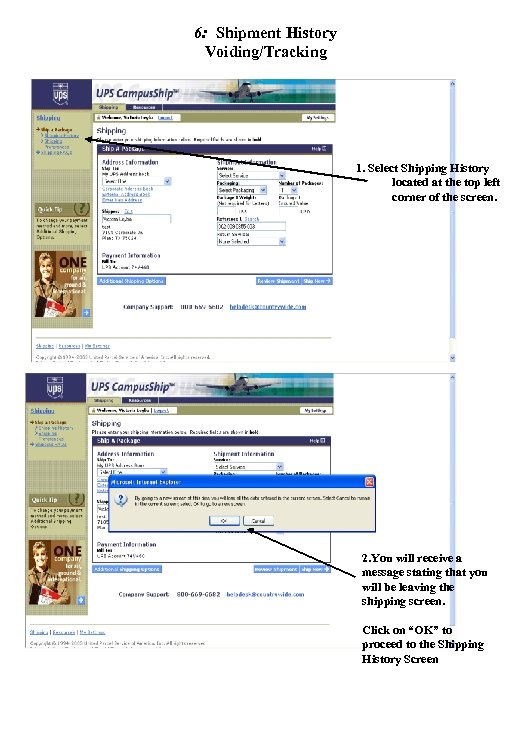 6: Shipment History Voiding/Tracking 1. Select Shipping History located at the top left corner of the screen. 2. You will receive a message stating that you will be leaving the shipping screen. Click on “OK” to proceed to the Shipping History Screen
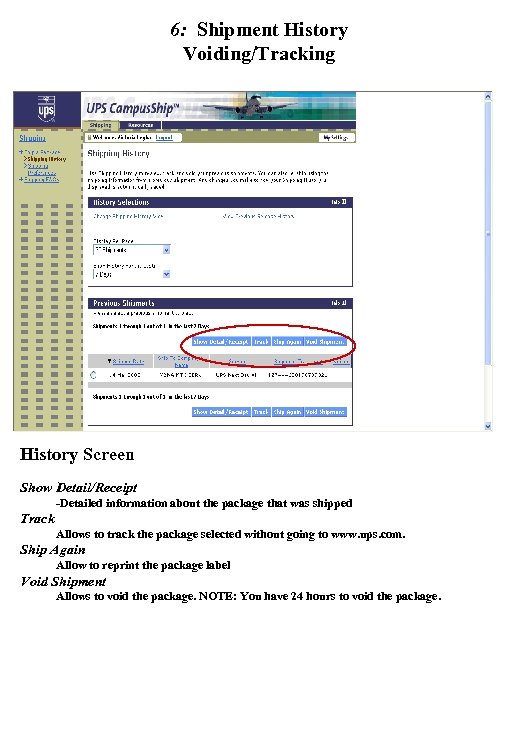 6: Shipment History Voiding/Tracking History Screen Show Detail/Receipt -Detailed information about the package that was shipped Track Allows to track the package selected without going to www. ups. com. Ship Again Allow to reprint the package label Void Shipment Allows to void the package. NOTE: You have 24 hours to void the package.