


 Скачать презентацию PURCHASING INSTALLING AND MAINTAINING A PERSONAL COMPUTER
7aa217dd77af58e2b8195184a243087f.ppt
- Количество слайдов: 16
 PURCHASING, INSTALLING, AND MAINTAINING A PERSONAL COMPUTER
 Considerations When Purchasing a Computer v Desktop, laptop, or notebook v Processing speed v Storage size and types v Monitor v Battery life v Software
 INSTALLING A COMPUTER Read the installation manuals before installing equipment v Set up your computer in a well-designed work area where you can control the temperature and humidity v Set up your space near an electrical outlet and telephone outlet or cable connection v Save all the paperwork that comes with your computer v Record the serial numbers of all equipment and software v
 INSTALLING A COMPUTER v Complete and mail your equipment and software registration cards or register online v Keep the shipping containers and packing materials for all your equipment v Identify device connectors v Keep your computer area clean v Make sure your home or renter’s insurance policy covers the computer
 How to Maintain a Personal Computer v Start a notebook that includes information on your computer v Keep all original disks, CDs, books, etc. v Before you work inside your computer, turn off the power and disconnect the equipment from the power source v Keep the area surrounding your computer dirt and dust free
 How to Maintain a Personal Computer v Back up important files and data v Protect your computer from viruses v Keep your computer tuned—It is important to use the disk defragmenter (In Windows…Start. . Programs. . Accessories. . System Tools. . Disk Defragmenter v Learn to use diagnostic tools v Conserve energy wherever possible
 TERMS v. Operating System – coordinates the activities of your computer v. Server – a computer that controls access to the hardware and software on a network v. Workstation – A computer connected to a server v. Graphical User Interface - a user interface that displays graphics in addition to text when communicating with the user v. Window – a rectangular area on the screen, sometimes the whole screen, that is used to display files, documents, or programs. Each window contains a border, title bar, and window title.
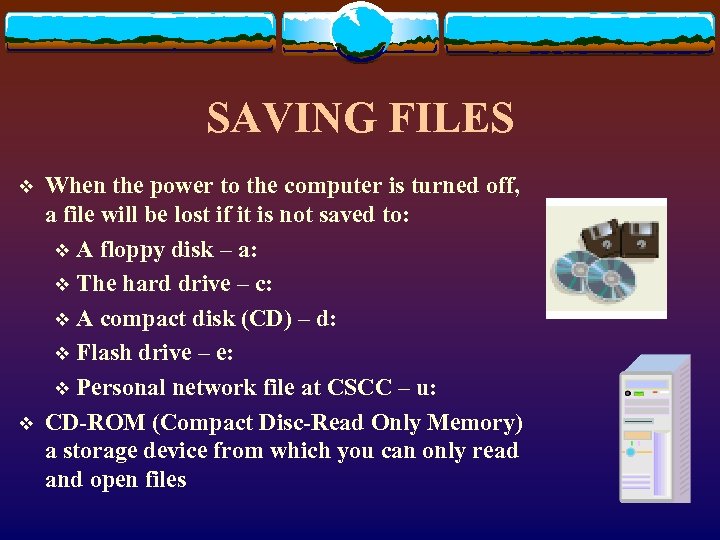 SAVING FILES v v When the power to the computer is turned off, a file will be lost if it is not saved to: v A floppy disk – a: v The hard drive – c: v A compact disk (CD) – d: v Flash drive – e: v Personal network file at CSCC – u: CD-ROM (Compact Disc-Read Only Memory) a storage device from which you can only read and open files
 MORE TERMS Control panel v Icons v Mouse v Primary mouse button v Secondary mouse button v Wheel v Taskbar v Scroll bar v Properties v Object v Menu/menu bar v Command v Maximize v Minimize v Close v
 THE START BUTTON v. Start programs v. Set up a printer v. Get “Help” v. Shut down your computer
 USING COMMON ELEMENTS IN OFFICE Application – refers to one of the parts of the Office suite v Program – a set of specific computer instructions that is designed to allow you to accomplish a particular task v Major strengths of Microsoft Office: v The consistency of the programs and the way they work together v The capability to save files in a format that can be read on the World Wide Web v
 WORKING ON THE WEB v v v v Internet World Wide Web page – each individual screen Web site – a collection of related pages at a particular location Home page – the primary (starting) page at a Web site Hyperlinks Browsers Intranet – a special type of WEB available only to users of a particular type of network
 WINDOWS EXPLORER Folders pane v Hierarchical structure v Plus and minus signs v Status bar v File Management v Copying v Moving v Renaming v Deleting v Source and destination folders and drives v Navigation toolbar v Windows Update v System Restore v Tools v
 MICROSOFT APPLICATION SOFTWARE v. Microsoft Word v. Microsoft Excel v. Microsoft Access v. Microsoft Power. Point v. Microsoft Publisher v. Microsoft Front Page v. Microsoft Outlook
 THE END