 Скачать презентацию Purchasing Fundamentals Finance Systems Training Finance Business Solutions
bd875d13f6ed936473060be95ee7e941.ppt
- Количество слайдов: 174



Purchasing Fundamentals Finance Systems Training Finance Business Solutions – User Support & Trainin
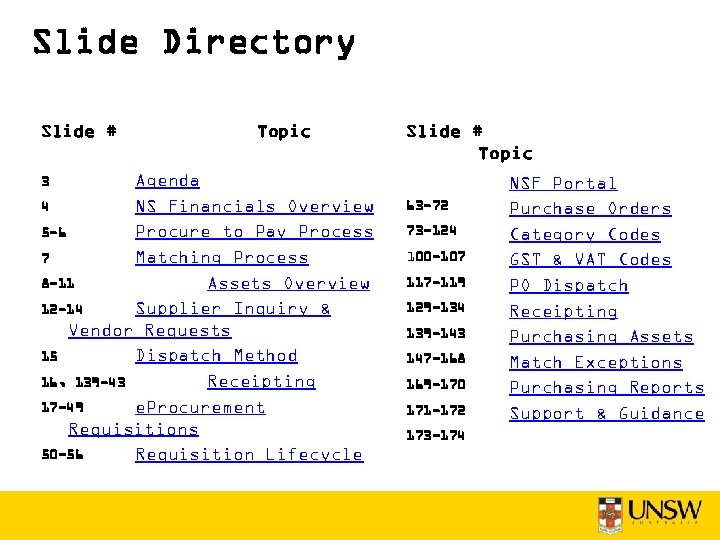
Slide Directory Slide # Topic Agenda 4 NS Financials Overview 5 -6 Procure to Pay Process 7 Matching Process 8 -11 Assets Overview 12 -14 Supplier Inquiry & Vendor Requests 15 Dispatch Method 16, 139 -43 Receipting 17 -49 e. Procurement Requisitions 50 -56 Requisition Lifecycle Slide # Topic 3 63 -72 73 -124 100 -107 117 -119 129 -134 139 -143 147 -168 169 -170 171 -172 173 -174 NSF Portal Purchase Orders Category Codes GST & VAT Codes PO Dispatch Receipting Purchasing Assets Match Exceptions Purchasing Reports Support & Guidance
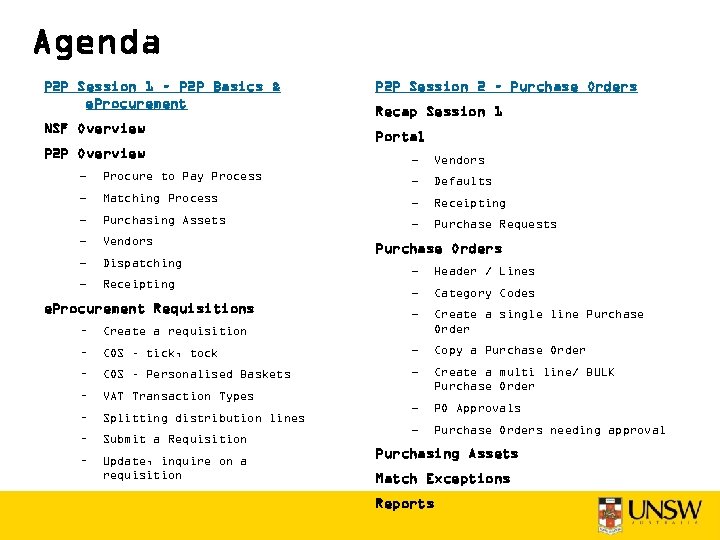
Agenda P 2 P Session 1 – P 2 P Basics & e. Procurement NSF Overview P 2 P Session 2 – Purchase Orders Recap Session 1 Portal – Vendors – Procure to Pay Process – Defaults – Matching Process – Receipting – Purchasing Assets – Purchase Requests – Vendors – Dispatching – Receipting e. Procurement Requisitions Purchase Orders – Header / Lines – Category Codes – Create a single line Purchase Order – Create a requisition – COS – tick, tock – Copy a Purchase Order – COS – Personalised Baskets – – VAT Transaction Types Create a multi line/ BULK Purchase Order – Splitting distribution lines – PO Approvals – Submit a Requisition – Purchase Orders needing approval – Update, inquire on a requisition Purchasing Assets Match Exceptions Reports
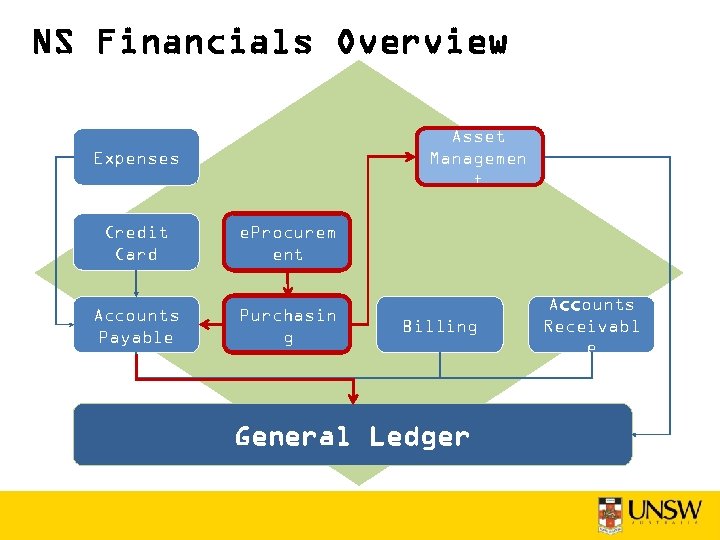
NS Financials Overview Asset Managemen t Expenses Credit Card e. Procurem ent Accounts Payable Purchasin g Billing General Ledger Accounts Receivabl e
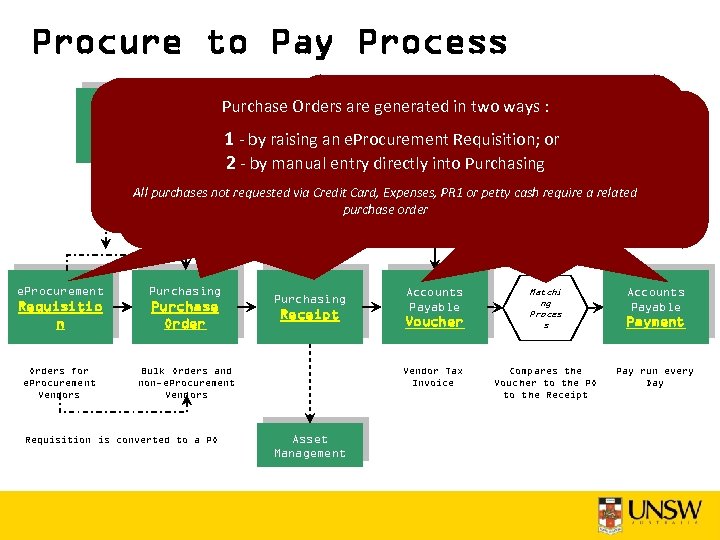
Procure to Pay Process Purchase Orders are generated in two ways : Daily Credit Card Transaction File is to place Requestfromused to place requests. Purchase e. Procurement is used. Purchase orders from suppliers on-line. Bank 1 - by without a Purchase Order cannot be or Request Invoicesraising an e. Procurement Requisition; processed 2 - by The. Deliveries directly Tax Invoice to Purchasing Once your e. Procurement. Pettyentry Vendor be Receipted yourprocess runs requisition should approved hourly Matching process runs every Accounts Payable manual. Once your Purchase Request has been. Purchase Order associate the has beeninto. Creditannight submitted, Buyer will work payment which will. Matchup Card, Expenses, PR 1 or on the Requisitionrelated pick it Exceptions withhold petty cash. Expenses Cash PR 1 All purchases not requested via Credit and create a Purchase Order. require a Card Purchasing Claim e. Procurement Purchasing Requisitio n Purchase Orders for e. Procurement Vendors purchase order Bulk Orders and non-e. Procurement Vendors Requisition is converted to a PO Purchasing Receipt Reconcile Statement Accounts Payable Voucher Vendor Tax Invoice Asset Management Matchi ng Proces s Compares the Voucher to the PO to the Receipt Accounts Payable Payment Pay run every Day
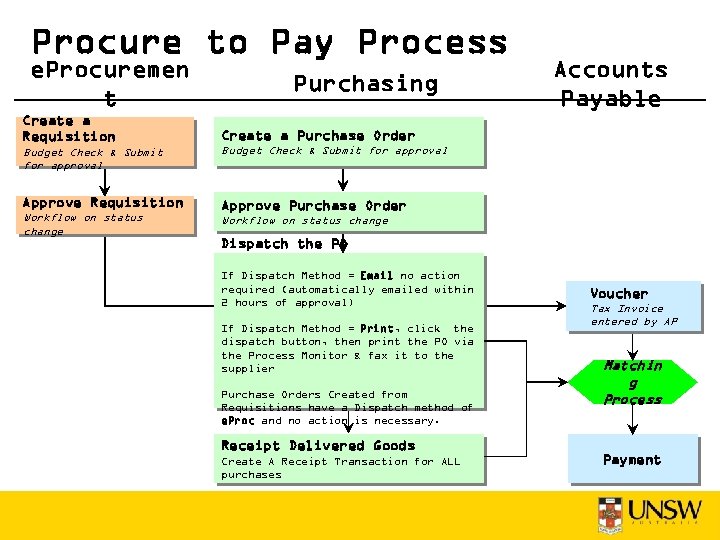
Procure to Pay Process e. Procuremen t Create a Requisition Purchasing Accounts Payable Create a Purchase Order Budget Check & Submit for approval Approve Requisition Approve Purchase Order Workflow on status change Dispatch the PO If Dispatch Method = Email no action required (automatically emailed within 2 hours of approval) If Dispatch Method = Print, click the dispatch button, then print the PO via the Process Monitor & fax it to the supplier Purchase Orders Created from Requisitions have a Dispatch method of e. Proc and no action is necessary. Receipt Delivered Goods Create A Receipt Transaction for ALL purchases Voucher Tax Invoice entered by AP Matchin g Process Payment
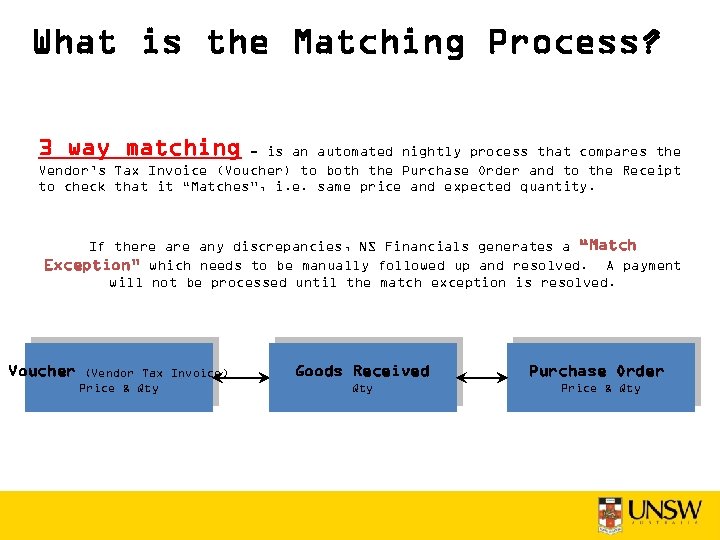
What is the Matching Process? 3 way matching - is an automated nightly process that compares the Vendor’s Tax Invoice (Voucher) to both the Purchase Order and to the Receipt to check that it “Matches”, i. e. same price and expected quantity. If there any discrepancies, NS Financials generates a “Match Exception” which needs to be manually followed up and resolved. A payment will not be processed until the match exception is resolved. Voucher (Vendor Tax Invoice) Price & Qty Goods Received Qty Purchase Order Price & Qty
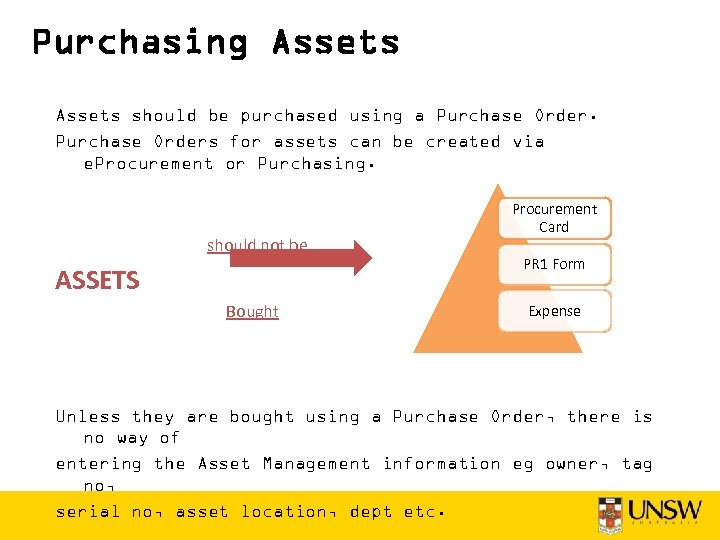
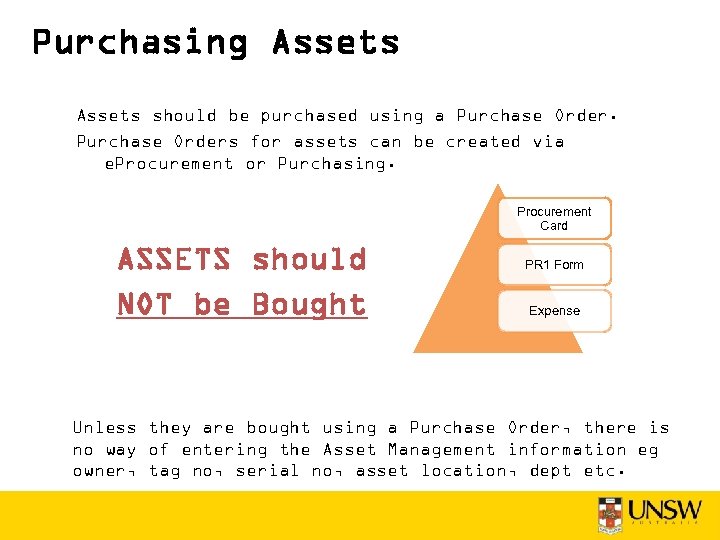
Purchasing Assets should be purchased using a Purchase Orders for assets can be created via e. Procurement or Purchasing. should not be ASSETS Bought Procurement Card PR 1 Form Expense Unless they are bought using a Purchase Order, there is no way of entering the Asset Management information eg owner, tag no, serial no, asset location, dept etc.
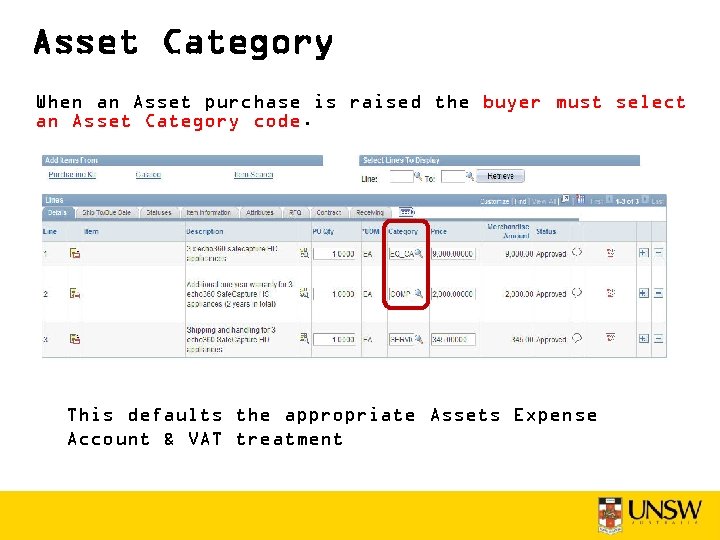
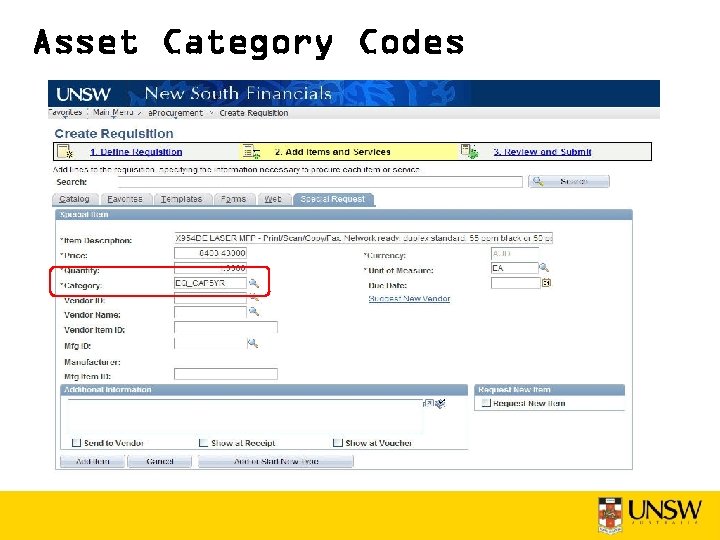
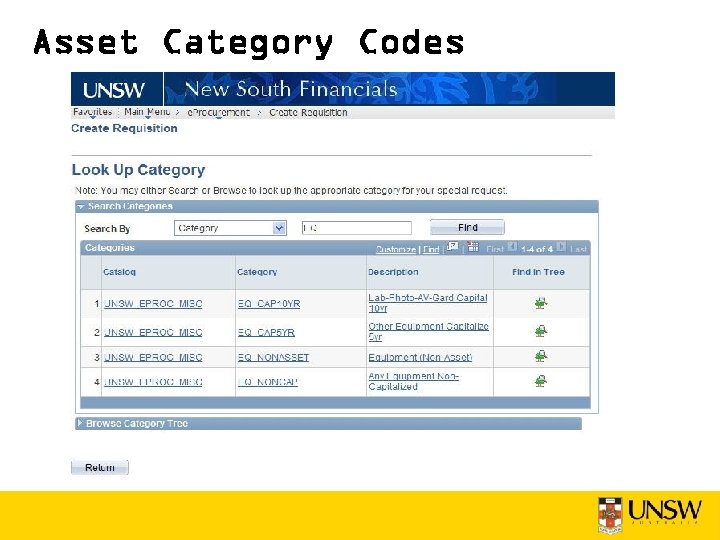
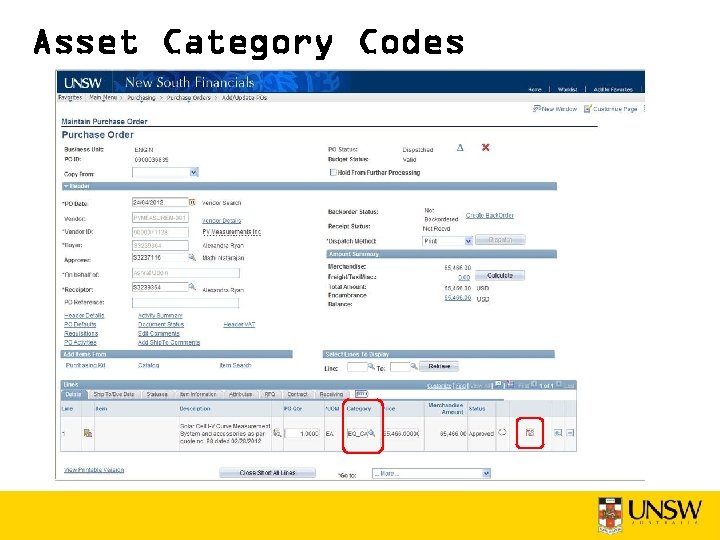
Asset Category When an Asset purchase is raised the buyer must select an Asset Category code. This defaults the appropriate Assets Expense Account & VAT treatment
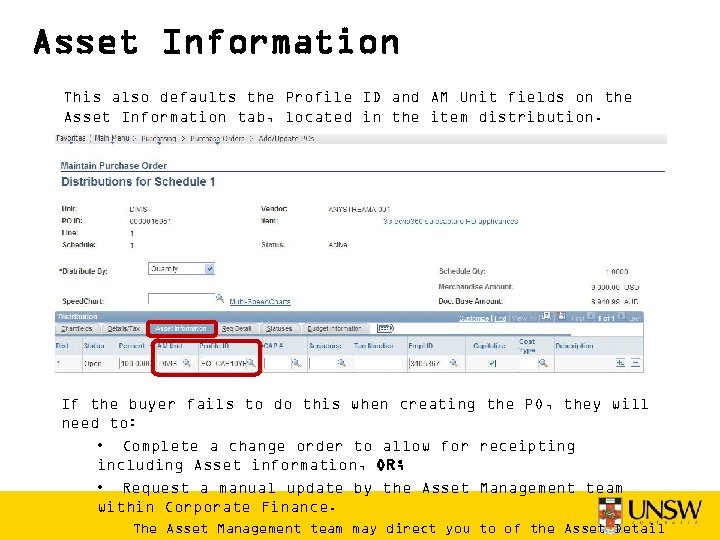
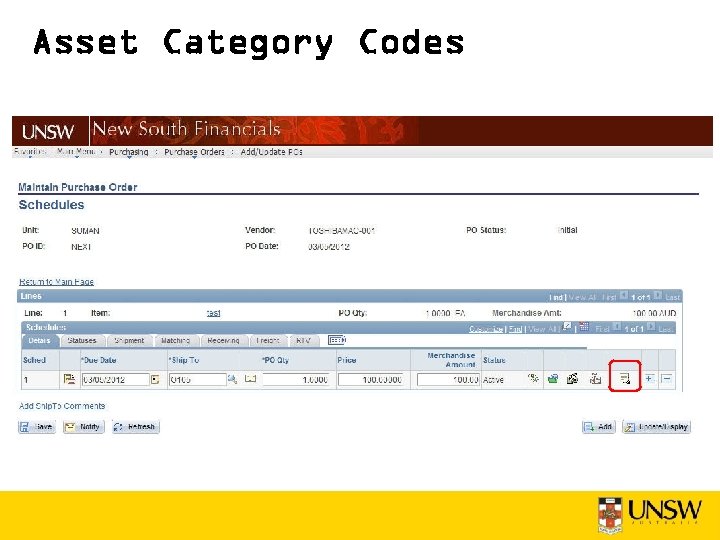
Asset Information This also defaults the Profile ID and AM Unit fields on the Asset Information tab, located in the item distribution. If the buyer fails to do this when creating the PO, they will need to: • Complete a change order to allow for receipting including Asset information, OR; • Request a manual update by the Asset Management team within Corporate Finance. The Asset Management team may direct you to of the Asset Detail
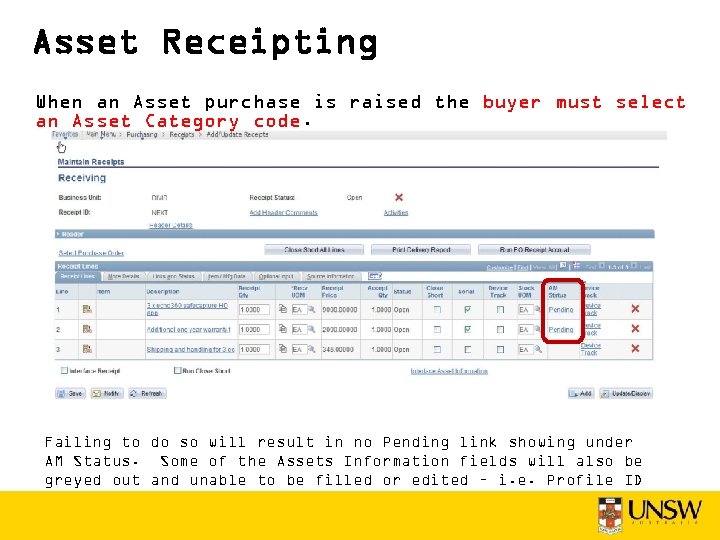
Asset Receipting When an Asset purchase is raised the buyer must select an Asset Category code. Failing to do so will result in no Pending link showing under AM Status. Some of the Assets Information fields will also be greyed out and unable to be filled or edited – i. e. Profile ID
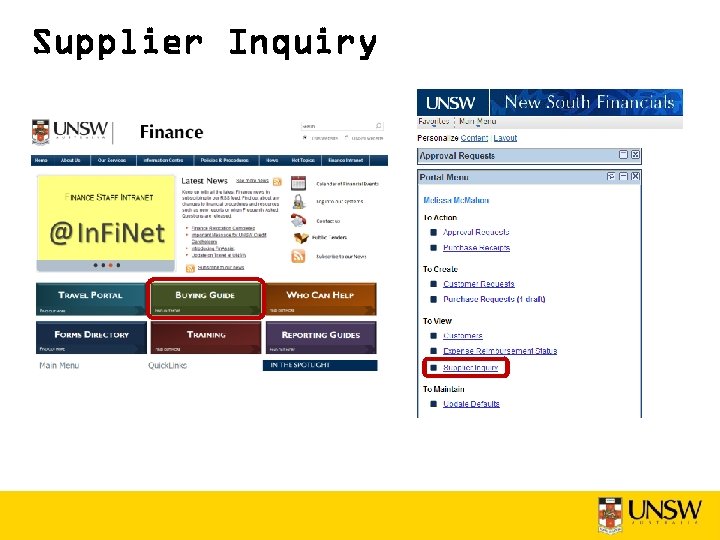
Supplier Inquiry
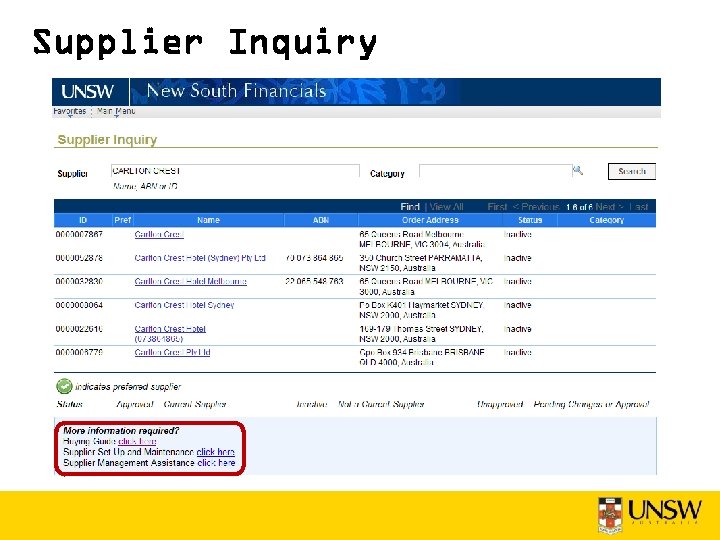
Supplier Inquiry
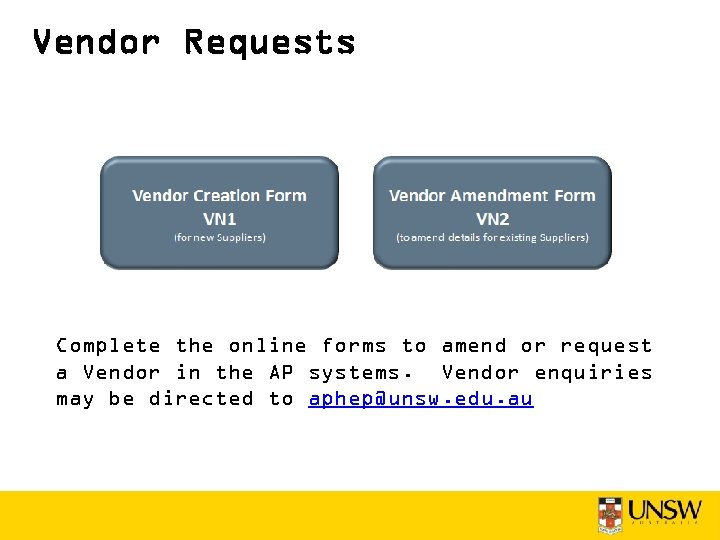
Vendor Requests Complete the online forms to amend or request a Vendor in the AP systems. Vendor enquiries may be directed to aphep@unsw. edu. au
Dispatch Methods There are 3 Dispatch Methods available: Email The PO is automatically emailed to the Vendor within 2 hours from 8: 30 am – 6: 30 pm Monday-Friday (once it has passed Budget Checking and has been Approved). Print Once the PO has passed Budget Checking and has been Approved, there are 3 more manual steps required: 1. 2. 3. Manually dispatch the PO Print the PO via the Process Monitor Fax the hard copy print out to the Vendor e. Proc If the Vendor has this method displayed, they are an e. Procurement Vendor. You need to cancel out of the Purchase Order and create a Requisition via the e. Procurement / Create Requisition menu. Otherwise your order will not be dispatched anywhere – it will just sit there. The Dispatch Method is setup on the Vendor record and will default onto the Purchase Order.
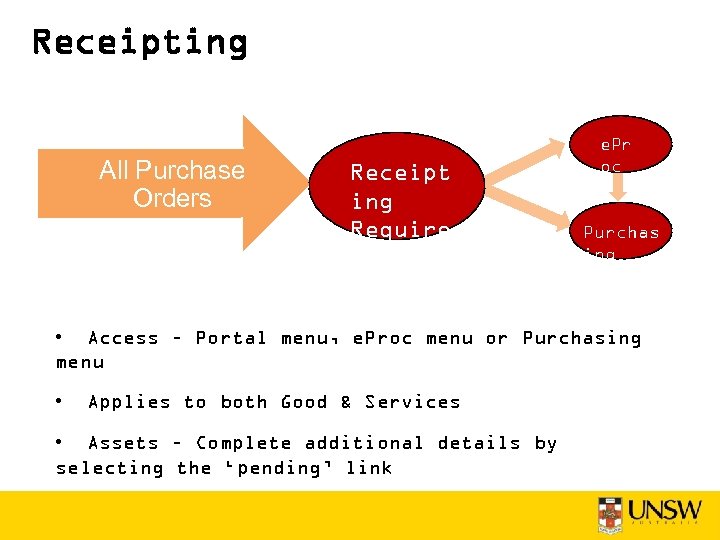
Receipting All Purchase Orders Receipt ing Require d e. Pr oc Purchas ing • Access – Portal menu, e. Proc menu or Purchasing menu • Applies to both Good & Services • Assets – Complete additional details by selecting the ‘pending’ link
e. Procurement Requisitions
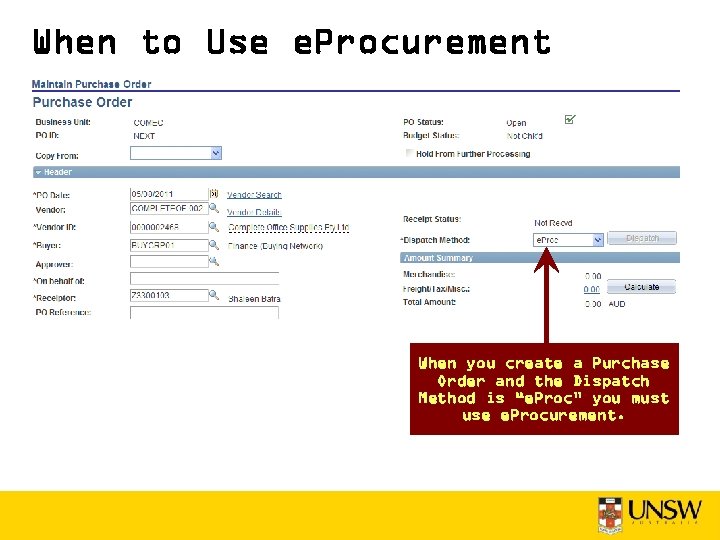
When to Use e. Procurement When you create a Purchase Order and the Dispatch Method is “e. Proc” you must use e. Procurement.
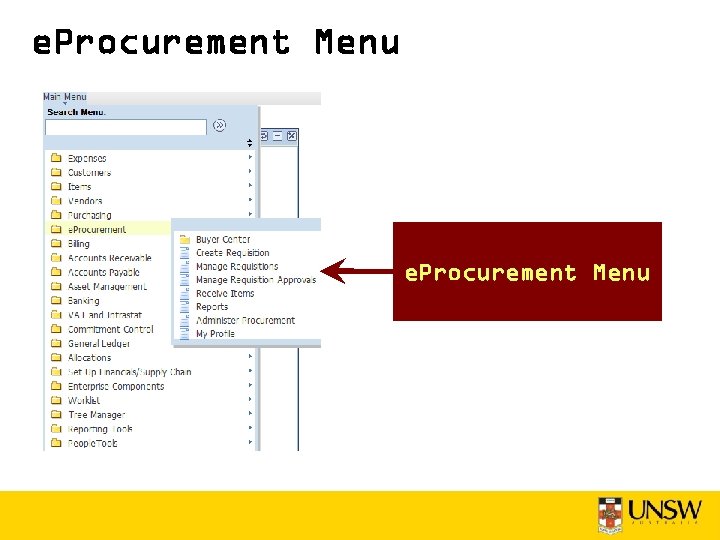
e. Procurement Menu
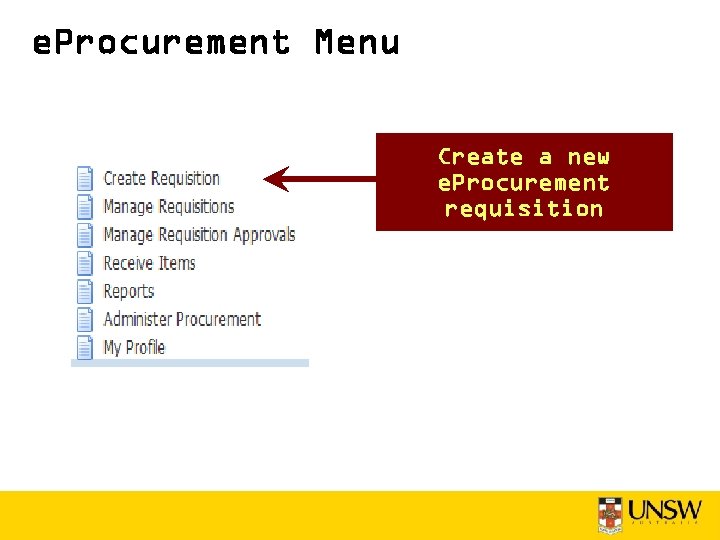
e. Procurement Menu Create a new e. Procurement requisition
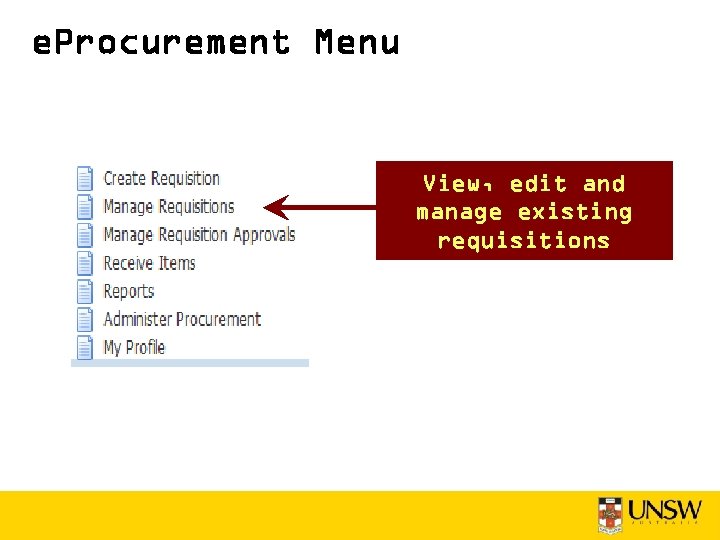
e. Procurement Menu View, edit and manage existing requisitions
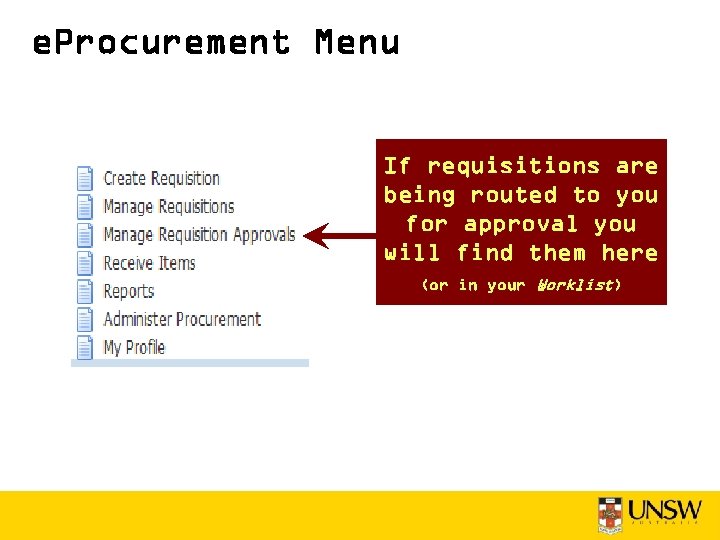
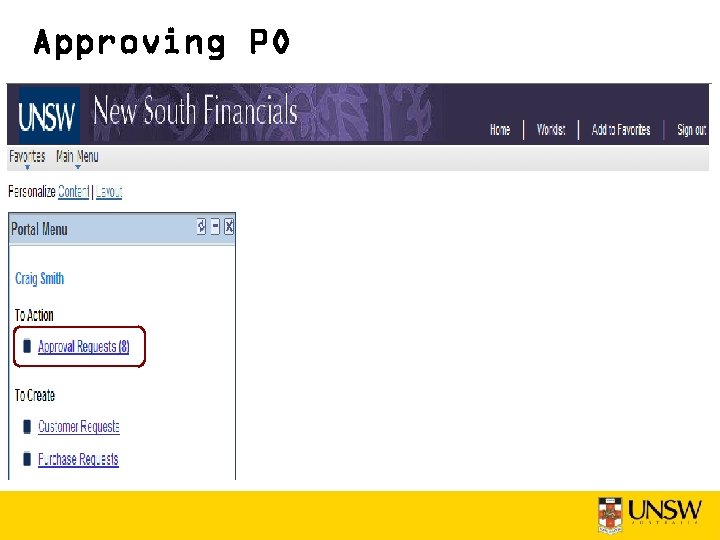
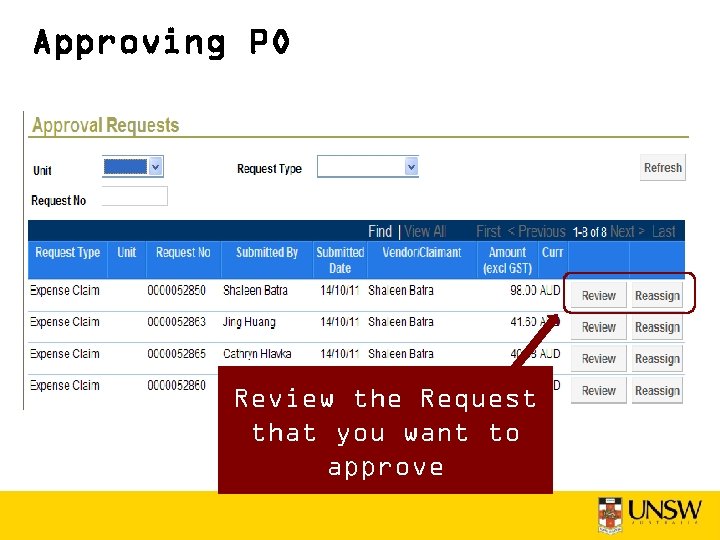
e. Procurement Menu If requisitions are being routed to you for approval you will find them here (or in your Worklist)
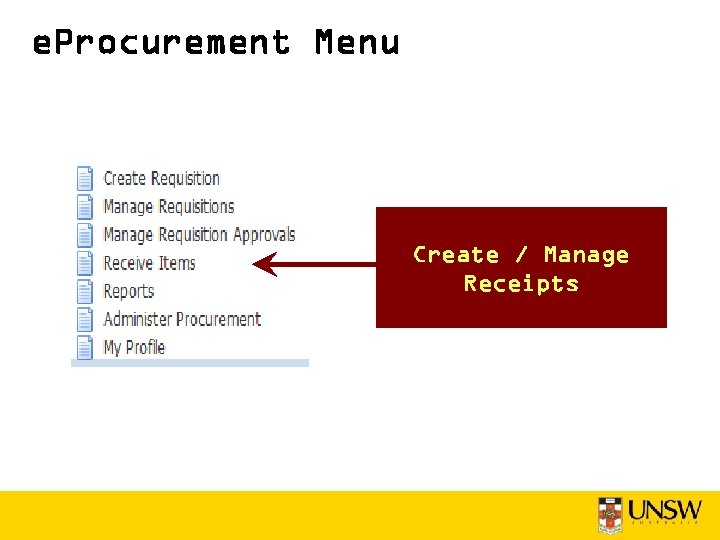
e. Procurement Menu Create / Manage Receipts
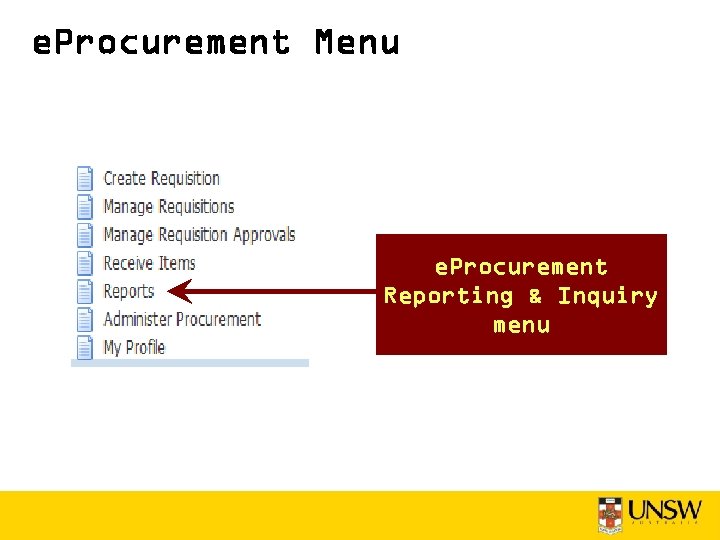
e. Procurement Menu e. Procurement Reporting & Inquiry menu
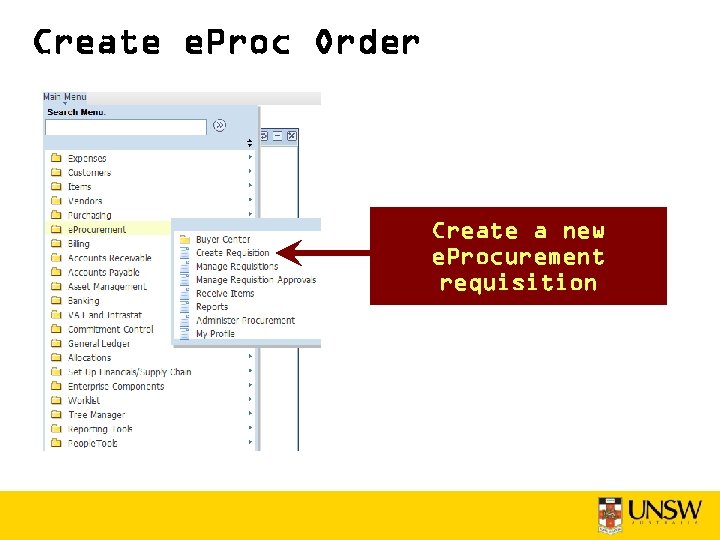
Create e. Proc Order Create a new e. Procurement requisition
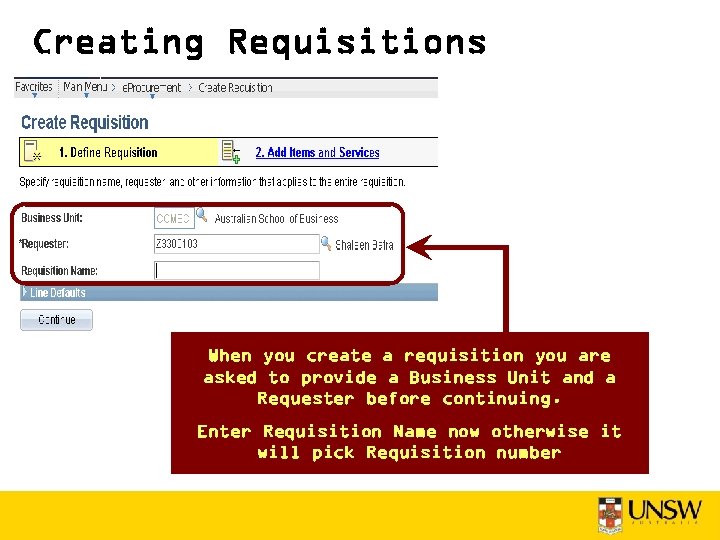
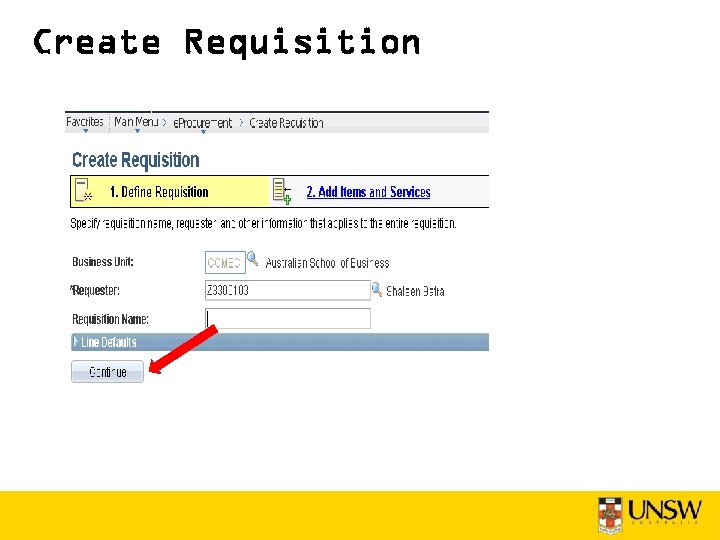
Creating Requisitions When you create a requisition you are asked to provide a Business Unit and a Requester before continuing. Enter Requisition Name now otherwise it will pick Requisition number
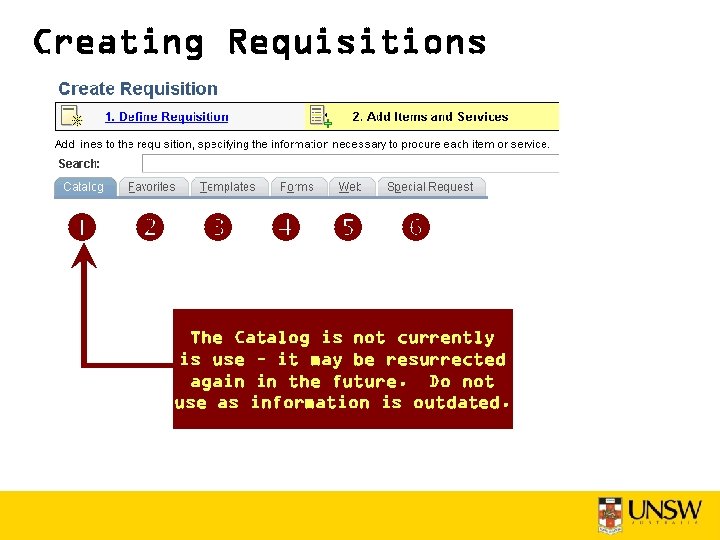
Creating Requisitions The Catalog is not currently is use – it may be resurrected again in the future. Do not use as information is outdated.
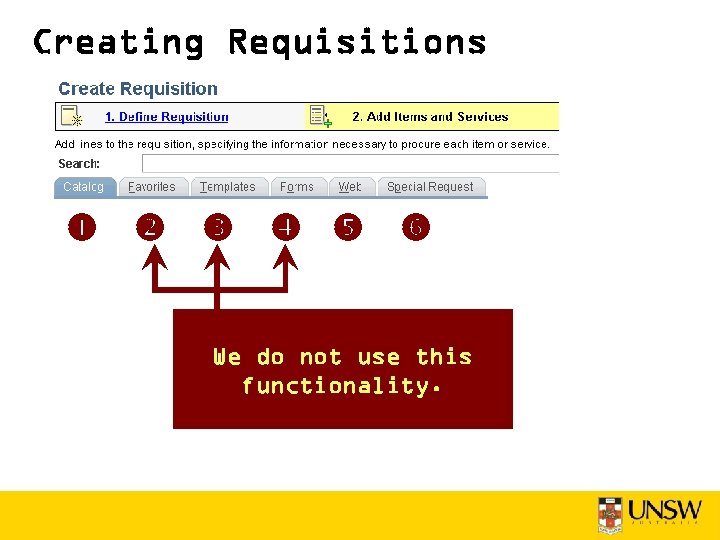
Creating Requisitions We do not use this functionality.
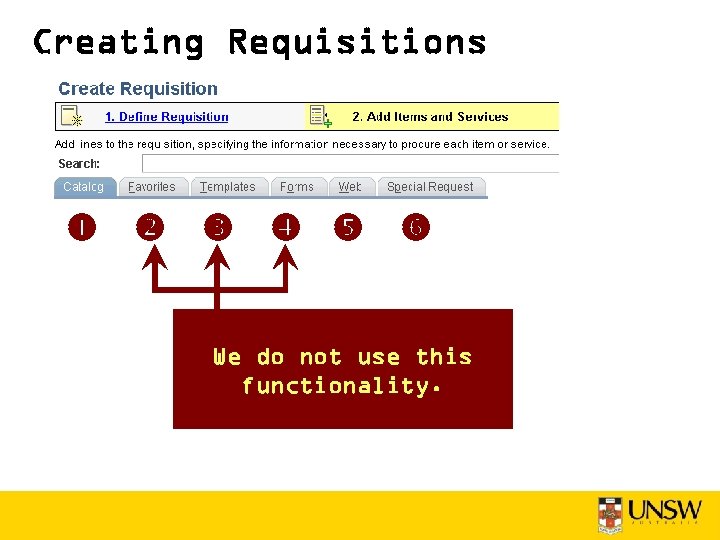
Creating Requisitions We do not use this functionality.
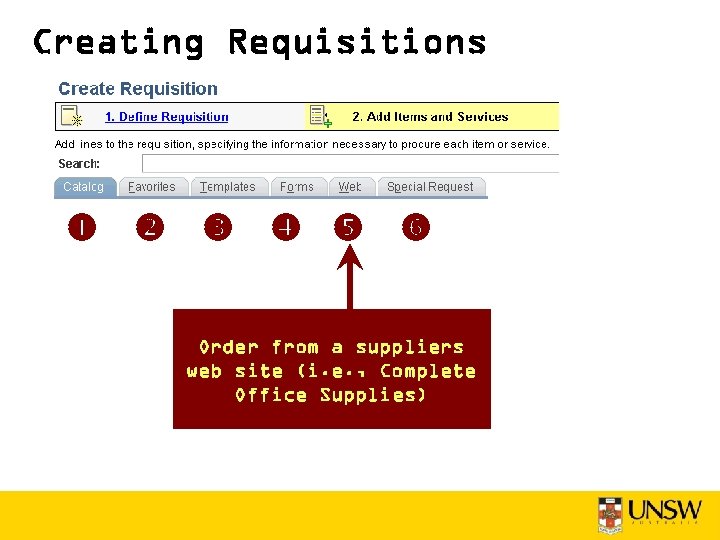
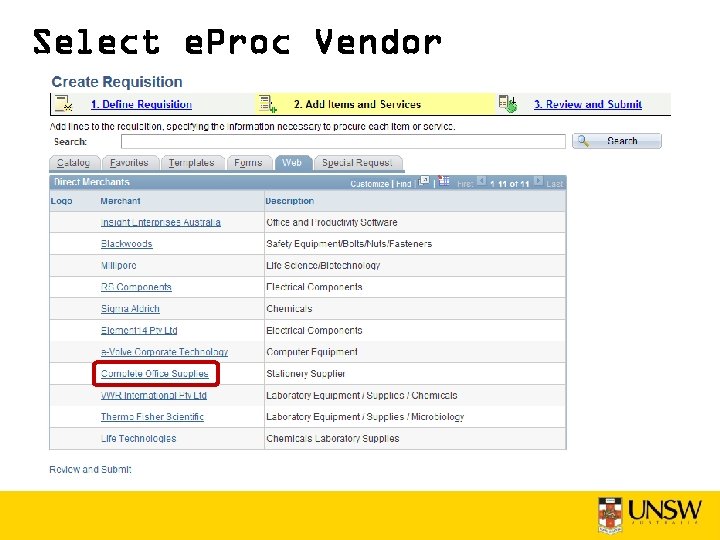
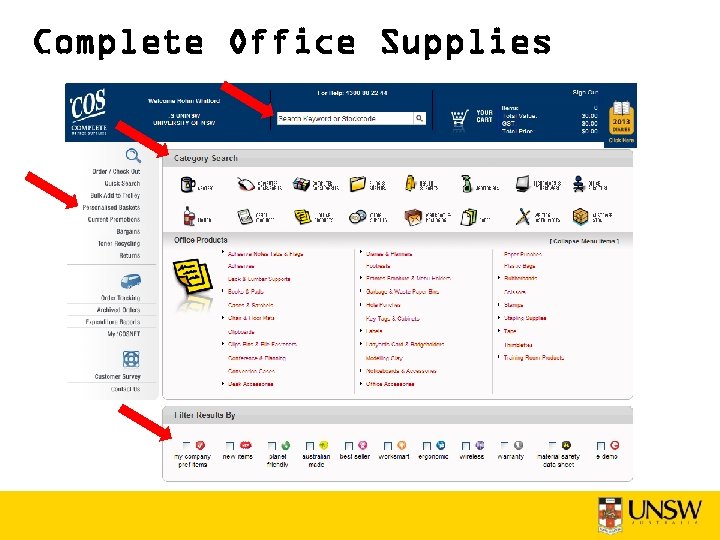
Creating Requisitions Order from a suppliers web site (i. e. , Complete Office Supplies)
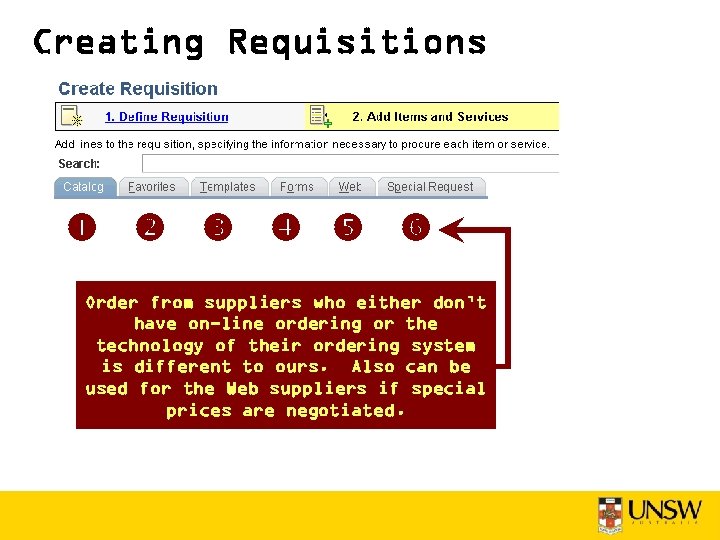
Creating Requisitions Order from suppliers who either don’t have on-line ordering or the technology of their ordering system is different to ours. Also can be used for the Web suppliers if special prices are negotiated.
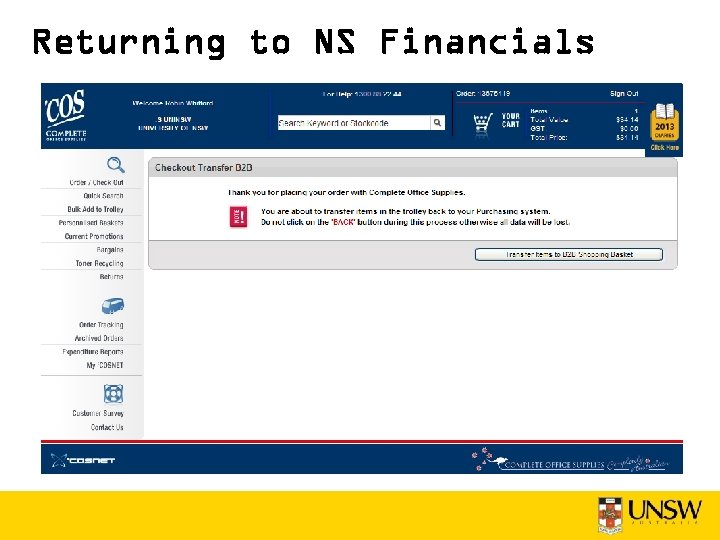
Adding Items • At this point we select Web, choose a supplier and we are routed to the Suppliers web site. • We add items to our cart and when we are finished we complete the order. • When we order is completed on the suppliers web site we are routed back to NSF where we are to enter chartfield information etc. • “Roundtrip”
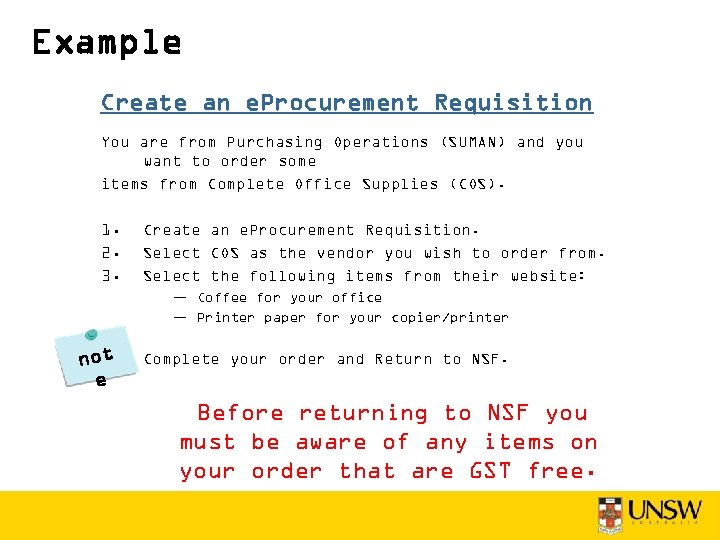
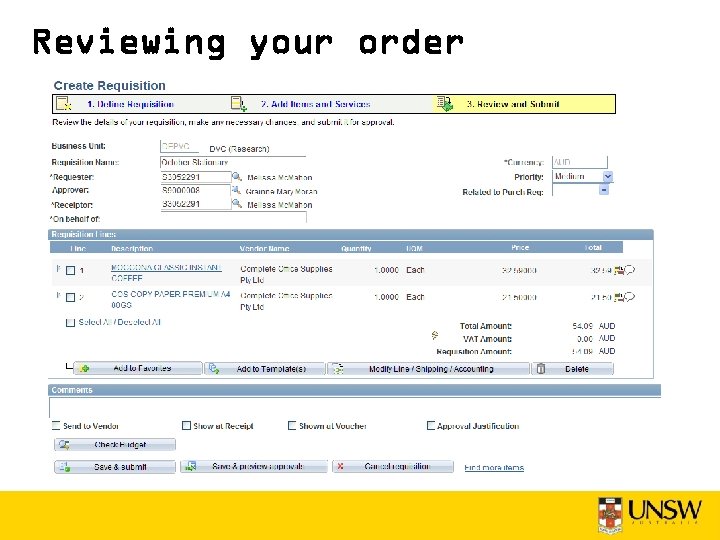
Example Create an e. Procurement Requisition You are from Purchasing Operations (SUMAN) and you want to order some items from Complete Office Supplies (COS). 1. 2. 3. Create an e. Procurement Requisition. Select COS as the vendor you wish to order from. Select the following items from their website: — Coffee for your office — Printer paper for your copier/printer t no 4. e Complete your order and Return to NSF. Before returning to NSF you must be aware of any items on your order that are GST free.
Create Requisition
Select e. Proc Vendor
Complete Office Supplies
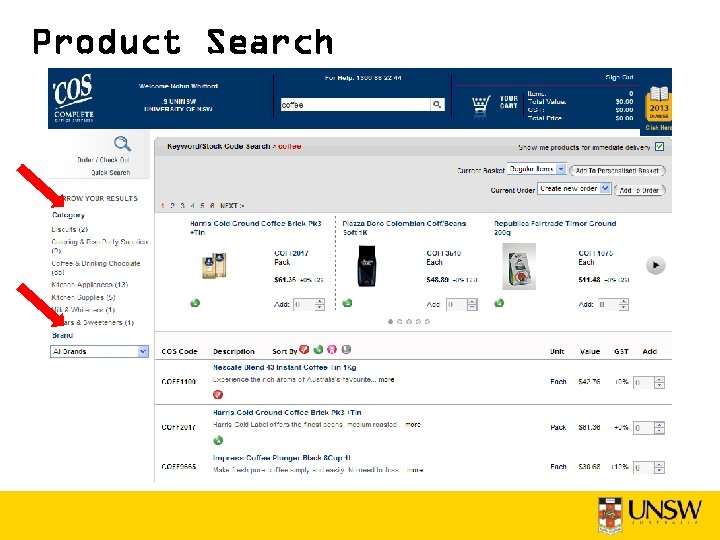
Product Search
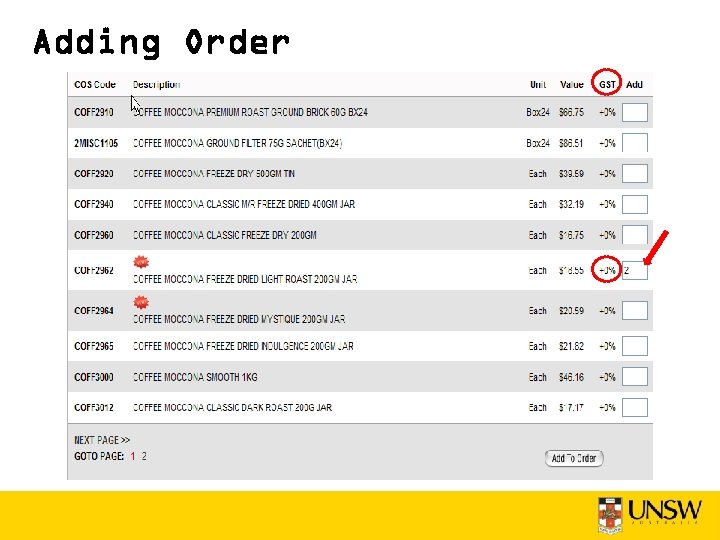
Adding Order
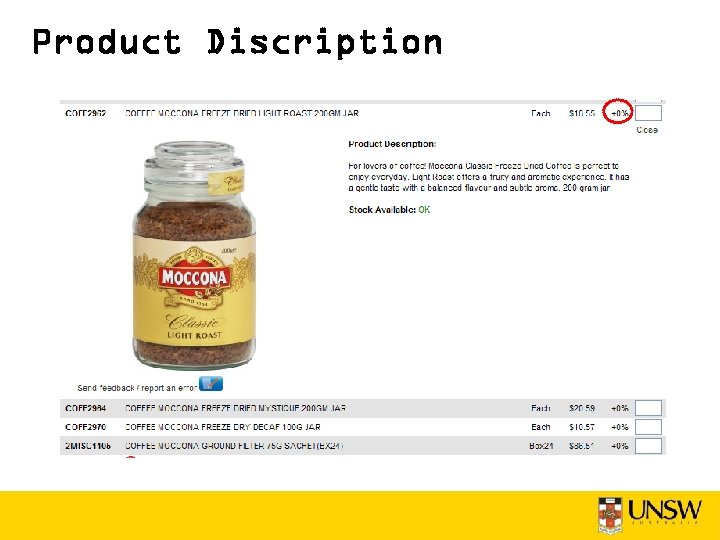
Product Discription
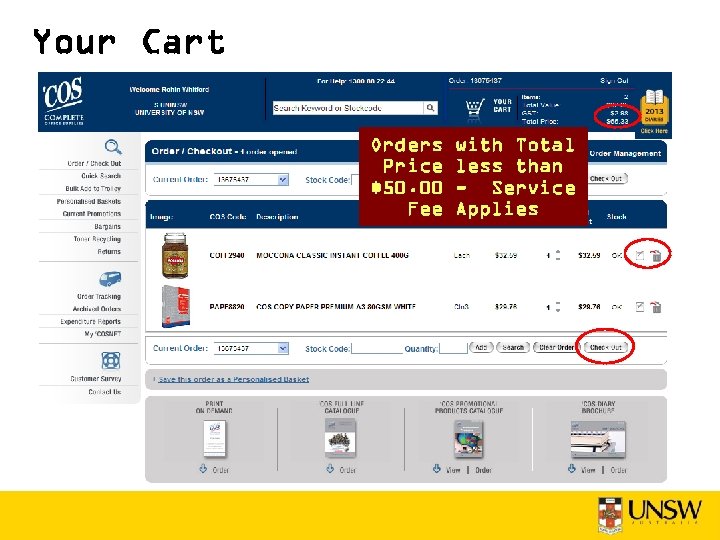
Your Cart Orders Price $50. 00 Fee with Total less than - Service Applies
Returning to NS Financials
Reviewing your order
Chartfield Distribution
Chartfield Distribution
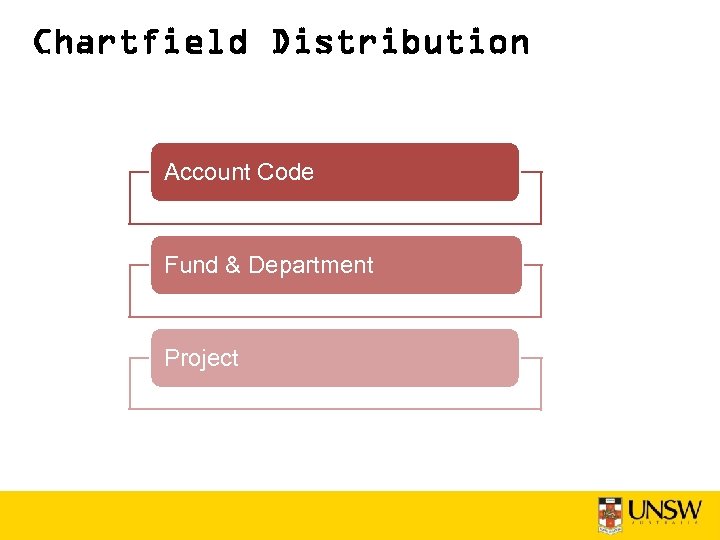
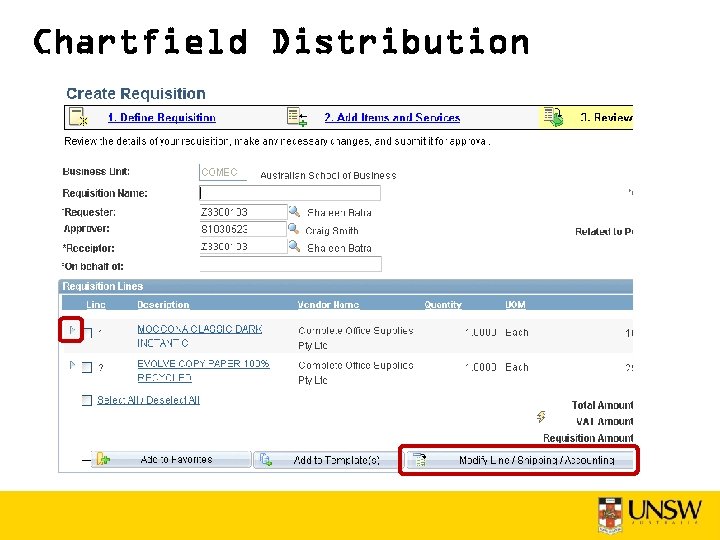
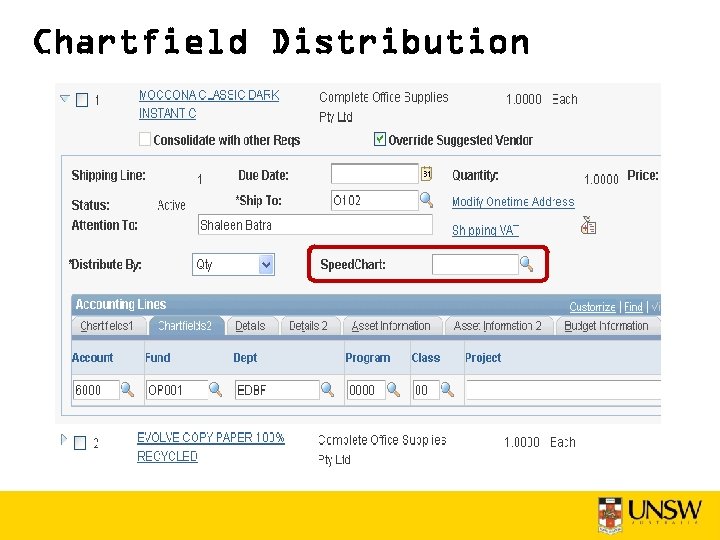
Chartfield Distribution Account Code Fund & Department Project
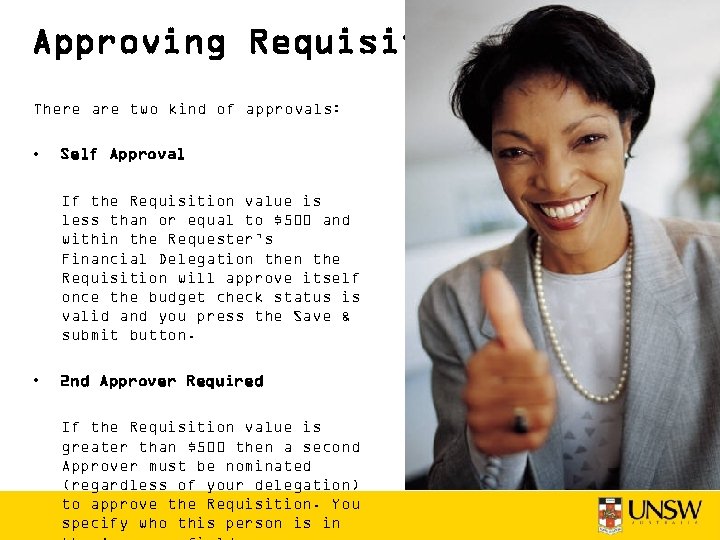
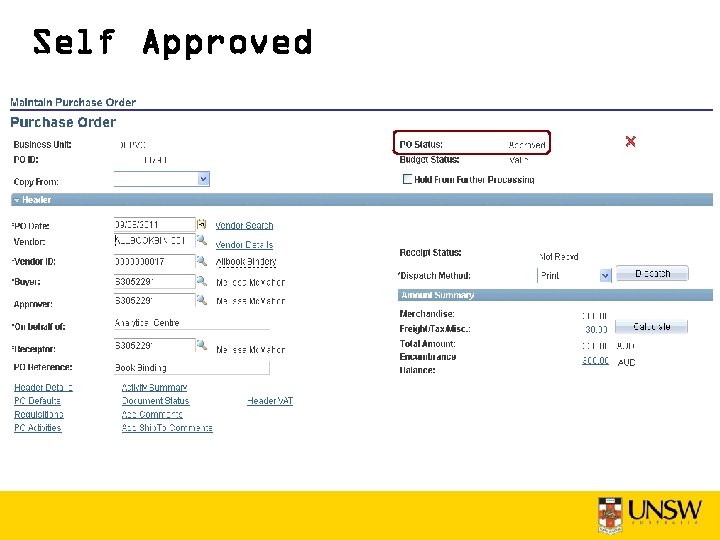
Approving Requisitions There are two kind of approvals: • Self Approval If the Requisition value is less than or equal to $500 and within the Requester’s Financial Delegation the Requisition will approve itself once the budget check status is valid and you press the Save & submit button. • 2 nd Approver Required If the Requisition value is greater than $500 then a second Approver must be nominated (regardless of your delegation) to approve the Requisition. You specify who this person is in
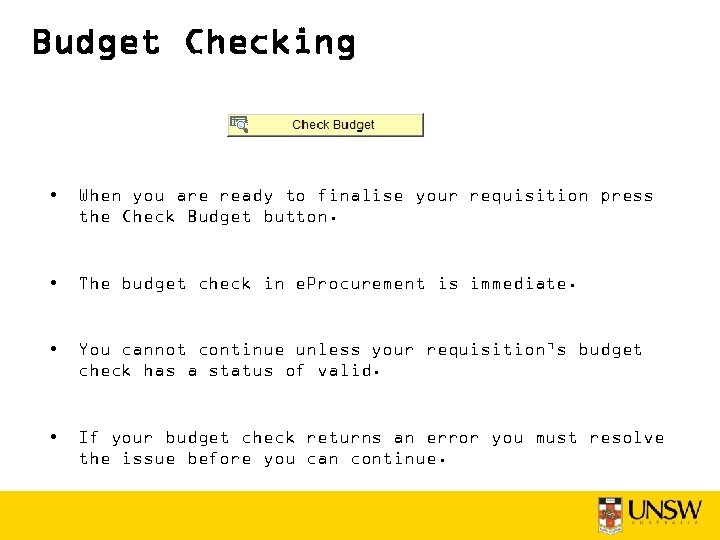
Budget Checking • When you are ready to finalise your requisition press the Check Budget button. • The budget check in e. Procurement is immediate. • You cannot continue unless your requisition’s budget check has a status of valid. • If your budget check returns an error you must resolve the issue before you can continue.
Approving Requisitions The Approval process provides the following features: • Defaulting of an Approver onto the Requisition from User Preferences. • Selection of an Approver from a drop-down list which displays Approver's Financial Delegation. • An email to the Approver advising that Approval is required. • An email to the Buyer advising that Approval is complete or Denial has occurred. • Buyers can change the Approver provided the Requisition is in Pending Status. • If an Approver is going on leave, the Approver can route all their Approvals to another Approver. This is done on the ‘Update Profile’ page.
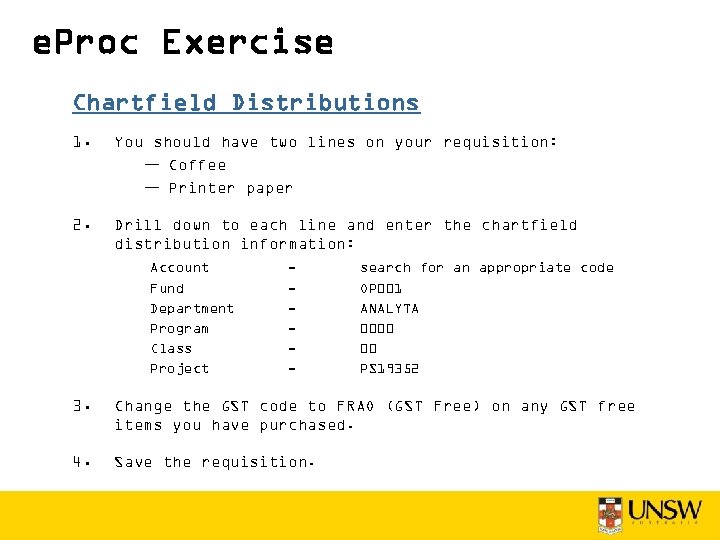
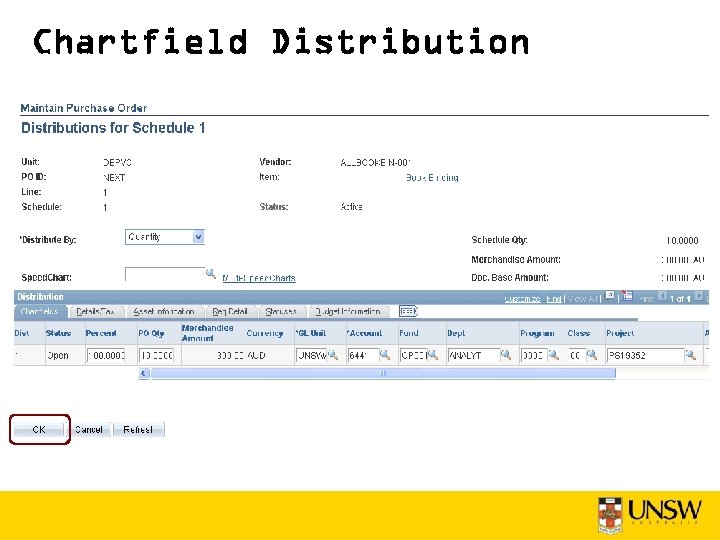
e. Proc Exercise Chartfield Distributions 1. You should have two lines on your requisition: — Coffee — Printer paper 2. Drill down to each line and enter the chartfield distribution information: Account Fund Department Program Class Project - search for an appropriate code OP 001 ANALYTA 0000 00 PS 19352 3. Change the GST code to FRAO (GST Free) on any GST free items you have purchased. 4. Save the requisition.
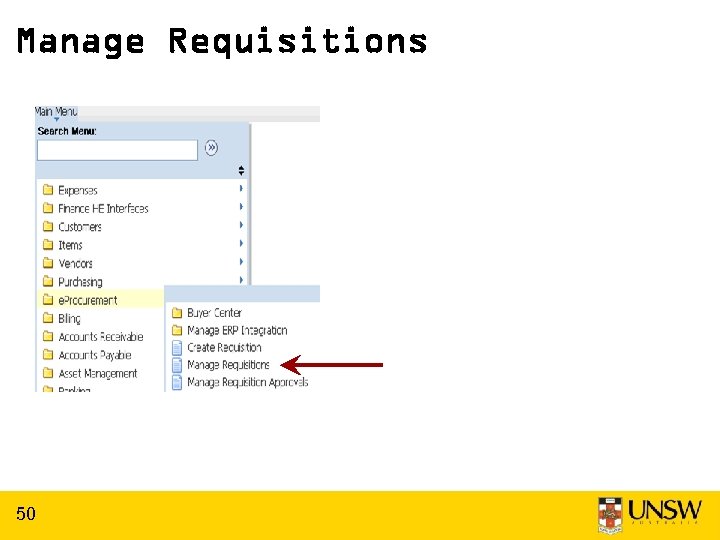
Manage Requisitions 50
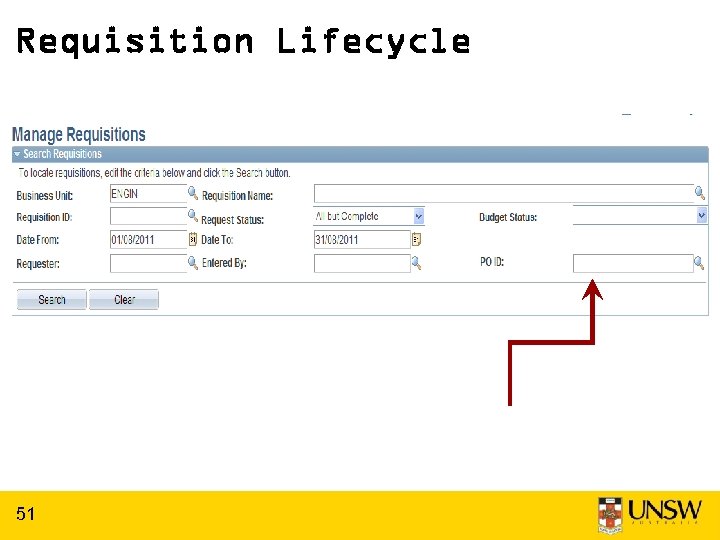
Requisition Lifecycle 51
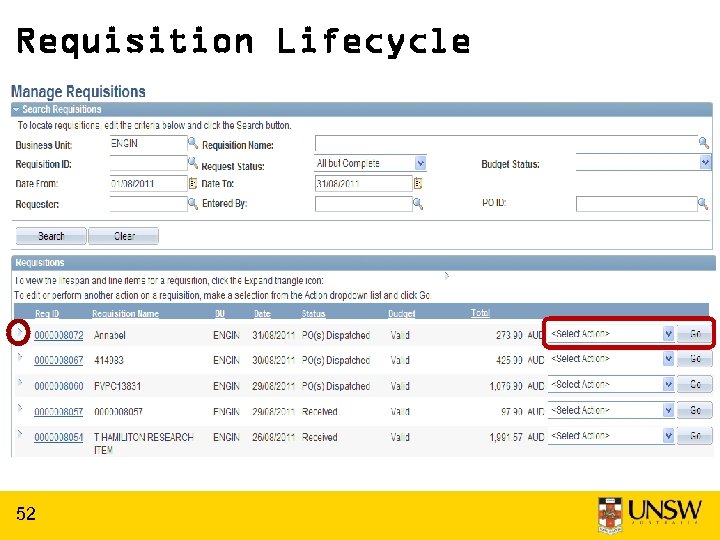
Requisition Lifecycle 52
Requisition Lifecycle 53
Requisition Lifecycle 54
Requisition Lifecycle You can drill down on the hyperlinks to view more detailed information 55
Requisition Lifecycle Not an asset No changes No returns Invoice entered No payment made 56
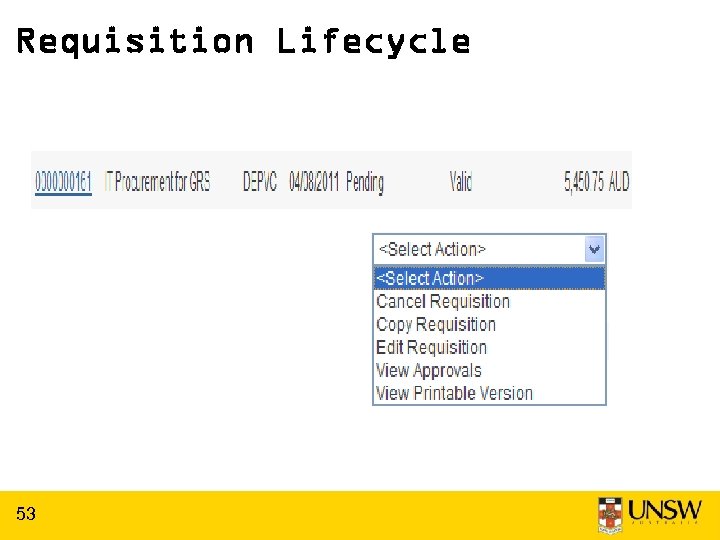
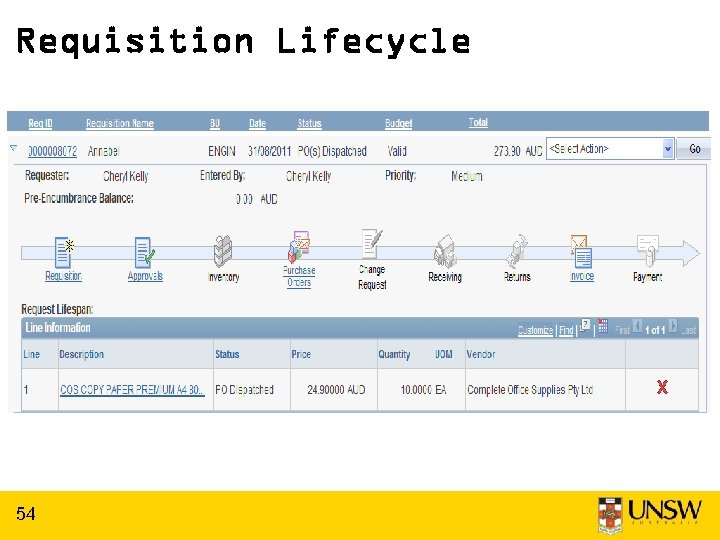
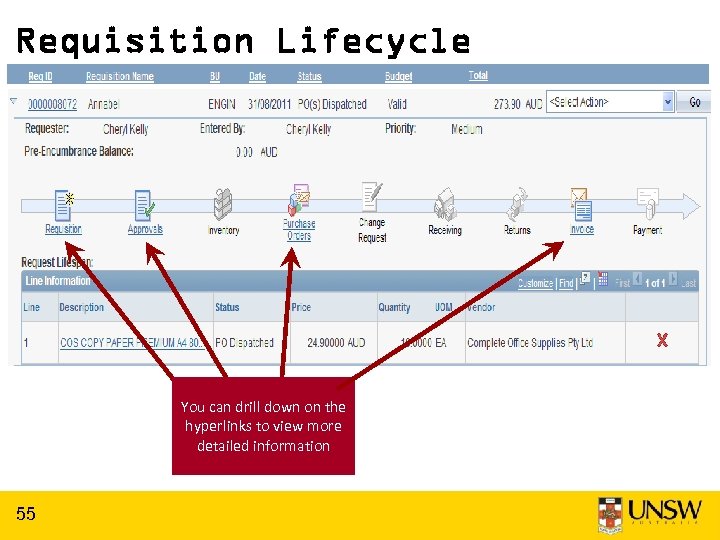
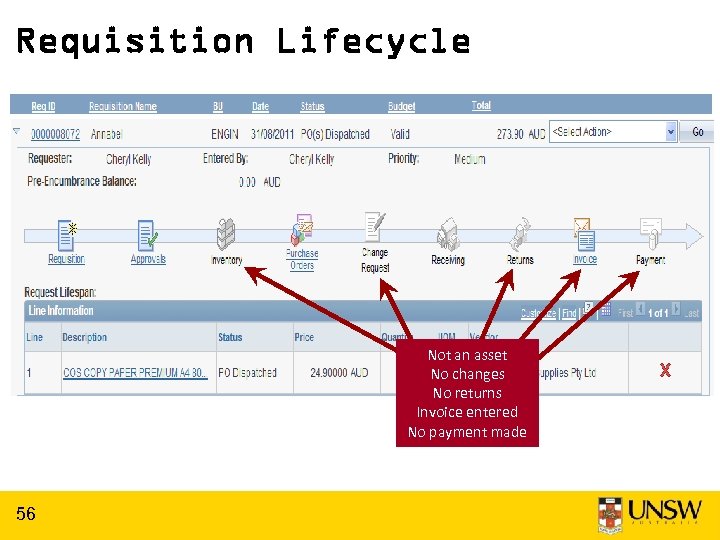
Printing Requisitions Since the purchase order is what is supplied to the vendor there is usually no need to print a requisition, however should you wish to do so you can select the hyperlink “View Printable version”. This is not to be used as a replacement for a Purchase Order. Once your Requisition has become a Purchase Order all references should be made to the Purchase Order number – the Requisition becomes irrelevant.
Receipting • If your goods have not been receipted a match exception will occur preventing payment of the Supplier invoice. • Create a receipt (either in e. Procurement or Purchasing – both are the same. ) • Receipt only the goods you have received and are in working order. You can come back and create another receipt when you receive the rest of your order. • Only receipt assets when the asset (all components) has been commissioned and is tested and
Ordering Assets • When ordering assets there a couple of additional procedures that need to be followed. • If you choose an asset account code when placing an order you should complete the “Cost Distribution” section of the PO called “Asset Information”. • You are required to provide the Business Unit and Profile ID for the asset. If you have more information you can supply it now otherwise you will can provide it when you receipt the purchase order. • When receipting an asset you should enter information into the “AM Status” tab of the Purchase Order line. • Click on the AM Status and complete “Distribution Information”, “Asset Information” and “More Details”.
Things to remember • Your requisition will become a Purchase Order • Make sure the Account Codes are accurate § “ 5” series are assets § “ 6” are goods & services § “ 7” is for travel • Perform the extra steps when purchasing an asset • Hover icons to see their menu names • Don’t create change orders for requisitions (change the related Purchase Order) • Receipt your deliveries
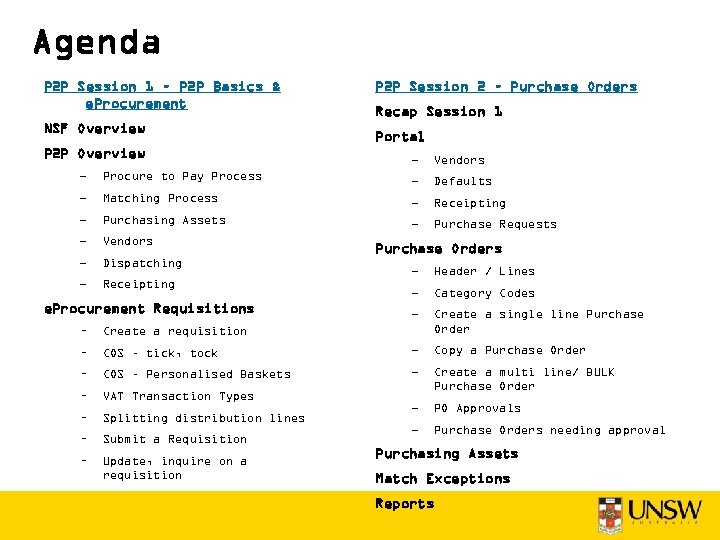
Agenda P 2 P Session 1 – P 2 P Basics & e. Procurement NSF Overview P 2 P Session 2 – Purchase Orders Recap Session 1 Portal – Vendors – Procure to Pay Process – Defaults – Matching Process – Receipting – Purchasing Assets – Purchase Requests – Vendors – Dispatching – Receipting e. Procurement Requisitions Purchase Orders – Header / Lines – Category Codes – Create a single line Purchase Order – Create a requisition – COS – tick, tock – Copy a Purchase Order – COS – Personalised Baskets – – VAT Transaction Types Create a multi line/ BULK Purchase Order – Splitting distribution lines – PO Approvals – Submit a Requisition – Purchase Orders needing approval – Update, inquire on a requisition Purchasing Assets Match Exceptions Reports
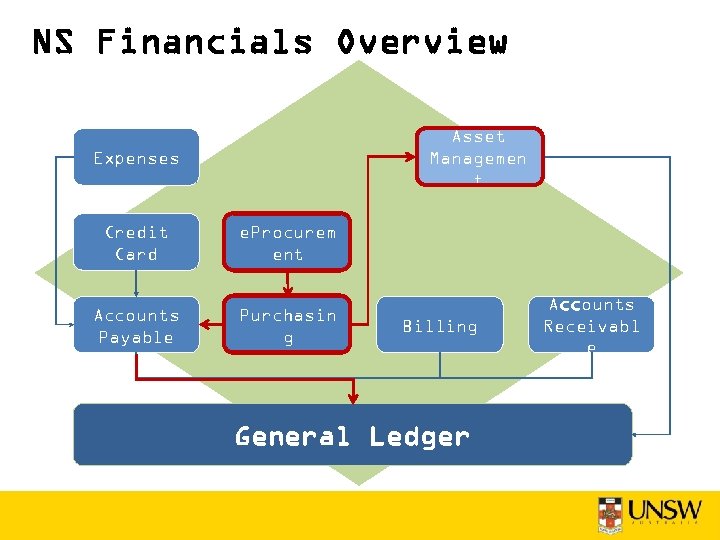
NS Financials Overview Asset Managemen t Expenses Credit Card e. Procurem ent Accounts Payable Purchasin g Billing General Ledger Accounts Receivabl e
NS Financials Portal
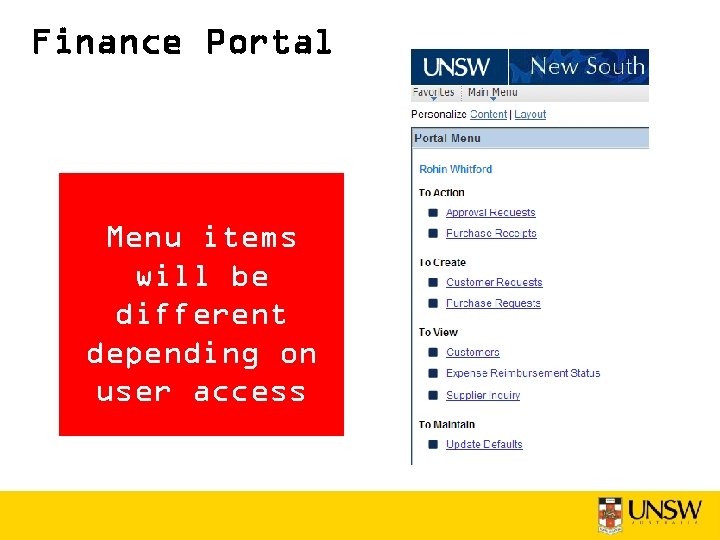
Finance Portal Menu items will be different depending on user access
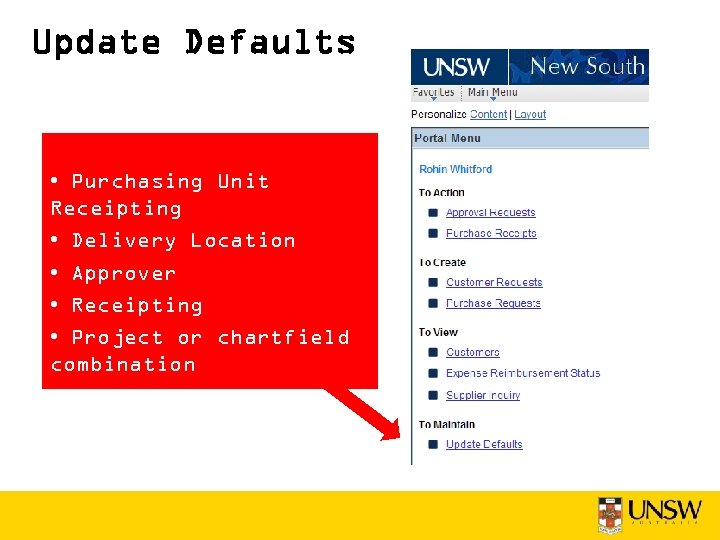
Update Defaults • Purchasing Unit Receipting • Delivery Location • Approver • Receipting • Project or chartfield combination • Alternate Approver
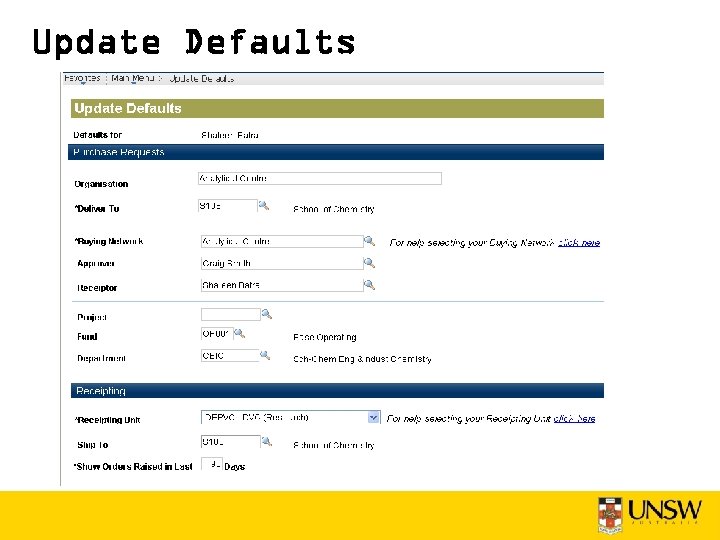
Update Defaults
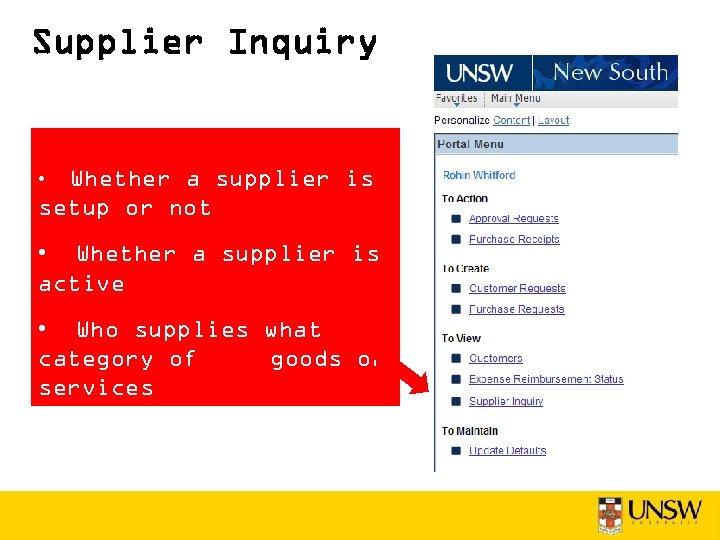
Supplier Inquiry Whether a supplier is setup or not • • Whether a supplier is active • Who supplies what category of goods or services • Preferred supplier
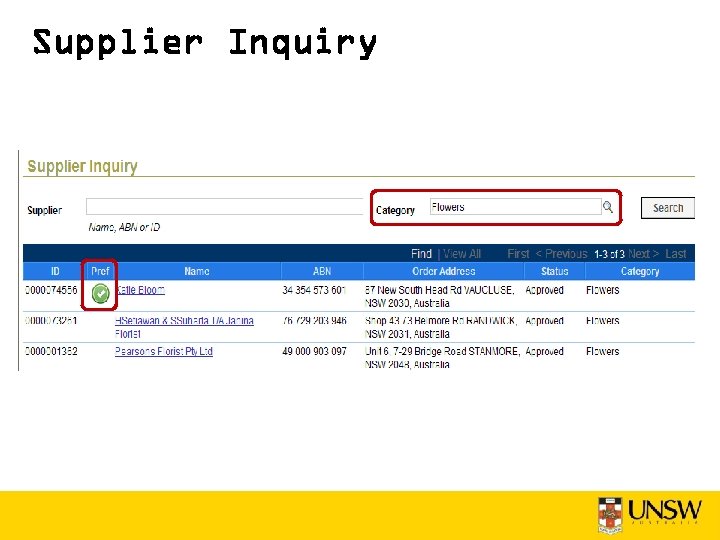
Supplier Inquiry
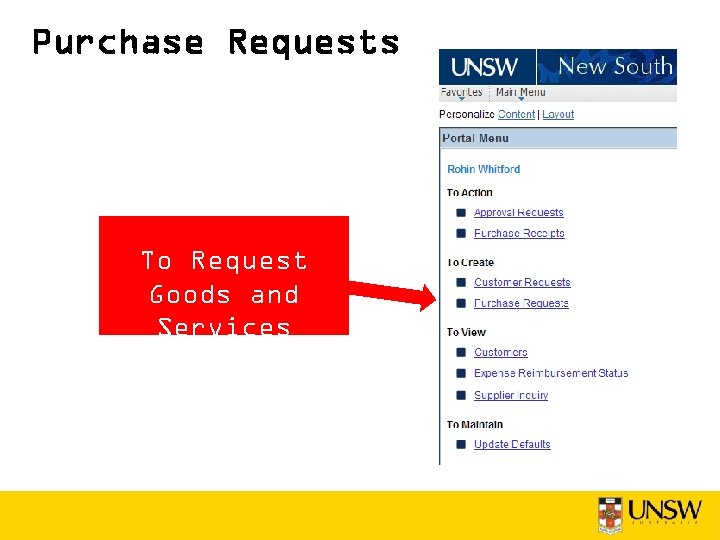
Purchase Requests To Request Goods and Services
Purchase Requests • Staff without Buyer access submit requests from the Portal Menu. • Creates a requisition that buyers from their Buying Network will see in their Worklist. I Buyer must work on this request to convert the requisition into a Purchase Order. • Not suitable for e. Proc Vendors
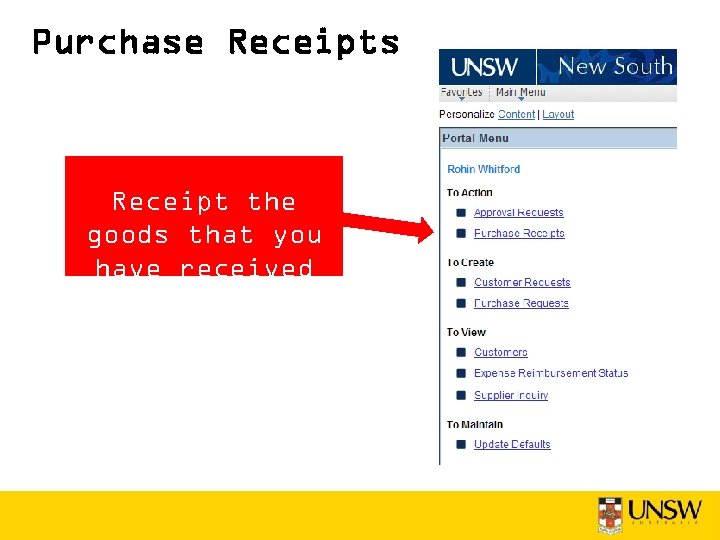
Purchase Receipts Receipt the goods that you have received
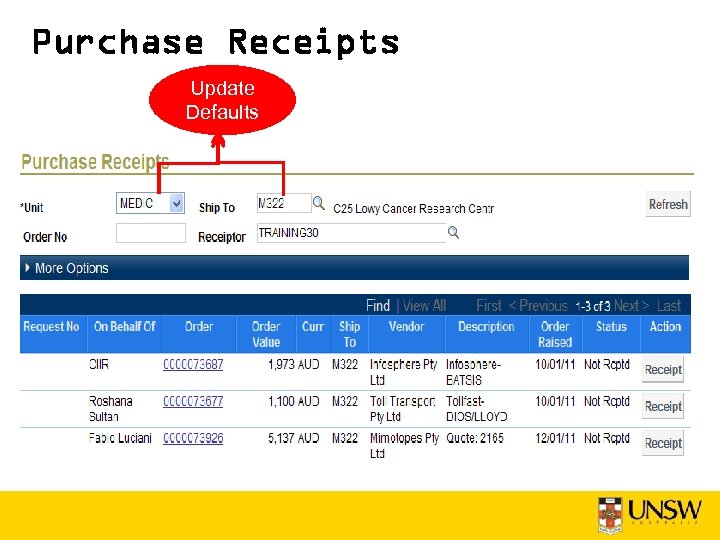
Purchase Receipts Update Defaults
Purchase Orders
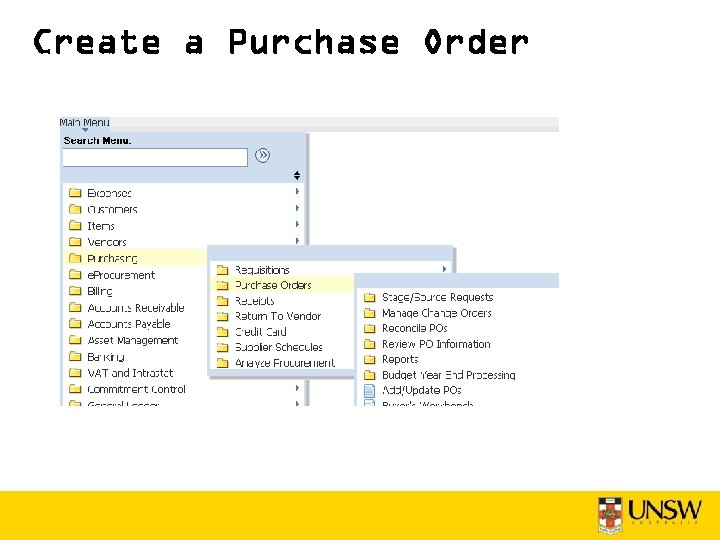
Create a Purchase Order
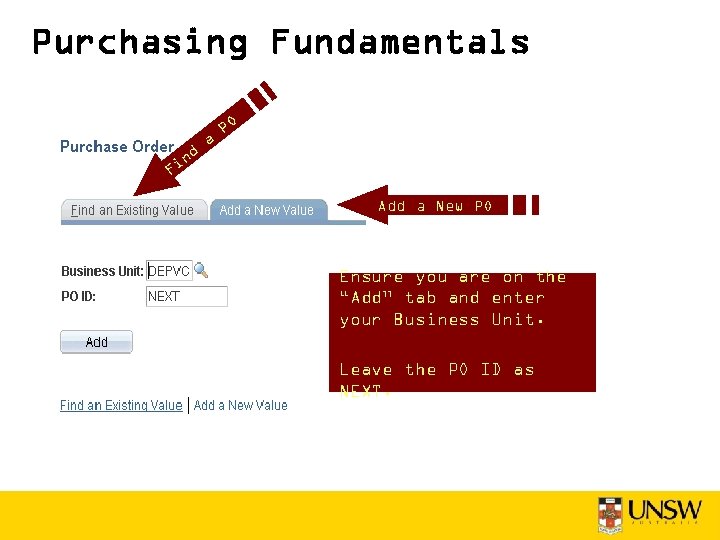
Purchasing Fundamentals nd a PO Fi Add a New PO Ensure you are on the “Add” tab and enter your Business Unit. Leave the PO ID as NEXT.
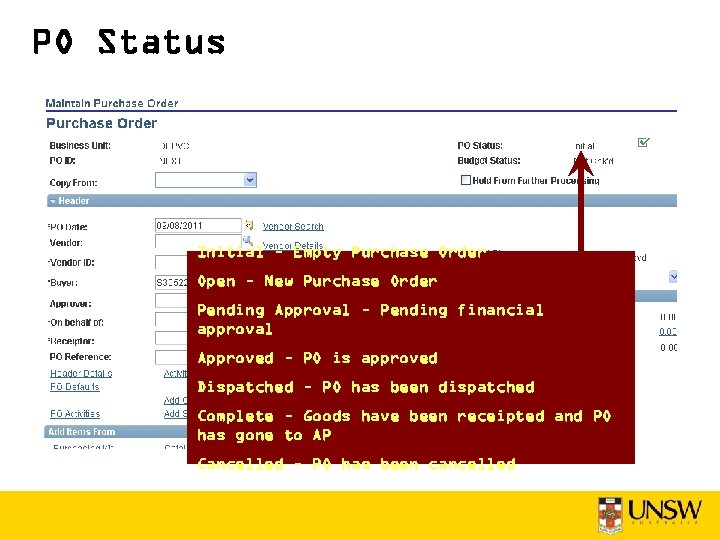
PO Status Initial – Empty Purchase Order Open – New Purchase Order Pending Approval – Pending financial approval Approved – PO is approved Dispatched – PO has been dispatched Complete – Goods have been receipted and PO has gone to AP Cancelled – PO has been cancelled
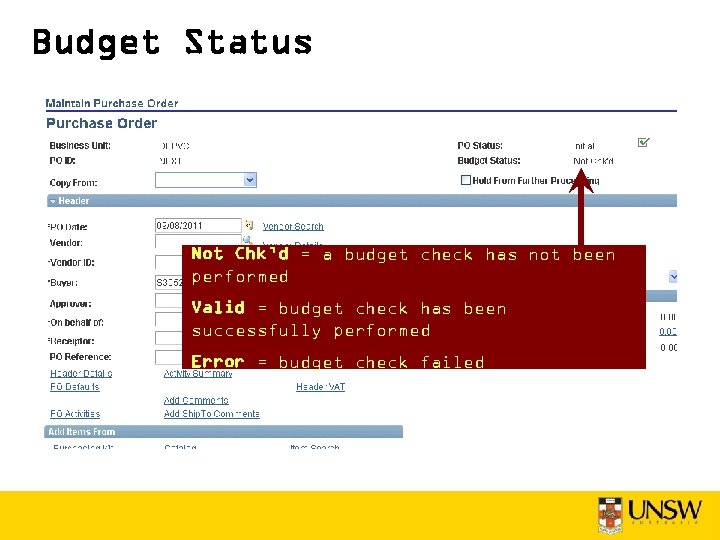
Budget Status Not Chk’d = a budget check has not been performed Valid = budget check has been successfully performed Error = budget check failed
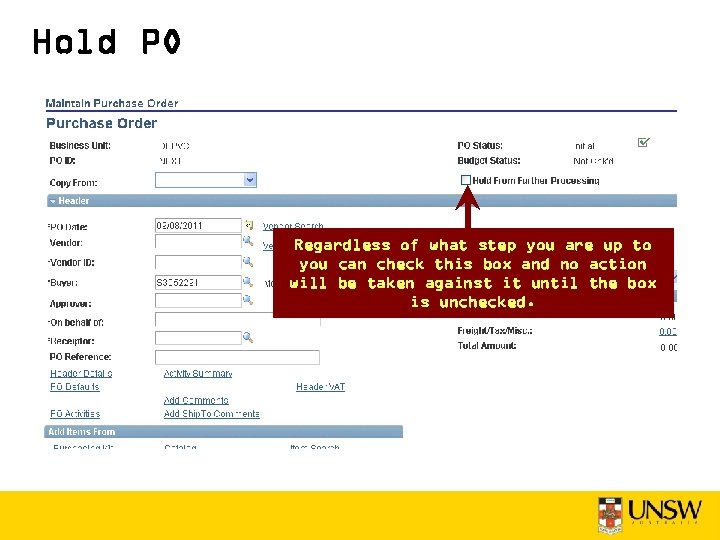
Hold PO Regardless of what step you are up to you can check this box and no action will be taken against it until the box is unchecked.
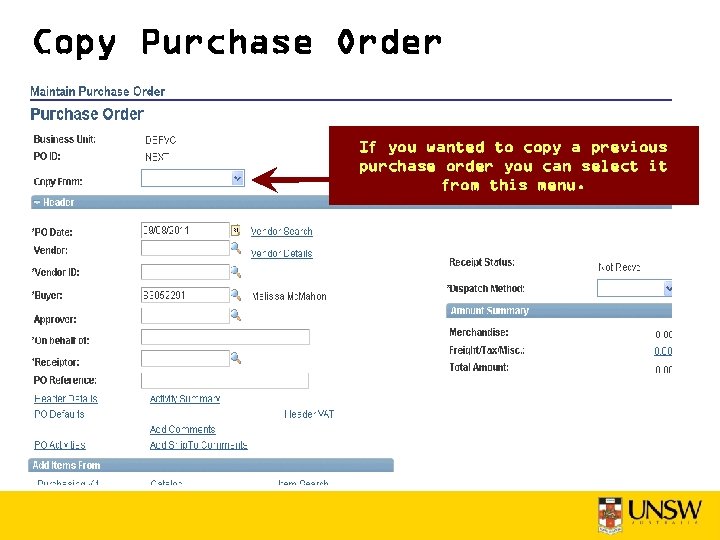
Copy Purchase Order If you wanted to copy a previous purchase order you can select it from this menu.
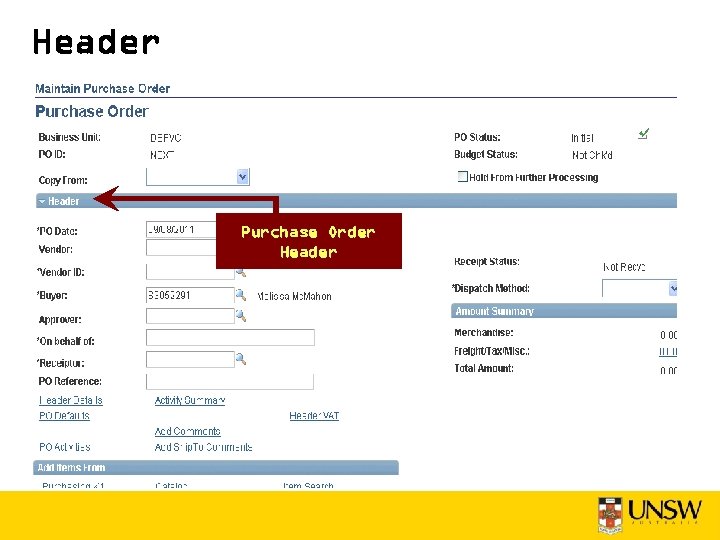
Header Purchase Order Header
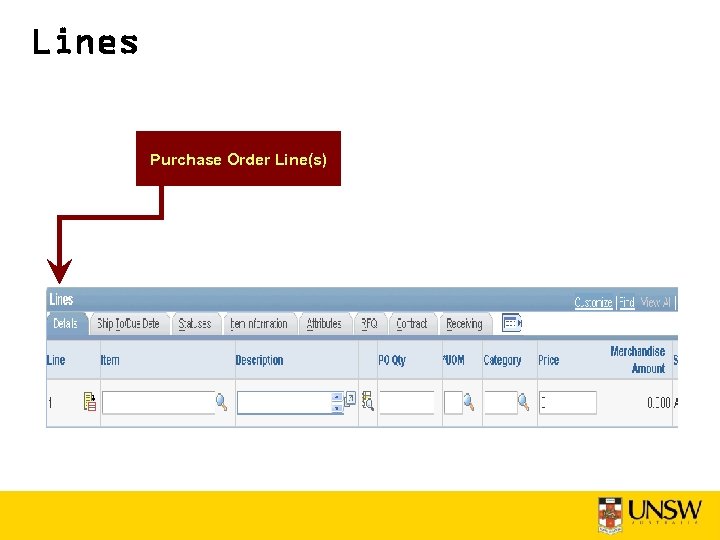
Lines Purchase Order Line(s)
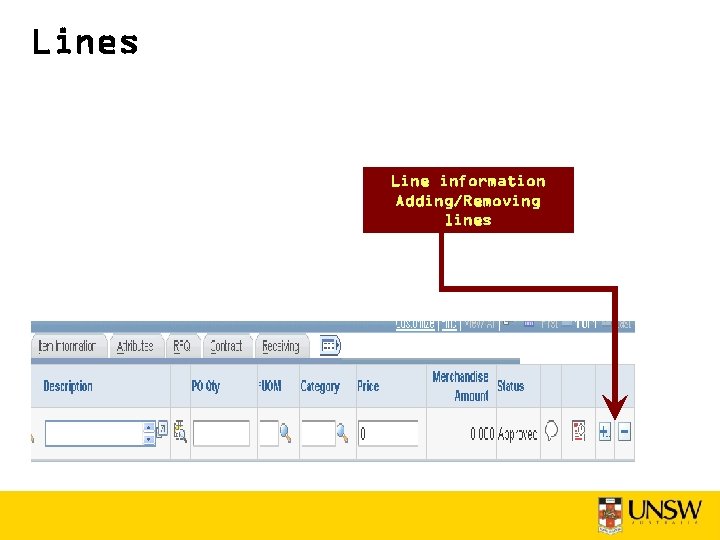
Lines Line information Adding/Removing lines
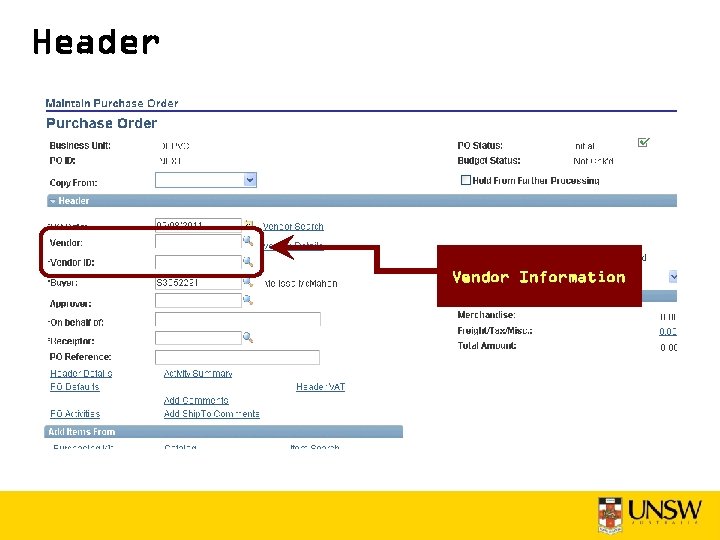
Header Vendor Information
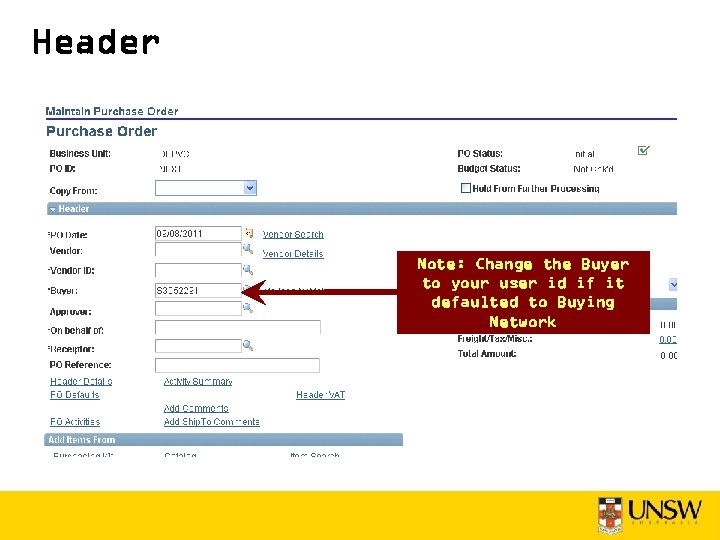
Header Note: Change the Buyer to your user id if it defaulted to Buying Network
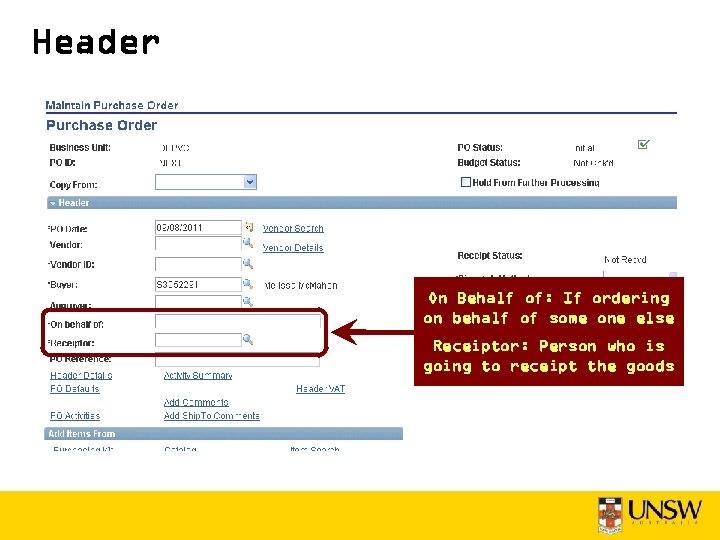
Header On Behalf of: If ordering on behalf of some one else Receiptor: Person who is going to receipt the goods
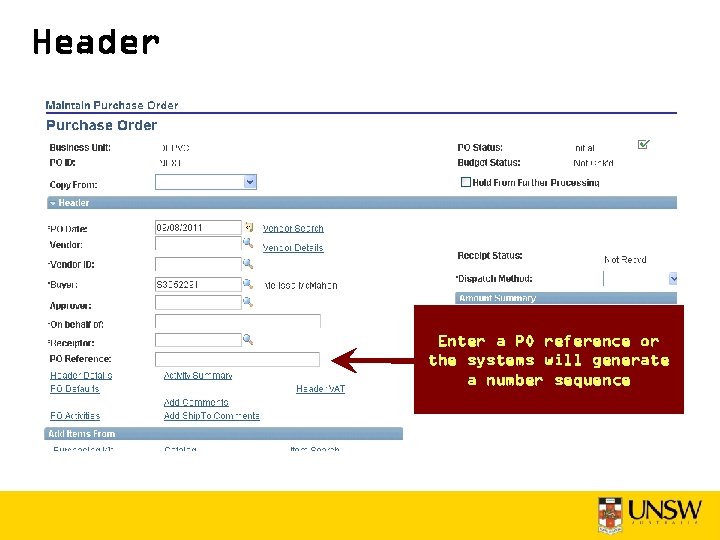
Header Enter a PO reference or the systems will generate a number sequence
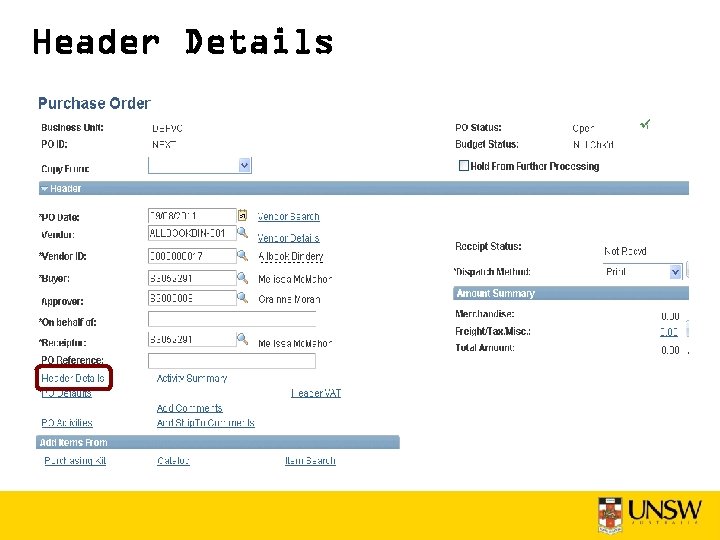
Header Details
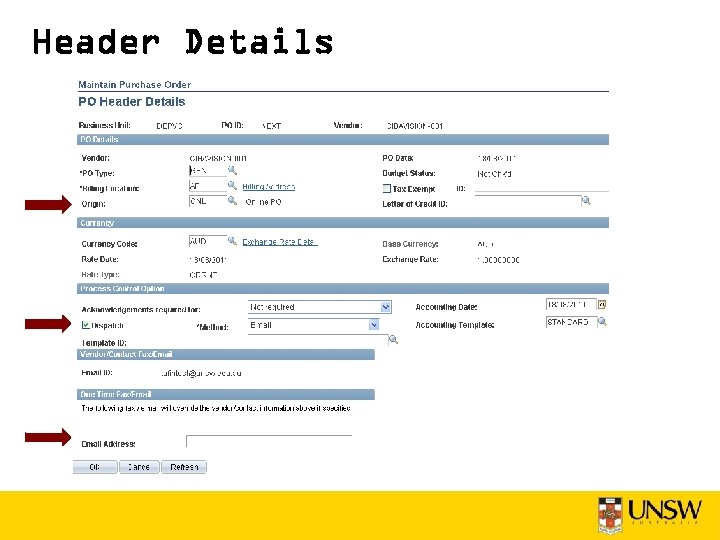
Header Details
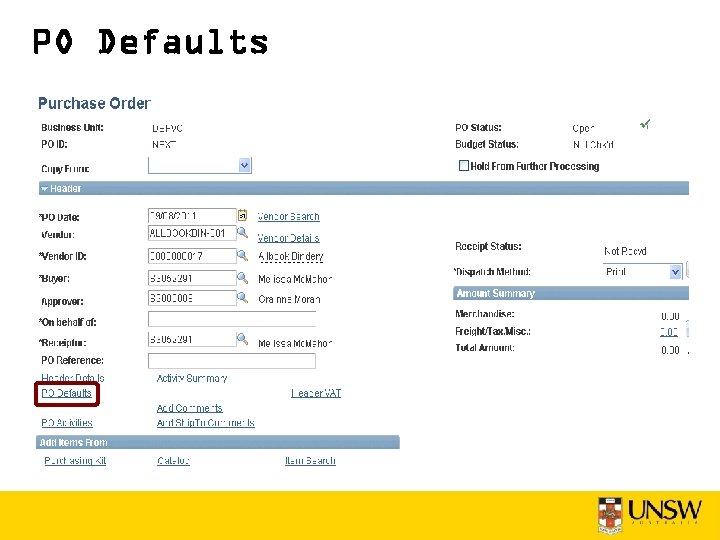
PO Defaults
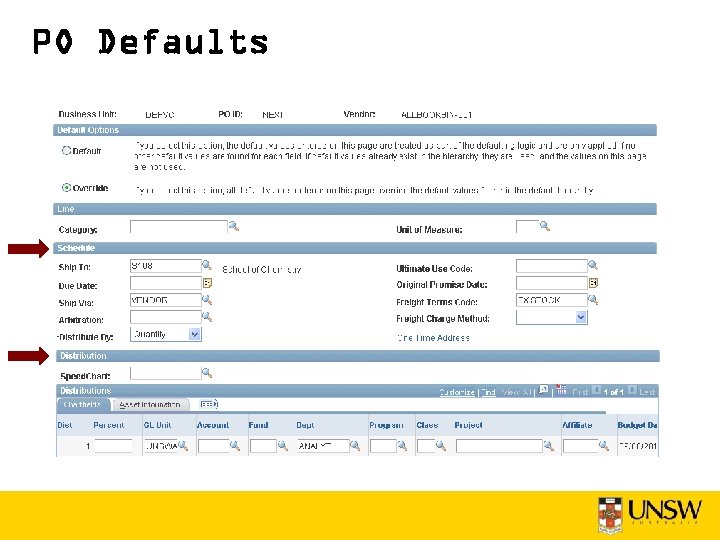
PO Defaults
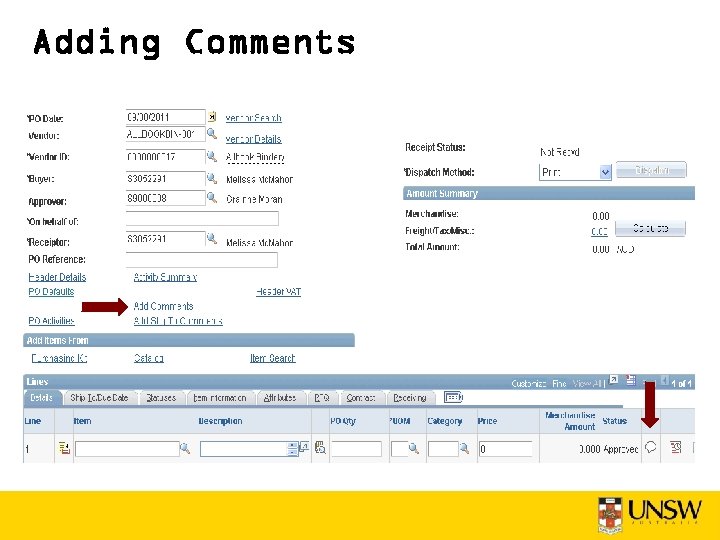
Adding Comments
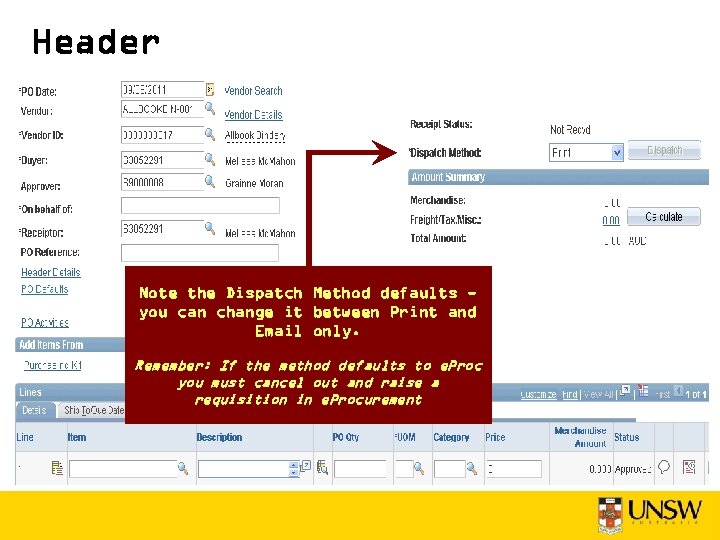
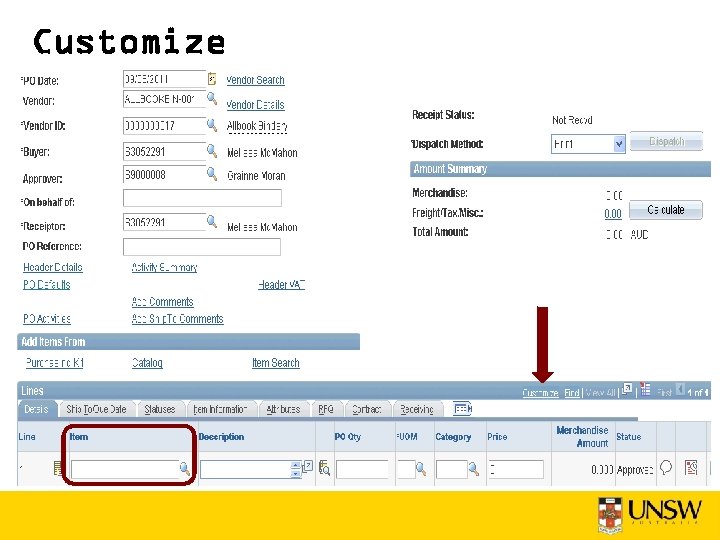
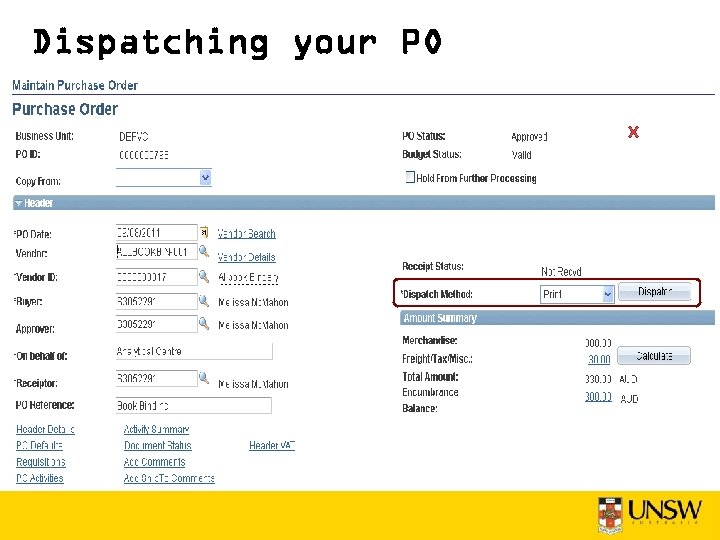
Header Note the Dispatch Method defaults you can change it between Print and Email only. Remember: If the method defaults to e. Proc you must cancel out and raise a requisition in e. Procurement
Customize
Customize Item Hidden Amount Only after Status Column
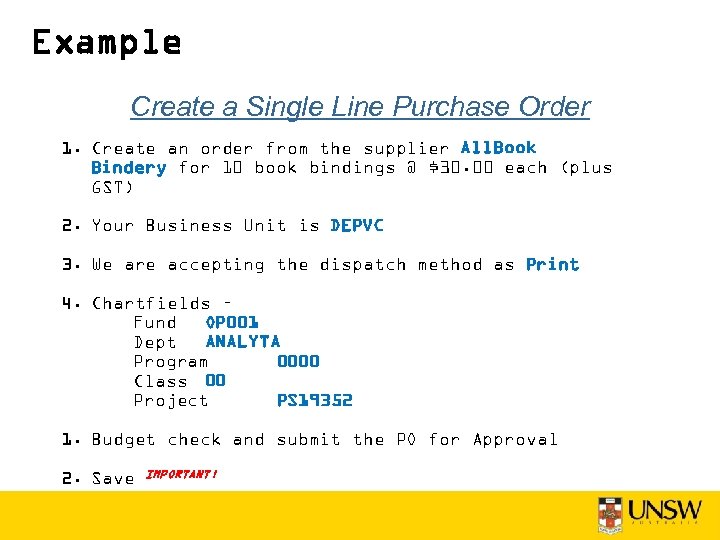
Example Create a Single Line Purchase Order 1. Create an order from the supplier All. Book Bindery for 10 book bindings @ $30. 00 each (plus GST) 2. Your Business Unit is DEPVC 3. We are accepting the dispatch method as Print 4. Chartfields – Fund OP 001 Dept ANALYTA Program 0000 Class 00 Project PS 19352 1. Budget check and submit the PO for Approval 2. Save IMPORTANT!
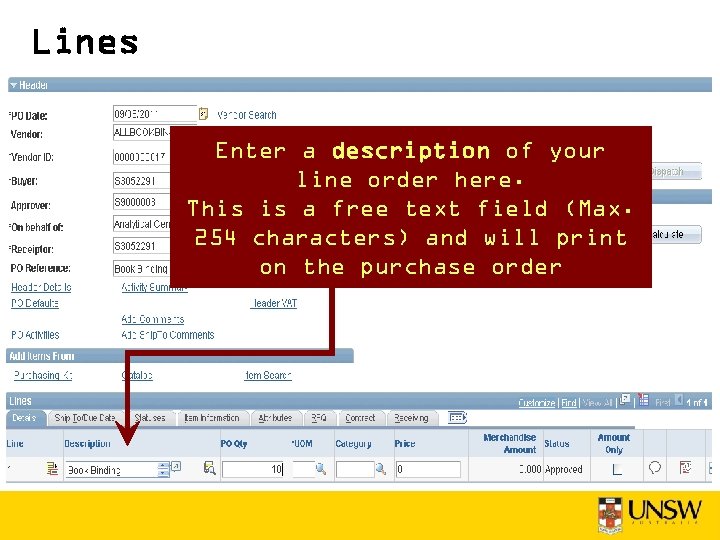
Lines Enter a description of your line order here. This is a free text field (Max. 254 characters) and will print on the purchase order
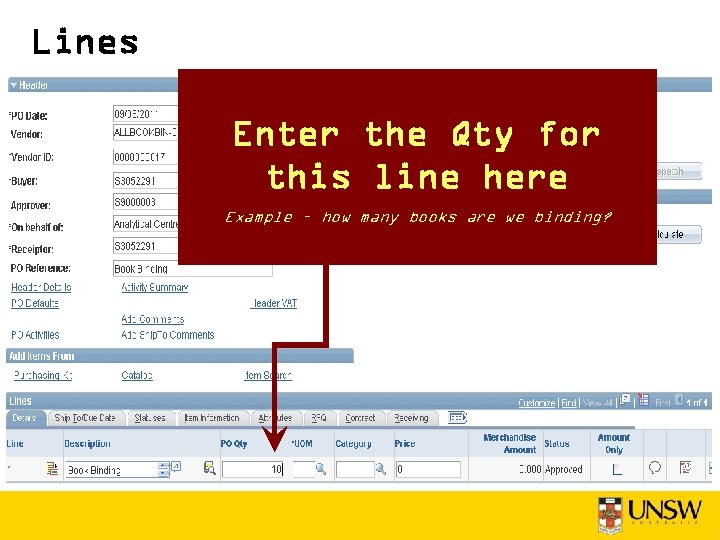
Lines Enter the Qty for this line here Example – how many books are we binding?
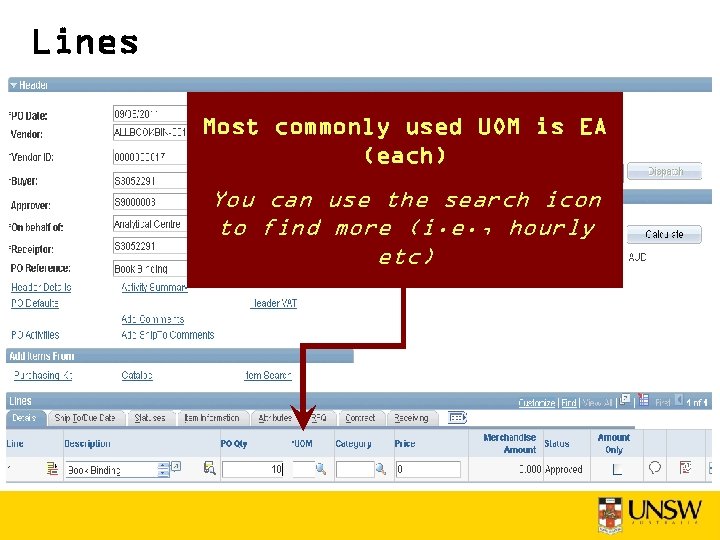
Lines Most commonly used UOM is EA (each) You can use the search icon to find more (i. e. , hourly etc)
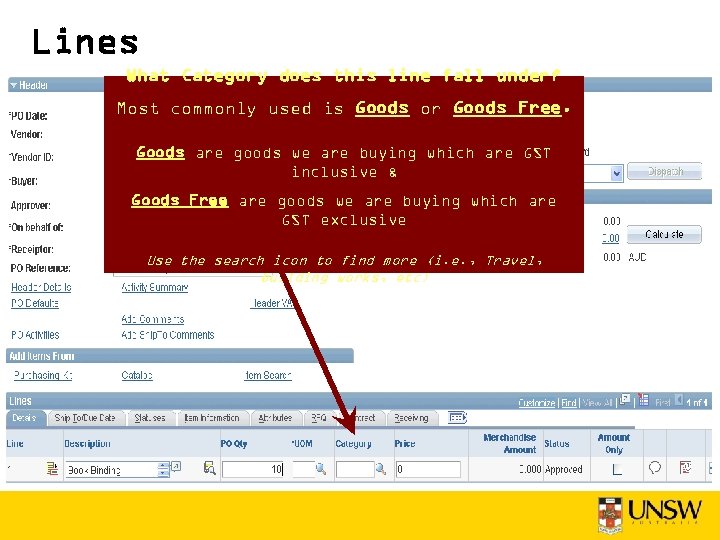
Lines What Category does this line fall under? Most commonly used is Goods or Goods Free. Goods are goods we are buying which are GST inclusive & Goods Free are goods we are buying which are GST exclusive Use the search icon to find more (i. e. , Travel, building works, etc)
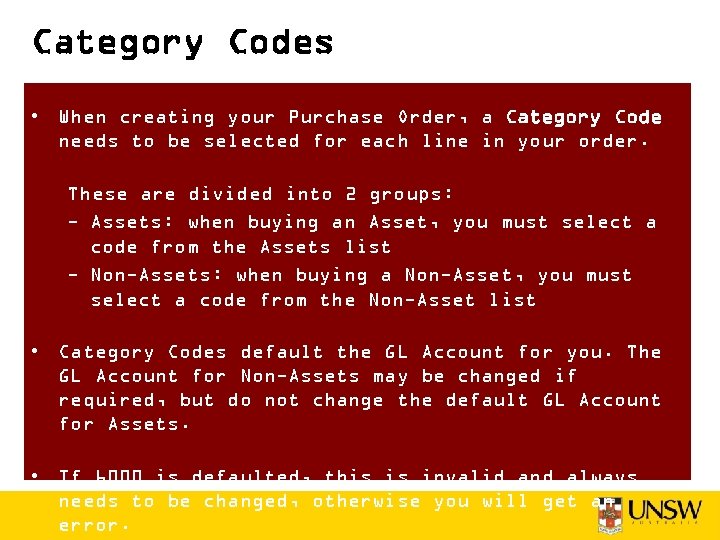
Category Codes • When creating your Purchase Order, a Category Code needs to be selected for each line in your order. These are divided into 2 groups: - Assets: when buying an Asset, you must select a code from the Assets list - Non-Assets: when buying a Non-Asset, you must select a code from the Non-Asset list • Category Codes default the GL Account for you. The GL Account for Non-Assets may be changed if required, but do not change the default GL Account for Assets. • If 6000 is defaulted, this is invalid and always needs to be changed, otherwise you will get an error.
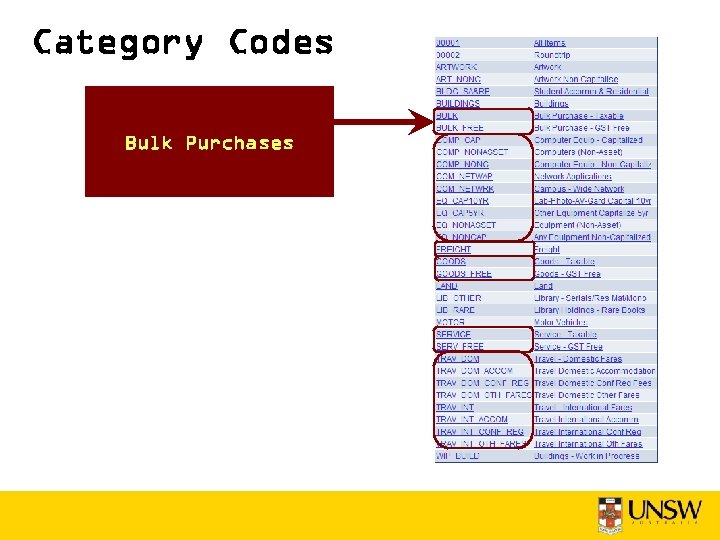
Category Codes Bulk Purchases
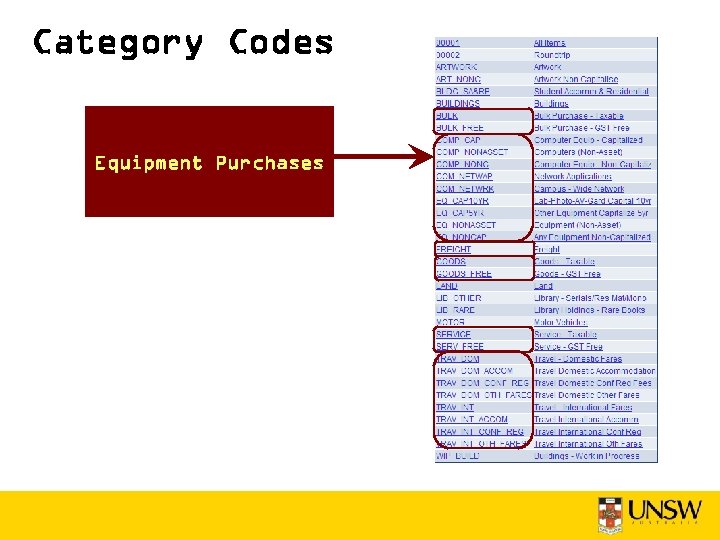
Category Codes Equipment Purchases
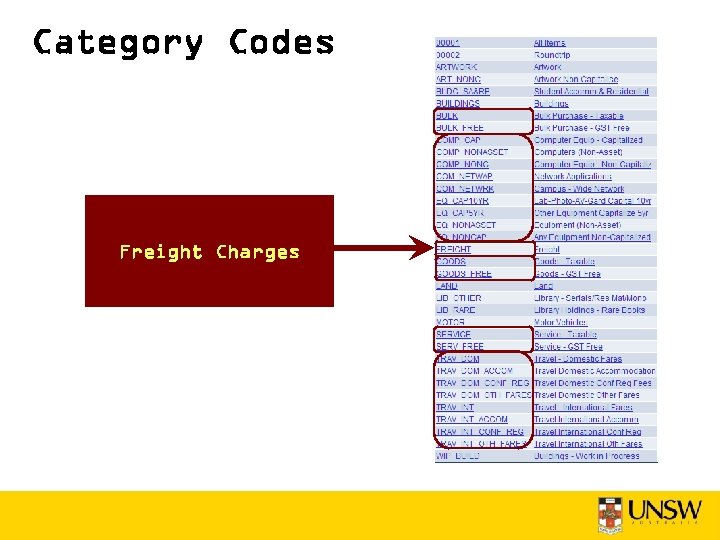
Category Codes Freight Charges
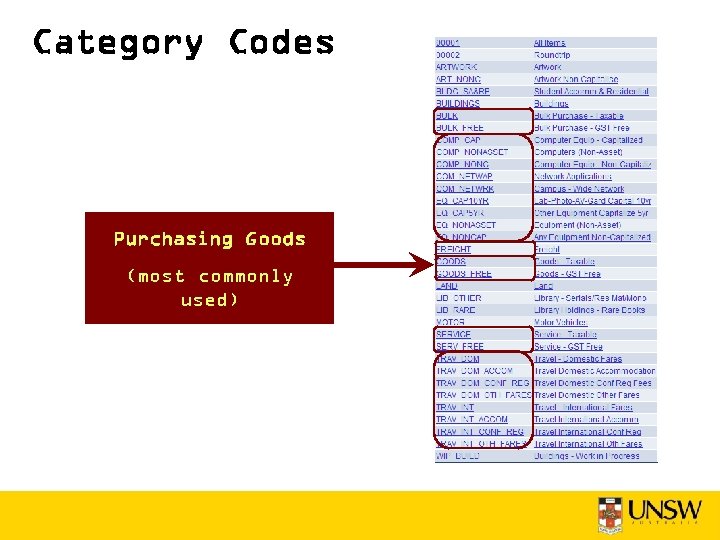
Category Codes Purchasing Goods (most commonly used)
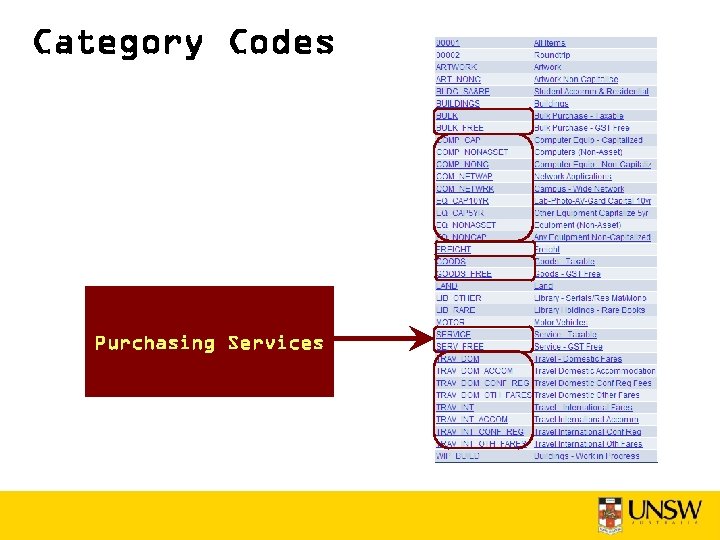
Category Codes Purchasing Services
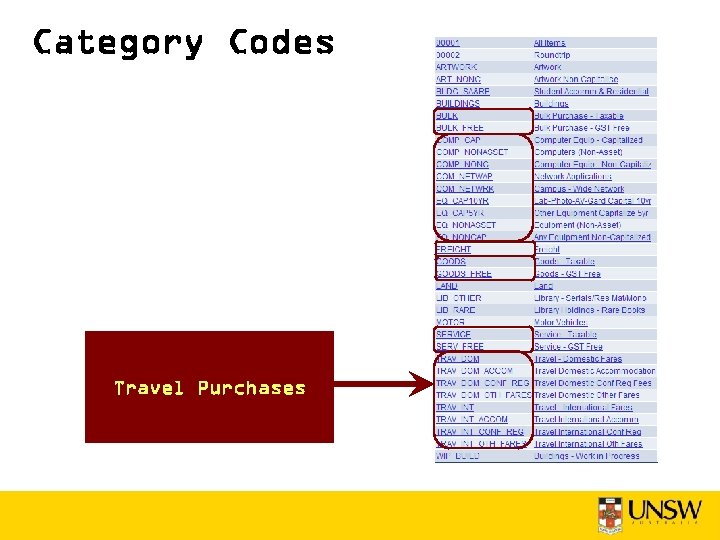
Category Codes Travel Purchases
Goods = 6000 When choosing Goods/ BULK as your category the GL Account will default to 6000. This is not a “real” code – you must change it to the appropriate 6000 series code.
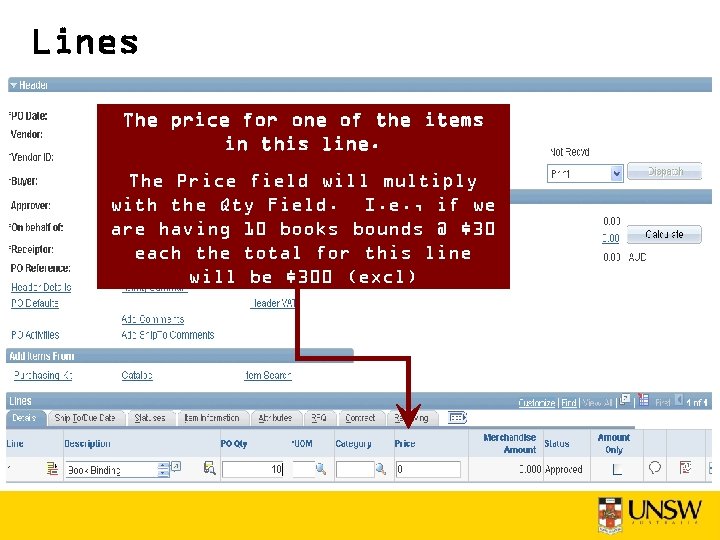
Lines The price for one of the items in this line. The Price field will multiply with the Qty Field. I. e. , if we are having 10 books bounds @ $30 each the total for this line will be $300 (excl)
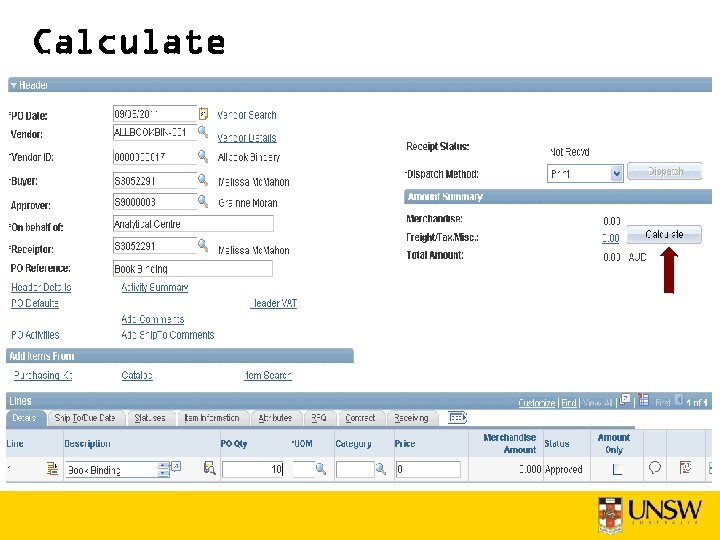
Calculate
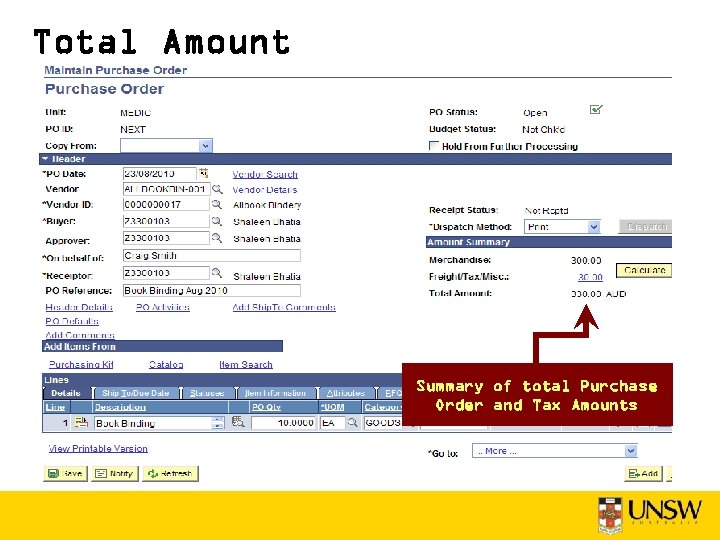
Total Amount Summary of total Purchase Order and Tax Amounts
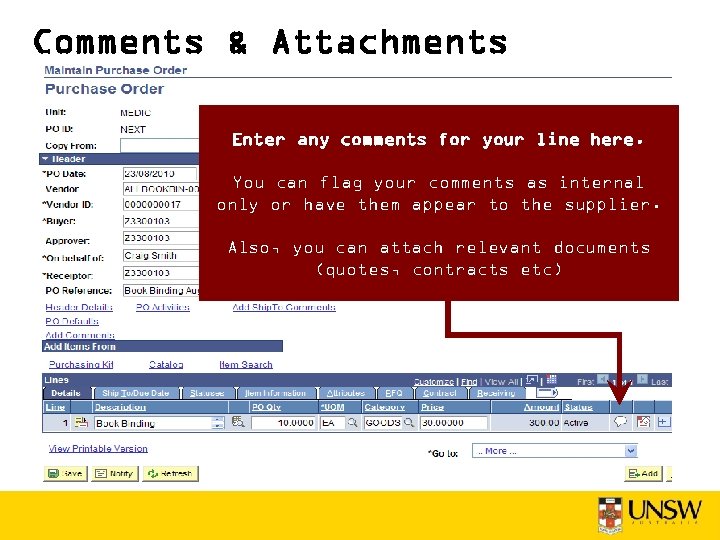
Comments & Attachments Enter any comments for your line here. You can flag your comments as internal only or have them appear to the supplier. Also, you can attach relevant documents (quotes, contracts etc)
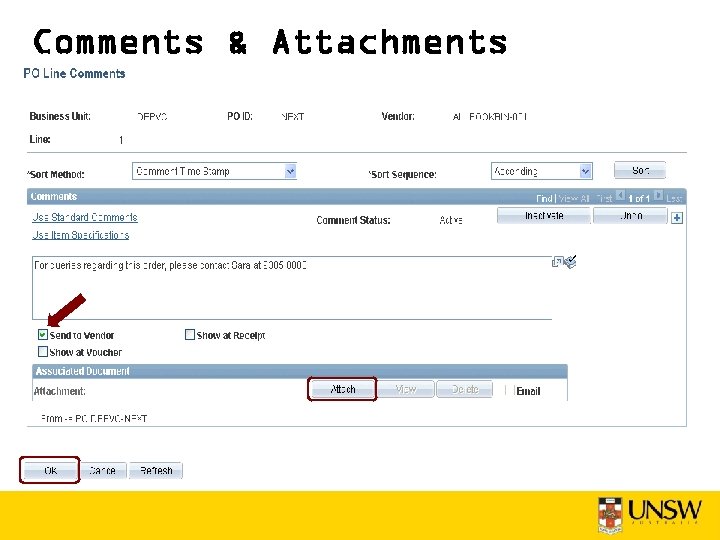
Comments & Attachments
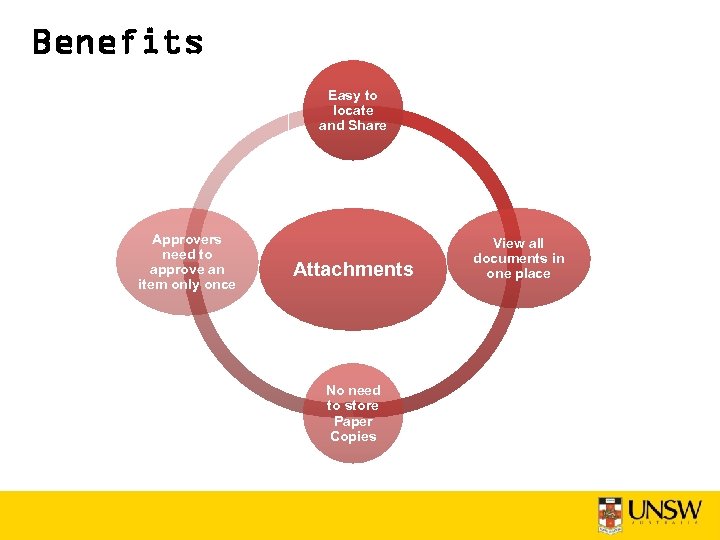
Benefits Easy to locate and Share Approvers need to approve an item only once Attachments No need to store Paper Copies View all documents in one place
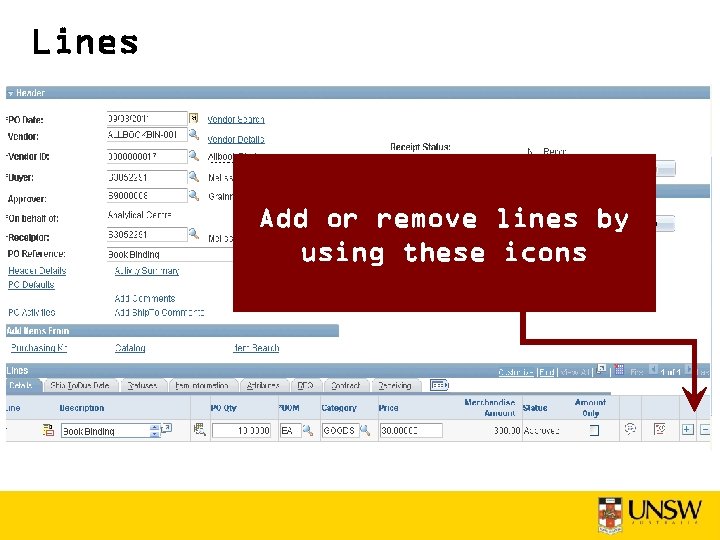
Lines Add or remove lines by using these icons
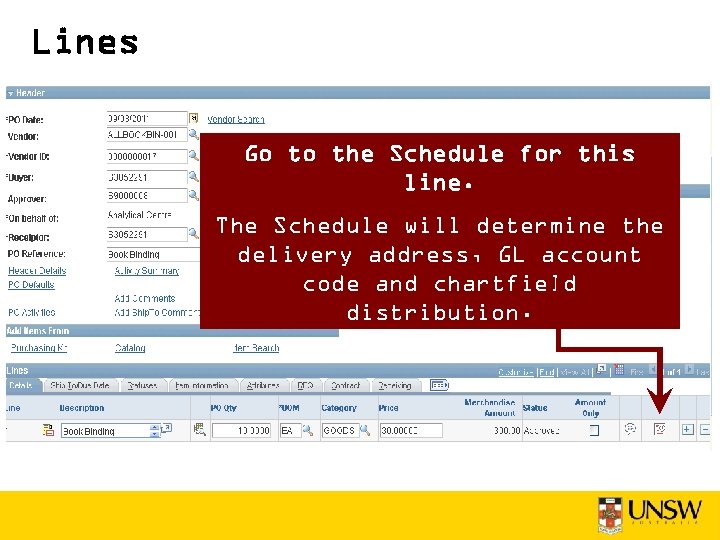
Lines Go to the Schedule for this line. The Schedule will determine the delivery address, GL account code and chartfield distribution.
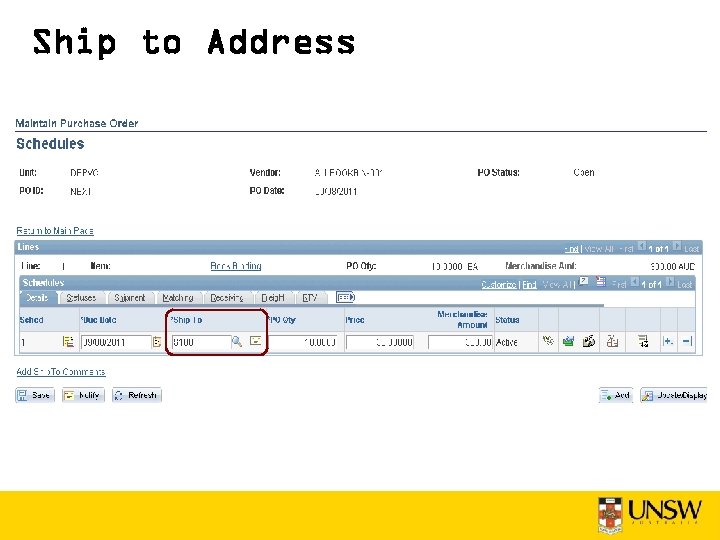
Ship to Address
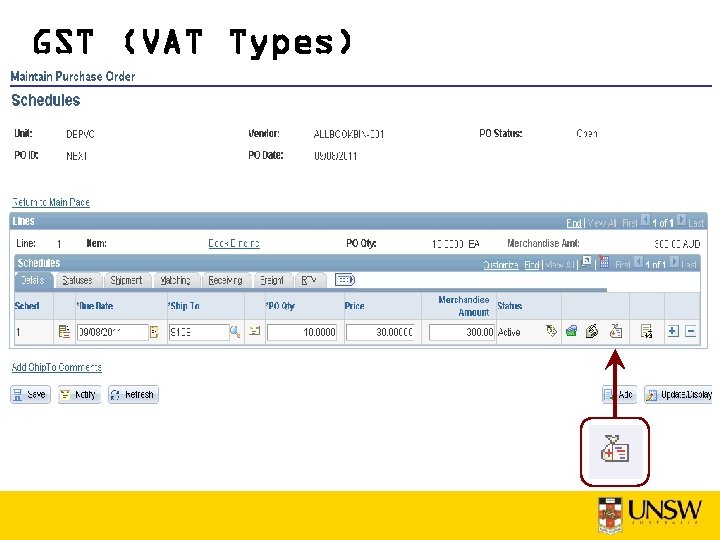
GST (VAT Types)
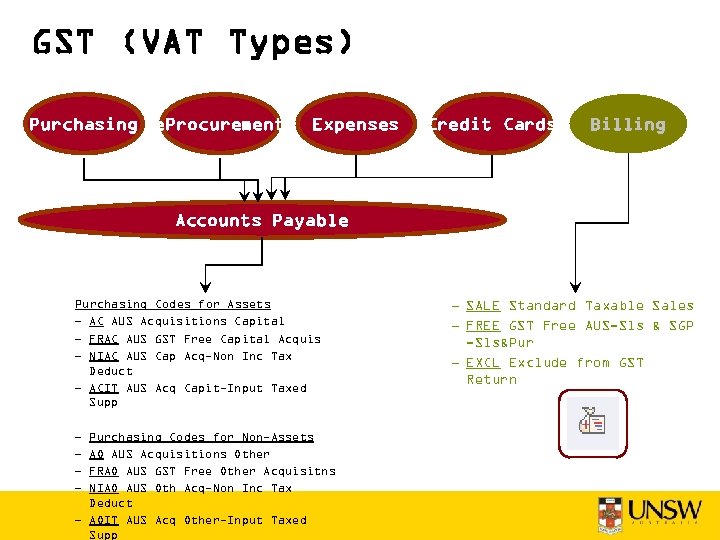
GST (VAT Types) Purchasing e. Procurement Expenses Credit Cards Billing Accounts Payable Purchasing Codes for Assets – AC AUS Acquisitions Capital – FRAC AUS GST Free Capital Acquis – NIAC AUS Cap Acq-Non Inc Tax Deduct – ACIT AUS Acq Capit-Input Taxed Supp – – Purchasing Codes for Non-Assets AO AUS Acquisitions Other FRAO AUS GST Free Other Acquisitns NIAO AUS Oth Acq-Non Inc Tax Deduct – AOIT AUS Acq Other-Input Taxed Supp – SALE Standard Taxable Sales – FREE GST Free AUS-Sls & SGP -Sls&Pur – EXCL Exclude from GST Return
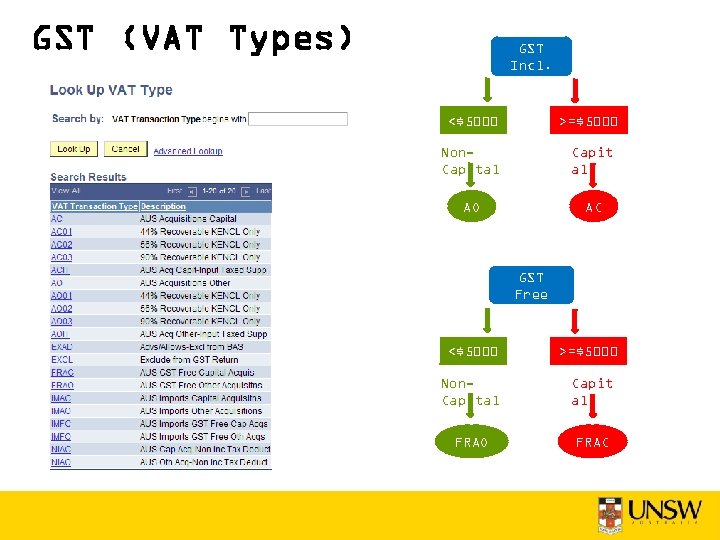
GST (VAT Types) GST Incl. <$5000 >=$5000 Non. Capital Capit al AO AC GST Free <$5000 >=$5000 Non. Capital Capit al FRAO FRAC
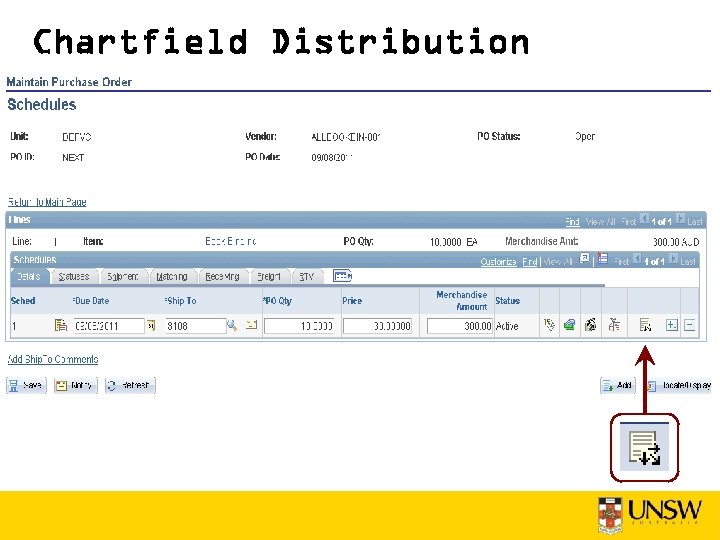
Chartfield Distribution
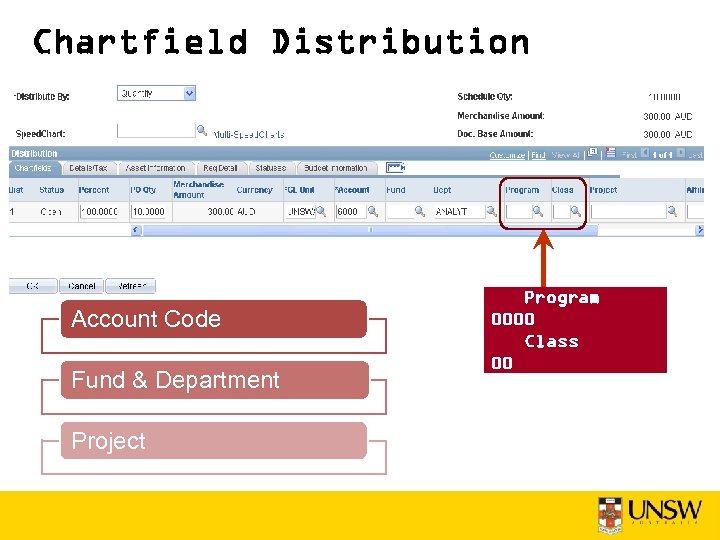
Chartfield Distribution Account Code Fund & Department Project Program 0000 Class 00
Chartfield Distribution
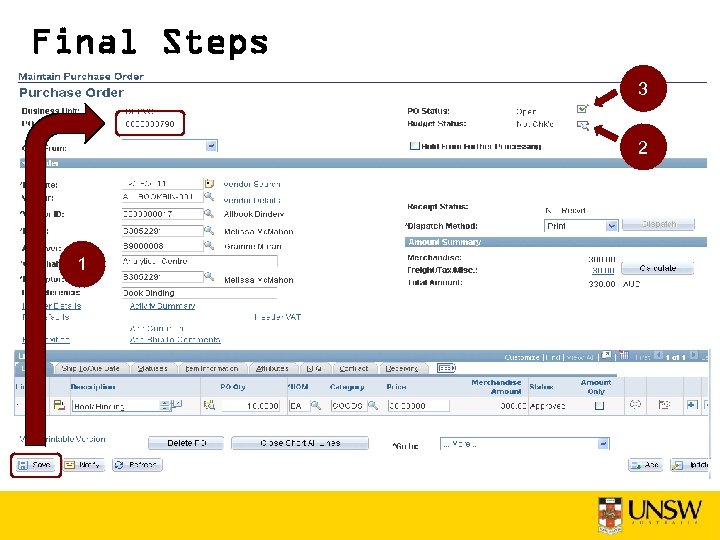
Final Steps 3 2 1
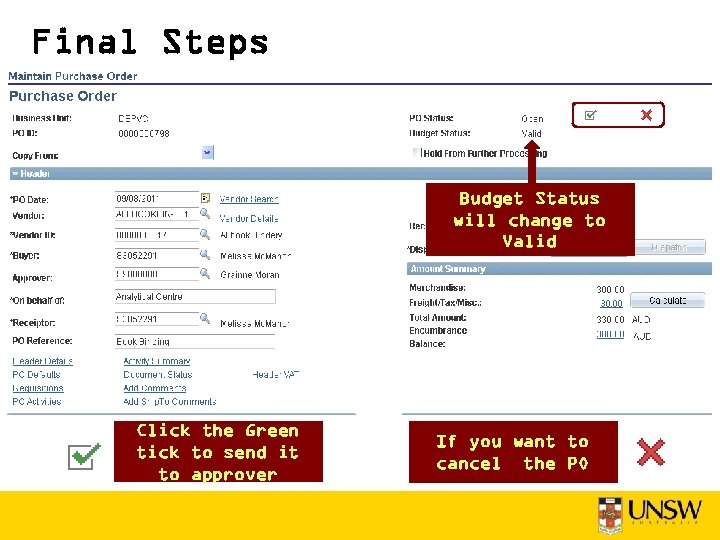
Final Steps Budget Status will change to Valid Click the Green tick to send it to approver If you want to cancel the PO
Self Approved
Approving PO
Approving PO Review the Request that you want to approve
Approving PO
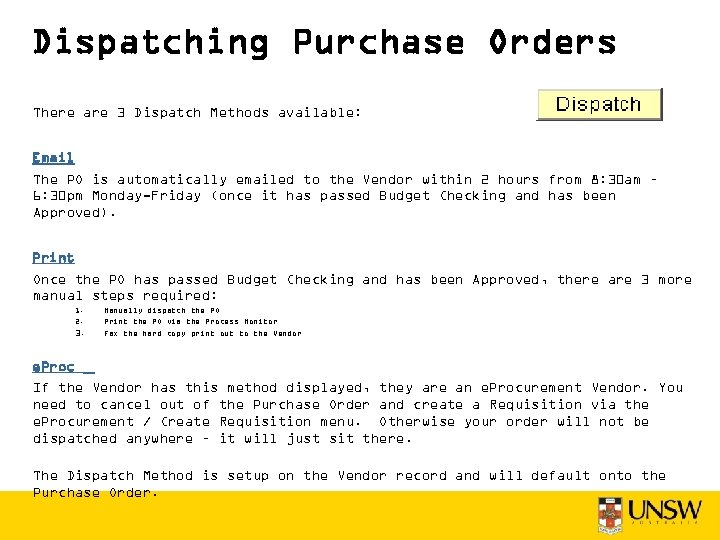
Dispatching Purchase Orders There are 3 Dispatch Methods available: Email The PO is automatically emailed to the Vendor within 2 hours from 8: 30 am – 6: 30 pm Monday-Friday (once it has passed Budget Checking and has been Approved). Print Once the PO has passed Budget Checking and has been Approved, there are 3 more manual steps required: 1. 2. 3. Manually dispatch the PO Print the PO via the Process Monitor Fax the hard copy print out to the Vendor e. Proc If the Vendor has this method displayed, they are an e. Procurement Vendor. You need to cancel out of the Purchase Order and create a Requisition via the e. Procurement / Create Requisition menu. Otherwise your order will not be dispatched anywhere – it will just sit there. The Dispatch Method is setup on the Vendor record and will default onto the Purchase Order.
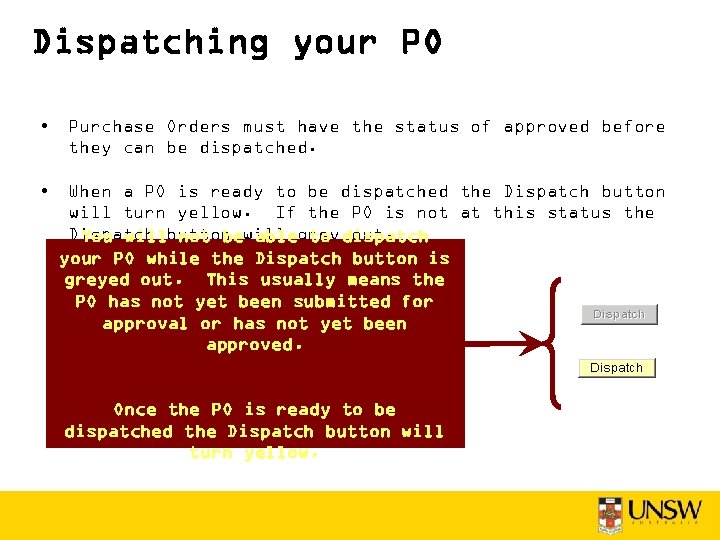
Dispatching your PO • Purchase Orders must have the status of approved before they can be dispatched. • When a PO is ready to be dispatched the Dispatch button will turn yellow. If the PO is not at this status the Dispatch button will grey dispatch You will not be able to out. your PO while the Dispatch button is greyed out. This usually means the PO has not yet been submitted for approval or has not yet been approved. Once the PO is ready to be dispatched the Dispatch button will turn yellow.
Dispatching your PO
Leave Server Blank
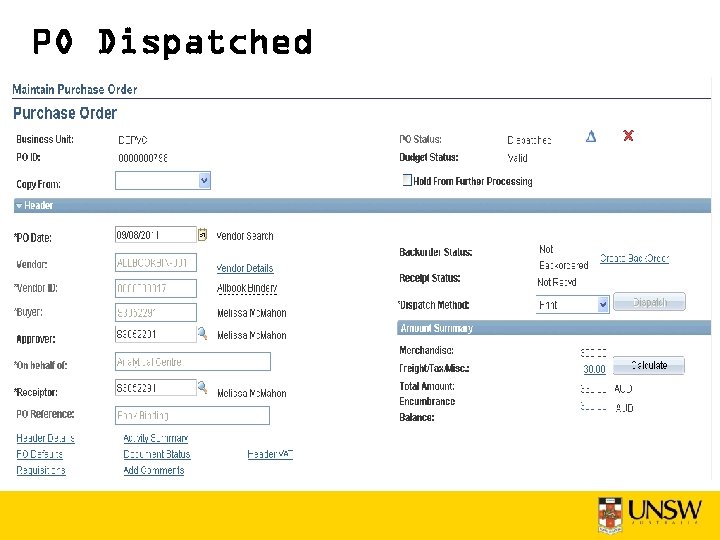
PO Dispatched
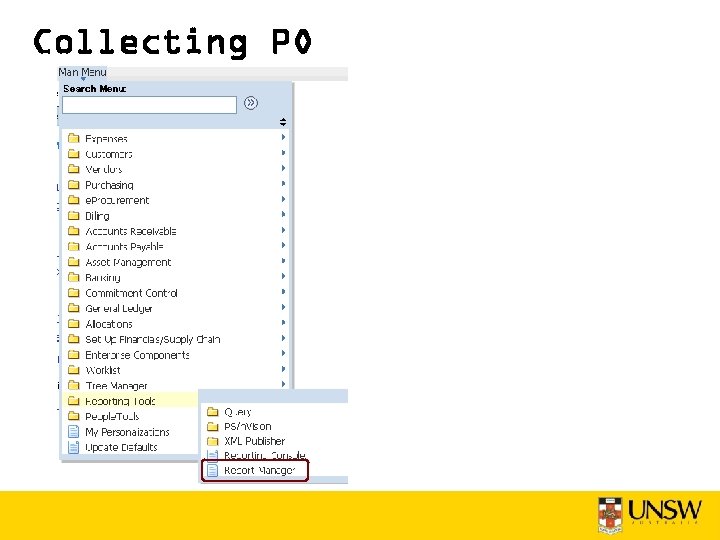
Collecting PO
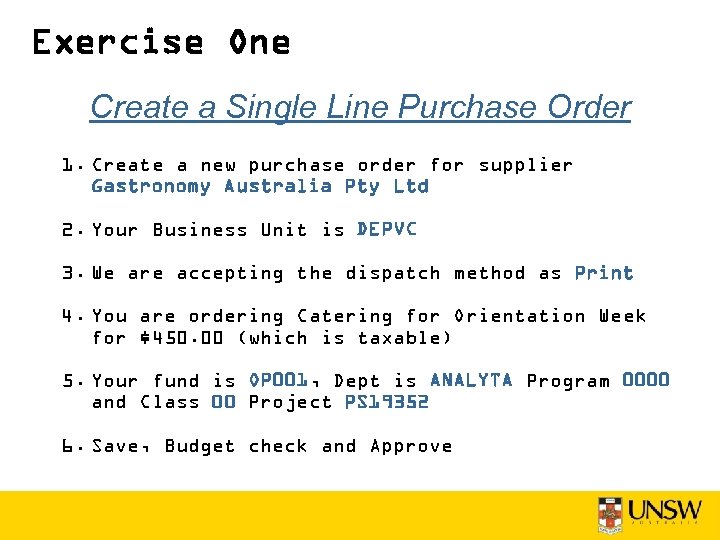
Exercise One Create a Single Line Purchase Order 1. Create a new purchase order for supplier Gastronomy Australia Pty Ltd 2. Your Business Unit is DEPVC 3. We are accepting the dispatch method as Print 4. You are ordering Catering for Orientation Week for $450. 00 (which is taxable) 5. Your fund is OP 001, Dept is ANALYTA Program 0000 and Class 00 Project PS 19352 6. Save, Budget check and Approve
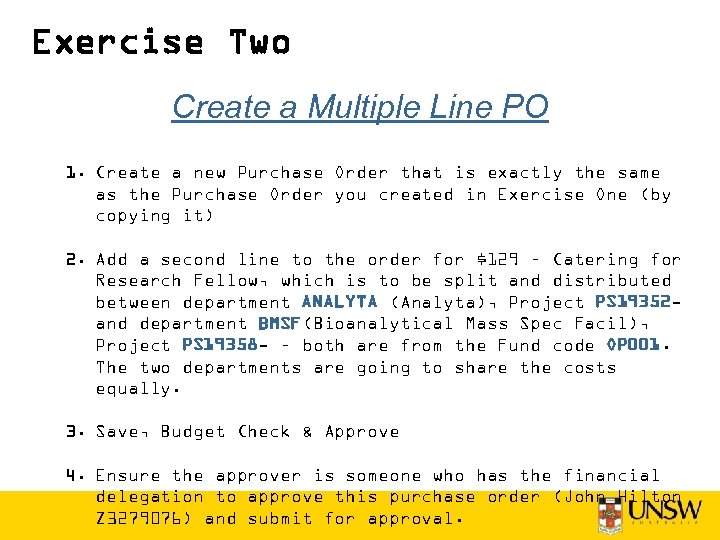
Exercise Two Create a Multiple Line PO 1. Create a new Purchase Order that is exactly the same as the Purchase Order you created in Exercise One (by copying it) 2. Add a second line to the order for $129 – Catering for Research Fellow, which is to be split and distributed between department ANALYTA (Analyta), Project PS 19352 and department BMSF(Bioanalytical Mass Spec Facil), Project PS 19358 - – both are from the Fund code OP 001. The two departments are going to share the costs equally. 3. Save, Budget Check & Approve 4. Ensure the approver is someone who has the financial delegation to approve this purchase order (John Hilton Z 3279076) and submit for approval.
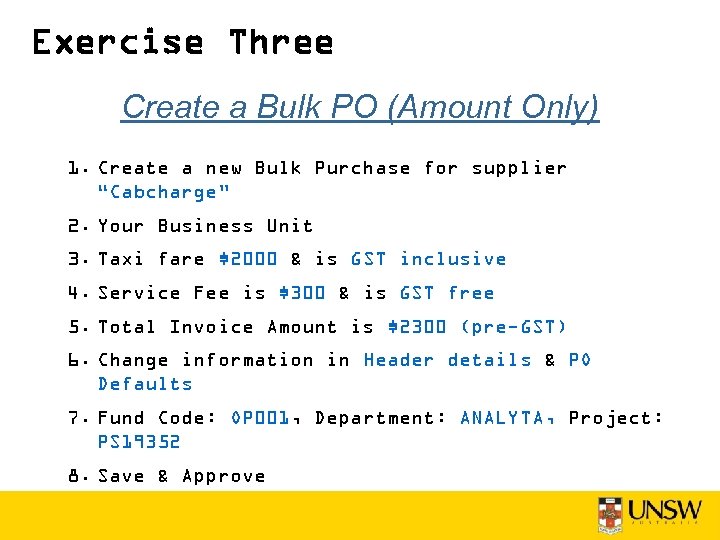
Exercise Three Create a Bulk PO (Amount Only) 1. Create a new Bulk Purchase for supplier “Cabcharge” 2. Your Business Unit 3. Taxi fare $2000 & is GST inclusive 4. Service Fee is $300 & is GST free 5. Total Invoice Amount is $2300 (pre-GST) 6. Change information in Header details & PO Defaults 7. Fund Code: OP 001, Department: ANALYTA, Project: PS 19352 8. Save & Approve
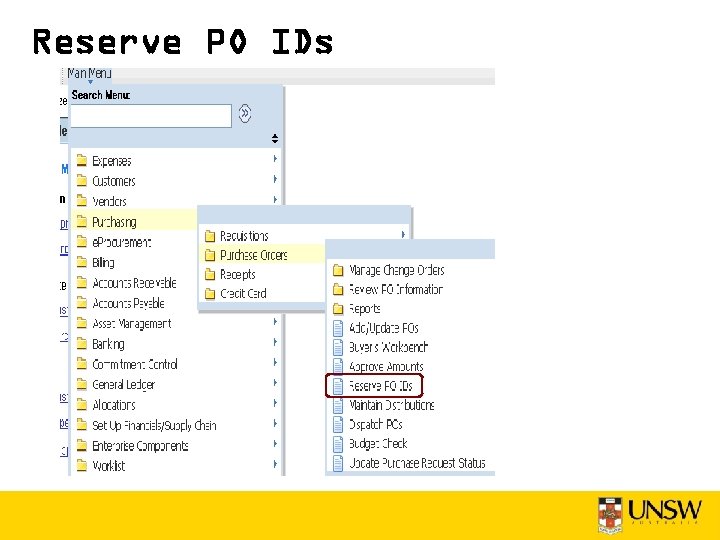
Reserve PO IDs
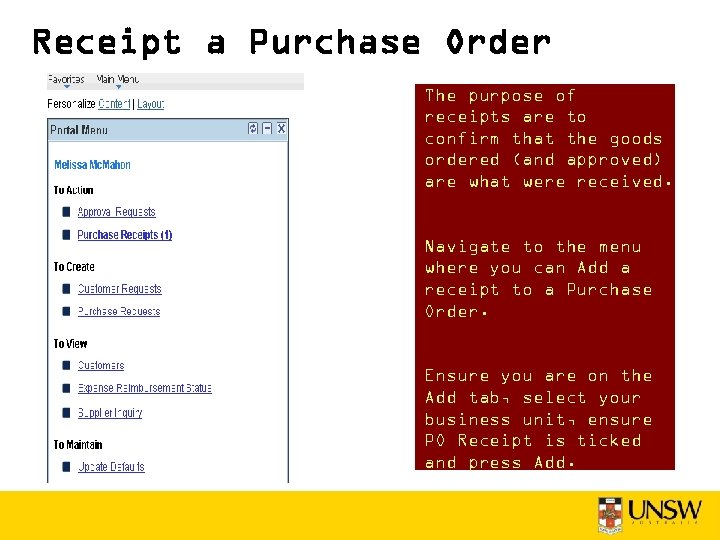
Receipt a Purchase Order The purpose of receipts are to confirm that the goods ordered (and approved) are what were received. Navigate to the menu where you can Add a receipt to a Purchase Order. Ensure you are on the Add tab, select your business unit, ensure PO Receipt is ticked and press Add.
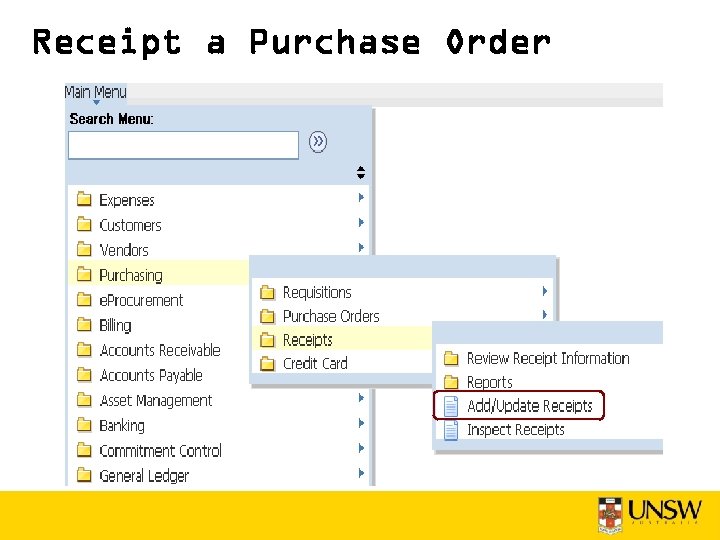
Receipt a Purchase Order
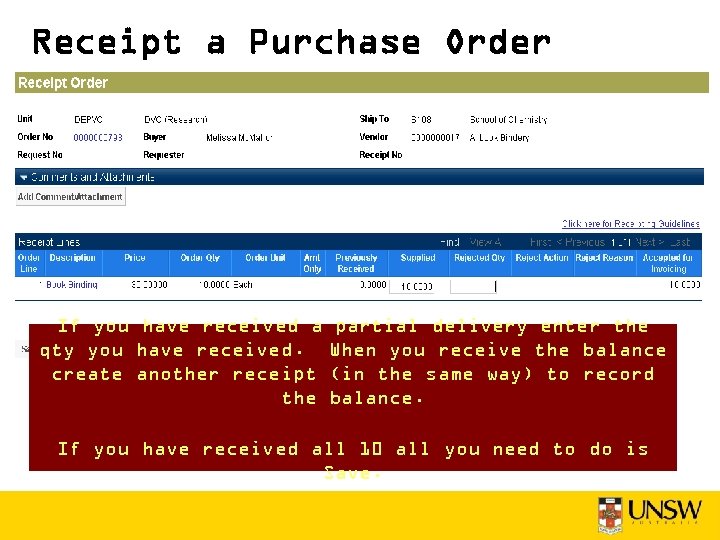
Receipt a Purchase Order If you have received a qty you have received. create another receipt the partial delivery enter the When you receive the balance (in the same way) to record balance. If you have received all 10 all you need to do is Save.
Receipt a Purchase Order DO NOT receipt • Goods that have not been Received • Goods that were damaged and returned to vendor
Why do we use receipting? So that we are: • Only paying the quoted price for what has been supplied • Only paying for the quantity that has been delivered • Only paying for goods received in good working order • Stopping payments being made if the price or quantity are outside the allowable matching ‘tolerances’ • Maintaining controls via manual intervention to verify and approve any discrepancies before paying Vendors
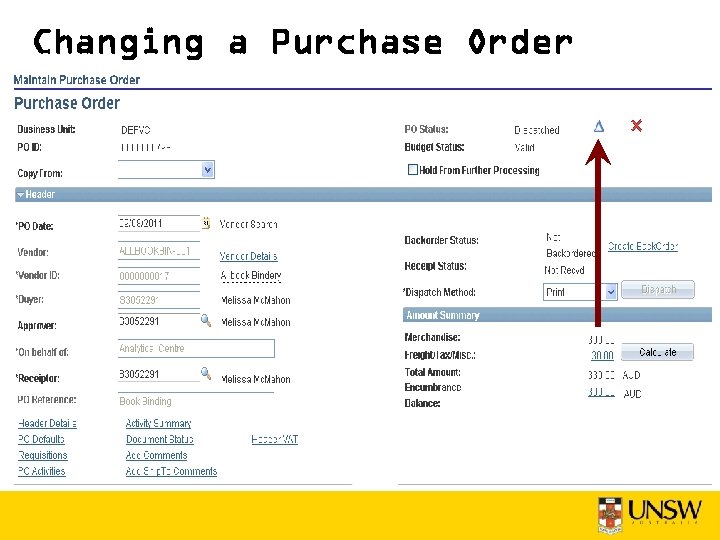
Updating a Purchase Order DO NOT update the Purchase Order with the changed price or extra product lines once it has been invoiced - it will re-dispatch and cause problems with duplicate orders from Vendors.
Changing a Purchase Order
FX Purchase Order Foreign Currency Deal No Deal
Purchasing Assets should be purchased using a Purchase Orders for assets can be created via e. Procurement or Purchasing. Procurement Card ASSETS should NOT be Bought PR 1 Form Expense Unless they are bought using a Purchase Order, there is no way of entering the Asset Management information eg owner, tag no, serial no, asset location, dept etc.
Ordering Assets • When ordering assets there a couple of additional procedures that need to be followed. • If you choose an asset account code when placing an order you should complete the “Cost Distribution” section of the PO called “Asset Information”. • You are required to provide the Business Unit and Profile ID for the asset. If you have more information you can supply it now otherwise you can provide it when you receipt the purchase order. • When receipting an asset you should enter information into the “AM Status” tab of the Purchase Order line.
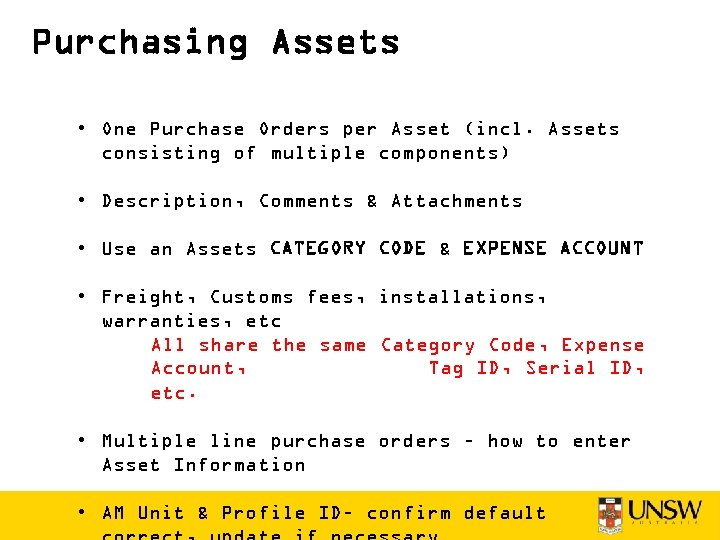
Purchasing Assets • One Purchase Orders per Asset (incl. Assets consisting of multiple components) • Description, Comments & Attachments • Use an Assets CATEGORY CODE & EXPENSE ACCOUNT • Freight, Customs fees, installations, warranties, etc All share the same Category Code, Expense Account, Tag ID, Serial ID, etc. • Multiple line purchase orders – how to enter Asset Information • AM Unit & Profile ID– confirm default
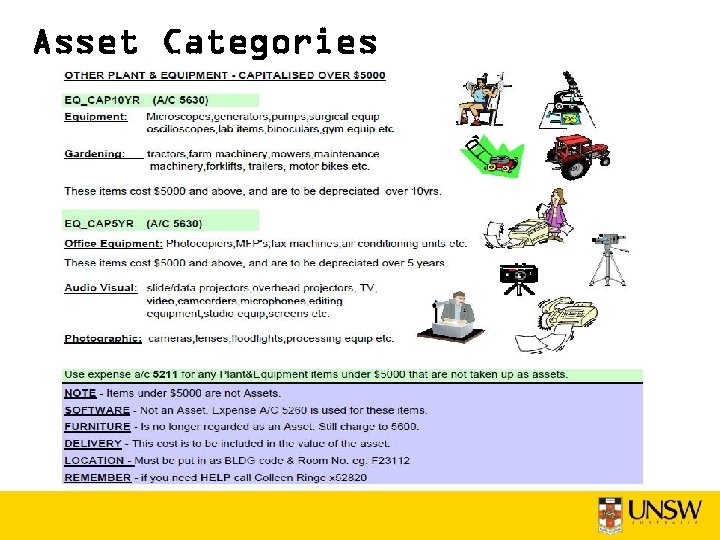
Asset Categories
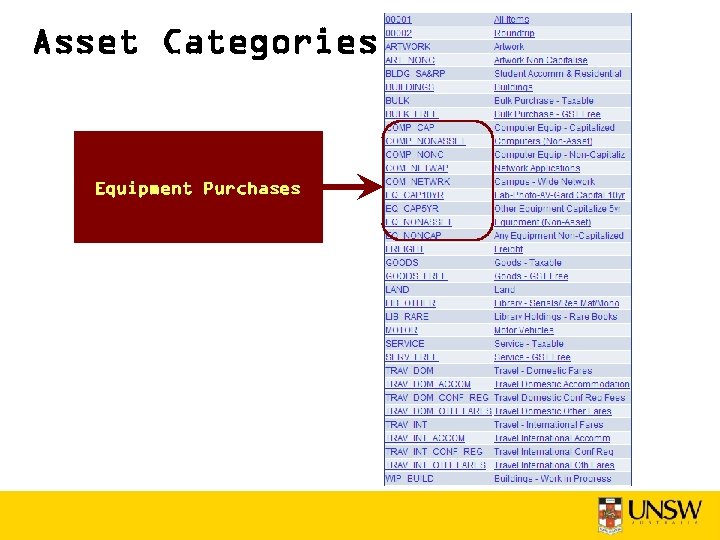
Asset Categories Equipment Purchases
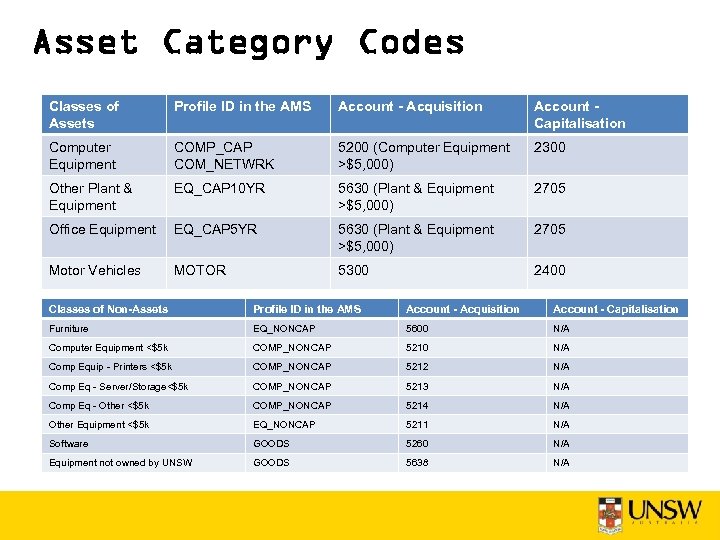
Asset Category Codes Classes of Assets Profile ID in the AMS Account - Acquisition Account Capitalisation Computer Equipment COMP_CAP COM_NETWRK 5200 (Computer Equipment >$5, 000) 2300 Other Plant & Equipment EQ_CAP 10 YR 5630 (Plant & Equipment >$5, 000) 2705 Office Equipment EQ_CAP 5 YR 5630 (Plant & Equipment >$5, 000) 2705 Motor Vehicles MOTOR 5300 2400 Classes of Non-Assets Profile ID in the AMS Account - Acquisition Account - Capitalisation Furniture EQ_NONCAP 5600 N/A Computer Equipment <$5 k COMP_NONCAP 5210 N/A Comp Equip - Printers <$5 k COMP_NONCAP 5212 N/A Comp Eq - Server/Storage<$5 k COMP_NONCAP 5213 N/A Comp Eq - Other <$5 k COMP_NONCAP 5214 N/A Other Equipment <$5 k EQ_NONCAP 5211 N/A Software GOODS 5260 N/A Equipment not owned by UNSW GOODS 5638 N/A
Asset Category Codes
Asset Category Codes
Asset Category Codes
Asset Category Codes
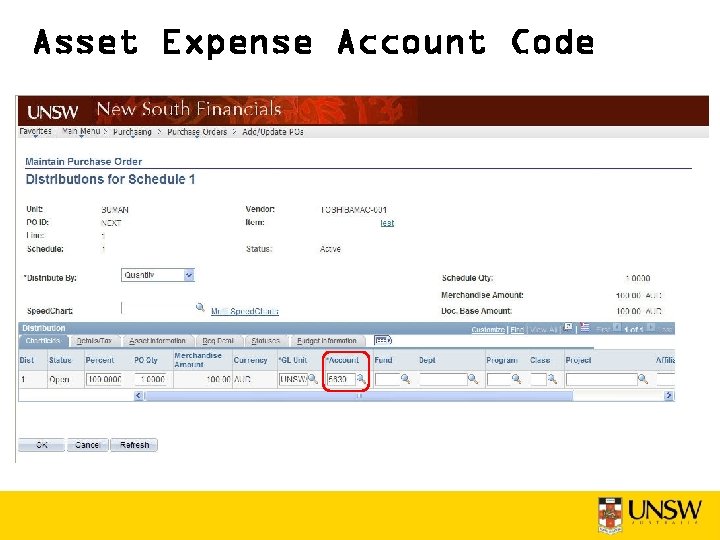
Asset Expense Account Code
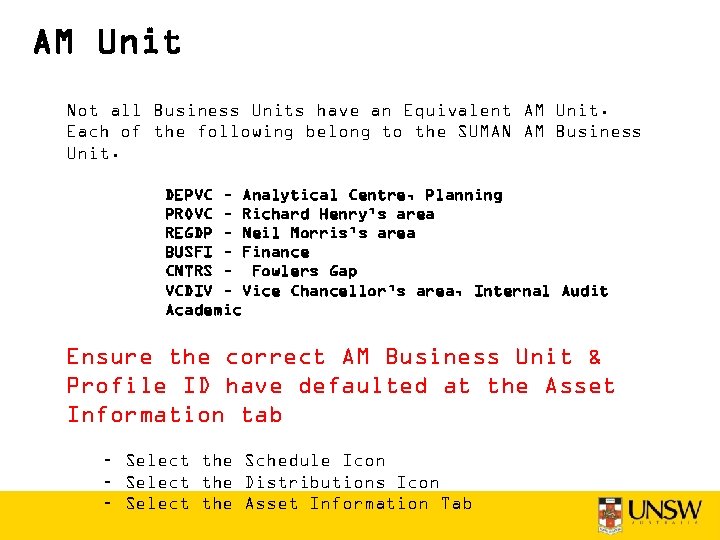
AM Unit Not all Business Units have an Equivalent AM Unit. Each of the following belong to the SUMAN AM Business Unit. DEPVC – Analytical Centre, Planning PROVC – Richard Henry’s area REGDP – Neil Morris’s area BUSFI – Finance CNTRS – Fowlers Gap VCDIV – Vice Chancellor’s area, Internal Audit Academic Ensure the correct AM Business Unit & Profile ID have defaulted at the Asset Information tab – Select the Schedule Icon – Select the Distributions Icon – Select the Asset Information Tab
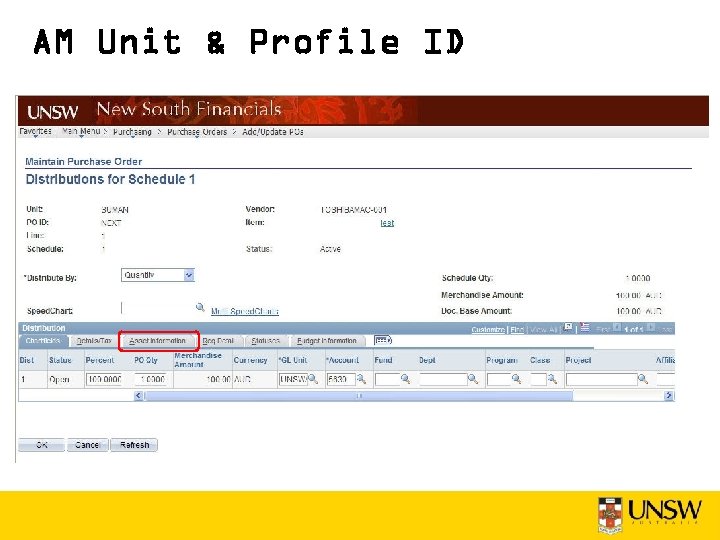
AM Unit & Profile ID
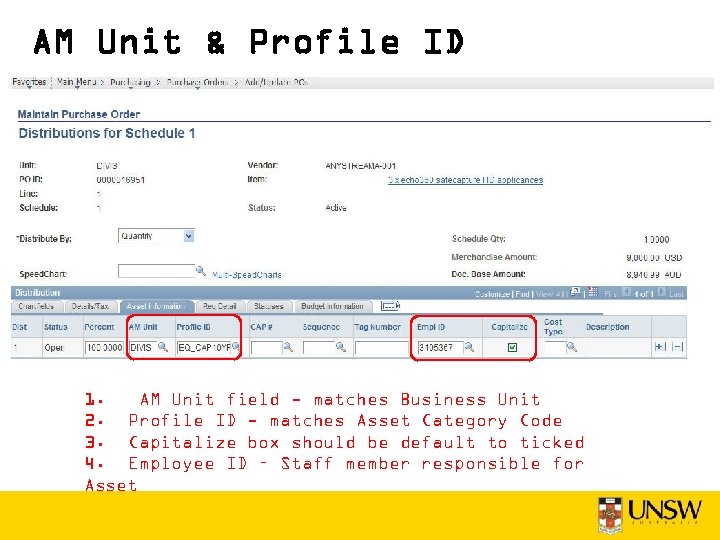
AM Unit & Profile ID 1. AM Unit field - matches Business Unit 2. Profile ID - matches Asset Category Code 3. Capitalize box should be default to ticked 4. Employee ID – Staff member responsible for Asset
Description & Comments • Description field is limited - only 30 characters will display to Assets Management. (incl. spaces, commas, etc) • Ensure the name of the asset is entered in the description field first • Comments – note the expected receipting date • Attachments – scan and attach quotes, supporting documents, etc.
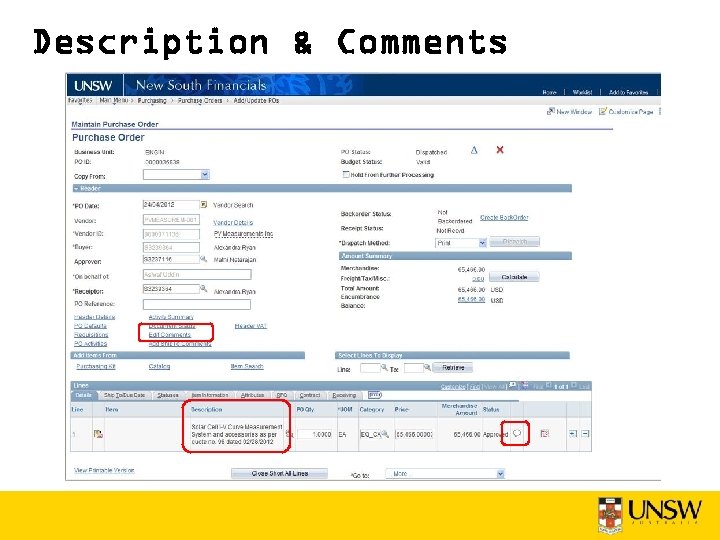
Description & Comments
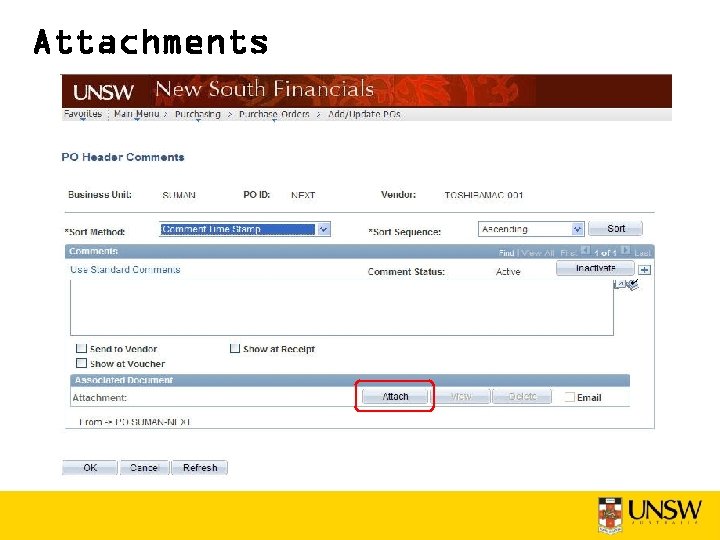
Attachments
Receipting Assets Receipt when goods are commissioned Receipt all lines once all items relating to the asset have been received, assembled/configured, tested and are ready for use Asset Information Tab Enter additional asset information at receipting via the 'Pending' link. Note : If the 'Pending' link is not displayed, then you did not correctly select an Asset Category Code when the PO was raised. Select the Employee for the Asset Custodian (there can only be 1 On the More Details tab On the Asset Information employee custodian per PO line). tab enter: - the Tag Number - the Serial ID. enter: - the Dept Owner - the Asset Location - the Model - the Manufacturer
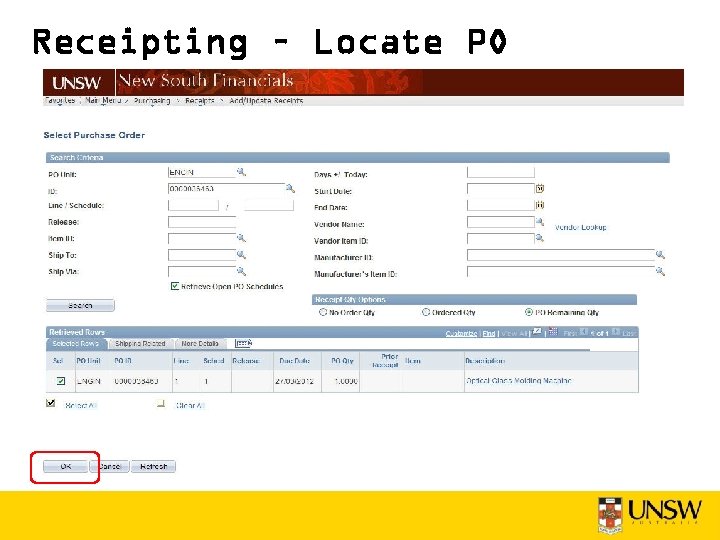
Receipting – Locate PO
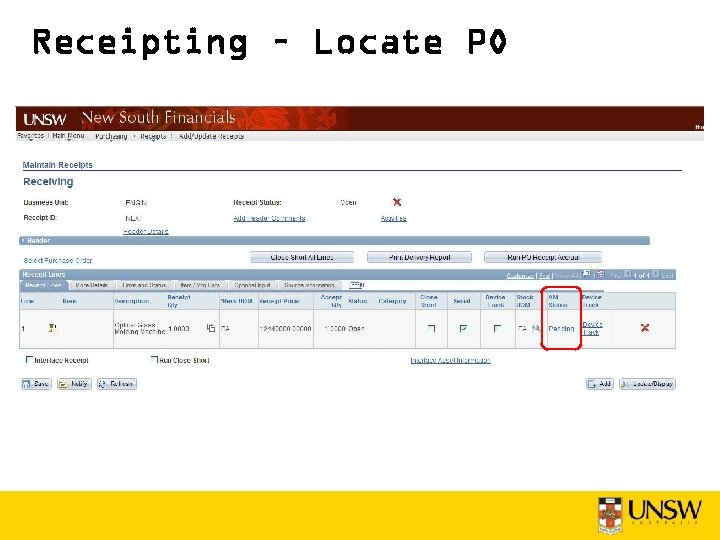
Receipting – Locate PO
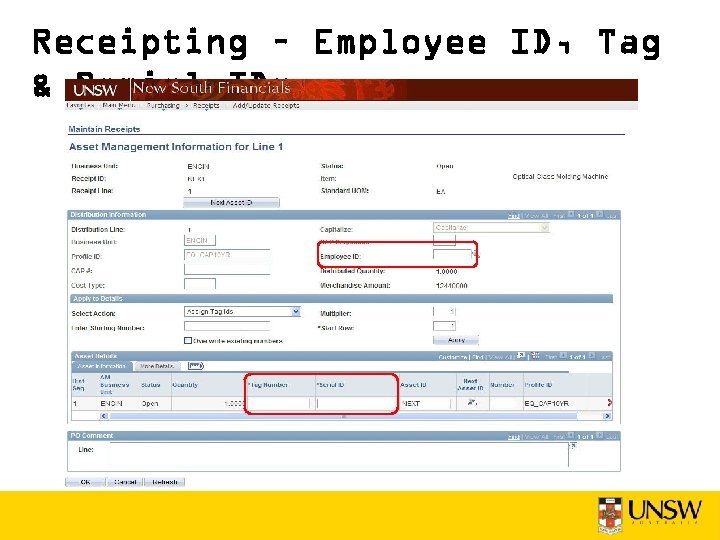
Receipting – Employee ID, Tag & Serial IDs
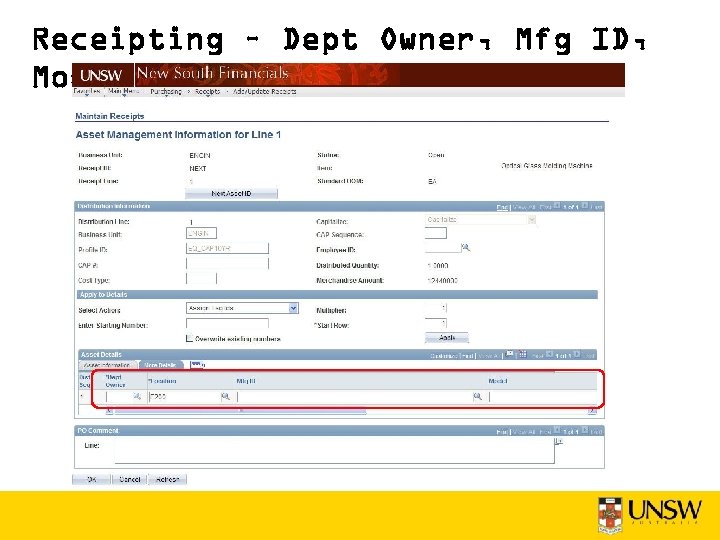
Receipting – Dept Owner, Mfg ID, Model
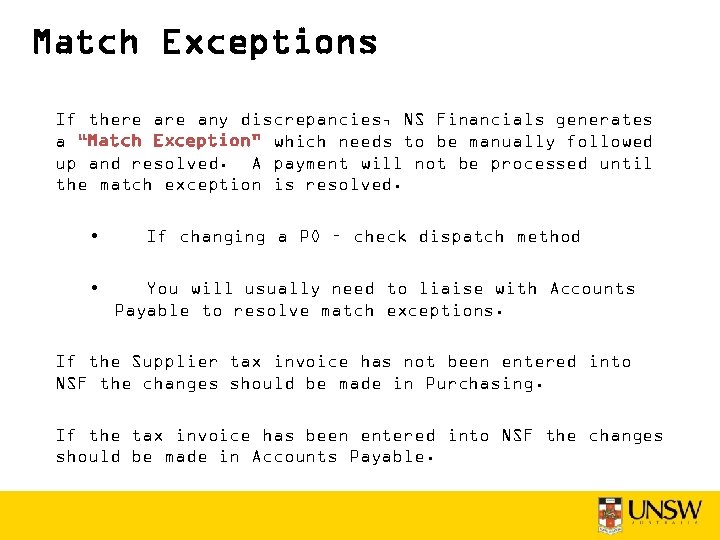
Match Exceptions If there any discrepancies, NS Financials generates a “Match Exception” which needs to be manually followed up and resolved. A payment will not be processed until the match exception is resolved. • • If changing a PO – check dispatch method You will usually need to liaise with Accounts Payable to resolve match exceptions. If the Supplier tax invoice has not been entered into NSF the changes should be made in Purchasing. If the tax invoice has been entered into NSF the changes should be made in Accounts Payable.
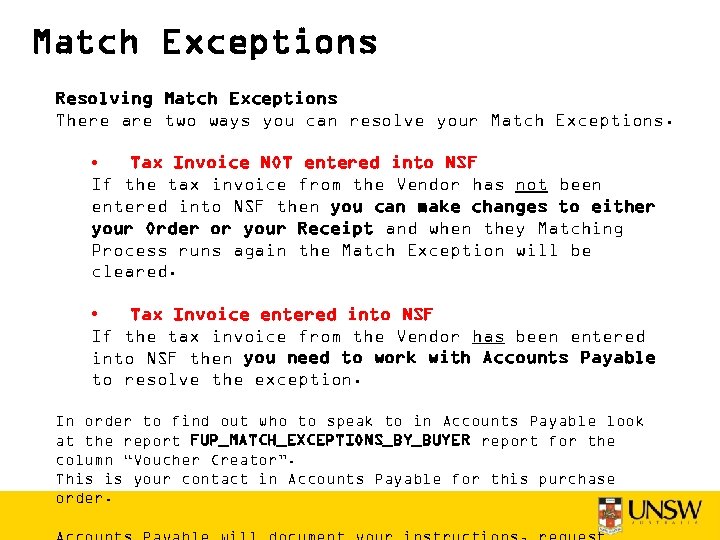
Match Exceptions Resolving Match Exceptions There are two ways you can resolve your Match Exceptions. • Tax Invoice NOT entered into NSF If the tax invoice from the Vendor has not been entered into NSF then you can make changes to either your Order or your Receipt and when they Matching Process runs again the Match Exception will be cleared. • Tax Invoice entered into NSF If the tax invoice from the Vendor has been entered into NSF then you need to work with Accounts Payable to resolve the exception. In order to find out who to speak to in Accounts Payable look at the report FUP_MATCH_EXCEPTIONS_BY_BUYER report for the column “Voucher Creator”. This is your contact in Accounts Payable for this purchase order.
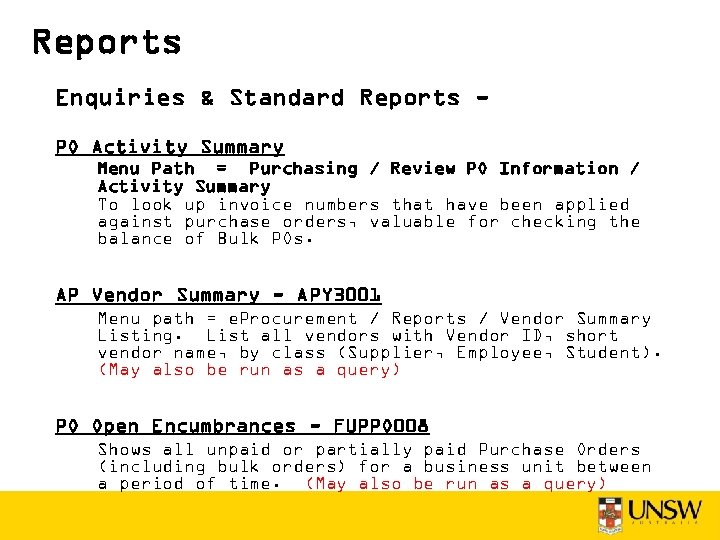
Reports Enquiries & Standard Reports PO Activity Summary Menu Path = Purchasing / Review PO Information / Activity Summary To look up invoice numbers that have been applied against purchase orders, valuable for checking the balance of Bulk POs. AP Vendor Summary - APY 3001 Menu path = e. Procurement / Reports / Vendor Summary Listing. List all vendors with Vendor ID, short vendor name, by class (Supplier, Employee, Student). (May also be run as a query) PO Open Encumbrances - FUPPO 008 Shows all unpaid or partially paid Purchase Orders (including bulk orders) for a business unit between a period of time. (May also be run as a query)
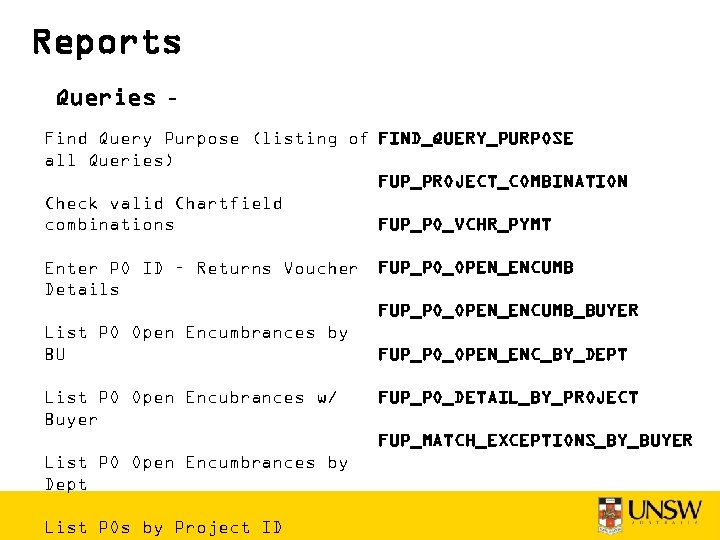
Reports Queries – Find Query Purpose (listing of FIND_QUERY_PURPOSE all Queries) FUP_PROJECT_COMBINATION Check valid Chartfield FUP_PO_VCHR_PYMT combinations Enter PO ID – Returns Voucher Details FUP_PO_OPEN_ENCUMB_BUYER List PO Open Encumbrances by BU List PO Open Encubrances w/ Buyer FUP_PO_OPEN_ENC_BY_DEPT FUP_PO_DETAIL_BY_PROJECT FUP_MATCH_EXCEPTIONS_BY_BUYER List PO Open Encumbrances by Dept List POs by Project ID
Support & Guidance • Finance Website – Purchasing http: //www. fin. unsw. edu. au/Our. Services/Financial. Operations_Purchasi ng. html • Buying Network Ext. 53330, Email - Buyingnetwork@unsw. edu. au Find My Buying Network http: //www. fin. unsw. edu. au/Our. Services/Financial. Operations_Purchasi ng_Find. Buying. Network. html • Purchasing Guidelines & Procedures http: //www. fin. unsw. edu. au/Our. Services/Financial. Operations_Purchas ing_Guidelines. html http: //www. fin. unsw. edu. au/files/PP/Purchase_Order_Procedure. pdf • Online Training Tool http: //www. fin. unsw. edu. au/NSF_Knowledge. Base/Online. Training. Tool. htm l • Quick Reference Guides http: //www. fin. unsw. edu. au/NSF_Knowledge. Base/QRG. html
User Support & Training Questions? • Finance Website – Training https: //www. fin. unsw. edu. au/NSF_Knowledge. Base/FKB_Tr aining. html • Training Enquiries Rohin Whitford, Finance Trainer Ext. 53550, Email fti@unsw. edu. au
Скачать презентацию Purchasing Fundamentals Finance Systems Training Finance Business Solutions
bd875d13f6ed936473060be95ee7e941.ppt