 Скачать презентацию Prototyping Sketches storyboards and other prototypes Part
e77502e27baa16c767f46f3595ec8630.ppt
- Количество слайдов: 76



Prototyping Sketches, storyboards, and other prototypes
Part 1 Comments ¢ You don’t have to create a large system that does everything ¢ Focus make clear your users goal(s) l Specific problem(s) l Let that tell you what your requirements should be l
Part 2 Poster Component of Part 2 grade ¢ Overview of project, users, tasks ¢ Perhaps requirements, usability goals ¢ Perhaps scenarios, storyboards ¢ Design ideas, sketches, etc. ¢ http: //swiki. cc. gatech. edu: 8080/cs 4750/1383
Design Artifacts ¢ Expressing design ideas: Make it fast!!! l Allow lots of flexibility for radically different designs l Make it cheap l Promote valuable feedback l ¢ Facilitate iterative design and evaluation
Prototype representation ¢ How to represent the prototype? l l l l Mockup Storyboard Sketches Scenarios Screenshots Limited functionality GUI interface
Prototype scope ¢ How much to represent? l Vertical - “Deep” prototyping • Show much of the interface, but in a shallow manner l Horizontal - “Broad” prototyping • Show only portion of interface, but large amount of those portions
Prototype maturation ¢ Low fidelity vs. High fidelity Amount of polish should reflect maturity of the prototype ¢ Why? ¢
Scenarios ¢ ¢ ¢ Typically narratives, but can be videos, simulations Use to explore errors or exceptions Good for accompanying storyboard or sketches Jane likes to take walks every morning. This morning, as she places her hand on the door, she hears “ 75% chance of rain, better bring your umbrella. ” Thankful for the notice, she grabs her umbrella and heads out for her morning walk.
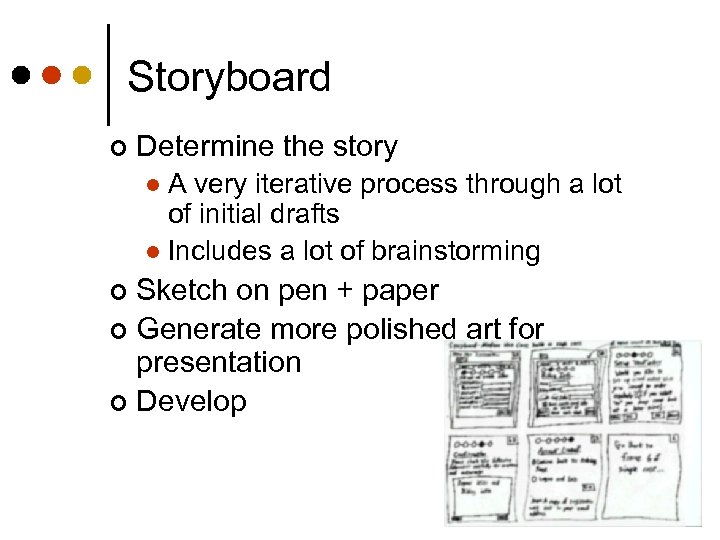
Storyboard ¢ Determine the story A very iterative process through a lot of initial drafts l Includes a lot of brainstorming l Sketch on pen + paper ¢ Generate more polished art for presentation ¢ Develop ¢
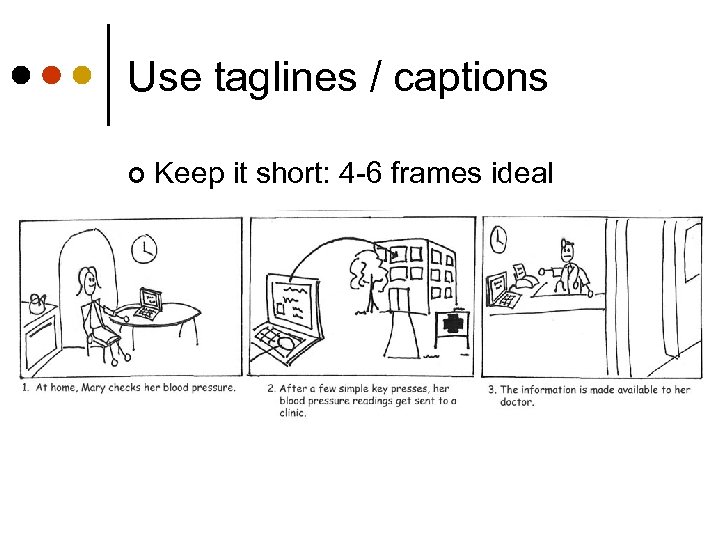
Use taglines / captions ¢ Keep it short: 4 -6 frames ideal
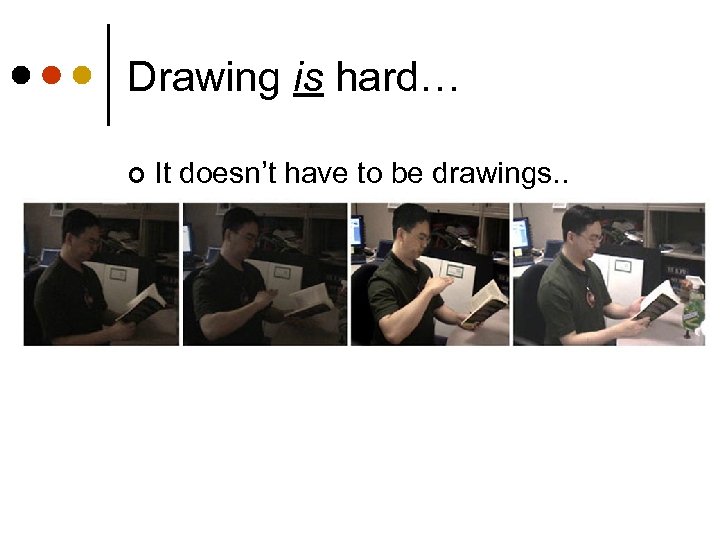
Drawing is hard… ¢ It doesn’t have to be drawings. .
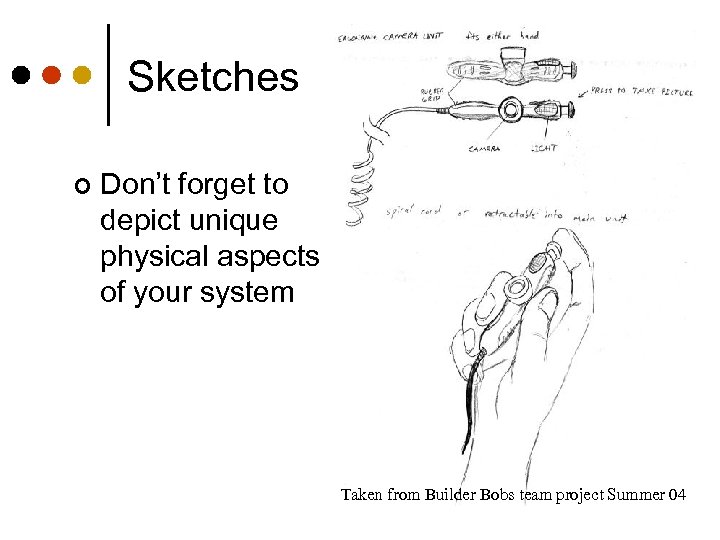
Sketches ¢ Don’t forget to depict unique physical aspects of your system Taken from Builder Bobs team project Summer 04
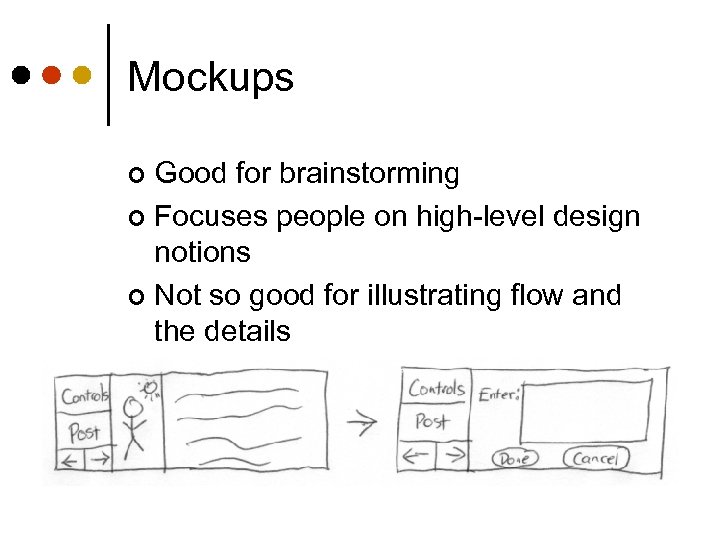
Mockups Good for brainstorming ¢ Focuses people on high-level design notions ¢ Not so good for illustrating flow and the details ¢
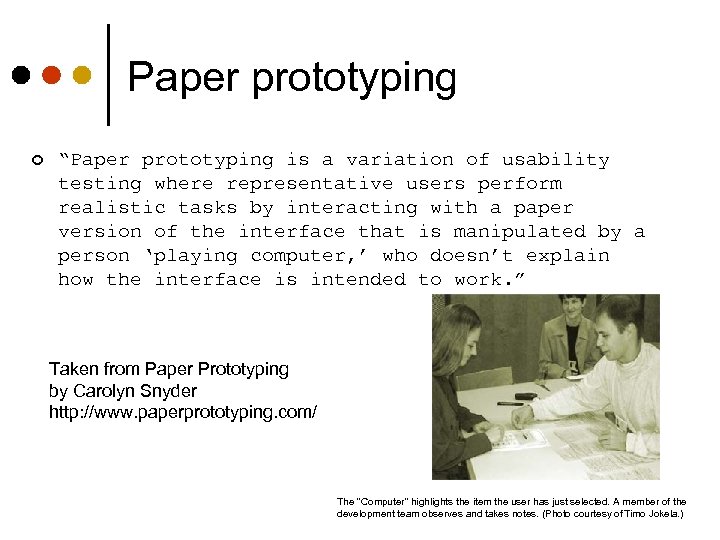
Paper prototyping ¢ “Paper prototyping is a variation of usability testing where representative users perform realistic tasks by interacting with a paper version of the interface that is manipulated by a person ‘playing computer, ’ who doesn’t explain how the interface is intended to work. ” Taken from Paper Prototyping by Carolyn Snyder http: //www. paperprototyping. com/ The "Computer" highlights the item the user has just selected. A member of the development team observes and takes notes. (Photo courtesy of Timo Jokela. )
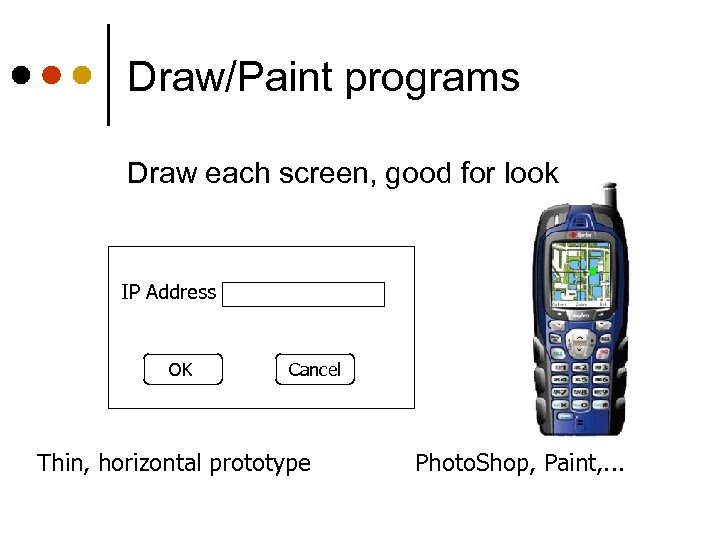
Draw/Paint programs Draw each screen, good for look IP Address OK Cancel Thin, horizontal prototype Photo. Shop, Paint, . . .
Simulations Put storyboard-like views down with (animated) transitions between them ¢ Can give user very specific script to follow ¢ Often called chauffeured prototyping ¢ ¢ Examples: Power. Point, Hypercard, Macromedia Director, HTML
Interface Builders ¢ Tools for laying out windows, controls, etc. of interface l l ¢ Easy to develop & modify screens Supports type of interface you are developing Good look and feel Can add back-end functionality Examples: Visual Basic, . NET, many apps for various languages
Specialized SILK (Sketching Interfaces Like Krazy) / DENIM ¢ Sketch-based GUI builder ¢ ¢ http: //www. open-video. org/details. php? videoid=5018 ¢ by James Landay and his former group at UC Berkeley
Tutorials & Manuals Create ahead of time to flesh out functionality ¢ If it’s difficult to describe, it’s probably difficult to use! ¢ Forces designer to be explicit about decisions ¢ Putting it on paper is valuable ¢
Prototyping Technique ¢ Wizard of Oz - Person simulates and controls system from “behind the curtain” Use prototype interface and interact with users l Behavior should be algorithmic l Good for simulating system that would be difficult to build l
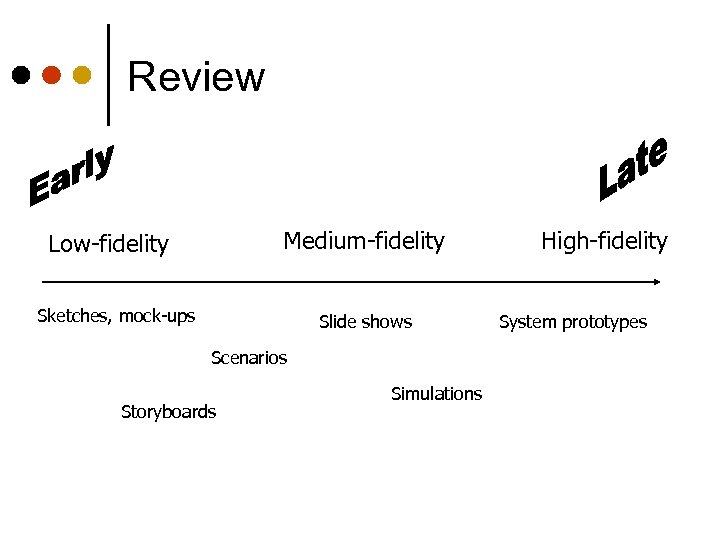
Review Medium-fidelity Low-fidelity Sketches, mock-ups Slide shows Scenarios Storyboards Simulations High-fidelity System prototypes
Visual design The “look” of your interface
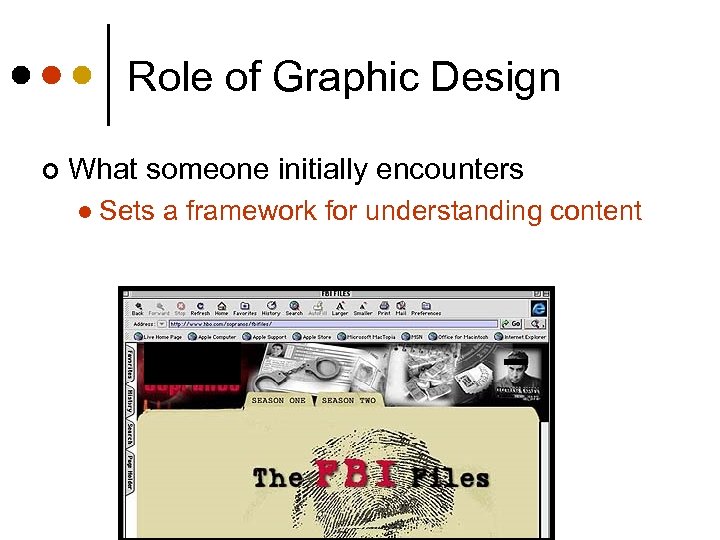
Role of Graphic Design ¢ What someone initially encounters l Sets a framework for understanding content
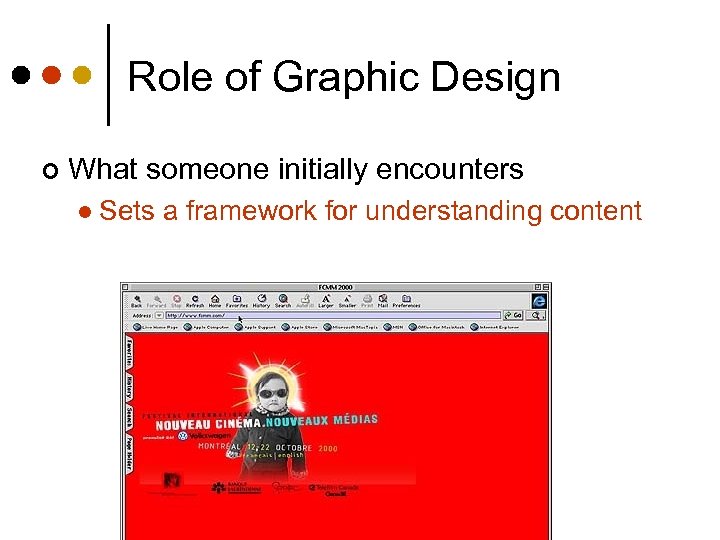
Role of Graphic Design ¢ What someone initially encounters l Sets a framework for understanding content
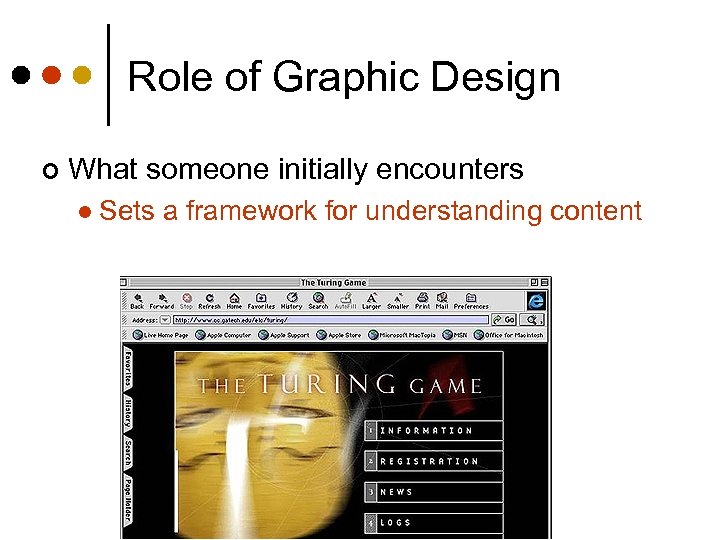
Role of Graphic Design ¢ What someone initially encounters l Sets a framework for understanding content
Graphic Design ¢ ¢ ¢ A comprehensible mental image Appropriate organization of data, functions, tasks and roles High-quality appearances • The “look” ¢ Effective interaction sequencing • The “feel” Classes at UNCC: http: //www. uncc. edu/schedule/subject/artg. html ¢
Graphic Design ¢ Involves knowledge of: Sequencing l Organization l Layout l Imagery l Color l Typography l
Graphic Design Principles Metaphor ¢ Clarity ¢ Consistency ¢ Alignment ¢ Proximity ¢ Contrast ¢
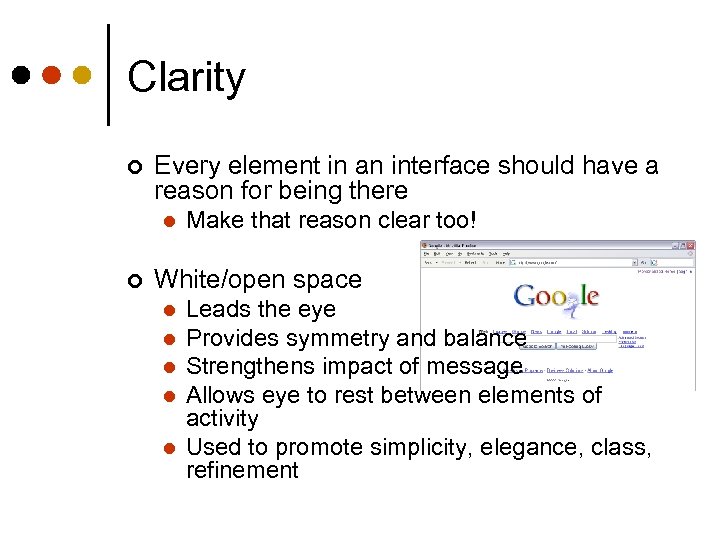
Clarity ¢ Every element in an interface should have a reason for being there l ¢ Make that reason clear too! White/open space l l l Leads the eye Provides symmetry and balance Strengthens impact of message Allows eye to rest between elements of activity Used to promote simplicity, elegance, class, refinement
Consistency In layout, color, images, icons, typography, text, … ¢ Within screen, across screens ¢ Stay within metaphor everywhere ¢ ¢ Platform may have a style guide l Follow it!
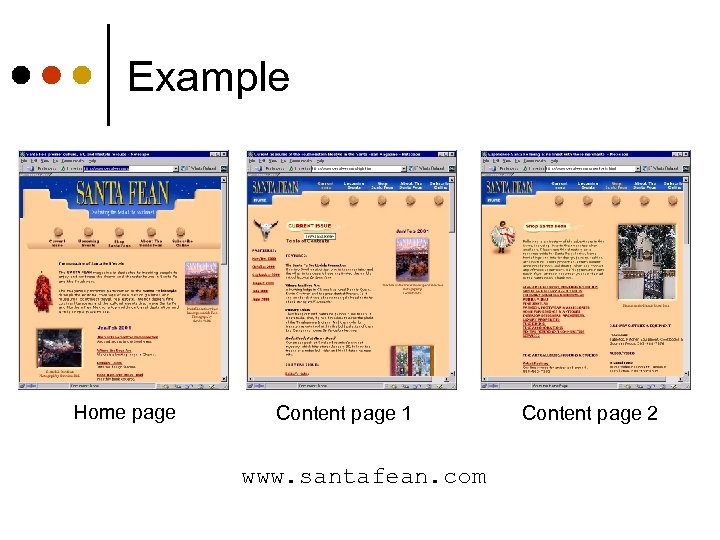
Example Home page Content page 1 www. santafean. com Content page 2
Alignment ¢ Western world l ¢ Novices often center things l ¢ Start from top left No definition, calm, very formal Grids l l l (Hidden) horizontal and vertical lines to help locate window components Align related things Group items logically
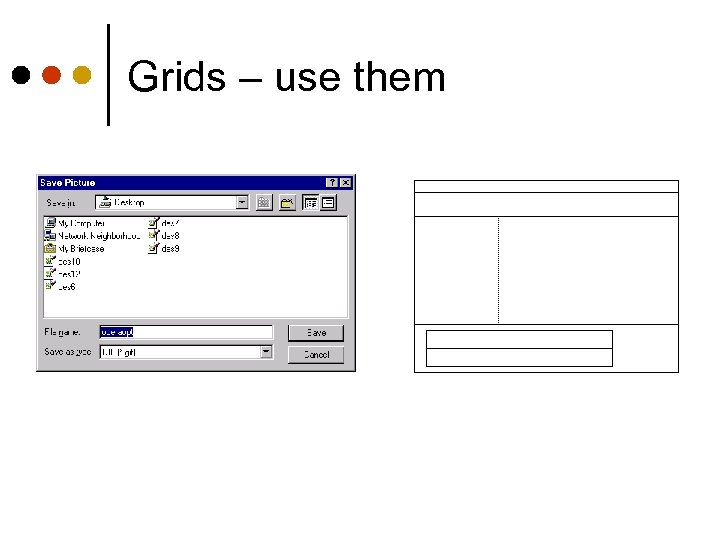
Grids – use them
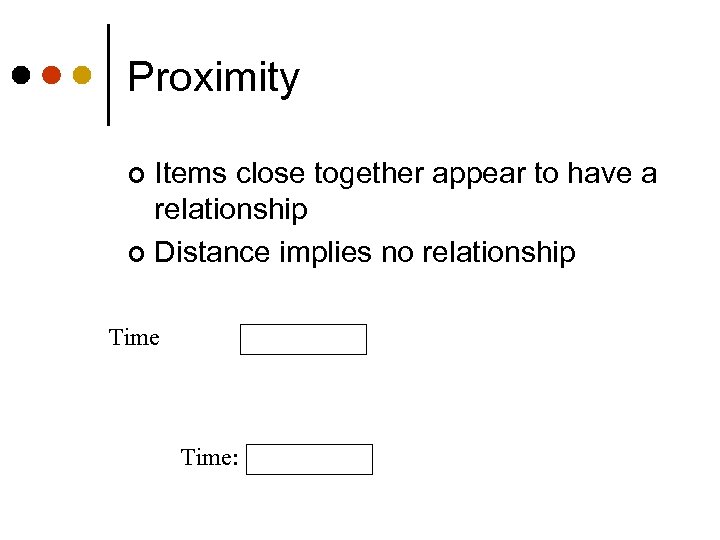
Proximity Items close together appear to have a relationship ¢ Distance implies no relationship ¢ Time:
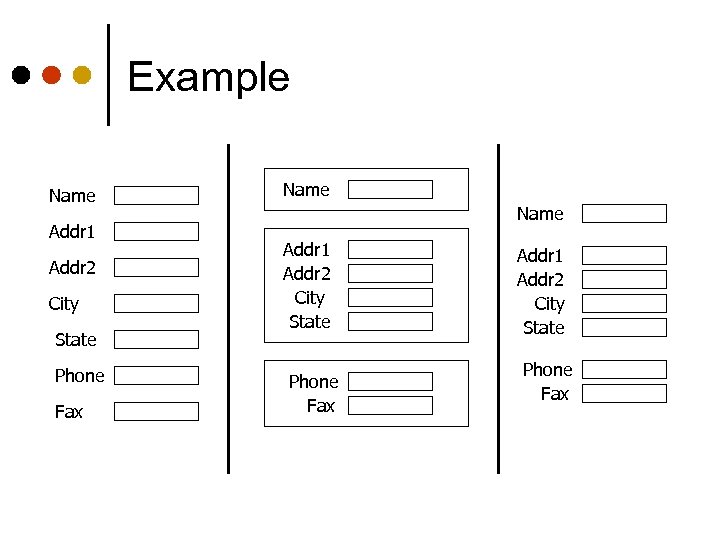
Example Name Addr 1 Addr 2 City State Phone Fax
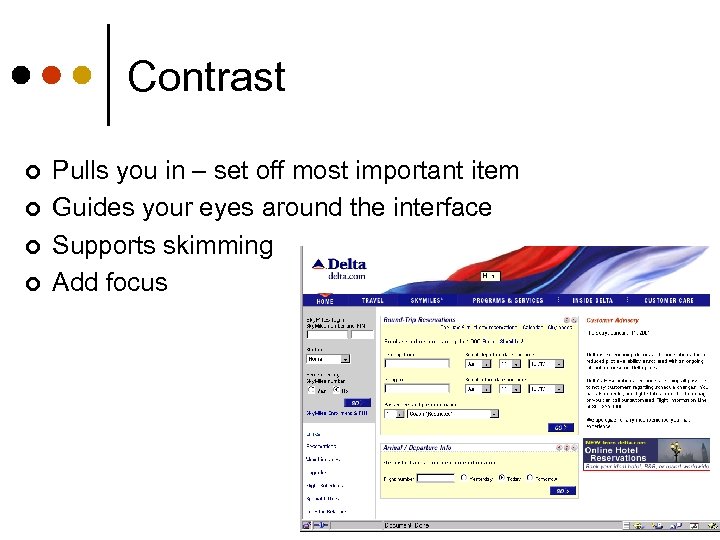
Contrast ¢ ¢ Pulls you in – set off most important item Guides your eyes around the interface Supports skimming Add focus
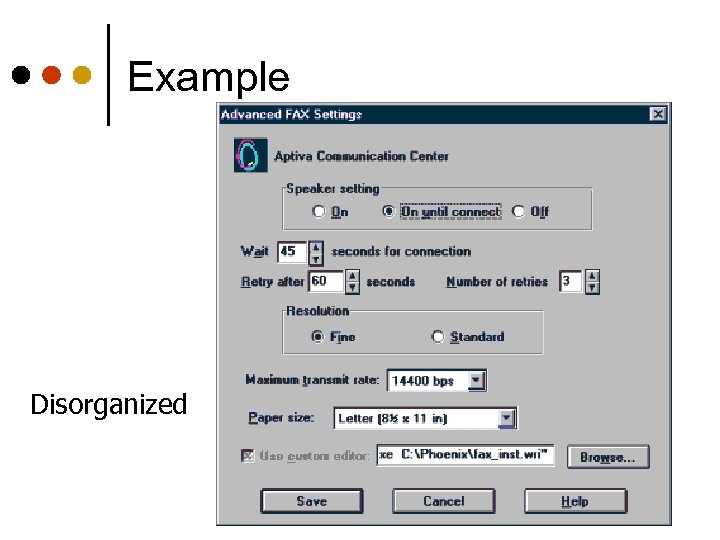
Example Disorganized
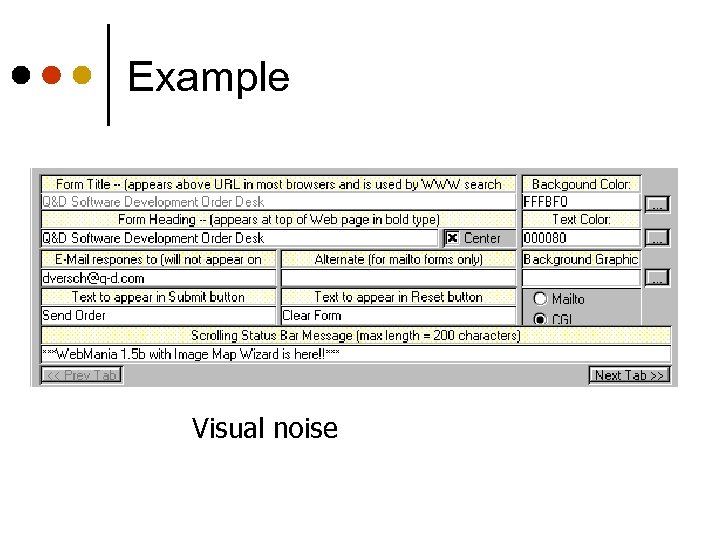
Example Visual noise
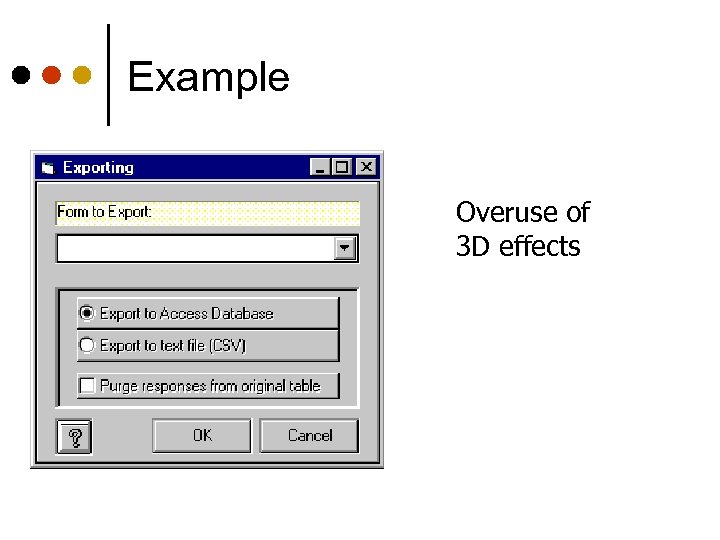
Example Overuse of 3 D effects
Color ¢ ¢ ¢ Use for a purpose and sparingly Draw attention, communicate organization, to indicate status, to establish relationships, aid search Use redundant cues l l ¢ Color-blindness Enhances performance Be consistent with color associations from jobs and cultures
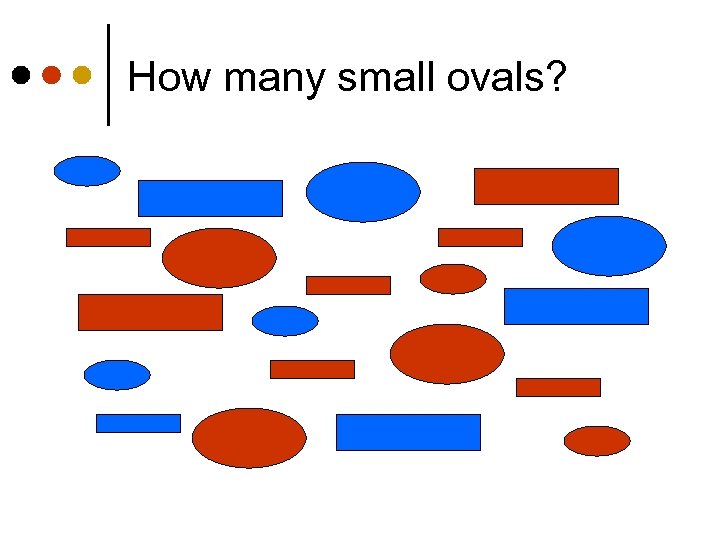
How many small ovals?
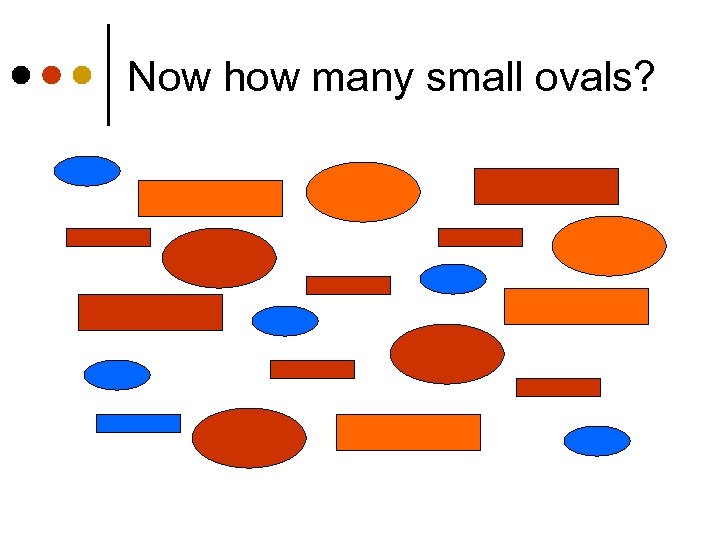
Now how many small ovals?
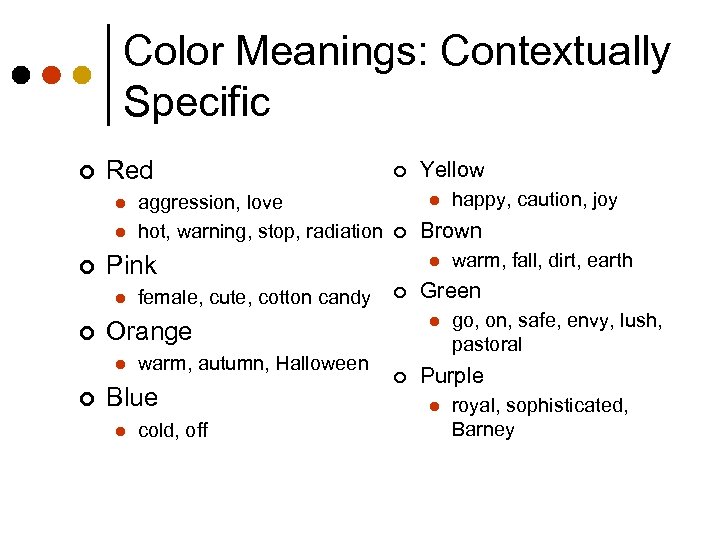
Color Meanings: Contextually Specific ¢ Red l l ¢ ¢ ¢ warm, autumn, Halloween Blue l cold, off warm, fall, dirt, earth Green l ¢ happy, caution, joy Brown l Orange l ¢ female, cute, cotton candy Yellow l Pink l ¢ aggression, love hot, warning, stop, radiation ¢ go, on, safe, envy, lush, pastoral Purple l royal, sophisticated, Barney
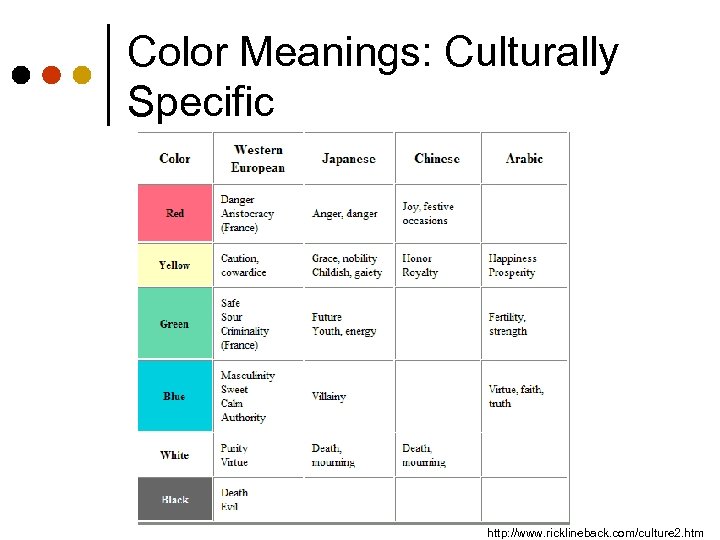
Color Meanings: Culturally Specific http: //www. ricklineback. com/culture 2. htm
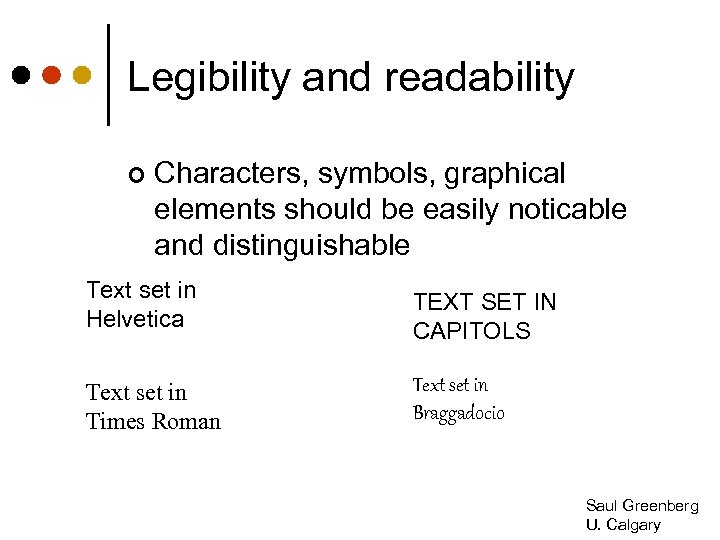
Legibility and readability ¢ Characters, symbols, graphical elements should be easily noticable and distinguishable Text set in Helvetica TEXT SET IN CAPITOLS Text set in Times Roman Text set in Braggadocio Saul Greenberg U. Calgary
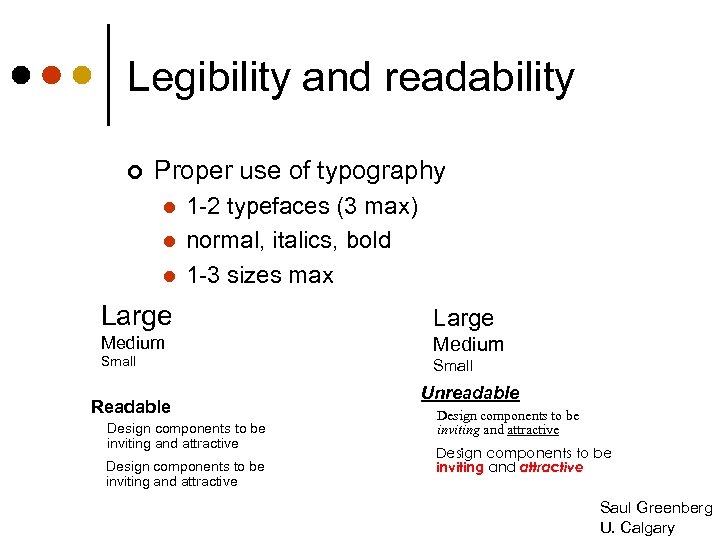
Legibility and readability ¢ Proper use of typography l l l 1 -2 typefaces (3 max) normal, italics, bold 1 -3 sizes max Large Medium Small Readable Design components to be inviting and attractive Small Unreadable Design components to be inviting and attractive Saul Greenberg U. Calgary

Web Design Creating Effective Sites and Pages
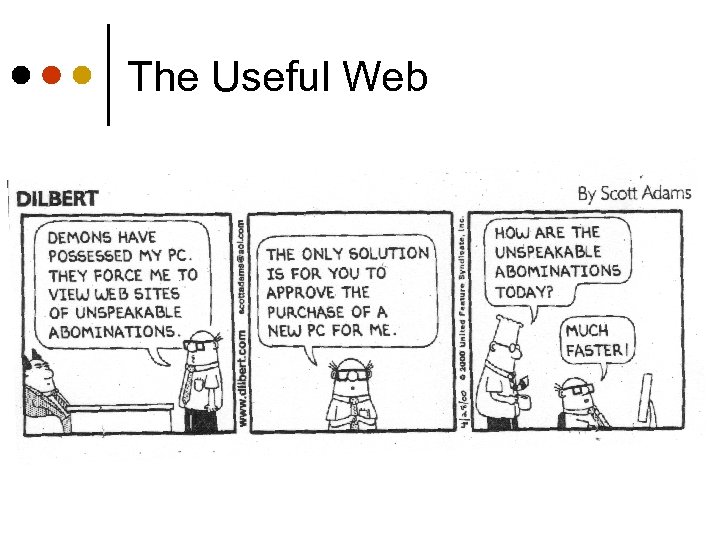
The Useful Web
Why Web Site Design Matters ¢ ¢ Tests of time to complete shopping tasks at several major on-line stores - number of clicks varied from 8 to 50; high abandonment rate on poor sites Jakob Nielsen review of comparative tests on web sites - average 68% difference in task completion times Nielsen finds 135% improvement from redesign effort see http: //www. useit. com/alertbox/20040119. html
Page/Site Goals • Convey information/access employees, shareholders, customers colleagues, public • Sell products • Advertise/market service • Recruit • Announce, survey • Nurture communities • Convey image or impression • Meet people • Raise money/donations • Entertain an audience • Promote myself • Teach people about a topic • Get famous • Tell a story • Search: promote ease and speed • Browse: without a goal, attractiveness trumps efficiency
Developing a Site 1. Identify objectives 2. Generate content - typically a topics list 3. Logically organize content - clusters 4. Provide structure to clusters 5. Transform content to pages with graphic design 6. Test and iterate So what else is new? ?
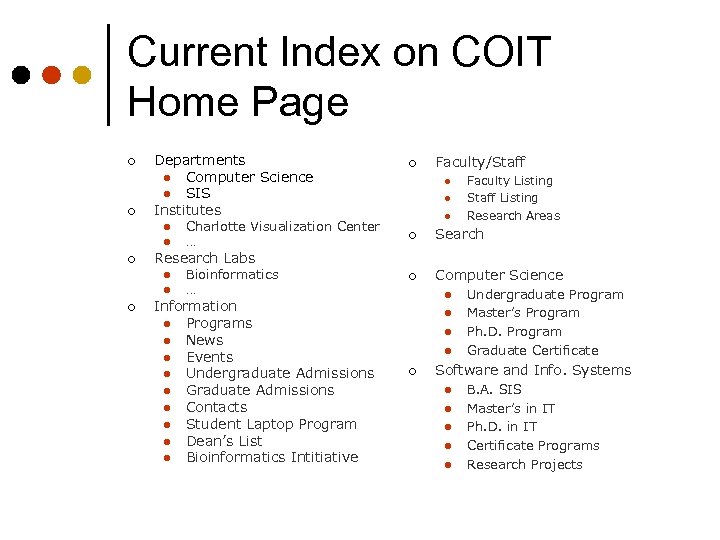
Current Index on COIT Home Page ¢ ¢ Departments l Computer Science l SIS Institutes l l ¢ l Bioinformatics … Information l Programs l News l Events l Undergraduate Admissions l Graduate Admissions l Contacts l Student Laptop Program l Dean’s List l Bioinformatics Intitiative Faculty/Staff l l l Faculty Listing Staff Listing Research Areas ¢ Search ¢ Computer Science Research Labs l ¢ Charlotte Visualization Center … ¢ l l ¢ Undergraduate Program Master’s Program Ph. D. Program Graduate Certificate Software and Info. Systems l l l B. A. SIS Master’s in IT Ph. D. in IT Certificate Programs Research Projects
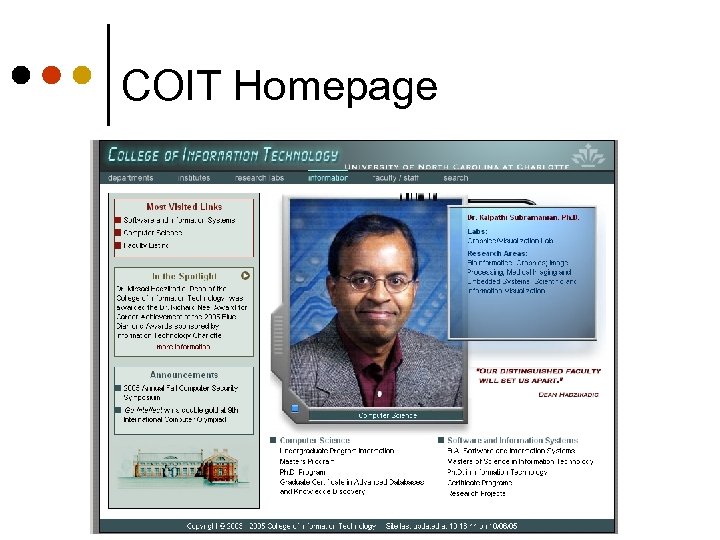
COIT Homepage
Text Content ¢ ¢ Attention spans are short on the web - users want instant gratification, and reading is 25% slower on screen than on paper So… l People tend to skim web pages, just read headers, highlights, selected paragraphs Therefore l Tune your writing style to this reality J. Nielsen column on writing for WWW l l http: //www. useit. com/alertbox/9710 a. html www. useit. com/alertbox/9703 b. html
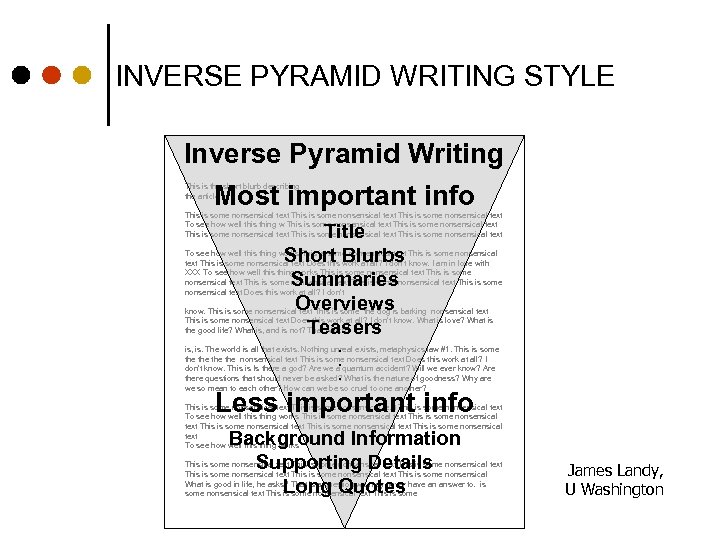
INVERSE PYRAMID WRITING STYLE Inverse Pyramid Writing Most important info This is the short blurb describing the article This is some nonsensical text To see how well this thing w This is some nonsensical text This is some nonsensical text Title Short Blurbs Summaries Overviews Teasers To see how well this thing works This is some nonsensical text Does this work at all? I don’t know. I am in love with XXX To see how well this thing works This is some nonsensical text This is some nonsensical text Does this work at all? I don’t know. This is some nonsensical text This is some the dog is barking nonsensical text This is some nonsensical text Does this work at all? I don’t know. What is love? What is the good life? What is, and is not? That which . is, is. The world is all that exists. Nothing unreal exists, metaphysics law #1. This is some the the nonsensical text This is some nonsensical text Does this work at all? I. don’t know. This is Is there a god? Are we a quantum accident? Will we ever know? Are. there questions that should never be asked? What is the nature of goodness? Why are we so mean to each other? How can we be so cruel to one another? Less important info This is some nonsensical text To see how well this thing works This is some nonsensical text This is some nonsensical text To see how well this thing works Background Information Supporting Details Long Quotes This is some nonsensical text This is some nonsensical text This is some nonsensical What is good in life, he asks? That is a question we may never have an answer to. is some nonsensical text This is some James Landy, U Washington
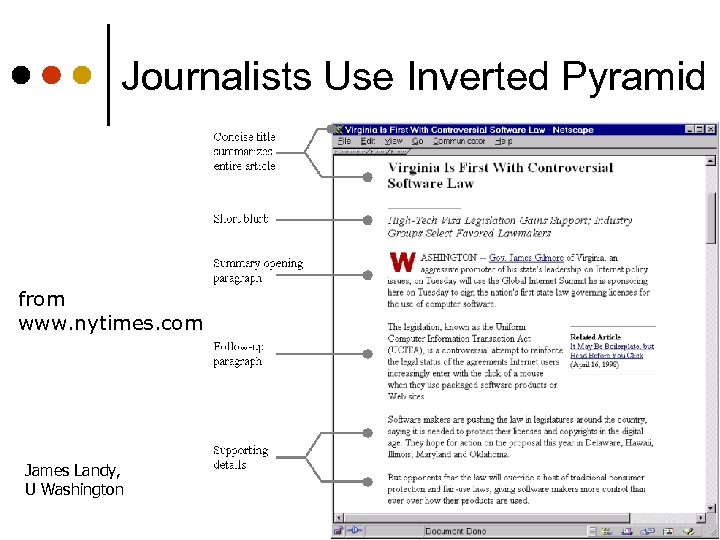
Journalists Use Inverted Pyramid from www. nytimes. com James Landy, U Washington
Navigation Often the most critical element ¢ Often the weakest part of a web site ¢ Problems due to ¢ Users don’t have domain knowledge l Site structures don’t meet expectations l
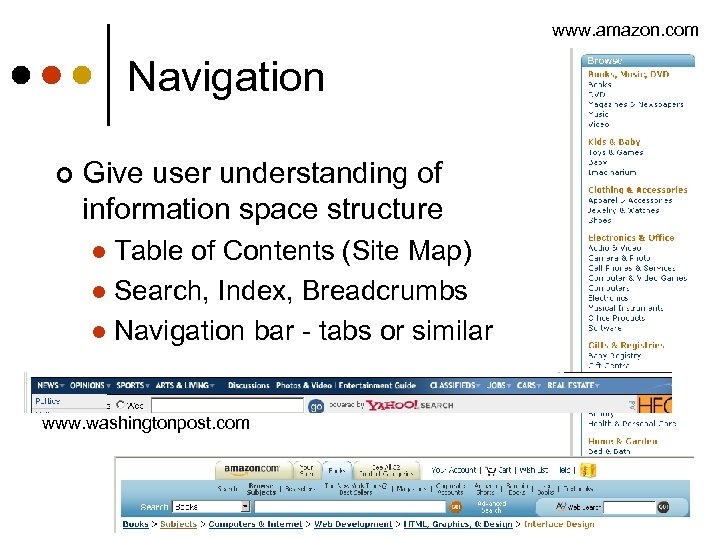
www. amazon. com Navigation ¢ Give user understanding of information space structure Table of Contents (Site Map) l Search, Index, Breadcrumbs l Navigation bar - tabs or similar l www. washingtonpost. com
Home Page ¢ Most important page at your site l l ¢ ¢ ¢ Critical for image Entices viewer to look at more Give viewer a good idea of what can be found at the site Make sure vital content is “above the fold” Place real content on home page How much graphics do you use? If links are in images, have parallel text labels near page bottom
Home Page Design Has Evolved From graphics-rich with few links – mostly to top-level pages of major subsections ¢ To link-rich pages that give access to real content in one click, plus have some content ¢
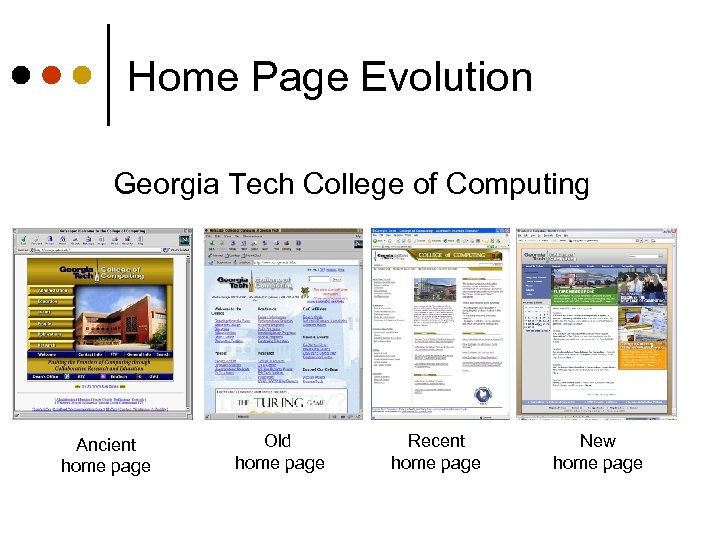
Home Page Evolution Georgia Tech College of Computing Ancient home page Old home page Recent home page New home page
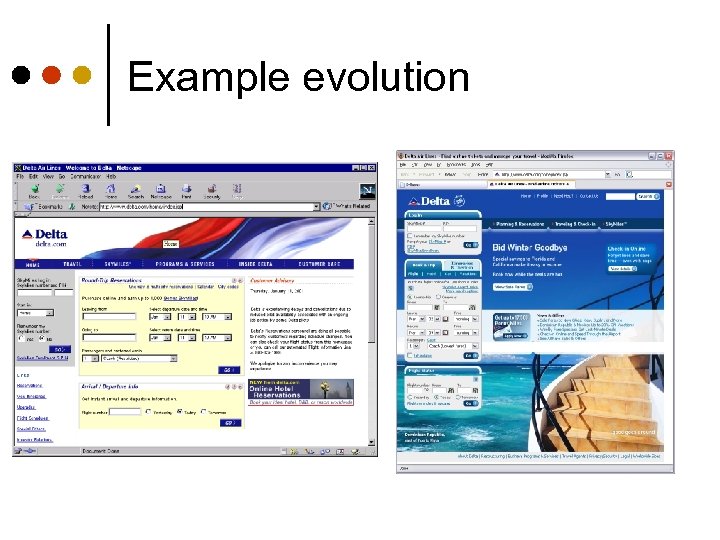
Example evolution
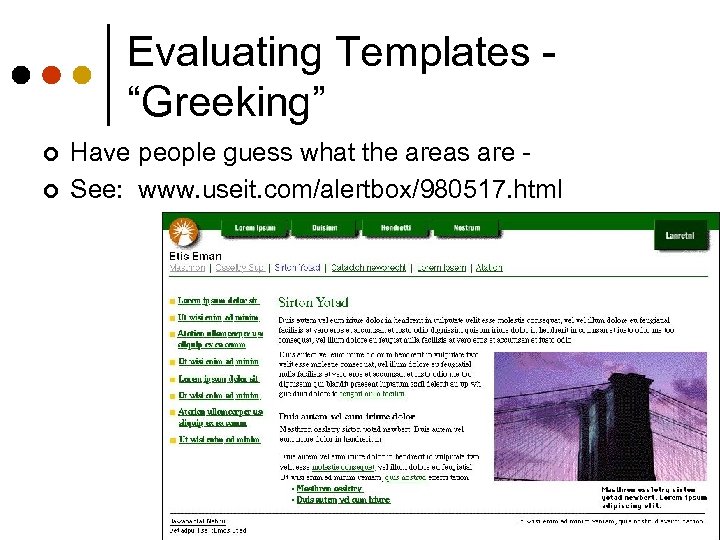
Evaluating Templates “Greeking” ¢ ¢ Have people guess what the areas are See: www. useit. com/alertbox/980517. html
Topology Abolish linear thinking, that is, dependence on prior pages Search engines can send user straight to any page ==> Each page should be able to stand on its own Return Go back Link all pages to the home page
Links ¢ Success of link depends on How well user can predict where link will lead l How well user can differentiate one link from other nearby ones l Useful content at other end of link l
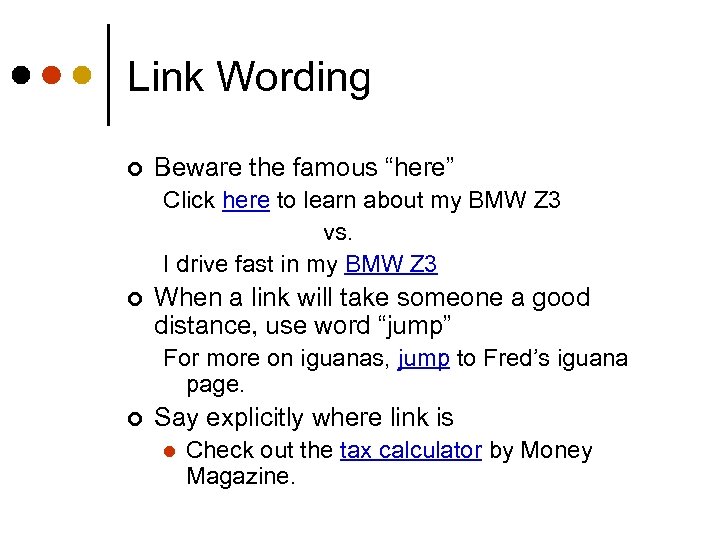
Link Wording ¢ Beware the famous “here” Click here to learn about my BMW Z 3 vs. I drive fast in my BMW Z 3 ¢ When a link will take someone a good distance, use word “jump” For more on iguanas, jump to Fred’s iguana page. ¢ Say explicitly where link is l Check out the tax calculator by Money Magazine.
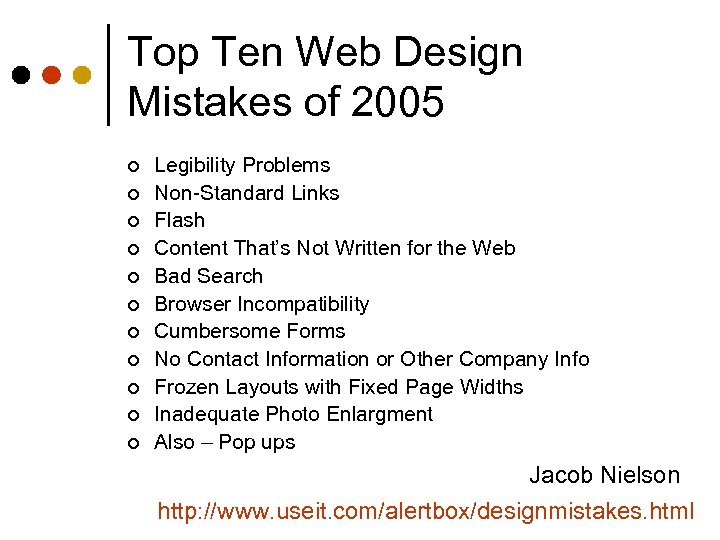
Top Ten Web Design Mistakes of 2005 ¢ ¢ ¢ Legibility Problems Non-Standard Links Flash Content That’s Not Written for the Web Bad Search Browser Incompatibility Cumbersome Forms No Contact Information or Other Company Info Frozen Layouts with Fixed Page Widths Inadequate Photo Enlargment Also – Pop ups Jacob Nielson http: //www. useit. com/alertbox/designmistakes. html
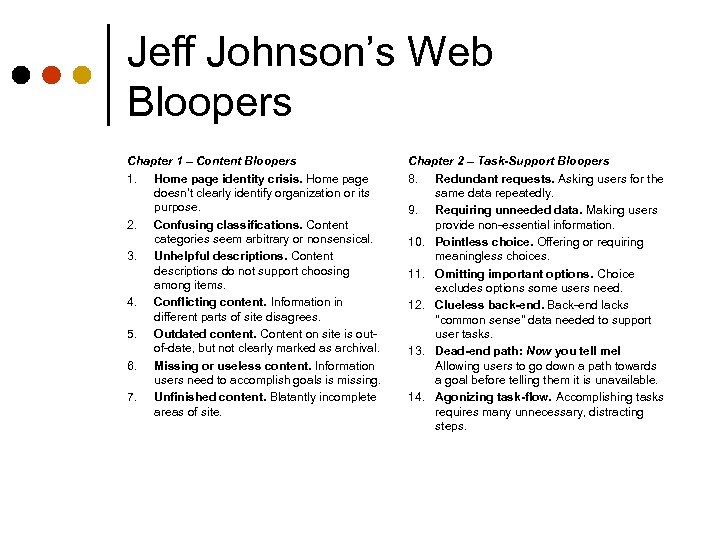
Jeff Johnson’s Web Bloopers Chapter 1 – Content Bloopers 1. Home page identity crisis. Home page doesn’t clearly identify organization or its purpose. 2. Confusing classifications. Content categories seem arbitrary or nonsensical. 3. Unhelpful descriptions. Content descriptions do not support choosing among items. 4. Conflicting content. Information in different parts of site disagrees. 5. Outdated content. Content on site is outof-date, but not clearly marked as archival. 6. Missing or useless content. Information users need to accomplish goals is missing. 7. Unfinished content. Blatantly incomplete areas of site. Chapter 2 – Task-Support Bloopers 8. Redundant requests. Asking users for the same data repeatedly. 9. Requiring unneeded data. Making users provide non-essential information. 10. Pointless choice. Offering or requiring meaningless choices. 11. Omitting important options. Choice excludes options some users need. 12. Clueless back-end. Back-end lacks "common sense" data needed to support user tasks. 13. Dead-end path: Now you tell me! Allowing users to go down a path towards a goal before telling them it is unavailable. 14. Agonizing task-flow. Accomplishing tasks requires many unnecessary, distracting steps.
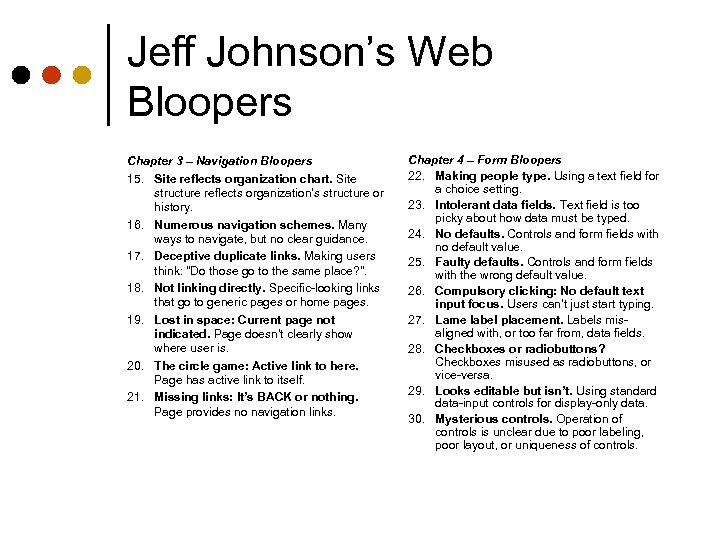
Jeff Johnson’s Web Bloopers Chapter 3 – Navigation Bloopers 15. Site reflects organization chart. Site structure reflects organization’s structure or history. 16. Numerous navigation schemes. Many ways to navigate, but no clear guidance. 17. Deceptive duplicate links. Making users think: "Do those go to the same place? ". 18. Not linking directly. Specific-looking links that go to generic pages or home pages. 19. Lost in space: Current page not indicated. Page doesn’t clearly show where user is. 20. The circle game: Active link to here. Page has active link to itself. 21. Missing links: It’s BACK or nothing. Page provides no navigation links. Chapter 4 – Form Bloopers 22. Making people type. Using a text field for a choice setting. 23. Intolerant data fields. Text field is too picky about how data must be typed. 24. No defaults. Controls and form fields with no default value. 25. Faulty defaults. Controls and form fields with the wrong default value. 26. Compulsory clicking: No default text input focus. Users can’t just start typing. 27. Lame label placement. Labels misaligned with, or too far from, data fields. 28. Checkboxes or radiobuttons? Checkboxes misused as radiobuttons, or vice-versa. 29. Looks editable but isn’t. Using standard data-input controls for display-only data. 30. Mysterious controls. Operation of controls is unclear due to poor labeling, poor layout, or uniqueness of controls.
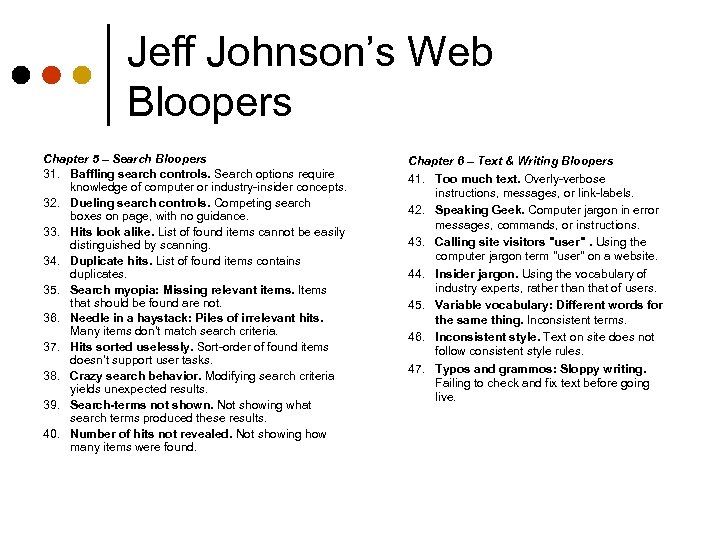
Jeff Johnson’s Web Bloopers Chapter 5 – Search Bloopers 31. Baffling search controls. Search options require knowledge of computer or industry-insider concepts. 32. Dueling search controls. Competing search boxes on page, with no guidance. 33. Hits look alike. List of found items cannot be easily distinguished by scanning. 34. Duplicate hits. List of found items contains duplicates. 35. Search myopia: Missing relevant items. Items that should be found are not. 36. Needle in a haystack: Piles of irrelevant hits. Many items don’t match search criteria. 37. Hits sorted uselessly. Sort-order of found items doesn’t support user tasks. 38. Crazy search behavior. Modifying search criteria yields unexpected results. 39. Search-terms not shown. Not showing what search terms produced these results. 40. Number of hits not revealed. Not showing how many items were found. Chapter 6 – Text & Writing Bloopers 41. Too much text. Overly-verbose instructions, messages, or link-labels. 42. Speaking Geek. Computer jargon in error messages, commands, or instructions. 43. Calling site visitors "user". Using the computer jargon term "user" on a website. 44. Insider jargon. Using the vocabulary of industry experts, rather than that of users. 45. Variable vocabulary: Different words for the same thing. Inconsistent terms. 46. Inconsistent style. Text on site does not follow consistent style rules. 47. Typos and grammos: Sloppy writing. Failing to check and fix text before going live.
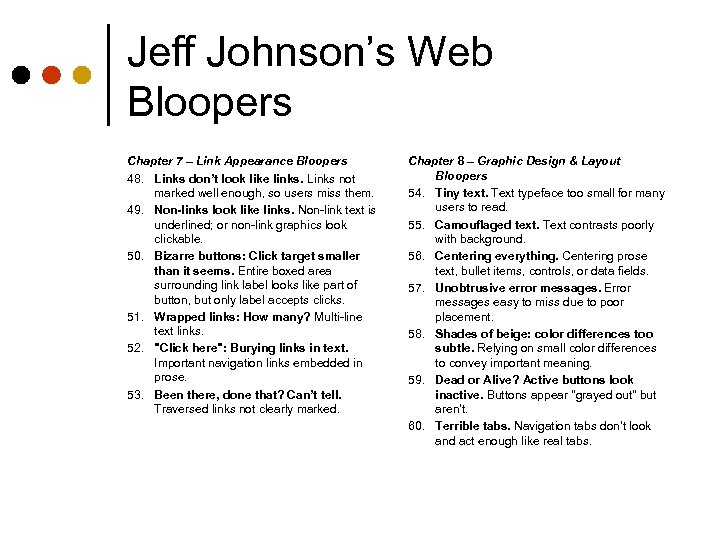
Jeff Johnson’s Web Bloopers Chapter 7 – Link Appearance Bloopers 48. Links don’t look like links. Links not marked well enough, so users miss them. 49. Non-links look like links. Non-link text is underlined; or non-link graphics look clickable. 50. Bizarre buttons: Click target smaller than it seems. Entire boxed area surrounding link label looks like part of button, but only label accepts clicks. 51. Wrapped links: How many? Multi-line text links. 52. "Click here": Burying links in text. Important navigation links embedded in prose. 53. Been there, done that? Can’t tell. Traversed links not clearly marked. Chapter 8 – Graphic Design & Layout Bloopers 54. Tiny text. Text typeface too small for many users to read. 55. Camouflaged text. Text contrasts poorly with background. 56. Centering everything. Centering prose text, bullet items, controls, or data fields. 57. Unobtrusive error messages. Error messages easy to miss due to poor placement. 58. Shades of beige: color differences too subtle. Relying on small color differences to convey important meaning. 59. Dead or Alive? Active buttons look inactive. Buttons appear "grayed out" but aren’t. 60. Terrible tabs. Navigation tabs don’t look and act enough like real tabs.
Sources • Designing Web Usability, J. Nielsen, New Riders, 2000. • Web Bloopers, J. Johnson, Morgan Kaufmann, 2003. • The Non-Designer’s Web Book, R. Williams and J. Tollett, Peachpit Press, 1998. • Web Style Guide, P. Lynch and S. Horton, Yale Univ. Press, 1999. • Creating Killer Web Sites, 2 nd edition, D. Siegel, Hayden Books, 1997. • Web Site Usability: A Designer’s Guide, User Interface Engineering, North Andover, MA, 1997. • Web by Design, The Complete Guide, M. Holzschlag, Sybex, 1998. • Web Concept & Design, C. Waters, New Riders, 1996. • Hot Wired Style, Principles for Building Smart Web Sites, J. Veen, Wired Books, 1997. • The Web Design Wow! Book, J. Davis and S. Merritt, Peachpit Press, 1998. • How to Set Up and Maintain a Web Site, L. Stein, Addison Wesley 1997.
Sources ¢ Jakob Nielsen’s home page, hotlist, recommended books l l ¢ www. webtechniques. com Web design fundamentals l ¢ http: //www. web-bloopers. com/index. php Web Techniques magazine l ¢ webreview. com/wr/pub/ Web Bloopers (Jeff Johnson) l ¢ www. useit. com/hotlist/ Web Review Design tips l ¢ www. useit. com/jakob/ www. useit. com/books/ www. pantos. org/atw/basics. html User Interface Engineering l www. uie. com
Good/Bad Sites Good Creating Killer Web Sites www. killersites. com Project Cool site of the day www. projectcool. com Bad Web pages that suck http: //www. webpagesthatsuck. com/
Midterm Multiple choice, true-false, fill-in-blank ¢ Short answer ¢ One longer answer ¢ Use slides to determine topics, books to add details ¢
Midterm-topics ¢ ¢ ¢ ¢ ¢ Importance of ethics, IRB Paradigms of computing History – important inventions, people Design process models Requirements techniques Task analysis Models of human, cognition Predictive models Design principles and guidelines l General, DOET, visual, web Prototyping techniques
Скачать презентацию Prototyping Sketches storyboards and other prototypes Part
e77502e27baa16c767f46f3595ec8630.ppt