 Скачать презентацию Proto Print S Manual Fine-Pitch Stencil Printer Step-By-Step
c8a5ea7183f8a8f12c6e1a7723686022.ppt
- Количество слайдов: 29



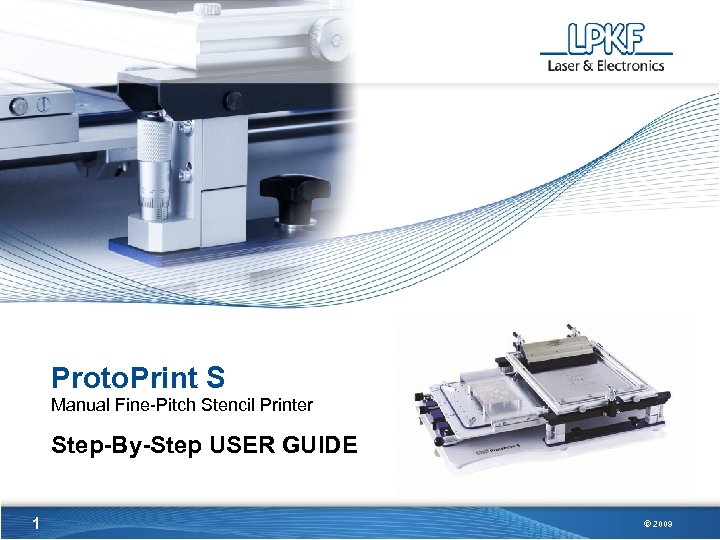
Proto. Print S Manual Fine-Pitch Stencil Printer Step-By-Step USER GUIDE 1 © 2009
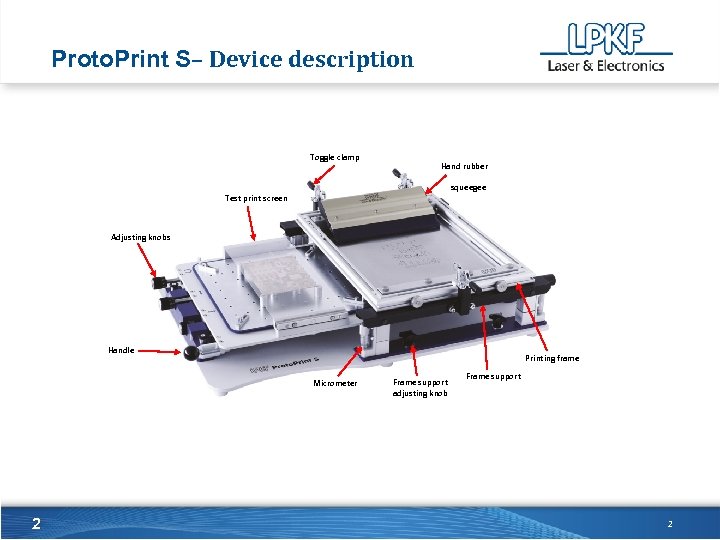
Proto. Print S– Device description Toggle clamp Hand rubber squeegee Test print screen Adjusting knobs Handle Printing frame Micrometer 2 Frame support adjusting knob Frame support 2
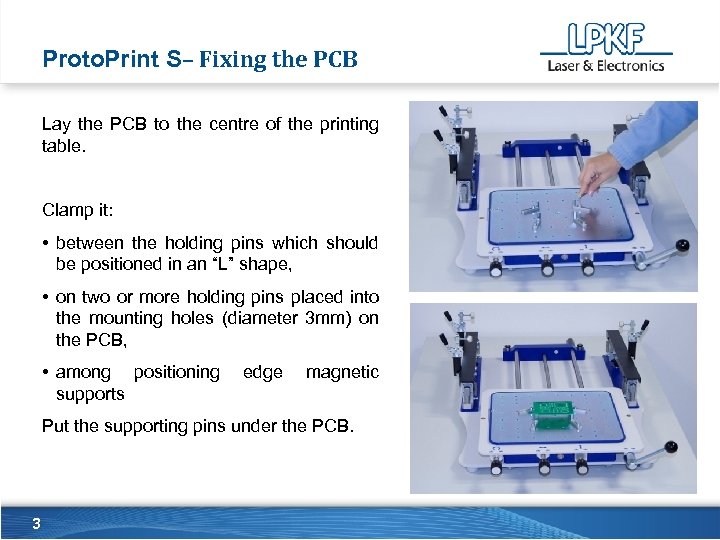
Proto. Print S– Fixing the PCB Lay the PCB to the centre of the printing table. Clamp it: • between the holding pins which should be positioned in an “L” shape, • on two or more holding pins placed into the mounting holes (diameter 3 mm) on the PCB, • among positioning supports edge magnetic Put the supporting pins under the PCB. 3
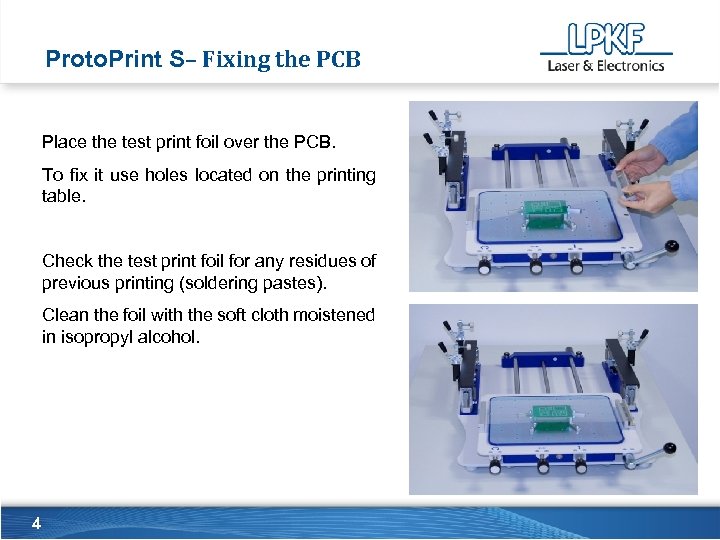
Proto. Print S– Fixing the PCB Place the test print foil over the PCB. To fix it use holes located on the printing table. Check the test print foil for any residues of previous printing (soldering pastes). Clean the foil with the soft cloth moistened in isopropyl alcohol. 4
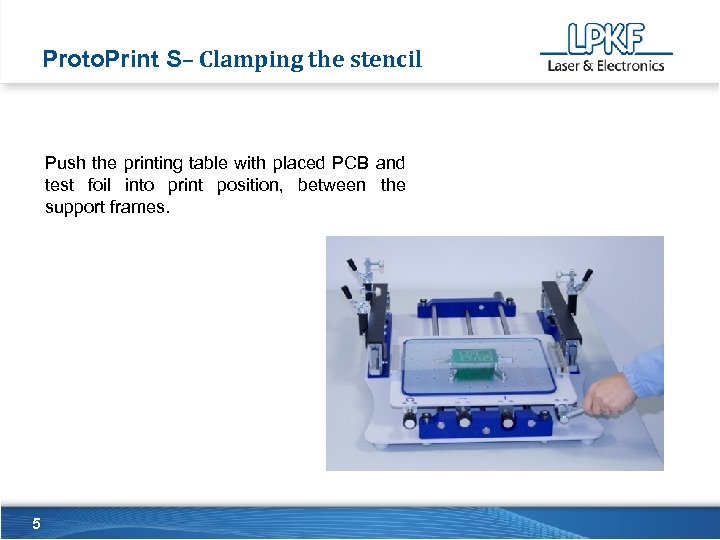
Proto. Print S– Clamping the stencil Push the printing table with placed PCB and test foil into print position, between the support frames. 5
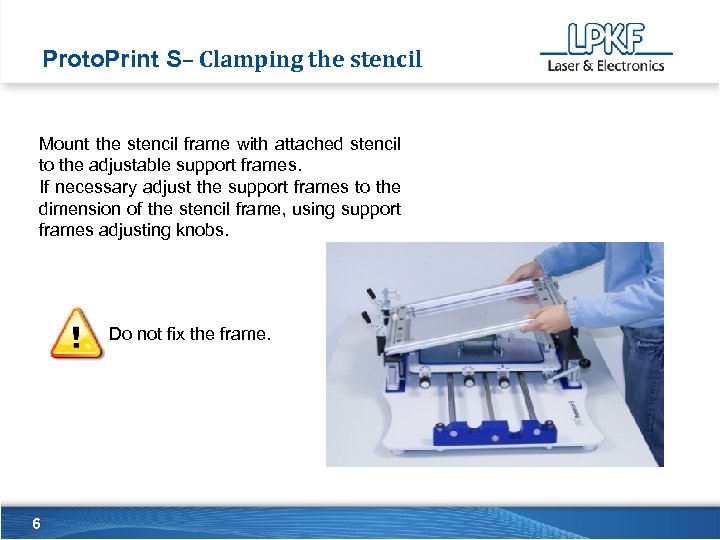
Proto. Print S– Clamping the stencil Mount the stencil frame with attached stencil to the adjustable support frames. If necessary adjust the support frames to the dimension of the stencil frame, using support frames adjusting knobs. NOVA SLIKA – podobna a z mizo in vezjem noter. Do not fix the frame. 6
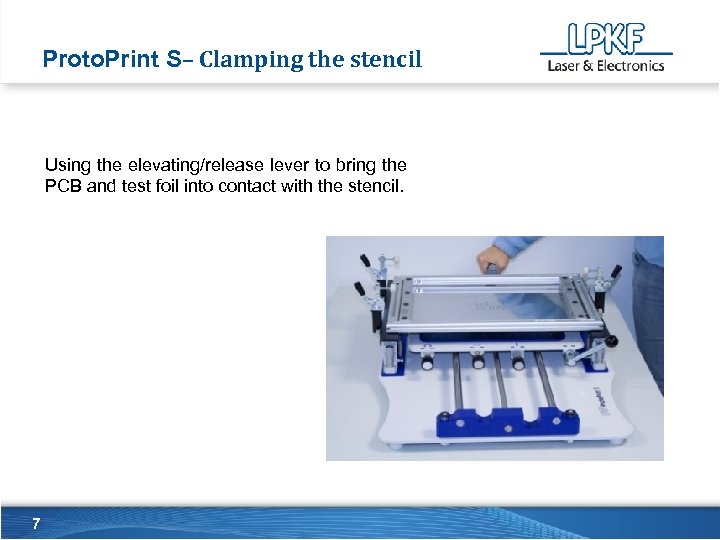
Proto. Print S– Clamping the stencil Using the elevating/release lever to bring the PCB and test foil into contact with the stencil. 7
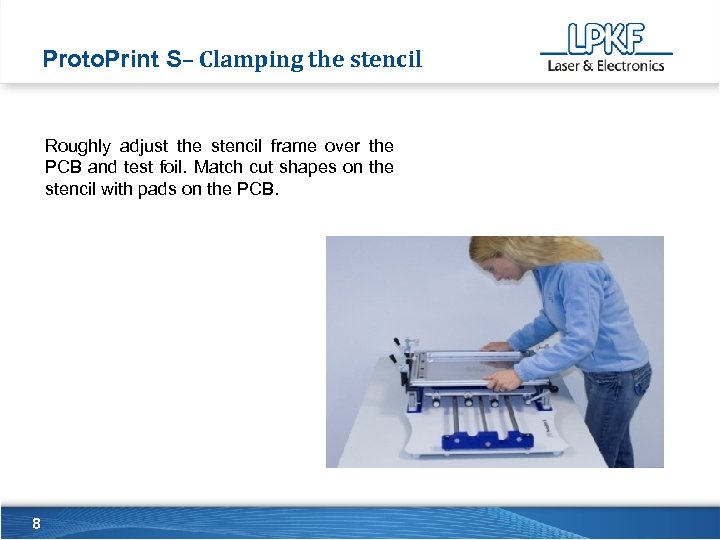
Proto. Print S– Clamping the stencil Roughly adjust the stencil frame over the PCB and test foil. Match cut shapes on the stencil with pads on the PCB. 8
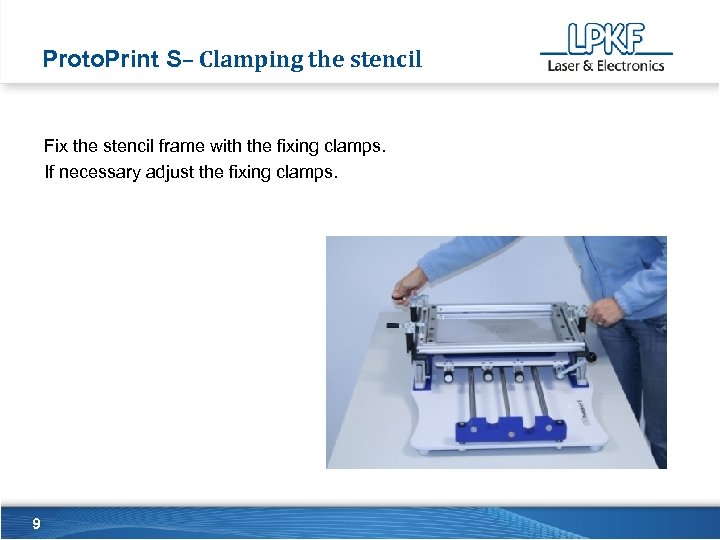
Proto. Print S– Clamping the stencil Fix the stencil frame with the fixing clamps. If necessary adjust the fixing clamps. 9
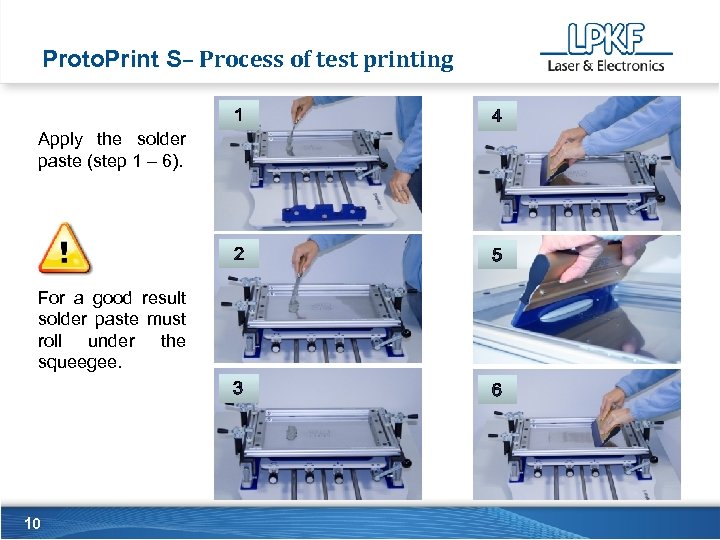
Proto. Print S– Process of test printing 1 4 2 5 3 6 Apply the solder paste (step 1 – 6). For a good result solder paste must roll under the squeegee. 10
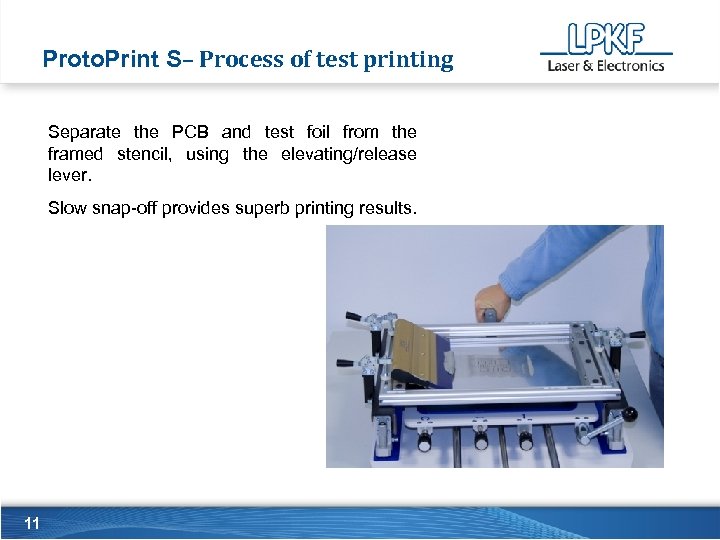
Proto. Print S– Process of test printing Separate the PCB and test foil from the framed stencil, using the elevating/release lever. Slow snap-off provides superb printing results. 11
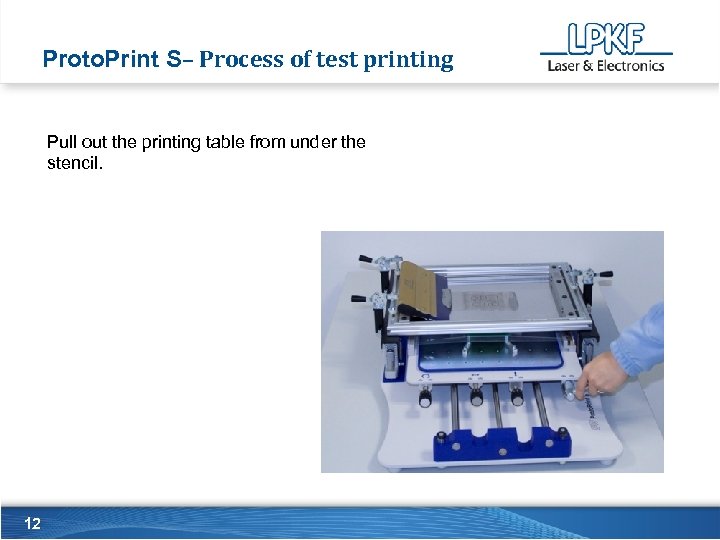
Proto. Print S– Process of test printing Pull out the printing table from under the stencil. 12
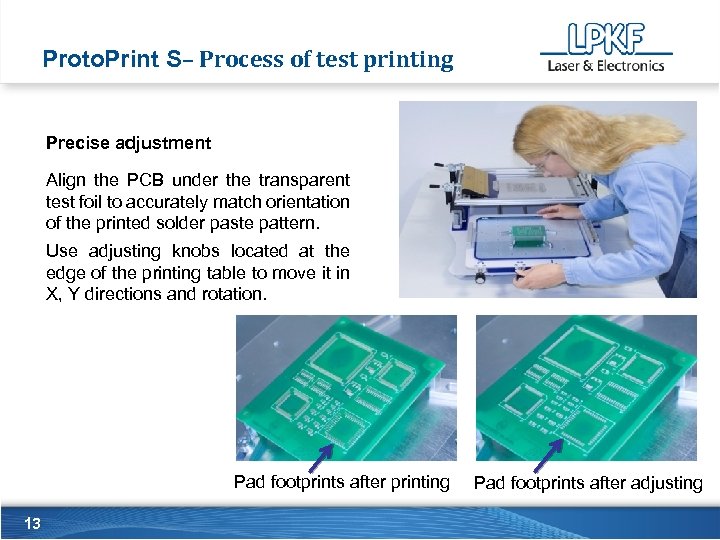
Proto. Print S– Process of test printing Precise adjustment Align the PCB under the transparent test foil to accurately match orientation of the printed solder paste pattern. Use adjusting knobs located at the edge of the printing table to move it in X, Y directions and rotation. Pad footprints after printing 13 Pad footprints after adjusting
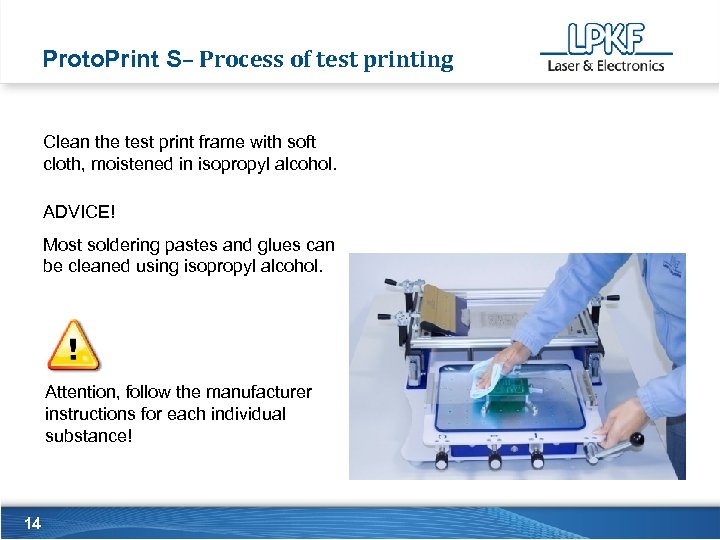
Proto. Print S– Process of test printing Clean the test print frame with soft cloth, moistened in isopropyl alcohol. ADVICE! Most soldering pastes and glues can be cleaned using isopropyl alcohol. Attention, follow the manufacturer instructions for each individual substance! 14
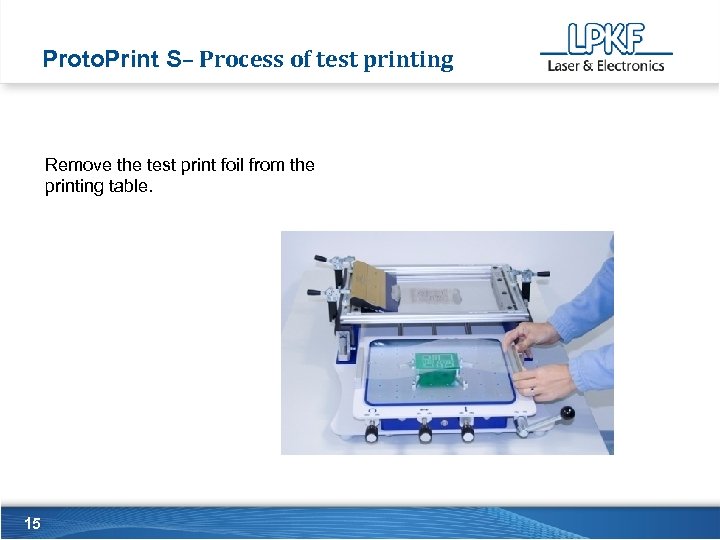
Proto. Print S– Process of test printing Remove the test print foil from the printing table. 15
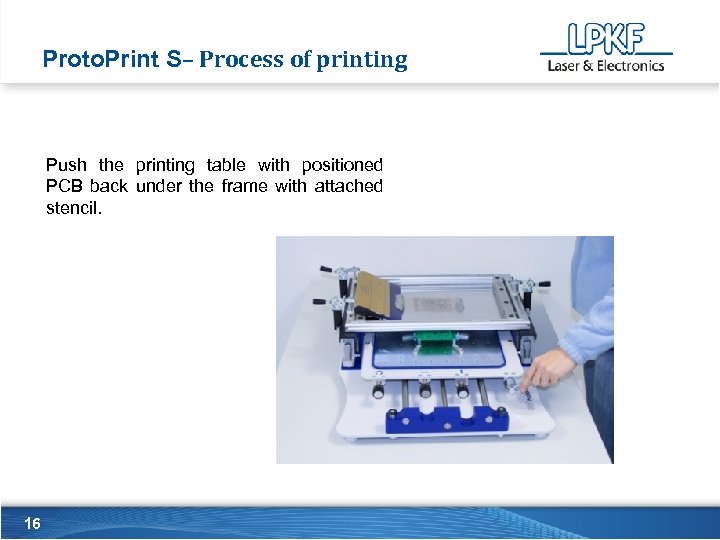
Proto. Print S– Process of printing Push the printing table with positioned PCB back under the frame with attached stencil. 16
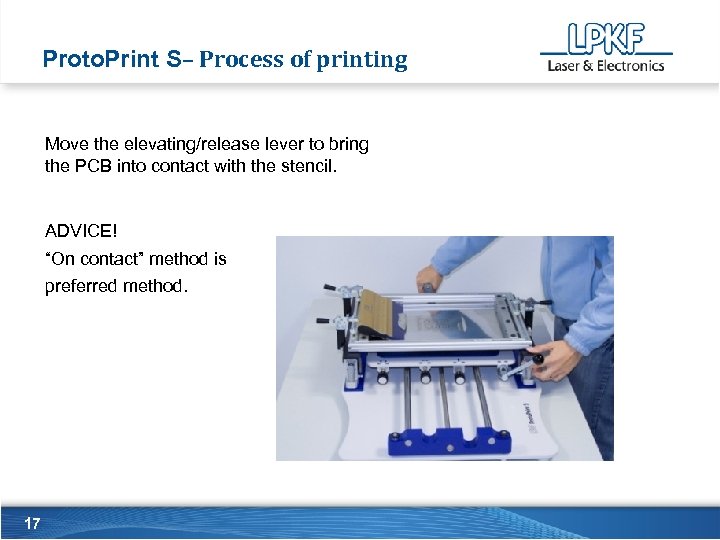
Proto. Print S– Process of printing Move the elevating/release lever to bring the PCB into contact with the stencil. ADVICE! “On contact” method is preferred method. 17
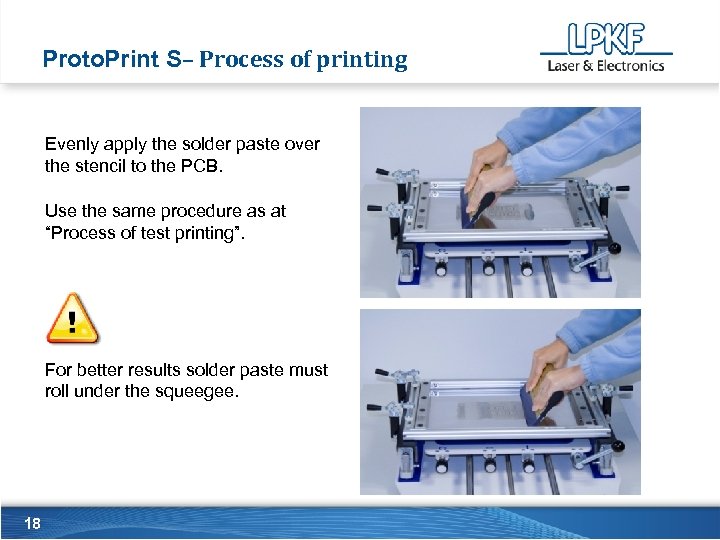
Proto. Print S– Process of printing Evenly apply the solder paste over the stencil to the PCB. Use the same procedure as at “Process of test printing”. For better results solder paste must roll under the squeegee. 18
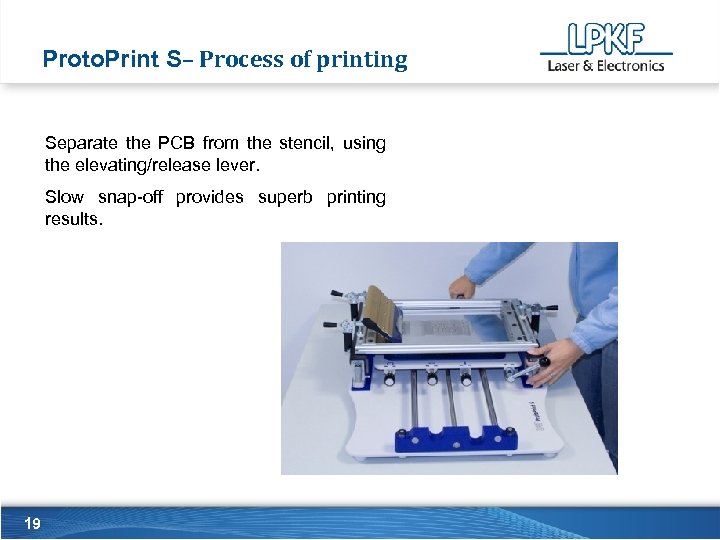
Proto. Print S– Process of printing Separate the PCB from the stencil, using the elevating/release lever. Slow snap-off provides superb printing results. 19
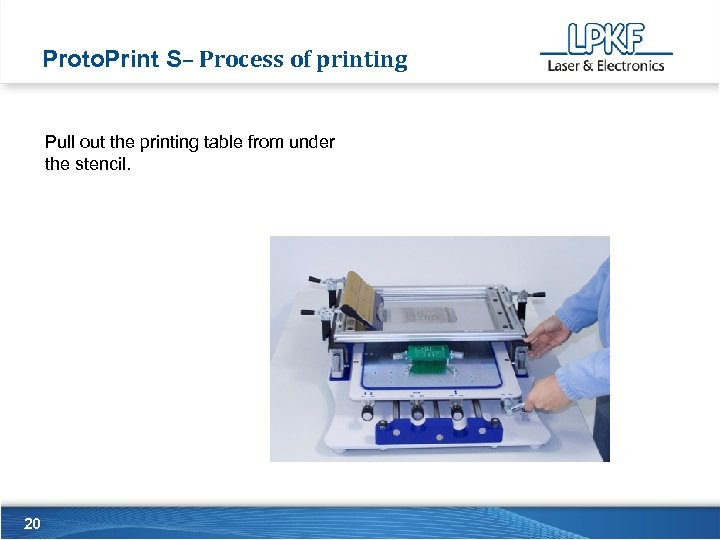
Proto. Print S– Process of printing Pull out the printing table from under the stencil. 20
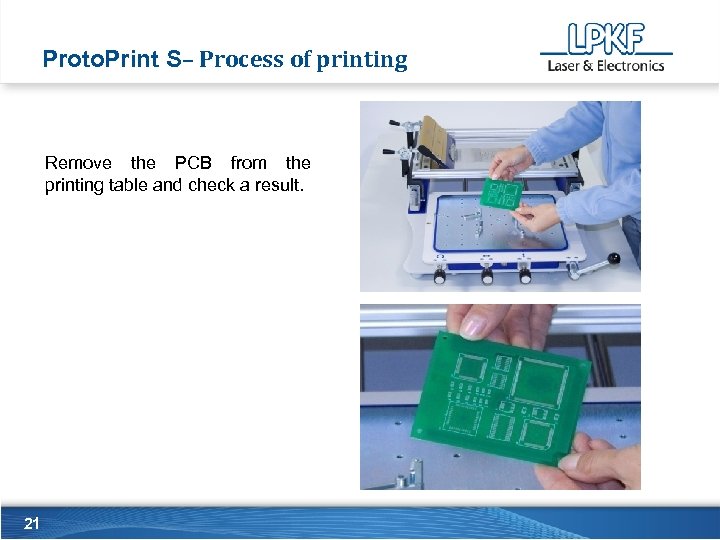
Proto. Print S– Process of printing Remove the PCB from the printing table and check a result. 21
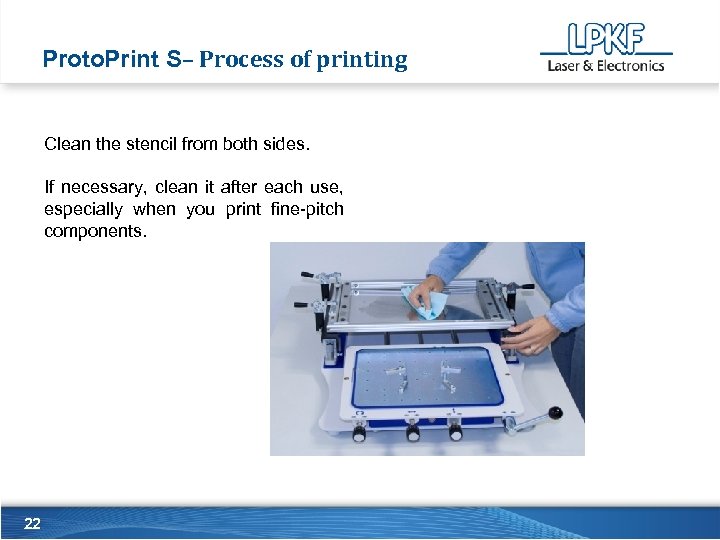
Proto. Print S– Process of printing Clean the stencil from both sides. If necessary, clean it after each use, especially when you print fine-pitch components. 22
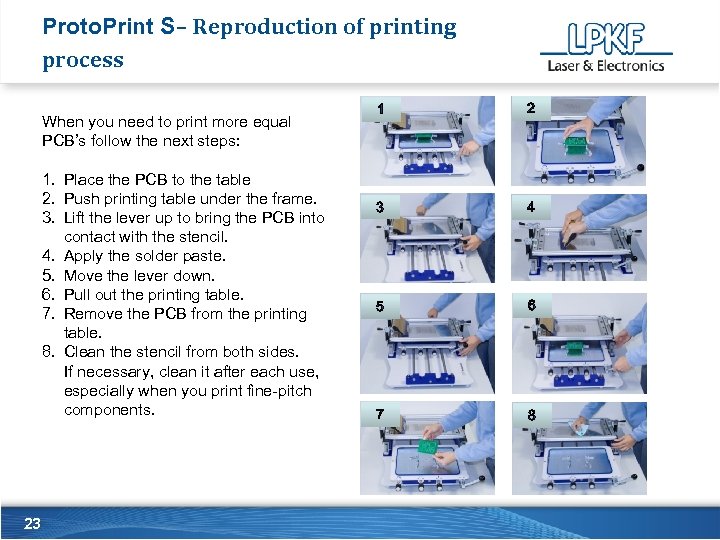
Proto. Print S– Reproduction of printing process When you need to print more equal PCB’s follow the next steps: 1. Place the PCB to the table 2. Push printing table under the frame. 3. Lift the lever up to bring the PCB into contact with the stencil. 4. Apply the solder paste. 5. Move the lever down. 6. Pull out the printing table. 7. Remove the PCB from the printing table. 8. Clean the stencil from both sides. If necessary, clean it after each use, especially when you print fine-pitch components. 23 1 2 3 4 5 6 7 8
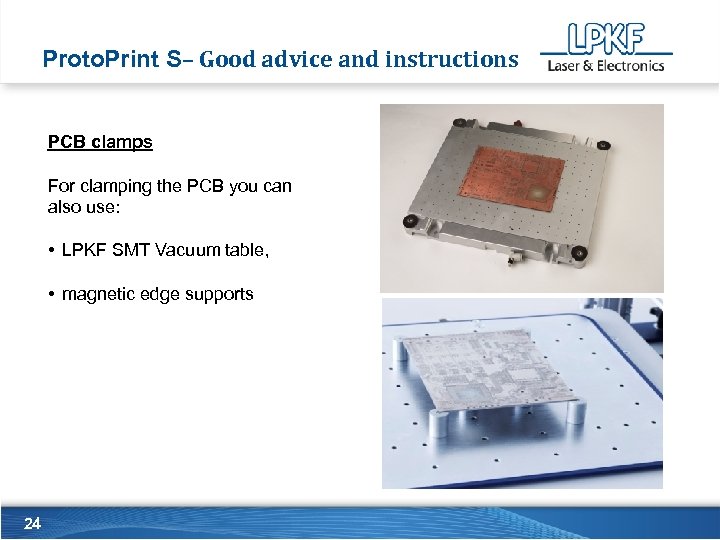
Proto. Print S– Good advice and instructions PCB clamps For clamping the PCB you can also use: • LPKF SMT Vacuum table, • magnetic edge supports 24
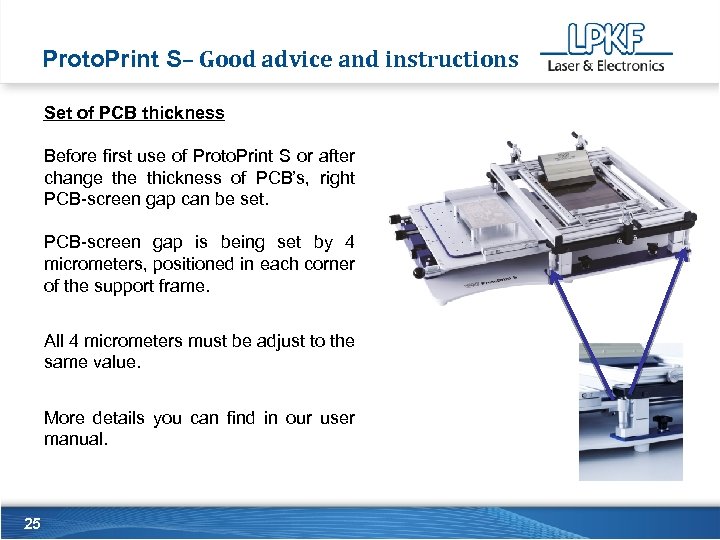
Proto. Print S– Good advice and instructions Set of PCB thickness Before first use of Proto. Print S or after change thickness of PCB’s, right PCB-screen gap can be set. PCB-screen gap is being set by 4 micrometers, positioned in each corner of the support frame. All 4 micrometers must be adjust to the same value. More details you can find in our user manual. 25
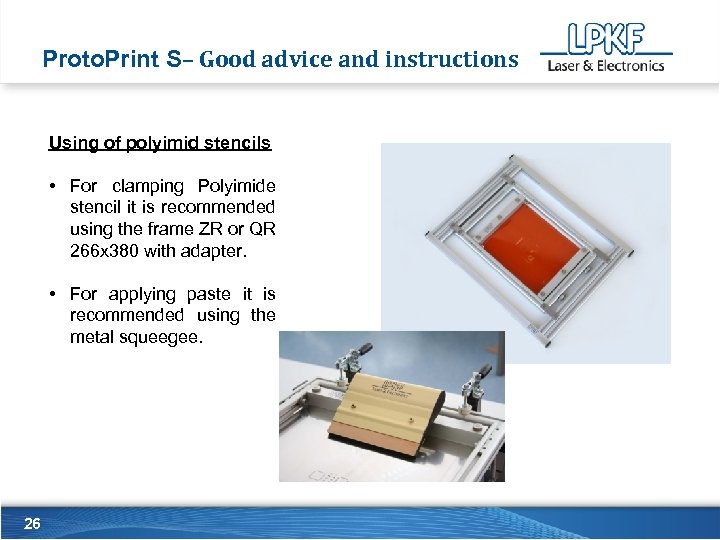
Proto. Print S– Good advice and instructions Using of polyimid stencils • For clamping Polyimide stencil it is recommended using the frame ZR or QR 266 x 380 with adapter. • For applying paste it is recommended using the metal squeegee. 26
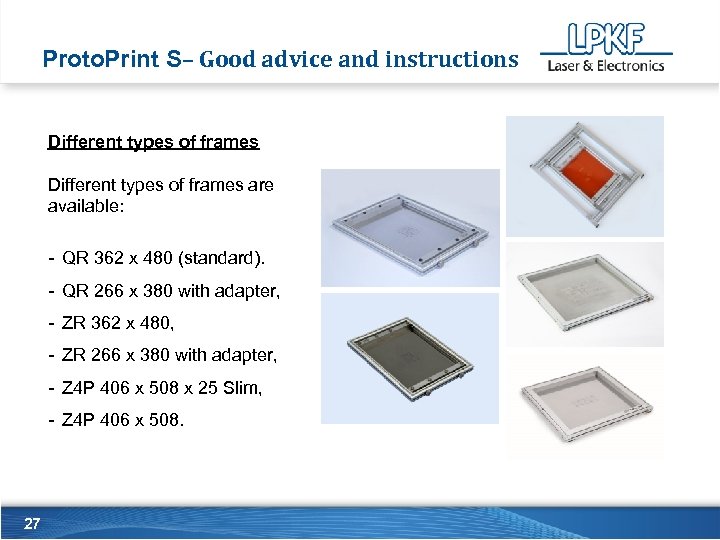
Proto. Print S– Good advice and instructions Different types of frames are available: - QR 362 x 480 (standard). - QR 266 x 380 with adapter, - ZR 362 x 480, - ZR 266 x 380 with adapter, - Z 4 P 406 x 508 x 25 Slim, - Z 4 P 406 x 508. 27
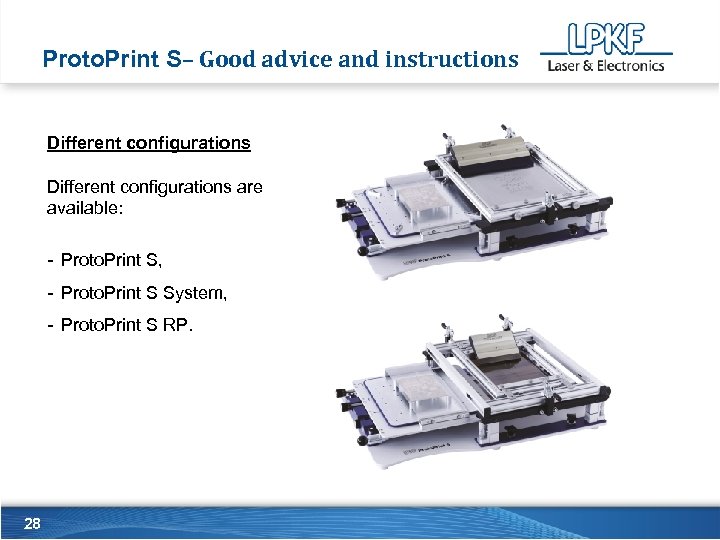
Proto. Print S– Good advice and instructions Different configurations are available: - Proto. Print S, - Proto. Print S System, - Proto. Print S RP. 28
Thank you for your attention! LPKF Laser & Elektronika d. o. o. · Polica 33 · 4202 Naklo · www. lpkf. si 29 © 2009
Скачать презентацию Proto Print S Manual Fine-Pitch Stencil Printer Step-By-Step
c8a5ea7183f8a8f12c6e1a7723686022.ppt