


 Скачать презентацию Preventive Maintenance Dr Aiman H El-Maleh Computer Engineering
465ae83a217ee8531377f282c2bc1f33.ppt
- Количество слайдов: 49
 Preventive Maintenance Dr. Aiman H. El-Maleh Computer Engineering Department
 Outline n Importance of Preventive Maintenance n Passive Preventive Maintenance • Protection from physical environment • Protection from electrical environment n Active Preventive Maintenance n When to Perform Preventive Maintenance n Summary • Cleaning and lubricating components • Reseating chips • Maintaining Hard Disk • Backing-up Data COE-KFUPM
 What is Preventive Maintenance n Performing proactive maintenance in order to prevent system problems n Diagnostic or corrective maintenance performed to correct an already-existing problem n Change car oil and air filter to make the engine last and avoid problems n Preventive maintenance is one of the most ignored aspects of PC ownership • most people think that the PC doesn't need preventive • maintenance just use it until it breaks, and then repair or replace it COE-KFUPM
 Importance of Preventive Maintenance n Saves Money • Avoiding problems with your PC will save you money in the long run n Saves Time • few hours of preventive maintenance every month • saves you the much bigger hassles of dealing with system • n failures and data loss most preventive maintenance procedures are quite simple compared to troubleshooting and repair procedures Helps Safeguard Your Data • for most people, the data on the hard disk is more important than the hardware that houses it COE-KFUPM
 Importance of Preventive Maintenance n Improves Performance • Some parts of your system will actually degrade in performance over time n Key to obtaining years of trouble-free service n Goals are to reduce n Increase the life time of a system • Problem Behavior • Data loss • Component failure Prevention is always better than curing COE-KFUPM
 Preventive Maintenance Procedures n Preventive maintenance program n Passive Preventive Maintenance • Passive procedures • Active procedures • steps taken to protect system from environment • • • n temperature variations electrostatic discharge power surges and failures Active Preventive Maintenance • steps applied regularly to prevent data loss and component failures COE-KFUPM
 Outline n Importance of Preventive Maintenance n Passive Preventive Maintenance • Protection from physical environment • Protection from electrical environment n Active Preventive Maintenance n When to Perform Preventive Maintenance n Summary • Cleaning and lubricating components • Reseating chips • Maintaining Hard Disk • Backing-up Data COE-KFUPM
 Passive - Physical Environment Problems n Temperature changes stress a computer system n Leads to chip creep - components gradually work their way out of sockets n Extreme temperature variations over short time n Writing to a disk at different temperatures • signal traces crack and separate • solder joints break • contacts accelerated corrosion • data written at different locations relative to track centers COE-KFUPM
 Passive - Physical Environment Problems (cont. ) n Power-on cycles • largest temperature variations • power supply - most vulnerable component • start-up current draw is very high compared to normal operating current draw Main problem is temperature variations COE-KFUPM
 Passive - Physical Environment Recommendations n Determine temperature functional range n No direct sunlight or temperature variations n Limit number of power-on cycles n Use screen savers • between 15 and 32 degrees Celsius • Once a day • phosphor on tube can burn COE-KFUPM
 Passive - Electrical Environment Problems n Static electricity problems • appear in low humidity • rarely a source of permanent problems • usual effects • memory parity check error • locked-up system n Power surges and spikes • can damage computer system • power line serving other equipment • result in voltage variations from on-off cycling COE-KFUPM
 Passive - Electrical Environment Problems (cont. ) n Loss of power - loss of data n Radio frequency interference • caused by a source of radio transmission • usually overlooked problem • Can cause system to lock up • cordless telephones caused random keystrokes to appear A computer system requires steady supply of clean noise-free power COE-KFUPM
 Passive - Electrical Environment Recommendations n Computer system with own circuit and own breaker n Use properly grounded three-wire outlet n Avoid extension cords • redirects static charge safely to ground • power-line noise problems are a function of wire size and length n Avoid connecting too many items to a single outlet • provide separate power circuit for other devices • Worst corrupters of a PC system`s power • Air conditioners, coffee makers, laser printers, vacuum cleaners COE-KFUPM
 Passive - Electrical Environment Recommendations (cont. ) n If radio frequency interference exists • pass the cables through a toroidal iron core • suppress reception and transmission of electromagnetic interference n Requirements of power source • uninterruptible • protected from power surges and spikes Best overall solution is UPS system COE-KFUPM
 Passive - Electrical Environment Uninterruptable Power Supply (UPS) n Backup Power n Line Conditioner • always operates from a battery • voltage inverter • battery is continuously charged • total isolation from line current • suppresses high voltage and current conditions • buffer between power line and system COE-KFUPM
 Outline n Why Preventive Maintenance? n Passive Preventive Maintenance • Protection from physical environment • Protection from electrical environment n Active Preventive Maintenance n When to Perform Preventive Maintenance n Summary • Cleaning and lubricating components • Reseating chips • Maintaining Hard Disk • Backing-up Data COE-KFUPM
 Active - Cleaning & Lubricating n Dust buildup on components n Overheating n Dust contain chemicals • dust acts as a heat insulator • prevents system from cooling • conduct electricity • short current • create paths where none should exist • cause rapid corrosion of connectors COE-KFUPM
 Active - Cleaning & Lubricating n Clean dust and debris off main board n Lubricate connectors and contacts • special vacuum cleaner • duster can of compressed gas • special cleaner/lubricant • lubricant acts as a conductive protectant • insulates contacts from corrosion n Clean floppy drive n Frequency of cleaning and lubricating a system • duster can • special chemical for head cleaning • depends on operating environment COE-KFUPM
 Active - Reseating Chips n As computer heats and cools • it expands and contracts • causes socketed chips to work their way out of the sockets chip creep n Socketed components should be checked and reseated n Procedure performed every time system is cleaned COE-KFUPM
 Active - Maintaining Hard Disk n Protect data and ensure disk works efficiently n Benefits • defragmenting files and free space • backing up FAT (Files Allocation Table) • checking for disk errors and reformatting • scanning for Virus programs • minimize head movement - drive wear & tear • Speed gain • easier recovery from disaster COE-KFUPM
 Active - Maintaining Hard Disk n Files and space become fragmented n Norton Utilities by Symantec n Windows 9 x includes a disk defragmentation program with operating system (Defrag) • split into non-contiguous areas on disk • defragment files and space (SPEEDDISK) • backup FAT and directory system (IMAGE) • checks for disk errors COE-KFUPM
 Active - Maintaining Hard Disk n Disk reformatting • rewrite sector header information in alignment with current • • n head positions locate and mark out new defective sectors disk should be fully backed up before reformatting Scan for virus programs periodically • Microsoft provides antivirus software in Windows • Best software - Mc. Afee Associates • Scan for viruses before making backups • Use a product that is updated regularly from vendors COE-KFUPM
 Scanning for File System Data Corruption n Complexity file system used on modern PCs has the risk of file system errors and corruption in the logical structures that control the disk n File system errors caused by n File system integrity problems can lead to data loss n Most popular tools for analyzing file system problems n Always use the proper tool for your operating system • buggy software, bad drivers, power failures or human error • rarely caused by actual hardware problems with the PC • SCANDISK for Microsoft Windows • NDD for Symantec's Norton Utilities • CHKDSK for Windows NT COE-KFUPM
 Detecting Hard Disk Read Errors n Hard disk failure is very distressing n Many different ways that hard disks can fail • when your hard disk dies, it takes your data with it • fail with a bang • instead of spinning up and booting the PC, may go "klunk, klunk" and then spin down again • fail with a whimper; they slowly develop problems • problems reading a particular area of the disk: a read error n Most common disk error checkers are in fact part of the same utilities that scan for file system corruption • Microsoft's Scandisk • Norton's Disk Doctor n It takes a lot longer to scan an entire disk volume for errors than to check out its file system structures COE-KFUPM
 Virus Scanning and Anti-Virus Software n Careful preventive measures can greatly reduce the chances of ever catching a virus on your PC n Routine virus detection is a necessity for the modern PC n To reduce virus infections • avoid sharing floppy disks with people you do not know • have your antivirus software set up to automatically scan all • • hard disks once per week. manually scan any executable files that you download, or any programs you get on floppy disk from unverified sources update virus definition files regularly COE-KFUPM
 Risks to Your Data n Hardware Failure • Memory Errors: With so many systems today running without • • • error detection or correction on their system memory, there is a chance of a memory error corrupting the data on the hard disk. It is rare for it to happen, but it does happen. System Timing Problems: Setting the timing for memory or cache access too aggressively, or using a hard disk interface transfer mode that is too fast for the system or device, can cause data loss. Resource Conflicts: Conflicts resulting from peripherals that try to use the same interrupt requests, DMA channels or I/O addresses, can cause data to become corrupted. Power Loss: Losing power at the wrong time, such as when you are doing sensitive work on your hard disk, can easily result in the loss of many files. COE-KFUPM
 Risks to Your Data n n Software Failure File System Corruption • occasionally the result of corruption on the disk • far more often occur as a result of a software problem • A power failure on a PC running Windows will often result in one or more file system errors due to files not being closed properly • most common errors encountered on a FAT disk: • • n n n Lost Clusters Cross-Linked Files Invalid Files or Directories Allocation or FAT Errors Accidental Deletion Virus Infection Theft Sabotage Natural Disaster COE-KFUPM
 Active - Backing Up Data n Best way to ensure data is not lost n Hardware can be repaired or replaced but data cannot n Hard disk troubleshooting and service procedures require reformat or repartition • overwrites all existing data n Floppy disk drives are insufficient and too costly for hard disk backups n Other alternatives: magnetic tape, CD-RW, Zip and Jaz drives n Match the size of backup medium to amount of data you need to backup COE-KFUPM
 Active - Backing Up Data n Media costs are far more significant than cost of drive n Backup requiring manual intervention is not recommended n Consider Iomega Zip drive with a capacity of about 100 MB and a system to backup with 3 GB of programs and data on it • backing up 3 GB of data onto Zip disks would take 30 disks • disk swapping would be annoying enough to guarantee that backup is rarely if ever done n Doing responsible backups • use three sets of media for each system • use each media set on a rotating basis • store one of them offsite at all times • introduce new media to the rotation after a year COE-KFUPM
 Active - Backing Up Data n n Dedicated backup hardware: tape or cartridge Advantages of tape • Capacity: Hard drives keep getting bigger and tape is the • • • only economical backup medium that is of a similar size and growing in capacity to match them. Cost: It is inexpensive, both for the drives and on a pergigabyte basis for the media. A typical home PC user can buy a drive and enough media to do proper, reliable backups of several gigabytes of data, less than $200. Reliability: Tape is, in general, a reasonably reliable backup medium, provided that the drive is maintained properly and the media are treated with care. Simplicity and Universality: There is a lot of support for tape drives today, and a number of software packages that will support a wide variety of devices. They are usually relatively simple to set up. COE-KFUPM
 Active - Backing Up Data n Tape-backup devices parameters n Type of media dictates capacity n Four primary standards • type of media • hardware interface • backup software • 40 M to 800 M : DC 600 and DC 2000 • 1 G + : 4 mm DAT (1. 3) and 8 mm DAT (2. 3) COE-KFUPM
 Active - Backing Up Data n Three standards for hardware interface • QIC-02 (Quarter-Inch Committee) • rate: 5 M per minute • short adapter card - requires a free slot • SCSI (Small Computer Systems Interface) • rate: up to 10 M/minute - no tape can sustain • requires an expansion slot in host adapter • Parallel port • easy configuration and cabling COE-KFUPM
 Active - Backing Up Data n Removable storage devices provide removable storage at a reasonable price and with good performance • Large Floppy Disk Equivalent Drives: This would include • • • the Iomega Zip drive, Syquest's EZ-135, the LS-120 MB floppy drive, and a few others. Removable Hard Disk Equivalent Drives: This category includes devices such as Iomega's Jaz drive, Syquest's Sy. Jet, and various kinds of phase-change and magnetooptical drives. CD-Recordable: These are write-once read-many drives with a capacity of about 650 MB CD-Rewriteable: its media are reusable and it can also burn CD-Rs that play in most CD-ROMs or audio CDs as well (650 MB) COE-KFUPM
 Active - Backing Up Data n Removable hard disks • can actually be a quite viable backup solution • Advantages: very high performance, random-access • capability, standard interfaces and exchangeability, and excellent reliability Disadvantages: • you lose the ability to buy additional backup media cheaply • Hard disks are also fragile • can only be removed when the power is off n In-place hard disk duplication n Network Backup n File Archiving • it is simple and automatable • it doesn't protect against very many of the risks to your data COE-KFUPM
 Active - Backing Up Data n Need for hardware independent software • Sy. TOS Sytron, Central Point n Features: • back up entire partition or individual files • selective file-by-file restore • combine several backup on a single tape • span a large drive on multiple tapes COE-KFUPM
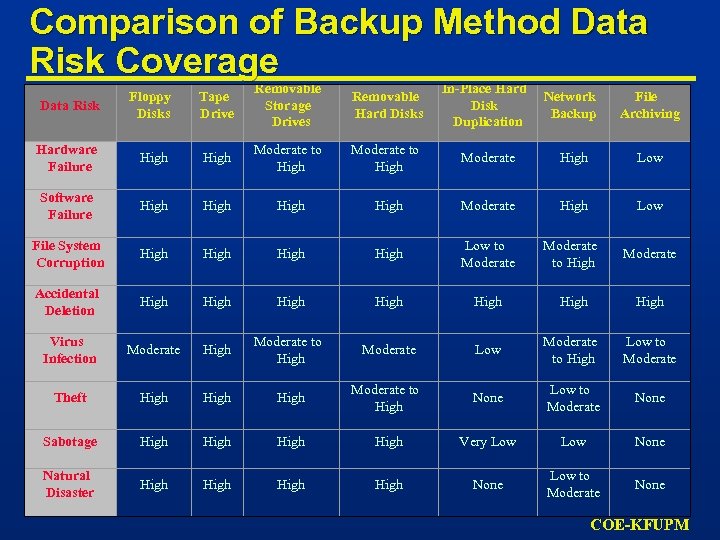 Comparison of Backup Method Data Risk Coverage Data Risk Floppy Disks Tape Drive Removable Storage Drives Removable Hard Disks In-Place Hard Disk Duplication Network Backup File Archiving Hardware Failure High Moderate to High Moderate High Low Software Failure High Moderate High Low File System Corruption High Low to Moderate to High Moderate Accidental Deletion High High Virus Infection Moderate High Moderate to High Moderate Low Moderate to High Low to Moderate Theft High Moderate to High None Low to Moderate None Sabotage High Very Low None Natural Disaster High None Low to Moderate None COE-KFUPM
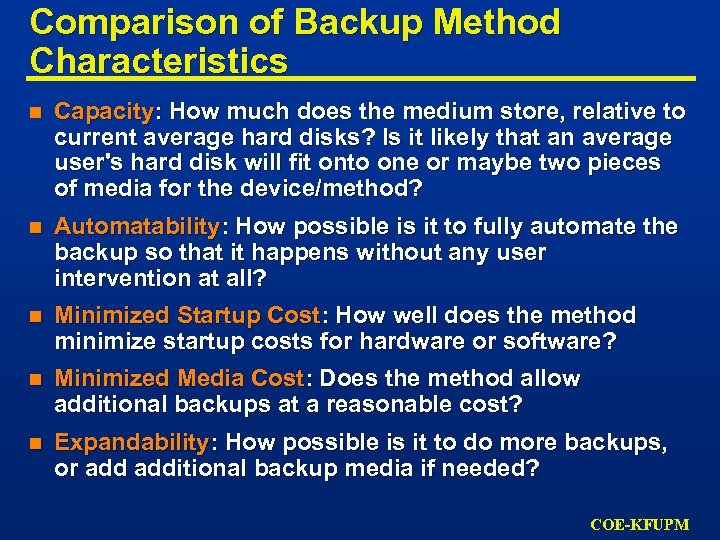 Comparison of Backup Method Characteristics n Capacity: How much does the medium store, relative to current average hard disks? Is it likely that an average user's hard disk will fit onto one or maybe two pieces of media for the device/method? n Automatability: How possible is it to fully automate the backup so that it happens without any user intervention at all? n Minimized Startup Cost: How well does the method minimize startup costs for hardware or software? n Minimized Media Cost: Does the method allow additional backups at a reasonable cost? n Expandability: How possible is it to do more backups, or additional backup media if needed? COE-KFUPM
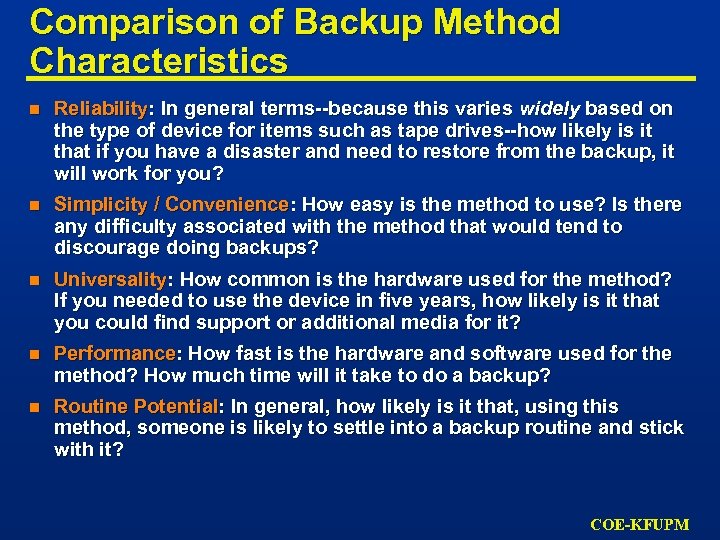 Comparison of Backup Method Characteristics n Reliability: In general terms--because this varies widely based on the type of device for items such as tape drives--how likely is it that if you have a disaster and need to restore from the backup, it will work for you? n Simplicity / Convenience: How easy is the method to use? Is there any difficulty associated with the method that would tend to discourage doing backups? n Universality: How common is the hardware used for the method? If you needed to use the device in five years, how likely is it that you could find support or additional media for it? n Performance: How fast is the hardware and software used for the method? How much time will it take to do a backup? n Routine Potential: In general, how likely is it that, using this method, someone is likely to settle into a backup routine and stick with it? COE-KFUPM
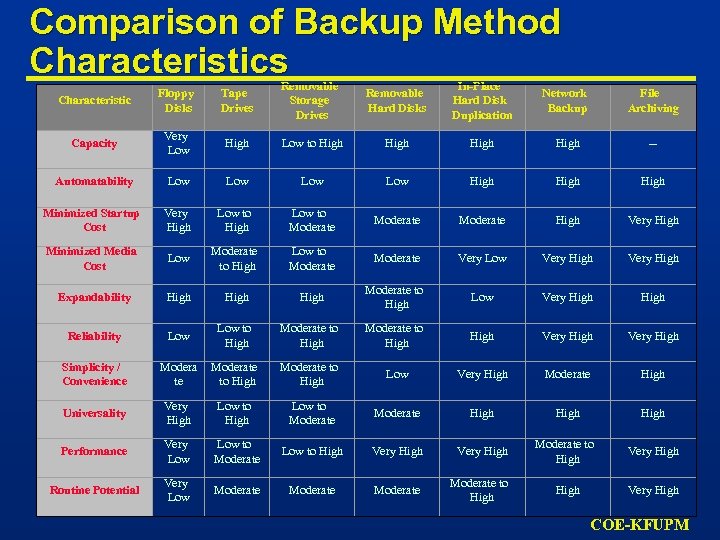 Comparison of Backup Method Characteristics Characteristic Floppy Disks Tape Drives Removable Storage Drives Removable Hard Disks In-Place Hard Disk Duplication Network Backup File Archiving Capacity Very Low High Low to High -- Automatability Low Low High Minimized Startup Cost Very High Low to Moderate High Very High Minimized Media Cost Low Moderate to High Low to Moderate Very Low Very High Expandability High Moderate to High Low Very High Reliability Low to High Moderate to High Very High Simplicity / Convenience Modera te Moderate to High Low Very High Moderate High Universality Very High Low to Moderate High Performance Very Low to Moderate Low to High Very High Moderate to High Very High Routine Potential Very Low Moderate to High Very High COE-KFUPM
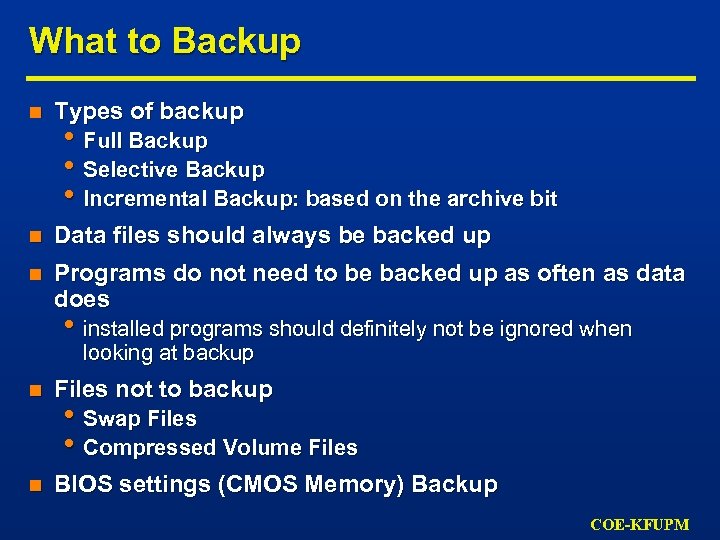 What to Backup n Types of backup n Data files should always be backed up n Programs do not need to be backed up as often as data does • Full Backup • Selective Backup • Incremental Backup: based on the archive bit • installed programs should definitely not be ignored when looking at backup n Files not to backup n BIOS settings (CMOS Memory) Backup • Swap Files • Compressed Volume Files COE-KFUPM
 Outline n Why Preventive Maintenance? n Passive Preventive Maintenance • Protection from physical environment • Protection from electrical environment n Active Preventive Maintenance n When to Perform Preventive Maintenance n Summary • Cleaning and lubricating components • Reseating chips • Maintaining Hard Disk • Backing-up Data COE-KFUPM
 When to Perform Preventive Maintenance n Frequency of preventive maintenance depends on • nature of the activity • what your PC is being used for n The interval for preventive maintenance on PCs can be determined based on • elapsed time • usage metrics n PC maintenance activities are usually specified as time-based n Should be performed more frequently depending on prevailing conditions • A PC used on the manufacturing floor of a steel mill needs to be cleaned more often than one being used in a hospital. • A disk that is doing heavy Internet file transfers needs virus checking much more often than one that is used standalone and has no modem or floppy disk. COE-KFUPM
 When to Perform Preventive Maintenance n One enemy of preventive maintenance is simply remembering to do it n Use of a preventive maintenance schedule reminds you when to perform key PC maintenance activities n Some software preventive maintenance activities can also be automated n You should alter this schedule when it makes sense • you may normally only update the information on your • n emergency boot floppies once every few months, you will also want to do it any time you upgrade your operating system Software procedures, which often should be performed daily, are best done using some sort of automated program scheduler COE-KFUPM
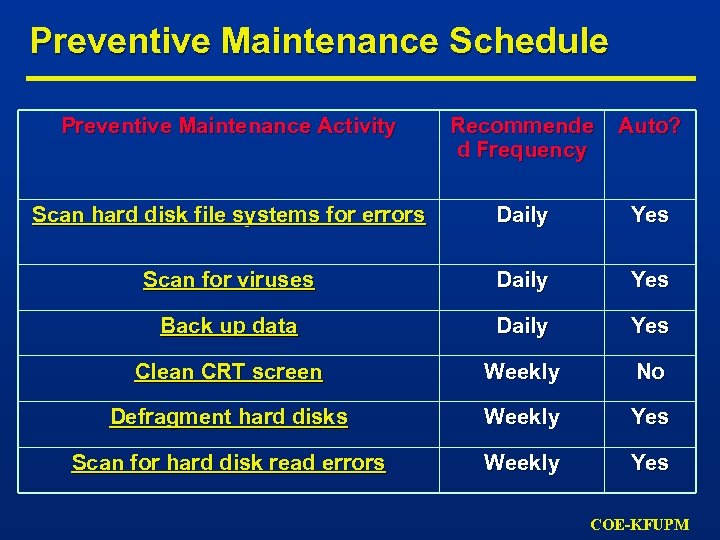 Preventive Maintenance Schedule Preventive Maintenance Activity Recommende d Frequency Auto? Scan hard disk file systems for errors Daily Yes Scan for viruses Daily Yes Back up data Daily Yes Clean CRT screen Weekly No Defragment hard disks Weekly Yes Scan for hard disk read errors Weekly Yes COE-KFUPM
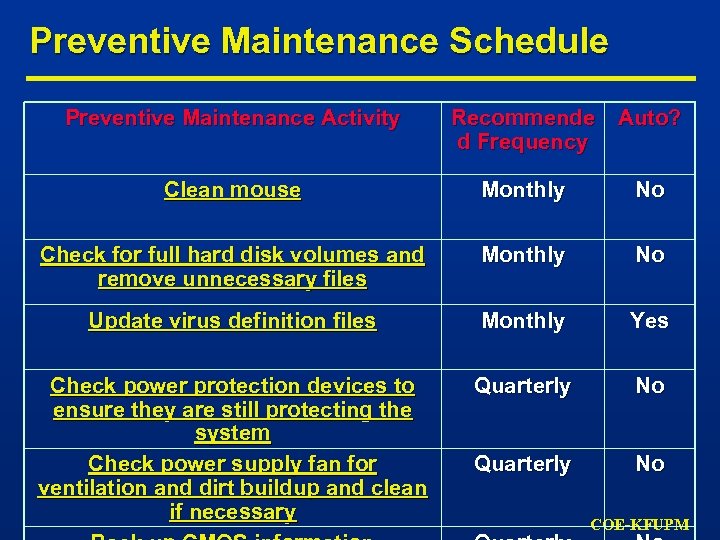 Preventive Maintenance Schedule Preventive Maintenance Activity Recommende d Frequency Auto? Clean mouse Monthly No Check for full hard disk volumes and remove unnecessary files Monthly No Update virus definition files Monthly Yes Check power protection devices to ensure they are still protecting the system Check power supply fan for ventilation and dirt buildup and clean if necessary Quarterly No COE-KFUPM
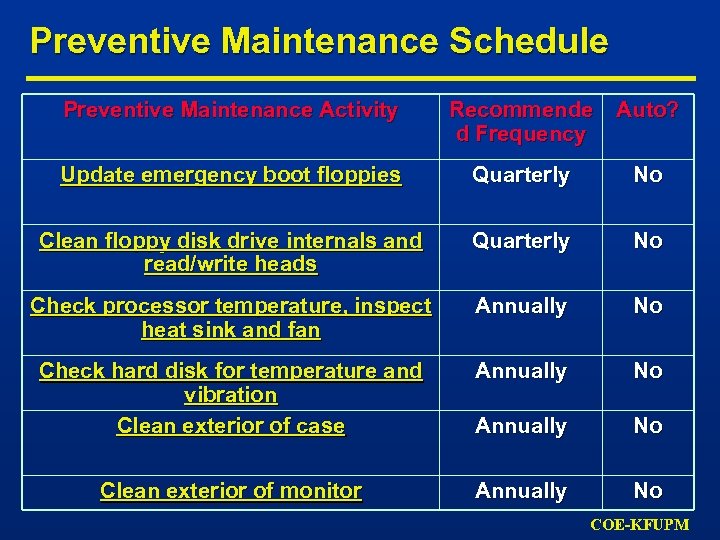 Preventive Maintenance Schedule Preventive Maintenance Activity Recommende d Frequency Auto? Update emergency boot floppies Quarterly No Clean floppy disk drive internals and read/write heads Quarterly No Check processor temperature, inspect heat sink and fan Annually No Check hard disk for temperature and vibration Clean exterior of case Annually No Clean exterior of monitor Annually No COE-KFUPM
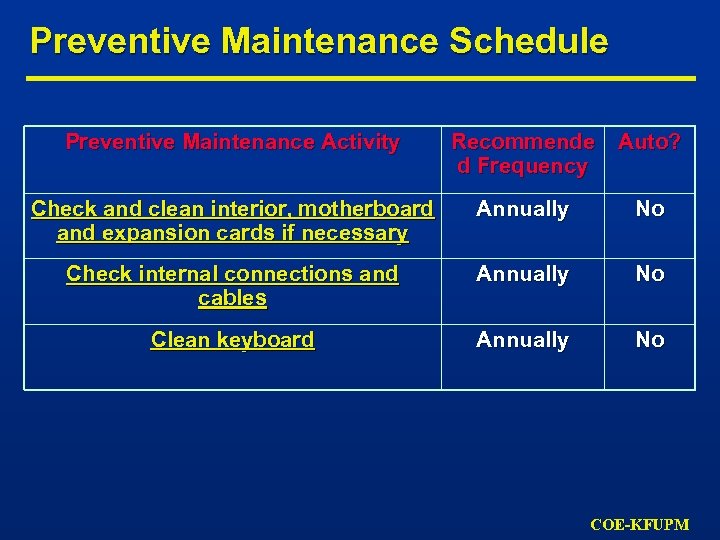 Preventive Maintenance Schedule Preventive Maintenance Activity Recommende d Frequency Auto? Check and clean interior, motherboard and expansion cards if necessary Annually No Check internal connections and cables Annually No Clean keyboard Annually No COE-KFUPM
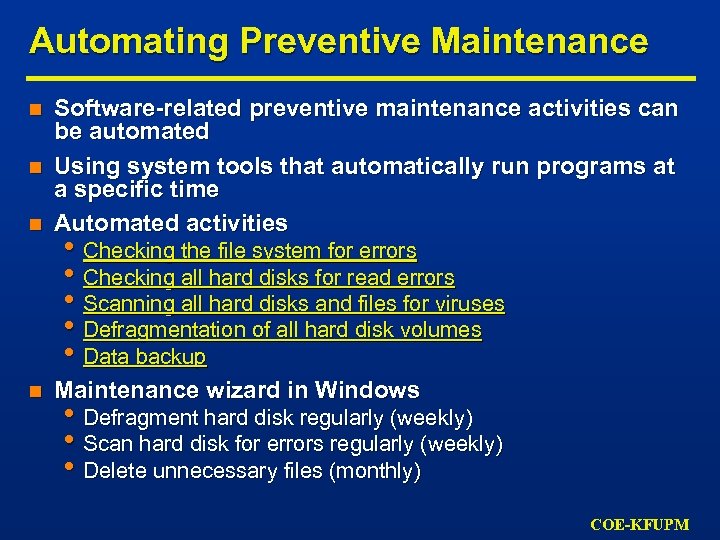 Automating Preventive Maintenance n Software-related preventive maintenance activities can be automated Using system tools that automatically run programs at a specific time Automated activities n Maintenance wizard in Windows n n • Checking the file system for errors • Checking all hard disks for read errors • Scanning all hard disks and files for viruses • Defragmentation of all hard disk volumes • Data backup • Defragment hard disk regularly (weekly) • Scan hard disk for errors regularly (weekly) • Delete unnecessary files (monthly) COE-KFUPM
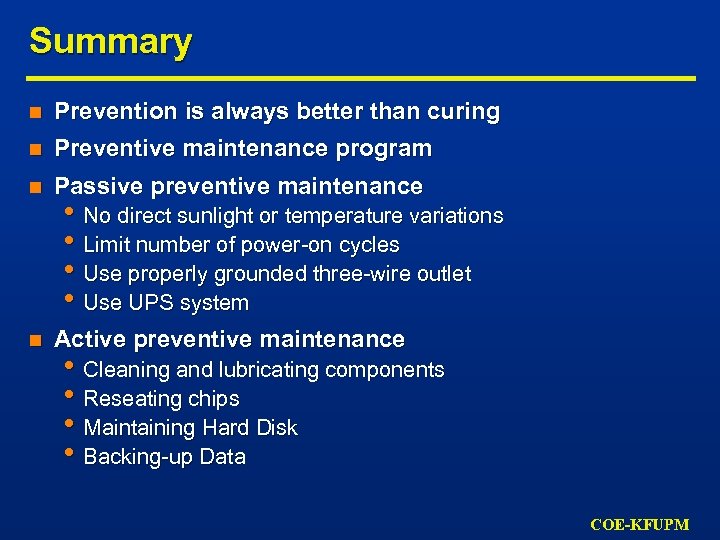 Summary n Prevention is always better than curing n Preventive maintenance program n Passive preventive maintenance n Active preventive maintenance • No direct sunlight or temperature variations • Limit number of power-on cycles • Use properly grounded three-wire outlet • Use UPS system • Cleaning and lubricating components • Reseating chips • Maintaining Hard Disk • Backing-up Data COE-KFUPM