


 Скачать презентацию Practical PC 7 th Edition Chapter 2 Working
7708cfe6fd03c2bf69dbea639b3af478.ppt
- Количество слайдов: 43
 Practical PC, 7 th Edition Chapter 2: Working with Windows
 Working with Windows • FAQs – How do I use the Start Screen? – What is the Windows desktop? – How do I use the desktop taskbar? – How do I access the PC Settings panel? – What is the Control Panel? – Does it matter if I’m using a touchscreen? – How do I access Windows Help? • Technology Practical PC, 7 th Edition 2
 How do I use the Start Screen? • Once logged in, the Windows 8 Start screen is displayed – Start screen displays an array of colorful tiles – Tiles represent applications, storage areas, and links to social media sites – Tiles can be dragged or selected using a mouse, your finger, or a stylus. Practical PC, 7 th Edition 3
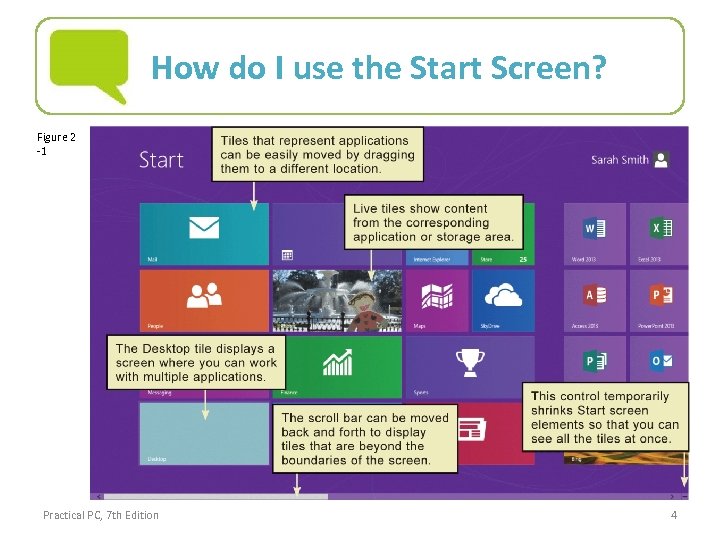 How do I use the Start Screen? Figure 2 -1 Practical PC, 7 th Edition 4
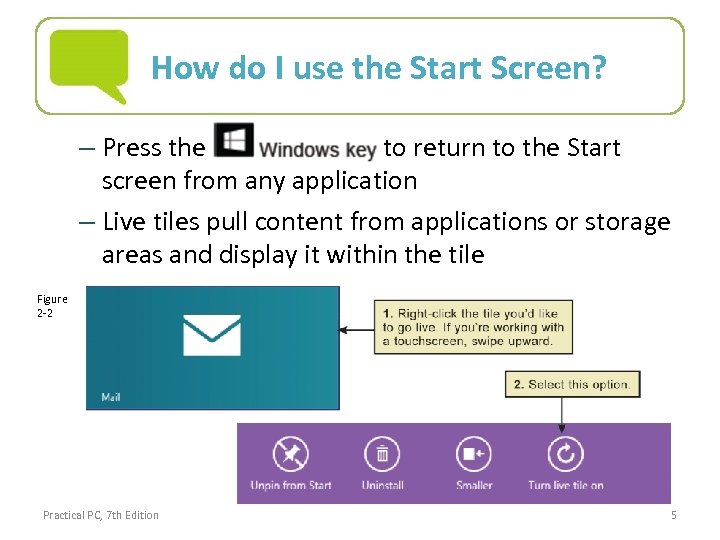 How do I use the Start Screen? – Press the to return to the Start screen from any application – Live tiles pull content from applications or storage areas and display it within the tile Figure 2 -2 Practical PC, 7 th Edition 5
 How do I use the Start Screen? – Start screen contains a built-in search function – Search function can be used to find: • Apps – Preset search best used for apps for which there is no tile • Settings • Files • Listed Applications Practical PC, 7 th Edition 6
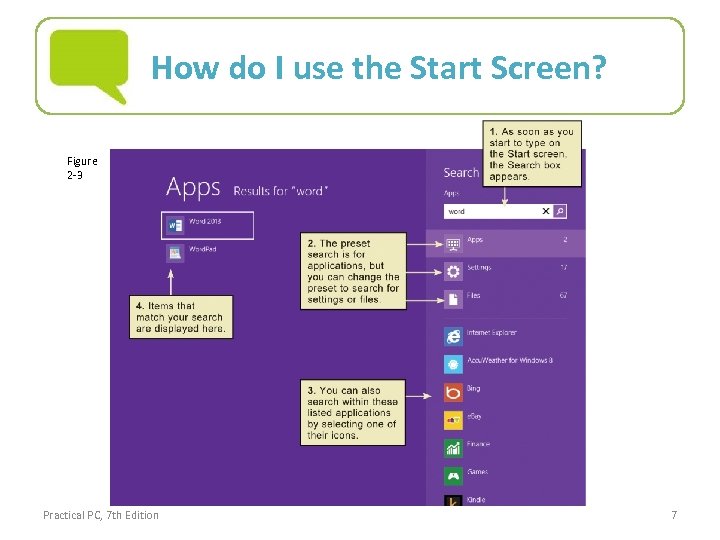 How do I use the Start Screen? Figure 2 -3 Practical PC, 7 th Edition 7
 What is the Windows desktop? • Windows desktop is the gateway for many of the tasks performed with the computer – Select the Desktop tile from the Start screen to begin – Desktop can display application windows, message windows called dialog boxes, and icons – Desktop icons can be arranged in numerous ways – New folder and file icons can also be created for quick access to used frequently documents Practical PC, 7 th Edition 8
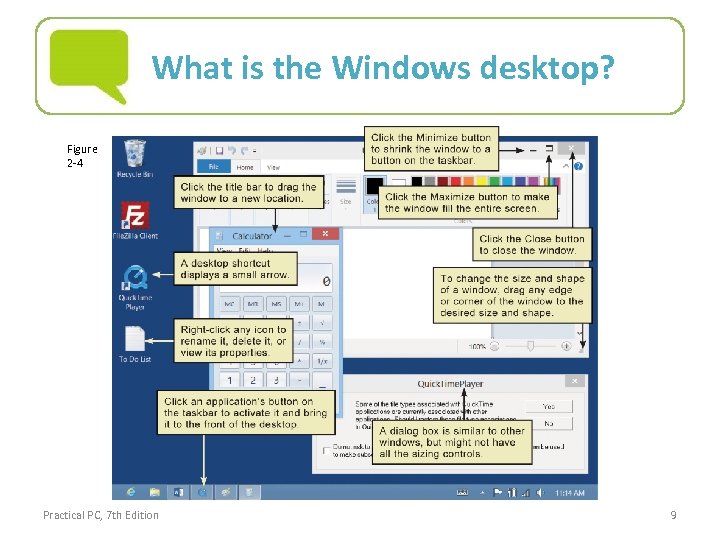 What is the Windows desktop? Figure 2 -4 Practical PC, 7 th Edition 9
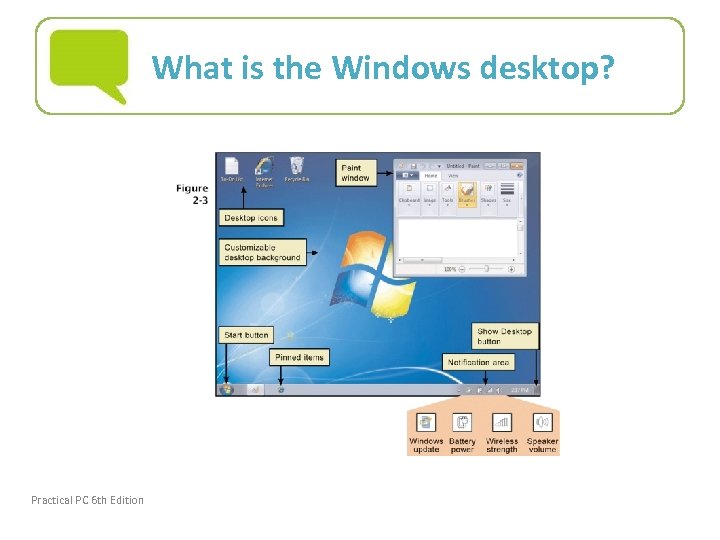 What is the Windows desktop? Practical PC 6 th Edition Chapter 2 10
 How do I use the Start menu? • Click the Start button to access the Start menu – Frequently-used programs are displayed on the left – All Programs option gives you access to more programs – Search box can help you quickly find programs Practical PC 6 th Edition Chapter 2 11
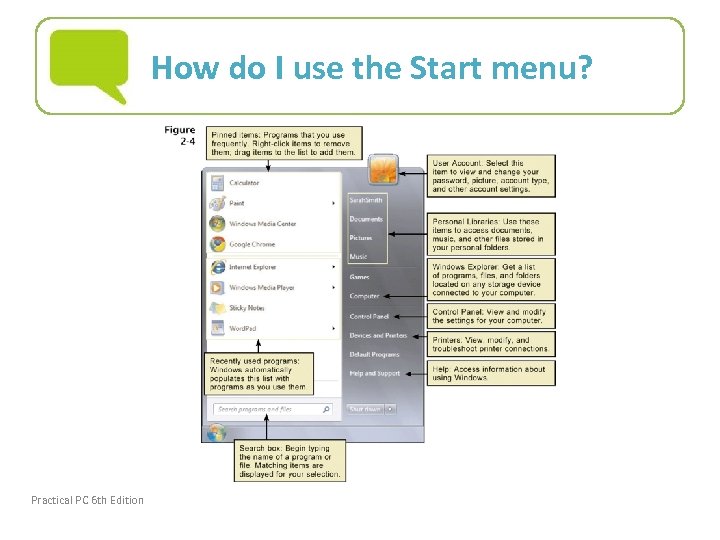 How do I use the Start menu? Practical PC 6 th Edition Chapter 2 12
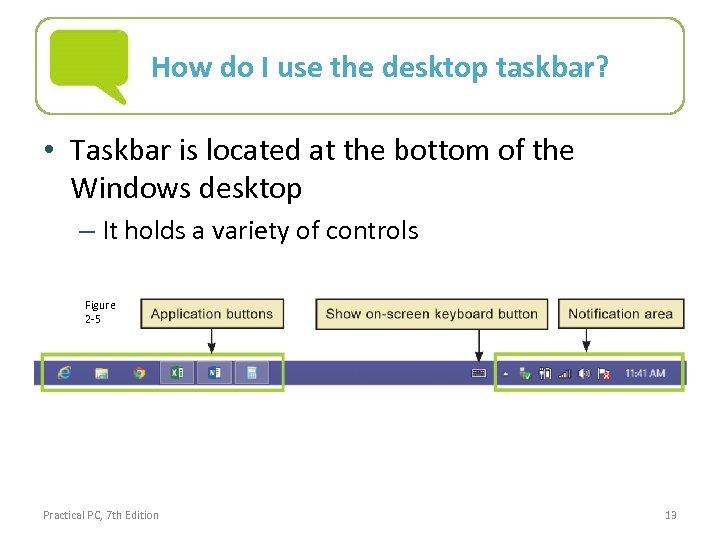 How do I use the desktop taskbar? • Taskbar is located at the bottom of the Windows desktop – It holds a variety of controls Figure 2 -5 Practical PC, 7 th Edition 13
 How do I use the desktop taskbar? – Point to each taskbar button to see a Screen. Tip, which pops up to identify unlabeled buttons – Application buttons represent open or “running” applications – Notification area displays icons that provide status information and shortcuts to utilities • Current date and time • Internet access • Hidden icons Practical PC, 7 th Edition 14
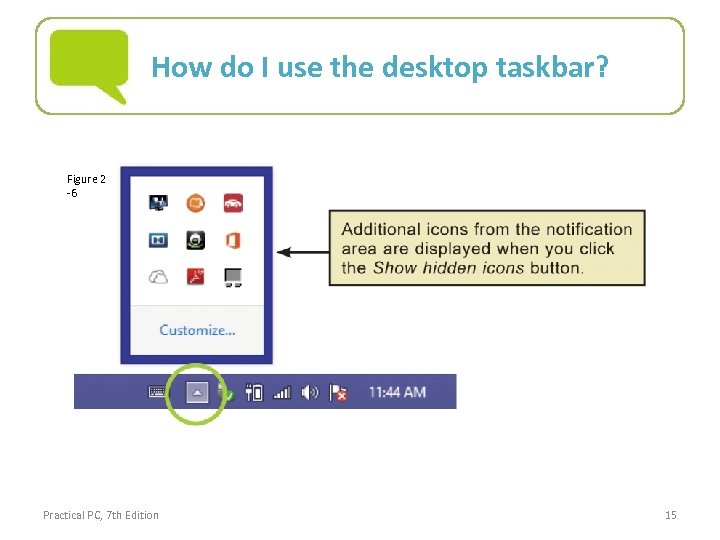 How do I use the desktop taskbar? Figure 2 -6 Practical PC, 7 th Edition 15
 How do I access the PC Settings panel? • PC Settings is a panel of options used to modify and customize the way Windows looks and works – Accessed from the Charms menu that appears when pointer is moved to one of the corners of the screen, or when user swipes in from the right edge of a touchscreen Practical PC, 7 th Edition 16
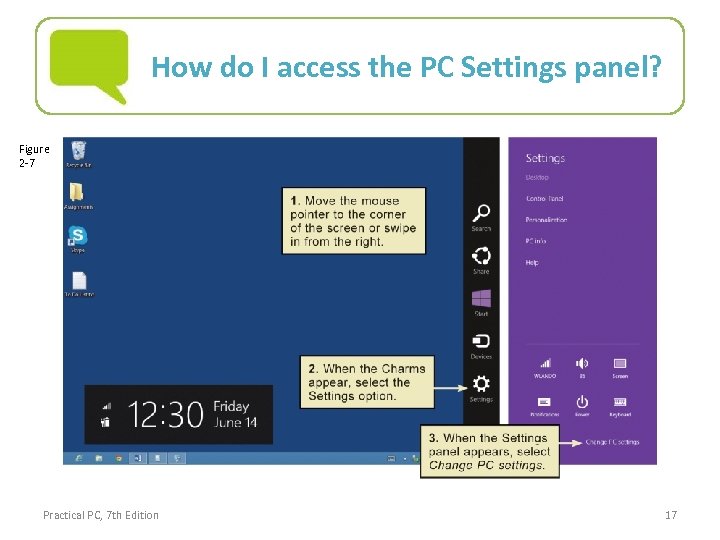 How do I access the PC Settings panel? Figure 2 -7 Practical PC, 7 th Edition 17
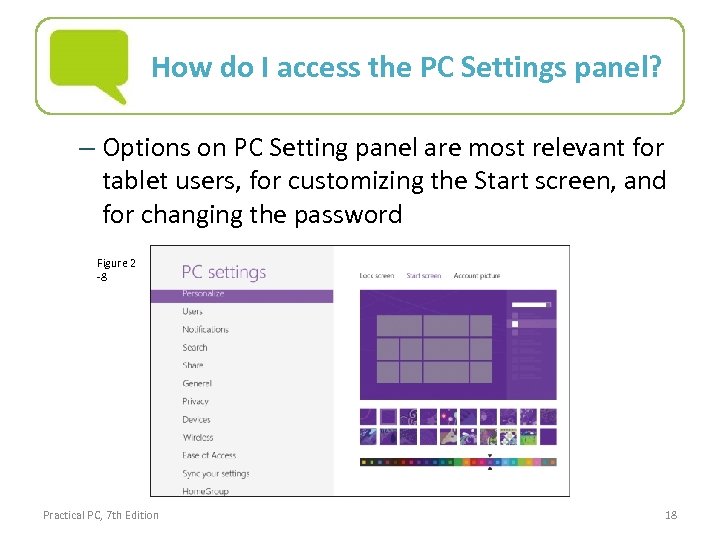 How do I access the PC Settings panel? – Options on PC Setting panel are most relevant for tablet users, for customizing the Start screen, and for changing the password Figure 2 -8 Practical PC, 7 th Edition 18
 What are gadgets? • Gadgets are mini-applications designed to display information that is constantly changing – Examples of gadget topics include the time of day, local weather, headline news, photo slide shows, or statistics about how hard your computer’s microprocessor is working • Several gadgets are included with Windows 7 • Gadgets work best if your computer has a widescreen display device Practical PC 6 th Edition Chapter 2 19
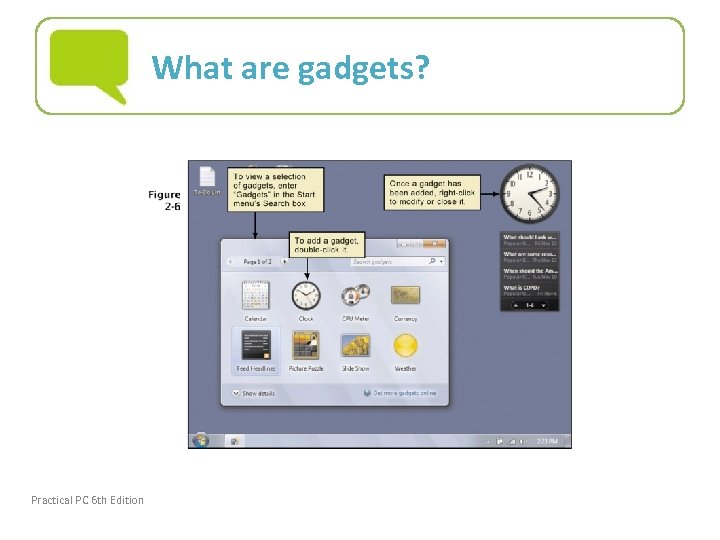 What are gadgets? Practical PC 6 th Edition Chapter 2 20
 What’s in the Accessories folder? • Accessories folder includes: – Windows Explorer – Paint – Notepad and Word. Pad – Snipping Tool – Calculator – Sound Recorder • Subfolders include System Tools and Ease of Access Practical PC 6 th Edition Chapter 2 21
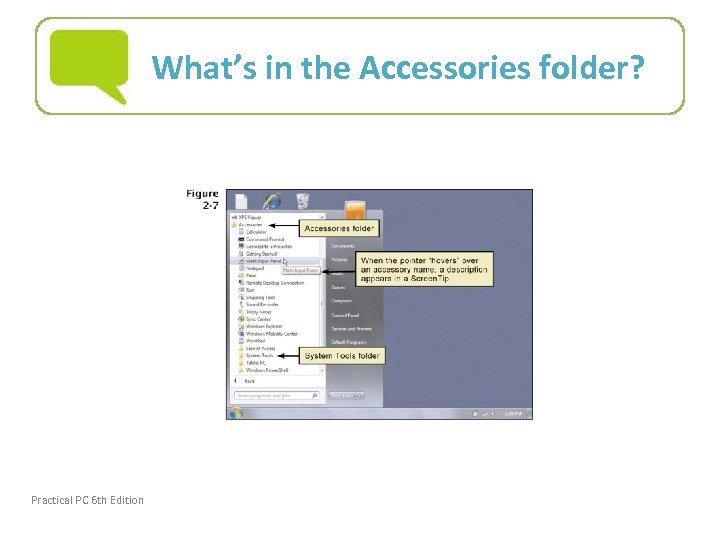 What’s in the Accessories folder? Practical PC 6 th Edition Chapter 2 22
 What is the Control Panel? • Control Panel contains important tools for configuring and customizing Windows including: – Date and time – Default programs – Device and Printers – Display – Internet Options Practical PC, 7 th Edition 23
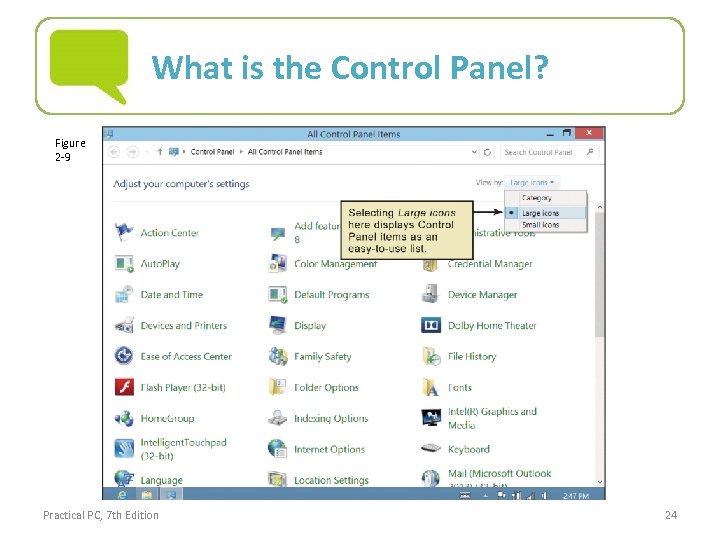 What is the Control Panel? Figure 2 -9 Practical PC, 7 th Edition 24
 Does it matter if I am using a touchscreen? • Windows 8 has a dual personality – Offers a flexible desktop designed to be used with keyboard and mouse • Inherited from earlier versions of Windows • Useful on large screen devices • Can display multiple windows at one time Practical PC, 7 th Edition 25
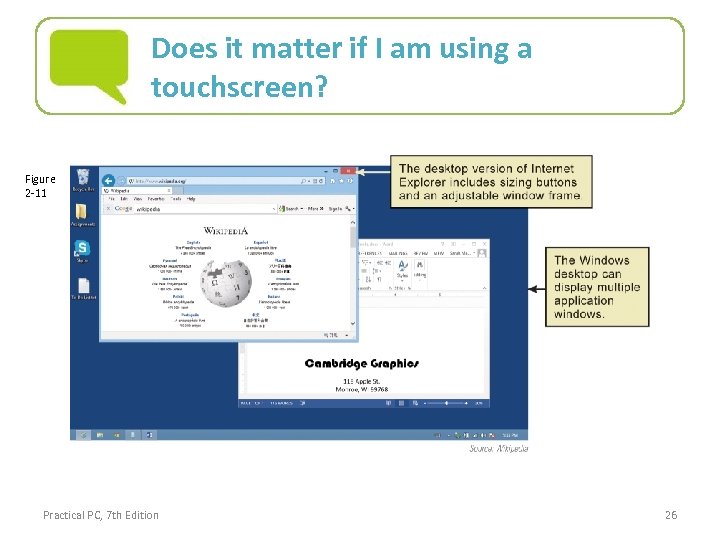 Does it matter if I am using a touchscreen? Figure 2 -11 Practical PC, 7 th Edition 26
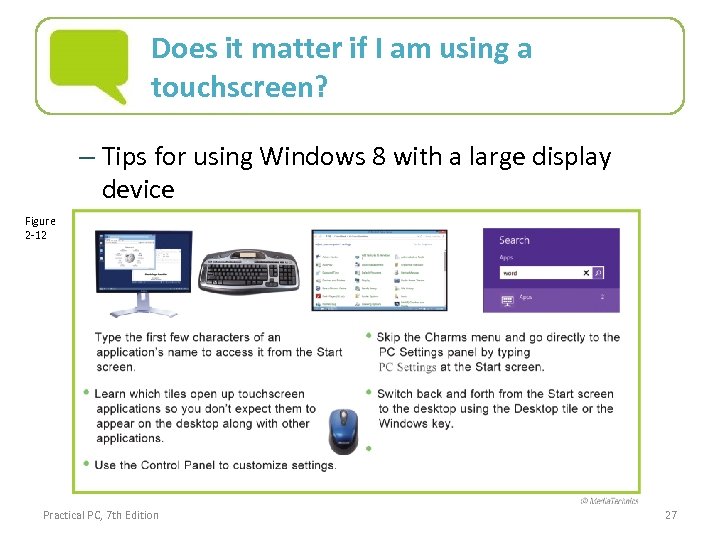 Does it matter if I am using a touchscreen? – Tips for using Windows 8 with a large display device Figure 2 -12 Practical PC, 7 th Edition 27
 Does it matter if I am using a touchscreen? – Also contains elements designed for touchscreen devices • Useful on small screen devices • Sometimes referred to as RT or Metro • Elements feature large icons, well-spaced menus, and applications that are used one at a time Practical PC, 7 th Edition 28
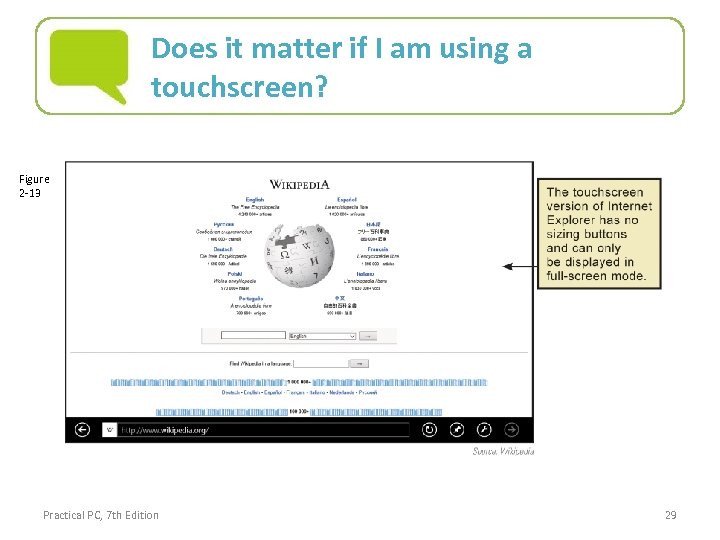 Does it matter if I am using a touchscreen? Figure 2 -13 Practical PC, 7 th Edition 29
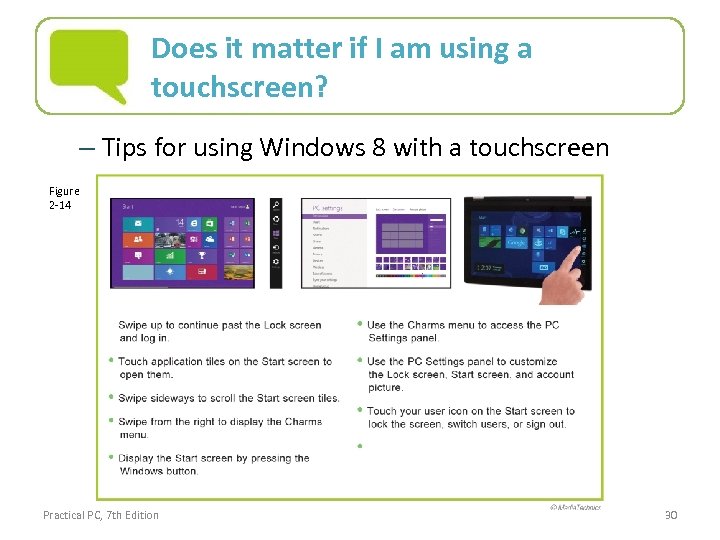 Does it matter if I am using a touchscreen? – Tips for using Windows 8 with a touchscreen Figure 2 -14 Practical PC, 7 th Edition 30
 How do I access Windows Help? • The Windows Help and Support Center is the gateway to Windows manuals, FAQs and troubleshooting wizards – Type Help at the Start screen – If more information is needed, use a search engine to search for user groups, online forums, or articles. Practical PC, 7 th Edition 31
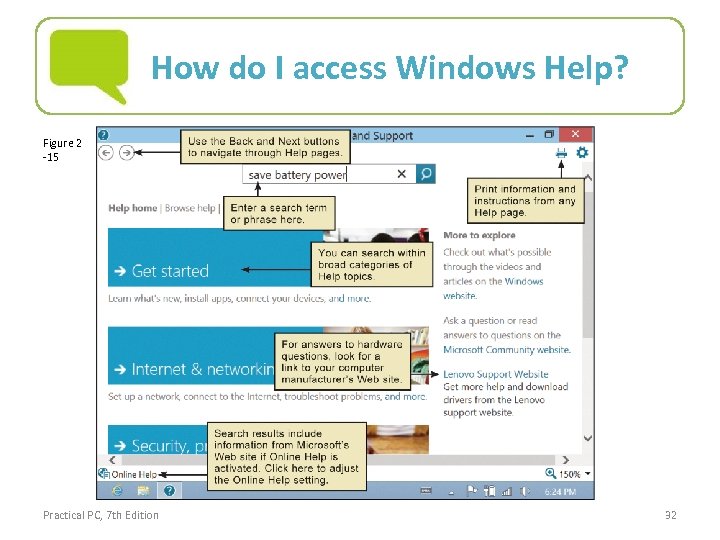 How do I access Windows Help? Figure 2 -15 Practical PC, 7 th Edition 32
 Technology • System Software – Is dedicated to the internal operation of the computer – Divided into two categories: operating systems and system utilities – Operating systems • Are vital pieces of software • Set standards for the on-screen controls displayed by all application software • Detect equipment failure Practical PC, 7 th Edition 33
 Technology – Operating systems con’t • Maintain security • Manage storage space • Communicate with all devices connected to the computer • Available operating systems include Windows, OS X (Apple computers), and Linux (primarily on servers that handle network communications, e-mail systems, and Web sites). • Windows RT, i. OS, and Android are used on tablet computers and smart phones Practical PC, 7 th Edition 34
 Technology – System utilities • Add functionality to the operating system • Enable customization of the screen-based work environment • Set up communication between computer and peripheral devices • Enhance computer’s security • When adjusting from the Control Panel or PC Settings panel, systems utilities are being used Practical PC, 7 th Edition 35
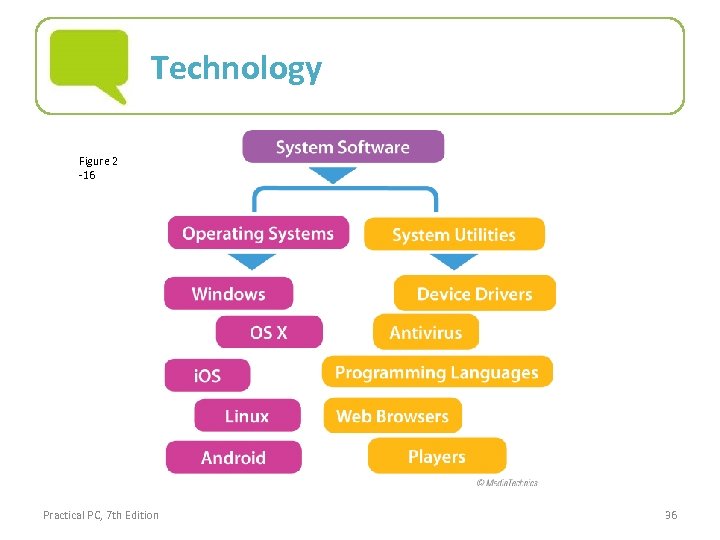 Technology Figure 2 -16 Practical PC, 7 th Edition 36
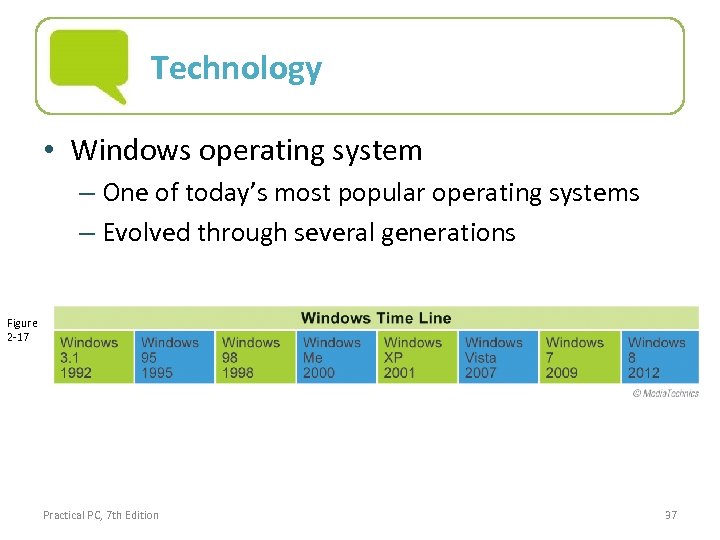 Technology • Windows operating system – One of today’s most popular operating systems – Evolved through several generations Figure 2 -17 Practical PC, 7 th Edition 37
 Technology – Windows 8 is available in several editions • Standard and Pro, which are designed for individuals and small businesses using desktop and laptop computers • Enterprise, which is designed for businesses that have in-house and remote workers • RT, which is for tablet computers – Windows is available in 32 bit and 64 bit editions • Type System in the Start menu’s Search box and select Settings to determine which edition is being used Practical PC, 7 th Edition 38
 Technology • Device Drivers – Software that help peripheral devices establish communication with a computer – Used by printer, monitors, wired networks, modems, storage devices, mice, videogame controllers, and scanners – Usually run in the background – Type device driver at the Start screen and select Settings; select Device Manager to check status of a device, change its settings, or check for updated drivers Practical PC, 7 th Edition 39
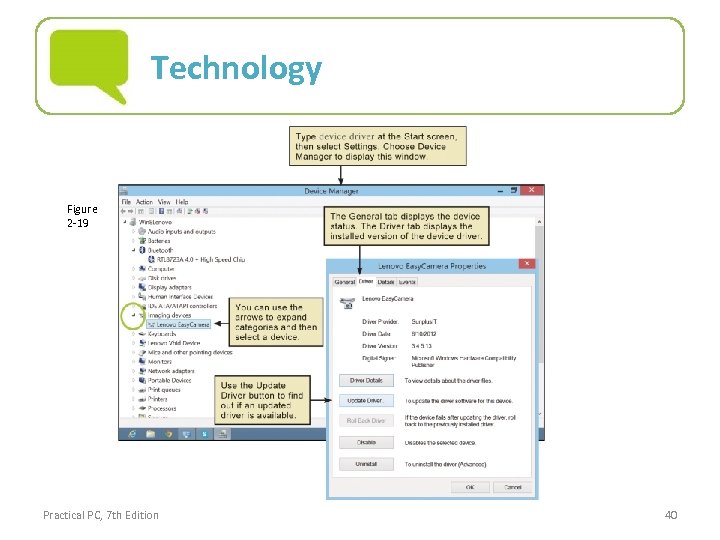 Technology Figure 2 -19 Practical PC, 7 th Edition 40
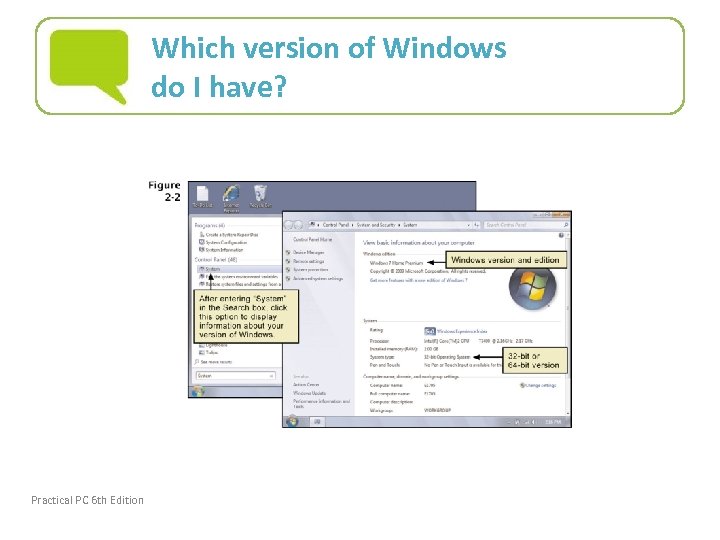
 Which version of Windows do I have? • An operating system is the core piece of software on your PC • The latest Windows version is Windows 7 – – Starter Home Premium Professional Ultimate • To discover which version and edition of Windows you’re using, enter System in the Start menu’s Search box and then click the System option Practical PC 6 th Edition Chapter 2 41
 Which version of Windows do I have? Practical PC 6 th Edition Chapter 2 42
 Which version of Windows do I have? • Past Windows versions include: – Windows 3. 1 – Windows 95 – Windows 98 – Windows Me (Millennium Edition) – Windows XP – Windows Vista Practical PC 6 th Edition Chapter 2 43