

PowerPoint Presentation to Accompany GO! with Microsoft® Word

 Скачать презентацию PowerPoint Presentation to Accompany GO! with Microsoft® Word
23940-gowrd2010_2e_w01_ppt.pptx
- Количество слайдов: 33
PowerPoint Presentation to Accompany GO! with Microsoft® Word 2010 2e Chapter 1 Creating Documents with Microsoft Word 2010
Objectives Create a New Document and Insert Text Insert and Format Graphics Insert and Modify Text Boxes and Shapes Preview and Print a Document
Objectives Change Document and Paragraph Layout Create and Modify Lists Set and Modify Tab Stops Insert a SmartArt Graphic
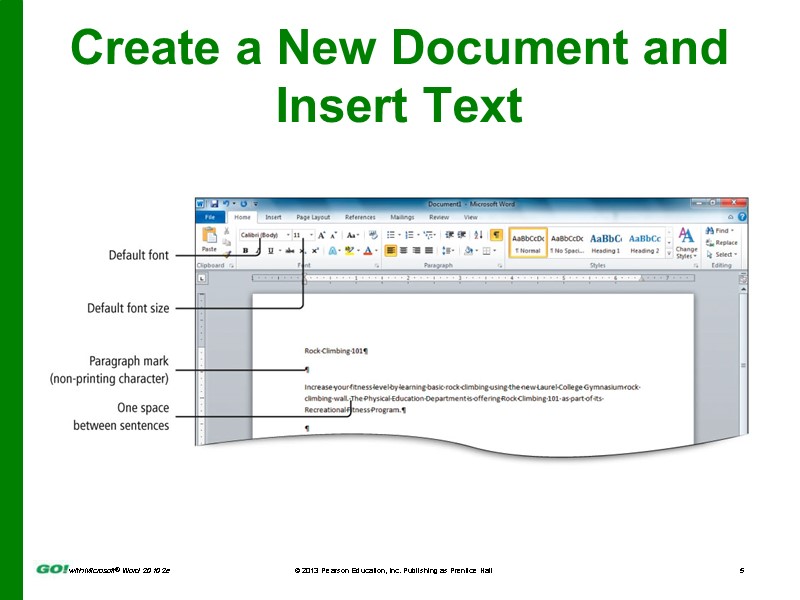
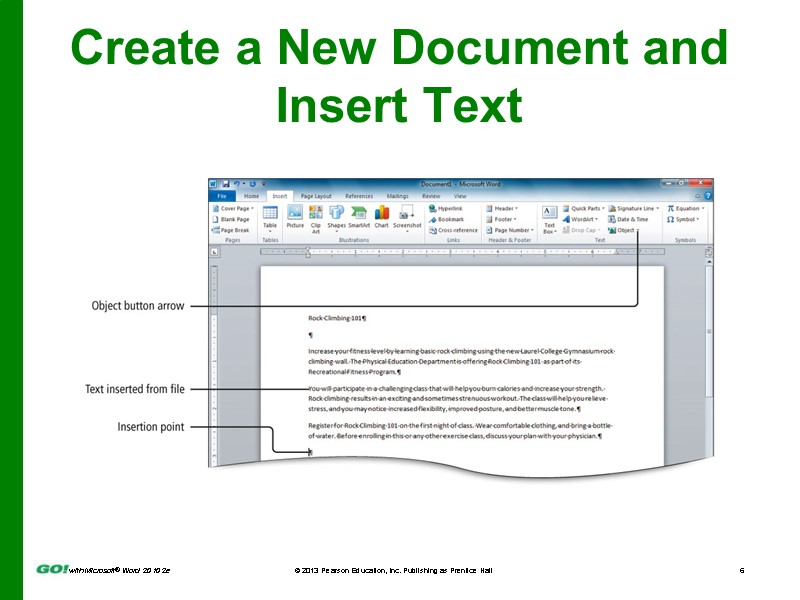
Create a New Document and Insert Text Start new Word document Type text Select font and font size Use formatting marks Insert text from a file
Create a New Document and Insert Text
Create a New Document and Insert Text
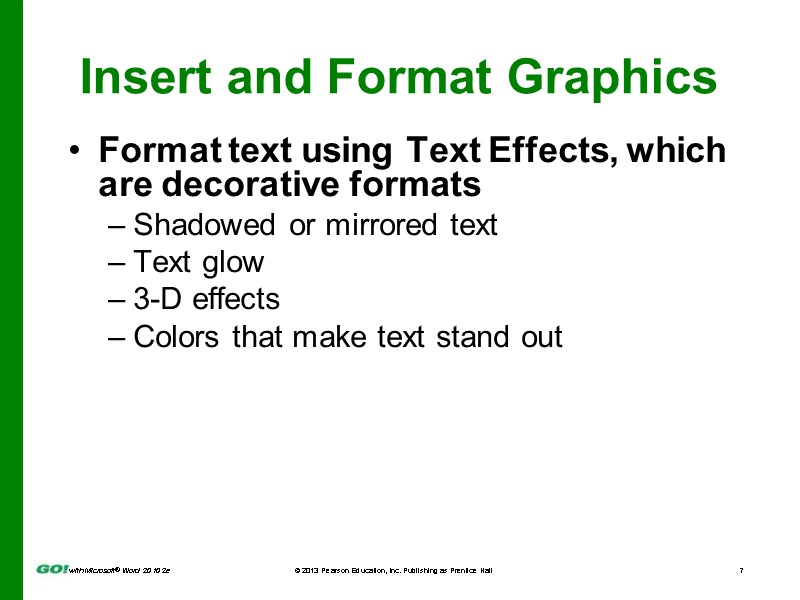
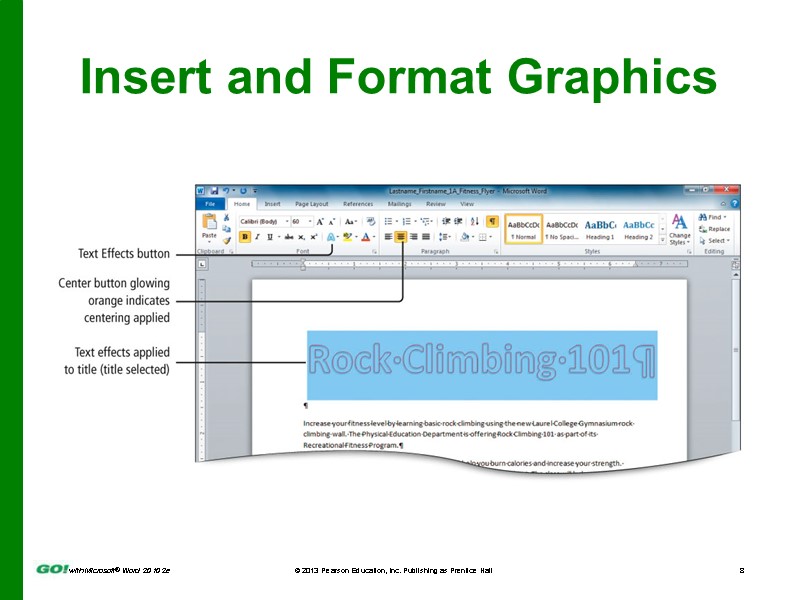
Insert and Format Graphics Format text using Text Effects, which are decorative formats Shadowed or mirrored text Text glow 3-D effects Colors that make text stand out
Insert and Format Graphics
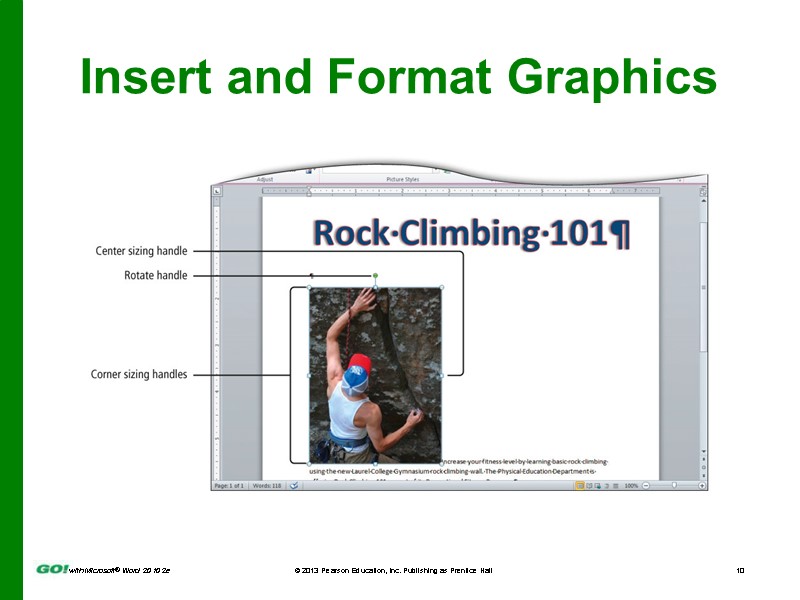
Insert and Format Graphics Pictures inserted into a Word document often need to be resized and repositioned. Use the sizing handles and rotate handle to make changes to your inserted picture.
Insert and Format Graphics
Insert and Format Graphics Text wrapping—how the text displays around an object, such as a photo Use the Wrap Text button to display a gallery of text wrapping arrangements. The arrow keys on your keyboard nudge—move in small increments—your selected object.
Insert and Format Graphics Picture styles include shapes, shadows, frames, borders, and other special effects to stylize an image. Click on the Format tab, in the Picture Styles group,then the Picture Effects button to select a style. Artistic effects formats make pictures look more like sketches or paintings. Click on the Format tab, in the Picture Styles group, then the Picture Effects button to select a style.
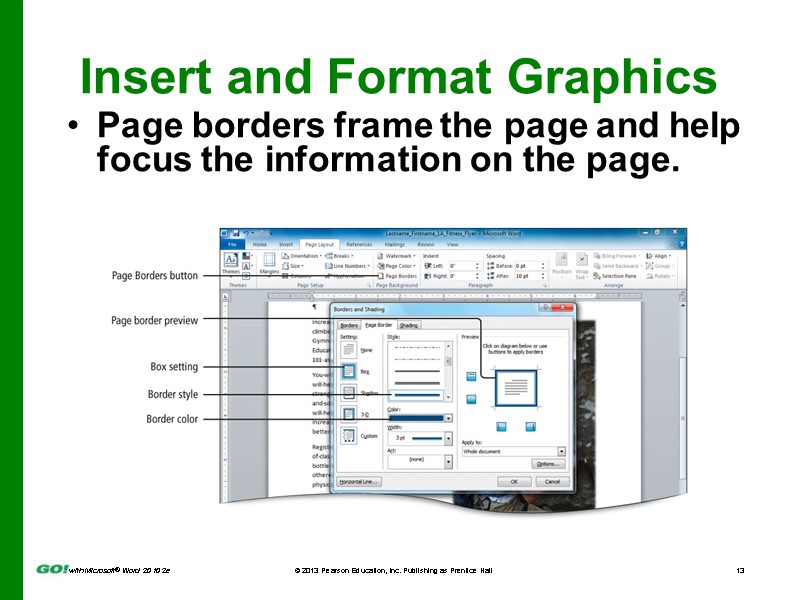
Insert and Format Graphics Page borders frame the page and help focus the information on the page.
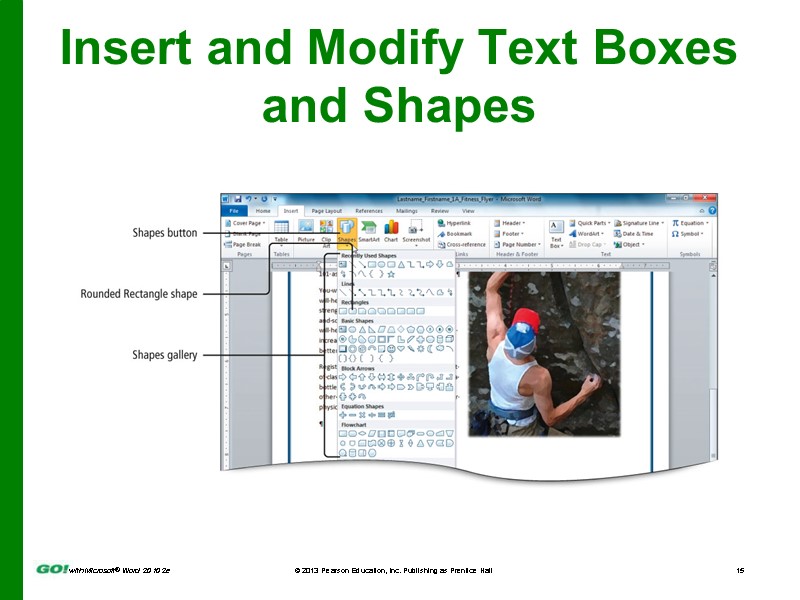
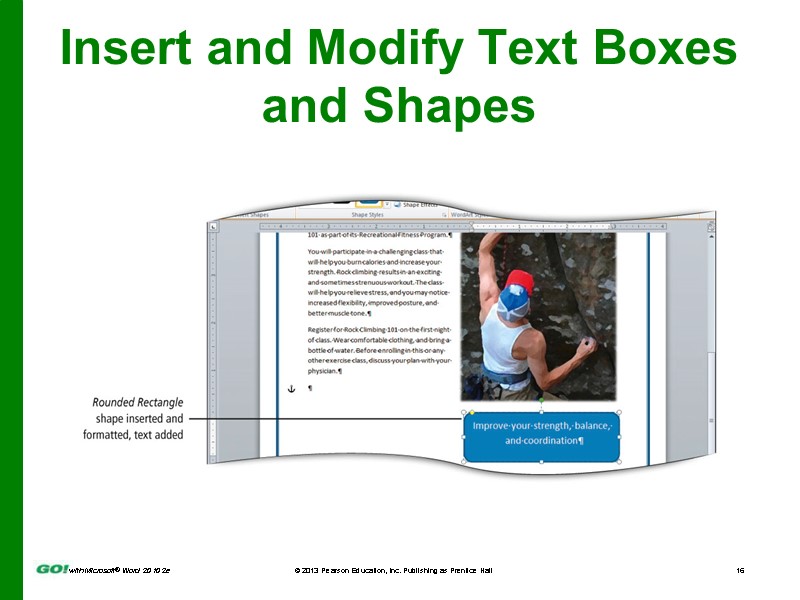
Insert and Modify Text Boxes and Shapes Predefined shapes and text boxes are provided to add visual interest to documents. Shape—an object such as a line, arrow, box, callout, or banner Text box—a movable, resizable container for text or graphics Both are floating objects and can be placed anywhere on the page.
Insert and Modify Text Boxes and Shapes
Insert and Modify Text Boxes and Shapes
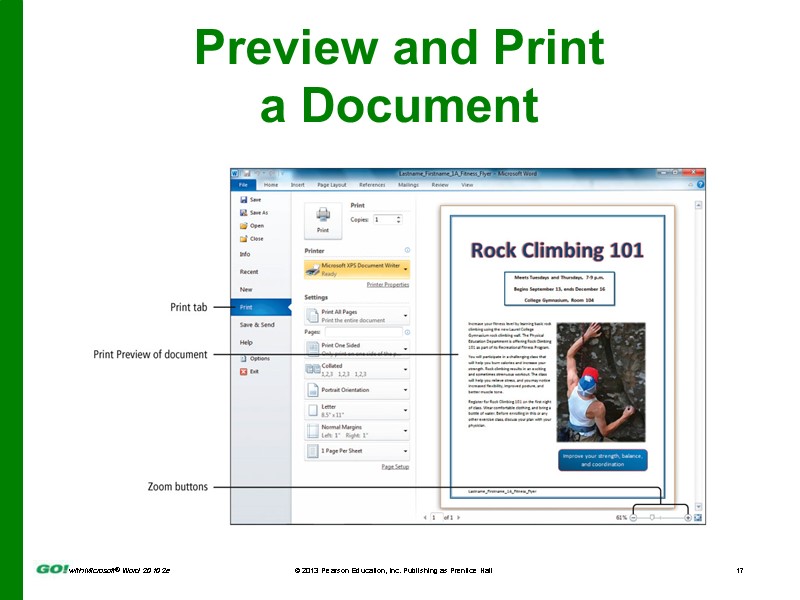
Preview and Print a Document
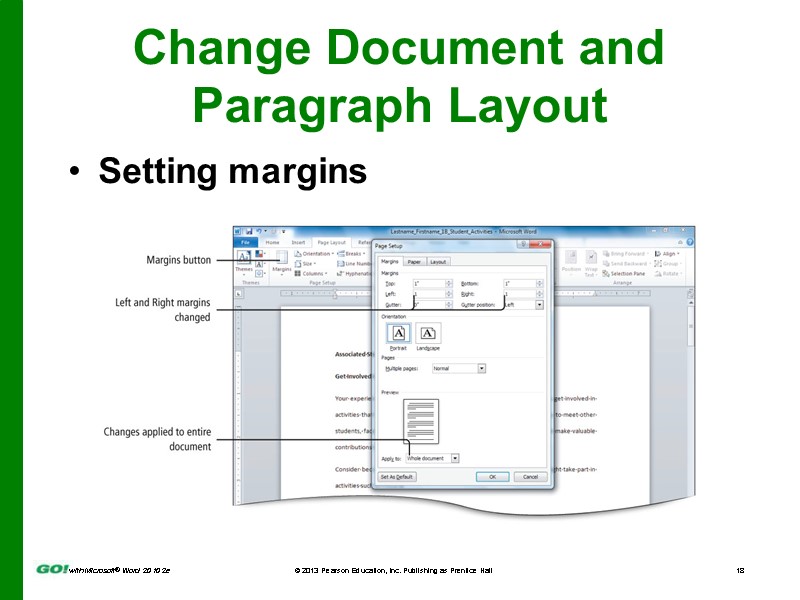
Change Document and Paragraph Layout Setting margins
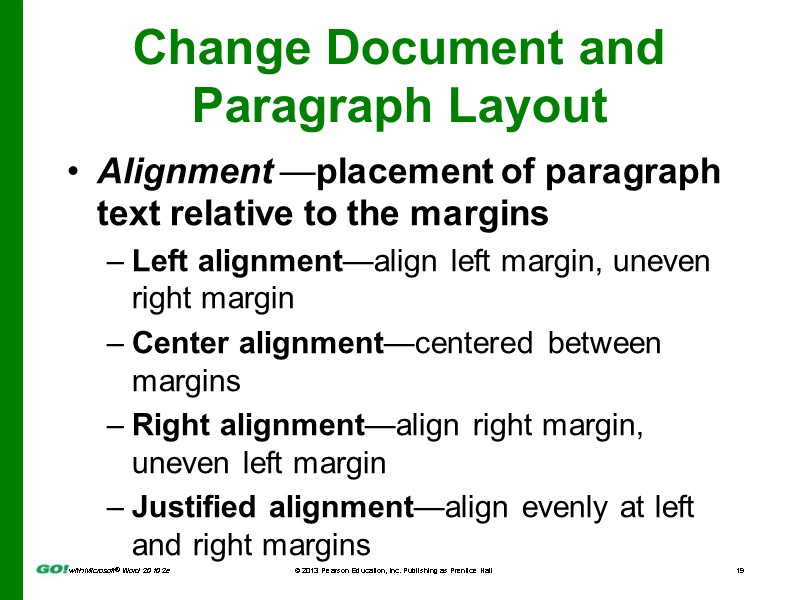
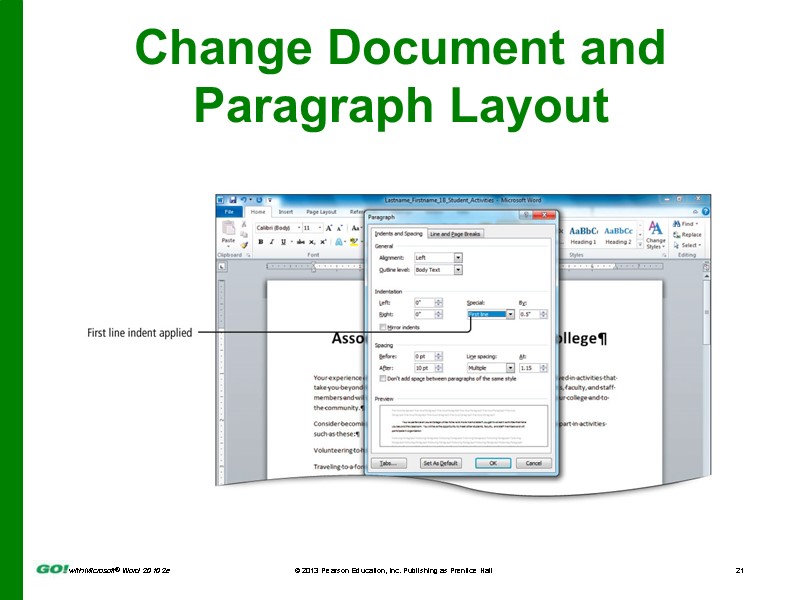
Change Document and Paragraph Layout Alignment —placement of paragraph text relative to the margins Left alignment—align left margin, uneven right margin Center alignment—centered between margins Right alignment—align right margin, uneven left margin Justified alignment—align evenly at left and right margins
Change Document and Paragraph Layout Line spacing—distance between lines of text in a paragraph Single spacing (business documents) Multiple 1.15 spacing (default line spacing) Double spacing (academic papers)
Change Document and Paragraph Layout
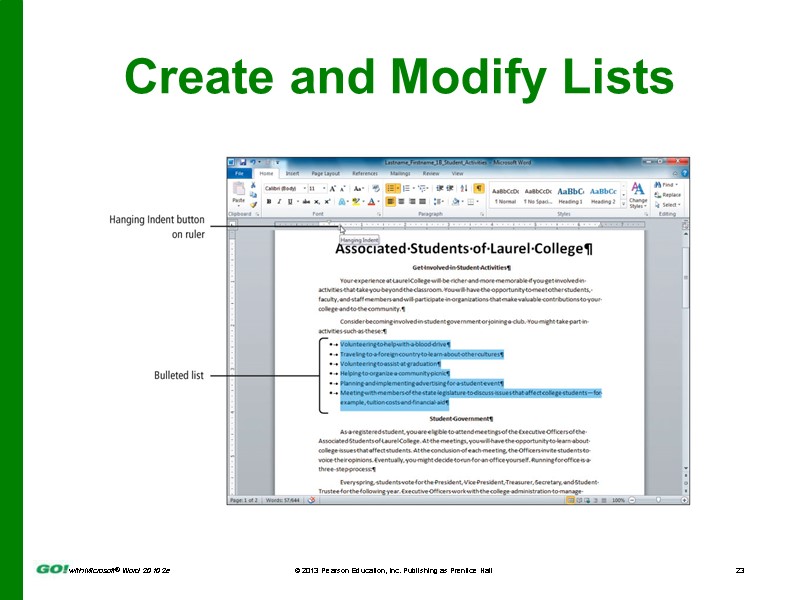
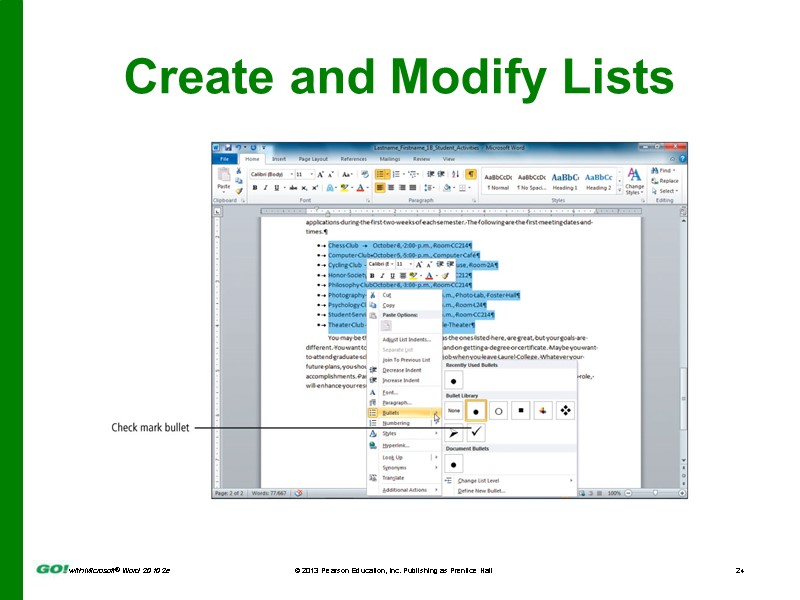
Create and Modify Lists Bulleted list Items of a list can be introduced in any order Uses bullets—text symbols such as small circles or check marks—to introduce each item in a list Numbered list Items with consecutive numbers Use when order is important
Create and Modify Lists
Create and Modify Lists
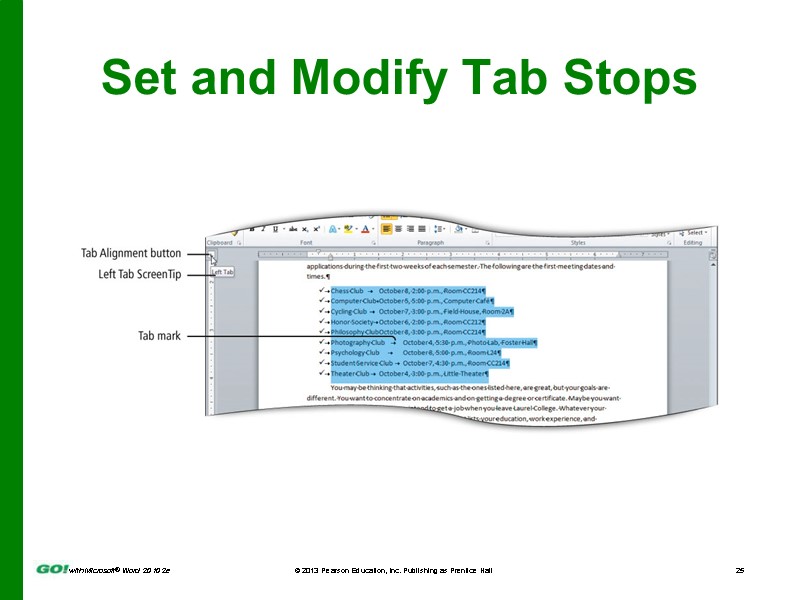
Set and Modify Tab Stops
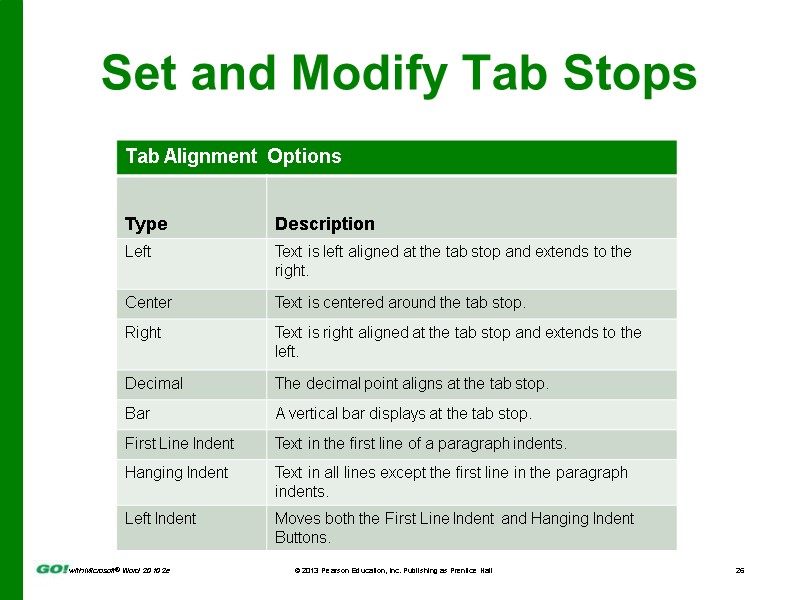
Set and Modify Tab Stops
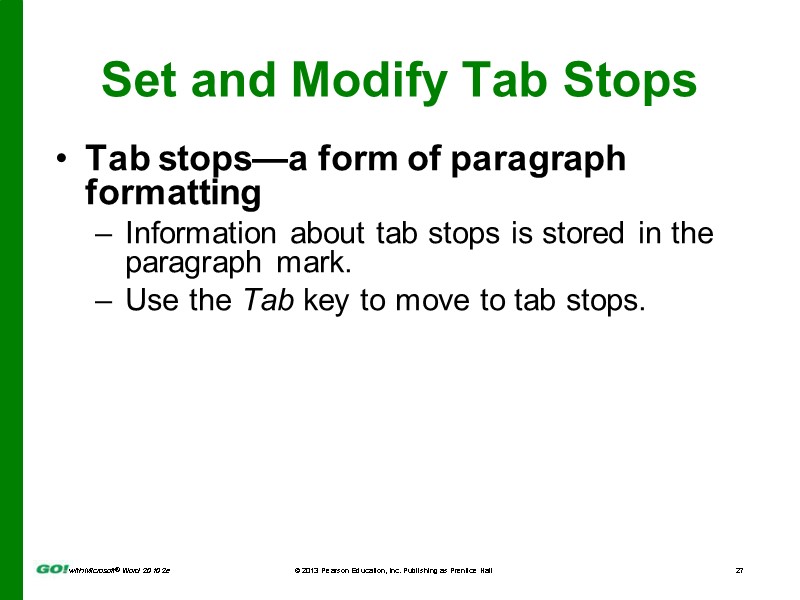
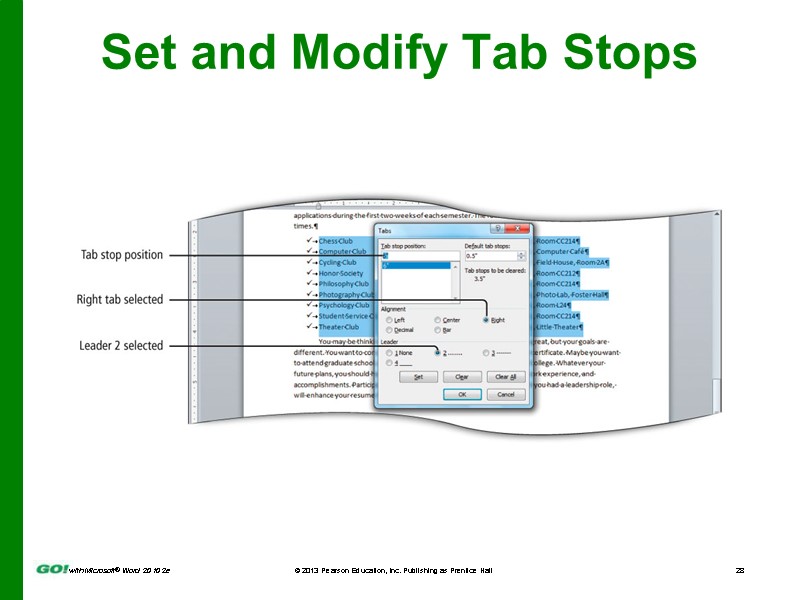
Set and Modify Tab Stops Tab stops—a form of paragraph formatting Information about tab stops is stored in the paragraph mark. Use the Tab key to move to tab stops.
Set and Modify Tab Stops
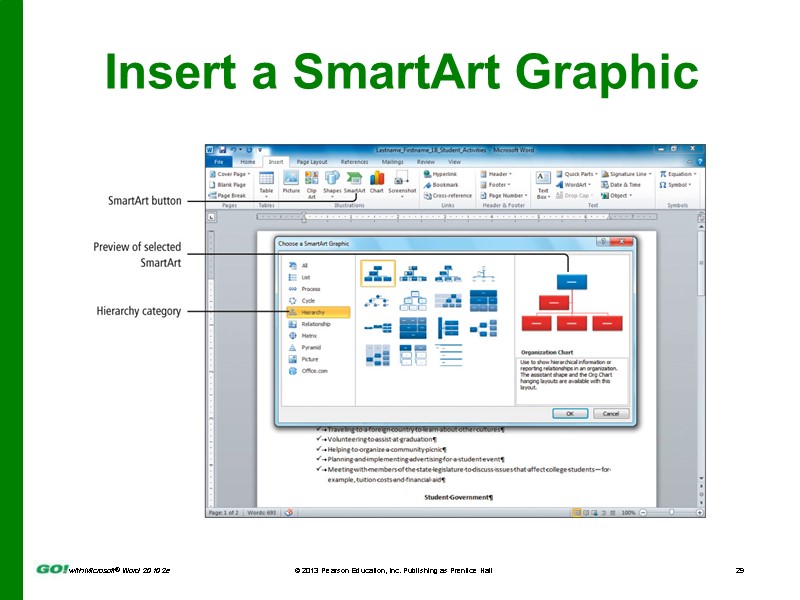
Insert a SmartArt Graphic
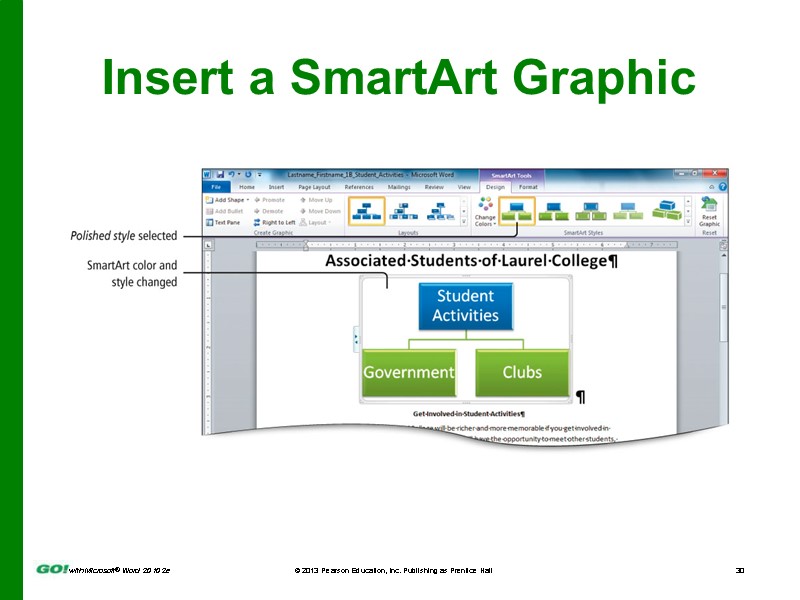
Insert a SmartArt Graphic
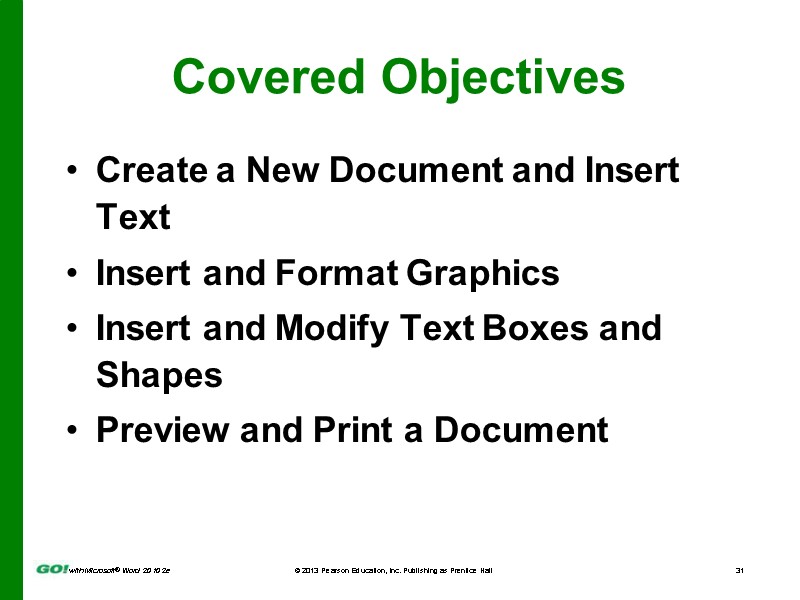
Covered Objectives Create a New Document and Insert Text Insert and Format Graphics Insert and Modify Text Boxes and Shapes Preview and Print a Document
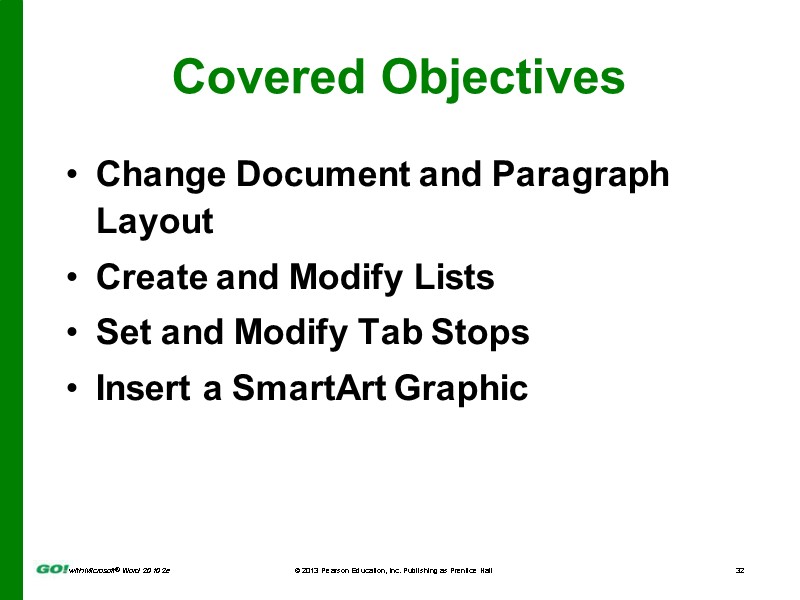
Covered Objectives Change Document and Paragraph Layout Create and Modify Lists Set and Modify Tab Stops Insert a SmartArt Graphic
All rights reserved. No part of this publication may be reproduced, stored in a retrieval system, or transmitted, in any form or by any means, electronic, mechanical, photocopying, recording, or otherwise, without the prior written permission of the publisher. Printed in the United States of America. Copyright © 2013 Pearson Education, Inc. Publishing as Prentice Hall