Скачать презентацию Power Supplies Chapter 7 Overview In
99b59955bcbbe7d81a333470de980e76.ppt
- Количество слайдов: 56
 Power Supplies Chapter 7
 Overview • In this chapter, you will learn to – Explain the basics of electricity – Provide proper power and cooling to the PC – Troubleshoot electrical problems
 Understanding Electricity
 Parts of an Atom • Bohr’s model says that an atom is made of a nucleus of protons and neutrons – Protons are positively charged – Neutrons are neutral in charge • Electrons revolve around the nucleus of the atom similar to the way in which the planets revolve around the sun – Electrons are negatively charged
 Flowing Electrons • Electrons are negatively charged • Protons are positively charged • Opposite charges attract (Coulomb’s Law) • Velocity of electrons keep them in orbit around nucleus • Electrons pulled free from the atom is what we call electricity!
 “Dynamic” Electricity • Electricity can be viewed as a dynamic process • Dynamic means changing • Electrons are changing—moving from one atom to another • This flowing of electrons is called an electrical current
 Static Electricity • Static means stationary or unchanging • Electrons have been “loosened” from the atom and stay in one place • The electrons have voltage but lack a current • A conductor supplies the current—or path —for static electricity to discharge
 Electrostatic Discharge • Electrostatic Discharge (ESD) is the process of static electrons jumping to a conductor – Rub your shoes on a carpet (this will cause a voltage to build up around your body) – Touch a metal door knob (the metal is a conductor providing a path for the flow of electrons—high voltage electricity!)
 Conductors • Conductors have a large number of loosely attached electrons • These electrons can easily be freed from the nucleus of the atom when voltage is applied
 Examples of Conductors • Metals – Gold – Silver – Copper • Water • Humans
 Insulators • Insulators are materials with a high resistance to electrical current • Electron orbits are very close to the nucleus • Examples – – Plastic Glass Wood Air and other gases
 Semiconductors • With semiconductor materials, the flow of electrons can be precisely controlled • Examples: – Carbon – Germanium – And Silicon • Because silicon is widely available (sand), it is the material we use for computer chips
 Measuring Electricity • Voltage—force or pressure caused by the separation of electrons and protons – Unit of measurement: Volts (V) • Current—the free flow of electrons in an electrical circuit – Unit of measurement: Ampere (amp) – When voltage (electrical pressure) is applied and there is a path, electrons flow producing current • Resistance—impedance or opposition to the flow of electrons: conductor=low resistance insulators=high resistance – Unit of measurement: ohms (Ω)
 Two Types of Current • Alternating Current (AC)—electrical current flows in both directions; positive and negative terminals continuously trade places (polarity) – Example: Electricity provided by Ameren. UE – Frequency at which AC electricity alternates is measured in cycles per second, or hertz (Hz) • Direct Current (DC)—electrical current flows in one direction; negative to positive – Example: Electricity provided by batteries
 Powering the PC
 Type of Power • PCs use DC voltage but power companies supply AC voltage • The power supply in a computer converts high-voltage AC power to low-voltage DC power
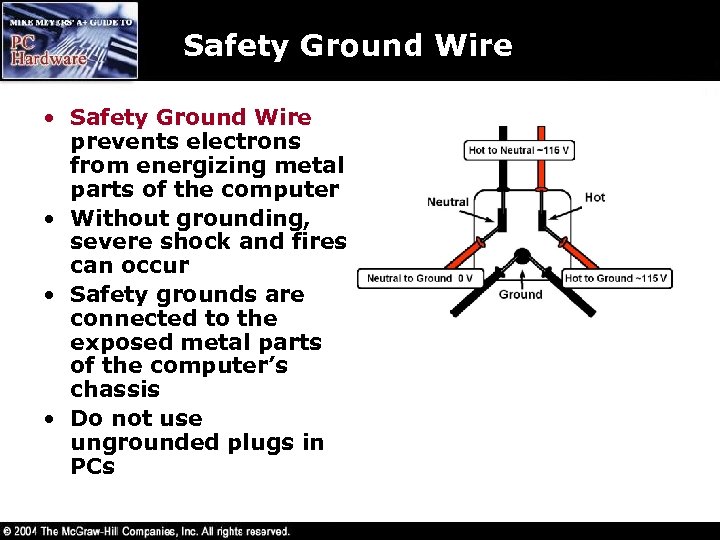 Safety Ground Wire • Safety Ground Wire prevents electrons from energizing metal parts of the computer • Without grounding, severe shock and fires can occur • Safety grounds are connected to the exposed metal parts of the computer’s chassis • Do not use ungrounded plugs in PCs
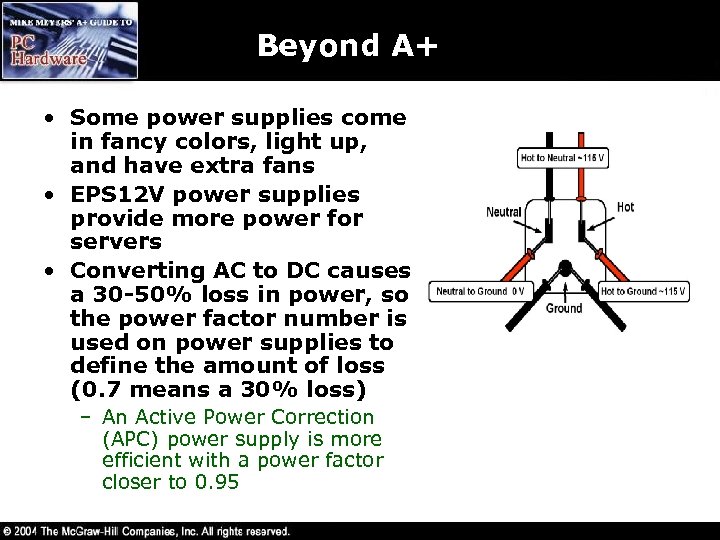
 AC Power • In the U. S. 115 V and 60 Hz – PCs may have a small switch on the back to choose 115 or 230 V (used in other countries) • Hot and neutral provide the path for AC • Four wires to the fuse box: – Bare wire that goes to ground and not the pole – Two 115 -volt hot wires (black) from the pole to the fuse box – Neutral wire from the pole (black or striped) • House gets 230 V AC from the pole
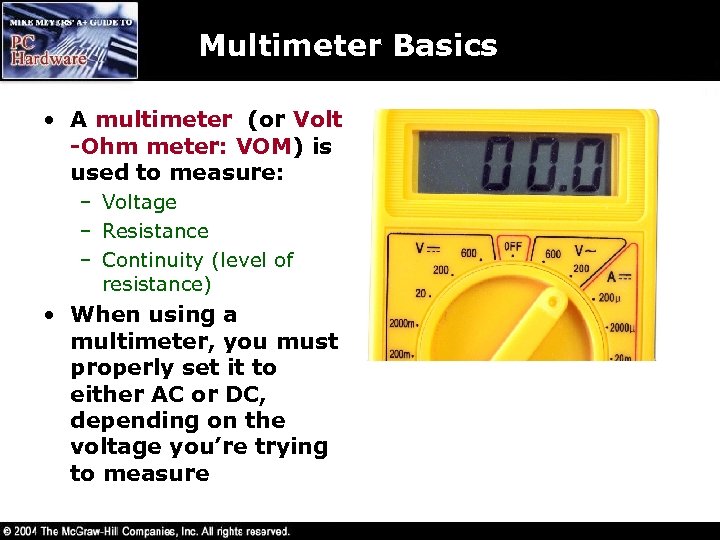 Multimeter Basics • A multimeter (or Volt -Ohm meter: VOM) is used to measure: – Voltage – Resistance – Continuity (level of resistance) • When using a multimeter, you must properly set it to either AC or DC, depending on the voltage you’re trying to measure
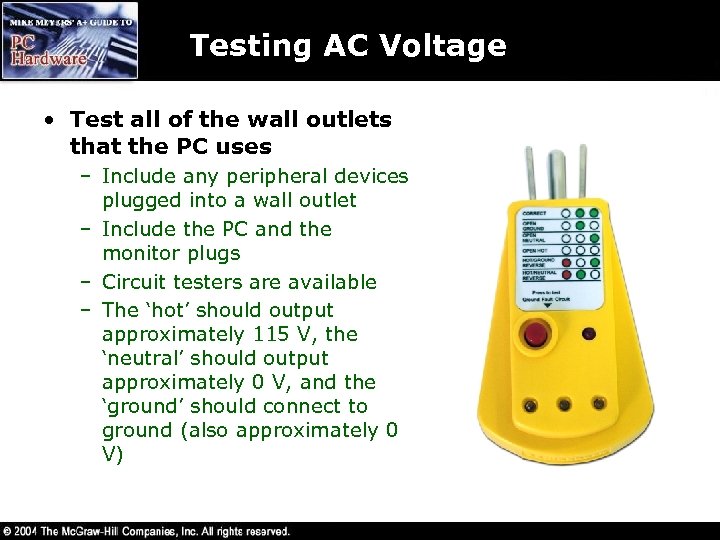 Testing AC Voltage • Test all of the wall outlets that the PC uses – Include any peripheral devices plugged into a wall outlet – Include the PC and the monitor plugs – Circuit testers are available – The ‘hot’ should output approximately 115 V, the ‘neutral’ should output approximately 0 V, and the ‘ground’ should connect to ground (also approximately 0 V)
 Uninterruptible Power Supply • An uninterruptible power supply (UPS) provides protection against a power dip or power outage – Contains a battery that provides AC power to the computer – Online is true protection and power conditioning – battery is constantly being charged and system is running off the battery at all times – Stand-by uses AC until the voltage drops enough to switch over to the battery – no power conditioning and a fail-over time required – All uninterrupted power supplies are measured in watts
 Typical UPS
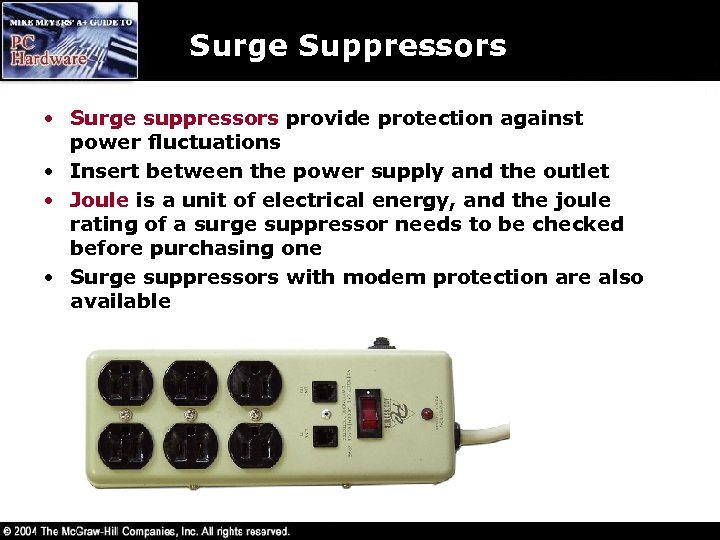 Surge Suppressors • Surge suppressors provide protection against power fluctuations • Insert between the power supply and the outlet • Joule is a unit of electrical energy, and the joule rating of a surge suppressor needs to be checked before purchasing one • Surge suppressors with modem protection are also available
 The Power Supply • The power supply acts as a step-down transformer converting high voltage AC into 5, 12, and 3. 3 V DC – PCs use a 12 V current to power motors on devices such as the hard drives, and CD-ROM drives – PCs use a 5 -volt/3. 3 -volt current to support onboard electronics
 The Power Supply • AT and ATX are the two types of power supplies that can be installed in any PC • The ATX form factor motherboard, with its unique ATX power supply, dominates today’s systems • All power supplies share a number of common features such as the power connection, motherboard power, power switch, peripheral connections, and the fan
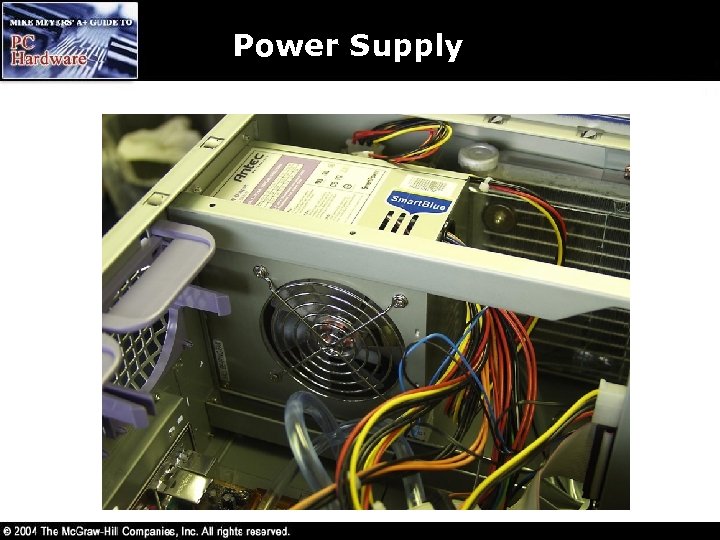 Power Supply
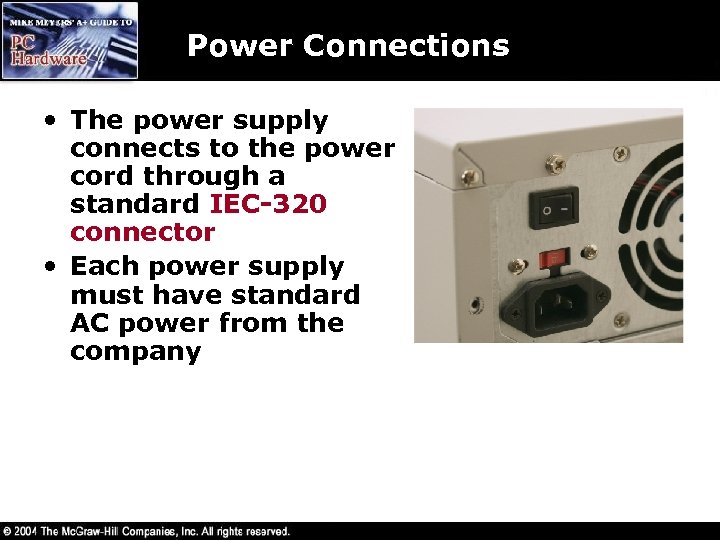 Power Connections • The power supply connects to the power cord through a standard IEC-320 connector • Each power supply must have standard AC power from the company
 DC Power • DC power comes out of the computer’s power supply, and provides electricity to all the components in the PC – Flows in one direction, from negative to positive – All PC power supplies provide both positive and negative voltages
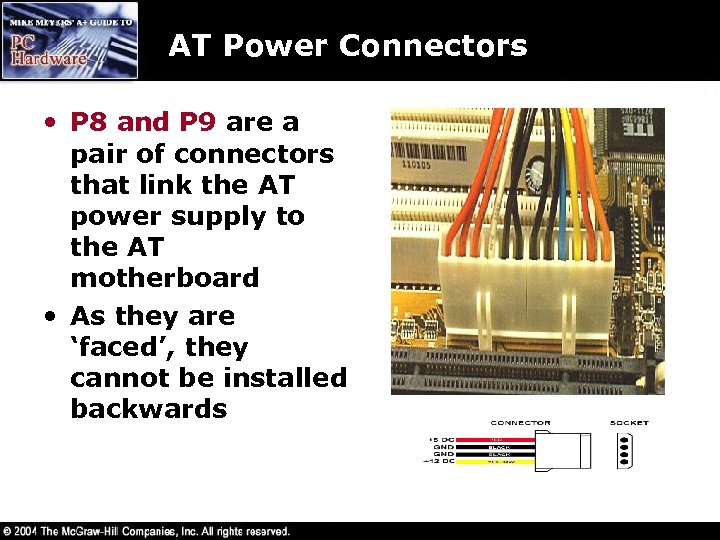 AT Power Connectors • P 8 and P 9 are a pair of connectors that link the AT power supply to the AT motherboard • As they are ‘faced’, they cannot be installed backwards
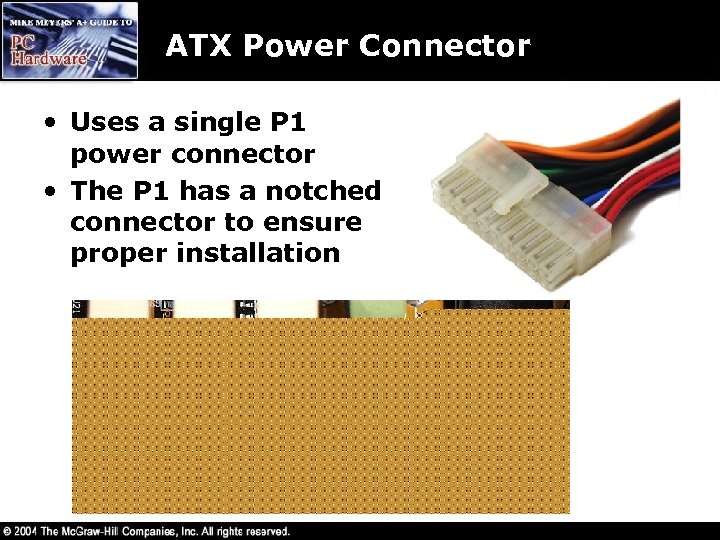 ATX Power Connector • Uses a single P 1 power connector • The P 1 has a notched connector to ensure proper installation
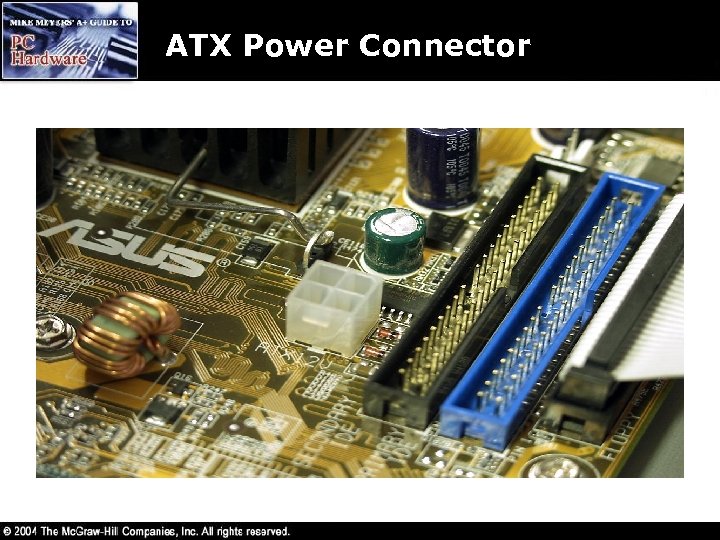 ATX Power Connector
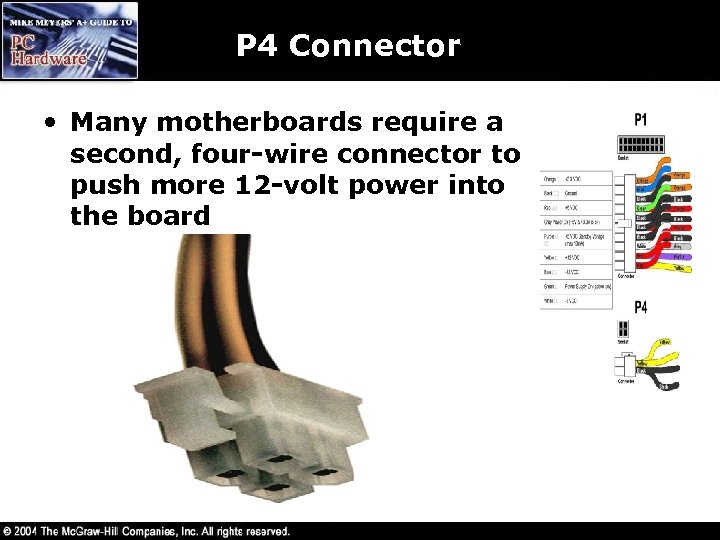 P 4 Connector • Many motherboards require a second, four-wire connector to push more 12 -volt power into the board
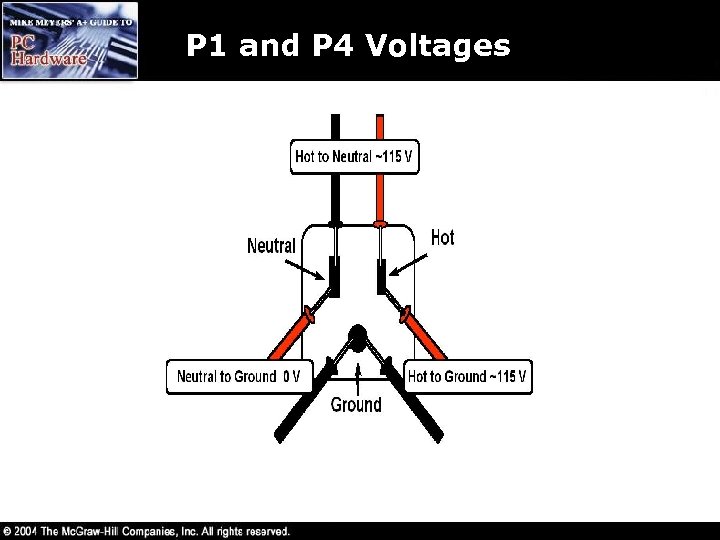 P 1 and P 4 Voltages
 Power to Peripherals • Motherboards require power from the power supply as we’ve already seen • Peripherals like hard drives, floppy drives, CD-ROM drives, and fans also require power from the power supply – Different types of connectors are used
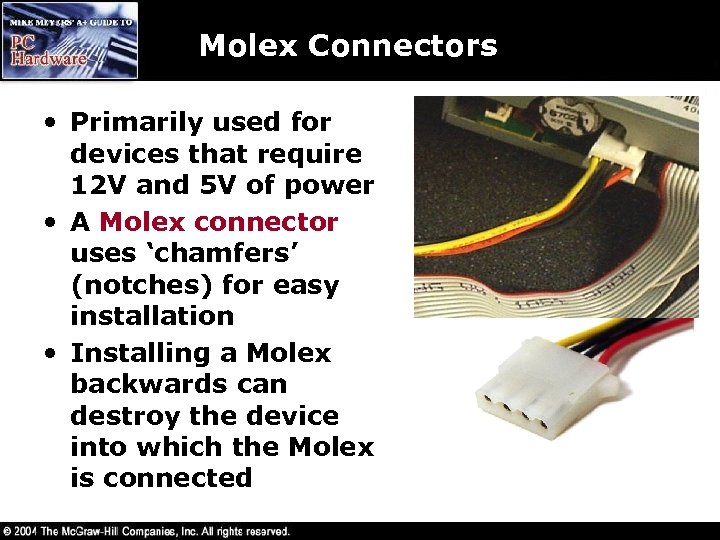 Molex Connectors • Primarily used for devices that require 12 V and 5 V of power • A Molex connector uses ‘chamfers’ (notches) for easy installation • Installing a Molex backwards can destroy the device into which the Molex is connected
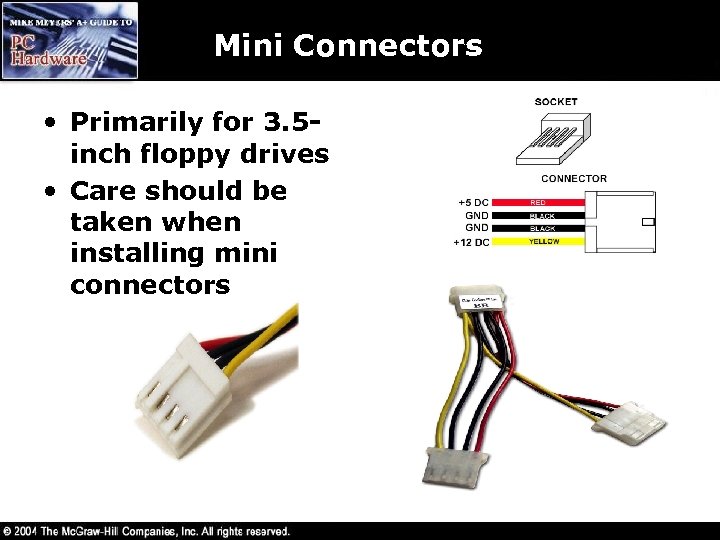 Mini Connectors • Primarily for 3. 5 inch floppy drives • Care should be taken when installing mini connectors
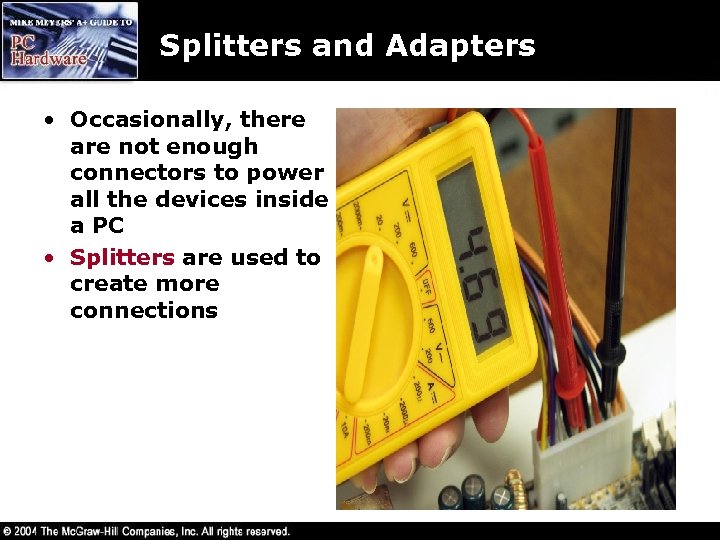 Splitters and Adapters • Occasionally, there are not enough connectors to power all the devices inside a PC • Splitters are used to create more connections
 Wattage • Power supplies are rated in watts – A PC requires sufficient wattage to run properly – An average desktop with two hard drives and a CDROM drive requires about 115 -130 watts while running, and up to 200 watts when booting up – Buy 230 to 250 -watt power supplies – Power requirements may be calculated by adding up the power required by each peripheral and the motherboard and CPU
 Sizes • Power supplies are available in a variety of shapes and sizes depending on the form factor • Most desktop and mini-tower PCs use the standard ATX power supply • Take the defective power supply with you when getting a replacement
 Power Supply Issues • A bad power supply causes intermittent lockups and reboots, as well as intermittent bootup difficulties • Bad power supplies erase CMOS information and sometimes even erase data on mass storage devices
 Power Supply Test • Put the black lead onto any black wire connection • Put the red lead onto a yellow +12 V connection – 11 -13 V is good – 10. 5 -11 V indicates a new power supply is needed – Less than 10. 5 V and your PC won’t boot
 Power Supply Test • The computer must be turned on • Do not touch any chips or circuit boards to prevent damage • Do not touch a probe to the hot circuit and to ground at the same time! • Do not allow both probes to touch each other while one is touching hot and one is touching ground • Make sure a probe only touches one metal object or pin at a time!
 Power Supply Notes • If you don’t detect any power, disconnect all devices except the motherboard – check for power to the motherboard by itself • If the motherboard gets power, then one of the devices is causing the problem • If the motherboard still does not have power, check the power coming from the power supply without the motherboard plugged in – if you get power then the motherboard has an issue • Most PCs today come with a 230 -watt power supply – if you add too many devices the power supply may stop working due to too much wattage being required
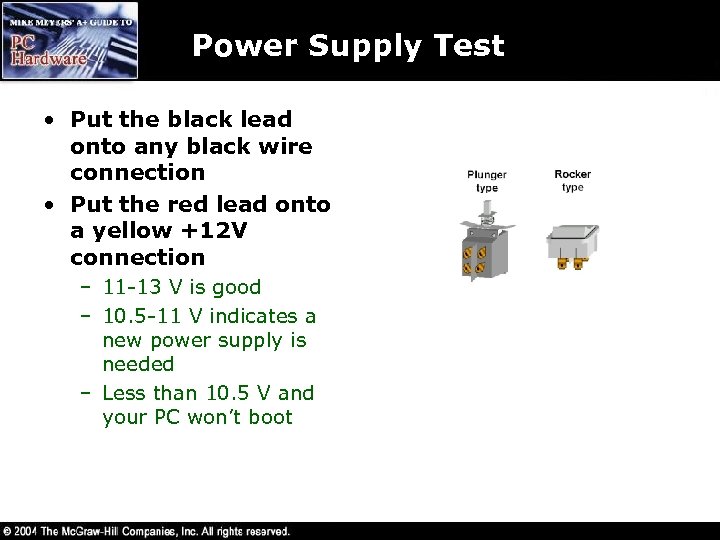
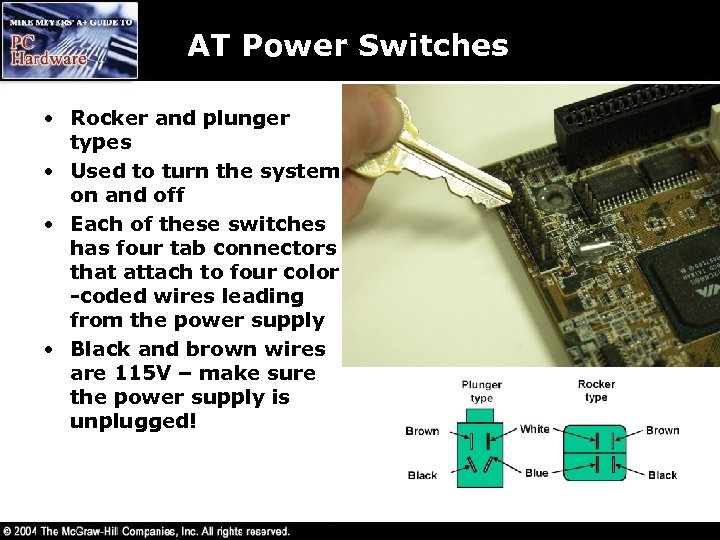 AT Power Switches • Rocker and plunger types • Used to turn the system on and off • Each of these switches has four tab connectors that attach to four color -coded wires leading from the power supply • Black and brown wires are 115 V – make sure the power supply is unplugged!
 Problems with AT Power Management • Power management involves going into power-saving modes, where devices are put to sleep • Power management also involves bringing devices back to an active state • The AT form factor and the AT power supply do not mix well with any type of power management
 ATX Soft Power and CMOS • The soft power feature on ATX motherboards handle all power management issues • ATX power supplies put a 5 -volt charge on the motherboard at all times • The important settings for ATX soft power reside in the CMOS setup
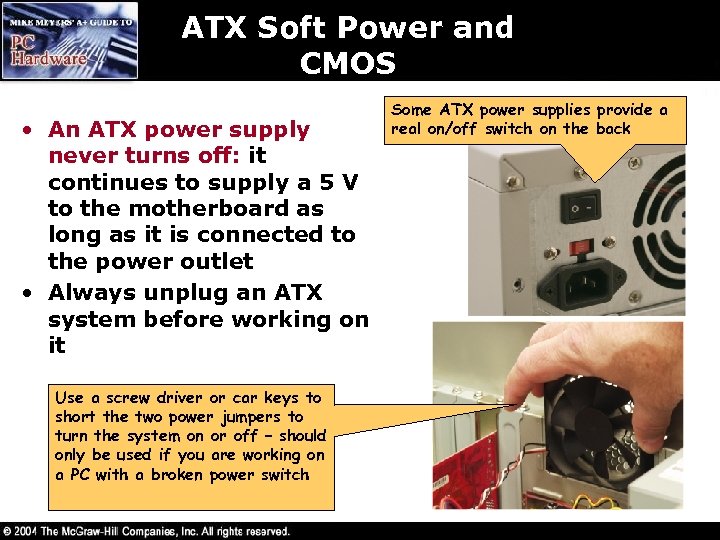 ATX Soft Power and CMOS • An ATX power supply never turns off: it continues to supply a 5 V to the motherboard as long as it is connected to the power outlet • Always unplug an ATX system before working on it Use a screw driver or car keys to short the two power jumpers to turn the system on or off – should only be used if you are working on a PC with a broken power switch Some ATX power supplies provide a real on/off switch on the back
 Cooling • The power supply fan provides basic cooling for the PC – The fan keeps the voltage regulators cool and provides a constant flow of cool air through the computer’s interior – If an expansion card is removed from the PC, be sure to cover the hole with a slot cover – Without the airflow the CPU can overheat and destroy itself – The CPU usually has its own fan and sits very near to the power supply so that it will not overheat from a disruption
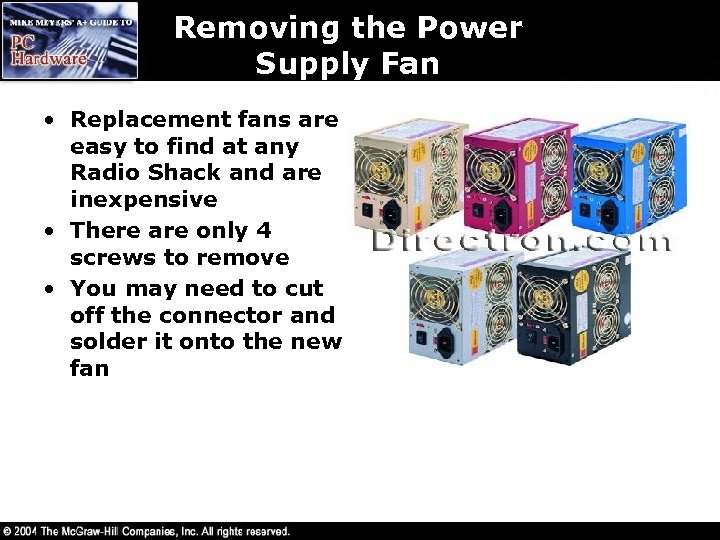 Removing the Power Supply Fan • Replacement fans are easy to find at any Radio Shack and are inexpensive • There are only 4 screws to remove • You may need to cut off the connector and solder it onto the new fan
 Troubleshooting Power
 Diagnosing a Dead Power Supply • A failure of the internal electronics of the power supply can cause some of the most difficult to diagnose problems • The secret to discovering that a power supply is dying lies in one word: intermittent • A voltmeter can be used to verify if the power supply is working or not • A failed power supply should be replaced rather than attempting to repair it • Power supplies break more often than many other parts in a PC
 Power Supply Switches • Broken power switches are also a common source of problems • On an AT system, a multimeter can be used to check the switch • On an ATX system, try shorting the soft power jumpers – if that works, then you need a new switch
 When Power Supplies Die Slowly • A power supply may be dying if you are getting intermittant problems such as – PC fails locks up as it is booting several times but finally boots up okay – Error codes show up on boot up but go away – PC runs fine for an hour or so and then locks up
 Fire Extinguishers • Do not open power supplies – The inside of a power supply contains high-voltage capacitors • Every PC workbench needs the right kind of fire extinguisher • A Class C fire extinguisher should be used for live electrical equipment – Class A fire extinguishers are for wood and paper – Class B fire extinguishers are for flammable liquids
 Beyond A+ • Some power supplies come in fancy colors, light up, and have extra fans • EPS 12 V power supplies provide more power for servers • Converting AC to DC causes a 30 -50% loss in power, so the power factor number is used on power supplies to define the amount of loss (0. 7 means a 30% loss) – An Active Power Correction (APC) power supply is more efficient with a power factor closer to 0. 95