 Скачать презентацию Power Point Basics Power Point basics Part
a2fa87a9c41e85842d336b76fa15ce2e.ppt
- Количество слайдов: 28



Power. Point Basics
Power. Point basics: Part 1 An introduction to producing Power. Point presentations as ONE tool to help you deliver your message Presented by Dan Dyck, Mennonite Church Canada, for International Workers at Mission Seminar 2004
Power. Point basics: Part 1 Two essentially different ways to use Power. Point: 1. Interactive, supportive visual aid in telling a story, teaching, or providing information – Pros: – - – Passionate narration, interactive Allows opportunities for eye contact between presenter and audience Cons: - Requires good prep and rehearsal time
Power. Point basics: Part 1 Two essentially different ways to use Power. Point: 2. Stand alone presentation, delivering the story in the way one might present a video – Pros: Consistent message each time, more friendly to use of music/audio, good intro/icebreaker – Cons: More technically complex to produce, little interaction with presenter until finished
Before you start… 6 steps • • Step 1: The Story Step 2: Pictures Step 3: Words Step 4: Pictures and Words • Step 5: Delivery • Step 6: Interaction
Step 1: The Story • Develop Story Outline – How much time? – Who is your audience? – Why have they come? – What are the 2 -3 most important points of your message? – Think in terms of section titles and subtitles
Step 2: Pictures • Collect images – People connect with people – Aim for quality images
Step 3: Words • Compose your message; point form, or full narrative – your choice – Less is MORE: limit animation, fonts, colours
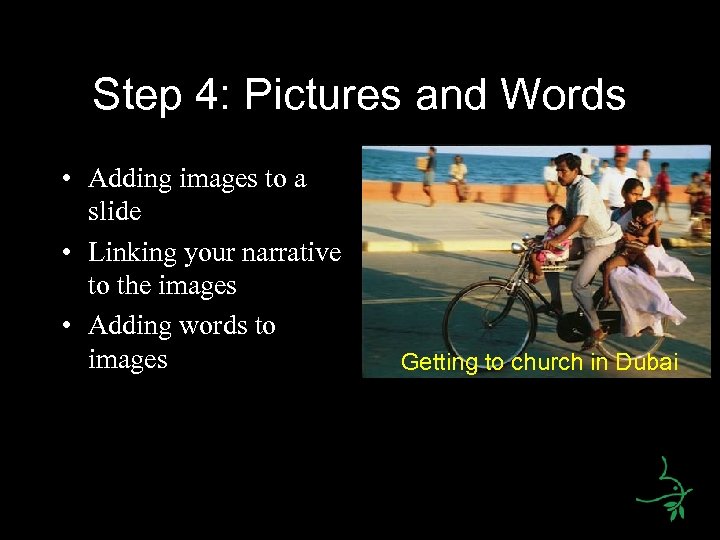
Step 4: Pictures and Words • Adding images to a slide • Linking your narrative to the images • Adding words to images Getting to church in Dubai
Step 5: Delivery Delivering your presentation • Practice, practice • Arrive early • Print notes pages – Stay on track – Stay synchronized
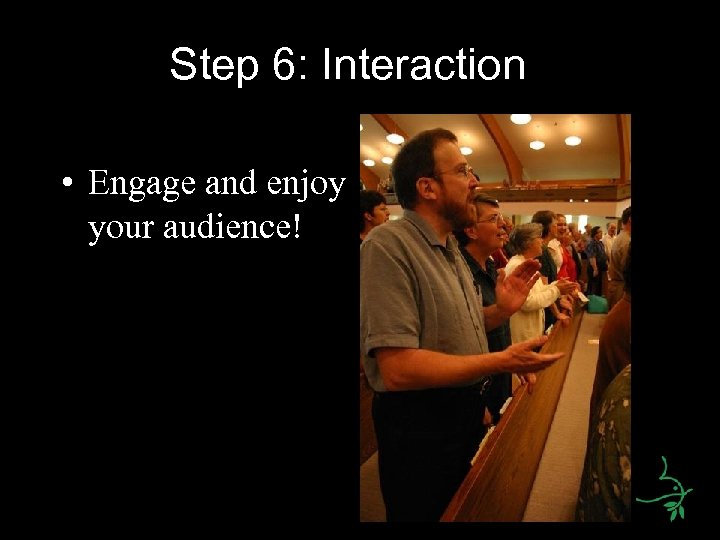
Step 6: Interaction • Engage and enjoy your audience!
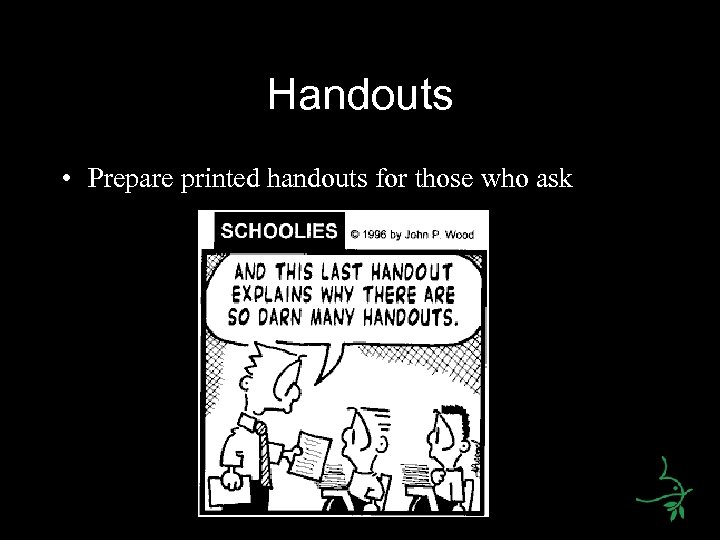
Handouts • Prepare printed handouts for those who ask
When you don’t have an LCD projector… • Create story pictures • Highlight the story pictures with narrative • Pass them around – Tip: One of the secrets to using Power. Point effectively is knowing when not to use it!
Power. Point Basics: Part 2 • Producing Your Presentation – Navigating around Power. Point – Using a template/master slides – Working with images – Working with text – Layers – Slide transitions – Adding Motion – Moving your presentation to another computer – Dos and Don’ts
Navigating around Power. Point Views • Notes pages – Changing window sizes – Master pages – Slide layouts • Slide sorter • Presentation view
Using a template/master slides • Branding is important; Use the dove! • Master Slide: Overview • Download template/resources at www. mennonitechurch. ca/files/witness_resources/
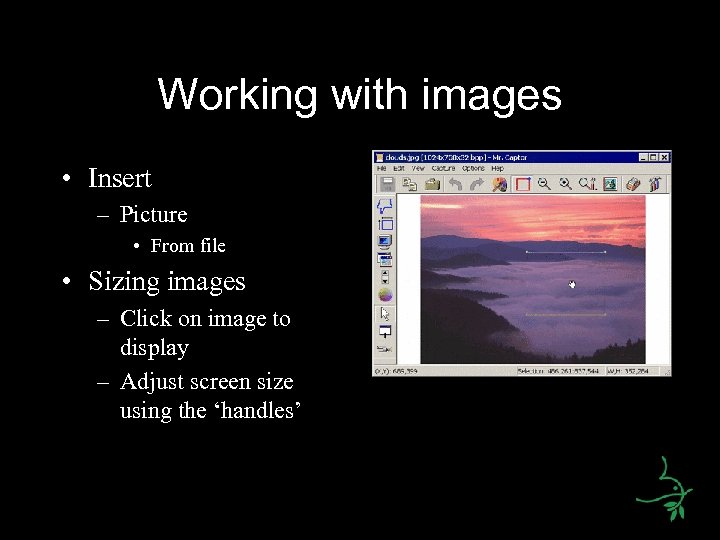
Working with images • Insert – Picture • From file • Sizing images – Click on image to display – Adjust screen size using the ‘handles’
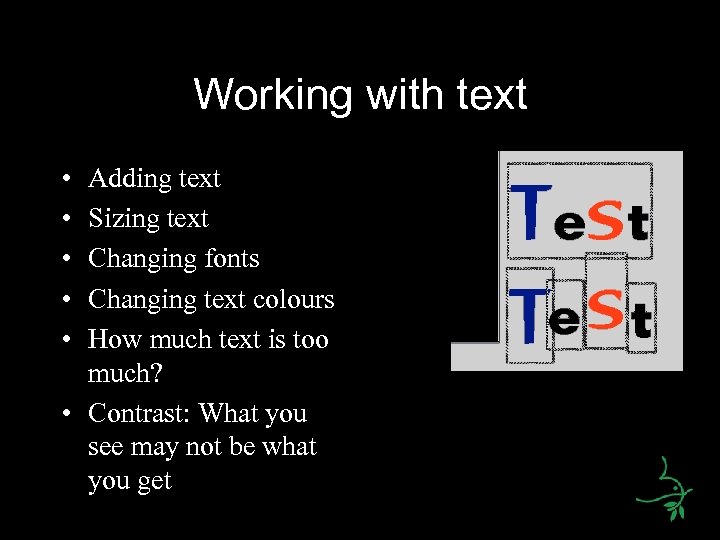
Working with text • • • Adding text Sizing text Changing fonts Changing text colours How much text is too much? • Contrast: What you see may not be what you get
Layers & Groups • Ordering items on the slide • Grouping items
Slide transitions • Make it smooth • Keep it clean • Keep the focus on the presentation • How to: – Select ‘Slide Show’ – Select ‘Slide Transition’ • Remember: Less is MORE
Adding Motion • Keep it clean • Stay focused • “The medium is the message. ” – Marshall Mc. Luhan, media analyst (1911 -1980). Use only effects that contribute to the message!
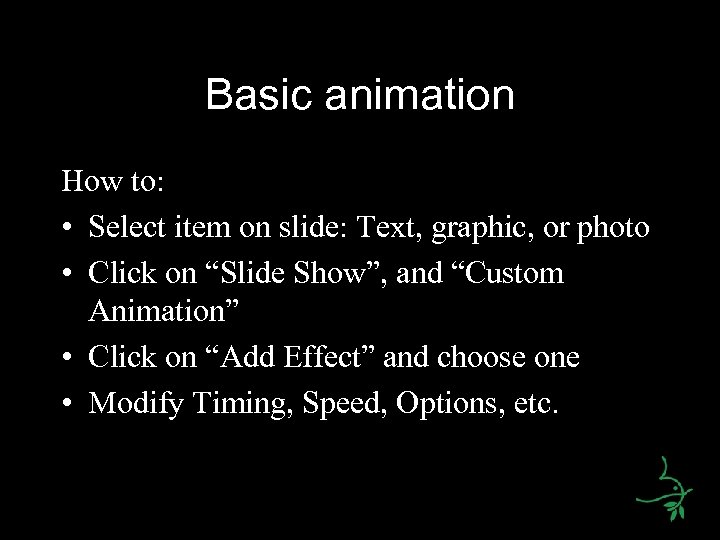
Basic animation How to: • Select item on slide: Text, graphic, or photo • Click on “Slide Show”, and “Custom Animation” • Click on “Add Effect” and choose one • Modify Timing, Speed, Options, etc.
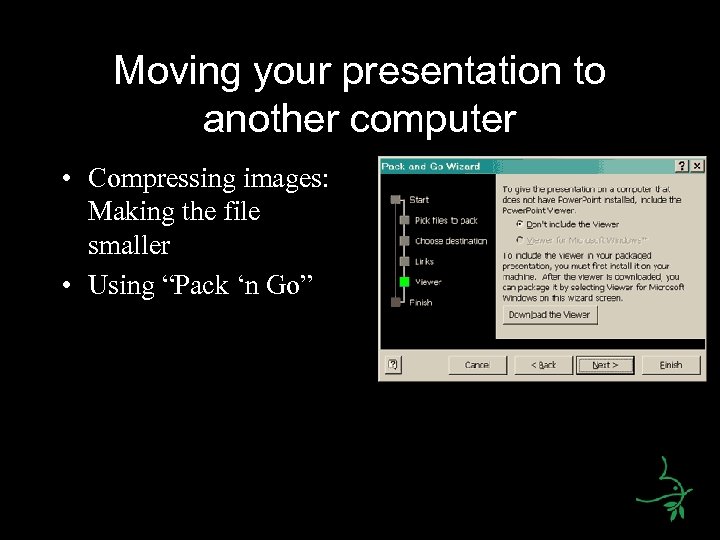
Moving your presentation to another computer • Compressing images: Making the file smaller • Using “Pack ‘n Go”
Dos and Don’ts • Do focus on telling the story • Do spend adequate time in production and presentation rehearsal • Do keep it brief • Do add interesting facts • Do use text sparingly on slides
Dos and Don’ts • • Don’t overdo the eye candy Don’t use EVERY picture you have Don’t use sound effects Don’t use the slides as your script
Power. Point Alternatives • Digital Camera software • Photo. Jam – www. shockwave. com/sw/content/photojam • IRFANVIEW – www. irfanview. com/main_download_engl. htm
Additional Resources • http: //www. presentersuniversity. com/

Thank You!
Скачать презентацию Power Point Basics Power Point basics Part
a2fa87a9c41e85842d336b76fa15ce2e.ppt