


 Скачать презентацию Portal 100 Remote Adminstrator Remote Admin Log
c26a15129f73e05ab5fb671594a4f176.ppt
- Количество слайдов: 24
 Portal 100 Remote Adminstrator
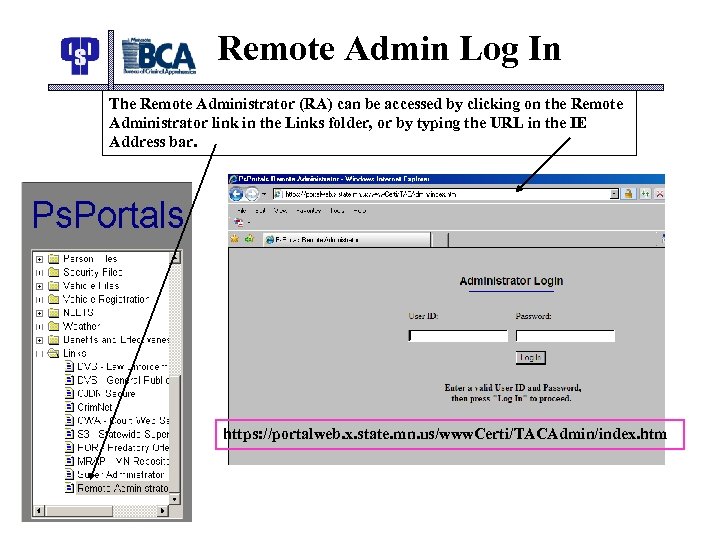 Remote Admin Log In The Remote Administrator (RA) can be accessed by clicking on the Remote Administrator link in the Links folder, or by typing the URL in the IE Address bar. https: //portalweb. x. state. mn. us/www. Certi/TACAdmin/index. htm
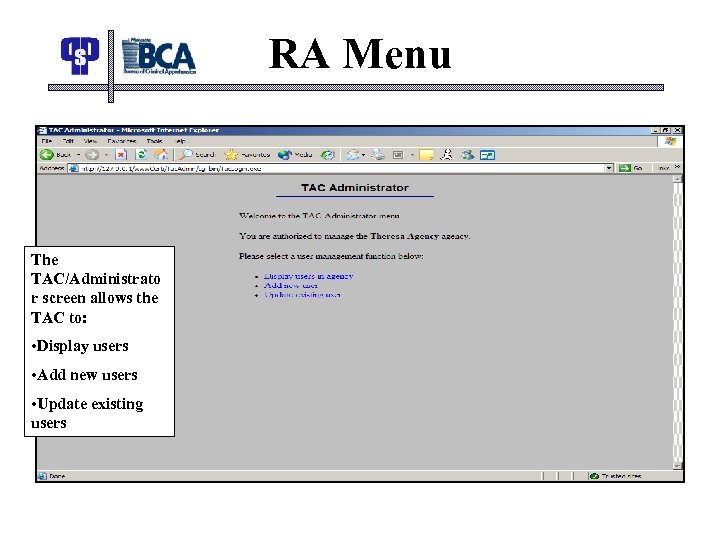 RA Menu The TAC/Administrato r screen allows the TAC to: • Display users • Add new users • Update existing users
 Display users
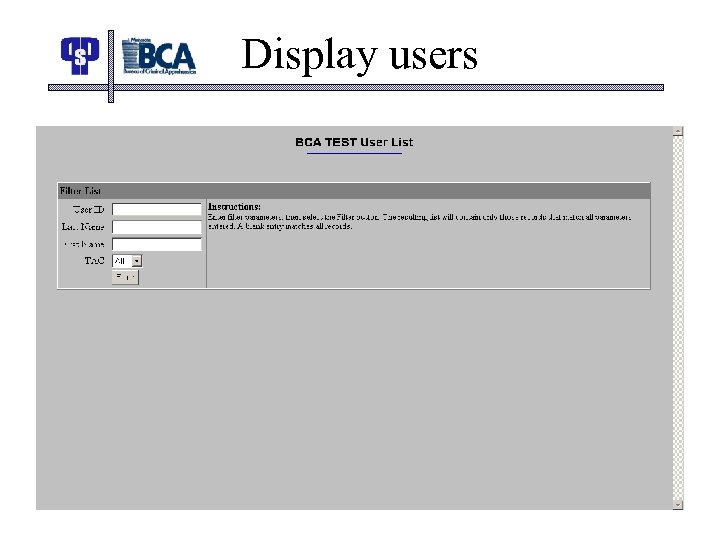
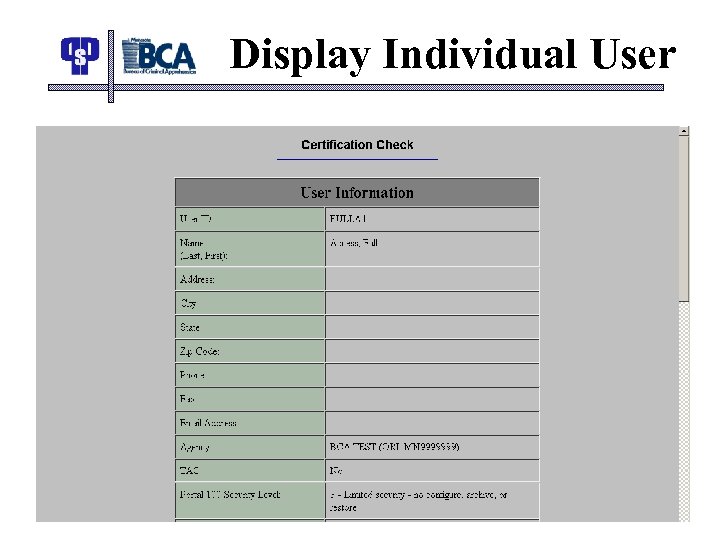
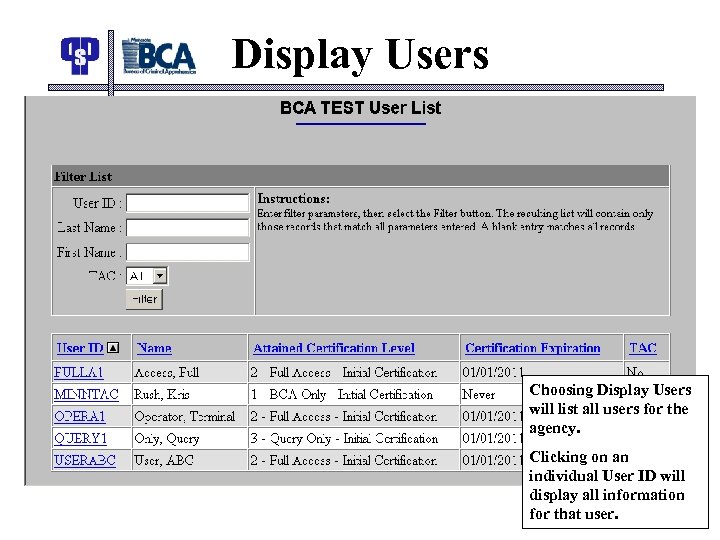 Display Users Choosing Display Users will list all users for the agency. Clicking on an individual User ID will display all information for that user.
 Display Individual User
 Display user cont’d
 Display user cont’d
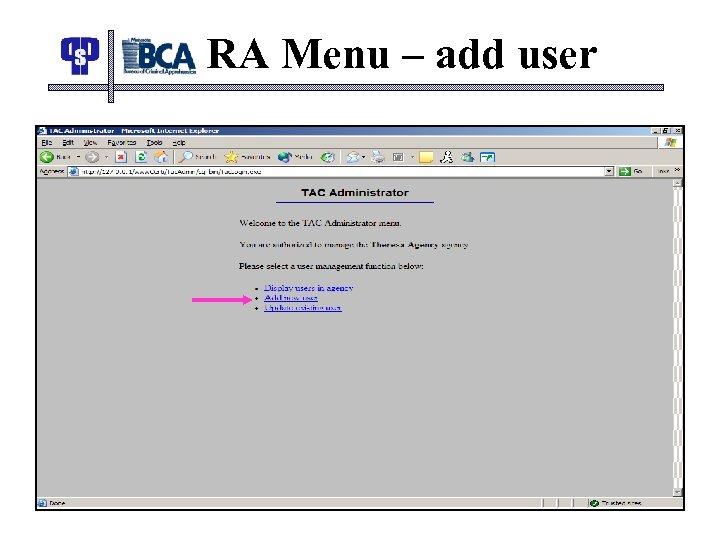 RA Menu – add user
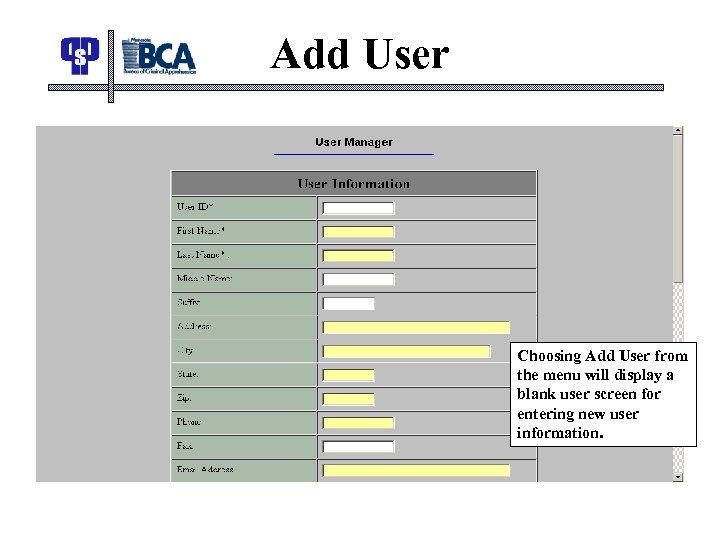 Add User Choosing Add User from the menu will display a blank user screen for entering new user information.
 User/operator field definitions • • User ID – Unique identifier for user (User ID login) must be a minimum of six characters, alpha or numeric – no special characters. • First Name – The user’s first name • Last Name – The user’s last name • Middle Name – The user’s middle name • Suffix – The user’s name suffix • Address – The user’s address • City – The user’s middle city • State – The user’s state • Zip – The users’s zip code • Phone – The user’s phone number • Fax – The user’s fax number • Email address – The user’s email address
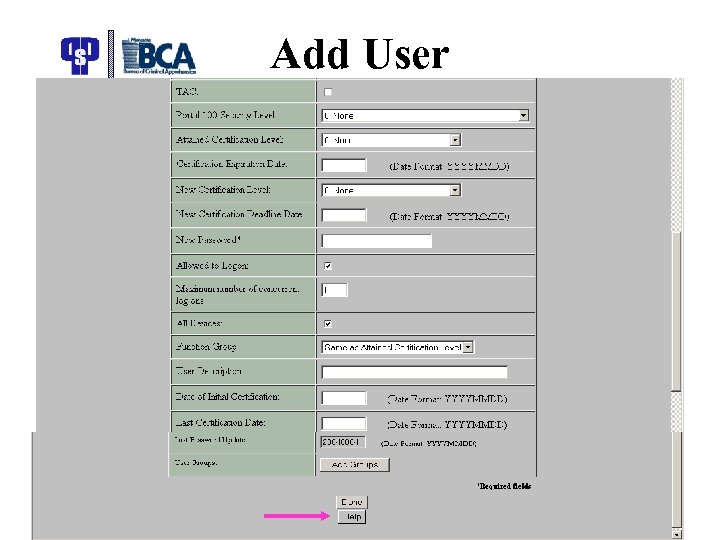 Add User
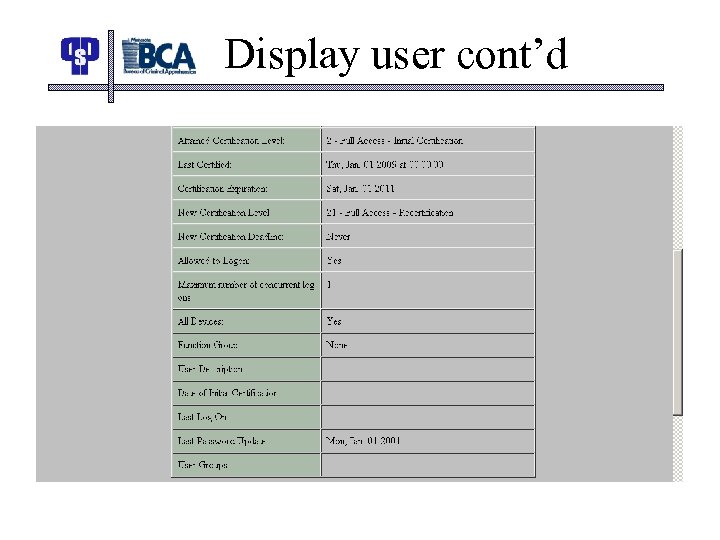
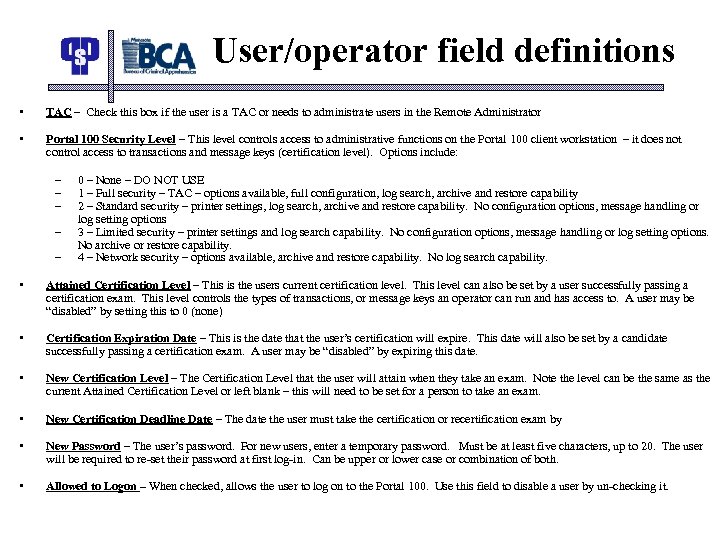 User/operator field definitions • TAC – Check this box if the user is a TAC or needs to administrate users in the Remote Administrator • Portal 100 Security Level – This level controls access to administrative functions on the Portal 100 client workstation – it does not control access to transactions and message keys (certification level). Options include: – – – 0 – None – DO NOT USE 1 – Full security – TAC – options available, full configuration, log search, archive and restore capability 2 – Standard security – printer settings, log search, archive and restore capability. No configuration options, message handling or log setting options 3 – Limited security – printer settings and log search capability. No configuration options, message handling or log setting options. No archive or restore capability. 4 – Network security – options available, archive and restore capability. No log search capability. • Attained Certification Level – This is the users current certification level. This level can also be set by a user successfully passing a certification exam. This level controls the types of transactions, or message keys an operator can run and has access to. A user may be “disabled” by setting this to 0 (none) • Certification Expiration Date – This is the date that the user’s certification will expire. This date will also be set by a candidate successfully passing a certification exam. A user may be “disabled” by expiring this date. • New Certification Level – The Certification Level that the user will attain when they take an exam. Note the level can be the same as the current Attained Certification Level or left blank – this will need to be set for a person to take an exam. • New Certification Deadline Date – The date the user must take the certification or recertification exam by • New Password – The user’s password. For new users, enter a temporary password. Must be at least five characters, up to 20. The user will be required to re-set their password at first log-in. Can be upper or lower case or combination of both. • Allowed to Logon – When checked, allows the user to log on to the Portal 100. Use this field to disable a user by un-checking it.
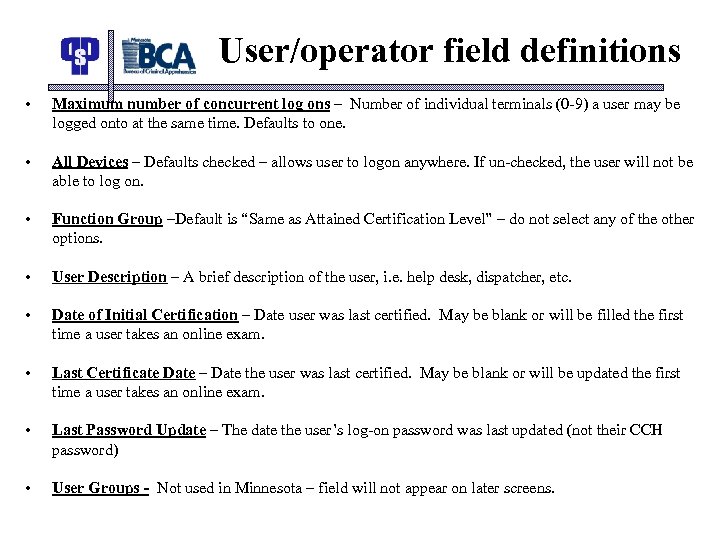 User/operator field definitions • Maximum number of concurrent log ons – Number of individual terminals (0 -9) a user may be logged onto at the same time. Defaults to one. • All Devices – Defaults checked – allows user to logon anywhere. If un-checked, the user will not be able to log on. • Function Group –Default is “Same as Attained Certification Level” – do not select any of the other options. • User Description – A brief description of the user, i. e. help desk, dispatcher, etc. • Date of Initial Certification – Date user was last certified. May be blank or will be filled the first time a user takes an online exam. • Last Certificate Date – Date the user was last certified. May be blank or will be updated the first time a user takes an online exam. • Last Password Update – The date the user’s log-on password was last updated (not their CCH password) • User Groups - Not used in Minnesota – field will not appear on later screens.
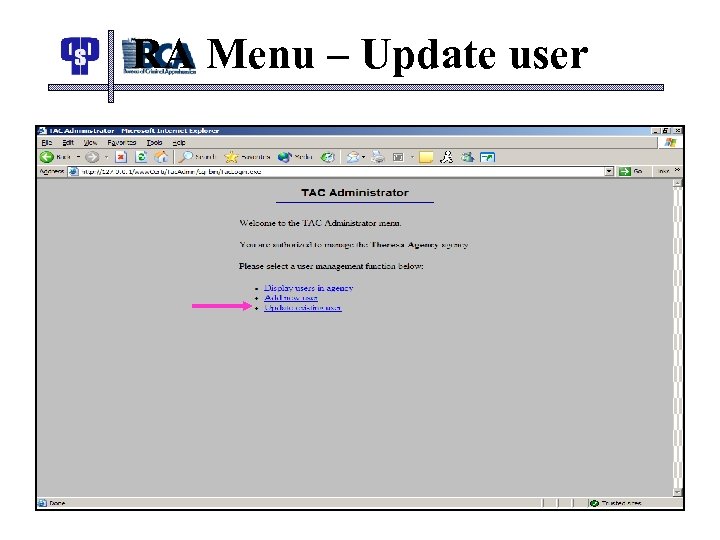 RA Menu – Update user
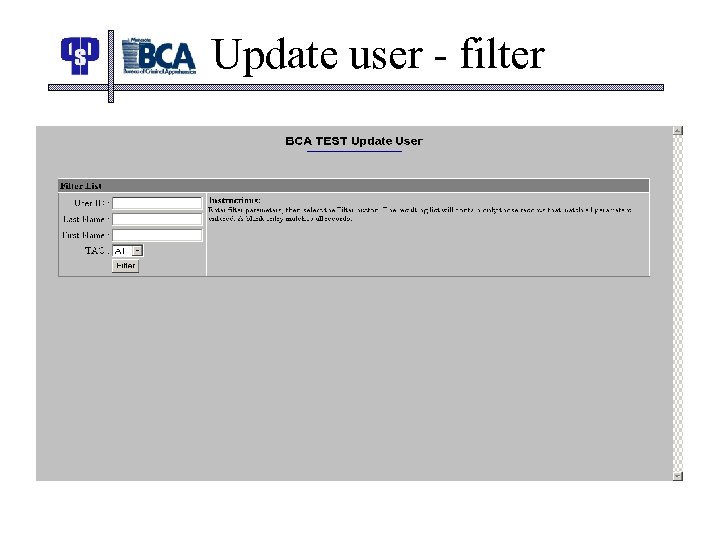 Update user - filter
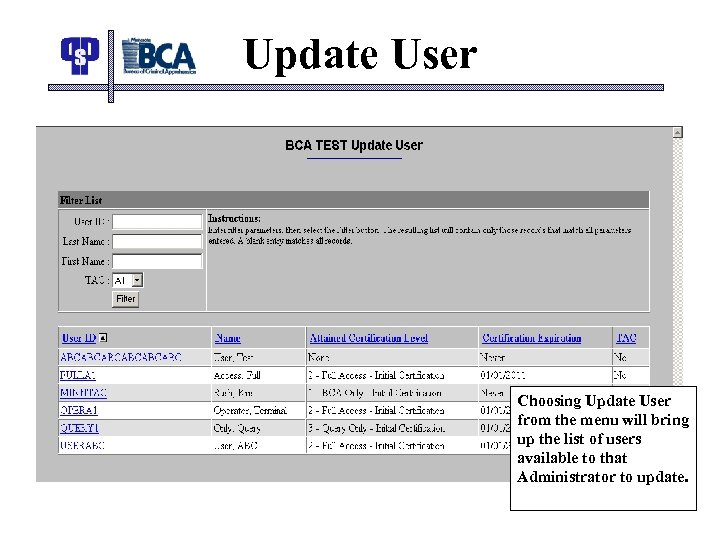 Update User Choosing Update User from the menu will bring up the list of users available to that Administrator to update.
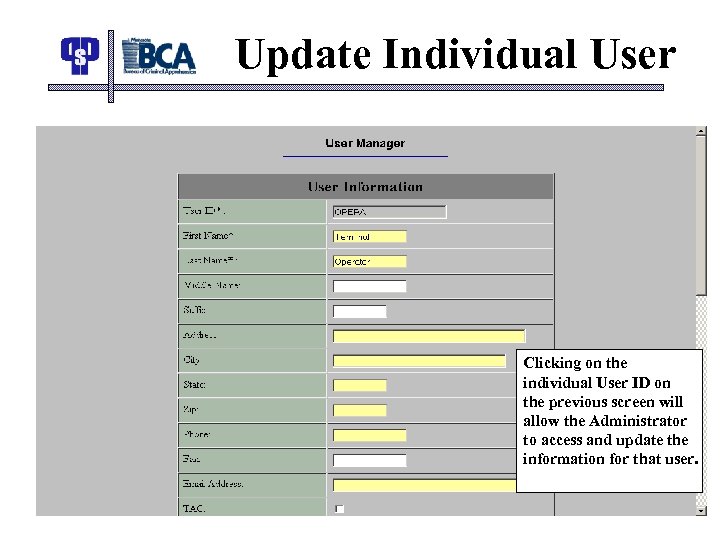 Update Individual User Clicking on the individual User ID on the previous screen will allow the Administrator to access and update the information for that user.
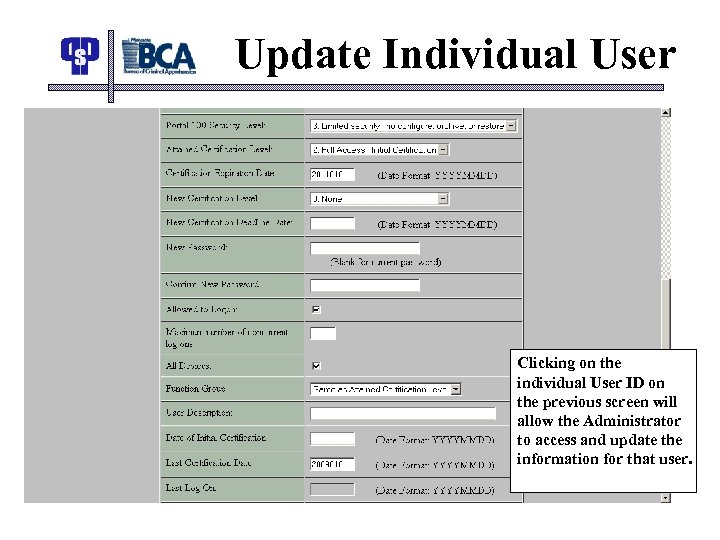 Update Individual User Clicking on the individual User ID on the previous screen will allow the Administrator to access and update the information for that user.
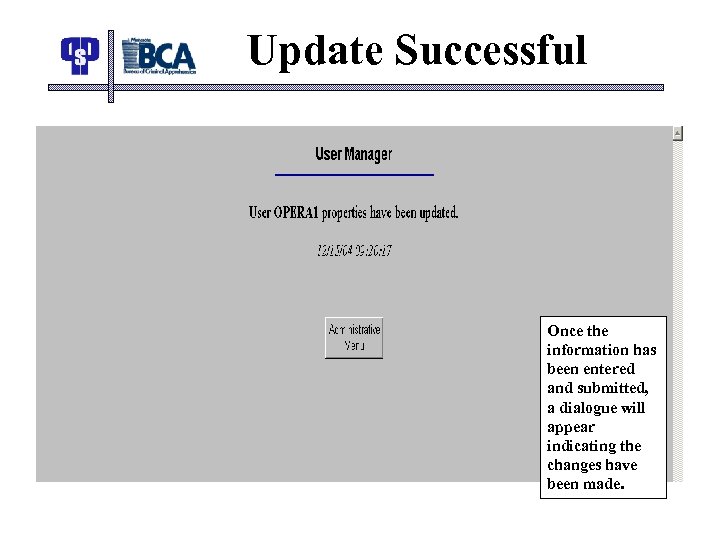 Update Successful Once the information has been entered and submitted, a dialogue will appear indicating the changes have been made.
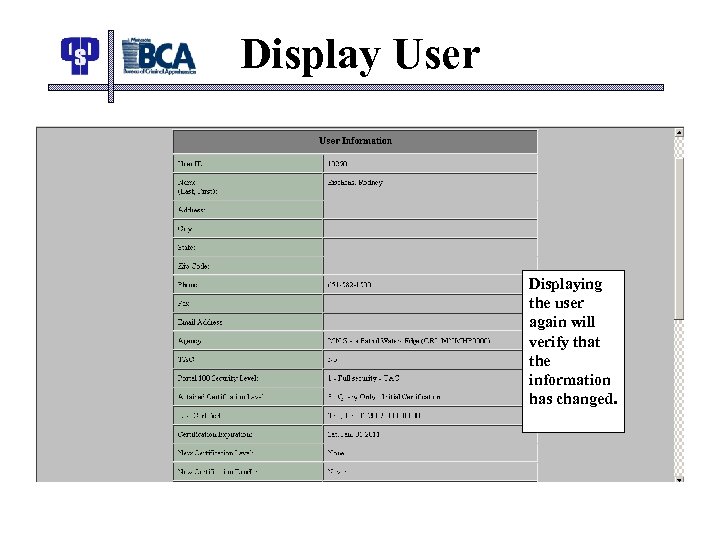 Display User Displaying the user again will verify that the information has changed.
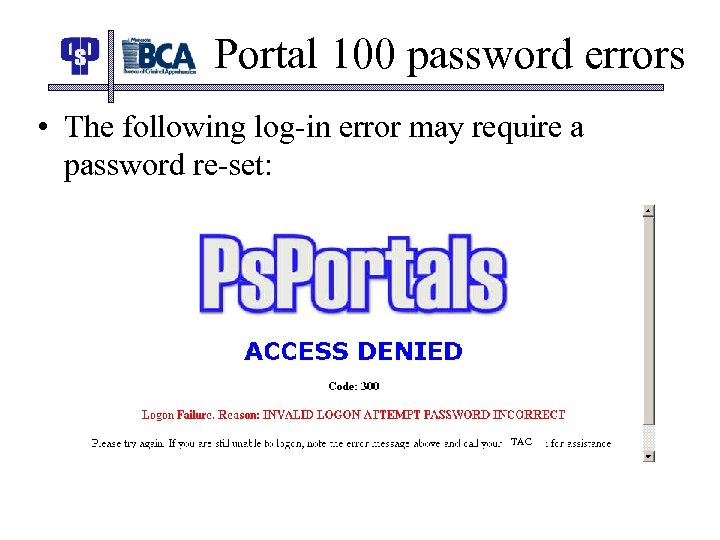 Portal 100 password errors • The following log-in error may require a password re-set: TAC
 Portal 100 password errors • Logon error code 400 = System remembers 3 previous passwords – change password, contact TAC
 Contacts • If you have questions or trouble with the Remote Administrator, contact the CJIS Help Desk – 651 -793 -2500 – 888234 -1119