 Скачать презентацию Photoshop Designing Graphics for the Web Christine Vucinich
31ee2a1ed83898a3d3c69600a83fdaeb.ppt
- Количество слайдов: 27



Photoshop: Designing Graphics for the Web Christine Vucinich & Vicki Weidler ITS Training Services 224 B Computer Building University Park, PA 16802 seminars@psu. edu http: //cac. psu. edu/training/
Overview • Photoshop Basics – What is Photoshop? – Uses – Tour • Web Graphics – – – Graphic Limitations Display Considerations Cross-Platform/Browser-Safe Palette File Formats Transparent Text Saving for the Web
Overview Continued • Scanning – – – Scanning Concepts Evaluating Originals Scanning Line Art vs. Photographic Images Scanning Strategies Photoshop Measurement/Correction Tools Additional Resources
What is Photoshop? Photo retouching, image editing, and color painting program; graphic design tool • • Create high-quality digital images Tools & special effects capabilities Manipulate scanned images, slides, & original artwork Isolate parts of an image for experimentation & individual editing • And lots more…. .
Uses of Photoshop • • • Art (line drawings, charcoal, color original) Photographic Restoration WWW (GIFS, JPEGS, etc. ) Montage Halftones, Duotones, Tritones, Quadtones Color Separations Posterizations Special Effects
Touring Photoshop • Using Help • Navigating: Windows, Palettes, Features & Tools • Preferences
Graphic Limitations • Connection Speeds • User Configurations
Display Considerations • Screen Sizes • Colors
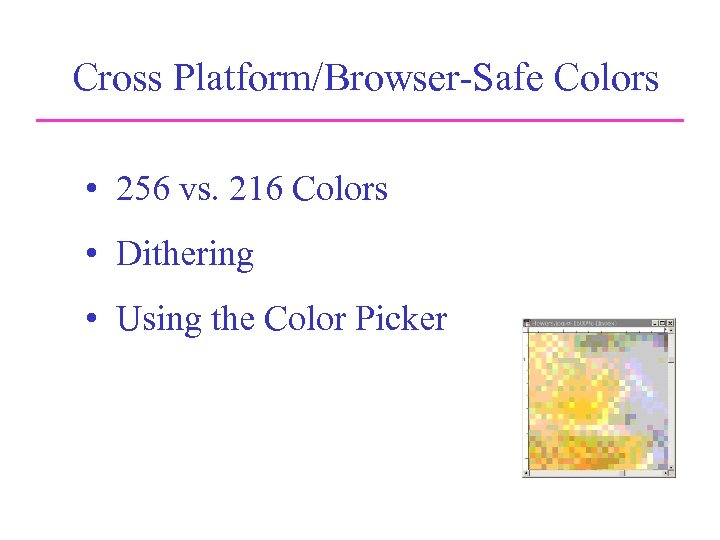
Cross Platform/Browser-Safe Colors • 256 vs. 216 Colors • Dithering • Using the Color Picker
File Formats • JPEG – Joint Photographic Experts Group • GIF – Graphics Interchange Format • PNG – Portable Network Graphics
JPEG • Best for photos or continuous tone, fullcolor images • Uses 16 million colors • Browsers use reasonable approximations • Work in RGB mode • Uses lossy compression • Saving (Standard, Optimized, Progressive)
GIF • • • Best for solid color images (buttons, logos) Uses 256 colors Browsers uses 216 colors Work in Indexed mode Good compression Interlaced
PNG (8 -bit) • Best for line art (logos) • Compresses solid areas of color well and maintains sharp detail • Generally, has better compression than GIF (10 -30% smaller) • If considering saving as GIF, also consider saving as PNG (8 -bit) • Not supported by older browsers
PNG (24 -bit) • Best for continuous-tone images • Compresses well, but can be larger than JPEGs • If considering saving as JPEG, could also consider PNG (24 -bit) • Not supported by older browsers
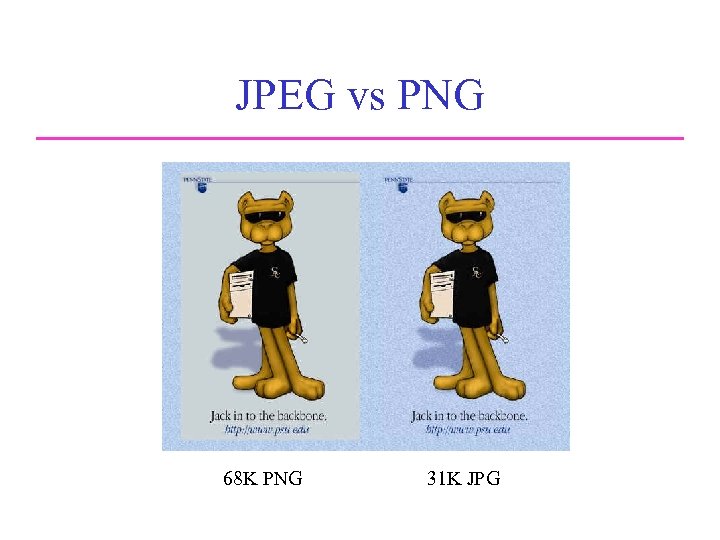
JPEG vs PNG Comparison of JPEG and PNG 68 K PNG 31 K JPG
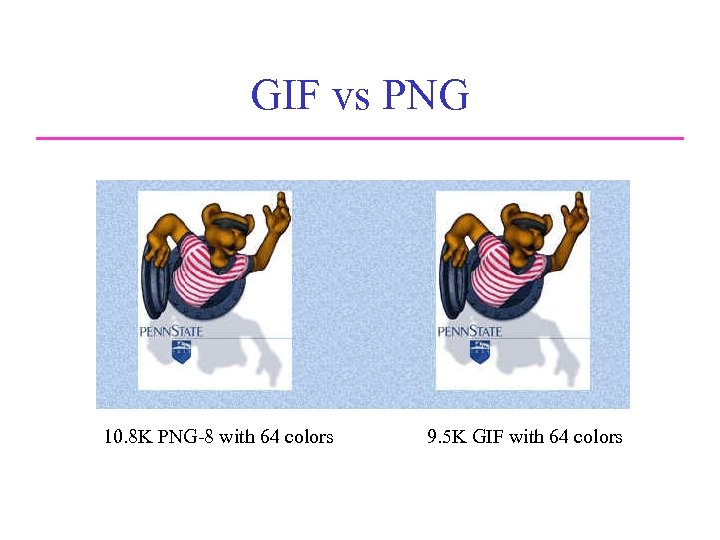
GIF vs PNG Comparison of JPEG and PNG 10. 8 K PNG-8 with 64 colors 9. 5 K GIF with 64 colors
Transparent Text Web Graphics
Saving for the Web • 4 -Up View • File Sizes and Download Speeds • Changing Options • Halo Effect and Matte Options
Scanning Concepts • • Getting Images Into Photoshop Bitmap vs. Vector Graphics Pixel Dimensions Image Resolution Monitor Resolution Printer Resolution Screen Frequency File Size
Evaluating Originals • • • Color Range Contrast Size Good Original Shadow & Highlight Detail Tonal Corrections
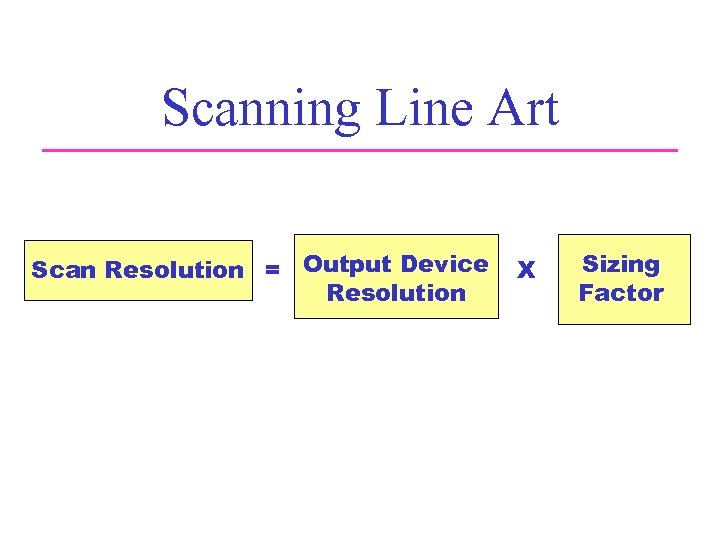
Scanning Line Art Scan Resolution = Output Device Resolution X Sizing Factor
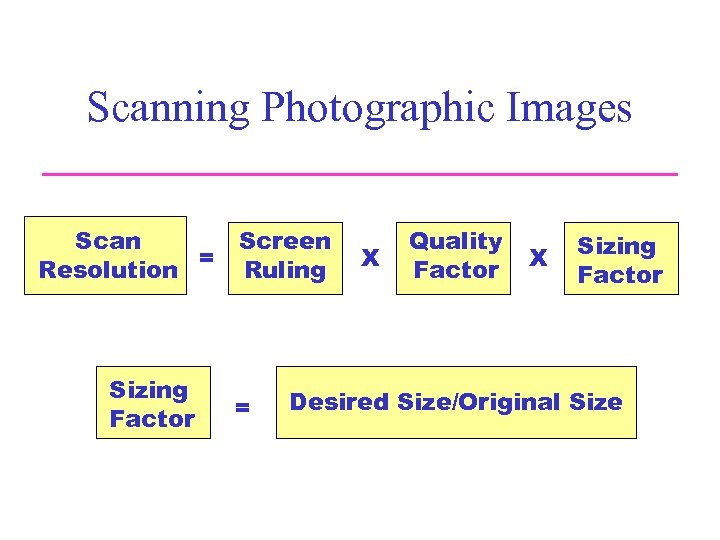
Scanning Photographic Images Scan Screen Resolution = Ruling Sizing Factor = X Quality Factor X Sizing Factor Desired Size/Original Size
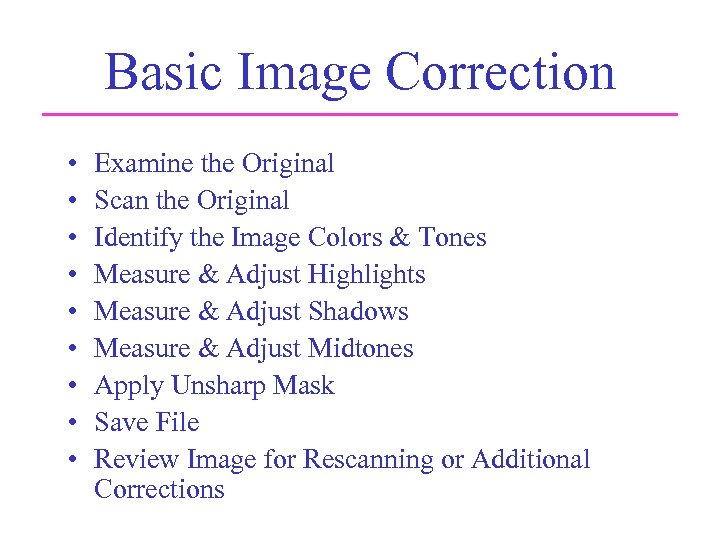
Basic Image Correction • • • Examine the Original Scan the Original Identify the Image Colors & Tones Measure & Adjust Highlights Measure & Adjust Shadows Measure & Adjust Midtones Apply Unsharp Mask Save File Review Image for Rescanning or Additional Corrections
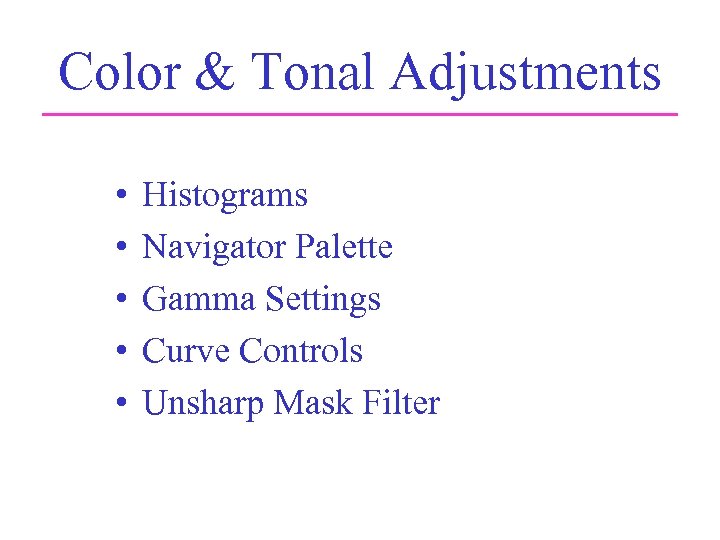
Color & Tonal Adjustments • • • Histograms Navigator Palette Gamma Settings Curve Controls Unsharp Mask Filter
Summary • Photoshop Basics – What is Photoshop? – Uses – Tour • Web Graphics – – – Graphic Limitations Display Considerations Cross-Platform/Browser-Safe Palette File Formats Transparent Text Saving for the Web
Summary Continued • Scanning – – – Scanning Concepts Evaluating Originals Scanning Line Art vs. Photographic Images Scanning Strategies Photoshop Measurement/Correction Tools Additional Resources
Conclusion • Questions & Answers • Additional Resources • Thank You!!!
Скачать презентацию Photoshop Designing Graphics for the Web Christine Vucinich
31ee2a1ed83898a3d3c69600a83fdaeb.ppt