 Скачать презентацию PG 5 2 0 Beta What s
b6d6d2ef7806ef01286cba7d463d2878.ppt
- Количество слайдов: 44



PG 5 2. 0 Beta : What’s new? Expert days 2009
What’s new in PG 5 2. 0? User interface MDI (Multi Document Interface) for editors Desktop docking standardized components Symbol editor New Symbol editor combined with new symbol handling HW configuration Device Configurator instead of “Hardware Settings window” combined with new I/O handling IL New scopes for symbols Improved methods for calling FBs Library manager FB and CSF libraries integrated in IL editor Overview of used libraries Graftec templates PG 5 2. 0: What's new 2
What’s new in PG 5 2. 0? Fupla New FBox Property window (Name/Ref) New “Adjust parameter window” FBox selector New file format Watch Window New trending functionality Adding symbols from its context menu New hardware PCD 3. WAC Ethernet RIO Vista compatible Adapted directories (Project, Libraries) New help file format Compatibility PG 5 2. 0: What's new Import functions for import of PG 5 1. 4 projects 3
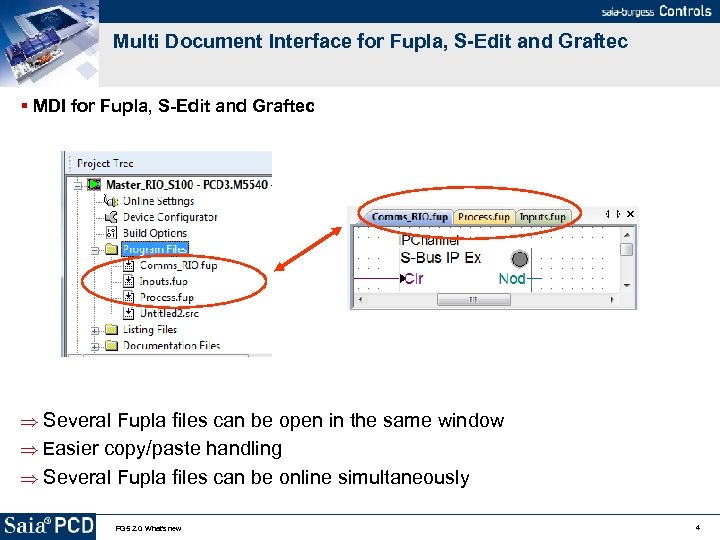
Multi Document Interface for Fupla, S-Edit and Graftec MDI for Fupla, S-Edit and Graftec Several Fupla files can be open in the same window Easier copy/paste handling Several Fupla files can be online simultaneously PG 5 2. 0: What's new 4
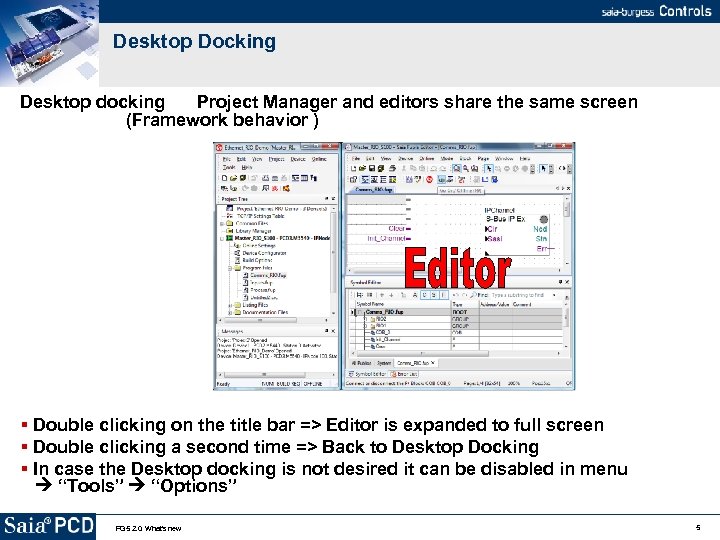
Desktop Docking Desktop docking Project Manager and editors share the same screen (Framework behavior ) Double clicking on the title bar => Editor is expanded to full screen Double clicking a second time => Back to Desktop Docking In case the Desktop docking is not desired it can be disabled in menu “Tools” “Options” PG 5 2. 0: What's new 5
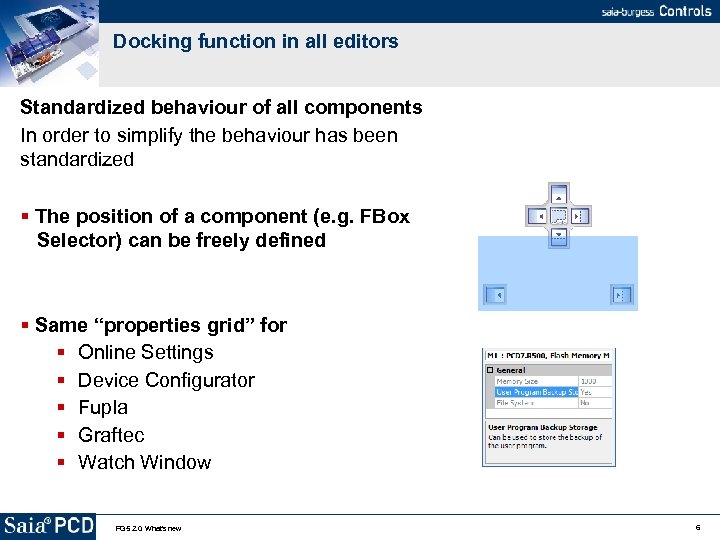
Docking function in all editors Standardized behaviour of all components In order to simplify the behaviour has been standardized The position of a component (e. g. FBox Selector) can be freely defined Same “properties grid” for Online Settings Device Configurator Fupla Graftec Watch Window PG 5 2. 0: What's new 6
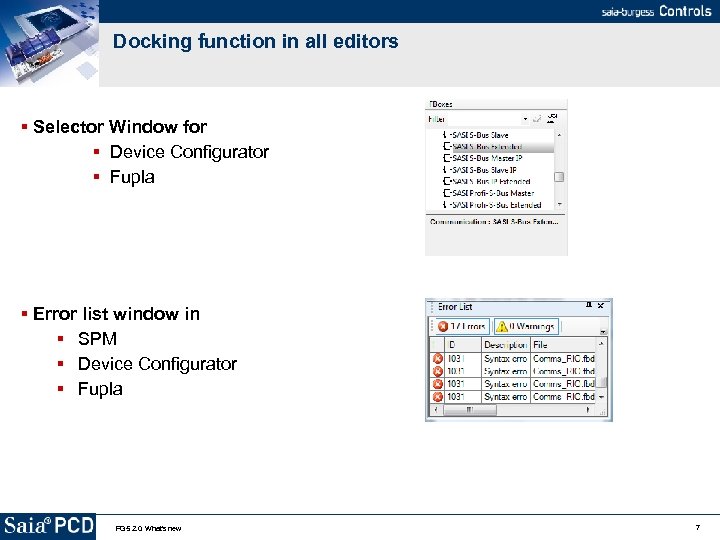
Docking function in all editors Selector Window for Device Configurator Fupla Error list window in SPM Device Configurator Fupla PG 5 2. 0: What's new 7
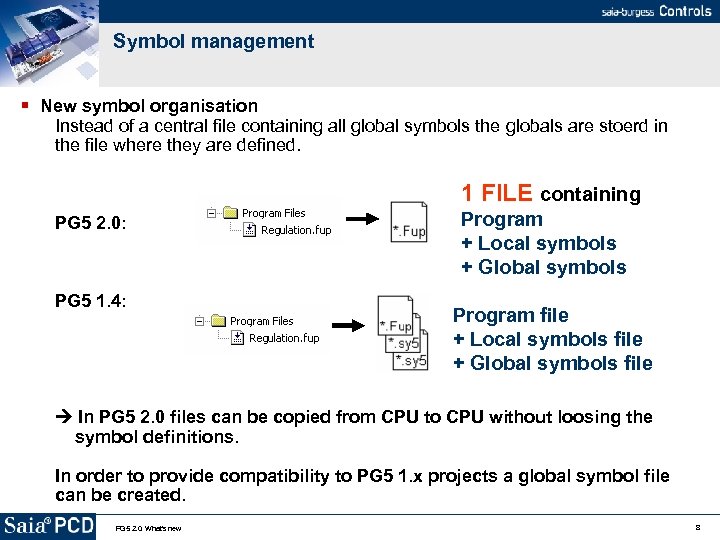
Symbol management New symbol organisation Instead of a central file containing all global symbols the globals are stoerd in the file where they are defined. 1 FILE containing PG 5 2. 0: PG 5 1. 4: Program + Local symbols + Global symbols Program file + Local symbols file + Global symbols file In PG 5 2. 0 files can be copied from CPU to CPU without loosing the symbol definitions. In order to provide compatibility to PG 5 1. x projects a global symbol file can be created. PG 5 2. 0: What's new 8
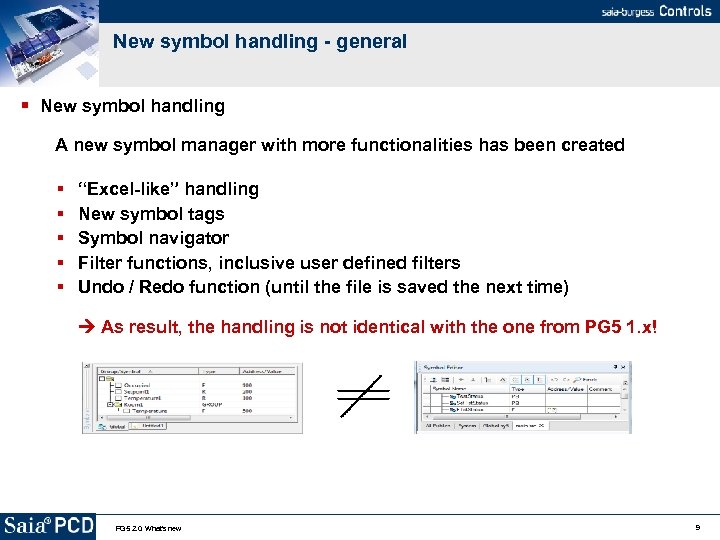
New symbol handling - general New symbol handling A new symbol manager with more functionalities has been created “Excel-like” handling New symbol tags Symbol navigator Filter functions, inclusive user defined filters Undo / Redo function (until the file is saved the next time) As result, the handling is not identical with the one from PG 5 1. x! PG 5 2. 0: What's new 9
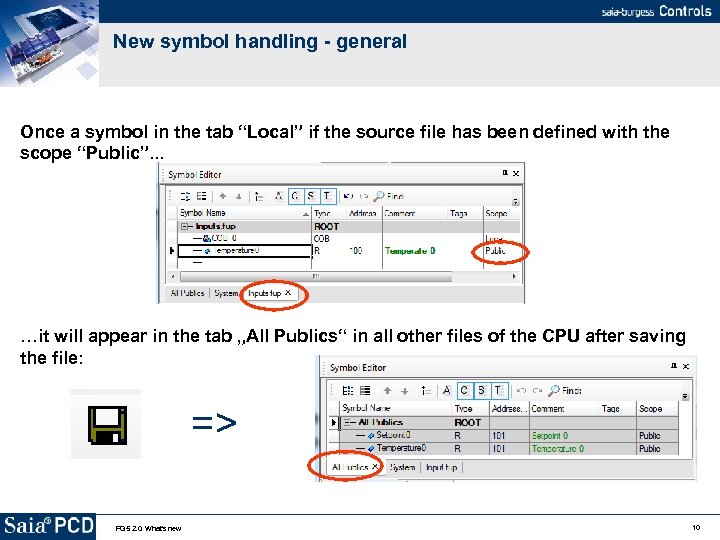
New symbol handling - general Once a symbol in the tab “Local” if the source file has been defined with the scope “Public”. . . …it will appear in the tab „All Publics“ in all other files of the CPU after saving the file: => PG 5 2. 0: What's new 10
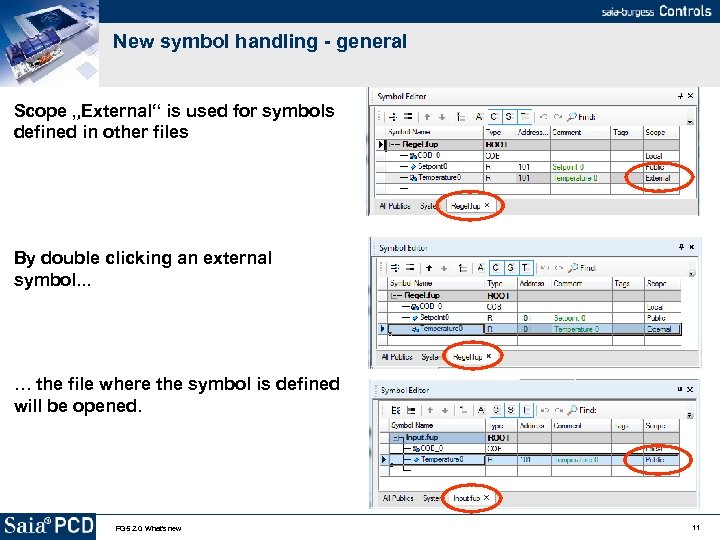
New symbol handling - general Scope „External“ is used for symbols defined in other files By double clicking an external symbol. . . … the file where the symbol is defined will be opened. PG 5 2. 0: What's new 11
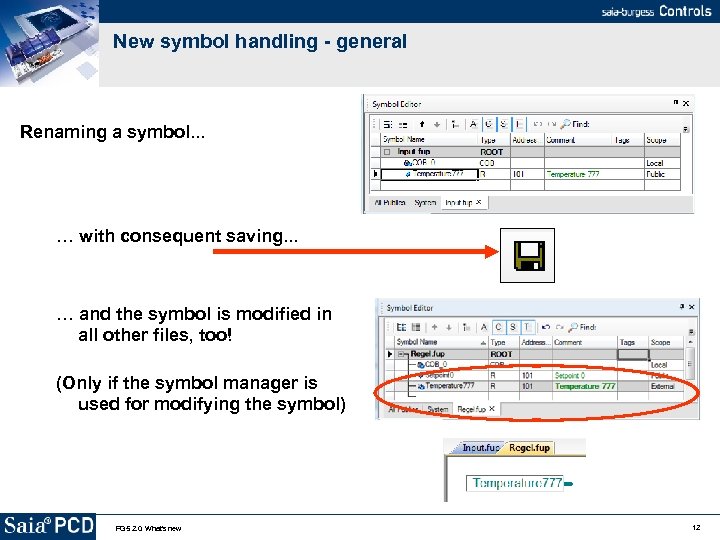
New symbol handling - general Renaming a symbol. . . … with consequent saving. . . … and the symbol is modified in all other files, too! (Only if the symbol manager is used for modifying the symbol) PG 5 2. 0: What's new 12
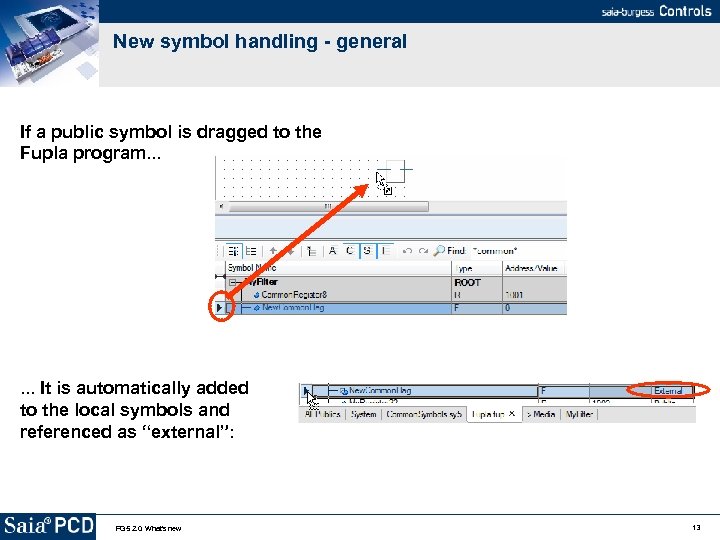
New symbol handling - general If a public symbol is dragged to the Fupla program. . . It is automatically added to the local symbols and referenced as “external”: PG 5 2. 0: What's new 13
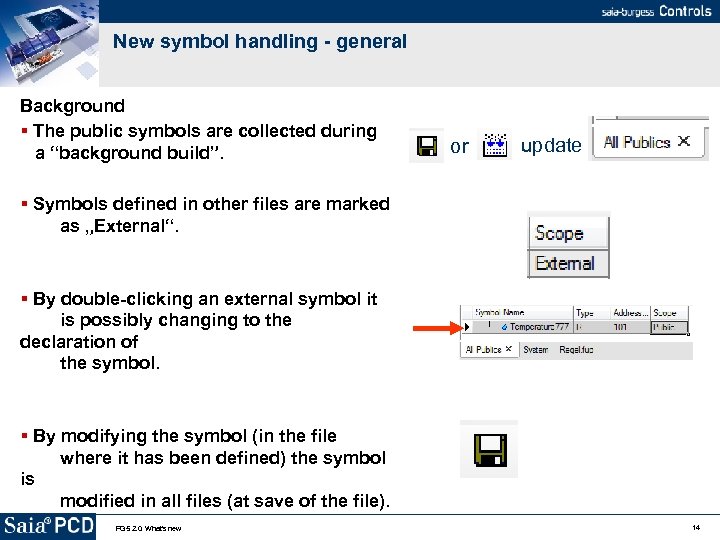
New symbol handling - general Background The public symbols are collected during a “background build”. or update Symbols defined in other files are marked as „External“. By double-clicking an external symbol it is possibly changing to the declaration of the symbol. By modifying the symbol (in the file where it has been defined) the symbol is modified in all files (at save of the file). PG 5 2. 0: What's new 14
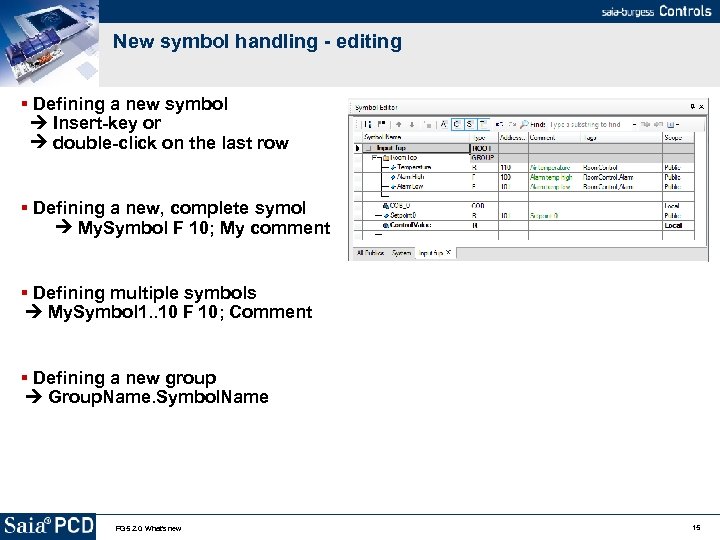
New symbol handling - editing Defining a new symbol Insert-key or double-click on the last row Defining a new, complete symol My. Symbol F 10; My comment Defining multiple symbols My. Symbol 1. . 10 F 10; Comment Defining a new group Group. Name. Symbol. Name PG 5 2. 0: What's new 15
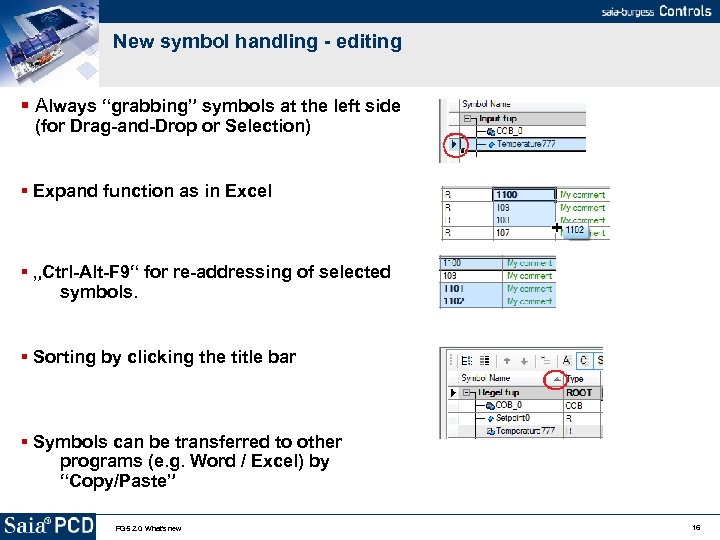
New symbol handling - editing Always “grabbing” symbols at the left side (for Drag-and-Drop or Selection) Expand function as in Excel „Ctrl-Alt-F 9“ for re-addressing of selected symbols. Sorting by clicking the title bar Symbols can be transferred to other programs (e. g. Word / Excel) by “Copy/Paste” PG 5 2. 0: What's new 16
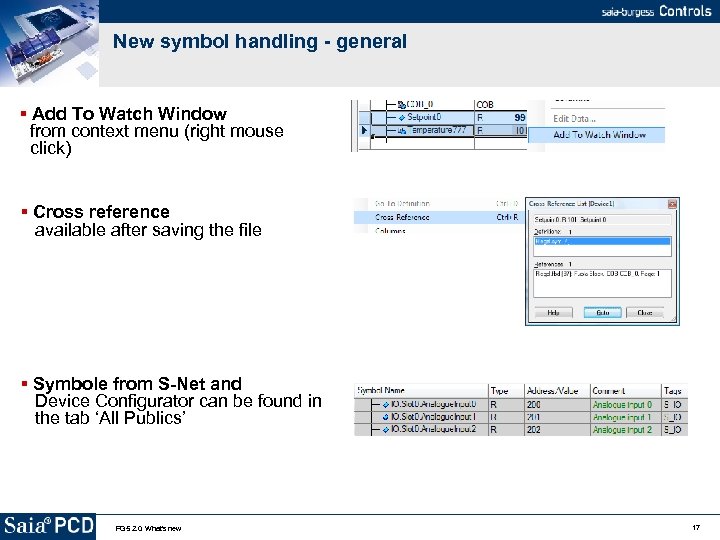
New symbol handling - general Add To Watch Window from context menu (right mouse click) Cross reference available after saving the file Symbole from S-Net and Device Configurator can be found in the tab ‘All Publics’ PG 5 2. 0: What's new 17
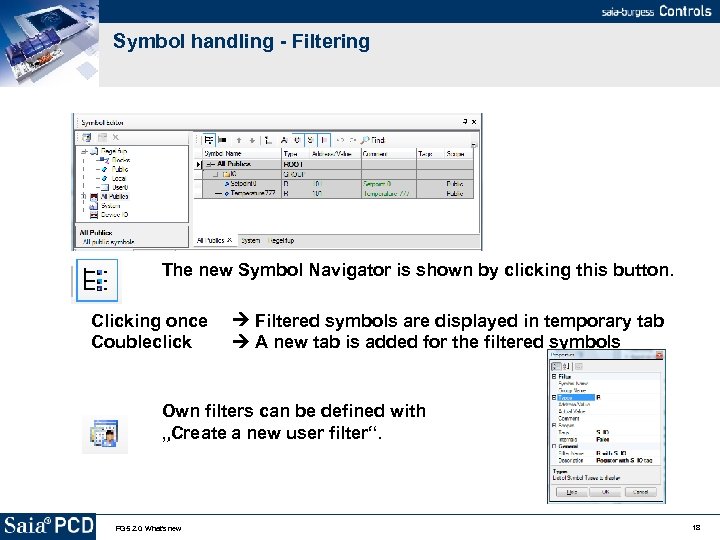
Symbol handling - Filtering The new Symbol Navigator is shown by clicking this button. Clicking once Coubleclick Filtered symbols are displayed in temporary tab A new tab is added for the filtered symbols Own filters can be defined with „Create a new user filter“. PG 5 2. 0: What's new 18
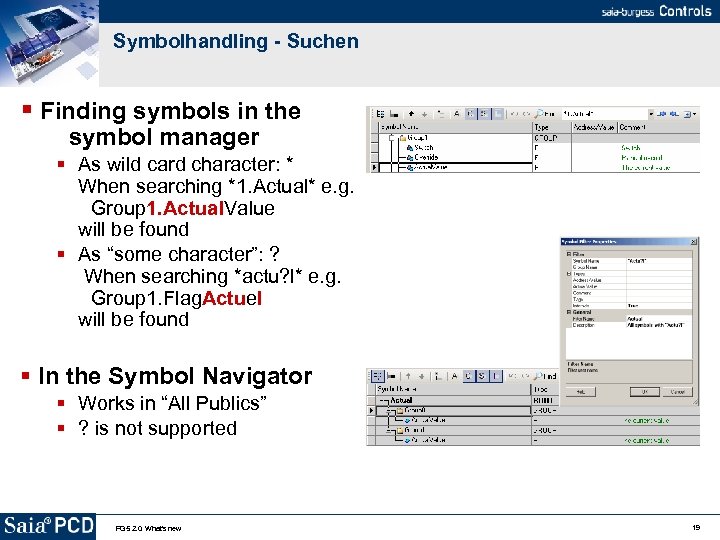
Symbolhandling - Suchen Finding symbols in the symbol manager As wild card character: * When searching *1. Actual* e. g. Group 1. Actual. Value will be found As “some character”: ? When searching *actu? l* e. g. Group 1. Flag. Actuel will be found In the Symbol Navigator Works in “All Publics” ? is not supported PG 5 2. 0: What's new 19
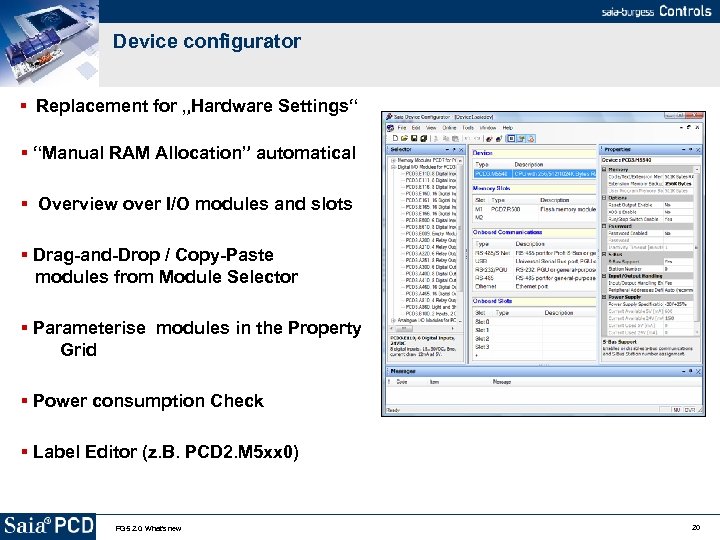
Device configurator Replacement for „Hardware Settings“ “Manual RAM Allocation” automatical Overview over I/O modules and slots Drag-and-Drop / Copy-Paste modules from Module Selector Parameterise modules in the Property Grid Power consumption Check Label Editor (z. B. PCD 2. M 5 xx 0) PG 5 2. 0: What's new 20
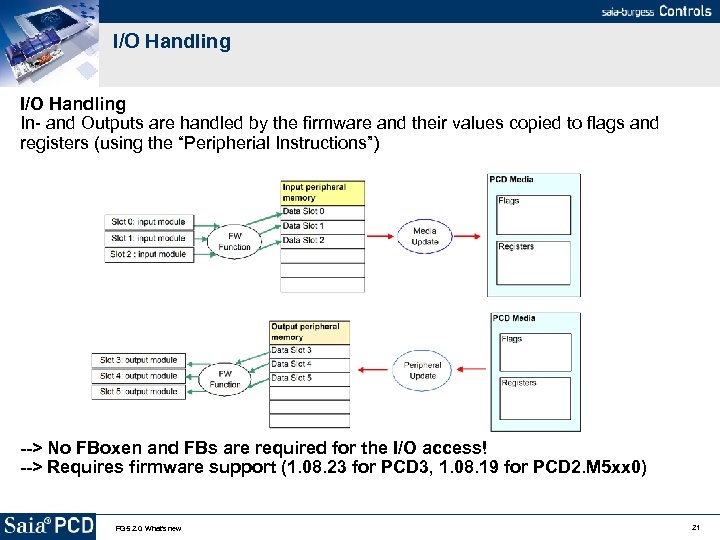
I/O Handling In- and Outputs are handled by the firmware and their values copied to flags and registers (using the “Peripherial Instructions”) --> No FBoxen and FBs are required for the I/O access! --> Requires firmware support (1. 08. 23 for PCD 3, 1. 08. 19 for PCD 2. M 5 xx 0) PG 5 2. 0: What's new 21
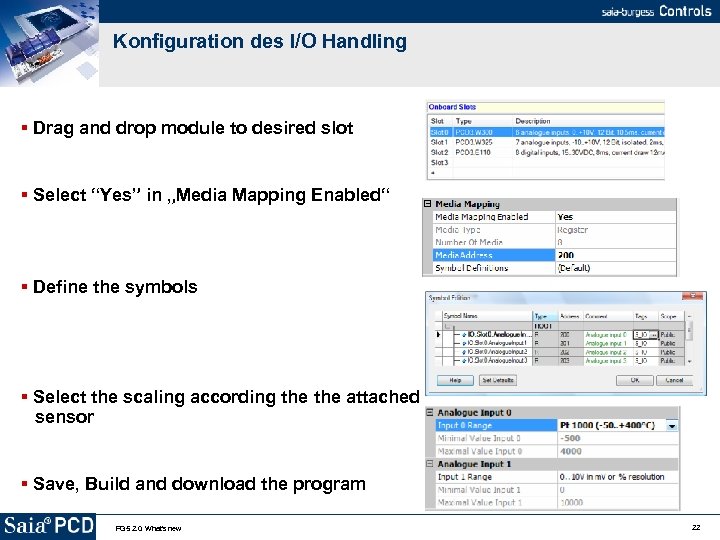
Konfiguration des I/O Handling Drag and drop module to desired slot Select “Yes” in „Media Mapping Enabled“ Define the symbols Select the scaling according the attached sensor Save, Build and download the program PG 5 2. 0: What's new 22
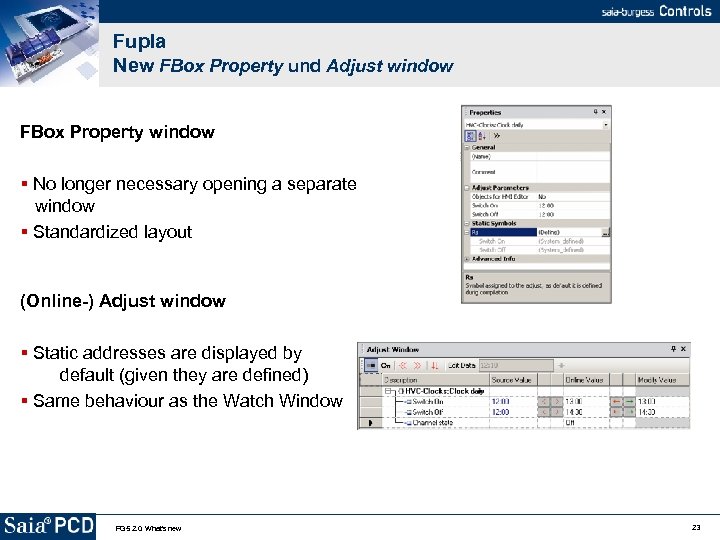
Fupla New FBox Property und Adjust window FBox Property window No longer necessary opening a separate window Standardized layout (Online-) Adjust window Static addresses are displayed by default (given they are defined) Same behaviour as the Watch Window PG 5 2. 0: What's new 23
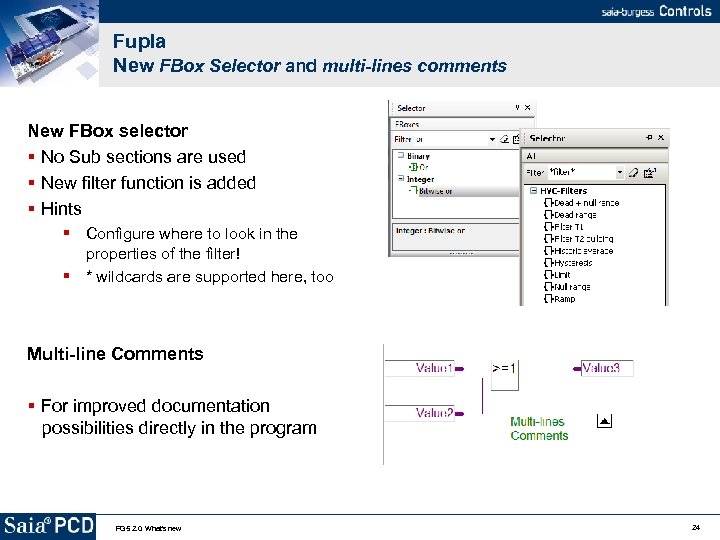
Fupla New FBox Selector and multi-lines comments New FBox selector No Sub sections are used New filter function is added Hints Configure where to look in the properties of the filter! * wildcards are supported here, too Multi-line Comments For improved documentation possibilities directly in the program PG 5 2. 0: What's new 24
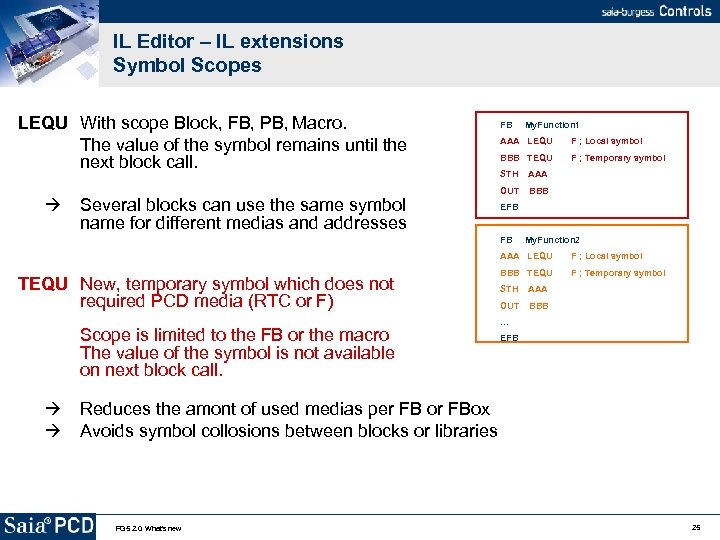
IL Editor – IL extensions Symbol Scopes LEQU With scope Block, FB, PB, Macro. The value of the symbol remains until the next block call. Several blocks can use the same symbol name for different medias and addresses FB My. Function 1 AAA LEQU F ; Local symbol BBB TEQU F ; Temporary symbol STH AAA OUT BBB EFB FB My. Function 2 AAA LEQU TEQU New, temporary symbol which does not required PCD media (RTC or F) Scope is limited to the FB or the macro The value of the symbol is not available on next block call. F ; Local symbol BBB TEQU F ; Temporary symbol STH AAA OUT BBB … EFB Reduces the amont of used medias per FB or FBox Avoids symbol collosions between blocks or libraries PG 5 2. 0: What's new 25
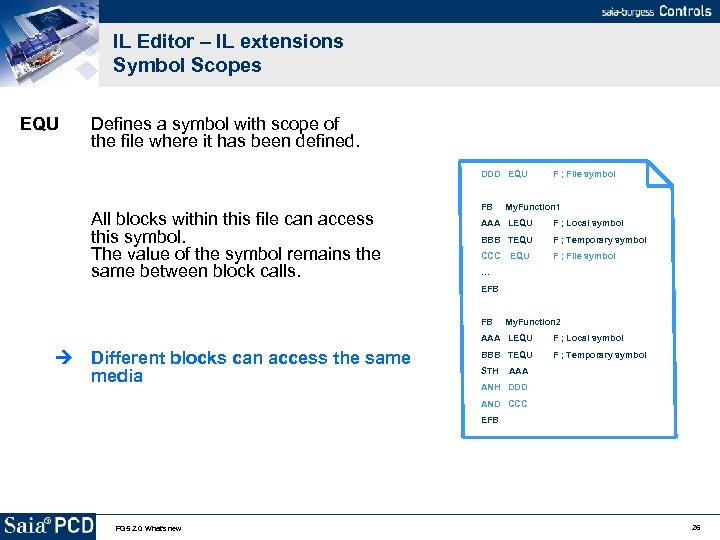
IL Editor – IL extensions Symbol Scopes EQU Defines a symbol with scope of the file where it has been defined. DDD EQU All blocks within this file can access this symbol. The value of the symbol remains the same between block calls. F ; File symbol FB My. Function 1 AAA LEQU F ; Local symbol BBB TEQU F ; Temporary symbol CCC EQU F ; File symbol … EFB FB My. Function 2 AAA LEQU Different blocks can access the same media F ; Local symbol BBB TEQU F ; Temporary symbol STH AAA ANH DDD AND CCC EFB PG 5 2. 0: What's new 26
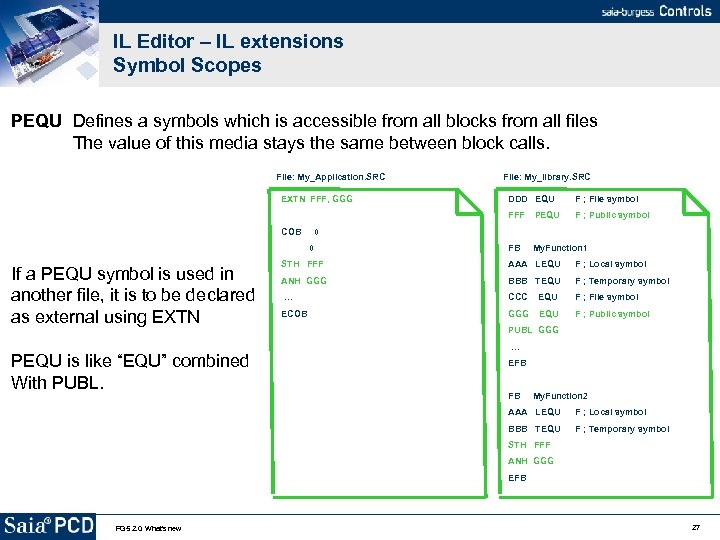
IL Editor – IL extensions Symbol Scopes PEQU Defines a symbols which is accessible from all blocks from all files The value of this media stays the same between block calls. File: My_Application. SRC File: My_library. SRC EXTN FFF, GGG DDD EQU F ; File symbol FFF PEQU F ; Public symbol COB 0 0 If a PEQU symbol is used in another file, it is to be declared as external using EXTN PEQU is like “EQU” combined With PUBL. FB My. Function 1 STH FFF AAA LEQU F ; Local symbol ANH GGG BBB TEQU F ; Temporary symbol … CCC EQU F ; File symbol ECOB GGG EQU F ; Public symbol PUBL GGG … EFB FB My. Function 2 AAA LEQU F ; Local symbol BBB TEQU F ; Temporary symbol STH FFF ANH GGG EFB PG 5 2. 0: What's new 27
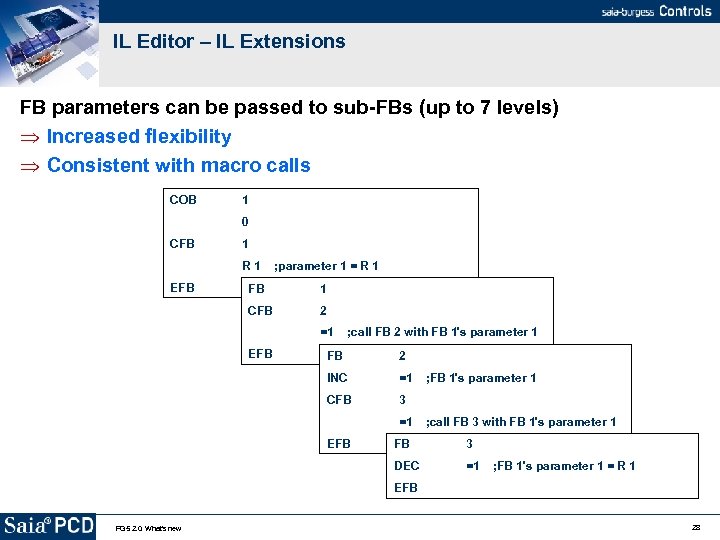
IL Editor – IL Extensions FB parameters can be passed to sub-FBs (up to 7 levels) Increased flexibility Consistent with macro calls COB 1 0 CFB 1 R 1 ; parameter 1 = R 1 EFB FB 1 CFB 2 =1 ; call FB 2 with FB 1's parameter 1 EFB FB 2 INC =1 ; FB 1's parameter 1 CFB 3 =1 ; call FB 3 with FB 1's parameter 1 EFB FB 3 DEC =1 ; FB 1's parameter 1 = R 1 EFB PG 5 2. 0: What's new 28
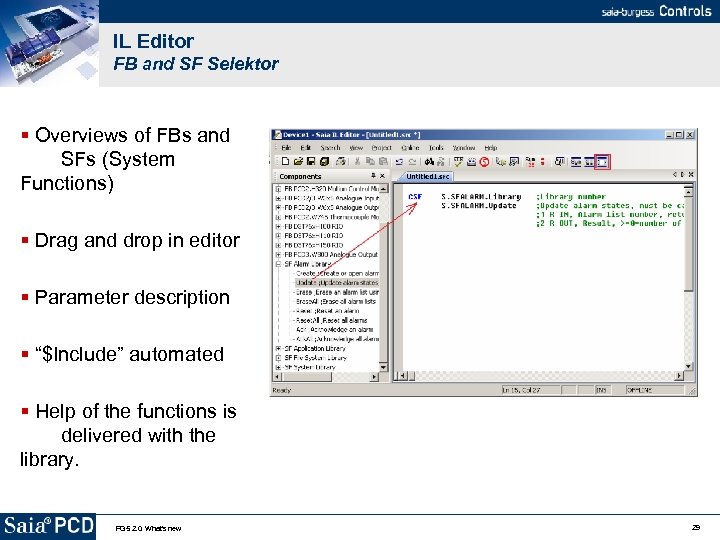
IL Editor FB and SF Selektor Overviews of FBs and SFs (System Functions) Drag and drop in editor Parameter description “$Include” automated Help of the functions is delivered with the library. PG 5 2. 0: What's new 29
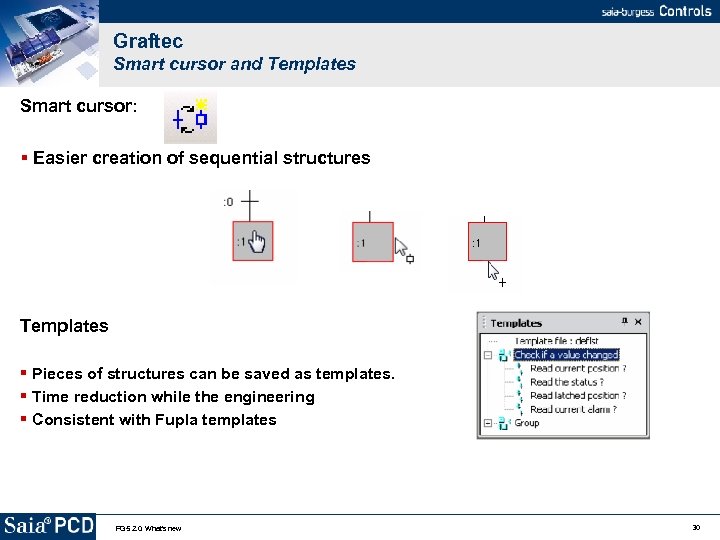
Graftec Smart cursor and Templates Smart cursor: Easier creation of sequential structures Templates Pieces of structures can be saved as templates. Time reduction while the engineering Consistent with Fupla templates PG 5 2. 0: What's new 30
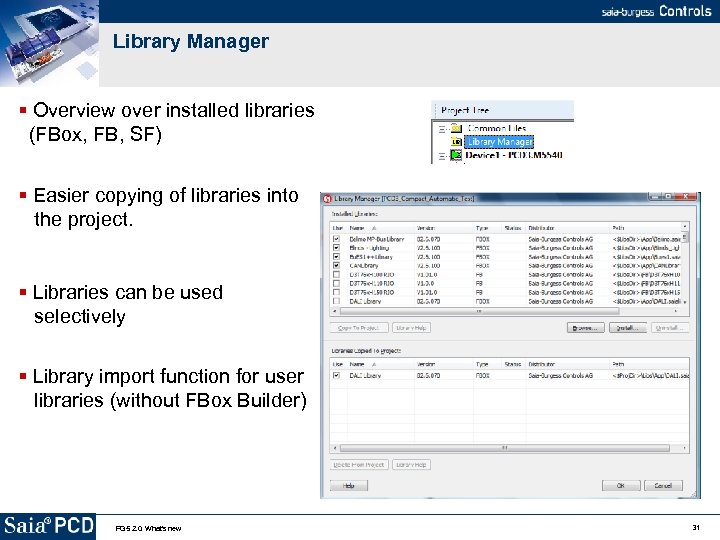
Library Manager Overview over installed libraries (FBox, FB, SF) Easier copying of libraries into the project. Libraries can be used selectively Library import function for user libraries (without FBox Builder) PG 5 2. 0: What's new 31
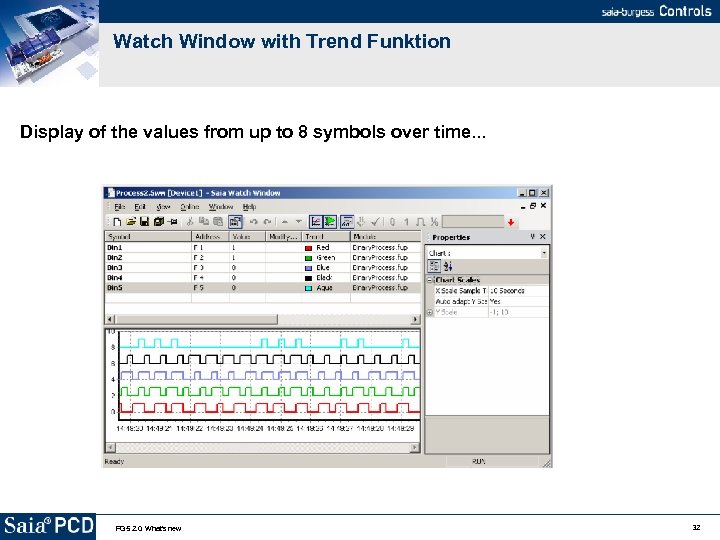
Watch Window with Trend Funktion Display of the values from up to 8 symbols over time. . . PG 5 2. 0: What's new 32
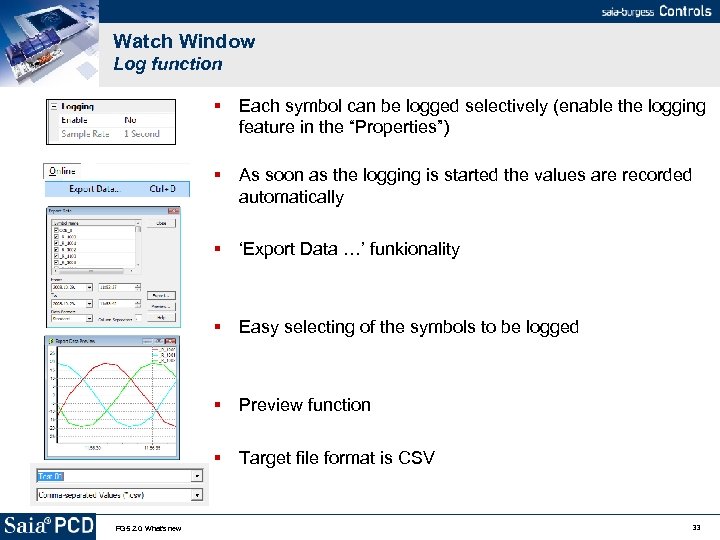
Watch Window Log function Each symbol can be logged selectively (enable the logging feature in the “Properties”) As soon as the logging is started the values are recorded automatically ‘Export Data …’ funkionality Easy selecting of the symbols to be logged Preview function Target file format is CSV PG 5 2. 0: What's new 33
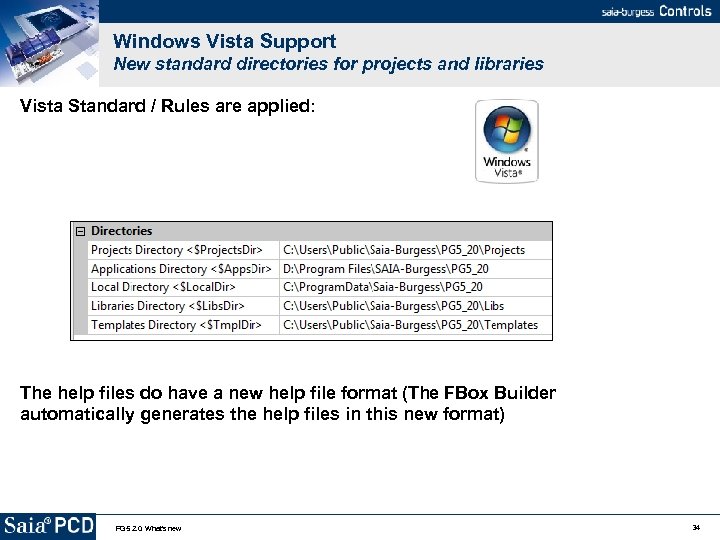
Windows Vista Support New standard directories for projects and libraries Vista Standard / Rules are applied: The help files do have a new help file format (The FBox Builder automatically generates the help files in this new format) PG 5 2. 0: What's new 34
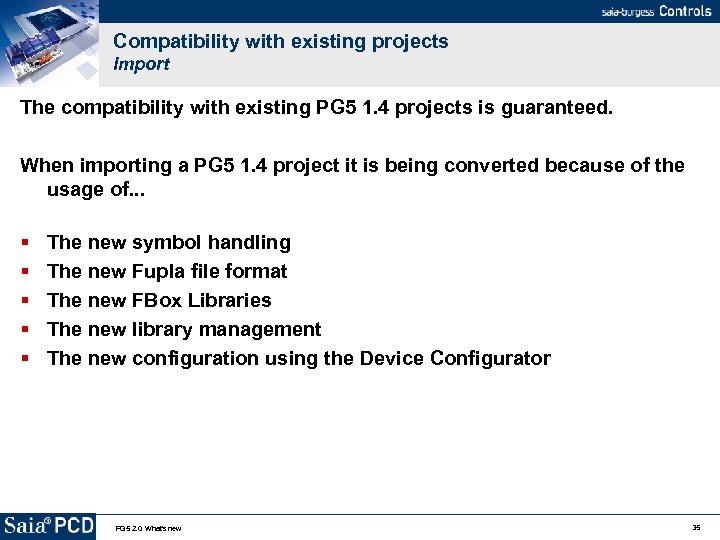
Compatibility with existing projects Import The compatibility with existing PG 5 1. 4 projects is guaranteed. When importing a PG 5 1. 4 project it is being converted because of the usage of. . . The new symbol handling The new Fupla file format The new FBox Libraries The new library management The new configuration using the Device Configurator PG 5 2. 0: What's new 35
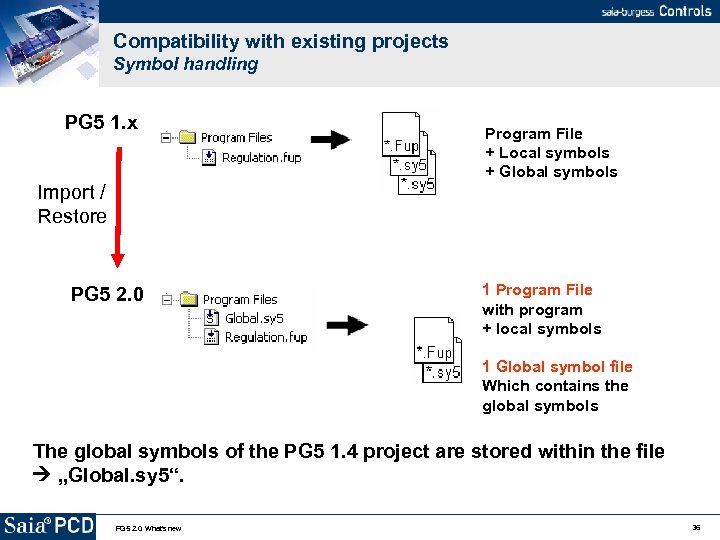
Compatibility with existing projects Symbol handling PG 5 1. x Import / Restore PG 5 2. 0 Program File + Local symbols + Global symbols 1 Program File with program + local symbols 1 Global symbol file Which contains the global symbols The global symbols of the PG 5 1. 4 project are stored within the file „Global. sy 5“. PG 5 2. 0: What's new 36
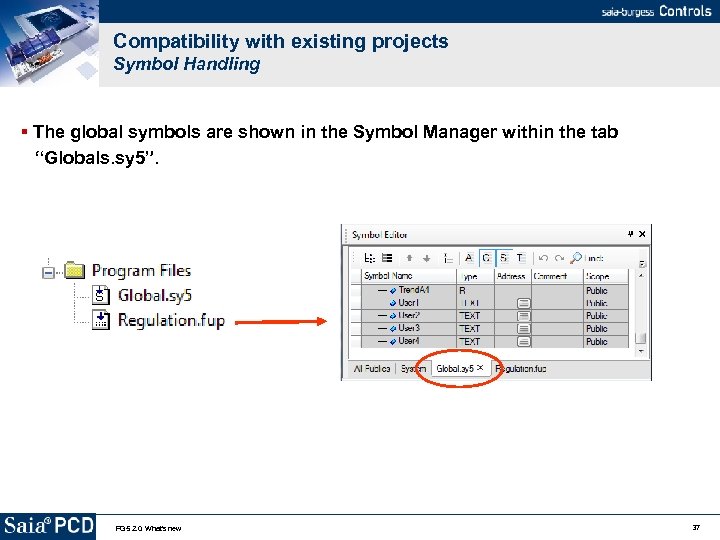
Compatibility with existing projects Symbol Handling The global symbols are shown in the Symbol Manager within the tab “Globals. sy 5”. PG 5 2. 0: What's new 37
Add-on tools The following add-on Tools were updated for being compatible with PG 5 2. 0: HMI Editor Web Builder BACnet Configurator and Compiler CAN Configurator The compatibility with PG 5 1. 4 projects is given. PG 5 2. 0: What's new 38
FBox Builder New features Support of FBox formats for PG 5 2. 0 Conversion of existing libraries in the new format inclusive the creation of the help files in the ‘Chm’ format Indexing of the FBox names When several FBoxes are places the names can be indexed New Adjust Parameter (Text) User defined strings can be passed to the FBox macro (e. g. for host names, messaged, Email adresses…) Short description which is displayed in the FBox Selector Multi-language Improvement Adjust variables, FBox default names and references can be translated PG 5 2. 0: What's new 39
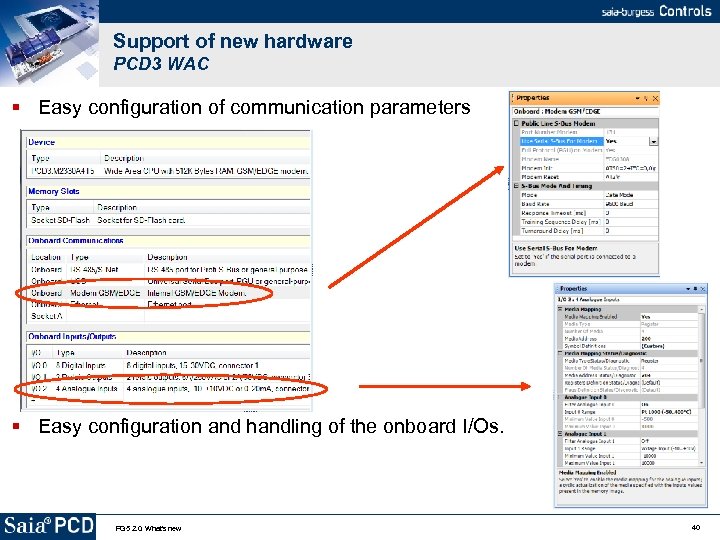
Support of new hardware PCD 3 WAC Easy configuration of communication parameters Easy configuration and handling of the onboard I/Os. PG 5 2. 0: What's new 40
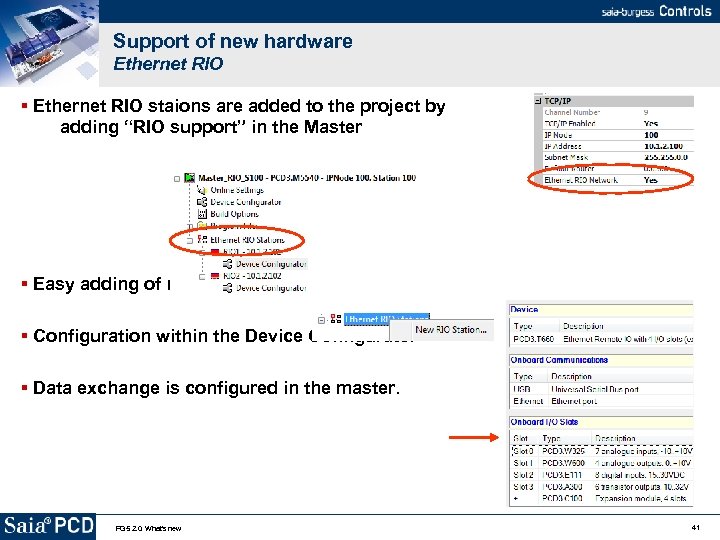
Support of new hardware Ethernet RIO staions are added to the project by adding “RIO support” in the Master Easy adding of new stations Configuration within the Device Configurator Data exchange is configured in the master. PG 5 2. 0: What's new 41
Points to be considered Please note that PG 5 2. 0 currently is in Beta phase You are invited to collect experience with PG 5 2. 0 Your Feedback is appreciated. We would appreciate it very much if you would give us your feedback using the feedback form which will be sent to you within the next week We recommend using PG 5 2. 0 for taking advantage of new features (PCD 3 WAC support, I/O handling etc. ) Please note that not all hardware is supported by PG 5 2. 0; no support for: PCD 1. T 240; S-Bus RIO (*. rio files are no longer supported) PCD 4 PCD 6 PG 5 2. 0: What's new 42
PG 5 2. 0 For detailed information please refer to the document ‘PG 5 2. 0 What’s new’ From the PG 5 2. 0 CD PG 5 2. 0: What's new 43
PG 5 2. 0 I’m available for any your further questions… Thank you very much for your attention! PG 5 2. 0: What's new 44
Скачать презентацию PG 5 2 0 Beta What s
b6d6d2ef7806ef01286cba7d463d2878.ppt