


 Скачать презентацию Pearson s Standard e Text Production Process Four
abb2ed28791f04ac42eab6ebf9d96906.ppt
- Количество слайдов: 37
 Pearson’s Standard e. Text Production Process
 Four Components • Content Manager FTP server • Content Manager application • Authoring application • Viewer
 Multiple Environments • DEV (development) • CERT (QA testing) • PPE (Pre-Production Environment) also used for e. Text test ingestions • PROD (Production)
 Content Manager • Workflow Status tab, including History • Standard e. Book Workflow tab • Simple e. Book Workflow tab • Offline Packaging tab • Audio Text Synch Up tab • Accessibility
 Two Workflows • Standard e. Book Workflow • • • XML extracted, processed via File. QA and Desktop Conversion Toolkit High-resolution printer PDFs Optional Basket, Hotspot or Audio spreadsheets • Simple e. Book Workflow • • Required TOC and optional Basket, Glossary, Hotspot or Audio spreadsheets High-resolution printer PDFs
 Requirements • Hi-Res Printer PDFs • Table of Contents (XML or spreadsheet) • Cover and other artwork • Additional enhancements (links, glossary) • FTP client • Mac/Windows computer w/ browser
 Resources • Media server: http: //media. pearsoncmg. com/cmg/intra net/ebookplus/spreadsheet. html • Pearson Knowledge Base: http: //kb. pearsoned. com
 Hi-Res PDFs • • • PDF 1. 4, CMYK, cropped or uncropped If uncropped, must include valid trim box If cropped, do not crop by adjusting the media box From In. Design, export as PDF Optimizing highly recommended
 Hi-Res PDFs (cont. ) • What you see is more or less what you get • No spot colors, no replacement colors • No hidden elements • No larger than 30 MB for a single page PDF • No larger than 300 MB for a multi-page PDF, with no single page larger than 30 MB
 Table of Contents • Standard e. Book workflow uses extracted and transformed XML • Simple e. Book workflow uses formatted MS Excel spreadsheet template
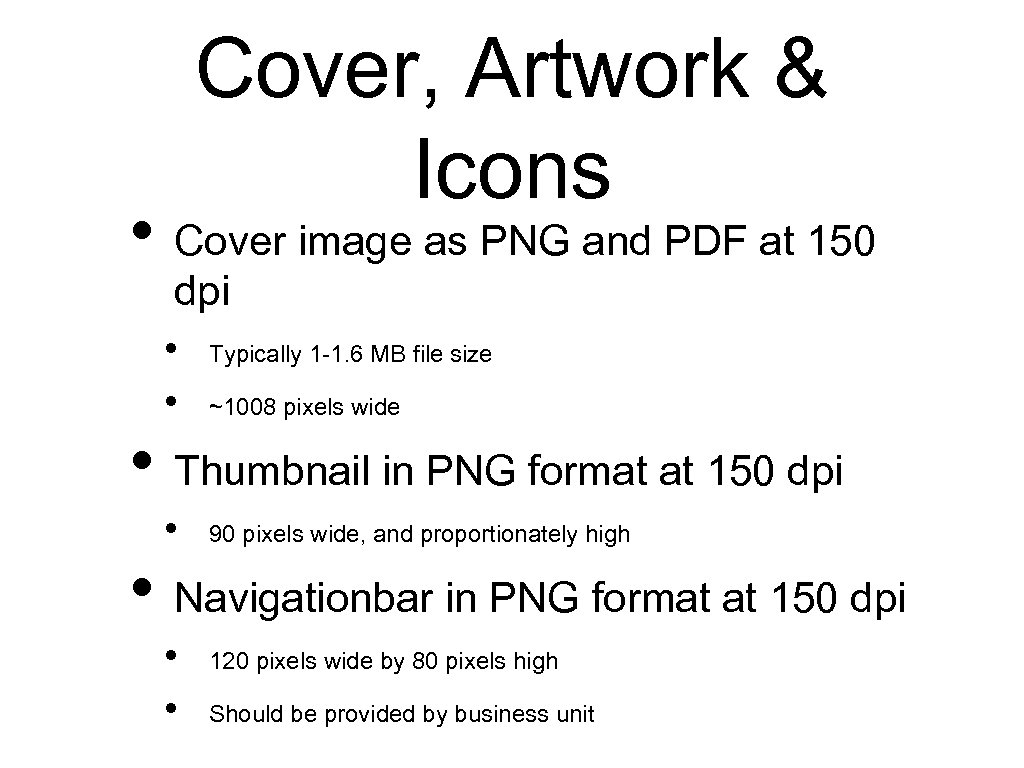 Cover, Artwork & Icons • Cover image as PNG and PDF at 150 dpi • Typically 1 -1. 6 MB file size • ~1008 pixels wide • Thumbnail in PNG format at 150 dpi • 90 pixels wide, and proportionately high • Navigationbar in PNG format at 150 dpi • • 120 pixels wide by 80 pixels high Should be provided by business unit
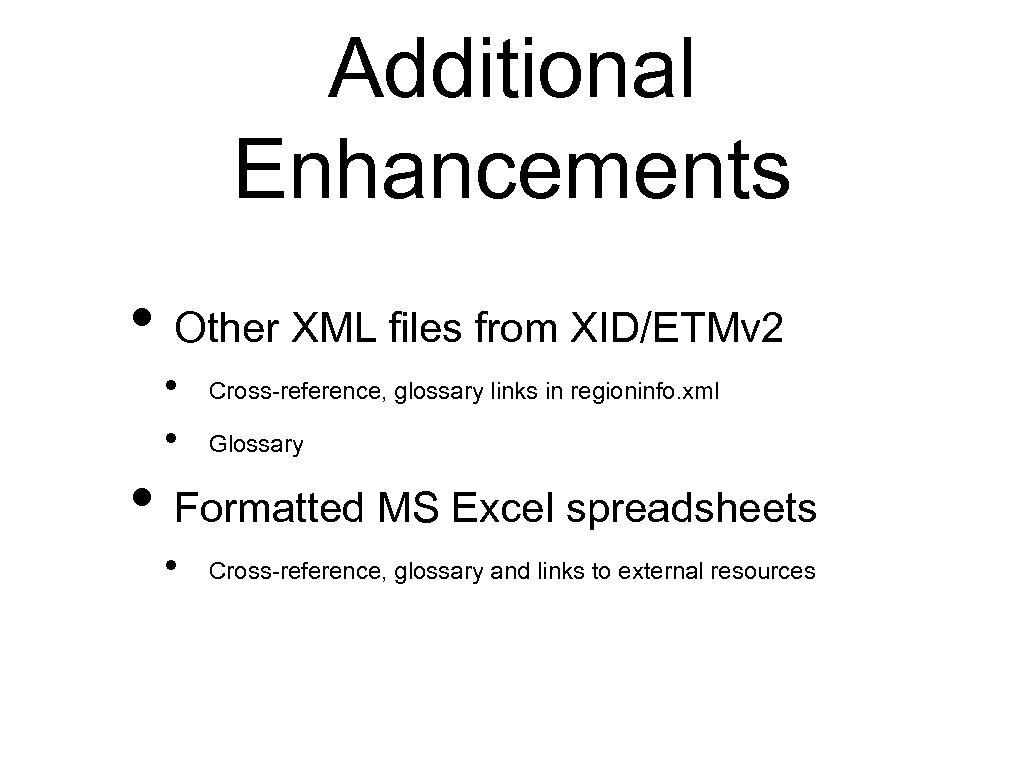 Additional Enhancements • Other XML files from XID/ETMv 2 • • Cross-reference, glossary links in regioninfo. xml Glossary • Formatted MS Excel spreadsheets • Cross-reference, glossary and links to external resources
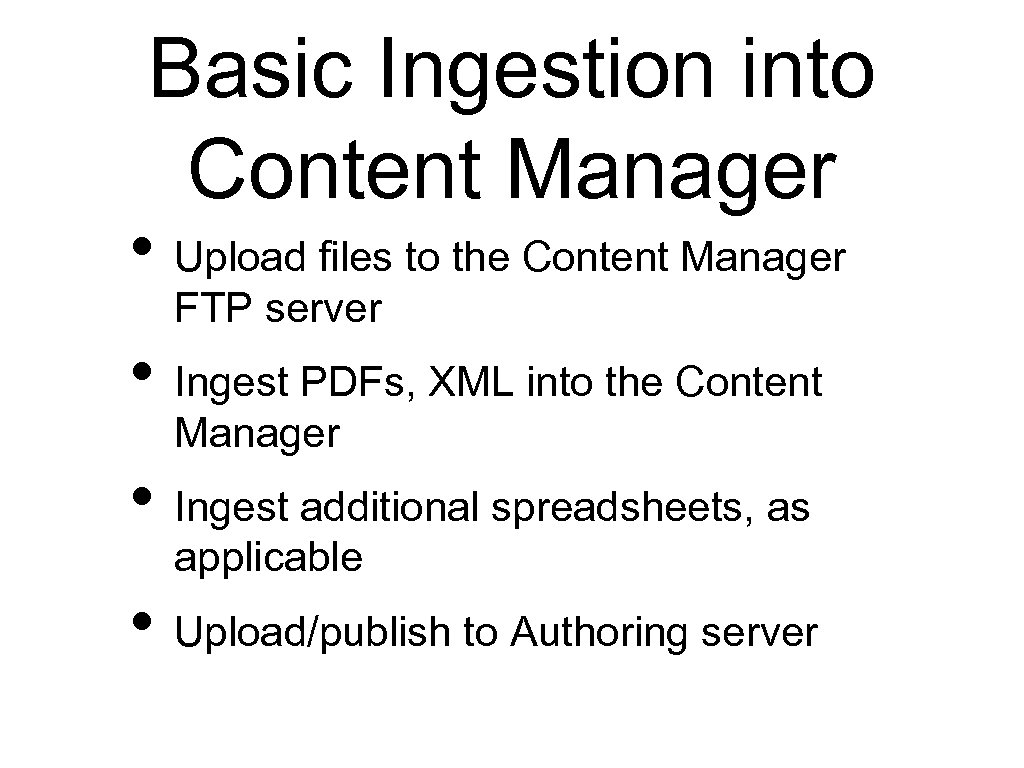 Basic Ingestion into Content Manager • Upload files to the Content Manager FTP server • Ingest PDFs, XML into the Content Manager • Ingest additional spreadsheets, as applicable • Upload/publish to Authoring server
 Content Manager FTP • FTP client that supports SFTP protocol • Individual account credentials required • Contact Ann Sullivan or Tyler Suydam for FTP access accounts • Create folders in appropriate location • Must reset folder permissions
 Prior to Processing XML • Log into Content Manager application • Click on Standard e. Book workflow tab • Enter ISBN into Identifier field • Click Acquire Metadata button • If metadata. xml successfully generated, use Global Book ID included in file
 • • If Acquire Metadata fails. . . Log into Content Manager application Click on Standard e. Book workflow tab Enter ISBN into Identifier field Select appropriate BU/SBU/Directory Click Validate Content Manager will fail, but will generate Global Book ID and folders Use generated Global Book ID in “placeholder” metadata. xml file
 Custom TOC • Not required if XML transformation spreadsheet is through Compositor’s Toolbox successful • Creates e. Text table of contents • Lists all of the PDFs to be included in e. Text • Assigns hierarchy of folders and subfolders • Guidelines for Preparing Table of Contents Spreadsheet contains
 Custom Basket spreadsheet • Not required if Table of Contents and Glossary are the only baskets • Required for any additional baskets, such as instructor or other resources • BU may provide or may ask vendor to produce
 Custom Hotspot spreadsheet • Not needed for cross-reference or glossary links if regioninfo. xml successfully processed • Links to externally-hosted rich media assets • Use of relative or absolute URLs will depend on whether any “offline” package(s) will include rich media assets
 Custom Hotspot spreadsheet (cont. ) • Role • X/Y location, width/height entries • Icons • Alternate media link
 Initial Ingestion • Log into Content Manager application • Click on Standard e. Book workflow tab • Enter enclosing folder into Identifier field • Select appropriate BU/SBU/Directory • Select appropriate language • Select XML, PDF processing • Click Create
 Initial Ingestion (cont. ) • Automated messages • Workflow status tab • Low-res PDF processing • Manage bookinfo • Manage manifest • Validate • Page preview • Upload/publish to Authoring server
 Initial Ingestion • Perform PDF scaling • Replace selected pages • Process all chapters • Process annotated PDF (cont. )
 Authoring • Log into PROD 1 Authoring: http: //auth. ebookplus. pearsoncmg. com/ authoring. do • Search for e. Text by title, author, Book ID or Global Book ID • Click on title to enter e. Text
 Authoring Menu • Review and Enter Book Metadata • Make Verso / Recto selection, if necessary • Specify e. Text Language and Interface • • Selections should agree, wherever possible If UI is Elementary, Toolbar Placement should be set to bottom Audio Text Synch enabled, if appropriate Other selections
 Authoring Menu (cont. ) • Specify e. Text Interface Colors • Specify SWF and Asset File Paths • Upload Custom Icons • Export for Distribution
 Authoring Menu • Export • • • (cont. ) Captures any edits made in the Authoring server, especially hotspots Same as creating a backup in the Content Manager When initiated from Content Manager, recorded in History • Export for Distribution • • Create “offline” packages, such as CD/DVD, PSN, OCAS Configure UI selections
 Authoring Menu (cont. ) • Review e. Text Pages, Region Hotspots and Zoom Areas • • • Review pages, pagination, completeness, table of contents, baskets Resize and reposition hotspots ingested from spreadsheet and maybe adjust those from transformed XML Adjust or author zoom boxes
 Editing Hot Spots • On initial ingestion from a spreadsheet, hotspots are uniform size and neatly aligned to left edge of page. • Double-click a hotspot to move or resize • Adjust x/y or w/h in editing panel • Guidance for sizing and positioning should be available in the Note field of the link editing panel
 Authoring Hot created using Spots • Additional hotspots can be tool • Click-and-drag with tool to create a new hotspot, and to move or resize • Creating new hotspot opens link panel • Make appropriate selections from Link Type, Type and Role values • Link Type selection controls available Type selections • Enter appropriate Link Value
 Authoring Hot Spots • Adjust hotspot x/y or w/h in editing panel • Add Media w/h and x/y or Link x/y as needed • Entered Name becomes mouseover • i. Pad check box • Alternate media link for i. Pad/Android • Ready-to-Publish check box
 Authoring Glossary Links • To create a glossary link, use link tool to create link and then click and drag the glossary term from the Glossary basket to the link editing panel • Appropriate Glossary Entry ID value is automatically entered
 Placing / Editing Icons • Installing icons • On initial ingestion from a spreadsheet, icons are neatly aligned to right edge • Double-click an icon to move • Icons cannot be resized • Smaller icon artwork is possible, but associated regions will need to be edited • Selecting, placing, authoring additional
 Authoring Zoom Areas • Can be ingested from marked PDFs • Created in the Authoring environment using Zoom Area Tool • Select tool and then click and drag • Adjust x/y and w/h in editing panel • Assign/re-assign sequence in editing panel • BU provides guidance if not ingested • Double-click to edit created zoom area
 Re-positioning Audio Text Synch Icons • Clicking Audio Text Synch Icon tool makes audio text regions appear and hotspots or icons disappear • Double-click an icon and then click and drag to reposition icon or enter x/y values in editing panel • Icon can be changed to a hotspot in editing panel by selecting Region for Flow Type
 Preview Links • When e. Text is ready for BU review, generate Authoring Preview links • Instructor/Student, i. Pad Instructor/Student • i. Pad previews for confirming functionality and icons
 e. Text Best Practices • Export from the Authoring server before making changes • Create self-derivative • Purge previous versions in Content Manager • Preserve XML and logs