


 Скачать презентацию Patch Update Info Portal At
1a84f113e702c4d7c144b680b7b58c2a.ppt
- Количество слайдов: 26
 Patch – Update / Info Portal • At first start up of a new version, the program automatically connects to the Mesonic server. • After the first time connection an interval of 7 days is set for connecting with the Mesonic servers (set this interval in Parameters/Settings. Can be set to maximum of 30 days) • There are three types of downloads: • Patch update • Admin information • User information
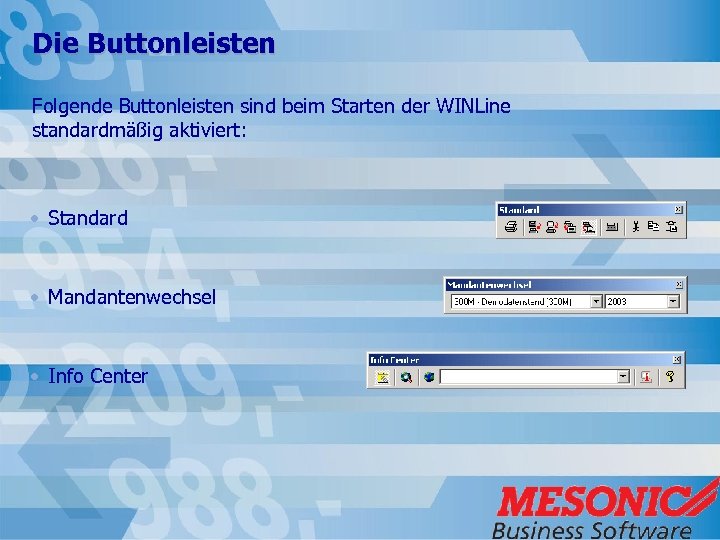 Die Buttonleisten Folgende Buttonleisten sind beim Starten der WINLine standardmäßig aktiviert: • Standard • Mandantenwechsel • Info Center
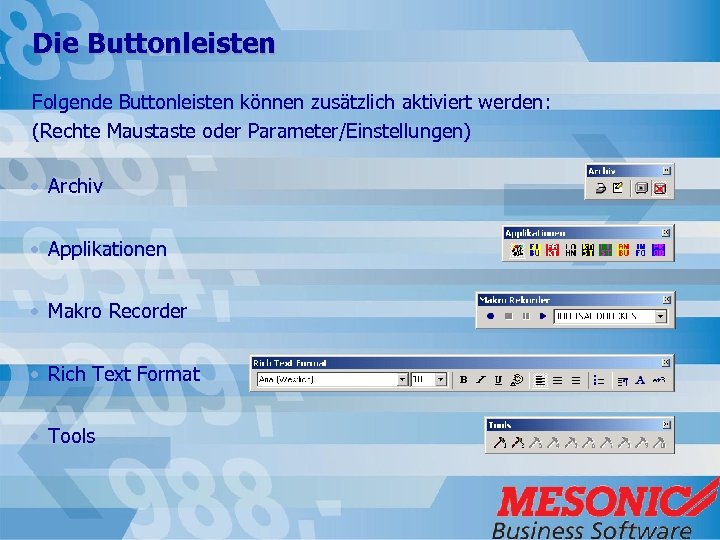 Die Buttonleisten Folgende Buttonleisten können zusätzlich aktiviert werden: (Rechte Maustaste oder Parameter/Einstellungen) • Archiv • Applikationen • Makro Recorder • Rich Text Format • Tools
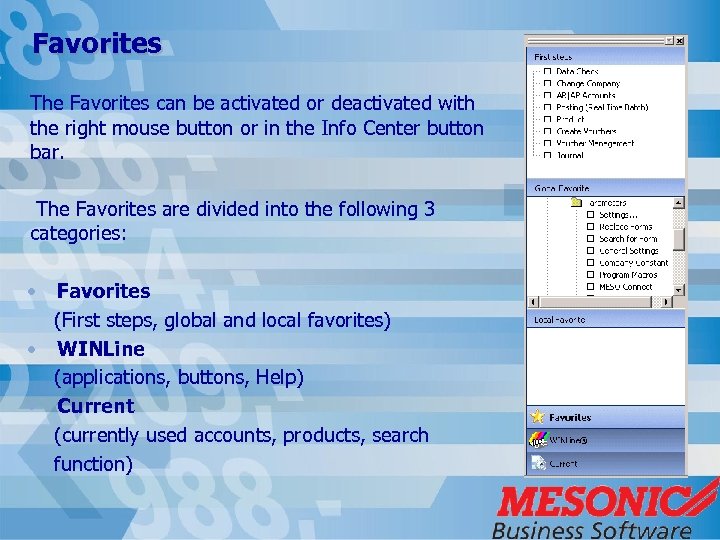 Favorites The Favorites can be activated or deactivated with the right mouse button or in the Info Center button bar. The Favorites are divided into the following 3 categories: • Favorites (First steps, global and local favorites) • WINLine (applications, buttons, Help) • Current (currently used accounts, products, search function)
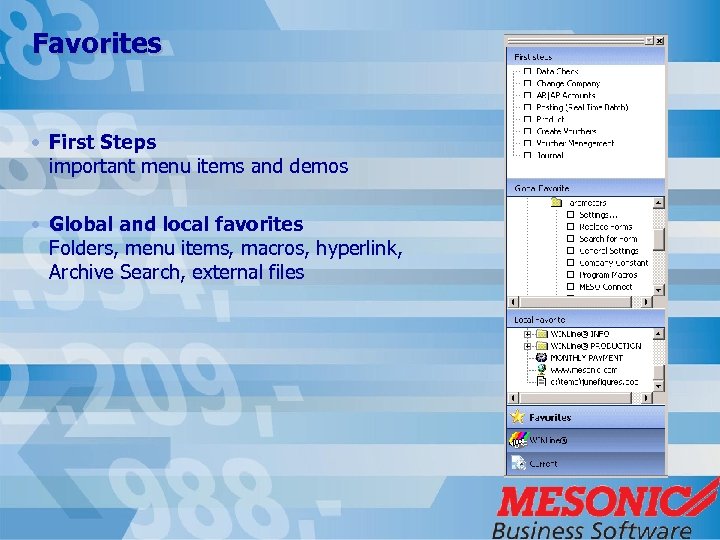 Favorites • First Steps important menu items and demos • Global and local favorites Folders, menu items, macros, hyperlink, Archive Search, external files
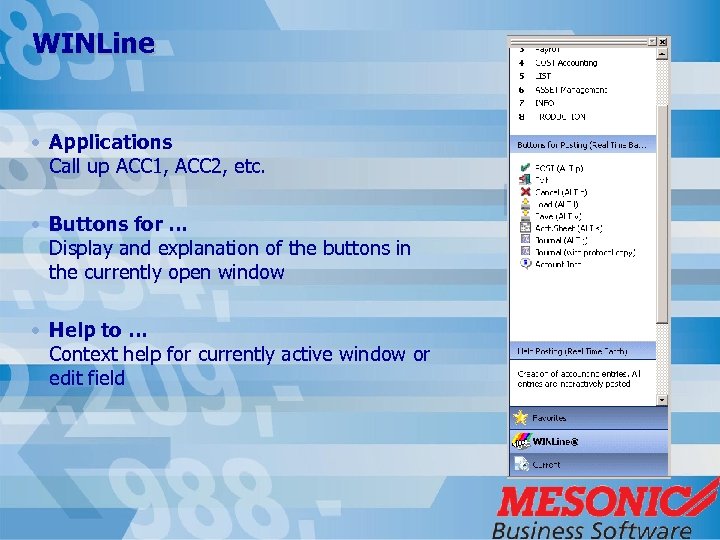 WINLine • Applications Call up ACC 1, ACC 2, etc. • Buttons for … Display and explanation of the buttons in the currently open window • Help to … Context help for currently active window or edit field
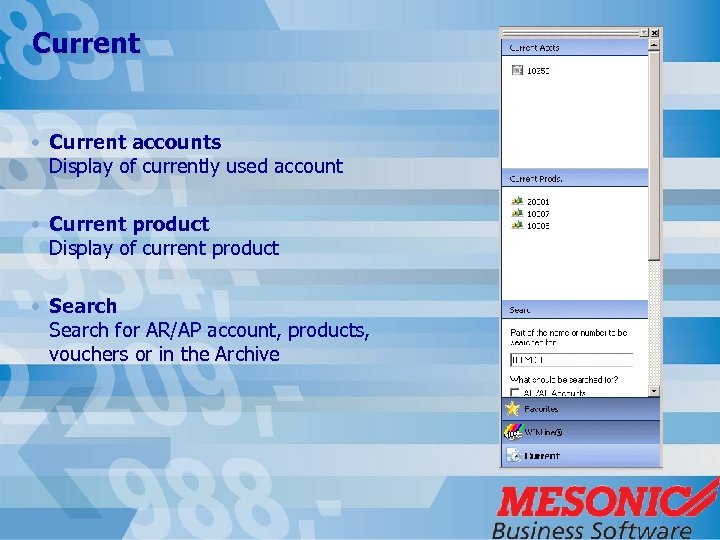 Current • Current accounts Display of currently used account • Current product Display of current product • Search for AR/AP account, products, vouchers or in the Archive
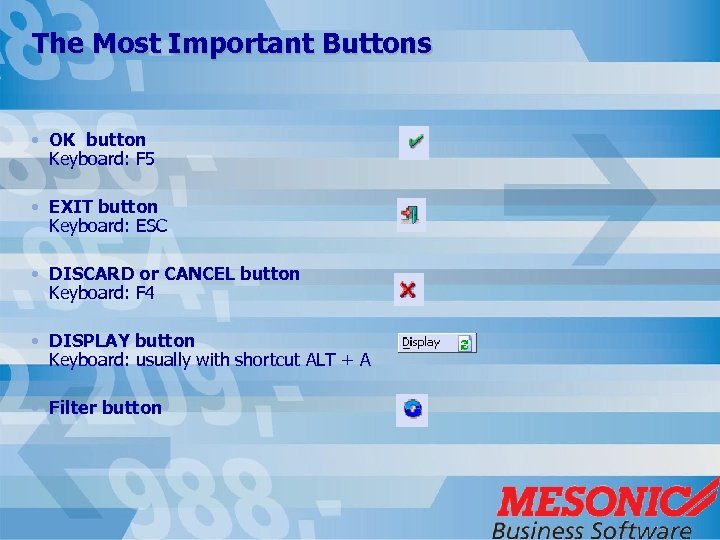 The Most Important Buttons • OK button Keyboard: F 5 • EXIT button Keyboard: ESC • DISCARD or CANCEL button Keyboard: F 4 • DISPLAY button Keyboard: usually with shortcut ALT + A • Filter button
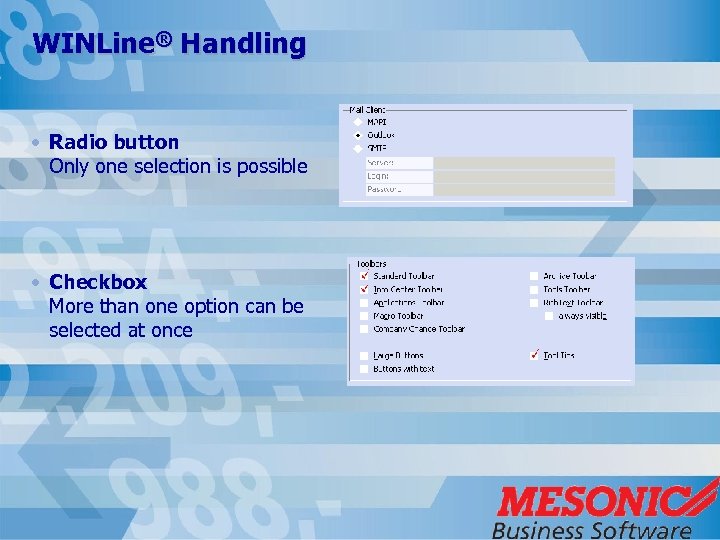 WINLine® Handling • Radio button Only one selection is possible • Checkbox More than one option can be selected at once
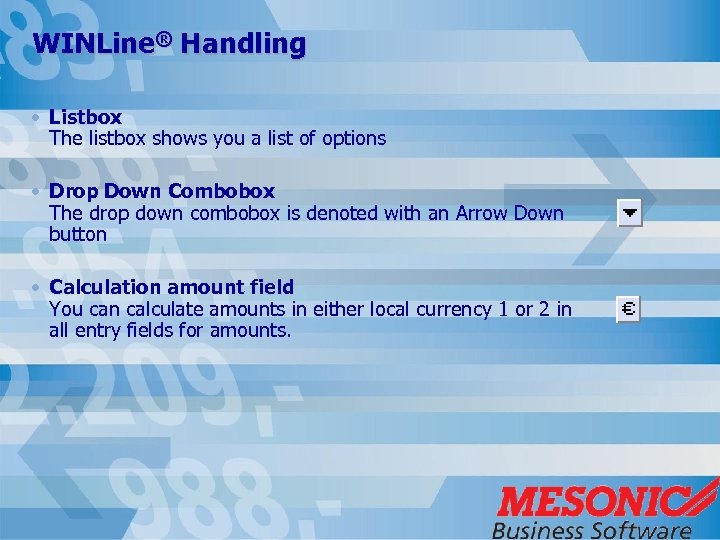 WINLine® Handling • Listbox The listbox shows you a list of options • Drop Down Combobox The drop down combobox is denoted with an Arrow Down button • Calculation amount field You can calculate amounts in either local currency 1 or 2 in all entry fields for amounts.
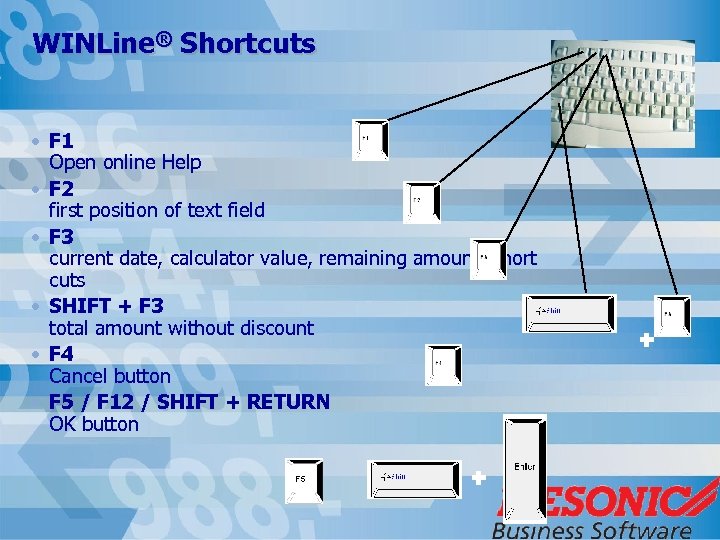 WINLine® Shortcuts • F 1 Open online Help • F 2 first position of text field • F 3 current date, calculator value, remaining amount, short cuts • SHIFT + F 3 total amount without discount • F 4 Cancel button • F 5 / F 12 / SHIFT + RETURN OK button
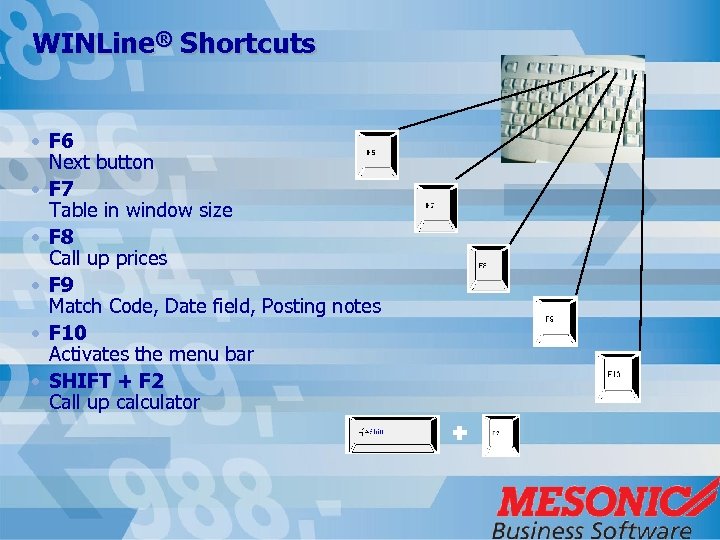 WINLine® Shortcuts • F 6 Next button • F 7 Table in window size • F 8 Call up prices • F 9 Match Code, Date field, Posting notes • F 10 Activates the menu bar • SHIFT + F 2 Call up calculator
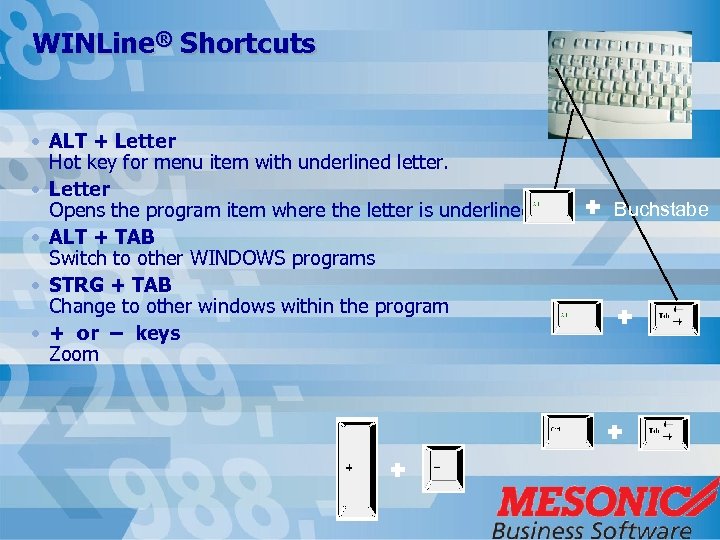 WINLine® Shortcuts • ALT + Letter Hot key for menu item with underlined letter. • Letter Opens the program item where the letter is underlined. • ALT + TAB Switch to other WINDOWS programs • STRG + TAB Change to other windows within the program • + or – keys Zoom Buchstabe
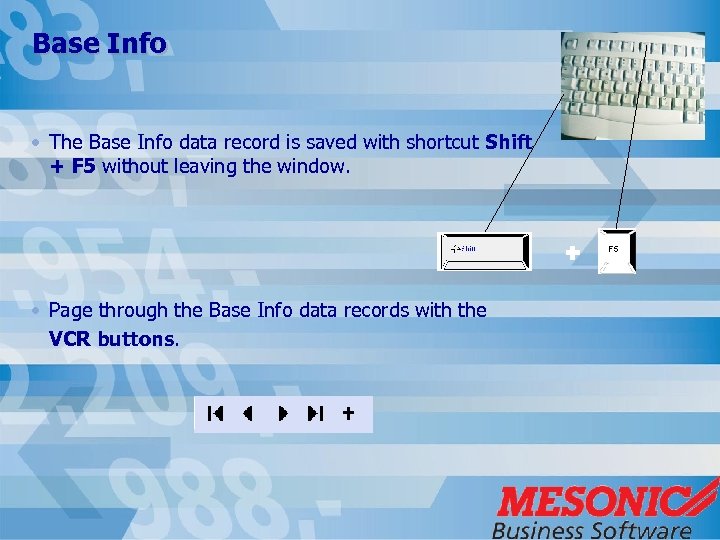 Base Info • The Base Info data record is saved with shortcut Shift + F 5 without leaving the window. • Page through the Base Info data records with the VCR buttons.
 Match Code 2 options: • Open with F 9 or double click in the field • Enter search term and start the search with the F 9 key (can be overridden with SHIFT + F 9) Search mode starting from left of word or with full-text search
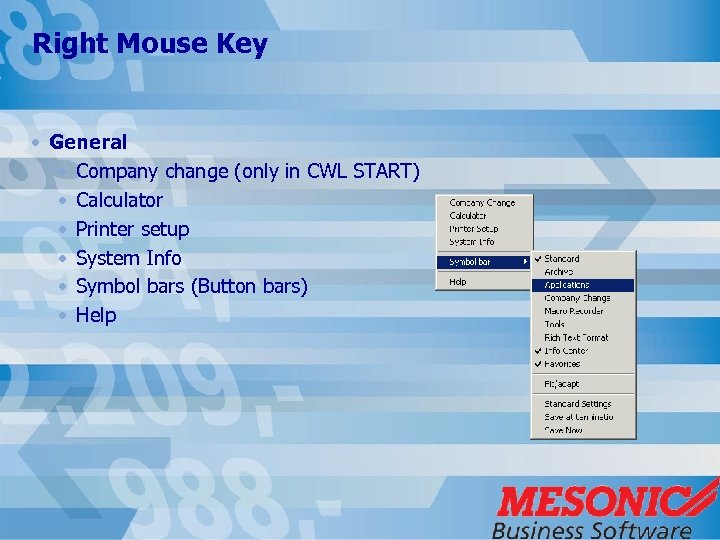 Right Mouse Key • General • Company change (only in CWL START) • Calculator • Printer setup • System Info • Symbol bars (Button bars) • Help
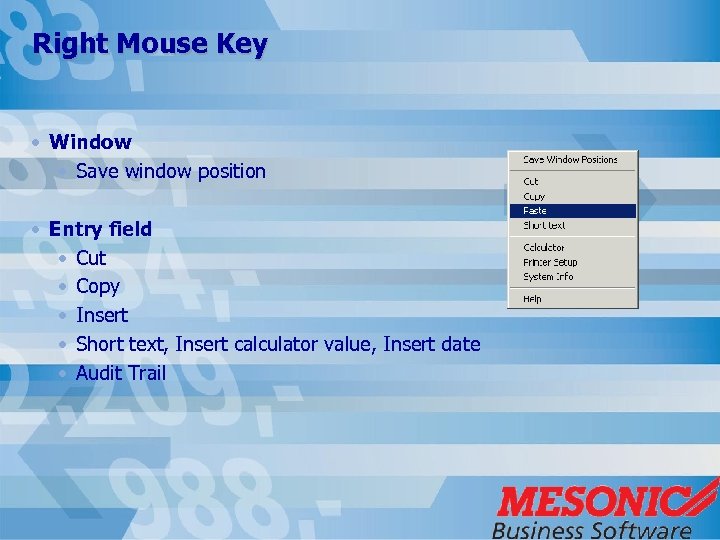 Right Mouse Key • Window • Save window position • Entry field • Cut • Copy • Insert • Short text, Insert calculator value, Insert date • Audit Trail
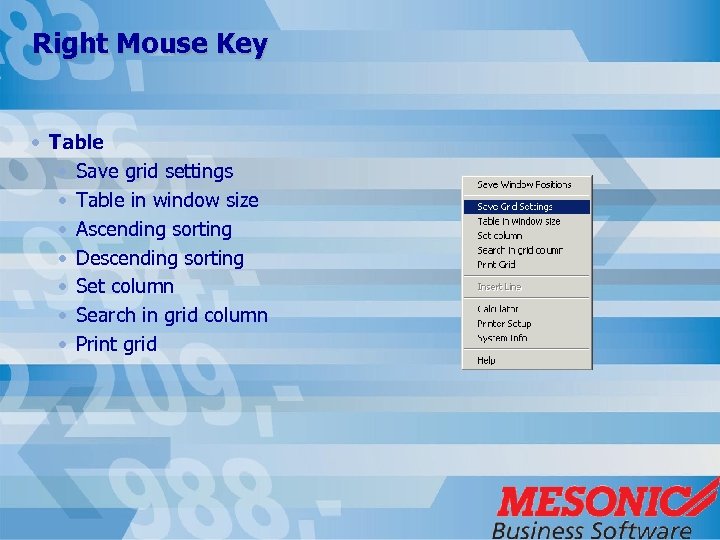 Right Mouse Key • Table • Save grid settings • Table in window size • Ascending sorting • Descending sorting • Set column • Search in grid column • Print grid
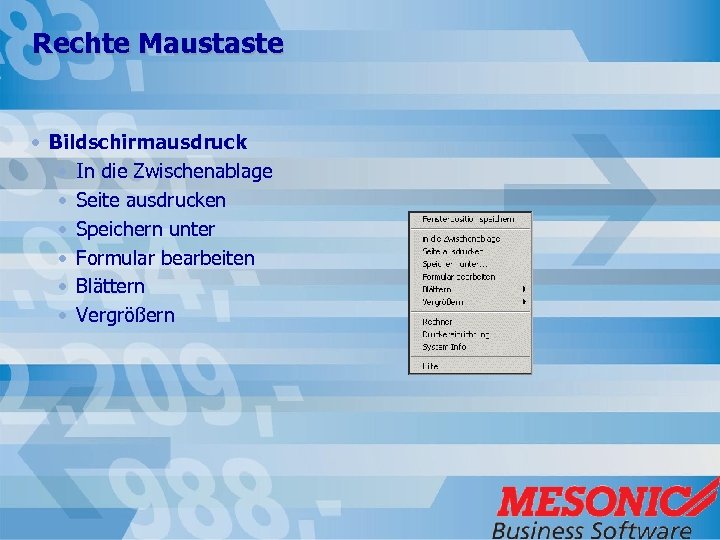 Rechte Maustaste • Bildschirmausdruck • In die Zwischenablage • Seite ausdrucken • Speichern unter • Formular bearbeiten • Blättern • Vergrößern
 Printing procedures • You can print in one of four different ways: • to the screen • to a file (spooler) using the Despooler, you can open the documents again. • direct to the printer • to an Excel table (balance sheet, EAS, List, . . . )
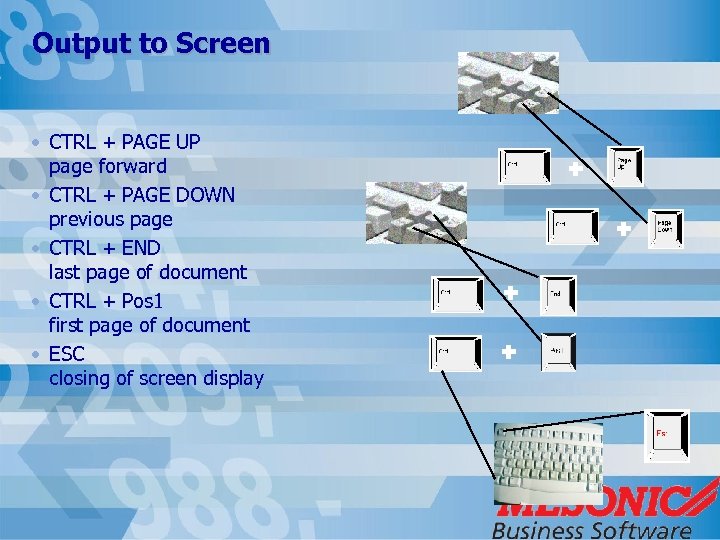 Output to Screen • CTRL + PAGE UP page forward • CTRL + PAGE DOWN previous page • CTRL + END last page of document • CTRL + Pos 1 first page of document • ESC closing of screen display
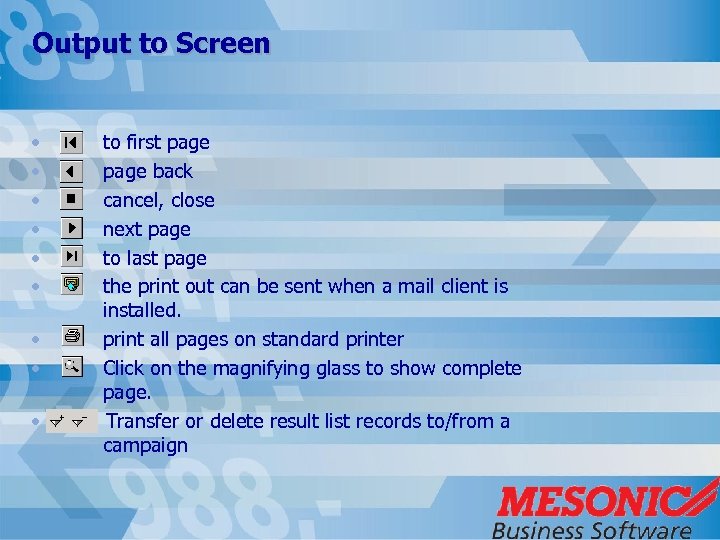 Output to Screen • • • to first page back cancel, close next page to last page the print out can be sent when a mail client is installed. print all pages on standard printer Click on the magnifying glass to show complete page. Transfer or delete result list records to/from a campaign
 Namen Suchen / Kampagnen Über den Menüpunkt Namen Suchen können Listen der folgenden Datenbereiche erstellt werden: • • • Personenkonten Interessenten Ansprechpartner Kontakte Vertreter Arbeitnehmer
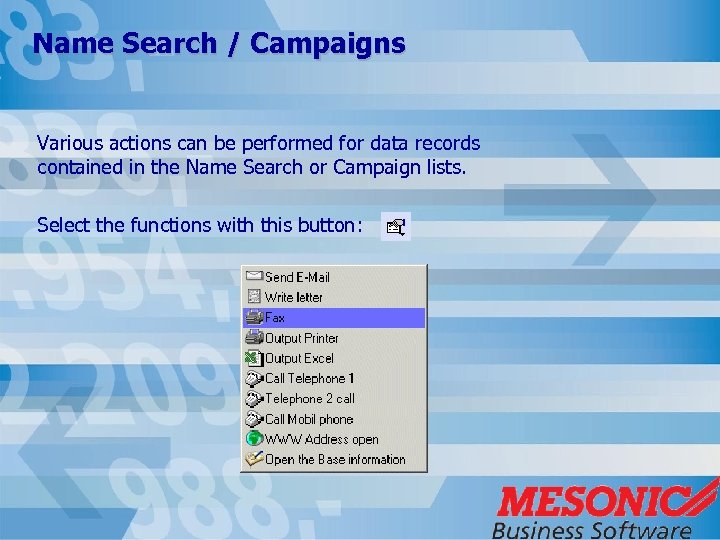 Name Search / Campaigns Various actions can be performed for data records contained in the Name Search or Campaign lists. Select the functions with this button:
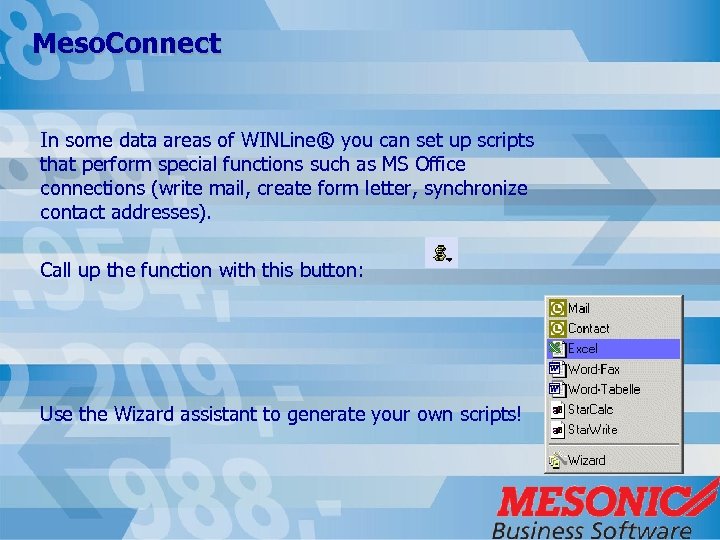 Meso. Connect In some data areas of WINLine® you can set up scripts that perform special functions such as MS Office connections (write mail, create form letter, synchronize contact addresses). Call up the function with this button: Use the Wizard assistant to generate your own scripts!
 Data Check • Should be regularly performed. • Data check of data areas: • Base Info • Transaction data