 Скачать презентацию Overview Backup Restoring the First Node
b0309b82ce0f9cf35f40d7671f69c767.ppt
- Количество слайдов: 92





Overview




Backup






Restoring the First Node

Restoring Cluster Disks






Restoring the Second Node



Evicting a Node





Troubleshooting Tools










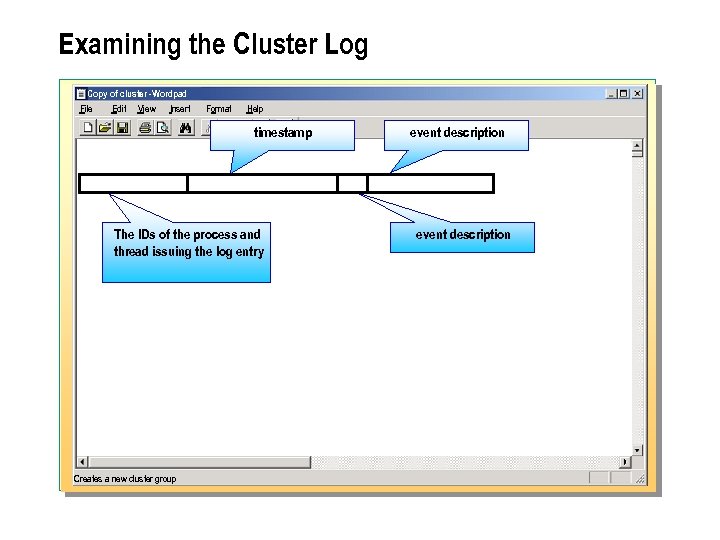
Examining the Cluster Log Copy of cluster -Wordpad File Edit View Insert Format Help timestamp The IDs of the process and thread issuing the log entry Creates a new cluster group event description








Troubleshooting Network Communications









SCSI Configuration Problems

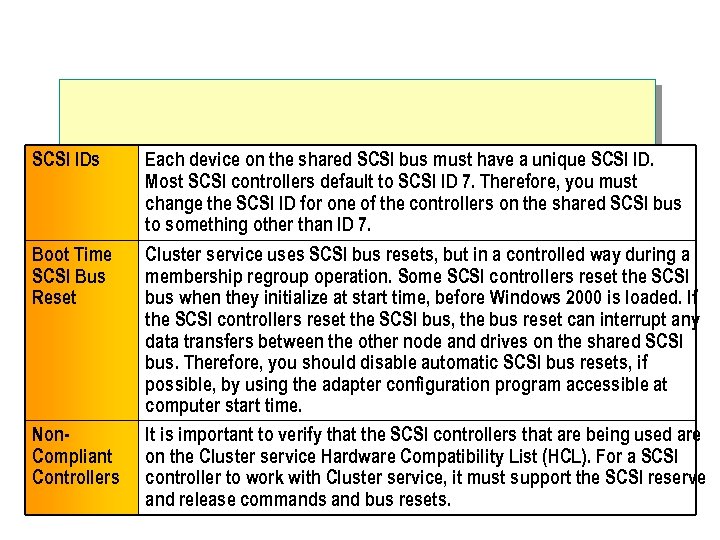
SCSI IDs Each device on the shared SCSI bus must have a unique SCSI ID. Most SCSI controllers default to SCSI ID 7. Therefore, you must change the SCSI ID for one of the controllers on the shared SCSI bus to something other than ID 7. Boot Time SCSI Bus Reset Cluster service uses SCSI bus resets, but in a controlled way during a membership regroup operation. Some SCSI controllers reset the SCSI bus when they initialize at start time, before Windows 2000 is loaded. If the SCSI controllers reset the SCSI bus, the bus reset can interrupt any data transfers between the other node and drives on the shared SCSI bus. Therefore, you should disable automatic SCSI bus resets, if possible, by using the adapter configuration program accessible at computer start time. It is important to verify that the SCSI controllers that are being used are on the Cluster service Hardware Compatibility List (HCL). For a SCSI controller to work with Cluster service, it must support the SCSI reserve and release commands and bus resets. Non. Compliant Controllers
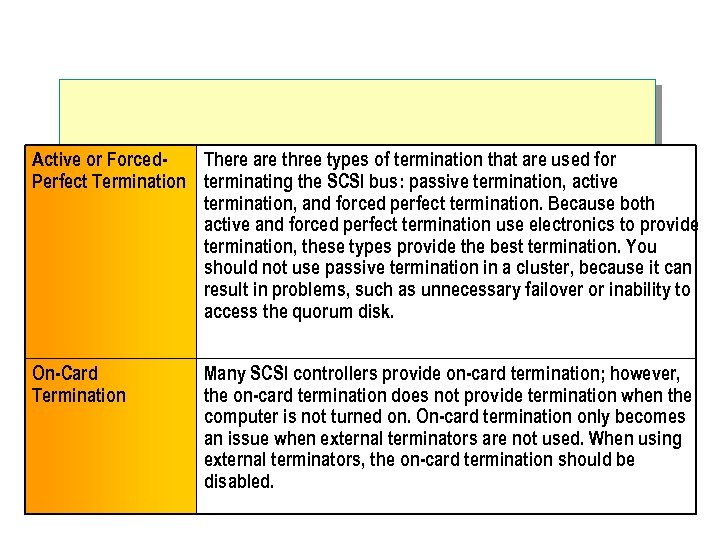
Active or Forced. There are three types of termination that are used for Perfect Termination terminating the SCSI bus: passive termination, active termination, and forced perfect termination. Because both active and forced perfect termination use electronics to provide termination, these types provide the best termination. You should not use passive termination in a cluster, because it can result in problems, such as unnecessary failover or inability to access the quorum disk. On-Card Termination Many SCSI controllers provide on-card termination; however, the on-card termination does not provide termination when the computer is not turned on. On-card termination only becomes an issue when external terminators are not used. When using external terminators, the on-card termination should be disabled.
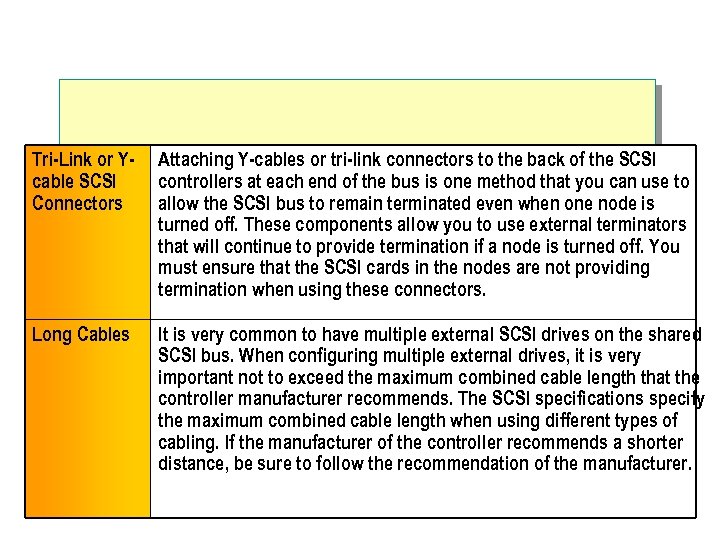
Tri-Link or Ycable SCSI Connectors Attaching Y-cables or tri-link connectors to the back of the SCSI controllers at each end of the bus is one method that you can use to allow the SCSI bus to remain terminated even when one node is turned off. These components allow you to use external terminators that will continue to provide termination if a node is turned off. You must ensure that the SCSI cards in the nodes are not providing termination when using these connectors. Long Cables It is very common to have multiple external SCSI drives on the shared SCSI bus. When configuring multiple external drives, it is very important not to exceed the maximum combined cable length that the controller manufacturer recommends. The SCSI specifications specify the maximum combined cable length when using different types of cabling. If the manufacturer of the controller recommends a shorter distance, be sure to follow the recommendation of the manufacturer.
![Group and Resource Failures Cluster Administrator – [MYCLUSTER (MYCLUSTER)] File View Window Help MYCLUSTER](https://present5.com/presentation/b0309b82ce0f9cf35f40d7671f69c767/image-68.jpg "Group and Resource Failures Cluster Administrator – [MYCLUSTER (MYCLUSTER)] File View Window Help MYCLUSTER")
Group and Resource Failures Cluster Administrator – [MYCLUSTER (MYCLUSTER)] File View Window Help MYCLUSTER Groups Cluster Group Mygroup SQL Group Resources Cluster Configuration SERVER 1 SERVER 2 For Help, press F 1 Name Cluster IP Address Cluster Name Disk W: Printer Spooler Public State Owner Reso Online Failed SERVER 2 SERVER 2 IP Ad Netw Physi Print File S NUM

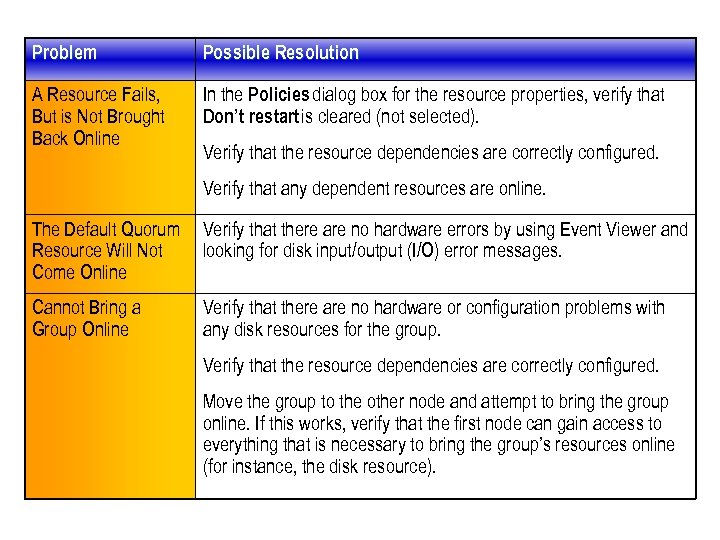
Problem Possible Resolution A Resource Fails, But is Not Brought Back Online In the Policies dialog box for the resource properties, verify that Don’t restart is cleared (not selected). Verify that the resource dependencies are correctly configured. Verify that any dependent resources are online. The Default Quorum Resource Will Not Come Online Verify that there are no hardware errors by using Event Viewer and looking for disk input/output (I/O) error messages. Cannot Bring a Group Online Verify that there are no hardware or configuration problems with any disk resources for the group. Verify that the resource dependencies are correctly configured. Move the group to the other node and attempt to bring the group online. If this works, verify that the first node can gain access to everything that is necessary to bring the group’s resources online (for instance, the disk resource).
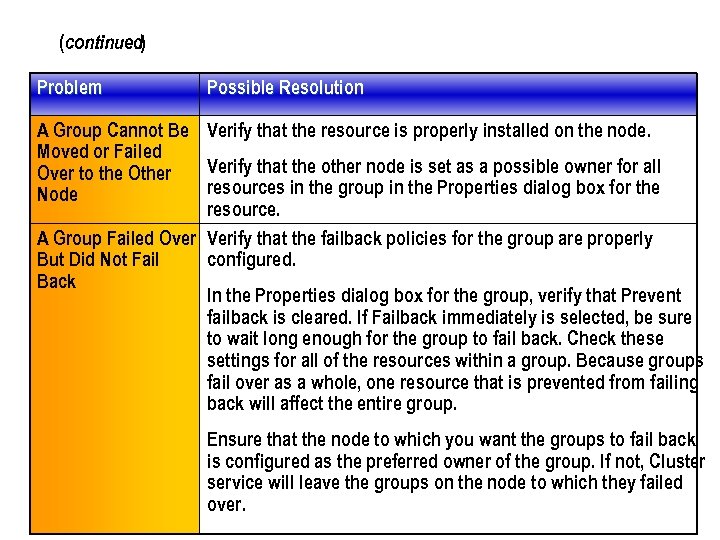
(continued) Problem Possible Resolution A Group Cannot Be Verify that the resource is properly installed on the node. Moved or Failed Verify that the other node is set as a possible owner for all Over to the Other resources in the group in the Properties dialog box for the Node resource. A Group Failed Over Verify that the failback policies for the group are properly But Did Not Fail configured. Back In the Properties dialog box for the group, verify that Prevent failback is cleared. If Failback immediately is selected, be sure to wait long enough for the group to fail back. Check these settings for all of the resources within a group. Because groups fail over as a whole, one resource that is prevented from failing back will affect the entire group. Ensure that the node to which you want the groups to fail back is configured as the preferred owner of the group. If not, Cluster service will leave the groups on the node to which they failed over.
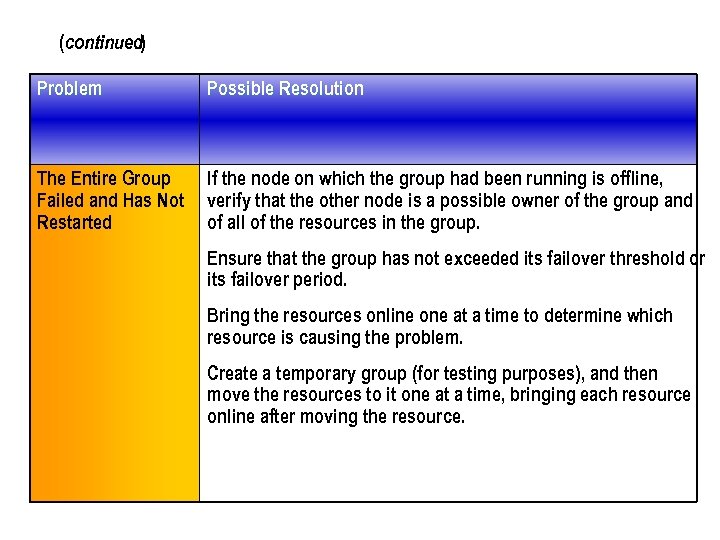
(continued) Problem Possible Resolution The Entire Group Failed and Has Not Restarted If the node on which the group had been running is offline, verify that the other node is a possible owner of the group and of all of the resources in the group. Ensure that the group has not exceeded its failover threshold or its failover period. Bring the resources online one at a time to determine which resource is causing the problem. Create a temporary group (for testing purposes), and then move the resources to it one at a time, bringing each resource online after moving the resource.
Quorum Log Corruption




Lab A: Cluster Maintenance

Objectives

Scenario
Exercise 1: Backup and Restore







Exercise 2: Removing Cluster Service



Review
Скачать презентацию Overview Backup Restoring the First Node
b0309b82ce0f9cf35f40d7671f69c767.ppt