


 Скачать презентацию Outline Announcements Homework I due Wed
078260c0bf08cdf12286a669705a6e35.ppt
- Количество слайдов: 13
 Outline • Announcements – Homework I due Wed. 5 PM by e-mail • • Subject: CIS 402 Homework 1 Plain text Not allowed to use errorbar Try to do plot. CI without looking at it – Honor system applies – Today is last day to add/drop 402! • • Printing and saving Summary so far More 1 D functions bar: 1 D function, 2 D objects
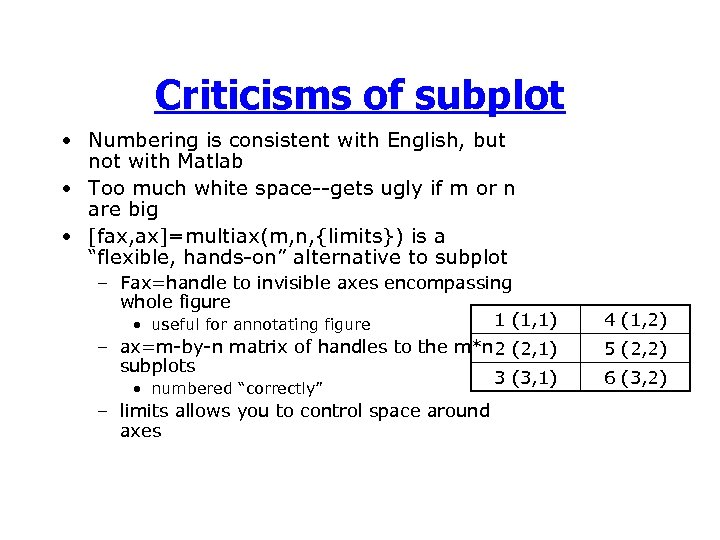 Criticisms of subplot • Numbering is consistent with English, but not with Matlab • Too much white space--gets ugly if m or n are big • [fax, ax]=multiax(m, n, {limits}) is a “flexible, hands-on” alternative to subplot – Fax=handle to invisible axes encompassing whole figure 1 (1, 1) • useful for annotating figure – ax=m-by-n matrix of handles to the m*n 2 (2, 1) subplots 3 (3, 1) • numbered “correctly” – limits allows you to control space around axes 4 (1, 2) 5 (2, 2) 6 (3, 2)
 Printing and Saving • Print through GUI or command line – print -depsc fname. eps will save gcf to an EPS file – print -djpeg fname. jpg will save gcf to a JPEG – Can also save figure to a. fig file from the GUI • Opening the file (from GUI) will recreate the figure
 Printing and Saving • Can save figure to a. fig file from the GUI – Opening the file (from GUI) will recreate the figure – The figure will contain same objects as before • can add to the figure or edit objects • Print through GUI or command line – print by itself will send gcf to default printer
 Exporting graphics • Can save figures to several standard graphics formats using print – print -djpeg fname. jpg will save gcf to a JPEG file • JPEG (Joint Photographic Experts Group) file is a standard raster file • a raster file is a matrix of pixels • This means that they have a fixed resolution – if you blow up a JPEG, the quality will decline (you will begin to see the pixels) – can controll the resolution using -r
 Exporting Graphics – print -depsc fname. eps will save gcf to an EPS file • EPS (encapsulated post script) is standard format for saving vector graphics • Vector graphics are made up of mathematical objects-lines, Bezier curves, polygons, text. • The objects have properties such as line weights, fonts, & colors • Because the objects are represented mathematically, EPS files can be scaled without loosing resolution • They are less portable than JPEGs (need special software like Illustrator, or ghostscript) • However, you can edit the file easily
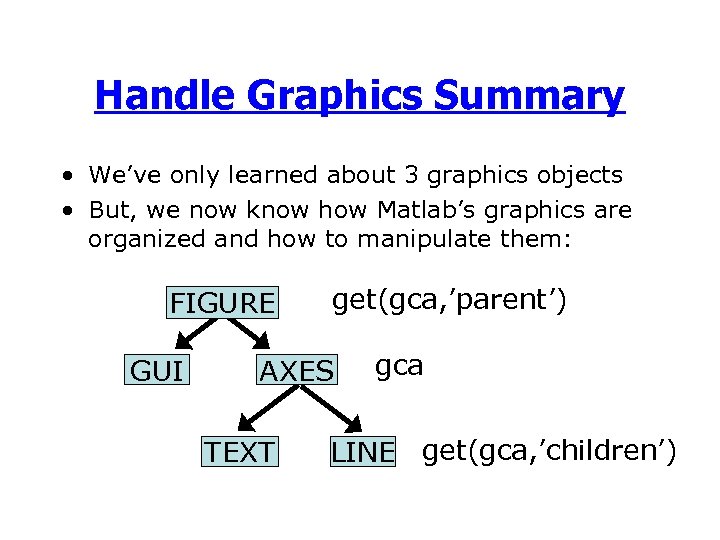 Handle Graphics Summary • We’ve only learned about 3 graphics objects • But, we now know how Matlab’s graphics are organized and how to manipulate them: FIGURE GUI get(gca, ’parent’) AXES TEXT gca LINE get(gca, ’children’)
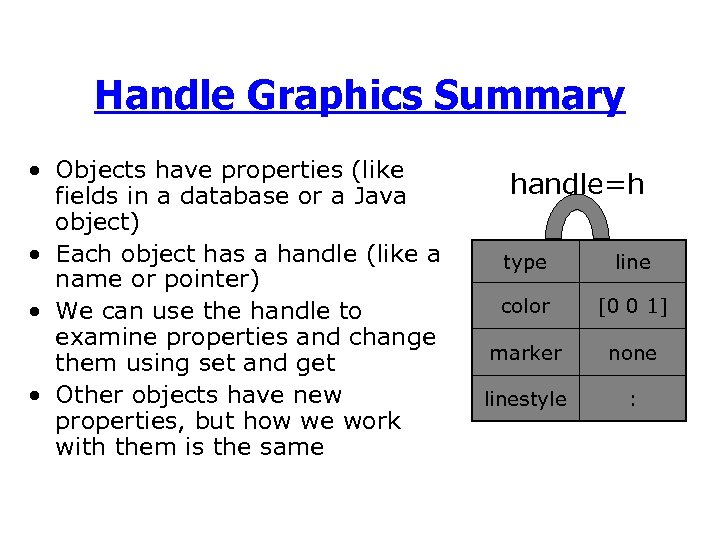 Handle Graphics Summary • Objects have properties (like fields in a database or a Java object) • Each object has a handle (like a name or pointer) • We can use the handle to examine properties and change them using set and get • Other objects have new properties, but how we work with them is the same handle=h type line color [0 0 1] marker none linestyle :
 A Demonstration • To prove that we understand handle graphics, I will show some specialized 1 D plots, and we will try to figure out how they are implemented in Matlab • For each one, we will answer: – What objects are created? – What are their properties?
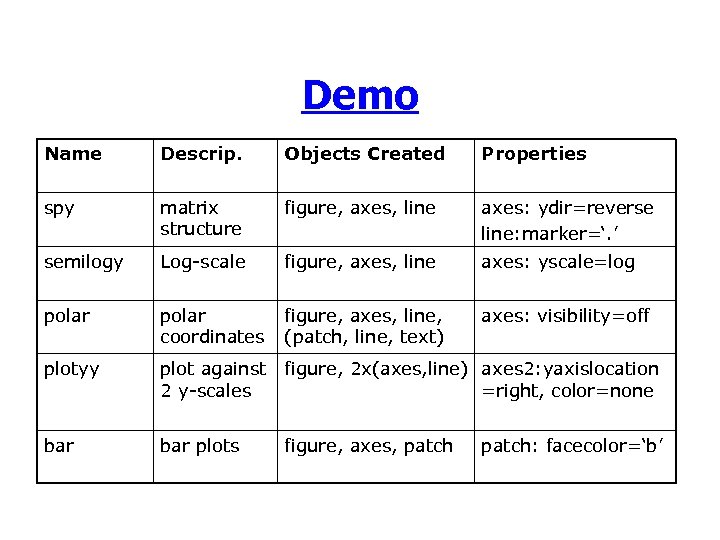 Demo Name Descrip. Objects Created Properties spy matrix structure figure, axes, line axes: ydir=reverse line: marker=‘. ’ semilogy Log-scale figure, axes, line axes: yscale=log polar coordinates figure, axes, line, (patch, line, text) axes: visibility=off plotyy plot against 2 y-scales figure, 2 x(axes, line) axes 2: yaxislocation =right, color=none bar plots figure, axes, patch: facecolor=‘b’
 What about bar? • bar represents a 1 D function using 2 D objects--rectangles • the rectangles are represented in Matlab as a patch object – Patches are polygons – Patches can have complicated colors – Patches (or related surface objects) are used by all higher-order functions
 Key properties of patch objects • edgecolor--color of the edges • facecolor--color inside the patch • Both of these can be set to a specific color (or none) • Or, we can prescribe another dimension of data at each vertex and let it control the color
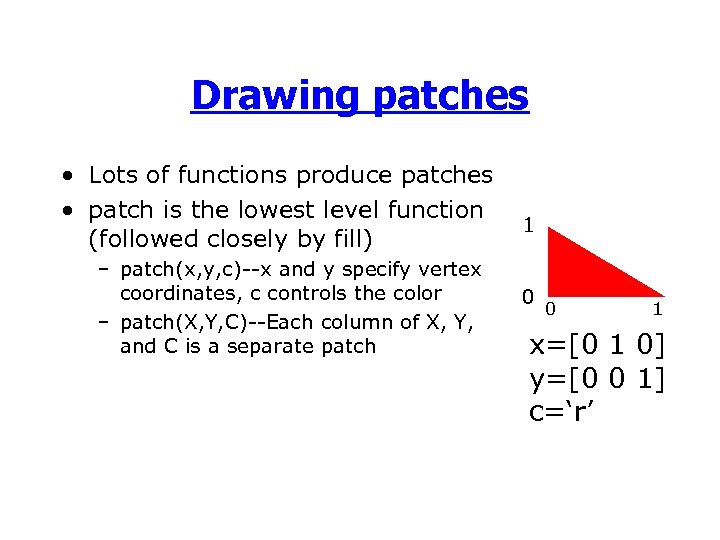 Drawing patches • Lots of functions produce patches • patch is the lowest level function (followed closely by fill) – patch(x, y, c)--x and y specify vertex coordinates, c controls the color – patch(X, Y, C)--Each column of X, Y, and C is a separate patch 1 0 0 1 x=[0 1 0] y=[0 0 1] c=‘r’