


 Скачать презентацию OPS 400 Chapter 3 L 4 C 3
4a6512e8a5dd7fc9822c857f33e61074.ppt
- Количество слайдов: 41
 OPS 400 Chapter 3 L 4 C 3 ops 400. ppt 1
 Agenda • Review • THE USER INTERFACE SCREEN TYPES ARE ? ? • HELP / MENU / ASSISTANCE HOW? • COMMAND STRUCTURE HOW? • Source Entry Utility (SEU) - again! 2
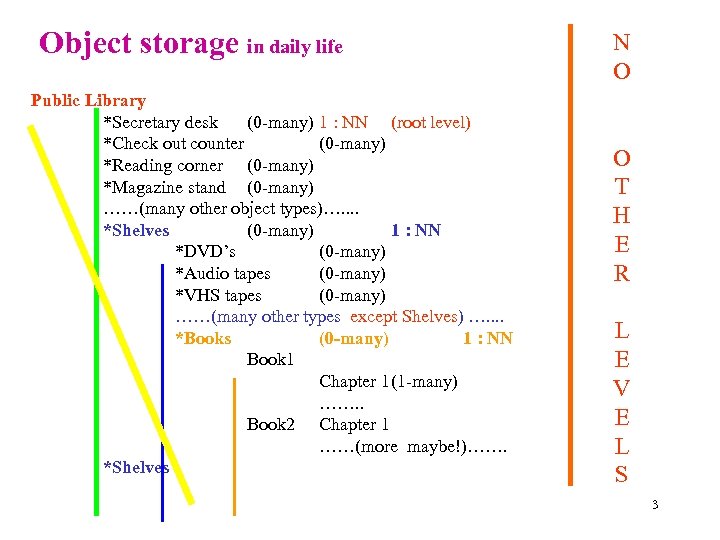 Object storage in daily life Public Library *Secretary desk (0 -many) 1 : NN (root level) *Check out counter (0 -many) *Reading corner (0 -many) *Magazine stand (0 -many) ……(many other object types)…. . *Shelves (0 -many) 1 : NN *DVD’s (0 -many) *Audio tapes (0 -many) *VHS tapes (0 -many) ……(many other types except Shelves) …. . *Books (0 -many) 1 : NN Book 1 Chapter 1(1 -many) ……. . Book 2 Chapter 1 ……(more maybe!)……. *Shelves N O O T H E R L E V E L S 3
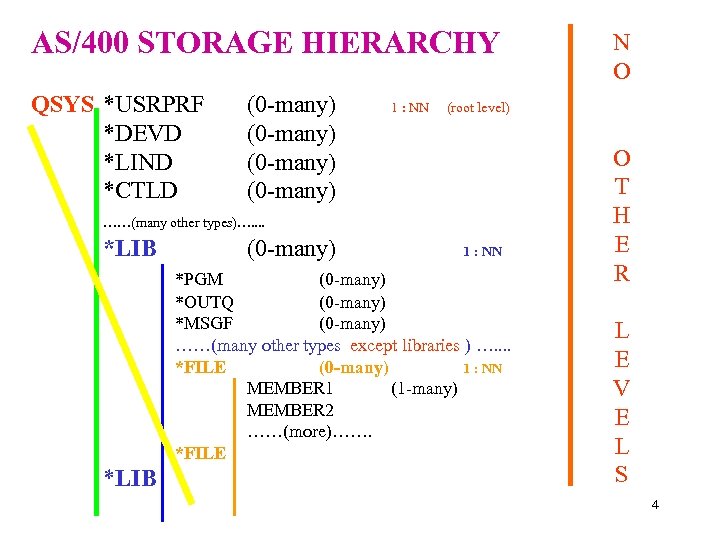 AS/400 STORAGE HIERARCHY QSYS *USRPRF *DEVD *LIND *CTLD (0 -many) 1 : NN (root level) ……(many other types)…. . *LIB (0 -many) 1 : NN *PGM (0 -many) *OUTQ (0 -many) *MSGF (0 -many) ……(many other types except libraries ) …. . *FILE (0 -many) 1 : NN MEMBER 1 (1 -many) MEMBER 2 ……(more)……. *FILE *LIB N O O T H E R L E V E L S 4
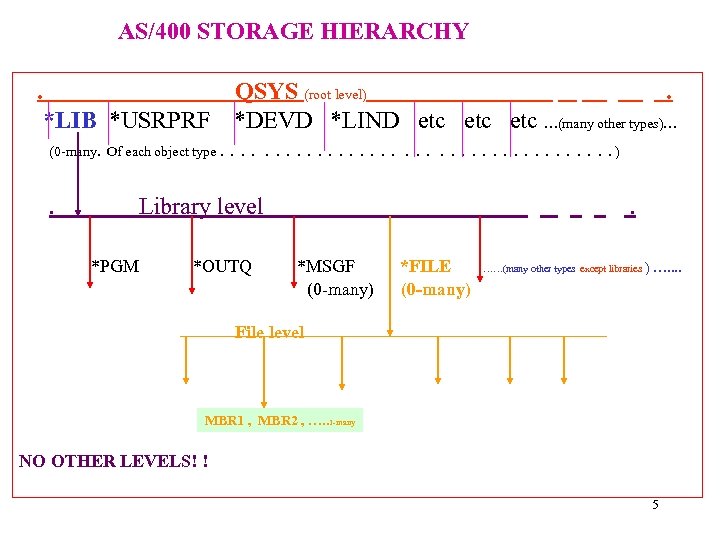 AS/400 STORAGE HIERARCHY. *LIB *USRPRF QSYS (root level). *DEVD *LIND etc etc …(many other types)… (0 -many. Of each object type. . . . . ) . Library level *PGM *OUTQ . *MSGF (0 -many) *FILE (0 -many) ……(many other types except libraries ) …. . File level MBR 1 , MBR 2 , …. . 1 -many NO OTHER LEVELS! ! 5
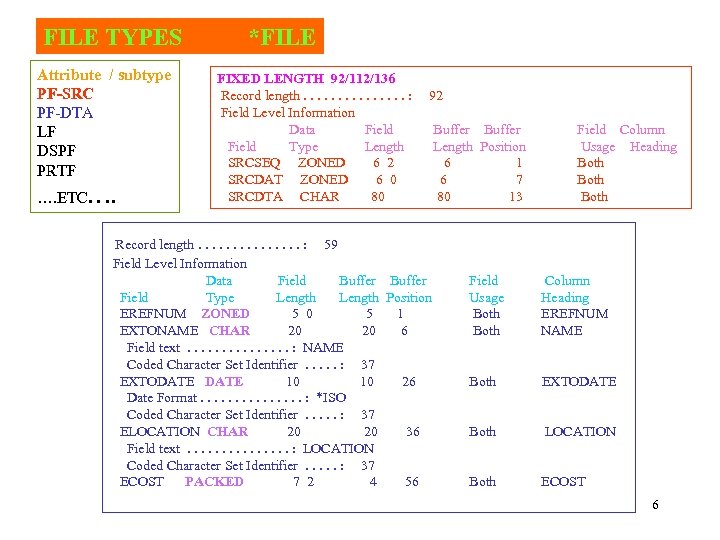 FILE TYPES Attribute / subtype PF-SRC PF-DTA LF DSPF PRTF …. ETC…. *FILE FIXED LENGTH 92/112/136 Record length. . . . : Field Level Information Data Field Type Length SRCSEQ ZONED 6 2 SRCDAT ZONED 6 0 SRCDTA CHAR 80 92 Record length. . . . : 59 Field Level Information Data Field Buffer Field Type Length Position EREFNUM ZONED 5 0 5 1 EXTONAME CHAR 20 20 6 Field text. . . . : NAME Coded Character Set Identifier. . . : 37 EXTODATE 10 10 26 Date Format. . . . : *ISO Coded Character Set Identifier. . . : 37 ELOCATION CHAR 20 20 36 Field text. . . . : LOCATION Coded Character Set Identifier. . . : 37 ECOST PACKED 7 2 4 56 Buffer Length Position 6 1 6 7 80 13 Field Column Usage Heading Both Field Usage Both Column Heading EREFNUM NAME Both EXTODATE Both LOCATION Both ECOST 6
 SCREEN TYPES 7
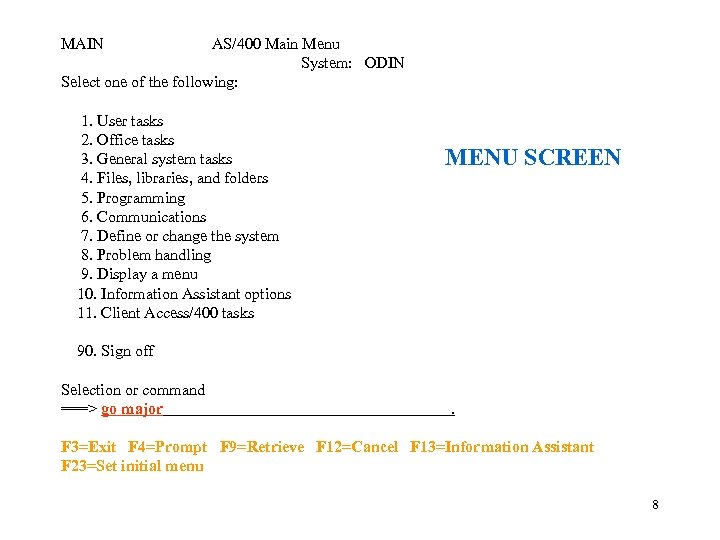 MAIN AS/400 Main Menu System: ODIN Select one of the following: 1. User tasks 2. Office tasks 3. General system tasks 4. Files, libraries, and folders 5. Programming 6. Communications 7. Define or change the system 8. Problem handling 9. Display a menu 10. Information Assistant options 11. Client Access/400 tasks MENU SCREEN 90. Sign off Selection or command ===> go major . F 3=Exit F 4=Prompt F 9=Retrieve F 12=Cancel F 13=Information Assistant F 23=Set initial menu 8
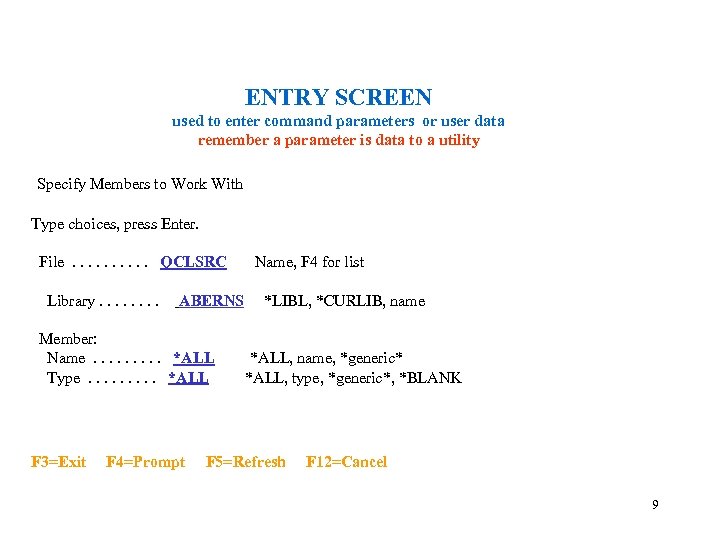 ENTRY SCREEN used to enter command parameters or user data remember a parameter is data to a utility Specify Members to Work With Type choices, press Enter. File. . QCLSRC Library. . . . ABERNS Member: Name. . *ALL Type. . *ALL F 3=Exit F 4=Prompt Name, F 4 for list *LIBL, *CURLIB, name *ALL, name, *generic* *ALL, type, *generic*, *BLANK F 5=Refresh F 12=Cancel 9
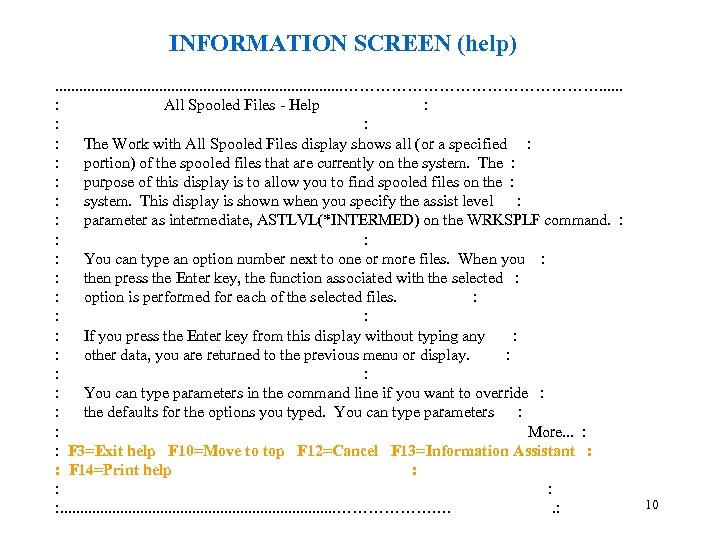 INFORMATION SCREEN (help). . . . . ……………………. . . : All Spooled Files - Help : : The Work with All Spooled Files display shows all (or a specified : : portion) of the spooled files that are currently on the system. The : : purpose of this display is to allow you to find spooled files on the : : system. This display is shown when you specify the assist level : : parameter as intermediate, ASTLVL(*INTERMED) on the WRKSPLF command. : : You can type an option number next to one or more files. When you : : then press the Enter key, the function associated with the selected : : option is performed for each of the selected files. : : If you press the Enter key from this display without typing any : : other data, you are returned to the previous menu or display. : : You can type parameters in the command line if you want to override : : the defaults for the options you typed. You can type parameters : : More. . . : : F 3=Exit help F 10=Move to top F 12=Cancel F 13=Information Assistant : : F 14=Print help : : . . . . ………………. …. : 10
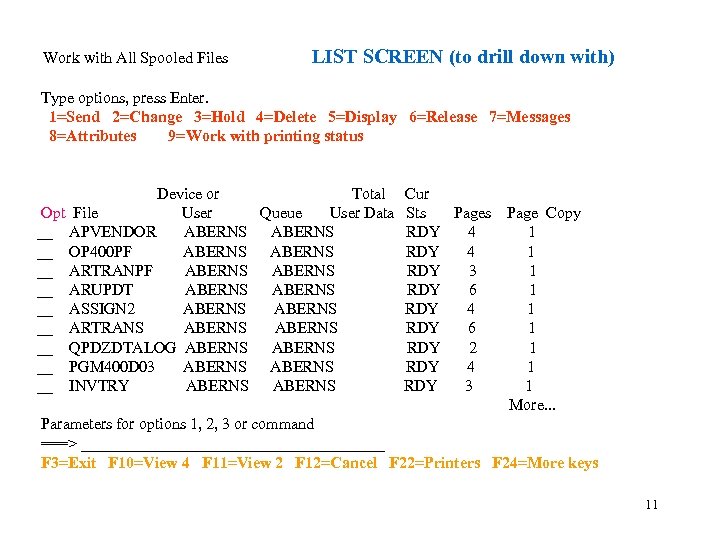 Work with All Spooled Files LIST SCREEN (to drill down with) Type options, press Enter. 1=Send 2=Change 3=Hold 4=Delete 5=Display 6=Release 7=Messages 8=Attributes 9=Work with printing status Device or Total Opt File User Queue User Data __ APVENDOR ABERNS __ OP 400 PF ABERNS __ ARTRANPF ABERNS __ ARUPDT ABERNS __ ASSIGN 2 ABERNS __ ARTRANS ABERNS __ QPDZDTALOG ABERNS __ PGM 400 D 03 ABERNS __ INVTRY ABERNS Cur Sts Pages RDY 4 RDY 3 RDY 6 RDY 4 RDY 6 RDY 2 RDY 4 RDY 3 Page Copy 1 1 1 1 1 More. . . Parameters for options 1, 2, 3 or command ===> ___________________ F 3=Exit F 10=View 4 F 11=View 2 F 12=Cancel F 22=Printers F 24=More keys 11
 KEYS 12
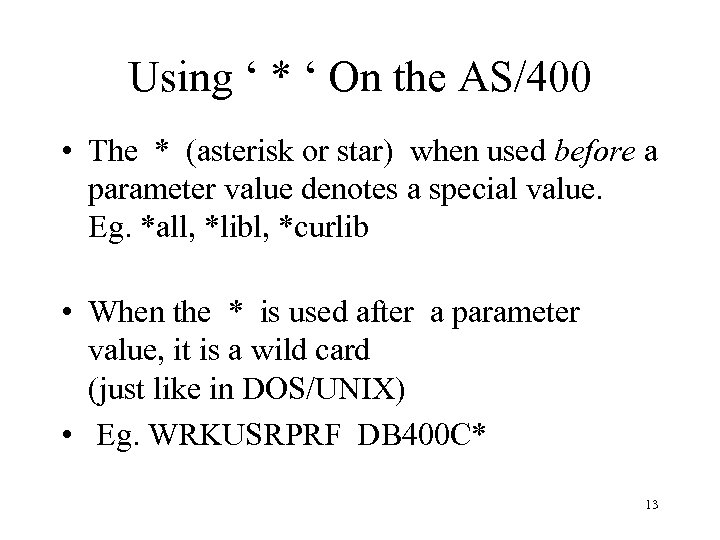 Using ‘ * ‘ On the AS/400 • The * (asterisk or star) when used before a parameter value denotes a special value. Eg. *all, *libl, *curlib • When the * is used after a parameter value, it is a wild card (just like in DOS/UNIX) • Eg. WRKUSRPRF DB 400 C* 13
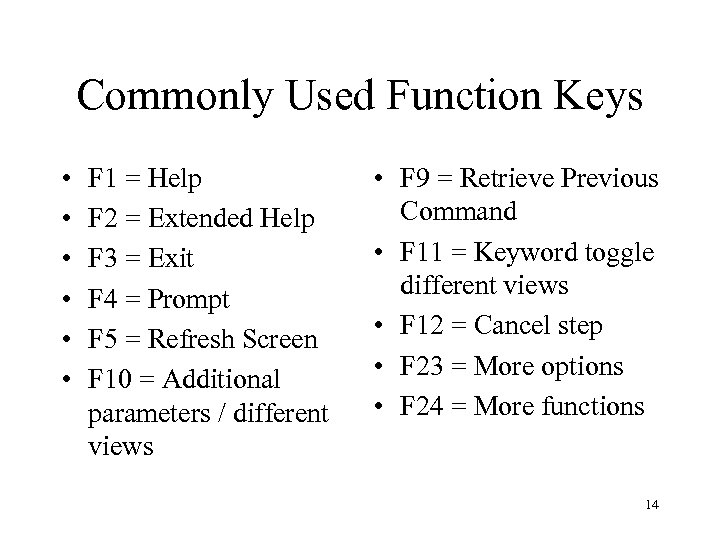 Commonly Used Function Keys • • • F 1 = Help F 2 = Extended Help F 3 = Exit F 4 = Prompt F 5 = Refresh Screen F 10 = Additional parameters / different views • F 9 = Retrieve Previous Command • F 11 = Keyword toggle different views • F 12 = Cancel step • F 23 = More options • F 24 = More functions 14
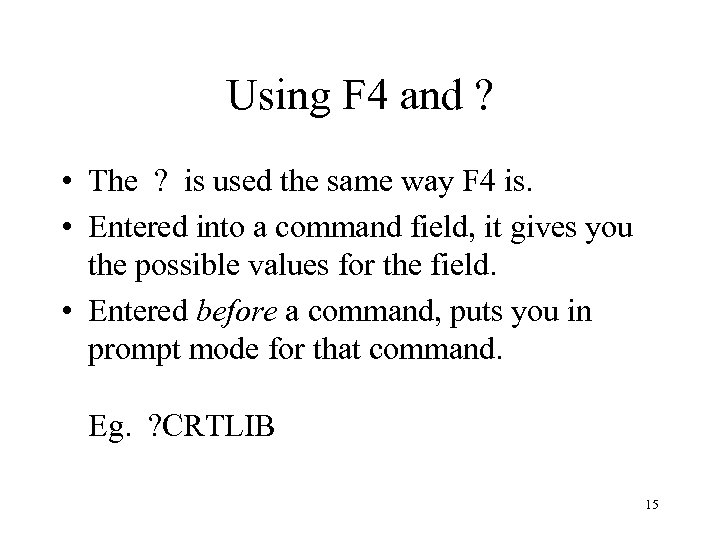 Using F 4 and ? • The ? is used the same way F 4 is. • Entered into a command field, it gives you the possible values for the field. • Entered before a command, puts you in prompt mode for that command. Eg. ? CRTLIB 15
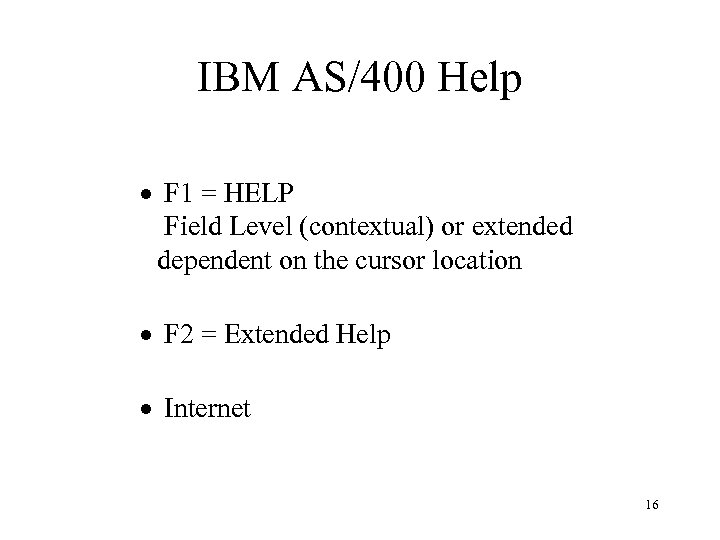 IBM AS/400 Help · F 1 = HELP Field Level (contextual) or extended dependent on the cursor location · F 2 = Extended Help · Internet 16
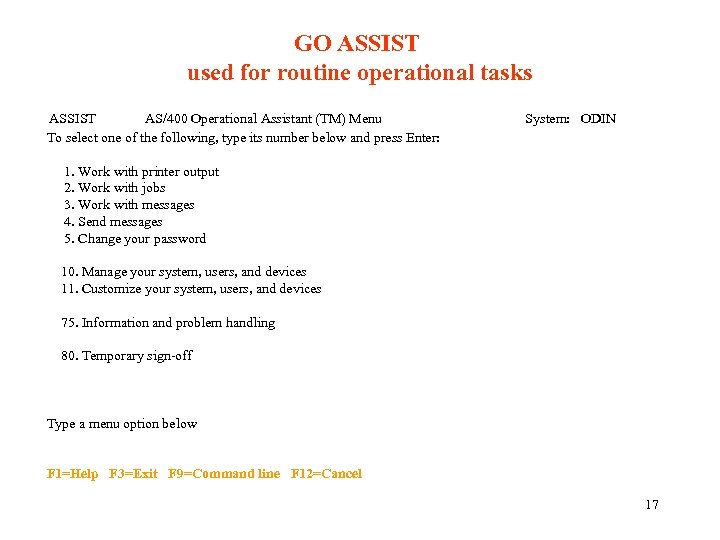 GO ASSIST used for routine operational tasks ASSIST AS/400 Operational Assistant (TM) Menu To select one of the following, type its number below and press Enter: System: ODIN 1. Work with printer output 2. Work with jobs 3. Work with messages 4. Send messages 5. Change your password 10. Manage your system, users, and devices 11. Customize your system, users, and devices 75. Information and problem handling 80. Temporary sign-off Type a menu option below F 1=Help F 3=Exit F 9=Command line F 12=Cancel 17
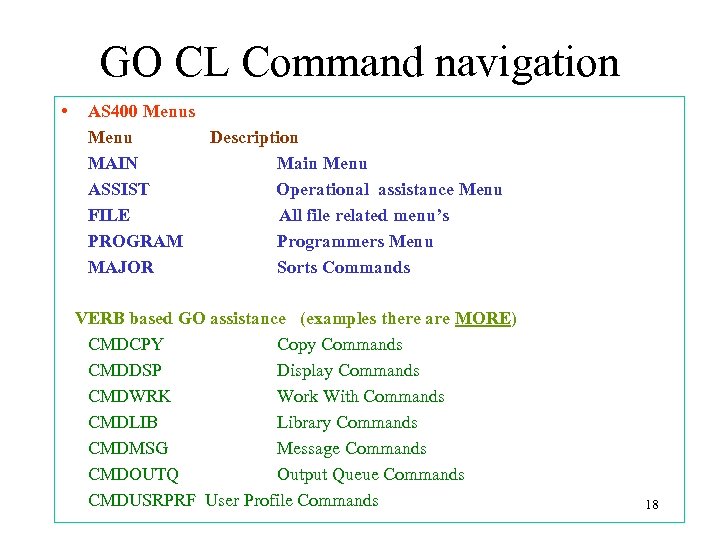 GO CL Command navigation • AS 400 Menus Menu Description MAIN Main Menu ASSIST Operational assistance Menu FILE All file related menu’s PROGRAM Programmers Menu MAJOR Sorts Commands VERB based GO assistance (examples there are MORE) CMDCPY Copy Commands CMDDSP Display Commands CMDWRK Work With Commands CMDLIB Library Commands CMDMSG Message Commands CMDOUTQ Output Queue Commands CMDUSRPRF User Profile Commands 18
 Assistance Levels • Determines how much information is displayed and how it is formatted. • Basic, Intermediate, Advanced, default on USRPRF • Page 19 in text. • Try it out for yourself using the WRKSPLF command function key F 21 19
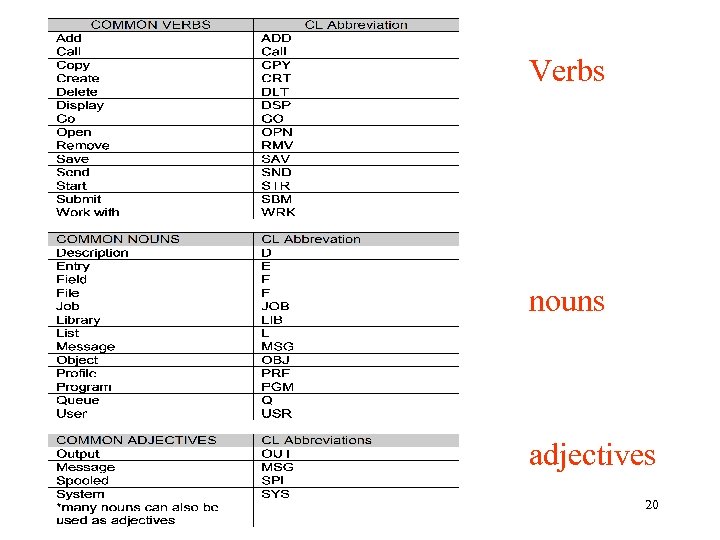 Verbs nouns adjectives 20
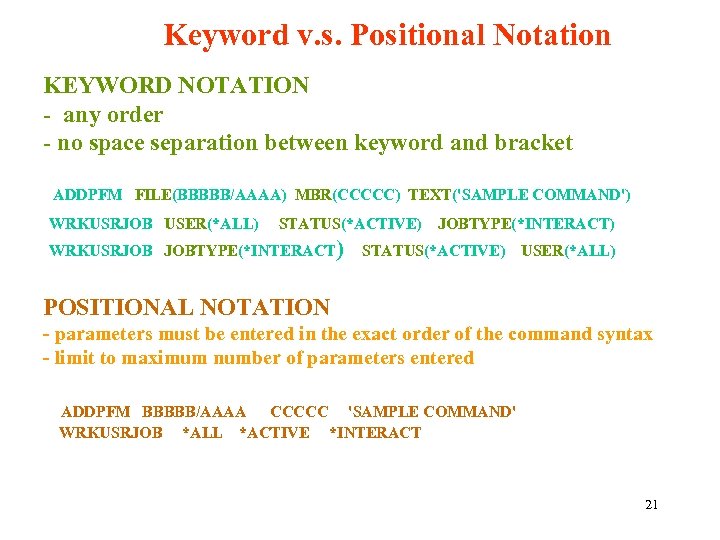 Keyword v. s. Positional Notation KEYWORD NOTATION - any order - no space separation between keyword and bracket ADDPFM FILE(BBBBB/AAAA) MBR(CCCCC) TEXT('SAMPLE COMMAND') WRKUSRJOB USER(*ALL) STATUS(*ACTIVE) WRKUSRJOB JOBTYPE(*INTERACT) STATUS(*ACTIVE) USER(*ALL) POSITIONAL NOTATION - parameters must be entered in the exact order of the command syntax - limit to maximum number of parameters entered ADDPFM BBBBB/AAAA CCCCC 'SAMPLE COMMAND' WRKUSRJOB *ALL *ACTIVE *INTERACT 21
 “Objects” • anything on the AS/400 that has a name, takes up space in storage, can be acted on or executed and is not of a temporary nature” is an object • on AS/400 files have members • Each objects has an associated DESCRIPTION in which both the physical and logical attributes (properties) are defined • Common object types include: – libraries, files, job queues, programs • Common sub types / attributes are CBL, CL, DSPF, LF , SAVF 22
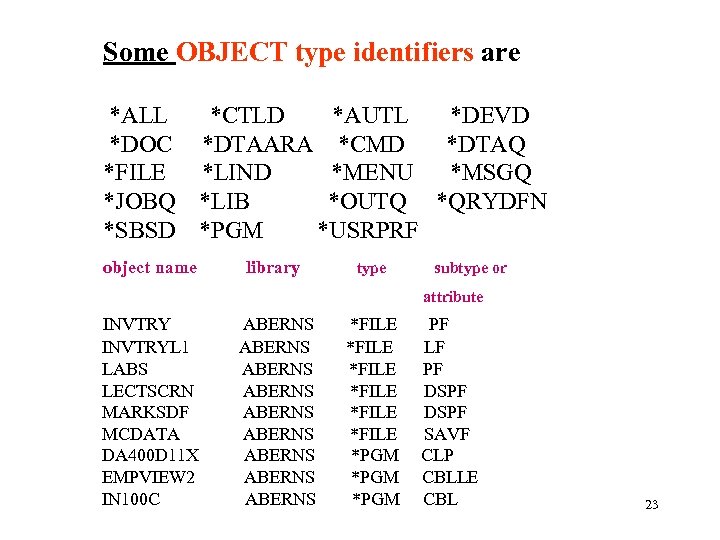 Some OBJECT type identifiers are *ALL *CTLD *AUTL *DEVD *DOC *DTAARA *CMD *DTAQ *FILE *LIND *MENU *MSGQ *JOBQ *LIB *OUTQ *QRYDFN *SBSD *PGM *USRPRF object name library type subtype or attribute INVTRYL 1 LABS LECTSCRN MARKSDF MCDATA DA 400 D 11 X EMPVIEW 2 IN 100 C ABERNS ABERNS ABERNS *FILE *FILE *PGM PF LF PF DSPF SAVF CLP CBLLE CBL 23
 Entering source code 24
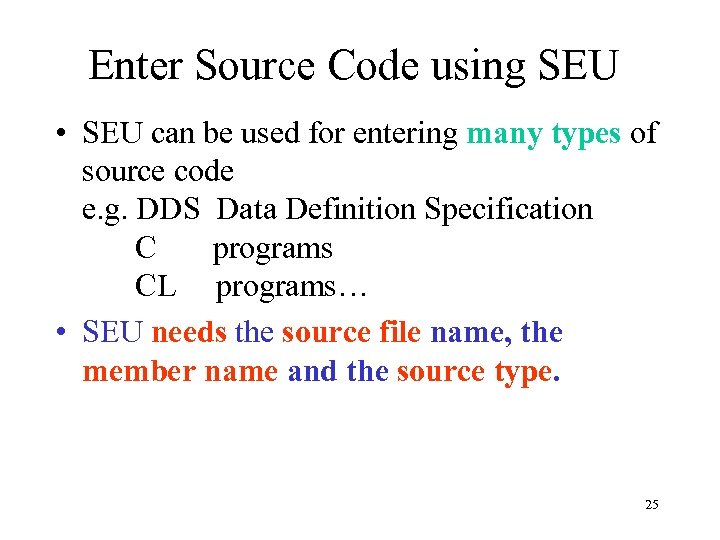 Enter Source Code using SEU • SEU can be used for entering many types of source code e. g. DDS Data Definition Specification C programs CL programs… • SEU needs the source file name, the member name and the source type. 25
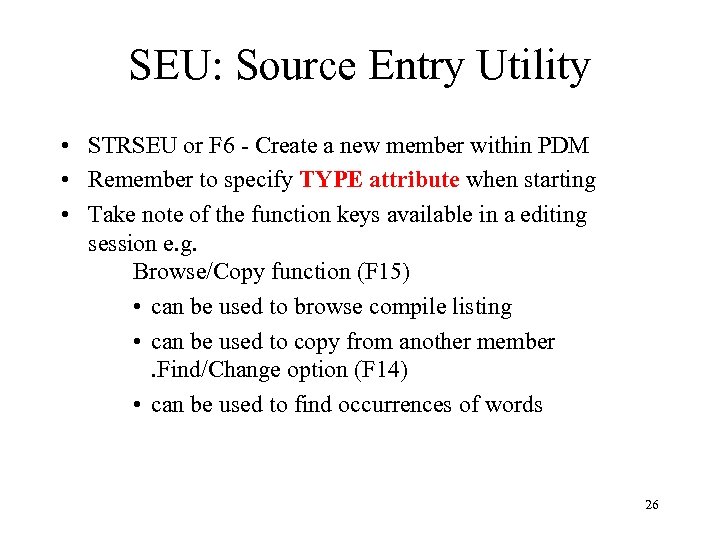 SEU: Source Entry Utility • STRSEU or F 6 - Create a new member within PDM • Remember to specify TYPE attribute when starting • Take note of the function keys available in a editing session e. g. Browse/Copy function (F 15) • can be used to browse compile listing • can be used to copy from another member. Find/Change option (F 14) • can be used to find occurrences of words 26
 Determine the “file” usage • The source attribute type: – tells SEU what type of source you are creating e. g. TXT, PF, LF, CL, etc – Determines which SYNTAX checker to use – Determines which COMPILER to use when creating the object. 27
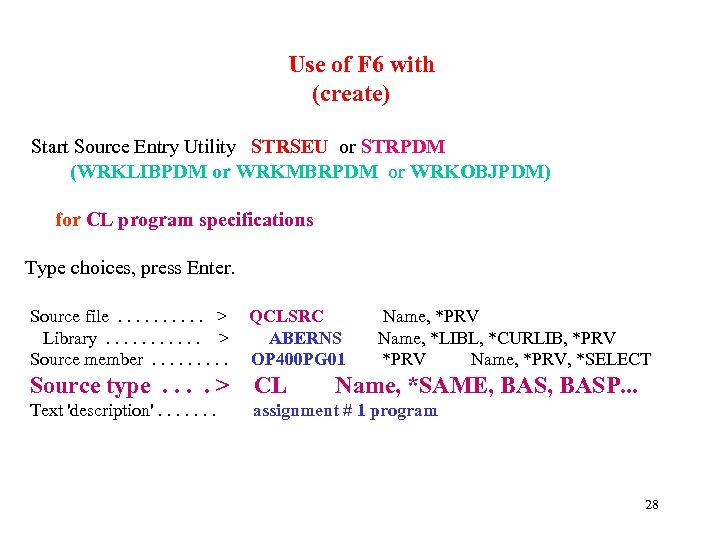 Use of F 6 with (create) Start Source Entry Utility STRSEU or STRPDM (WRKLIBPDM or WRKMBRPDM or WRKOBJPDM) for CL program specifications Type choices, press Enter. Source file. . > Library. . . > Source member. . QCLSRC ABERNS OP 400 PG 01 Name, *PRV Name, *LIBL, *CURLIB, *PRV Name, *PRV, *SELECT Source type. . > CL Text 'description'. . . . assignment # 1 program Name, *SAME, BASP. . . 28
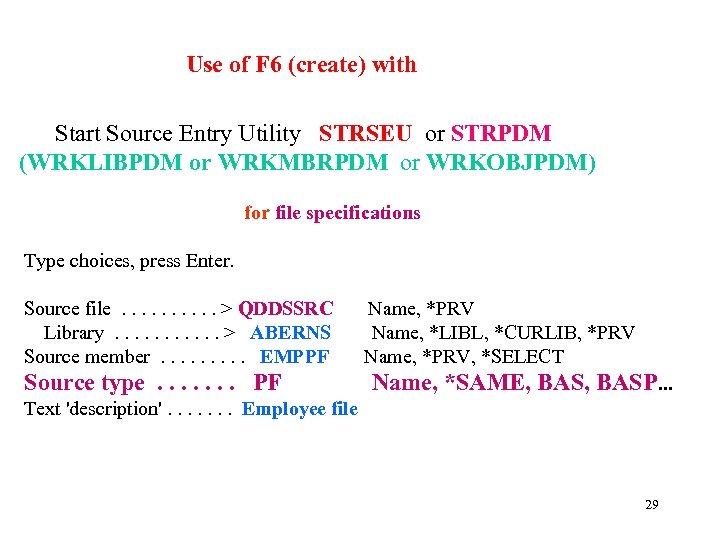 Use of F 6 (create) with Start Source Entry Utility STRSEU or STRPDM (WRKLIBPDM or WRKMBRPDM or WRKOBJPDM) for file specifications Type choices, press Enter. Source file. . > QDDSSRC Library. . . > ABERNS Source member. . EMPPF Source type. . . . PF Name, *PRV Name, *LIBL, *CURLIB, *PRV Name, *PRV, *SELECT Name, *SAME, BASP. . . Text 'description'. . . . Employee file 29
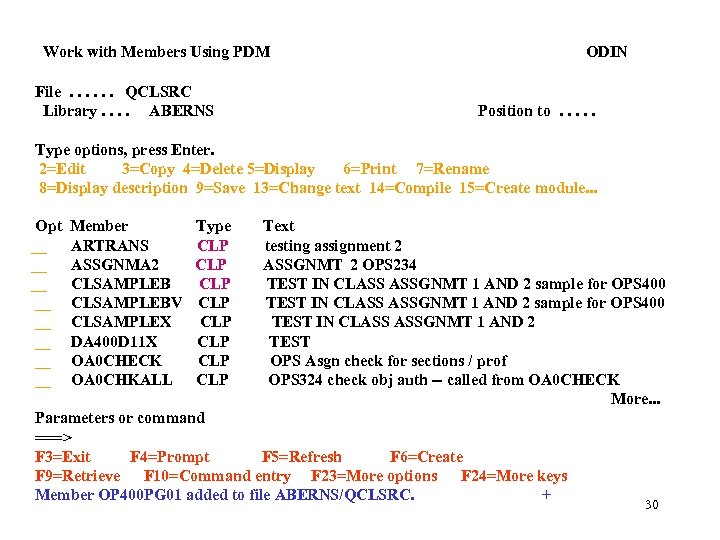 Work with Members Using PDM File. . . QCLSRC Library. . ABERNS ODIN Position to. . . Type options, press Enter. 2=Edit 3=Copy 4=Delete 5=Display 6=Print 7=Rename 8=Display description 9=Save 13=Change text 14=Compile 15=Create module. . . Opt __ __ Member ARTRANS ASSGNMA 2 CLSAMPLEBV CLSAMPLEX DA 400 D 11 X OA 0 CHECK OA 0 CHKALL Type CLP CLP Text testing assignment 2 ASSGNMT 2 OPS 234 TEST IN CLASS ASSGNMT 1 AND 2 sample for OPS 400 TEST IN CLASS ASSGNMT 1 AND 2 TEST OPS Asgn check for sections / prof OPS 324 check obj auth -- called from OA 0 CHECK More. . . Parameters or command ===> F 3=Exit F 4=Prompt F 5=Refresh F 6=Create F 9=Retrieve F 10=Command entry F 23=More options F 24=More keys Member OP 400 PG 01 added to file ABERNS/QCLSRC. + 30
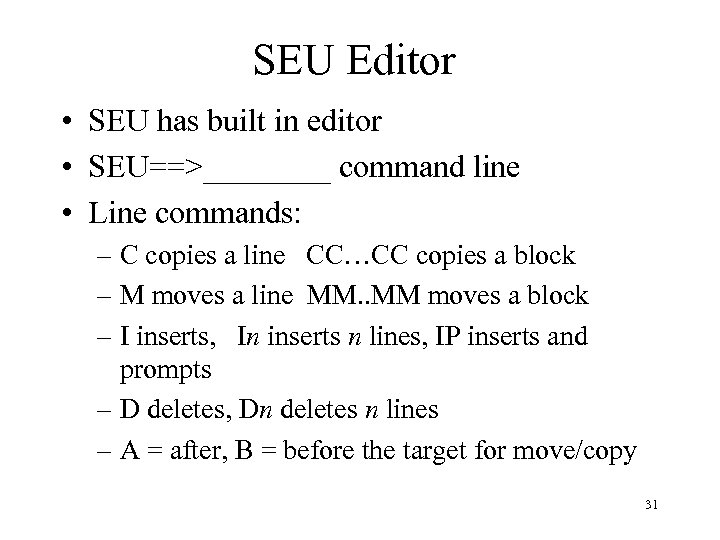 SEU Editor • SEU has built in editor • SEU==>____ command line • Line commands: – C copies a line CC…CC copies a block – M moves a line MM. . MM moves a block – I inserts, In inserts n lines, IP inserts and prompts – D deletes, Dn deletes n lines – A = after, B = before the target for move/copy 31
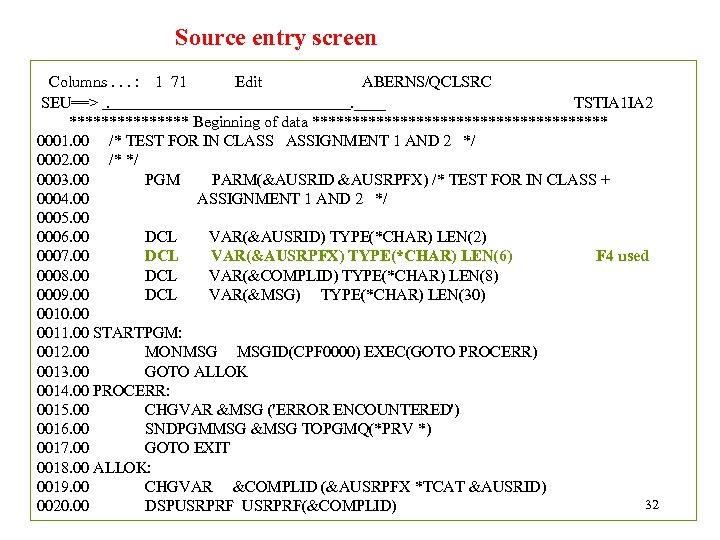 Source entry screen Columns. . . : 1 71 Edit ABERNS/QCLSRC SEU==>. . ____ TSTIA 1 IA 2 ******** Beginning of data ******************* 0001. 00 /* TEST FOR IN CLASS ASSIGNMENT 1 AND 2 */ 0002. 00 /* */ 0003. 00 PGM PARM(&AUSRID &AUSRPFX) /* TEST FOR IN CLASS + 0004. 00 ASSIGNMENT 1 AND 2 */ 0005. 00 0006. 00 DCL VAR(&AUSRID) TYPE(*CHAR) LEN(2) 0007. 00 DCL VAR(&AUSRPFX) TYPE(*CHAR) LEN(6) F 4 used 0008. 00 DCL VAR(&COMPLID) TYPE(*CHAR) LEN(8) 0009. 00 DCL VAR(&MSG) TYPE(*CHAR) LEN(30) 0010. 00 0011. 00 STARTPGM: 0012. 00 MONMSG MSGID(CPF 0000) EXEC(GOTO PROCERR) 0013. 00 GOTO ALLOK 0014. 00 PROCERR: 0015. 00 CHGVAR &MSG ('ERROR ENCOUNTERED') 0016. 00 SNDPGMMSG &MSG TOPGMQ(*PRV *) 0017. 00 GOTO EXIT 0018. 00 ALLOK: 0019. 00 CHGVAR &COMPLID (&AUSRPFX *TCAT &AUSRID) 32 0020. 00 DSPUSRPRF(&COMPLID)
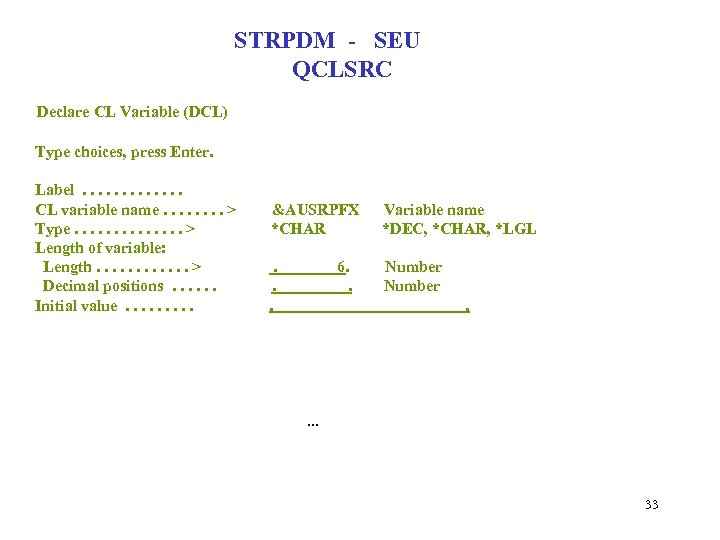 STRPDM - SEU QCLSRC Declare CL Variable (DCL) Type choices, press Enter. Label. . . CL variable name. . . . > Type. . . > Length of variable: Length. . . > Decimal positions. . . Initial value. . &AUSRPFX *CHAR Variable name *DEC, *CHAR, *LGL . . . Number 6. . . 33
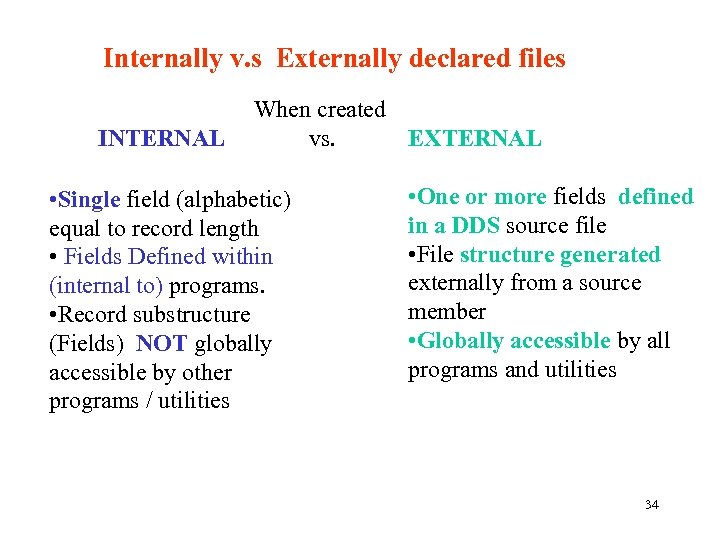 Internally v. s Externally declared files INTERNAL When created vs. EXTERNAL • Single field (alphabetic) equal to record length • Fields Defined within (internal to) programs. • Record substructure (Fields) NOT globally accessible by other programs / utilities • One or more fields defined in a DDS source file • File structure generated externally from a source member • Globally accessible by all programs and utilities 34
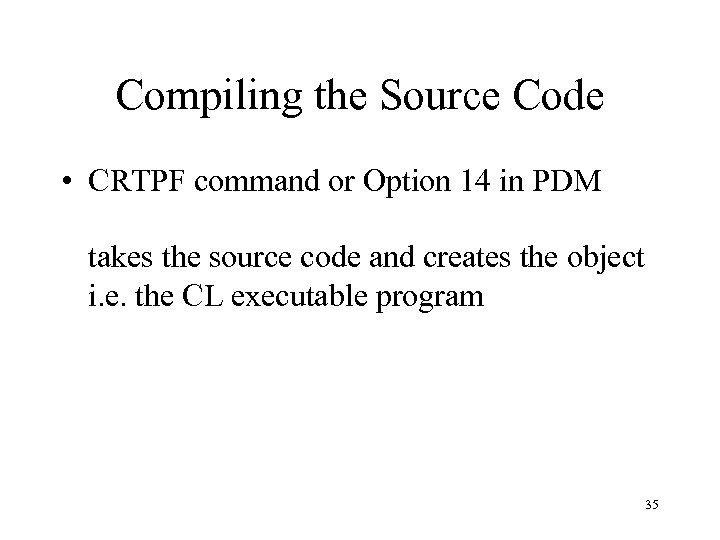 Compiling the Source Code • CRTPF command or Option 14 in PDM takes the source code and creates the object i. e. the CL executable program 35
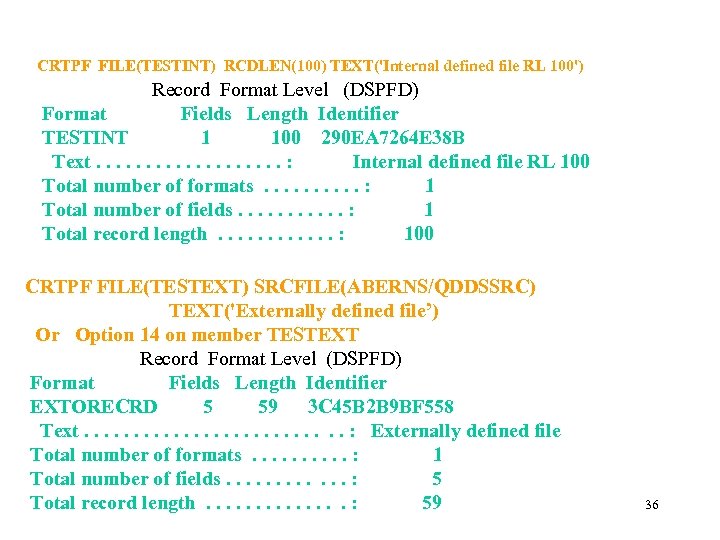 CRTPF FILE(TESTINT) RCDLEN(100) TEXT('Internal defined file RL 100') Record Format Level (DSPFD) Format Fields Length Identifier TESTINT 1 100 290 EA 7264 E 38 B Text. . . . . : Internal defined file RL 100 Total number of formats. . : 1 Total number of fields. . . : 1 Total record length. . . : 100 CRTPF FILE(TESTEXT) SRCFILE(ABERNS/QDDSSRC) TEXT('Externally defined file’) Or Option 14 on member TESTEXT Record Format Level (DSPFD) Format Fields Length Identifier EXTORECRD 5 59 3 C 45 B 2 B 9 BF 558 Text. . . : Externally defined file Total number of formats. . : 1 Total number of fields. . . : 5 Total record length. . . : 59 36
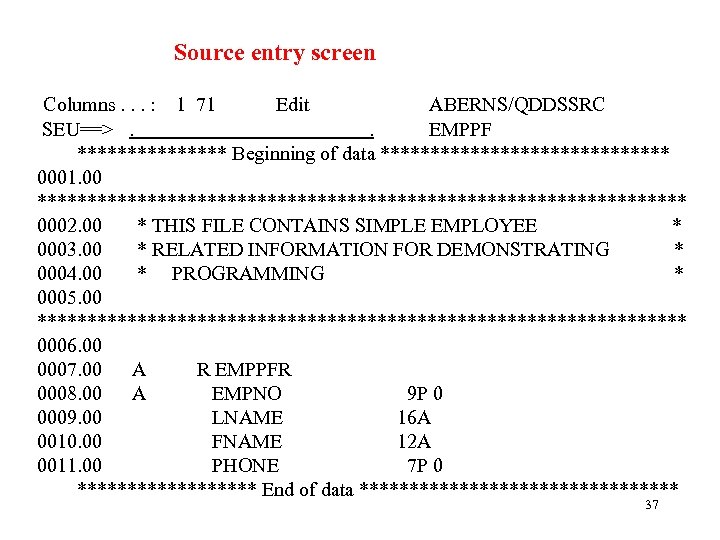 Source entry screen Columns. . . : 1 71 Edit ABERNS/QDDSSRC SEU==>. . EMPPF ******** Beginning of data *************** 0001. 00 ********************************* 0002. 00 * THIS FILE CONTAINS SIMPLE EMPLOYEE * 0003. 00 * RELATED INFORMATION FOR DEMONSTRATING * 0004. 00 * PROGRAMMING * 0005. 00 ********************************* 0006. 00 0007. 00 A R EMPPFR 0008. 00 A EMPNO 9 P 0 0009. 00 LNAME 16 A 0010. 00 FNAME 12 A 0011. 00 PHONE 7 P 0 ********* End of data **************** 37
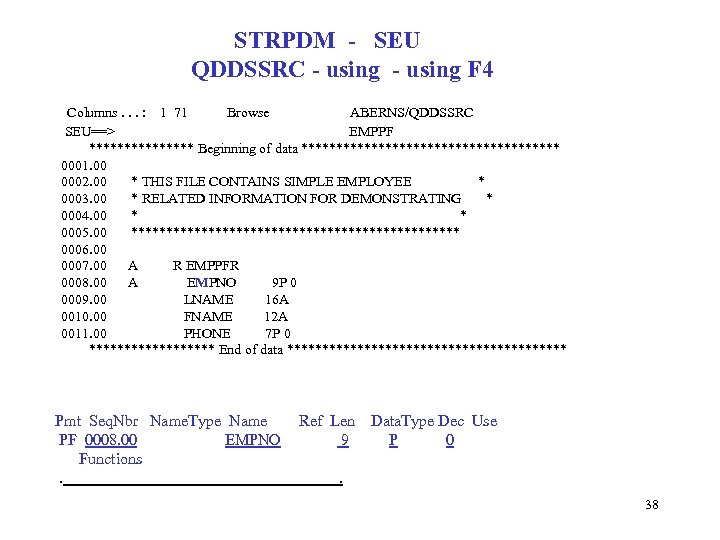 STRPDM - SEU QDDSSRC - using F 4 Columns. . . : 1 71 Browse ABERNS/QDDSSRC SEU==> EMPPF ******** Beginning of data ******************* 0001. 00 0002. 00 * THIS FILE CONTAINS SIMPLE EMPLOYEE * 0003. 00 * RELATED INFORMATION FOR DEMONSTRATING * 0004. 00 * * 0005. 00 ************************ 0006. 00 0007. 00 A R EMPPFR 0008. 00 A EMPNO 9 P 0 0009. 00 LNAME 16 A 0010. 00 FNAME 12 A 0011. 00 PHONE 7 P 0 ********* End of data ******************** Pmt Seq. Nbr Name. Type Name PF 0008. 00 EMPNO Functions. Ref Len 9 Data. Type Dec Use P 0 . 38
 How do you know if the compile worked? ? ? • An output file is created with each compile (the compile listing) which tells you what happened. READ it! • Where is that output file? ? • In your output queue!! 39
 Compile Errors • Make sure the compile worked! • The PDM user option SP shows your spooled compile listing and if there are errors, a joblog. • If errors, return to SEU, use F 15 then option 2 for spool files. The system will bring up your compile listing in an additional window. 40
 Compile Errors cont’d • On the lower window command line, enter F *err (find errors) • Pressing F 1 with the cursor on the message will give you an explanation of the message • Use F 12 to return to browse window and press F 16 to repeat the find errors command. • Check out the warning messages also. 41