


 Скачать презентацию Operating Systems I Managing Your System MCT 260
b097e7638bf6edc6d88fba972ff93b74.ppt
- Количество слайдов: 29
 Operating Systems I Managing Your System MCT 260 -Operating Systems I
 Primary Learning Objective Execute Routine System Management MCT 260 -Operating Systems I 2
 Specific Learning Objectives • Identify and define the terms associated with system management • Identify critical system files used by operating systems • Add/remove software and Windows components • Install a Printer • Use Task Manager to end unresponsive programs and view CPU/memory usage MCT 260 -Operating Systems I 3
 Specific Learning Objectives • Use Windows Internet Update Feature and Device Manager • Restore your computer • Modify system variables such as date and time • Use CLI commands such as SET, DATE, TIME, VER, and MEM MCT 260 -Operating Systems I 4
 Critical System Files • As OS’s have evolved, so has the way they store configuration information. The older, smaller files are still important because they are used for bootable and network connection disks. • The three following files are the minimum required to make a bootable (startup) disk: – COMMAND. COM – IO. SYS – MSDOS. SYS MCT 260 -Operating Systems I 5
 Critical System Files • After a DOS computer boots up, it reads the CONFIG. SYS, a configuration file, and executes any commands in it. • Next the AUTOEXEC. BAT (automatically executed batch) file runs. • Windows 3. x used initialization files (. INI) for software settings. WIN. INI and SYSTEM. INI are two that are still important in network connection disks. MCT 260 -Operating Systems I 6
 The Registry • The. INI files were replaced by the registry in Windows 95. • The Registry is a database used by the Windows operating system to store configuration information. • Stores all settings for: Users, Hardware, Programs, and Folders • Software and hardware installations affect the registry MCT 260 -Operating Systems I 7
 Adding Software • Read the instructions and/or Readme files • Three options exist for adding software: – Newer programs come on CD-ROMs. If it has an auto-run feature, the installation program will start automatically. – Start > Control Panel > Add or Remove Programs > click the Add New Programs button then click the CD or Floppy button. If it can find the SETUP or INSTALL program it will run it. – Open the disk /folder and double-click any files called SETUP or similarly named files. MCT 260 -Operating Systems I 8
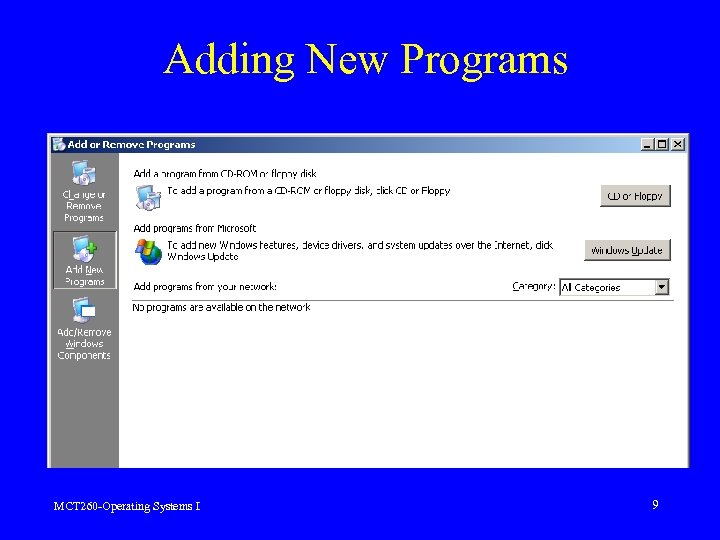 Adding New Programs MCT 260 -Operating Systems I 9
 Removing Software • The preferred method is to use Add or Remove Programs since it removes all traces of the program even in the Registry. • Another option is to see if the program has its own uninstall program and run it. • The worst option is to delete the files and folder where the program is located MCT 260 -Operating Systems I 10
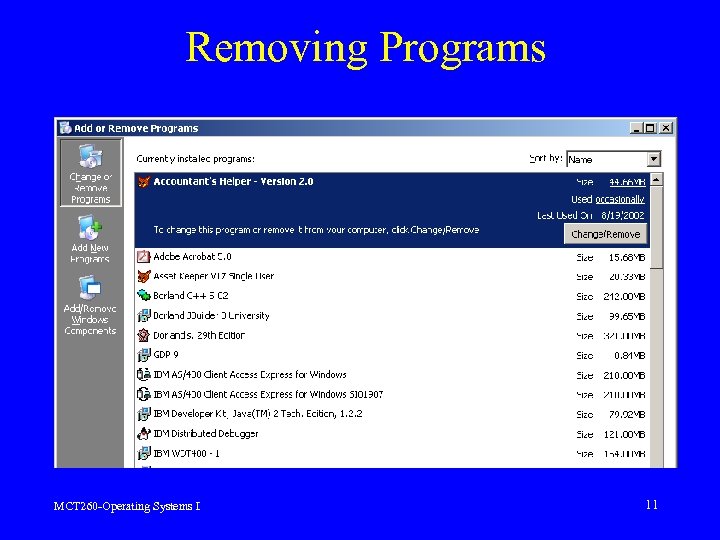 Removing Programs MCT 260 -Operating Systems I 11
 Adding/Removing Windows Components • In Add or Remove Programs click Add/ Remove Windows Component button • Check the category that contains the component you need to add. • Clicking the DETAILS button show a list of individual components in that category. MCT 260 -Operating Systems I 12
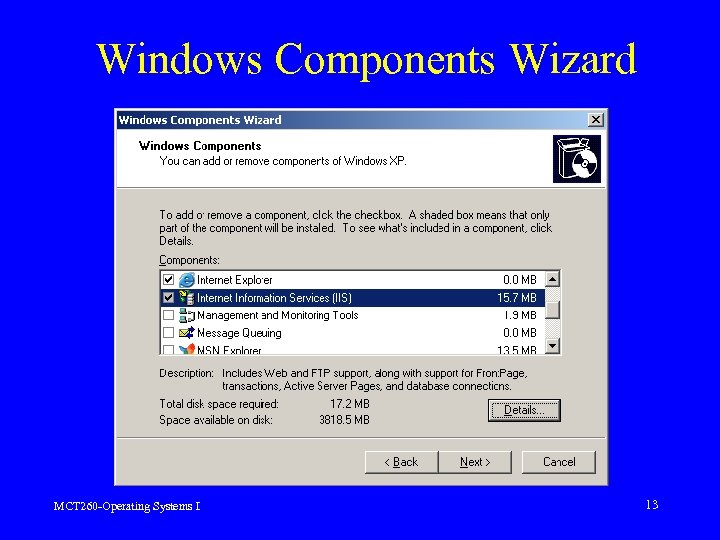 Windows Components Wizard MCT 260 -Operating Systems I 13
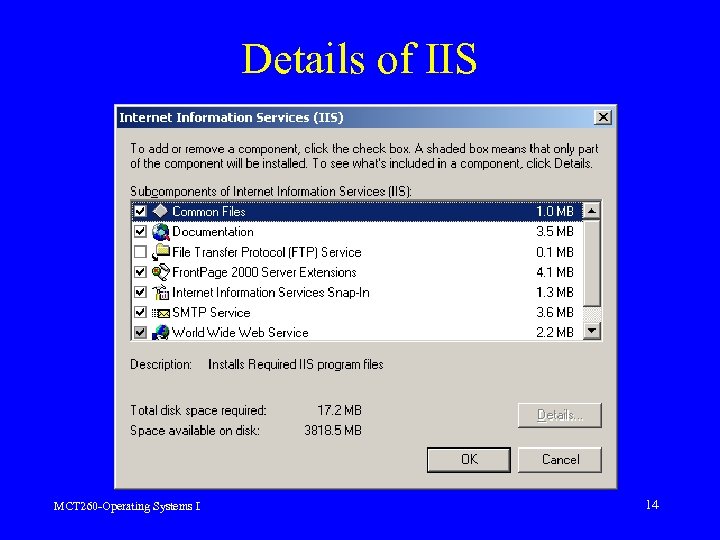 Details of IIS MCT 260 -Operating Systems I 14
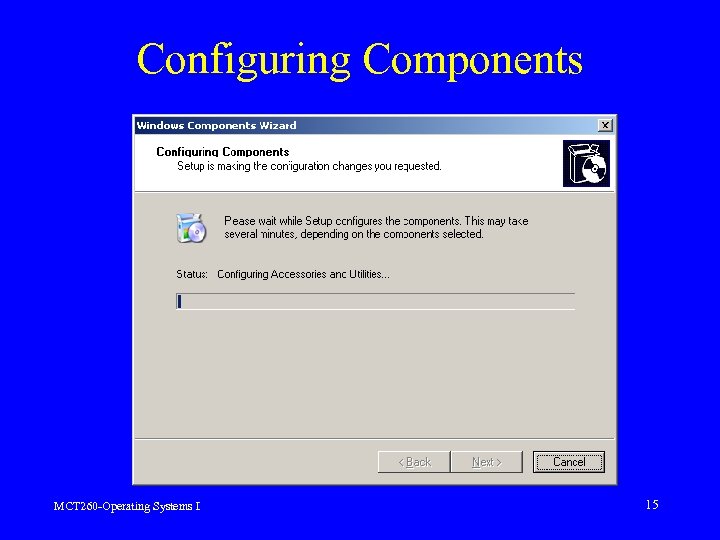 Configuring Components MCT 260 -Operating Systems I 15
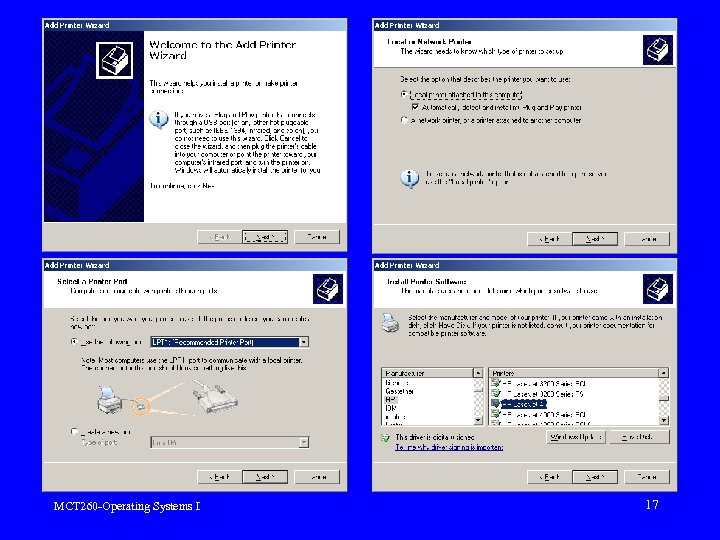
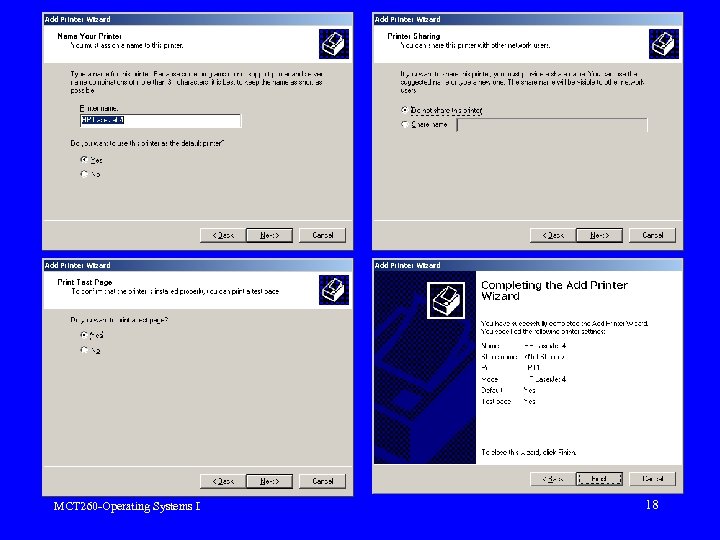
 Installing a Printer • Local printer – one connected to the computer’s parallel port • Network printer – one connected directly to the network or to a print server • Having the correct printer driver is very important for a successful installation. – Generally older printer drivers are easily found on the OS CD-ROM – New printers with older OS’s can cause problems MCT 260 -Operating Systems I 16
 MCT 260 -Operating Systems I 17
 MCT 260 -Operating Systems I 18
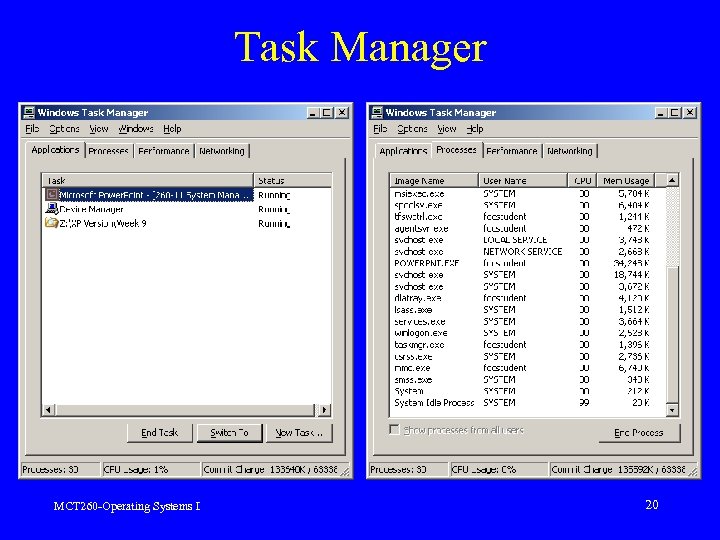
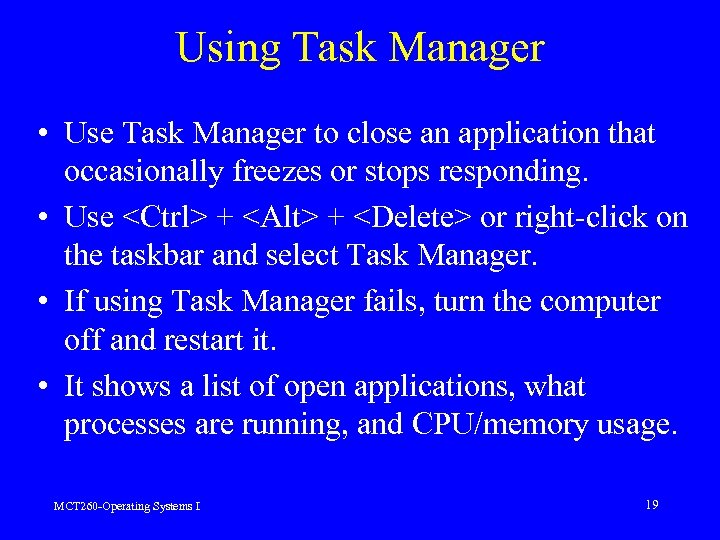 Using Task Manager • Use Task Manager to close an application that occasionally freezes or stops responding. • Use
 Task Manager MCT 260 -Operating Systems I 20
 Using Device Manager • Device Manager is used to document system setting, verify the installation of a hardware device, check for hardware conflicts, troubleshoot hardware problems, and change the configuration of a hardware device. • To view: right-click My Computer, Properties, Hardware Tab, and Device Manager button. • A red X through an device icon indicates that the device is disabled. MCT 260 -Operating Systems I 21
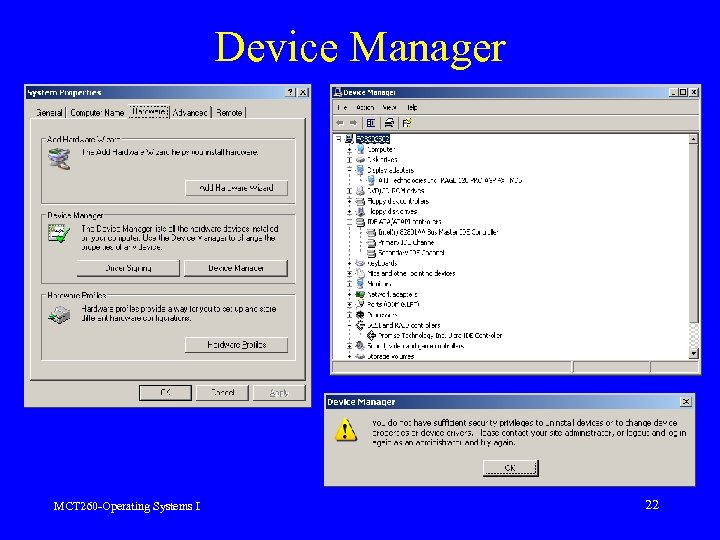 Device Manager MCT 260 -Operating Systems I 22
 Windows Internet Update • A feature used to find and install product enhancements and updated system files, device drivers, and service packs. • Requires a Internet connection. • Click the Start button and select All Programs Windows Update. • Click Scan for updates to view the available updates for your computer. MCT 260 -Operating Systems I 23
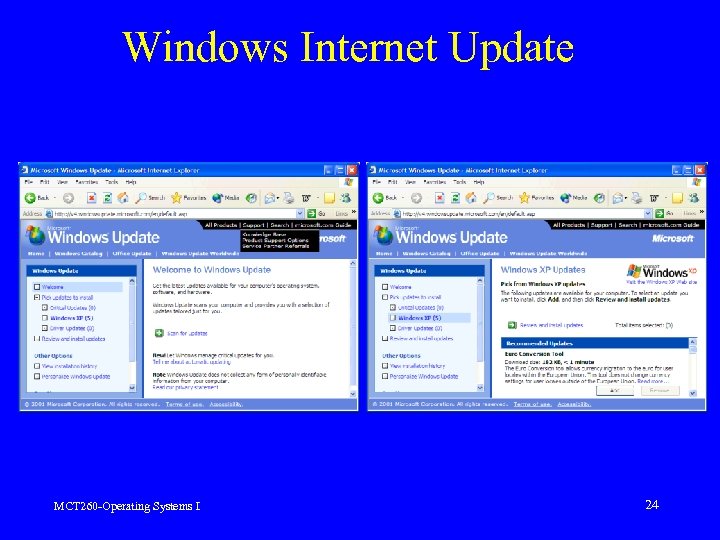 Windows Internet Update MCT 260 -Operating Systems I 24
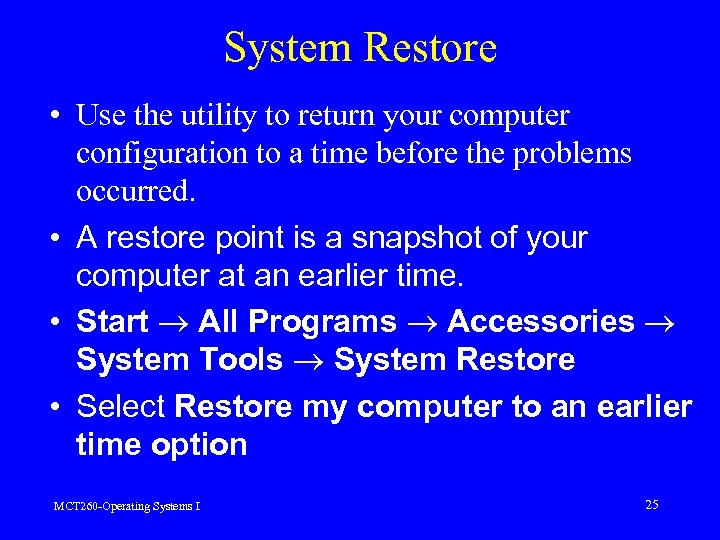 System Restore • Use the utility to return your computer configuration to a time before the problems occurred. • A restore point is a snapshot of your computer at an earlier time. • Start All Programs Accessories System Tools System Restore • Select Restore my computer to an earlier time option MCT 260 -Operating Systems I 25
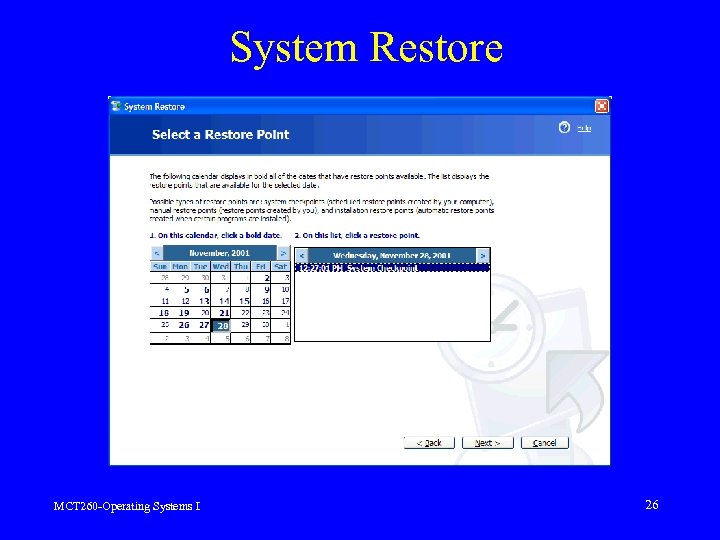 System Restore MCT 260 -Operating Systems I 26
 Demonstrations • Use GUI to modify Date and Time • Use CLI commands such as SET, DATE, TIME, VER, and MEM MCT 260 -Operating Systems I 27
 Summary • • Critical System Files Add/Remove Software Add/Remove Windows Components Install a Local Printer Task Manager Device Manager Windows Internet Update feature System Restore MCT 260 -Operating Systems I 28
 Homework Assignment • Reading – XP Textbook – pp 116 -117, pp 150 -170 – CLI Textbook - pp 29 -33, pp 84 -87 • Lab Exercise 10: Perform System Management • Homework 6: System Management • Due Date: A Week from Next Tuesday MCT 260 -Operating Systems I 29