 Скачать презентацию Online Bill of Lading Printing User Guide COSCON
5d7a572ee07b09af96389a8a3b886be3.ppt
- Количество слайдов: 13



Online Bill of Lading Printing User Guide COSCON E-Business ebusiness. coscon. com
1 Online BL Printing Authorization 2 Online B/L printing
1 Online BL Printing Authorization How to apply for authorization ØRegister as a certificated user on ebusiness. coscon. com ØContact your local sales representative to process a BLRP application
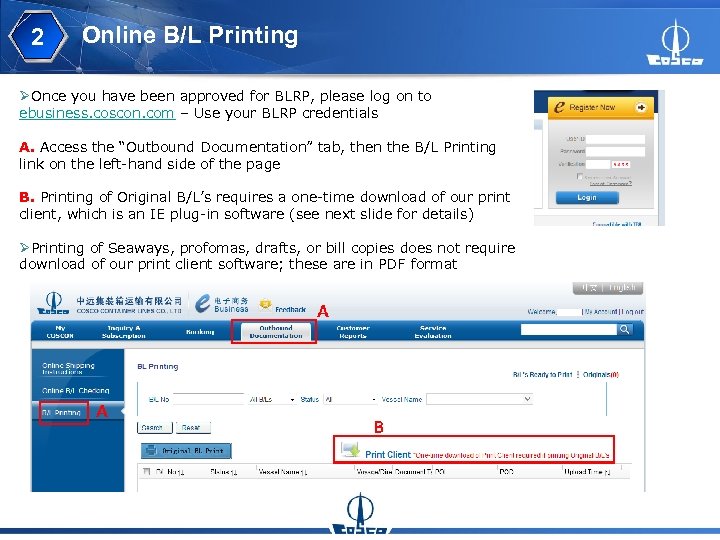
2 Online B/L Printing ØOnce you have been approved for BLRP, please log on to ebusiness. coscon. com – Use your BLRP credentials A. Access the “Outbound Documentation” tab, then the B/L Printing link on the left-hand side of the page B. Printing of Original B/L’s requires a one-time download of our print client, which is an IE plug-in software (see next slide for details) ØPrinting of Seaways, profomas, drafts, or bill copies does not require download of our print client software; these are in PDF format
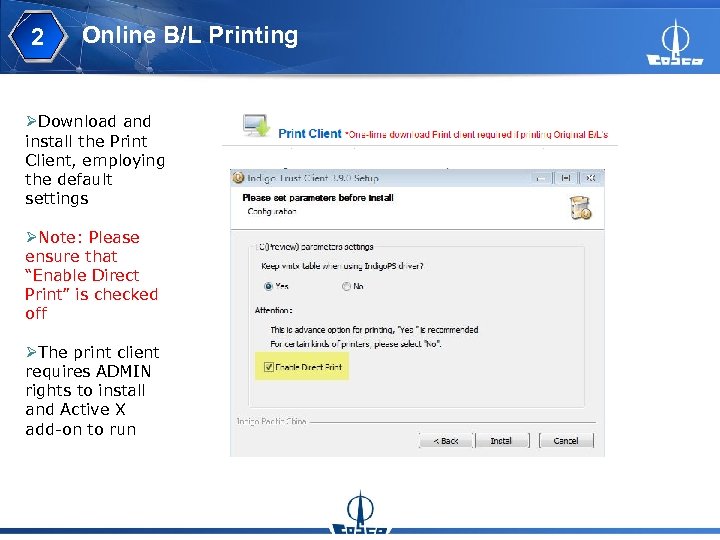
2 Online B/L Printing ØDownload and install the Print Client, employing the default settings ØNote: Please ensure that “Enable Direct Print” is checked off ØThe print client requires ADMIN rights to install and Active X add-on to run
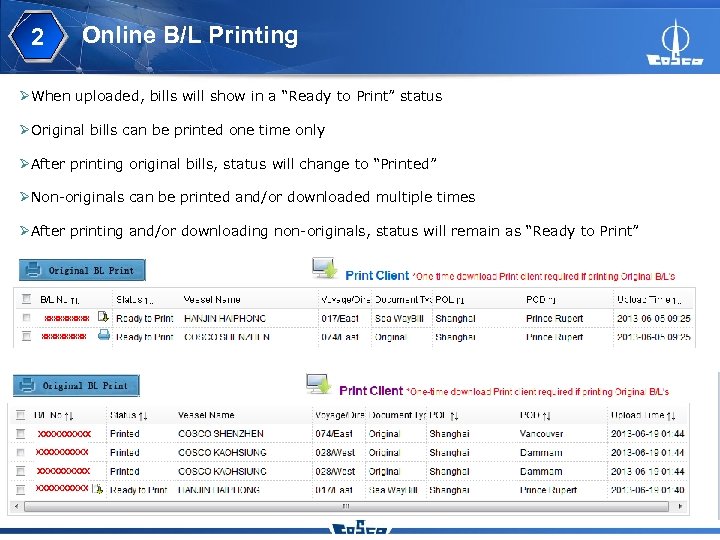
2 Online B/L Printing ØWhen uploaded, bills will show in a “Ready to Print” status ØOriginal bills can be printed one time only ØAfter printing original bills, status will change to “Printed” ØNon-originals can be printed and/or downloaded multiple times ØAfter printing and/or downloading non-originals, status will remain as “Ready to Print” ØAll bills will remain on our E-Business site for ten days
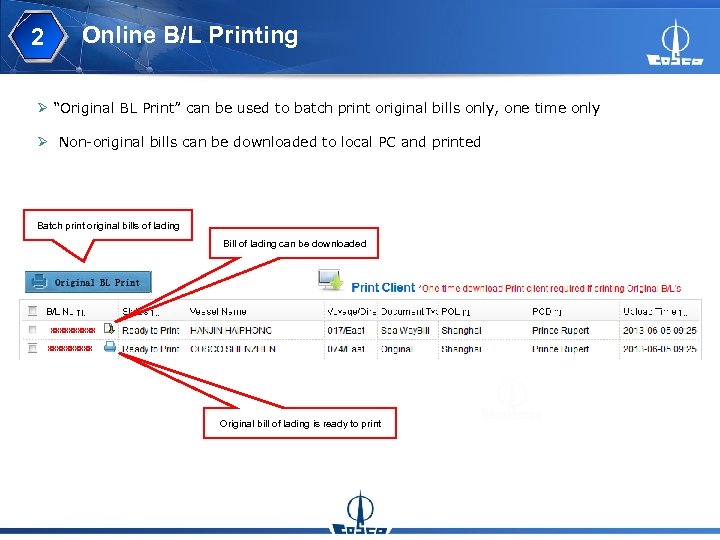
2 Online B/L Printing Ø “Original BL Print” can be used to batch print original bills only, one time only Ø Non-original bills can be downloaded to local PC and printed Batch print original bills of lading Bill of lading can be downloaded Original bill of lading is ready to print
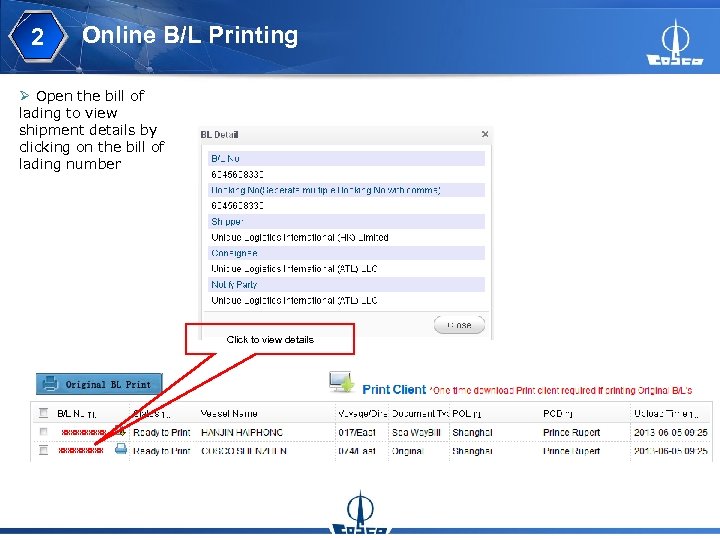
2 Online B/L Printing Ø Open the bill of lading to view shipment details by clicking on the bill of lading number Click to view details
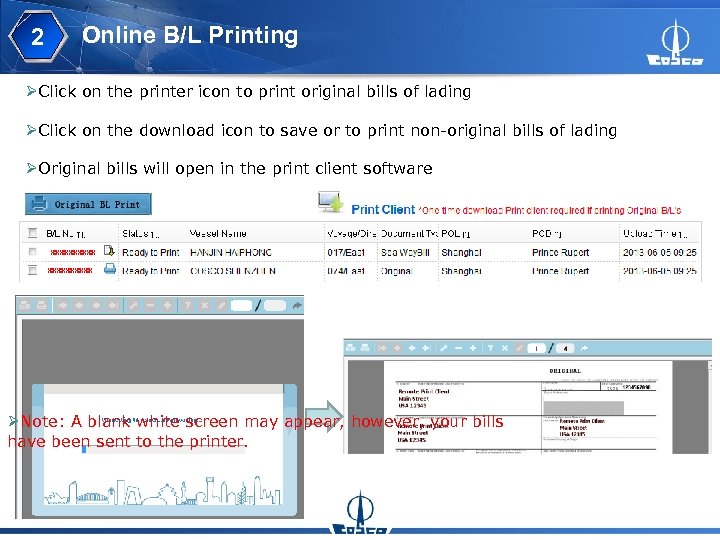
2 Online B/L Printing ØClick on the printer icon to print original bills of lading ØClick on the download icon to save or to print non-original bills of lading ØOriginal bills will open in the print client software ØNote: A blank white screen may appear, however, your bills have been sent to the printer.
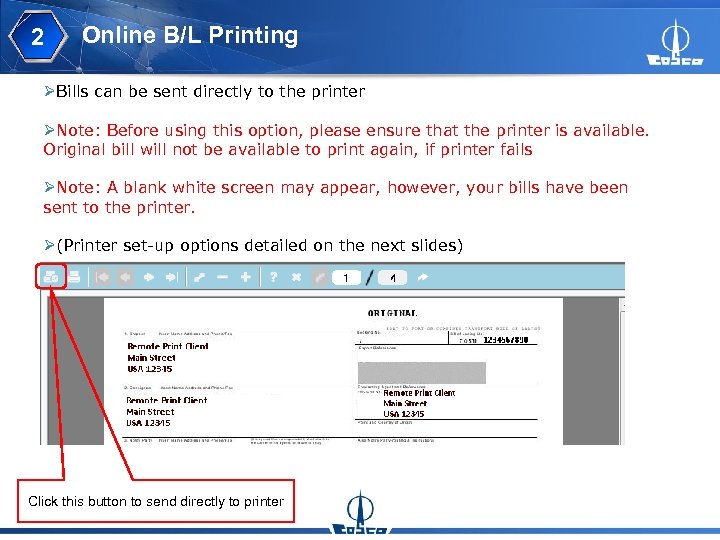
2 Online B/L Printing ØBills can be sent directly to the printer ØNote: Before using this option, please ensure that the printer is available. Original bill will not be available to print again, if printer fails ØNote: A blank white screen may appear, however, your bills have been sent to the printer. Ø(Printer set-up options detailed on the next slides) Click this button to send directly to printer
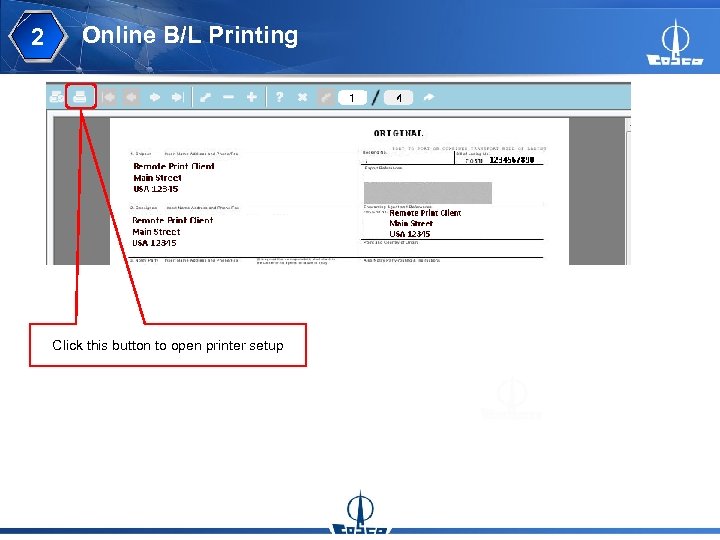
2 Online B/L Printing Click this button to open printer setup
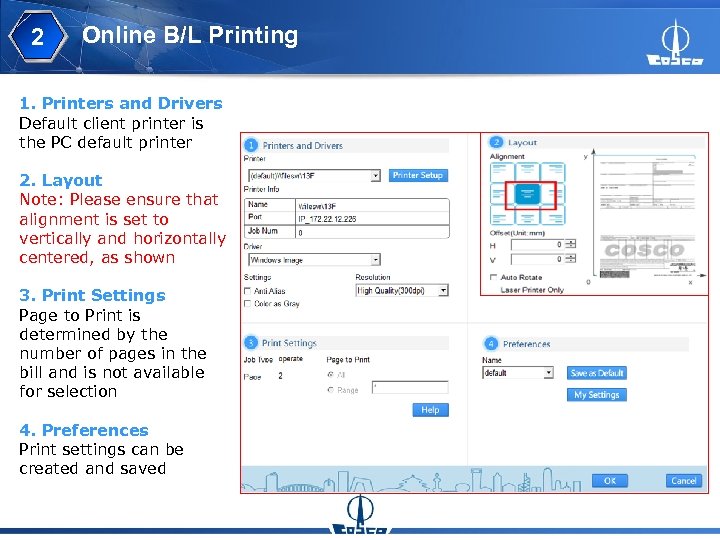
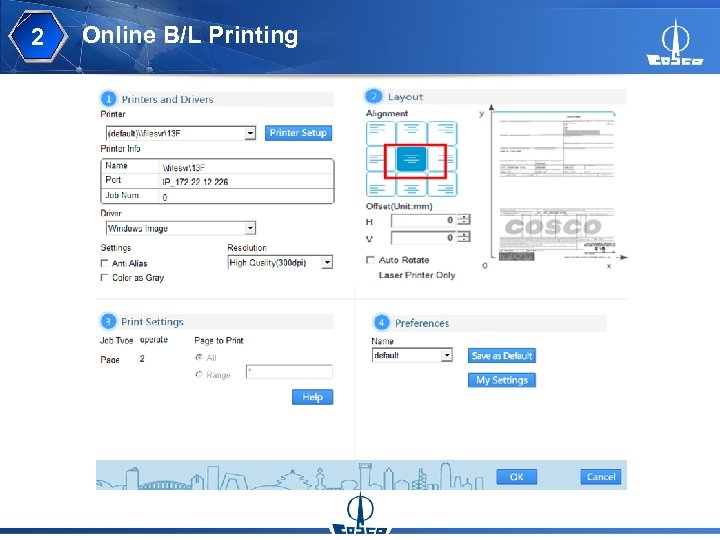
2 Online B/L Printing 1. Printers and Drivers Default client printer is the PC default printer 2. Layout Note: Please ensure that alignment is set to vertically and horizontally centered, as shown 3. Print Settings Page to Print is determined by the number of pages in the bill and is not available for selection 4. Preferences Print settings can be created and saved
2 Online B/L Printing
Скачать презентацию Online Bill of Lading Printing User Guide COSCON
5d7a572ee07b09af96389a8a3b886be3.ppt