


 Скачать презентацию OLGA Online Group Administration OLGA Technical Configuration
798295331b02cd3574a028278132692e.ppt
- Количество слайдов: 14
 OLGA Online Group Administration OLGA Technical Configuration & Testing SM
 Verification For optimal performance, please verify that the following are true: – You are using a high speed internet connection (broadband) • If you are not sure, please consult with your Computer Department – Your computer’s operating system is Microsoft’s Windows 2000 or above – You utilize Microsoft’s Internet Explorer for internet browsing SM
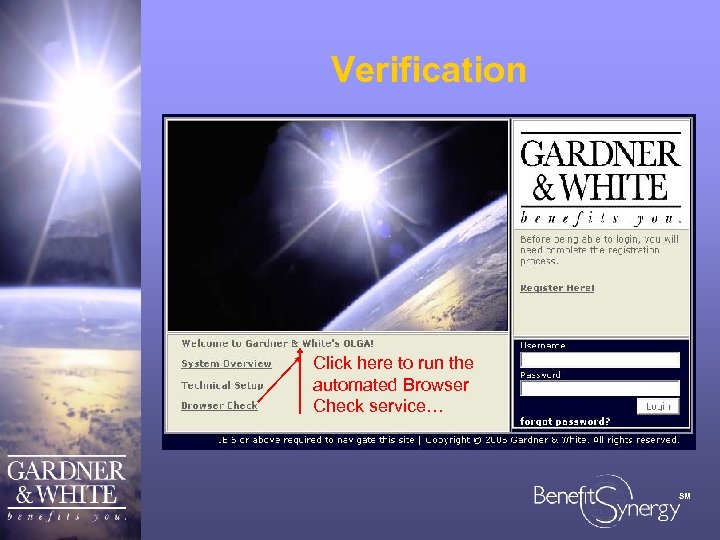 Verification Click here to run the automated Browser Check service… SM
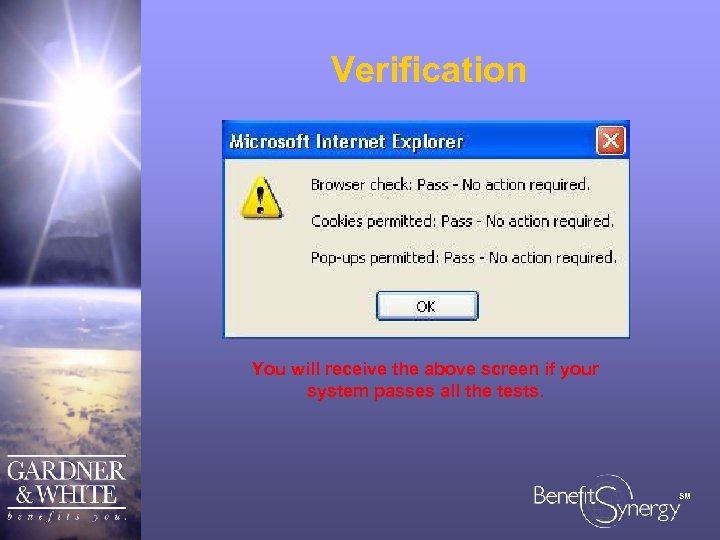 Verification You will receive the above screen if your system passes all the tests. SM
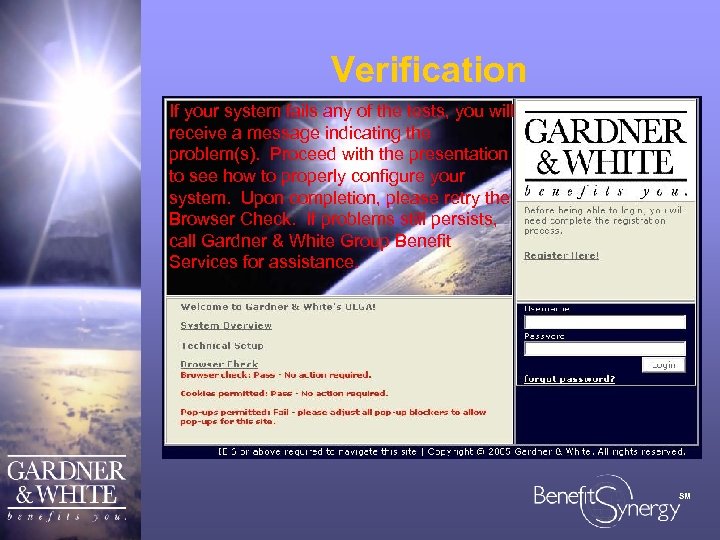 Verification If your system fails any of the tests, you will receive a message indicating the problem(s). Proceed with the presentation to see how to properly configure your system. Upon completion, please retry the Browser Check. If problems still persists, call Gardner & White Group Benefit Services for assistance. SM
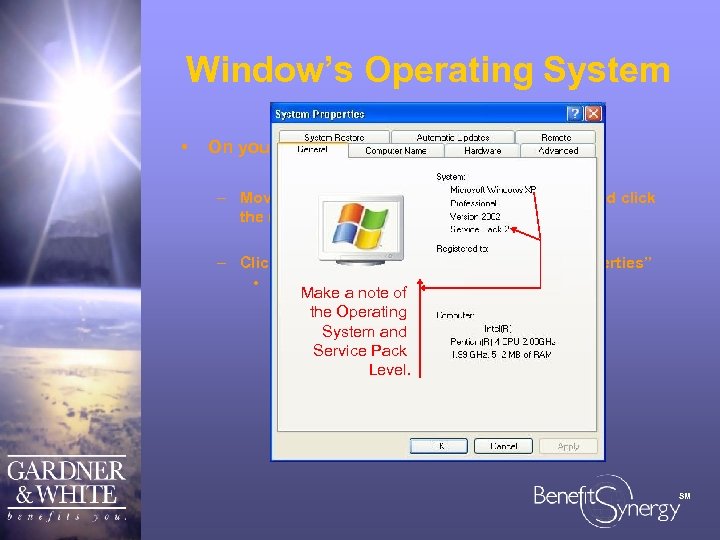 Window’s Operating System • On your computer’s desktop – Move your mouse to the “My Computer” icon and click the right button of the mouse – Click on the displayed menu item labeled “Properties” • This displays the screen shown in the next slide Make a note of the Operating System and Service Pack Level. SM
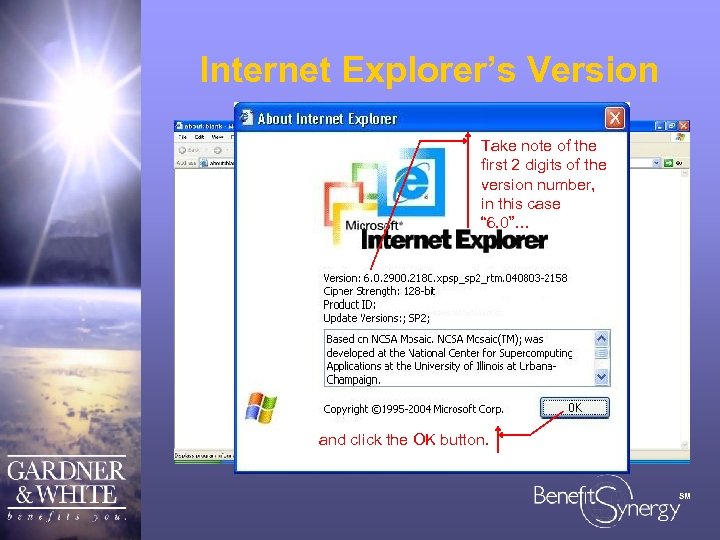 Internet Explorer’s Version • Open your Internet Explorer… Take note of the first 2 digits of the version number, in this case “ 6. 0”… Click on the “Help” drop-down Click on the “About menu… Internet Explorer” option… and click the OK button. SM
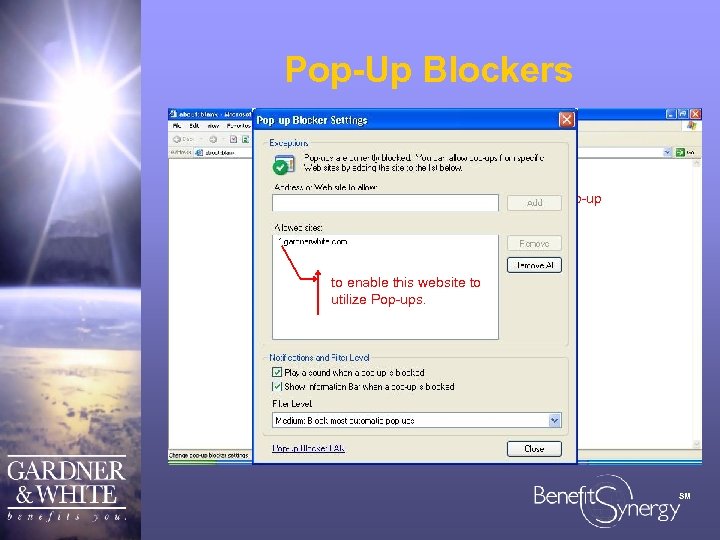 Pop-Up Blockers Open the Internet Explorer… This system utilizes Pop-Up technology. Therefore… – IF your Operating Systemthen“Windows XP” is select the “Pop-up Blocker Settings…” Click on the “Tools” – and IF the Operating Service Pack Level is “Service Type drop-down menu. Pack 2” display the “Pop-upin To *. gardnerwhite. com Selectprovided… dialog box – and IF Blockerenablethe “Pop-up to you the Settings” website Internet Explorer use Microsoft’s to this Blocker” menu box. utilize Pop-ups. option… – and IF the Internet Explorer’s version is “ 6. 0” or above and click the “Add” button… – and IF Pop-Up Blockers have been enabled on your Internet Explorer – THEN you need to perform the following steps – Otherwise, you may skip these steps by clicking here SM
 Pop-Up Blockers If you have any other known Pop-up Blockers installed on your system (i. e. Yahoo, Google, etc. ), please make sure *. gardnerwhite. com is added as an allowed site. SM
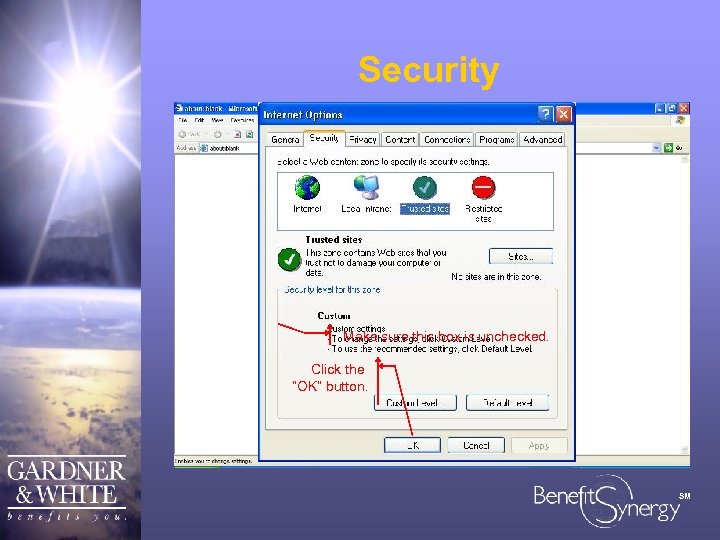 Security Open the Internet Explorer… Click on the “Tools” drop-down menu… Select “Internet Options”… click on the Security tab… type *. gardnerwhite. com to display the “Trusted Sites” here… dialogto add this address asthe box… and click a Trusted Site to your computer. “Add” “Sites…” click onbutton… on “Trusted Sites”… Make sure this box is unchecked. Click the “OK” button. SM
 Security If you experienced any problems, or have any questions, regarding these configuration steps, please call the Group Benefit Services department of Gardner & White at (800) 347 -5737 extension 626. Your browser should now be ready to test the Online Group Administration system. SM
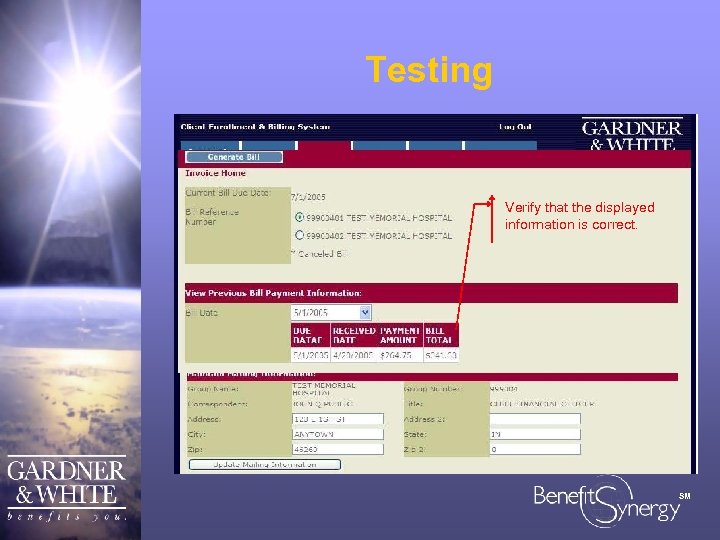 Testing To test the system, open the Internet Explorer… Return to the “Invoice” tab… Verify that the displayed and select a date is correct. information from the On the address line, Verify that the datato verify the this screen type Click each tab displayed on “Previous Bill Payment https: //secure. gardnerwhite. com. . . screens are is correct for your organization. appropriate Information” box. displayed… This screen is displayed and click the “Go” button. from while your data is retrieved Gardner & White’s systems. Enter your Username… and Password… and click the “Login” button. SM
 Testing If you experienced any problems, or have any questions, regarding these testing steps, please call the Group Benefit Services department of Gardner & White at (800) 347 -5737 extension 626. SM
 Congratulations If you were able to successfully test the system, you are now ready to begin using the Online Group Administration system. SM