


 Скачать презентацию NEWCNT New Contract Programs NEWCNT ØSetup contracts
dbc9b526987c3a948c3084a07d7ec58a.ppt
- Количество слайдов: 61
 NEWCNT New Contract Programs
 NEWCNT ØSetup contracts for next fiscal year ØCreate Salary Notices ØGenerate reports Summary, Detail & New Pay
 If Employee is currently paid in USPS Job in USPS can be pulled into NEWCNT Ø 1. Mid-year No Retro Ø 2. Mid-year Retro with Spread Ø 3. Mid-year Retro Lump Sum Retro is based on past days worked Ø 4. New Contracts 3
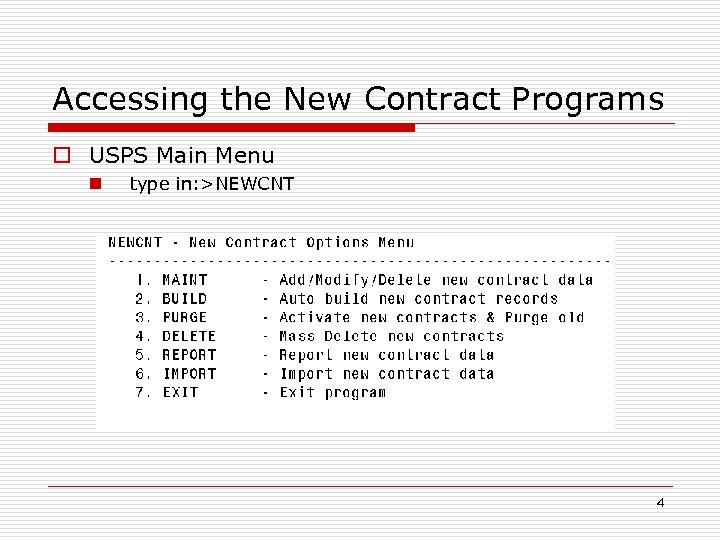 Accessing the New Contract Programs o USPS Main Menu n type in: >NEWCNT 4
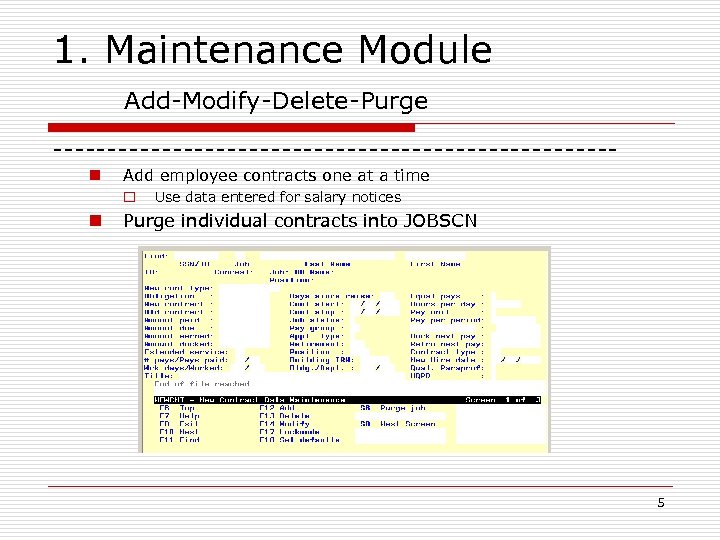 1. Maintenance Module Add-Modify-Delete-Purge --------------------------n Add employee contracts one at a time o n Use data entered for salary notices Purge individual contracts into JOBSCN 5
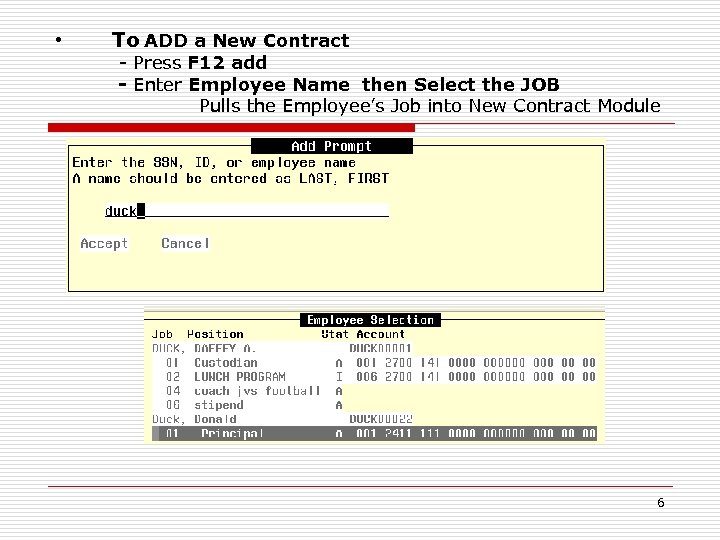 • To ADD a New Contract - Press F 12 add - Enter Employee Name then Select the JOB Pulls the Employee’s Job into New Contract Module 6
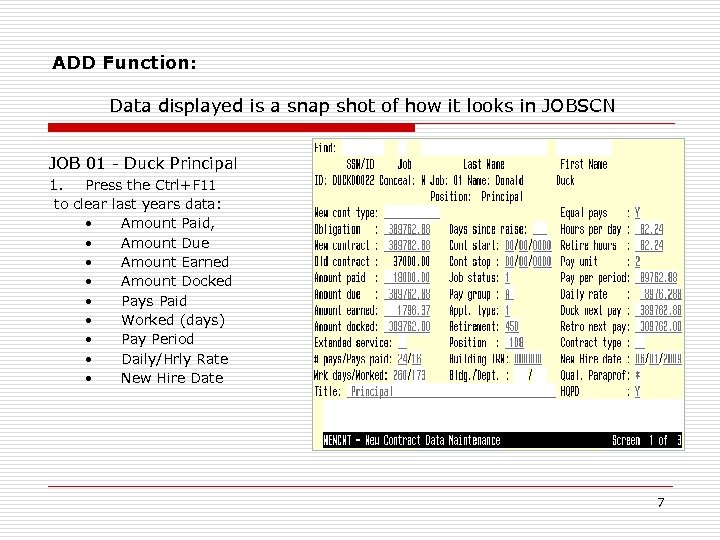 ADD Function: Data displayed is a snap shot of how it looks in JOBSCN JOB 01 - Duck Principal 1. Press the Ctrl+F 11 to clear last years data: • Amount Paid, • Amount Due • Amount Earned • Amount Docked • Pays Paid • Worked (days) • Pay Period • Daily/Hrly Rate • New Hire Date 7
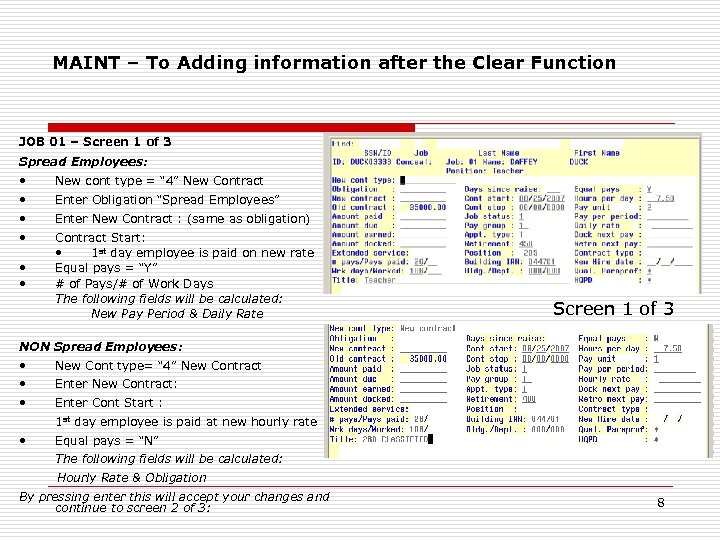 MAINT – To Adding information after the Clear Function JOB 01 – Screen 1 of 3 Spread Employees: • • • New cont type = “ 4” New Contract Enter Obligation “Spread Employees” Enter New Contract : (same as obligation) Contract Start: • 1 st day employee is paid on new rate Equal pays = “Y” # of Pays/# of Work Days The following fields will be calculated: New Pay Period & Daily Rate Screen 1 of 3 NON Spread Employees: • • • New Cont type= “ 4” New Contract Enter New Contract: Enter Cont Start : 1 st day employee is paid at new hourly rate • Equal pays = “N” The following fields will be calculated: Hourly Rate & Obligation By pressing enter this will accept your changes and continue to screen 2 of 3: 8
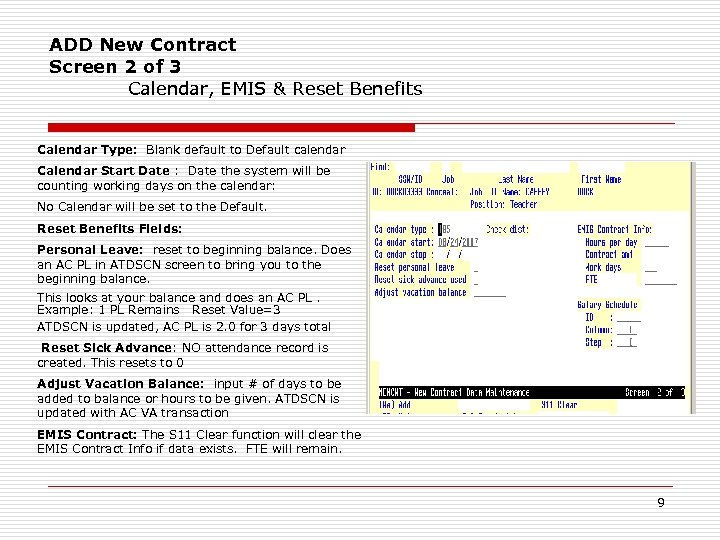 ADD New Contract Screen 2 of 3 Calendar, EMIS & Reset Benefits Calendar Type: Blank default to Default calendar Calendar Start Date : Date the system will be counting working days on the calendar: No Calendar will be set to the Default. Reset Benefits Fields: Personal Leave: reset to beginning balance. Does an AC PL in ATDSCN screen to bring you to the beginning balance. This looks at your balance and does an AC PL. Example: 1 PL Remains Reset Value=3 ATDSCN is updated, AC PL is 2. 0 for 3 days total Reset Sick Advance: NO attendance record is created. This resets to 0 Adjust Vacation Balance: input # of days to be added to balance or hours to be given. ATDSCN is updated with AC VA transaction EMIS Contract: The S 11 Clear function will clear the EMIS Contract Info if data exists. FTE will remain. 9
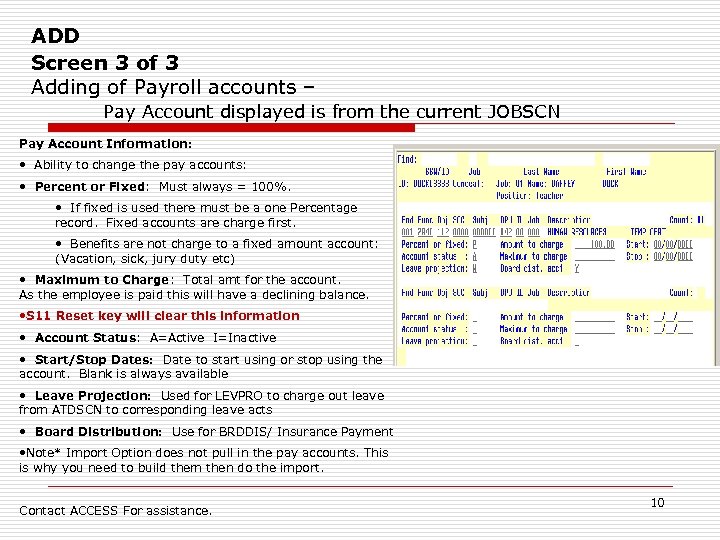 ADD Screen 3 of 3 Adding of Payroll accounts – Pay Account displayed is from the current JOBSCN Pay Account Information: • Ability to change the pay accounts: • Percent or Fixed: Must always = 100%. • If fixed is used there must be a one Percentage record. Fixed accounts are charge first. • Benefits are not charge to a fixed amount account: (Vacation, sick, jury duty etc) • Maximum to Charge: Total amt for the account. As the employee is paid this will have a declining balance. • S 11 Reset key will clear this information • Account Status: A=Active I=Inactive • Start/Stop Dates: Date to start using or stop using the account. Blank is always available • Leave Projection: Used for LEVPRO to charge out leave from ATDSCN to corresponding leave acts • Board Distribution: Use for BRDDIS/ Insurance Payment • Note* Import Option does not pull in the pay accounts. This is why you need to build them then do the import. Contact ACCESS For assistance. 10
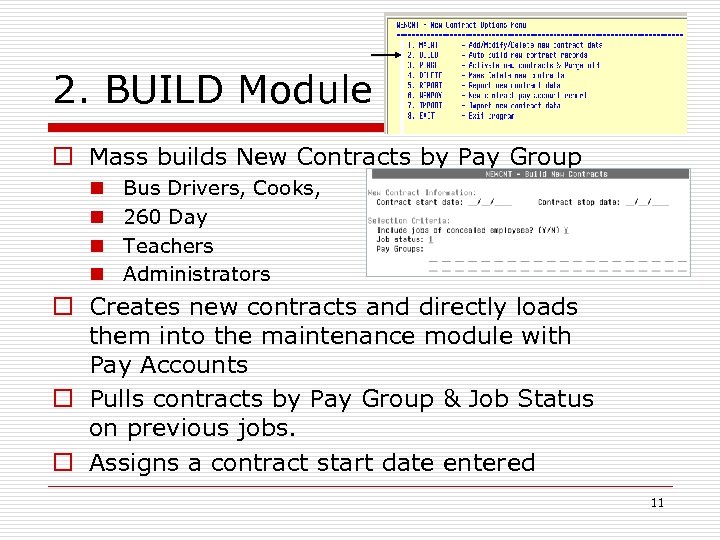 2. BUILD Module o Mass builds New Contracts by Pay Group n n Bus Drivers, Cooks, 260 Day Teachers Administrators o Creates new contracts and directly loads them into the maintenance module with Pay Accounts o Pulls contracts by Pay Group & Job Status on previous jobs. o Assigns a contract start date entered 11
 BUILD Option n Zeroes all contract-to-date figures from previous contracts o o o o Contract Amount Days worked Pays paid Lump Sum Retro Dock Next Pay paid earned Docked Due 12
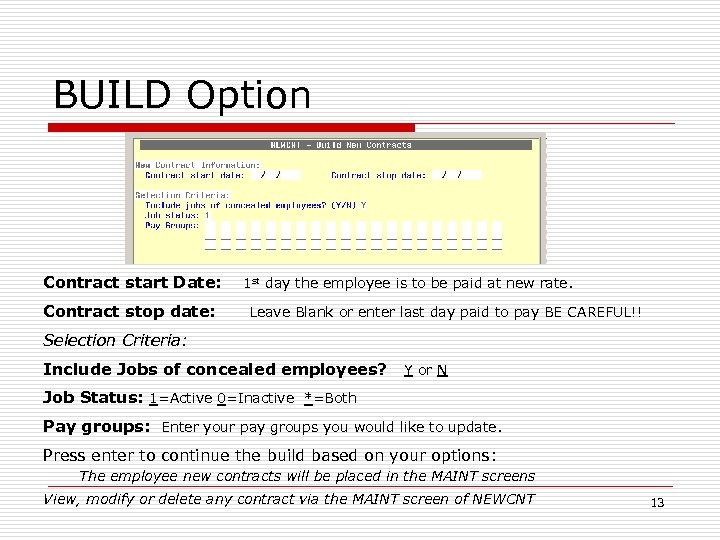 BUILD Option Contract start Date: Contract stop date: 1 st day the employee is to be paid at new rate. Leave Blank or enter last day paid to pay BE CAREFUL!! Selection Criteria: Include Jobs of concealed employees? Y or N Job Status: 1=Active 0=Inactive *=Both Pay groups: Enter your pay groups you would like to update. Press enter to continue the build based on your options: The employee new contracts will be placed in the MAINT screens View, modify or delete any contract via the MAINT screen of NEWCNT 13
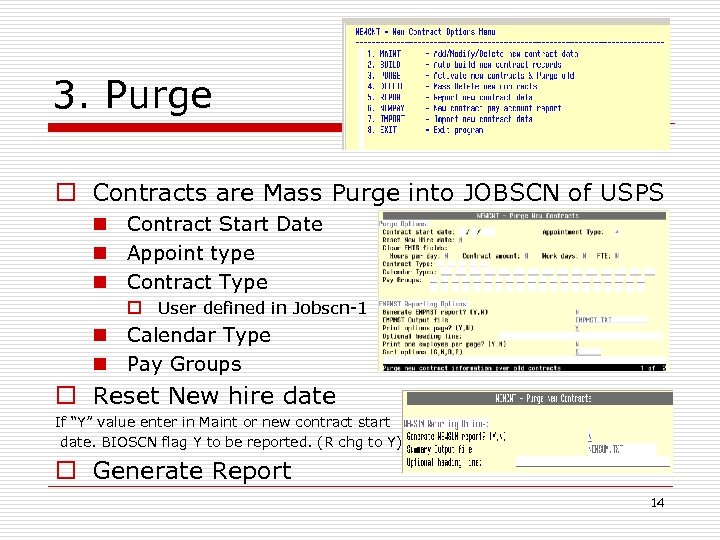 3. Purge o Contracts are Mass Purge into JOBSCN of USPS n Contract Start Date n Appoint type n Contract Type o User defined in Jobscn-1 n Calendar Type n Pay Groups o Reset New hire date If “Y” value enter in Maint or new contract start date. BIOSCN flag Y to be reported. (R chg to Y) o Generate Report 14
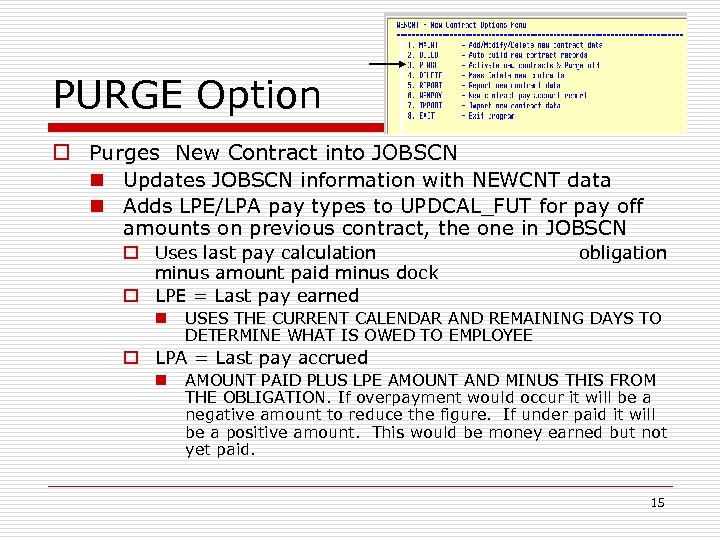 PURGE Option o Purges New Contract into JOBSCN n Updates JOBSCN information with NEWCNT data n Adds LPE/LPA pay types to UPDCAL_FUT for pay off amounts on previous contract, the one in JOBSCN o Uses last pay calculation minus amount paid minus dock o LPE = Last pay earned n obligation USES THE CURRENT CALENDAR AND REMAINING DAYS TO DETERMINE WHAT IS OWED TO EMPLOYEE o LPA = Last pay accrued n AMOUNT PAID PLUS LPE AMOUNT AND MINUS THIS FROM THE OBLIGATION. If overpayment would occur it will be a negative amount to reduce the figure. If under paid it will be a positive amount. This would be money earned but not yet paid. 15
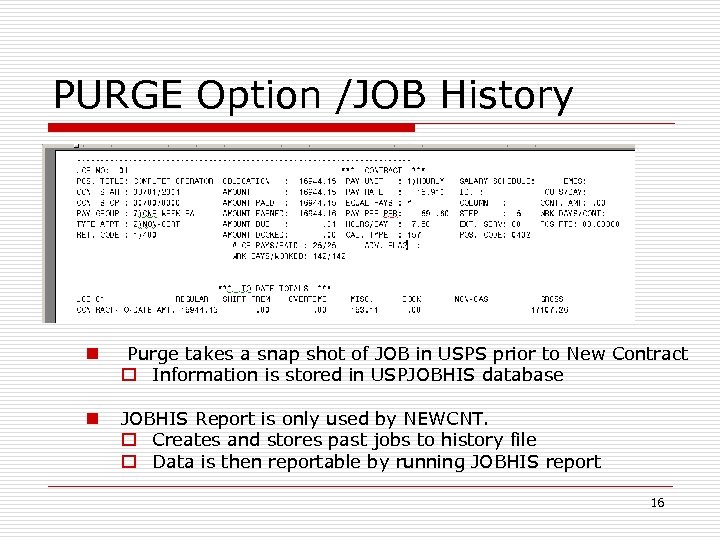 PURGE Option /JOB History n Purge takes a snap shot of JOB in USPS prior to New Contract o Information is stored in USPJOBHIS database n JOBHIS Report is only used by NEWCNT. o Creates and stores past jobs to history file o Data is then reportable by running JOBHIS report 16
 PURGE OPTION …. o Pay accounts in PAYSCN are all set to inactive n Any accounts in NEWCNT are reactivated n New accounts are added o Resets new hire reporting date if needed n The NEW Hire Reporting Flag in USPSCN/BIOSCN does not change. o Deletes new contract data from NEWCNT Module n Contract data screen n Pay account data screen 17
 PURGE Option o All changes are written to audit file n AUDRPT o Allows selection of just the NEWCNT purge data 18
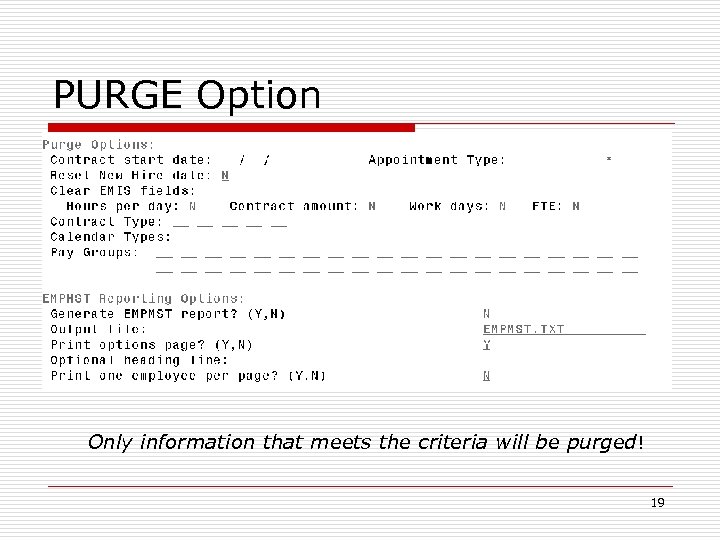 PURGE Option Only information that meets the criteria will be purged! 19
 DELETE Option o MASS Deletes New Contracts n Contracts were pulled into new contract anticipating a Negotiated Change n Salary Notices are required by a certain date. n Generate reports to assist with funding 20
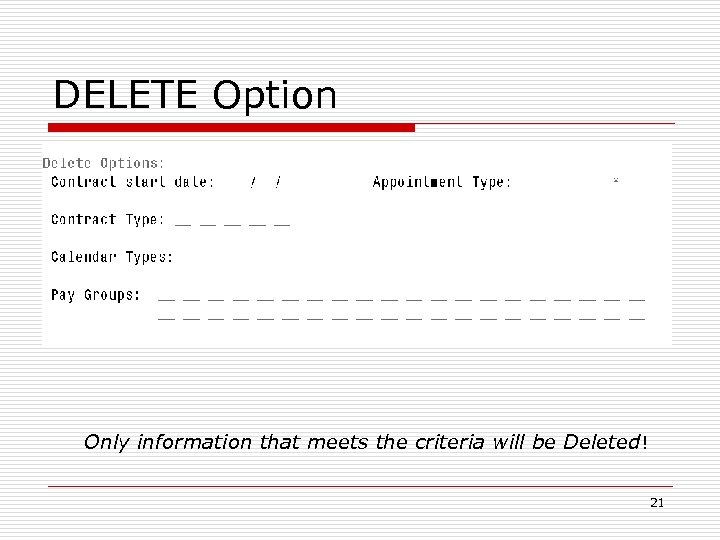 DELETE Option Only information that meets the criteria will be Deleted! 21
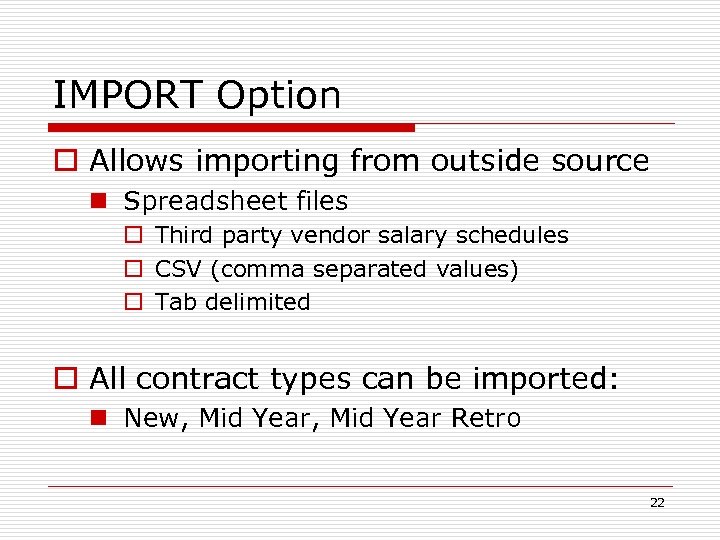 IMPORT Option o Allows importing from outside source n Spreadsheet files o Third party vendor salary schedules o CSV (comma separated values) o Tab delimited o All contract types can be imported: n New, Mid Year Retro 22
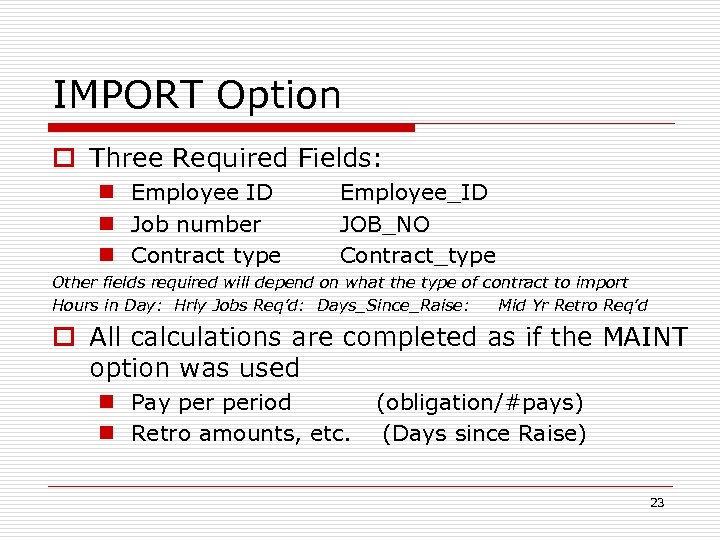 IMPORT Option o Three Required Fields: n Employee ID n Job number n Contract type Employee_ID JOB_NO Contract_type Other fields required will depend on what the type of contract to import Hours in Day: Hrly Jobs Req’d: Days_Since_Raise: Mid Yr Retro Req’d o All calculations are completed as if the MAINT option was used n Pay period n Retro amounts, etc. (obligation/#pays) (Days since Raise) 23
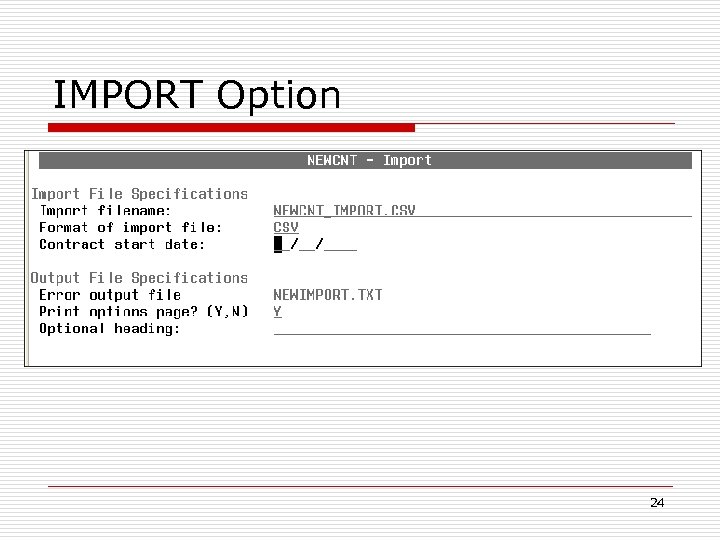 IMPORT Option 24
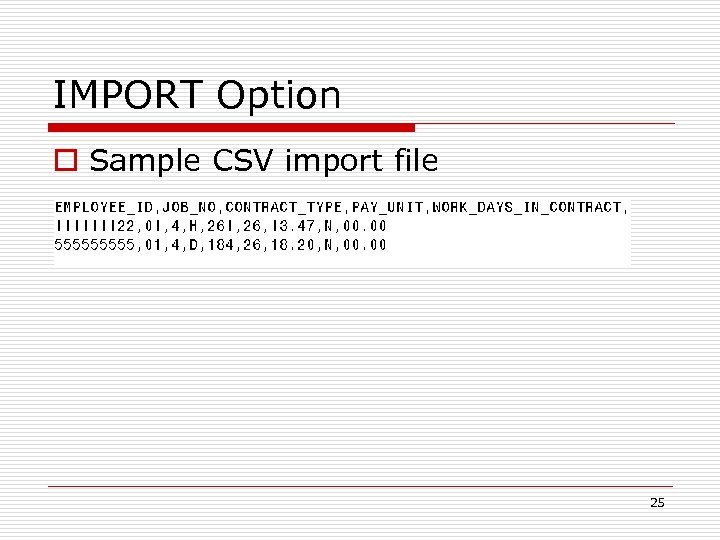 IMPORT Option o Sample CSV import file 25
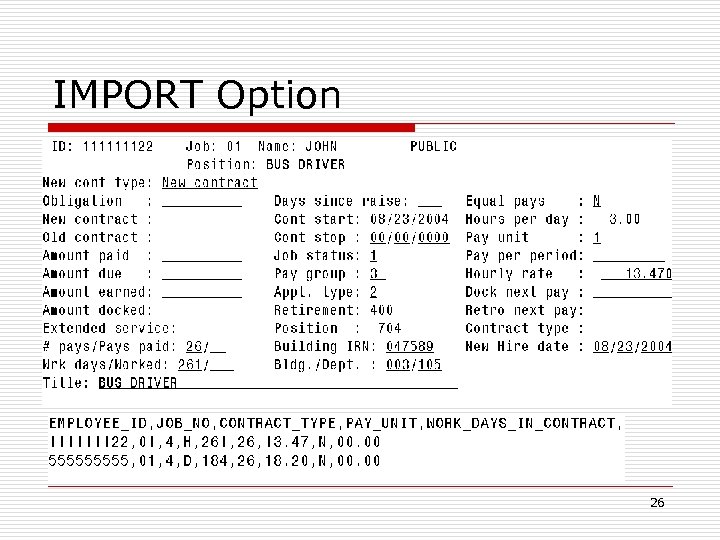 IMPORT Option 26
 REPORT Option o Generates report n Reports all NEWCNT data o MAINT o BUILD o IMPORT n Summary report n Detail report o Generate Salary Notices 27
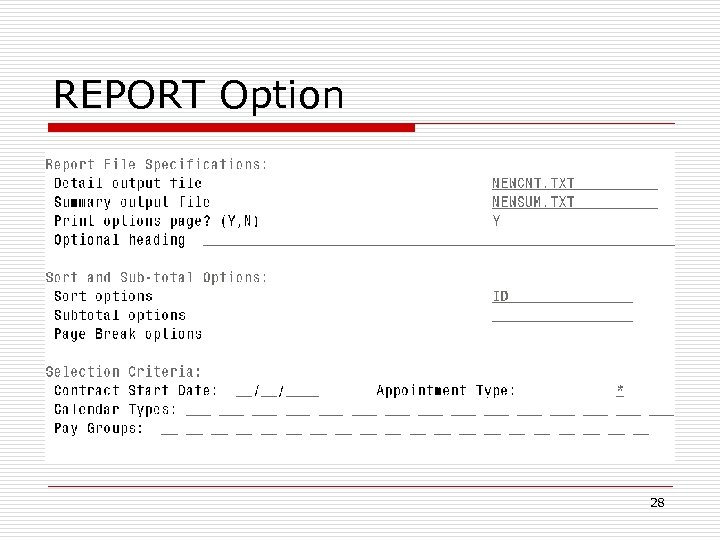 REPORT Option 28
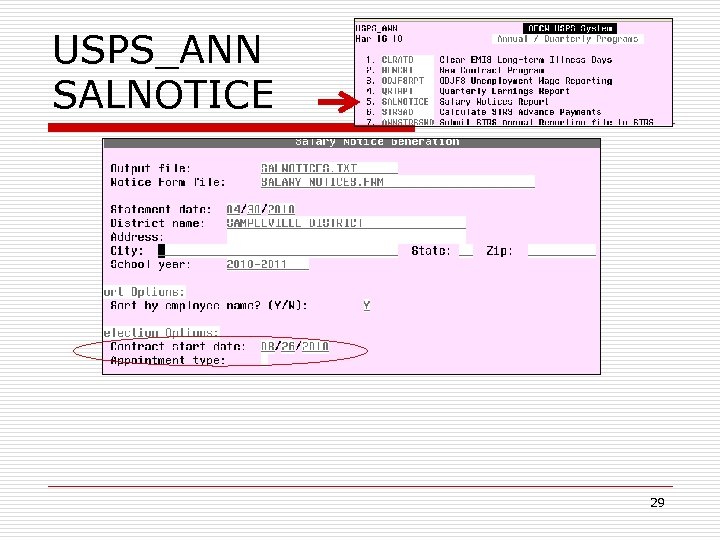 USPS_ANN SALNOTICE 29
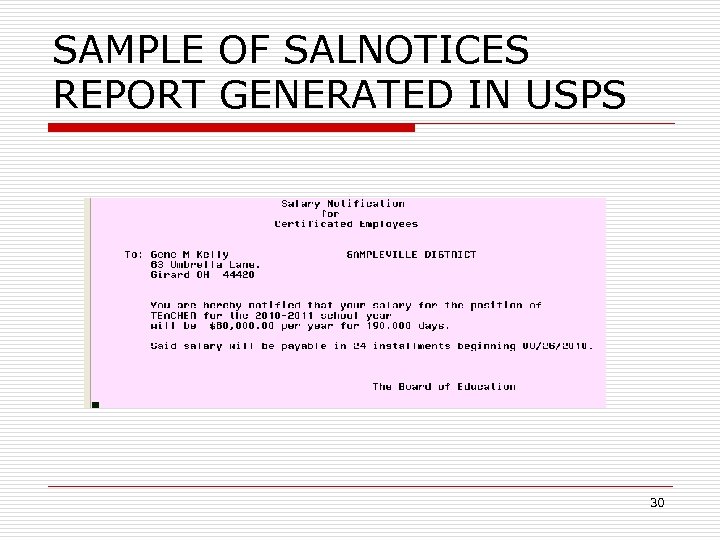 SAMPLE OF SALNOTICES REPORT GENERATED IN USPS 30
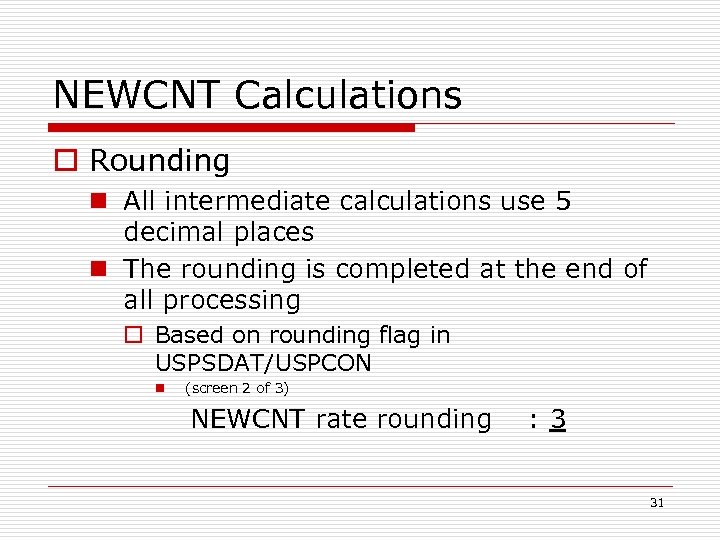 NEWCNT Calculations o Rounding n All intermediate calculations use 5 decimal places n The rounding is completed at the end of all processing o Based on rounding flag in USPSDAT/USPCON n (screen 2 of 3) NEWCNT rate rounding : 3 31
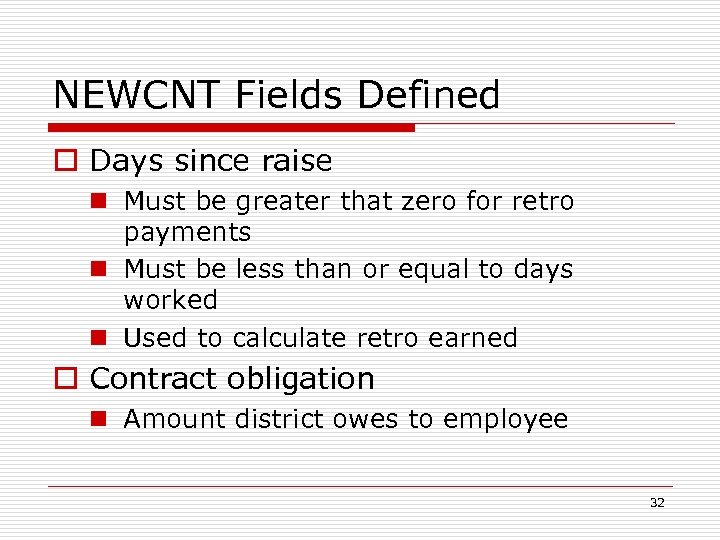 NEWCNT Fields Defined o Days since raise n Must be greater that zero for retro payments n Must be less than or equal to days worked n Used to calculate retro earned o Contract obligation n Amount district owes to employee 32
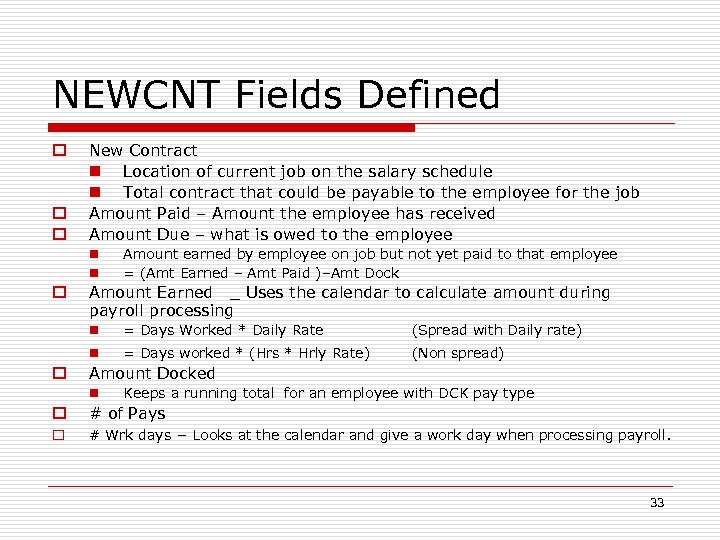 NEWCNT Fields Defined o o o New Contract n Location of current job on the salary schedule n Total contract that could be payable to the employee for the job Amount Paid – Amount the employee has received Amount Due – what is owed to the employee n n o Amount earned by employee on job but not yet paid to that employee = (Amt Earned – Amt Paid )–Amt Dock Amount Earned _ Uses the calendar to calculate amount during payroll processing n (Spread with Daily rate) n o = Days Worked * Daily Rate = Days worked * (Hrs * Hrly Rate) (Non spread) Amount Docked n Keeps a running total for an employee with DCK pay type o # of Pays o # Wrk days – Looks at the calendar and give a work day when processing payroll. 33
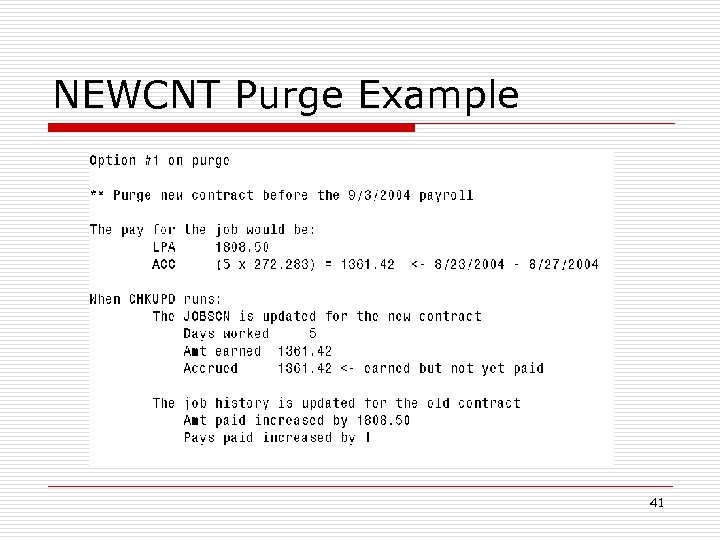
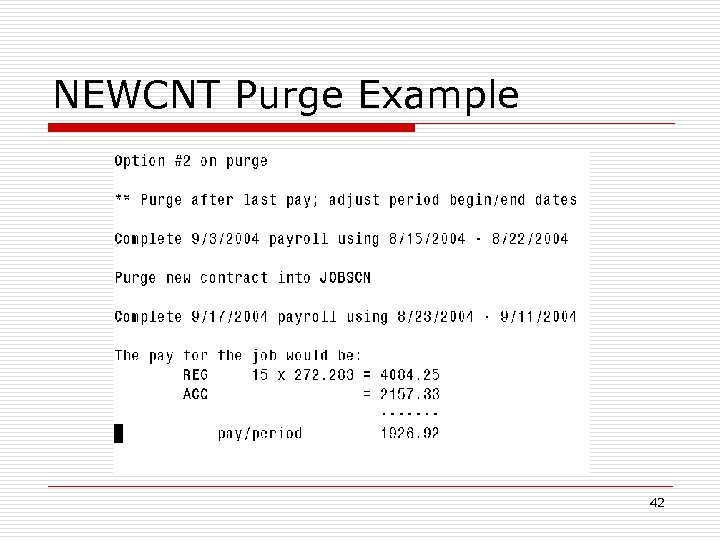
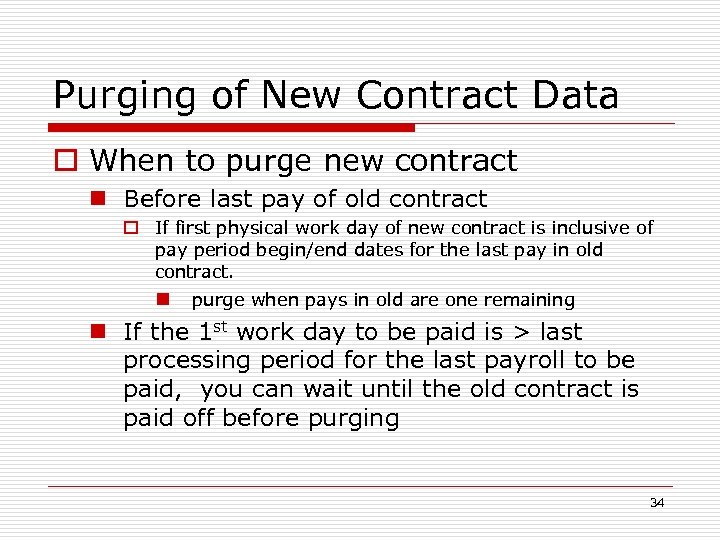 Purging of New Contract Data o When to purge new contract n Before last pay of old contract o If first physical work day of new contract is inclusive of pay period begin/end dates for the last pay in old contract. n purge when pays in old are one remaining n If the 1 st work day to be paid is > last processing period for the last payroll to be paid, you can wait until the old contract is paid off before purging 34
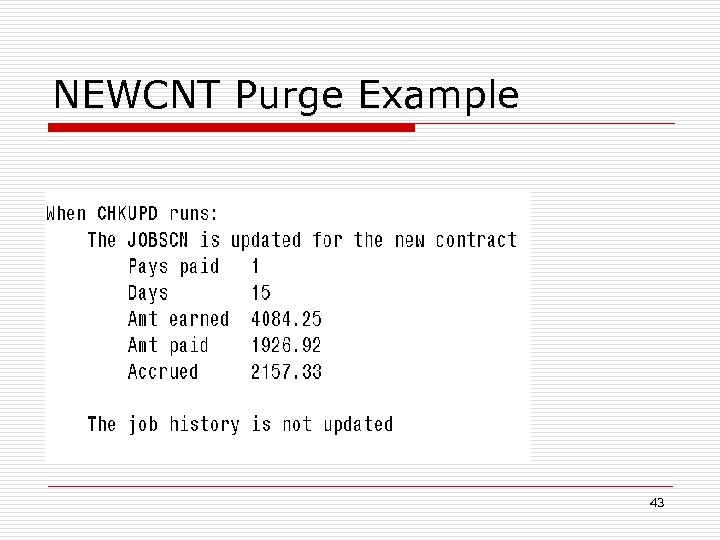
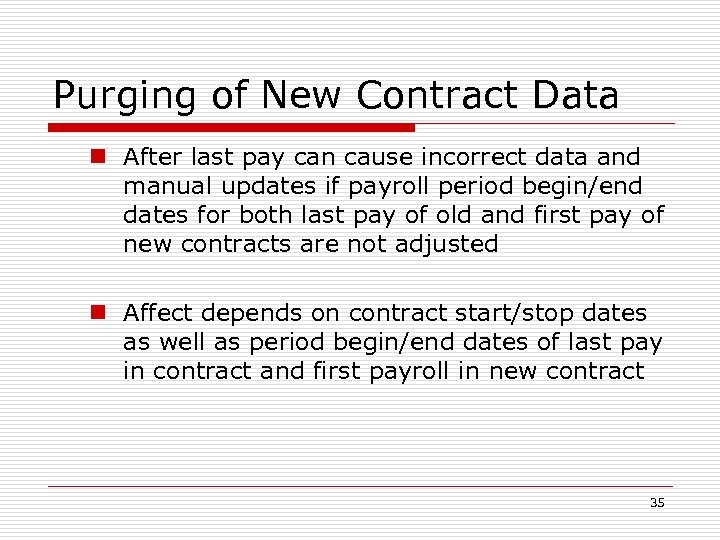 Purging of New Contract Data n After last pay can cause incorrect data and manual updates if payroll period begin/end dates for both last pay of old and first pay of new contracts are not adjusted n Affect depends on contract start/stop dates as well as period begin/end dates of last pay in contract and first payroll in new contract 35
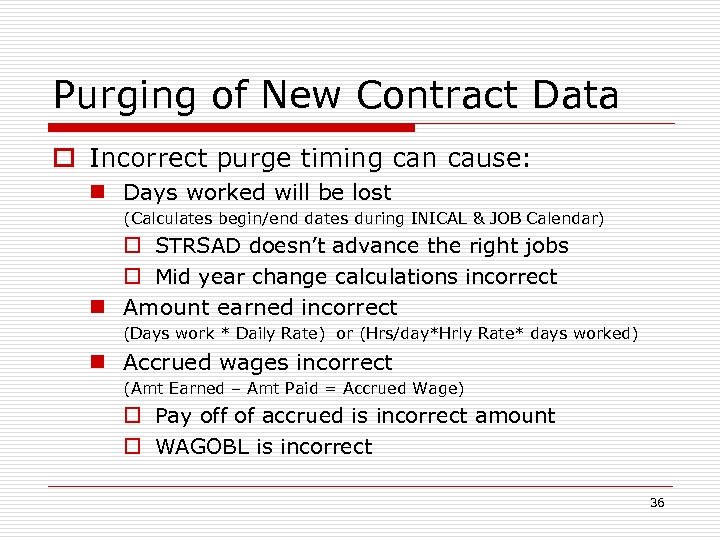 Purging of New Contract Data o Incorrect purge timing can cause: n Days worked will be lost (Calculates begin/end dates during INICAL & JOB Calendar) o STRSAD doesn’t advance the right jobs o Mid year change calculations incorrect n Amount earned incorrect (Days work * Daily Rate) or (Hrs/day*Hrly Rate* days worked) n Accrued wages incorrect (Amt Earned – Amt Paid = Accrued Wage) o Pay off of accrued is incorrect amount o WAGOBL is incorrect 36
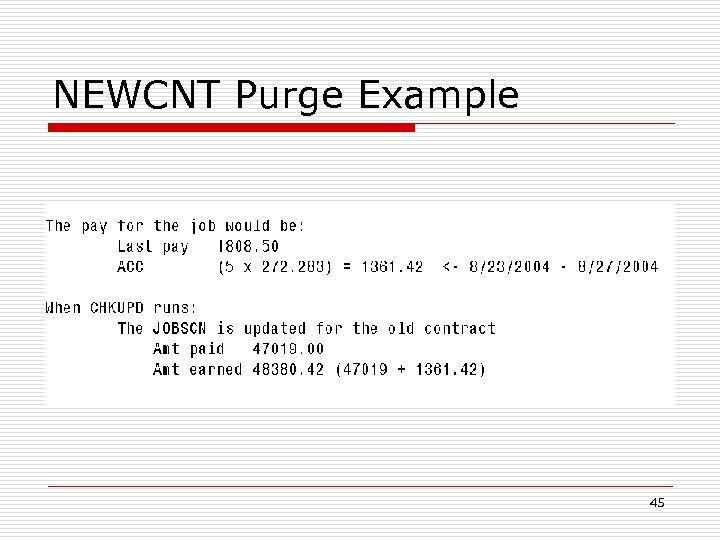
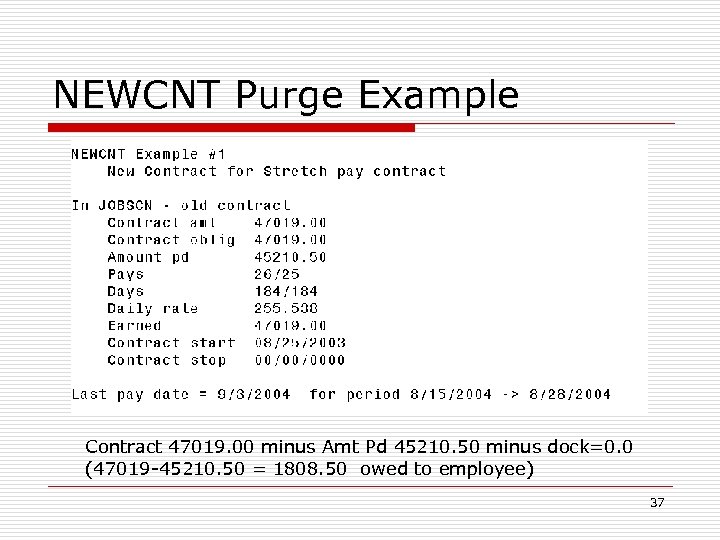 NEWCNT Purge Example Contract 47019. 00 minus Amt Pd 45210. 50 minus dock=0. 0 (47019 -45210. 50 = 1808. 50 owed to employee) 37
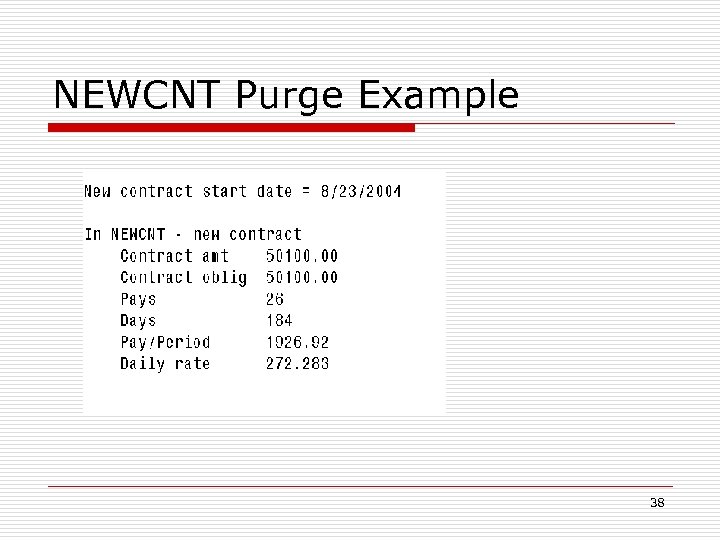 NEWCNT Purge Example 38
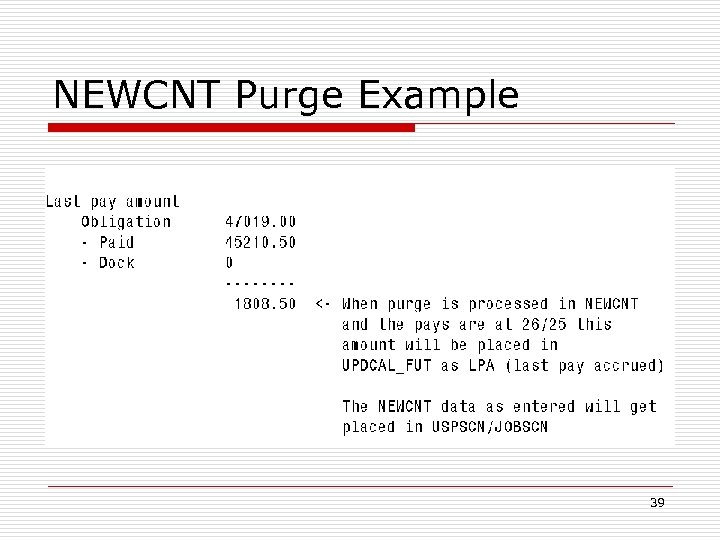 NEWCNT Purge Example 39
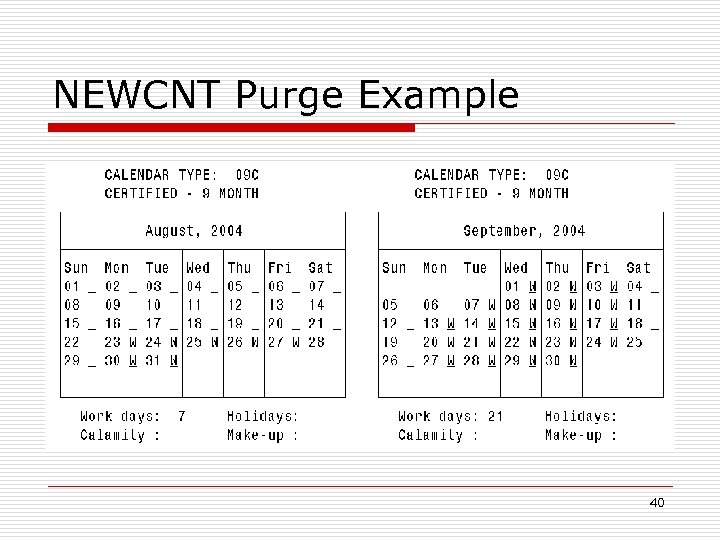 NEWCNT Purge Example 40
 NEWCNT Purge Example 41
 NEWCNT Purge Example 42
 NEWCNT Purge Example 43
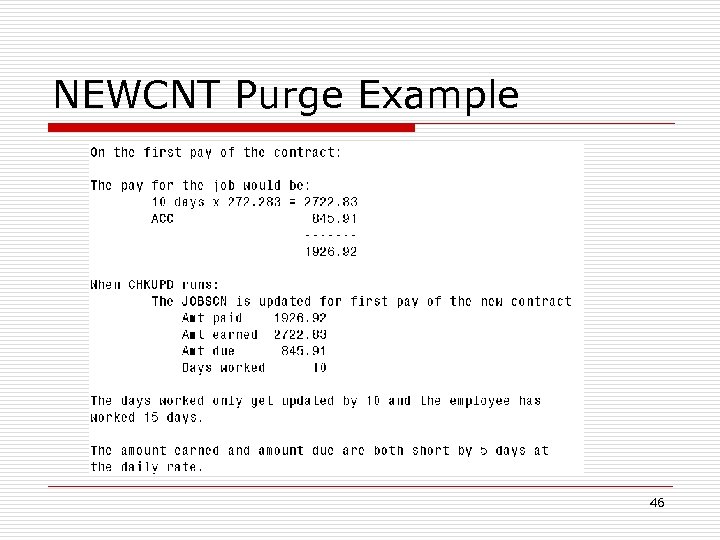
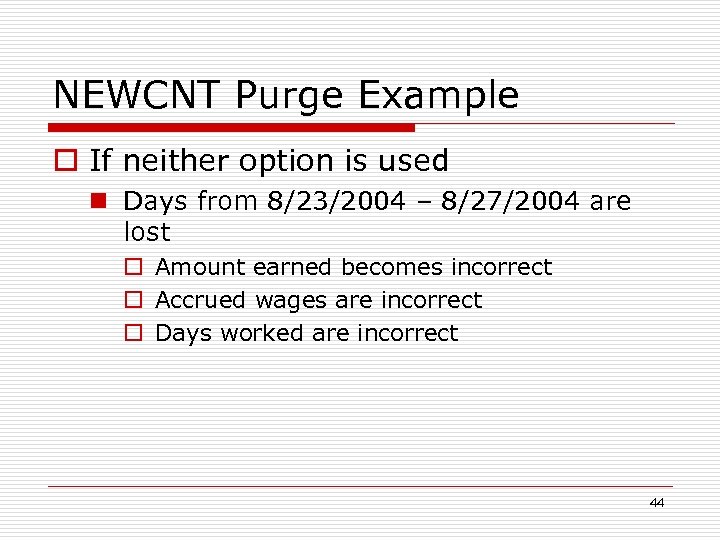 NEWCNT Purge Example o If neither option is used n Days from 8/23/2004 – 8/27/2004 are lost o Amount earned becomes incorrect o Accrued wages are incorrect o Days worked are incorrect 44
 NEWCNT Purge Example 45
 NEWCNT Purge Example 46
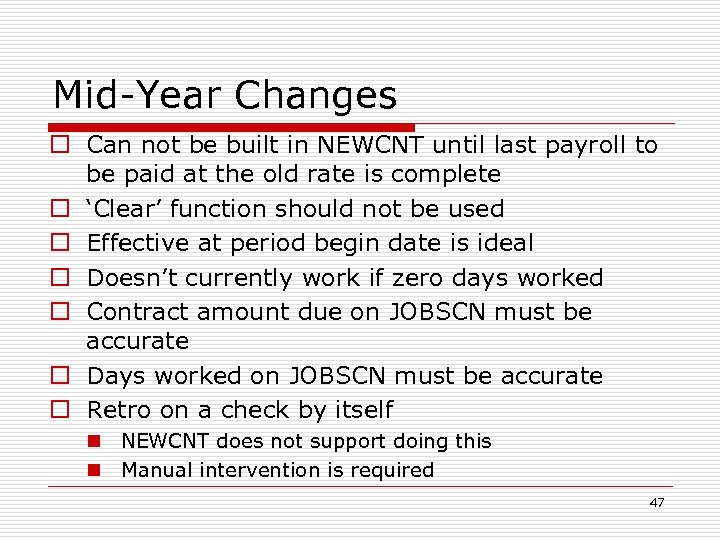 Mid-Year Changes o Can not be built in NEWCNT until last payroll to be paid at the old rate is complete o ‘Clear’ function should not be used o Effective at period begin date is ideal o Doesn’t currently work if zero days worked o Contract amount due on JOBSCN must be accurate o Days worked on JOBSCN must be accurate o Retro on a check by itself n NEWCNT does not support doing this n Manual intervention is required 47
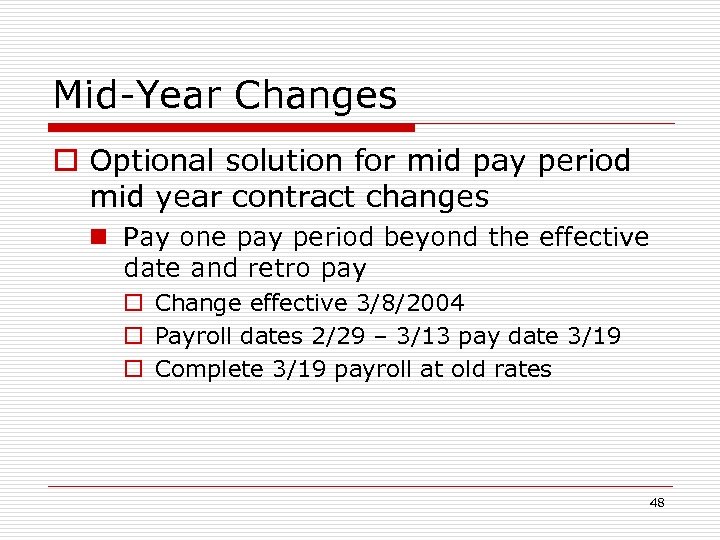 Mid-Year Changes o Optional solution for mid pay period mid year contract changes n Pay one pay period beyond the effective date and retro pay o Change effective 3/8/2004 o Payroll dates 2/29 – 3/13 pay date 3/19 o Complete 3/19 payroll at old rates 48
 Mid-Year Changes o Prior to 4/1 payroll n Process mid-year contract change with retro n Process 5 retro days, which would be 3/8 – 3/12 n 4/1 payroll would include new pay period plus the 5 days with the retro amounts n No manual updates required 49
 New Contract Caution Areas o Use of ‘Clear’ function n Should only be used for ‘new contract type’ o Employee new to district n n Add contract directly in JOBSCN Contract is not in NEWCNT, amount can’t be used in balancing o Contract start date n n Used to calculate LPE/LPA amounts on the last pay of old contract Should be first physical day of work on the new contract 50
 New Contract Exceptions o Special jobs for EMIS reporting only n Job is not used for payment of wages n Report to EMIS = “Y” n These will need to be manually entered in USPS 51
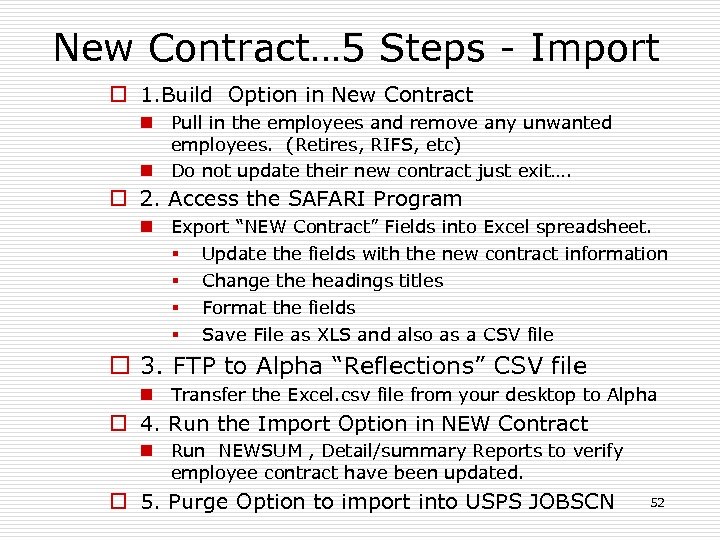 New Contract… 5 Steps - Import o 1. Build Option in New Contract n Pull in the employees and remove any unwanted employees. (Retires, RIFS, etc) n Do not update their new contract just exit…. o 2. Access the SAFARI Program n Export “NEW Contract” Fields into Excel spreadsheet. § Update the fields with the new contract information § Change the headings titles § Format the fields § Save File as XLS and also as a CSV file o 3. FTP to Alpha “Reflections” CSV file n Transfer the Excel. csv file from your desktop to Alpha o 4. Run the Import Option in NEW Contract n Run NEWSUM , Detail/summary Reports to verify employee contract have been updated. o 5. Purge Option to import into USPS JOBSCN 52
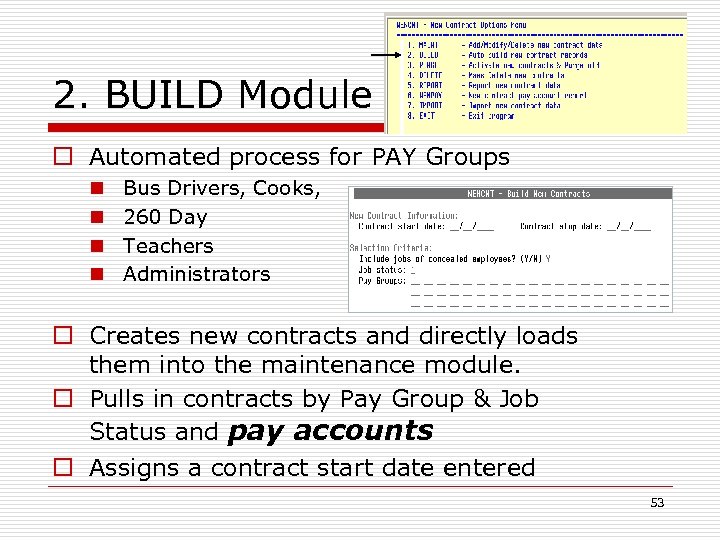 2. BUILD Module o Automated process for PAY Groups n n Bus Drivers, Cooks, 260 Day Teachers Administrators o Creates new contracts and directly loads them into the maintenance module. o Pulls in contracts by Pay Group & Job Status and pay accounts o Assigns a contract start date entered 53
 BUILD Option n Zeroes all contract-to-date figures from previous contracts o o o o Contract Amount Days worked Pays paid Lump Sum Retro Dock Next Pay paid earned Docked Due 54
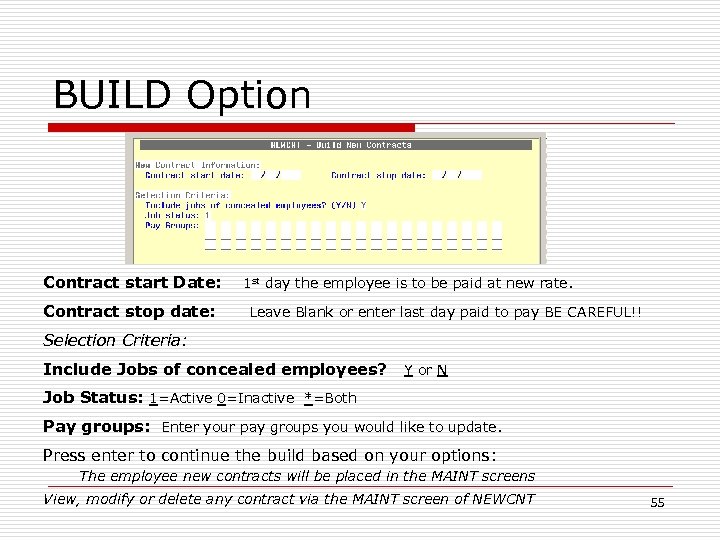 BUILD Option Contract start Date: Contract stop date: 1 st day the employee is to be paid at new rate. Leave Blank or enter last day paid to pay BE CAREFUL!! Selection Criteria: Include Jobs of concealed employees? Y or N Job Status: 1=Active 0=Inactive *=Both Pay groups: Enter your pay groups you would like to update. Press enter to continue the build based on your options: The employee new contracts will be placed in the MAINT screens View, modify or delete any contract via the MAINT screen of NEWCNT 55
 Step 2/3: Safari /Excel 2. Safari Go into the MS-EXCEL and export the New Contract into Excel spreadsheet using SAFARI 3. Update the spreadsheet in Excel ü Change the Heading Names from Safari for USPS Import ü ü Format the Column for USPS New Contract Import. Save your spreadsheet in Excel as CSV and XLS format. CSV is FTP to Reflections ALPHA Server to import into New Contract XLS – File can be used in MSWORD/ Mail merge to create Custom Salary Notices 56
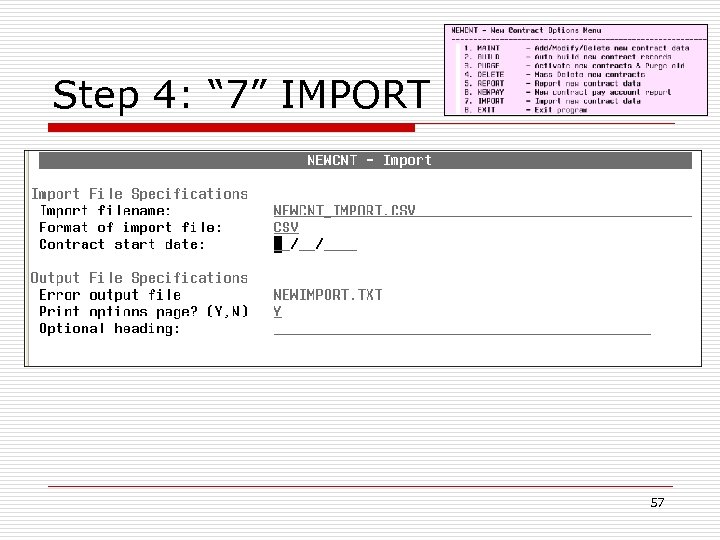 Step 4: “ 7” IMPORT 57
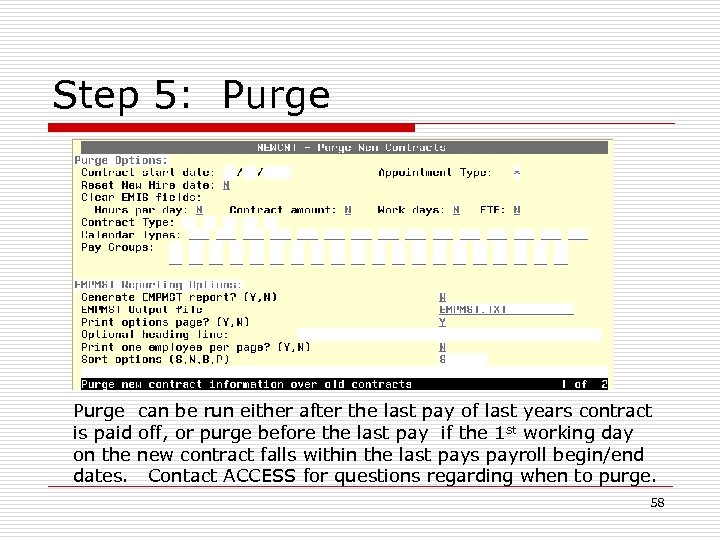 Step 5: Purge can be run either after the last pay of last years contract is paid off, or purge before the last pay if the 1 st working day on the new contract falls within the last pays payroll begin/end dates. Contact ACCESS for questions regarding when to purge. 58
 Things to Remember! New Contract Using MASCHG o Mass Changing Pay Accounts o This option allows pay accounts to be mass changed from one account number to another. o The pay accounts from USPSCN/PAYSCN as well as those that may be included in the NEWCNT/MAINT option will be updated by the program. Selection is based on matching the old payaccount number. 59
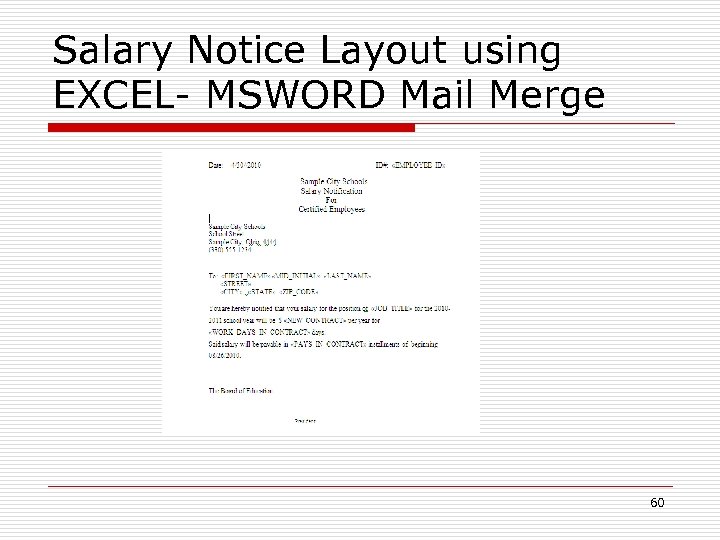 Salary Notice Layout using EXCEL- MSWORD Mail Merge 60
 Think Spring!!! Have a nice day. . . 61