Скачать презентацию Networking Chapter 16 Overview In this
232701c5efb03b19f84834da17d358c9.ppt
- Количество слайдов: 122
 Networking Chapter 16
 Overview • In this chapter, you will learn to – – – Explain network technologies Explain network operating systems Install and configure wired networks Install and configure wireless networks Troubleshoot networks
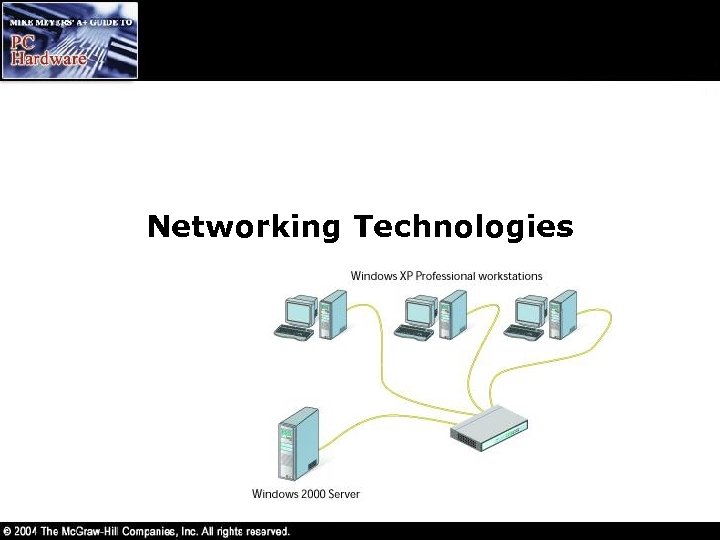 Networking Technologies
 Sneakernet • To share files used to require making copies to a floppy and running them over to someone else…sneakernet • A way needed to be devised for computers to share information and resources • A network is two or more computers connected together to share resources
 The Big Questions • How will each computer be identified? – If two or more computers want to talk at the same time, how do you ensure all conversations are understood? • What kind of wire should be used to connect the computers together? – How many wires in the cable? How thick? How long? What type of connectors? • How can access to data and peripherals be controlled? • And the list goes on and on…
 A Few Basics • A client machine requests information or services • Uses a network interface card (NIC) to define the client on the network and to physically make a connection • A medium to connect the devices is needed – Cable or wireless • The operating system needs to understand how to network • A server provides information or services to the client
 Packets, Frames, and NICs • Data is broken up into small pieces and moved about the network in chunks called packets or frames • Every network interface card (NIC) has a built-in identifier called a Media Access Control (MAC) address – No two NICs have the same MAC address anywhere in the world – Burned into a chip on the card
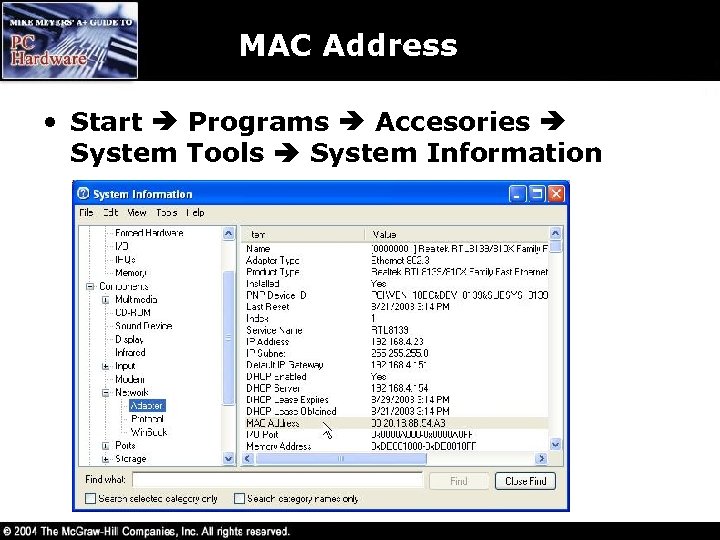 MAC Address • Start Programs Accesories System Tools System Information
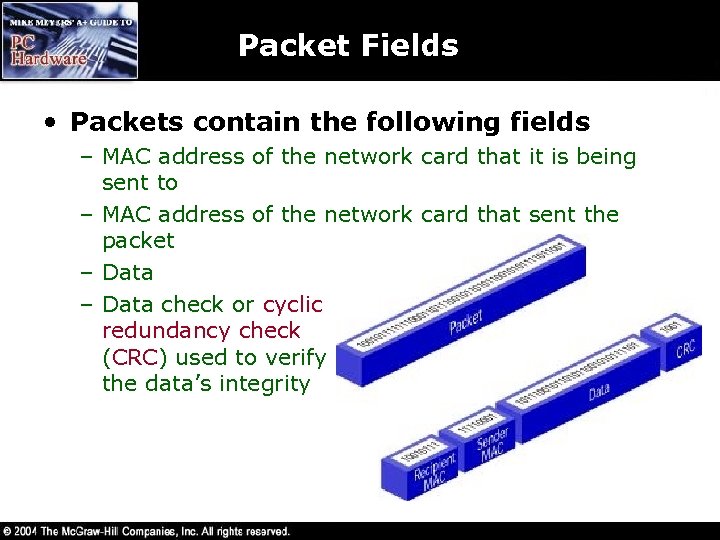 Packet Fields • Packets contain the following fields – MAC address of the network card that it is being sent to – MAC address of the network card that sent the packet – Data check or cyclic redundancy check (CRC) used to verify the data’s integrity
 Protocols • Protocols are sets of rules – May be used to define packet types, cabling and connectors, addresses, and much more • A hardware protocol defines how to get data from one computer to another – Ethernet is the dominant standard for today’s networks • Coaxial • Unshielded twisted pair • Fiber optic – Token Ring was developed by IBM but is loosing popularity
 Coaxial Ethernet • Early Ethernet networks used coaxial cable (or just coax) – Composed of a center cable surrounded by insulation, a shield of braided cable, and an outside protective cover – A different type of coaxial cable is used by your VCR and TV
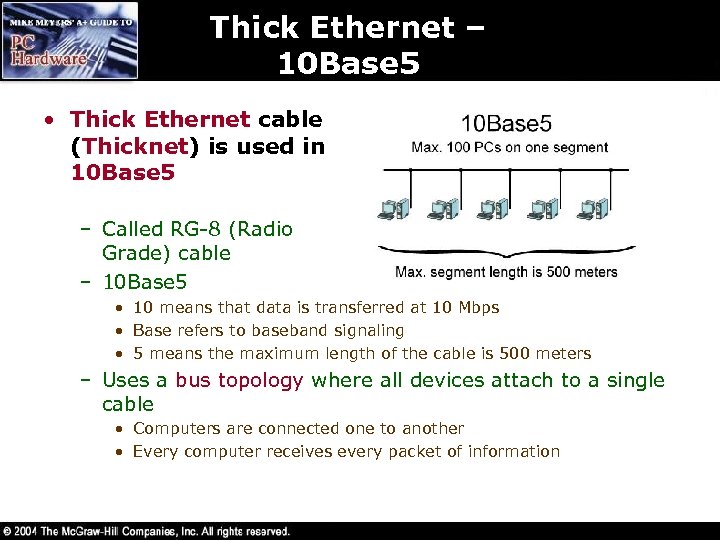 Thick Ethernet – 10 Base 5 • Thick Ethernet cable (Thicknet) is used in 10 Base 5 Ethernet specification the – Called RG-8 (Radio Grade) cable – 10 Base 5 • 10 means that data is transferred at 10 Mbps • Base refers to baseband signaling • 5 means the maximum length of the cable is 500 meters – Uses a bus topology where all devices attach to a single cable • Computers are connected one to another • Every computer receives every packet of information
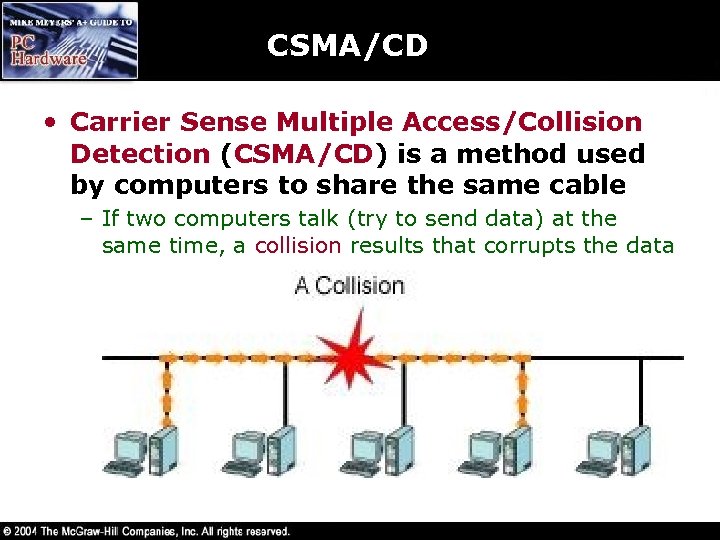 CSMA/CD • Carrier Sense Multiple Access/Collision Detection (CSMA/CD) is a method used by computers to share the same cable – If two computers talk (try to send data) at the same time, a collision results that corrupts the data
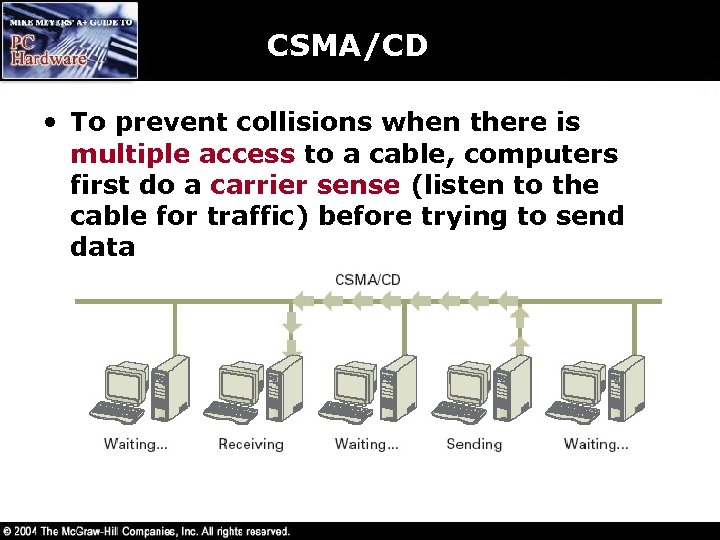 CSMA/CD • To prevent collisions when there is multiple access to a cable, computers first do a carrier sense (listen to the cable for traffic) before trying to send data
 CSMA/CD • Even though the computers listen before sending data, it is possible that two computers listened at about the same time, heard nothing, and then sent data – resulting in a collision • Computer NICs have collision detection circuitry that alerts them to a collision
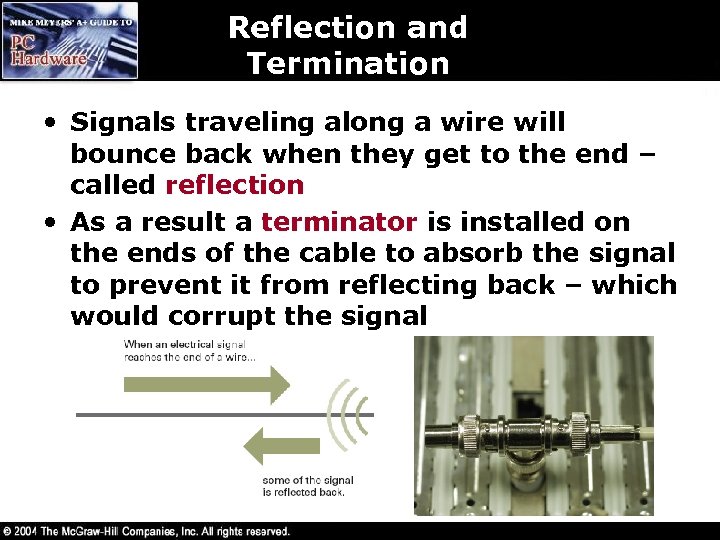 Reflection and Termination • Signals traveling along a wire will bounce back when they get to the end – called reflection • As a result a terminator is installed on the ends of the cable to absorb the signal to prevent it from reflecting back – which would corrupt the signal
 Connections • Thicknet cable is marked every 2. 5 meters – Devices are connected only at these marks by using a vampire connector that pierces the cable to make a connection – It is also a transceiver that transmits and receives data, sometimes called an access unit interface (AUI) that connects to a Digital, Intel, Xerox (DIX) connector • Thicknet uses a bus topology – If there’s a break in the cable, the whole network goes down
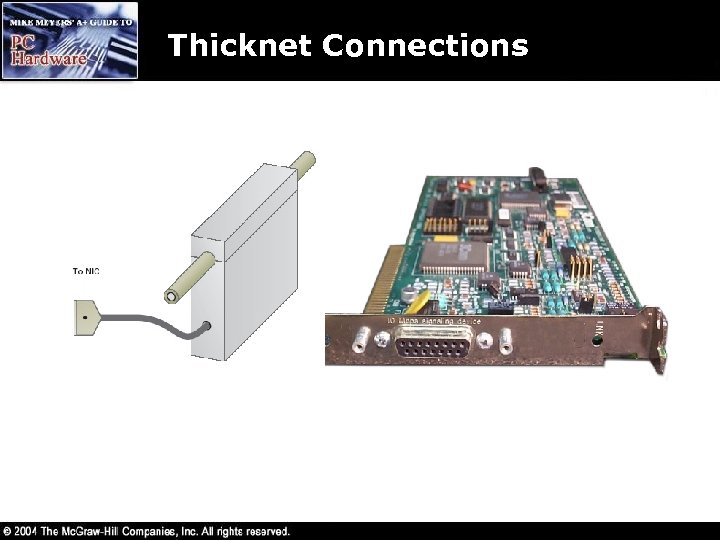 Thicknet Connections
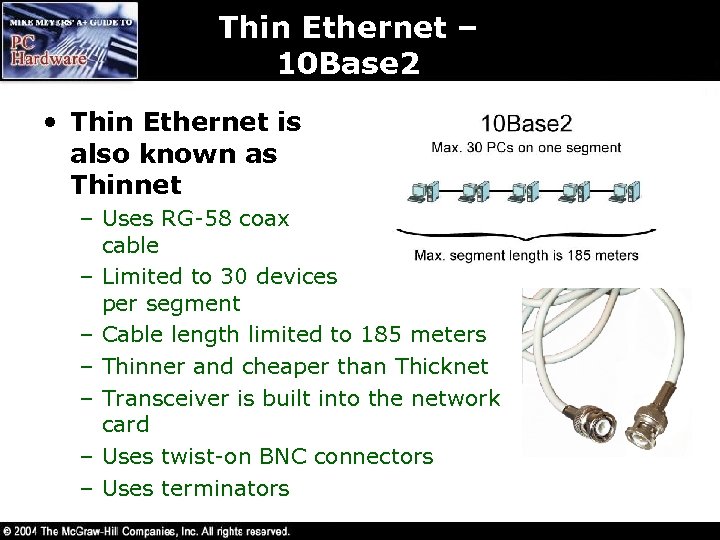 Thin Ethernet – 10 Base 2 • Thin Ethernet is also known as Thinnet – Uses RG-58 coax cable – Limited to 30 devices per segment – Cable length limited to 185 meters – Thinner and cheaper than Thicknet – Transceiver is built into the network card – Uses twist-on BNC connectors – Uses terminators
 UTP Ethernet – 10 Base. T • Modern networks use UTP Ethernet – – – Modern networks do not use Thicknet or Thinnet 10 Base. T runs at 10 Mbps 100 Base. T runs at 100 Mbps 1000 Base. T (Gigabit) runs at 1000 Mbps Use a star bus topology Uses unshielded twisted pair (UTP) cabling
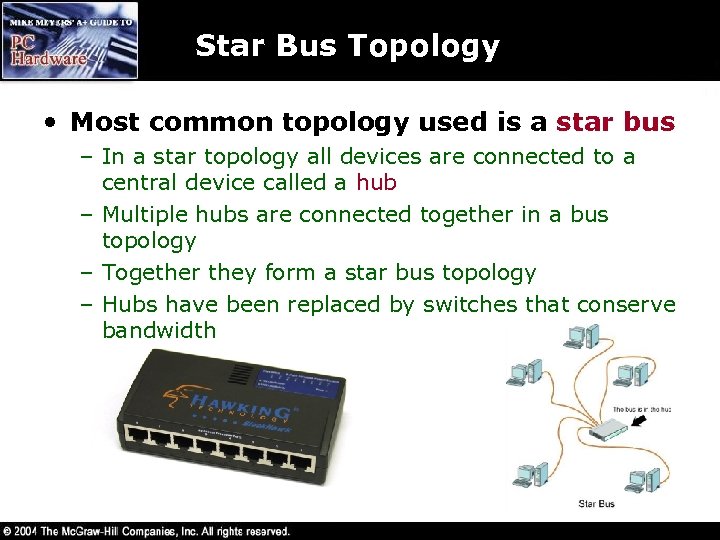 Star Bus Topology • Most common topology used is a star bus – In a star topology all devices are connected to a central device called a hub – Multiple hubs are connected together in a bus topology – Together they form a star bus topology – Hubs have been replaced by switches that conserve bandwidth
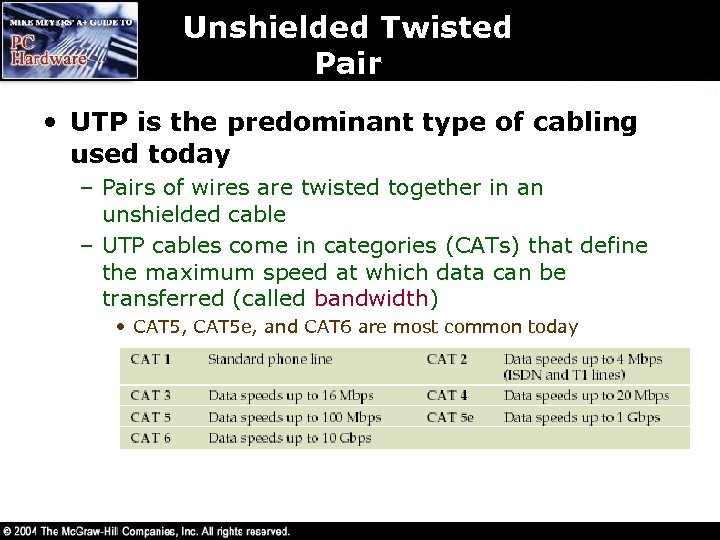 Unshielded Twisted Pair • UTP is the predominant type of cabling used today – Pairs of wires are twisted together in an unshielded cable – UTP cables come in categories (CATs) that define the maximum speed at which data can be transferred (called bandwidth) • CAT 5, CAT 5 e, and CAT 6 are most common today
 Implementing 10*Base. T • Requires at least two pairs of wires – one for receiving and one for sending • Cables use special RJ-45 connectors • The Telecommunications Industry Assciation/ Electronics Industries Alliance (TIA/EIA) has two standards for connecting the RJ-45 connectors – TIA/EIA 568 A and TIA/EIA 568 B – Use either – just be consistent – Wires are color-coded
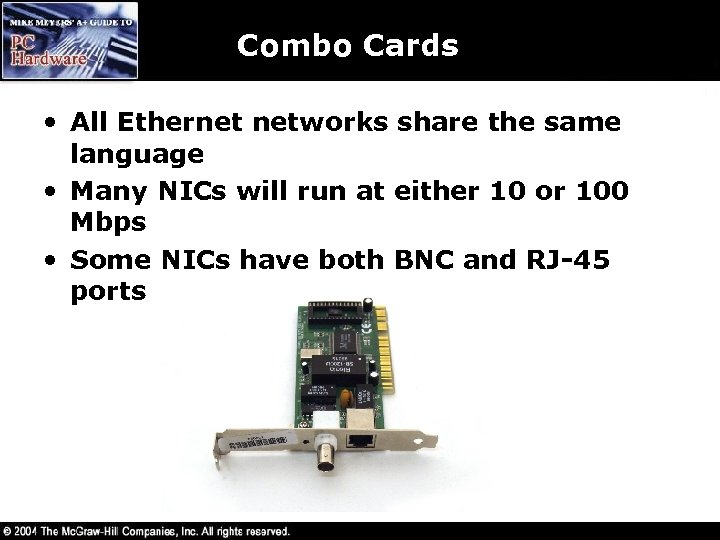 Combo Cards • All Ethernet networks share the same language • Many NICs will run at either 10 or 100 Mbps • Some NICs have both BNC and RJ-45 ports
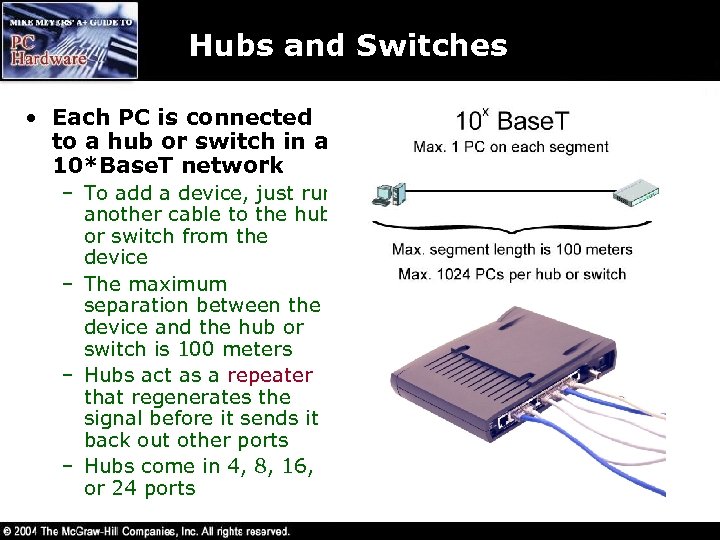 Hubs and Switches • Each PC is connected to a hub or switch in a 10*Base. T network – To add a device, just run another cable to the hub or switch from the device – The maximum separation between the device and the hub or switch is 100 meters – Hubs act as a repeater that regenerates the signal before it sends it back out other ports – Hubs come in 4, 8, 16, or 24 ports
 Duplex and Half. Duplex • Modern NICs can both send and receive data at the same time – called full duplex • Older NICs could send and receive data but not at the same time – called half duplex • NICs and switches use autosensing to decide how to operate
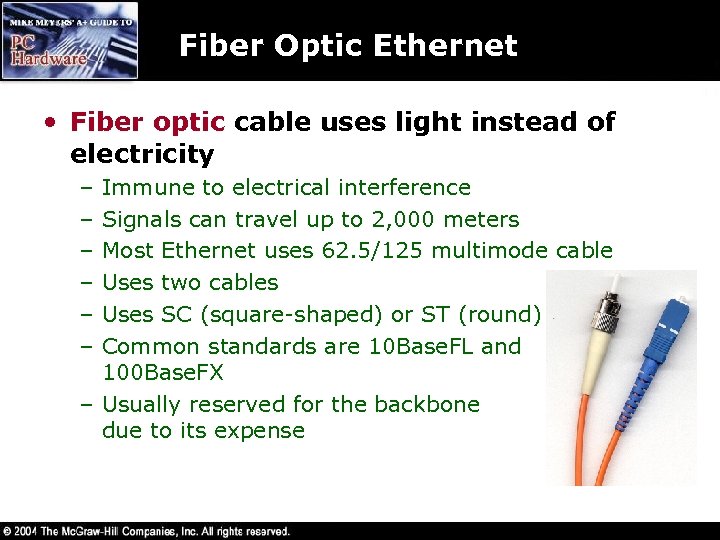 Fiber Optic Ethernet • Fiber optic cable uses light instead of electricity – – – Immune to electrical interference Signals can travel up to 2, 000 meters Most Ethernet uses 62. 5/125 multimode cable Uses two cables Uses SC (square-shaped) or ST (round) connectors Common standards are 10 Base. FL and 100 Base. FX – Usually reserved for the backbone due to its expense
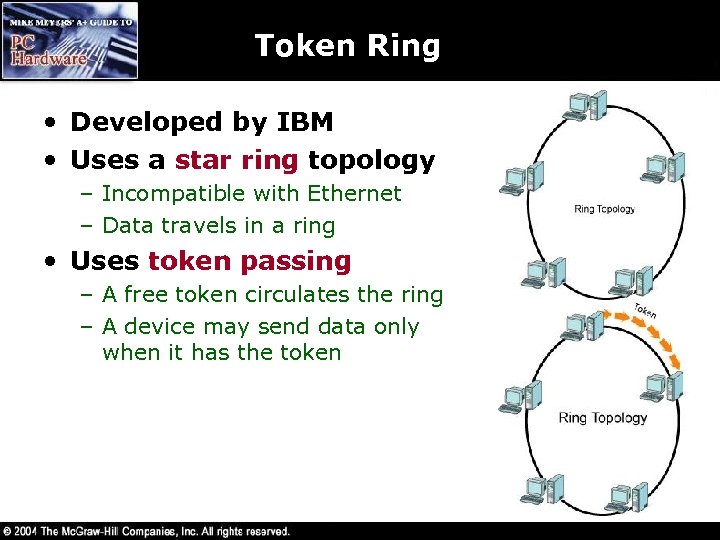 Token Ring • Developed by IBM • Uses a star ring topology – Incompatible with Ethernet – Data travels in a ring • Uses token passing – A free token circulates the ring – A device may send data only when it has the token
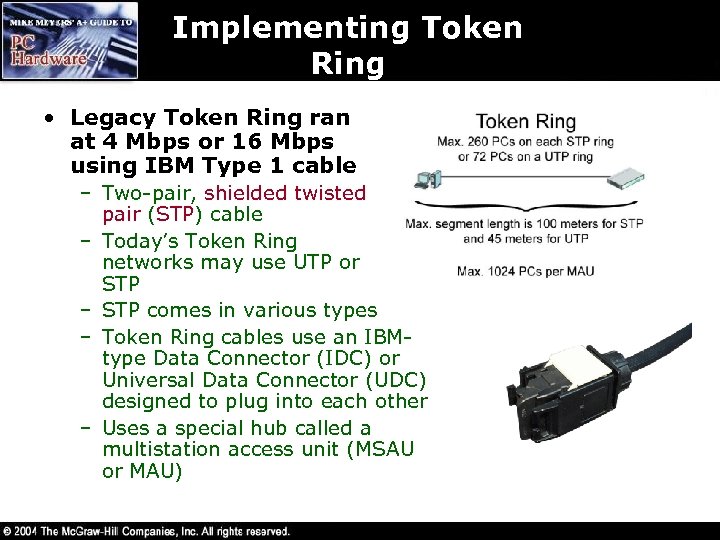 Implementing Token Ring • Legacy Token Ring ran at 4 Mbps or 16 Mbps using IBM Type 1 cable – Two-pair, shielded twisted pair (STP) cable – Today’s Token Ring networks may use UTP or STP – STP comes in various types – Token Ring cables use an IBMtype Data Connector (IDC) or Universal Data Connector (UDC) designed to plug into each other – Uses a special hub called a multistation access unit (MSAU or MAU)
 Parallel/Serial Connections • All versions of Windows have software that allows two (and only two) PCs to connect together via their parallel or serial ports – Use a crossover IEEE 1284 cable for parallel ports – Use an RS-232 cable for serial ports
 Network Operating System
 Client/Server • In a client/server environment one machine is dedicated as a resource to be shared over the network – Uses a special Network Operating System (NOS) • Optimized for sharing files and printers or other resources • Protects access to the data or resources using security features – Called the server – All other machines are clients or workstations – Novell Net. Ware is an enterprise level NOS
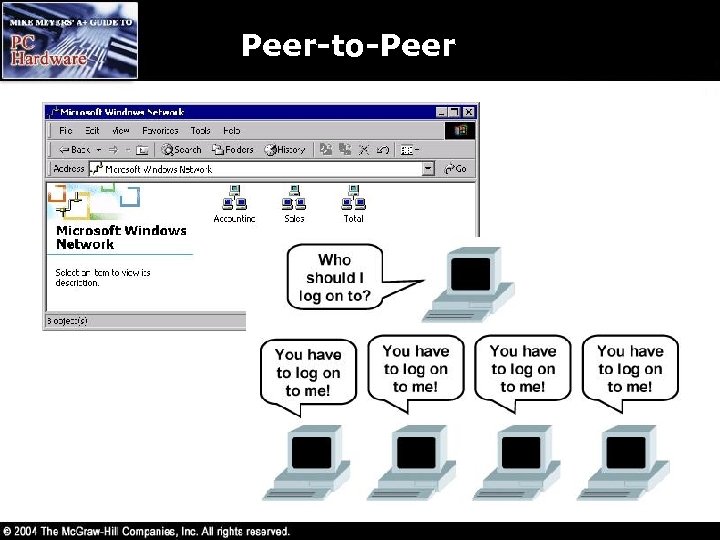
 Peer-to-Peer • In a peer-to-peer network all machines on the network may act as a client or server • Peer-to-peer network operating systems include – – – Windows 98/Me Windows 2000/XP Limited to 10 users accessing a file at one time Useful for small networks only Lacks security Users are part of workgroups
 Peer-to-Peer
 Domain-Based • In a peer-to-peer network you must log in to each server you wish to access • In a domain-based network you log into the network just once to access resources throughout the network – Servers on the network may play one or several roles • • Domain Controller (holds the security database) File server Print server Fax server Remote Access Services (RAS) server Application server Web server
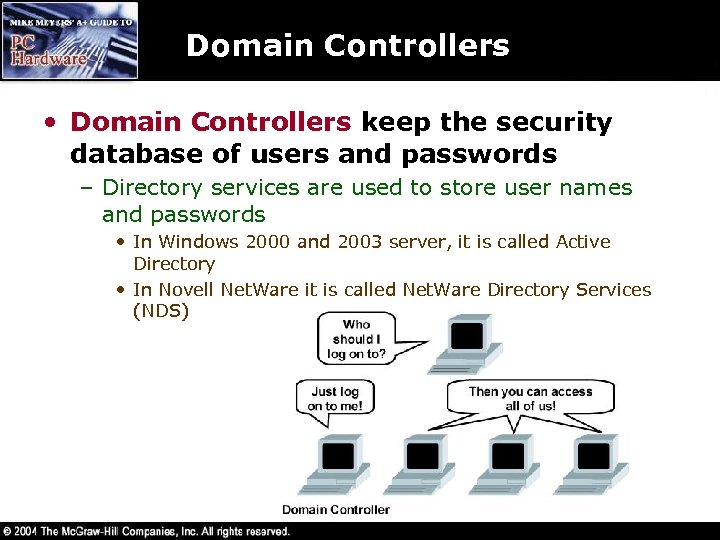 Domain Controllers • Domain Controllers keep the security database of users and passwords – Directory services are used to store user names and passwords • In Windows 2000 and 2003 server, it is called Active Directory • In Novell Net. Ware it is called Net. Ware Directory Services (NDS)
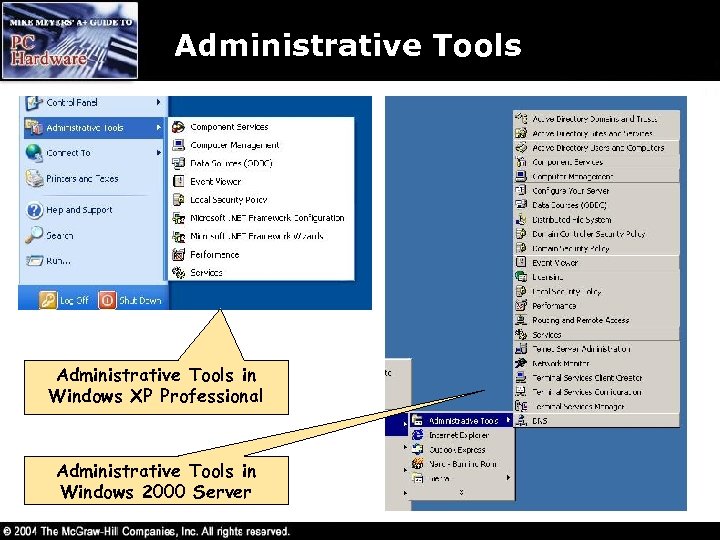 Administrative Tools in Windows XP Professional Administrative Tools in Windows 2000 Server
 Administrator Account • The administrator account is a special user account that has complete and absolute power over the entire system • Joining a workgroup or becoming part of a domain is relatively easy in any version of Windows
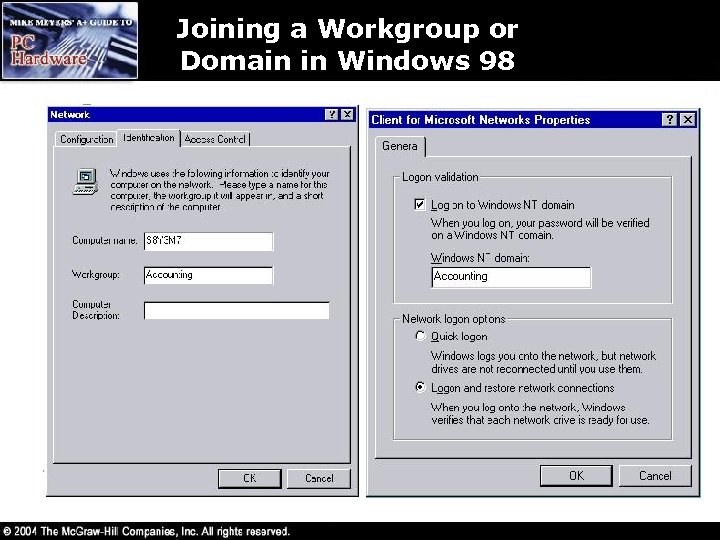 Joining a Workgroup or Domain in Windows 98
 Protocols • Network protocol software – Takes the incoming data received by the network card – Keeps it organized – Sends it to the application that needs it – Takes outgoing data from the application and hands it over to the NIC to be sent out over the network • The most common protocols used are – – Net. BEUI IPX/SPX TCP/IP Apple. Talk
 Net. BEUI • Net. BIOS Extended User Interface (Net. BEUI) – – Small size High speed Not routable Limited to small networks
 IPX/SPX • Internetwork Packet Exchange/ Sequenced Packet Exchange (IPX/SPX) – Developed by Novell – Routable – NWLink is Microsoft’s version
 TCP/IP • Transmission Control Protocol/Internet Protocol (TCP/IP) – Developed by the U. S. Department of Defense – Used in networks of all sizes – Used on the Internet
 Apple. Talk • Apple. Talk is a proprietary protocol developed by Apple – Used to communicate with older Apple Computers – Apple’s Macintosh OS X supports TCP/IP
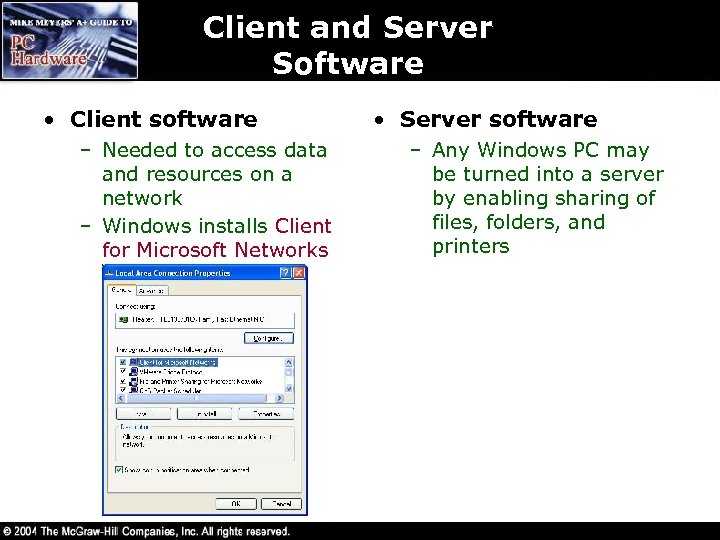 Client and Server Software • Client software – Needed to access data and resources on a network – Windows installs Client for Microsoft Networks • Server software – Any Windows PC may be turned into a server by enabling sharing of files, folders, and printers
 Installing and Configuring a Wired Network
 Network Connectivity • To connect to a network you need – Network Interface Card • Physical hardware that connects the PC to the network wire – Protocol • The language the devices will use to communicate – Network Client • Allows the computer system to speak to the protocol – In addition, if you would like share your files or printer, you need to enable Microsoft’s File and Print Sharing
 Installing a NIC • When choosing a NIC there are three requirements – Must run at the proper speed (many NICs run at more than one speed) – Must be for the proper technology • Ethernet, Token Ring, Fiber optic (FDDI) – Must fit into your expansion slot • ISA, PCI • If your NIC does not autoinstall, then use the Add Hardware wizard in Control Panel
 Configuring a Network Client • You need a network client for each type of server NOS – Client for Microsoft Networks • Alt-click My Network Places (or Network Neighborhood) and choose Properties • Double-click the Local Area Connection icon (or choose to Create a New Network Connection) and choose Properties • Client for Microsoft Networks is automatically installed when you install a NIC in Windows – Client Service for Net. Ware • Provides access to file and print services on Net. Ware servers
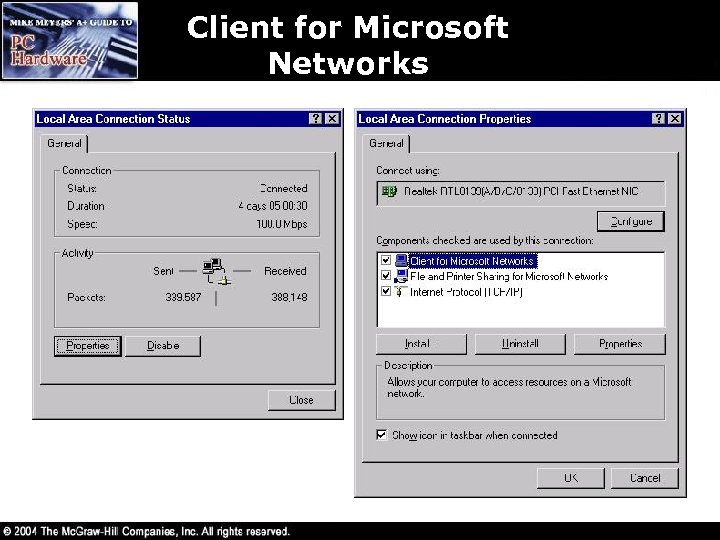 Client for Microsoft Networks
 Net. BEUI • Net. BEUI – Windows 2000: Start Settings Network and Dialup Connections Double-click the Local Area Connection icon – Windows 9 x/Me: Start Settings Control Panel double-click the Network applet – Click the Properties button – Install button highlight Protocols and click Add Net. BEUI – Windows XP has dropped support for Net. BEUI
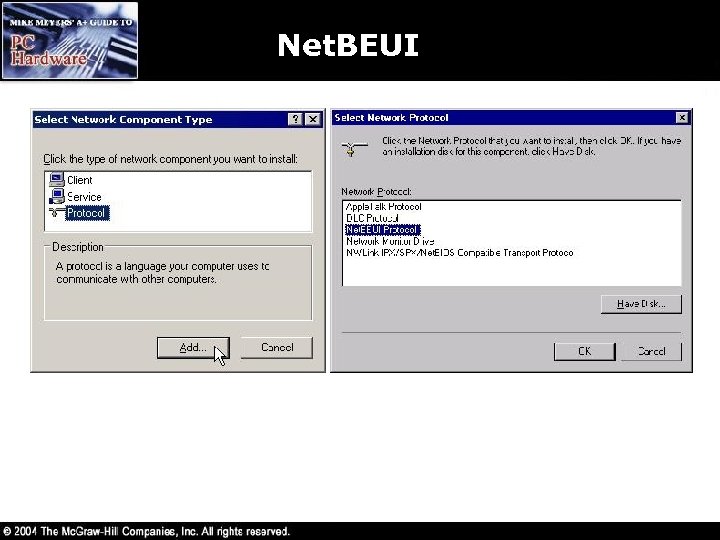 Net. BEUI
 NWLink • Microsoft’s implementation of IPX/SPX – You’ll also need to install Client Services for Net. Ware – Install the same way you install Net. BEUI but choose NWLink instead
 Configuring TCP/IP • TCP/IP is the most widely used protocol stack in networks today – It is the protocol of choice for the Internet but may also be used on small private networks – TCP/IP is installed just like Net. BEUI and NWLink – just choose Internet Protocol (TCP/IP) – You’ll need to configure and IP address and a Subnet Mask at the very least
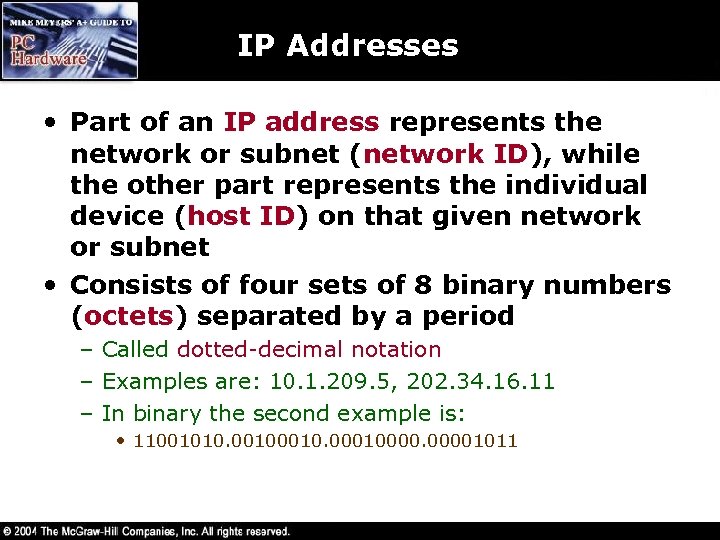 IP Addresses • Part of an IP address represents the network or subnet (network ID), while the other part represents the individual device (host ID) on that given network or subnet • Consists of four sets of 8 binary numbers (octets) separated by a period – Called dotted-decimal notation – Examples are: 10. 1. 209. 5, 202. 34. 16. 11 – In binary the second example is: • 11001010. 0010. 000100001011
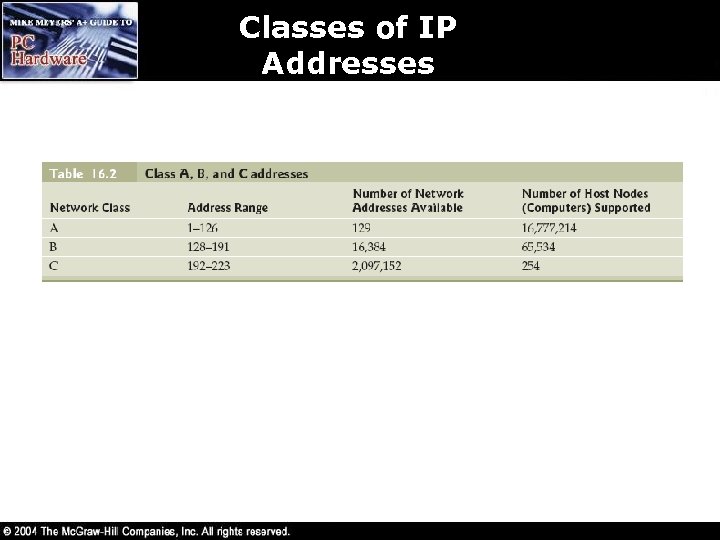
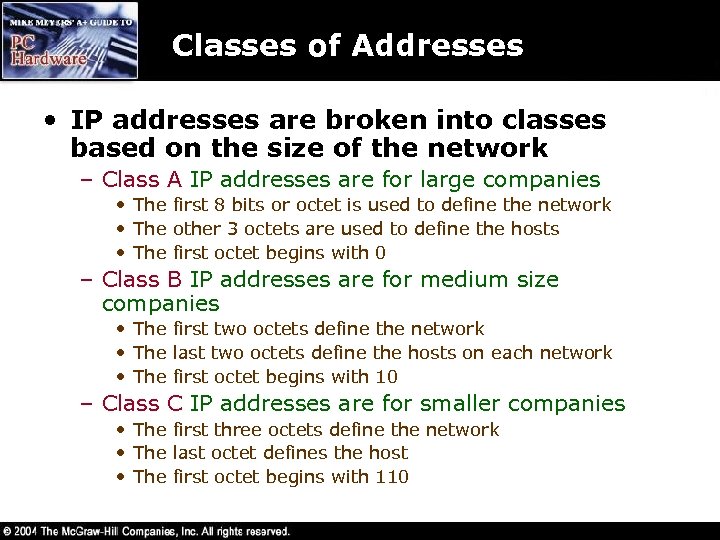 Classes of Addresses • IP addresses are broken into classes based on the size of the network – Class A IP addresses are for large companies • The first 8 bits or octet is used to define the network • The other 3 octets are used to define the hosts • The first octet begins with 0 – Class B IP addresses are for medium size companies • The first two octets define the network • The last two octets define the hosts on each network • The first octet begins with 10 – Class C IP addresses are for smaller companies • The first three octets define the network • The last octet defines the host • The first octet begins with 110
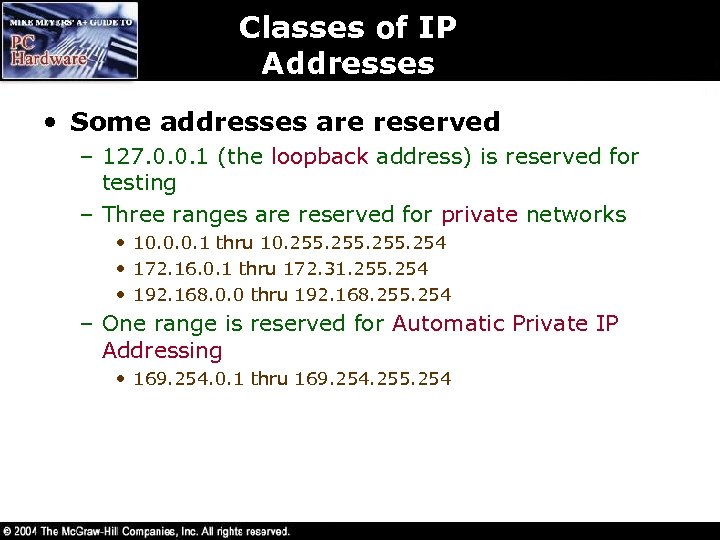 Classes of IP Addresses • Some addresses are reserved – 127. 0. 0. 1 (the loopback address) is reserved for testing – Three ranges are reserved for private networks • 10. 0. 0. 1 thru 10. 255. 254 • 172. 16. 0. 1 thru 172. 31. 255. 254 • 192. 168. 0. 0 thru 192. 168. 255. 254 – One range is reserved for Automatic Private IP Addressing • 169. 254. 0. 1 thru 169. 254. 255. 254
 Classes of IP Addresses
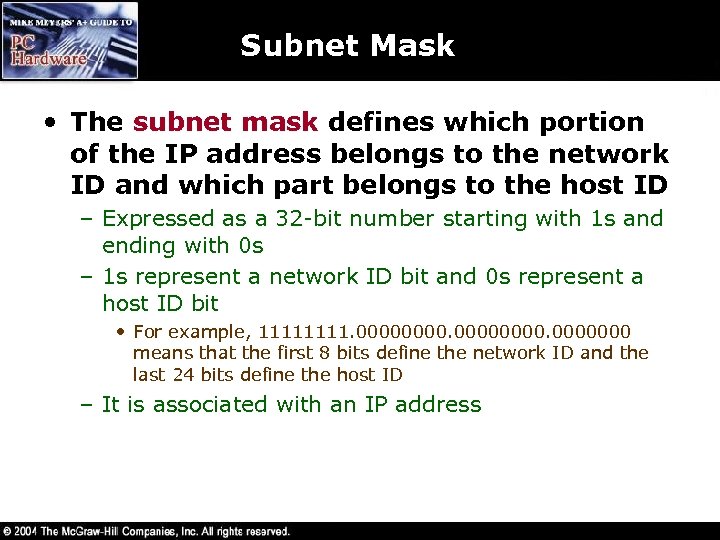 Subnet Mask • The subnet mask defines which portion of the IP address belongs to the network ID and which part belongs to the host ID – Expressed as a 32 -bit number starting with 1 s and ending with 0 s – 1 s represent a network ID bit and 0 s represent a host ID bit • For example, 1111. 00000000 means that the first 8 bits define the network ID and the last 24 bits define the host ID – It is associated with an IP address
 TCP/IP Services • TCP/IP is an entire suite of protocols that offers TCP/IP Services such as – Hypertext Transfer Protocol (HTTP) used on the World Wide Web – Telnet used to access remote systems – Ping to check communication • TCP/IP is used to link multiple networks (Local Area Networks or LANs) with other networks to form an entire Wide Area Network (WAN) – Routers are used to route traffic among the LANs
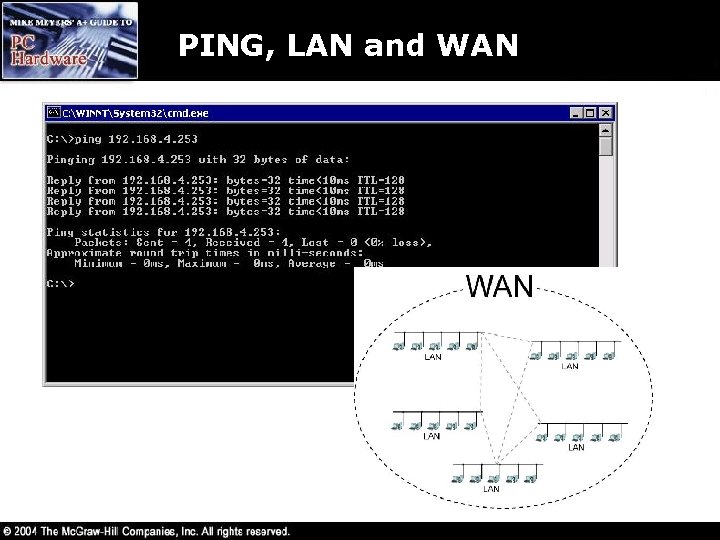 PING, LAN and WAN
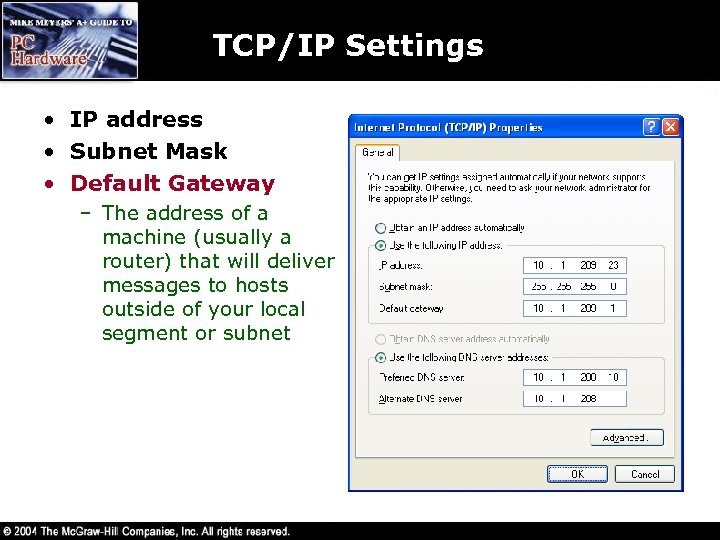 TCP/IP Settings • IP address • Subnet Mask • Default Gateway – The address of a machine (usually a router) that will deliver messages to hosts outside of your local segment or subnet
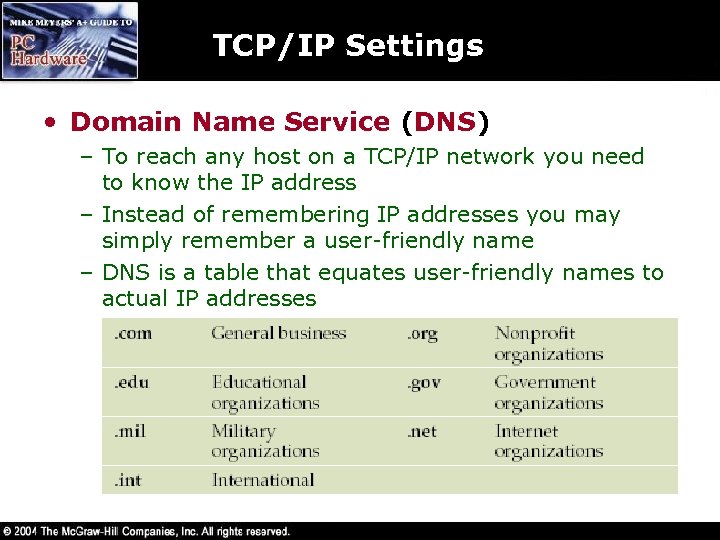 TCP/IP Settings • Domain Name Service (DNS) – To reach any host on a TCP/IP network you need to know the IP address – Instead of remembering IP addresses you may simply remember a user-friendly name – DNS is a table that equates user-friendly names to actual IP addresses
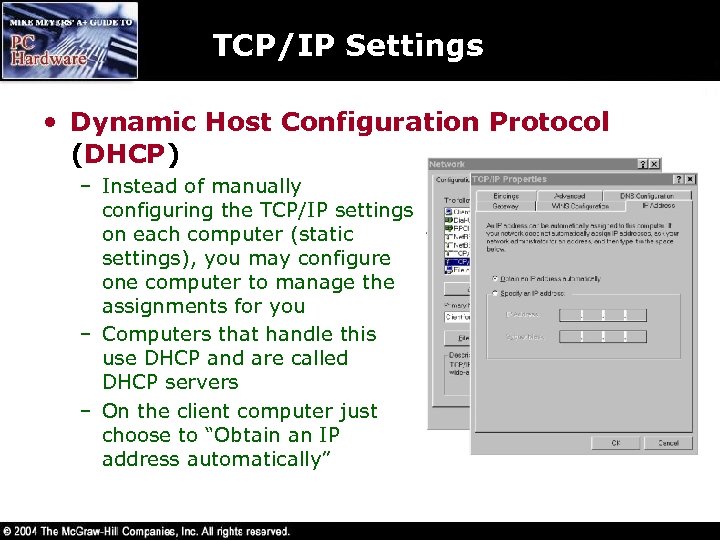 TCP/IP Settings • Dynamic Host Configuration Protocol (DHCP) – Instead of manually configuring the TCP/IP settings on each computer (static settings), you may configure one computer to manage the assignments for you – Computers that handle this use DHCP and are called DHCP servers – On the client computer just choose to “Obtain an IP address automatically”
 TCP/IP Settings • Windows Internet Name Service (WINS) – Enables Windows network names to be correlated to IP addresses (like DNS does for Internet names) – Define the IP address of the WINS server – Windows 2000/XP uses a dynamic DNS instead of WINS
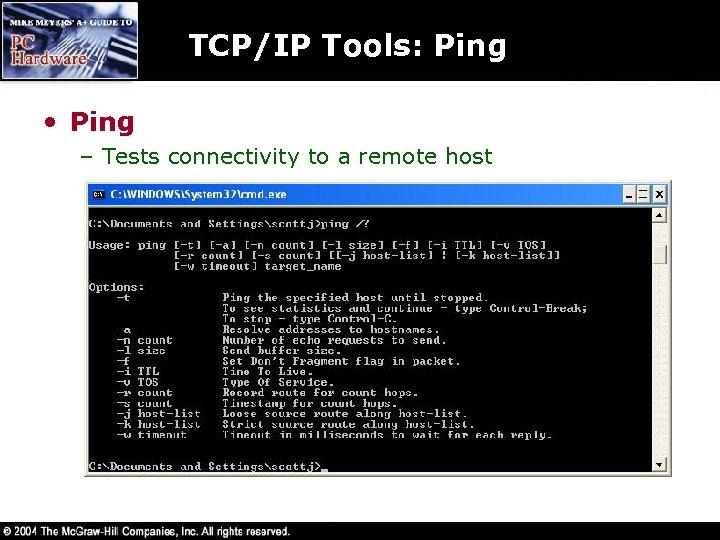 TCP/IP Tools: Ping • Ping – Tests connectivity to a remote host
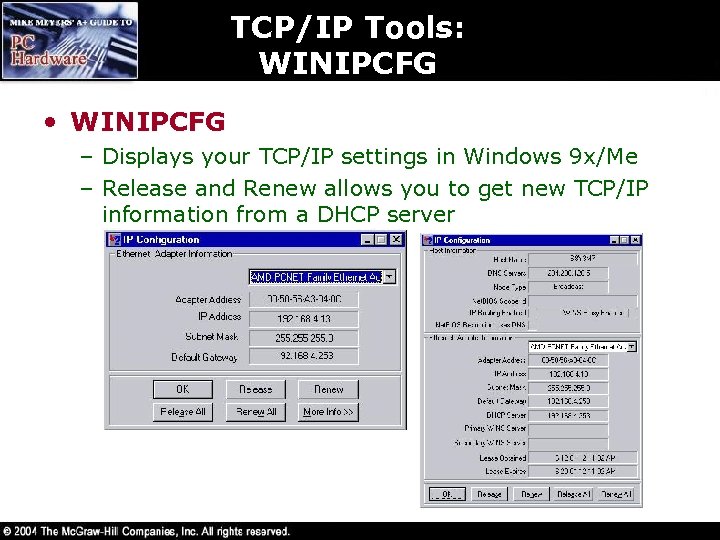 TCP/IP Tools: WINIPCFG • WINIPCFG – Displays your TCP/IP settings in Windows 9 x/Me – Release and Renew allows you to get new TCP/IP information from a DHCP server
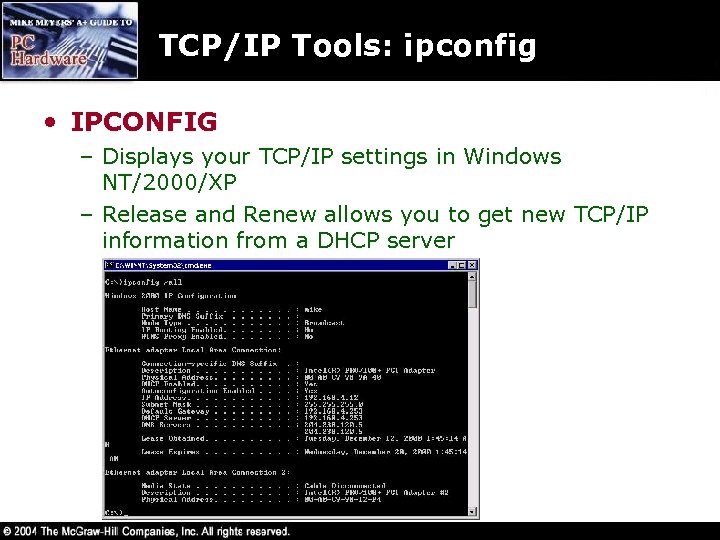 TCP/IP Tools: ipconfig • IPCONFIG – Displays your TCP/IP settings in Windows NT/2000/XP – Release and Renew allows you to get new TCP/IP information from a DHCP server
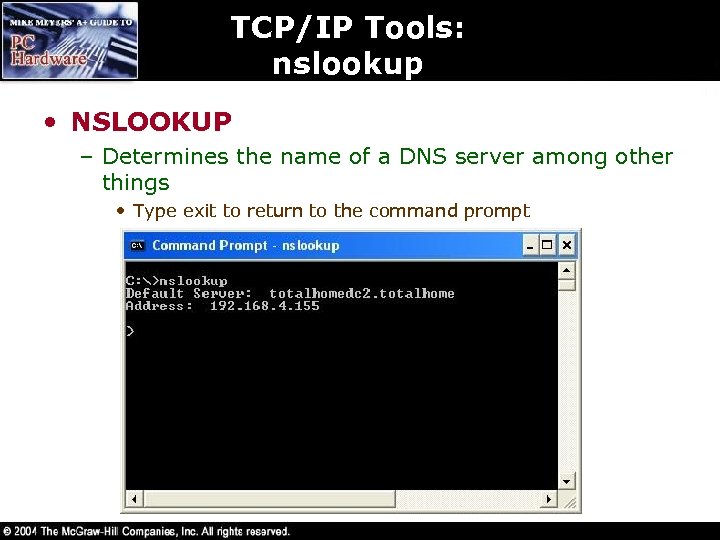 TCP/IP Tools: nslookup • NSLOOKUP – Determines the name of a DNS server among other things • Type exit to return to the command prompt
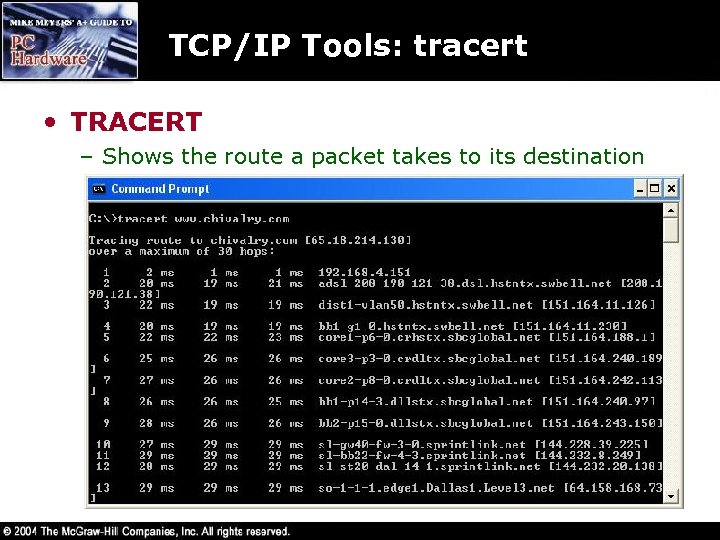 TCP/IP Tools: tracert • TRACERT – Shows the route a packet takes to its destination
 TCP/IP Tools: APIPA • Automatic Private IP Addressing (APIPA) – When a client cannot obtain an IP address automatically, Windows 2000/XP will automatically assign its own IP address from the range 169. 254. 0. 0 thru 169. 254. 255. 254 with a subnet mask of 255. 0. 0 – APIPA is of value when a DHCP server is not available – it allows the hosts on the LAN to talk to each other even though they can’t reach anyone outside their LAN
 Sharing Drives and Folders • To share a drive or folder, alt-click it and select Sharing – Share name is the name others will see on the network – Windows 9 x/Me allows you to define what a user may do: Read Only, Full, or Depends on Password – Windows NT/2000/XP using NTFS-formatted drives allows for much greater and precise control • Set the network (Sharing tab) permissions to Full Control • Then use NTFS permissions (Security tab) to exercise more precise control over who accesses the shared resource and how they access them
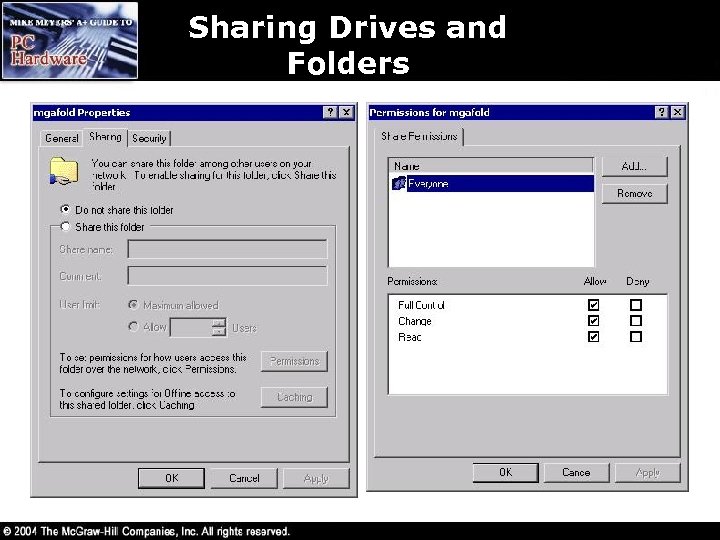 Sharing Drives and Folders
 Accessing Shared Resources • Access shared drives or folders using Network Neighborhood (Windows NT and 9 x) or My Network Places (Windows Me, 2000, XP) – You may also map a drive letter to a shared drive or folder – Windows 2000 allows you to add a network icon instead of using a drive letter – Windows XP adds a menu option
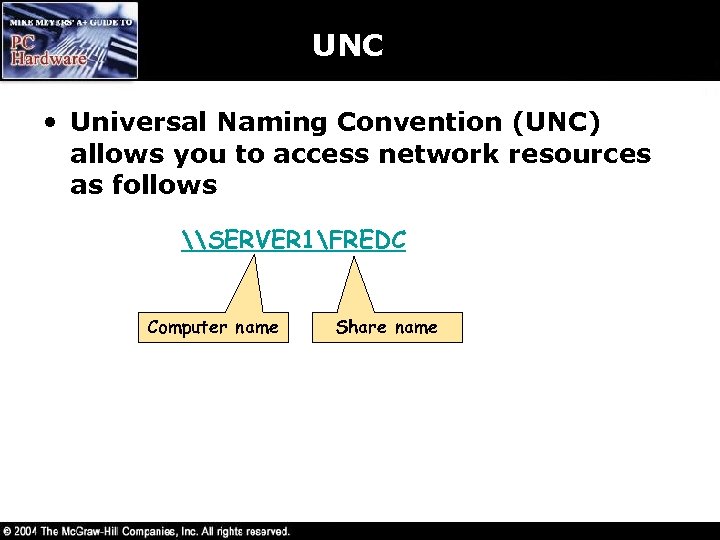 UNC • Universal Naming Convention (UNC) allows you to access network resources as follows \SERVER 1FREDC Computer name Share name
 Sharing Printers • To share a printer, just alt-click on the printer and choose Sharing • To access the printer, use the Add Printer icon and select Network printer instead of Local printer
 Installing and Configuring a Wireless Network
 Introduction • Wireless networks are growing in popularity • Instead of cables, wireless networks use either radio waves or beams of infrared light to communicate with each other • Most of today’s wireless networks are based on the IEEE 802. 11 standard
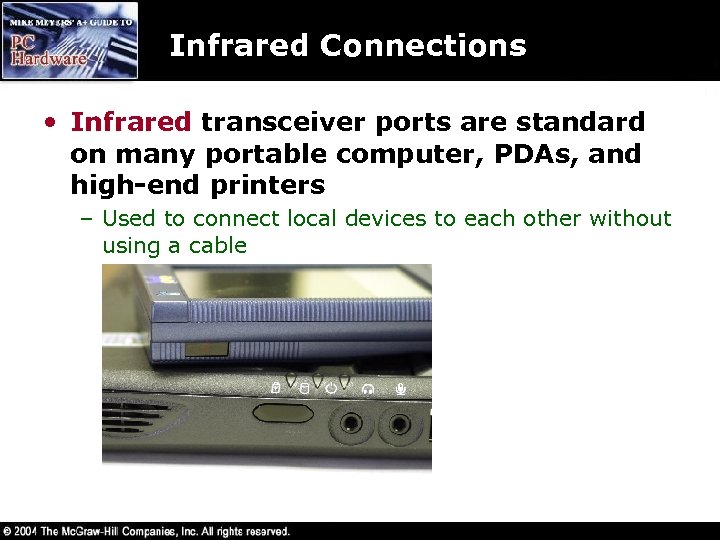 Infrared Connections • Infrared transceiver ports are standard on many portable computer, PDAs, and high-end printers – Used to connect local devices to each other without using a cable
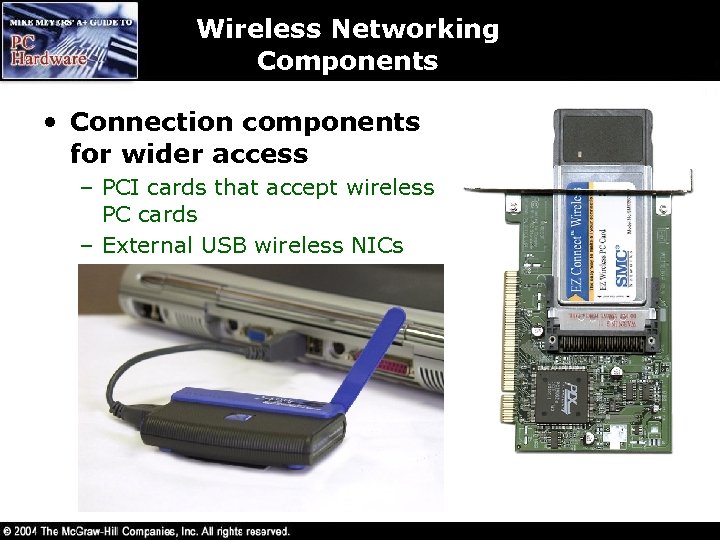 Wireless Networking Components • Connection components for wider access – PCI cards that accept wireless PC cards – External USB wireless NICs
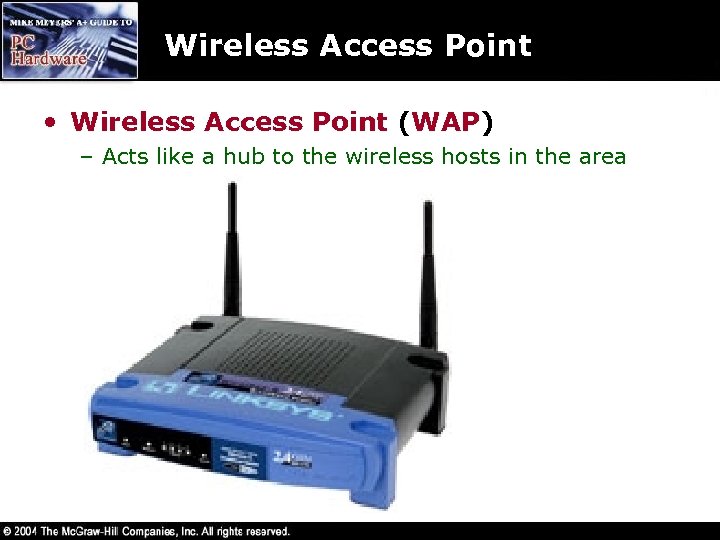 Wireless Access Point • Wireless Access Point (WAP) – Acts like a hub to the wireless hosts in the area
 Wireless Networking Software • Wireless devices use the same networking clients and protocol as wired networks – Use CSMA/CD but have difficulty detecting data collisions • Another option is using Request to Send/Clear to Send (RTS/CTS) where the sending node issues an RTS to the receiving node, who replies with a CTS • Wireless networking software is Pn. P – Use a utility (usually provided with the wireless NIC or built into Windows) to configure the Service Set Identifier (SSID), or network name
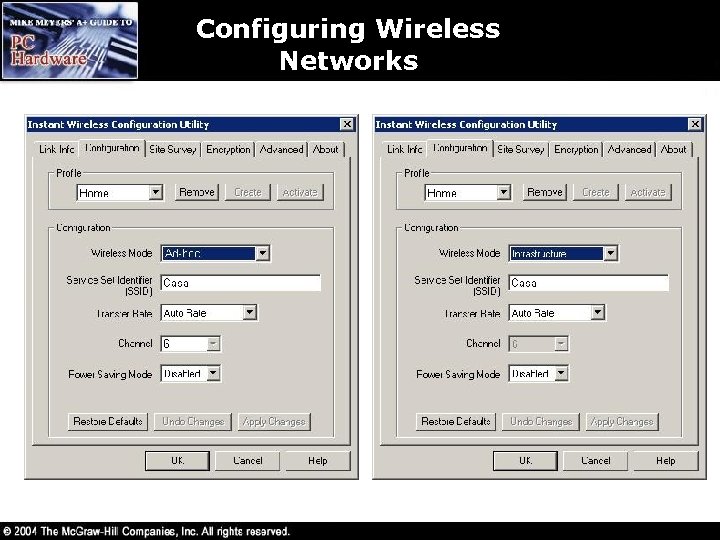
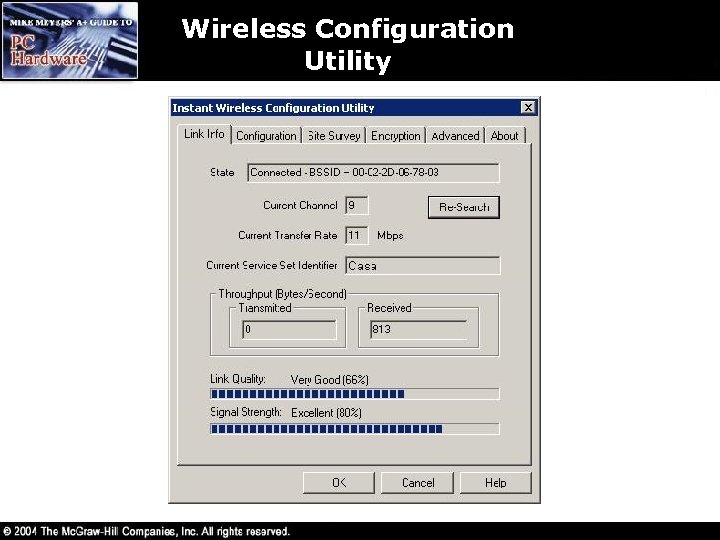 Wireless Configuration Utility
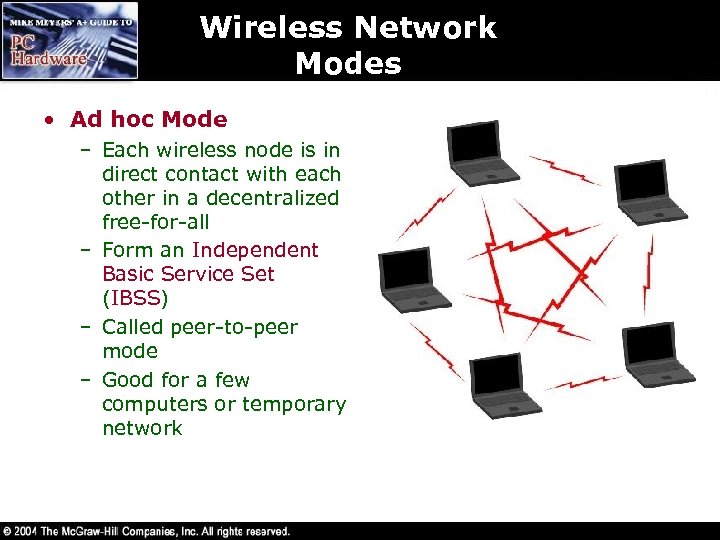 Wireless Network Modes • Ad hoc Mode – Each wireless node is in direct contact with each other in a decentralized free-for-all – Form an Independent Basic Service Set (IBSS) – Called peer-to-peer mode – Good for a few computers or temporary network
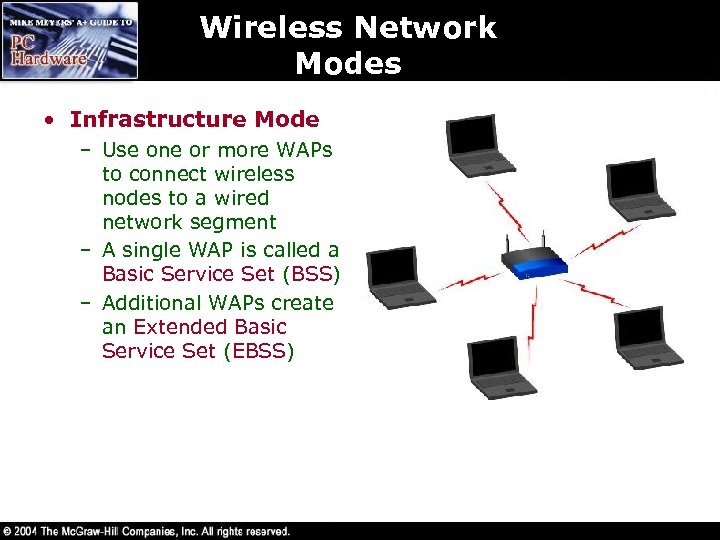 Wireless Network Modes • Infrastructure Mode – Use one or more WAPs to connect wireless nodes to a wired network segment – A single WAP is called a Basic Service Set (BSS) – Additional WAPs create an Extended Basic Service Set (EBSS)
 Wireless Networking Security • Service Set Identifier (SSID) – Configure a unique SSID or network name – Each node needs to have the same SSID – Not very secure but better than nothing • MAC Filtering – Filtering based on each host’s MAC address burned into their NIC – Creates a type of accepted user
 Wireless Network Security • Wireless Equivalency Privacy (WEP) – Encrypts data using 40 -bit or 104 -bit encryption – Provides authentication based on MAC addresses but not users – Encrypts only OSI layers 1 and 2 • Wi-Fi Protected Access (WPA) – User authentication using the Extensible Authentication Protocol (EAP) – Uses encryption key integrity-checking • IEEE 802. 11 i – Upcoming new security standard
 Wireless Networking Standards • IEEE 802. 11 -Based Wireless Networking – Wireless Ethernet standard using spread-spectrum radio waves – Broadcast and receive at 2. 4 GHz • 802. 11 a uses 5 GHz – The original standard has been extended to form the Shared Wireless Access Protocol (SWAP) used in Home. RF networks
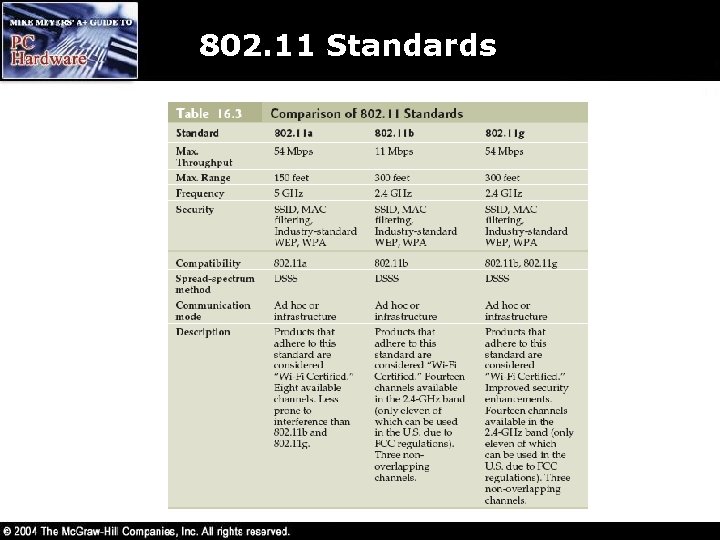 802. 11 Standards
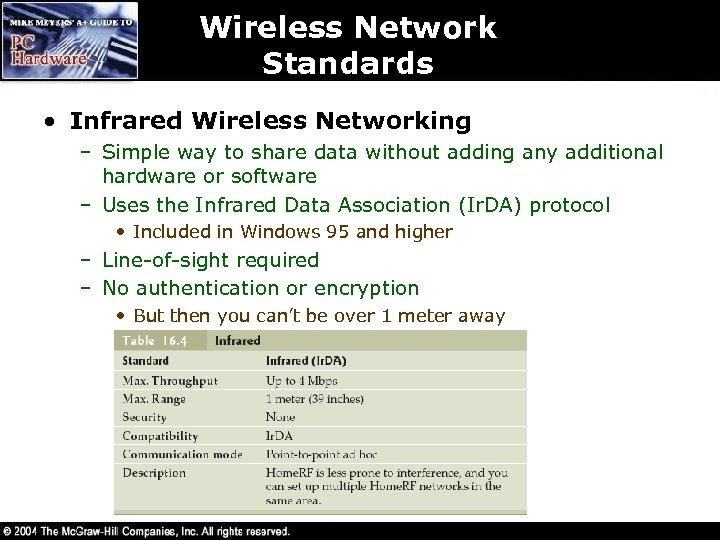 Wireless Network Standards • Infrared Wireless Networking – Simple way to share data without adding any additional hardware or software – Uses the Infrared Data Association (Ir. DA) protocol • Included in Windows 95 and higher – Line-of-sight required – No authentication or encryption • But then you can’t be over 1 meter away
 Configuring Wireless Networks • Physically installing a wireless NIC is the same as installing a wired NIC • Install the wireless network configuration utility to configure additional parameters – Windows XP has configuration parameters built-in • The more important issue is authentication and security
 Configuring Wireless Networks • Wi-Fi and Home. RF – Ad hoc • Each wireless node needs to be configured with the same network name (SSID) • May need to select a common channel • Configure unique host IP addresses • Configure File and Printer Sharing – Infrastructure modes • Requires a wireless access point (WAP) • All nodes need to be configured with the same SSID • Configure the WAP with clients that match the chosen options
 Configuring Wireless Networks
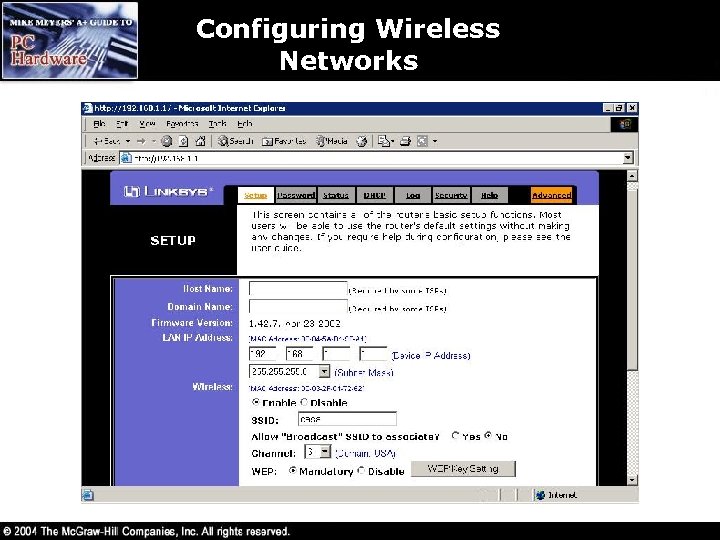
 Configuring Wireless Networks • Configuring a Wireless Access Point (WAP) is usually done through a web browser – Enter the WAP’s default IP address (see your documentation or try 192. 168. 1. 1) in your browser – Enter the default administrative password (in your documentation) to log in • The next few slides show some screen shots of the configuration pages
 Configuring Wireless Networks
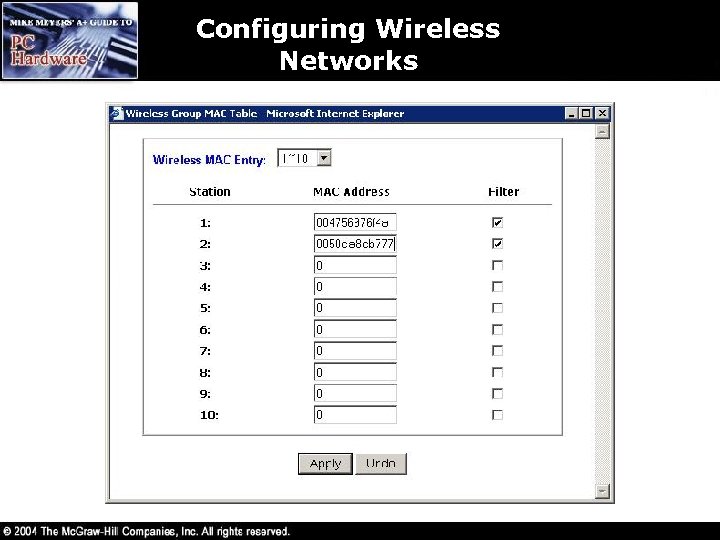 Configuring Wireless Networks
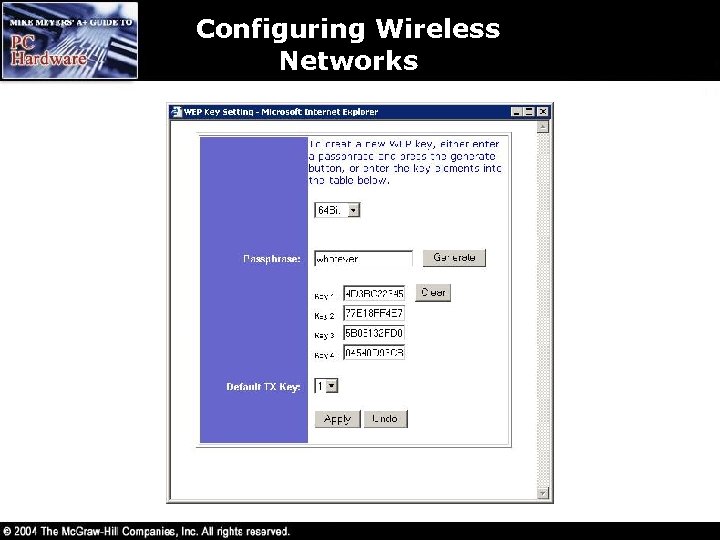 Configuring Wireless Networks
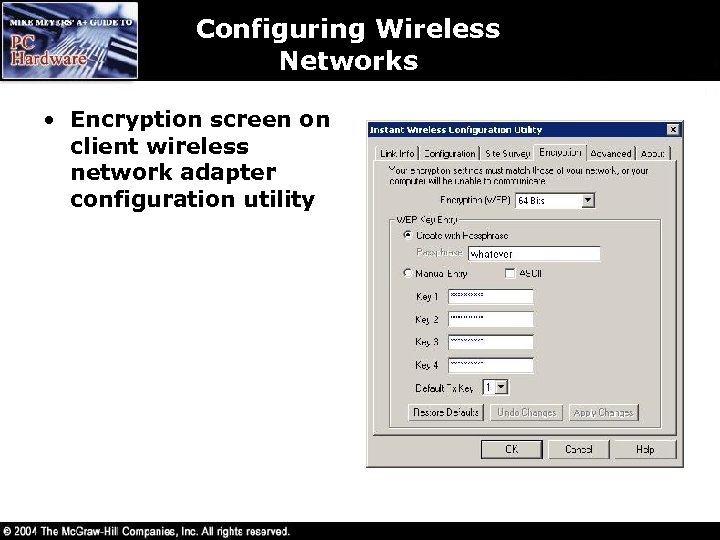 Configuring Wireless Networks • Encryption screen on client wireless network adapter configuration utility
 Configuring Wireless Networks • Infrared – About the only thing to do is to confirm in your network protocol configuration screen that you have the Ir. DA protocol installed and enabled – To transfer files just alt-click the file in Windows Explorer and choose Send To Infrared Recipient – To network two computers just choose Connect Directly to Another Computer when choosing the connection type
 Connecting to the Internet
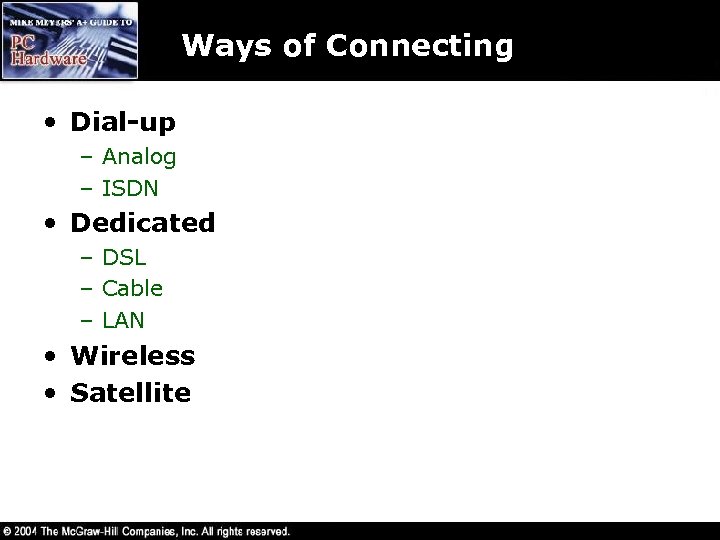 Ways of Connecting • Dial-up – Analog – ISDN • Dedicated – DSL – Cable – LAN • Wireless • Satellite
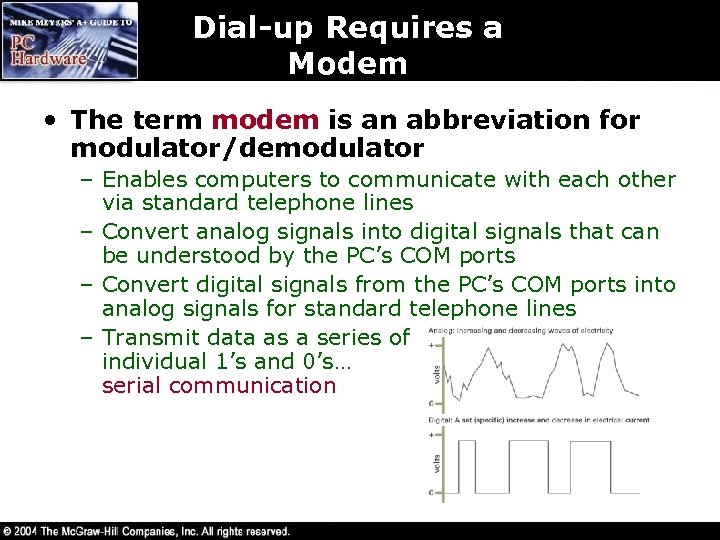 Dial-up Requires a Modem • The term modem is an abbreviation for modulator/demodulator – Enables computers to communicate with each other via standard telephone lines – Convert analog signals into digital signals that can be understood by the PC’s COM ports – Convert digital signals from the PC’s COM ports into analog signals for standard telephone lines – Transmit data as a series of individual 1’s and 0’s… serial communication
 Serial and Parallel Communication • Serial Communication – Transmits data as a series of 1’s and 0’s • Parallel Communication – Transmits data in discrete 8 -bit chunks
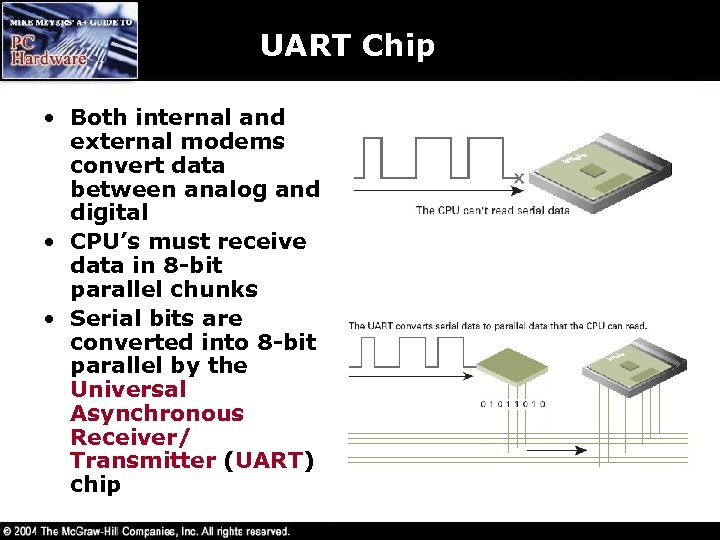 UART Chip • Both internal and external modems convert data between analog and digital • CPU’s must receive data in 8 -bit parallel chunks • Serial bits are converted into 8 -bit parallel by the Universal Asynchronous Receiver/ Transmitter (UART) chip
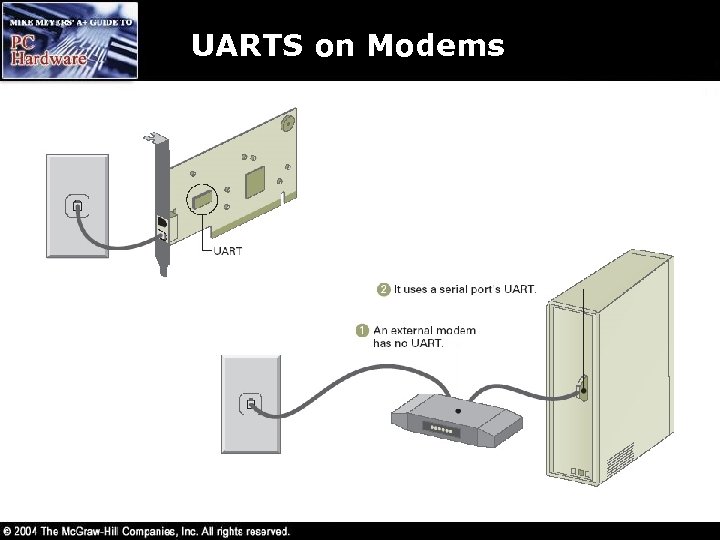 UARTS on Modems
 Baud Rate • Baud rate is the basic cycle of time that a modem uses as its carrier frequency • The modem speed is measured in bits per second (bps) – A 2400 baud rate modem that transmits 2 bits per time cycle has a speed of 4800 bits per second
 Communication Standards • Current V standards for modems, which include modem speed, data compression, error correction, and fax were set by the International Telecommunication Union – Telecommunications Standardization Sector (ITU-T) – Current standards include V. 90 and V. 92 • Download speeds of about 56 Kbps • Upload speeds of 33. 6 Kbps and 48 Kbps
 Flow Control (Handshaking) • Flow control, also known as handshaking, is the process by which two serial devices manage a conversation • PCs handle local flow control using hardware or software
 Flow Control (Handshaking) • Hardware flow control uses extra wires called ready to send (RTS) and clear to send (CTS) – Called RTS/CTS – When in doubt, use hardware flow control • Software flow control uses special characters called XON and XOFF to signal the beginning and end of data transmission respectively – Called XON/XOFF – Slower than hardware flow control and rarely used today
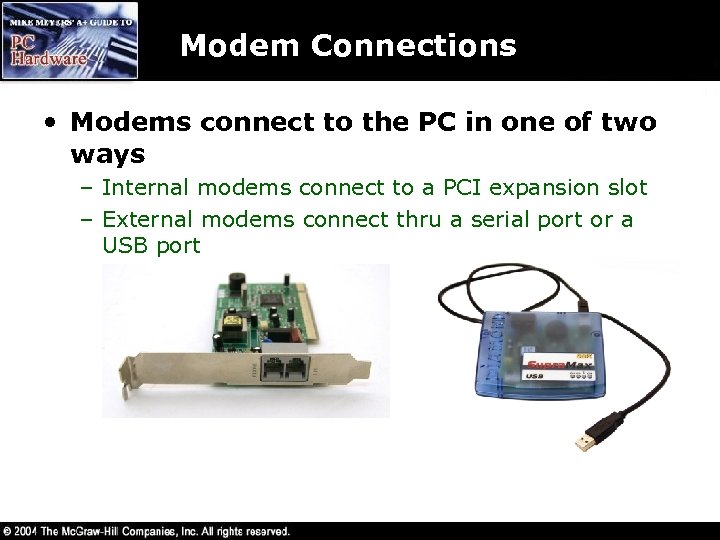 Modem Connections • Modems connect to the PC in one of two ways – Internal modems connect to a PCI expansion slot – External modems connect thru a serial port or a USB port
 Dial-up Networking • Dial-up networking – Uses information from your ISP such as the dial-up phone number, username, password, and other special configuration parameters – To configure in Windows XP select Network and Internet Connections in Control Panel, then select Set up or change your Internet connection and follow the wizard – Uses Point-to-Point Protocol (PPP)
 ISDN • Integrated Services Digital Network (ISDN) – Phone companies have upgraded their network infrastructure to all digital lines – except for the line from your phone to the central office – To meet the demand for higher speed access to the Internet, phone companies began offering ISDN service • ISDN makes that last mile from your phone to the phone company’s Central Office digital as well
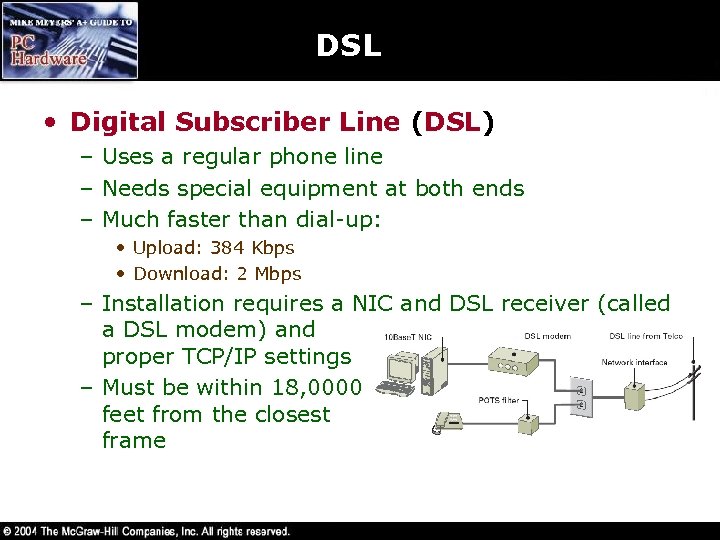 DSL • Digital Subscriber Line (DSL) – Uses a regular phone line – Needs special equipment at both ends – Much faster than dial-up: • Upload: 384 Kbps • Download: 2 Mbps – Installation requires a NIC and DSL receiver (called a DSL modem) and proper TCP/IP settings – Must be within 18, 0000 feet from the closest frame
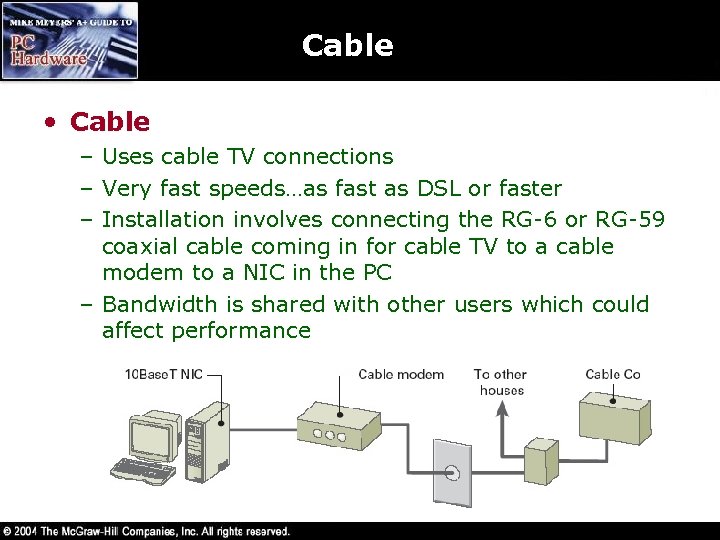 Cable • Cable – Uses cable TV connections – Very fast speeds…as fast as DSL or faster – Installation involves connecting the RG-6 or RG-59 coaxial cable coming in for cable TV to a cable modem to a NIC in the PC – Bandwidth is shared with other users which could affect performance
 Other Internet Connections • LANs – Most companies connect their network to the Internet thru an ISP – Users connect thru the local LAN • Wireless – Wireless connections are great when they work, but the technology isn’t quite there yet – Security may be an issue • Satellite – Uploads used to require a modem but not anymore – Initial connections still must be made thru a modem
 Troubleshooting Networks
 Troubleshooting Networks 1. Verify the symptom – Talk with the use to try to get a solid description of the symptoms 2. When did it happen? – Does it happen a boot, when the OS loads, or after the system has been running for awhile? 3. What has changed? – Try to find out if anything has changed – even recent changes before the problem began occurring
 Troubleshooting Networks 4. Check the environment – Heat, humidity, dirt – What OS? What applications? Do others use the computer? 5. Reproduce the problem – If a problem happens only once, it’s not a problem – Otherwise, try to make the problem happen again 6. Isolate the symptom – With hardware remove parts until you find the suspect one – With software remove background programs or boot into Safe Mode
 Troubleshooting Networks 7. Separate hardware from software – Replace the suspect hardware with known good hardware – if that doesn’t solve the problem, then it’s probably software related – Uninstall the suspect software and reinstall it – Install the latest patch or upgrade – Check for viruses 8. Research – Use the Internet as a great tool 9. Make the fix and test – Keep track of what you did so that you may return to the previous state if the fix does not work
 Mike’s Four-Layer Model • Hardware – Check the hardware starting with the physical layer • Protocols – Is it installed and configured properly? • Network – Servers and non-servers – Check users and groups, share names • Shared resources – Make sure the resource has been properly shared – Check the access allowed
 Bluetooth • Bluetooth is designed to replace all those cables connecting peripheral devices together – keyboards, mouse, printer, speakers, scanner – Acceptable for quick file transfers – Acceptable for browsing the Internet – Hardware comes integrated on most new portable electronic devices or as an internal or external adapter – Configuration is Pn. P – Bluetooth access points use a web browser for configuration