


 Скачать презентацию Network Technology Foundations 2007 Prosoft Learning Corporation
310a3b99f12c9c59c26ab09c2a02b324.ppt
- Количество слайдов: 169
 Network Technology Foundations © 2007 Prosoft Learning Corporation All Rights Reserved Copyright © 2004 Prosoft. Training, All Rights Reserved.
 Lesson 1: Introduction to Networking Copyright © 2004 Prosoft. Training, All Rights Reserved.
 Objectives • Identify and describe the functions of servers, workstations and hosts • Identify major network operating systems and their respective clients • Discuss packets and describe packet creation, and explain the OSI reference model • Compare, contrast and describe the functions of network protocols, including TCP/IP • Describe the basics of LANs and WANs • Identify and describe the function of NAPs • Describe transmission media and types, including cabling, asynchronous and synchronous, simplex, half duplex, full duplex, baseband broadband • Identify network architectures, and describe basic network topologies and carrier systems
 Telephony Networking • PSTN: one of the oldest existing networks • Voice transmissions, which were once carried over the PSTN, are now delivered in digital form as packets of data using IP instead of the circuit-switched lines of the PSTN • PSTN: still an integral part of the Internet infrastructure because it furnishes most of the long-distance connections
 Mainframes • Mainframe (centralized) computing provided the first practical network solution – Retrieving information from mainframes – Mainframe liabilities – The future of mainframes
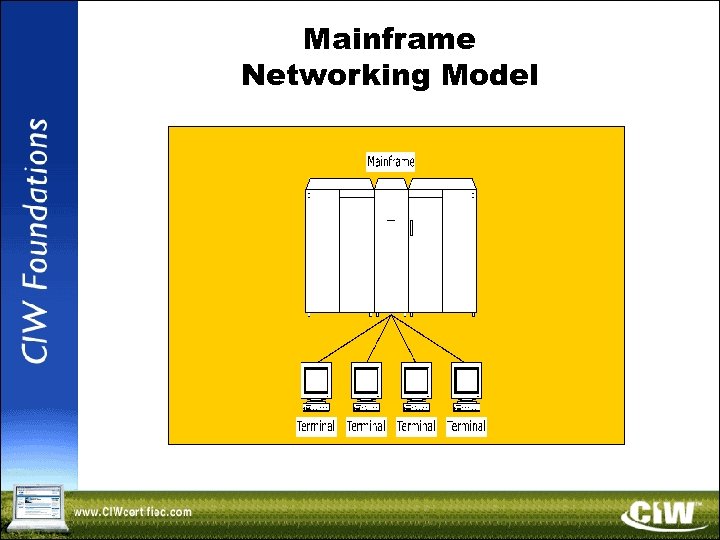 Mainframe Networking Model
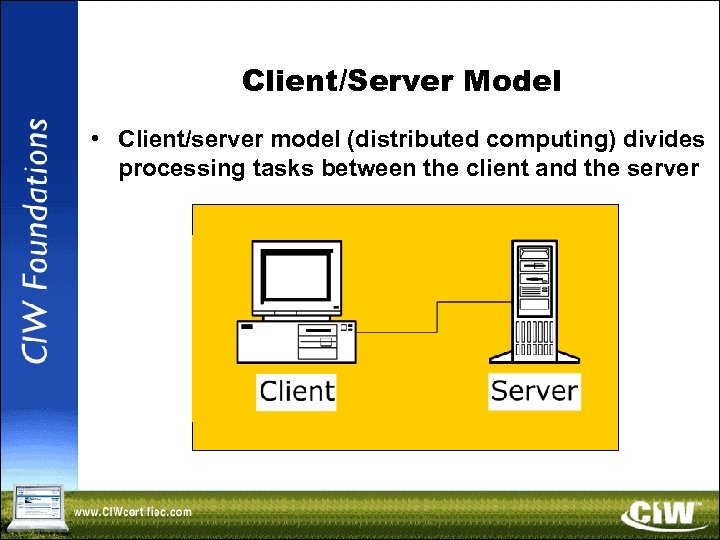 Client/Server Model • Client/server model (distributed computing) divides processing tasks between the client and the server
 Client/Server Model (cont’d) • Client/server advantages • Two-tier and three-tier computing • Advantages of three-tier computing
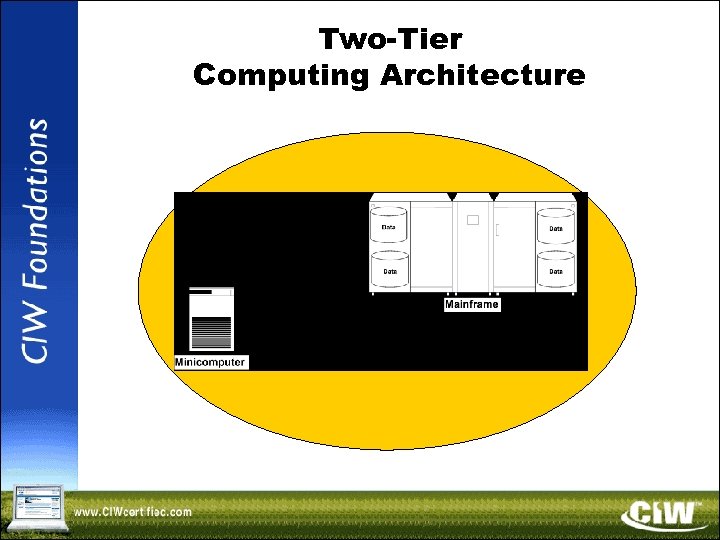 Two-Tier Computing Architecture
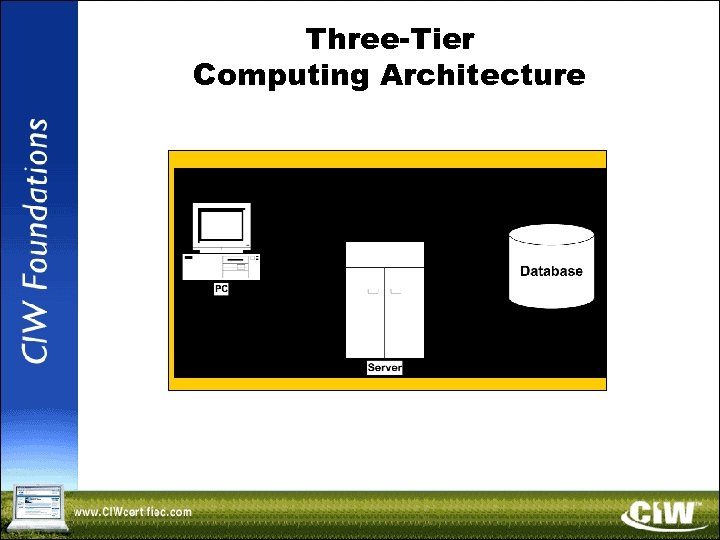 Three-Tier Computing Architecture
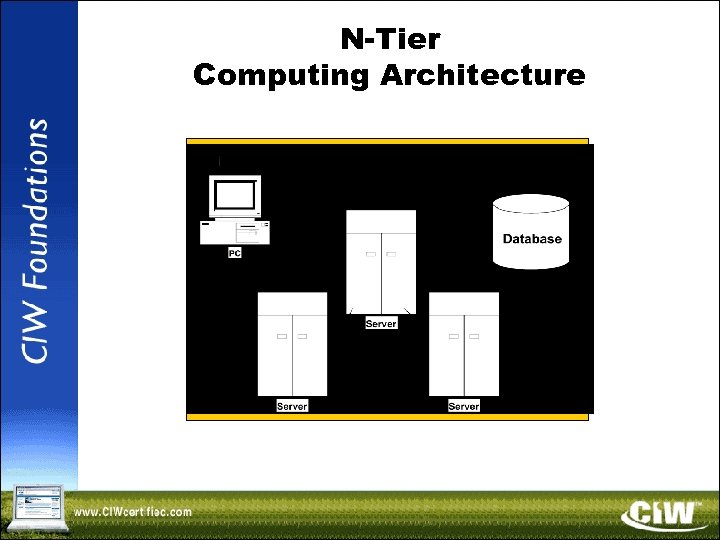 N-Tier Computing Architecture
 Network Operations Center (NOC) • A specific location from which a network is managed, monitored and maintained • Central point for network maintenance and troubleshooting • Generally includes multiple, redundant network connections and redundant power supplies • Many have dedicated phone lines from a separate provider and cell phones to ensure communication in an emergency
 Networking Categories • Peer-to-peer – Microsoft peer-to-peer – P 2 P – Centralized or decentralized • Server-based – Novell Net. Ware – UNIX/Linux – Microsoft LAN manger – Microsoft Windows NT/2000/2003 Server
 Network Topologies • • • Bus Star Ring Hybrid Mesh
 Network Operating Systems • Interoperability – Microsoft Windows – UNIX/Linux – Novell Net. Ware
 OSI Reference Model • Defined by the International Organization for Standardization in 1983 • Gives developers universal concepts so they can develop and perfect protocols that can work with operating system and network products developed by other vendors • Explains the framework used to connect heterogeneous systems • Describes the process of packet creation (how the layers communicate)
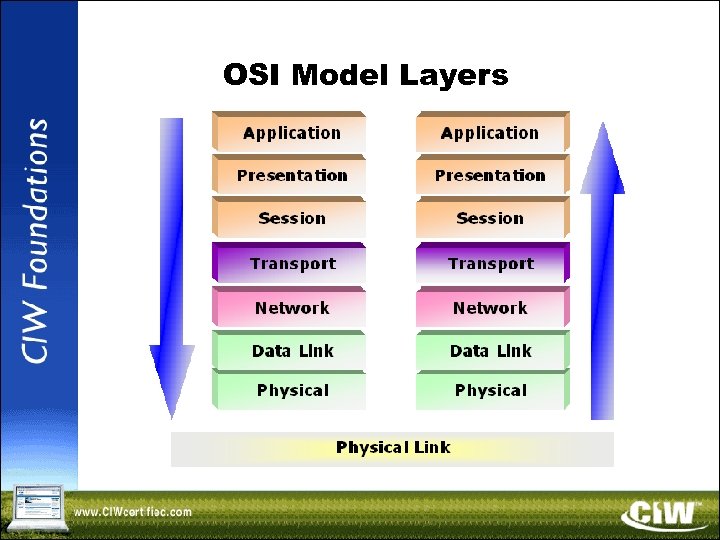 OSI Model Layers
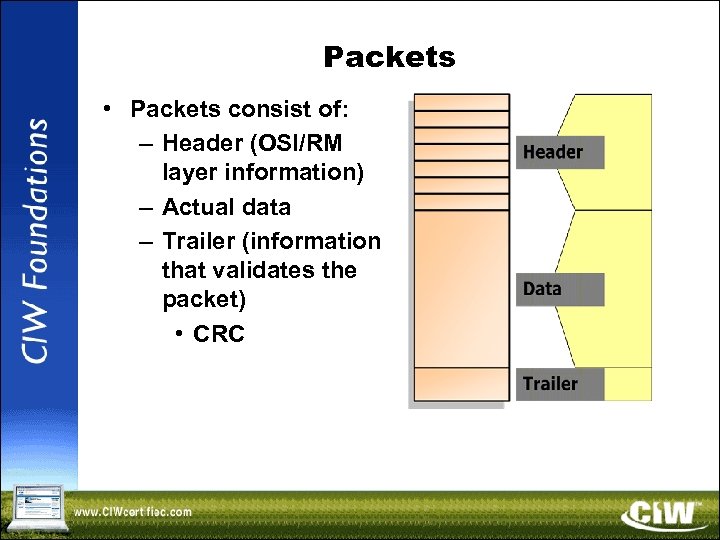 Packets • Packets consist of: – Header (OSI/RM layer information) – Actual data – Trailer (information that validates the packet) • CRC
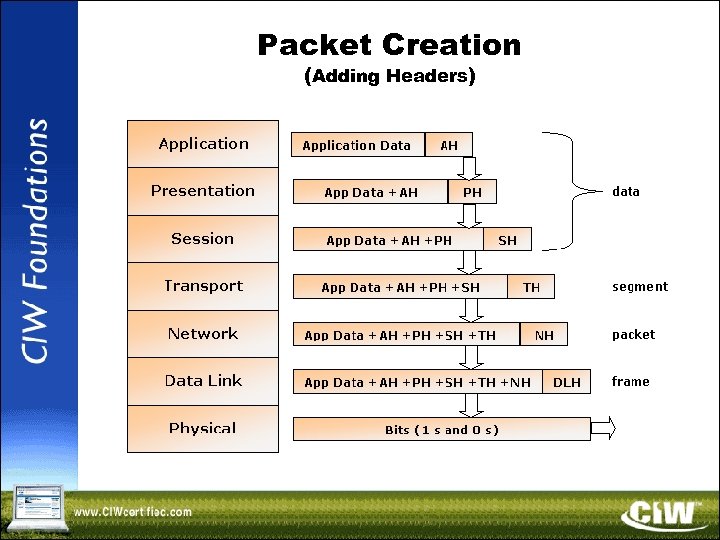 Packet Creation (Adding Headers)
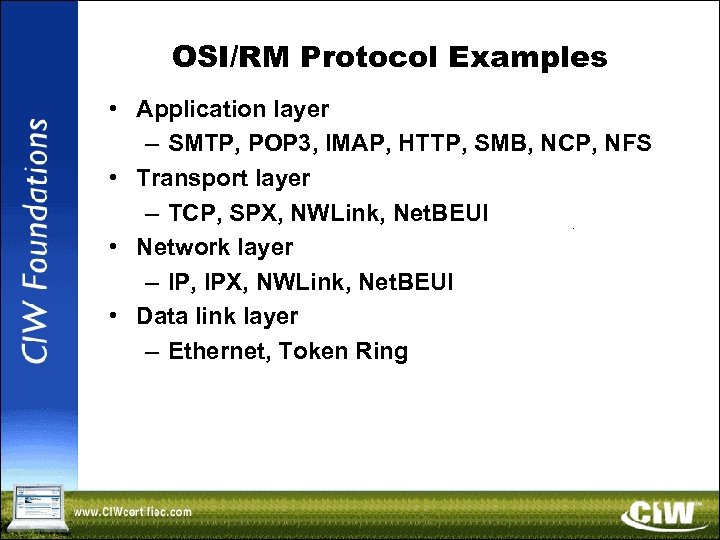 OSI/RM Protocol Examples • Application layer – SMTP, POP 3, IMAP, HTTP, SMB, NCP, NFS • Transport layer – TCP, SPX, NWLink, Net. BEUI • Network layer – IP, IPX, NWLink, Net. BEUI • Data link layer – Ethernet, Token Ring
 Major Networking Protocols • • Connection-oriented (stateful) Connectionless (stateless) Routable Nonroutable
 TCP/IP • A collection of protocols – TCP – UDP – IP • An open standard
 IPX/SPX • Consists of: – IPX – SPX • Frame types – Ethernet 802. 2 – Ethernet 802. 3 – Ethernet II – Token Ring SNAP
 Additional Networking Protocols • Net. BEUI – Net. BIOS • Apple. Talk
 Choosing and Combining Protocols • Combining protocols • Binding protocols – Binding order
 Local Area Networks (LANs) • A group of computers connected within a confined geographic area • Commonly used for intraoffice communication
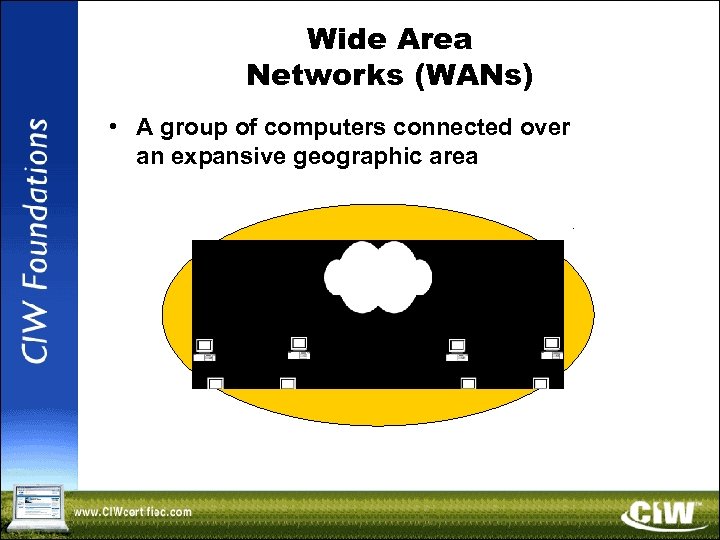 Wide Area Networks (WANs) • A group of computers connected over an expansive geographic area
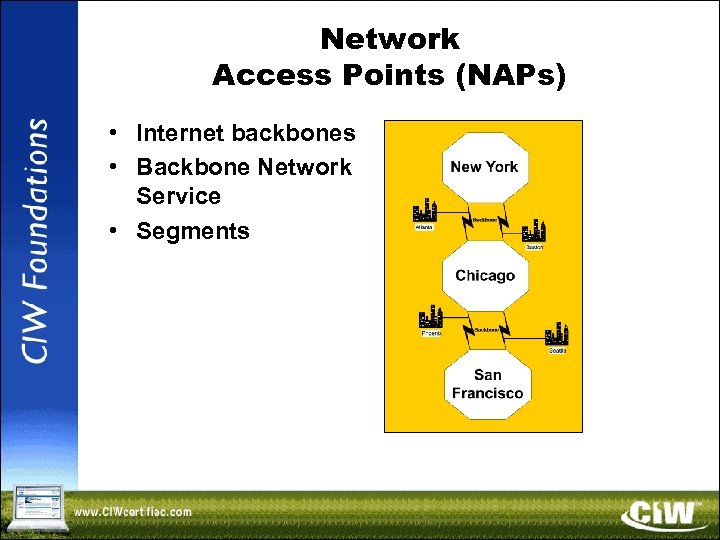 Network Access Points (NAPs) • Internet backbones • Backbone Network Service • Segments
 Common Network Components • • • NICs Repeaters Hubs Bridges Routers Switches • • • Gateways CSU/DSU Modems Patch panels Firewalls
 Transmission Media • • Twisted pair cable Coaxial cable Fiber-optic cable Wireless media
 Wireless Network Technologies • Wireless communications use spread spectrum technologies – OFDM – DSSS – FHSS • Wireless networking modes – Ad-hoc – Infrastructure • WAP security features – WEP – MAC address filtering
 Transmission Types • • • Synchronous transmission Asynchronous transmission Data transmission flow Baseband/broadband transmission Logical/physical topologies
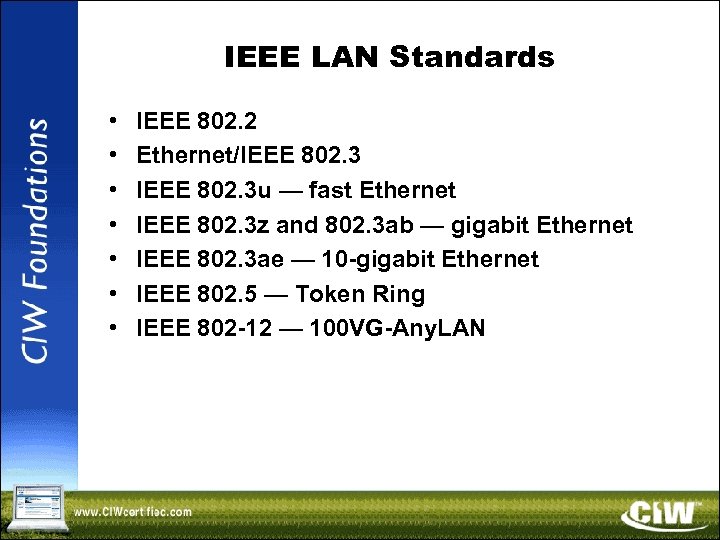 IEEE LAN Standards • • IEEE 802. 2 Ethernet/IEEE 802. 3 u — fast Ethernet IEEE 802. 3 z and 802. 3 ab — gigabit Ethernet IEEE 802. 3 ae — 10 -gigabit Ethernet IEEE 802. 5 — Token Ring IEEE 802 -12 — 100 VG-Any. LAN
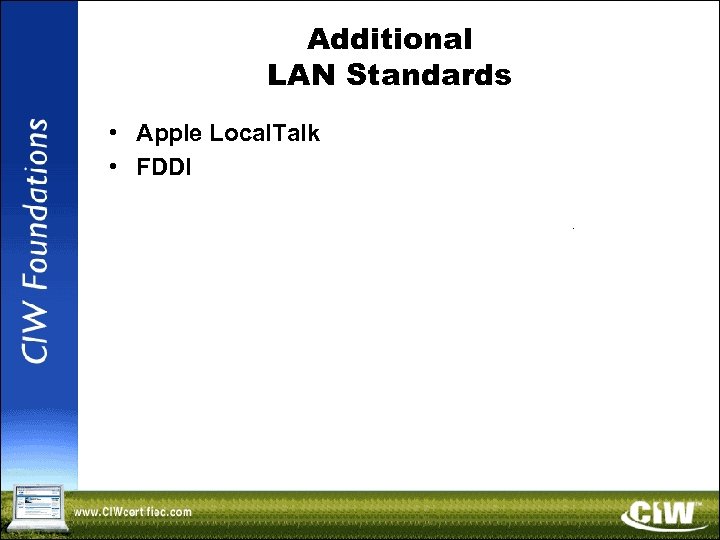 Additional LAN Standards • Apple Local. Talk • FDDI
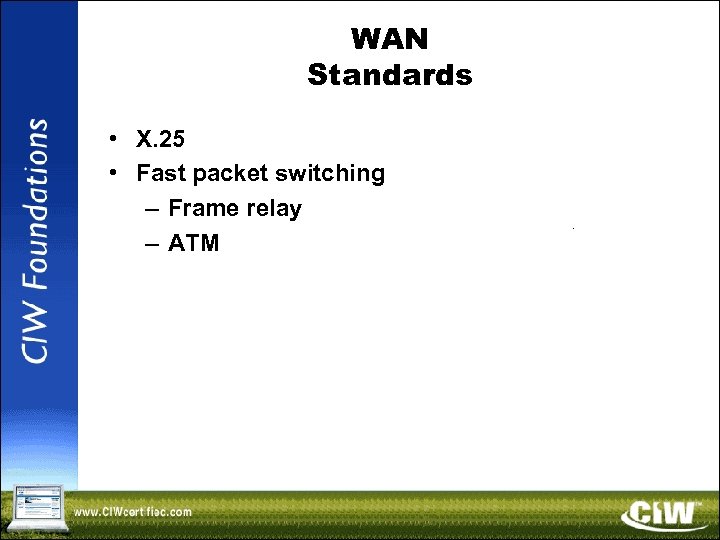 WAN Standards • X. 25 • Fast packet switching – Frame relay – ATM
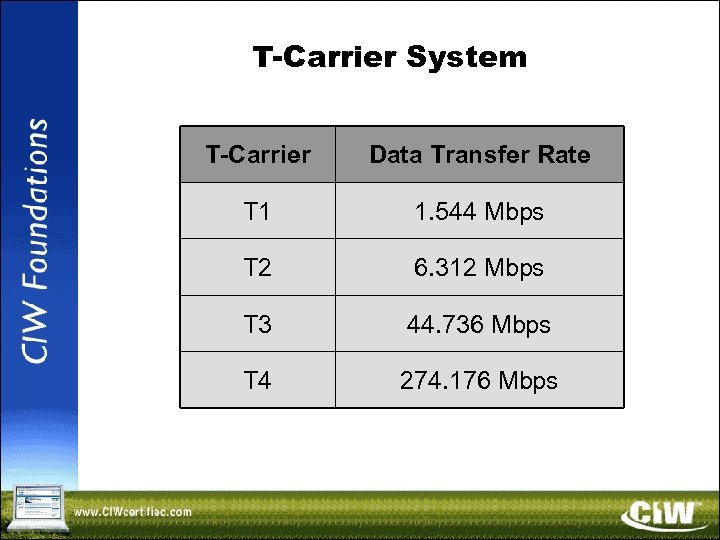 T-Carrier System T-Carrier Data Transfer Rate T 1 1. 544 Mbps T 2 6. 312 Mbps T 3 44. 736 Mbps T 4 274. 176 Mbps
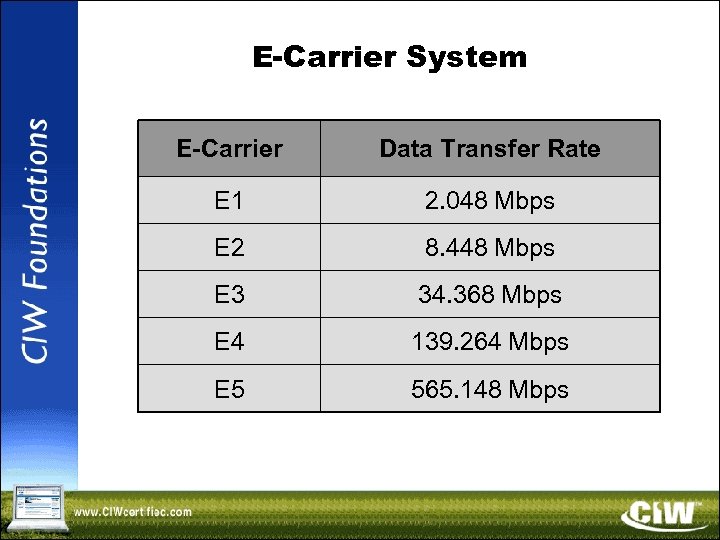 E-Carrier System E-Carrier Data Transfer Rate E 1 2. 048 Mbps E 2 8. 448 Mbps E 3 34. 368 Mbps E 4 139. 264 Mbps E 5 565. 148 Mbps
 Lesson 2: TCP/IP Suite and Internet Addressing Copyright © 2004 Prosoft. Training, All Rights Reserved.
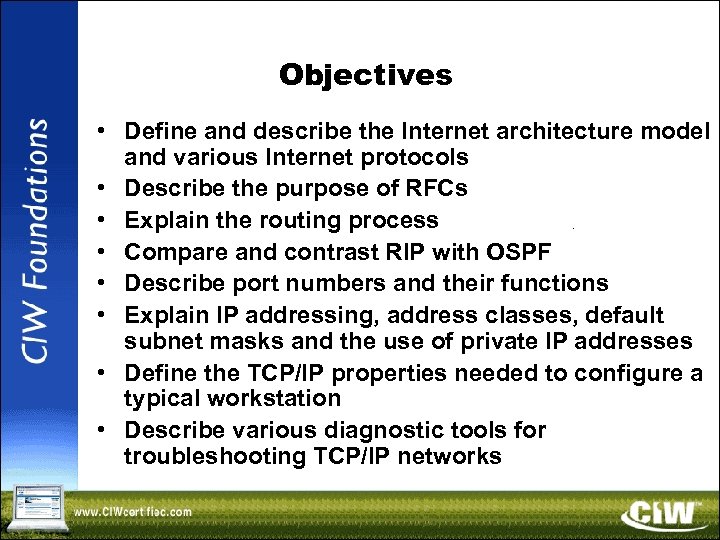 Objectives • Define and describe the Internet architecture model and various Internet protocols • Describe the purpose of RFCs • Explain the routing process • Compare and contrast RIP with OSPF • Describe port numbers and their functions • Explain IP addressing, address classes, default subnet masks and the use of private IP addresses • Define the TCP/IP properties needed to configure a typical workstation • Describe various diagnostic tools for troubleshooting TCP/IP networks
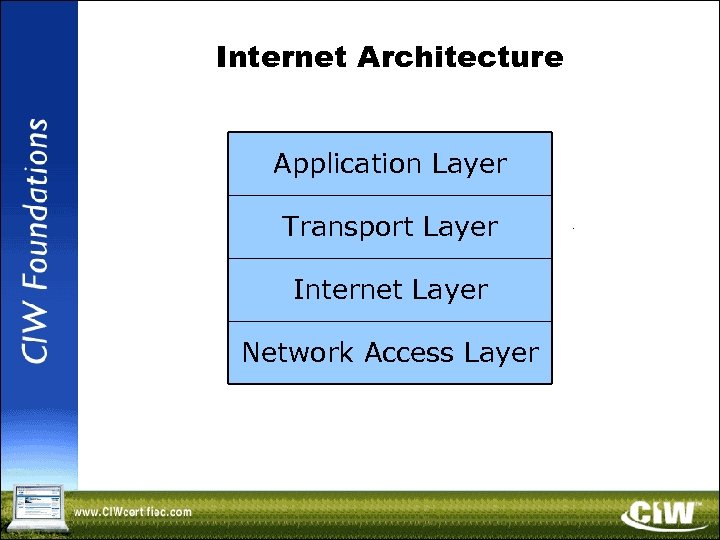 Internet Architecture Application Layer Transport Layer Internet Layer Network Access Layer
 Requests for Comments (RFCs) • Protocol states – Maturity level – Additional
 Internet Protocols • • Network access layer Internet layer Transport layer Application layer
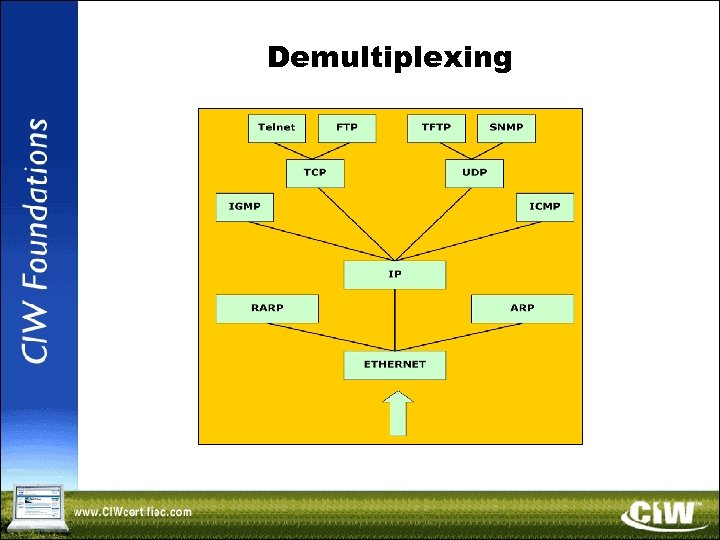 Demultiplexing
 Introduction to Routing • • • Direct routing Indirect routing Routing process Routing information tables Static versus dynamic routing
 Routing Protocols • Interior versus exterior protocols • RIP • OSPF
 Port Numbers • Classifying port numbers • Well-known port numbers • Registered port numbers
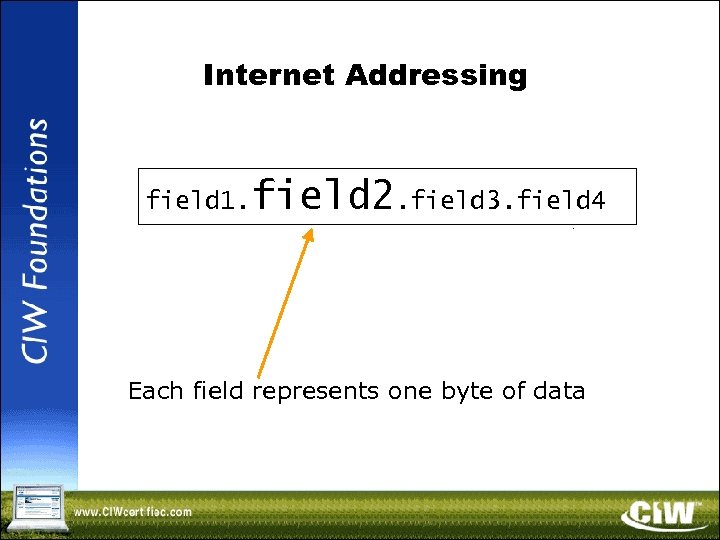 Internet Addressing field 1. field 2. field 3. field 4 Each field represents one byte of data
 Subnet Mask • Distinguishes the network and host portions of an IP address • Specifies whether a destination address is local or remote • Network portion of an Internet address can be determined using the TCP/IP ANDing function
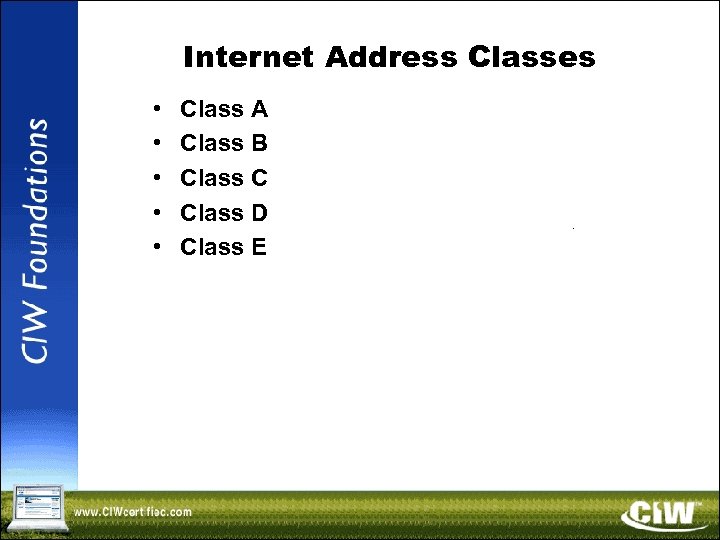 Internet Address Classes • • • Class A Class B Class C Class D Class E
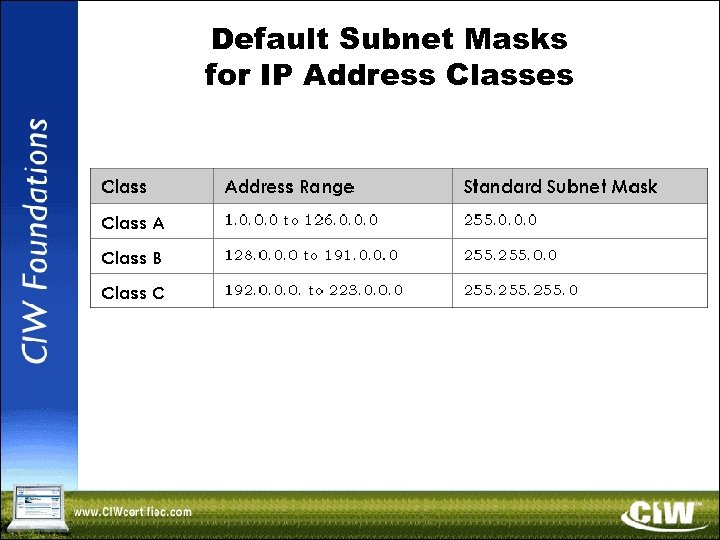 Default Subnet Masks for IP Address Classes
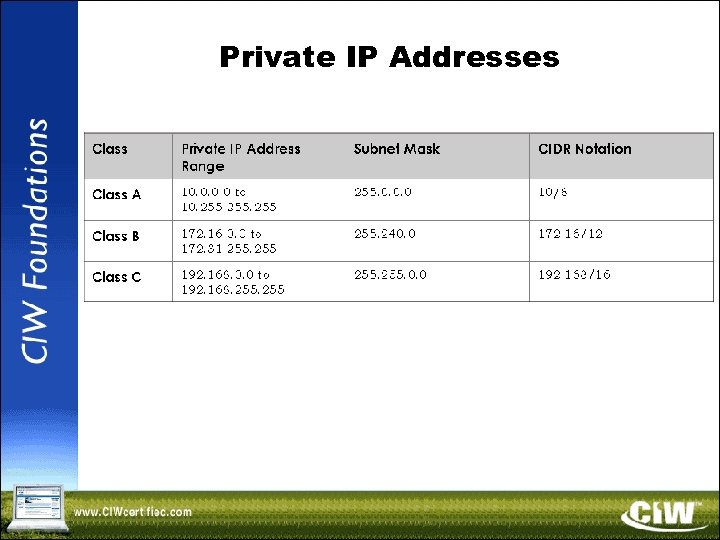 Private IP Addresses
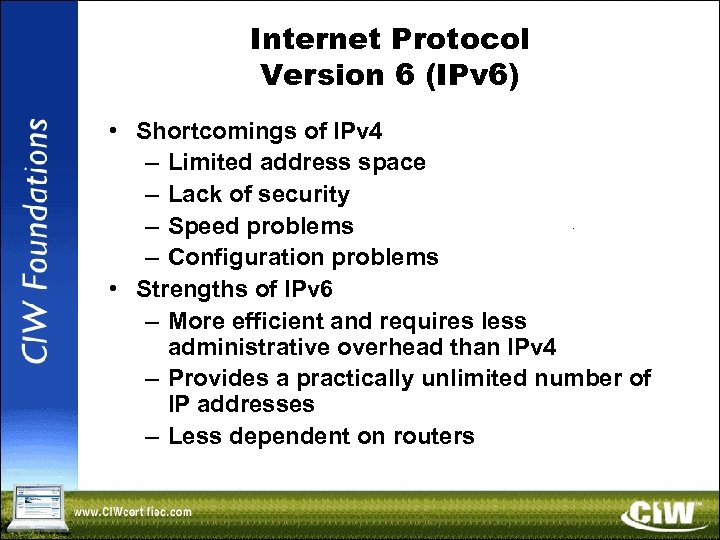 Internet Protocol Version 6 (IPv 6) • Shortcomings of IPv 4 – Limited address space – Lack of security – Speed problems – Configuration problems • Strengths of IPv 6 – More efficient and requires less administrative overhead than IPv 4 – Provides a practically unlimited number of IP addresses – Less dependent on routers
 System Configuration and IP Addresses • • • Default gateway Loopback address Broadcast address Network and special-case source addresses Normal TCP/IP workstation configuration
 Diagnostic Tools for Internet Troubleshooting • • • ping tracert and traceroute netstat nbtstat ipconfig — Windows NT/2000/XP ifconfig — UNIX/Linux winipcfg — Windows 95/98/Me arp Network analyzers
 Lesson 3: Internetworking Servers Copyright © 2004 Prosoft. Training, All Rights Reserved.
 Objectives • Identify and describe the functions and features of various internetworking servers • Describe how each type of internetworking server use TCP/IP suite protocols • Describe access-security features of an HTTP server • Define MIME, and explain how MIME types are used by HTTP and mail servers • Describe the functions of DNS • Define “daemon” and identify the functions of the Internet-related daemons
 File and Print Servers • File servers — network servers that store data files and programs that can be shared by network users • Print servers — network servers that allow multiple users to send print jobs to the same physical printer • Line Printer/Line Printer Daemon (LPR/LPD) — printing protocol in UNIX that allows users to submit print jobs to network printers
 HTTP Server Essentials • The Web — a collection of computer systems running the HTTP service • Web server — has access to HTML documents that are returned to a client in response to a request • Web gateway — a program on a server that is activated based on a client request: – Server passes the request to the program – Program processes the request – Server returns the program output to the client
 HTTP Server Essentials (cont’d) • HTTP Servers and MIME – Multipurpose Internet Mail Extensions (MIME) — allow HTTP and e-mail attachments to identify the files they must use – MIME types — identify the contents of a file so browsers can display the contents properly
 HTTP Server Essentials (cont’d) • Additional HTTP server considerations: – HTTP servers work with a variety of operating systems – Permissions — restrict or allow access to system resources • Operating system permissions usually override HTTP server permissions – Access control — specifies who has access to system resources
 HTTP Server Essentials (cont’d) • Additional HTTP server considerations: – Aliases (or virtual directories) • Flexible mapping of URL path names to file names – Logging — a log of requests handled by the server • Access data • Referrer data • Error data
 HTTP Server Essentials (cont’d) • Additional HTTP server considerations: – Monitor server and network bandwidth use • Helps maintain consistent performance • Helps to identify bottlenecks • Helps to create a baseline against which future network activity can be compared
 Database Server • Database — a file that stores information in a series of tables and columns • Relational database — a database consisting of two or more tables related by a common field • Database server — a server that presents relational databases and makes it possible for remote individuals to access the data • All database servers use SQL to create, maintain and query databases
 Proxy Server • Proxy server — an intermediary between a network host and other hosts outside the network • Proxy servers: – Provide enhanced security – Manage TCP/IP addresses – Speed Internet access by caching Web documents – Replace network IP address with another, contingent address
 Mail Server • Mail servers store/forward e-mail messages using several protocols: – SMTP — used to send messages – POP 3 — used to store and forward messages (forces a user to download messages before managing them) – IMAP — used to store and forward messages (allows a user to browse and manage messages remotely) • MIME is used to transmit files with e-mail
 Instant Messaging (IM) • Instant messaging runs on a mail server • Use instant messaging to: – Type and view messages sent to one or more recipients – View the responses immediately • Instant messages can be sent only to contacts who are currently online
 Mailing List Server • Forwards an e-mail message to every member on a distribution list • Mailing List Manager (MLM) — the interface that allows you to configure a mailing list server • Public versus private mailing lists • Examples of public mailing lists: – LISTSERV – Majordomo
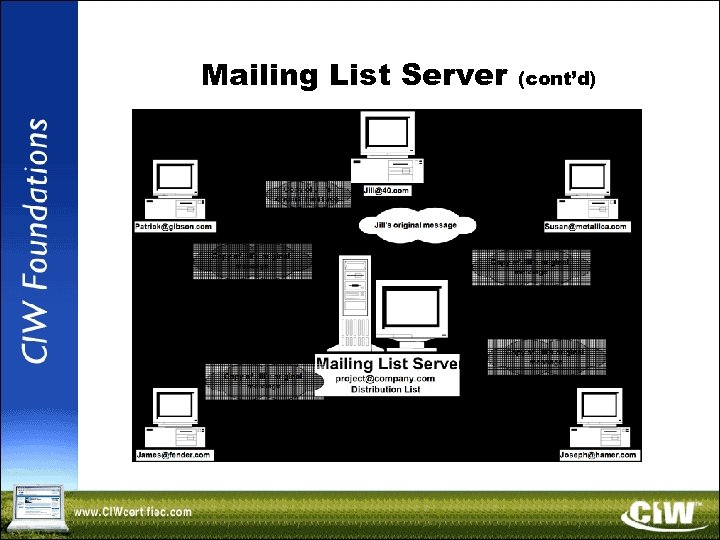 Mailing List Server (cont’d)
 Media Server • Provides streaming audio and video over a network • Uses UDP ports and buffers to achieve the effect of a real-time connection – UDP is a connectionless protocol – Buffer — cache of memory that stores frequently-used data to allow for faster access times
 DNS Server • DNS — mechanism used on the Internet to translate host computer names into IP addresses – www. ciw-certified. com = http: //64. 128. 206. 9 • Hosts file — file referenced locally by applications and commands for name-toaddress resolution
 DNS Server (cont’d) • DNS hierarchy: – Root-level domain — the top of the hierarchy that contains entries for each toplevel domain – Top-level domain — consists of categories found at the end of domain names – Second-level domain — includes the businesses and institutions that register their domain names with the top-level domains
 DNS Server (cont’d) • DNS components: – Name server — server that supports nameto-address translation and runs the DNS service – Name resolver — software that uses the services of one or more DNS servers to resolve an unknown request • DSN server types: root, primary, secondary, caching-only, forwarding • DNS records — entries in DNS database that provide additional routing and resolution information
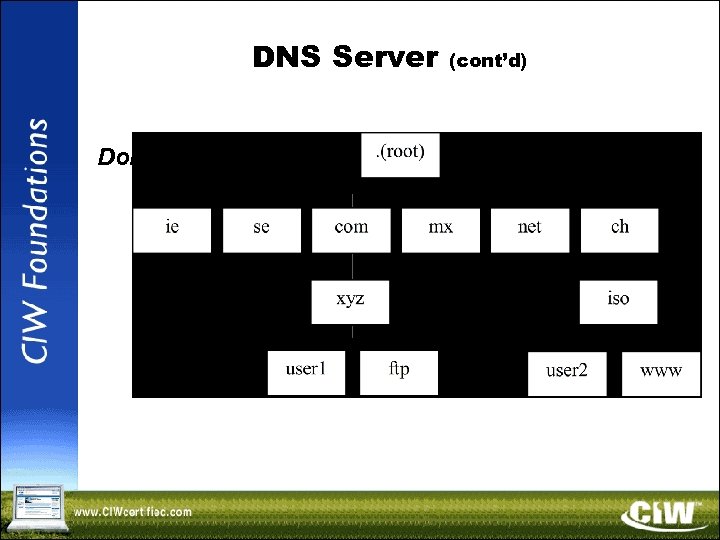 DNS Server Domain name space (cont’d)
 DNS Server (cont’d) • nslookup – Used to query Internet domain name servers to learn name-to-IP-address mappings – Example of nslookup one-time command: • nslookup www. ciw-certified. com – Used interactively by typing: • nslookup
 FTP Server • Allows the transfer of large files between file servers in real time • Files of 2 MB or greater should be transferred by means of FTP • Sending files by means of FTP is faster than with e-mail and HTTP
 News Server • • • Uses NNTP Written text output Multiperson input Allows users to post information any time Can be used to create secure newsgroups by enabling user-specific password protection or through an SSL session
 Certificate Server • Validates, or certifies, encryption keys – Keys — strings of text generated from encryption algorithms that allow you to secure communications for a company or group of users
 Directory Server • Identifies all resources on a network, then makes them available to authenticated users • Enables a company to reuse information in its directory • Avoids re-entry of user information for applications that require it • Helps administrators manage applications and users • Helps users locate other users or e-mail addresses • Locates and manages all company accounts • Allows users inside and outside the network to use the service • Maintains a single database of e-mail contacts
 Directory Server (cont’d) • Directory server protocols: – X. 500 — used to manage user and resource directories – X. 500 offers: • Scalability • Synchronization • Replication – LDAP — TCP/IP protocol that allows communication on both intranets and the Internet
 Catalog, Fax and Transaction Servers • Catalog servers: – Index databases, files and information and allow keyword, Boolean and other searches – Use robots to automate indexing process • Fax servers: – Provide a centrally located fax system – Consist of a bank of fax/modems • Transaction servers: – Guarantee that all required databases are updated when a transaction takes place
 The Internet Daemon: inetd and xinetd • Daemon — UNIX program initiated at startup; runs in the background until required • inetd — daemon that listens on specified TCP and UDP ports (0 to 1023) and launches services to support requests it receives • xinetd — modified form of inetd that is more secure; provides more control over how daemons are run and which remote systems can use a particular daemon • inetd and xinetd can create security problems because they have root permission; they can also deplete system resources because they spawn new processes each time they are used
 Mirrored Server • Provides data redundancy by writing to two physical hard drives each time a write operation occurs • When a write request is issued: – Data is written to the primary drive – Data is copied to the mirrored drive • If one drive fails, all data is protected from loss
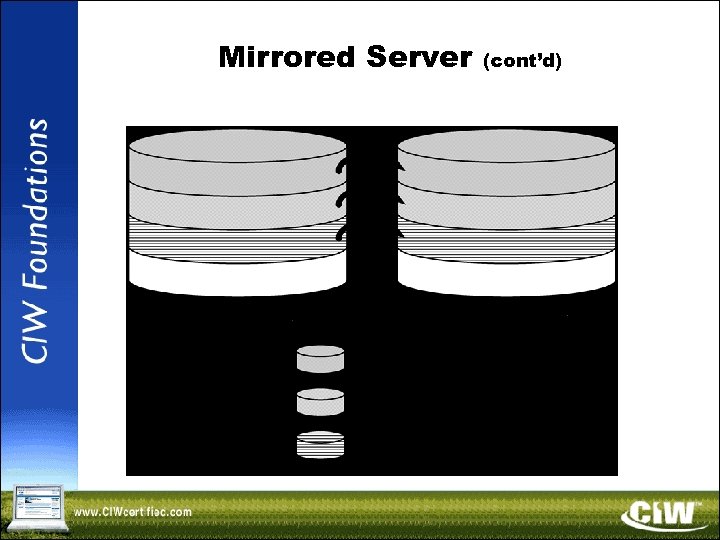 Mirrored Server (cont’d)
 Choosing Web Server Products • Apache Web server – Used by more than half of all Web sites – Supports UNIX and Windows XP – Available free of charge • Microsoft IIS – Includes HTTP, FTP, NNTP, SMTP, certificate, ASP, index (catalog) and transaction services – Allows you to use a remote server to store and retrieve files
 Choosing Web Server Products (cont’d) • Sun ONE servers – Support many platforms, including OS/2, Windows NT and 2000, Solaris, AIX, HP-UX, AS/400 and S/390 – Include servers with Server-Side Java. Script interpreters – Can use Java. Script to connect to databases – Can implement other server-side scripting applications
 Choosing Web Server Products (cont’d) • Java software and Web servers: – Java servlet — Java code that is compiled and runs solely on Web servers – Servlets allow: • Chaining • Connections to databases • Near-universal support on systems
 Lesson 4: Hardware and Operating System Maintenance Copyright © 2004 Prosoft. Training, All Rights Reserved.
 Objectives • • Identify the characteristics of motherboards Identify common IRQ, I/O address and DMA settings Identify IDE/ATA, EIDE/ATA-2, SATA and SCSI traits Identify NICs and common peripheral ports Identify the characteristics of CD-ROMs and DVDs Describe the characteristics of file system types Describe the uses of file system management tools Identify and suggest corrective measures for operating system boot problems and application failures • Identify methods to remotely manage and troubleshoot workstations
 Basic Hardware and System Maintenance • Fix hardware problems by ensuring: – Components are plugged in – Components are turned on – Components are connected properly in order to operate (such as connecting the keyboard to the computer) • Periodically clean hardware components • Establish a preventive maintenance plan
 Motherboard • Main circuit board in a computer • Must be securely fastened to system chassis • Should never touch anything metal, except through proper connections • Most motherboard components are soldered on and no longer replaceable • If components fail (except for memory and the microprocessor), the entire motherboard needs to be replaced
 IRQs, I/O Addresses and DMA • IRQs — hardware lines used to identify when a device wants to communicate with the processor – Example: When a printer has finished printing, it sends an interrupt signal to the computer so the computer can decide what to process next • I/O address — memory location that allows the system processor and system devices to communicate • DMA — allows a device to access system memory directly, bypassing the processor
 Electronic Communication • Binary numbering – Converting decimal values into binary – Bytes and bits • Hexadecimal numbering – Converting from hexadecimal into binary and decimal – Converting from binary into hexadecimal • ASCII
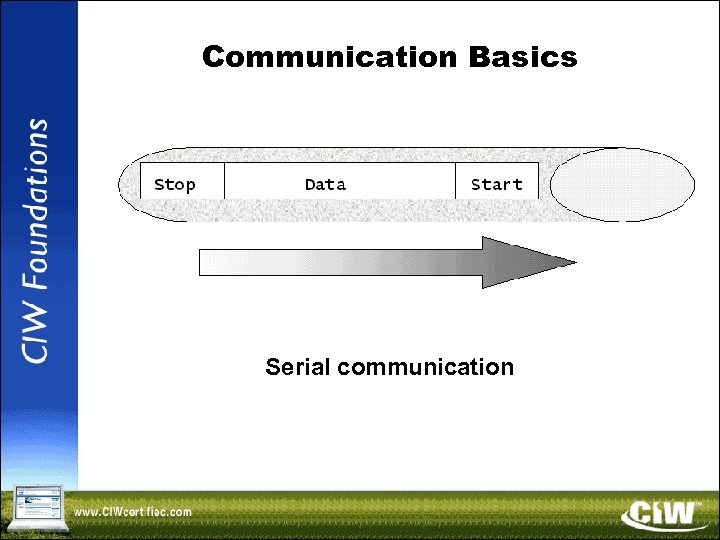 Communication Basics Serial communication
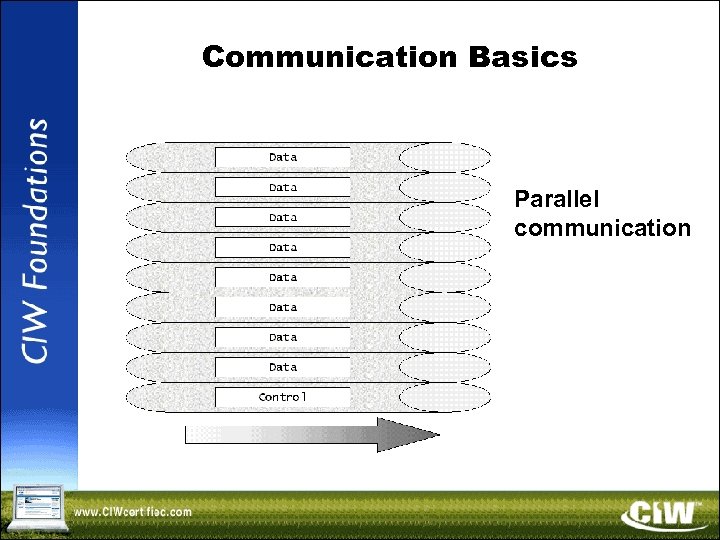 Communication Basics Parallel communication
 Mass Storage Device Interfaces • To communicate with a motherboard, mass storage devices need to be connected to the motherboard through an interface • Three most common interfaces are: – IDE – EIDE – SCSI
 IDE/EIDE • IDE is also known as Advanced Technology Attachment (ATA) • EIDE (ATA-2) is an enhanced version of IDE that provides higher drive capacities • IDE/EIDE interface cables are long, thin and gray in appearance
 Serial ATA (SATA) • SATA provides faster speeds than standard ATA • SATA devices are connected using a cable that somewhat resembles a small Category 5 Ethernet cable
 Small Computer System Interface (SCSI) • With SCSI, multiple devices can be connected to a single controller in a daisy chain configuration • You can attach as many as 127 internal or external SCSI devices to a single controller • SCSI devices include hard disk drives, floppy disk drives, printers, scanners and tape drives • SCSI daisy chain must be terminated at both ends and only at the ends
 Resolving Device ID Conflicts • LUN conflicts are a common cause of difficulty when installing a SCSI device • All SCSI device numbers and LUNs must be unique
 Network Interface Card • Each network device must have a network interface card (or network adapter card) • The network adapter makes the physical connection between the device and the network cabling • The network adapter converts the data from the computer into a format appropriate for transmission over the network • Transceiver — the network adapter component that handles data transmission
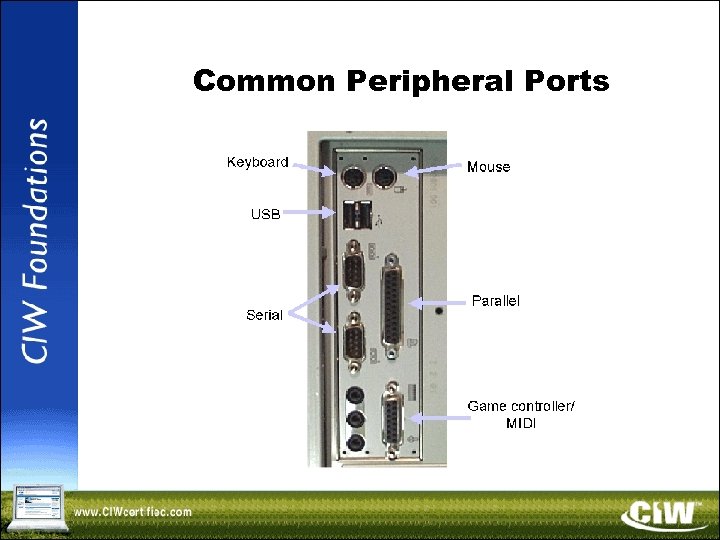 Common Peripheral Ports
 Common Peripheral Ports (cont’d) • PS/2 -style ports are for the mouse and keyboard • Serial ports: – Communicate using serial asynchronous communication – Are used for serial communication devices • Parallel ports: – Communicate using parallel communication – Are used for parallel communication devices
 Common Peripheral Ports (cont’d) • USB ports: – Support asynchronous and isochronous transmissions for data transfer – Communicate using serial communication – Support as many as 127 peripheral devices in a daisy chain configuration • Fire. Wire (IEEE 1394): – A high-speed serial interface to which you can daisy chain as many as 63 peripheral devices – Good for devices that need to transfer large amounts of data
 Power Requirements • Electricity is measured according to different standards in North America and Europe • Computing and networking equipment is also manufactured to different standards • When traveling from North America to Europe, you will need: – A special plug adapter – A power inverter
 CD-ROM • CD-ROM — an optical storage device from which data can be read only • CD-ROM drives use common mass storage interfaces • Writable CD-ROM devices allow you to create, or "burn, " your own data and audio CDs – CD-R (CD-recordable) — write data once – CD-RW (CD-rewritable) — write data multiple times
 DVD • DVD — optical storage device from which data can be read only • DVDs are similar to CD-ROMs but have higher storage capacity – Initial DVD standard provided 4. 7 GB of storage capacity – Current DVD standards support dual-layer discs with a storage capacity of 8. 5 GB – Double-sided disc standard supports 9. 4 GB when writing to one side or 17 GB total when writing to both sides
 CD-ROM and DVD Maintenance • Keep the drives closed when they are not in use and check all media foreign matter before inserting into the drive • CD-ROMs and DVDs should be handled only by the edges • Avoid scratching the disc surface • Never directly touch or try to manually clean the laser • Brush away and vacuum accumulated dust • Manually eject a stuck disc by inserting a wire into the small hole on the face of the drive, then pressing hard until the disc is ejected
 Software Licensing • When you purchase software, you are purchasing the right to use the software under certain restrictions • These restrictions are outlined in the license agreement • When you load software, the license agreement typically displays during the installation process • You must indicate that you have read and understood the agreement before the installation procedure will allow you to continue
 Software Licensing (cont’d) • Apart from legal consequences, using unlicensed software can also mean: – No documentation – No warranties – No technical product support – Greater exposure to software viruses, corrupt disks, or otherwise defective software – Ineligibility for software upgrades
 Partitions and Logical Drives • When installing an operating system on a new computer or after recovering from a hard disk failure, prepare the hard disk for use by: – Partitioning the hard disk – Creating logical drives – Formatting logical drives
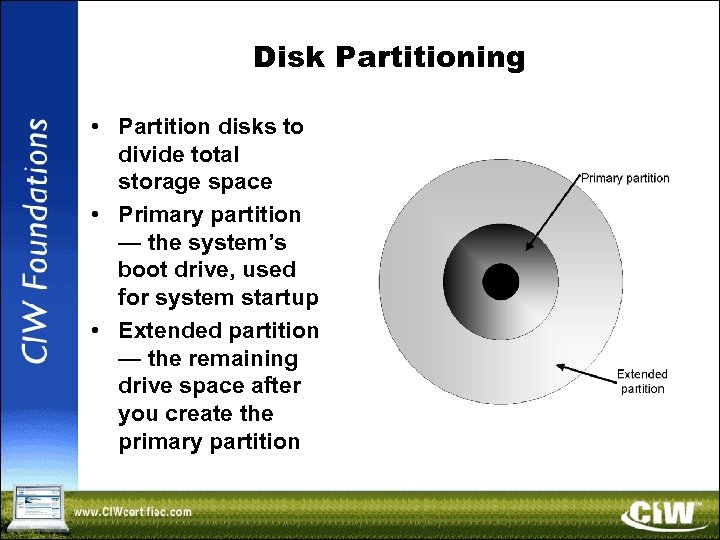 Disk Partitioning • Partition disks to divide total storage space • Primary partition — the system’s boot drive, used for system startup • Extended partition — the remaining drive space after you create the primary partition
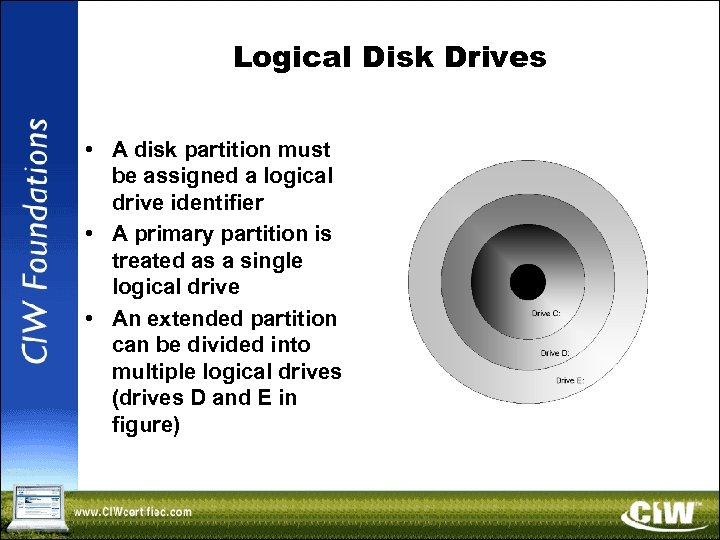 Logical Disk Drives • A disk partition must be assigned a logical drive identifier • A primary partition is treated as a single logical drive • An extended partition can be divided into multiple logical drives (drives D and E in figure)
 Logical Drive Format • Low-level format: – Prepares the hard disk before disk partitions can be defined – Primarily the responsibility of the hard disk manufacturer • High-level format: – Logical drive formatting that prepares the drive for use by the operating system – Creates the file system root directory and the files used to track disk space use
 File System Types • Primary partitions and logical drives must be formatted so the operating system can use them • Formatting creates the file system by adding information about how files should be stored on the drive to organize and manage disk storage • File system types include: – FAT, FAT 32 and NTFS (Windows) – Ext 3 and Reiser. FS (Linux)
 File and Directory Permissions • NTFS allows you to set permission bits on system resources • In NTFS, you can protect files so that only certain users or groups of users can read them • Concerns: – If permissions are applied improperly, users may take security for granted – Improperly set permissions can disrupt an operating system
 Convert Utility • Information about the files on an NTFS volume and their attributes is stored in the MFT • Convert utility — used to convert a partition or logical drive from FAT or FAT 32 to NTFS convert drive /FS: NTFS [/v]
 Disk Defragmenter Utility • As files are created and deleted, a partition can become severely fragmented • Fragmented files are no longer located in contiguous clusters • You can use the Disk Defragmenter utility to defragment hard disks and put files back together in a contiguous format
 Chkdsk Utility • You can use the Chkdsk utility in Windows NT/2000/XP to: – Create and display a status report for a disk based on its file system – List and correct errors on the disk – Display the status of the disk in the current drive
 Disk Cleanup Utility Use the Disk Cleanup utility to recover the disk space used by: – Temporary files – Unused applications – Files in the Recycle Bin – Files you downloaded as part of Web pages – Files created when Chkdsk attempted to recover lost file fragments
 Backup and Restore Utilities • Keep a current backup of all data files to ensure that data can be recovered if a hard drive fails • When you back up data, you store copies of folders and files to a source other than your computer's hard disk • You restore data when you need to access the backed up data
 Troubleshooting Software • Software troubleshooting refers to anything other than problems caused by system hardware • Software problems can be caused by: – Bugs – Corrupted files – Incompatibilities – Virus infections
 Operating System Boot Problems • • Error: No operating system Operating system files missing Hard disk or controller failure Startup failure
 Blue Screen of Death (BSOD) • Blue screen that indicates that a critical operating system failure has occurred during startup • To troubleshoot: – Restart the system in Safe mode and use the Last Known Good Configuration option – Reinstall the operating system – Attempt to diagnose the problem by parsing the dump file
 System Lockup • Lockup causes: – Applications that are incompatible with the operating system or with a hardware component – IRQ conflicts – Related problems that you may be able to find in the system log file • Power down your system by manually pressing the power key continually for five seconds
 Application Failures • Application failure causes: – Low system RAM – Current logon environment may have crashed – Improper permissions – Improper system resolution or color levels • View the system log – Windows Event Viewer – UNIX/Linux “messages”
 Application Failures (cont’d) • Windows protection error causes: – Device drivers that may not be written specifically for your operating system – Applications or utilities that attempt to bypass the operating system and directly access local system hardware • Dr. Watson — Windows application debug program that creates a system error report
 Application Failures (cont’d) • Application installation and loading failures: – Application will not load into memory – Application cause an illegal operation, resulting in the blue screen of death – Application may not install at all
 Remote Management and Troubleshooting • Telnet — TCP/IP command that establishes a remote connection with a server • SSH — protocol and command interface that can gain secure access to a remote computer • VNC — program that controls a remote computer – VNC consists of two components: • A server that listens to a specific port • The viewer, which shows the remote system’s logon environment
 Remote Management and Troubleshooting (cont’d) • Remote Desktop — Windows XP service used to gain access to a Windows session that is running on another computer – Allows multiple users to have active sessions on a single computer – Allows you to switch from one user to another on the same computer • Remote Assistance — Windows XP service used to seek help from a remote user
 Lesson 5: Network Security and IT Career Opportunities Copyright © 2004 Prosoft. Training, All Rights Reserved.
 Objectives • • • Define security Identify various kinds of network attacks Describe computer viruses Describe authentication principles Explain the three major types of encryption Describe network security protocols and technologies Describe firewalls, security zones and common firewall topologies Describe security audit principles Describe the function of a UPS Review career opportunities in the IT industry Describe the importance of successfully explaining technical issues to non-technical audiences
 Defining Security • Security — a set of procedures designed to protect transmitted and stored information, as well as network resources • Security administrators must determine which people can take appropriate actions on specific items at the appropriate time
 Overview of Network Attack Types • • • Spoofing Man in the middle DOS Distributed DDOS Brute force • • • Dictionary Back door Buffer overflow Trojan horse Social engineering • To avoid attacks: • Install stable updates • Use encryption • Be suspicious of information requests • Remain informed
 Viruses and Worms • Virus — code that causes damage to systems • Virus types – Macro/script – File infecting – Boot sector – Stealth – Polymorphic – Retro • Worm — similar to virus but automatically replicates
 Defeating Attacks • OSI/RM security services – Authentication – Access control – Data confidentiality – Data integrity – Non-repudiation • Updates
 Authentication • Three authentication methods – What you know – What you have – Who you are • Passwords – Strong passwords – Age passwords appropriately • Account lockout — disables accounts after a given number of invalid passwords have been entered • Account reset — enables you to choose whether accounts reset automatically after a given interval
 Encryption • The primary means to ensure privacy across the enterprise • Symmetric-key encryption – One key to encrypt and decrypt – All parties must know and trust one another • Symmetric algorithms: – DES – Triple DES – AES
 Encryption (cont’d) • Asymmetric-key encryption – Uses a key pair (one public, one private) – Used to create a digital signature • Asymmetric algorithms – RSA – DSA
 Encryption (cont’d) • Hash encryption – Uses a hash table that contains a hash function – Used for information that will not be decrypted or read • Hash algorithms – MD 2, MD 4 and MD 5 – SHA
 Encryption (cont’d) • PGP — uses a combination of the three encryption types • For example: – Use symmetric-key encryption to scramble the original message you want to send – Use asymmetric-key encryption to encrypt only the symmetric key you just used – Use hash encryption to "sign" the message and ensure that no one can tamper with it
 Virtual Private Network (VPN) • A technique that allows secure communication across long distances, usually for a company extranet • In a VPN, the Internet is often the corporate network backbone • Appropriate for any organization requiring secure external access to internal resources • All VPNs are tunneling protocols — encryption occurs at the source and decryption occurs at the destination
 Virtual Private Network (VPN) (cont’d) • VPN protocols – PPTP — works only with IP protocols – L 2 TP — works with non-IP protocols – IPsec — more flexible than PPTP or L 2 TP because you can specify different authentication methods
 Remote Access Server (RAS) • Requires the use of dial-up modems to dial up, connect and log on to RAS • Offers security through a callback feature: – A user logs on to RAS – The user is disconnected – RAS calls the user back to ensure the call was made from an authorized computer
 Digital Certificates • • • Provide authoritative identification Verify the sender's identity Use the X. 509 standard Are used for non-repudiation Contain digital signatures – CA
 Public Key Infrastructure (PKI) • PKI CA servers: – Are repositories for managing digital certificates – Enable the secure creation and management of digital certificates – Provide the ability to revoke an invalid key • If you need a certificate for a server, use PKI
 Firewall • A secure computer system placed between a trusted network and an untrusted one, such as the Internet – The most common location for a firewall is between a corporate LAN and the Internet • Allows users from a protected network to access a public network while simultaneously making the protected company's products and services available to the public
 Internal and Personal Firewalls • Internal firewall — resides inside your company's internal network – Internal firewalls can: • Protect sensitive systems • Isolate networks that still need Internet connectivity but that use software that may cause problems with other company resources • Personal firewall — offers protection for an individual system
 Packet Filtering • Packet filter — inspects each packet for predefined content • Packet filters filter data based on the following fields in the packet: – Source IP address – Destination IP address – TCP/UDP source port – TCP/UDP destination port
 Proxy Server • Replaces the network IP address with a single IP address • Provide the following services: – Hiding of network resources – Logging – Caching • Proxies come in two basic forms: – Circuit-level gateways – Application-level gateways
 Proxy Gateways • Circuit-level gateway — acts as a proxy between the Internet and your internal systems • Application-level gateway — same as a circuitlevel gateway but at the application level • Most firewalls are combinations of packet filtering, circuit-level gateways and application-level gateways
 Network Address Translation (NAT) • The practice of hiding internal IP addresses from the external network • Three ways to provide NAT: – Configure masquerading on a packetfiltering firewall – Configure a circuit-level gateway – Use a proxy server to conduct requests on behalf of internal hosts
 Accessing Internet Services • If Internet access is required and a network is located behind a proxy server or firewall, you may have problems accessing Internet services that use ports other than common ports • To avoid these problems: – Make sure the network has access to all Internet-related protocols used by the company – Make sure that the IP addresses assigned to the computers in your network have permission to access the Internet
 Troubleshooting Access Through Firewalls • Firewalls can cause a bottleneck • Firewalls may not allow home-based account access to the corporate e-mail server • To troubleshoot firewall problems: – Verify that you are using the correct IP address and subnet mask – Check your default gateway and verify that the computer can communicate with systems on the same subnet – Verify DNS resolution – Try to use multiple protocols on the Internet
 Security Zones • DMZ — a mini-network that resides between a company's internal network and the external network • Intranet — a security zone available only to authorized organization employees • Extranet — a private network that allows selected access to outsiders only after they provide authentication information • VLAN — a logical grouping of hosts, generally not implemented by a firewall
 Firewall Topologies • Common firewall implementations: – Packet filter – Dual-homed bastion host – Triple-homed bastion host – Screened subnet (back-to-back firewalls) • Bastion host — a computer that houses various firewall components and services and is connected to a public network
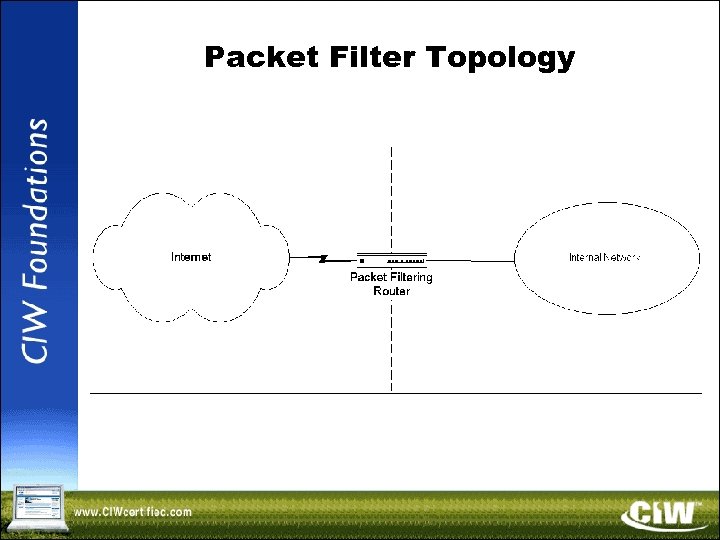 Packet Filter Topology
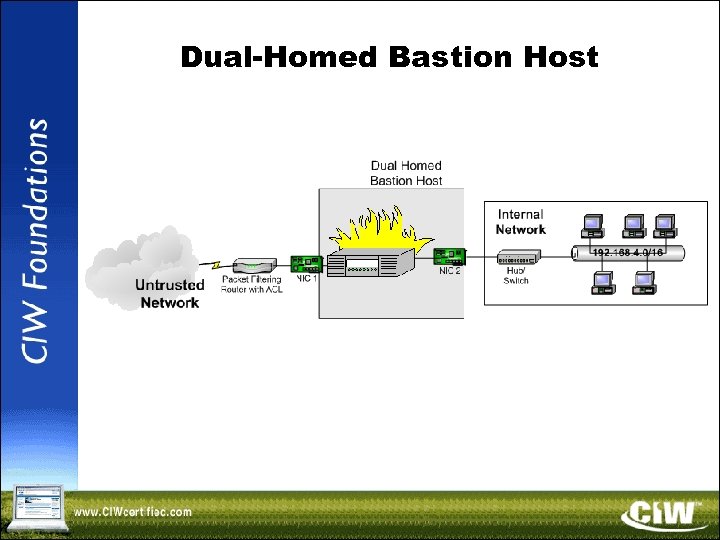 Dual-Homed Bastion Host
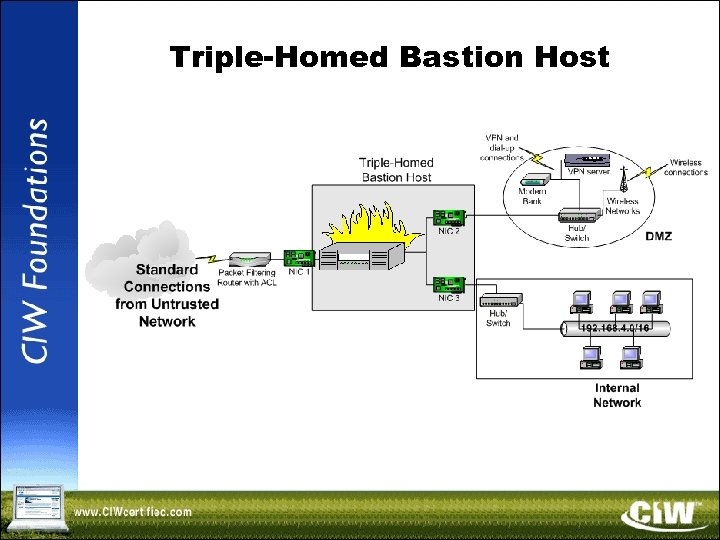 Triple-Homed Bastion Host
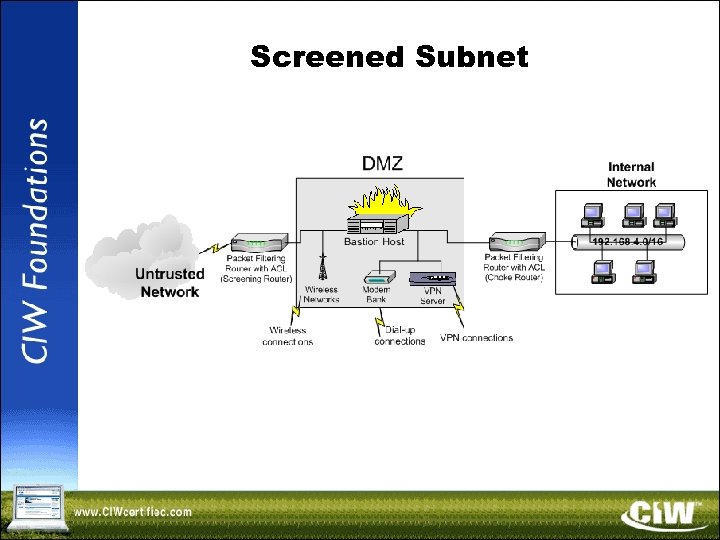 Screened Subnet
 Security Audit • Review of the state of the network • Auditing process: – Conduct a status quo analysis – Conduct a risk analysis – Make recommendations concerning what was found
 Uninterruptible Power Supply (UPS) • Device that allows a computer to keep running temporarily when the primary power source is lost • Can be configured to: – Shut down entire systems automatically – Shut down only certain components automatically – Place components into minimal power use mode until the system is shut down manually
 IT Industry Career Opportunities • Web site designer • Web application developer • Web architect • Web site analyst • Web site manager • Database administrator • • Server administrator Network engineer Security manager Security analyst/consultant • PC repair technician • Help desk technician
 Conducting Job Searches • Participating in on-campus interviews • Searching through want ads • Visiting employment agencies/employment placement services • Attending job/career fairs • Volunteering • Seeking part-time work • Networking (socially) • Working with an executive search firm • Mailing cover letters and résumés to companies • Applying in person • Entering résumés electronically or posting them to the Web
 Using the Internet to Conduct Job Searches • Usenet job newsgroups and search engines, such as: – groups. google. com – hotjobs. yahoo. com – careers. excite. com – www. monster. com • Enter keywords to narrow your search to specific job types, and retrieve available job listings that relate to your career goals
 Creating a Résumé • Formatting a résumé: – Create using a word-processing program – Use formatting to increase visual appeal – Recipient needs same word-processing program to be able to read résumés • Text format résumés: – Contain little formatting – Intended for keyword-searchable résumé databases and applicant tracking systems • RTF résumés: – Incorporate basic formatting techniques – Can be read by many different programs on many different platforms
 Creating a Résumé (cont’d) • PDF résumés: – Compatible across all computer platforms – Not vulnerable to viruses – Need PDF software • HTML résumés: – Posted as Web pages – Retain the formatting characteristics of a wordprocessing file
 Education and IT Careers • University degrees are available in: – Computer science – Computer engineering – Management information systems • Employers are also looking for: – Interpersonal skills – Business skills – Project management skills
 Education and IT Careers • Importance of continuing education • Obtain certifications in: – A+ – CIW – Network+ – Security+ Certification (cont’d)
 Technical Concepts and Training • Communicating technical issues to end users • Justifying IT-related expenses to management • Understanding problems and concerns of end users • Providing understandable solutions • Remembering the ROI affect of IT decisions • Presenting technical data clearly so that managers understand the information and can make informed decisions