


 Скачать презентацию MZ 790 Print Driver and RINC Software Install
21ba70bcb13c5c9dc055e3defe4ab5b7.ppt
- Количество слайдов: 48
 MZ 790 Print Driver and RINC Software Install and Setup • • These instructions are to assist you in installation and setup of the MZ 790 Print Driver and RINC software. In this example the MZ will be addressed ahead of the software installation through the touch panel of the MZ. NOTE: The manuals for the Print Driver and RISO-RINC are on their respective CDs. Click here to begin
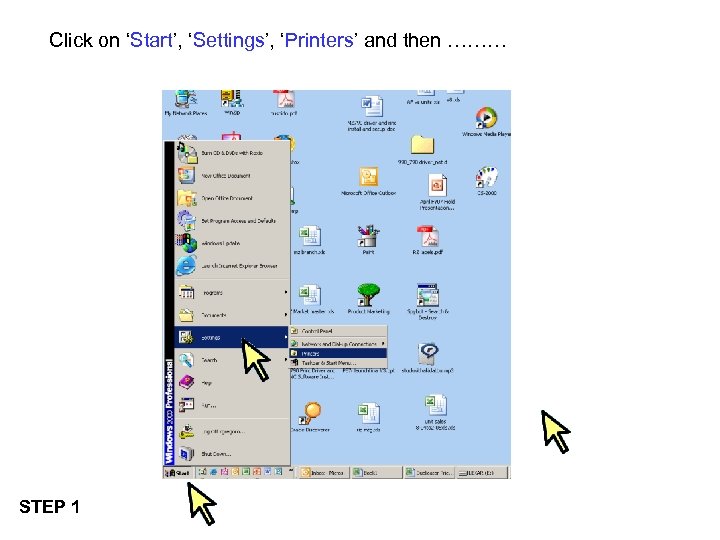 Click on ‘Start’, ‘Settings’, ‘Printers’ and then ……… STEP 1
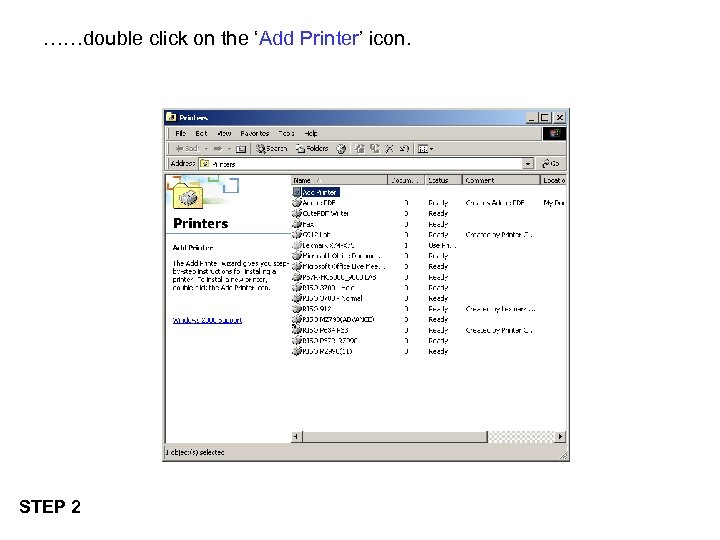 ……double click on the ‘Add Printer’ icon. STEP 2
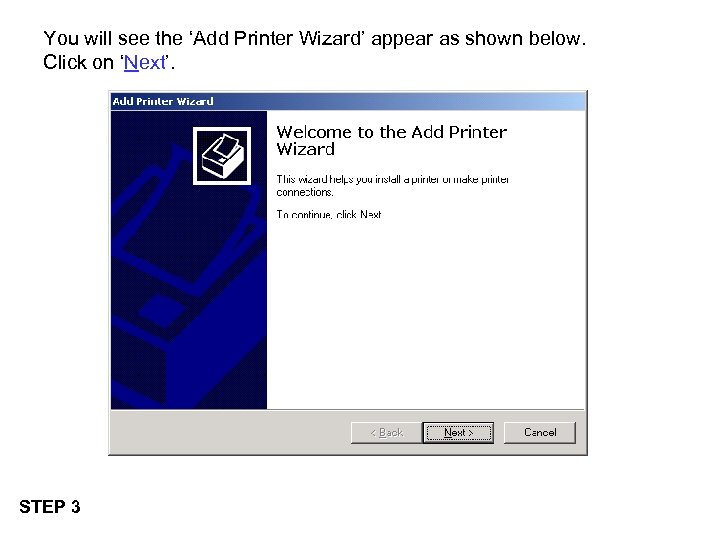 You will see the ‘Add Printer Wizard’ appear as shown below. Click on ‘Next’. STEP 3
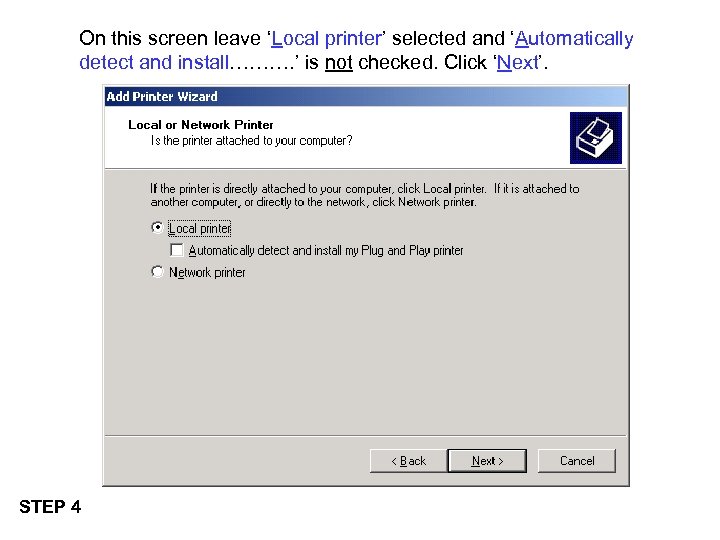 On this screen leave ‘Local printer’ selected and ‘Automatically detect and install………. ’ is not checked. Click ‘Next’. STEP 4
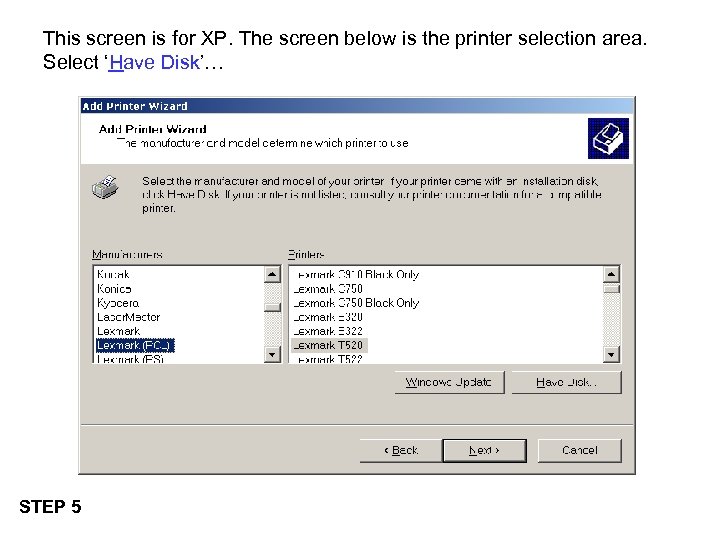 This screen is for XP. The screen below is the printer selection area. Select ‘Have Disk’… STEP 5
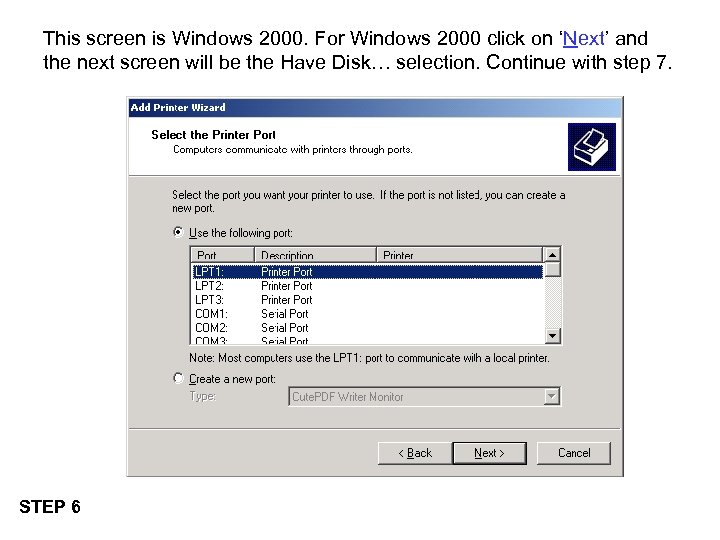 This screen is Windows 2000. For Windows 2000 click on ‘Next’ and the next screen will be the Have Disk… selection. Continue with step 7. STEP 6
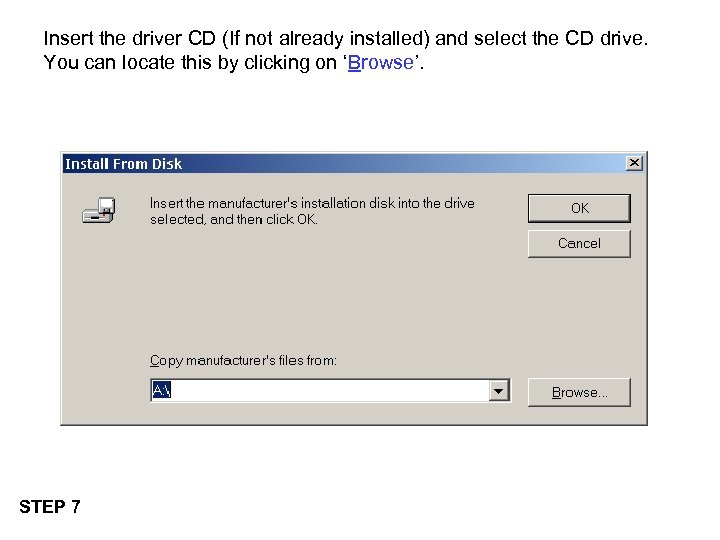 Insert the driver CD (If not already installed) and select the CD drive. You can locate this by clicking on ‘Browse’. STEP 7
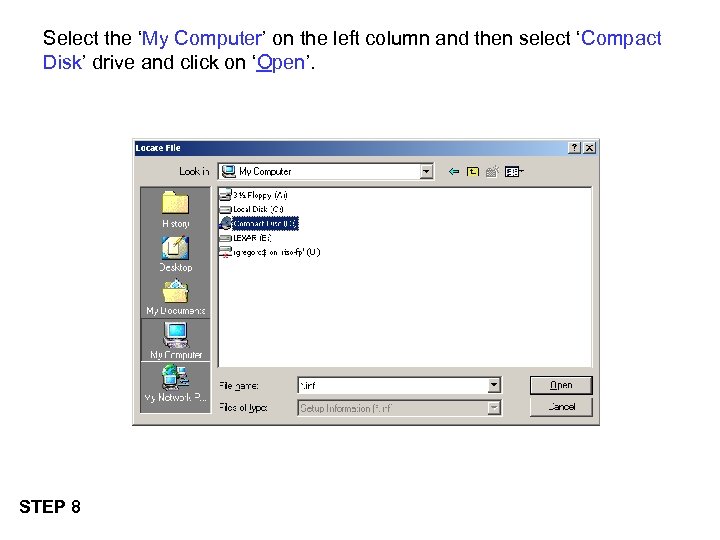 Select the ‘My Computer’ on the left column and then select ‘Compact Disk’ drive and click on ‘Open’. STEP 8
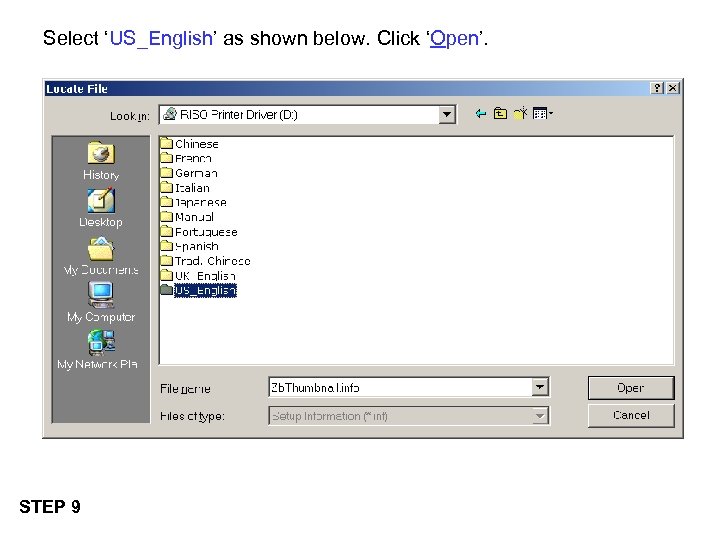 Select ‘US_English’ as shown below. Click ‘Open’. STEP 9
 Then select the OS that you are running as shown on this screen and click on ‘Open’. STEP 10
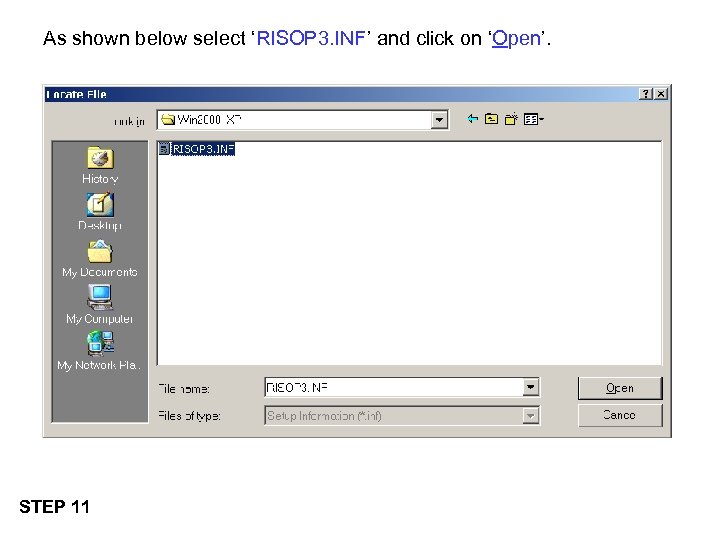 As shown below select ‘RISOP 3. INF’ and click on ‘Open’. STEP 11
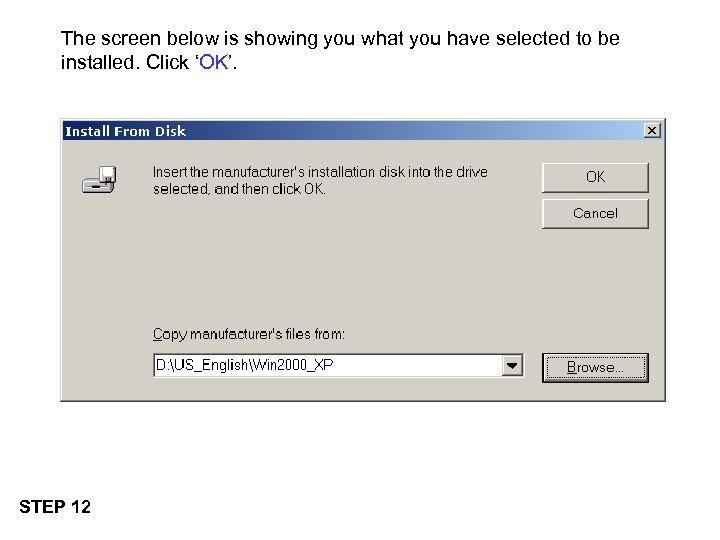 The screen below is showing you what you have selected to be installed. Click ‘OK’. STEP 12
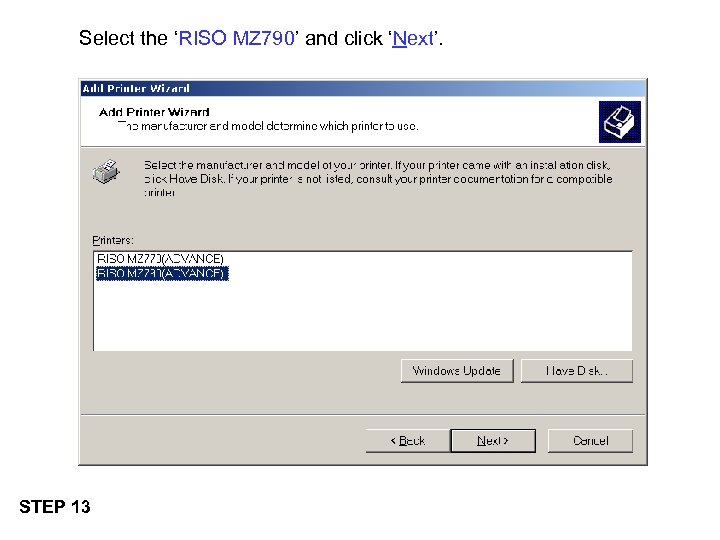 Select the ‘RISO MZ 790’ and click ‘Next’. STEP 13
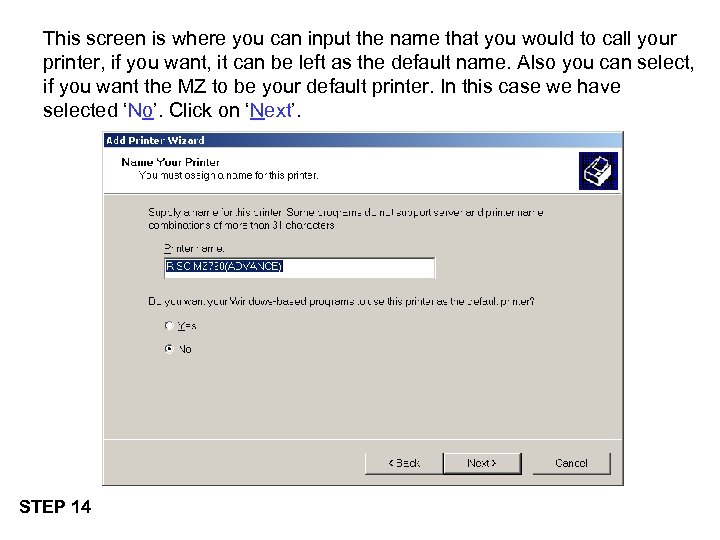 This screen is where you can input the name that you would to call your printer, if you want, it can be left as the default name. Also you can select, if you want the MZ to be your default printer. In this case we have selected ‘No’. Click on ‘Next’. STEP 14
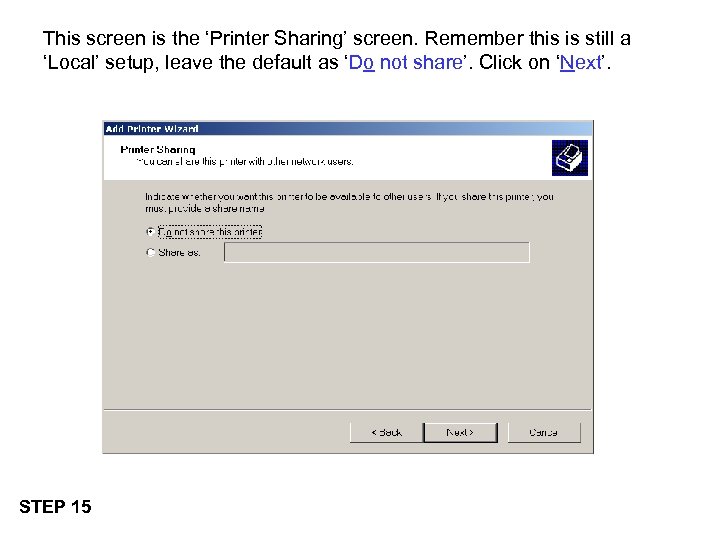 This screen is the ‘Printer Sharing’ screen. Remember this is still a ‘Local’ setup, leave the default as ‘Do not share’. Click on ‘Next’. STEP 15
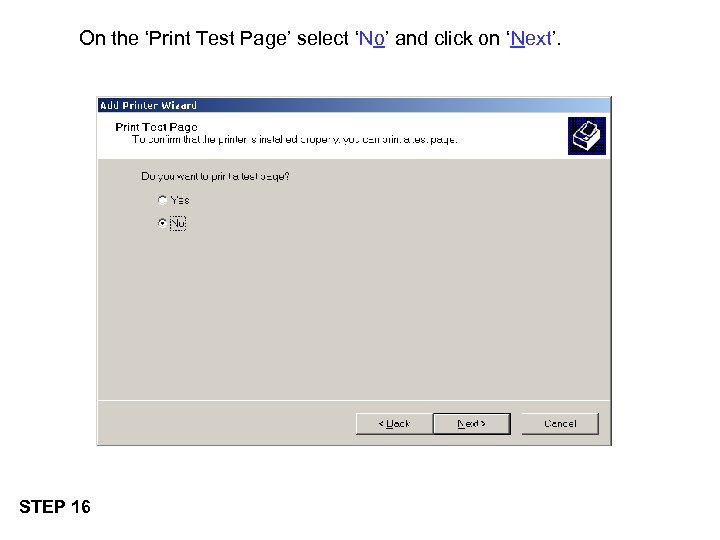 On the ‘Print Test Page’ select ‘No’ and click on ‘Next’. STEP 16
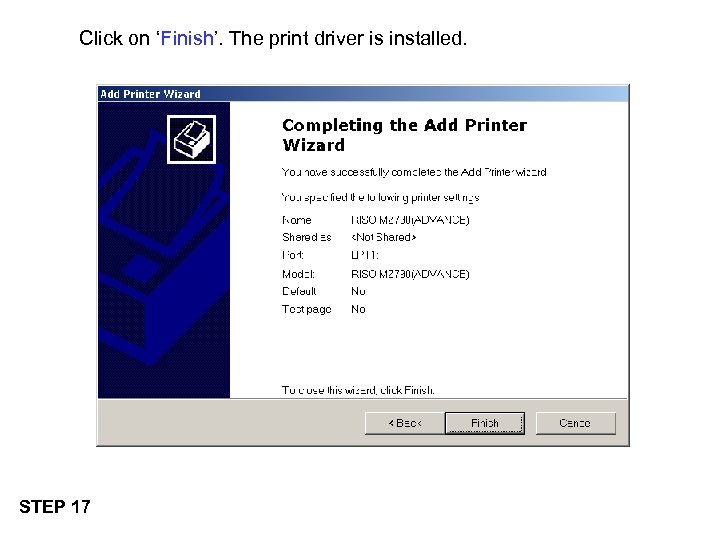 Click on ‘Finish’. The print driver is installed. STEP 17
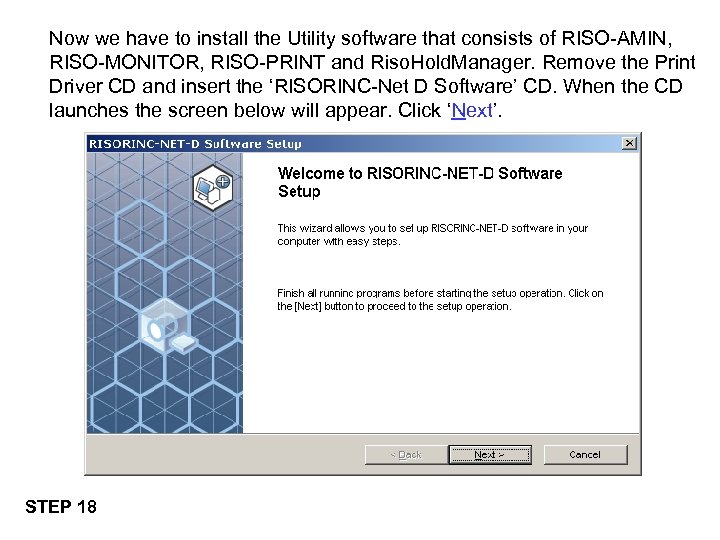 Now we have to install the Utility software that consists of RISO-AMIN, RISO-MONITOR, RISO-PRINT and Riso. Hold. Manager. Remove the Print Driver CD and insert the ‘RISORINC-Net D Software’ CD. When the CD launches the screen below will appear. Click ‘Next’. STEP 18
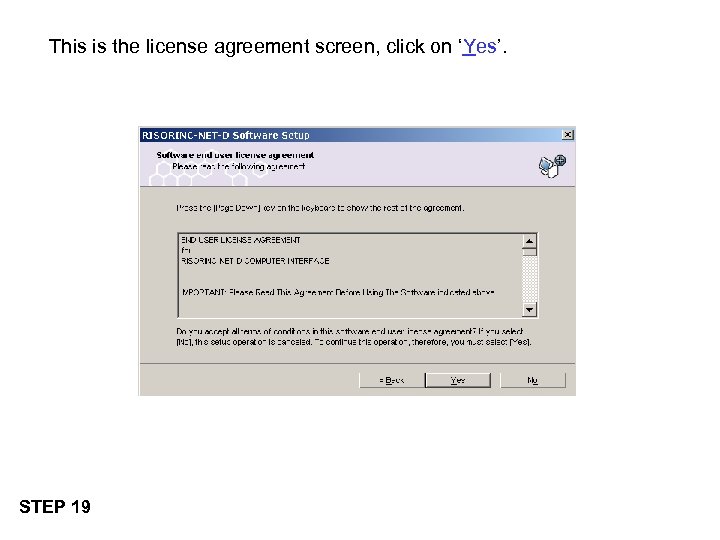 This is the license agreement screen, click on ‘Yes’. STEP 19
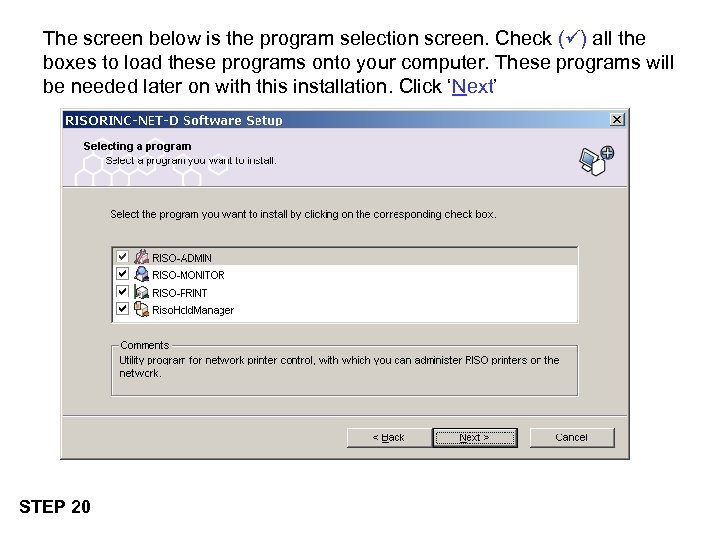 The screen below is the program selection screen. Check ( ) all the boxes to load these programs onto your computer. These programs will be needed later on with this installation. Click ‘Next’ STEP 20
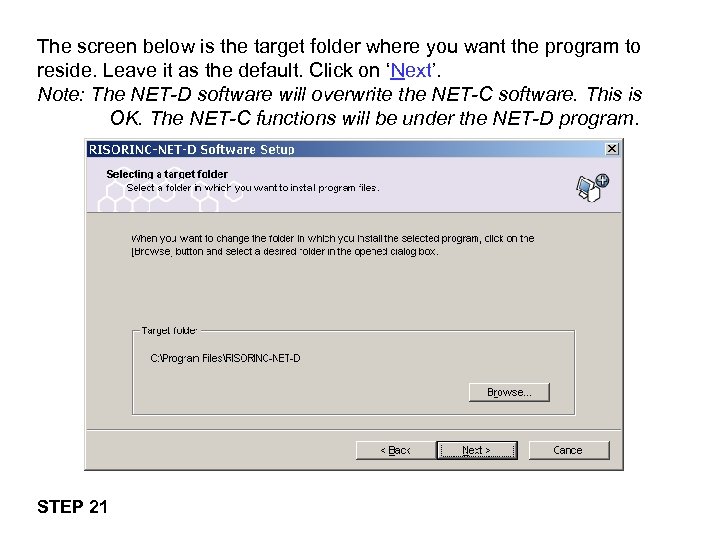 The screen below is the target folder where you want the program to reside. Leave it as the default. Click on ‘Next’. Note: The NET-D software will overwrite the NET-C software. This is OK. The NET-C functions will be under the NET-D program. STEP 21
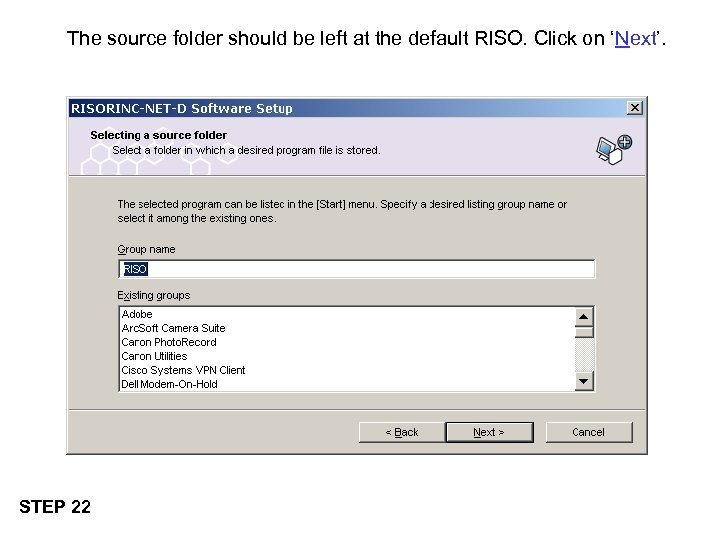 The source folder should be left at the default RISO. Click on ‘Next’. STEP 22
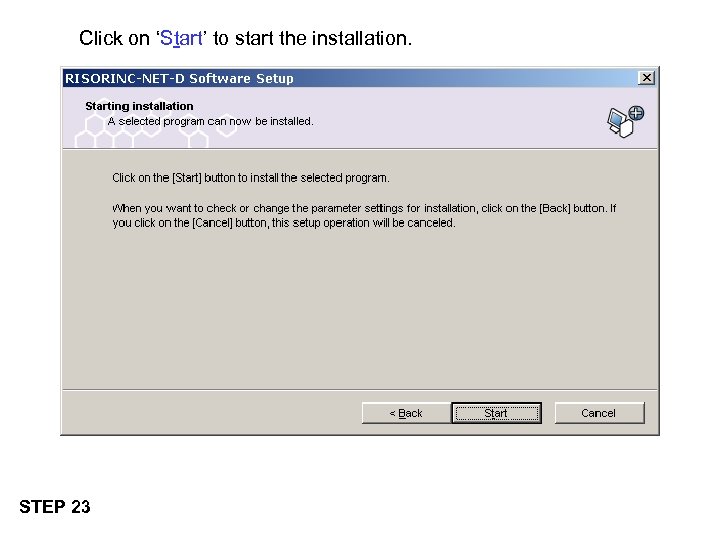 Click on ‘Start’ to start the installation. STEP 23
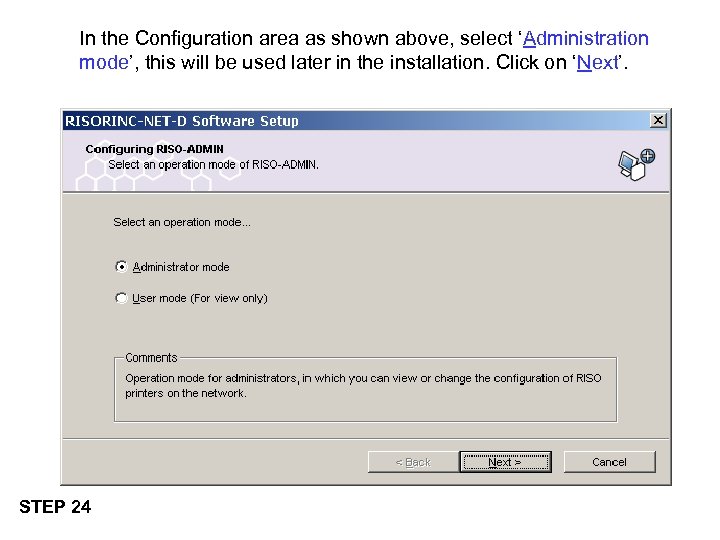 In the Configuration area as shown above, select ‘Administration mode’, this will be used later in the installation. Click on ‘Next’. STEP 24
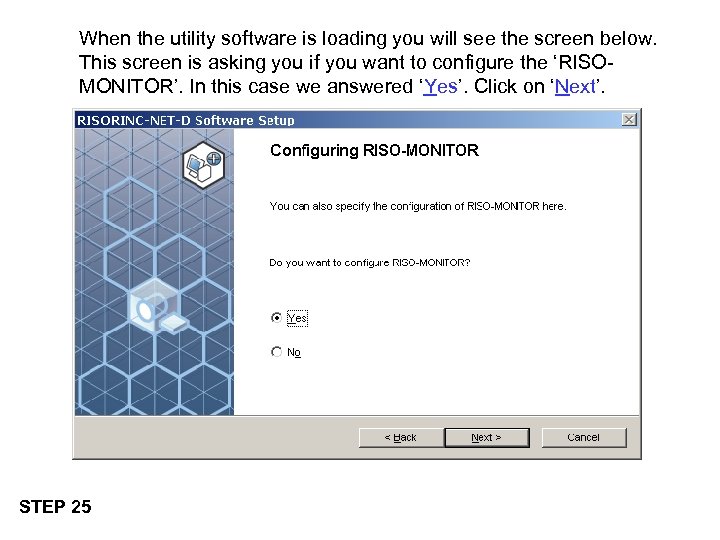 When the utility software is loading you will see the screen below. This screen is asking you if you want to configure the ‘RISOMONITOR’. In this case we answered ‘Yes’. Click on ‘Next’. STEP 25
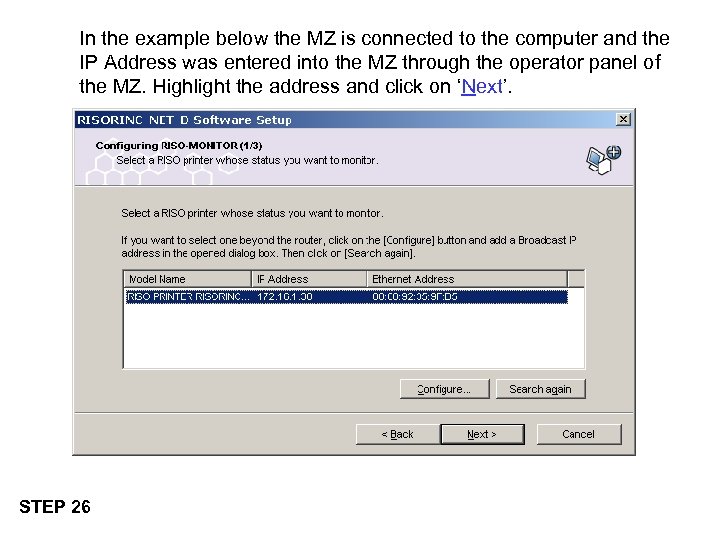 In the example below the MZ is connected to the computer and the IP Address was entered into the MZ through the operator panel of the MZ. Highlight the address and click on ‘Next’. STEP 26
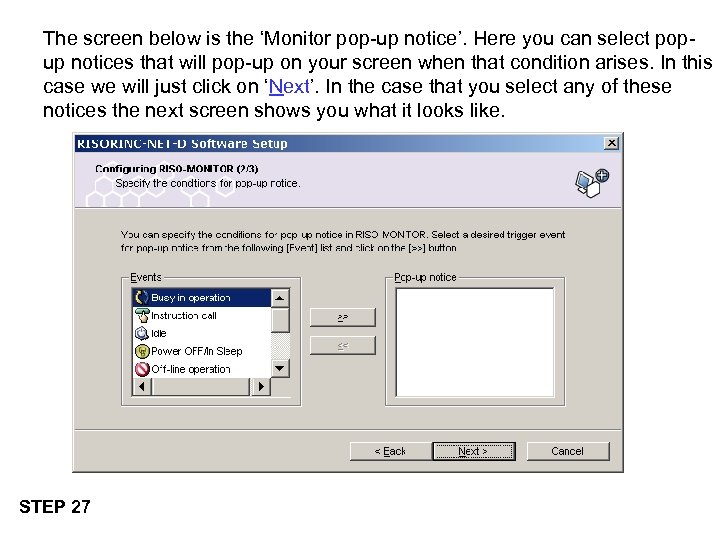 The screen below is the ‘Monitor pop-up notice’. Here you can select popup notices that will pop-up on your screen when that condition arises. In this case we will just click on ‘Next’. In the case that you select any of these notices the next screen shows you what it looks like. STEP 27
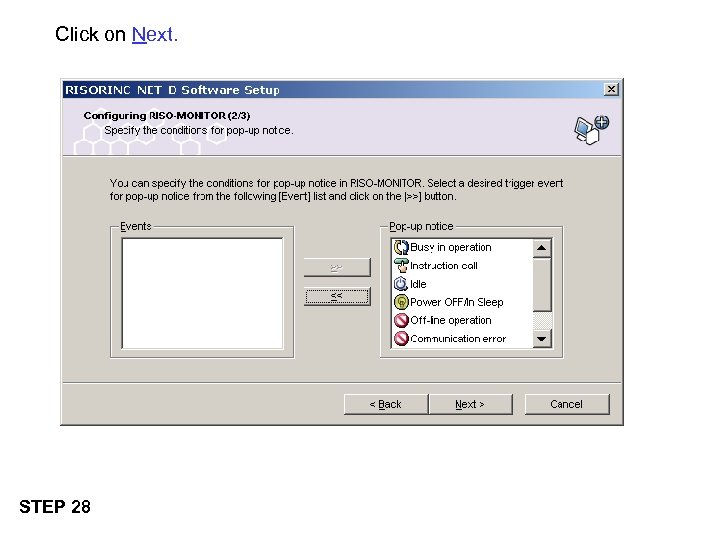 Click on Next. STEP 28
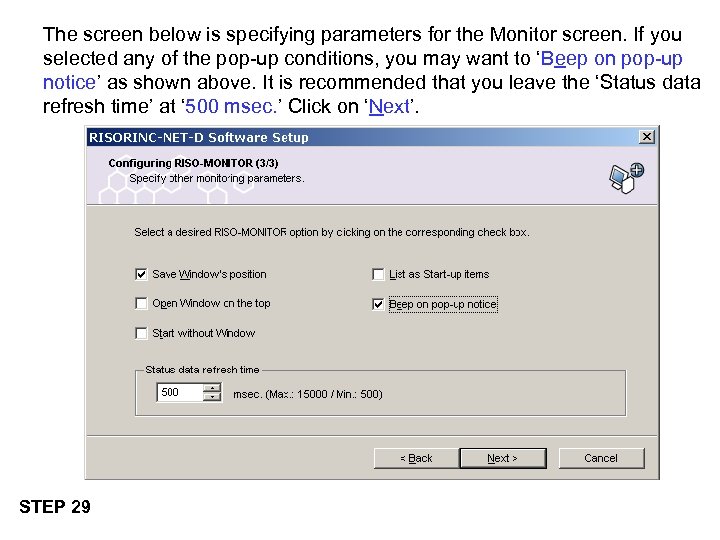 The screen below is specifying parameters for the Monitor screen. If you selected any of the pop-up conditions, you may want to ‘Beep on pop-up notice’ as shown above. It is recommended that you leave the ‘Status data refresh time’ at ‘ 500 msec. ’ Click on ‘Next’. STEP 29
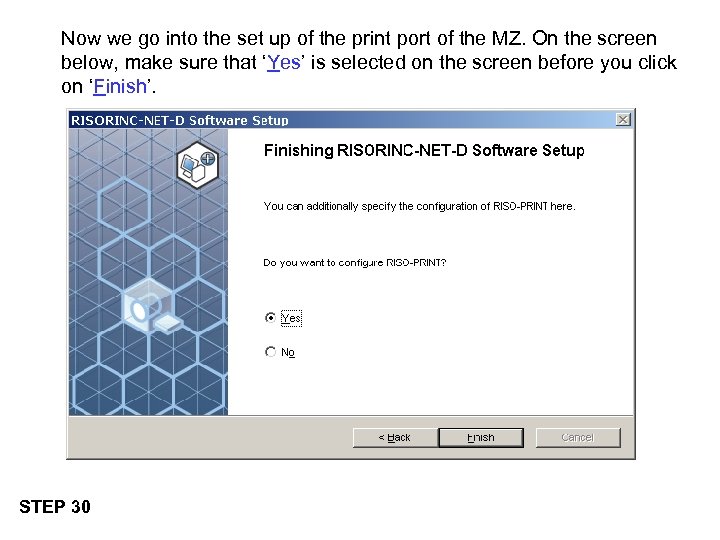 Now we go into the set up of the print port of the MZ. On the screen below, make sure that ‘Yes’ is selected on the screen before you click on ‘Finish’. STEP 30
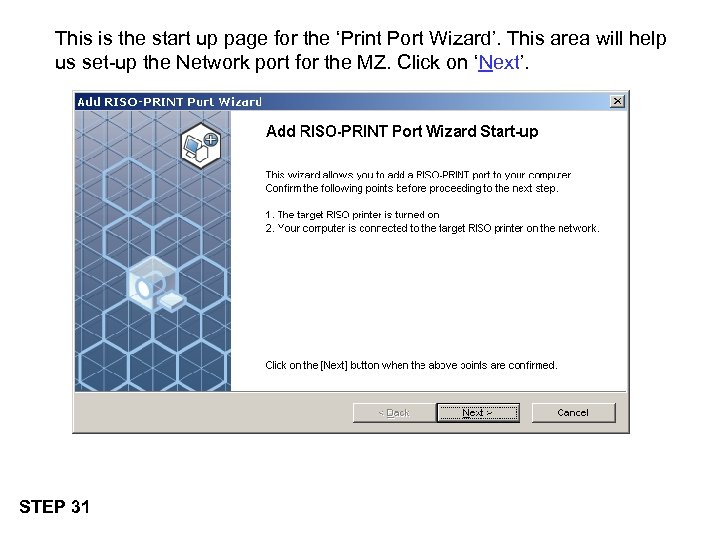 This is the start up page for the ‘Print Port Wizard’. This area will help us set-up the Network port for the MZ. Click on ‘Next’. STEP 31
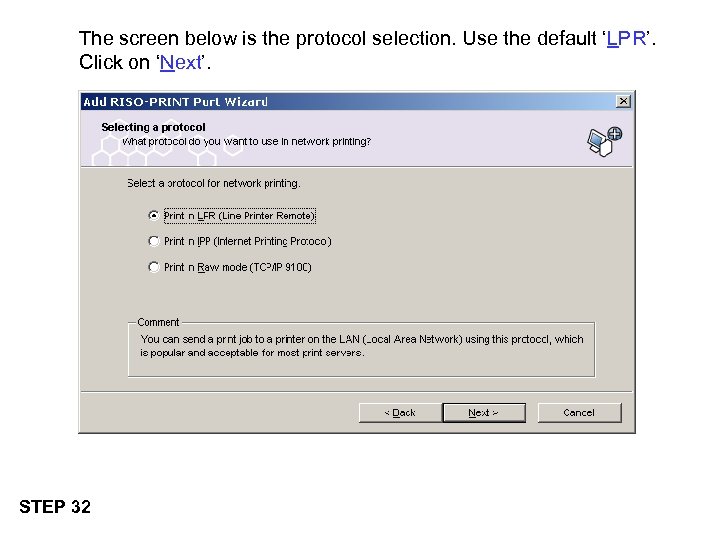 The screen below is the protocol selection. Use the default ‘LPR’. Click on ‘Next’. STEP 32
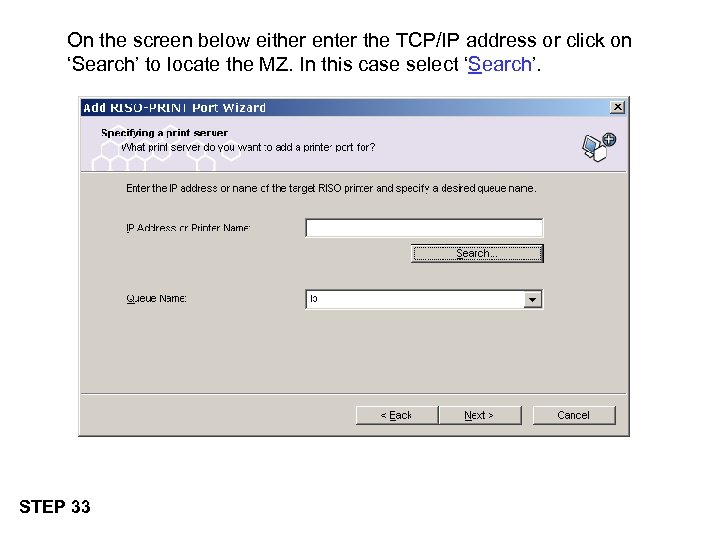 On the screen below either enter the TCP/IP address or click on ‘Search’ to locate the MZ. In this case select ‘Search’. STEP 33
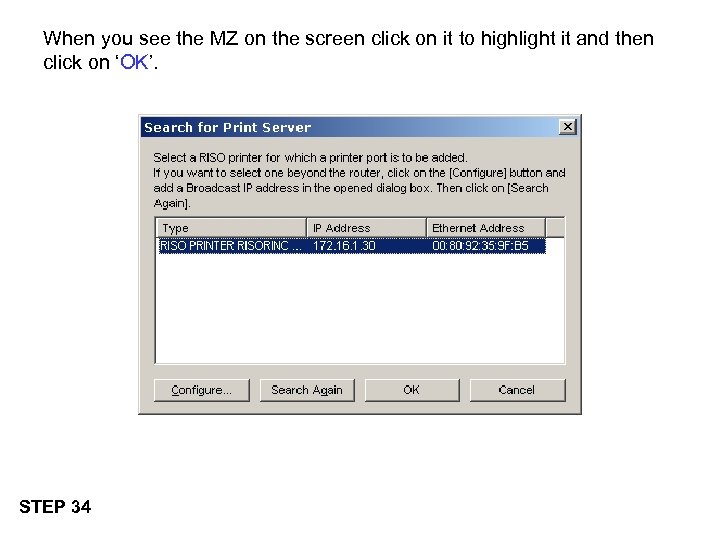 When you see the MZ on the screen click on it to highlight it and then click on ‘OK’. STEP 34
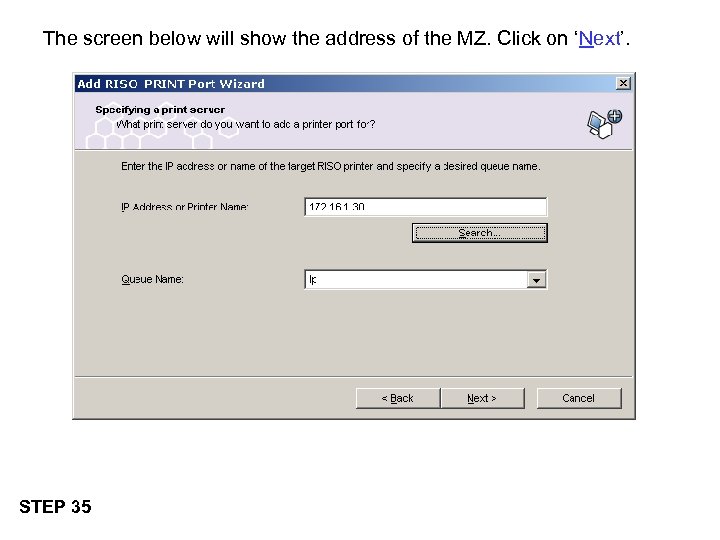 The screen below will show the address of the MZ. Click on ‘Next’. STEP 35
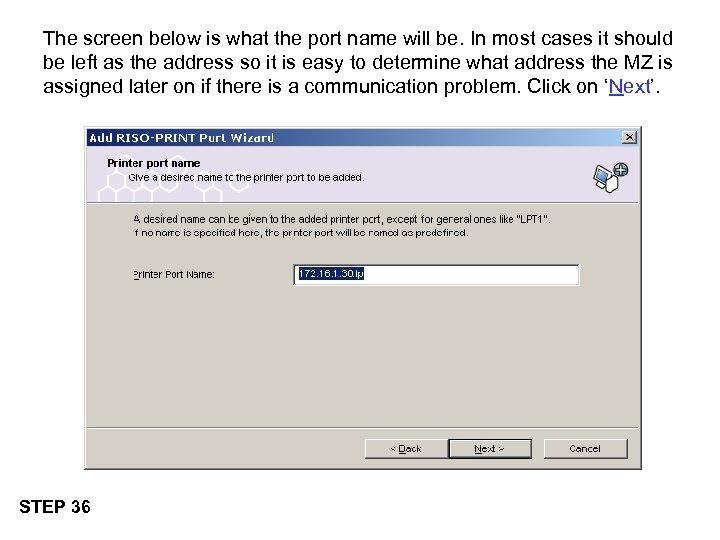 The screen below is what the port name will be. In most cases it should be left as the address so it is easy to determine what address the MZ is assigned later on if there is a communication problem. Click on ‘Next’. STEP 36
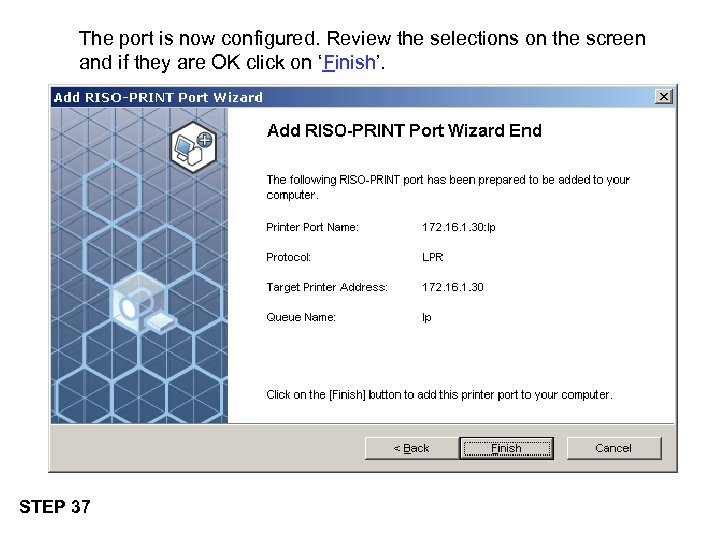 The port is now configured. Review the selections on the screen and if they are OK click on ‘Finish’. STEP 37
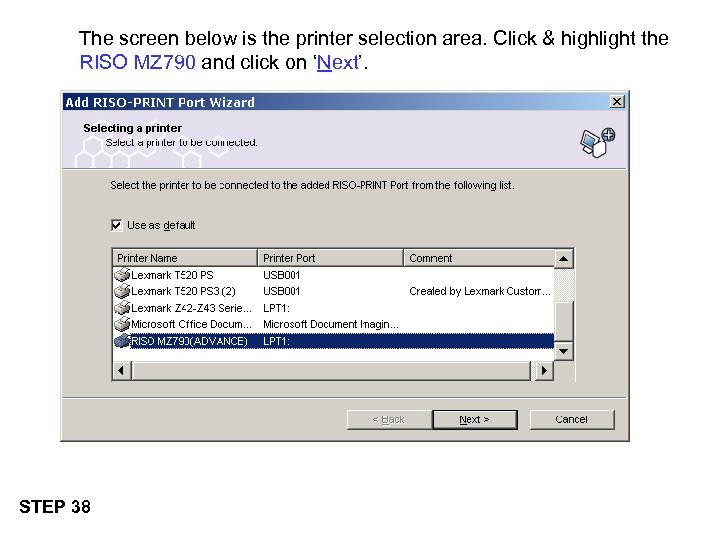 The screen below is the printer selection area. Click & highlight the RISO MZ 790 and click on ‘Next’. STEP 38
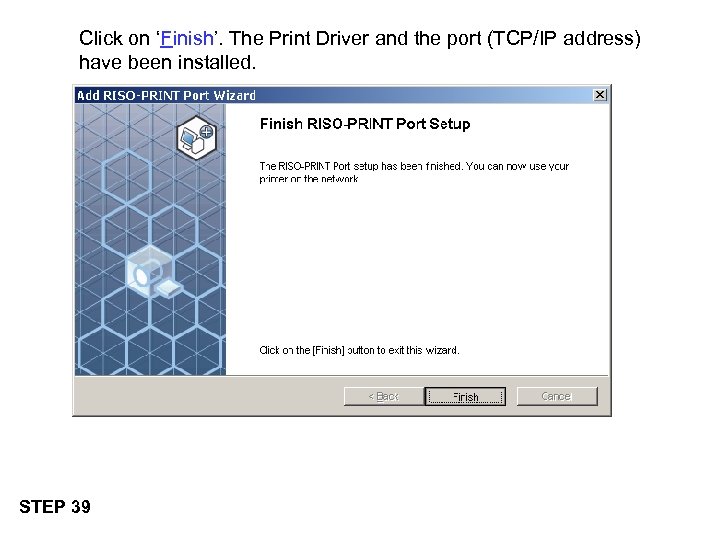 Click on ‘Finish’. The Print Driver and the port (TCP/IP address) have been installed. STEP 39
 Next we will set up the print driver properties and options. Click Here
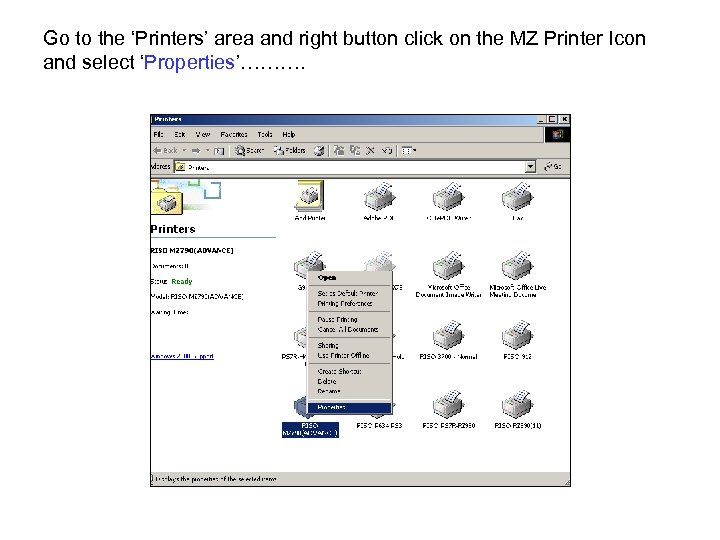 Go to the ‘Printers’ area and right button click on the MZ Printer Icon and select ‘Properties’……….
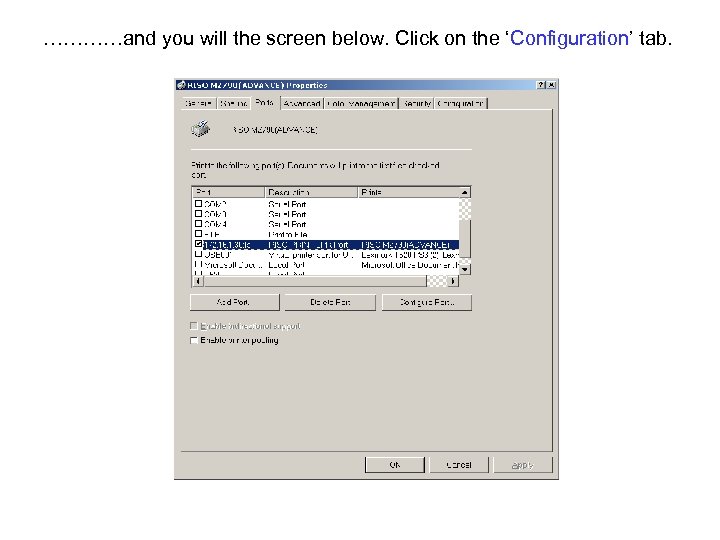 …………and you will the screen below. Click on the ‘Configuration’ tab.
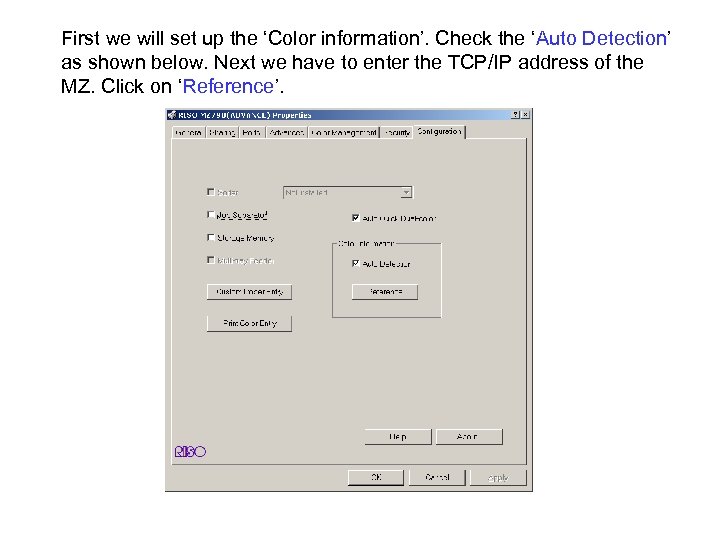 First we will set up the ‘Color information’. Check the ‘Auto Detection’ as shown below. Next we have to enter the TCP/IP address of the MZ. Click on ‘Reference’.
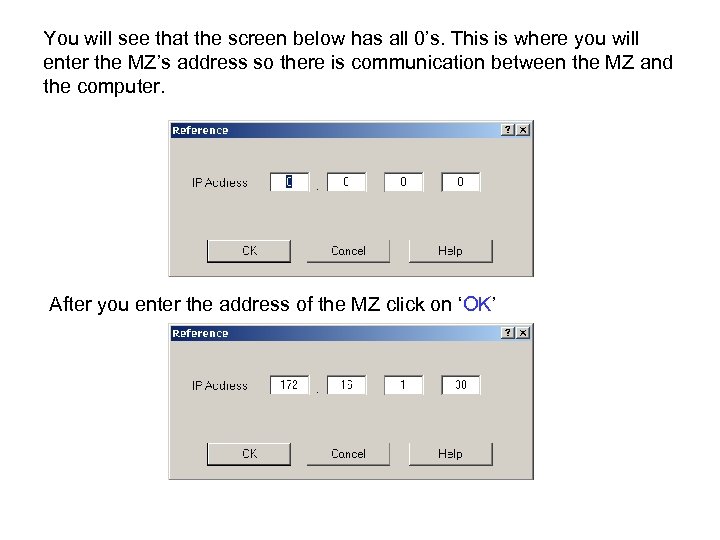 You will see that the screen below has all 0’s. This is where you will enter the MZ’s address so there is communication between the MZ and the computer. After you enter the address of the MZ click on ‘OK’
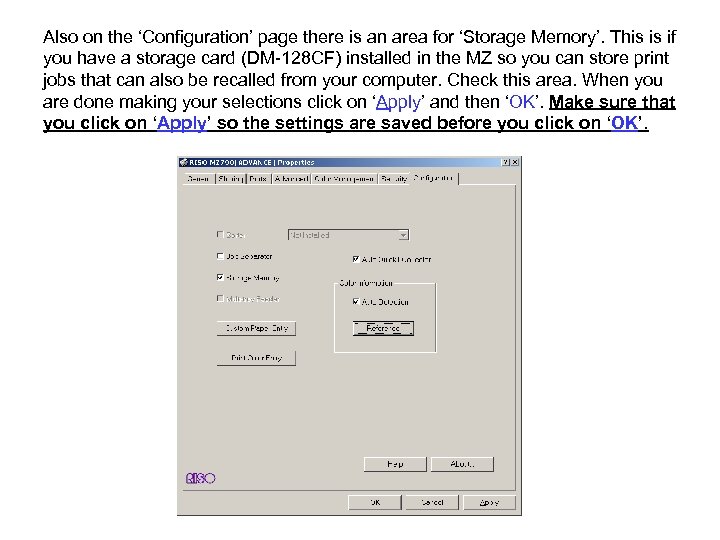 Also on the ‘Configuration’ page there is an area for ‘Storage Memory’. This is if you have a storage card (DM-128 CF) installed in the MZ so you can store print jobs that can also be recalled from your computer. Check this area. When you are done making your selections click on ‘Apply’ and then ‘OK’. Make sure that you click on ‘Apply’ so the settings are saved before you click on ‘OK’.
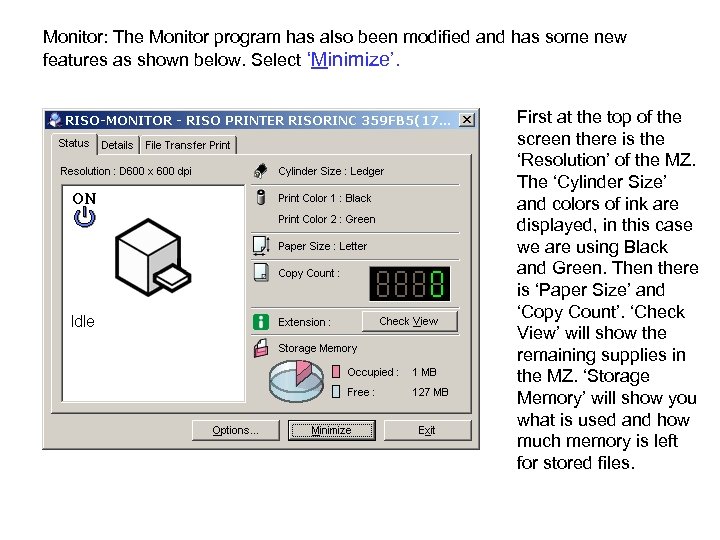 Monitor: The Monitor program has also been modified and has some new features as shown below. Select ‘Minimize’. First at the top of the screen there is the ‘Resolution’ of the MZ. The ‘Cylinder Size’ and colors of ink are displayed, in this case we are using Black and Green. Then there is ‘Paper Size’ and ‘Copy Count’. ‘Check View’ will show the remaining supplies in the MZ. ‘Storage Memory’ will show you what is used and how much memory is left for stored files.
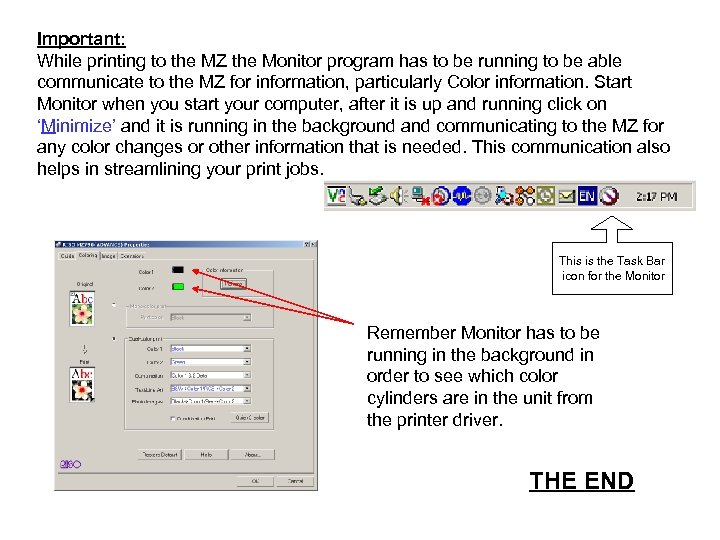 Important: While printing to the MZ the Monitor program has to be running to be able communicate to the MZ for information, particularly Color information. Start Monitor when you start your computer, after it is up and running click on ‘Minimize’ and it is running in the background and communicating to the MZ for any color changes or other information that is needed. This communication also helps in streamlining your print jobs. This is the Task Bar icon for the Monitor Remember Monitor has to be running in the background in order to see which color cylinders are in the unit from the printer driver. THE END