 Скачать презентацию My Access Workshop Integrating with UCSF s Shibboleth system
d15fd6fdd393da10f448fb257a6c93db.ppt
- Количество слайдов: 23



My. Access Workshop Integrating with UCSF’s Shibboleth system Elliot Kendall, ITS My. Access Workshop July 16, 2007
Introduction • Elliot Kendall, ITS Identity and Access Management (IAM) – Started at UCSF in July – Previously ran web single-sign on at Emory and Brandeis – Interested in Information Security and Systems Automation • Please ask questions! – You don’t need to wait until the end – Please stop me if there’s something you want to ask 2
What My. Access does • Single sign-on – Enter your password once, access many resources • User Information – Tells the application the name, email address, etc. of the logged in user • Federation – Use your UCSF credentials to log into non-UCSF systems, and let others log into your systems • Security – Applications and sites don’t see your password, just that you are logged in 3
My. Access and Shibboleth • My. Access is UCSF-branded Shibboleth – Shibboleth is an Internet 2 project to support federated authentication among colleges and universities • Shibboleth is an implementation of SAML – Security Assertion Markup Language – An XML-based protocol for federated authentication • My. Access works with Shibboleth or other SAML – Most universities use Shibboleth, but we can integrate with anything that supports SAML – This workshop will focus on Shibboleth 4
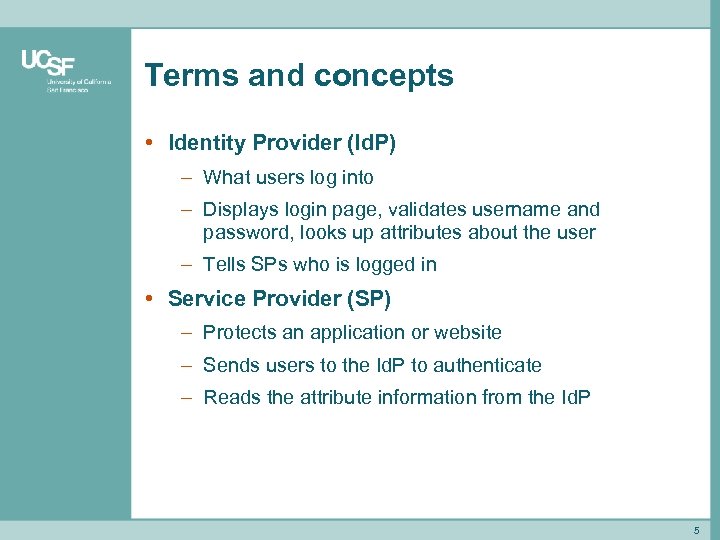
Terms and concepts • Identity Provider (Id. P) – What users log into – Displays login page, validates username and password, looks up attributes about the user – Tells SPs who is logged in • Service Provider (SP) – Protects an application or website – Sends users to the Id. P to authenticate – Reads the attribute information from the Id. P 5
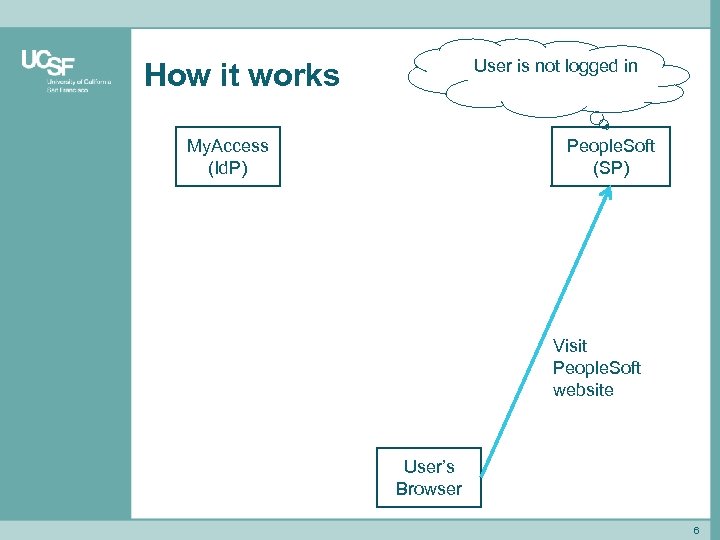
User is not logged in How it works My. Access (Id. P) People. Soft (SP) Visit People. Soft website User’s Browser 6
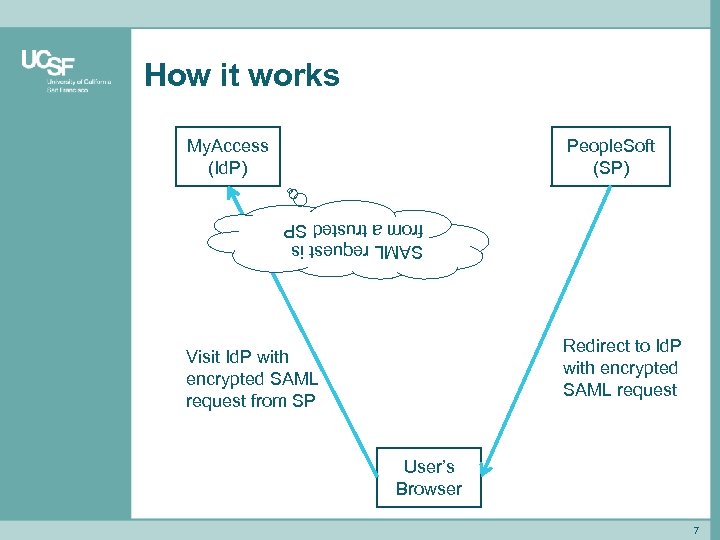
How it works My. Access (Id. P) People. Soft (SP) SAML request is from a trusted SP Redirect to Id. P with encrypted SAML request Visit Id. P with encrypted SAML request from SP User’s Browser 7
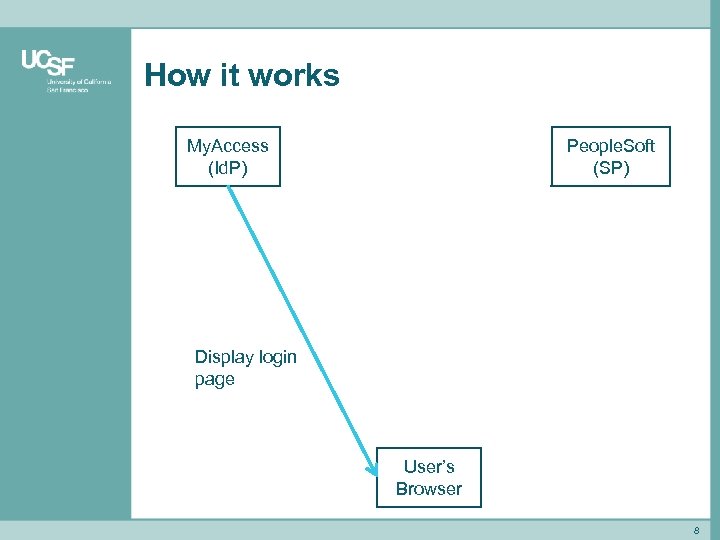
How it works My. Access (Id. P) People. Soft (SP) Display login page User’s Browser 8
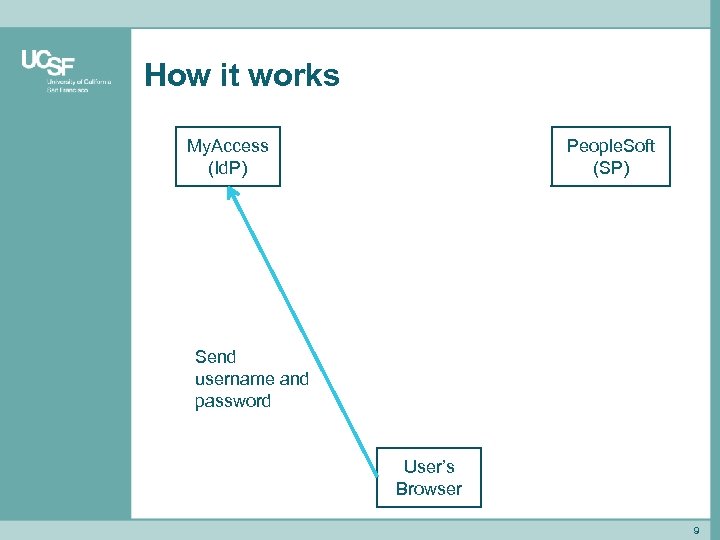
How it works My. Access (Id. P) People. Soft (SP) Send username and password User’s Browser 9
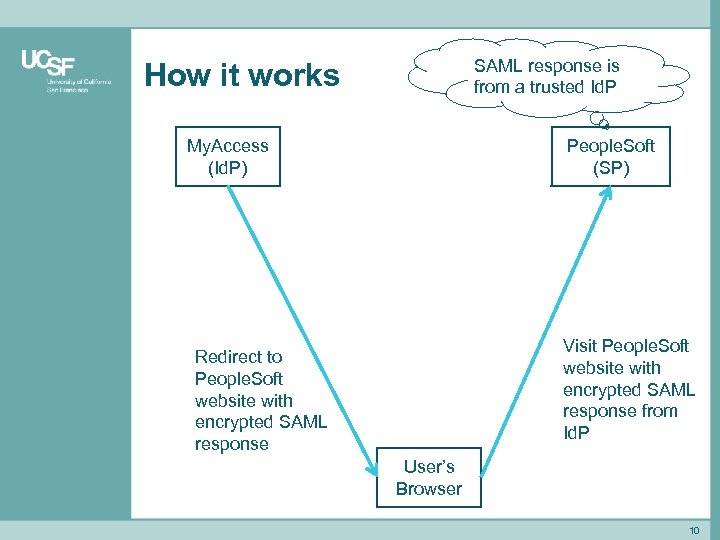
SAML response is from a trusted Id. P How it works My. Access (Id. P) People. Soft (SP) Visit People. Soft website with encrypted SAML response from Id. P Redirect to People. Soft website with encrypted SAML response User’s Browser 10
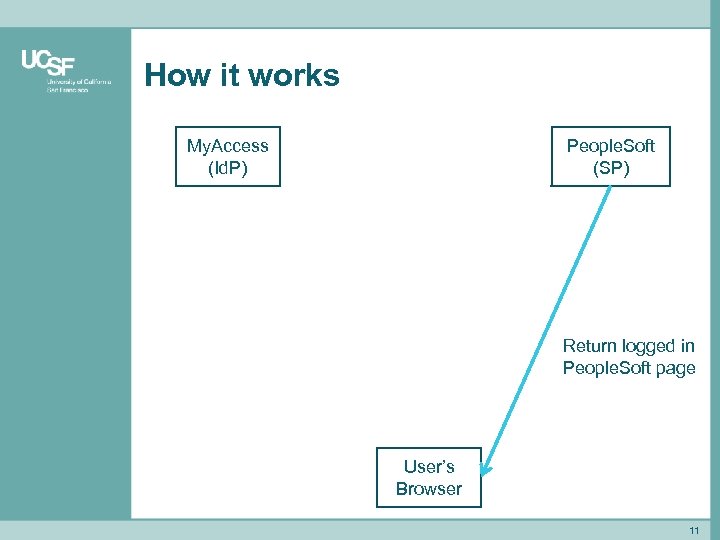
How it works My. Access (Id. P) People. Soft (SP) Return logged in People. Soft page User’s Browser 11
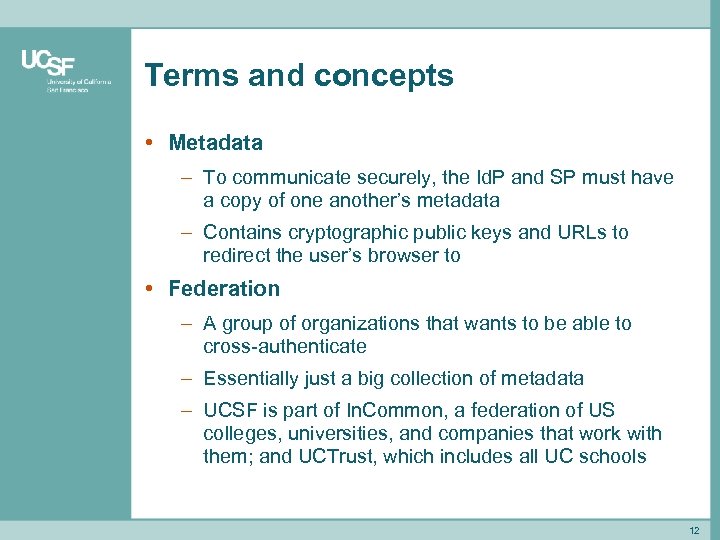
Terms and concepts • Metadata – To communicate securely, the Id. P and SP must have a copy of one another’s metadata – Contains cryptographic public keys and URLs to redirect the user’s browser to • Federation – A group of organizations that wants to be able to cross-authenticate – Essentially just a big collection of metadata – UCSF is part of In. Common, a federation of US colleges, universities, and companies that work with them; and UCTrust, which includes all UC schools 12
Hands on • Setting up your own SP – To integrate with My. Access, you or your vendor needs to set up and configure an SP to talk to our Id. P – We’ll go through the process of a simple integration step by step, using the VMware image you received before class. This is a simplified example! Please do not use these instructions to set up a production SP! • Warning: technical detail ahead! – The VM is running Linux. You will need to use a command line interface, although we will tell you what to type. You will need to edit XML files, although we will provide detailed instructions 13
Booting the VM • If you have not already, please start the VM now – Once it finishes starting up, log in with username root and password ucsf – Run a terminal (second icon from the left at the bottom of the screen) • This VM is running Cent. OS 5 (almost the same as Red. Hat Enterprise 5) – No special configuration has been done. We’ll do everything necessary to integrate with My. Access – The steps are different for different operating systems, but the concepts are the same 14
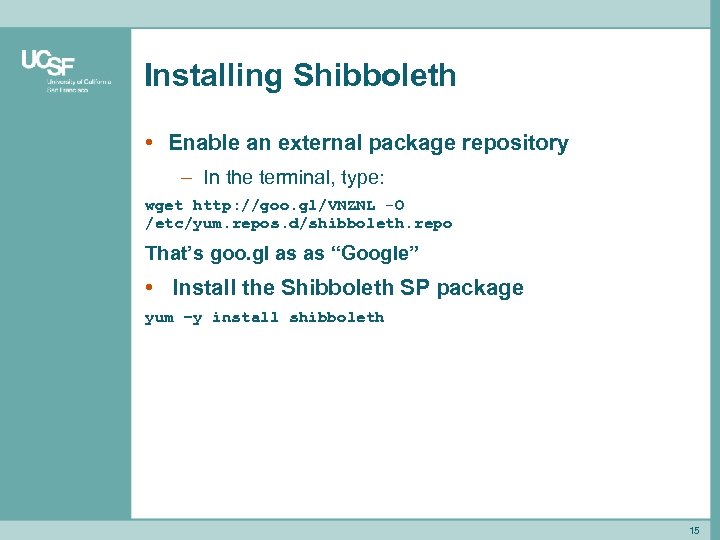
Installing Shibboleth • Enable an external package repository – In the terminal, type: wget http: //goo. gl/VNZNL -O /etc/yum. repos. d/shibboleth. repo That’s goo. gl as as “Google” • Install the Shibboleth SP package yum –y install shibboleth 15
Configuring Shibboleth • Look at some configuration files – Leave the terminal open, but start the text editor (to the right of the terminal icon) – To open a file, go to File -> Open and start typing the name, or browse from File System under Places – Open /etc/httpd/conf. d/shib. conf. This file controls how the Apache web server interacts with Shibboleth. Note the <Location> block that specifies that the /secure path will be protected. We don’t need to make any changes for this example. – Open /etc/shibboleth 2. xml. This file controls the guts of the SP. There’s a lot in here, but you don’t need to worry about most of it. Don’t be intimidated. 16
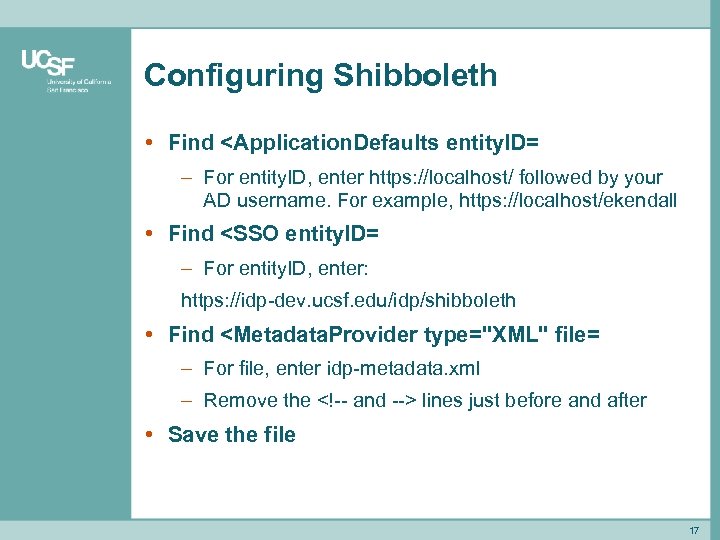
Configuring Shibboleth • Find <Application. Defaults entity. ID= – For entity. ID, enter https: //localhost/ followed by your AD username. For example, https: //localhost/ekendall • Find <SSO entity. ID= – For entity. ID, enter: https: //idp-dev. ucsf. edu/idp/shibboleth • Find <Metadata. Provider type="XML" file= – For file, enter idp-metadata. xml – Remove the <!-- and --> lines just before and after • Save the file 17
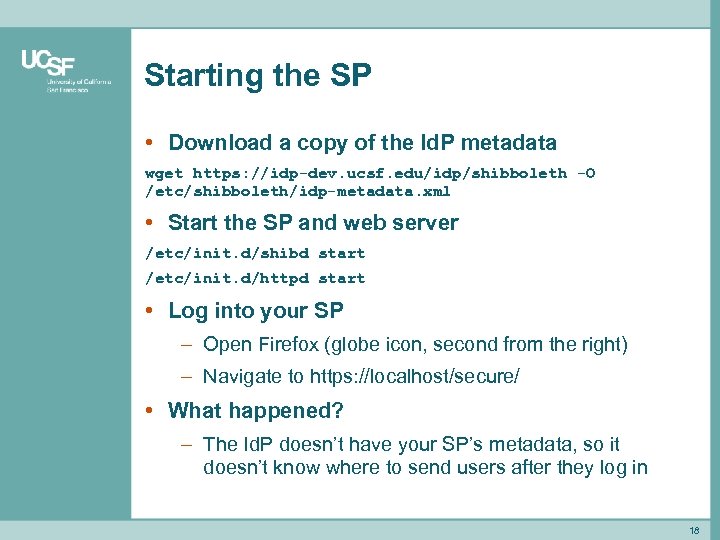
Starting the SP • Download a copy of the Id. P metadata wget https: //idp-dev. ucsf. edu/idp/shibboleth -O /etc/shibboleth/idp-metadata. xml • Start the SP and web server /etc/init. d/shibd start /etc/init. d/httpd start • Log into your SP – Open Firefox (globe icon, second from the right) – Navigate to https: //localhost/secure/ • What happened? – The Id. P doesn’t have your SP’s metadata, so it doesn’t know where to send users after they log in 18
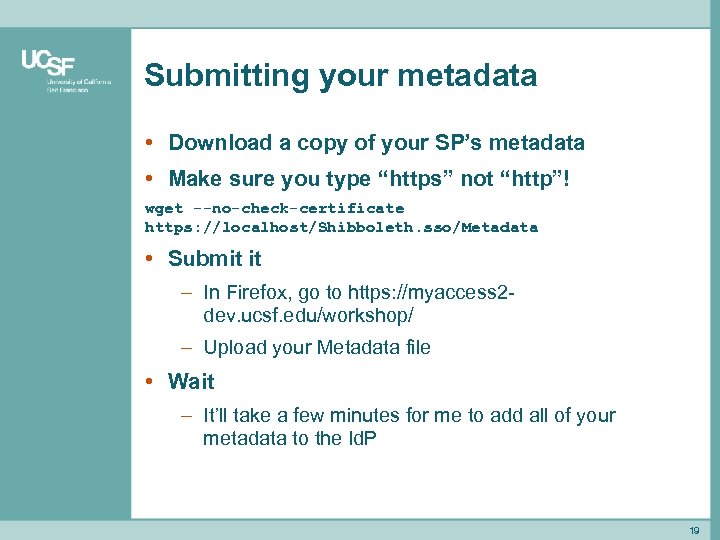
Submitting your metadata • Download a copy of your SP’s metadata • Make sure you type “https” not “http”! wget --no-check-certificate https: //localhost/Shibboleth. sso/Metadata • Submit it – In Firefox, go to https: //myaccess 2 dev. ucsf. edu/workshop/ – Upload your Metadata file • Wait – It’ll take a few minutes for me to add all of your metadata to the Id. P 19
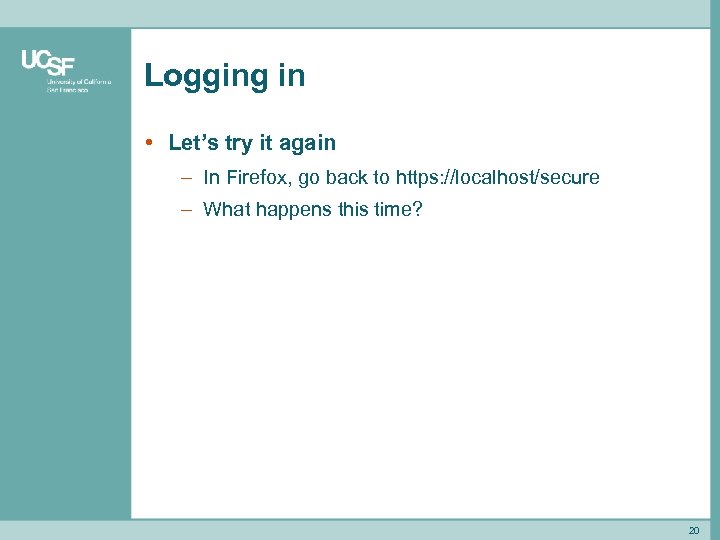
Logging in • Let’s try it again – In Firefox, go back to https: //localhost/secure – What happens this time? 20
A production SP • What would be different? – Different path(s) protected in shibd. conf – Different Id. P – production, not dev – (Maybe) load In. Common metadata, not just our Id. P – Automatically download and validate new metadata on a regular basis – Modify your application to look at the REMOTE_USER environment instead of prompting for a username and password – Maybe integrate with multiple Id. Ps so people from outside UCSF can log in 21
Integration process • See tiny. ucsf. edu/myaccess • Highlights include – Read and agree to division of responsibilities – Determine what information you need about users – Configure your SP – Submit a formal request – Wait for data owners to approve information release – Communicate to your users – Production deployment 22
Questions? 23
Скачать презентацию My Access Workshop Integrating with UCSF s Shibboleth system
d15fd6fdd393da10f448fb257a6c93db.ppt