 Скачать презентацию More about procedures and Video Processing Lesson
413c0efd43a6b0c0163cc0c1aa38ffdc.ppt
- Количество слайдов: 44




More about procedures and Video Processing
Lesson plan • Review existing concepts • More about procedures and boolean expression • Video processing
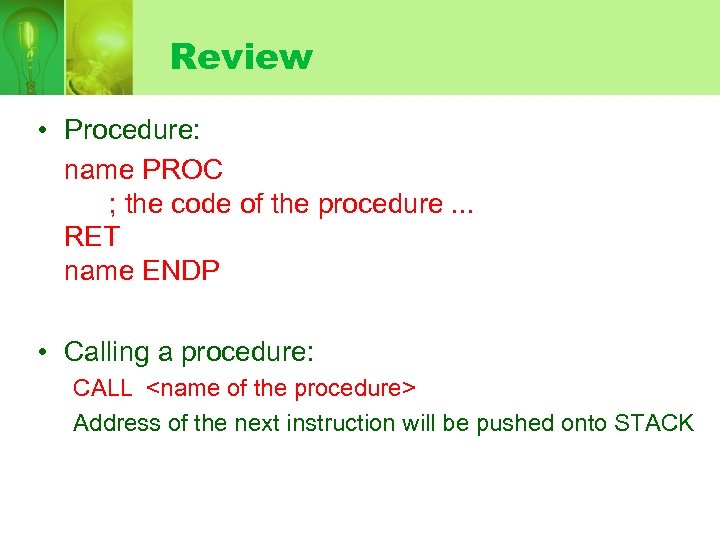
Review • Procedure: name PROC ; the code of the procedure. . . RET name ENDP • Calling a procedure: CALL <name of the procedure> Address of the next instruction will be pushed onto STACK
More about procedures • Passing parameters: – Are very similar to the concept of passing parameters in C/C++ and Java – A program may pass parameters by: • Value • Reference
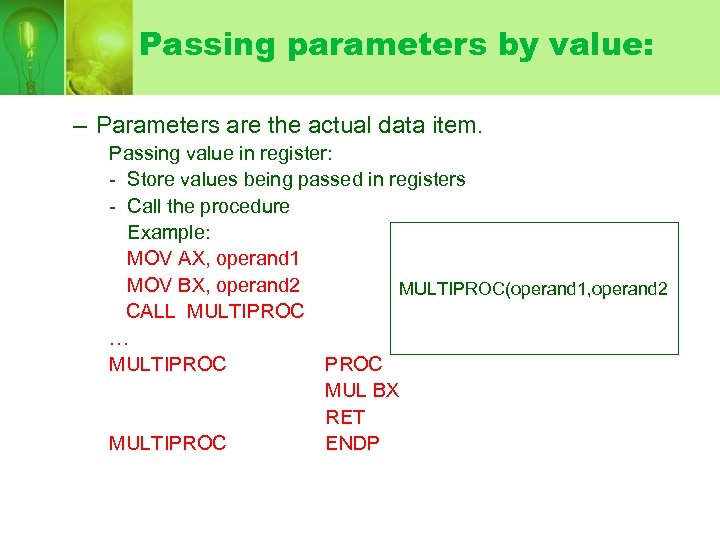
Passing parameters by value: – Parameters are the actual data item. Passing value in register: - Store values being passed in registers - Call the procedure Example: MOV AX, operand 1 MOV BX, operand 2 MULTIPROC(operand 1, operand 2 CALL MULTIPROC … MULTIPROC MUL BX RET MULTIPROC ENDP
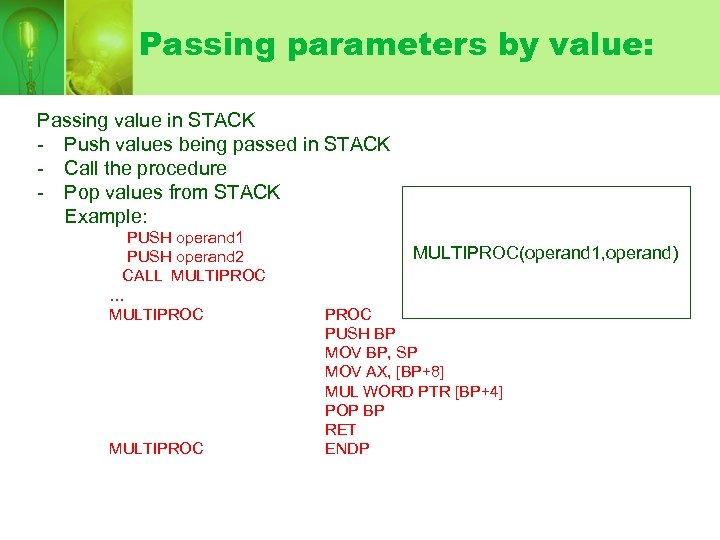
Passing parameters by value: Passing value in STACK - Push values being passed in STACK - Call the procedure - Pop values from STACK Example: PUSH operand 1 PUSH operand 2 CALL MULTIPROC … MULTIPROC(operand 1, operand) PROC PUSH BP MOV BP, SP MOV AX, [BP+8] MUL WORD PTR [BP+4] POP BP RET ENDP
Passing parameters by value: Passing value in STACK: Address the limitations in terms of number of registers More complicated because we need indirect addressing to access the stack (use of BP)
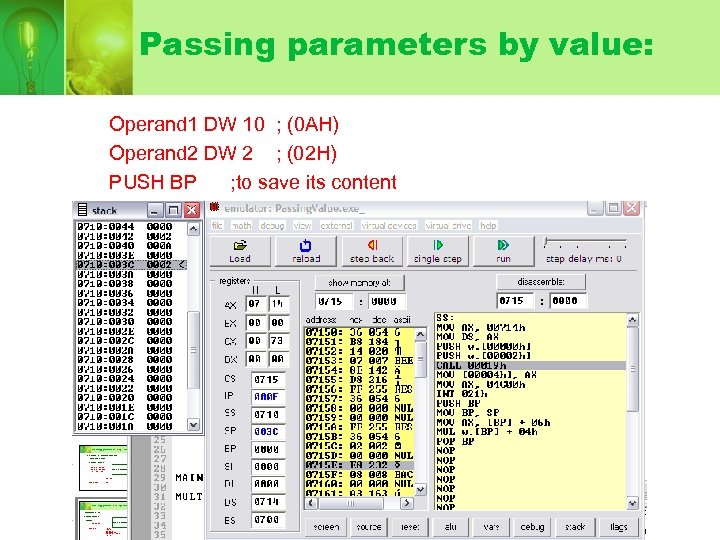
Passing parameters by value: Operand 1 DW 10 ; (0 AH) Operand 2 DW 2 ; (02 H) PUSH BP ; to save its content
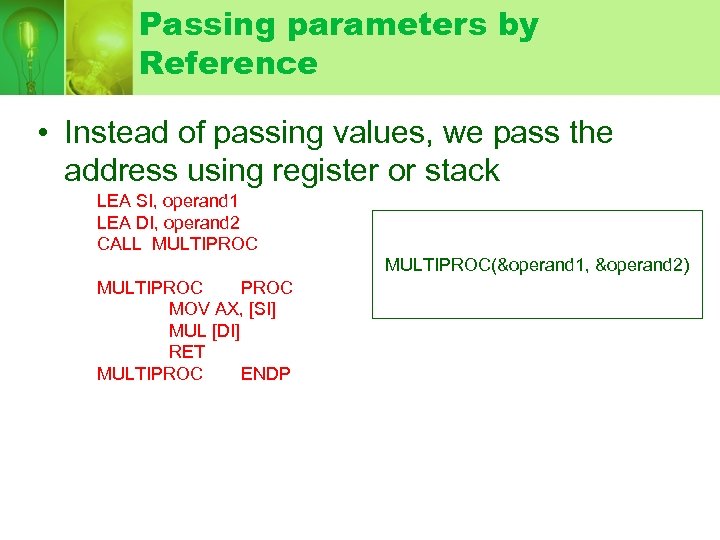
Passing parameters by Reference • Instead of passing values, we pass the address using register or stack LEA SI, operand 1 LEA DI, operand 2 CALL MULTIPROC(&operand 1, &operand 2) MULTIPROC MOV AX, [SI] MUL [DI] RET MULTIPROC ENDP
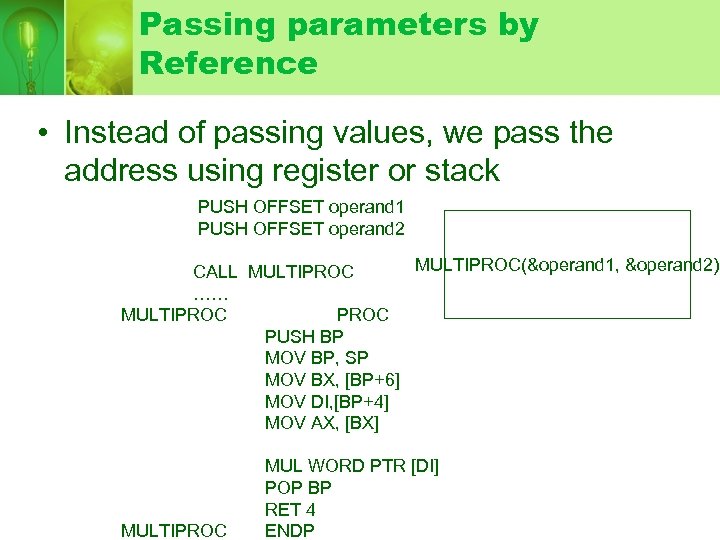
Passing parameters by Reference • Instead of passing values, we pass the address using register or stack PUSH OFFSET operand 1 PUSH OFFSET operand 2 MULTIPROC(&operand 1, &operand 2) CALL MULTIPROC …… MULTIPROC PUSH BP MOV BP, SP MOV BX, [BP+6] MOV DI, [BP+4] MOV AX, [BX] MULTIPROC MUL WORD PTR [DI] POP BP RET 4 ENDP
Video processing • Use INT instruction to handle inputs and outputs • INT 10 H: screen handling • INT 21 H: for displaying screen output • Main idea: – Insert a value in AH register which is used to identify the type of service the interrupt needs to perform
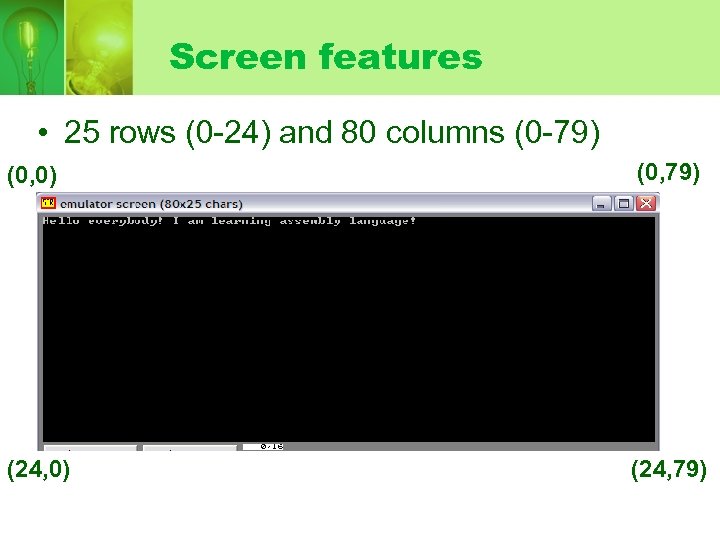
Screen features • 25 rows (0 -24) and 80 columns (0 -79) (0, 0) (0, 79) (24, 0) (24, 79)
Screen features • Cursor location: Upper left corner: Row: 0, Column 0 Upper right corner: Row: 0, Column 79 Lower left corner: Row: 24, Column 0 Lower right corner: Row: 24, Column 79 Center: Row 12, Column 39
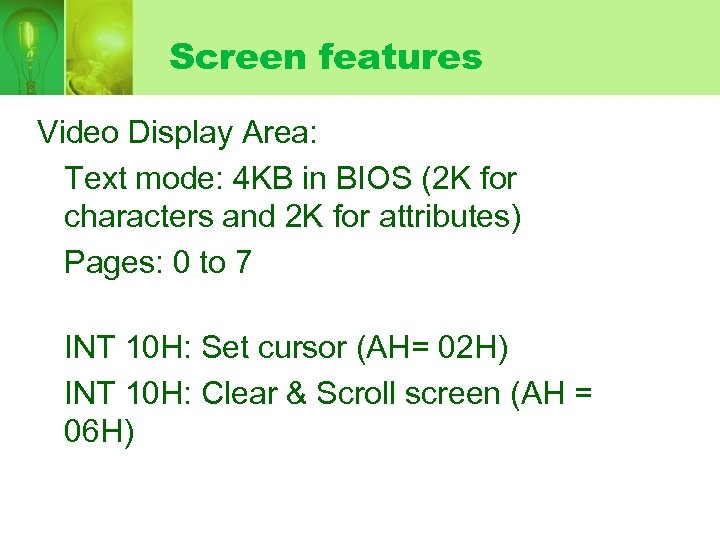
Screen features Video Display Area: Text mode: 4 KB in BIOS (2 K for characters and 2 K for attributes) Pages: 0 to 7 INT 10 H: Set cursor (AH= 02 H) INT 10 H: Clear & Scroll screen (AH = 06 H)
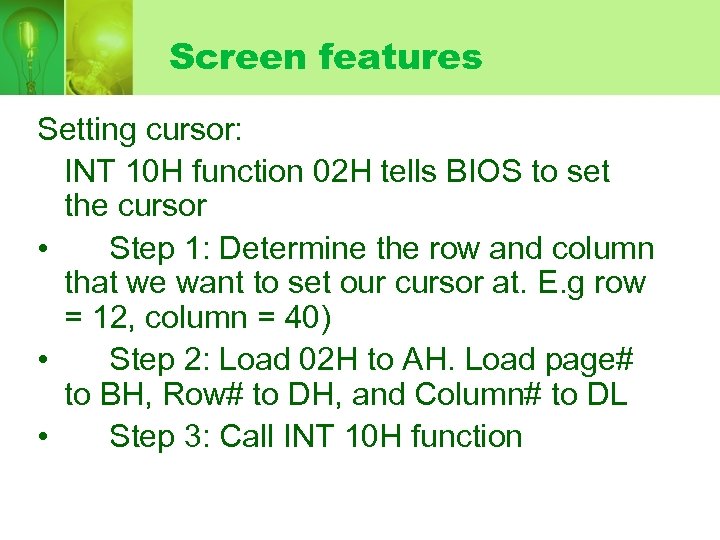
Screen features Setting cursor: INT 10 H function 02 H tells BIOS to set the cursor • Step 1: Determine the row and column that we want to set our cursor at. E. g row = 12, column = 40) • Step 2: Load 02 H to AH. Load page# to BH, Row# to DH, and Column# to DL • Step 3: Call INT 10 H function
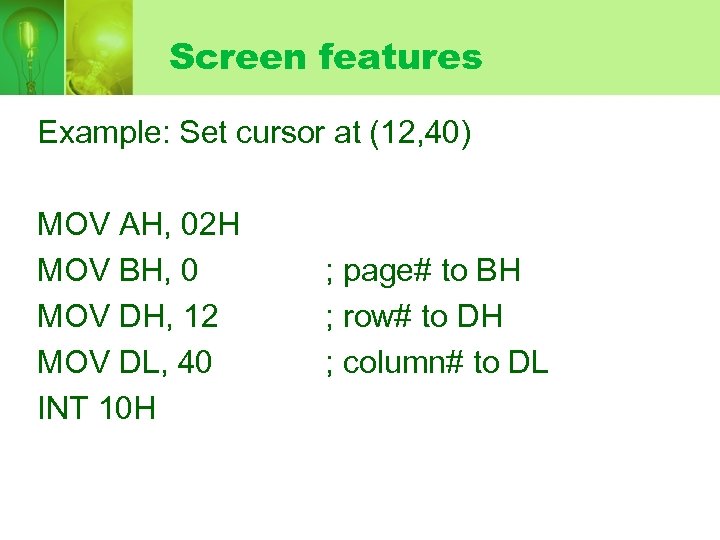
Screen features Example: Set cursor at (12, 40) MOV AH, 02 H MOV BH, 0 MOV DH, 12 MOV DL, 40 INT 10 H ; page# to BH ; row# to DH ; column# to DL
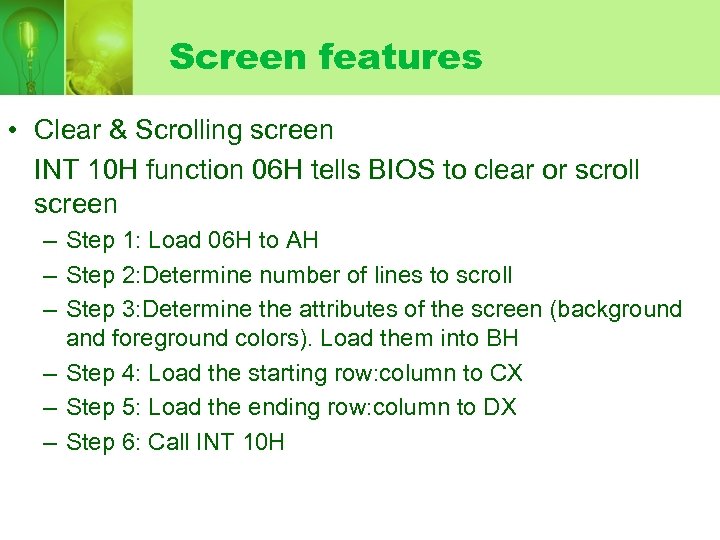
Screen features • Clear & Scrolling screen INT 10 H function 06 H tells BIOS to clear or scroll screen – Step 1: Load 06 H to AH – Step 2: Determine number of lines to scroll – Step 3: Determine the attributes of the screen (background and foreground colors). Load them into BH – Step 4: Load the starting row: column to CX – Step 5: Load the ending row: column to DX – Step 6: Call INT 10 H
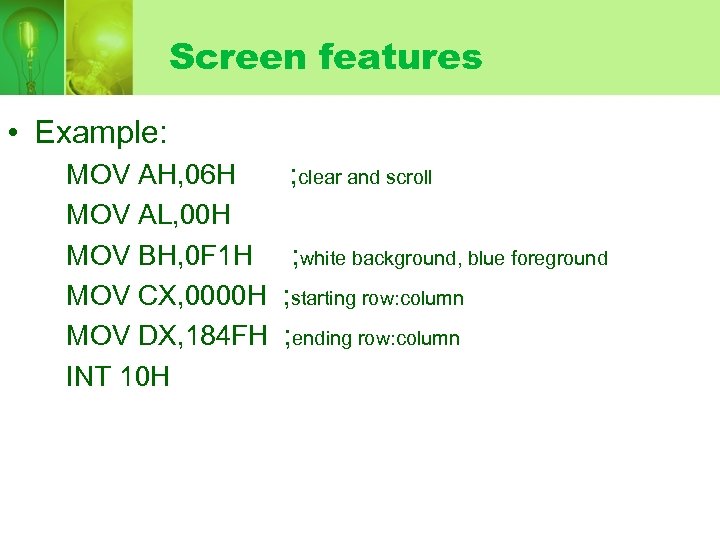
Screen features • Example: MOV AH, 06 H MOV AL, 00 H MOV BH, 0 F 1 H MOV CX, 0000 H MOV DX, 184 FH INT 10 H ; clear and scroll ; white background, blue foreground ; starting row: column ; ending row: column
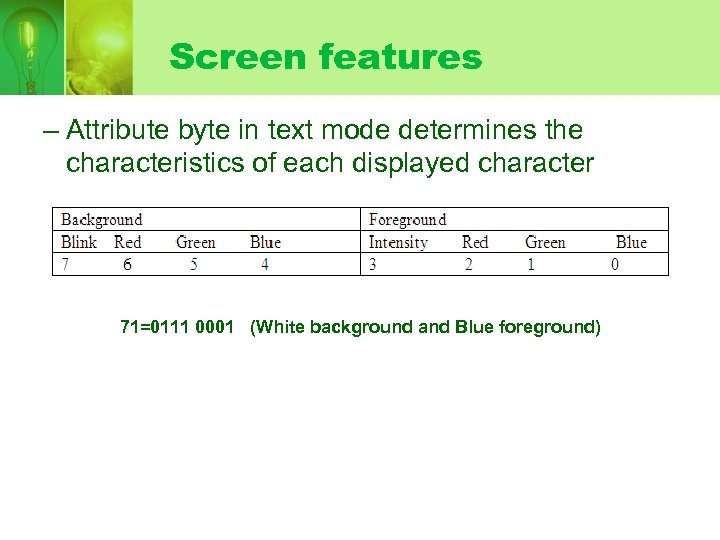
Screen features – Attribute byte in text mode determines the characteristics of each displayed character 71=0111 0001 (White background and Blue foreground)
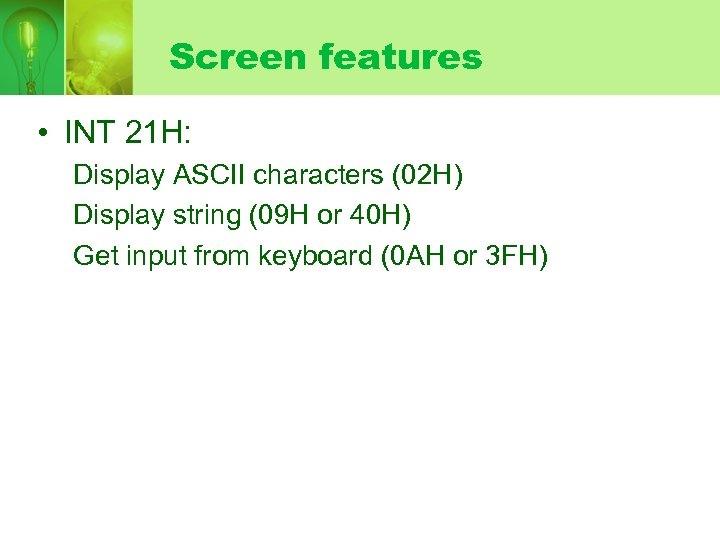
Screen features • INT 21 H: Display ASCII characters (02 H) Display string (09 H or 40 H) Get input from keyboard (0 AH or 3 FH)
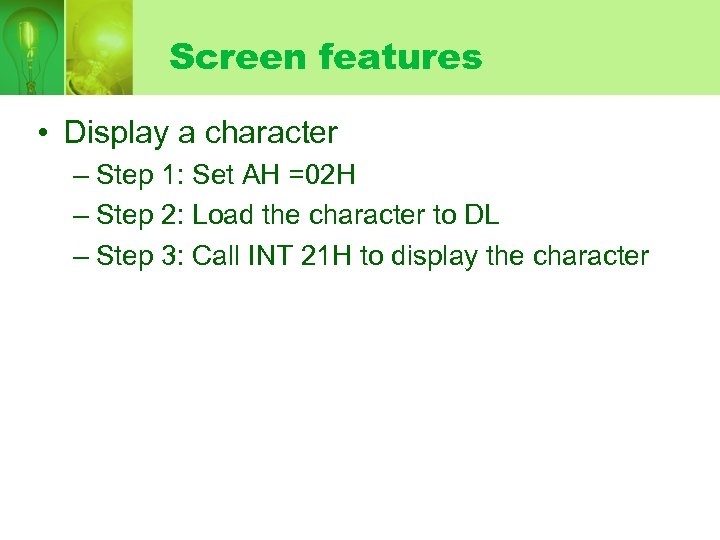
Screen features • Display a character – Step 1: Set AH =02 H – Step 2: Load the character to DL – Step 3: Call INT 21 H to display the character
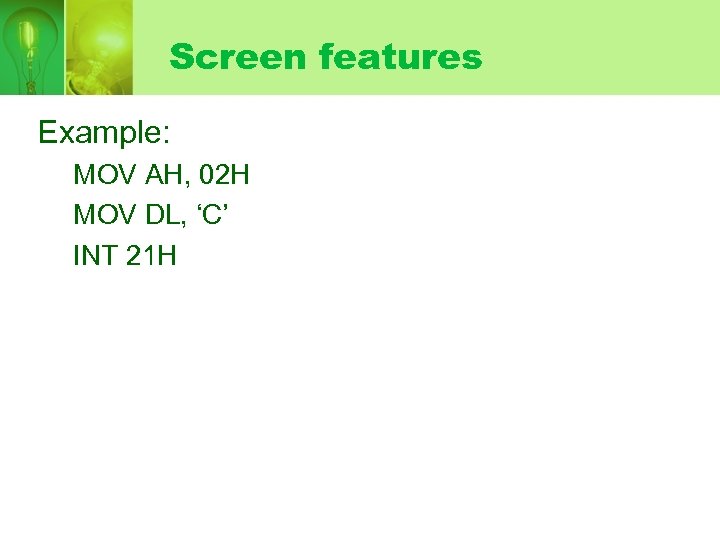
Screen features Example: MOV AH, 02 H MOV DL, ‘C’ INT 21 H
Practice/Lab 1 1. Open your browser and open this page: C: emu 8086documentation8086_instruction_set. html And C: emu 8086documentation8086_and_dos_interrupts. h tml 2. Open your emu 8086 software 3. Cut and paste (or type) the following code (as shown in the next page) and save as output. asm
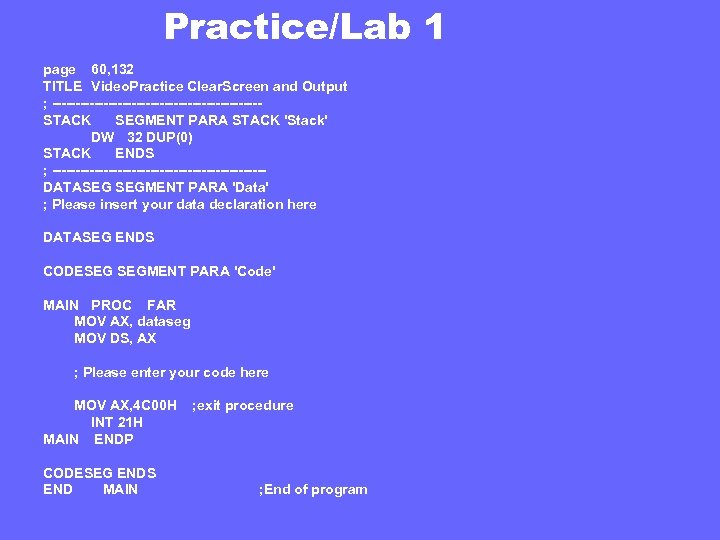
Practice/Lab 1 page 60, 132 TITLE Video. Practice Clear. Screen and Output ; ----------------------STACK SEGMENT PARA STACK 'Stack' DW 32 DUP(0) STACK ENDS ; -----------------------DATASEG SEGMENT PARA 'Data' ; Please insert your data declaration here DATASEG ENDS CODESEG SEGMENT PARA 'Code' MAIN PROC FAR MOV AX, dataseg MOV DS, AX ; Please enter your code here MOV AX, 4 C 00 H INT 21 H MAIN ENDP CODESEG ENDS END MAIN ; exit procedure ; End of program
Practice/Lab 1 4. Modify your code so that it performs the following tasks: Clear screen Set cursor to the middle of screen Display the characters (5) in: CHAR_TBL DB ‘A’ , ’B’, ’C’, ’D’, ’E’ on the middle of the screen 5. Compile and run your code
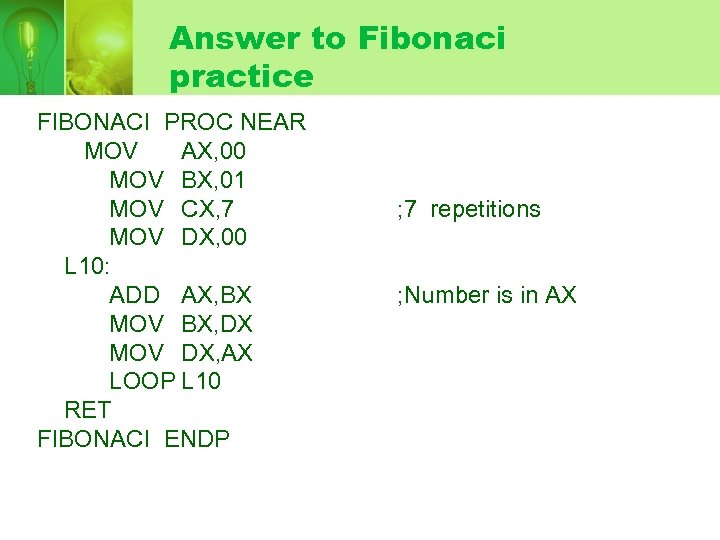
Answer to Fibonaci practice FIBONACI PROC NEAR MOV AX, 00 MOV BX, 01 MOV CX, 7 MOV DX, 00 L 10: ADD AX, BX MOV BX, DX MOV DX, AX LOOP L 10 RET FIBONACI ENDP ; 7 repetitions ; Number is in AX
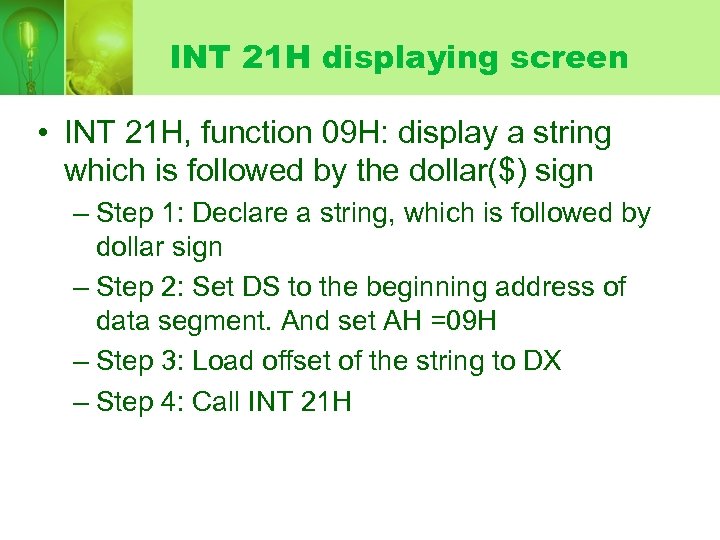
INT 21 H displaying screen • INT 21 H, function 09 H: display a string which is followed by the dollar($) sign – Step 1: Declare a string, which is followed by dollar sign – Step 2: Set DS to the beginning address of data segment. And set AH =09 H – Step 3: Load offset of the string to DX – Step 4: Call INT 21 H
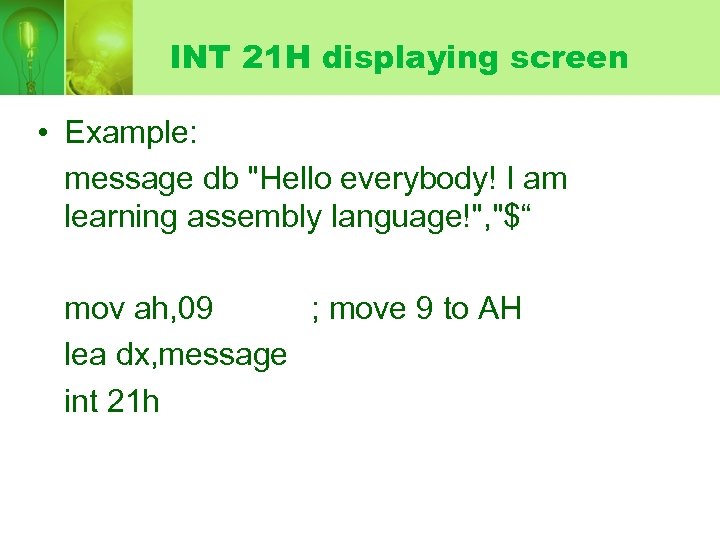
INT 21 H displaying screen • Example: message db "Hello everybody! I am learning assembly language!", "$“ mov ah, 09 ; move 9 to AH lea dx, message int 21 h
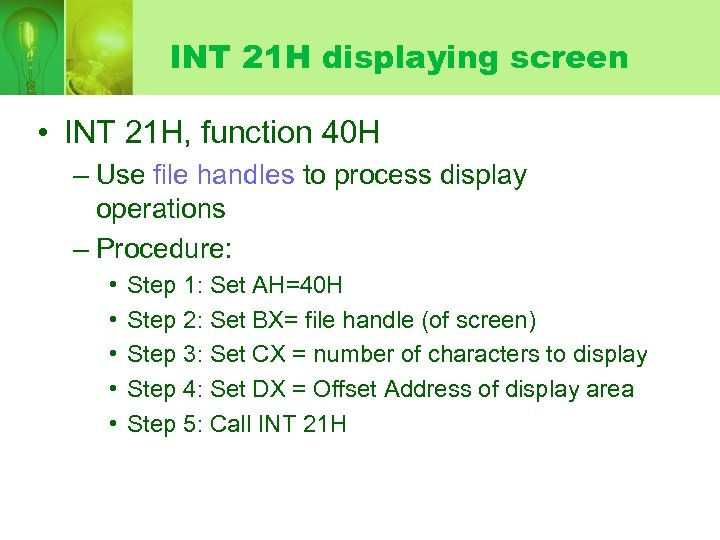
INT 21 H displaying screen • INT 21 H, function 40 H – Use file handles to process display operations – Procedure: • • • Step 1: Set AH=40 H Step 2: Set BX= file handle (of screen) Step 3: Set CX = number of characters to display Step 4: Set DX = Offset Address of display area Step 5: Call INT 21 H
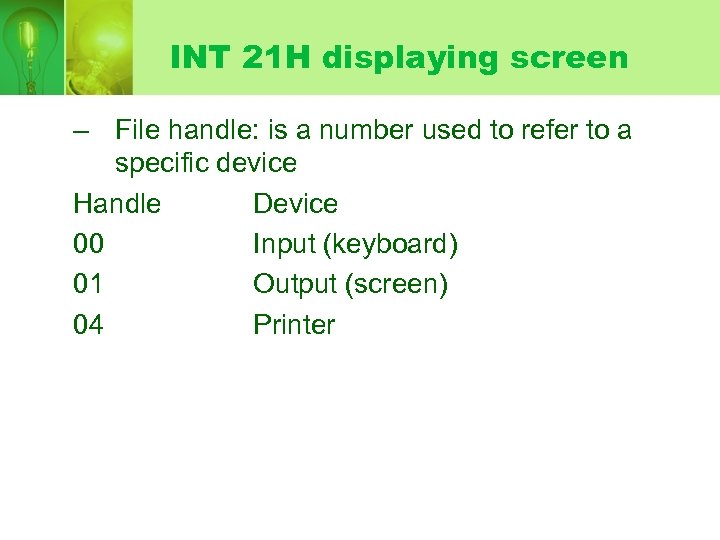
INT 21 H displaying screen – File handle: is a number used to refer to a specific device Handle Device 00 Input (keyboard) 01 Output (screen) 04 Printer
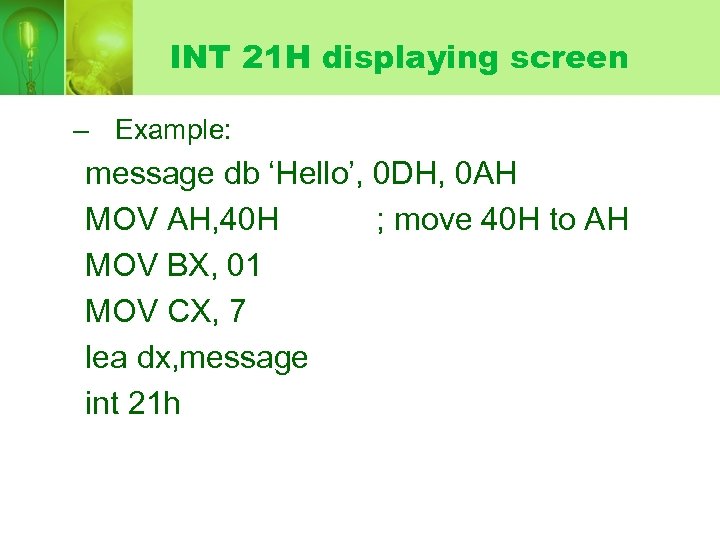
INT 21 H displaying screen – Example: message db ‘Hello’, 0 DH, 0 AH MOV AH, 40 H ; move 40 H to AH MOV BX, 01 MOV CX, 7 lea dx, message int 21 h
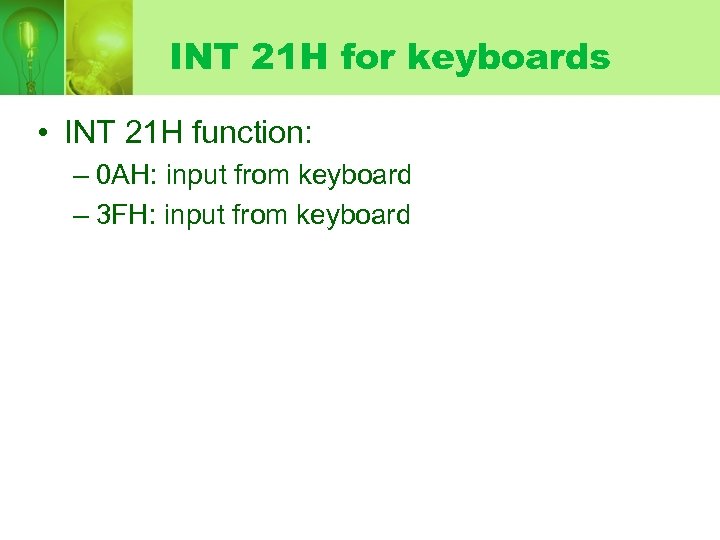
INT 21 H for keyboards • INT 21 H function: – 0 AH: input from keyboard – 3 FH: input from keyboard
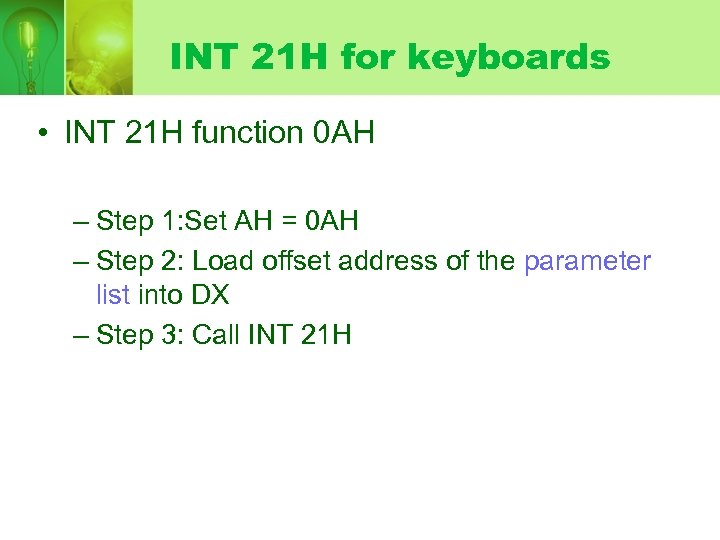
INT 21 H for keyboards • INT 21 H function 0 AH – Step 1: Set AH = 0 AH – Step 2: Load offset address of the parameter list into DX – Step 3: Call INT 21 H
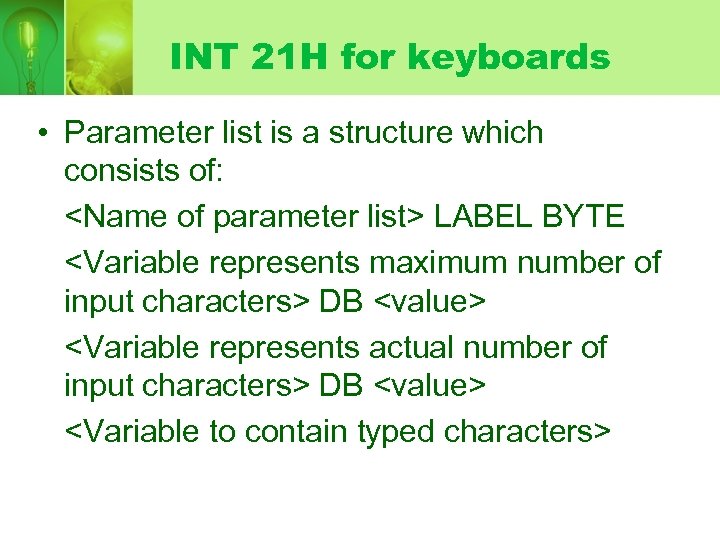
INT 21 H for keyboards • Parameter list is a structure which consists of: <Name of parameter list> LABEL BYTE <Variable represents maximum number of input characters> DB <value> <Variable represents actual number of input characters> DB <value> <Variable to contain typed characters>
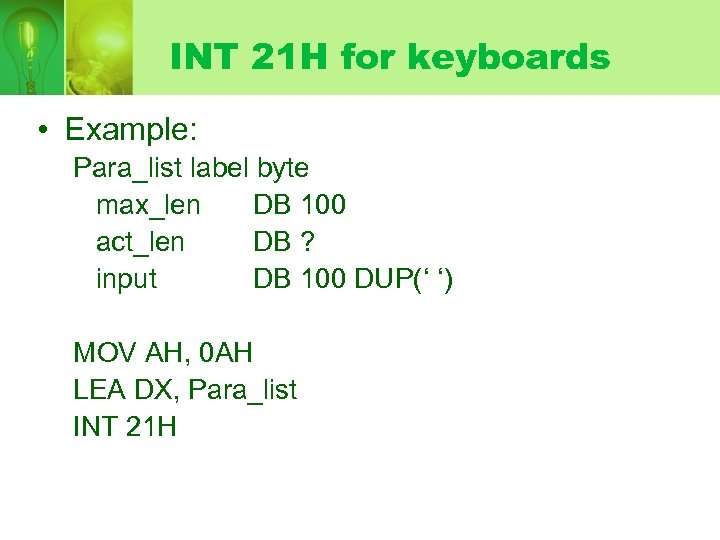
INT 21 H for keyboards • Example: Para_list label byte max_len DB 100 act_len DB ? input DB 100 DUP(‘ ‘) MOV AH, 0 AH LEA DX, Para_list INT 21 H
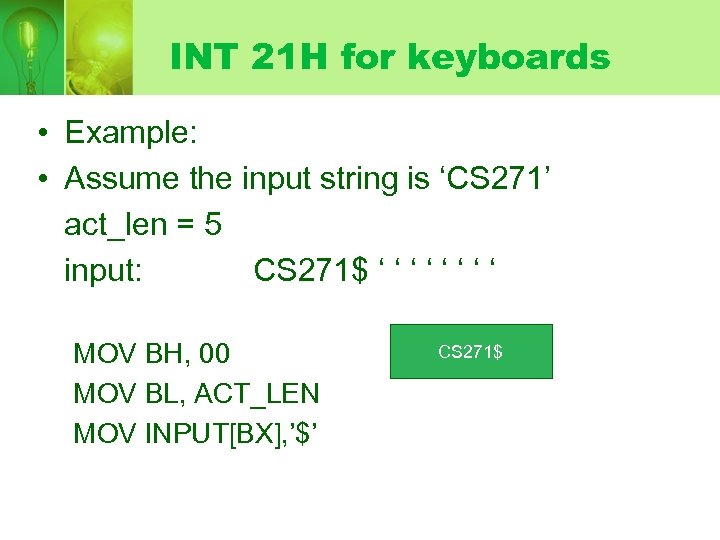
INT 21 H for keyboards • Example: • Assume the input string is ‘CS 271’ act_len = 5 input: CS 271$ ‘ ‘ ‘ ‘ MOV BH, 00 MOV BL, ACT_LEN MOV INPUT[BX], ’$’ CS 271$
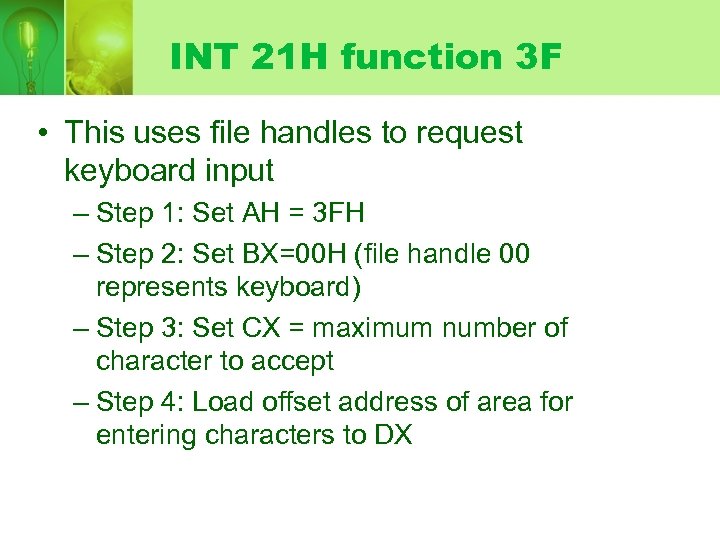
INT 21 H function 3 F • This uses file handles to request keyboard input – Step 1: Set AH = 3 FH – Step 2: Set BX=00 H (file handle 00 represents keyboard) – Step 3: Set CX = maximum number of character to accept – Step 4: Load offset address of area for entering characters to DX
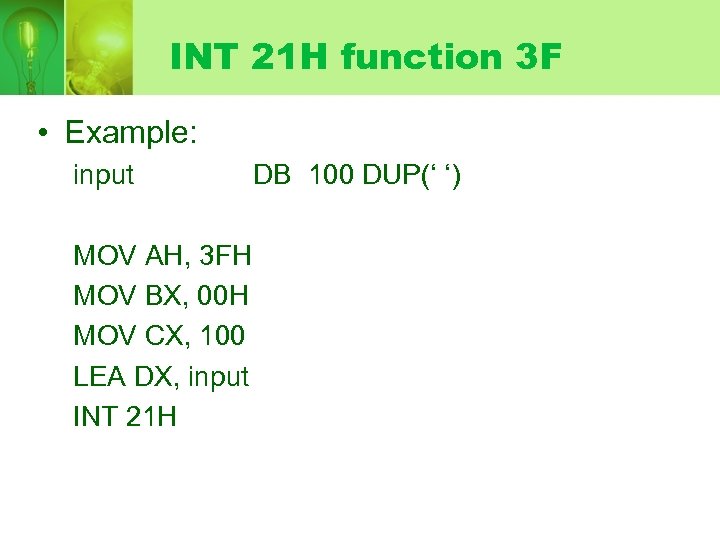
INT 21 H function 3 F • Example: input MOV AH, 3 FH MOV BX, 00 H MOV CX, 100 LEA DX, input INT 21 H DB 100 DUP(‘ ‘)
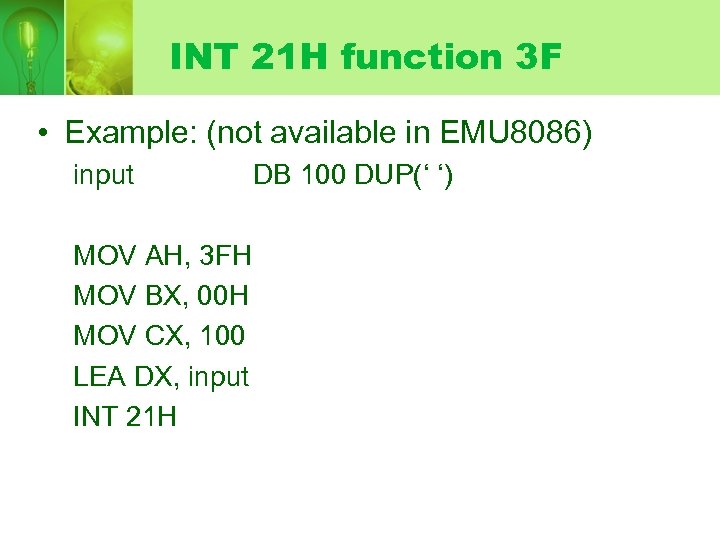
INT 21 H function 3 F • Example: (not available in EMU 8086) input MOV AH, 3 FH MOV BX, 00 H MOV CX, 100 LEA DX, input INT 21 H DB 100 DUP(‘ ‘)
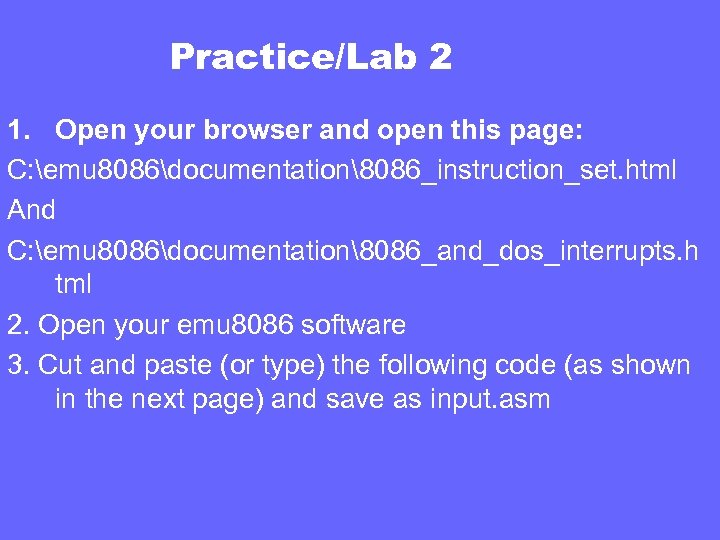
Practice/Lab 2 1. Open your browser and open this page: C: emu 8086documentation8086_instruction_set. html And C: emu 8086documentation8086_and_dos_interrupts. h tml 2. Open your emu 8086 software 3. Cut and paste (or type) the following code (as shown in the next page) and save as input. asm
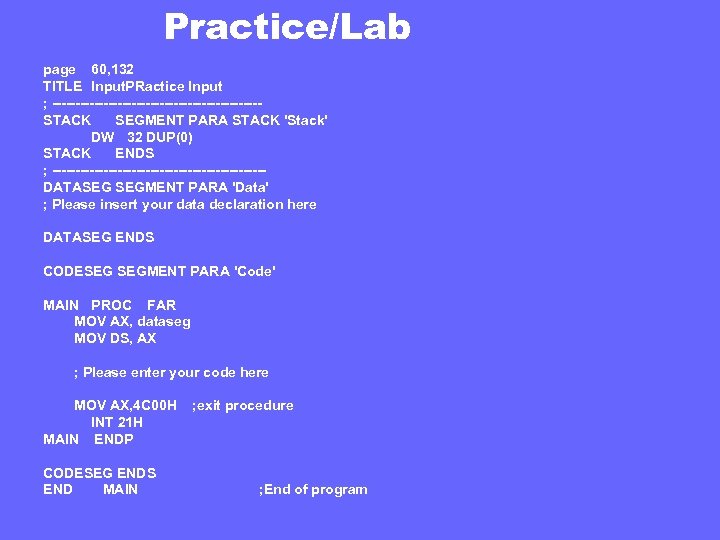
Practice/Lab page 60, 132 TITLE Input. PRactice Input ; ----------------------STACK SEGMENT PARA STACK 'Stack' DW 32 DUP(0) STACK ENDS ; -----------------------DATASEG SEGMENT PARA 'Data' ; Please insert your data declaration here DATASEG ENDS CODESEG SEGMENT PARA 'Code' MAIN PROC FAR MOV AX, dataseg MOV DS, AX ; Please enter your code here MOV AX, 4 C 00 H INT 21 H MAIN ENDP CODESEG ENDS END MAIN ; exit procedure ; End of program
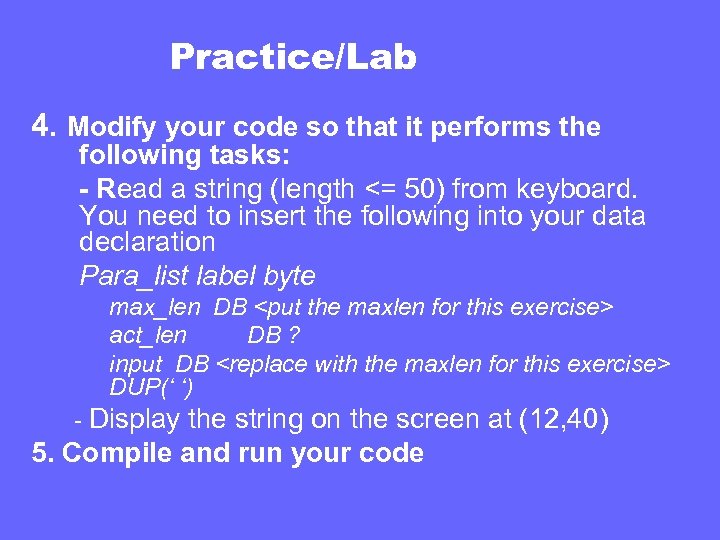
Practice/Lab 4. Modify your code so that it performs the following tasks: - Read a string (length <= 50) from keyboard. You need to insert the following into your data declaration Para_list label byte max_len DB <put the maxlen for this exercise> act_len DB ? input DB <replace with the maxlen for this exercise> DUP(‘ ‘) - Display the string on the screen at (12, 40) 5. Compile and run your code
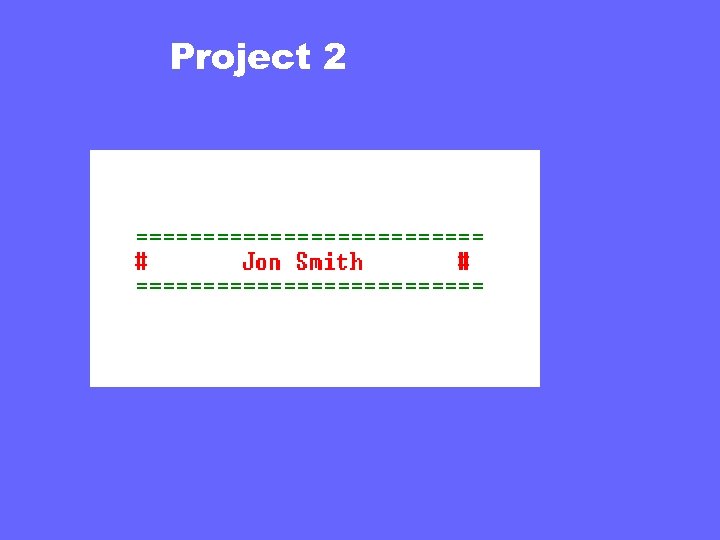
Project 2
Adavanced Screen Processing • Explore INT 10 H to: – Set video mode – Display attribute or character at cursor position
Скачать презентацию More about procedures and Video Processing Lesson
413c0efd43a6b0c0163cc0c1aa38ffdc.ppt