



 Module 9: j. Query
 Agenda ▪ What is 'j. Query'? ▪ Launching Code on Document Ready ▪ j. Query Selectors ▪ DOM Manipulation ▪ Event Handling ▪ Effects ▪ Useful Links
 What is 'j. Query'?
 j. Query: Write Less, Do More ▪ Query is a fast, small, and feature-rich Java. Script library. ▪ It makes things like HTML document traversal and manipulation, event handling, animation, and Ajax much simpler with an easy-to-use API that works across a multitude of browsers. ▪ j. Query is so popular that it often treated as an integral part of Java. Script but actually it isn't.
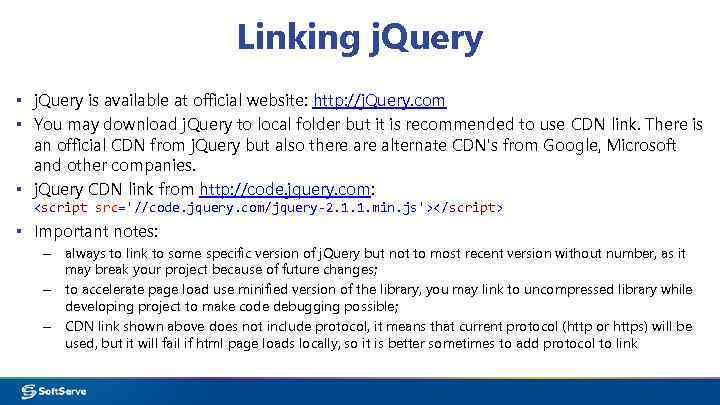 Linking j. Query ▪ j. Query is available at official website: http: //j. Query. com ▪ You may download j. Query to local folder but it is recommended to use CDN link. There is an official CDN from j. Query but also there alternate CDN's from Google, Microsoft and other companies. ▪ j. Query CDN link from http: //code. jquery. com: ▪ Important notes: – always to link to some specific version of j. Query but not to most recent version without number, as it may break your project because of future changes; – to accelerate page load use minified version of the library, you may link to uncompressed library while developing project to make code debugging possible; – CDN link shown above does not include protocol, it means that current protocol (http or https) will be used, but it will fail if html page loads locally, so it is better sometimes to add protocol to link
 $ Alias ▪ j. Query uses '$' symbol as alias to object 'j. Query' ▪ This symbol available as a global variable ▪ You may reference library both by '$' alias and 'j. Query' variable name, but using '$' symbol is much more common and results in a cleaner and compact code
 Basic j. Query Syntax ▪ j. Query syntax is focused on selecting html elements and performing some actions on the elements ▪ Basic syntax is: $(selector). action() ▪ Comments: – A $ sign to define/access j. Query – A (selector) to 'query (or find)' HTML elements – A j. Query action() to be performed on the element(s)
 Launching Code on Document Ready
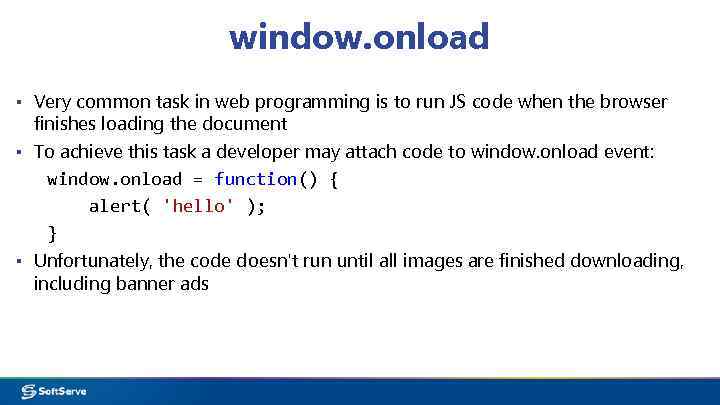 window. onload ▪ Very common task in web programming is to run JS code when the browser finishes loading the document ▪ To achieve this task a developer may attach code to window. onload event: window. onload = function() { alert( 'hello' ); } ▪ Unfortunately, the code doesn't run until all images are finished downloading, including banner ads
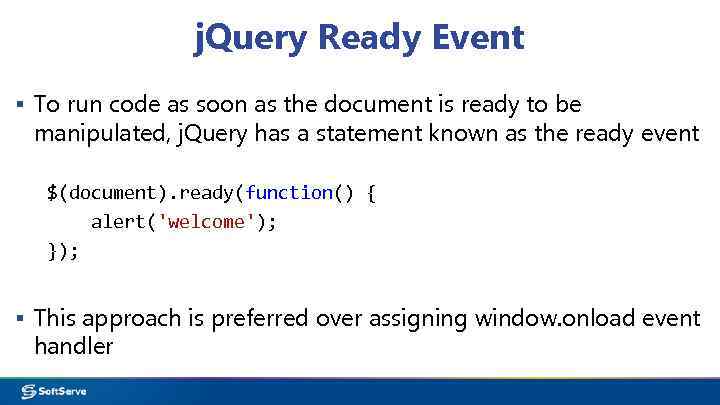 j. Query Ready Event ▪ To run code as soon as the document is ready to be manipulated, j. Query has a statement known as the ready event $(document). ready(function() { alert('welcome'); }); ▪ This approach is preferred over assigning window. onload event handler
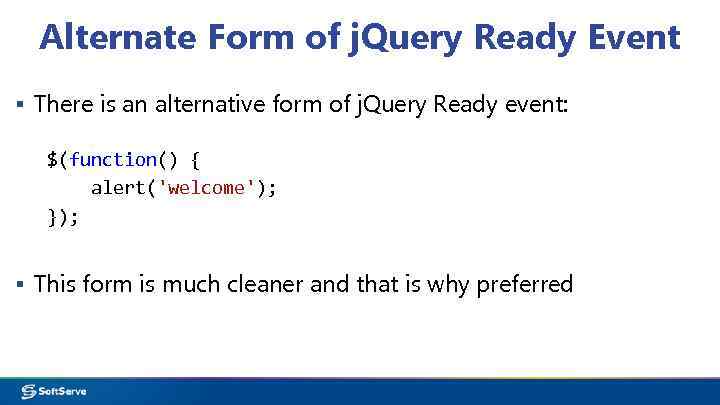 Alternate Form of j. Query Ready Event ▪ There is an alternative form of j. Query Ready event: $(function() { alert('welcome'); }); ▪ This form is much cleaner and that is why preferred
 j. Query Selectors
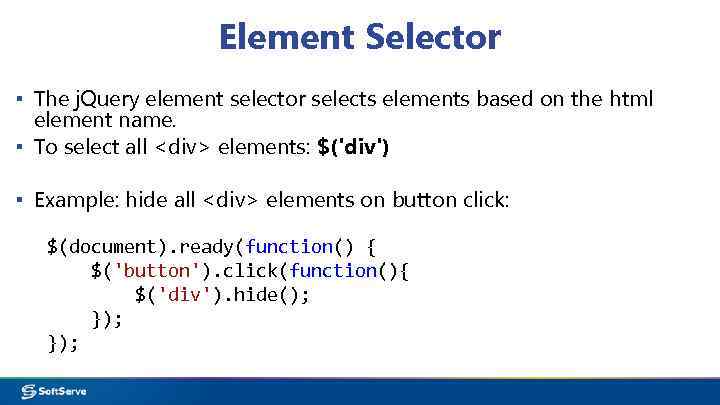 Element Selector ▪ The j. Query element selector selects elements based on the html element name. ▪ To select all
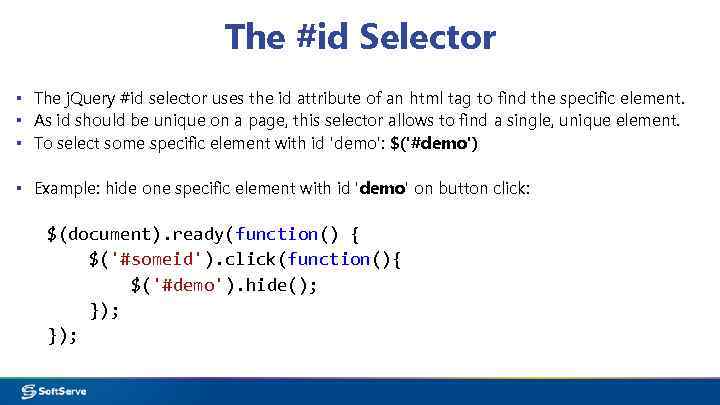 The #id Selector ▪ The j. Query #id selector uses the id attribute of an html tag to find the specific element. ▪ As id should be unique on a page, this selector allows to find a single, unique element. ▪ To select some specific element with id 'demo': $('#demo') ▪ Example: hide one specific element with id 'demo' on button click: $(document). ready(function() { $('#someid'). click(function(){ $('#demo'). hide(); });
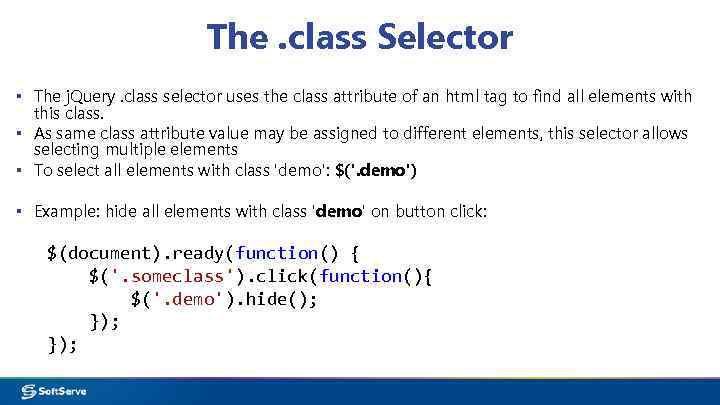 The. class Selector ▪ The j. Query. class selector uses the class attribute of an html tag to find all elements with this class. ▪ As same class attribute value may be assigned to different elements, this selector allows selecting multiple elements ▪ To select all elements with class 'demo': $('. demo') ▪ Example: hide all elements with class 'demo' on button click: $(document). ready(function() { $('. someclass'). click(function(){ $('. demo'). hide(); });
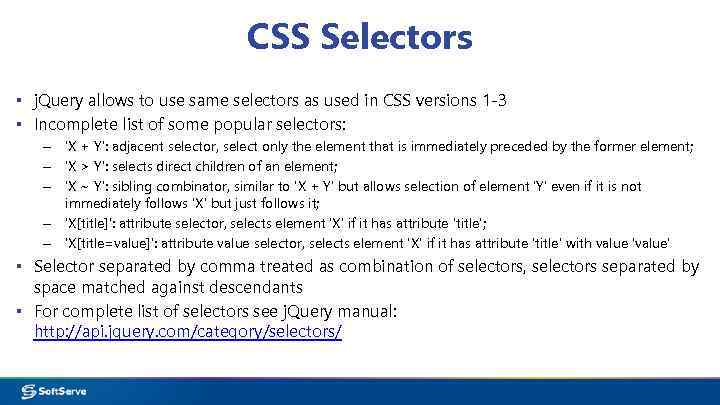 CSS Selectors ▪ j. Query allows to use same selectors as used in CSS versions 1 -3 ▪ Incomplete list of some popular selectors: – 'X + Y': adjacent selector, select only the element that is immediately preceded by the former element; – 'X > Y': selects direct children of an element; – 'X ~ Y': sibling combinator, similar to 'X + Y' but allows selection of element 'Y' even if it is not immediately follows 'X' but just follows it; – 'X[title]': attribute selector, selects element 'X' if it has attribute 'title'; – 'X[title=value]': attribute value selector, selects element 'X' if it has attribute 'title' with value 'value' ▪ Selector separated by comma treated as combination of selectors, selectors separated by space matched against descendants ▪ For complete list of selectors see j. Query manual: http: //api. jquery. com/category/selectors/
 DOM Manipulation
 Introduction to DOM Manipulation with j. Query ▪ j. Query provides powerful methods to manipulate the DOM in some manner ▪ Some methods simply change one of the attributes of an element, while others set an element’s style properties. ▪ Other methods modify entire elements (or groups of elements) themselves - inserting, copying, removing, and so on. ▪ All of the methods listed above are referred to as 'setters, ' as they change the values of properties. ▪ There also methods called 'getters' as they allow to retrieve information from DOM for later use.
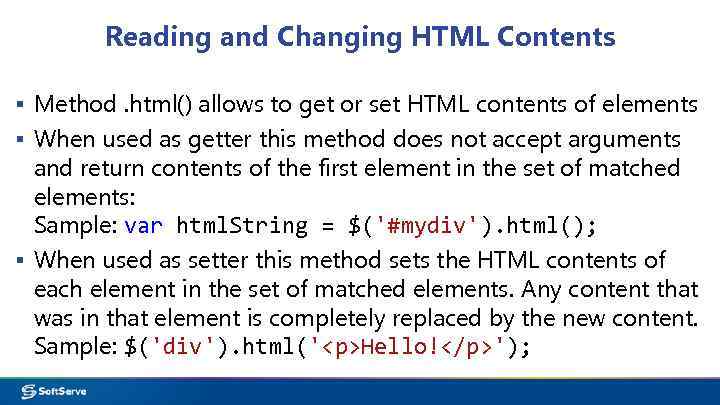 Reading and Changing HTML Contents ▪ Method. html() allows to get or set HTML contents of elements ▪ When used as getter this method does not accept arguments and return contents of the first element in the set of matched elements: Sample: var html. String = $('#mydiv'). html(); ▪ When used as setter this method sets the HTML contents of each element in the set of matched elements. Any content that was in that element is completely replaced by the new content. Sample: $('div'). html('
Hello!
');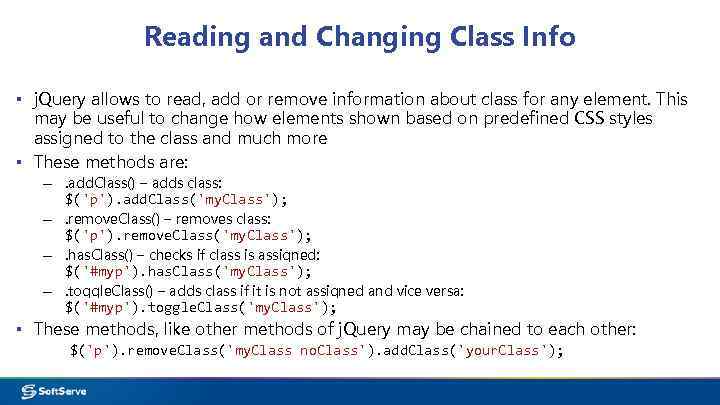 Reading and Changing Class Info ▪ j. Query allows to read, add or remove information about class for any element. This may be useful to change how elements shown based on predefined CSS styles assigned to the class and much more ▪ These methods are: –. add. Class() – adds class: $('p'). add. Class('my. Class'); –. remove. Class() – removes class: $('p'). remove. Class('my. Class'); –. has. Class() – checks if class is assigned: $('#myp'). has. Class('my. Class'); –. toggle. Class() – adds class if it is not assigned and vice versa: $('#myp'). toggle. Class('my. Class'); ▪ These methods, like other methods of j. Query may be chained to each other: $('p'). remove. Class('my. Class no. Class'). add. Class('your. Class');
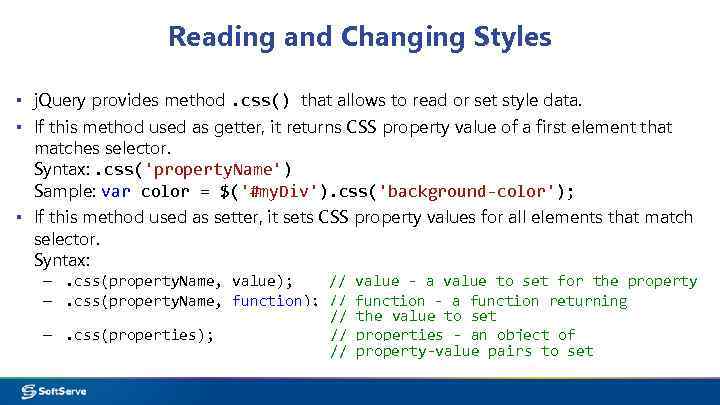 Reading and Changing Styles ▪ j. Query provides method. css() that allows to read or set style data. ▪ If this method used as getter, it returns CSS property value of a first element that matches selector. Syntax: . css('property. Name') Sample: var color = $('#my. Div'). css('background-color'); ▪ If this method used as setter, it sets CSS property values for all elements that match selector. Syntax: –. css(property. Name, value); // value - a value to set for the property –. css(property. Name, function); // function - a function returning // the value to set –. css(properties); // properties - an object of // property-value pairs to set
 j. Query Event Handling
 j. Query Event Basics ▪ It is very convenient to use j. Query to set up event-driven responses on page elements. ▪ These events are often triggered by the end user's interaction with the page, such as when text is entered into a form element or the mouse pointer is moved. ▪ In some cases, such as the page load and unload events, the browser itself will trigger the event. ▪ j. Query offers convenience methods for most native browser events. These methods are — including. click(), . focus(), . blur(), . change(), etc.
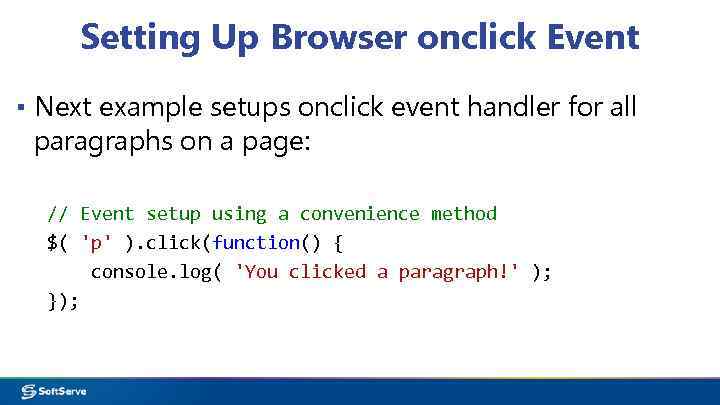 Setting Up Browser onclick Event ▪ Next example setups onclick event handler for all paragraphs on a page: // Event setup using a convenience method $( 'p' ). click(function() { console. log( 'You clicked a paragraph!' ); });
 Usin. on() Method ▪ There is an alternate method to set event handlers: j. Query. on() method. ▪ The on method is useful for binding the same handler function to multiple events, when you want to provide data to the event handler, when you are working with custom events, or when you want to pass an object of multiple events and handlers.
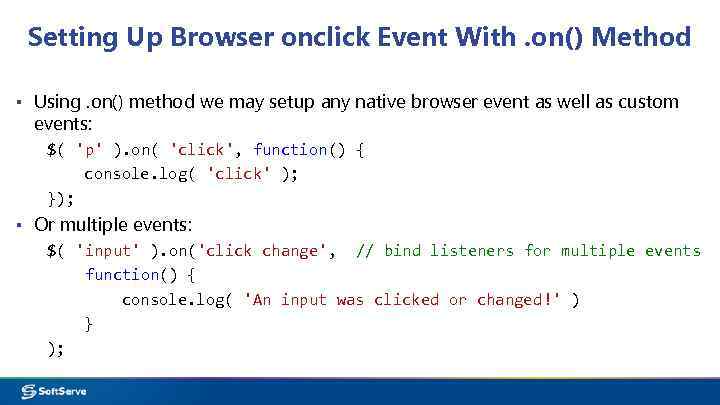 Setting Up Browser onclick Event With. on() Method ▪ Using. on() method we may setup any native browser event as well as custom events: $( 'p' ). on( 'click', function() { console. log( 'click' ); }); ▪ Or multiple events: $( 'input' ). on('click change', // bind listeners for multiple events function() { console. log( 'An input was clicked or changed!' ) } );
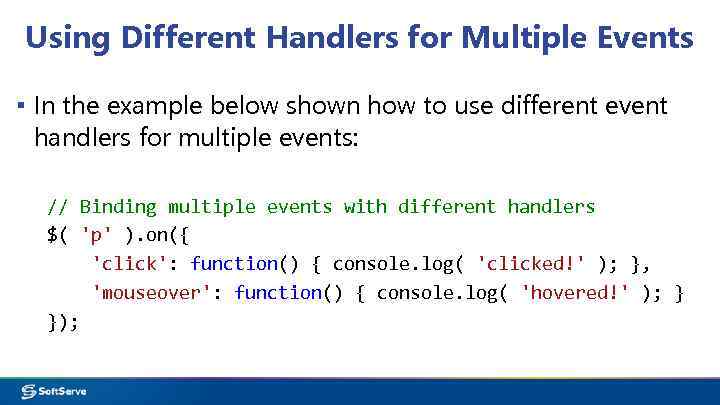 Using Different Handlers for Multiple Events ▪ In the example below shown how to use different event handlers for multiple events: // Binding multiple events with different handlers $( 'p' ). on({ 'click': function() { console. log( 'clicked!' ); }, 'mouseover': function() { console. log( 'hovered!' ); } });
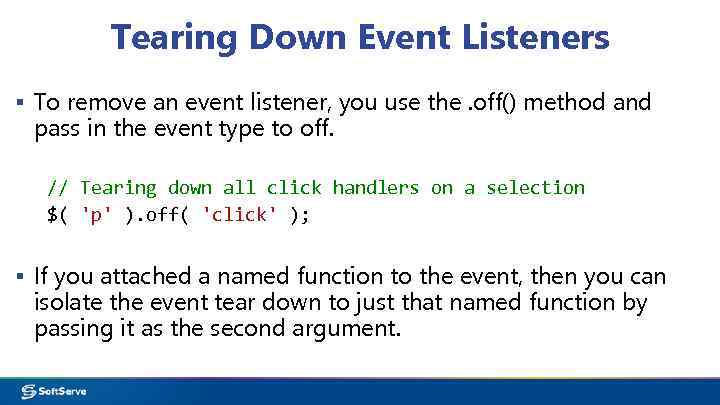 Tearing Down Event Listeners ▪ To remove an event listener, you use the. off() method and pass in the event type to off. // Tearing down all click handlers on a selection $( 'p' ). off( 'click' ); ▪ If you attached a named function to the event, then you can isolate the event tear down to just that named function by passing it as the second argument.
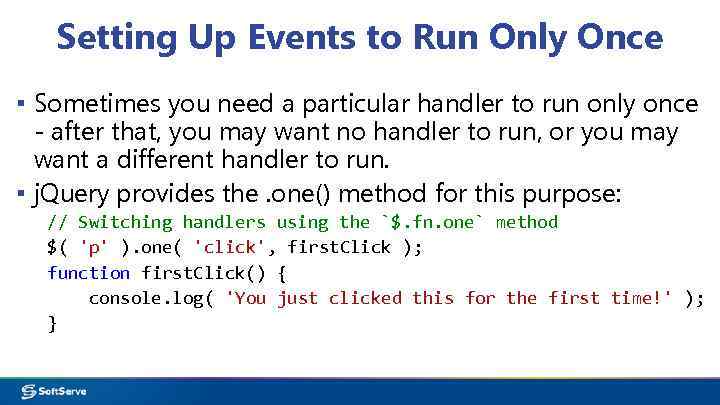 Setting Up Events to Run Only Once ▪ Sometimes you need a particular handler to run only once - after that, you may want no handler to run, or you may want a different handler to run. ▪ j. Query provides the. one() method for this purpose: // Switching handlers using the `$. fn. one` method $( 'p' ). one( 'click', first. Click ); function first. Click() { console. log( 'You just clicked this for the first time!' ); }
 j. Query Effects
 Introduction to Effects ▪ j. Query makes it trivial to add simple effects to your page. Effects can use the built-in settings, or provide a customized duration. You can also create custom animations of arbitrary CSS properties. ▪ Effects include animated showing and hiding of elements on a page, sliding and triggering and much more
 Showing and Hiding Content ▪ j. Query can show or hide content instantaneously with. show() or. hide(). ▪ When j. Query hides an element, it sets its CSS display property to none. This means the content will have zero width and height; it does not mean that the content will simply become transparent and leave an empty area on the page. // $( Instantaneously hide all paragraphs 'p' ). hide(); Instantaneously show all divs that have the hidden style class 'div. hidden' ). show();
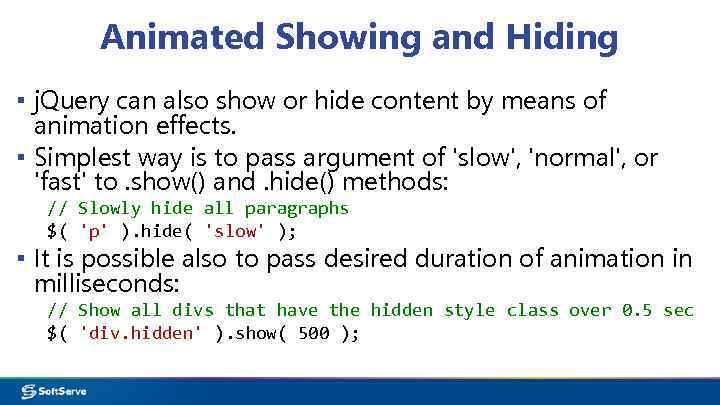 Animated Showing and Hiding ▪ j. Query can also show or hide content by means of animation effects. ▪ Simplest way is to pass argument of 'slow', 'normal', or 'fast' to. show() and. hide() methods: // Slowly hide all paragraphs $( 'p' ). hide( 'slow' ); ▪ It is possible also to pass desired duration of animation in milliseconds: // Show all divs that have the hidden style class over 0. 5 sec $( 'div. hidden' ). show( 500 );
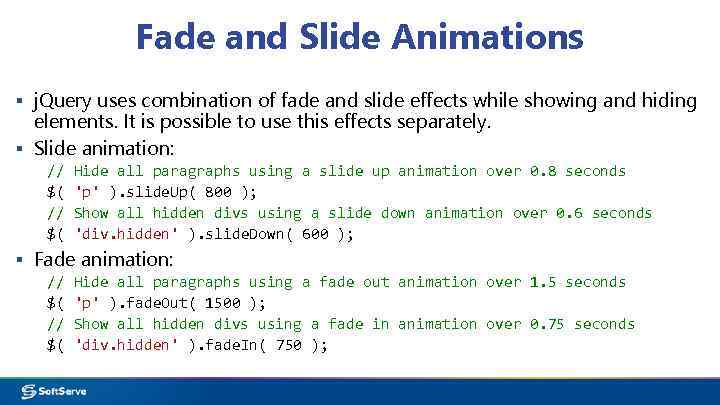 Fade and Slide Animations ▪ j. Query uses combination of fade and slide effects while showing and hiding elements. It is possible to use this effects separately. ▪ Slide animation: // $( Hide all paragraphs using a slide up animation over 0. 8 seconds 'p' ). slide. Up( 800 ); Show all hidden divs using a slide down animation over 0. 6 seconds 'div. hidden' ). slide. Down( 600 ); ▪ Fade animation: // $( Hide all paragraphs using a fade out animation over 1. 5 seconds 'p' ). fade. Out( 1500 ); Show all hidden divs using a fade in animation over 0. 75 seconds 'div. hidden' ). fade. In( 750 );
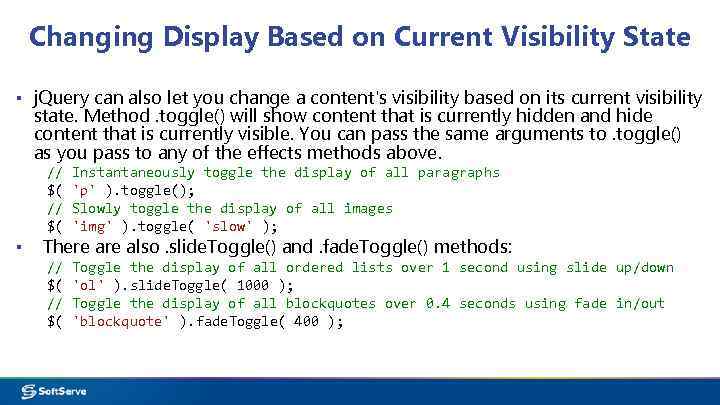 Changing Display Based on Current Visibility State ▪ j. Query can also let you change a content's visibility based on its current visibility state. Method. toggle() will show content that is currently hidden and hide content that is currently visible. You can pass the same arguments to. toggle() as you pass to any of the effects methods above. // $( ▪ Instantaneously toggle the display of all paragraphs 'p' ). toggle(); Slowly toggle the display of all images 'img' ). toggle( 'slow' ); // $( Toggle the display of all ordered lists over 1 second using slide up/down 'ol' ). slide. Toggle( 1000 ); Toggle the display of all blockquotes over 0. 4 seconds using fade in/out 'blockquote' ). fade. Toggle( 400 ); There also. slide. Toggle() and. fade. Toggle() methods:
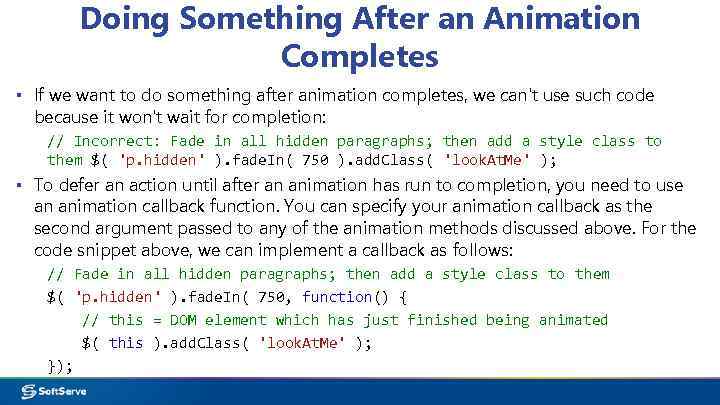 Doing Something After an Animation Completes ▪ If we want to do something after animation completes, we can't use such code because it won't wait for completion: // Incorrect: Fade in all hidden paragraphs; then add a style class to them $( 'p. hidden' ). fade. In( 750 ). add. Class( 'look. At. Me' ); ▪ To defer an action until after an animation has run to completion, you need to use an animation callback function. You can specify your animation callback as the second argument passed to any of the animation methods discussed above. For the code snippet above, we can implement a callback as follows: // Fade in all hidden paragraphs; then add a style class to them $( 'p. hidden' ). fade. In( 750, function() { // this = DOM element which has just finished being animated $( this ). add. Class( 'look. At. Me' ); });
 Useful links
 Links ▪ Official j. Query Website: http: //jquery. com/ ▪ Official j. Query Learning Center: http: //learn. jquery. com/ ▪ w 3 schools. com j. Query Tutorial: http: //www. w 3 schools. com/jquery/
 Thank you!